De todos os usos excêntricos dos AirPods, este é um forte candidato aos mais inusitados: um desenvolvedor utilizou os fones de ouvido da Apple como um monitor de estatísticas para discos de frisbee.
A façanha partiu de Paul Tracer, que compartilhou a descoberta no Reddit e apresentou o seu aplicativo, o Kinapod Disc, para detectar as características de cada arremesso.
Para que a mensuração funcione corretamente, é necessário instalar um AirPod no disco, fixando-o a um pequeno furo centralizado; já no iPhone, é preciso ativar a Detecção Automática de Ouvido dos AirPods. O AirPod instalado no disco também precisa ser definido como microfone, e só depois a sessão de arremessos deverá ser iniciada no Kinapod Disc.
O aplicativo é capaz de medir a taxa de rotações por segundo, a quantidade de giros completos realizados durante o voo, a velocidade estimada de lançamento, o tempo de voo, além de uma avaliação da quantidade e da consistência dos arremessos.
Tudo isso é possível graças aos sensores incluídos nos AirPods, como o giroscópio, além de recursos como o rastreamento da cabeça e outros elementos que auxiliam no funcionamento de recursos como o Áudio Espacial (Spatial Audio).
Segundo Tracer, o app é compatível com todos os AirPods (exceto os AirPods Max, obviamente) lançados a partir de 2019.
NOTA DE TRANSPARÊNCIA: O MacMagazine recebe uma pequena comissão sobre vendas concluídas por meio de links deste post, mas você, como consumidor, não paga nada mais pelos produtos/serviços usando os nossos links de afiliado.
Spotlight doesn’t currently appear able to search Time Machine backups reliably, at least not in Sequoia or Tahoe, although this may not be universal.
[…]
If I now step back through my backups to reach one that I know contains that file, I can restore it. But if I type anything into the search field, nothing is found. If I change the scope of the search to that backup, the window title changes but its contents remain blank, and there isn’t even a busy spinner to indicate a search is in progress.
[…]
As I can’t disable Spotlight indexing on that volume without macOS telling me that it’s required to be indexed by Spotlight, neither can I force that volume to be reindexed.
[…]
My conclusion is that using Spotlight to search Time Machine backups no longer works, and the instructions given by Apple are also broken.
That has been my experience, too. As I see it, there are four separate problems:
I want to be able to search all my backup snapshots, because I don’t know which one might contain the file I want to restore. Time Machine only lets you search one at a time.
Searching an individual snapshot doesn’t actually work.
Spotlight indexing is invasive, using lots of CPU time, and with spinning hard drives causes wear and tear and creates lots of noise. If search doesn’t work anyway, I’d like to turn it off, but macOS won’t let me.
If the problem is with the index, there’s no way to reset it without deleting your backup.
Unfortunately, all those saved versions in the version database fall outside the scope of Spotlight indexing, and Spotlight search can’t look inside any of the old versions saved in a volume’s version database. Surprisingly, the version browser doesn’t offer any search facilities either, as that’s presumably another feature intended for a future that never came.
[…]
One way around this is to save each document version as a separate file, allow Spotlight to extract their contents and add those to its indexes for that volume, then to search those files. This is quick and simple using my free utility Versatility.
Apple today announced that it has rebuilt the search infrastructure that powers key features like Spotlight, Photos, and Mail across all of its major next-generation software platforms.
Level up basic search into a retrieval-augmented system using SpotlightSearchTool and LanguageModelSession. Explore Core Spotlight integration, delegate-based hydration patterns, and how metadata quality impacts your search results. Learn how to use custom PipelineStages for tasks like sentiment analysis. Discover best practices for indexing and building flexible, context-rich search experiences in your app.
So from what I understand from the WWDC keynote, Spotlight is actually going to work?? When I search for simple files, it fails the VAST majority of the time!
Semantic search is different, in that its matches aren’t as crisp and Boolean. Rather than working like a simple index, it’s more like a thesaurus in effect.
[…]
Rather than compiling more exhaustive sets of keywords, semantic search can broaden the scope to cope better. And because we can interact through Siri, we can fine-tune our search results by specifying the cattle should be black and white, perhaps, and combining conventional search criteria such as location.
To get this to work effectively, there are some limitations. Because semantics are so contextual and variable, this involves apps and Core Spotlight. That’s a big benefit to user privacy, as Core Spotlight’s indexes are separated by user and stored locally, although in places like ~/Library/Metadata rather than volume-based Spotlight indexes in the existing hidden .Spotlight-V100 folders. And unlike global Spotlight indexing and search, it requires apps to have code to support both tasks, as it can’t just happen by magic.
While I’m sure we’ll all be impressed with many of the results of semantic search, hits that we never expected to find, it’s going to prove harder to assess those that it misses.
Personally, in my experience, I’ve noticed that the new Spotlight is much faster than the one in MacOS 26 Tahoe. It opens with less delay, and finds the right app or file instantly when Spotlight in Tahoe seems to have had a slight delay.
Already that has revealed the qualities of what would be offered as a Top Hit in its ranked search, with scores such as
mrScore: 0.2516, mrScoreText: 0.6878, kMDItemDisplayName: 1.0000, mrScoreFreshness: 0.50000000, mrScoreResultType: 0.0700, freshnessDate: (null), pommesL1=0.0000, L2=-4999.0283
While most of those are opaque, it’s notable that ‘freshness’ is included in ranking. In contrast, searches made in the Finder’s Find window are unranked, and don’t calculate any of those scores, nor take into account freshness.
That show of respect for its customers may change with iOS/macOS 27. Reports suggest that, at least in the first beta, Apple Intelligence is mandatory[…]
[…]
“So what’s the problem?”, you might ask. Apple’s AI takes up several gigabytes of storage and leaves less headroom for RAM.
Those are small inconveniences, however, compared to my biggest gripe with Siri AI: It’s completely ruined Spotlight.
[…]
The new Siri-first interface that presumes that if you’re searching for anything but an app or file, you must want Siri to feed you a few links of Apple Intelligence’s choosing.
Getting to a web search from a Spotlight query now requires multiple taps: Type your query, tap “Show Results” (careful: hitting enter will trigger Siri to craft a response, eliminating the possibility of seeing any actual Spotlight content), tap on “Show More” next to the list of Siri-surfaced web results, scroll down until you see Search Google (or whatever engine you have set as your default), then tap that.
Apple Intelligence used to be opt-in, but now it seems that you can’t even opt out. I had previously mentioned the removal of the switch in the context of hypocrisy, but it seems there are enough issues here for it to warrant its own post. Also, I had previously written that the switch was combined with Siri, meaning that you could turn off Apple Intelligence if you turned off Siri, too. I now doubt that’s the case.
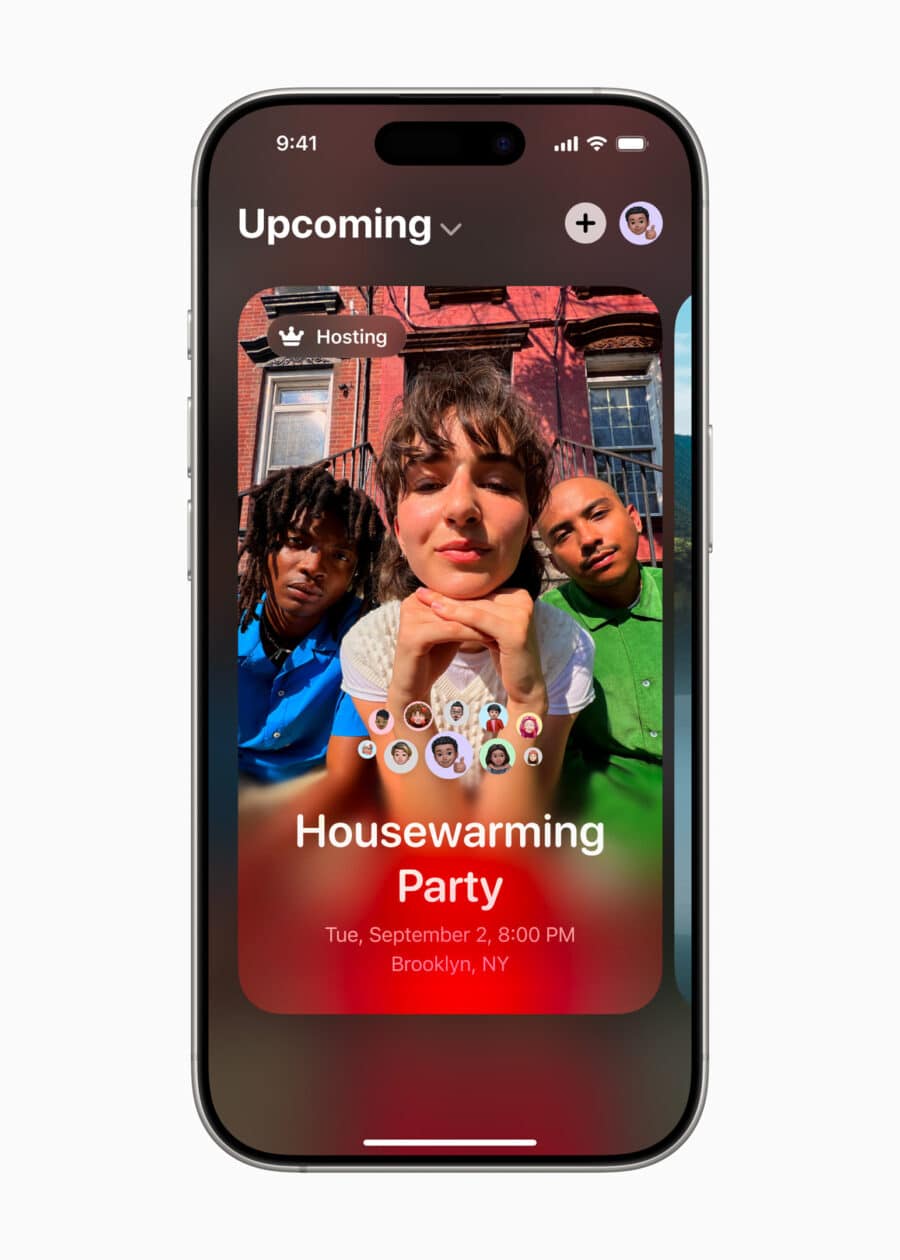
A Apple liberou hoje uma nova atualização para o seu aplicativo Convites (Invites), implementando alguns ajustes pequenos, mas que melhorarão a experiência dos usuários.
Agora, por exemplo, quem organiza/recebe o convite pode reagir às respostas com emojis — o que permitirá que todos possam mostrar seus feedbacks conforme a lista de convidados é montada.
Além de trazer correções de erros e melhorias de desempenho, a Apple ainda adicionou uma animação com confetes que é reproduzida quando alguém responde ao convite para um evento.
TestFlight também ganha atualização
Além do app Convites, a Apple também liberou um update modesto para o TestFlight, que ganhou um campo de busca para encontrar apps rapidamente, além de melhorias de estabilidade e desempenho.
Há algum tempo, o iOS permite compartilhar o seu contato com outra pessoa facilmente por meio do recurso NameDrop, que entra em cena ao aproximar um iPhone do outro.
Por mais prática que essa ferramenta possa ser, porém, ela não chega a atender por completo as necessidades de usuários corporativos, por exemplo, os quais podem ter múltiplas informações de contato salvas nos seus aparelhos — como uma para a vida pessoal e a outra para o trabalho.
E é exatamente essa lacuna que o aplicativo Passable tenta preencher! Focado no app Carteira (Wallet), do iOS, ele permite criar tíquetes digitais personalizados que servem mais como cartões de contato em vez de ingressos ou coisas do tipo, além de poderem ser compartilhados com poucos toques.
O editor do Passable permite mudar, entre outras coisas, detalhes como a cor e o estilo dos seus cartões, bem como adicionar logos e outros elementos visuais. Enquanto um tíquete pode ter um visual mais descontraído para situações mais casuais, outro pode ser mais sério e clean — ideal para o ambiente de trabalho.
Uma vez criado, o tíquete pode ser exportado para o app Carteira e compartilhado com quantas pessoas você quiser. Além disso, caso você exclua ou faça uma alteração no seu cartão, ele será automaticamente atualizado nos iPhones das pessoas com as quais você compartilhou seu contato, o que significa que elas sempre terão o seus dados mais recentes.
Mas não para por aí, já que o Passable também permite criar tíquetes para compartilhar coisas como sites da web, portfólios e até aplicativos da App Store ou do TestFlight — algo que as atuais soluções da Apple não chegam nem perto de fazer.
Com versões para iPhone/iPad, Mac e Apple Vision Pro, ele requer minimamente iOS/iPadOS 18, o macOS 15 ou o visionOS 2.
Com suporte ao português, ele permite criar um tíquete por categoria — limite que é expandido para dez com assinatura Gold, que sai por R$7 mensais, R$55 anuais ou por uma compra única de R$100.
Researchers identified the Chicxulub impactor as an exceptionally rare type of asteroid that wouldn't have triggered a mass extinction in the way scientists previously thought.
Depois de já termos publicado vários vídeos sobre as novidades do iOS 27, chegou a vez de começarmos a cobertura em vídeo do macOS Golden Gate 27 em nosso canal. E não tem jeito melhor de abrir essa série do que falando sobre a mudança mais aguardada do sistema: a Siri AI.
Neste primeiro vídeo, mostramos como funciona o novo app da Siri, os ajustes de voz disponíveis, as melhorias na busca do Spotlight, os recursos da Inteligência Visual a partir de screenshots e as ferramentas de escrita e revisão de texto integradas ao sistema.
A white spot on iPad screen can appear as a bright patch that remains visible while browsing, watching videos or using apps. It may be small and easy to ignore at first, then become distracting whenever the screen shows a white, gray or lightly colored background.
The spot may come from a temporary software problem, but a fixed bright area is more commonly connected to the display hardware. Pressure inside the iPad, a damaged backlight layer, display separation or an impact can create uneven illumination that no setting can remove.
Before arranging a repair, a few simple checks can reveal whether the spot belongs to the image being displayed or to the physical screen itself.
What Causes a White Spot on iPad Screen?
A white spot on iPad screen is often described as a bright spot, pressure mark or backlight patch. On iPads with LCD displays, light passes through several internal layers before reaching the glass. When one of those layers becomes damaged, separated or compressed, light can concentrate in one area.
The mark may be more visible against pale backgrounds and almost disappear when the screen displays black or dark content. This is different from a dead pixel, which usually appears as a tiny fixed dot rather than a larger cloudy patch.
Pressure is one possible cause. Carrying an iPad in an overloaded bag, placing heavy objects on it or using a tight case can place stress on the display. A drop may also disturb the internal screen layers without cracking the front glass.
Battery swelling can create similar pressure from inside the device. If the screen is lifting from the frame, the iPad feels unusually warm or the body appears bent, stop using it and seek service. A swollen battery should not be pressed back into place or handled as an ordinary screen defect.
The problem can also appear after a display replacement involving a poorly fitted or lower-quality part. Apple notes that nongenuine displays may produce inconsistent brightness, color or touch behavior.
Image Credit:
Check Whether the Spot Is Really on the Display
Begin by opening several different apps. Look at the spot over a white webpage, a gray Settings screen, a dark photo and a full-screen video. A hardware-related mark normally stays in the same physical location regardless of what appears underneath it.
Rotate the iPad. If the content changes orientation but the bright patch remains in the same part of the glass, the display is the likely cause.
Taking a screenshot provides another useful test. A physical screen defect will not normally become part of the screenshot file.
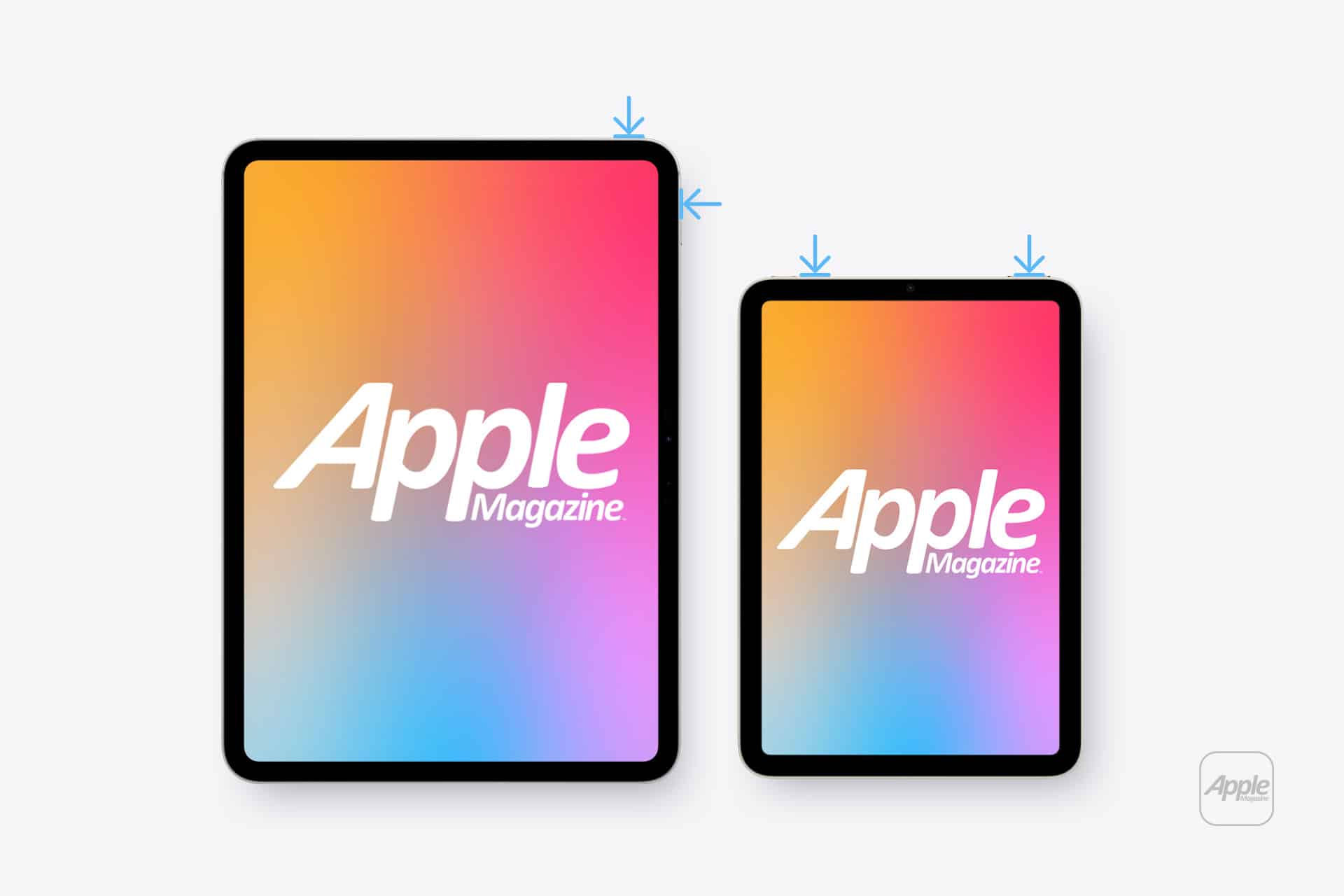
To take a screenshot on an iPad without a Home button:
Top button + either volume button
To take a screenshot on an iPad with a Home button:
Top button + Home button
Open the screenshot on another device or send it to a trusted computer. If the white spot does not appear there, the image generated by iPadOS is normal and the problem is probably inside the display assembly.
If the mark appears in the screenshot, it may belong to an app, image, accessibility setting or software effect rather than the panel.
Restart Before Assuming Hardware Failure
A restart is worth trying because it clears temporary display and system behavior without affecting personal files. It is unlikely to repair physical backlight damage, but it can eliminate a short-lived graphical problem.
To restart an iPad without a Home button:
Press and hold the top button and either volume button > Drag the power slider > Wait approximately 30 seconds > Hold the top button until the Apple logo appears
To restart an iPad with a Home button:
Press and hold the top button > Drag the power slider > Wait approximately 30 seconds > Hold the top button until the Apple logo appears
After restarting, return to the same pale background and check the area again. A spot that remains fixed is unlikely to be caused by a temporary iPadOS issue.
Image Credit: AppleMagazine
Brightness Can Make the Problem More Visible
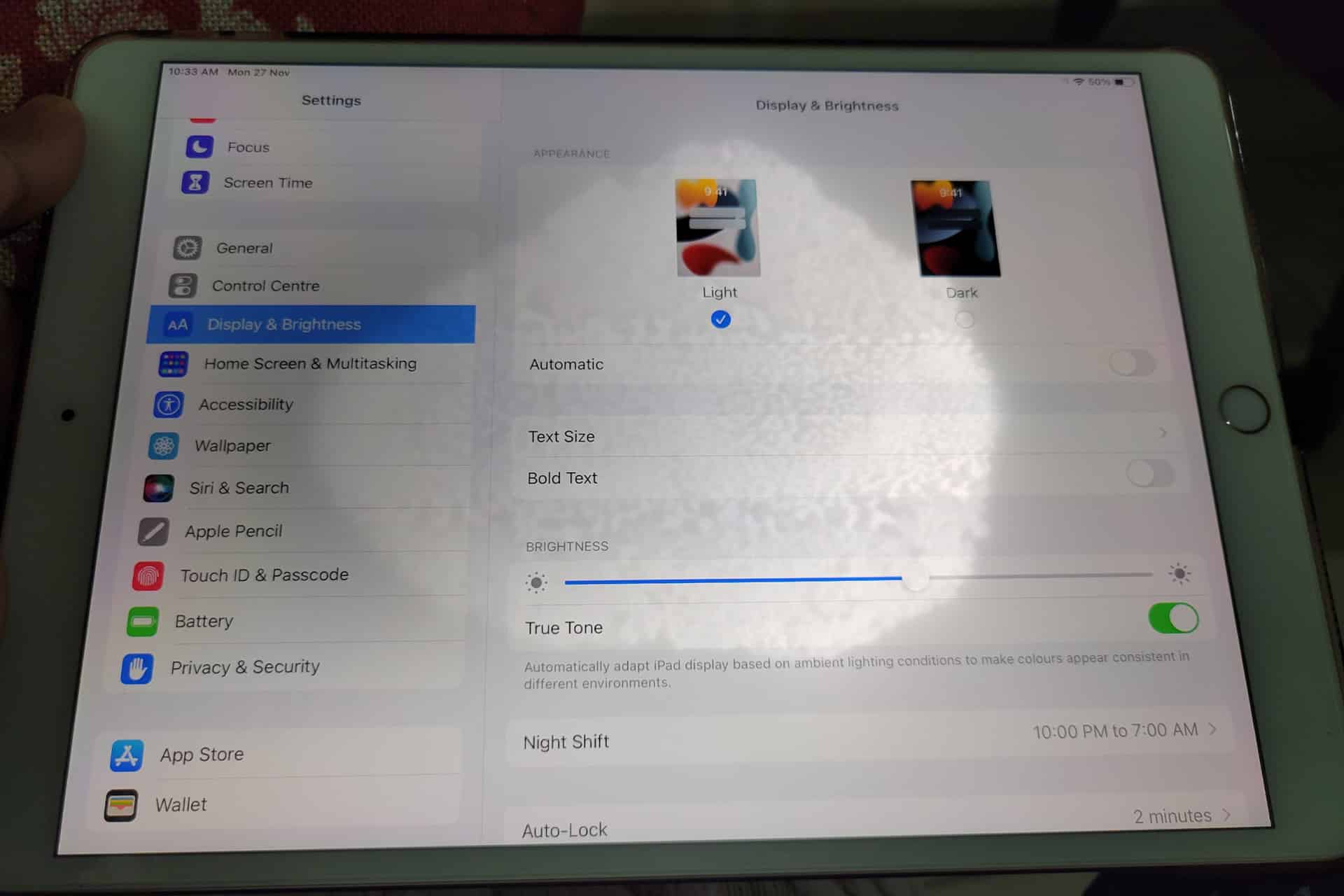
Lowering brightness may make a bright patch less distracting, but it does not repair the underlying display. The same applies to Dark Mode, Night Shift and Reduce White Point. These settings can change how noticeable the mark becomes without removing it.
To adjust screen brightness:
Settings > Display & Brightness > Brightness
Test the iPad at several brightness levels. A backlight-related spot may become easier to see as brightness increases. Photographing the screen against a plain background at medium and high brightness can also help document the defect before requesting service.
Avoid pressing or rubbing the affected area. Pressure may temporarily change the appearance, but it can damage the display further. Internet advice suggesting that users massage bright spots out of a panel should be ignored.
Check the Case and Screen Protector
Remove any rigid case that appears unusually tight or has been damaged. A poorly fitted case can place uneven pressure around the frame, particularly if the iPad has been dropped while inside it.
A screen protector normally cannot create a true illuminated patch beneath the display. It can, however, produce bubbles, trapped moisture or reflective marks that resemble a screen defect. Examine the iPad with the display turned off. If the mark is visible on the surface even when the screen is black, the protector or glass may be involved.
Do not remove a properly installed protector solely as an experiment unless the mark clearly appears close to its surface. A bright patch visible only while the display is illuminated usually comes from deeper inside the screen.
When the iPad Needs Repair
A persistent white spot generally requires display service when it remains after restarting and does not appear in screenshots. There is no iPadOS setting that can realign a damaged diffuser, remove internal pressure or repair separated display layers.
Back up the iPad before service so photos, documents and app data remain protected.
To create an iCloud backup:
Settings > your name > iCloud > iCloud Backup > Back Up Now
Apple can inspect the device and determine whether the defect qualifies for warranty coverage, AppleCare service or paid repair. Coverage depends on the device, purchase date, condition and whether the problem resulted from accidental damage.
To check coverage:
Settings > General > AppleCare & Warranty
Apple or an Apple Authorized Service Provider may replace the display assembly or the iPad, depending on the model and available service process. The final repair estimate normally requires inspection.
Image Credit: AppleMagazine
Do Not Ignore Physical Changes
A stable white spot that has not changed for months may remain only a visual annoyance. A spot that is expanding, accompanied by screen lifting or followed by unusual heat needs faster attention.
Stop using the device if the display separates from the enclosure, the iPad becomes visibly swollen or pressure marks spread across the panel. Do not puncture the device, force the display closed or continue charging it unattended.
For an ordinary fixed bright patch, the practical path is simpler: confirm it does not appear in screenshots, restart the iPad, remove any case applying pressure and arrange display service if the mark remains.
A white spot on iPad screen rarely affects the information stored on the device, but it can indicate physical damage that software cannot correct. A brief check can rule out the easy causes. After that, repair is usually more effective than repeatedly changing display settings and hoping the light disappears.
I have a Mac Studio M2 Max with 32 GB of RAM and a 1 TB SSD in front of me. While not the most powerful personal computer you can purchase today, it is among the most computationally capable ever made—a vastly capable machine. So why do I have to wait for typing to catch up with me and see a rainbow spinner on the regular?
I’ll tell you why: iCloud Drive and Spotlight. Apple lacks any transparency about how iCloud Drive works or fails. The same is true of Spotlight. These big black boxes churn away, performing a million billion operations a day, and we don’t know exactly what they do. That’s not me being conspiratorial: I honestly don’t care what’s happening under the hood—until it breaks. Without diagnostic tools, even someone like me, ostensibly an expert, can be completely at a loss and waste many hours.
I wrote “Cloudy with a Chance of Insanity: Unsticking iCloud Drive” for TidBITS back in October 2023 about a multi-month odyssey with Apple technical support in trying to dislodge unsyncable files.1 That problem has barely surfaced since—an 80K file will sometimes get stuck for a while—and I thought Apple might have really solved syncing, at least as exhibited on my Mac. I receive dramatically fewer emails about iCloud Drive than I used to, which is another data point.
But Mr. Edge Case here can always find a way to break something.2 I’ve been working on a large manuscript for my upcoming book, Flong Time, No See, a revised and expanded collection of researched articles I’ve written about printing and type history over the last several years.3 I pasted in text that was typically copied from Web pages, and wound up with over 250 footnotes.
While putting together the files for this book, Apple released its Creator Studio system, and shipped Pages 15. After having no problems, I dutifully switched over. This was months ago, and as I continued to work on this reasonably large file—weighing it at about 60,000 words now—everything seemed fine.
A few weeks ago, however, I started to experience system slowdowns. Pages was taking up 12 GB of system memory! System load went through the roof! CPU consumption was outlandish! All signs pointed to corespotlightd, a long-time enemy of performance. That daemon handles background indexing for Spotlight, and the slightest thing wrong in a file or directory, or perhaps due to mild corruption in its underlying files, turns it into a rampaging beast that eats processor cycles like I consume potato chips.4
There’s a well-known procedure for killing this beast, though another is spawned from its remains: stop the index, delete the index files, restart, and re-enable indexing. From the Terminal, use these commands. Make a backup before proceeding. Take extreme care with rm -rf, as a misstep in entering or copying can wipe out files!
 sudo mdutil -a -i off
 rm -rf ~/Library/Metadata/CoreSpotlight
You can use Restart from the Apple Menu while holding down the Option key (to avoid being asked), or you can take a shortcut from Terminal, assuming you have ensured all files are saved:
sudo reboot
After your Mac restarts, go back to the Terminal and re-enable indexing:
sudo mdutil -a -i on
For many (perhaps most) people, this solves the problem. For me, it just delayed it. With some isolation using System Settings: Spotlight: Search Privacy, I added specific folders, such as mail archives, since that seemed like it might be part of the problem.
Search Privacy lets you exclude volumes and directories from Spotlight indexing, which can remove unwanted results and sometimes (only sometimes!) reduce thrashing.
One piece of advice I found suggested that if I thought Pages was the problem, I should exclude the iCloud Drive path containing Pages files. Fine! I clicked the plus icon in Search Privacy, pressed Command-Shift-G to bring up the path dialog, entered ~/Library/Mobile Documents/com~apple~Pages/, and clicked Choose. This seemed to work for a while, then nothing availed.
Finally, after analyzing logs and caches, the culprit was clear. It was not that large a Pages file: every time I saved, Spotlight’s worker bee was performing excessive re-indexing that consumed gigabytes and one or more processor cores. Moving the file to a local directory (in my Documents folder) while editing eliminated the problem. It also freed up space, as the temporary Spotlight indexes and Time Machine snapshots had become absurdly large.
289 footnotes seem to be fine for Pages, but Spotlight and iCloud Drive find them hard to swallow.
What could Apple have done to help here? This is where I would hope machine learning, coupled with some interactive code- and system-expertise bots, could help:
Note that a system component is acting well outside known parameters.
Identify CPU usage that is tied to Apple-owned processes.
Provide a troubleshooting tool, even suggesting it in notifications.
Create human-readable logs that don’t require system administrator knowledge to interpret.
In the case I describe above, an Apple-created daemon was rampaging out of control due to a single identifiable file!—cascading into other problems. It should be solvable by Apple. The fact that we have more power under the hood by orders of magnitude in the past, coupled with neural cores in the CPU packages, just makes this even more embarrassing. Solve Siri, Apple, yes, but real transparency and troubleshooting in macOS would also make a big difference.
[Got a question for the column? You can email glenn@sixcolors.com or use/glennin our subscriber-only Discord community.]
I should have made an unsinkable/unsyncable pun in the title, but there is an esprit d’escalier moment for everything. ↩
An “edge case” is something that is often considered unlikely to occur with a product, whether software, hardware, or mechanical. Yet, no matter how much I’m just trying to get something done, I apparently trigger edge cases all the time. Software companies “love” me for this. ↩
Flong is a kind of paper-like mold that was extremely useful during the days of metal-based relief printing. Of course, you can pre-order a copy to get the full scoop! ↩
The 33 engines of the rocket’s booster stage had begun to ignite during Thursday’s launch attempt, but were then shut down. SpaceX will try again on another day.
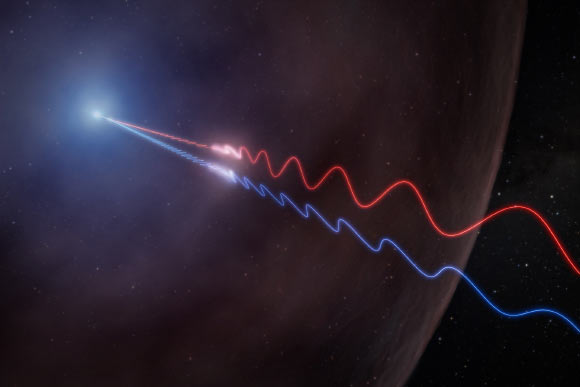
Using NSF’s Very Large Array (VLA), astronomers made the first radio detection of polarized light and Faraday rotation from a gamma-ray burst afterglow, offering an unprecedented glimpse of the magnetic fields surrounding one of the Universe’s most powerful explosions.
Nearly 400 days and a billion kilometers after leaving Earth, China’s Tianwen-2 spacecraft has arrived at its target: the near-Earth asteroid 469219 Kamoʻoalewa, also known as 2016 HO3. And the mission’s first photo of the rock has already had scientific impact, reopening an ongoing investigation over whether Kamoʻoalewa began as a chunk of the Moon.Continue reading "Tianwen-2 arrives at target asteroid Kamoʻoalewa"
Let the science begin: The world’s first commercial space telescope is up and running. On July 6, Blue Skies Space delivered data from its Mauve satellite to the international roster of universities enrolled in the Mauve Science Program, shifting the mission into full scientific operations. It’s the next step for a mission that reached orbitContinue reading "The first commercial space telescope delivers"
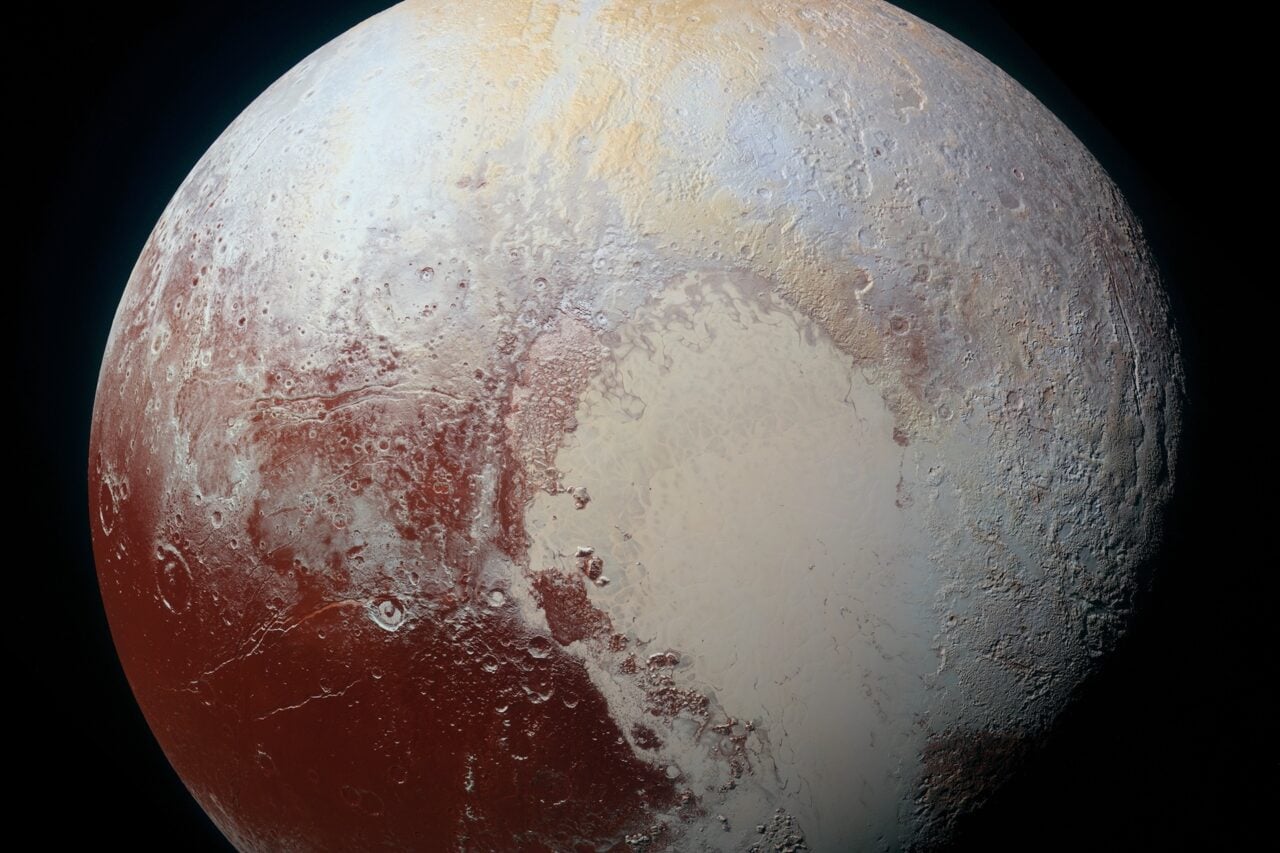
New Horizons launched in January 2006, and by July 14, 2015, it had reached its primary goal: Pluto. The first spacecraft to study Pluto up close, it conducted measurements of Pluto’s atmosphere, mapped the surface geology, observed Pluto’s moons. New Horizons also investigated the dwarf planet’s interior structure, adding support to the theory that PlutoContinue reading "July 14, 2015: New Horizon arrives at Pluto"
A new ruling by the U.S. Supreme Court protecting voter rights could extend to astronauts living and working in space and training internationally, their families, and the multitude of NASA workers who travel to support their missions.
On Monday (June 29), the Supreme Court ruled that mail-in ballots can be counted toward a total vote even if they arrive after election day, as long as they are postmarked by election day. The ruling followed efforts by the Trump Administration to place restrictions on mail-in voting. In a new statement, the nonpartisan activist organization Astronauts for America spoke out in support of the Supreme Court's decision, which supports absentee voting.
"We don't want to see barriers put in place [that] make it more challenging for somebody to exercise their constitutional right of voting," retired NASA astronaut Wendy Lawrence told Space.com. Lawrence is a member of Astronauts for America, as well as a veteran of the U.S. Navy, where she served as a captain, engineer and helicopter pilot.
What happened?
An executive order issued by President Trump in March 2026 attempted to place a number of restrictions on voting in the country, including limitations on mail-in or absentee voting. The order directed the United States Postal Service to only transmit ballots for states that compile and submit lists of eligible mail-in voters 60 days before elections, added requirements and complications to mail-in ballots and attempted to limit who receives a ballot in the mail.
This order not only added layers to limit voting access, but it conflicted with existing procedures set by states for absentee voting. Additionally, the U.S. Constitution places the authority to change election rules and processes with Congress, not the president, though this was not the first executive order put out by Trump to attempt to change election rules, CNN has reported.
In a 5-4 ruling, the Supreme Court blocked the U.S. Postal Service from carrying out this executive order, declaring that mail-in ballots may be counted if they arrive up to five days after election day, as long as they are postmarked by election day.
"This is key to making sure we have free and fair elections, that people have the ability to cast their vote, and it's not an overwhelming burden for them to do that again," said Lawrence.
Astronauts vote (and so do the people around them)
In a statement shared on social media, Astronauts for America commented on the recent ruling.
"We at Astronauts for America are pleased to see the justices take this critical step toward safeguarding free and fair elections, and ensuring that every eligible voter has their ballot counted," the statement reads. "As astronauts, some of us cast our votes from space. As military veterans, many of us relied on voting by mail. Upholding this grace period ensures that astronauts and other Americans are able to exercise their civil rights."
"Voting is the cornerstone of our American democracy, and this is an important step forward in our battle to ensure everyone has the right to vote," the statement continued. "While the Supreme Court ruling should be celebrated, we must continue standing up for our democracy and constitutional principles."
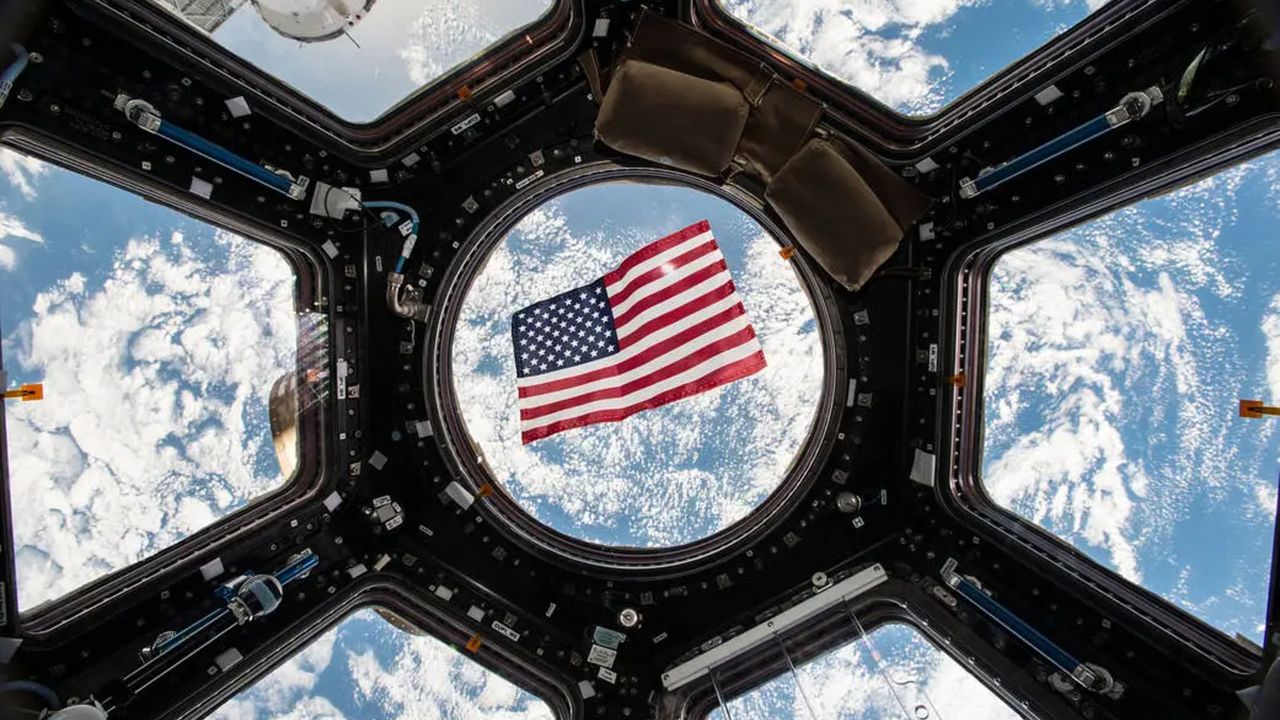
Astronauts have used absentee voting systems for decades, and they do so regularly: Astronauts have been living in orbit on board the International Space Station continuously since November 2000. When astronauts are going to be in space during an election, NASA has a digital system that allows them to submit absentee votes. But as the statement above suggests, astronauts don't just need absentee voting during their space missions.
Astronaut training can take place all around the world, especially if there is a mission with international collaboration. Lawrence shared that, during her tenure with NASA's space shuttle program, there was a 16-month period when she had to live and train full-time in Russia. And, astronauts don't prepare for space in a vacuum. Family members like spouses might travel with them for long-term training, and there are a wide variety of mission managers and support staff for crewed missions (and their families) who might have to be on long-term travel as well.
Additionally, many astronauts like Lawrence are also military veterans who, during their service, are only able to vote through absentee voting, sometimes for years on end. While this ruling extends far past astronauts, even within the space sector, absentee voting has protected the constitutional rights of many.

 Login
Login