
 Login
Login
What does Your Processor Look Like? A One-Click guide to Checking your Computer’s CPU Model.
Your computer’s processor, or CPU, is the brain of your machine. Knowing your CPU model can help you understand your computer’s performance capabilities, troubleshoot issues, or decide whether it’s time for an upgrade. The good news? Finding out which CPU you have is quick and easy. Here’s a simple one-click guide to checking your computer’s processor.
Why Knowing Your CPU Matters
Your CPU affects everything from running applications to gaming performance. Different CPUs have different speeds, core counts, and architectures. By knowing your processor model, you can:
- Check if your computer meets software requirements
- Optimize system performance
- Compare it with newer CPUs for potential upgrades
- Understand your computer’s multitasking and gaming capabilities
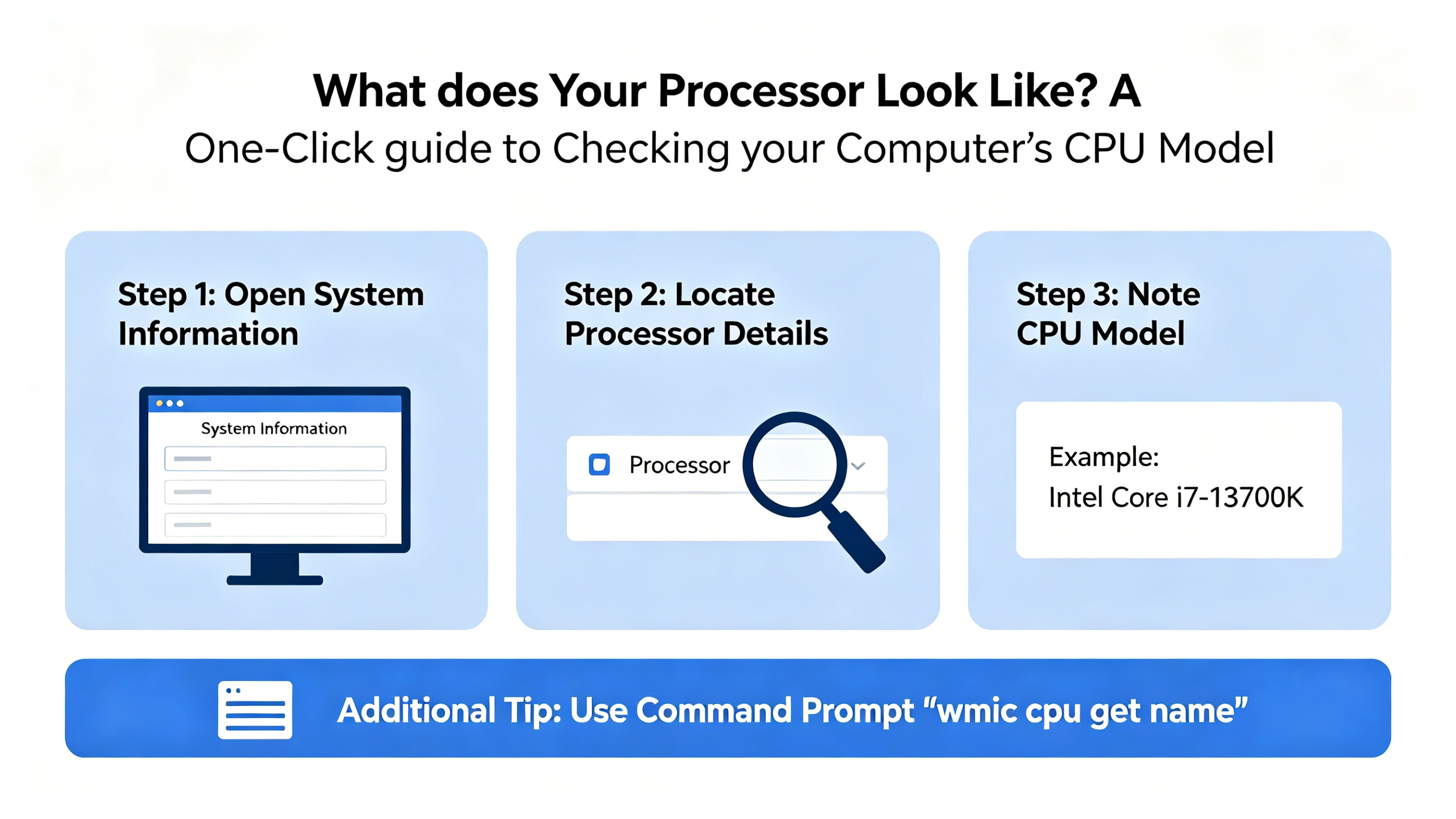
Method 1: Using System Information (Windows)
- Press Windows + R to open the Run dialog.
- Type msinfo32 and press Enter.
- In the System Information window, look for Processor. You’ll see the exact CPU model and speed listed.
This method works on all versions of Windows and provides detailed system specs in addition to your CPU.
Method 2: Using Task Manager (Windows 10/11)
- Right-click on the Taskbar and select Task Manager.
- Go to the Performance tab.
- Click CPU on the left. You’ll see your CPU’s name, cores, threads, and current speed.
This method is quick, visual, and useful if you want to monitor CPU usage in real time.
Method 3: On Mac Computers
- Click the Apple menu in the top-left corner.
- Select About This Mac.
- In the Overview tab, you’ll see your Mac’s processor listed, along with memory and macOS version.
Method 4: Using Terminal (Advanced Users)
- Windows: Open Command Prompt and type
wmic cpu get name - Mac: Open Terminal and type
sysctl -n machdep.cpu.brand_string - Linux: Open Terminal and type
lscpu
These commands display your CPU model quickly and are useful for scripting or remote troubleshooting.
Conclusion
Checking your CPU model doesn’t have to be complicated. Whether you prefer a graphical interface or command-line approach, these one-click or one-command methods give you all the information you need. Knowing your processor is the first step to optimizing performance, installing compatible software, and planning future upgrades.
The post What does Your Processor Look Like? A One-Click guide to Checking your Computer’s CPU Model. appeared first on IGeeKphone China Phone, Tablet PC, VR, RC Drone News, Reviews.


.jpg)
