Desativada por padrão, ela lembra, de certa forma, a interface de ajuste dos estilos fotográficos do iOS, com o usuário tendo que segurar e arrastar o dedo — ou, no caso do Siri no macOS 27, o cursor do mouse — por uma malha de pontos brancos.
Como explicado por mactracker, conforme o cursor do mouse navega por essa malha, a voz da Siri é modulada para reproduzir certas características. Quanto mais o cursor do mouse se aproxima de um ponto, mais clara a voz da Siri fica.
Esse “voice pad”, como a interface está sendo popularmente chamada, também conta com animações elaboradas e bastante coloridas, além de vir acompanhado de um áudio de referência — com direito a Áudio Espacial (Spatial Audio) — que fica tocando sem parar no fundo.
Ainda segundo as informações, essa malha comporta 13 pontos diferentes, sugerindo que o novo sistema operacional do Mac ganhará novas opções de vozes para a assistente virtual. Como a quarta beta do macOS 27 não conta com todos os modelos de voz necessários, no entanto, apenas 2 opções personalizadas podem ser definidas pelo usuário por enquanto.
A nova versão do sistema também inclui um arquivo com descrições (algumas mais completas do que outras) para todas essas 13 vozes:
Gênero
Idade
Características
Estilo
Feminino
Jovem
Fala mansa
—
Feminino
Jovem
Sussurrante, brilhante, suave
—
Feminino
Adulto na faixa dos 20 anos
—
—
Feminino
Adulto na faixa dos 30 anos
—
Amigável
Feminino
Adulto na faixa dos 30 anos
—
Entusiasmada, relaxada, aconchegante
Feminino
Adulto na faixa dos 40 anos
—
—
Feminino
Velho
—
—
Masculino
Jovem
—
—
Masculino
Adulto na faixa dos 30 anos
Profunda
—
Masculino
Adulto na faixa dos 30 anos
Suave
—
Masculino
Adulto na faixa dos 30 anos
Rica
Amigável
Masculino
Velho
—
—
Masculino
Desconhecido
—
—
Ativar essa interface, porém, não é exatamente fácil, com usuários tendo que desativar o recurso System Integrity Protection (SIP) e sobrepor o código interno usando um depurador. Caso contrário, o sistema continuará exibindo o menu tradicional da voz da Siri no app Ajustes do Sistema (System Settings).
Por fim, embora essa interface tenha sido encontrada apenas no macOS 27, ela utiliza o mesmo framework de configuração da Siri que o iOS 27 e o iPadOS 27, o que sugere que ela também poderá dar as caras em iPhones e iPads. Ademais, também foi confirmado que ela será localizada para 44 outros idiomas.
Dando continuidade à nossa série de vídeos sobre o macOS Golden Gate 27, desta vez o foco foi em novidades que espalham inteligência artificial por diferentes cantos do sistema: Safari, Atalhos (Shortcuts), Finder, Image Playground e Fotos (Photos).
Neste segundo vídeo, mostramos o agrupamento inteligente de abas no Safari, os recursos de IA no app Atalhos e a sugestão inteligente de nomes para pastas no Finder, feita com base no conteúdo que elas guardam. Fechamos com o Image Playground e as novas ferramentas da Apple Intelligence que chegaram ao app Fotos.
A Apple está testando uma nova interface na beta do macOS Golden Gate 27 que exibe uma série de atalhos da Siri AI sempre que o usuário seleciona texto em um app qualquer.
Descoberta pelo usuário identificado como “pdfu” em uma comunidade do Reddit, a novidade está claramente inacabada, o que explica o fato de ela vir desativada por padrão nas versões mais recentes do sistema operacional.
Como é possível notar abaixo, a interface assume a forma de um popover que aparece no canto superior esquerdo da seleção feita pelo usuário. Além disso, os atalhos são contextuais, o que significa que ações diferentes poderão ser sugeridas dependendo do conteúdo em destaque.
Caso o usuário esteja trabalhando em um texto, o recurso exibirá atalhos relacionados às Ferramentas de Escrita (Writing Tools), só para citar um exemplo. Ainda de acordo com as informações, o recurso também pode sugerir ações como enviar um email, adicionar um número aos contatos, exibir um endereço no app Mapas (Maps) ou rastrear um voo.
Para desativar a novidade (o que talvez se prove necessário, já que, como dito, ela ainda está inacabada e apresenta inconsistências), basta abrir o Terminal novamente, rodar o comando a seguir e reiniciar o Mac:
Como essa nova interface já está disponível (mesmo que escondida) nas betas do macOS 27, é bem possível que ela dê as caras em uma futura versão de teste do sistema — provavelmente em um estado bem mais polido.
Apple has opened the public beta program for MacOS 27 Golden Gate to all curious Mac users. While betas are typically best reserved for advanced users due to being buggier and less stable than final builds, the public beta program offers an opportunity for users to experience beta development and upcoming features, ahead of the ... Read More
MacOS Golden Gate 27 has four new default wallpaper options for you to enjoy. This includes two abstract images that closely match the iOS 27 default wallpaper, and shipped with the first betas, and two new landscape wallpapers of the namesake Golden Gate Bridge; one during sunset, and one at night. They’re all really quite ... Read More
The third beta version of MacOS Golden Gate 27 has been released to users enrolled in the developer beta testing program for Apple system software. MacOS 27 beta 3 carries build 26A5378j, and is available to download now through Software Update, a package installer, or IPSW. MacOS Golden Gate 27 has an emphasis on improving ... Read More
Depois de já termos publicado vários vídeos sobre as novidades do iOS 27, chegou a vez de começarmos a cobertura em vídeo do macOS Golden Gate 27 em nosso canal. E não tem jeito melhor de abrir essa série do que falando sobre a mudança mais aguardada do sistema: a Siri AI.
Neste primeiro vídeo, mostramos como funciona o novo app da Siri, os ajustes de voz disponíveis, as melhorias na busca do Spotlight, os recursos da Inteligência Visual a partir de screenshots e as ferramentas de escrita e revisão de texto integradas ao sistema.
Safari Notify Me gives Apple’s browser a useful new role in online shopping: watching a product page after the shopper has closed it. Instead of repeatedly returning to check whether an item is available or whether its price has changed, users can ask Safari to monitor the page and send an alert when the requested update appears.
The feature arrives as online shopping becomes increasingly fragmented. Prices can change several times during a promotion, popular items disappear within minutes and retailers often require shoppers to join separate mailing lists for availability alerts. Dedicated tracking apps can help, but each adds another account, extension or subscription.
Safari Notify Me places the monitoring tool inside the browser already being used to view the product. It is simple enough for occasional purchases while potentially useful for expensive electronics, limited releases, event registrations and products that move in and out of stock.
Safari Notify Me Watches the Page for You
Safari Notify Me is designed to monitor changes on a specific webpage. The user identifies what should be watched, such as a lower price, a product returning to stock or registration becoming available. Safari then checks the page and sends a notification after detecting the relevant change.
Apple has presented price changes and product restocks as central examples, though the feature is not restricted to shopping. It may also help with reservations, ticket availability, enrollment openings or other pages where one detail changes over time.
For shopping, the advantage is immediate. A customer can leave the product page without relying on memory, leaving dozens of tabs open or refreshing the site throughout the day.
The browser becomes temporarily responsible for the follow-up.
This differs from a retailer’s own email alert. Store notifications usually depend on the business offering the feature, and they may focus only on inventory. Safari can monitor the page according to the user’s request, potentially covering price and availability without requiring another marketing subscription.
Image Credit: Pond5
How Safari Price Alerts Help
Online prices are rarely as stable as the label suggests. Retailers adjust discounts, respond to competitors, launch short promotions and change prices according to stock levels.
A shopper interested in a Mac accessory, appliance or expensive display may not want to purchase immediately at the listed price. Checking the page every day is inefficient, while joining a store mailing list can produce far more promotional email than useful information.
Safari price alerts create a quieter alternative. The user can identify the product and wait for the browser to report a meaningful change.
The feature does not replace price history. Safari may detect that the amount has dropped, but that does not necessarily prove the new price is the lowest offered during the year. Dedicated price-tracking services may still provide charts, comparisons and retailer-specific history.
Safari Notify Me is better understood as a page-change assistant. It tells the shopper that something requested has happened. The decision to purchase remains with the user.
Restock Alerts May Be Even More Useful
Restock monitoring may become the feature’s strongest shopping use. Limited products can return without warning and sell out before a retailer’s email reaches every subscriber.
This often happens with game consoles, graphics hardware, collectibles, seasonal products, concert merchandise and popular configurations of newly released devices. Size and color variations can also return separately, making a general product alert less useful.
Safari restock alerts can focus on the page the user is already viewing. A notification provides a reason to return without requiring the tab to remain open.
The browser cannot reserve the item or guarantee that inventory will remain available. A notification may also arrive after other buyers have begun ordering. Safari removes the repeated checking, but it does not control the retailer’s inventory system.
That limitation is reasonable. Notify Me helps users notice the opportunity; it does not turn Safari into an automated purchasing bot.
Using Safari Notify Me
The feature is intended to require little setup. Users begin on the relevant product or registration page and tell Safari which change they want it to watch.
To create a Safari Notify Me alert:
Open the webpage in Safari > Select Notify Me > Describe the price, availability or page change to monitor > Allow Safari notifications when requested
The exact options shown may depend on the device, webpage and software version. Apple is introducing the feature with its new operating-system releases, and availability may vary by language or region.
A useful request should be specific. Asking Safari to report when the item returns to stock is more actionable than asking for any page change. For price monitoring, the user may request a reduction or watch for a particular target when the page supports enough information.
Once the alert is active, there is no need to keep the product page open. Safari sends a notification after detecting the requested update, allowing the user to return directly to the page.
A Better Use for Apple Intelligence
Safari Notify Me is a practical example of Apple Intelligence operating as an assistant rather than a writing tool. It interprets what the user wants, watches for a future condition and reports back when that condition appears.
The feature does not need to generate a long answer or place a chatbot beside every shopping page. Its value comes from removing a repetitive task.
That restrained approach fits Safari. The browser already manages passwords, private browsing, tab organization, Reader and tracking protections. Monitoring a page extends that utility without turning Safari into a retailer or shopping marketplace.
It may also reduce the need for third-party extensions among casual users. Someone who occasionally watches one product does not necessarily need a dedicated deal platform with wish lists, affiliate links and account registration.
Specialized services will remain useful for serious bargain hunting. Safari covers the simpler request: tell me when this exact page changes in the way I care about.
Image Credit: Apple Inc.
Notifications Need Restraint
Any feature built around alerts can become noisy when used too freely. Monitoring every product considered during casual browsing could fill Notification Center with price changes and restocks that no longer feel relevant.
Safari Notify Me works better when reserved for purchases with genuine intent. A few focused alerts are easier to understand and act upon than dozens of loosely defined page watches.
Users should also remove alerts after buying the item or losing interest. A notification for a product purchased weeks earlier adds clutter without saving time.
Safari notifications can be managed through the device’s normal notification settings. Disabling all Safari alerts may also silence other useful browser notifications, so reviewing individual watches inside Safari is preferable when available.
Price Is Not the Only Shopping Decision
A lower price can encourage a quick purchase, but shoppers should still review the seller, return policy, warranty and delivery estimate. Notify Me reports a page change; it does not evaluate whether the store is reliable or whether the offer has hidden conditions.
A product may return through a third-party marketplace seller at a higher price. A discount may apply only after a membership, coupon or trade-in. Limited inventory can also create pressure to buy before reading the terms.
Safari’s privacy protections and fraud warnings remain relevant, but users should confirm that the page belongs to the intended retailer before entering payment information.
The alert is a starting signal, not an endorsement.
Safari Becomes More Useful After the Tab Closes
Browsers traditionally stop being helpful once users leave a page. Safari Notify Me changes that relationship by allowing selected pages to remain useful without remaining visible.
For shoppers, that means fewer repeated searches, fewer forgotten products and less dependence on promotional email. Price and restock alerts can operate quietly until there is a reason to return.
The feature will not replace advanced shopping trackers, and it cannot guarantee inventory. Its appeal is that most users do not need those larger systems for every purchase.
Sometimes the entire shopping problem is waiting for one price to fall or one button to change from unavailable to buy. Safari Notify Me allows the browser to handle that wait.
Apple Intelligence on-device processing remains Apple’s most convincing argument in artificial intelligence. Rivals may lead in public model rankings, chatbot adoption and the speed of releasing experimental features, but Apple is building AI inside devices people already use for their most personal work.
That distinction changes the definition of winning.
Apple does not need every iPhone owner to open a separate chatbot app. It can place intelligence inside Messages, Mail, Photos, Notes, Shortcuts, Siri and third-party apps. Local models can operate on private information without automatically transferring that information to an external server.
The strategy appeared slow while the AI market measured progress through chatbot launches and model size. It looks more competitive as the industry confronts cloud costs, privacy concerns, unreliable connectivity and the difficulty of turning general-purpose AI into useful daily actions.
In his video “Apple Lost the AI Race,” Marques Brownlee captures the contradiction in one concise line:
“Apple lost the AI race. Actually, Apple won the AI race.”
The apparent reversal describes Apple’s current position well. Apple may have lost the first race for public perception. It is increasingly prepared for the longer contest over where AI runs, how it reaches users and who controls the personal data required to make it useful.
Apple Intelligence On-Device Changes the AI Relationship
Most popular generative AI products began as cloud services. A user sends a request to a remote model, the provider processes it in a data center and the answer returns through an app or browser.
That structure supports enormous models but creates dependence on internet access, server capacity and continuing infrastructure expense. It also means personal prompts leave the device, even when the provider uses strong security and privacy policies.
Apple Intelligence on-device begins from the opposite direction. The iPhone, iPad or Mac first attempts to handle the request locally using Apple Foundation Models optimized for Apple silicon.
That local model does not need to know everything available on the internet. It needs to understand the user’s request, work with relevant personal context and complete common tasks efficiently.
The difference is similar to owning a capable computer rather than renting every calculation from a distant server. Cloud systems remain useful for difficult workloads, but they no longer need to participate in every interaction.
For Apple, local processing is also a product advantage. The company controls the chip, operating system, model architecture, memory system and apps. Each layer can be designed around the others rather than assembled from unrelated services.
Image Credit: Apple Inc.
Privacy Becomes a Technical Feature
Technology companies frequently describe privacy as a policy. Apple is trying to make it part of the AI architecture.
When a request runs entirely on an iPhone, the associated data does not need to leave the device. A model can work with messages, appointments, photos or app content without uploading that personal context to a conventional cloud account.
That structure is especially relevant to Siri AI. A truly personal assistant needs access to information that users may never place willingly inside an ordinary chatbot: private conversations, travel plans, health-related details, work documents and relationships between people.
An assistant becomes more useful as it gains context. It also becomes more invasive when the same context is stored, analyzed or used for model training outside the device.
Apple Intelligence on-device allows Apple to expand personal context while maintaining a stronger boundary around it. The assistant can understand information locally, perform an action and discard temporary processing data without building a permanent advertising or training profile.
This is difficult for competitors whose businesses depend on cloud services, large-scale data collection or engagement inside separate AI products. Apple’s hardware business gives it different incentives.
Private Cloud Compute Extends the Model
Not every AI task can fit within the power and memory limits of an iPhone. Apple uses Private Cloud Compute when a request requires a larger model.
Private Cloud Compute is designed to extend the privacy architecture of Apple devices into the cloud. User information is processed only for the request, is not stored and is not made available to Apple for unrelated purposes.
Independent researchers can inspect software images used by the system, creating an unusual level of outside visibility into the cloud environment. Apple has also expanded the architecture while maintaining control over the software and privacy protections used for processing.
This creates a layered system rather than a simple choice between local and cloud AI.
Apple Intelligence first determines whether the device can handle the request. More complex work can move to Private Cloud Compute. External models may be offered separately when the user chooses to involve them.
The user does not need to understand the technical path behind every answer. The system chooses the smallest and most private environment capable of completing the task.
Apple Silicon Was an AI Investment
Apple’s control of its processors has become one of its largest advantages in the AI era.
The Neural Engine first appeared years before generative AI became a consumer obsession. It supported Face ID, photography, speech recognition and other machine-learning tasks. Apple continued expanding that hardware across the iPhone, iPad and Mac.
Those investments now provide a large installed base of devices designed to run machine-learning workloads locally. Recent Apple chips combine CPU, GPU, Neural Engine and unified memory in one architecture that can move information efficiently between different types of processing.
The same design helps foundation models run without requiring the power consumption or separate memory systems associated with conventional data-center hardware.
Apple also controls the operating systems that schedule those workloads. A model can be optimized for the exact processors, memory limits and energy behavior of supported devices.
Competitors can build excellent models, but they often need to support hardware from several manufacturers with inconsistent capabilities. Apple can decide that an AI feature requires a specific generation of silicon and design the complete experience around it.
Developers Gain a Local Model
The Foundation Models framework extends Apple Intelligence on-device beyond Apple’s own apps. Developers can use the system model through native Swift tools rather than shipping a separate large model or paying for every cloud request.
An app can generate structured content, interpret natural language or use tool calling while keeping supported processing on the device. Apple handles model delivery and system integration.
This can reduce operating costs for developers. A cloud-based AI feature creates an ongoing expense each time a user submits a request. Local inference uses hardware the customer already owns.
It can also improve reliability. Features may remain available without an internet connection and respond without waiting for a remote service.
The framework encourages a quieter form of AI adoption. Apps do not need to add a prominent chatbot tab or redesign themselves around a conversational interface. Intelligence can appear inside existing workflows as a useful capability.
That is where Apple’s strategy may reach scale. Millions of apps can incorporate small AI functions that users experience as normal software behavior rather than as visits to an AI destination.
Image Credit: Apple Inc.
The Installed Base Is Apple’s Distribution Advantage
The AI race is often discussed as a contest between models. Consumer adoption also depends on distribution.
Apple can deliver new intelligence features through operating-system updates across the iPhone, iPad, Mac and Vision Pro. Users do not need to create another account, choose a provider or transfer their personal information into a new service.
Siri already occupies the system interface. Apple Intelligence can work across first-party apps. Developers can connect their own features through Apple frameworks.
The scale is difficult to reproduce. A model provider may have stronger benchmark scores but still need users to download an app and consciously open it. Apple can introduce AI during actions people already perform: replying to a message, locating a photo, organizing a note or completing a shortcut.
This does not guarantee success. Apple must make Siri AI reliable, keep feature availability consistent and prove that local models can deliver enough capability to satisfy users accustomed to powerful cloud assistants.
The distribution advantage only becomes meaningful when the experience works.
Winning Without Building the Loudest Chatbot
Apple has made mistakes during its AI transition. Siri improvements arrived later than promised, regional regulations delayed features and competitors established powerful consumer brands before Apple completed its new system.
Those setbacks explain why the claim that Apple lost the AI race became persuasive.
They do not settle the outcome.
The first stage rewarded companies that released chatbots quickly and demonstrated increasingly large models. The next stage may reward systems that can integrate AI into ordinary life without demanding constant cloud access, high subscription costs or broad collection of personal information.
Apple Intelligence on-device is built for that stage. It uses hardware already in the user’s hand, protects more personal context locally and gives developers access to intelligence without requiring every interaction to become a server transaction.
Apple does not need to win every benchmark or release the most talkative assistant. It needs AI to become a reliable part of the devices people already trust.
Brownlee’s title works because both statements can be true. Apple lost the visible sprint that defined the early generative AI market. By concentrating on local processing, silicon, privacy and operating-system integration, it may already be positioning itself to win the race that follows.
The public beta of macOS 27 Golden Gate is out today, and I’m sure many of you are wondering whether to take the plunge and give it a try in advance of its official fall release. That’s the question this preview is here to help answer. It’s not my final take on Golden Gate by any means; after all, I’ve only been using it for about a month, and there will be several more turns in the beta cycle between now and the public release. However, I’ve used Golden Gate long enough to help you make an informed decision about whether or not to install the public beta now.
Of course, it’s impossible for me to account for everyone’s unique Mac setups when considering Golden Gate’s stability, but it’s worth reiterating what I’ve said in past previews: modern Apple betas have been consistently stable. That’s to say, the risks of using the public beta are modest. It’s been years since I’ve had a critical app fail or lost data. I never go into beta season without a backup plan, though. If something goes terribly wrong, I have backups, backups of those backups, and alternate Macs I can switch to in the event of a disaster. I don’t expect to have to go to Plan B, but if you’re going to jump on the Beta Bus, you should have a Plan B, too.
Okay, you’ve been warned. Let’s get to the fun part.
Every year’s macOS update is a little different, but Golden Gate is more different than most. Instead of focusing on tentpole features and apps (with the exception of a new Siri app), macOS 27’s updates fall into three broad categories:
refinements to Apple’s Liquid Glass design language,
hundreds of system-level changes intended to improve your Mac’s performance, and
Apple Intelligence, which includes the new Siri app as well as many other AI additions to existing system apps.
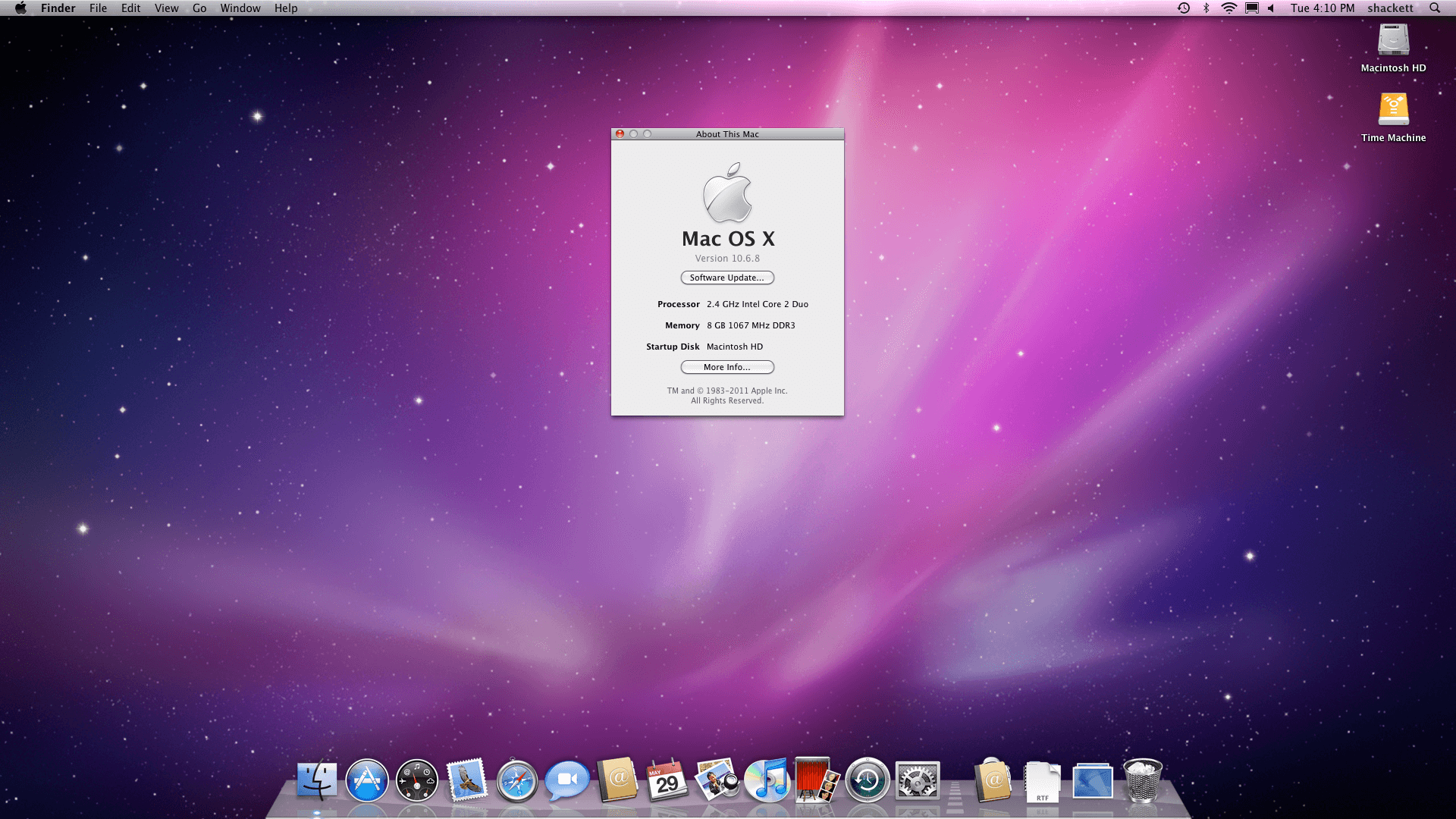
It’s been a while since the “Snow Leopard Moment.”
With so many past macOS updates focusing on system apps, it’s refreshing to see Apple take a more holistic system-level approach, which harkens back to how most people remember OS X Snow Leopard. In fact, during WWDC briefings, Apple representatives likened the Golden Gate update to Snow Leopard before anyone in the room even asked about it.
Source: Apple.
Snow Leopard is remembered as a release that focused on performance over features. The reality is that the update also introduced its fair share of new features, but many were less splashy from a user-facing standpoint. They were under-the-hood updates that made the Mac work better without users having to think about it much. In that sense, Golden Gate has a lot in common with Snow Leopard. Other than the brand new Siri app, you probably won’t notice that much is different when you first launch the new version. But over time, the changes will reveal themselves, adding up to a whole that – with few exceptions – is greater than the parts.
So let’s take a closer look at how Liquid Glass has evolved, the most significant system changes, and what it’s like to use Siri and other Apple Intelligence updates in Golden Gate’s public beta.
Design
Windows stand out from each other more, and the sidebar runs edge to edge in Golden Gate.
Last year’s introduction of the Liquid Glass design language was divisive. I rather like it, and others don’t, but I expect the overwhelming majority of Mac users don’t have a strong opinion either way.
That said, I came away from macOS Tahoe feeling like its Liquid Glass implementation was unfinished, or at least unevenly applied, because it varied from app to app and even within apps. Examples included different transparency treatments within apps like Finder:
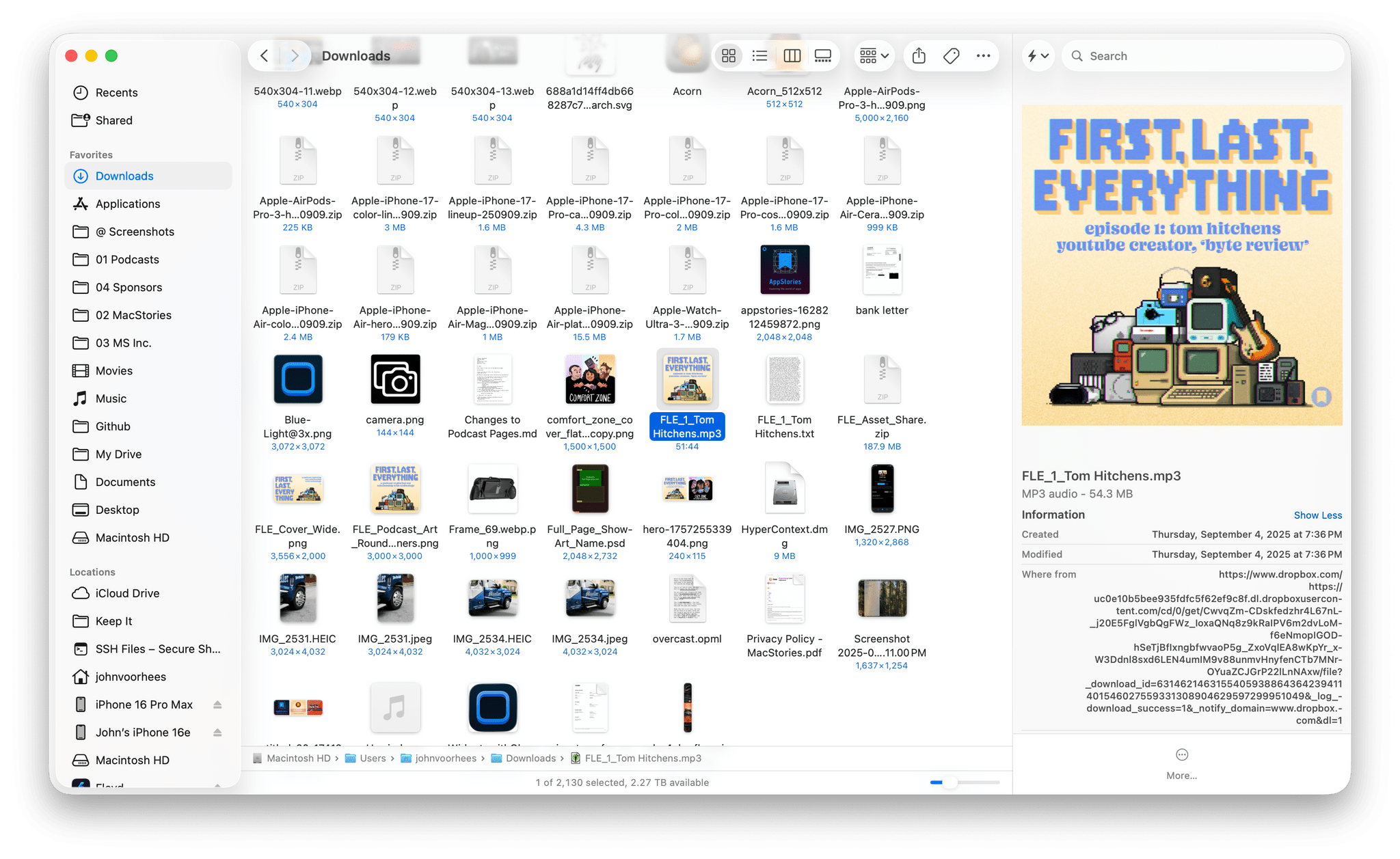
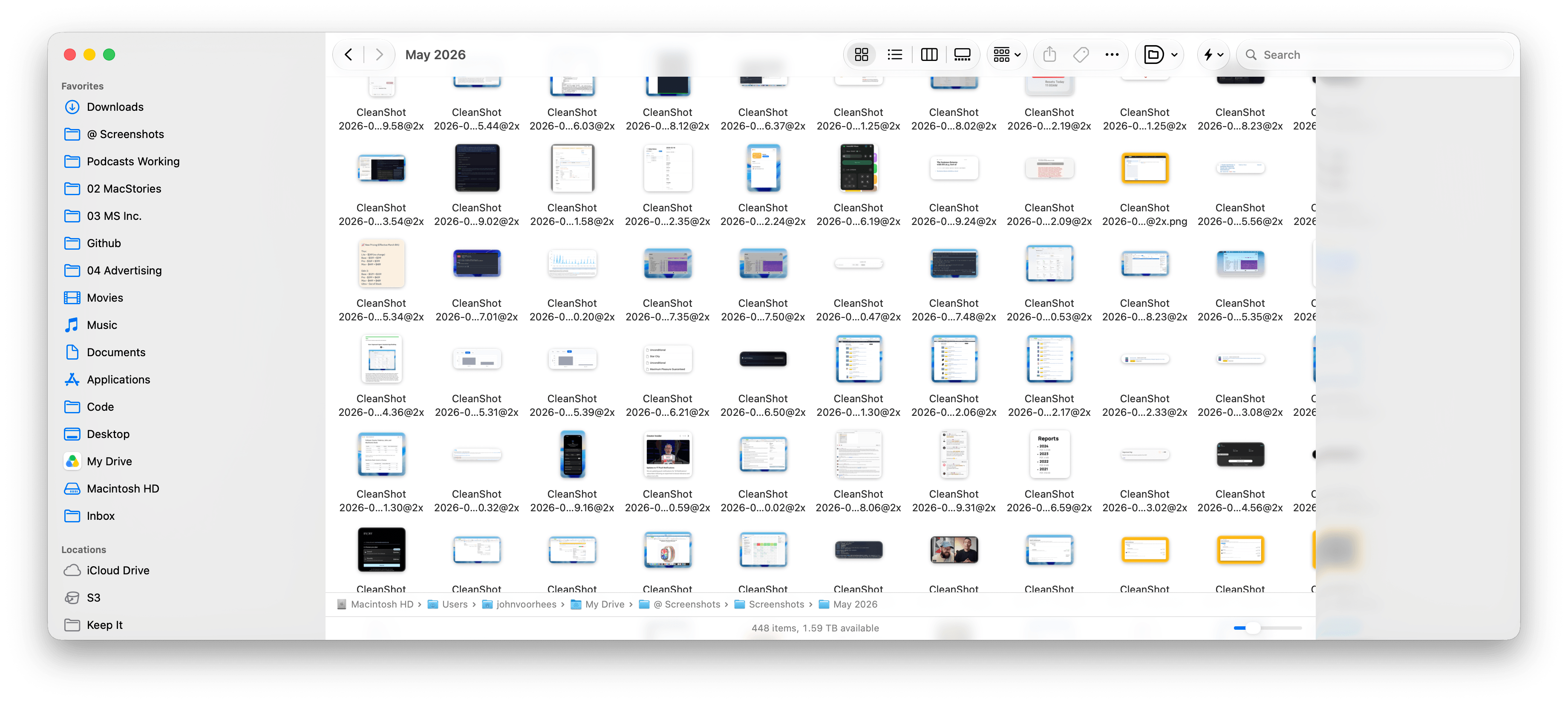
I use [Finder] with the tab bar visible most of the time, whether I’m using tabs or not. I also almost always use a list view in Finder. What I discovered when I turned off the tab bar and switched to an icon grid view was that the Finder toolbar and buttons became far more transparent. Dark file icons are more noticeable beneath the toolbar, and text becomes more of a distraction.
That sort of inconsistency has been fixed.
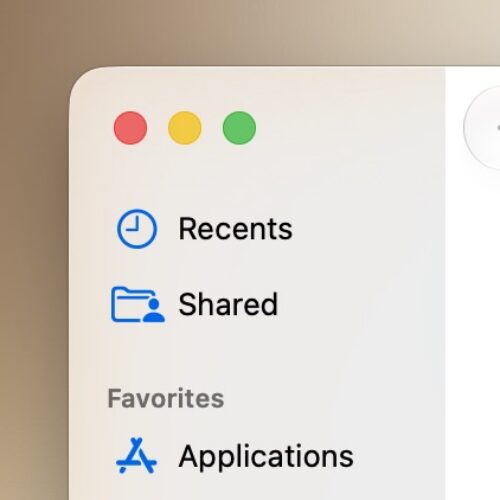
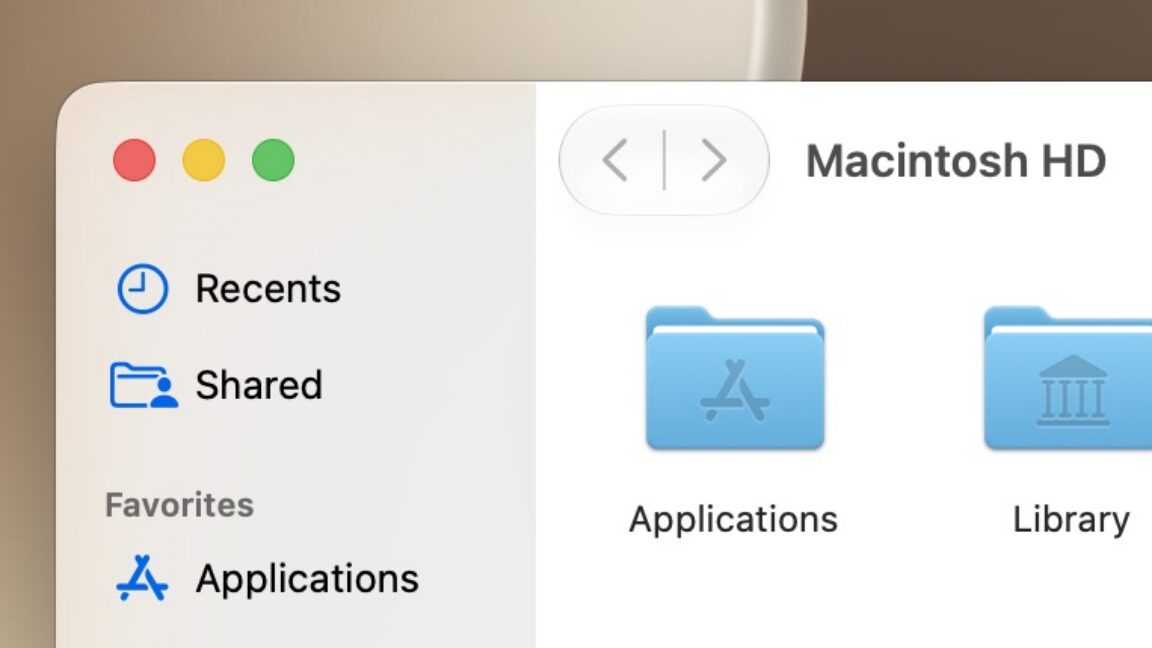
Finder in macOS Tahoe.
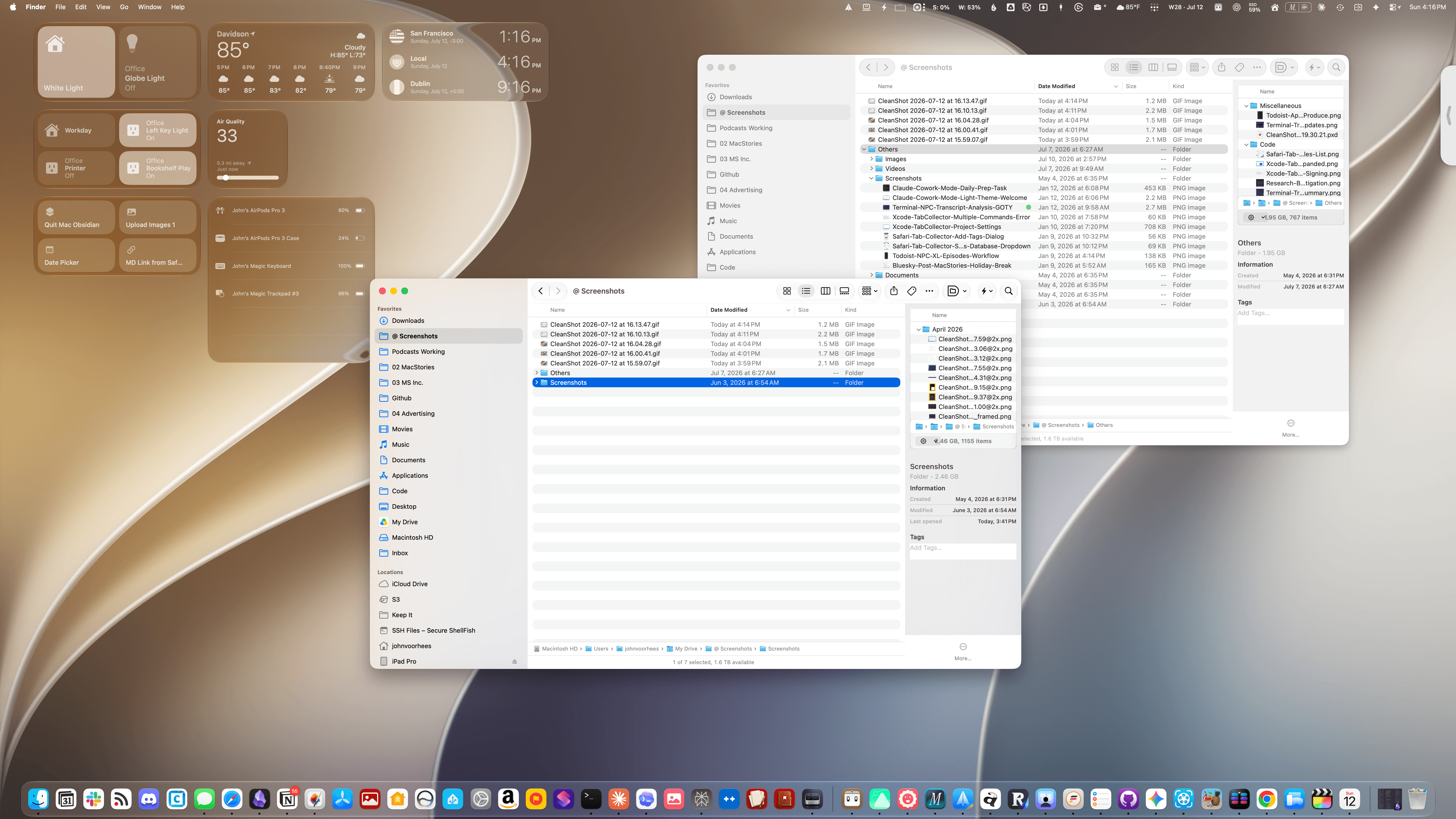
Finder in macOS Golden Gate. Even with Liquid Glass’ transparency turned on as far as it can go, toolbar buttons are more visible now.
Another big inconsistency was how toolbars were handled from app to app. In some apps, like Photos, they were very transparent, making buttons difficult to see against picture thumbnails in some cases. Other apps, like Reminders, used a more frosted treatment that prevented text and icons under toolbars from competing with the toolbar’s icons and text as a user scrolled their task lists. That, too, has changed for the better.
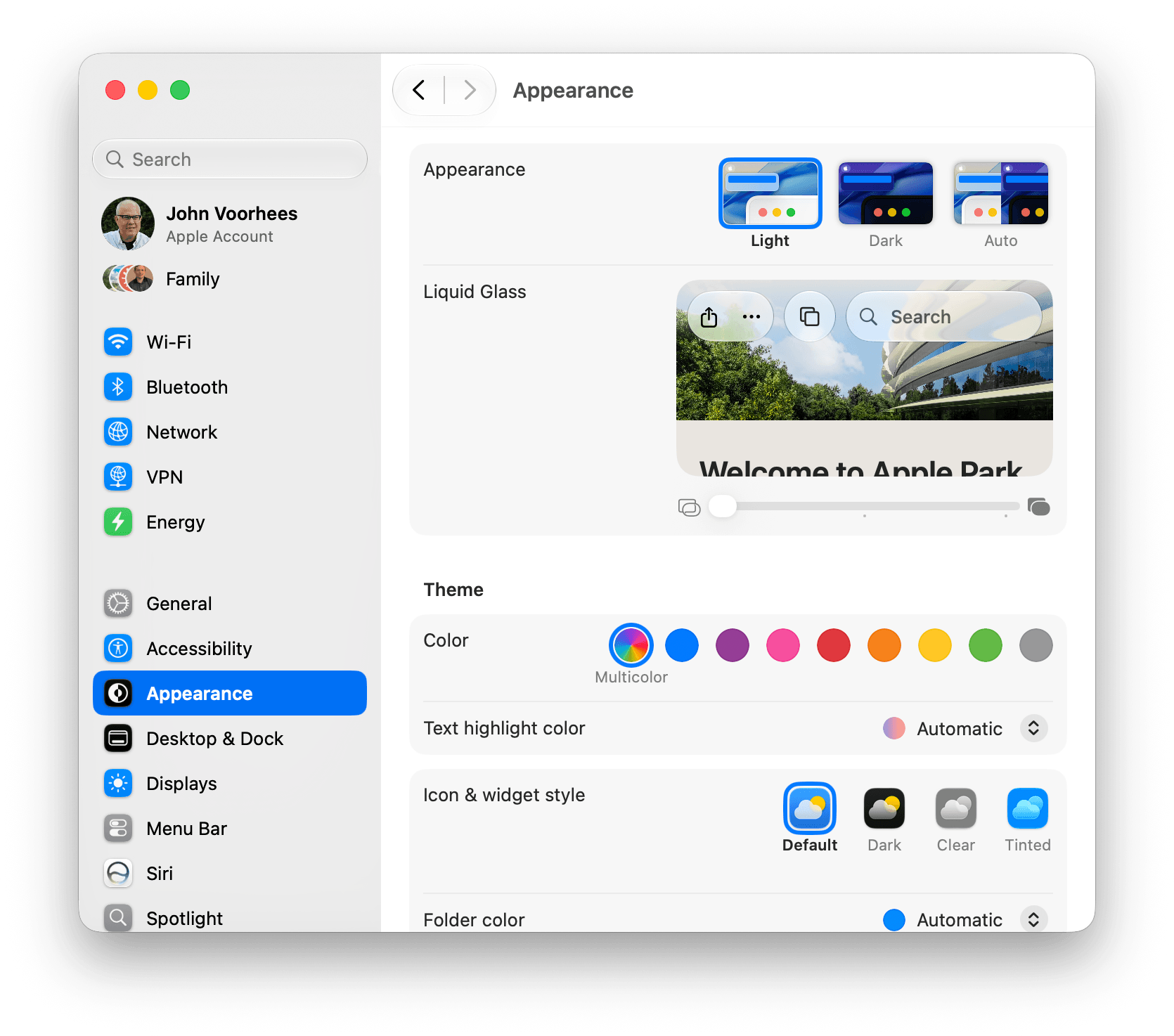
But perhaps the single biggest change to Liquid Glass is a new slider in the Appearance section of System Settings that lets you dial in the intensity of the transparency. By default, the slider is set directly in the middle. Moving the slider to the left makes buttons and other elements more transparent, while moving it to the right reduces transparency in favor of a frosted look.
Behold, the transparency slider.
The slider is a welcome change that lets users decide how transparent UI elements are. It’s the right choice when some people love Liquid Glass, some can’t stand it, and most don’t care. The default setting works well for those who don’t care and will never think to look for the transparency slider, while those who do care can dial in the look they prefer. Me? I’m a full transparency guy, at least for now, so you’ll see a lot of that here and in my fall review.
Window sidebars have been changed in a big way, too. In Tahoe, they resembled a glass sheet sitting on top of the window. I liked the look, but if you had overlapping windows, it was sometimes possible to mistake a sidebar for a separate window, which could be confusing. With Golden Gate, sidebars extend to the edges of their windows so they look as though they’re built into the windows instead of sitting on top of them.
Apple also reversed course on another controversial Tahoe change: icons next to menu items. I use keyboard shortcuts so much that I barely noticed the icons next to every single menu item. Now, however, they’re once again used sparingly.
The evolution of the Dictionary icon.
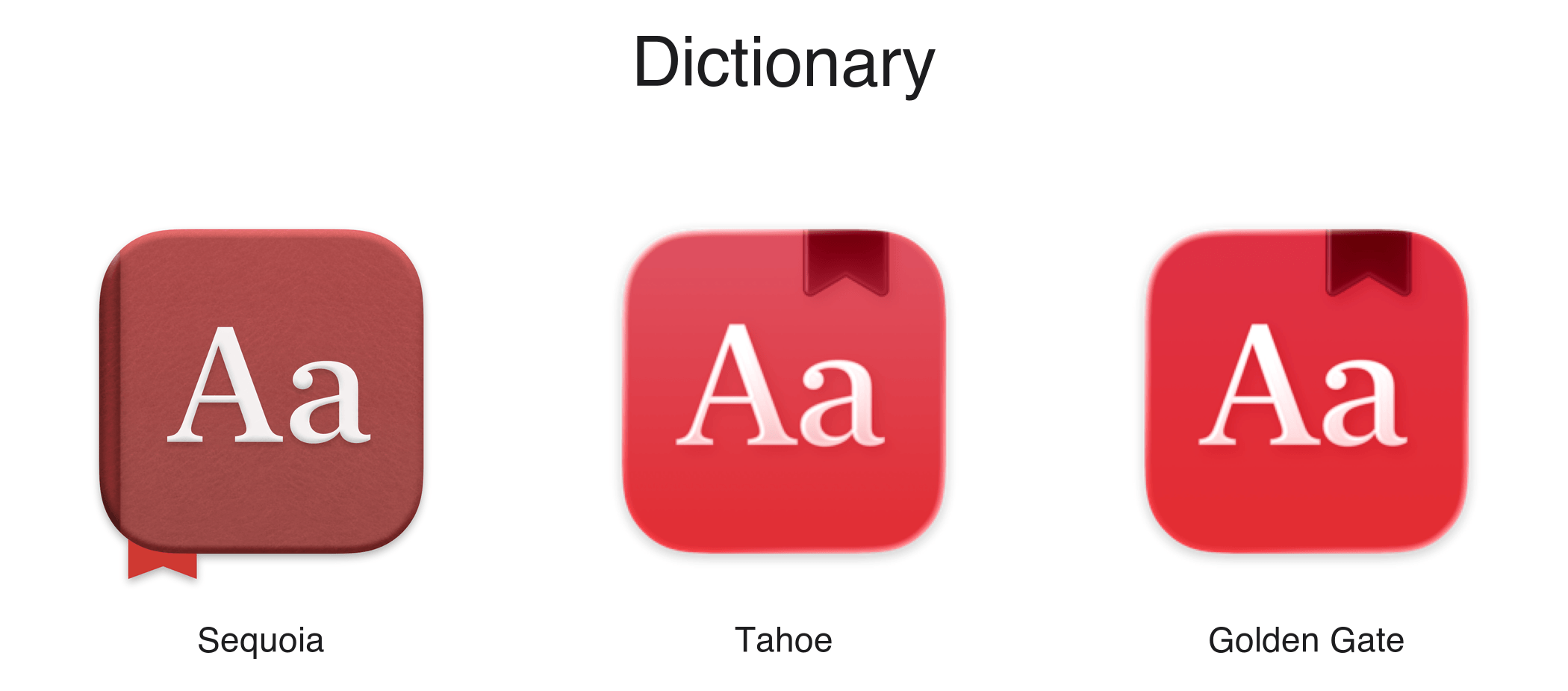
Mac app icons have been tweaked as well. Tahoe saw icons confined to the borders of a squircle, which is still a hotly debated topic. That hasn’t changed in Golden Gate. Instead, the glass effect that subtly distorted icon images has been dialed back, resulting in crisper looking icons.
There are other design changes, like deeper shadows to help distinguish windows from each other and more uniformly shaped window corners, that I’ll cover in the fall, but my early impressions of the changes have been positive. Everything feels more considered and consistent. Rather than feeling unfinished as it did in Tahoe, Liquid Glass now feels properly embedded into the fabric of the Mac.
System Changes
Nowhere is the Snow Leopard of it all more apparent than in the hundreds of little changes made to improve the day-to-day use of your Mac. I’m not going to catalog them all here, but I’ve used Golden Gate on two different Macs at this point, and based on my experiences so far, the changes are meaningful.
I installed Golden Gate on a MacBook Pro that I have on loan from Apple as soon as I got back from WWDC in early June. That laptop has an M4 Max chip and 128GB of memory, so it was already fast. But even on that Mac, I noticed differences when I installed Golden Gate.
Spotlight is very fast, even on my M1 Max Mac Studio used for this animation.
Most apps launch faster, with fewer Dock bounces, which I appreciate, but the most noticeable performance improvement has been to Spotlight. I liked what Apple did with Spotlight in Tahoe a lot, but its responsiveness has been inconsistent. As a result, I switched back to Raycast not long before WWDC for launching apps, running shortcuts, and initiating other actions.
When I installed Golden Gate, I switched back to using Spotlight and was blown away by the difference. Of course, it remains to be seen whether the speed-up sticks long-term, but the early results have been impressive. Finding apps, files, folders, shortcuts, and clipboard items is lightning fast. Searching in Photos and Mail, which each got their own search tune-up, is very fast, too.
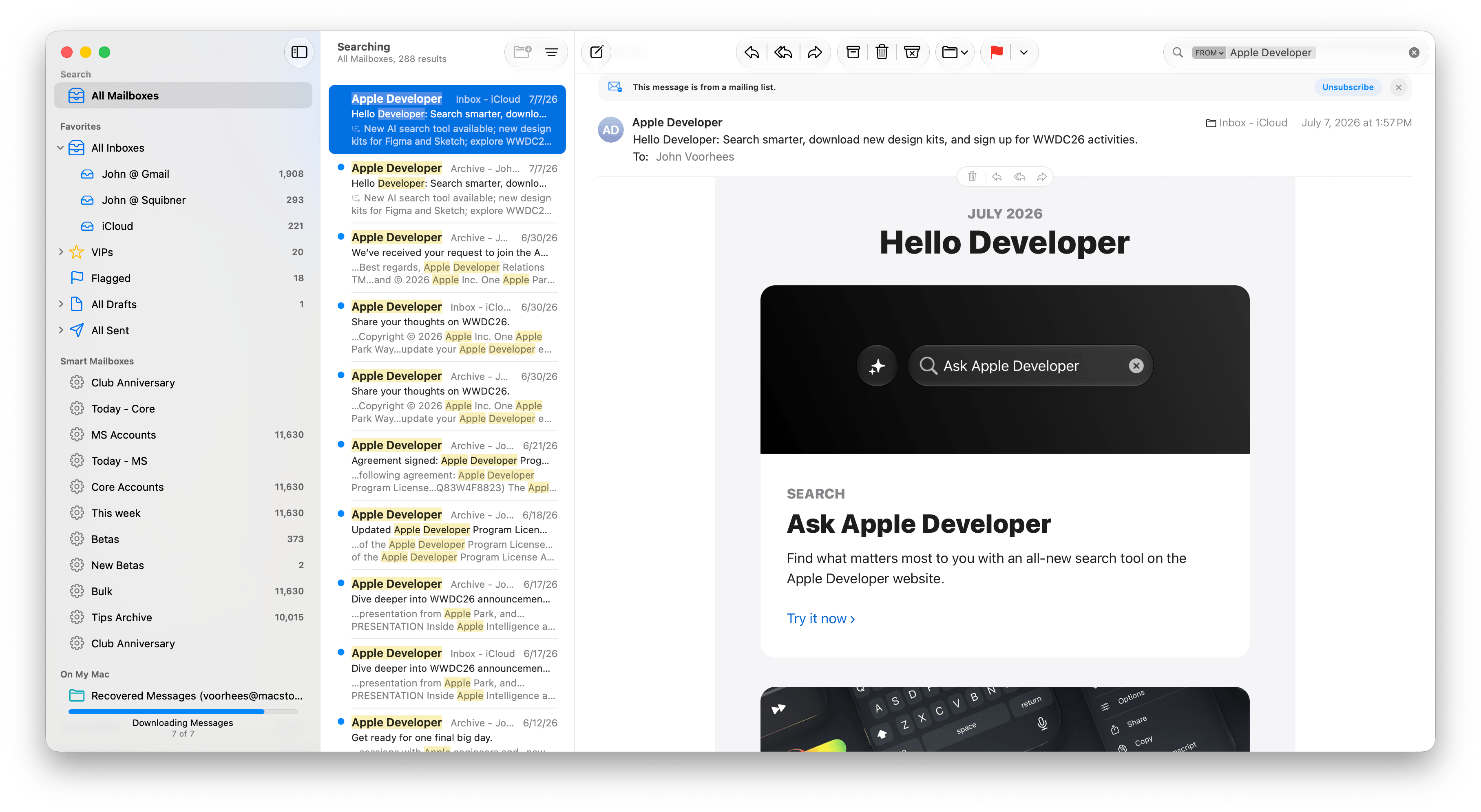
Search in Mail has been improved, too.
Plus, even though the MacBook Pro I’ve been using to test Golden Gate is already fast, it’s worth noting that I have roughly 3TB of data stored on it. That includes tens of thousands of photos, email messages, and texts, so even given the laptop’s speed, Spotlight’s performance is still impressive.
What’s been most impressive, though, is the difference Golden Gate has made to my M1 Max Mac Studio. It has a similar number of files and half the memory. Just before updating it to Golden Gate about a week ago, I was feeling the pain of Spotlight slowdowns. I was running macOS 26.5, and searching for an app in Spotlight often pulled up the iPhone version before the one installed on my Mac. Perhaps that’s related to the fact that my iPhone is running the iOS 27 beta, but even Mac-only apps would sometimes take five or six seconds to show up at the top of the list in Spotlight when I searched for them.
That’s completely changed with Golden Gate. I’ve used macOS 27 on my Mac Studio for a shorter period than the MacBook Pro, but the difference in speed has been a real eye-opener, making Spotlight searches nearly instant. It’s also worth noting that the initial indexing of my 3TB of data only took about a half of a work day to complete on the Mac Studio, which was faster than I expected, having watched my iPhone 17 Pro Max take days to index.
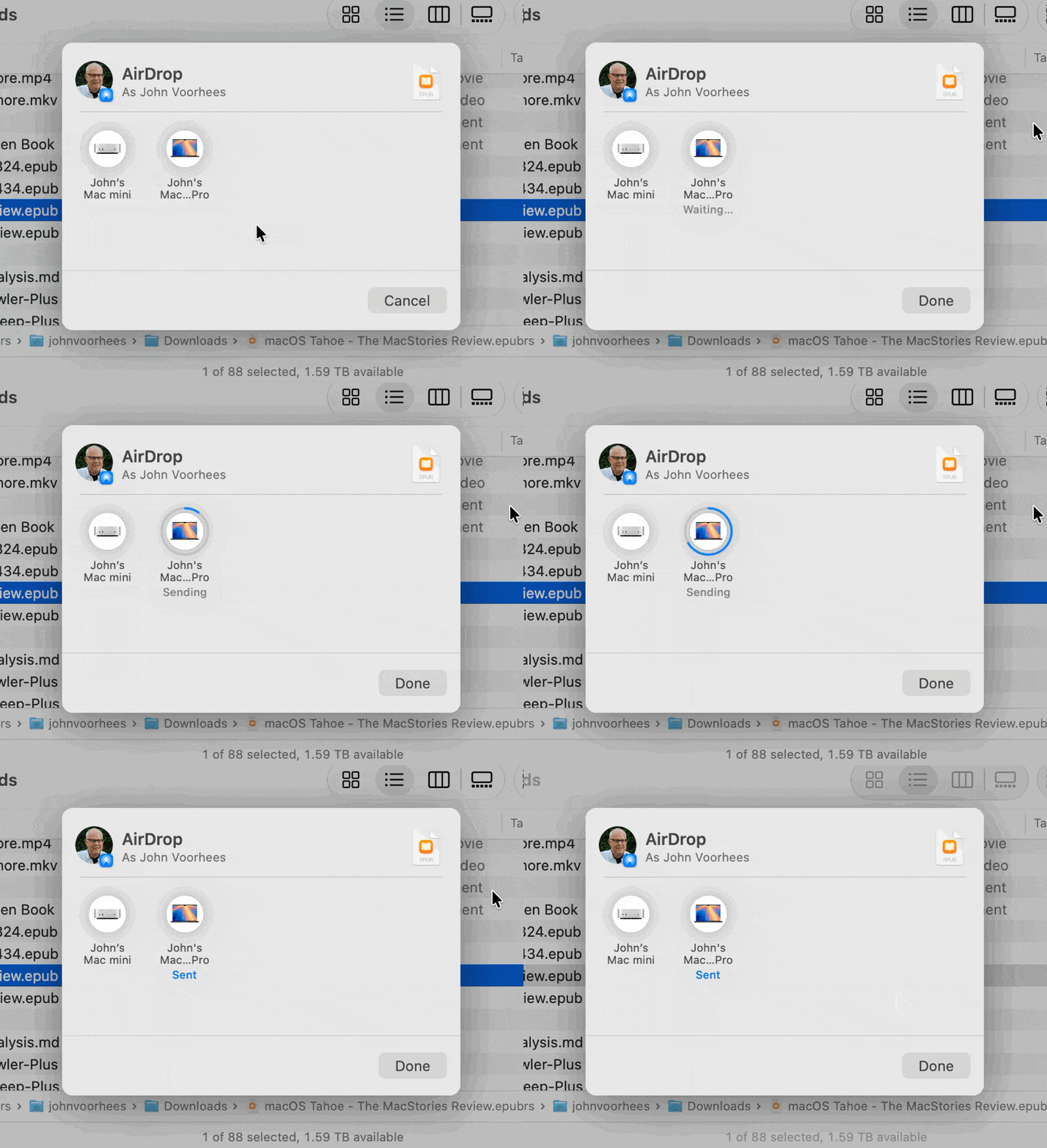
Sending a 47MB EPUB file from one Mac running Golden Gate to another.
Also worth noting is that AirDrop is much, much faster now, too. I move images and other files between my iPhone, iPad, and Macs with AirDrop dozens of times each week. It’s a deeply embedded part of my workflow. Before installing Golden Gate, I rarely sent multiple items via AirDrop simultaneously because it could be very slow or even fail completely. Now, however, I’m retraining myself to send multiple screenshots and other files all at once because AirDrop is so much faster than before.
Launching apps and sending screenshots more quickly aren’t sexy new features that come with fancy screenshots I can share with you, but these are meaningful changes just the same. It remains to be seen how the improvements will hold up over time, but they’ve made a great first impression, so I’m optimistic. Changes that reduce friction are the kind of updates that help keep me focused on what I’m doing and get more done, which I consider a big win.
Those are the big-ticket system changes to the Mac, but of course, there are many other system-level changes coming, like better window positioning consistency when you use multiple displays, HDR UI elements and faster refresh rates for displays that support those features, resizable windows in the iPhone Mirroring app, full-resolution images in Shared Albums in Photos, and enhancements to Notes, Maps, Podcasts, and Messages. I’ll have more details on all of them in my fall review.
Apple Intelligence and the Siri App
The new Siri app.
The headline Apple Intelligence feature this year is the new Siri app, a dedicated chatbot-style interface that benefits from Apple’s AI collaboration with Google. Before I get into Siri, though, it’s worth noting that there’s more to Apple’s AI story this year than just the digital assistant. In fact, Apple Intelligence features have been sprinkled throughout the system:
Finder uses AI to suggest file and folder names based on their content;
Safari tabs can be automatically organized by topic;
Weak passwords can be automatically updated in the Passwords app;
Messages spawns little buttons that let you pull information out of a chat and into apps like Reminders and Calendar;
Natural language descriptions can be used to create Calendar events; and
Photos includes new AI-driven features like Spatial Reframing, Extend for expanding the borders of a photo, and improvements to the Clean Up tool.
Building shortcuts with natural language.
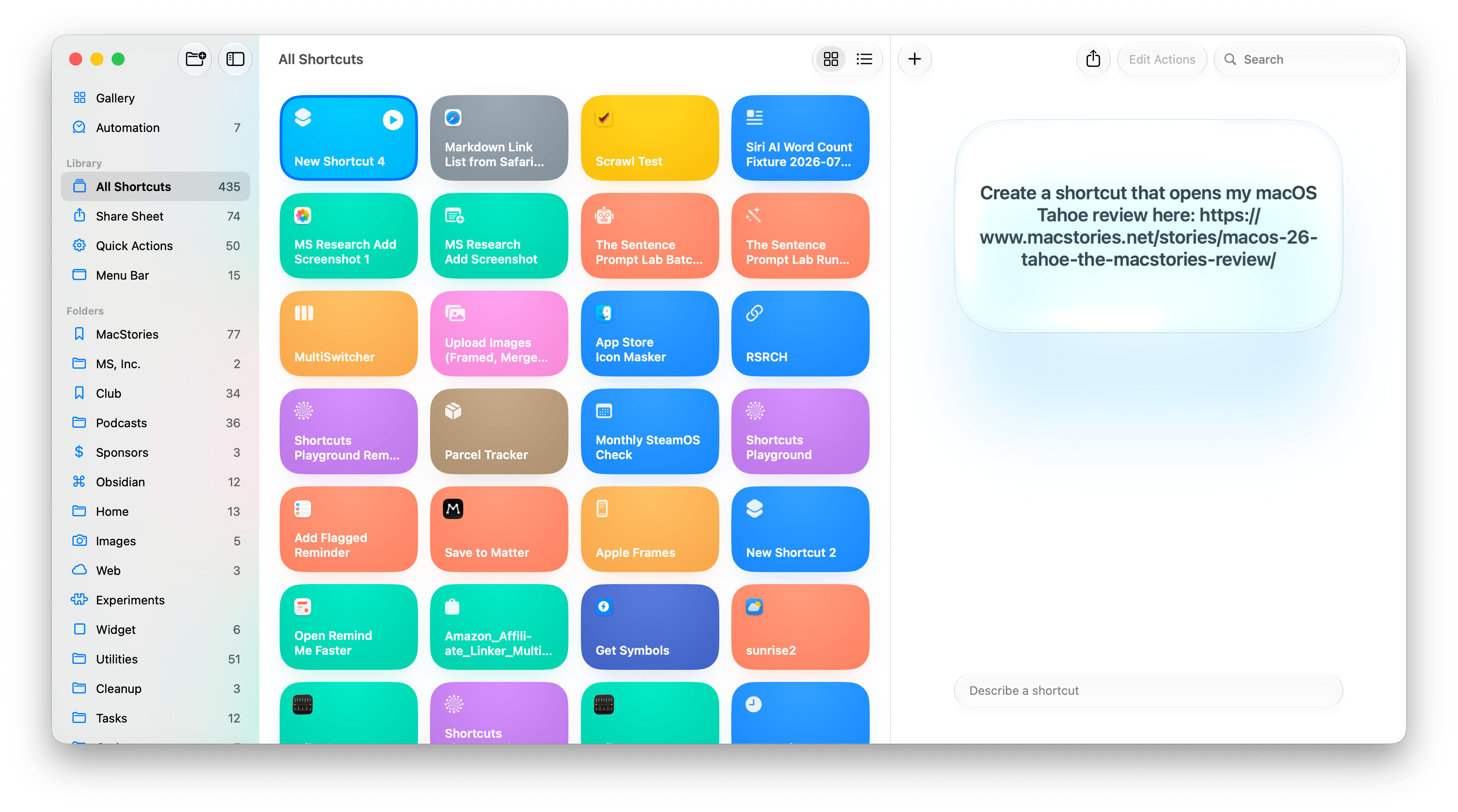
Shortcuts has joined the fray, too, with the ability to build shortcuts simply by describing them. This is the sort of democratization of automation that I love. Building shortcuts has always been simpler than writing code, but it’s also had a steeper learning curve than most people were willing to deal with. You won’t be able to build a complex shortcut with natural language alone, but the reality is that even people who know how to make complex shortcuts use a lot of simple ones for day-to-day tasks, and for that, the new feature is fantastic.
I’m also a fan of the ability to build Safari extensions by describing them. I’ve made a couple, like one that generates a Markdown-formatted link list from selected tabs, and the process of building it was fast and effective.
I’ll have more to say about all of these features in the fall, but they’ve made good first impressions. In past macOS updates, some of the Apple Intelligence features have felt a little out of place and bolted on. I appreciate that these new features are woven more cleanly into their underlying apps. Maybe the era of self-consciously calling every feature AI is coming to an end and they’ll just be called features again. We’re probably not quite there yet, but one can hope.
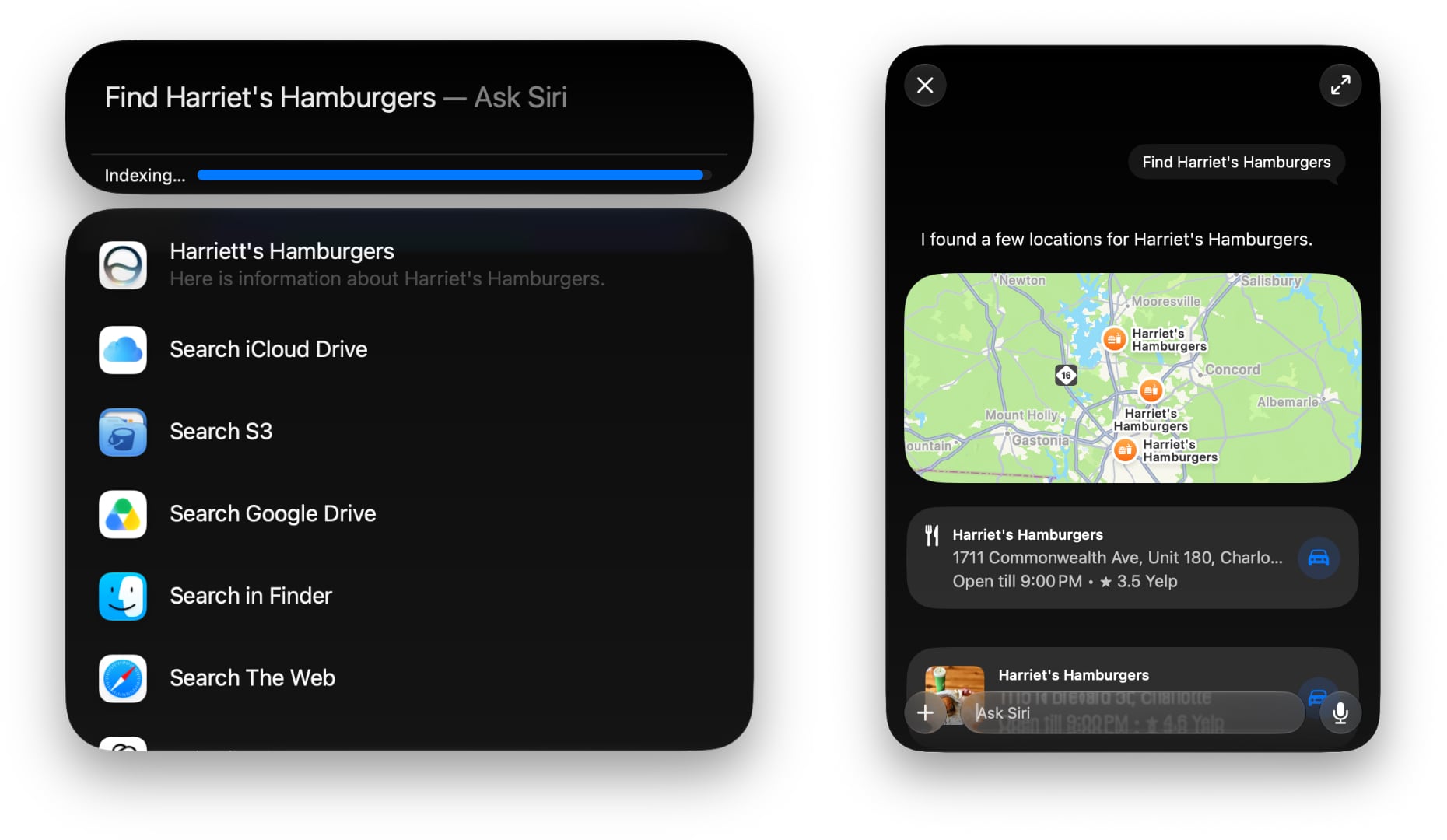
Using Siri AI from inside Spotlight.
As for Siri AI, which is surfaced in the new Siri app, Spotlight, context menus, and other locations, it’s worth keeping in mind that Apple has said it will launch later this year as a beta. The Siri AI features are also gated behind a waiting list, so don’t install the beta expecting to be able to use them right away, and even if you do get it, Siri AI is a beta of a beta.
As a result, Siri AI has more rough edges than other parts of Golden Gate. For example, it’s not uncommon for Siri requests to simply fail on one Mac but be correctly answered on another.
Other parts of Siri AI don’t work at all, like third-party app integrations since developers have to update their apps first. I can add tasks in Reminders, events in Calendar, and notes in Notes, but I haven’t had the chance to try a third-party Mac app that works with Siri AI yet. If you’re a developer working on Siri AI support, get in touch. I’ll be highlighting the best ones I try in the fall.
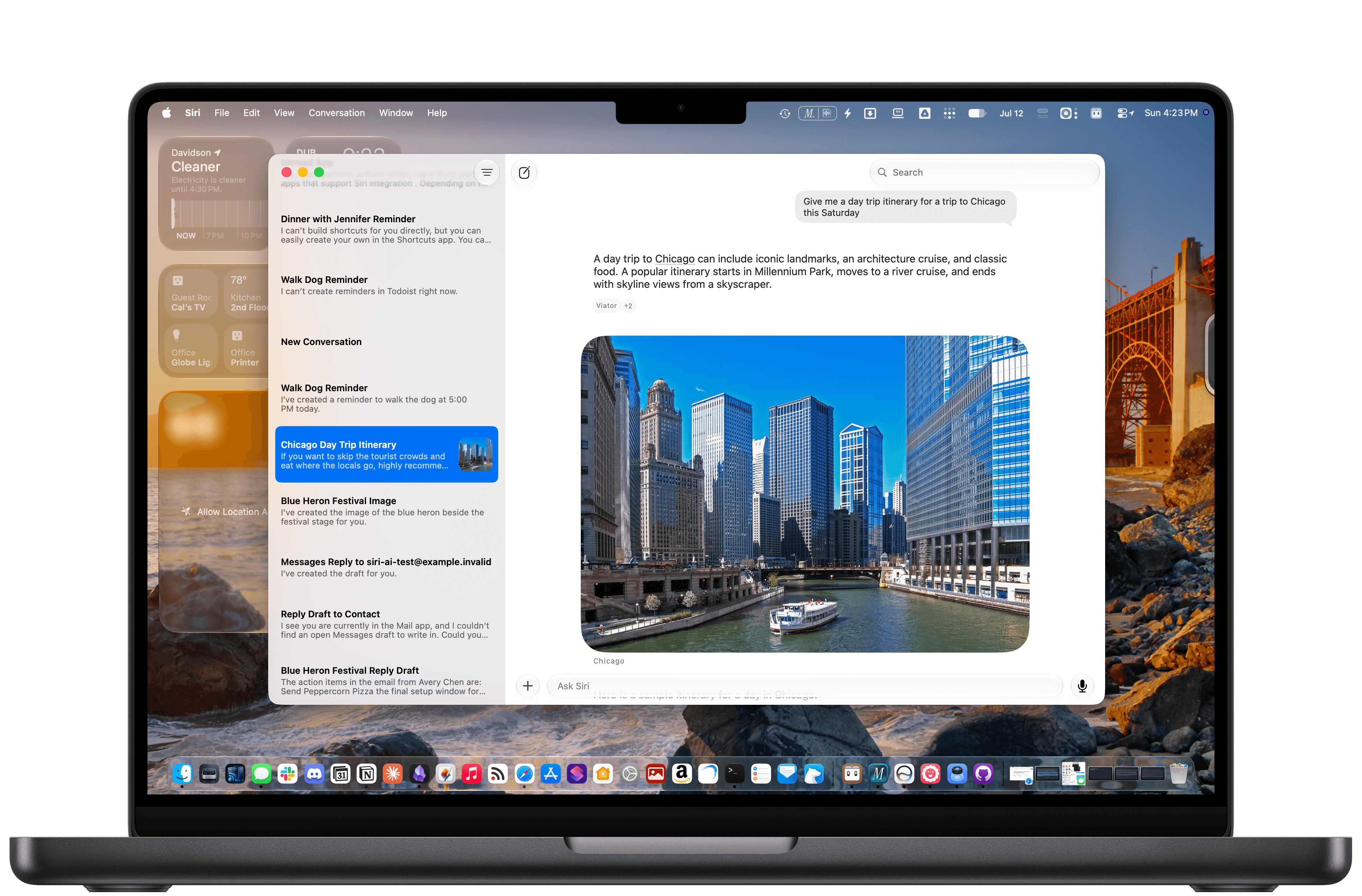
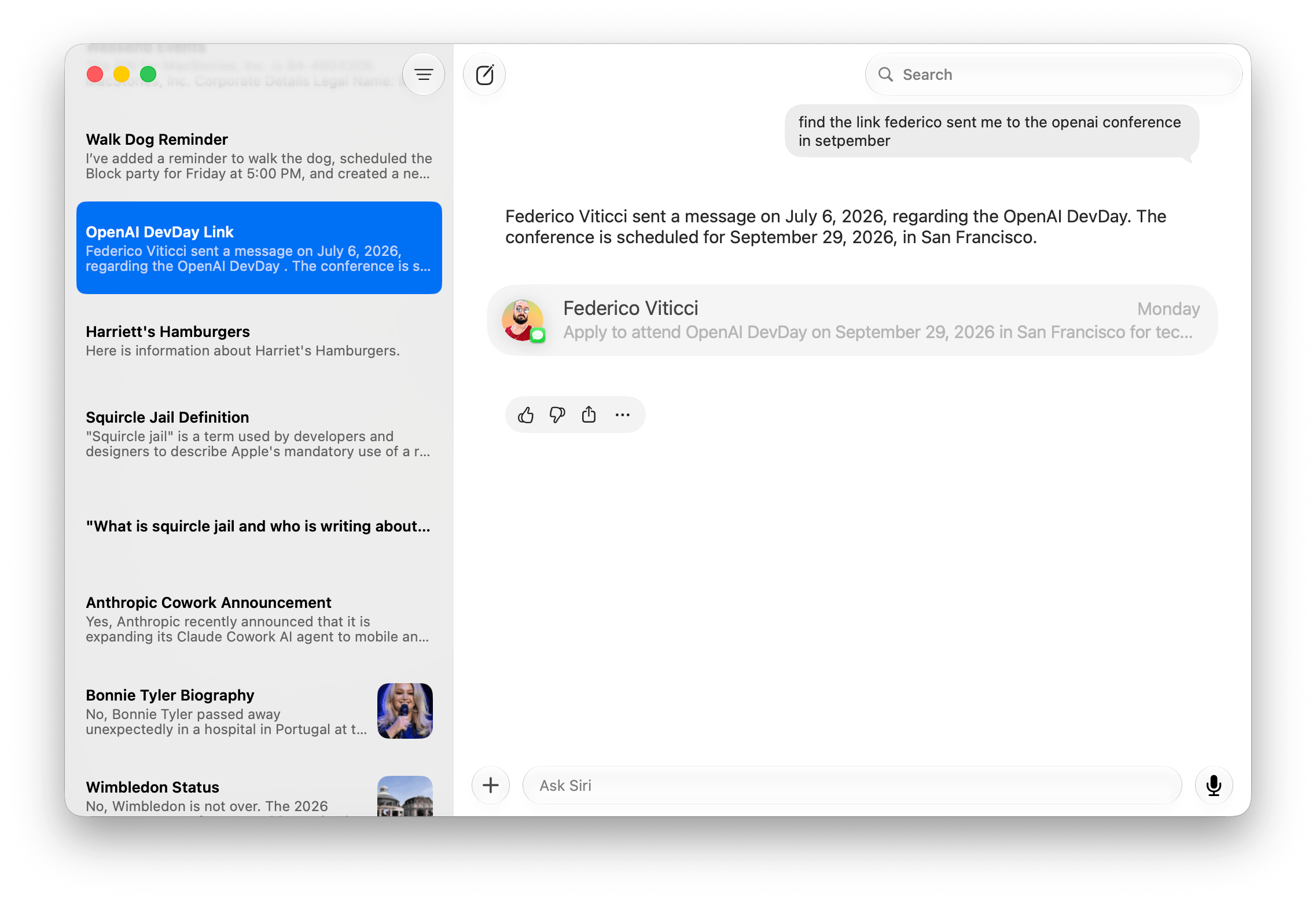
Siri is excellent for finding old texts in Messages, adding tasks to Reminders, and more.
Despite the current limitations, if you use chatbots as a replacement for Google Search, you’ll probably have a good experience with the new Siri app. That’s because even in these early betas, if you ask Siri something like, “Give me a day trip itinerary for a trip to Chicago this Saturday,” you’re likely to get good but pretty middle-of-the-road recommendations. From there, though, you can drill down with follow-up queries to get something more in line with your tastes. The results include source links you can follow, too. Given the ad-strewn mess that web search has become, using Siri for this sort of thing is a meaningfully better experience.
The one caveat on Siri’s world knowledge is that it’s roughly 2-3 weeks stale in some places. Ask Siri to give you the most recent article on any website, and it will be 2-3 weeks old. However, fetching current information instead of specific posts is more timely. When I asked whether Anthropic had made any announcements recently about Cowork, Siri correctly linked me to stories from two days prior.
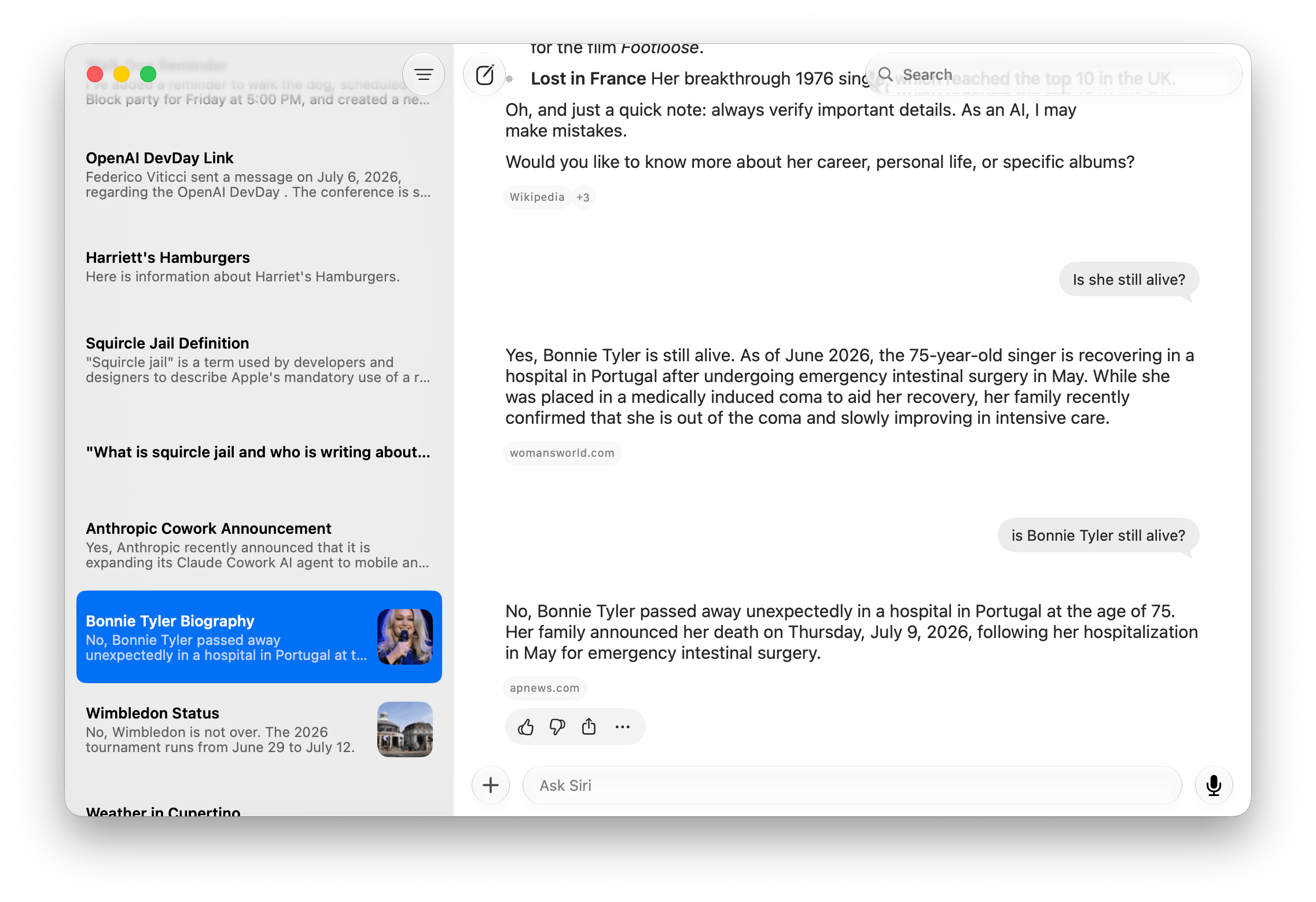
Current events and sports show up quickly in Siri, but that’s not true for all web-based queries.
Likewise, facts like sports scores and celebrity deaths seem to get updated more quickly. I’m writing this on July 9, and I saw a headline in Apple News this morning that singer Bonnie Tyler passed away yesterday. I asked Siri if she was still alive and was told that she was “as of June.” I asked again a couple of hours later, and Siri answered that her death was announced on July 9 – the same day I asked.
Siri is also good at completing one or more actions as long as they fit within the defined set of App Intents schemas. “Remind me to walk the dog at 5:00 pm, add dinner with Jennifer at Mandalino’s to my calendar for Friday at 7:00 pm, and create a note that says ‘Hello World’” works reliably. In my early testing, Siri is also good at generating images comparable to what you’d get directly from Image Playground, creating and summarizing text, playing media like a requested podcast episode, and maintaining continuity when follow-up questions are asked.
Sometimes, Siri just takes a random stab at an answer.
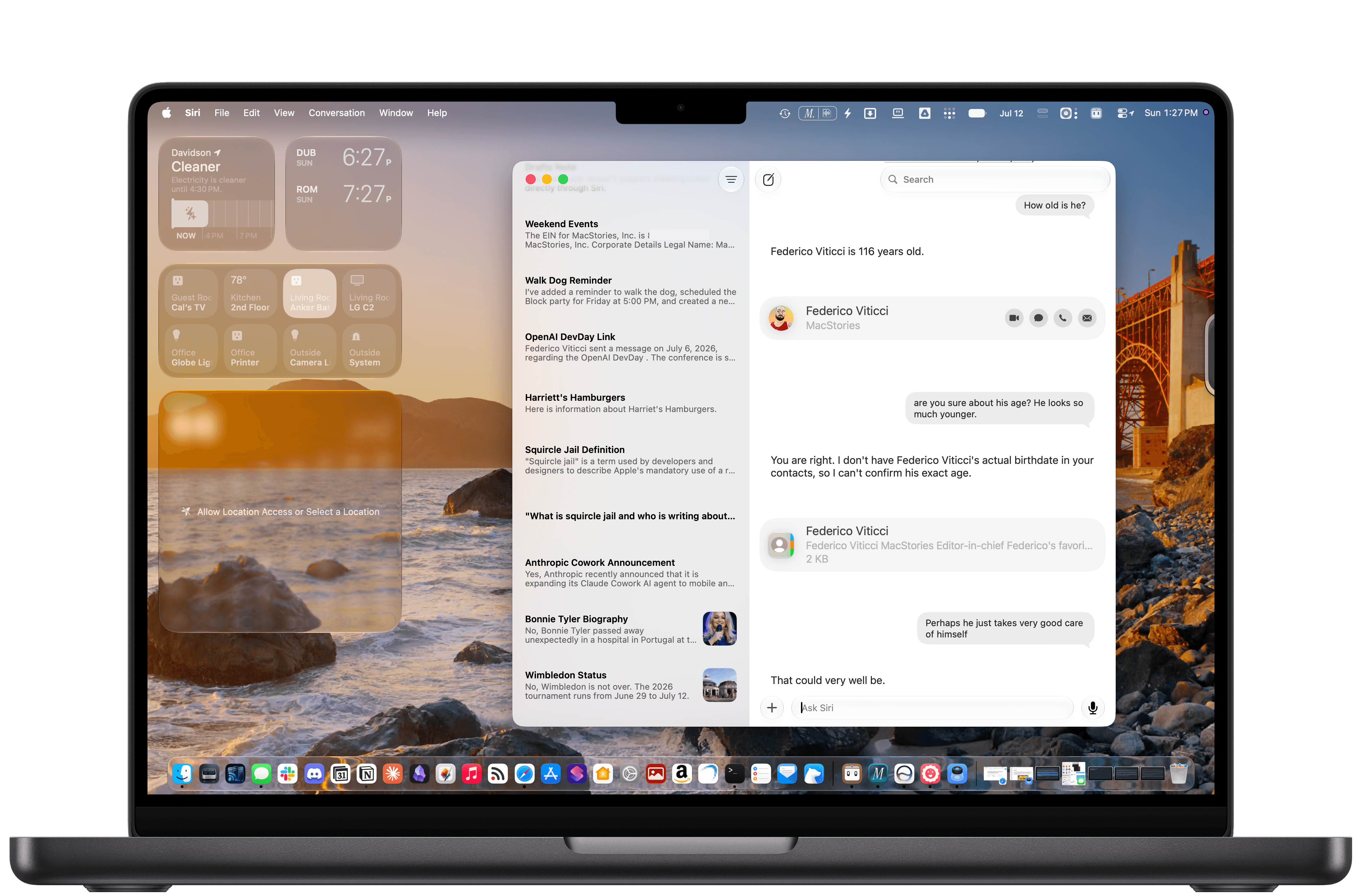
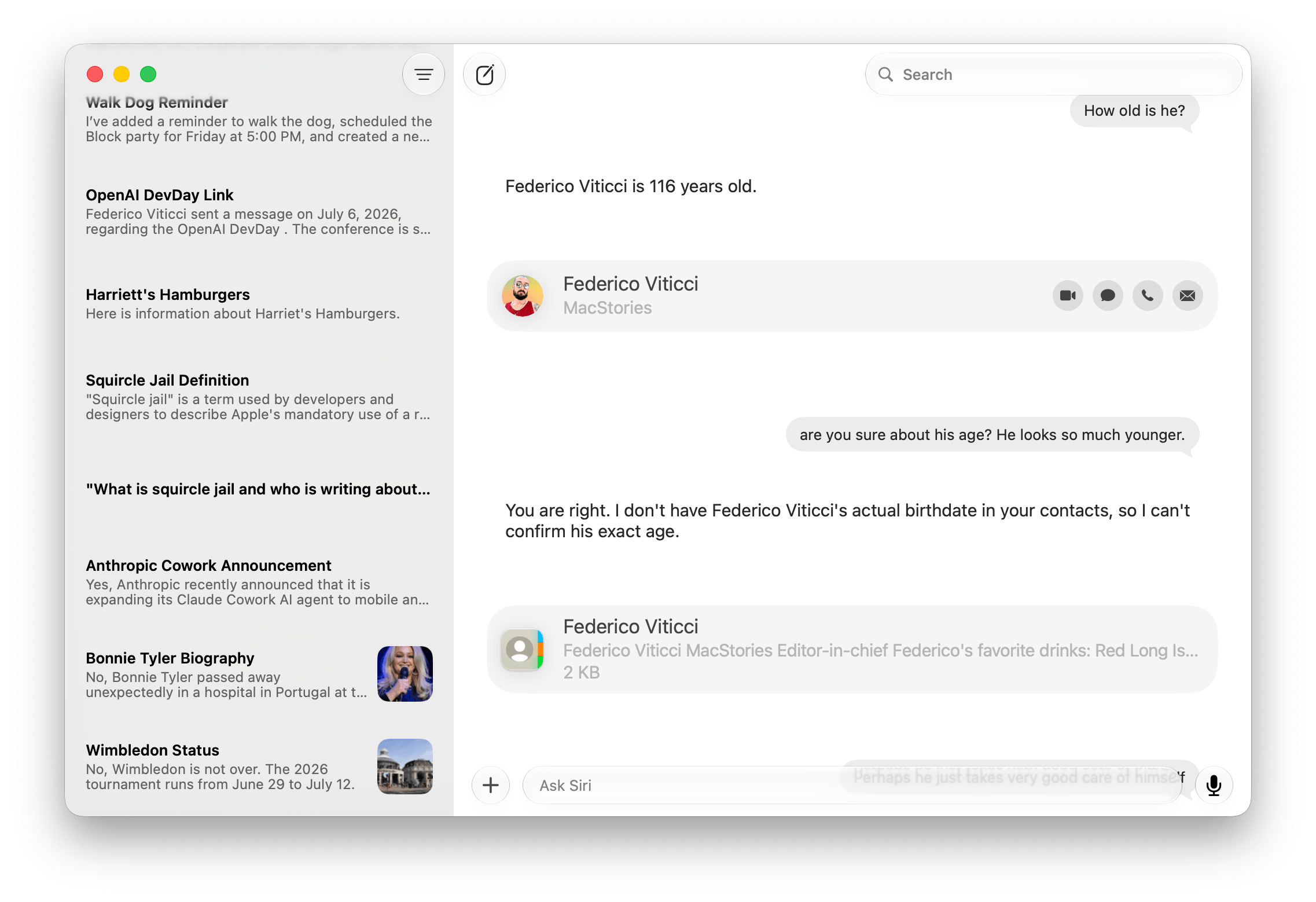
Personal context generally works well, too. Siri can find old iMessages I’ve sent to people, it knows who my wife is and where I live, and it can find all sorts of information buried in Notes and other apps where Apple has done the work to expose that information. But like all AI systems, it sometimes makes things up. I asked Siri how old Federico is, and it looked at his entry in Contacts, which includes his birthday. The trouble is, I only included the month and day of Federico’s birthday, not the year, so Siri “guessed” that he’s 116 years old, which is off by a little. Siri also equates Reminders tasks that are assigned a time with Calendar events, which is odd.
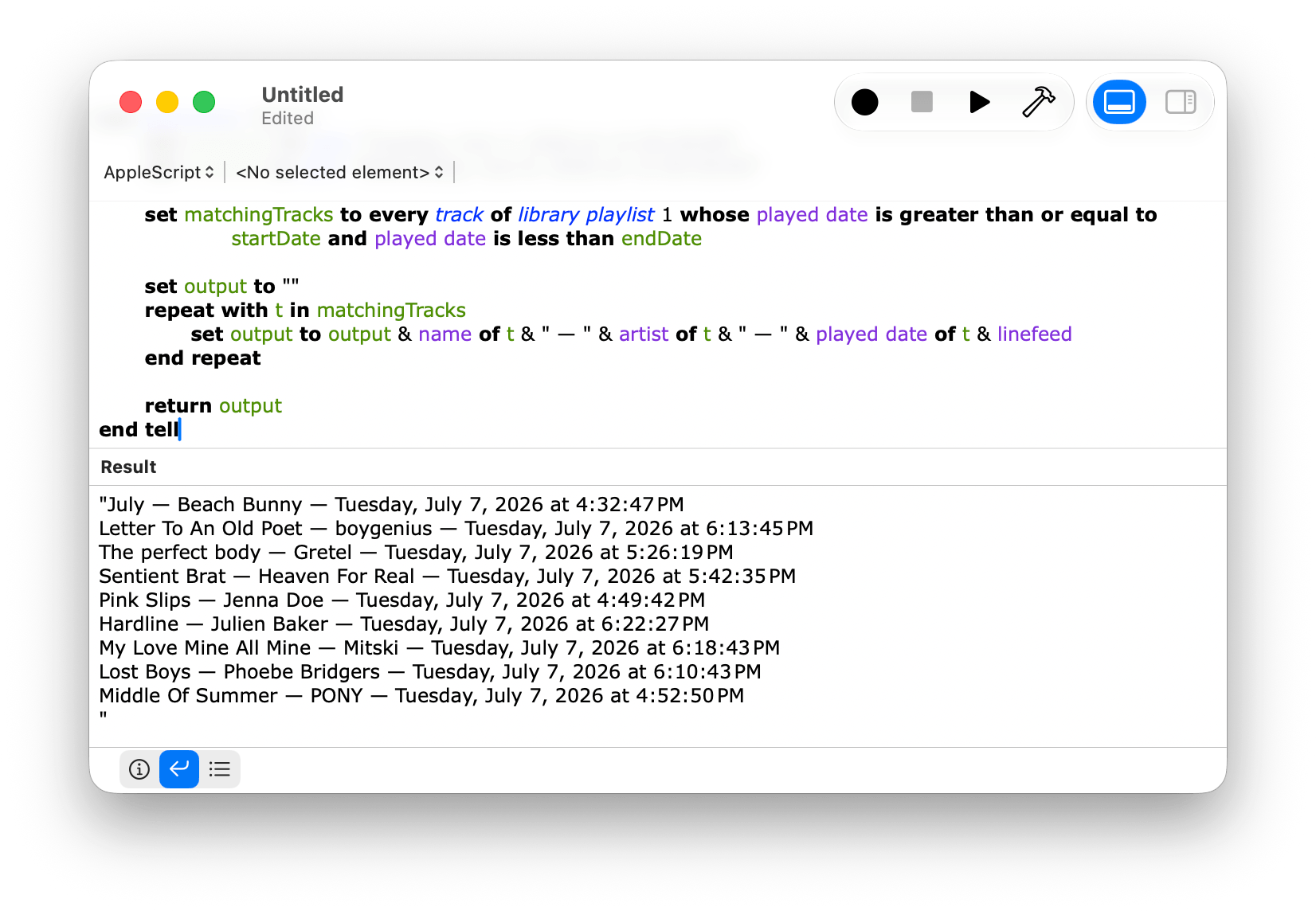
When you dig deeper into Siri AI, you’ll discover that not all structured data on your Mac has been given the necessary makeover to work with it. A good example is Music. You can prompt Siri to play a song, but most of the rich metadata in the app isn’t exposed to Siri, which is a shame because it is exposed elsewhere, for example to AppleScript. Again, though, this is a beta, and there’s clearly more work to be done to take better advantage of what’s on your Mac.
Apps like Music don’t expose as much of their data to Siri AI as they do to AppleScript, which is frustrating.
Despite the limitations and rough edges, I expect that the new Siri app will be a hit. I’ve found Siri’s world knowledge answers to be a little superficial – similar to what Google’s AI Overviews produce. However, in-depth research isn’t the point, nor is it what people want or need most of the time. For information about current events, businesses, and other everyday questions, Siri is fine. Throw in the ability to manage tasks, calendar events, notes, and the other things people commonly do on their Macs and other devices, and it adds up to a greatly improved Siri experience.
Overall, Golden Gate is shaping up to be an excellent release. As for whether you should give it a try, I think it’s worth it, especially if you have an older Apple silicon Mac that would benefit from the performance gains. I also think many people will get a lot out of most of the Apple Intelligence features right away. Plus, if you primarily use an app like ChatGPT or Claude to search for information and like the idea of occasionally dropping information into apps like Calendar and Reminders, you’ll get a lot out of Siri, too.
And of course, even if you want more out of Siri than it offers today, patience is in order. I set my expectations for Siri low after Tahoe, and while I would have preferred more from this beta release, I’m willing to wait it out a little. I’m optimistic that it will improve because if Apple is able to assemble a tool that can perform multiple actions across its own apps and those from third parties, users will have an elegant, simple, privacy-focused solution that will go a long way towards fulfilling what was demoed at WWDC in 2024. And that’s something worth waiting for.
Apple Intelligence and Siri AI have sucked most of the oxygen out of the room at Apple's Worldwide Developers Conference this year—understandable, maybe, given that the AI-powered Siri delays are all anyone has wanted to ask any Apple executive about for the last two years.
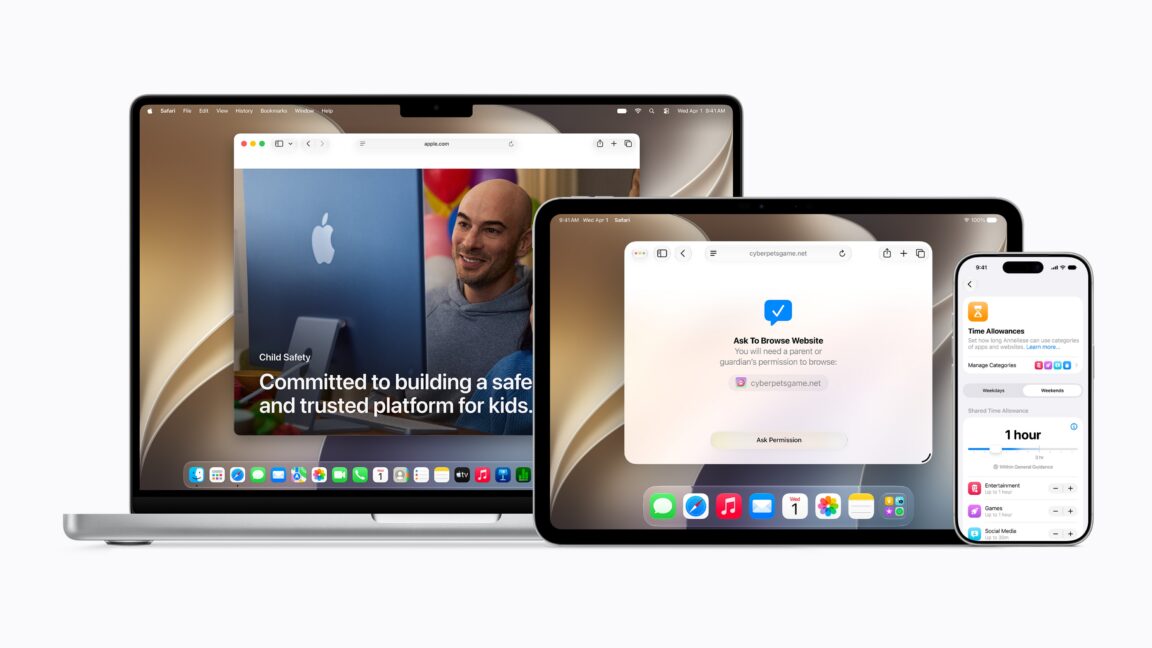
But Apple Intelligence is just one of the three big focus areas Apple outlined during its keynote this week. The second is new parental controls—overdue, but promising-looking, as the parent of a 6-year-old with an iPad that I only begrudgingly connect to the Internet. And the third is "platform improvements," a catch-all for a wide range of fit-and-finish changes aimed at boosting responsiveness and addressing common user complaints.
I have the first beta of macOS 27 Golden Gate running on an M1 MacBook Air—the oldest, slowest hardware Apple supports now that Intel compatibility is out the window. With some help from Apple's densely packed wall-of-features slide, here are a few things from the "platform improvements" column I like the most, plus one item I'd still like to see.
As Apple announced last year, this year's macOS release will end support for Intel Macs. The macOS 27 Golden Gate release will require a Mac with an Apple Silicon chip inside, including the original M1 that launched in the MacBook Air, MacBook Pro, and Mac mini back in late 2020.
Intel Macs running macOS 26 Tahoe can expect security and Safari patches for about two more years after the release of macOS 27 Golden Gate. Macs running macOS 15 Sequoia will receive one more year of updates. Apple Silicon Macs will still be able to run Intel Mac apps via the Rosetta 2 compatibility layer in macOS 27, but future releases will begin to limit the technology (Apple has said it will mainly be used to support older games that still use Intel code).
This change has been a long time coming, and every new macOS release has left a longer and longer list of Intel Macs behind. But many Mac owners who purchased late-model Intel machines in 2019 and 2020 could still run the latest version of the operating system, and third-party utilities like the OpenCore Legacy Patcher helped more adventurous Mac owners use their unsupported hardware a bit longer.

 Login
Login