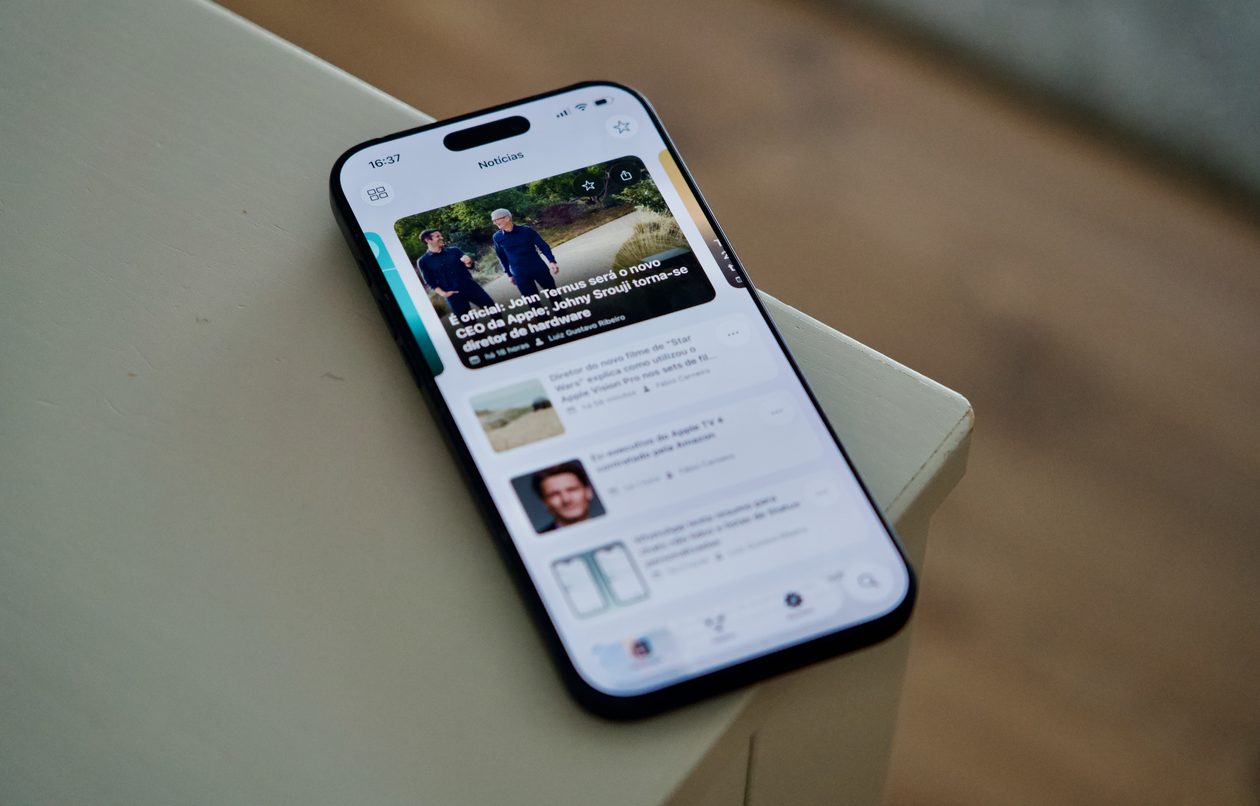
Nosso aplicativo — disponível para iPhone, iPad, Apple Watch e Mac — acaba de receber uma atualização significativa para a versão 5.0.2, repleta de melhorias e correções pedidas por muitos de vocês. 😉
Atendendo a muitos pedidos, implementamos de volta o gesto de deslizar a partir do canto da tela para sair de um post e retornar à tela inicial do app.
Também corrigimos um comportamento que incomodava bastante: ao tocar em links externos dentro de um post e depois voltar para o app, agora você retorna exatamente para a mesma posição de leitura em que estava — sem perder o lugar.
Os favoritos também passaram por uma revisão importante e agora são devidamente sincronizados entre iPhone, iPad e Mac.
Melhorias na marcação de posts como lidos/não lidos, incluindo o retorno de uma seção “Posts” nos ajustes do app;
A possibilidade de adicionar tíquetes ao Carteira (Wallet) diretamente pelo app;
Aprimoramentos gerais em acessibilidade.
Agradecimentos
Fica aqui um agradecimento especial ao Cassio Rossi e ao Mozzer pelas colaborações feitas em nosso projeto no GitHub para esta versão.
A atualização já está disponível na App Store — e, como sempre, vale a pena atualizar o quanto antes para aproveitar todas as novidades. Em breve, é claro, voltamos com mais! 😉
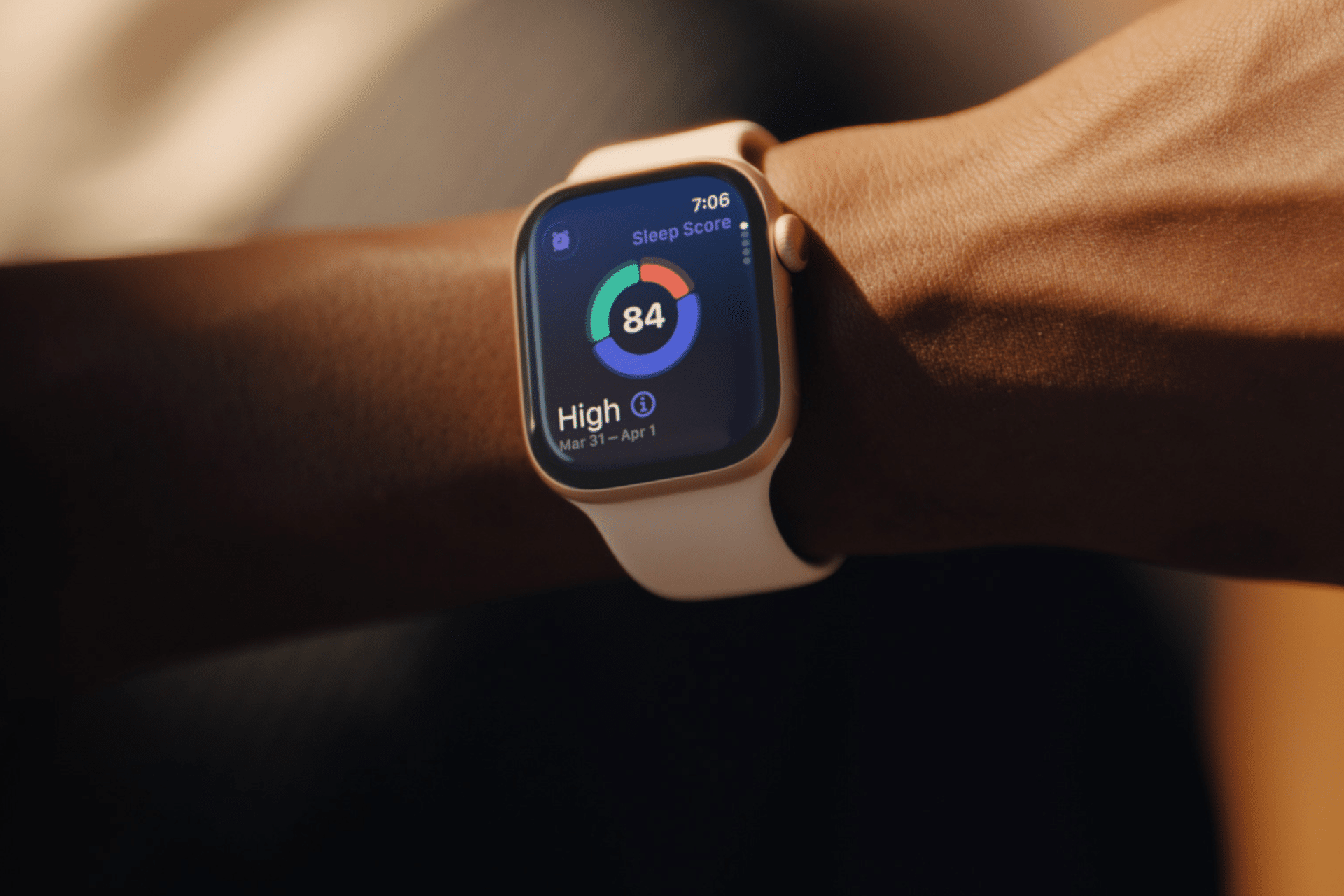
Sleep tracking on Apple Watch can make an invisible part of daily health easier to understand. Each morning, the watch may show sleep duration, stages, interruptions, overnight vitals and a score intended to summarize the night.
That information can be useful. It can also create a new habit of judging the entire day before getting out of bed.
One low score may make a person feel tired before noticing how they actually feel. A few minutes less deep sleep can become a source of concern. Going to bed can even start to feel like a test that must be passed rather than a normal biological process.
Apple Watch sleep data works better as a long-term observation tool than as a nightly verdict. The goal is not to collect perfect scores. It is to notice repeatable patterns and make small changes when those patterns match real-life problems.
What Apple Watch Measures During Sleep
Apple Watch estimates sleep using movement and signals collected while it is worn overnight. Depending on the model and available features, the Health and Sleep apps can show total sleep time, awake periods and estimates for core, deep and REM sleep.
The watch may also collect sleeping heart rate, respiratory rate, wrist temperature and other overnight metrics. The Vitals app compares several of these measurements with the user’s established typical range.
A sleep score compresses parts of the night into one number or category. Apple’s score considers factors including sleep duration, consistency and time spent awake. That makes it convenient, but convenience should not be confused with a complete medical interpretation.
The watch cannot know whether a stressful conversation kept someone awake, whether a child interrupted the night or whether the wearer woke feeling unexpectedly refreshed after fewer hours. It estimates physiological and behavioral signals. The person still supplies the context.
Sleep Tracking Apple Watch Data Works Best as a Trend
One night can be distorted by almost anything: travel, alcohol, illness, noise, a late meal, room temperature or a loose watch band. Even the position of the arm can affect sensor collection.
A weekly or monthly view is more useful because it reduces the influence of isolated nights. Patterns begin to emerge around bedtime consistency, total duration and changes in overnight vitals.
To review longer sleep trends on iPhone:
Health > Search > Sleep > select the weekly, monthly or six-month view
Look first at sleep duration and timing. These measurements are generally easier to interpret than small changes in individual sleep stages.
A person who repeatedly sleeps less on work nights may have a scheduling issue. Someone whose sleep becomes more fragmented after late caffeine may have found a useful connection. A consistently irregular bedtime may explain more than whether deep sleep moved by 12 minutes on Tuesday.
The data becomes valuable when it supports an observation that can lead to a realistic adjustment.
Image Credit: Apple Inc.
Do Not Treat Sleep Stages as Exact Measurements
Core, deep and REM sleep are presented as distinct colored sections, which can make them appear more precise than they are. Apple Watch estimates these stages from signals available at the wrist. A clinical sleep study uses additional equipment and is designed for medical evaluation.
That does not make the stage information worthless. It means small nightly differences should not be overinterpreted.
A person does not need to increase deep sleep manually or achieve a perfect proportion of REM sleep. Sleep architecture changes naturally across age, stress levels, exercise, illness and different parts of the night.
Use stage data to notice substantial or persistent changes, not to compete with yesterday’s chart. Spending 15 minutes less in one estimated stage is not automatically a health problem.
Start With How You Feel
Before opening the Sleep app, notice how the morning feels.
Was waking difficult? Is concentration normal? Is there unusual daytime sleepiness? Does the body feel recovered after exercise? Was the night interrupted for an obvious reason?
This brief self-check prevents the score from defining the experience. Someone may feel fine after a lower-rated night, while another person may feel exhausted despite receiving a favorable score.
The most useful interpretation combines both sources: subjective experience and device data. When they repeatedly agree, the pattern deserves attention. When they conflict for one night, there may be no reason to react.
Use Vitals as Context, Not a Diagnosis
The Vitals app can show whether overnight measurements such as heart rate, respiratory rate, wrist temperature and sleep duration fall within a typical range. It becomes more useful after the watch has collected enough nights to establish a personal baseline.
An outlier may reflect alcohol, medication, elevation, intense training or the beginning of an illness. It may also be an ordinary variation or imperfect reading.
Several unusual metrics appearing together may provide more context than one isolated number. Even then, Apple Watch data should not be used to diagnose a condition independently.
Persistent symptoms, breathing concerns, extreme daytime sleepiness or major changes in sleep should be discussed with a qualified healthcare professional. Bring the trend data if it helps describe what has been happening, but do not let the watch replace an evaluation.
Build a Routine Around Behavior, Not Scores
The healthiest use of sleep tracking is to connect the data with actions a person can actually control.
A consistent bedtime may improve the pattern. Charging the watch before the evening makes tracking more reliable. Reducing late caffeine, adjusting the bedroom temperature or moving an intense workout earlier may also produce noticeable changes.
To set a sleep schedule:
Health > Search > Sleep > Full Schedule & Options > Add Schedule
A schedule can provide Wind Down reminders and help keep bedtime more regular. It should remain a helpful structure rather than a rigid obligation. Life will occasionally interrupt it.
Choose one adjustment and observe it for a week or two. Changing five habits after one poor night makes it difficult to identify what helped.
Image Credit: Apple Inc.
When Sleep Tracking Creates More Stress
Some people become preoccupied with improving sleep data, repeatedly checking results or worrying that a low score guarantees a bad day. The anxiety can itself make falling asleep more difficult.
That is a sign to reduce exposure to the numbers.
Sleep tracking can be turned off temporarily, or the data can be reviewed only once per week. Another option is to avoid checking the score in the morning and examine trends at a neutral time later.
To change sleep tracking settings:
Watch app on iPhone > My Watch > Sleep
A break does not erase the knowledge already gained. A person who has learned that regular timing and less late caffeine improve sleep may no longer need a daily chart to confirm it.
The device should support rest, not supervise it.
A Better Way to Read the Morning Report
A practical morning review can remain simple. Check whether the watch recorded the full night. Notice total duration. Consider whether the bedtime was typical. Look for any major change in overnight vitals, then move on.
There is rarely a need to analyze every stage, compare several apps or search for explanations after one ordinary variation.
Sleep tracking on Apple Watch is most useful when it reveals something that was difficult to see without data: a repeated shortfall in duration, an inconsistent schedule or a pattern linked to habits and recovery.
The score can summarize one night, but it cannot grade the person who slept through it. A healthier measure is whether the information helps create calmer nights, better days and fewer reasons to think about the watch after waking.
Last year was a quiet year for watchOS. While Apple took a couple of swings with Workout Buddy, Smart Stack hints, and a redesign of the Workout app, watchOS 26 was a scaled-back release compared to the big changes and upgrades in watchOS 11 the year before.
Of those swings, the excellent redesign of the Workout app felt severely hampered by bizarre scrolling behavior, Smart Stack hints didn’t appear often enough, and I found Workout Buddy to be mildly annoying and limited (though it’s true some users had the opposite view).
Let’s not forget the addition of Liquid Glass, too, a design system that was more like a coat of paint for the Apple Watch than the behavioral change seen on iOS.
Out of everything that was added, the wrist flick gesture was my favorite, and something I continue to use throughout the day. I don’t mean to sound down on last year’s release – there were genuine improvements in several areas – but it just felt more like a small evolution.
This year’s WWDC keynote didn’t feature a dedicated watchOS section (or a dedicated section for any particular OS, for that matter), but that’s not to say there’s nothing to see in watchOS 27. In fact, after several weeks of beta use, I see several intriguing things going on here.
So with that obvious tease out of the way, let’s break down what you can expect from watchOS 27.
Siri AI and Apple Intelligence
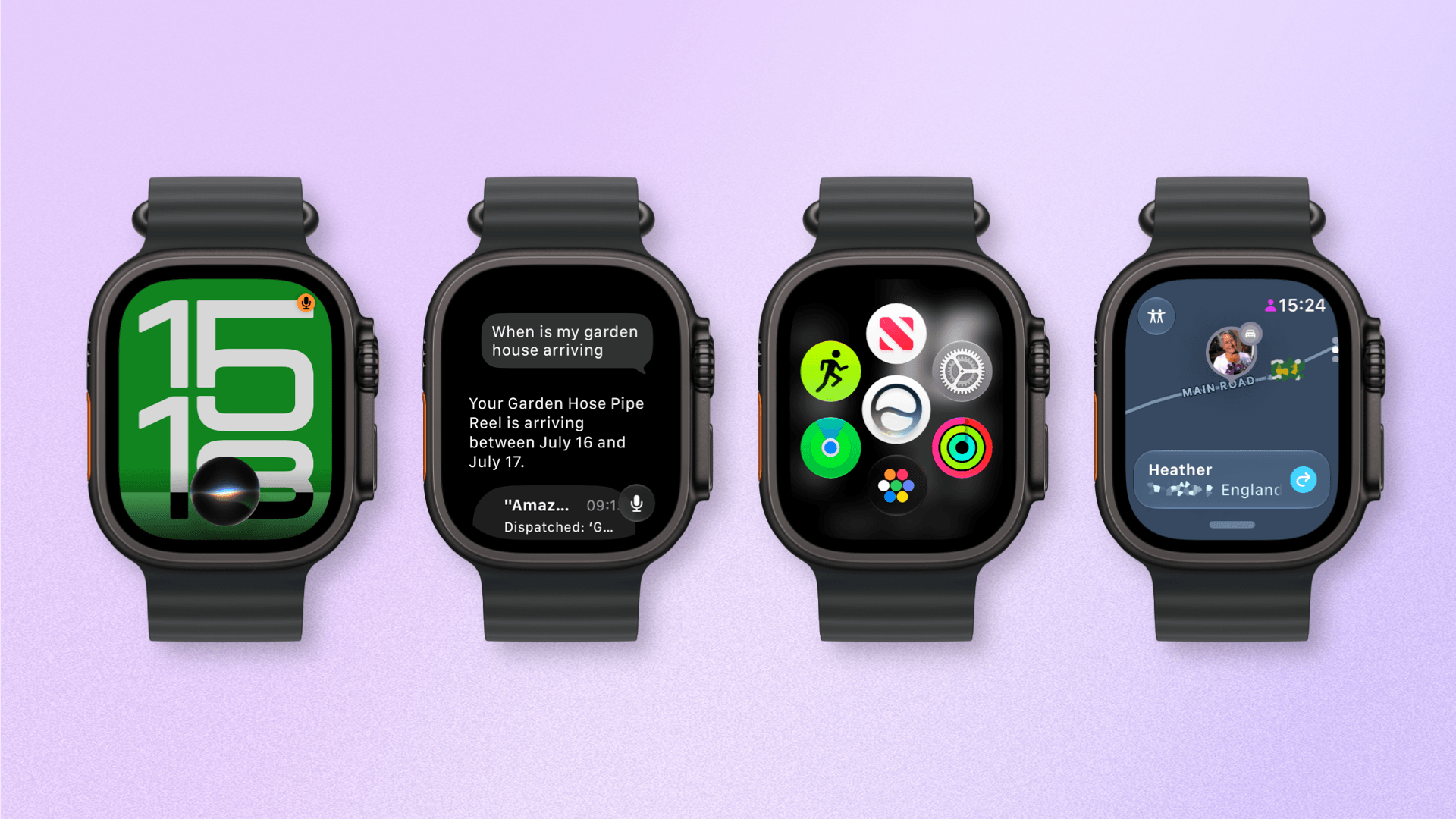
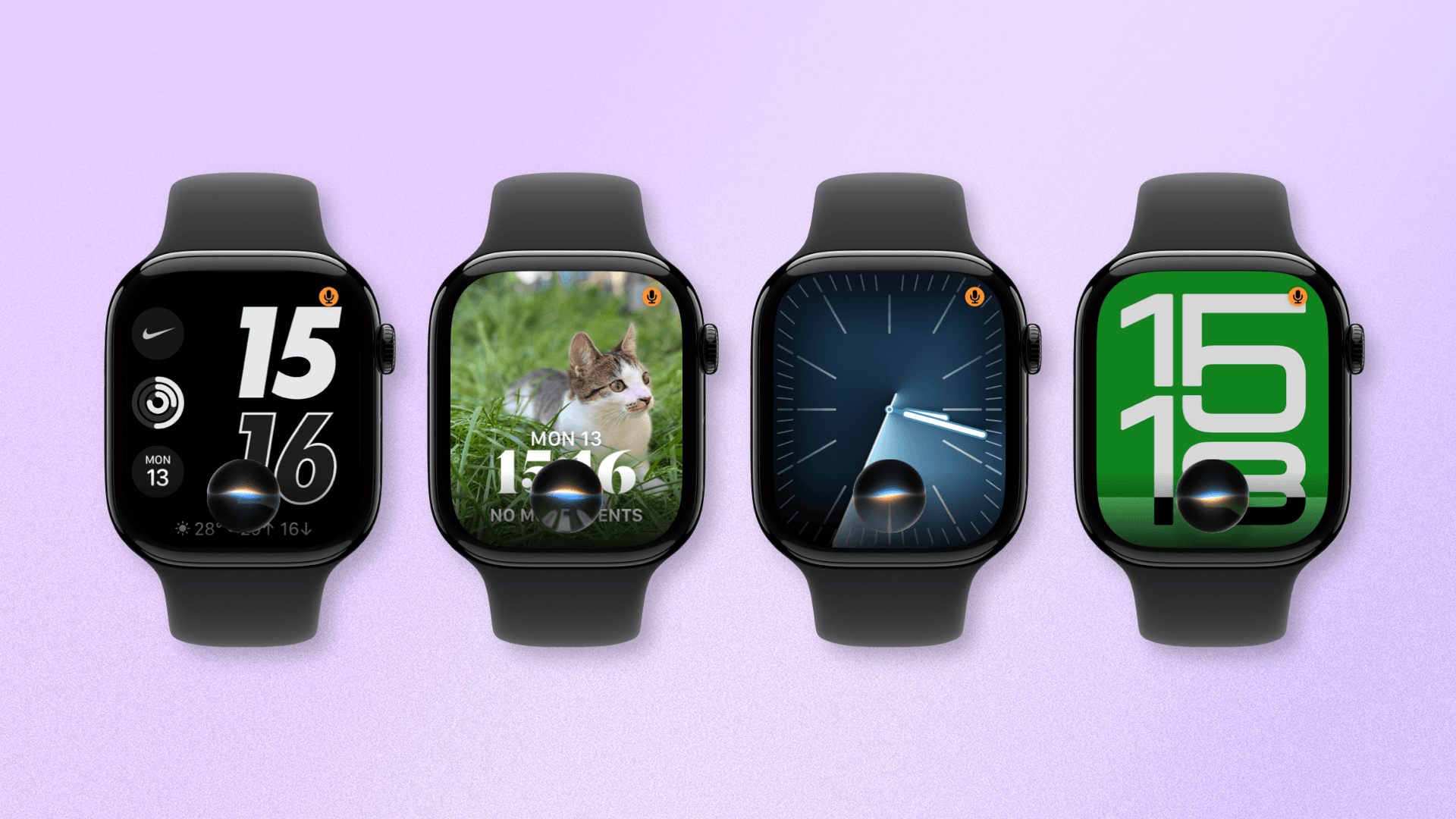
The new Siri UI over various watch faces.
The headline feature at this year’s WWDC was Siri AI, and along with every other platform (save for tvOS – yet), watchOS will be gaining access to Apple’s upgraded personal assistant.
I had worried that with the promised launch of an upgraded Siri, the Apple Watch would be forgotten in the rollout or receive a diluted version, so it’s exciting to see that not only is Siri AI included with watchOS 27, but it is almost a like-for-like copy of the iOS version. This is likely due to the way Siri AI on watchOS will essentially bounce queries off a paired iPhone.
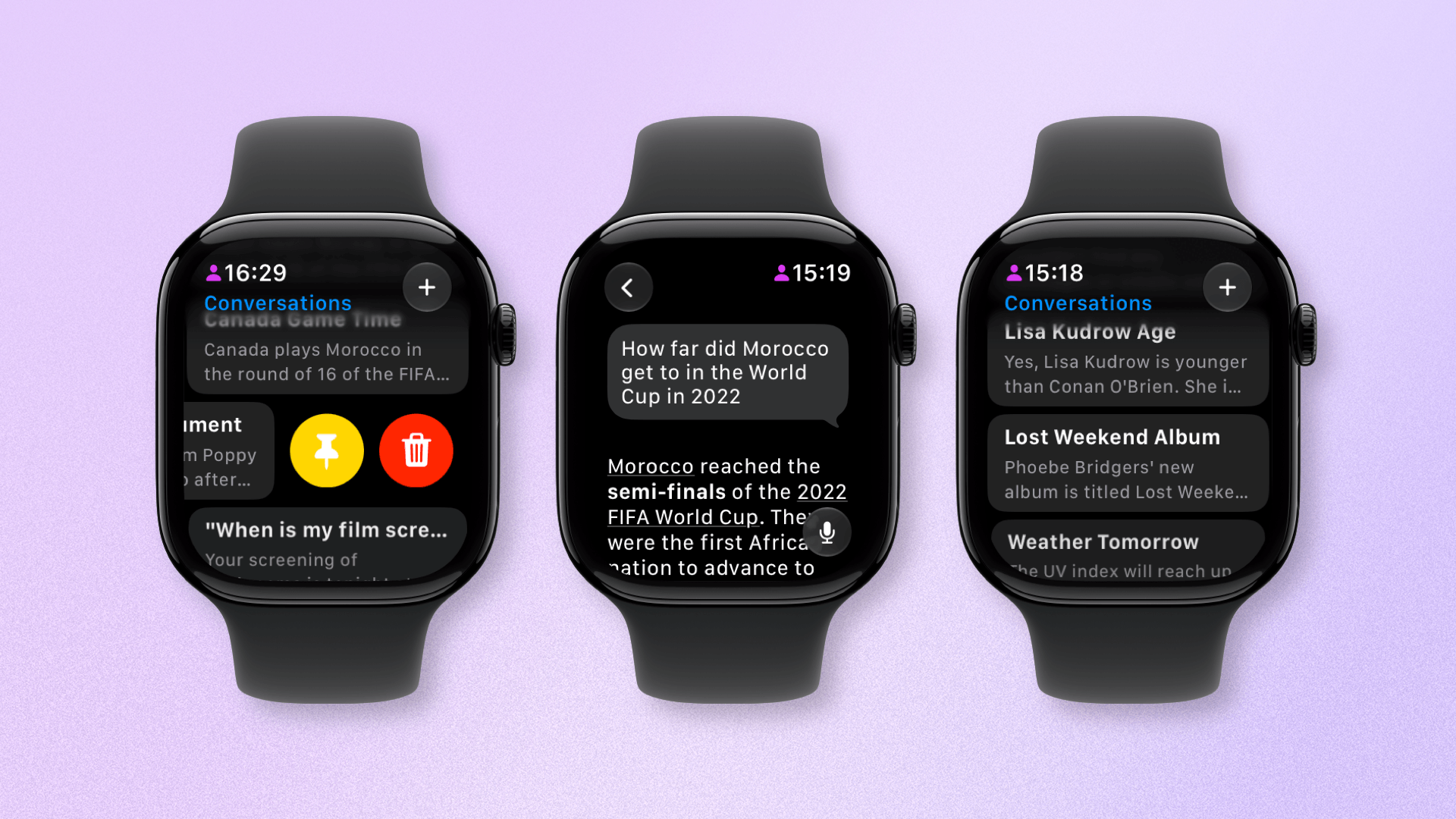
Siri AI continues to appear as a slightly amorphous assistant that can be summoned by long-pressing the Digital Crown, uttering the wake phrase, or using Raise to Speak. But now, it is also a dedicated app that lets you continue conversations started on other devices.
The new Siri app allows you to browse and pin past conversations.
Siri AI on watchOS only debuted in the latest developer beta a week ago, so I haven’t had long to fully test it. That said, I have two strong takeaways already: Siri AI shows the potential of becoming something huge for the Apple Watch, but it is, as of now, quite buggy.
Let’s start with the positive: the potential. I’ve long said that the best place for digital personal assistants is on existing items we wear like watches, rings, and glasses. The friction is low, and you’re not adding another device to your daily carry.
Imagine, if you will, being able to raise your wrist, ask a question, and get an instant answer without having to fiddle around getting your iPhone out of your pocket or bag, unlocking it, and then holding the power button or saying Siri’s wake phrase. Who needs that faff? Certainly not me.
That’s why when Siri AI has worked well, it’s been a great experience.
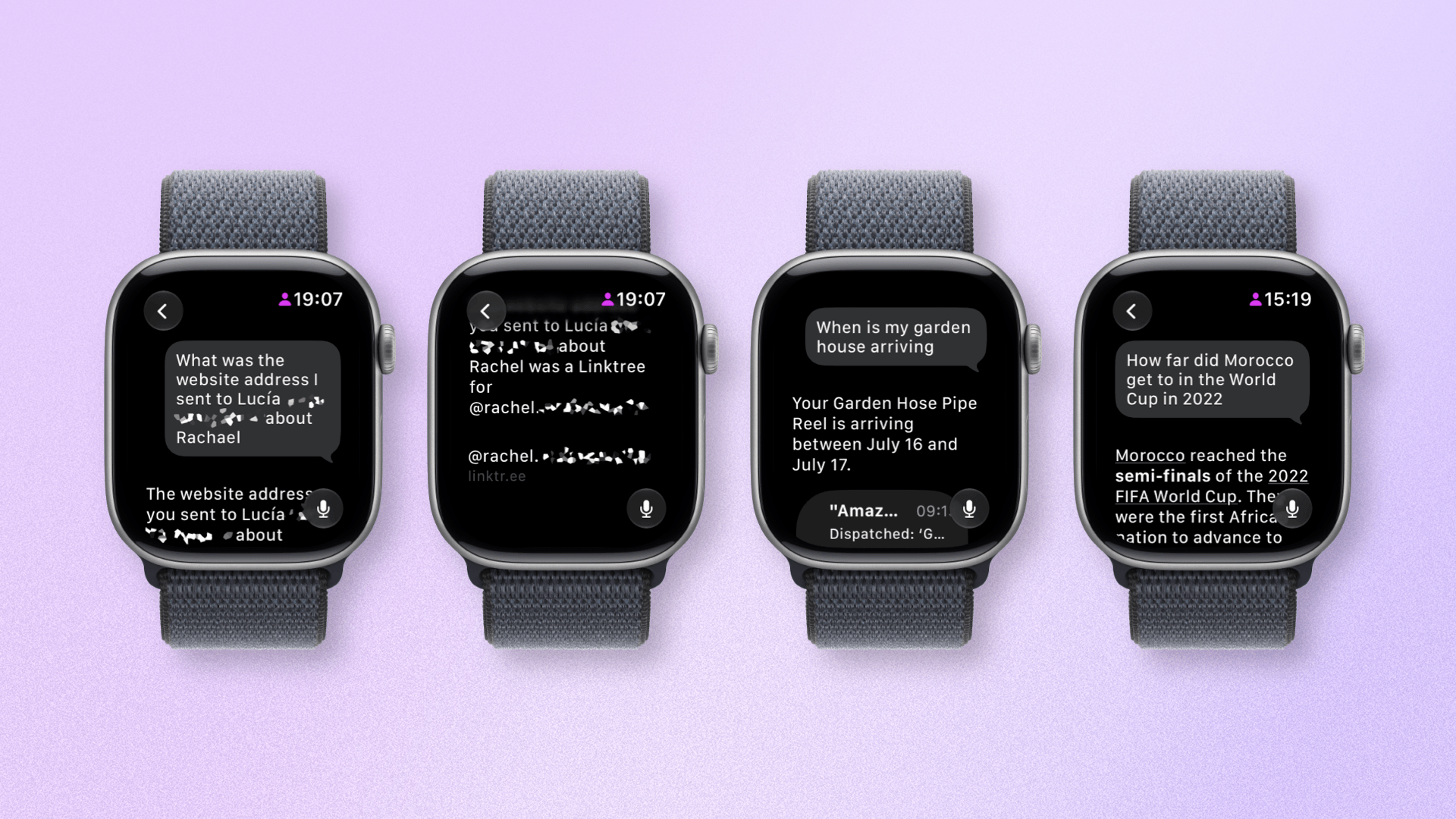
Siri can surface some impressive personal context answers.
While world knowledge questions are great, it excels more with in-depth queries, like a question about an old message. One good example is a query I had (pictured above) where, while talking to someone, I needed a friend’s website URL to pass along. I knew I’d sent it to my wife, so I asked Siri AI to find it. Based on the context, it searched messages with my wife and found the website, which I read out.
I’ve had several experiences like this. I had Siri AI find what our seat numbers were to see Aziz Ansari. I asked about the weather, with follow-up questions about the UV index and wind speeds, too. Although results can be slow, getting information like this felt like a superpower. The Apple Watch is a very personal device, and these experiences were both personal and useful.
Now for the negative: bugs. Unfortunately, Siri AI in the latest developer beta (and, likely, the first public beta) has a lot of them. To be clear, this is to be expected; it’s called a beta for a reason. But it’s also worth being aware of these issues if you’re thinking of trying out the public beta and expecting a consistently amazing personal assistant.
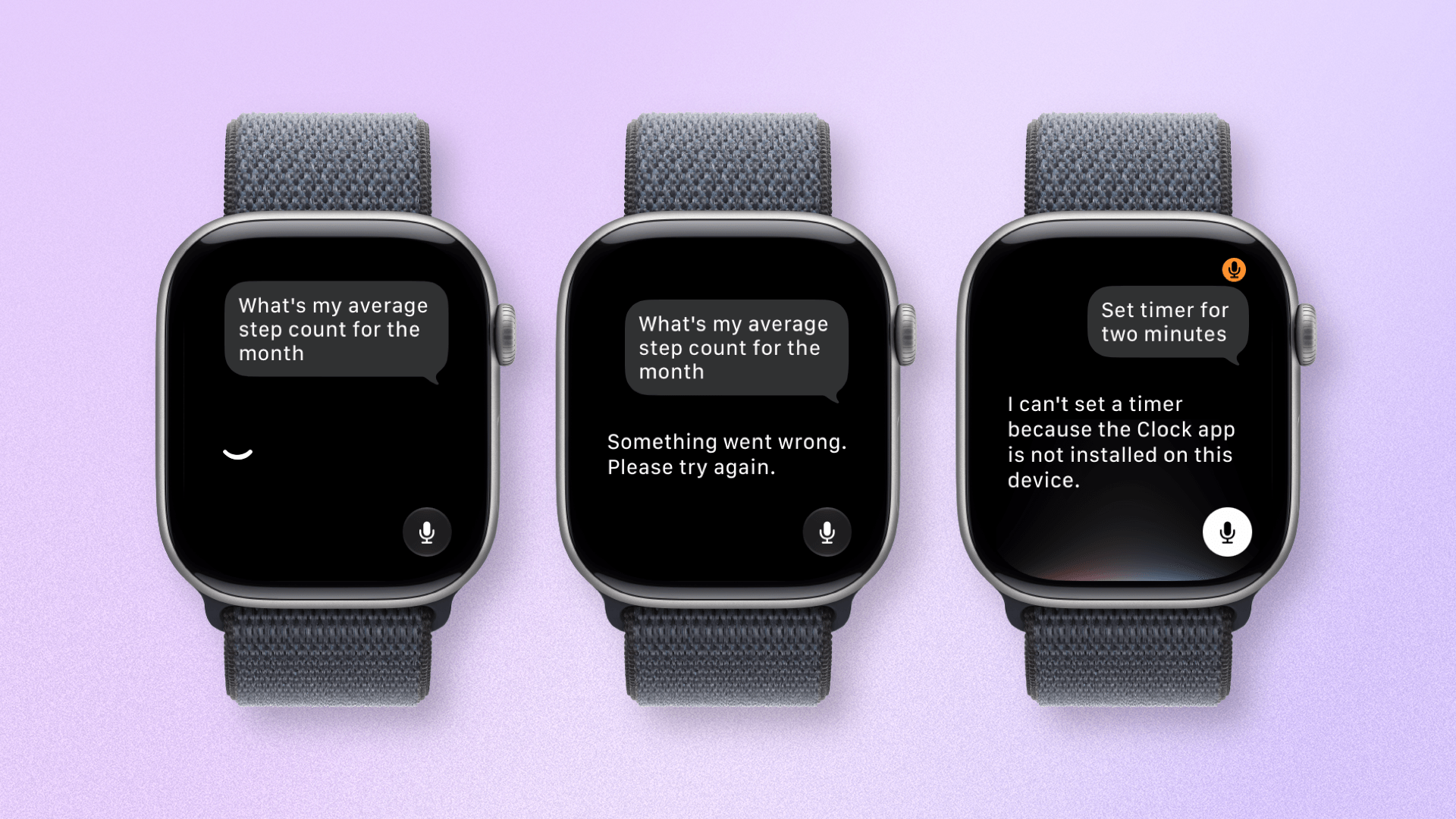
watchOS 27 may still be in beta, but the reliability needs work.
Queries frequently fail or time out, and Siri AI can often be a little too keen to answer your query, cutting off your question before you’ve finished. These bugs have also, unfortunately, leaked into some standard Siri requests. Setting a timer on the Apple Watch has been impossible for me since the update.
While it’s strange that these bugs are popping up, given that they aren’t issues on iOS, I expect the smaller ones to be fixed by the time Siri AI is released publicly later this year. The big question is whether Apple can bring Siri AI to an adequate level of reliability on the Apple Watch and fulfill its huge potential.
Call Context when making a call.
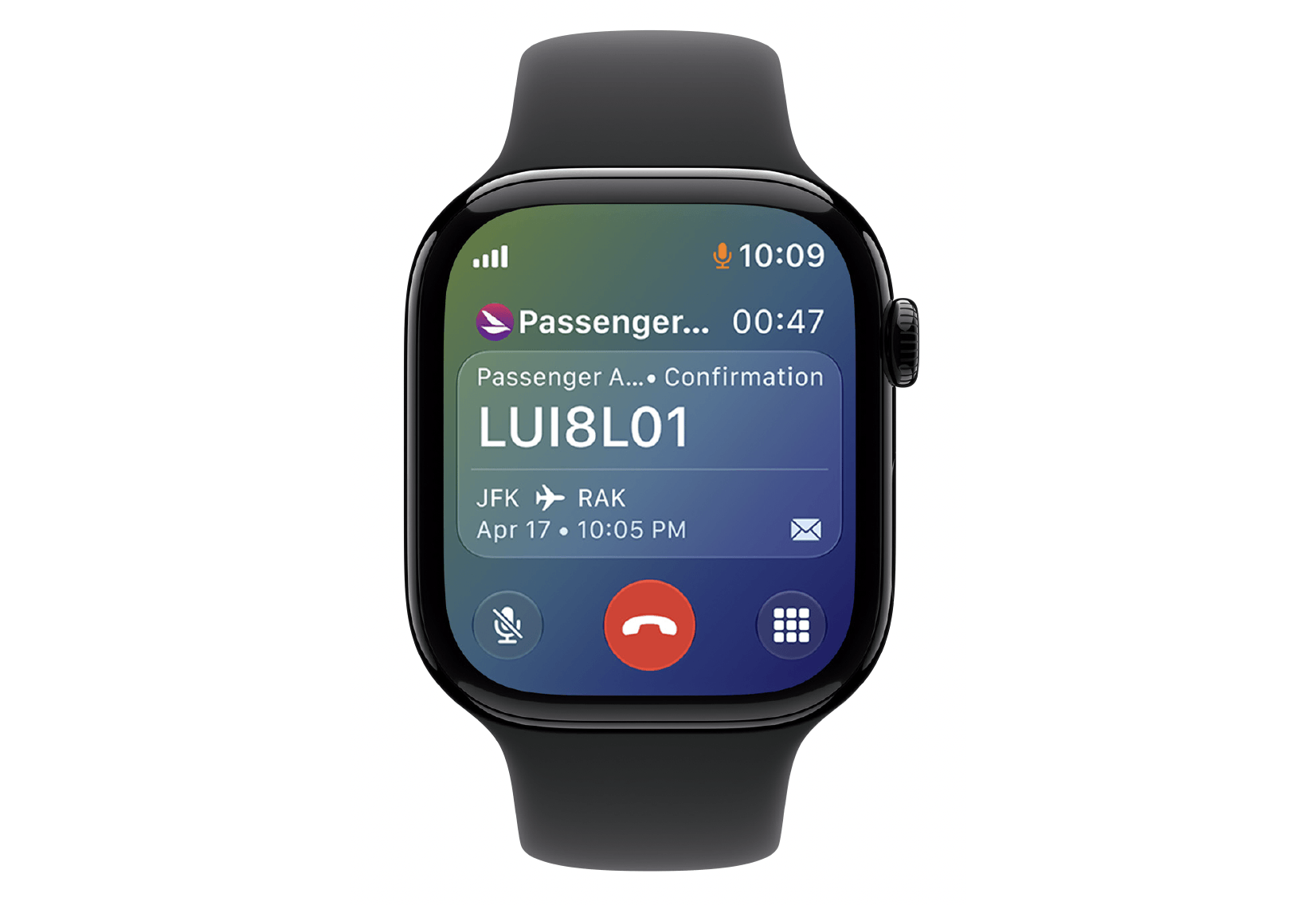
In terms of Apple Intelligence upgrades, there’s a new feature called Call Context. This promises to surface relevant information on your Apple Watch when you are on certain phone calls. For example, if you’re calling an airline, your Apple Watch might show the flight you have booked, or if you’re calling a friend, it might show their upcoming birthday. You get the picture. I’ve yet to encounter Call Context, but it could prove to be a small yet handy feature.
App Navigation and Interface
Apple claims opening speeds for apps across all of its platforms are up to 20% faster. On watchOS specifically, the company says tapping to start a workout and media playback are quicker, too.
I’ve got to admit: whatever Apple has been refining behind the scenes has worked. From the very first beta, apps opened dramatically faster. The same goes for general interactions like screen refreshes and button taps. It’s made the Apple Watch easier and quicker to use, which in turn has made the experience more enjoyable.
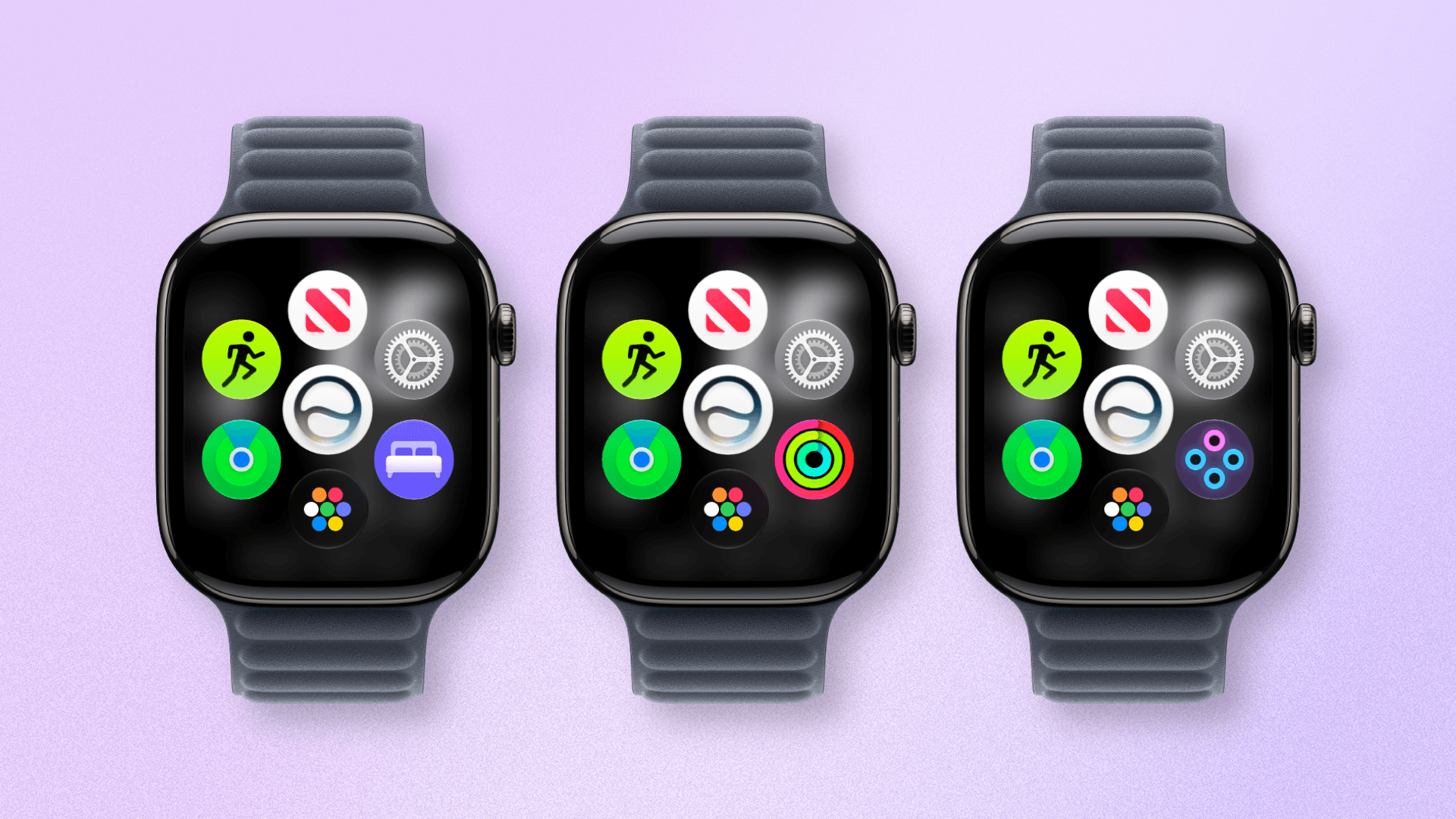
The new dynamic app grid changes one slot to your most recent app while the others are out of your control.
Over on the UI side of things, Apple has introduced an extra layer of app icons on top of the classic grid/list view. The dynamic app grid displays five app icons based on context and recent usage, surrounding one fixed icon for Siri AI. You can access the traditional grid or list view by swiping up from this grid, scrolling up with the Digital Crown, or tapping the app grid icon in the bottom of the app grid.
In use, I’ve found this new view a bit frustrating. It usually displays your most recently used app, which can be a waste of an app slot if you don’t frequent it often enough. Plus, I had already deliberately organized my icon grid to make it easy to access my most frequently used apps; this extra step gets in the way of that.
This would all be well and good – as I’m sure some people will like this feature – if it were optional. Frustratingly, it’s now the default behavior, so I’m forced to tap or swipe again to access the apps I like. It’s not the end of the world, but it’s certainly an unnecessary annoyance.
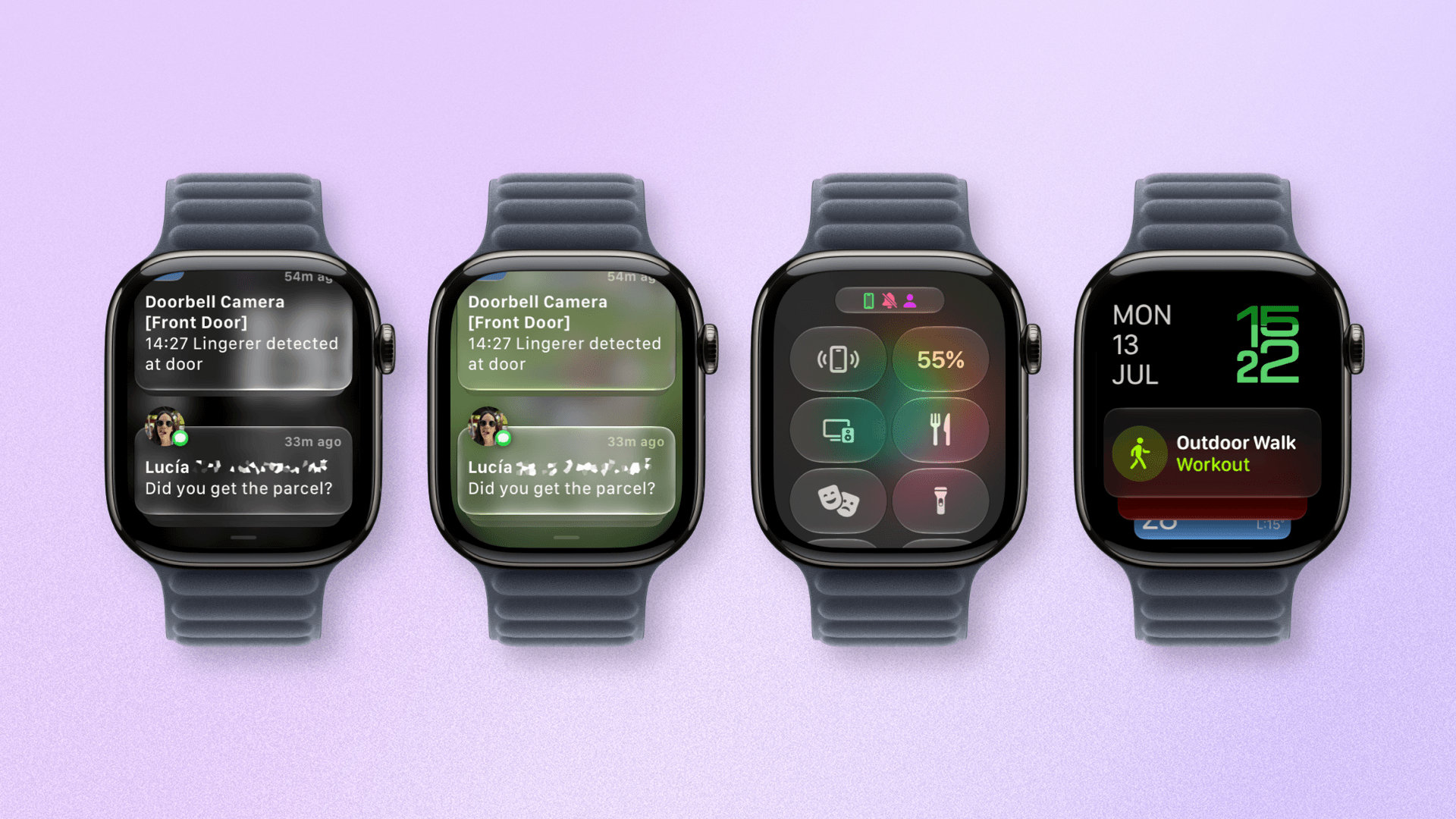
Liquid Glass is more legible in watchOS 27.
Elsewhere in watchOS, the UI design has been given some nice refinements. Just like on Apple’s other OSes, app icons are sharper and more distinct, and the Liquid Glass design system is much more readable in areas like Notification Center. Unlike on other platforms, the transparency of Liquid Glass cannot be adjusted on watchOS, but the level Apple has settled on is, I think, a decent compromise.
Workouts and Health
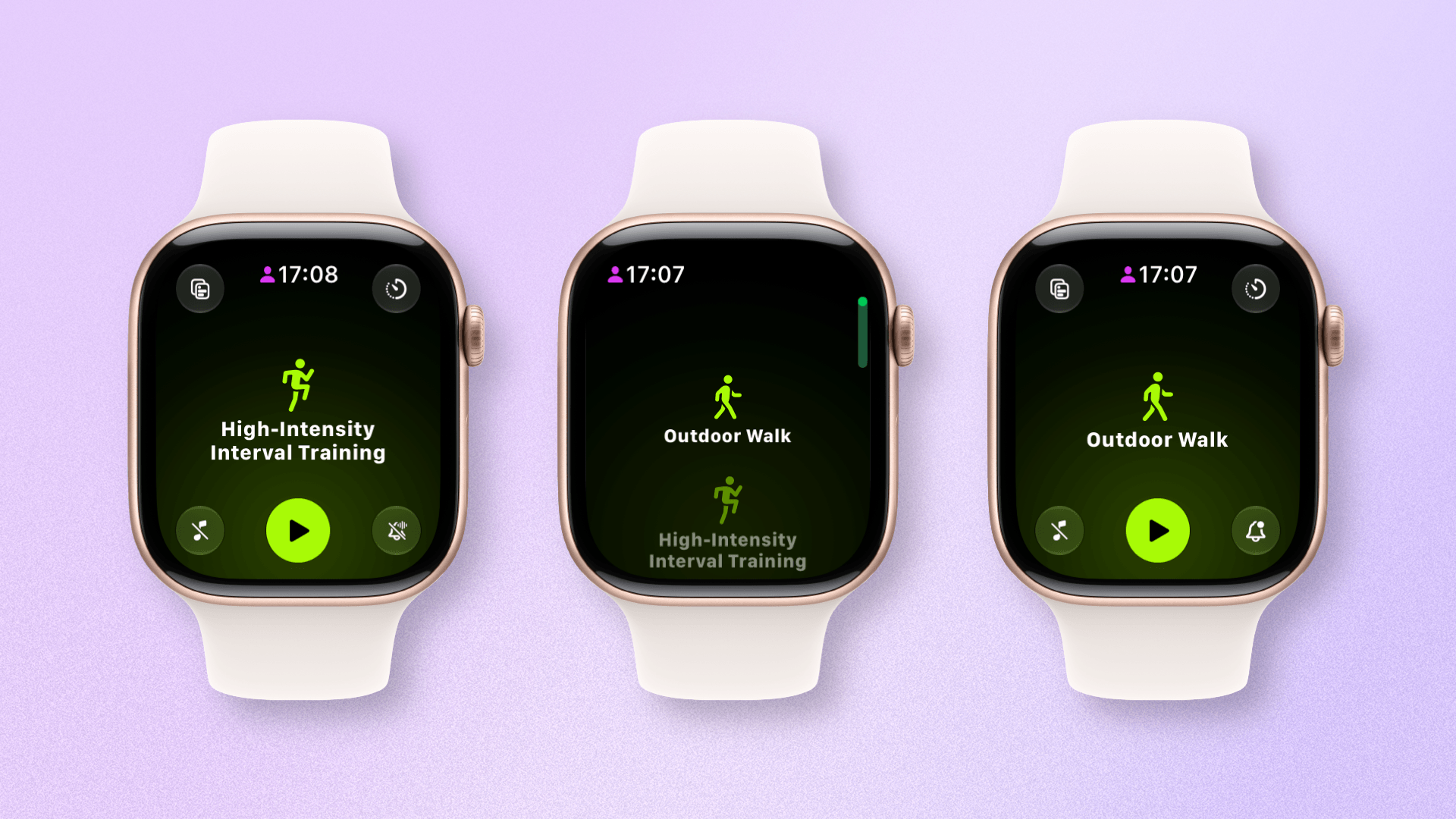
Workout app scrolling is fixed!
The biggest news, for me at least, is that the terrible scrolling behavior in the Workout app that I mentioned at the top of this article is gone. It’s difficult to describe without seeing it for yourself, but I would say it feels more “natural”.
The number of workouts the app scrolls past nicely reflects the amount of velocity you apply to your swipe, and even a dramatic swipe will only get you past a maximum of four workouts on the list. It shouldn’t have been a problem in the first place, but it’s good to see it rectified.
Workout Buddy has received a number of refinements, which will be welcome for users who like very enthusiastic announcements during their workouts. The big news is that Workout Buddy no longer requires a nearby iPhone to work. That’s a win for those who want to go out for a workout with their AI buddy but leave their iPhone at home.
Next, Workout Buddy’s insights are reportedly improved and deliver more detailed feedback. New insights include progress for pace, distance, and workout duration. In testing, I’m not sure I’ve noticed a huge difference, but more data is always welcome when you’re working out.
Finally, Workout Buddy features improved voice delivery that is more natural and less abrupt. Its phrasing now combines multiple achievements into a single statement to provide more consolidated feedback, and it will be available in Spanish as well.
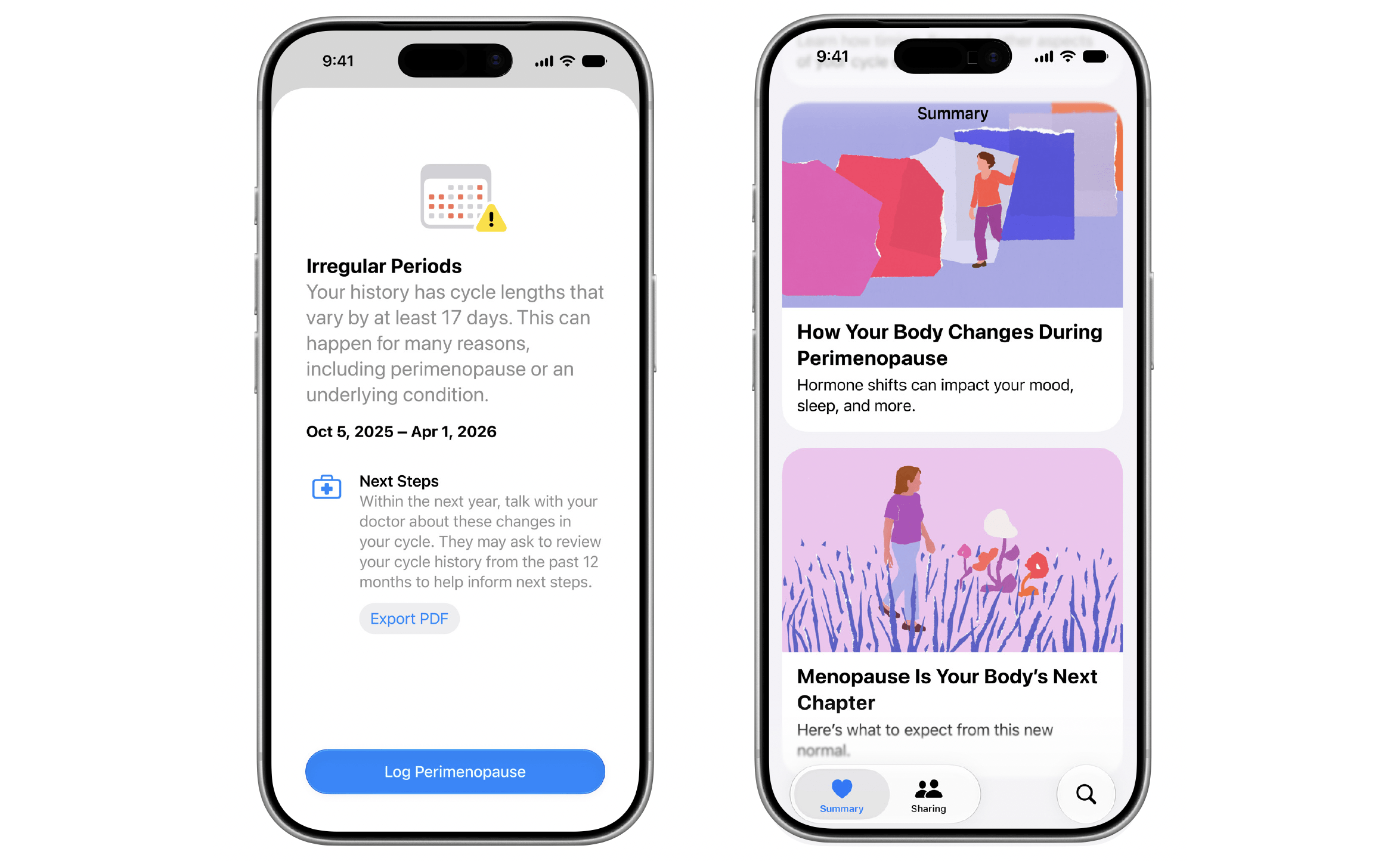
While not available to view on the Apple Watch, if you’re cycle tracking with your iPhone and Apple Watch, Apple Health will warn you if your cycle patterns are suggestive of perimenopause. As is the Apple way, the app will encourage you to track related symptoms, provide resources, and talk with your healthcare professional. It’s good to see Apple continuing to support common but often overlooked areas of health like this, especially ones specific to women.
Lastly, following the through line of performance improvements Apple is targeting across its platforms, step count accuracy and syncing between the iPhone and Apple Watch are fixed, and the accuracy of treadmill distance tracking has improved.
Find My
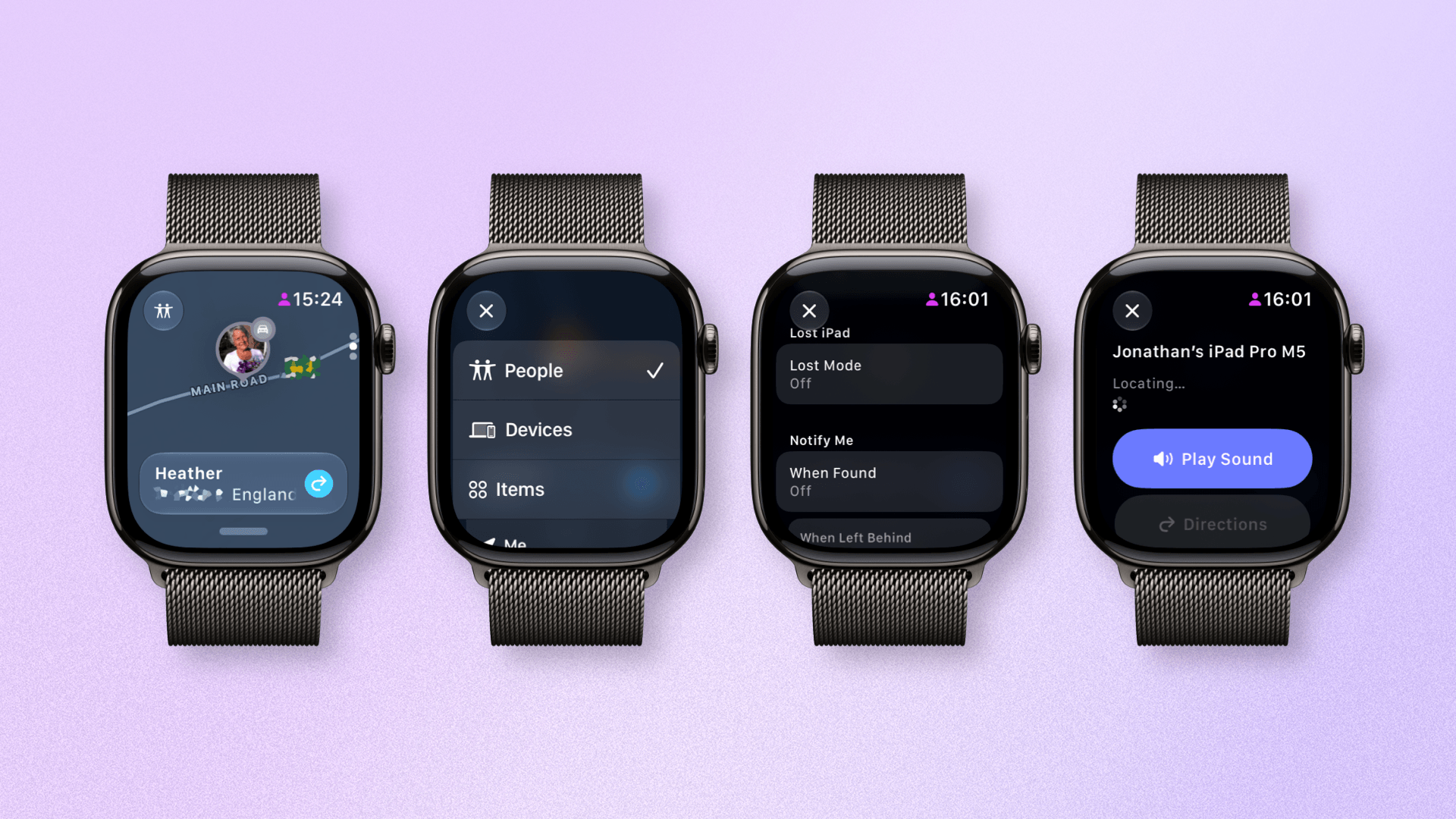
The new Find My app in watchOS 27 is fantastic.
The Find My app has historically – and bizarrely – been split into three separate apps on watchOS: People, Devices, and Items. I’ve never understood this logic, but watchOS 27 finally consolidates these three tracking streams into one app, just like every other platform.
What’s great to see is that, unlike last year’s Notes app, the new watchOS Find My experience is incredibly close to the one on iOS. You can switch between the three categories using a button in the top-left corner of the screen, scroll through each item or person, and perform all the usual actions you can on other platforms.
These include playing a sound, marking an item as lost, setting up location alerts, and even Precision Finding. The way the watchOS team has translated the full Find My app experience to the wrist is a real triumph of app design.
Smart Stack and Gestures
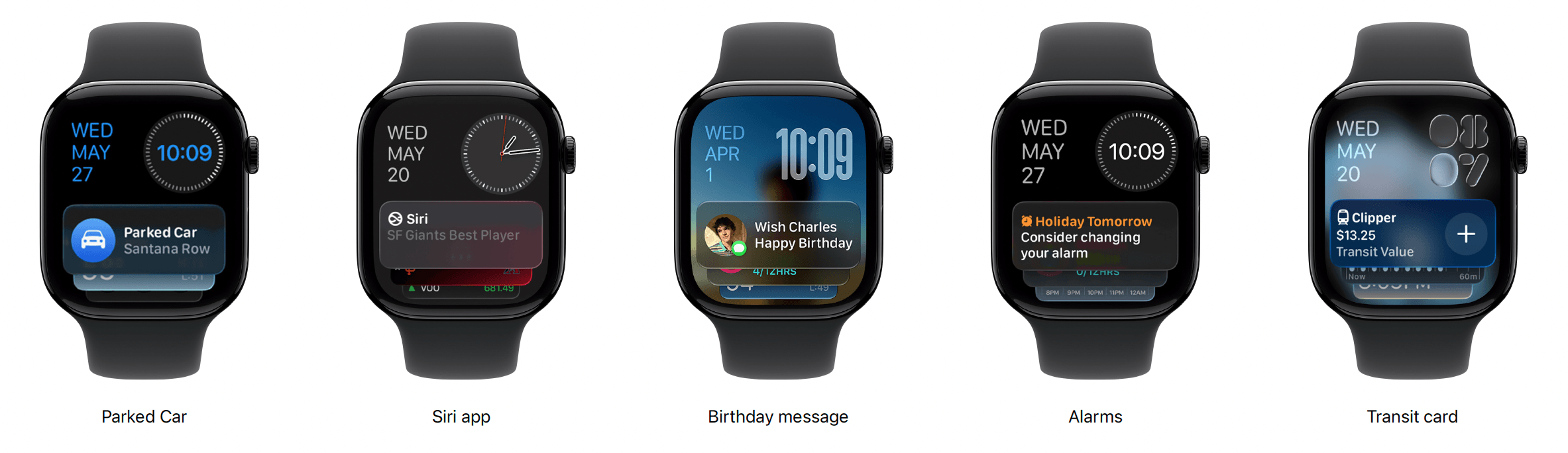
A selection of new Smart Stack widgets.
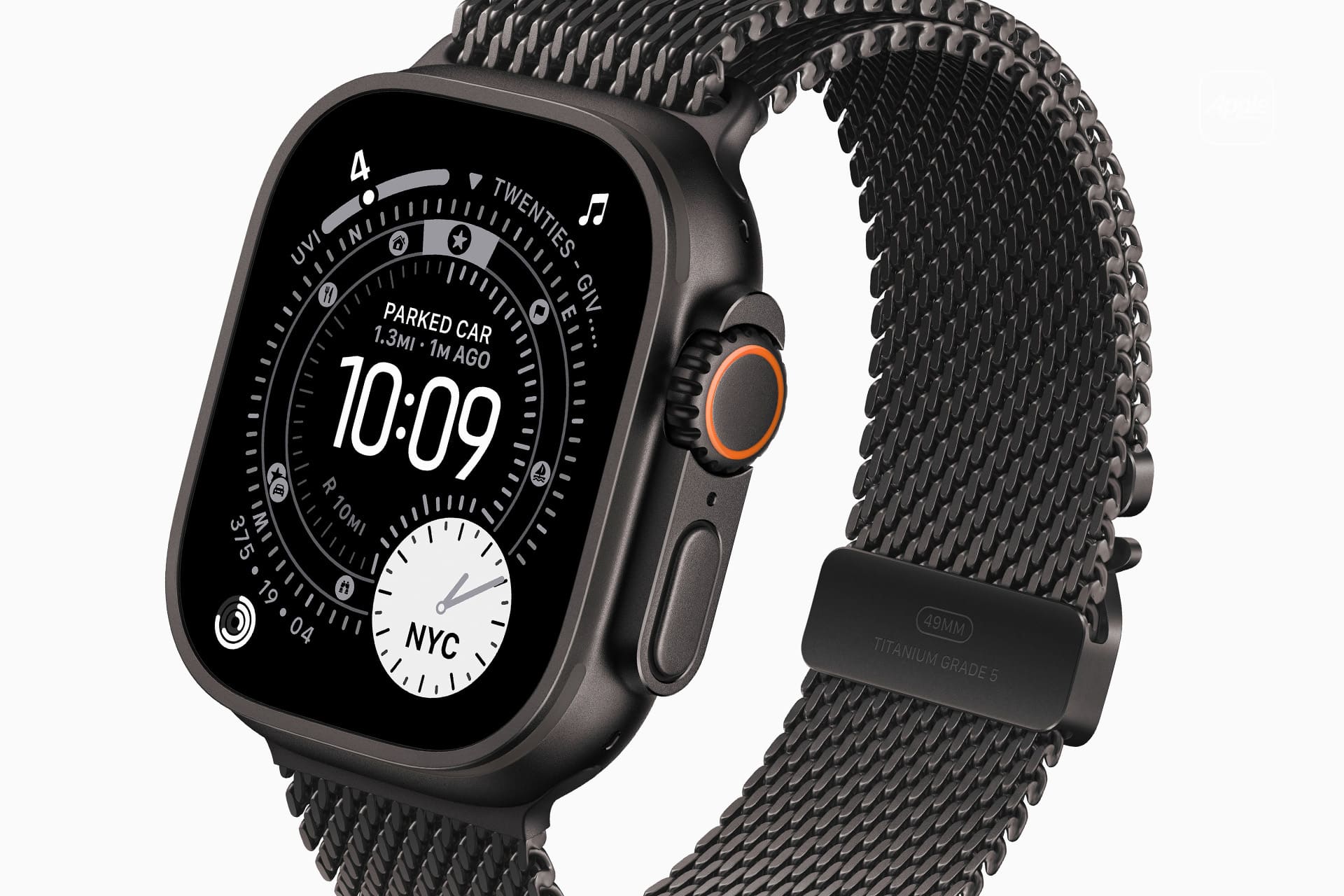
This is the third watchOS release for the Smart Stack, and it continues to gain enhancements. This year, those come in two forms. First, there is a range of new Smart Stack suggestions, including a close contact’s birthday, parked car location, and transit card balance.
An intriguing addition is a Smart Stack suggestion that will prompt you to change a recurring alarm the night before a holiday. I look forward to the day when my daughter doesn’t wake me up every morning so I can take full advantage of this.
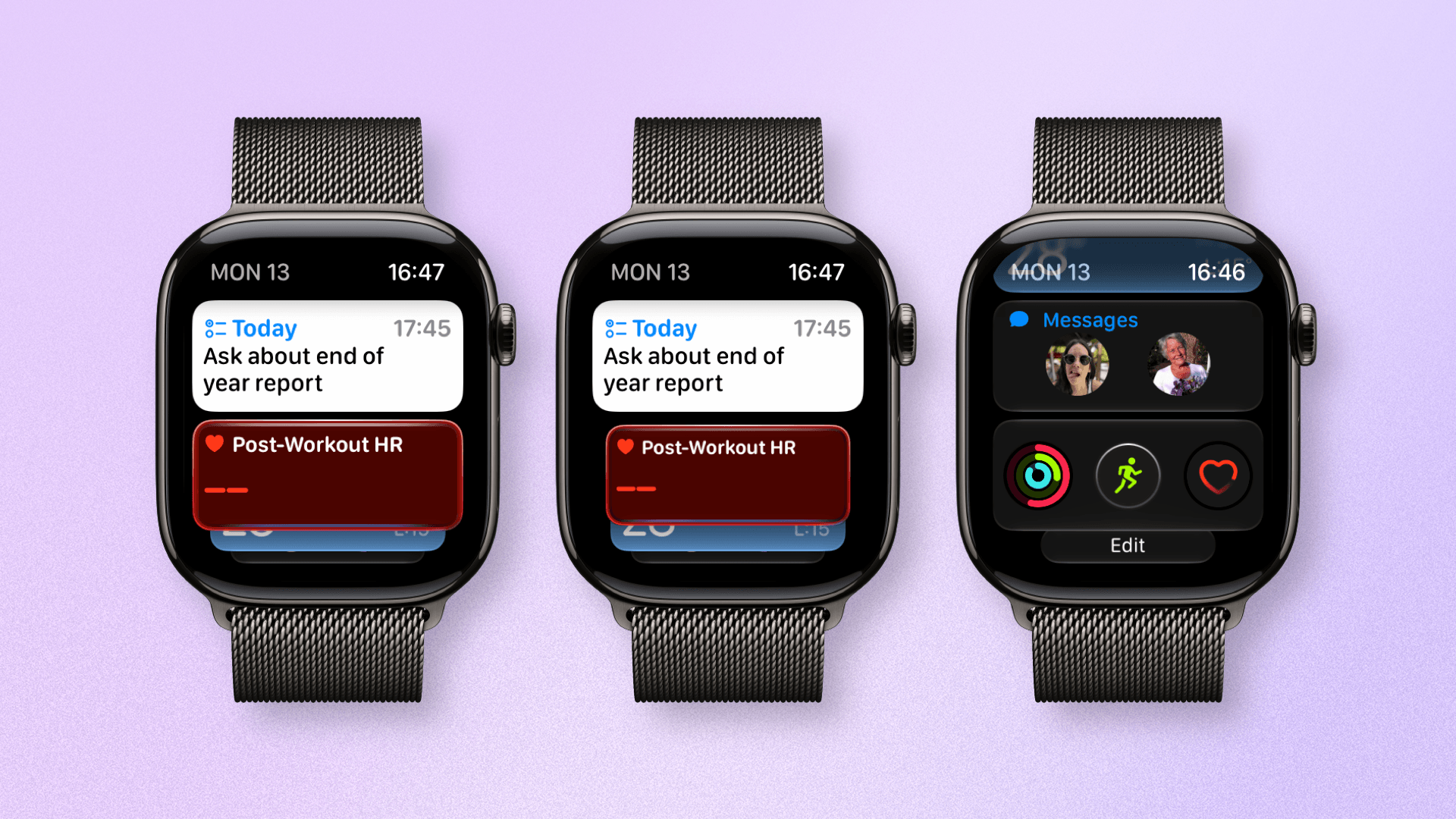
The new single-tap gesture in action in the Smart Stack.
The second enhancement comes in the form of a new gesture. I’ve not been coy about my love of gestures on the Apple Watch, and after last year’s addition of the excellent wrist flick gesture, I was hoping for more this year.
The new single-tap gesture allows you to launch individual widgets within the Smart Stack or carry out an action like starting a workout or recognizing music. This is a nice addition, but my excitement is tempered by the fact that the gesture only works in the Smart Stack. The gesture being unavailable as an API for third-party apps is a disappointing omission by Apple, so I hope they grant developers access soon.
Tidbits
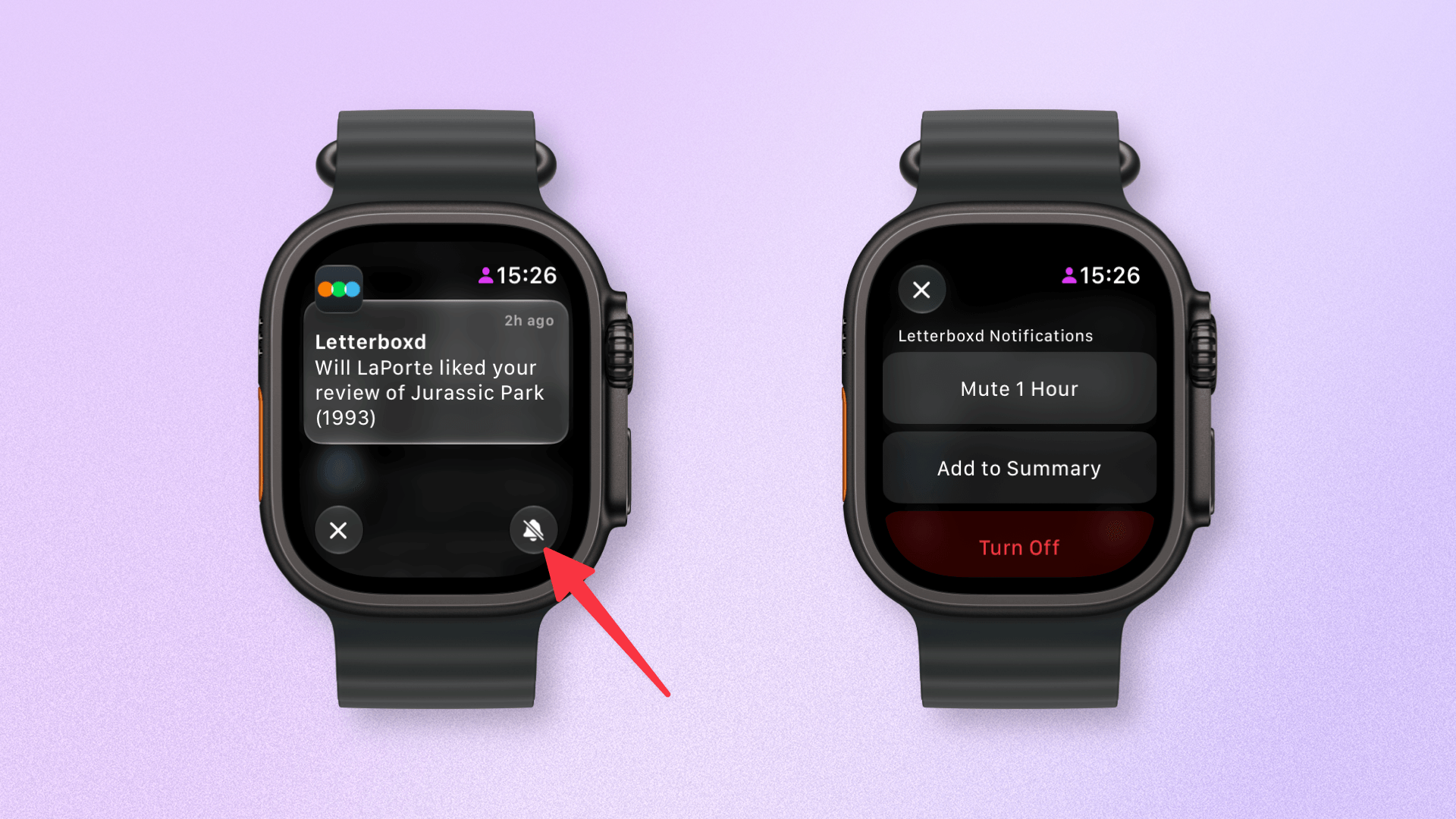
Better access to notification controls.
Notifications have been tweaked slightly to allow better access to options like muting and disabling them. Apple Pay notifications are richer, too, with clearer transaction information and a map showing the location of the purchase.
Sticking with transactions, iOS 27 is gaining the ability to create custom Wallet passes from QR codes, and watchOS will display these creations in the Wallet app as well. And in another example of increasing feature parity between watchOS and iOS, the Wallet app now shows card balances.
There are several features that users just don’t take advantage of on the Apple Watch purely because they don’t have the need or don’t particularly like them. Unfortunately, some of these features can affect battery life, so with watchOS 27, your Apple Watch will look for unused features and offer to turn them off to enhance battery life. These include things like Double Tap, Raise to Speak, and Start Workout reminders. You can always turn these features back on in Settings.
Lastly, continuing the theme of performance enhancements, Apple says watchOS 27 has improved Wi-Fi connectivity, better water detection, and more efficient GymKit integration.
Heading to the watchOS Graveyard
watchOS 27 comes with a few cuts, too. The Walkie-Talkie app is gone, as is the App Switcher. While I’m sure there are few who will miss Walkie-Talkie, the axing of the App Switcher seems a strange choice.
Previously, a double press of the Digital Crown would surface your currently open apps, allowing you to switch between them or close them. Now, a double press does the same thing as a single press: opening the new dynamic app grid. I used the App Switcher infrequently, but when I did, it was useful, so I hope Apple reverses course.
The last axe to fall in watchOS 27 is actually on several Apple Watch models. watchOS 27 will only support Apple Watch Series 9 and above, Apple Watch Ultra 2 and above, and Apple Watch SE 3. That means, of the models that could run watchOS 26, Apple is dropping support for Series 6, 7, 8, Ultra 1, and SE 2.
That’s quite a few models, and while Apple has explained the reasoning behind this decision, it will be frustrating to some users, especially those with the original Apple Watch Ultra.
Siri AI and several new Apple Intelligence features are the big carrots for installing Apple’s OS 27 releases this year. That includes watchOS, and despite its bugs, it’s been exciting to test Siri AI out. If Apple can deliver on this promise, it could be a game changer.
Yet, for most users, the performance enhancements I’ve seen will be the most immediately tangible part of the new OS (with the usual warning that running the watchOS beta means your battery will take a hit). The ability to raise my wrist, perform an action, and quickly move on without hangs or loading screens is incredibly valuable.
Apple has previously described new iOS releases as akin to “getting an entirely new phone”. That statement often referred to feature additions and design changes; however, when you get a new device, the feeling of “new” actually comes from increased speed, power, and performance. As such, watchOS 27 can often feel like using ‘an entirely new Apple Watch’.
If you want to test out these new features before they’re released this fall, you can do so now by enrolling in the watchOS 27 public beta. watchOS 27 is compatible with Apple Watch Series 9 and above, Apple Watch Ultra 2 and above, and Apple Watch SE 3.

 Login
Login