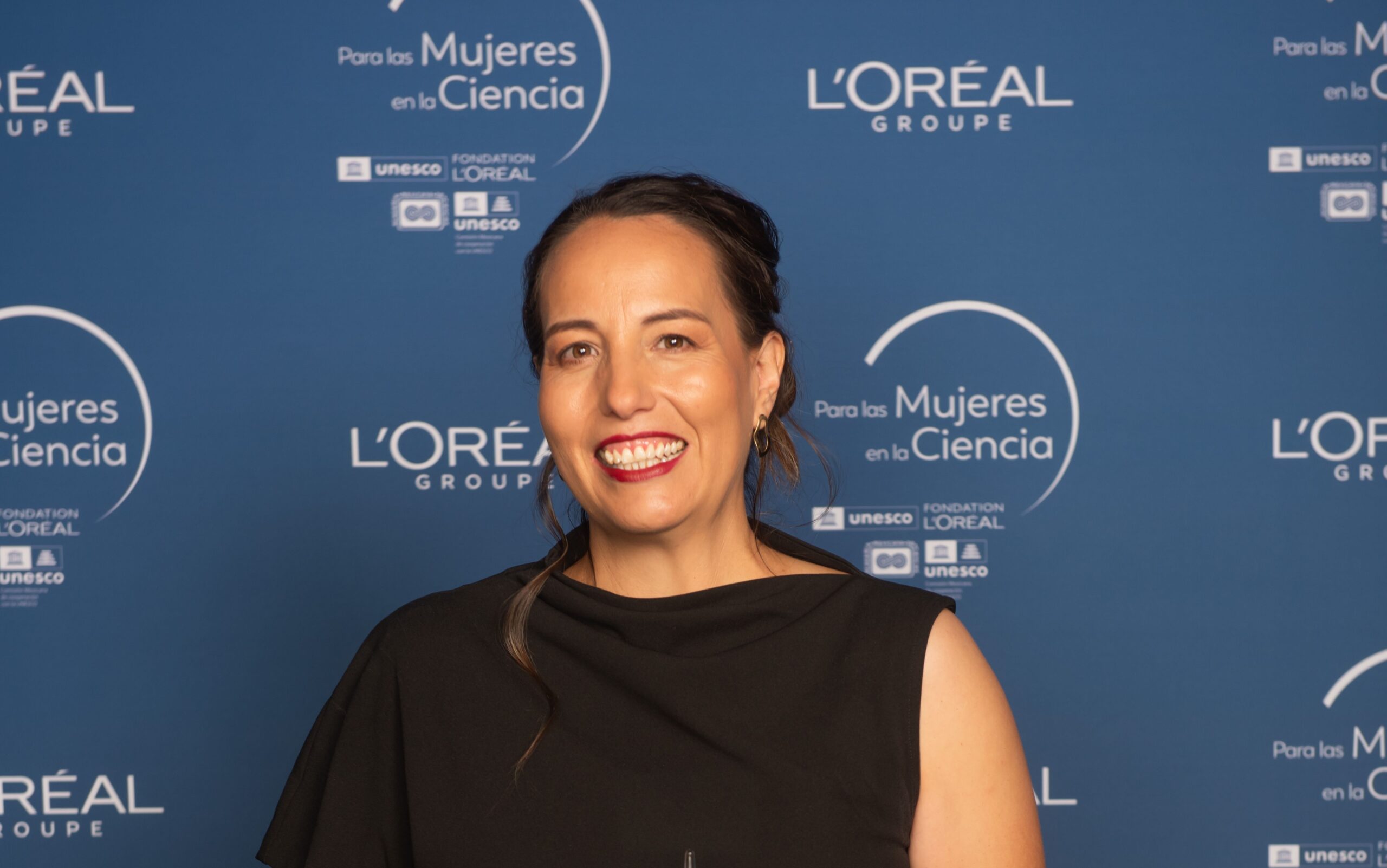
¿Puede existir un color que nunca nadie haya visto? Esta es la verdad sobre el «olo», contada por Cochi Lillo. Un color que existe sí, pero que podemos llamar imaginario.
Conchi Lillo Delgado es profesora titular en el Departamento de Biología Celular y Patología de la Universidad de Salamanca e investigadora del Instituto de Nuerociencias de Castilla y León. Es asimismo investigadora principal del grupo ‘Trastornos degenerativos del sistema visual’. Dilvulgadora científica, es autora del libro ¡Abre los ojos!
Su línea de investigación se enfoca en el desarrollo tecnológico de compuestos químicos sustentables y bioinsumos para disminuir la exposición y efectos adversos a la salud humana y ecológica por la exposición a contaminantes emergentes, así como ofrecer alternativas sostenibles y seguras para el uso de productos químicos domésticos e industriales.
Ha recibido varias distinciones por su trabajo; la más reciente, en 2024, es la beca L’Oréal-UNESCO para las Mujeres en la Ciencia en colaboración con la Asociación Mexicana de Ciencias. Este reconocimiento subraya su destacada contribución y compromiso con la investigación científica en el ámbito de la química y las ciencias ambientales.
Karla Ximena Vargas Berrones. Fotografía proporcionada por la investigadora.
1. ¿Cuál es tu área de investigación?
Mi trabajo se enfoca en la protección del medio ambiente a través de la ciencia y la tecnología. Investigo cómo restaurar ecosistemas dañados y cómo prevenir la contaminación antes de que ocurra. Actualmente, mi labor se divide en tres áreas clave: primero, identifico contaminantes peligrosos para evitar que afecten nuestra salud; segundo, desarrollo métodos para limpiar ríos, manglares y mares —especialmente tras derrames de petróleo— usando limpiadores orgánicos creados en mi laboratorio; y finalmente, diseño productos industriales seguros, como detergentes sustentables, que impulsan una economía más limpia y circular.
2. ¿Por qué te dedicas a ella?
Me apasiona innovar y crear soluciones reales que cuiden nuestro planeta. Para mí, la innovación no se trata solo de construir robots o viajar al espacio. Soy fiel creyente de que la innovación puede salvar al planeta desde lo cotidiano, no solo con grandes máquinas. Me motiva el reto de sacar los inventos del laboratorio y llevarlos a la industria, porque es ahí donde realmente transforman el mundo. Mi trabajo consiste en tender un puente entre el laboratorio y la industria para que los cambios lleguen a todos. Un ejemplo de esto son los detergentes que desarrollo: una respuesta directa a problemas globales como la contaminación del agua, protegiendo así nuestra salud y la naturaleza.
Al final del día, mi meta es crear soluciones que sanen nuestros ecosistemas y aseguren el bienestar de quienes habitamos en ellos.
3. ¿Has tenido alguna figura de referencia en tu trayectoria?
Mi familia es el pilar de mi trayectoria. De mis padres aprendí que construir una familia es el máximo trabajo en equipo: es sostener al otro cuando no puede y entender que, a veces, para lograr el 100 %, uno pone el 90 % y el otro el 10 % sin reclamos.
Ellos me enseñaron que, mientras la ciencia y los experimentos permiten segundas oportunidades, el tiempo en casa es irreversible. Mis hijos crecen solo una vez. He comprobado que cuando la vida personal está en equilibrio, la profesional despega; tener una red de apoyo sólida hace que cualquier desafío sea más fácil de superar.
4. ¿Qué te gustaría descubrir o solucionar en tu campo?
Creo firmemente que la contaminación del agua es uno de los desafíos más críticos de nuestra era. Aunque resolverlo por completo es una tarea compleja, atenderlo de forma integral puede generar cambios extraordinarios. Mi meta es que mis investigaciones ayuden a sanar nuestros ríos y mares desde dos frentes: primero, evitando la raíz del problema mediante la creación de detergentes sostenibles que no generen residuos tóxicos; y segundo, desarrollando técnicas naturales (biorremediación) para limpiar el agua que ya está dañada.
Pero la ciencia no basta por sí sola; también quiero transformar la conciencia de las personas. Hoy en día, muchos desconocemos que productos tan cotidianos como los detergentes pueden afectar gravemente nuestra salud y el entorno. Compartir este conocimiento me llena de satisfacción, pues estoy convencida de que, si todos aportamos nuestro grano de arena, lograremos un impacto positivo real en la salud de nuestro planeta.
5. ¿Qué consejo darías a quien quiera adentrarse en el mundo de la investigación?
Como corredora, encuentro en el maratón la analogía perfecta para la ciencia. Correr un maratón y hacer ciencia tienen algo en común: el muro del kilómetro 30. Ese momento donde el entusiasmo del inicio desaparece, la meta se siente lejana y piensas seriamente en rendirte. Pero en la pista, como en el laboratorio, la meta no se mueve; ella te espera. Si sigues avanzando —aunque sea paso a paso— vas a llegar. Muchos creen que la ciencia es éxito tras éxito, pero en realidad es la suma de muchos fallos superados. Al final, lo que separa a un científico que transforma el mundo de los demás no es su brillantez absoluta, sino su capacidad de mantenerse en movimiento cuando otros deciden parar.
O programa Ciência Viva no Verão 2026 teve início a 15 de julho, com centenas de atividades de ciência, natureza e património em todo o país.
No Centro Ciência Viva do Lousal – Mina de Ciência, a primeira atividade realiza-se amanhã, no dia 18 de julho, em Melides. Sob o tema “As Grutas de Melides”, os participantes irão descobrir as rochas características da região, explorar as grutas locais e conhecer os vestígios deixados por quem as habitou ao longo do tempo, numa atividade que cruza geologia e arqueologia.
Imagen del centro galáctico obtenida a partir de las observaciones realizadas con distintos telescopios. Fuente: Ashley Barnes / Izaskun Jiménez-Serra / Juan García de la Concepción
Los azúcares son biomoléculas esenciales para la vida: forman parte de la estructura de los ácidos nucleicos, como el ADN y el ARN, y participan en procesos metabólicos fundamentales. Sin embargo, una de las grandes preguntas sobre el origen de la vida es cómo se formaron los primeros azúcares en la Tierra primitiva, ya que los experimentos de laboratorio muestran que no se generan fácilmente en condiciones prebióticas. La detección de eritrulosa en el medio interestelar aporta una nueva pieza a este rompecabezas: algunos de estos compuestos pudieron formarse previamente en el espacio y llegar después a la Tierra incorporados en meteoritos, cometas o asteroides.
El trabajo ha sido liderado por el Centro de Astrobiología (CAB, CSIC-INTA) y ha contado con la participación de un amplio equipo internacional. Por parte de la EHU han participado Emilio J. Cocinero y Aran Insausti, investigadores del Departamento de Química Física de la Facultad de Ciencia y Tecnología y del Instituto Biofisika (CSIC, EHU).
La aportación del equipo de la EHU se ha centrado en la espectroscopía rotacional en fase gas, una técnica imprescindible para identificar moléculas en el espacio. Antes de buscar una molécula en una nube interestelar, es necesario conocer en el laboratorio su espectro puro: un conjunto de señales único para cada compuesto, que funciona como una huella dactilar molecular. Esa referencia permite buscar después la misma molécula en los espectros obtenidos por los radiotelescopios, donde aparecen mezcladas las señales de muchas especies químicas presentes en el medio interestelar.
En el caso de los azúcares, obtener esa huella espectroscópica ha sido durante años un reto experimental especialmente complejo. Son moléculas térmicamente frágiles y muy higroscópicas, lo que dificulta su manipulación y su vaporización mediante métodos convencionales. El equipo de la EHU ha contribuido al desarrollo y aplicación de estrategias basadas en vaporización láser ultrarrápida que han permitido superar esa limitación y caracterizar en fase gas azúcares como la ribosa, la 2-desoxirribosa y la eritrulosa. Estos datos de laboratorio han abierto la puerta a buscarlos de forma sensible en el medio interestelar.
“En este tipo de detecciones, el trabajo de laboratorio es esencial. Primero hay que medir la molécula aislada y conocer con precisión sus señales características; solo después se pueden buscar esas señales en los datos astronómicos, donde aparecen mezcladas las huellas de muchas moléculas distintas”, explica Emilio J. Cocinero.
Espectros observados (histogramas), perfil de la eritrulosa (línea roja) y ajustes (línea azul) teniendo en cuenta todas los tipos de moléculas detectadas en la señal. En el centro, modelo de barras y bolas de la eritrulosa. Fuente: Jiménez-Serra, I. et al. (2026) Nat Astron doi: 10.1038/s41550-026-02905-7
La detección se ha realizado mediante observaciones ultrasensibles y de banda ancha obtenidas con el radiotelescopio de 40 metros del Observatorio de Yebes, en Guadalajara, y el radiotelescopio de 30 metros del Instituto de Radioastronomía Milimétrica, IRAM, en Pico Veleta, Granada. En total, el equipo identificó 12 conjuntos de señales compatibles con el espectro de la eritrulosa. En palabras de Izaskun Jimenez-Serra, primera autora del trabajo: “Este resultado fue inesperado, puesto que la idea más aceptada en astroquímica es que las moléculas interestelares crecen en tamaño por la adición consecutiva de átomos de carbono. Por ello, teníamos que continuar investigando.”
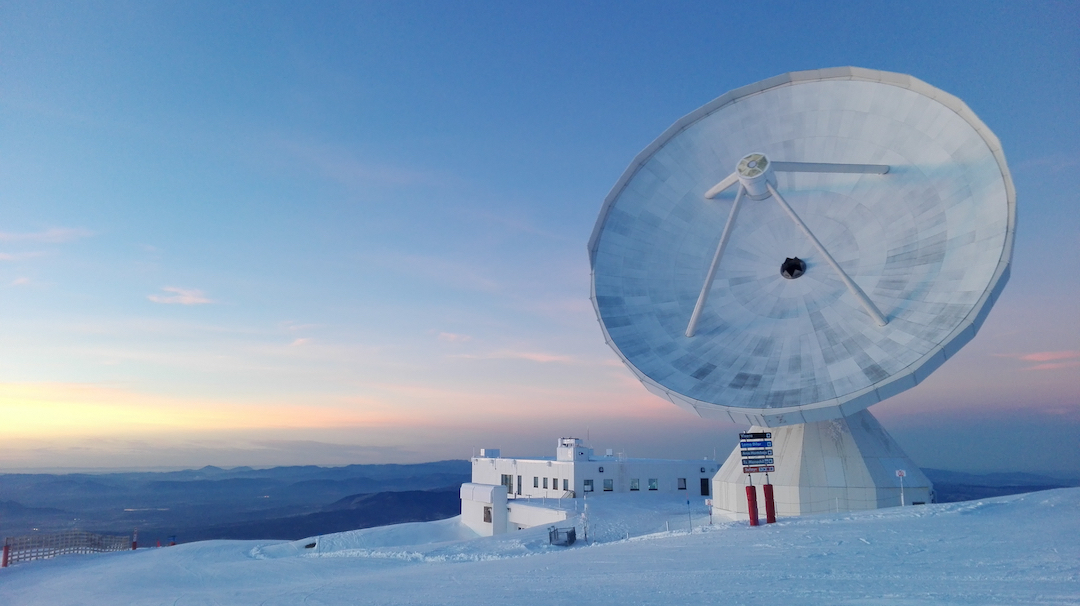
Rediotelescopio de 30 metros en el Pico Veleta (Granada, España). Fuente: IRAM
“La eritrulosa pertenece a la familia de los monosacáridos, o azúcares simples, y es la única cetosa de cuatro átomos de carbono. Su detección supone un avance relevante para la astroquímica y la astrobiología, ya que hasta ahora no se había identificado ningún azúcar en el medio interestelar. Además, se trata de una molécula quiral, es decir, puede existir en dos formas que son imágenes especulares entre sí, como la mano izquierda y la derecha. La quiralidad es una propiedad central en muchas biomoléculas, y la eritrulosa es solo la segunda molécula quiral detectada hasta ahora en el medio interestelar”, explica Aran Insausti.
Uno de los resultados más llamativos del estudio es que la eritrulosa aparece como una molécula más abundante que otros azúcares más simples, de tres átomos de carbono, que no han sido detectados en la misma región. En concreto, el análisis astronómico muestra que la eritrulosa es al menos ocho veces más abundante que esos azúcares más pequeños. Este resultado es inesperado y sugiere que algunos procesos químicos del medio interestelar pueden favorecer la formación de moléculas más complejas de lo que se pensaba.
El equipo investigador también ha estudiado cómo podría formarse esta molécula en el espacio. Los resultados indican que la eritrulosa puede generarse de manera eficiente en hielos interestelares, sobre la superficie de granos de polvo, a partir de moléculas más sencillas como alcoholes y aldehídos de dos átomos de carbono. Esto refuerza la idea de que el medio interestelar no es solo un lugar donde se encuentran moléculas orgánicas, sino también un entorno capaz de construir compuestos cada vez más complejos antes de la formación de planetas.
A partir de la cantidad de eritrulosa medida en la nube G+0.693−0.027, el estudio estima que entre 0,5 y 50 millones de toneladas de este azúcar podrían haber alcanzado la superficie de la Tierra durante el periodo de bombardeo masivo tardío, hace entre 4.100 y 3.800 millones de años. Aunque esta estimación debe interpretarse con cautela, refuerza la posibilidad de que el medio interestelar actuara como una fuente de moléculas orgánicas de interés prebiótico.
“Lo más relevante no es solo haber detectado un azúcar en el espacio, sino demostrar que moléculas de este tipo pueden formarse en condiciones interestelares. Esto amplía el escenario en el que pensamos el origen molecular de la vida: parte de la química necesaria pudo empezar mucho antes de la formación de planetas como la Tierra”, señala Cocinero.
La detección de eritrulosa abre nuevas líneas de investigación sobre la formación de moléculas prebióticas en el universo y sobre cómo estos compuestos pudieron incorporarse a planetas jóvenes como la Tierra primitiva.
Referencia:
Jiménez-Serra, I., García de la Concepción, J., Cuppen, H.M. et al. (2026) Detection of a four-carbon sugar in interstellar space. Nat Astron doi: 10.1038/s41550-026-02905-7
Edición realizada por César Tomé López a partir de materiales suministrados por UPV/EHU Komunikazioa
Dormir bien es fundamental para mantener una buena salud y resulta especialmente importante en las personas mayores. Mantener un ritmo de vida matutino puede favorecer la movilidad en la vejez, siempre que vaya acompañado de una vida activa. Sin embargo, factores como la contaminación lumínica o el uso de somníferos pueden dificultar un descanso verdaderamente reparador.
En un estudio reciente con 151 personas de entre 62 y 92 años, todas ellas estudiantes del Programa Universitario para Mayores de la Universidad de Oviedo (PUMUO), observamos que incluso en personas físicamente activas, con una intensa vida social y altas puntuaciones en pruebas cognitivas, los ritmos biológicos internos siguen desempeñando un papel determinante en la salud.
En concreto, los sujetos del estudio encarnaban el perfil del envejecimiento activo, realizaban ejercicio físico regular –como caminar, gimnasia de mantenimiento o pilates– y obtenían puntuaciones excelentes en todas las pruebas físicas y cognitivas.
En los test de movilidad, sus medias se situaron en el rango de “bajo riesgo de caídas”, lo que indica una agilidad envidiable. De igual forma, en los test cognitivos sus resultados rozaron el máximo de la escala, lo que demuestra una lucidez y una capacidad mental sobresalientes.
Pero a pesar del envidiable nivel de actividad de los participantes, el sueño seguía siendo el gran talón de Aquiles para muchos de ellos.
¿Alondras o búhos?
Todos conocemos a alguien que salta de la cama con energía al amanecer (llamados “alondras”) y a quien rinde mejor cuando cae el sol (los “búhos”). Esta preferencia natural se llama cronotipo y no es un simple hábito: es la predisposición biológica de nuestro cuerpo para estar alerta o descansar a determinadas horas del día.
Es muy común que, con el paso de los años, las personas experimenten un avance de fase. Esto significa que nuestro reloj biológico se adelanta, empezamos a sentir sueño antes por la noche y nos despertamos de forma natural de madrugada.
Por este motivo, los resultados con nuestros participantes fueron los esperables: casi la mitad de ellos eran del tipo matutino. Lo más revelador es que estas personas demostraron un equilibrio y una movilidad superiores a los de perfil vespertino. Los búhos del grupo obtuvieron puntuaciones satisfactorias, pero más bajas en las pruebas de estabilidad.
Esto sugiere que vivir en sintonía con la luz natural favorece una mejor coordinación motora. En las personas mayores, ese pequeño margen de estabilidad puede ser clave para prevenir caídas.
El sueño no es igual para todos
Dormir bien no es solo un placer: es el “taller” de reparación de nuestro organismo. Durante la noche, el cerebro se limpia de toxinas y los músculos se regeneran para mantenernos ágiles. Sin embargo, este proceso no se desarrolla de la misma manera en todas las personas.
Uno de los hallazgos más llamativos es que las mujeres presentan peor calidad de sueño que los hombres, con más despertares nocturnos asociados, por ejemplo, a dolores físicos o sofocos. Además, se identificaron dos grandes enemigos del descanso:
La luz nocturna. Dormir con claridad en la habitación o usar dispositivos electrónicos antes de acostarse empeora drásticamente la calidad del sueño. Un descanso reparador debe ser ininterrumpido y profundo, permitiendo que el cuerpo complete sus ciclos naturales. Si hay luz, el sueño se vuelve ligero y fragmentado, lo que provoca que nos despertemos con una sensación de agotamiento, como si no hubiéramos descansado.
Los fármacos para dormir. El uso de esta medicación se asocia con un menor rendimiento cognitivo. En términos sencillos, estas pastillas podrían estar nublando la agilidad mental y la memoria de quienes las consumen. Por ello es fundamental que cualquier ajuste o cambio en la medicación se realice siempre bajo supervisión médica.
Claves para un envejecimiento activo
Para que nuestro cuerpo sepa que es hora de dormir, necesitamos mantener una “higiene de luz” un par de horas antes de acostarnos. Lo ideal es usar luces tenues y cálidas en casa y evitar las pantallas de móviles y tablets. En caso de despertarnos a medianoche es importante mantenernos a oscuras lo máximo posible. Esto ayuda a que el cerebro fabrique melatonina, la hormona que regula el ciclo del sueño y facilita el descanso.
En el caso de los adultos mayores, las guías médicas son claras: las pastillas para dormir deben ser la última opción. Si se usan, debe ser por periodos breves y a dosis muy bajas. Lo más recomendable es apostar por estrategias naturales, como rutinas fijas y terapia especializada, que ataquen la raíz del insomnio sin generar dependencia.
Sin duda, para valernos por nosotros mismos –incluso a edades avanzadas– no basta con estudiar y mantenernos activos: también hay que escuchar al reloj biológico y cuidar la calidad del sueño.
Acapulco Imagen Awards recognition has given Apple TV’s bilingual comedy one more victory after its fourth and final season. The series leads the 41st Annual Imagen Awards with 13 nominations, placing its cast, directors, music team and production among the year’s most celebrated examples of Latino creative work.
The Imagen Foundation announced the nominations Thursday as part of its annual program recognizing Latino talent and representation across film, television, music, documentaries and digital media. Acapulco received more nominations than any other series, including recognition for Best Comedy Series and multiple acting and directing performances.
The awards organization also announced that actor, filmmaker, producer and musician Andy Garcia will receive its Lifetime Achievement Award. Garcia is separately nominated for his supporting performance in Landman, giving the ceremony another connection between a career-spanning honor and current screen work.
For Apple TV, the nominations extend the life of a series that completed its run in September 2025. Acapulco may have checked out of Las Colinas, but the Imagen Awards are giving the resort one more crowded week.
Acapulco Imagen Awards Reach Across the Production
The 13 nominations show how widely the Imagen Foundation recognized the series rather than concentrating only on its lead actors.
Acapulco is nominated for Best Comedy Series, while Oscar Almengor and Santiago Limón both received Best Director nominations. Javier Nuño and Joe Rodríguez were recognized for Best Music Supervision for Film or Television.
Enrique Arrizon and Camila Perez are both nominated in the Best Actor — Comedy category. Although the category name uses “Actor,” the Imagen Foundation placed performers of different genders together in the 2026 comedy field.
The supporting categories gave Acapulco an especially strong presence. Eugenio Derbez, Fernando Carsa, Carlos Corona and Cristo Fernández received Best Supporting Actor — Comedy nominations. Vanessa Bauche and Keyla Monterroso Mejia are nominated for Best Supporting Actress — Comedy.
That distribution reflects the ensemble structure that allowed Acapulco to run for four seasons. The series used Máximo Gallardo’s memories as its entry point, but Las Colinas worked because the hotel was filled with characters whose ambitions, friendships and disasters could carry stories of their own.
The show’s visual identity often received attention first. Its bright colors, resort setting and polished 1980s design made it easy to recognize within seconds. The Imagen nominations reach beyond that appearance and recognize the performances, direction and music that gave the setting its emotional rhythm.
Image Credit: Apple Inc.
A Final Season That Kept the Ensemble Moving
The fourth season returned to Las Colinas with two connected timelines. In the present day, Máximo worked to restore the hotel before its reopening. In 1986, his younger self tried to protect Las Colinas after a competing resort claimed the top position in Acapulco’s annual hotel rankings.
That structure allowed the series to close the distance between the ambitious young employee played by Arrizon and the successful older man played by Derbez. The final episodes had to complete character relationships, resolve the hotel’s future and explain how youthful choices shaped the life Máximo later built.
The Imagen nominations suggest the final season avoided becoming a farewell built only around nostalgia. Its actors remained competitive across several categories, and both nominated directors received recognition for guiding individual parts of the closing chapter.
Acapulco also maintained its bilingual identity throughout the run. English and Spanish were not treated as occasional flavor or a translation exercise. They reflected the characters, workplace and cultural setting. That helped the series reach an international audience without removing the Mexican identity at its center.
For Apple TV, that combination provided a comedy that could travel globally while remaining tied to a specific place and community.
Apple TV Earns Recognition Beyond One Series
Acapulco delivered Apple TV’s largest Imagen Awards presence, but it was not the service’s only nominated production.
Pluribus received a nomination for Best Drama Series, while Carlos-Manuel Vesga was nominated for Best Supporting Actor — Drama. The Morning Show earned nominations for director Miguel Arteta and supporting actor Nestor Carbonell.
Peter Dager of Stick joined Carbonell in the supporting comedy category, while Mariana Treviño received a Best Supporting Actress — Comedy nomination for the same series. Isabella Gomez was recognized for Shrinking, and Aimee Carrero received a nomination for Your Friends & Neighbors.
Apple’s animated series also appeared in the youth category, with WondLa and Wonder Pets: In the City both nominated for Best Youth Programming. Harvey Guillén received a Best Voice-Over Actor nomination for Shape Island.
The broader list reinforces Apple TV’s ability to attract Latino performers and creators across genres rather than through one designated cultural title. Drama, workplace comedy, animation and mystery all contributed to the service’s presence.
Acapulco remains the centerpiece because its 13 nominations represent recognition of an entire production, not a single breakout performance.
Image Credit: Apple Inc.
Andy Garcia Receives a Career Honor
Andy Garcia’s Lifetime Achievement Award gives the ceremony a different scale. His career has moved through major studio films, independent productions, television, directing, producing and music over several decades.
Garcia became widely known through films including The Untouchables, Internal Affairs, The Godfather Part III and Ocean’s Eleven. His performance as Vincent Mancini in The Godfather Part III earned him an Academy Award nomination, while later roles allowed him to move between crime drama, comedy, family stories and television.
His Imagen recognition also reflects a career shaped by Cuban American identity without limiting him to one type of role. Garcia has frequently spoken about cultural representation, creative ownership and the difficulty of bringing Latino-centered stories through the traditional Hollywood system.
The Lifetime Achievement Award arrives while Garcia remains active rather than functioning as a retirement tribute. His nomination for Landman places him directly inside the current awards field he is being asked to help represent.
That combination suits the Imagen Foundation’s mission. The honor recognizes longevity, but it also connects Garcia’s career with the actors, directors and producers building the next generation of Latino entertainment.
A Strong Farewell for Las Colinas
Acapulco ended after four seasons, which makes the scale of its Imagen recognition especially satisfying. The series did not need a fifth season announcement to extend its cultural presence. Its final production year generated enough work to lead an entire awards field.
The show also leaves Apple TV with a useful model for international programming. Acapulco was local without being narrow, bilingual without turning language into a gimmick and colorful without allowing its visual style to replace character development.
Its 13 nominations cover the exact areas that sustained that model: acting, direction, music and the series as a whole. The result is less like one last souvenir from Las Colinas and more like a full luggage cart.
Winners of the 41st Annual Imagen Awards will be announced during the ceremony in August. Acapulco will arrive with the largest number of chances, while Andy Garcia receives an honor that extends far beyond one performance or season.
The hotel may have closed its final television chapter, but the Imagen Awards have found 13 reasons to reopen the doors.
The best digital planners for Mac and iPad are not necessarily the apps with the longest feature lists. A useful planner should help make the day easier to understand, keep commitments visible and reduce the number of places where tasks quietly disappear.
Mac and iPad also encourage two different planning styles. The Mac is better for typing, reviewing projects and arranging a full week across a larger screen. The iPad is more natural for handwritten notes, Apple Pencil planning and checking the day away from a desk. The strongest apps either work well across both devices or focus so successfully on one style that the compromise feels worthwhile.
Some people want a digital version of a paper agenda. Others want a visual timeline, a task manager, a calendar command center or a workspace that can hold an entire life. These are the strongest options for those different approaches.
Structured Is the Best Visual Daily Planner
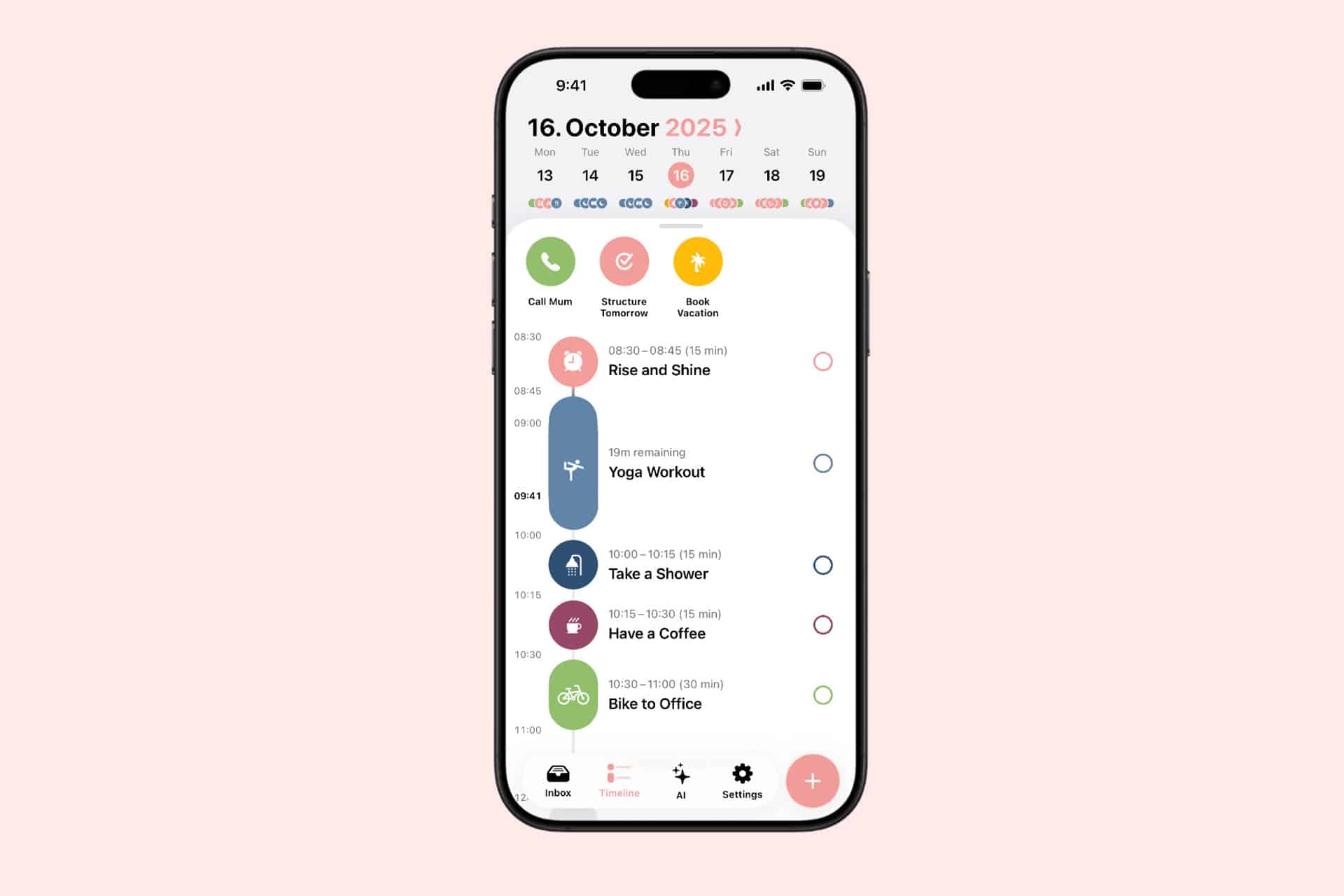
Structured is the easiest recommendation for users who want to see the day as one continuous timeline. Tasks, appointments and focus sessions appear in chronological order, making it immediately obvious when the schedule is overloaded or when a free hour actually exists.
The app feels particularly natural on iPad because tasks can be moved and adjusted visually. Its Mac version provides more space for planning the full day while preserving the same clean layout. Structured also offers apps for iPhone and Apple Watch, which helps keep the plan accessible without repeatedly opening the Mac.
This is a strong choice for students, busy families and anyone who struggles with traditional task lists. A list says what needs to happen. Structured shows where each task can fit.
Its limitation is scale. It handles daily planning beautifully, but users managing large professional projects may need a separate project-management system. Structured is best when the priority is today rather than the entire company roadmap.
Image Credit: Structured
Goodnotes Is Best for Handwritten Planning
Goodnotes remains one of the best digital planners for iPad users who want the experience of paper without carrying notebooks. It supports Apple Pencil handwriting, PDF planner templates, typed text, images, links, stickers and searchable handwritten notes.
The experience depends heavily on the planner template selected. Users can choose daily, weekly, monthly, academic, financial or wellness layouts and import them as PDF files. Hyperlinked tabs can make a digital planner behave like a physical binder with instant navigation between months and sections.
The Mac app is useful for reviewing pages, typing longer notes and accessing the same documents at a desk. The iPad remains the better creation device because handwriting is the central appeal.
Goodnotes does not automatically manage time like a calendar-based app. Writing “meeting at 3 p.m.” on a page does not necessarily create a calendar alert. It is best for people who enjoy manually planning and reflecting rather than expecting the software to rearrange the day automatically.
Things 3 Is Best for Focused Personal Planning
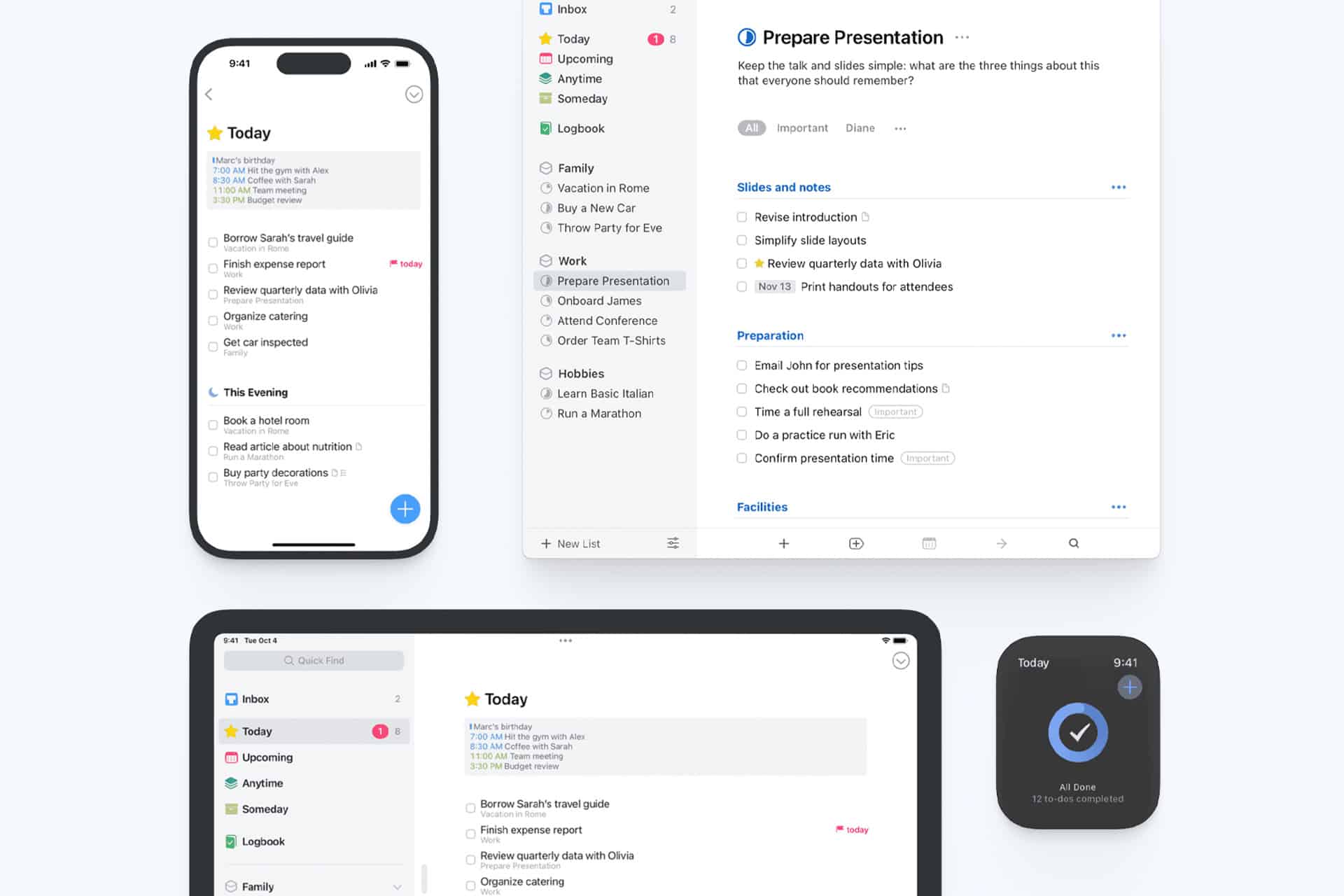
Things 3 is a task manager rather than a traditional calendar, but its Today and Upcoming views make it an excellent personal planner. The interface is calm, fast and unusually disciplined. Tasks can be collected quickly, organized into projects and areas, then scheduled without turning the app into a complicated database.
The Mac version is especially good for weekly reviews and larger project organization. On iPad, Things feels lighter and more direct, with excellent keyboard support and touch controls. Cloud sync keeps tasks aligned across Apple devices.
Things is ideal for users who want to separate tasks from appointments. Calendar events can appear beside the daily list, but the app remains focused on actions rather than becoming a full calendar replacement.
The main drawback is collaboration. Things is designed primarily for personal planning, not shared team projects or household lists. It is also sold separately for Mac, iPad and iPhone rather than through one universal purchase.
Image Credit: Things
Notion Is Best for Building a Custom Planner
Notion works for users who do not want to accept someone else’s idea of a planner. It can become a project tracker, editorial calendar, habit journal, reading list, weekly dashboard or all of those at once.
Templates make the starting process easier. A user can create daily pages connected to tasks, projects, goals and notes, then display the same information through calendar, table, board or timeline views. Notion Calendar adds a more conventional scheduling layer and works well on Mac.
The flexibility is both the attraction and the warning. Notion can become a beautifully organized personal operating system. It can also become a weekend-long design project that produces more templates than completed tasks.
The iPad app is useful for reviewing plans, adding notes and working with a keyboard. It is less satisfying for freehand Apple Pencil planning than Goodnotes. Notion is the better option for structured information, connected projects and users who enjoy building their own system.
Fantastical Is Best for Calendar-First Planning
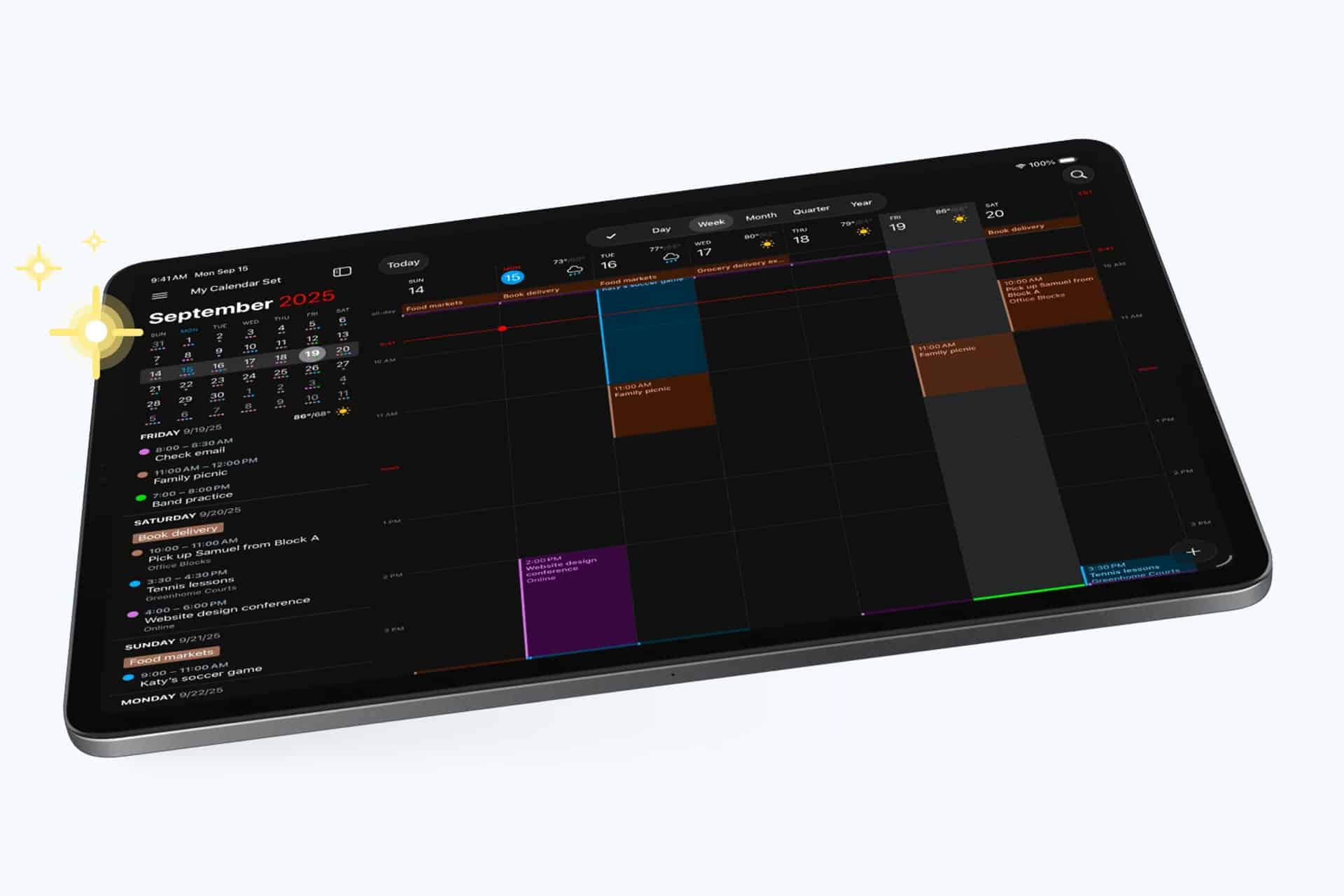
Fantastical is the strongest choice for users whose day is governed by appointments, meetings and scheduled commitments. It combines calendars and tasks in polished day, week, month, quarter and year views across Mac and iPad.
Natural-language input makes adding events fast. Typing a phrase such as “Lunch with Alex Friday at noon” can create the event without opening several fields. Fantastical also supports multiple calendar services, time zones, reminders, meeting links and scheduling tools.
The Mac app is a strong command center for professional calendars. The iPad version offers enough space to examine the week without feeling compressed. Users can also connect Apple Reminders, Todoist or Google Tasks so scheduled work appears beside events.
Fantastical is less suited to reflective journaling or handwritten planning. Its premium subscription may also be excessive for someone who only needs a basic calendar. It earns its place when the calendar itself is the planner.
Image Credit: Fantastical
Sunsama Is Best for Deliberate Work Planning
Sunsama approaches productivity as a daily planning ritual. Each morning, users review tasks, decide what belongs in the day and place that work onto the calendar through time blocking. At the end of the day, the app encourages a review rather than allowing unfinished tasks to become permanent background guilt.
It can collect work from services such as Notion, Trello, Asana and other professional tools, then combine those tasks with calendar events. This makes it useful for people whose work is scattered across several platforms.
Sunsama is more guided than most planners. That structure can help users stop planning an impossible day. The Mac experience is the main attraction, while the iPad app keeps the plan available away from the desk.
The subscription is relatively expensive, and the deliberate workflow may feel slow to users who only want a simple task list. Sunsama suits professionals who want planning to become a daily boundary around work rather than another place to collect everything.
Which Digital Planner Should You Choose?
The right planner depends on how the user naturally thinks.
Structured works best for seeing the day visually. Goodnotes is the closest replacement for a paper agenda. Things 3 provides the cleanest personal task system. Notion offers the most freedom. Fantastical serves users who live through their calendars. Sunsama brings the most deliberate approach to professional time blocking.
Using several planners at once usually defeats the purpose. A better strategy is choosing one primary system and allowing other apps to support it. Someone might use Fantastical for appointments and Things for tasks, or Goodnotes for weekly reflection while Structured runs the actual day.
The best digital planners do not create motivation by themselves. They create a reliable place to decide what deserves time. On Mac, that place can become a detailed planning desk. On iPad, it can feel closer to a notebook held in the hand. The right app should make those two experiences feel connected rather than duplicated.
Siri Wolfram helped define the original promise of Apple’s voice assistant. When Siri debuted on the iPhone 4S in 2011, it could answer factual and computational questions without sending users through a list of search results. Ask about a mathematical calculation, scientific quantity, historical statistic or unit conversion, and Wolfram Alpha could provide a structured answer.
That partnership gave early Siri something many modern AI assistants still struggle to guarantee: a source designed to compute answers rather than produce plausible sentences. Wolfram Alpha was not a chatbot. It was a computational knowledge engine built around curated data, symbolic mathematics and algorithms.
Siri AI enters a far more ambitious era. Apple now wants its assistant to hold natural conversations, understand personal context, interpret images, find information across apps and complete actions. Yet the old Siri Wolfram relationship remains useful for understanding what Apple gained, what was lost as assistants became more conversational and why verified computation may become even more valuable in the generative AI age.
Siri Wolfram Was Built Around Answers
The original Siri Wolfram integration reflected a straightforward idea: users wanted direct answers without manually searching, opening websites and comparing sources.
Wolfram Alpha was particularly effective for questions with a computable result. It could solve equations, compare financial data, convert measurements, retrieve astronomical information, calculate dates and present structured scientific facts. Siri provided the voice interface, while Wolfram supplied the knowledge engine behind selected responses.
A user could ask how many days remained until a date, calculate a percentage, compare populations or request information about a mathematical concept. Siri translated the spoken request and delivered the result in a format suitable for the iPhone.
The experience was narrow compared with modern generative AI, but it had a valuable discipline. Wolfram Alpha attempted to determine an answer from structured information. It did not need to improvise an explanation every time.
That made Siri Wolfram especially useful for mathematics, science, education and quick factual calculations. The assistant could sound intelligent because it was connected to a system built to compute.
Image Source: Google
What Siri Wolfram Alpha Could Do Well
Siri Wolfram Alpha worked best when the request had a definable structure. Arithmetic, percentages, conversions, equations and statistics were natural categories. The system could also retrieve information about weather history, geography, nutrition, astronomy, transportation and other data-rich subjects.
The integration helped make Siri feel different from ordinary web search. Instead of showing several links, the assistant could present one answer with supporting figures or charts.
That approach had limitations. Wolfram Alpha could only respond effectively when it understood the request and had the relevant data or computational method. It was not designed for open-ended conversation, personal writing, emotional nuance or the countless informal questions users ask assistants.
Siri also relied on several external services, with Wolfram Alpha handling only certain knowledge categories. The experience could therefore feel inconsistent. One request produced a polished computational response, while another returned a web search or a limited canned answer.
Still, the partnership demonstrated a principle Apple has never fully abandoned: the best assistant does not need to create every answer itself. It needs to route each request to the system most qualified to handle it.
Generative AI Changed the Definition of an Assistant
Modern AI assistants are expected to do far more than retrieve facts. Users want them to explain ideas, write messages, summarize documents, analyze images, brainstorm projects and remember the direction of a conversation.
Siri AI is Apple’s response to that expanded expectation. Powered by Apple Intelligence and Apple Foundation Models, the new assistant can handle open-ended requests and continue natural conversations. It can use personal context from supported apps, understand onscreen content and connect requests with app actions.
This is a dramatic expansion from the Siri Wolfram era. The old model was largely transactional: ask a question, receive an answer. Siri AI is intended to interpret intent, understand relationships between information and help complete a larger task.
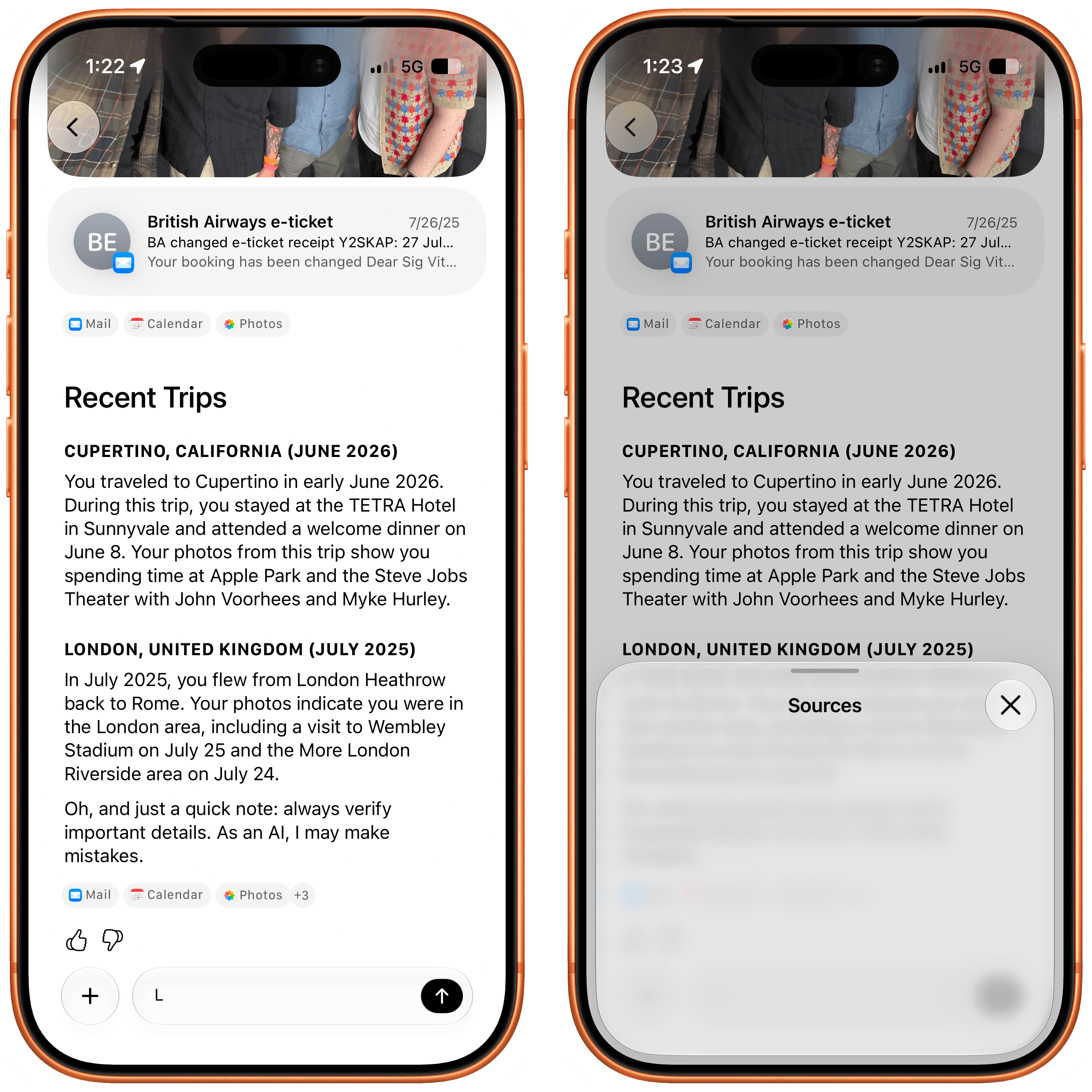
A user may ask Siri AI to find a restaurant recommendation buried in Messages, locate a hotel confirmation in Mail and add the details to a travel note. That request involves personal context and several system services rather than one public factual answer.
The assistant becomes less like a talking search box and more like an operating-system layer.
Image Credit: Apple Inc.
Conversation Creates a Reliability Problem
Generative AI makes assistants more flexible, but it also introduces uncertainty. A language model can produce an elegant response even when the underlying information is incomplete or wrong. The same fluency that makes the assistant enjoyable can make an inaccurate answer sound convincing.
The old Siri Wolfram model avoided much of that risk within its strongest categories. A mathematical calculation came from a computational engine. A unit conversion followed a defined relationship. A data query could be tied to structured information.
Siri AI needs both capabilities. It needs conversational intelligence for requests that cannot be reduced to a formula, while retaining access to reliable tools for tasks that demand precision.
Apple can use specialized systems for calculations, calendars, maps, weather, app actions and personal information rather than asking one generative model to invent every result. Foundation models can understand the request, then direct the work to an appropriate source.
That structure would preserve the strongest lesson from Siri Wolfram: intelligence also means knowing when not to guess.
Personal Context Is the New Knowledge Engine
Wolfram Alpha gave Siri access to public computational knowledge. Siri AI adds a second knowledge source: the user’s own information.
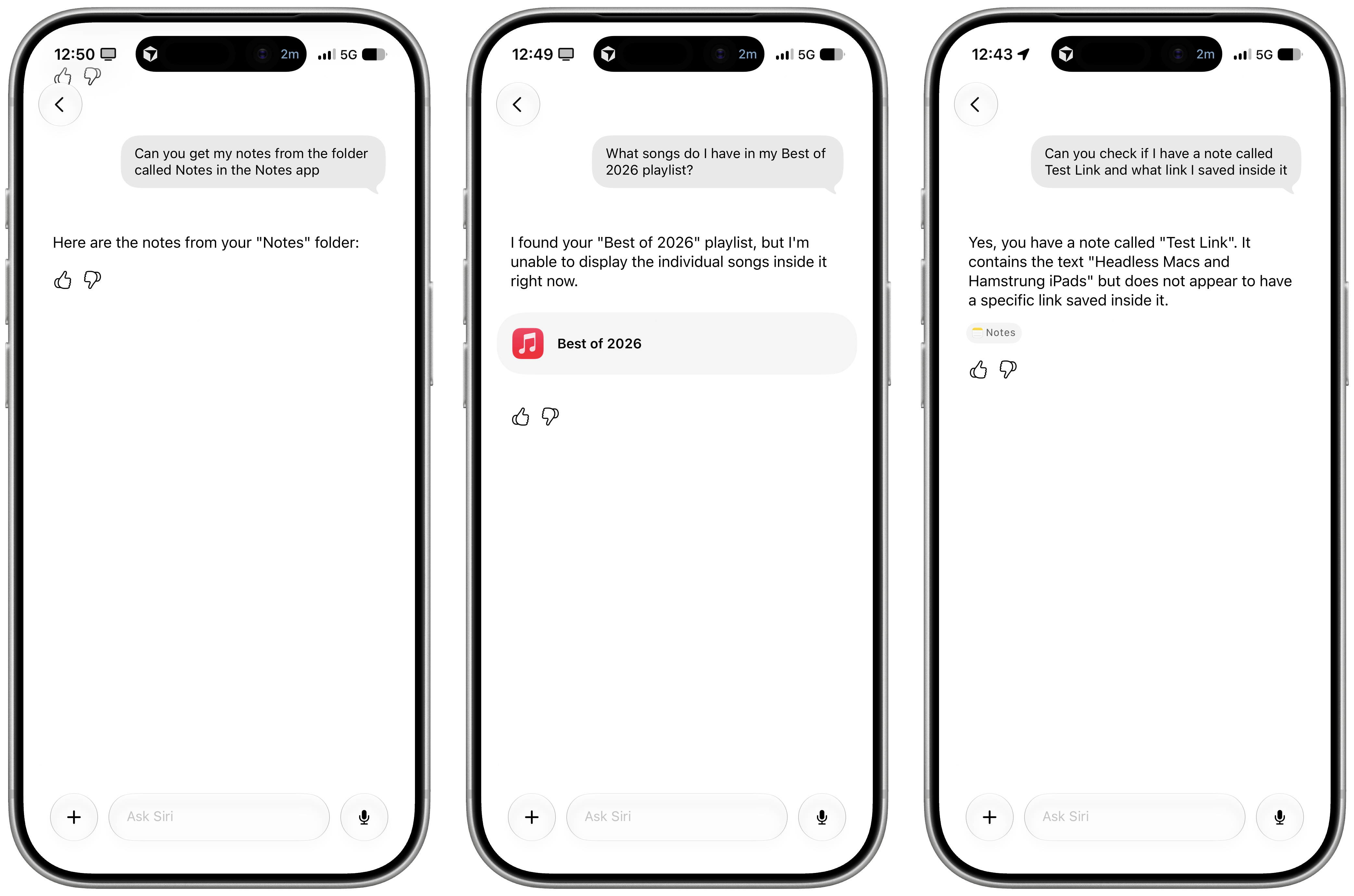
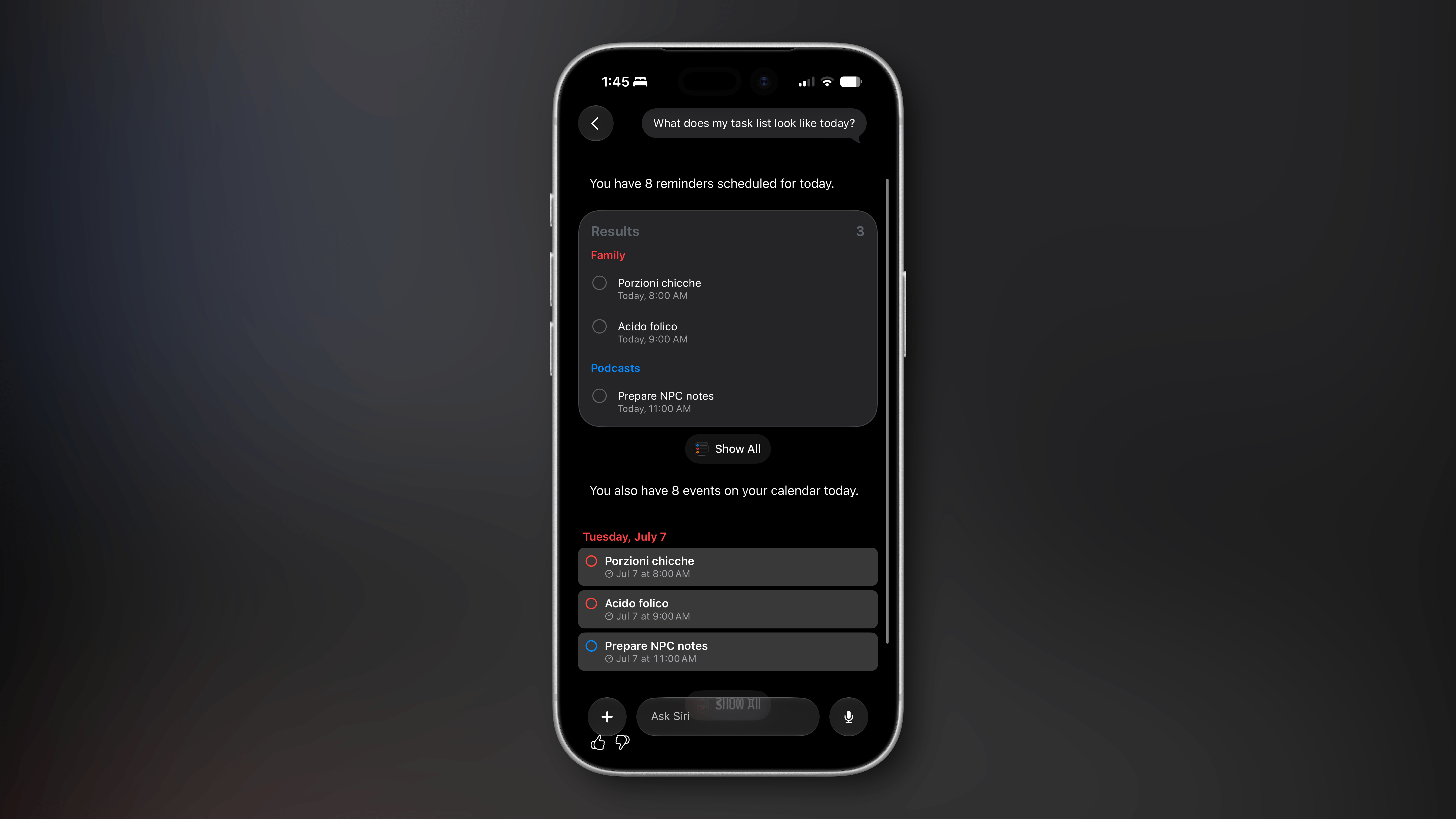
Apple says Siri AI can understand personal context across messages, emails, photos, notes and other supported content. It can help retrieve a detail without requiring the user to remember which app contains it.
This changes the assistant’s value. Wolfram Alpha could explain the distance between two cities. Siri AI could find the hotel reservation, identify the arrival time and retrieve the message where a friend recommended a nearby restaurant.
That personal layer also requires stricter privacy. Apple uses on-device processing for many requests and Private Cloud Compute when more processing power is required. The company has designed the system so personal data does not become part of an ordinary cloud AI profile.
Siri Wolfram answered questions about the world. Siri AI is being designed to answer questions about the user’s place within it.
Image Credit: Apple Inc.
Apps Complete the Transition
Siri AI also moves beyond knowledge by connecting directly with apps through App Intents. Developers can expose content and actions so the assistant can help users complete tasks instead of only describing how to do them.
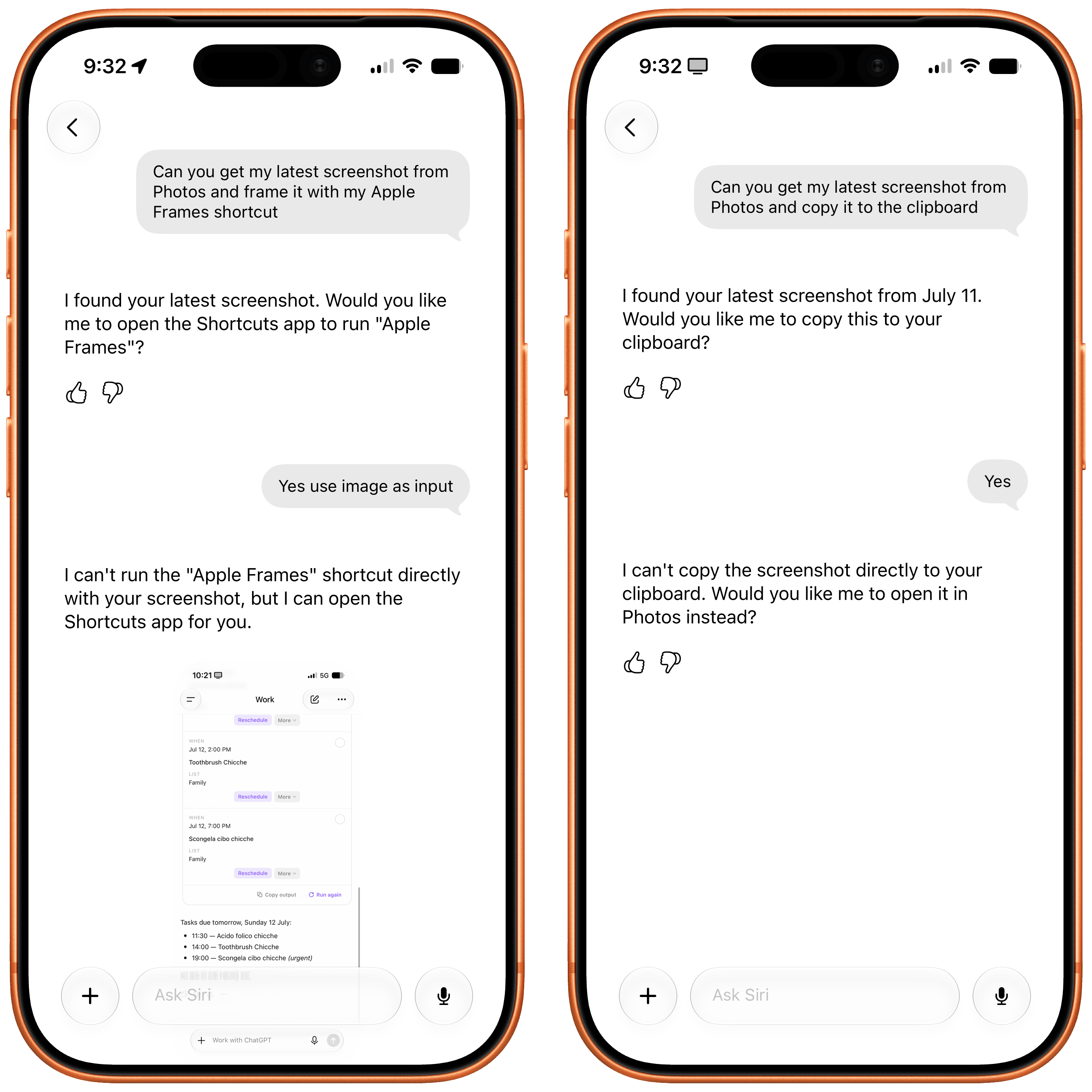
That could include editing a photo, retrieving a document, starting a workout, updating a task or sending information through a supported app. Onscreen awareness adds another route, allowing users to ask about content already visible without explaining every detail again.
Wolfram Alpha remains valuable because some questions require specialized computation. App Intents extend the same routing philosophy into actions. Siri does not need to contain every capability internally. It needs to understand the request and connect it with the correct tool.
This may become the defining structure of Siri AI: one conversational interface backed by models, apps, services, personal context and specialized knowledge engines.
The Old Siri Still Has a Lesson for the New One
Siri Wolfram belonged to a more limited assistant era, but its underlying approach was disciplined. The system used a specialized source for questions that demanded structured knowledge and computation.
Siri AI has a wider assignment. It must converse naturally, interpret images, understand personal information and complete actions across Apple devices. That breadth can make Siri far more useful, but only if Apple preserves dependable pathways for calculations and factual tasks.
The future assistant should not choose between Wolfram-style precision and generative flexibility. It should combine them. A conversational model can understand what the user wants. A computational engine can provide the numerical answer. Personal context can supply relevant details. App Intents can complete the task.
The old Siri Wolfram integration showed that a voice assistant could make expert knowledge accessible through one spoken request. Siri AI now aims to place conversation, personal context and action around that foundation.
The assistant has become larger, more personal and more capable. Its credibility will still depend on something the 2011 version understood well: when a question has a correct answer, intelligence should calculate before it speaks
Summer beta season is in full swing, with a new wave of testers coming aboard via the just-released public OS 27 betas. While visionOS hasn’t ever been included in the public beta program, now is as good a time as any to check in on visionOS 27. What’s it like living with the features Apple highlighted at WWDC, and if you’re jumping on the public betas with your other devices, is it a good time to give the visionOS 27 developer beta a try, too? Let’s dig in and find out.
Siri AI
Given the massive overhaul Siri is receiving this year and the fact that the Vision Pro has always been a little behind when it comes to Apple Intelligence features, I didn’t expect visionOS to get the full Siri AI treatment this year. Thankfully, I was wrong. Not only is Siri AI fully present in visionOS 27, but the experience of interacting with the assistant has even been adapted to fit a spatial context.
For starters, Siri is much more capable in visionOS 27 than ever before. It’s not just for opening apps anymore. With access to your personal context, Siri can handle tasks I would have never imagined prompting it for until now. Questions like, “When was the last time I ate at this restaurant?” or, “How many years in a row have I attended this local event?” used to lead me down time-intensive rabbit holes of scavenging emails, texts, calendar events, photos, and more. Now, Siri can pull all of that information for me and answer the question in just a few seconds.
That “in a few seconds” bit is important. At least this point in the beta cycle, every request I give the assistant takes some time. Even tasks like checking my calendar and opening apps have a bit of lag to them on my M2 Vision Pro. This seems to be a side effect of Siri’s new architecture: it can do more, but parsing input, coordinating resources, and performing tasks takes a little longer than you might expect.
Of course, Siri has access to world knowledge now, too. We’ve all run into the classic, “Here are some web results for you,” response when asking Siri a question it considers too complex to answer itself, but those canned responses are no more. Now, Siri can dive into its (scraped) trove of knowledge to answer questions about pretty much any topic: history, science, pop culture, and more. Siri is the all-knowing bot we’ve always wanted it to be; just be sure to double-check its answers because, as Siri will remind you, AI can get things wrong.
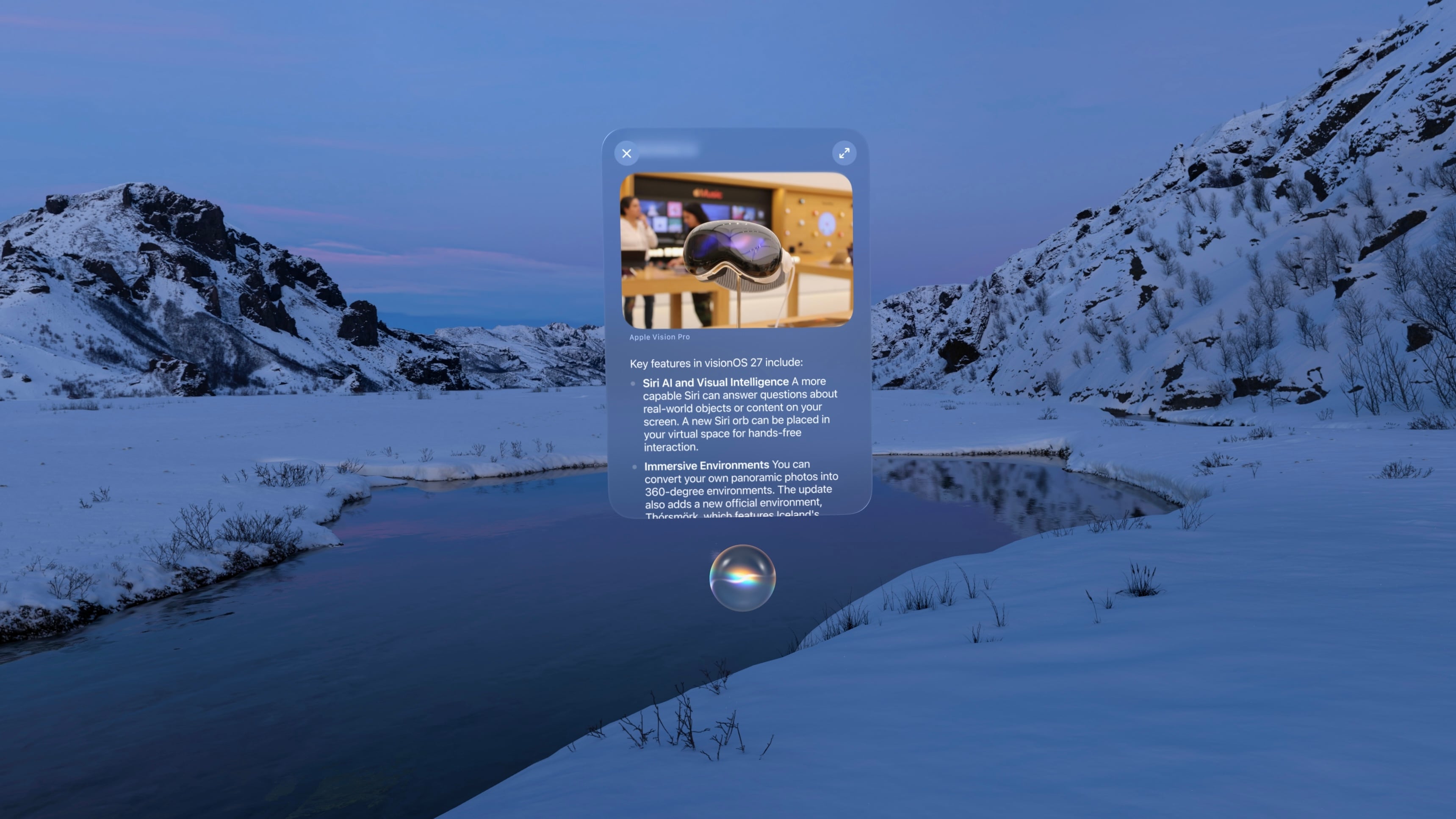
Interacting with Siri in visionOS 27 is a whole new experience. The purple, blue, and green sphere evocative of Siri’s previous era (before all of Apple’s other platforms switched to the rainbow outline UI that never came to visionOS) has been replaced with a semi-translucent glowing white orb matching the Siri aesthetic on iOS, iPadOS, and macOS. The circular “thinking” animation mimics what you see when you interact with Siri on other devices, too, making for a much more cohesive cross-device experience.
When you invoke Siri via voice, the orb appears with a window above it displaying the text of your conversation. You can grab the window and place it anywhere in your environment. To continue the conversation, you simply look at the Siri UI and start speaking again. It all feels very natural, and I appreciate the way you can converse with Siri while interacting with other windows in objects in visionOS, a task that doesn’t translate as well to Apple’s other platforms. For those on the M5 Vision Pro, Siri has a new, more natural voice with customizable speed and expressivity as well, though my M2 model isn’t capable of running the local model necessary to power these changes and the improved dictation system.
visionOS 27 also includes a gesture for activating Siri that’s a little nostalgic. If you hold your palm open and upward then look at it, you’re present with a Home button as before. But if you pinch and hold the Home button, a tiny Siri UI will appear above it, just like in the old days when iPhones had physical Home buttons. You have to hold your fingers together the whole time you’re speaking to Siri, which seems a bit strange to me, but once you’ve made your initial request, the standard Siri UI appears, and you can carry on as usual.
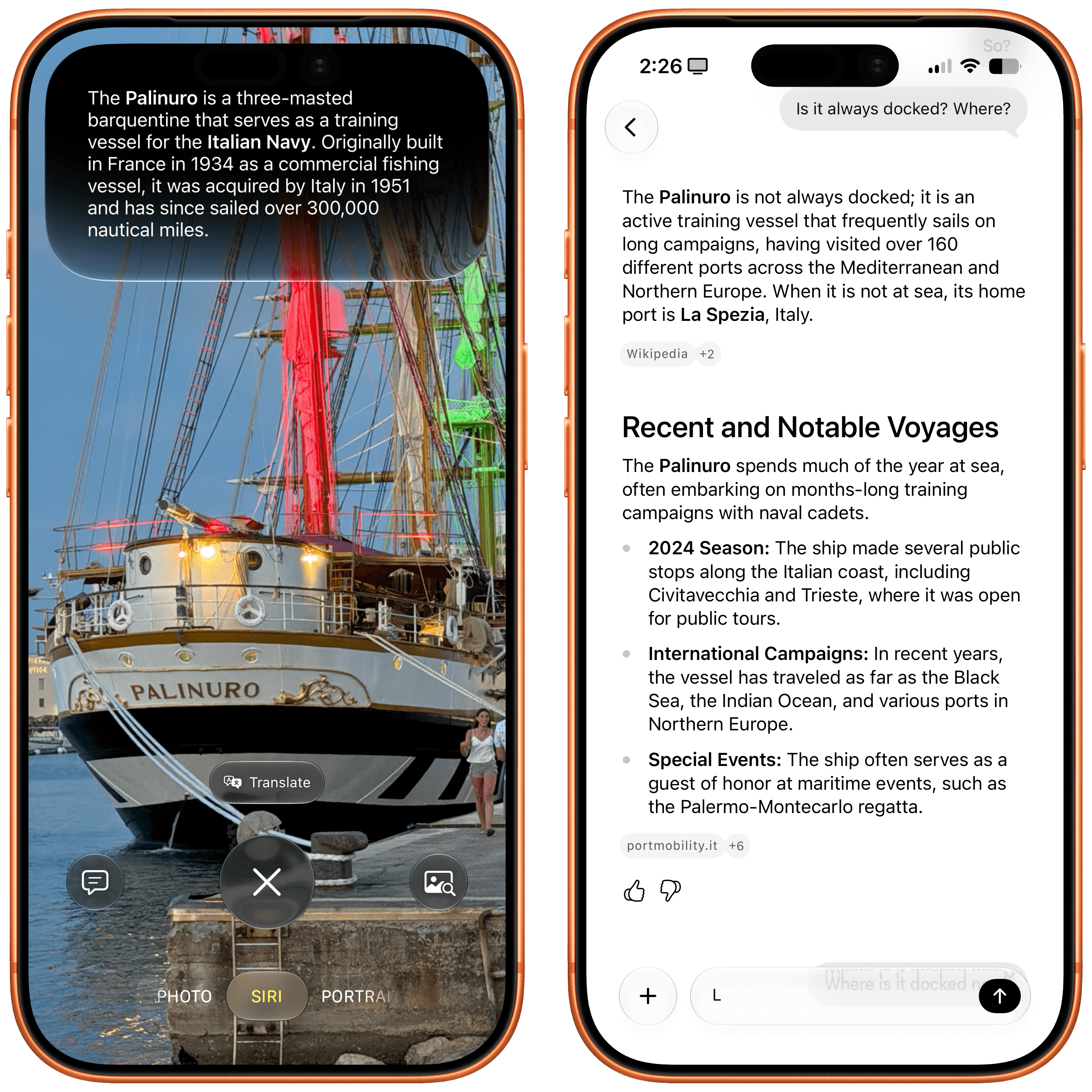
The new version of Siri also brings Visual Intelligence to the Vision Pro for the first time. You can ask Siri about the content of a virtual window or objects in your real-world environment. When Visual Intelligence is activated, the system displays a very cool animation of your environment being scanned, and then, Siri can use what it sees to answer your questions. I’ve used this to ask Siri about webpages, documents I’m working on, and items I see around me, and it’s very cool to have an always-available digital assistant who can see what I see. It did a great job identifying my water bottle and then pulling up the receipt from my email to let me know how old it was, which I found to be a great combination of Visual Intelligence with my personal context.
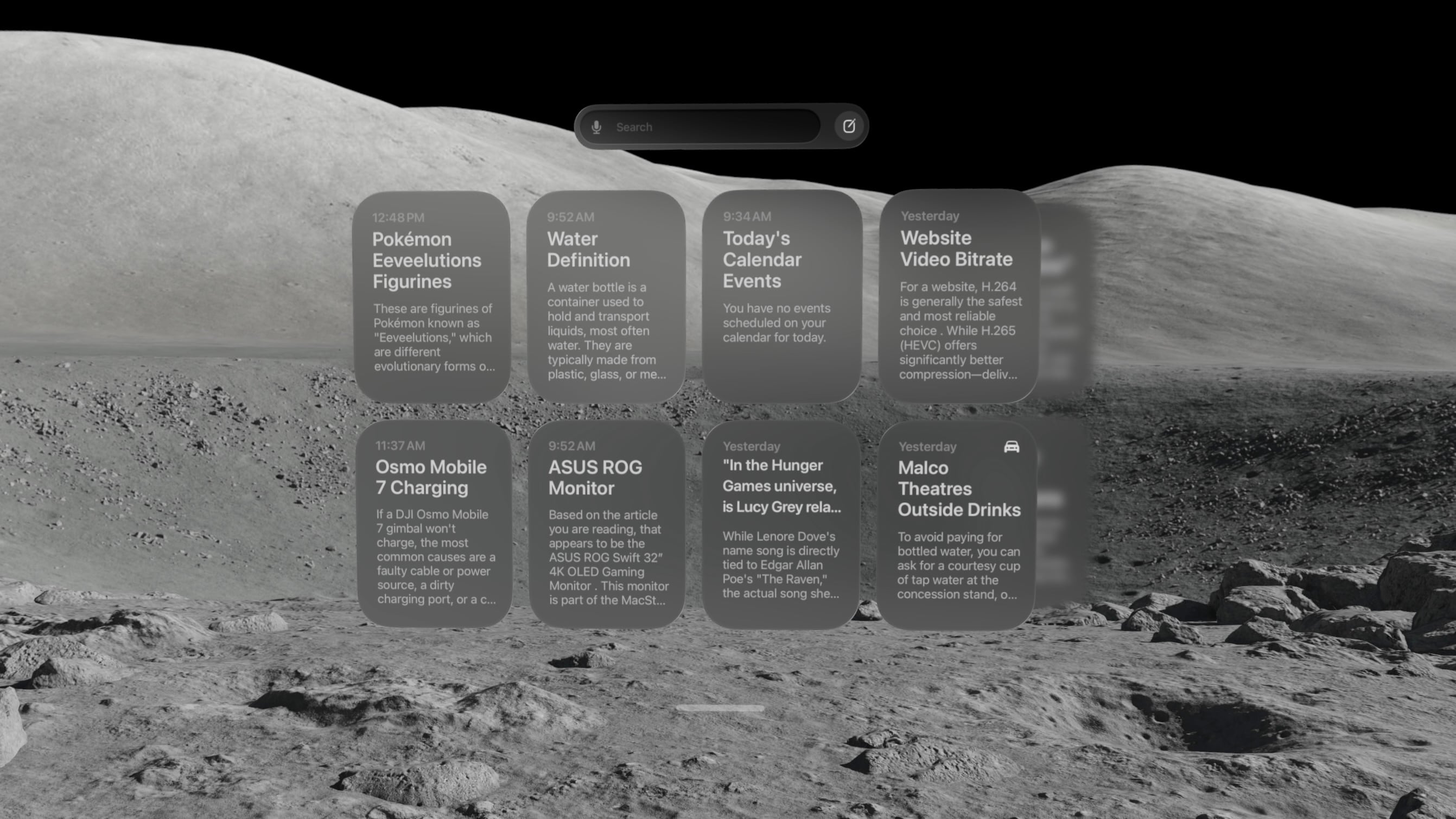
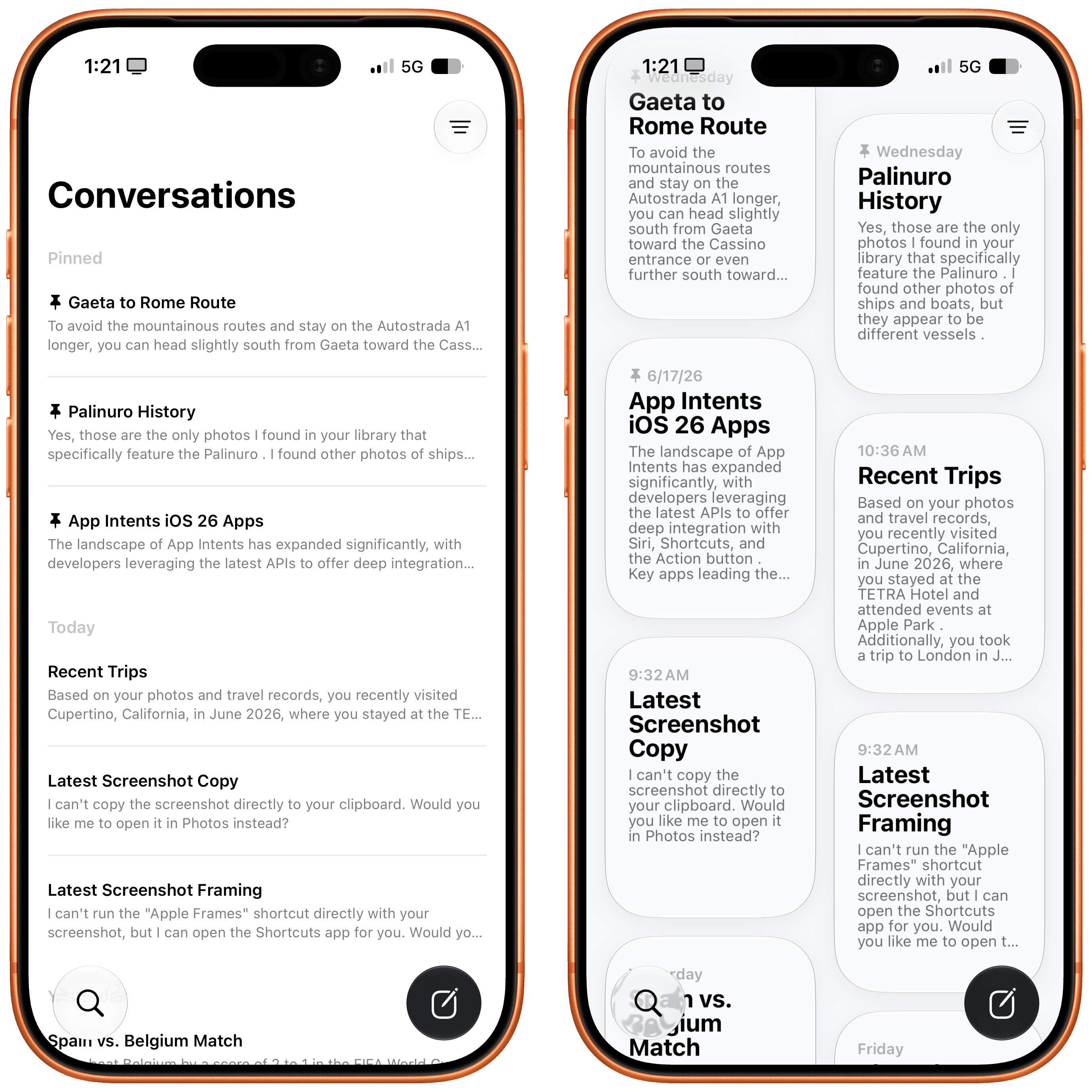
There’s also a new Siri app that contains a history of all your conversations with the assistant, including those synced from other devices. On visionOS, the Siri app is a horizontally-scrolling list of glassy cards that reminds me a lot of the Spatial Gallery app. It’s a handy way to pick back up on conversations started elsewhere, search for a previous answer, or simply interact with Siri via keyboard rather than voice.
At WWDC, Apple showed off a Siri mode where the orb persists in your environment, waiting for you to look at it and start a conversation. I have not been able to get that method to work yet. Once I start a conversation with Siri, I can keep the conversation window open and place it anywhere, but that’s not the same as having a small Siri UI sitting on my desk out of the way until I need it. I’ll keep my eyes peeled for it in future beta releases.
Siri AI is marked for release “later this year” (as opposed to the OS 27 updates listed as coming “this fall”), so there are still some rough edges to work out. Sometimes, conversations simply stop, with Siri telling me an error occurred. The Siri conversation UI will sporadically disappear, and I have to force quit the Siri app to get it to show up again. And Visual Intelligence sometimes struggles to understand what I’m trying to get it to look at, focusing on the wrong window or even the keyboard. But that’s beta life for you; it’s what I signed up for, and I’m trusting it will all be worked out before the public release.
Beta UI bugs aside, Siri AI is a huge upgrade for Apple’s digital assistant, and I’m happy to see visionOS getting the first-class treatment here. It isn’t simply ported over from iOS. It’s been carefully adapted for a spatial UI, and it makes for a powerful overall experience.
There is one other major way Siri differs on visionOS from other platforms: it hasn’t been integrated with Spotlight Search. For now, at least, the search feature on visionOS is dedicated to finding apps, app content, and web results, without even an ‘Ask Siri’ button in sight. With so many other ways to interact with Siri on the platform, it might make sense to keep it separate from search, but it’s certainly an oddity given the way the two features have been merged on every other platform. I’m still trying to figure out if I find this a helpful separation or a missed opportunity for cross-device cohesion.
Panoramas and Environments
There’s a lot more to visionOS 27 than just AI. Big changes are coming to panoramas, including the ability to act as persistent Environments. And, of course, Apple has to throw in a new Environment of its own, too.
Over the past couple of years, Apple has continually pushed the capabilities of its spatial photo conversion technology. Last year, that came in the form of spatial scenes across all of the company’s platforms, and this year, it’s coming to panoramas. In visionOS 27, you can convert panoramas into spatial scenes, adding layers of depth and perspective to the already stunning experience of viewing panoramas on the Vision Pro.
Being immersed in panoramic photos in visionOS was already breathtaking. This takes it to a whole new level. Experiencing memories in deeper ways than I ever thought possible is one of my favorite uses for the Vision Pro, and now, I can use it to revisit places I’ve been and feel like I’m standing there once again.
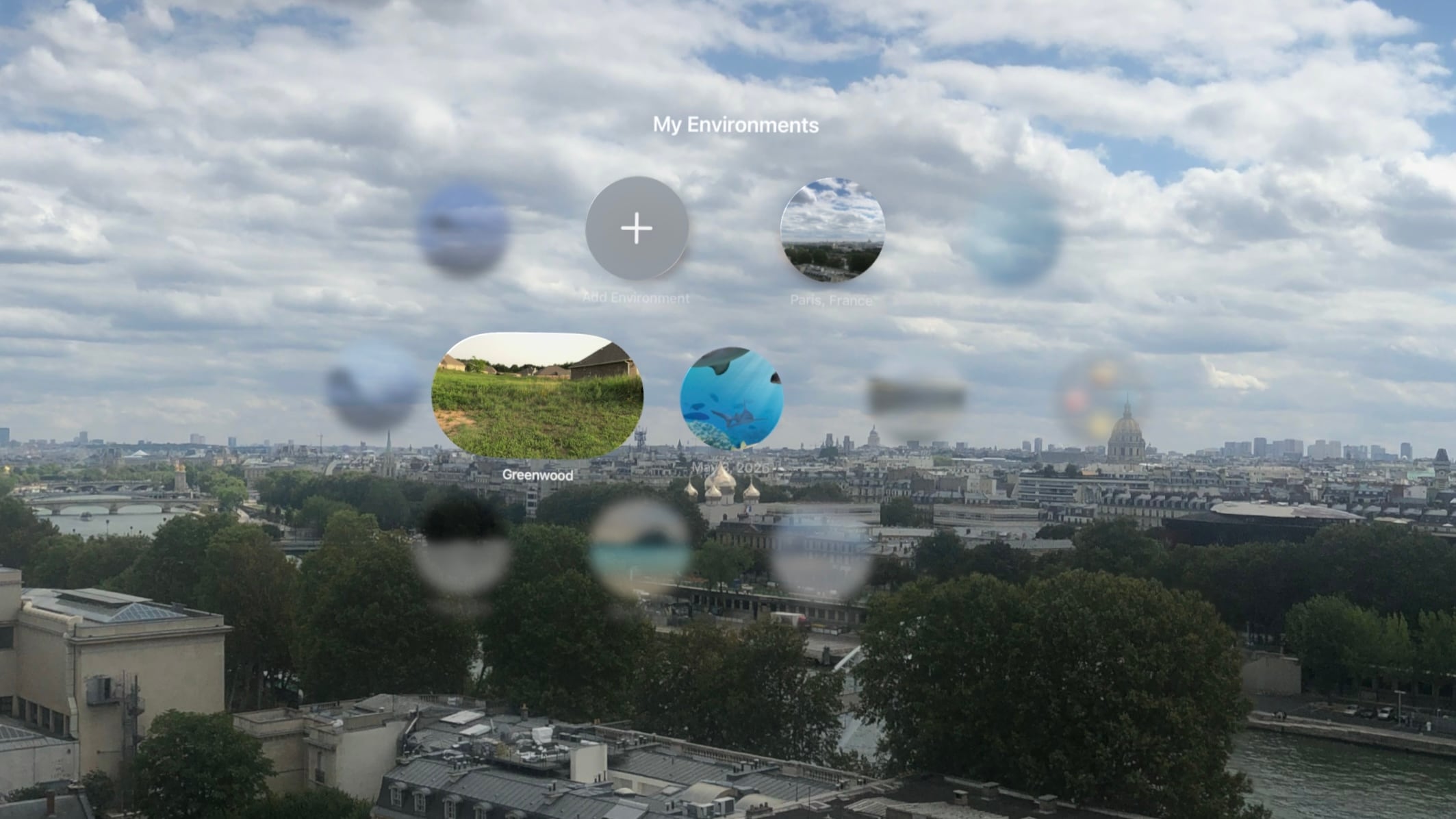
The system takes this experience one step further by allowing you to set panoramic spatial scenes as custom Environments. In the Environments view, there’s a new folder called My Environments where you can add up to 34 panoramas from your photo library and use them as immersive backgrounds for your content. You can even adjust the immersion level to make the photo wrap around you.
I love that we now have the option to use our own photos as Environments, but it does come with some tradeoffs. Panoramic photos are static, so they don’t have the subtle motion elements that make Environments feel alive. They also don’t expand as far vertically as Environments do, which means you’re likely to see your real-world surroundings if you look up or down. Still, this is the first time visionOS users have been able to set their own custom Environments using their own photos or images purchased online, so it’s a win. It’s definitely inspired me to start taking more panoramas than I did before.
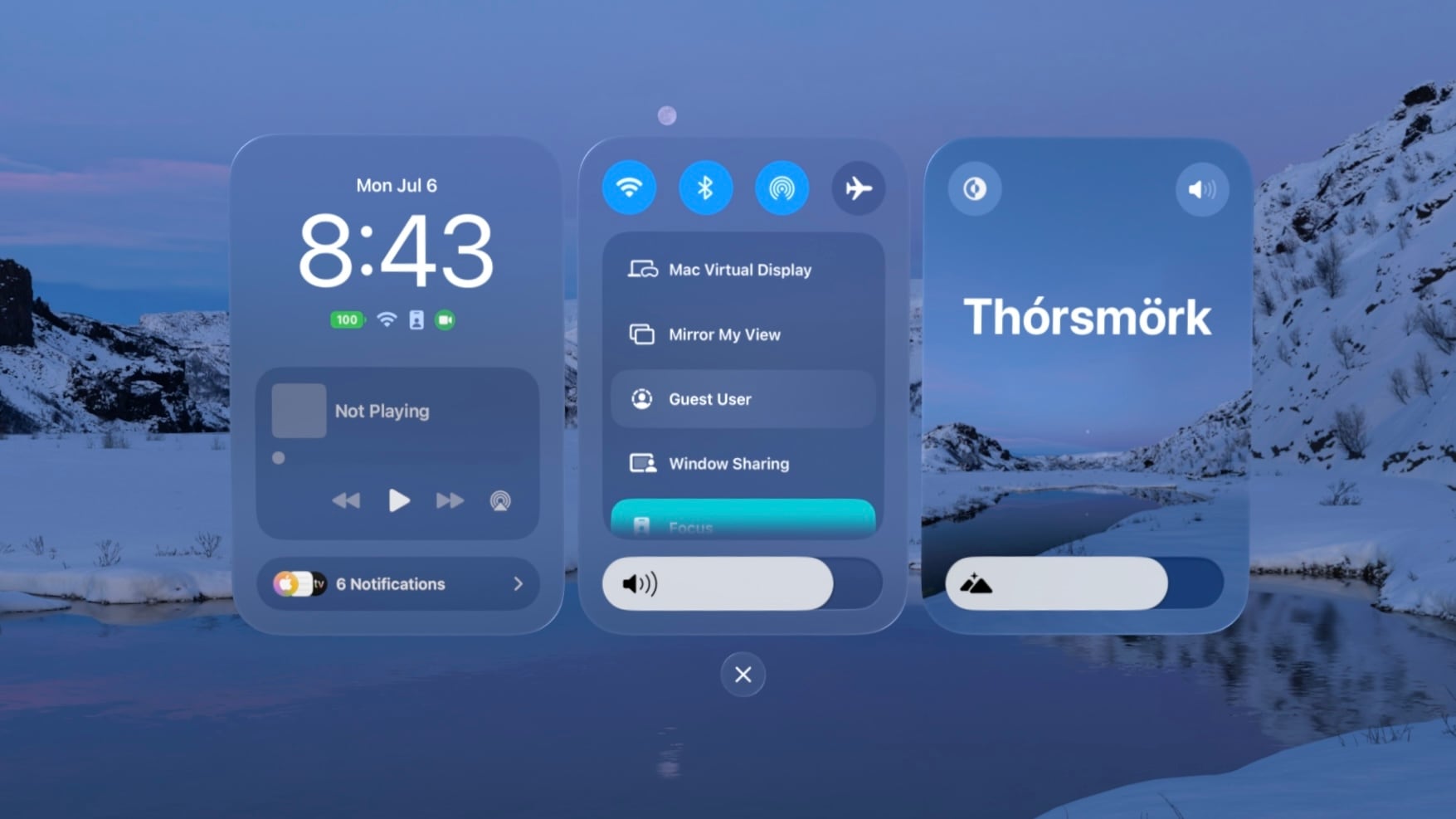
The new built-in Thórsmörk Environment is gorgeous. Apple always knows how to pick the perfect spot. Between the snow, the slow-moving river, and the aurora borealis in the sky at night, it offers a beautiful, peaceful place to relax, watch a movie, or trick your mind into cooling off on a hot summer’s day.
Safari
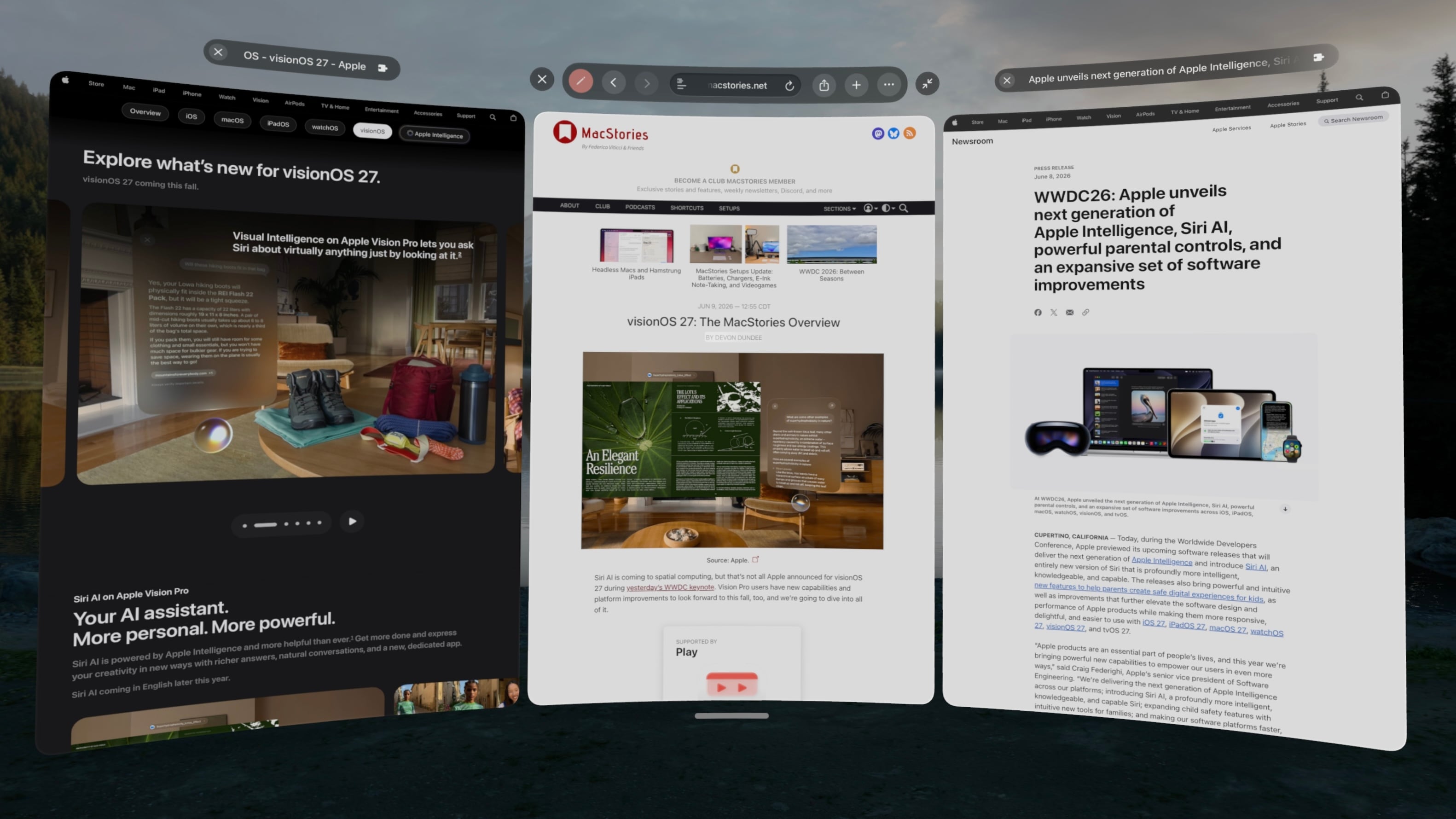
Spatial browsing is continuing to mature in visionOS 27, this time with the help of curved windows. Safari is one of the few built-in apps – Freeform and TV being the others – that are receiving special curved window modes this year, similar to what we’ve seen in the past with Mac Virtual Display. When a window is expanded beyond a comfortable width for side-to-side viewing, it automatically starts to curve, wrapping around the user’s head to make it easier to take in the window’s contents.
To be honest, I’m not sure how useful curved windows will be for browsing normal websites. While some, such as Apple’s OS Overview page are optimized to display content like image galleries at such wide aspect ratios, most sites don’t expand beyond a certain point, displaying blank space on either side of a centered column of content. Perhaps that will change with time, but for now, I don’t foresee these ultra-wide windows catching on for single-tab browsing.
Where the curved Safari window does shine, though, is in the browser’s new multi-tab view. A new button on the right side of the tab bar activates the view, which displays all open tabs side by side in a horizontally-scrolling curved window. These aren’t previews, either. Each tab can be scrolled, navigated, interacted with, and even closed as it if it were an independent browser window.
I’ve already found numerous use cases for this view in my own workflows: editing article previews, comparing product pages, and reviewing multiple research sources at once, just to name a few. Displaying multiple tabs at once in a large, ergonomic window view makes for a fantastic interaction method that I think could apply far beyond Safari webpages and sports multiviews in TV. I imagine this feature will be used far more than last year’s spatial browsing.
Apple Intelligence can sort your bookmarks and Reading List entries based on topic if you like, though the automatic tab sorting feature present on other platforms is curiously missing. Personally, I like managing my own tabs anyway, but add that feature to the long list of strange feature parity omissions on visionOS along with Focus filters, photo editing, and – as of the current beta – Describe a Shortcut.
Platform Improvements
There’s no doubt that this is a refinement year for Apple’s platforms beyond AI. The company is taking the opportunity to revisit and optimize OS features that have long been considered mature, and that’s the case even for visionOS, a relative newcomer.
The time it takes the Vision Pro to connect to Wi-Fi upon power-up has been reduced significantly. Given the device’s short battery life and tendency to go into deep sleep when not in use, this is a quality-of-life change that you’re going to feel. When I turn my M2 Vision Pro on, I can’t log in quickly enough to open Safari or the TV before it’s connected to the Internet. That definitely was not the case before visionOS 27, and I appreciate it.
I’ve long been on the record as a critic of the notification system on visionOS, but it’s taking a big leap forward this year with expanding notifications. When an app icon appears at the top of your view to alert you to a notification, you expand it with your gaze and actually see what you’re being notified about. You can even long-press a Messages notification to reply directly without the need to open the full app, which is so convenient. And with any app, just seeing notifications in full without losing the context of what I’m doing is a major improvement.
Unlike notifications, I was a fan of the redesigned Control Center in visionOS 26. Alas, Control Center has been redesigned again, now featuring a three-column layout instead of a single window. I’m still getting used to the new look, but it does make sense conceptually to split different types of controls into separate columns, so I’m hoping this will make the feature more intuitive once I’ve adapted to it. Regardless of any other efficiency wins, though, this redesign gets my approval simply because it finally brings the AirPlay menu to the top level of Control Center, saving me an extra tap every time I want to switch sound output to my AirPods.
Sharing screenshots and videos from visionOS is going to be much easier thanks to high-quality screen recordings, which can be enabled in the Settings app. Now, the Vision Pro can take unfoveated videos of its screen for up to three minutes, as well as full-quality screenshots. In the past, on-device screen recordings were fuzzy outside of the viewer’s focus, resulting in a poor representation of the visionOS experience and requiring a Developer Strap and Xcode on a Mac as a workaround. This change alone is going to make my review process much simpler, and it’ll make it easier for all Vision Pro users to show others what using the device is like.
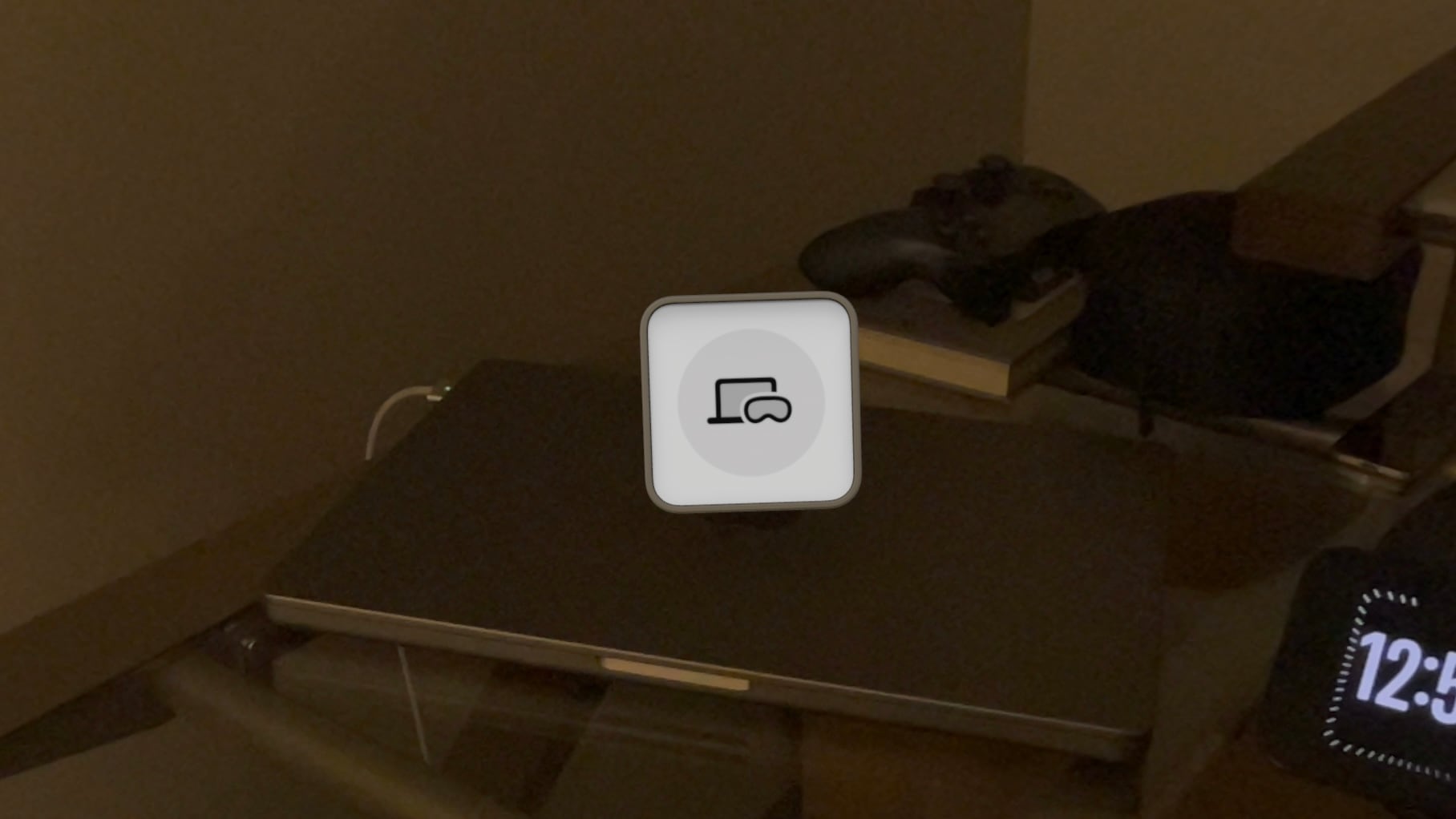
visionOS 27 now supports extra-small widgets, which are basically Lock Screen widgets brought to life in the user’s space. Like any other spatial widget, they can be placed on a wall or a horizontal surface such as a desk, and they are entirely customizable. Apple is introducing its own extra-small Mac Virtual Display widget for starting up a virtual connection with a Mac even if it’s asleep. Extra-small widgets take up much less space on a desk than even small ones, and there are already a bunch of them available from iPad apps running on the Vision Pro, so I think they’re going to be very useful.
Finally, there are some other Mac Virtual Display improvements included in visionOS 27. Virtual Display sessions can optionally persist even when you take your Vision Pro off, and macOS can stream spatial previews of 3D objects directly to visionOS with instant updates and two-way editing. I don’t have a Mac running Golden Gate yet, so I haven’t been able to try these features myself, but I plan to soon. If you work with 3D objects on your Mac and Vision Pro, I imagine this will speed up your workflow significantly.
And that’s visionOS 27 – so far, at least. There’s a still a lot more summer left: bugs to be squashed, refinements to be made, and third-party apps to be updated and introduced. My experience with the new version up to this point has been very positive, and I think it’ll make for a great update.
If you want to try out some of these features early, you can enroll in the Developer Beta anytime in the Software Update section of the Settings app. Whether you upgrade now or hold off for the public release, Apple’s got some great things in store with visionOS 27, and I look forward to continuing my testing over the summer in preparation for a full review this fall.
Last year was a quiet year for watchOS. While Apple took a couple of swings with Workout Buddy, Smart Stack hints, and a redesign of the Workout app, watchOS 26 was a scaled-back release compared to the big changes and upgrades in watchOS 11 the year before.
Of those swings, the excellent redesign of the Workout app felt severely hampered by bizarre scrolling behavior, Smart Stack hints didn’t appear often enough, and I found Workout Buddy to be mildly annoying and limited (though it’s true some users had the opposite view).
Let’s not forget the addition of Liquid Glass, too, a design system that was more like a coat of paint for the Apple Watch than the behavioral change seen on iOS.
Out of everything that was added, the wrist flick gesture was my favorite, and something I continue to use throughout the day. I don’t mean to sound down on last year’s release – there were genuine improvements in several areas – but it just felt more like a small evolution.
This year’s WWDC keynote didn’t feature a dedicated watchOS section (or a dedicated section for any particular OS, for that matter), but that’s not to say there’s nothing to see in watchOS 27. In fact, after several weeks of beta use, I see several intriguing things going on here.
So with that obvious tease out of the way, let’s break down what you can expect from watchOS 27.
Siri AI and Apple Intelligence
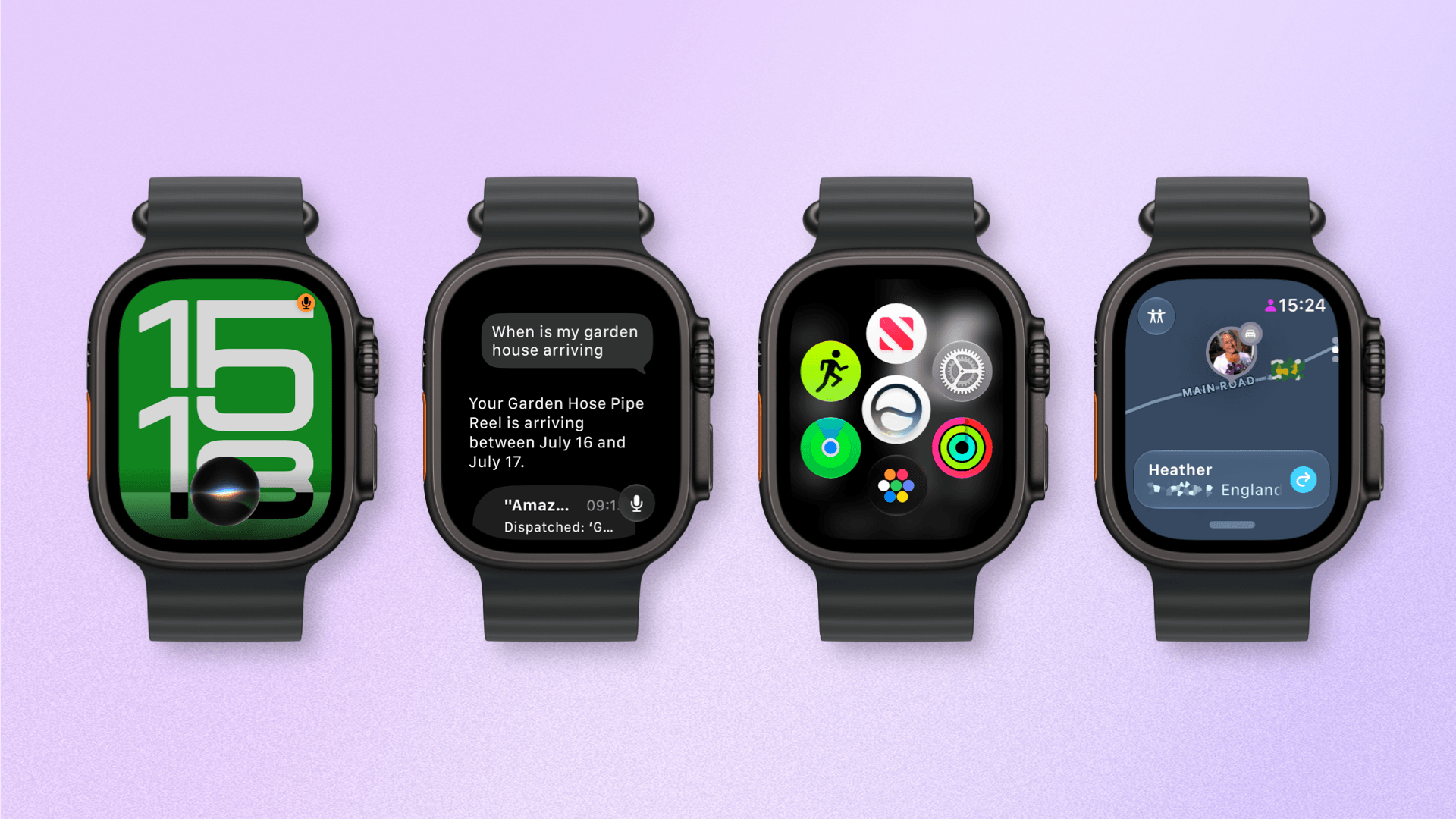
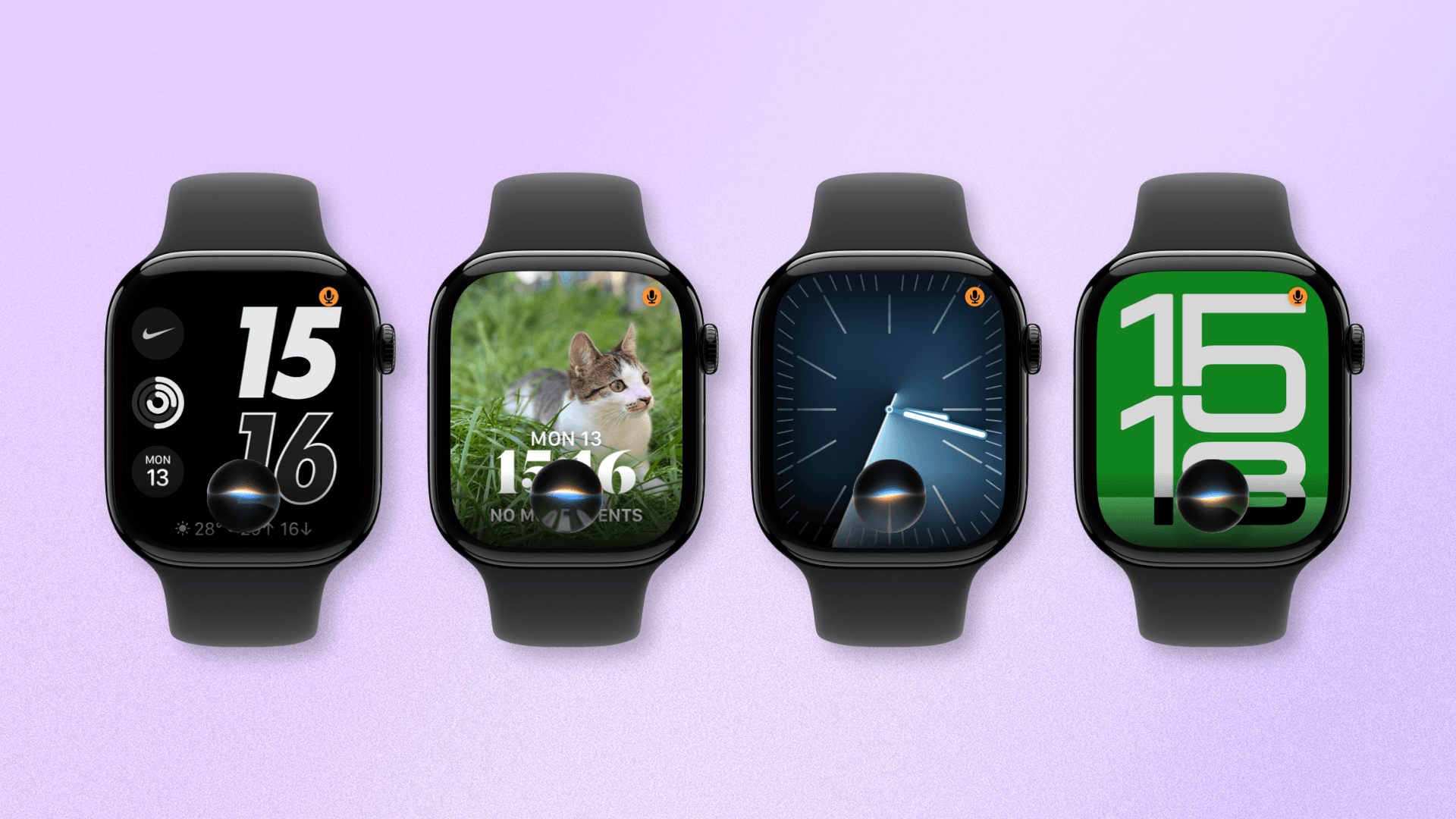
The new Siri UI over various watch faces.
The headline feature at this year’s WWDC was Siri AI, and along with every other platform (save for tvOS – yet), watchOS will be gaining access to Apple’s upgraded personal assistant.
I had worried that with the promised launch of an upgraded Siri, the Apple Watch would be forgotten in the rollout or receive a diluted version, so it’s exciting to see that not only is Siri AI included with watchOS 27, but it is almost a like-for-like copy of the iOS version. This is likely due to the way Siri AI on watchOS will essentially bounce queries off a paired iPhone.
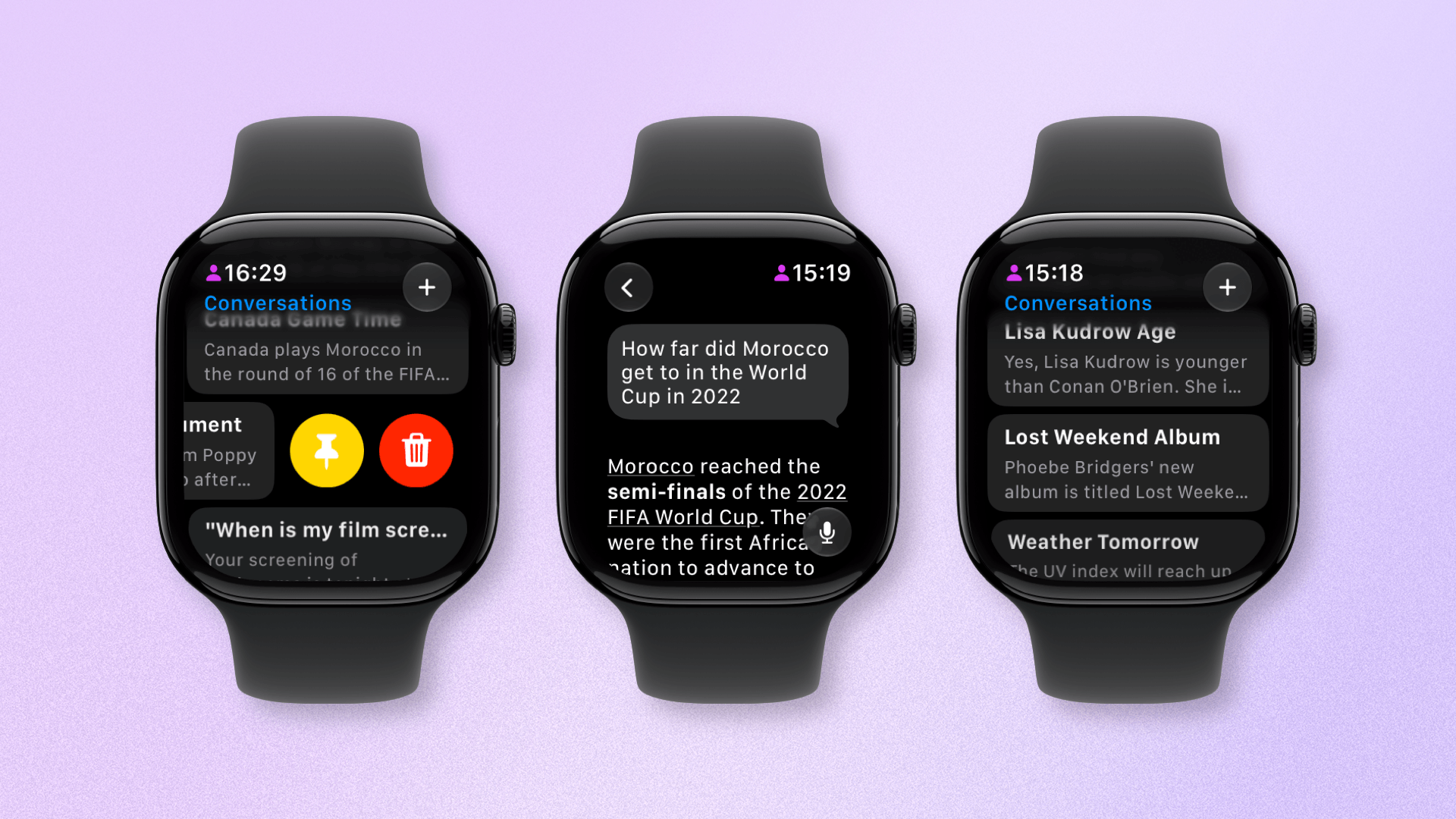
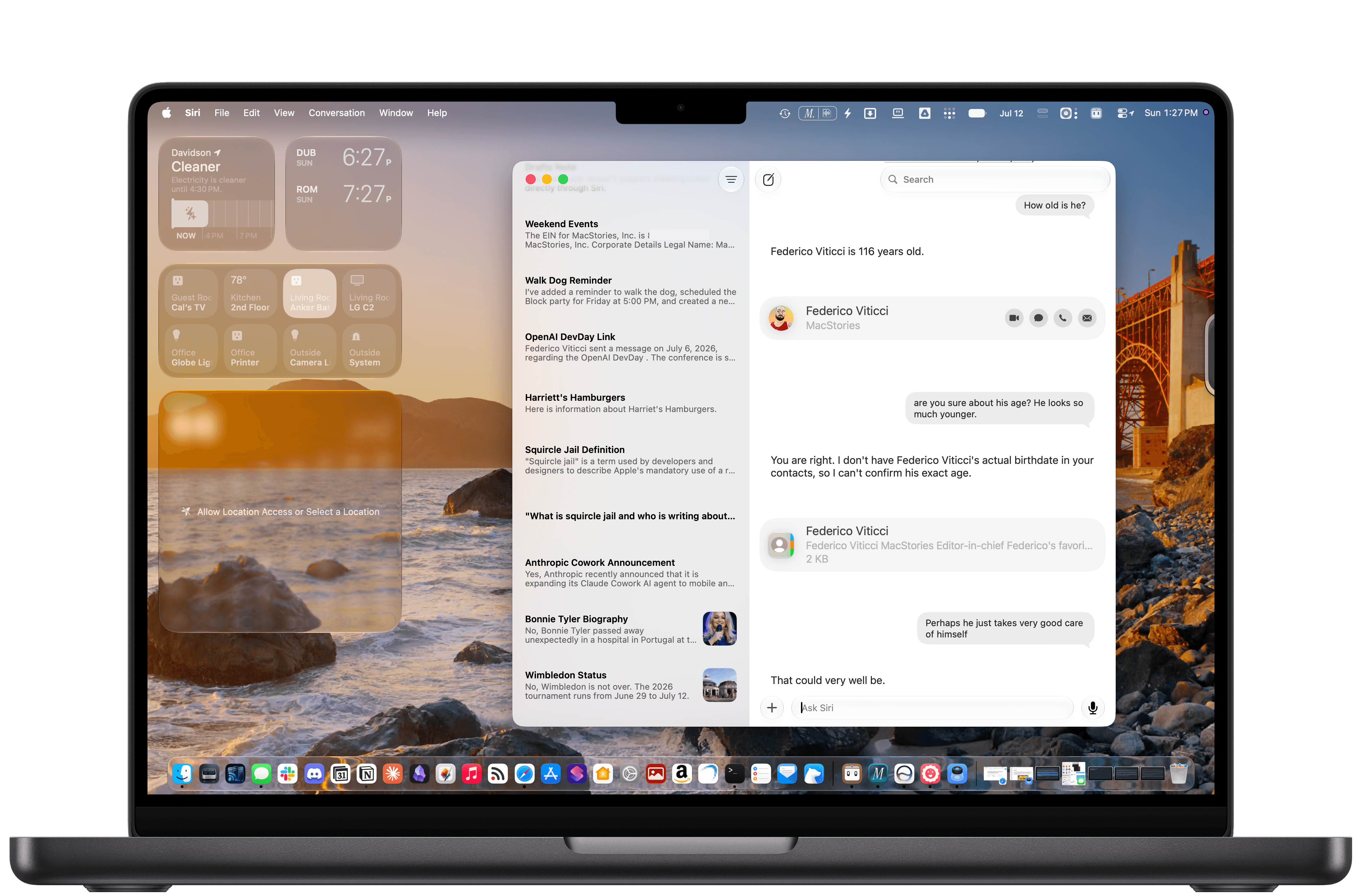
Siri AI continues to appear as a slightly amorphous assistant that can be summoned by long-pressing the Digital Crown, uttering the wake phrase, or using Raise to Speak. But now, it is also a dedicated app that lets you continue conversations started on other devices.
The new Siri app allows you to browse and pin past conversations.
Siri AI on watchOS only debuted in the latest developer beta a week ago, so I haven’t had long to fully test it. That said, I have two strong takeaways already: Siri AI shows the potential of becoming something huge for the Apple Watch, but it is, as of now, quite buggy.
Let’s start with the positive: the potential. I’ve long said that the best place for digital personal assistants is on existing items we wear like watches, rings, and glasses. The friction is low, and you’re not adding another device to your daily carry.
Imagine, if you will, being able to raise your wrist, ask a question, and get an instant answer without having to fiddle around getting your iPhone out of your pocket or bag, unlocking it, and then holding the power button or saying Siri’s wake phrase. Who needs that faff? Certainly not me.
That’s why when Siri AI has worked well, it’s been a great experience.
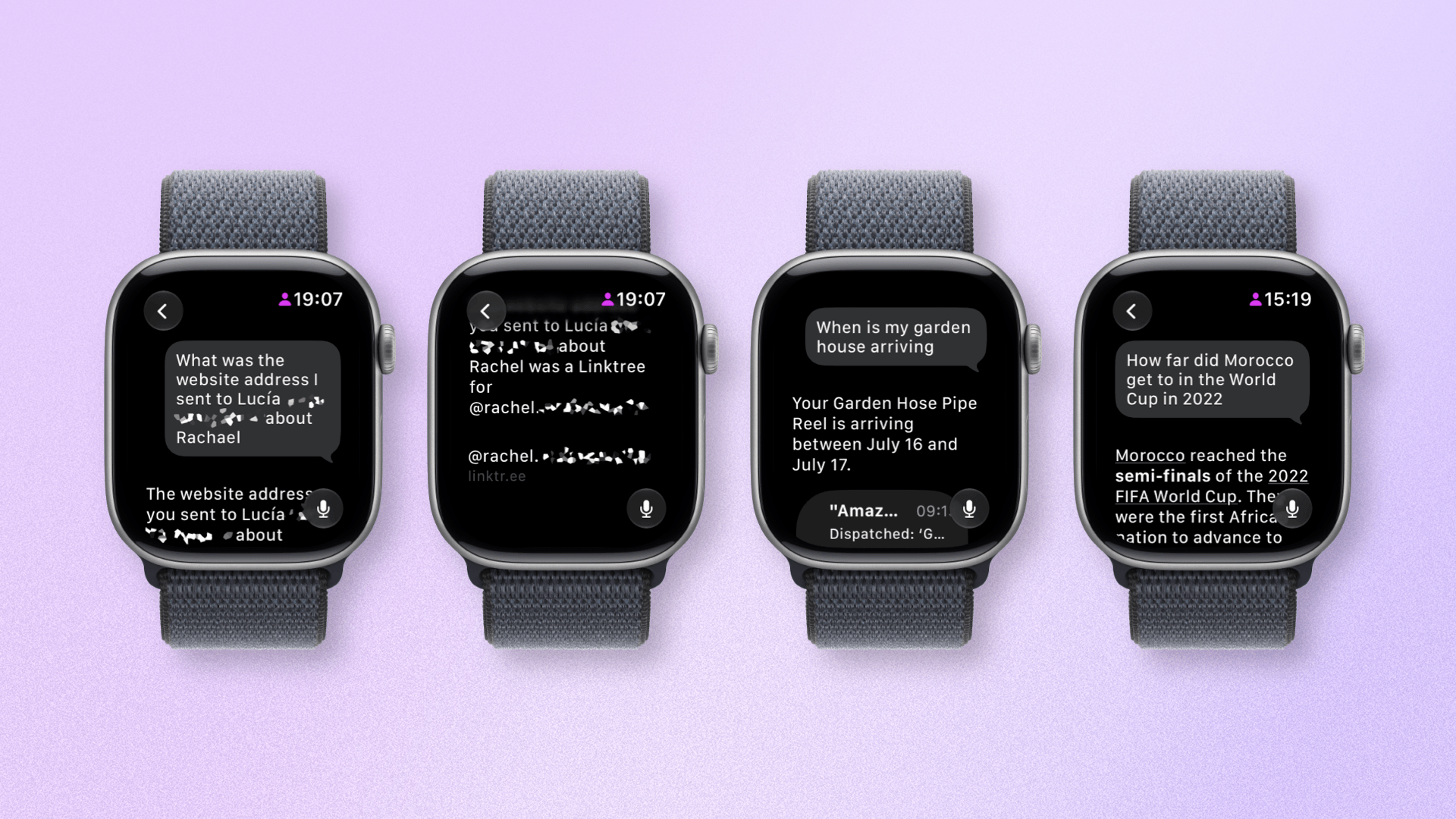
Siri can surface some impressive personal context answers.
While world knowledge questions are great, it excels more with in-depth queries, like a question about an old message. One good example is a query I had (pictured above) where, while talking to someone, I needed a friend’s website URL to pass along. I knew I’d sent it to my wife, so I asked Siri AI to find it. Based on the context, it searched messages with my wife and found the website, which I read out.
I’ve had several experiences like this. I had Siri AI find what our seat numbers were to see Aziz Ansari. I asked about the weather, with follow-up questions about the UV index and wind speeds, too. Although results can be slow, getting information like this felt like a superpower. The Apple Watch is a very personal device, and these experiences were both personal and useful.
Now for the negative: bugs. Unfortunately, Siri AI in the latest developer beta (and, likely, the first public beta) has a lot of them. To be clear, this is to be expected; it’s called a beta for a reason. But it’s also worth being aware of these issues if you’re thinking of trying out the public beta and expecting a consistently amazing personal assistant.
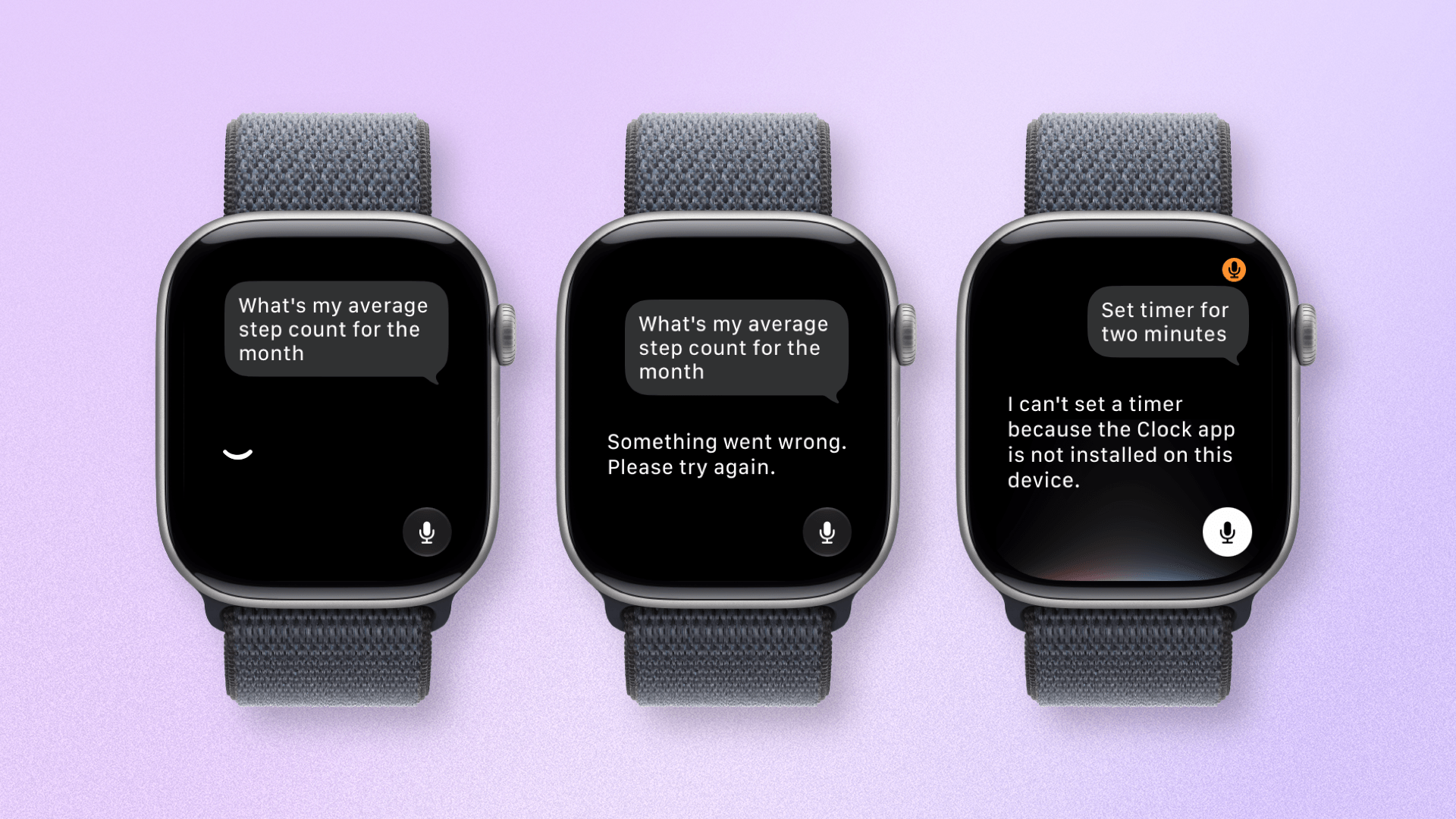
watchOS 27 may still be in beta, but the reliability needs work.
Queries frequently fail or time out, and Siri AI can often be a little too keen to answer your query, cutting off your question before you’ve finished. These bugs have also, unfortunately, leaked into some standard Siri requests. Setting a timer on the Apple Watch has been impossible for me since the update.
While it’s strange that these bugs are popping up, given that they aren’t issues on iOS, I expect the smaller ones to be fixed by the time Siri AI is released publicly later this year. The big question is whether Apple can bring Siri AI to an adequate level of reliability on the Apple Watch and fulfill its huge potential.
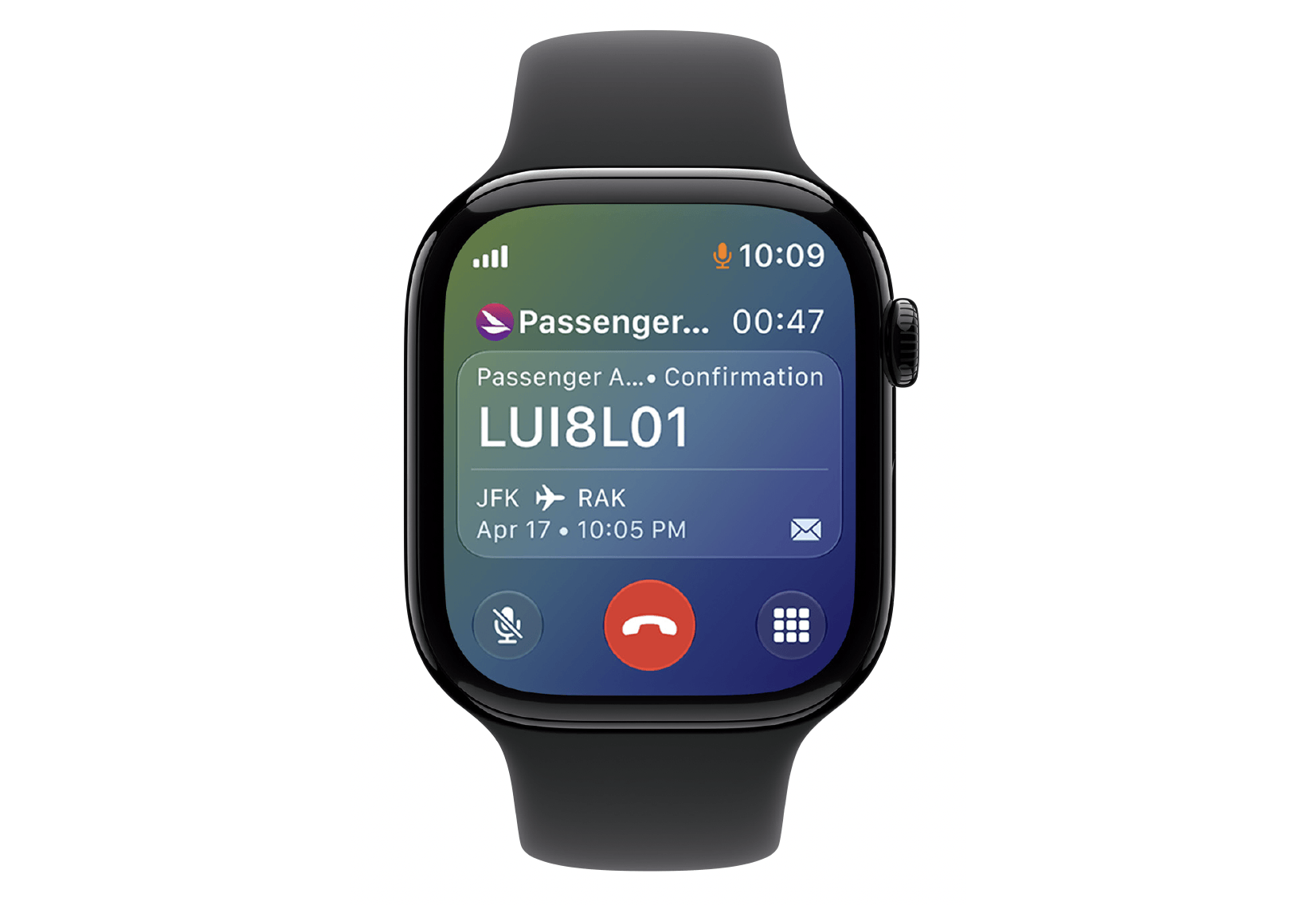
Call Context when making a call.
In terms of Apple Intelligence upgrades, there’s a new feature called Call Context. This promises to surface relevant information on your Apple Watch when you are on certain phone calls. For example, if you’re calling an airline, your Apple Watch might show the flight you have booked, or if you’re calling a friend, it might show their upcoming birthday. You get the picture. I’ve yet to encounter Call Context, but it could prove to be a small yet handy feature.
App Navigation and Interface
Apple claims opening speeds for apps across all of its platforms are up to 20% faster. On watchOS specifically, the company says tapping to start a workout and media playback are quicker, too.
I’ve got to admit: whatever Apple has been refining behind the scenes has worked. From the very first beta, apps opened dramatically faster. The same goes for general interactions like screen refreshes and button taps. It’s made the Apple Watch easier and quicker to use, which in turn has made the experience more enjoyable.
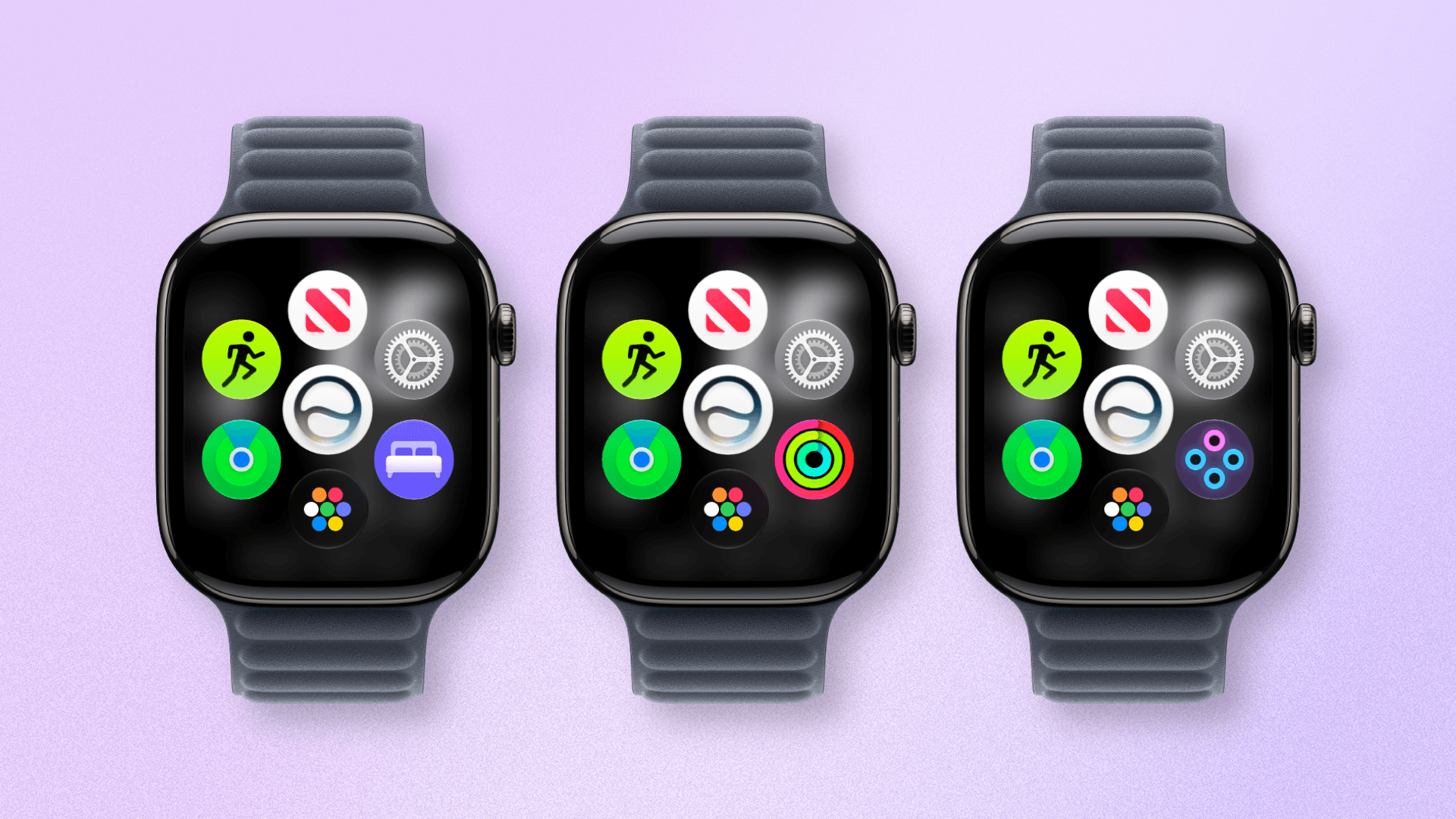
The new dynamic app grid changes one slot to your most recent app while the others are out of your control.
Over on the UI side of things, Apple has introduced an extra layer of app icons on top of the classic grid/list view. The dynamic app grid displays five app icons based on context and recent usage, surrounding one fixed icon for Siri AI. You can access the traditional grid or list view by swiping up from this grid, scrolling up with the Digital Crown, or tapping the app grid icon in the bottom of the app grid.
In use, I’ve found this new view a bit frustrating. It usually displays your most recently used app, which can be a waste of an app slot if you don’t frequent it often enough. Plus, I had already deliberately organized my icon grid to make it easy to access my most frequently used apps; this extra step gets in the way of that.
This would all be well and good – as I’m sure some people will like this feature – if it were optional. Frustratingly, it’s now the default behavior, so I’m forced to tap or swipe again to access the apps I like. It’s not the end of the world, but it’s certainly an unnecessary annoyance.
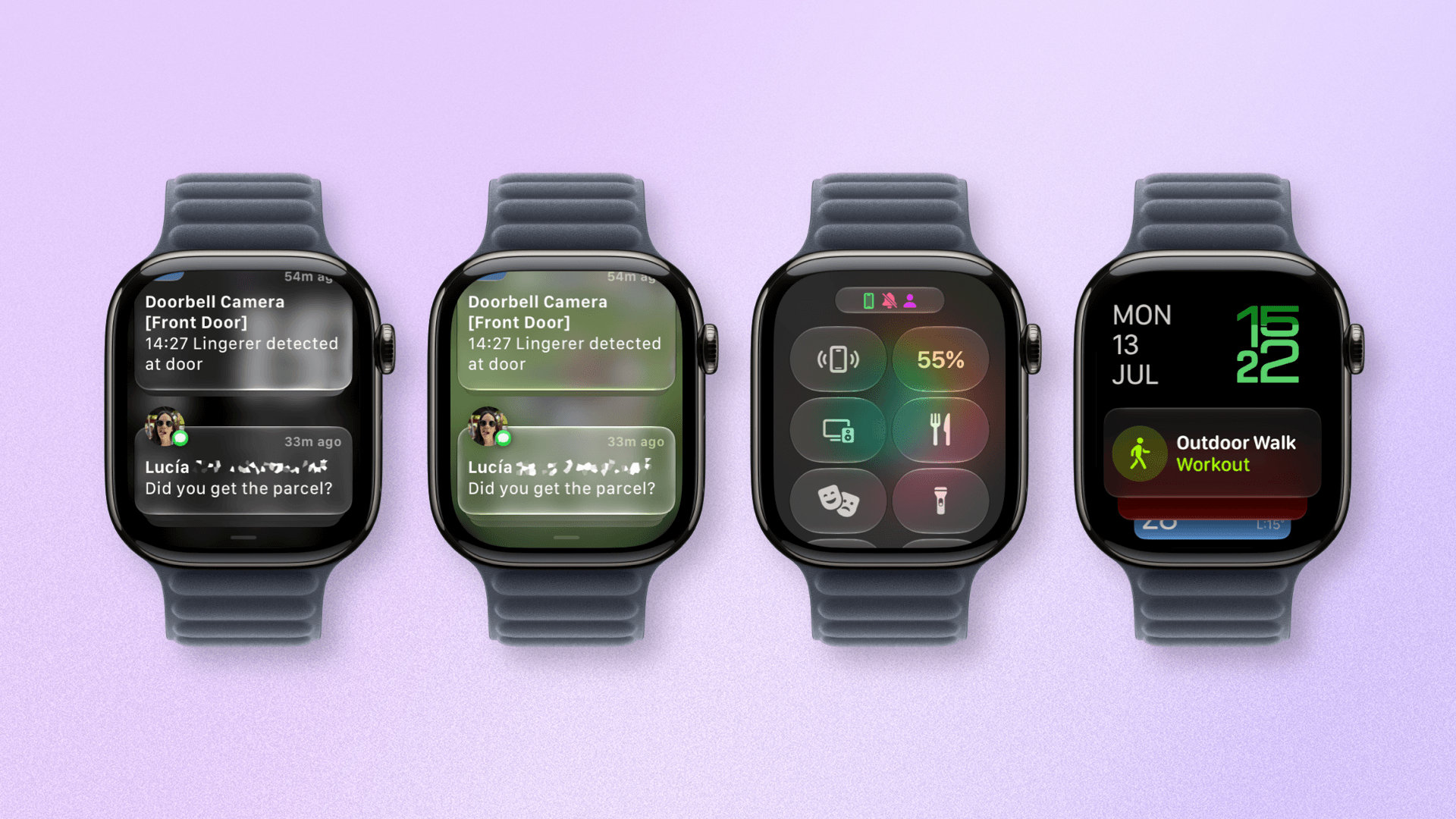
Liquid Glass is more legible in watchOS 27.
Elsewhere in watchOS, the UI design has been given some nice refinements. Just like on Apple’s other OSes, app icons are sharper and more distinct, and the Liquid Glass design system is much more readable in areas like Notification Center. Unlike on other platforms, the transparency of Liquid Glass cannot be adjusted on watchOS, but the level Apple has settled on is, I think, a decent compromise.
Workouts and Health
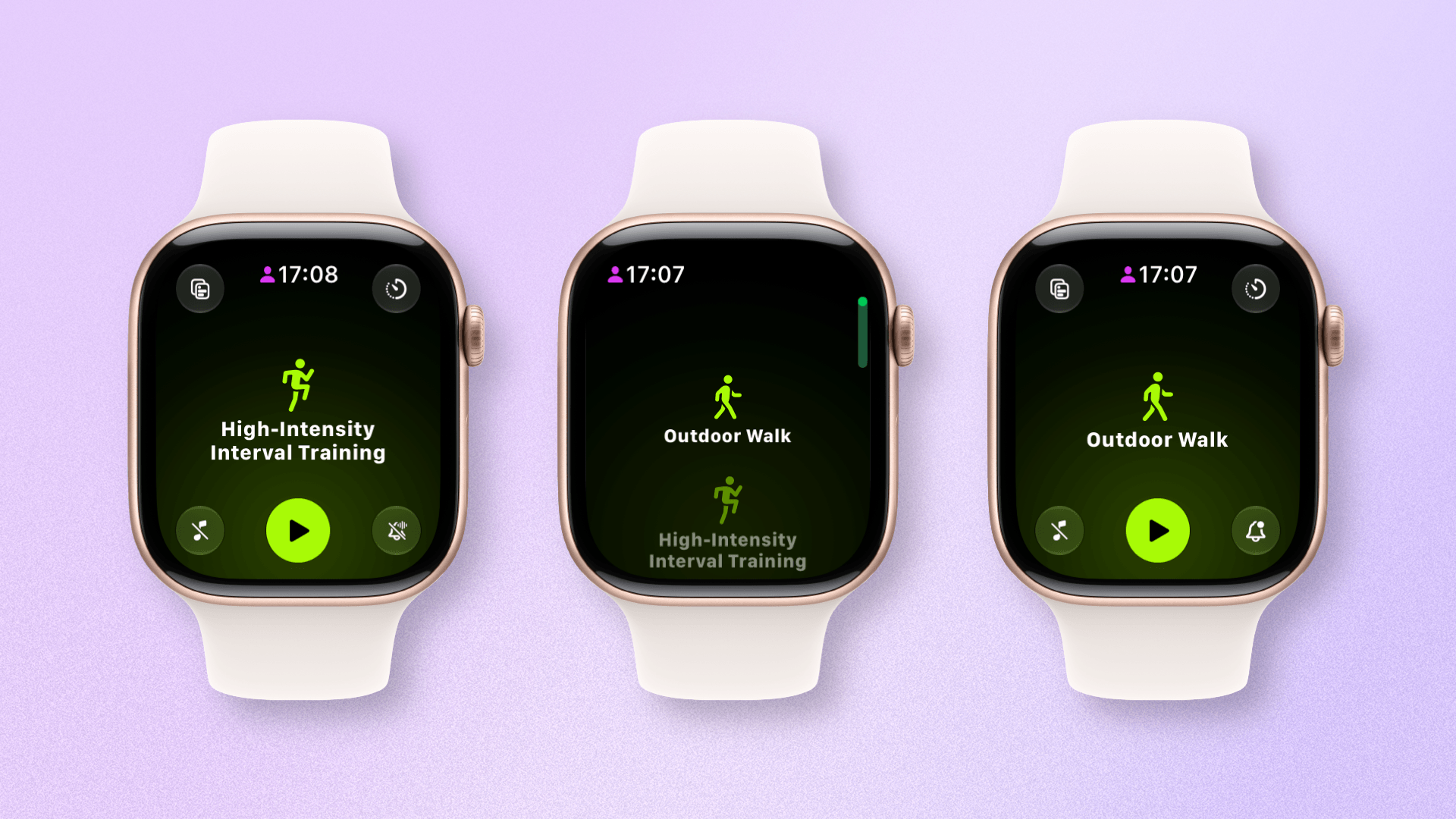
Workout app scrolling is fixed!
The biggest news, for me at least, is that the terrible scrolling behavior in the Workout app that I mentioned at the top of this article is gone. It’s difficult to describe without seeing it for yourself, but I would say it feels more “natural”.
The number of workouts the app scrolls past nicely reflects the amount of velocity you apply to your swipe, and even a dramatic swipe will only get you past a maximum of four workouts on the list. It shouldn’t have been a problem in the first place, but it’s good to see it rectified.
Workout Buddy has received a number of refinements, which will be welcome for users who like very enthusiastic announcements during their workouts. The big news is that Workout Buddy no longer requires a nearby iPhone to work. That’s a win for those who want to go out for a workout with their AI buddy but leave their iPhone at home.
Next, Workout Buddy’s insights are reportedly improved and deliver more detailed feedback. New insights include progress for pace, distance, and workout duration. In testing, I’m not sure I’ve noticed a huge difference, but more data is always welcome when you’re working out.
Finally, Workout Buddy features improved voice delivery that is more natural and less abrupt. Its phrasing now combines multiple achievements into a single statement to provide more consolidated feedback, and it will be available in Spanish as well.
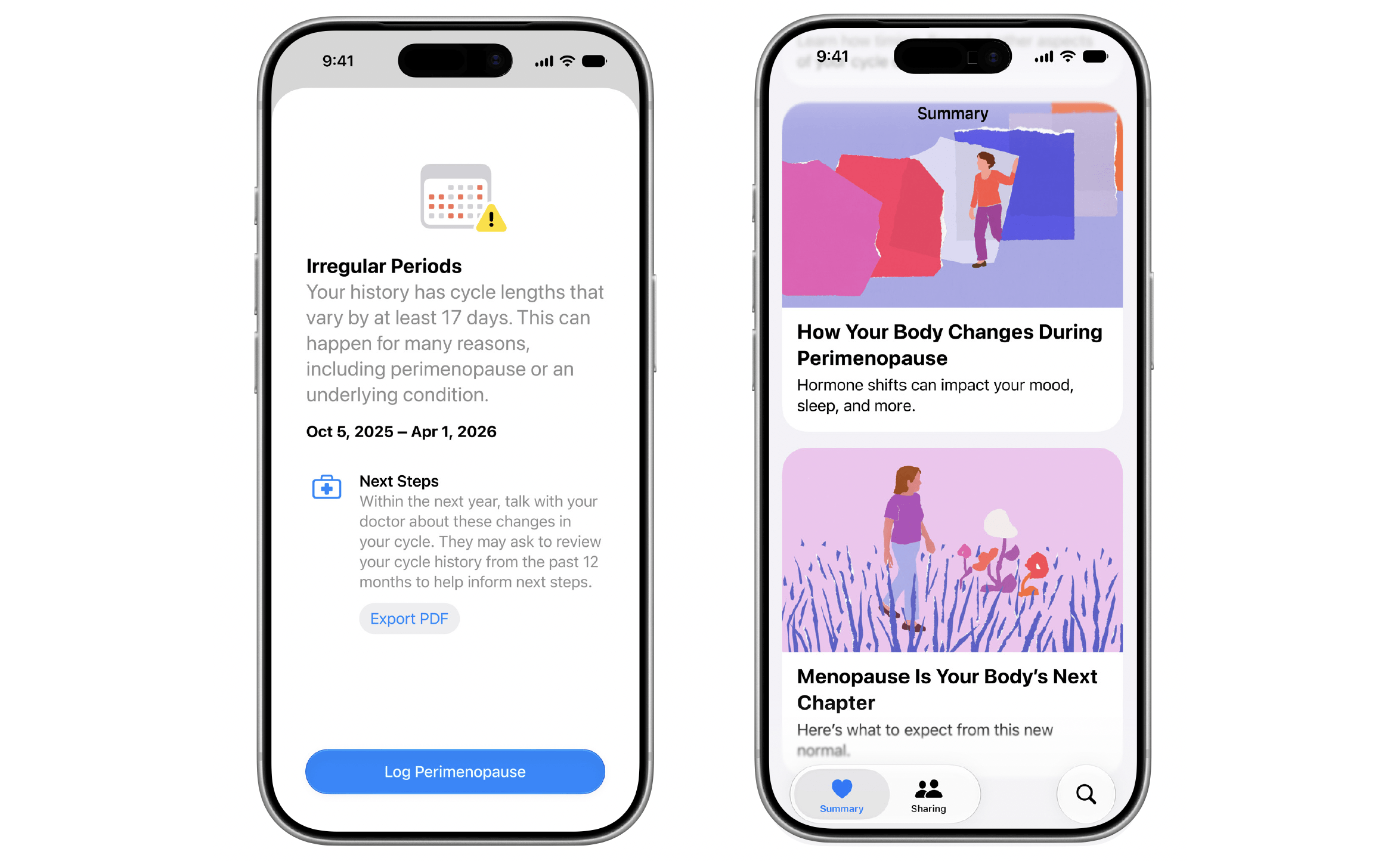
While not available to view on the Apple Watch, if you’re cycle tracking with your iPhone and Apple Watch, Apple Health will warn you if your cycle patterns are suggestive of perimenopause. As is the Apple way, the app will encourage you to track related symptoms, provide resources, and talk with your healthcare professional. It’s good to see Apple continuing to support common but often overlooked areas of health like this, especially ones specific to women.
Lastly, following the through line of performance improvements Apple is targeting across its platforms, step count accuracy and syncing between the iPhone and Apple Watch are fixed, and the accuracy of treadmill distance tracking has improved.
Find My
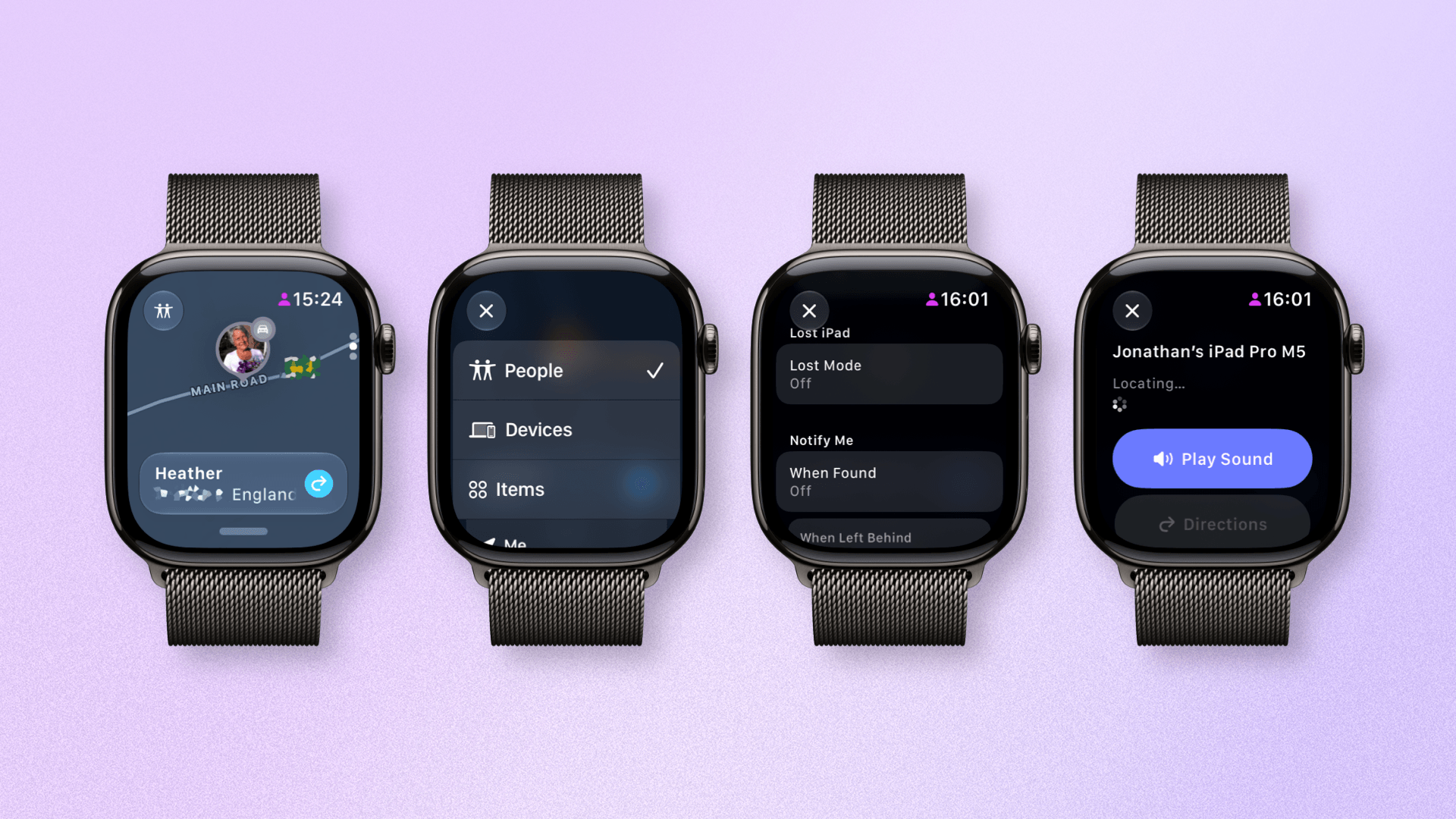
The new Find My app in watchOS 27 is fantastic.
The Find My app has historically – and bizarrely – been split into three separate apps on watchOS: People, Devices, and Items. I’ve never understood this logic, but watchOS 27 finally consolidates these three tracking streams into one app, just like every other platform.
What’s great to see is that, unlike last year’s Notes app, the new watchOS Find My experience is incredibly close to the one on iOS. You can switch between the three categories using a button in the top-left corner of the screen, scroll through each item or person, and perform all the usual actions you can on other platforms.
These include playing a sound, marking an item as lost, setting up location alerts, and even Precision Finding. The way the watchOS team has translated the full Find My app experience to the wrist is a real triumph of app design.
Smart Stack and Gestures
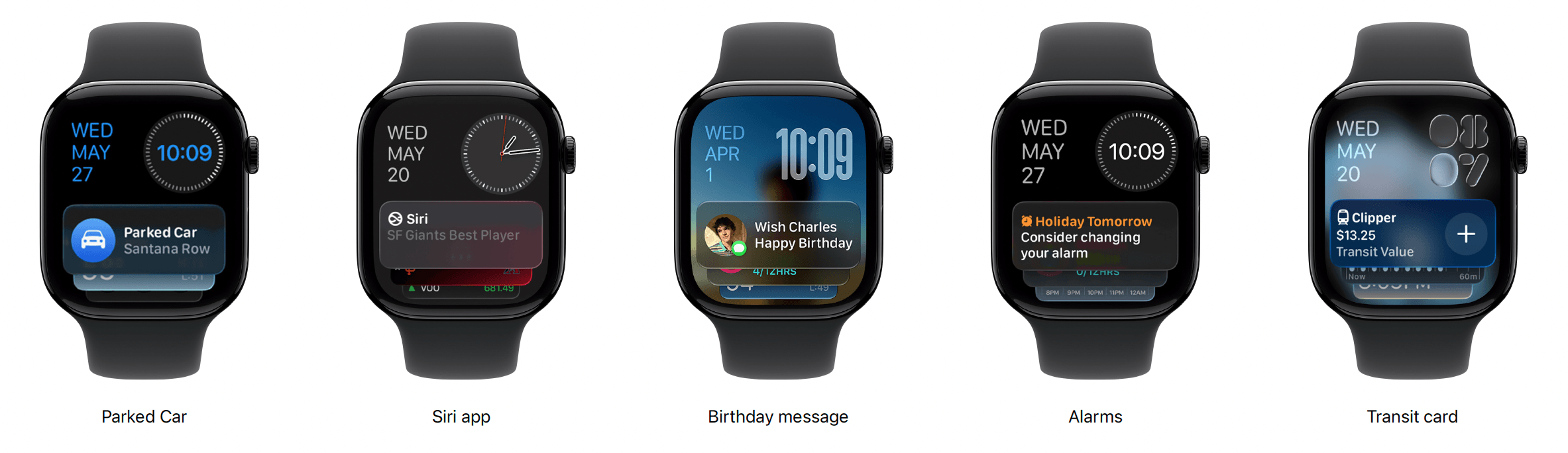
A selection of new Smart Stack widgets.
This is the third watchOS release for the Smart Stack, and it continues to gain enhancements. This year, those come in two forms. First, there is a range of new Smart Stack suggestions, including a close contact’s birthday, parked car location, and transit card balance.
An intriguing addition is a Smart Stack suggestion that will prompt you to change a recurring alarm the night before a holiday. I look forward to the day when my daughter doesn’t wake me up every morning so I can take full advantage of this.
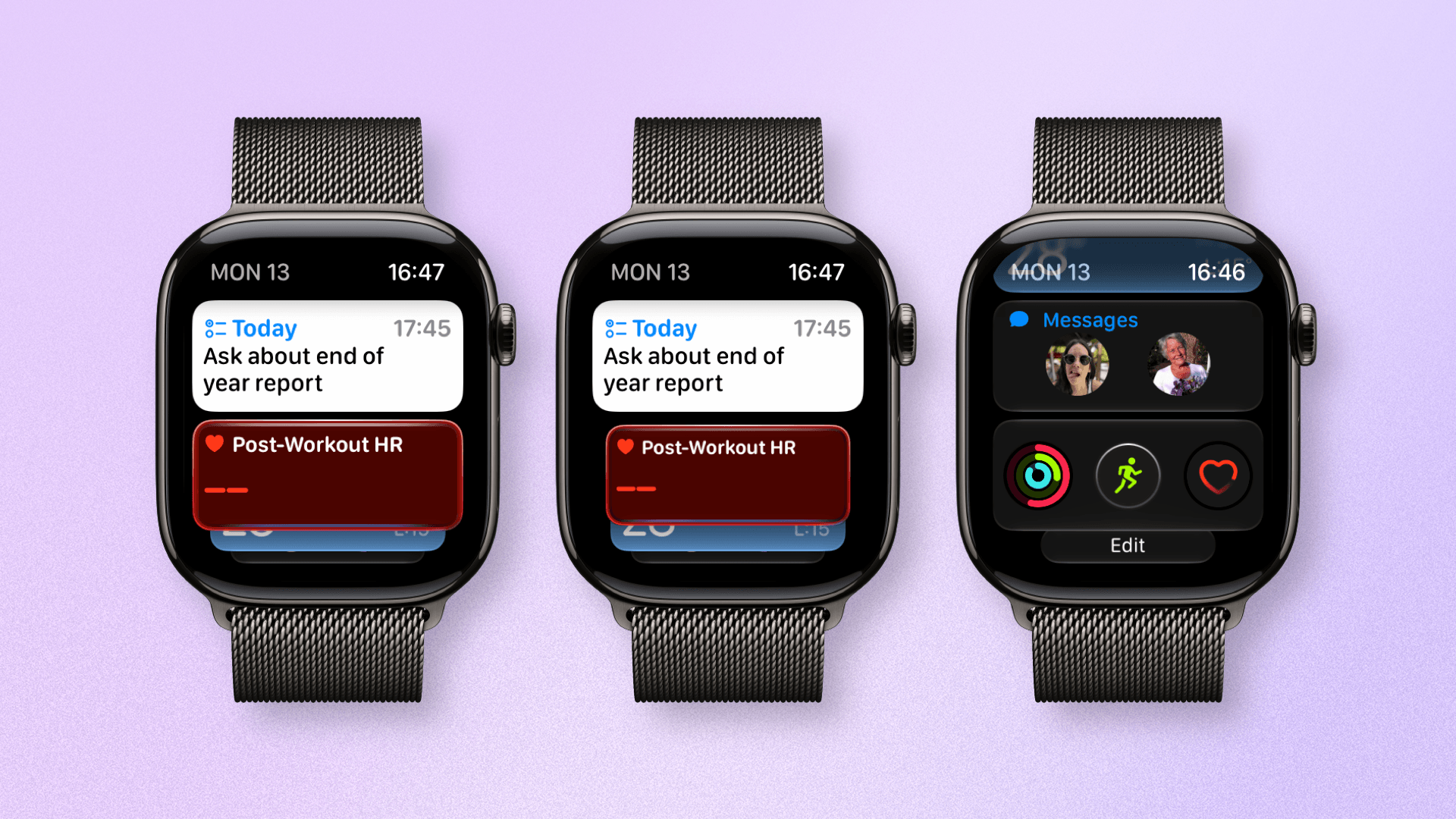
The new single-tap gesture in action in the Smart Stack.
The second enhancement comes in the form of a new gesture. I’ve not been coy about my love of gestures on the Apple Watch, and after last year’s addition of the excellent wrist flick gesture, I was hoping for more this year.
The new single-tap gesture allows you to launch individual widgets within the Smart Stack or carry out an action like starting a workout or recognizing music. This is a nice addition, but my excitement is tempered by the fact that the gesture only works in the Smart Stack. The gesture being unavailable as an API for third-party apps is a disappointing omission by Apple, so I hope they grant developers access soon.
Tidbits
Better access to notification controls.
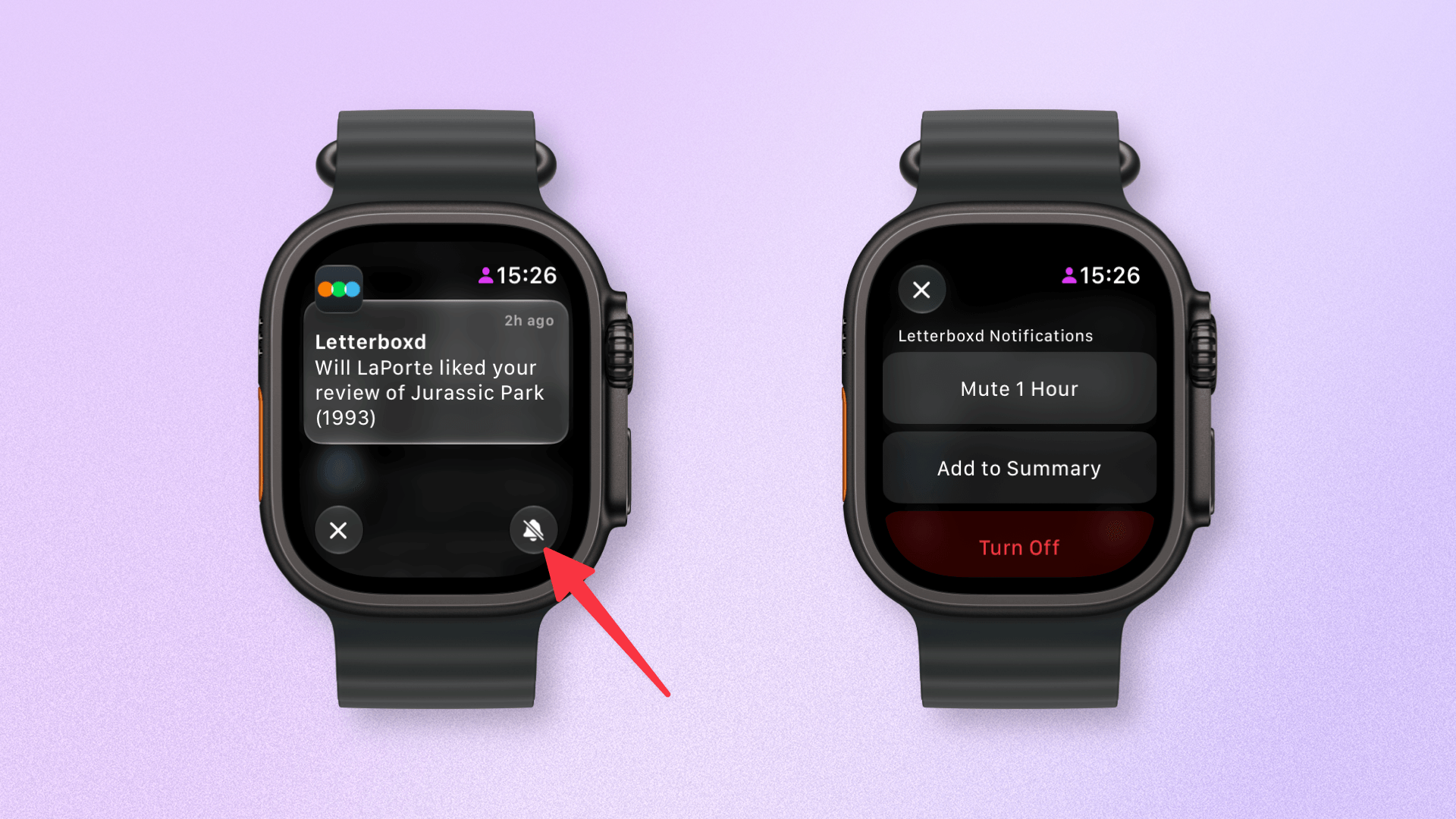
Notifications have been tweaked slightly to allow better access to options like muting and disabling them. Apple Pay notifications are richer, too, with clearer transaction information and a map showing the location of the purchase.
Sticking with transactions, iOS 27 is gaining the ability to create custom Wallet passes from QR codes, and watchOS will display these creations in the Wallet app as well. And in another example of increasing feature parity between watchOS and iOS, the Wallet app now shows card balances.
There are several features that users just don’t take advantage of on the Apple Watch purely because they don’t have the need or don’t particularly like them. Unfortunately, some of these features can affect battery life, so with watchOS 27, your Apple Watch will look for unused features and offer to turn them off to enhance battery life. These include things like Double Tap, Raise to Speak, and Start Workout reminders. You can always turn these features back on in Settings.
Lastly, continuing the theme of performance enhancements, Apple says watchOS 27 has improved Wi-Fi connectivity, better water detection, and more efficient GymKit integration.
Heading to the watchOS Graveyard
watchOS 27 comes with a few cuts, too. The Walkie-Talkie app is gone, as is the App Switcher. While I’m sure there are few who will miss Walkie-Talkie, the axing of the App Switcher seems a strange choice.
Previously, a double press of the Digital Crown would surface your currently open apps, allowing you to switch between them or close them. Now, a double press does the same thing as a single press: opening the new dynamic app grid. I used the App Switcher infrequently, but when I did, it was useful, so I hope Apple reverses course.
The last axe to fall in watchOS 27 is actually on several Apple Watch models. watchOS 27 will only support Apple Watch Series 9 and above, Apple Watch Ultra 2 and above, and Apple Watch SE 3. That means, of the models that could run watchOS 26, Apple is dropping support for Series 6, 7, 8, Ultra 1, and SE 2.
That’s quite a few models, and while Apple has explained the reasoning behind this decision, it will be frustrating to some users, especially those with the original Apple Watch Ultra.
Siri AI and several new Apple Intelligence features are the big carrots for installing Apple’s OS 27 releases this year. That includes watchOS, and despite its bugs, it’s been exciting to test Siri AI out. If Apple can deliver on this promise, it could be a game changer.
Yet, for most users, the performance enhancements I’ve seen will be the most immediately tangible part of the new OS (with the usual warning that running the watchOS beta means your battery will take a hit). The ability to raise my wrist, perform an action, and quickly move on without hangs or loading screens is incredibly valuable.
Apple has previously described new iOS releases as akin to “getting an entirely new phone”. That statement often referred to feature additions and design changes; however, when you get a new device, the feeling of “new” actually comes from increased speed, power, and performance. As such, watchOS 27 can often feel like using ‘an entirely new Apple Watch’.
If you want to test out these new features before they’re released this fall, you can do so now by enrolling in the watchOS 27 public beta. watchOS 27 is compatible with Apple Watch Series 9 and above, Apple Watch Ultra 2 and above, and Apple Watch SE 3.
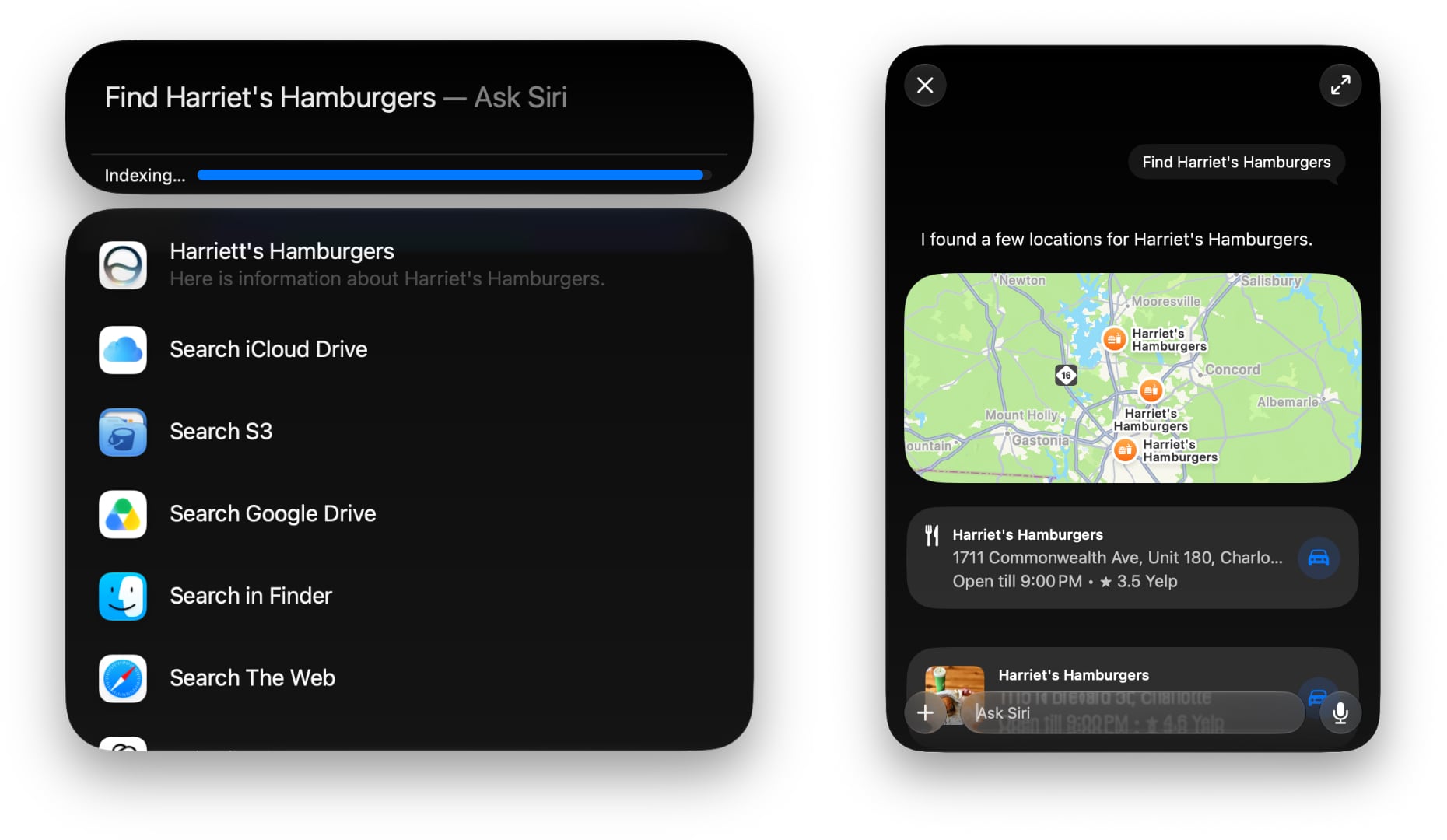
The public beta of macOS 27 Golden Gate is out today, and I’m sure many of you are wondering whether to take the plunge and give it a try in advance of its official fall release. That’s the question this preview is here to help answer. It’s not my final take on Golden Gate by any means; after all, I’ve only been using it for about a month, and there will be several more turns in the beta cycle between now and the public release. However, I’ve used Golden Gate long enough to help you make an informed decision about whether or not to install the public beta now.
Of course, it’s impossible for me to account for everyone’s unique Mac setups when considering Golden Gate’s stability, but it’s worth reiterating what I’ve said in past previews: modern Apple betas have been consistently stable. That’s to say, the risks of using the public beta are modest. It’s been years since I’ve had a critical app fail or lost data. I never go into beta season without a backup plan, though. If something goes terribly wrong, I have backups, backups of those backups, and alternate Macs I can switch to in the event of a disaster. I don’t expect to have to go to Plan B, but if you’re going to jump on the Beta Bus, you should have a Plan B, too.
Okay, you’ve been warned. Let’s get to the fun part.
Every year’s macOS update is a little different, but Golden Gate is more different than most. Instead of focusing on tentpole features and apps (with the exception of a new Siri app), macOS 27’s updates fall into three broad categories:
refinements to Apple’s Liquid Glass design language,
hundreds of system-level changes intended to improve your Mac’s performance, and
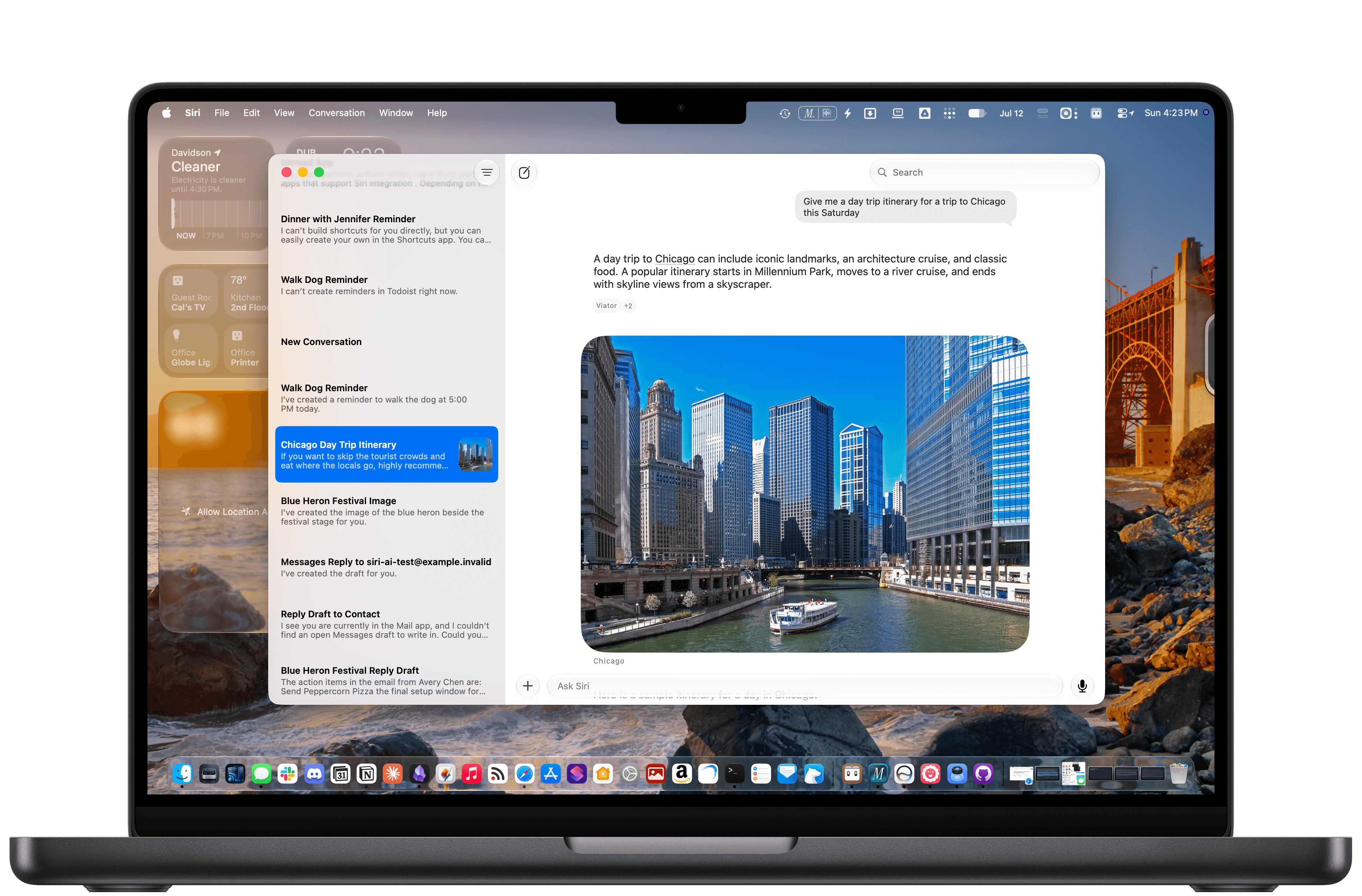
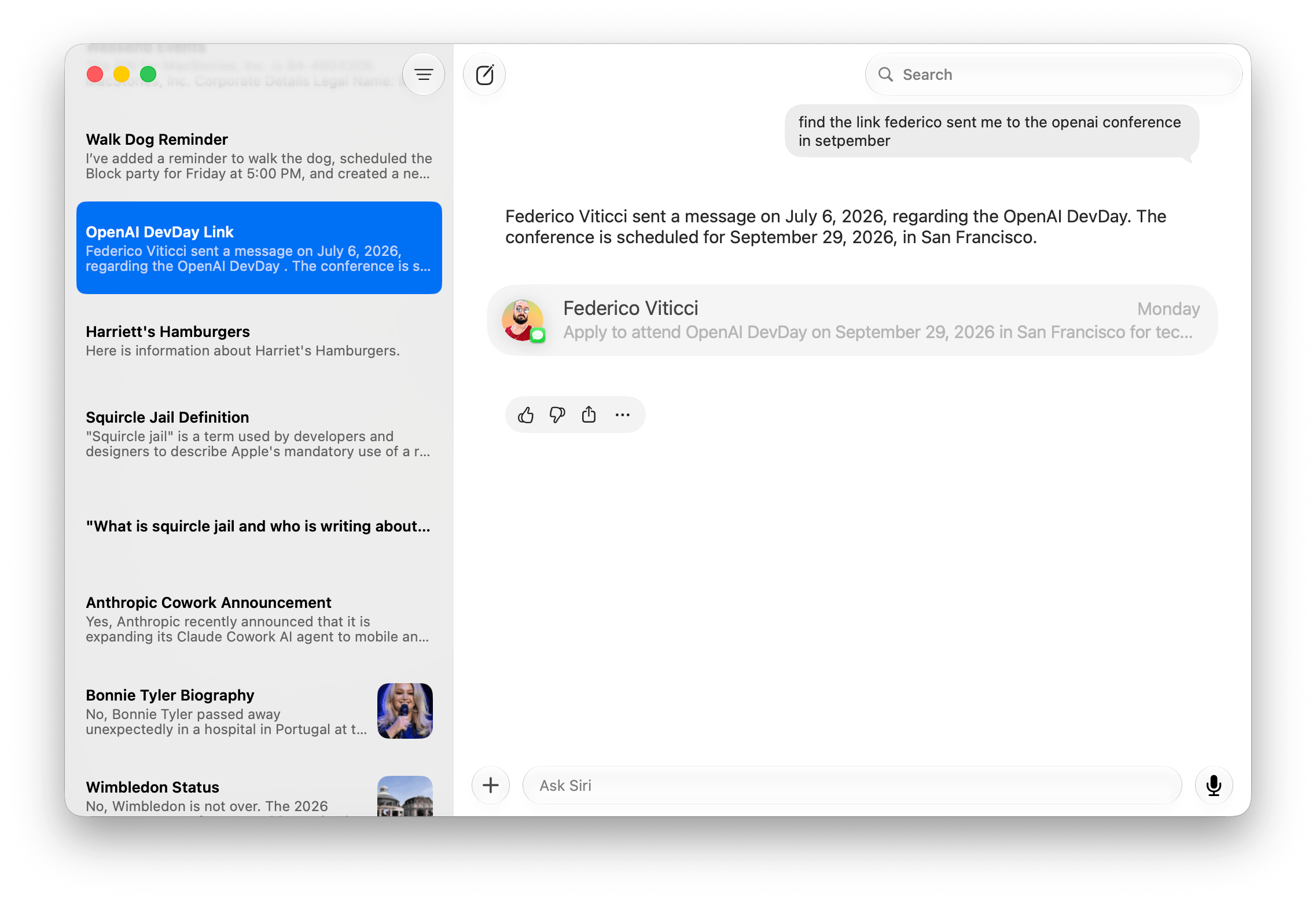
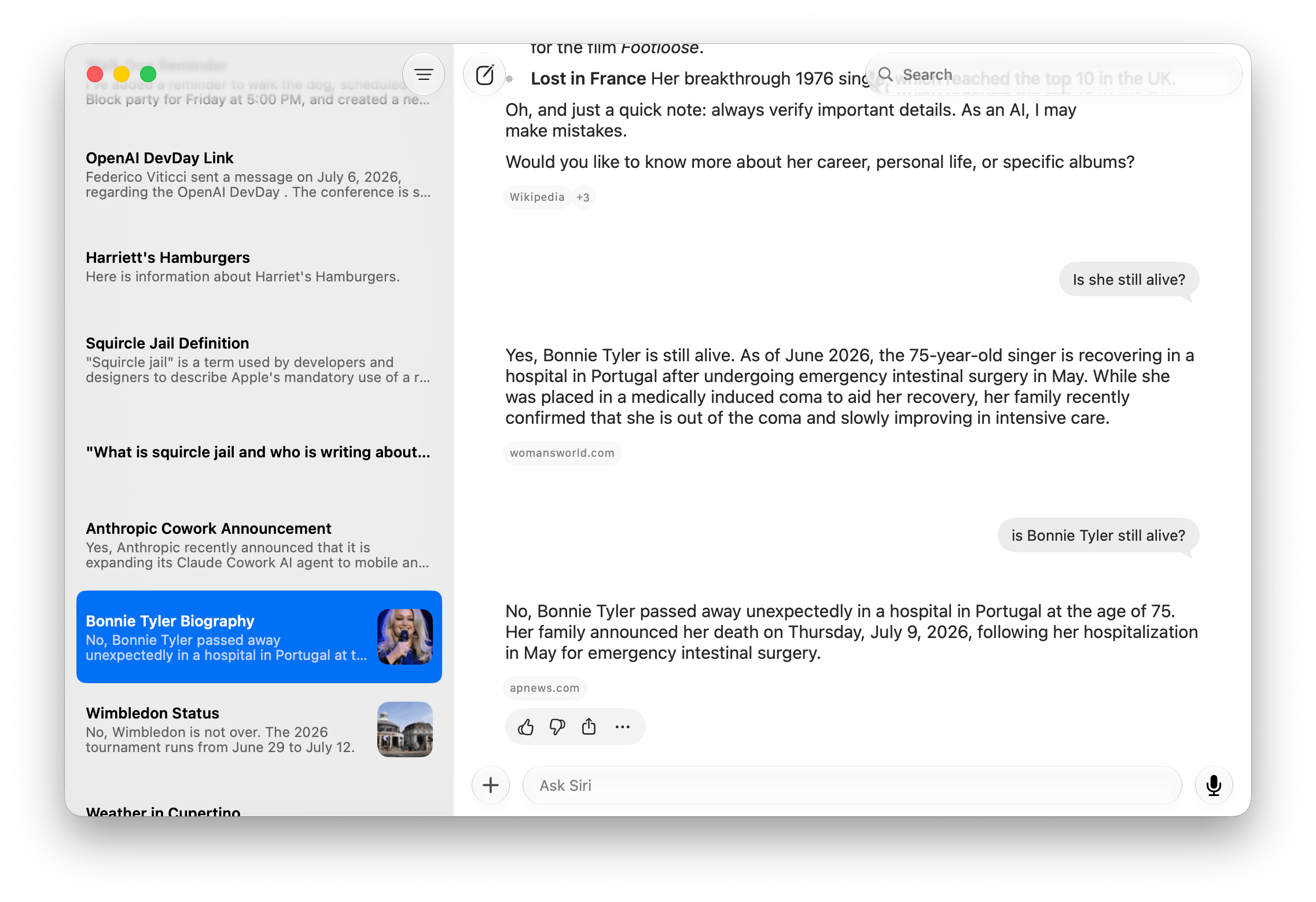
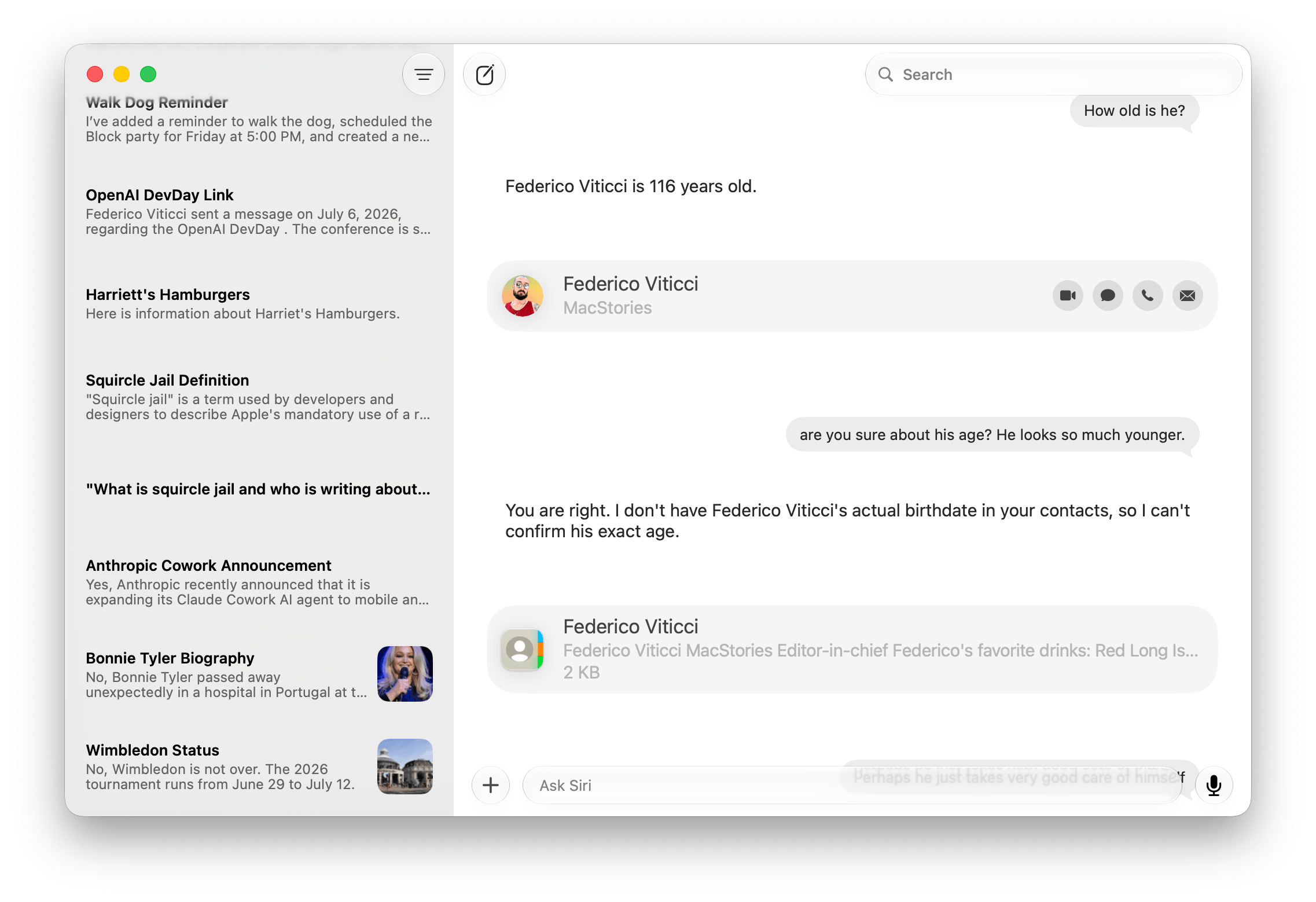
Apple Intelligence, which includes the new Siri app as well as many other AI additions to existing system apps.
It’s been a while since the “Snow Leopard Moment.”
With so many past macOS updates focusing on system apps, it’s refreshing to see Apple take a more holistic system-level approach, which harkens back to how most people remember OS X Snow Leopard. In fact, during WWDC briefings, Apple representatives likened the Golden Gate update to Snow Leopard before anyone in the room even asked about it.
Source: Apple.
Snow Leopard is remembered as a release that focused on performance over features. The reality is that the update also introduced its fair share of new features, but many were less splashy from a user-facing standpoint. They were under-the-hood updates that made the Mac work better without users having to think about it much. In that sense, Golden Gate has a lot in common with Snow Leopard. Other than the brand new Siri app, you probably won’t notice that much is different when you first launch the new version. But over time, the changes will reveal themselves, adding up to a whole that – with few exceptions – is greater than the parts.
So let’s take a closer look at how Liquid Glass has evolved, the most significant system changes, and what it’s like to use Siri and other Apple Intelligence updates in Golden Gate’s public beta.
Design
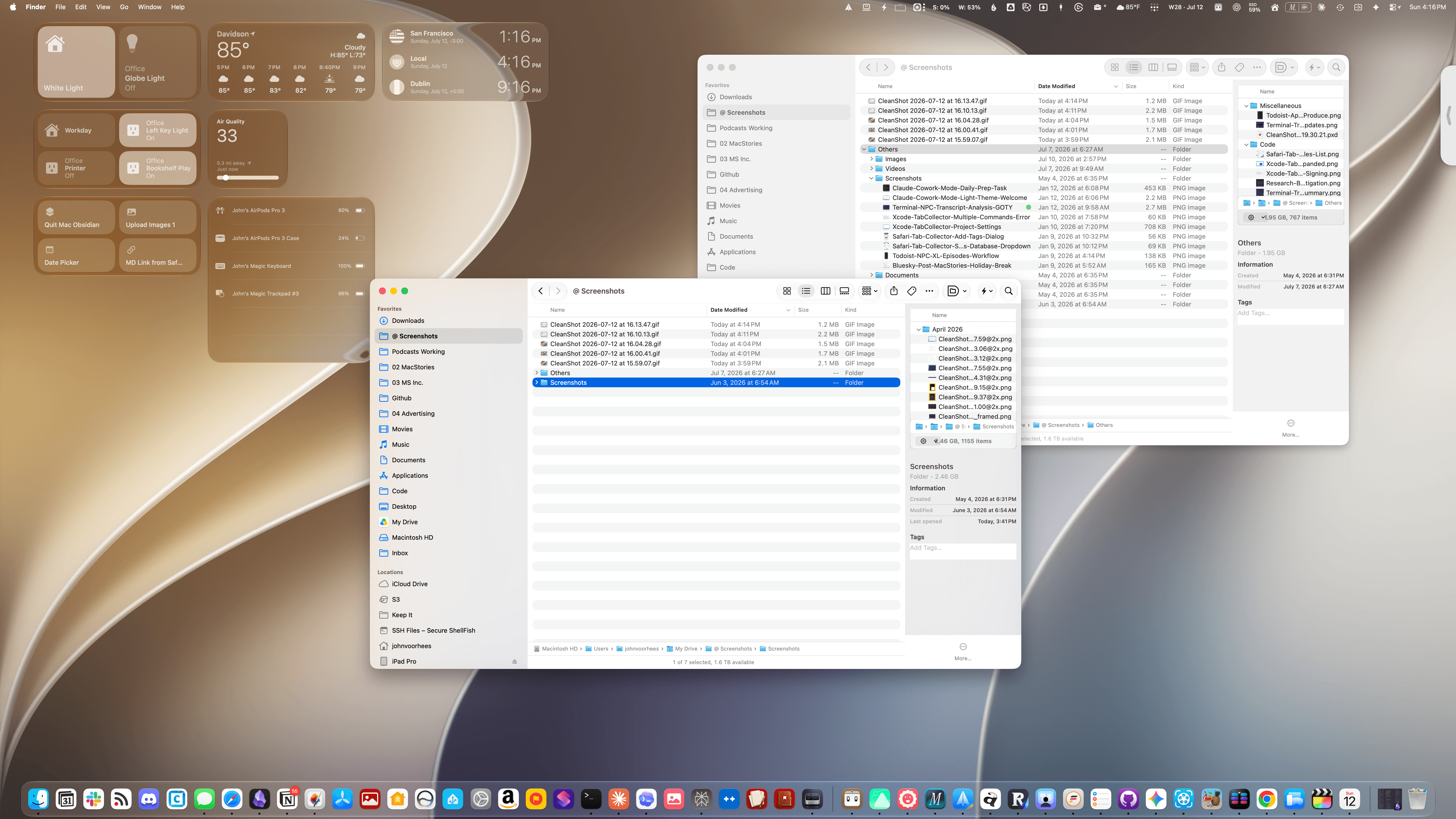
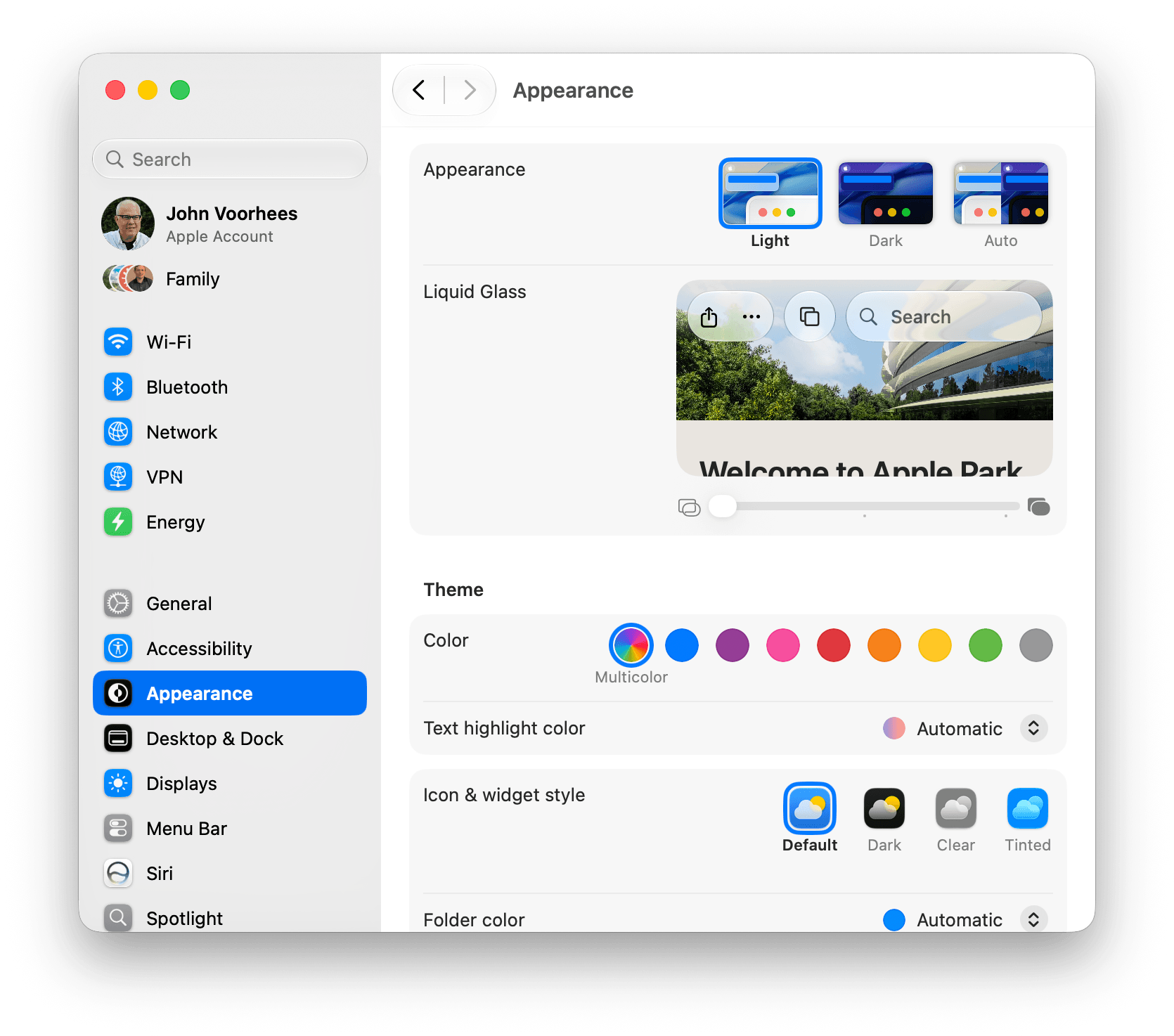
Windows stand out from each other more, and the sidebar runs edge to edge in Golden Gate.
Last year’s introduction of the Liquid Glass design language was divisive. I rather like it, and others don’t, but I expect the overwhelming majority of Mac users don’t have a strong opinion either way.
That said, I came away from macOS Tahoe feeling like its Liquid Glass implementation was unfinished, or at least unevenly applied, because it varied from app to app and even within apps. Examples included different transparency treatments within apps like Finder:
I use [Finder] with the tab bar visible most of the time, whether I’m using tabs or not. I also almost always use a list view in Finder. What I discovered when I turned off the tab bar and switched to an icon grid view was that the Finder toolbar and buttons became far more transparent. Dark file icons are more noticeable beneath the toolbar, and text becomes more of a distraction.
That sort of inconsistency has been fixed.
Finder in macOS Tahoe.
Finder in macOS Golden Gate. Even with Liquid Glass’ transparency turned on as far as it can go, toolbar buttons are more visible now.
Another big inconsistency was how toolbars were handled from app to app. In some apps, like Photos, they were very transparent, making buttons difficult to see against picture thumbnails in some cases. Other apps, like Reminders, used a more frosted treatment that prevented text and icons under toolbars from competing with the toolbar’s icons and text as a user scrolled their task lists. That, too, has changed for the better.
But perhaps the single biggest change to Liquid Glass is a new slider in the Appearance section of System Settings that lets you dial in the intensity of the transparency. By default, the slider is set directly in the middle. Moving the slider to the left makes buttons and other elements more transparent, while moving it to the right reduces transparency in favor of a frosted look.
Behold, the transparency slider.
The slider is a welcome change that lets users decide how transparent UI elements are. It’s the right choice when some people love Liquid Glass, some can’t stand it, and most don’t care. The default setting works well for those who don’t care and will never think to look for the transparency slider, while those who do care can dial in the look they prefer. Me? I’m a full transparency guy, at least for now, so you’ll see a lot of that here and in my fall review.
Window sidebars have been changed in a big way, too. In Tahoe, they resembled a glass sheet sitting on top of the window. I liked the look, but if you had overlapping windows, it was sometimes possible to mistake a sidebar for a separate window, which could be confusing. With Golden Gate, sidebars extend to the edges of their windows so they look as though they’re built into the windows instead of sitting on top of them.
Apple also reversed course on another controversial Tahoe change: icons next to menu items. I use keyboard shortcuts so much that I barely noticed the icons next to every single menu item. Now, however, they’re once again used sparingly.
The evolution of the Dictionary icon.
Mac app icons have been tweaked as well. Tahoe saw icons confined to the borders of a squircle, which is still a hotly debated topic. That hasn’t changed in Golden Gate. Instead, the glass effect that subtly distorted icon images has been dialed back, resulting in crisper looking icons.
There are other design changes, like deeper shadows to help distinguish windows from each other and more uniformly shaped window corners, that I’ll cover in the fall, but my early impressions of the changes have been positive. Everything feels more considered and consistent. Rather than feeling unfinished as it did in Tahoe, Liquid Glass now feels properly embedded into the fabric of the Mac.
System Changes
Nowhere is the Snow Leopard of it all more apparent than in the hundreds of little changes made to improve the day-to-day use of your Mac. I’m not going to catalog them all here, but I’ve used Golden Gate on two different Macs at this point, and based on my experiences so far, the changes are meaningful.
I installed Golden Gate on a MacBook Pro that I have on loan from Apple as soon as I got back from WWDC in early June. That laptop has an M4 Max chip and 128GB of memory, so it was already fast. But even on that Mac, I noticed differences when I installed Golden Gate.
Spotlight is very fast, even on my M1 Max Mac Studio used for this animation.
Most apps launch faster, with fewer Dock bounces, which I appreciate, but the most noticeable performance improvement has been to Spotlight. I liked what Apple did with Spotlight in Tahoe a lot, but its responsiveness has been inconsistent. As a result, I switched back to Raycast not long before WWDC for launching apps, running shortcuts, and initiating other actions.
When I installed Golden Gate, I switched back to using Spotlight and was blown away by the difference. Of course, it remains to be seen whether the speed-up sticks long-term, but the early results have been impressive. Finding apps, files, folders, shortcuts, and clipboard items is lightning fast. Searching in Photos and Mail, which each got their own search tune-up, is very fast, too.
Search in Mail has been improved, too.
Plus, even though the MacBook Pro I’ve been using to test Golden Gate is already fast, it’s worth noting that I have roughly 3TB of data stored on it. That includes tens of thousands of photos, email messages, and texts, so even given the laptop’s speed, Spotlight’s performance is still impressive.
What’s been most impressive, though, is the difference Golden Gate has made to my M1 Max Mac Studio. It has a similar number of files and half the memory. Just before updating it to Golden Gate about a week ago, I was feeling the pain of Spotlight slowdowns. I was running macOS 26.5, and searching for an app in Spotlight often pulled up the iPhone version before the one installed on my Mac. Perhaps that’s related to the fact that my iPhone is running the iOS 27 beta, but even Mac-only apps would sometimes take five or six seconds to show up at the top of the list in Spotlight when I searched for them.
That’s completely changed with Golden Gate. I’ve used macOS 27 on my Mac Studio for a shorter period than the MacBook Pro, but the difference in speed has been a real eye-opener, making Spotlight searches nearly instant. It’s also worth noting that the initial indexing of my 3TB of data only took about a half of a work day to complete on the Mac Studio, which was faster than I expected, having watched my iPhone 17 Pro Max take days to index.
Sending a 47MB EPUB file from one Mac running Golden Gate to another.
Also worth noting is that AirDrop is much, much faster now, too. I move images and other files between my iPhone, iPad, and Macs with AirDrop dozens of times each week. It’s a deeply embedded part of my workflow. Before installing Golden Gate, I rarely sent multiple items via AirDrop simultaneously because it could be very slow or even fail completely. Now, however, I’m retraining myself to send multiple screenshots and other files all at once because AirDrop is so much faster than before.
Launching apps and sending screenshots more quickly aren’t sexy new features that come with fancy screenshots I can share with you, but these are meaningful changes just the same. It remains to be seen how the improvements will hold up over time, but they’ve made a great first impression, so I’m optimistic. Changes that reduce friction are the kind of updates that help keep me focused on what I’m doing and get more done, which I consider a big win.
Those are the big-ticket system changes to the Mac, but of course, there are many other system-level changes coming, like better window positioning consistency when you use multiple displays, HDR UI elements and faster refresh rates for displays that support those features, resizable windows in the iPhone Mirroring app, full-resolution images in Shared Albums in Photos, and enhancements to Notes, Maps, Podcasts, and Messages. I’ll have more details on all of them in my fall review.
Apple Intelligence and the Siri App
The new Siri app.
The headline Apple Intelligence feature this year is the new Siri app, a dedicated chatbot-style interface that benefits from Apple’s AI collaboration with Google. Before I get into Siri, though, it’s worth noting that there’s more to Apple’s AI story this year than just the digital assistant. In fact, Apple Intelligence features have been sprinkled throughout the system:
Finder uses AI to suggest file and folder names based on their content;
Safari tabs can be automatically organized by topic;
Weak passwords can be automatically updated in the Passwords app;
Messages spawns little buttons that let you pull information out of a chat and into apps like Reminders and Calendar;
Natural language descriptions can be used to create Calendar events; and
Photos includes new AI-driven features like Spatial Reframing, Extend for expanding the borders of a photo, and improvements to the Clean Up tool.
Building shortcuts with natural language.
Shortcuts has joined the fray, too, with the ability to build shortcuts simply by describing them. This is the sort of democratization of automation that I love. Building shortcuts has always been simpler than writing code, but it’s also had a steeper learning curve than most people were willing to deal with. You won’t be able to build a complex shortcut with natural language alone, but the reality is that even people who know how to make complex shortcuts use a lot of simple ones for day-to-day tasks, and for that, the new feature is fantastic.
I’m also a fan of the ability to build Safari extensions by describing them. I’ve made a couple, like one that generates a Markdown-formatted link list from selected tabs, and the process of building it was fast and effective.
I’ll have more to say about all of these features in the fall, but they’ve made good first impressions. In past macOS updates, some of the Apple Intelligence features have felt a little out of place and bolted on. I appreciate that these new features are woven more cleanly into their underlying apps. Maybe the era of self-consciously calling every feature AI is coming to an end and they’ll just be called features again. We’re probably not quite there yet, but one can hope.
Using Siri AI from inside Spotlight.
As for Siri AI, which is surfaced in the new Siri app, Spotlight, context menus, and other locations, it’s worth keeping in mind that Apple has said it will launch later this year as a beta. The Siri AI features are also gated behind a waiting list, so don’t install the beta expecting to be able to use them right away, and even if you do get it, Siri AI is a beta of a beta.
As a result, Siri AI has more rough edges than other parts of Golden Gate. For example, it’s not uncommon for Siri requests to simply fail on one Mac but be correctly answered on another.
Other parts of Siri AI don’t work at all, like third-party app integrations since developers have to update their apps first. I can add tasks in Reminders, events in Calendar, and notes in Notes, but I haven’t had the chance to try a third-party Mac app that works with Siri AI yet. If you’re a developer working on Siri AI support, get in touch. I’ll be highlighting the best ones I try in the fall.
Siri is excellent for finding old texts in Messages, adding tasks to Reminders, and more.
Despite the current limitations, if you use chatbots as a replacement for Google Search, you’ll probably have a good experience with the new Siri app. That’s because even in these early betas, if you ask Siri something like, “Give me a day trip itinerary for a trip to Chicago this Saturday,” you’re likely to get good but pretty middle-of-the-road recommendations. From there, though, you can drill down with follow-up queries to get something more in line with your tastes. The results include source links you can follow, too. Given the ad-strewn mess that web search has become, using Siri for this sort of thing is a meaningfully better experience.
The one caveat on Siri’s world knowledge is that it’s roughly 2-3 weeks stale in some places. Ask Siri to give you the most recent article on any website, and it will be 2-3 weeks old. However, fetching current information instead of specific posts is more timely. When I asked whether Anthropic had made any announcements recently about Cowork, Siri correctly linked me to stories from two days prior.
Current events and sports show up quickly in Siri, but that’s not true for all web-based queries.
Likewise, facts like sports scores and celebrity deaths seem to get updated more quickly. I’m writing this on July 9, and I saw a headline in Apple News this morning that singer Bonnie Tyler passed away yesterday. I asked Siri if she was still alive and was told that she was “as of June.” I asked again a couple of hours later, and Siri answered that her death was announced on July 9 – the same day I asked.
Siri is also good at completing one or more actions as long as they fit within the defined set of App Intents schemas. “Remind me to walk the dog at 5:00 pm, add dinner with Jennifer at Mandalino’s to my calendar for Friday at 7:00 pm, and create a note that says ‘Hello World’” works reliably. In my early testing, Siri is also good at generating images comparable to what you’d get directly from Image Playground, creating and summarizing text, playing media like a requested podcast episode, and maintaining continuity when follow-up questions are asked.
Sometimes, Siri just takes a random stab at an answer.
Personal context generally works well, too. Siri can find old iMessages I’ve sent to people, it knows who my wife is and where I live, and it can find all sorts of information buried in Notes and other apps where Apple has done the work to expose that information. But like all AI systems, it sometimes makes things up. I asked Siri how old Federico is, and it looked at his entry in Contacts, which includes his birthday. The trouble is, I only included the month and day of Federico’s birthday, not the year, so Siri “guessed” that he’s 116 years old, which is off by a little. Siri also equates Reminders tasks that are assigned a time with Calendar events, which is odd.
When you dig deeper into Siri AI, you’ll discover that not all structured data on your Mac has been given the necessary makeover to work with it. A good example is Music. You can prompt Siri to play a song, but most of the rich metadata in the app isn’t exposed to Siri, which is a shame because it is exposed elsewhere, for example to AppleScript. Again, though, this is a beta, and there’s clearly more work to be done to take better advantage of what’s on your Mac.
Apps like Music don’t expose as much of their data to Siri AI as they do to AppleScript, which is frustrating.
Despite the limitations and rough edges, I expect that the new Siri app will be a hit. I’ve found Siri’s world knowledge answers to be a little superficial – similar to what Google’s AI Overviews produce. However, in-depth research isn’t the point, nor is it what people want or need most of the time. For information about current events, businesses, and other everyday questions, Siri is fine. Throw in the ability to manage tasks, calendar events, notes, and the other things people commonly do on their Macs and other devices, and it adds up to a greatly improved Siri experience.
Overall, Golden Gate is shaping up to be an excellent release. As for whether you should give it a try, I think it’s worth it, especially if you have an older Apple silicon Mac that would benefit from the performance gains. I also think many people will get a lot out of most of the Apple Intelligence features right away. Plus, if you primarily use an app like ChatGPT or Claude to search for information and like the idea of occasionally dropping information into apps like Calendar and Reminders, you’ll get a lot out of Siri, too.
And of course, even if you want more out of Siri than it offers today, patience is in order. I set my expectations for Siri low after Tahoe, and while I would have preferred more from this beta release, I’m willing to wait it out a little. I’m optimistic that it will improve because if Apple is able to assemble a tool that can perform multiple actions across its own apps and those from third parties, users will have an elegant, simple, privacy-focused solution that will go a long way towards fulfilling what was demoed at WWDC in 2024. And that’s something worth waiting for.
In the month that I’ve been using iOS 27 (launching in public beta today) and the new Siri AI, I’ve come to a few conclusions: Siri AI is a much better Siri and will (probably) be a massive success; the newfound chatbot capabilities of Siri will pose a serious threat to OpenAI and the vast majority of free ChatGPT users they have; and the new Siri is (again, probably) not for me at the moment. At the very least, it can’t be right now given its lack of support for third-party apps and technical issues I’ve encountered during beta testing.
It took me a while to accept the fact that Siri AI can’t be the kind of AI assistant I’d spend hours working with every day. But after testing iOS 27’s new Siri experience every day (and breaking it often in the process), I think that’s okay – and, arguably, what Apple is shooting for at the moment.
The new Siri AI is not designed for people who have grown accustomed to working with frontier models and agents such as Claude Code and Codex. The first version of Siri AI can’t be considered an “agent”, nor can it be compared to products from Anthropic, OpenAI, or Google that are targeting power users living at the bleeding edge of AI. If you go into Siri AI thinking that it’s Apple’s answer to ChatGPT Work or Claude Cowork for long-running tasks or deep research queries, you’re going to be disappointed – like I initially was.
Instead, Siri AI carries all the typical traits of a new Apple product: it’s a user-friendly experience designed for the masses, without any of the complexities that define a power-user tool, for better or worse. This is how Apple rolls: they don’t start from a high power-user ceiling and let products trickle down to consumers; they always start from the consumer level and refine, iterate, and extend until products trickle up to power users. This perspective isn’t meant to excuse the (many) current flaws of Siri AI. (More on them below.) It’s just the necessary lens for understanding how Apple is addressing their AI shortcomings in a way that doesn’t betray the company’s soul and design ethos.
There will be plenty more to say about iOS 27, the improved Shortcuts app, Liquid Glass tweaks, and other system enhancements later this year. After all, I have a review to write. Today’s column is merely an opportunity for me to reason through the obstacles I’ve faced with Siri AI and the way I’ve had to re-learn how to think about Siri.
Siri AI: The Good Stuff
You see, I believe my issue is that I’m too agent-pilled and accustomed to products like Claude Code and Codex at the moment. Desktop agents have fundamentally changed what I do as a creator who writes and talks on podcasts but also releases softwareproducts for my team and audience. There is no denying that Apple’s new Foundation models powering Siri are a far cry from Fable and Sol, or that they feel like models from two years ago. The AI frontier from the two big labs (and – we have to be honest with the numbers here – probably SpaceXAI and Meta now, too) is in a completely different league at the moment. I spent my first couple of weeks with Siri AI trying to convince myself that I could replace Codex with Siri AI, and that was the wrong approach. There is a potential future in which Siri AI can become a more proactive and capable agent, but that’s not what Apple is shipping this year.
If you, like me, are a heavy Claude or ChatGPT user but are curious about Siri AI, you need to reset your expectations and understand that Apple is going after something else entirely. For starters, the new Siri AI is a dramatically better Siri for typical Siri stuff. The new Siri understands your commands and nuanced requests better because of the LLMs behind it; it can often perform multiple requests in one go (such as setting multiple timers with one command); the new expressive (and customizable!) voices sound great, and they’re terrific at reading and summarizing notifications. Apple’s first advantage compared to other chatbots is right here: only Siri can integrate with the iPhone and iPad to this extent, so even if the Foundation models aren’t as smart as the competition, Siri can do a lot more for most people on their devices because neither OpenAI nor Anthropic have OSes they can control. Claude and ChatGPT are extremely intelligent inside their own apps; Siri AI is intelligent enough for routine tasks that can span an entire operating system.
The new expressive voices (right) sound great.
The other key advantage of Siri AI is its system-wide persistence. In addition to voice mode, there’s now a full-blown Siri app that behaves like a traditional chatbot app, allowing you to revisit threads and pin specific ones at the top; but most importantly, you can now finally invoke the new hybrid Spotlight/Siri AI search UI from anywhere on iOS by swiping down on the Dynamic Island.
Spotlight and Siri have been unified in the same UI, so you can still quickly launch apps and documents via search in addition to asking questions.
The lack of system-wide access to Spotlight on iOS bothered me for years, ever since I started reviewing iOS on an annual basis. Now, search is only a swipe away no matter the app I’m using, and the search box itself is smart enough to understand whether I’m looking for an app to launch or formulating a longer request for Siri AI.
It’s been challenging for me to “undo” advanced habits I’ve developed with agents like OpenClaw and assistants like Codex; I think MacStories readers who fall on the power-user end of the AI spectrum will probably face the same hurdles with Siri AI. However, I’ve been able to identify a variety of areas where Siri AI was faster, nicer, and more comfortable than ChatGPT or Codex Remote for practical, everyday questions.
I recently spent a few days in Gaeta, and as we were walking to dinner one night, we spotted this huge vessel docked in front of the restaurant. Typically, I would have taken a picture, started a new ChatGPT thread, uploaded the image, and asked a question about it. This time, I simply held down the Camera Control button (which now defaults to Siri AI mode in the Camera app) and captured a photo. A few seconds later, Siri AI told me I was looking at the Palinuro, a three-masted barquentine that serves as a training vessel for the Italian Navy – which was spot-on. An interaction that would have taken 20-30 seconds with ChatGPT was reduced to a five-second affair with Siri AI. Even nicer, I was able to ask follow-up questions from Siri AI’s floating overlay as well as find the chat in the Siri app later, where I continued asking questions about the ship’s history and usual locations.
The ability to go from Siri in the Camera to a longer conversation in the dedicated Siri app is one of my favorite aspects of Siri AI.
Improved on-screen awareness and integration with Apple Maps has been another highlight. On our way to Gaeta, Google Maps had us drive through narrow mountain roads that we really didn’t like, even though they arguably saved us some time. For the return trip, I decided to use Apple Maps, but I noticed that it also recommended the same mountain roads. So without leaving the Maps app, I swiped down to invoke Siri and typed:
I wanna go back home (from Gaeta to Rome) but I don’t like this route. It goes through too many mountains. I wanna do the Autostrada as much as possible. Is there any way to maybe add some time to the trip and go slightly further down south to find another Autostrada entrance?
To which Siri responded:
To avoid the mountainous routes and stay on the Autostrada A1 longer, you can head slightly south from Gaeta toward the Cassino entrance or even further south toward Capua before heading north to Rome. This will add some time to your trip but provides a flatter, more straightforward drive on the highway.
Again, spot-on: the Cassino toll booth proved to be the way to go for a more comfortable trip.
These Maps-related suggestions were perfect.
A couple more things worth noting here:
Siri AI didn’t mind my mix of Italian and English in the same request. Even though it’s only officially launching with English support, Siri AI is backed by a large language model – and LLMs are inherently good at multiple languages.
Siri AI assembled a multi-step route for me, which I opened in Maps, and it was perfect.
After some hiccups in the first two developer betas of iOS 27, Siri AI has also become an efficient way to work with the Reminders app, which I started using as my primary task manager several months ago when I began working on my RemCTL CLI for it. In addition to the usual stuff that Siri could already do in Reminders before, such as creating tasks and fetching items due on the current day, Siri AI – thanks to the new and improved App Intents Apple added to Reminders – can now handle more advanced questions. For instance, I can ask Siri to get tasks belonging to two specific sections of a list in Reminders, and it’ll do it. Claude can also integrate with Reminders on iOS, but since its integration is powered by the old and limited EventKit framework, it can’t be as flexible as the exclusive App Intents integration now available for all apps in Siri AI.
Siri AI can finally show me tasks from sections of lists…too bad it also included a task from another section.
I’ll have plenty more examples to share and analyze in my review of iOS and iPadOS 27 later this year. As things stand right now, my thoughts on Siri AI are converging around this idea: with system-wide access, an exclusive app ecosystem, and good enough performance, Siri AI doesn’t need to be a frontier-level model to be useful to millions of people.
Siri AI: The Bad Stuff
All of this, however, is not to say that Siri AI is perfect. Far from it.
This is beta software, of course, and Apple has time to improve the experience. But I’m afraid that some design choices and intrinsic limitations of Siri AI will remain in place for the next year, leaving us with a product that, despite a two-year delay, still feels very early compared to the likes of ChatGPT, Claude, or Gemini, even in their plain “chatbot” modes.
The biggest issue I’ve encountered is the inconsistency of it all. Very often, the new Siri AI still replies with a generic “Uh oh, something went wrong” error that doesn’t explain what the error was or why it happened. Sometimes, I ask a question via voice, and it errors out, but then a few seconds later, I type the same question in the app, and it’s fine.
Anecdotally speaking, these issues seem to occur more frequently when Siri “thinks” longer for a request, which perhaps suggests Apple needs to optimize the performance of their larger model on Private Cloud Compute. However, the fact that Apple wants to keep things simple compared to their competition isn’t doing them any favors here: in ChatGPT or Gemini, I can know when the model is reasoning for longer, but Siri AI’s interface is a black box. There are no reasoning selectors or hints in the UI at all. That is a fine, Apple-y approach when everything works well; but as soon as something breaks (as often happens with chatbots), the lack of clarity and controls stings.
The entire Siri app is, in fact, a bit of a mess. Its performance is subpar: I’ve noticed frequent stutters when scrolling threads, delays when typing (letters wouldn’t appear on-screen and autocorrect wouldn’t work), and broken ‘Sources’ popups displaying no actual sources for a query.
The results of this query were stale (I was on a trip last week), and the Sources panel for linked emails came up empty.
The app lets you rename and pin threads, which is nice, but it doesn’t offer basic controls such as the ability to select text in a Siri response or create folders for chats. Although the grid view looks good in marketing screenshots, in practice, I had to disable it immediately because I couldn’t quickly parse my threads and find what I was looking for.
I really don’t like Siri’s grid layout.
Which brings me to indexing. As I noted above, Apple’s advantage compared to other chatbots will be Siri’s access to an on-device index that draws from the user’s apps and personal context. The problem is that I’ve yet to see an example of personal context “enhancing” any of Siri’s answers, and performing actions in or retrieving data from apps has been half broken for me since the very first beta of iOS 27.
I can’t speak about personal context because it has literally never worked in my examples. For apps, my understanding is that third-party ones will need to be specifically updated for iOS 27 in order to work with Siri AI – although some of them seem to work already, but others don’t? Apple requires developers to implement new features of the App Intents framework for Siri AI, and I’m optimistic that those who do will have their apps appear in Siri AI by September. Greg Pierce, the developer of Drafts, has added early support for Siri AI in his app, and I’ve been able to successfully create a note within the app from Siri, which presented a custom UI snippet for Drafts and completed the request in seconds. That was neat.
My problem is that, right now with Apple’s own apps, both the index and Siri’s ability to perform actions are very inconsistent. The assistant hallucinates abilities it doesn’t have, and it frequently just doesn’t work. In the examples below, I wanted to get notes from a specific folder, songs from a playlist, and a link from a note. Siri AI responded with an empty list of notes, said it couldn’t get songs from a playlist, and told me that my note didn’t have any links, respectively. (It did.)
Reminders integration started working for me in iOS 27 beta 3, but it still isn’t perfect. When I ask for tasks due today, Siri AI insists on presenting the same tasks twice, my only fault being that I enabled the integration between Reminders and Calendar:
At one point, I asked Siri to show me my overdue reminders. Siri AI struggled with that: it cut the list of overdue items short, apologized when I pushed back, then did it again anyways. I know that Siri AI is not based on a Gemini model but is rather a Gemini distillation, but I think that if you’ve ever used a Gemini model before, this kind of behavior with tool-calling should be awfully familiar.
Siri AI isn’t a replacement for agentic workflows with other LLMs that can perform multiple actions in one chain of events. Here, for instance, I asked Siri to get my latest screenshot from the Photos app and frame it with my Apple Frames shortcut. Not only did Siri AI not get the most recent screenshot from my library, but the assistant couldn’t perform two actions sequentially. At least, however, it told me; when I repeated a similar question but asked to copy the screenshot to the clipboard instead, Siri first asked me to confirm my action and then changed its mind and said it couldn’t do it.
Why ask for clipboard confirmation if you can’t do it?
Searching for content hasn’t been ideal on my end, either. When I asked Siri to find me the latest single by Phoebe Bridgers, its default text response was an EP from two years ago; when I asked via voice, the response was correct. (…Why?) I similarly haven’t been impressed with Siri’s ability to search for messages and emails. Siri AI can reliably find recent texts from the Messages app, but the moment I start going a little further back in time, the system seems to struggle. I wanted to know when we took some time off at MacStories last summer, which I know was mentioned in a MacStories Weekly email that I have in the Mail app. Siri AI could only find a generic mention of John recharging after some time off, but it couldn’t give me an exact date because it did not find the correct email. ChatGPT Work did it in one minute and gave me a full breakdown of the weeks we took off.
Left: ChatGPT Work. Right: Siri AI.
All of this begs the question:
Is Apple’s on-device index a solid technological foundation or not? Is this system actually going to work at scale, for users with dozens of apps installed, each donating their data to the index, perhaps spanning multiple years of content? And can the cloud models – which are not using MCP but appear to be based on a plain JSON schema for structured data – make sense of it all?
My early tests haven’t been encouraging, but we have until September to find out.
The Trickle-Up
A trickle-up strategy cuts both ways: it gives Apple an opportunity to start simple and refine over time, but it also means that you, the user, are never given any more control than what the product allows for. As a result, Siri AI can be magical when it works; when it doesn’t, it feels like a mystery.
I can’t say whether I’m optimistic that Apple will get all of this to work in time for the fall or not because they don’t have the greatest track record in AI. I’m willing to give them the benefit of the doubt since the product itself is genuinely interesting and different from any other chatbot on the market. I want Siri AI to work, and if Apple can deliver on their vision, I’m convinced that it’ll spell trouble for OpenAI and ChatGPT. (Let’s face it: it’s the product to beat here, both in and outside of court.)
Siri AI permeates iOS 27, and that’s a threat to OpenAI and the hundreds of millions of users they have using ChatGPT for free with GPT-5.5 Instant. I don’t think Apple Foundation Models are as good as GPT-5.5 Instant, but Siri AI is the more ergonomic and integrated product. When the underlying chatbot and its world knowledge capabilities are good enough, and they can also be invoked via voice, text, the Camera app, context menus, or keyboard shortcuts, why would I open a siloed chatbot when I can use Siri AI and get a comparable answer more comfortably? If you’re a casual user of ChatGPT and do not pay for it, I think Siri AI can be a very compelling product that provides similar answers and, unlike OpenAI’s chatbot, integrates with the iPhone apps you already use. I don’t think it’s a coincidence that OpenAI is now following in Anthropic’s footsteps to monetize the business and enterprise markets rather than the consumer one.
At the same time, my concern is that we may be collectively assuming that “normal people” won’t see the differences between the capabilities of ChatGPT and Siri AI. In this industry, we have a tendency to sell “normal people” short and paint them as some perplexed bunch of occasional smartphone users who somehow passively accept any technology that is thrown at them. I strongly disagree with that. Maybe those people don’t care about ChatGPT Work, Codex, or Fable (yet?), but they can tell when an AI assistant is useful and when it’s not. People will compare the utility of ChatGPT to Siri AI, and I’m concerned that Apple’s 1.0 product will feel like it’s too little, too late – especially since Siri AI will be launching in select regions and in English only.
In the AI scene, companies move fast and break things. Apple needs to move fast without breaking anything, anymore. That’s a tough challenge, but here we are.
La reconstrucción de una compleja red alimentaria de hace 150 millones de años revela que los saurópodos abandonaban a sus crías tras nacer y que esa estrategia fue decisiva para el equilibrio del ecosistema jurásico.
La alfarería no surgió de una sola invención genial, sino de un mosaico de experimentos regionales que duraron siglos. Hace casi 12.000 años, los cazadores-recolectores de Çemka Höyük descubrieron que la cocción del barro permitía obtener recipientes útiles y duraderos.
Durante décadas se asumió que el genio infantil acababa en aislamiento o crisis. Un seguimiento de cuatro décadas y un metaanálisis de neuroimagen cuentan una historia distinta.
Un estudio sobre una letrina de la Villa Adriana demuestra que la extraordinaria resistencia del hormigón romano no dependía solo de la ceniza volcánica: durante siglos, el propio material siguió fortaleciéndose gracias a un proceso natural que la ciencia apenas empieza a comprender.
La luz ultravioleta resulta imprescindible para numerosos procesos industriales, aunque producirla exige un elevado consumo energético. Un nuevo cristal fotónico podría cambiar esa situación aprovechando directamente la radiación solar.

 Login
Login