Iliad deve ritirare i comunicati commerciali sulle offerte mobili TOP 170 Plus e TOP 250 Plus: lo ha deciso il Giurì della Pubblicità accogliendo la segnalazione di WindTre. Le pubblicità oggetto di esposto non risultano conformi al Codice di Autodisciplina, e in particolare agli articoli 2 (Comunicazione commerciale ingannevole), 15 (Comparazione) e 20 (Vendite speciali). La pronuncia 15/2026 del 23 giugno 20206 è stata pubblicata oggi sul sito IAP - Istituto dell'Autodisciplina Pubblicitaria.
Per iliad si tratta della seconda segnalazione in poche settimane: era andata bene nel "caso Megan Gale" con il Giurì che ha respinto il ricorso di Fastweb, finisce diversamente ora con l'ordine di interrompere ogni comunicazione commerciale diffusa tramite SMS, TV e radio relativa alle offerte sopra citate.
COSA É STATO CONTESTATO
WindTre ha contestato il messaggio winback che iliad ha inviato ad alcuni suoi ex clienti in cui si promuove TOP 170 Plus. Qui viene citata anche Megan Gale:
Voyager aux États-Unis, au Canada ou au Mexique pendant l’été implique souvent le même besoin : rester connecté sans se compliquer la vie. Entre la recherche d’itinéraires, les réservations de dernière minute, les messages aux proches et l’usage constant des applications de navigation, la...
À l’occasion du MWC Shanghai 2026, Orange met en avant une vision de la 5G pensée pour accompagner la montée en puissance des usages mobiles intensifs. Streaming en haute définition, jeux en ligne, visioconférences professionnelles ou partage de connexion permanent : les réseaux sont aujourd’hui...
Ultima chiamata per i clienti Kena che avrebbero dovuto effettuare il cambio SIM (gratuito) in uno dei negozi dell’operatore e non lo hanno ancora fatto. I clienti a “rischio” non dovrebbero esser molti, in questa fase. Da mesi infatti l’operatore del gruppo TIM ha avviato il passaggio dei clienti ancora legati alla piattaforma gestionale ex Noverca alla nuova di TIM.
Nella maggior parte dei casi non si è resa necessaria alcuna azione da parte dei clienti, il passaggio è stato indolore e visibile. In altri, invece, per questioni tecniche, non si è potuto procedere se non con la sostituzione della SIM, azione che richiede che il cliente si rechi in un punto vendita Kena per la sostituzione materiale della “scheda”. In questo bacino di utenti obbligati ad agire rientra prevalentemente chi ha usato la SIM in sistemi di allarme, dispositivi di IoT, dispositivi in genere differenti da smartphone e tablet. Il cambio è gratuito.
Kena, così, ha inviato l’ennesimo SMS ai clienti interessati spiegando che il tempo stringe, e che in mancanza di sostituzione SIM dovrà procedere alla disattivazione della linea. Il termine ultimo è il 15 luglio. Ecco il messaggio che l’operatore ha inviato agli interessati:
Few things are as delightfully divisive as Android’s dark mode.
Some phones now ship with Android’s darker-style interface activated by default. Most reasonably recent devices offer it as a swift ‘n’ simple toggle. And most people, in my experience, have amusingly strong preferences about which approach they prefer — the standard Android “light” mode, in which screens tend to be bright and with shades of white as a foundation, and the dark mode (a.k.a. “dark theme”), where black and dark gray dominate and everything is much more muted and muddy.
It really is a night and day difference, so to speak — but no matter where you fall on the light vs. dark preference spectrum, it’s well worth your while to noddle over two pertinent points:
Android’s dark mode doesn’t have to be an all-or-nothing decision. With the right setup, you can use it as a dynamically activated sometimes switch that enables itself automatically based on different variables and gives you a darker, less glary motif when conditions call for it while leaving you with the lighter, brighter look the rest of the time.
Regardless of how often you’re using dark mode, a few easy adjustments will make it meaningfully more complete and effective as an end-to-end interface style for whatever you’re doing on your device.
It occurred to me recently that we’ve gone over several smart Android dark mode enhancements over the past weeks and months — and that, put together into a single power-pack bundle, these small-seeming items can add up to create a pretty dramatic difference in your Android-using experience, whether you’re a full-fledged dark mode convert or a more light-preferring vampire skeptic.
Here, specifically, are five easy ways to make Android’s dark mode meaningfully better for you.
Up first is a feature that arose as part of our Android 17 discussion and sparked the entire idea for this collection — and that’s the one-tap switch in the latest Android version that forces every app on your phone to follow your dark mode preference, whether the program technically supports such a setting or not.
In Android 17, finding and flipping that switch will make every app turn dark whenever the system-wide dark mode is active. It eliminates the irksome exceptions that’ve traditionally stayed stubbornly light (due to developer laziness) even when your dark theme is on.
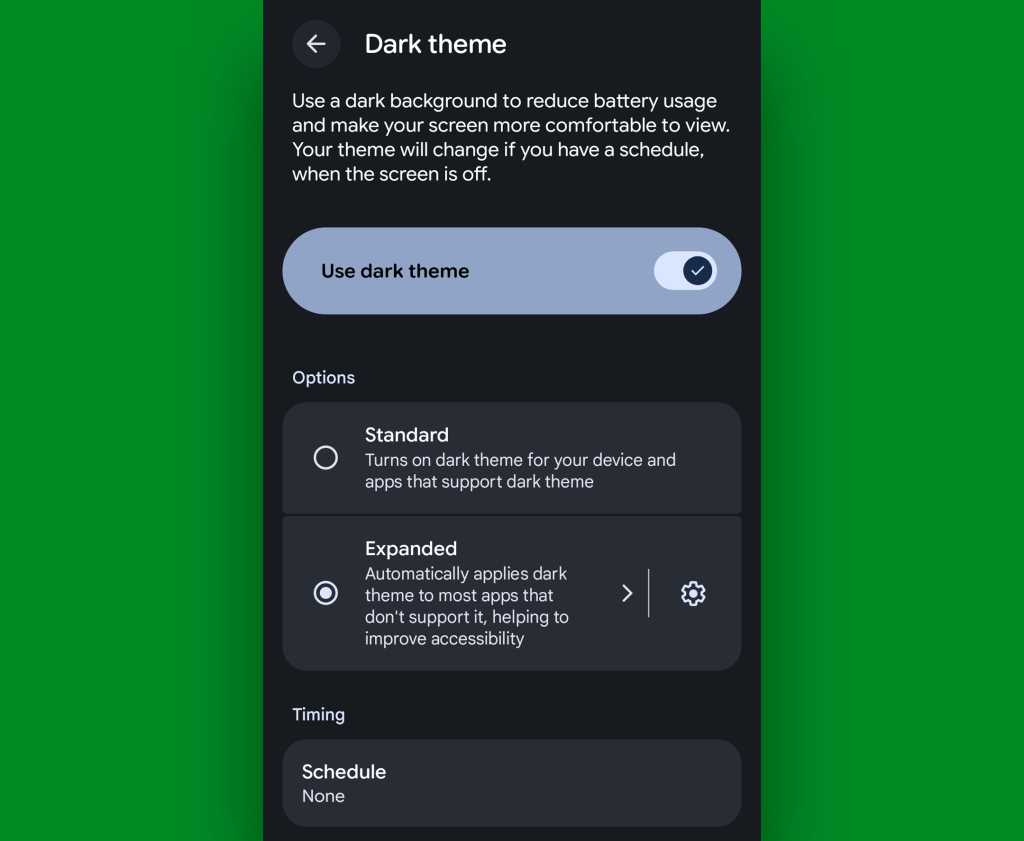
If you’ve got Android 17 on your phone already, it couldn’t be much easier to make it happen. Just look in the Display section of your system settings, tap the words “Dark theme,” then change the setting that shows up next from “Standard” to “Expanded.”
Android’s new “Expanded” option lets you force apps into dark mode compliance, even if they aren’t designed to do it on their own.
JR Raphael, Foundry
No Android 17? No problem: On devices with reasonably recent pre-Android-17 system software, you can actually find a switch buried deep in some developer settings that’ll let you enable the exact same option without any waiting.
That first trick fixes the issue of certain apps not following your dark mode preference — but what about the web? Most of us spend a fair amount of time in our browsers these days, and most websites won’t follow a dark mode setting and adjust their interfaces accordingly.
They absotively can, though. With the flip of a single switch buried within your browser’s bowels, you can force every website into a darkened motif whenever your system-level dark mode is up and running.
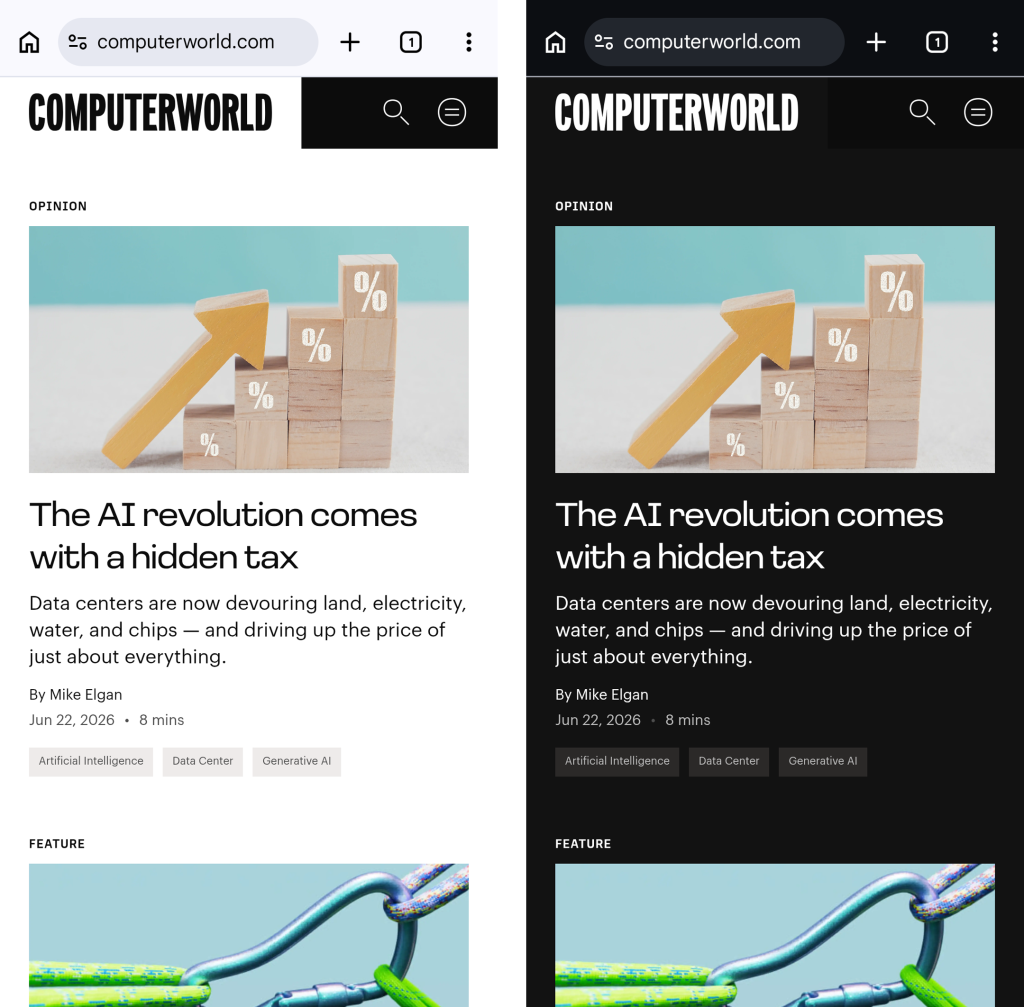
See?
Viewing a website in Chrome normally, at left, and with dark-mode-associated web darkening, at right.
JR Raphael, Foundry
Here’s the secret:
Open up Chrome on whatever Android device you’re using. (And note that this will also work with any Chromium-based Chrome alternative, like Brave, Edge, or Vivaldi.)
Type chrome:flags into the address bar.
Type darken into the search box at the top of the screen that comes up next.
See the line labeled “Darken websites checkbox in themes setting”? Tap the “Default” box beneath it, and change its setting to “Enabled.”
Tap the blue “Relaunch” button at the bottom of the screen.
Now, when Chrome comes back a second or so later…
Tap the three-dot menu icon in its upper-right corner.
Tap “Settings” in the next menu.
Scroll down until you see “Appearance.” Tap it, then tap “Theme.”
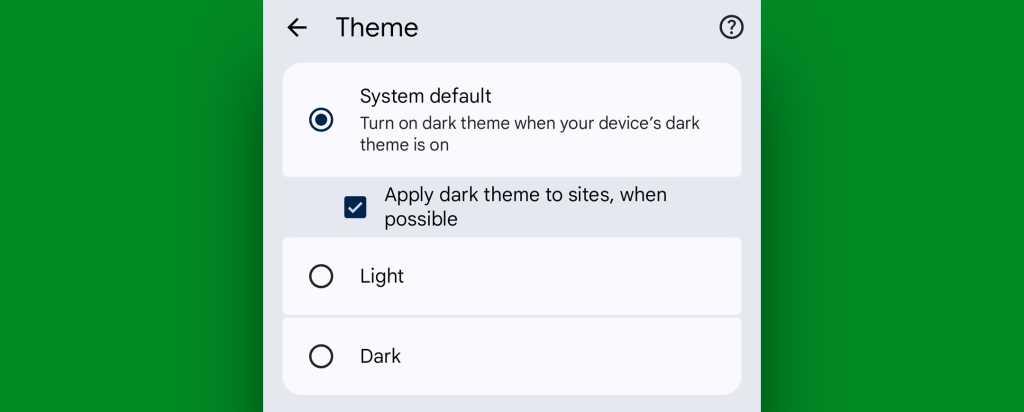
Make sure the newly added box for “Apply dark theme to sites, when possible” — which we just magically made appear via our last little modification — is checked and active.
Chrome’s web-darkening option appears only after you’ve enabled an out-of-the-way flag.
JR Raphael, Foundry
And that’s it: From that moment onward, whenever your Android device is switched into its dark mode, any website you’re viewing within Chrome will automatically follow suit. Nothing more to it, and no further thought or action ever required on your part.
Not bad, eh?!
Android dark mode power-up #3: A dark mode schedule
Even as someone who isn’t into dark mode as a 24/7 sort of thing, I can definitely appreciate the presence of a dimmer, less glary look on my device in certain specific scenarios.
It’s incredibly easy to overlook or forget, but Google’s actually got a way to handle that for you. In fact, it’s been built into Android itself since 2020’s Android 11 release.
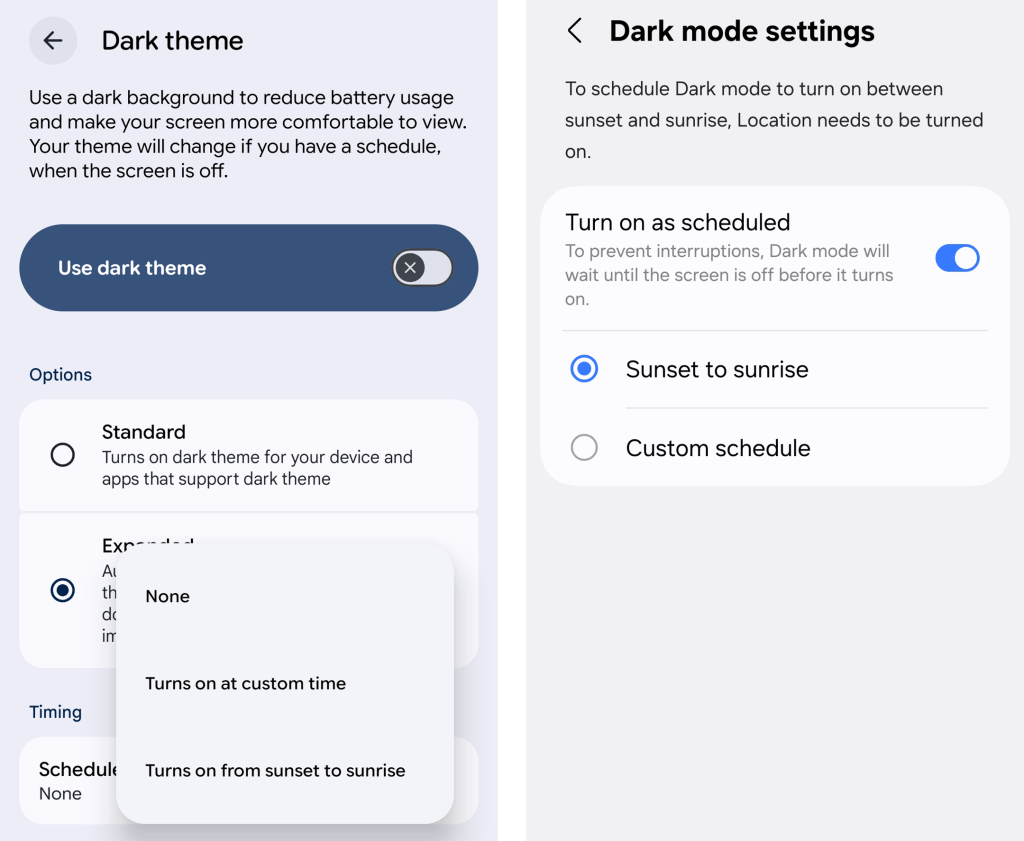
Just look in the Display section of your system settings and tap the line for either “Dark theme” or “Dark mode settings.” If you see a toggle alongside that line, make sure you’re tapping the actual words next to it — not the toggle itself.
Then look for the option to create a schedule.
An Android dark mode schedule, as seen in Google’s standard Android interface (at left) and in Samsung’s Android style (right).
JR Raphael, Foundry
You can create a time-based rule for when your device’s dark mode turns on and back off again, or — more intelligent yet — you can set it to automatically activate at sunset, wherever you are at any given moment, and then turn itself back off and switch you back over to light mode at sunrise.
Android dark mode power-up #4: Contextual dark mode
A dark mode schedule is pretty forkin’ sensible. But the reality is that even with a time-based setup or a sunset-driven activation approach, you’ll still be using your phone in bright rooms with dark mode active and vice-versa.
And if you want Android’s dark theme present only when you’re actually in a dark room — as makes the most sense in my mind — there’s an even more intelligent option.
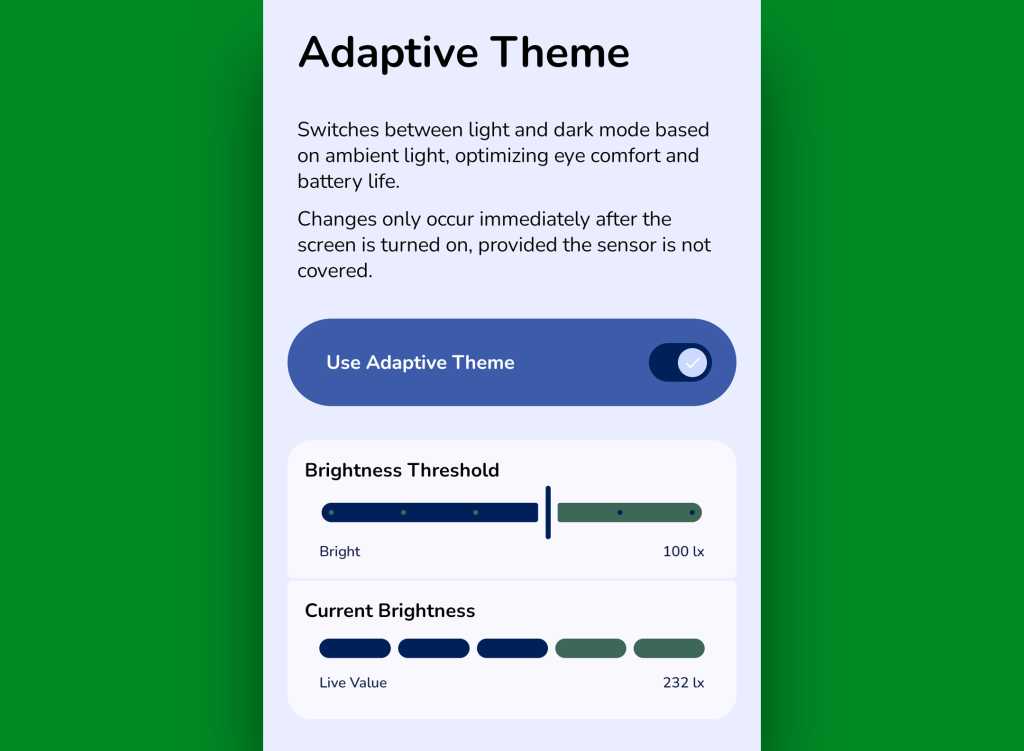
It comes our way via a handy little free app called Adaptive Theme. That app does one thing and only thing only: It automatically adjusts your device’s dark mode setting based on the actual ambient light around you, using your phone’s sensors rather than an arbitrary time or a not-always-relevant sunset status as a guide. It makes so much sense, you’ll find yourself wondering why your phone didn’t just work that way from the get-go.
The app does unavoidably have a slightly complex one-time setup, which I outline step-by-step here. It’s perfectly safe to do, though, and it shouldn’t take you more than a couple minutes to pull off.
And once you’ve done that, your Android dark mode will just work for you — flipping on when the lighting around you is dim (to your exact specifications) and flipping back off when you’re in brighter surroundings.
Adaptive Theme lets you take total control of how and when Android’s dark mode activates based on your environment.
JR Raphael, Foundry
Yes, please — and thank you. Last but not least…
Android dark mode power-up #5: The wallpaper wizard
Superficial as it may seem, the one piece of the puzzle we haven’t yet addressed — that isn’t ordinarily affected by Android’s dark mode setting — is your home screen wallpaper.
By default, whatever wallpaper you set at the system level stays the same even as your interface moves between its dark and light states — and when you’re anglin’ for a dimmer, less glary look in dark environments, that can be pretty darn jarring.
An app called, rather aptly, Dark/Light Wallpaper Scheduler is the answer you never knew you needed. It’s pretty self-explanatory — you tell it which wallpaper you want when your phone is in dark mode and light mode, then it automatically switches ’em out for you based on that status — but I wrote about it in detail here, if you’re interested in reading more about how exactly it works and how you can make the most of it.
And with that, my fellow Android-appreciating animal, your dark mode power-pack is complete. Now, would someone please turn off the lights? I don’t know about you, but all this talk of darkness has me hankering for a nap.
Wake up to even more useful Android wisdom every Friday with my free Android Intelligence newsletter — one practical new trick to try each week, straight from me to ye.
LIVE FROM MWC SHANGHAI 2026: AI naturally dominated the opening keynote session of this year’s event, with China Mobile and Filipino operator Globe Telecom offering insight into consumer benefits of the tech and how it is driving growth at both companies.
Carl Cruz, CEO and president of Globe Telecom (pictured), outlined how his business is arguably one of the most advanced operators globally in terms of implementing AI for its own employee work practices as well as customer use cases.
It is a journey which started in 2024 when Globe Telecom established a group to lead its adoption of AI technology and created the position of chief AI officer (CAIO). The role was taken up by Anton Bonifacio and since widened to become Chief Intelligence and Trust Officer (CITO), leading the integrated structure of key technology and enabling groups across AI, data, cybersecurity and digital policy.
“Our goal was simple,” declared Cruz. “Democratise technology so innovation could come from anywhere. We see AI not as a threat but as a tool for power and growth.”
To that end, Cruz said Globe Telecom had witnessed more than 80 citizen-developed use cases across the business using a hub and spoke operating model. He cited other statistics claiming AI is now embedded in 90% of Globe’s business practices, with more than 260 relevant projects running across all business units.
Cruz put the AI focus on four main areas: hyper personalisation; customer experience; autonomous networks; and the creation of new products and services.
He gave the example of how Globe Telecom used AI to build a new billing agent: “It used to take days, even weeks, to reconcile billing. Today it takes seconds and minutes.”
“It’s about deepening customer relevance, unlocking new value and creating new growth engines for Globe.”
Cruz also talked up Globe Telecom’s AI Fiesta initiative, an affordable aggregator platform which bundles leading global AI models including ChatGPT, Claude, Gemini Pro, Perplexity, DeepSeek and Grok under a single, budget-friendly subscription. It is designed to democratise AI access for students, creators and small business owners.
And the operator has launched Globe Cloud, a personal cloud storage and file-backup service. Running Synchronoss technology, the app allows users to free up device space, sync media across devices, and use AI tools for editing and transforming images.
“AI at Globe is not an end to itself, it is a means to serve customers better, unlock new opportunities and growth,” Cruz said. “It’s not about using AI everywhere, it’s about using AI where it matters most; most importantly the communities we serve”.
“We are only scratching the surface of what’s possible.”
China Mobile: AI for All The world’s largest operator China Mobile opened the keynote with a presentation tagged Mobile AI – AI for All.
Chair Zhongyue Chen highlighted how AI is enabling a hearing-impaired man to carry out everyday tasks.
“AI should not only be serving the elite or remain the domain of the masses,” Chen said.
The company claimed it is open to partnerships to further boost its AI offering. “We are not building a closed garden service for ourselves.”
And its AI for All mantra encompasses a variety of sectors, with Chen highlighting a focus on consumer services, showcasing how the technology is being used to supercharge the TV viewing experience in China of the FIFA World Cup; industries, for example in steel manufacturing where AI is helping reduce exposure to dangerously high temperatures; and infrastructure, where AI is measuring the power of individual models and also the capacity of platforms.
Le Prime Day ne fait pas seulement fondre les prix, il tente aussi de faire redescendre la température. Alors que la chaleur s'invite dans de nombreux foyers, Rakuten applique une remise sur le climatiseur mobile BEKO BP209H grâce au code promo FROID30.
La vague de chaleur s'installe et le retour des soldes est imminent, mais certaines bonnes affaires n'attendent pas. Ce climatiseur mobile Costway aide à maintenir une température agréable pendant les journées les plus étouffantes et peut également prendre le relais lorsque les températures...
The 1 VIII doesn’t look much like any Xperia that’s come before.
The Xperia 1 VIII marks an attempt at a step change for Sony's flagship phone line. Not only has it had an aesthetic overhaul, but Sony has also revamped the camera system, dropping the continuous optical zoom telephoto that's defined the last four generations of Xperia phone.
It's not all different. Sony staples like a 3.5mm headphone jack and microSD card slot remain, and a few specific design touches, like a thick front bezel that fits stereo speakers, have stayed intact. Sony's ambitious pricing hasn't changed either: The Xperia 1 VIII isn't launching in the US, but in the UK and Europe, it starts from £1,399 / €1,499 (about $1,850), r …
Le MWC Shanghai 2026 confirme une tendance déjà bien installée : le smartphone est devenu le principal point d’accès aux contenus numériques. Vidéo en streaming, réseaux sociaux, navigation GPS et applications du quotidien s’enchaînent tout au long de la journée, portés par des usages toujours...
La Journée mondiale des compétences des jeunes remet en lumière l’importance des compétences numériques dans les parcours d’études et d’insertion. Aujourd’hui, le smartphone sert souvent de point d’entrée pour apprendre, postuler, suivre des cours en ligne ou développer un projet personnel. Une...
Nothing's next budget phone is the latest victim of RAMageddon. As 9to5Google reports, Nothing co-founder Akis Evangelidis announced in a post on X that a follow-up to the CMF Phone 2 Pro won't be coming this year:
We were working on a successor but with memory prices where they are right now, we can't build a phone that feels like a genuine step forward at a price that makes sense for CMF. As a result, we've decided not to launch a new CMF phone this year.
Una delle principali preoccupazioni di chi viaggia all'estero è sicuramente l'accesso alla connessione dati. Arrivati all'aeroporto bisogna cercare del primo operatore locale, che spesso è preso d'assalto, oppure accontentarsi dei pochi gigabyte che il proprio piano prevede fuori dal nostro Paese. Ultimamente però stanno spopolando piattaforme per acquistare e gestire eSIM come Saily, che rendono tutto più comodo, semplice e veloce. Recentemente sono stati aggiunti anche servizi extra utili per chi viaggia. In questo articolo vi spieghiamo passo dopo passo come si configura tutto quanto.
Prima di capire come funziona, è importante capire che cos'è una eSIM. Siamo sempre stati abituati a utilizzare SIM fisiche e negli anni abbiamo potuto osservarne l'evoluzione passando dal formato standard alla microSIM fino alla nanoSIM. All'interno di questa schedina vengono raccolte tutte le informazioni necessarie per collegarsi al proprio operatore.
La eSIM è esattamente la stessa cosa, ma si tratta di un chip dedicato all'interno dello smartphone e non di un componente rimovibile. Attenzione però: non tutti gli smartphone ne sono dotati. Solitamente i modelli più recenti sì, ma vi consigliamo di verificarne la compatibilità.
If you've been following my reporting on the Trump phone, you'll know that Trump Mobile doesn't exactly keep open lines of communication with the media. That doesn't look to be changing, with the company no longer working with its long-term media relations firm.
Poplar Group has represented Trump Mobile since at least last June, when the company's founding partner Chris Walker gave a statement to USA Today, insisting at the time that "T1 …
Uma experiência mostra que os smartphones velhos e usados podem tornar-se uma solução barata e sustentável para tarefas de computação, sendo capazes de rivalizar com centros de dados.
À l’occasion de la World Population Day, Prixtel souligne l’évolution rapide des usages mobiles dans les foyers français. La consommation de data explose, portée par le streaming, les visioconférences et les multiples appareils connectés d’un foyer moderne. Entre streaming, visioconférences et...
Entre conférences internationales, déplacements professionnels et usages de plus en plus dépendants du cloud, rester connecté est devenu une évidence plus qu’un confort. Pourtant, la qualité du réseau varie fortement selon les pays, les lieux d’événements ou même les halls de congrès saturés....
Google’s latest and greatest Android version is officially now out in the world and available — but if you’re using any phone other than a Pixel, that doesn’t mean much for you just yet.
Hold the phone, though — ’cause there is some good news here: While we can’t force any Android phone-maker to start treating software support as a priority, we can get creative and find ways to bring interesting new Android features to devices running older Android versions. In fact, all four of the Android 17 features I called out earlier this week can be emulated on any Android phone this instant. All it takes is a teensy pinch of inspiration and a dash of tenacity — and, of course, the right roadmap to make it all come together.
The tenacity’s on you, but if you’re game, I’ve got your roadmap ready. Here’s exactly how to enjoy a similar sort of Android-17-style sorcery on whatever phone you’re using right now — as far as some of the more surface-level highlights, at least — without having the actual Android 17 upgrade in front of you.
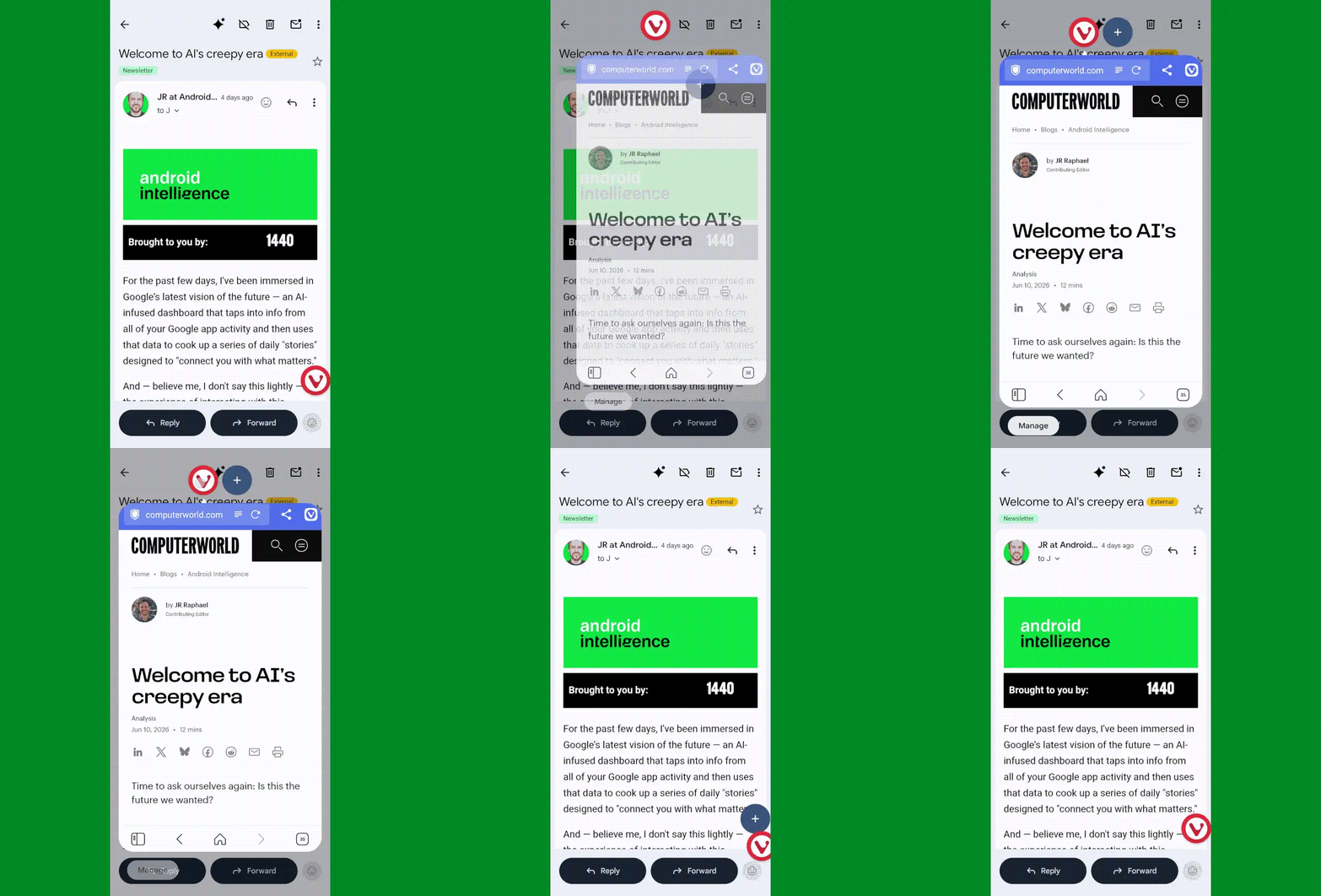
The most shape-shifting Android 17 of all, without a doubt, is Bubbles — a snazzy new way to turn any app into a floating, collapsible window that’s readily available for on-demand access but also out of your hair when you aren’t actively using it.
Android 17’s Bubbles multitasking system in action.
Look over this list of crafty Bubbles-bringing workarounds and see which makes the most sense for you. One way or another, you’ll find yourself facing a fantastic new option for multitasking anytime you want it — no waiting or out-of-reach upgrades required.
Android 17 feature #2: Smarter location access
Our next Android 17 addition is a little trickier to emulate without the actual operating system update in the equation. But fear not, for this is Android — and when there’s a will, there’s a way.
The feature of which we speak is an expansion of Android’s framework for how apps can access your location. It’s a two-parter: First, whenever any app is accessing your location, you’ll now see a blue dot appear in the upper-right corner of your screen — and if you swipe down once from the top of your screen to open your notification panel, you can actually tap on the location icon that appears in its place to get detailed info about exactly which app or apps are involved. Second, when an app asks to access your precise location, Android 17 adds in the option to allow such access only temporarily — for that one brief moment and purpose — without giving the app permanent permission for ongoing use.
The second part, unfortunately, is challenging to achieve without Android 17 being present. But the first part is something we can make happen with a sliver of creative zest.
The trick revolves around a classic third-party app called Privacy Dashboard. Privacy Dashboard came about back in the Android 12 era, when Google first introduced a full-fledged privacy dashboard into Android and certain devices were lagging behind and taking too long to adopt it.
With Android 12 now being five years old, the app hasn’t had much need in recent years — until now. Interestingly enough, the ability to see full details about ongoing location access and then tap to adjust the associated app’s settings is something Privacy Dashboard has long offered. And it’s consequently a great way to bring that newfound native ability from Android 17 onto a device running an older Android version.
The catch is that because of the limited need for the app all this time, it’s no longer being actively developed — and as a result, if you hadn’t previously downloaded it, the Play Store will probably give you an error saying it’s made for an older Android version and can’t be installed on your device.
It will still work, though, and it’s perfectly functional and effective.
Provided you’re comfortable and that this won’t violate any of your company-associated policies, you can download the original verified Privacy Dashboard app package from my own personal Drive storage. I saved it using the Google Files file manager and then uploaded it directly to Drive. It’s quite literally the same exact app you’d get from the Play Store, if the Play Store would let you download it — and while I wouldn’t often advise installing apps from unknown sources, I don’t exactly consider myself to be “unknown” (most of the time). So as long as you share that same trust, you can grab the app from me and put it on any device you want.
Once you get the app installed and give it the permissions it needs to operate, open ‘er up and tap the “App Settings” options on its main screen. Tap the line that says “Indicator Customization,” beneath “Privacy Indicators,” then flip the toggle next to “Click action” into the on and active position.
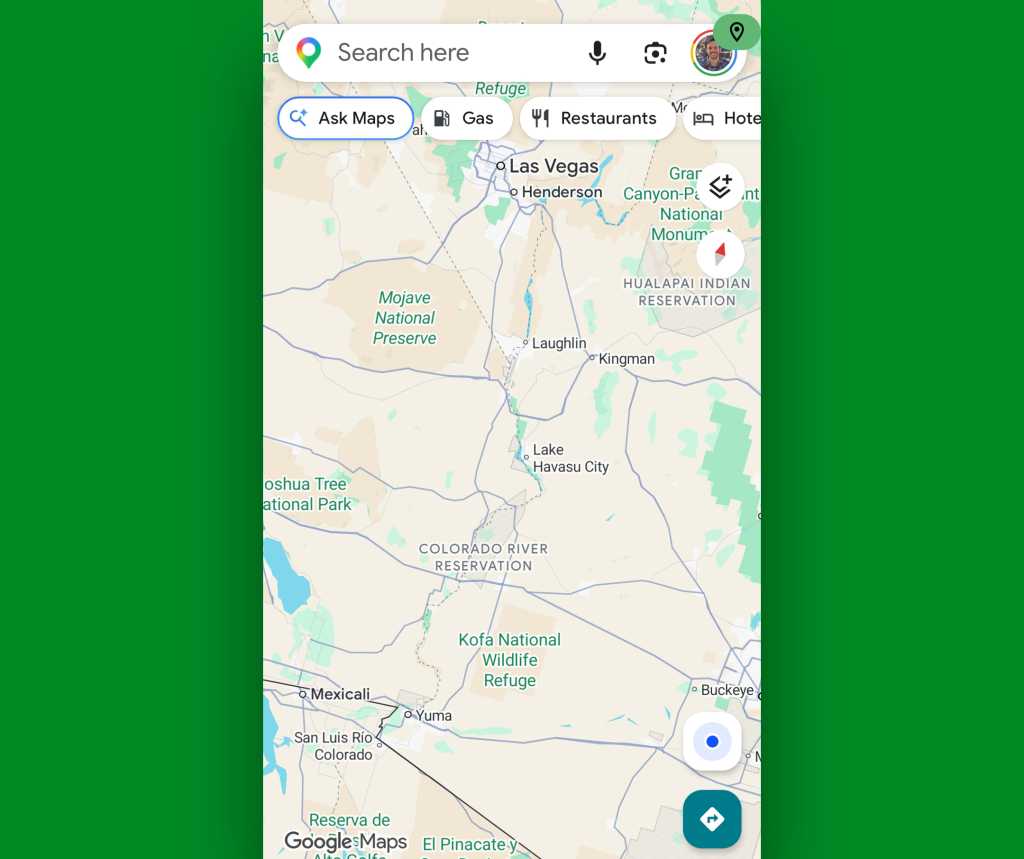
Aaaaand, that’s it: Anytime an app is accessing your location, you’ll see a green location icon appear in the upper-right corner of your screen. And tapping it will take you to the system-level timeline of exactly which apps have accessed your location recently, for added context.
Privacy Dashboard was ahead of its time with its Android-17-reminiscent location access indicators.
JR Raphael, Foundry
Before you install Privacy Dashboard, you might also want to try just opening an app that you know accesses your location — like Google Maps — and seeing what, if any, indicator appears in the corner of your screen and if you can tap it. While that ability is technically associated with Android 17, it was actually included in an earlier Android quarterly update, and it’s possible your device may already have that piece of the puzzle in place even if it isn’t yet running Android 17.
Android 17 feature #3: More dynamic dark mode
Android’s dark mode is better than ever as of Android 17, with a nifty new way to force each and every app to respect your device-wide dark mode setting and adjust its interface to a less glary look — even if it doesn’t technically support the option.
Dark mode in Android 17 includes a useful new “Expanded” option.
JR Raphael, Foundry
Well, get this: If your phone’s Android software is reasonably recent, it’s entirely possible you can unlock the very same function by adjusting a few out-of-sight system settings.
Try this:
First, you’ll need enable Android’s developer options, if you haven’t done that previously.
That’s a special, typically hidden section of Android’s system settings with all sorts of advanced options that aren’t typically intended for average phone-usin’ folk to futz around with.
There’s no risk to you or your phone with enabling ’em, and as long as you follow the instructions here exactly and enable only the one single setting we’re about to go over, it’s actually quite easy. (It’s also quite easy to undo, if you ever decide you aren’t into it and want to go back.) But we are pokin’ around in an area of Android that’s meant mostly for developers, and if you veer off-course and mess with the wrong setting, you could make a mess — so follow the steps closely, capisce?
The process for enabling Android’s developer options may sound strange, but I swear it works: Head into the “About phone” section of your system settings, tap “Software information,” if needed, then find the line that says “Build number.” Tap your finger on it seven times, then enter your PIN or password, if prompted, and confirm that you want to activate the developer options.
Now, go back to your main settings screen and either tap on the “Developer options” that appears within that list or tap “System” and then tap “Developer options” from there.
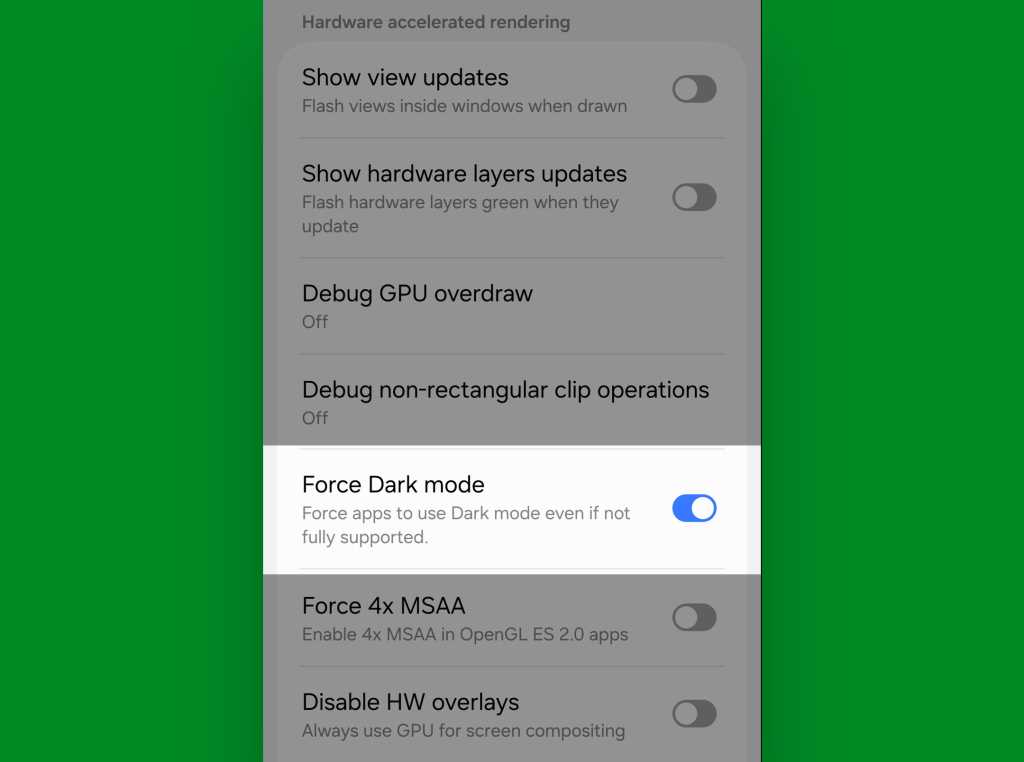
Scroll down through that section until you see an option called “Force Dark mode.” Flip the toggle next to it.
Android’s developer settings holds the secret to Android-17-style “Extended” dark mode, even on older Android versions.
JR Raphael, Foundry
And there ya have it: You should now be able to open any app, even if it doesn’t officially support dark mode, and see it shift into a darkened state whenever you have dark mode enabled at the system level.
Easy peasy, no?
Android 17 feature #4: A more comfy all-around view
Our final Android 17 feature is a saucy little somethin’ called Comfort View. It applies a softer, pastel-oriented filter to your display with automatic adjustments based on your current viewing environment in order to make your screen easier on the eyes.
If you’re using a Samsung device, you may already have something similar in place even with an older Android version. Look in the Display section of your system settings and see if you see something called “Adaptive color tone,” then try activating it if it’s there — and/or look for “Screen mode” and play around with some of the settings in that area to see vaguely similar sorts of adjustments. It isn’t quite as intelligent or automatic as the new incoming Android-level equivalent, but it’s a start!
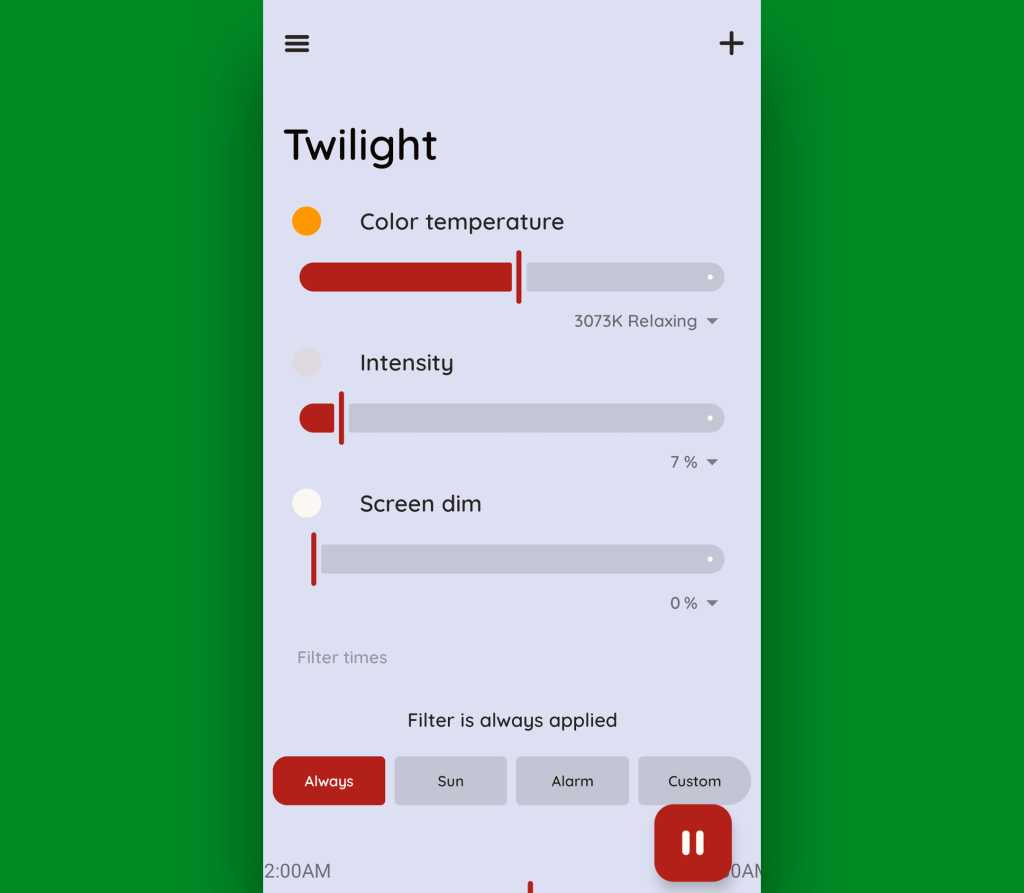
In any other scenario — or if you just want more nuance and control, even with a Samsung gizmo — grab an app called Twilight. It’ll let you tweak all sorts of specifics about the appearance of your screen, and while it’s presented mostly for nighttime optimization, you can use those same controls to create your own custom modes for any scenario imaginable.
Twilight can help you recreate effects similar to Android 17’s Comfort View.
JR Raphael, Foundry
The app doesn’t collect or share any manner of data, and while it does offer a $10 Pro upgrade, the free version is perfectly functional for most purposes.
And with that, give yourself a pat on the back: Your phone is officially now set up to showcase some of Android 17’s finest flavors — even without the software itself being available to you yet.
That, my friend, is quite an accomplishment. Well done.
In questi giorni WindTre sta tentando di riconquistare alcuni ex clienti che avevano autorizzato le comunicazioni commerciali con una nuova offerta winback dal grande rapporto tra contenuti e prezzo. Si chiama Go 250 XXS 5G, e offre minuti illimitati, tantissimi Giga e anche alcuni SMS a meno di 5 euro al mese, con attivazione e SIM inclusi.
Nel dettaglio, l’offerta Go 250 XXS 5G per gli ex clienti WindTre include:
Minuti illimitati verso tutti i numeri nazionali
50 SMS
250 GB di traffico dati in 5G fino a 2 Gbps, quindi a piena velocità
A 4,99 euro al mese, con attivazione online o in negozio a zero euro e SIM a zero euro. L’offerta include diversi servizi e opzioni, tra cui “Ti ho cercato” e segreteria telefonica. Naturalmente, essendo una winback, l’attivazione è subordinata alla portabilità del numero, quindi al rientro in WindTre, ed è un’iniziativa rivolta solamente alle utenze che ricevono l’SMS.
Apple execs are now acknowledging the company is going to need to raises prices to cope with higher component costs, particularly memory. Apple has been battling to avoid doing so, but warned this week that those efforts are “unsustainable.”
The price pressure is being felt across the tech industry. Omdia predicts the average selling price (ASP) of smartphones globally will increase by around 20% this year — partly because AI industry demands have pushed up RAM prices and partly because of rapid cost increases in processor production as a direct consequence of war in the Middle East. This impacts anything that uses memory or processors.
Apple must raise prices, CEO warns
“We’re doing our best to mitigate the huge increases that are being passed to us, and we’ve been trying to shield our customers from the increases, but the situation has become unsustainable,” current Apple CEO Tim Cook told the Wall Street Journal.
OK, so prices are going to go up. But how?
If Apple must raise prices, the way it does so matters. Will it increase prices across the board, or choose a subtle, strategic approach that protects margins while also maintaining rapidly accelerating market share growth?
Until now, Apple has been benefiting from the rising tide in memory prices. While competitors have been steadily increasing prices across the board, Apple introduced its first $599 laptop even as it eats into mid-range smartphone sales.
To grow, or to grow less?
The PC industry is not growing (outside of Cupertino), and Apple and its investors already know that the inordinately high customer satisfaction ratings its platforms enjoy mean that when people switch to them they tend to stick around. That’s why it matters that Cook highlighted record switchers and first-time platform users during the company’s most recent fiscal call. Apple is growing new customers, people who are likely to sign-up for services, accessories, and future upgrades. Winning the customer is an investment in future performance.
When it comes to increasing prices, we’ve seen some gentle experimentation in the Mac mini line, where the entry-level $599 model was effectively replaced by a more expensive $799 SKU. There have been suggestions Apple could do the same with the $599 MacBook Neo, dumping the entry-level build in favor of the (better) $699 model. I’m not certain that’s the best approach.
A matter of choice
I’d argue that the $599 price point is psychologically the best bit of marketing Apple has ever done as it draws new users to look at its platforms. I also think substantial numbers of people already shift up to the $699 version, if they can, making that entry-level price an incredibly effective marketing tool with which to woo customers. It looks like that approach is working; the MacBook Neo has led the Amazon Laptop Sales chart ever since it was introduced and is selling in huge quantities globally.
Francisco Jeronimo, IDC vice president for data and analytics, sees this, writing: “It will be interesting to see whether Apple raises prices across its entire portfolio or plays strategically by subsidizing its more affordable products to gain market share and grow its installed base.”
If Apple raises prices at the price sensitive, entry-level end of its market, it runs the risk of slowing its own resurgence. Given that a 10% price hike here is only worth around $60, the revenue generated might not justify blunting Apple’s offer to new users.
Pricing and strategy
But Apple isn’t defined by its entry-level markets. Its biggest earning opportunities continue to be generated by the aspirational middle class, who, while feeling the pinch of declining living standards in many markets, can still handle the price of a top-of-the-range iPhone Pro. A 10% price increase at that end of the market will generate a much more significant chunk of revenue – and since rival vendors are raising their prices at this end of the market, Apple can follow suit while still seeming affordable. It’s an approach that maintains growth while optimizing margins.
Apple generates roughly half its revenue from iPhone sales, with the Pro and Pro Max devices accounting for a significant chunk of that money. Consumers looking to buy one of Apple’s high-end devices are likely to be less price-sensitive than those making purchases at the low- and mid-points of the company’s market range.
With that in mind, it makes more sense for the company to raise prices at the top, while working to maintain the cost of entry at the lower end. It could, of course, raise prices universally, but doing so makes less sense.
What next?
Whatever strategy Apple adopts, company leadership is clear that component pricing is hitting hard. “We definitely need memory pricing and supply to return to reasonable levels for consumer products. That’s the bottom line,” Cook said.
You can follow me on social media! Join me on BlueSky, LinkedIn, Mastodon and subscribe to The Core for your daily fix of Apple News.

 Login
Login