❌

Reading view

16 ways to speed up Windows 11

Windows 11 does a lot under the hood to speed up a PC’s performance, but PCs tend to slow down over time as they accumulate apps, files, drivers, and other detritus. Even zippy new Windows 11 devices can be sped up — and protected against future slowdowns — with a few minor system tweaks.

It’s simple to make your Windows PC run faster. Just follow these tips.

Top ways to speed up Windows 11

  1. Disable programs that run on startup
  2. Turn off unused apps with high resource usage
  3. Use Efficiency mode
  4. Use automatic Windows maintenance
  5. Kill adware and bloatware
  6. Turn off search indexing
  7. Clean out your hard drive
  8. Disable shadows, animations, and visual effects
  9. Disable transparency
  10. Change your power settings
  11. Turn off Windows tips and tricks
  12. Disable Game Mode
  13. Update device drivers
  14. Turn off background app permissions
  15. Roll back your PC to a previous state
  16. Restart Windows

Read on for details.

Note: This story covers Windows 11 version 25H2. If you have an earlier release of Windows 11, some things may be slightly different. If you have Windows 10, see our Windows 10 speed tips.

1. Disable programs that run on startup

Your Windows 11 PC could be a laggard if programs you rarely or never use are running in the background. Your PC will run faster if you stop them from running.

To do it, first launch the Task Manager in one of these ways:

  • Press Ctrl-Shift-Esc.
  • Right-click the lower-right corner of your screen and select Task Manager.
  • Type task manager into the Windows 11 search box and press Enter.

There’s a lot you can use Task Manager for, but here we’re focusing only on killing unnecessary programs that run at startup.

Click the Startup apps icon on the left side of the screen. (It’s the fifth icon from the top.) It displays a list of the programs and services that launch when you start Windows. The list includes each program’s name as well as its publisher, whether it’s enabled to run on startup, and its “Startup impact,” which is how much it slows down Windows 11 when the system starts up. Note, though, that the screen doesn’t show how much each program will impact your performance after startup, during normal PC operations.
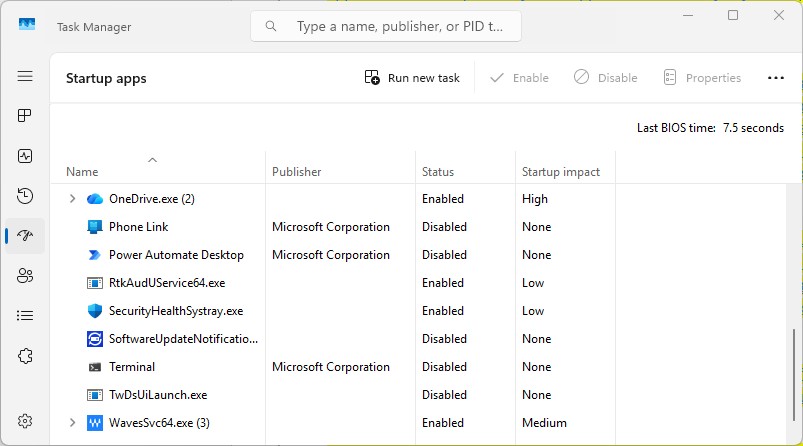
screenshot of task manager startup apps screen with list of apps that run at startup

You can use the Windows Task Manager to get information about programs that launch at startup and disable any you don’t need.

Preston Gralla / Foundry

Also note that not all apps will have useful information about their startup impact — many show up as “Not measured” in Task Manager. There are multiple reasons you might see this. For example, some apps don’t provide the Windows metadata required to measure their startup impact, and others start up too late in the boot process to be measured. Still others may not have been started a sufficient number of times for Windows to measure their impact. (The Windows Club has an article with tips and workarounds for “Not measured” apps.)

To stop a program or service from launching at startup, right-click it and select Disable. This doesn’t disable the program entirely; it only prevents it from launching at startup — you can run the application after launch. Also, if you later decide you want it to launch at startup, you can return to this area of the Task Manager, right-click the application and select Enable.

Many of the programs and services that run on startup may be familiar to you, like Microsoft OneDrive or Spotify. But you may not recognize many of them. (Anyone who immediately knows what “bzbui.exe” is, please raise your hand. No fair Googling it first.)

The Task Manager can find information about unfamiliar programs. Right-click an item and select Properties for more information about it, including its location on your hard disk, whether it has a digital signature, and other information such as the version number, the file size, and the last time it was modified. (Note that not all programs provide this information when you right-click them — the Properties button may be grayed out.)

You can also right-click the item and select Open file location. That opens File Explorer and takes it to the folder where the file is located, which may give you another clue about the program’s purpose.

Finally, and most helpfully, you can select Search online after you right-click. Bing will then launch with links to sites with information about the program or service. With Task Manager’s help, I easily discovered that bzbui.exe is Backblaze backup software, something I want to run automatically during startup.

If you’re worried about one of the listed applications, you can go to a site run by Reason Software called “Should I Block It?” and search for the file name. You’ll usually find very solid information about the program or service.

Now that you’ve selected all the programs that you want to disable at startup, the next time you restart your computer, the system won’t launch those unnecessary programs automatically, and your PC may run faster.

2. Turn off unused apps with high resource usage

It’s easy to forget just how many apps you’ve got running at the same time in Windows. Sometimes your PC’s sluggishness can be due to running too many apps you’re not currently using — or a single app that’s taking up a lot of resources.

First launch Task Manager using one of the methods covered in the previous tip. If you’re already in Task Manager, click the Processes icon on the left side of the screen (three squares in a grid, second from top) to get to the Processes screen. You’ll see a list of every app or process you’re currently running.

Look for apps you’re currently running but not actively using, and also look for any not running with high memory or CPU usage. Right-click any app you want to close and select End task.
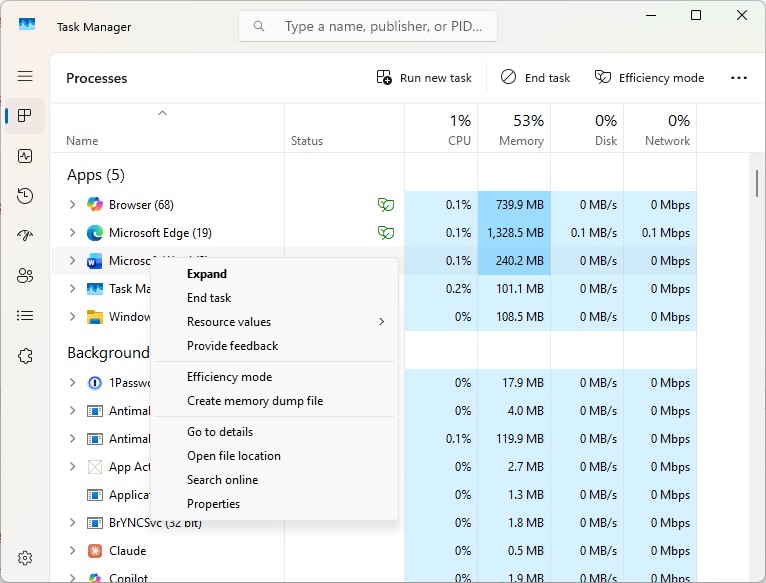
screenshot of task manager processes screen with list of processes and cpu and memory usage

Use Task Manager to identify and shut down unused apps using lots of system resources.

Preston Gralla / Foundry

3. Use Efficiency Mode

Task Manager has another trick up its sleeve for juicing Windows 11 performance. Efficiency Mode can speed up your PC and improve laptop battery life. It lowers the process priority of background applications, among other efficiency tricks.

The term is a bit of a misnomer, because you can’t put your entire PC into Efficiency Mode. Instead, you use Task Manager to put individual apps and processes into it. There’s one caveat: You’ll only be able to use it on some apps and processes.

On the Processes screen in Task Manager (see previous tip), look through the list of currently running apps and processes. Click the app or process you want to put into Efficiency Mode, click the Efficiency mode icon at the top right of the screen, and then confirm that you want to turn on Efficiency Mode for the app.

Note that if the Efficiency mode icon is grayed out when you click an app or process, you won’t be able to use it. Also, some apps, including Microsoft Edge, automatically work in Efficiency Mode by default, and the mode can’t be turned off.
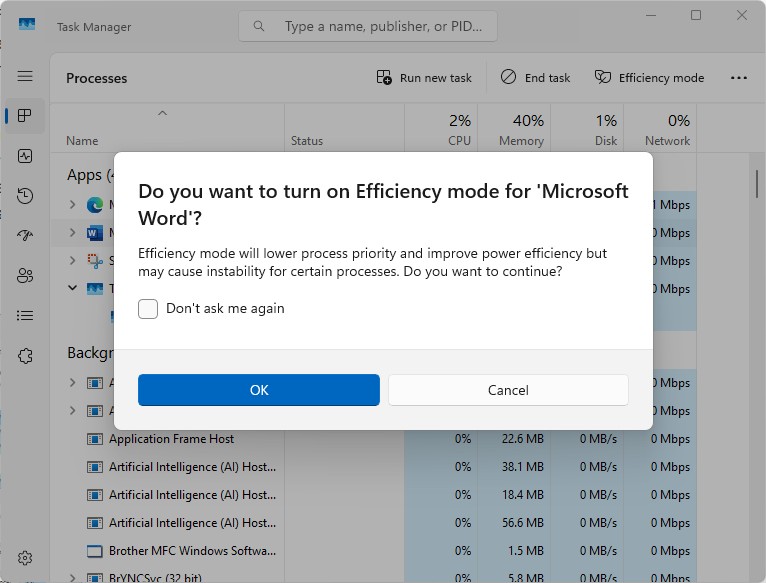
windows task manager with turn on efficiency mode pop-up

Turning on Efficiency Mode for an app.

Preston Gralla / Foundry

4. Use automatic Windows maintenance

In the background, Windows 11 constantly performs maintenance on your PC, doing things like security scanning and performing system diagnostics to make sure everything is up to snuff. It automatically fixes problems it finds, which helps your PC run at peak performance. The automatic maintenance runs every day at 2:00 a.m. if your device is plugged into a power source and is asleep.

However, that feature may have been accidentally turned off, or it may not have run recently if you shut down your PC at night (rather than putting it in Sleep mode) or you haven’t had your laptop plugged in for a while. You should make sure it’s turned on and runs every day. You can also run it manually if you’d like.

Type control in the search box on the taskbar and select Control Panel from the results to run the Control Panel app. In the app, select System and Security > Security and Maintenance. In the Maintenance section, under Automatic Maintenance, click Start maintenance if you want it to run now.

To make sure that it runs every day, click Change maintenance settings, and on the screen that appears, select the time you’d like maintenance to run and check the box next to Allow scheduled maintenance to wake up my computer at the scheduled time. Then click OK.
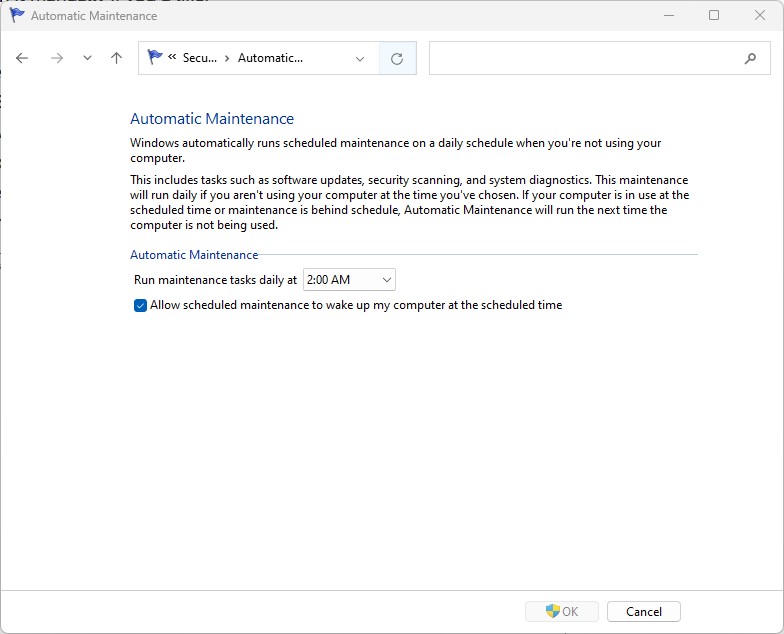
automatic maintenance scheduling screen in windows 11

Here’s how to set a time each day for Windows 11 to run its maintenance tasks.

Preston Gralla / Foundry

5. Kill adware and bloatware

It may be that what’s slowing your PC down isn’t Windows 11, but bloatware or adware that takes up CPU and system resources. Adware and bloatware are particularly insidious because they may have been installed by your computer’s manufacturer. (This is generally not a problem for business PCs but is very common on consumer devices.) They typically run automatically at startup without you even knowing it. You’ll be amazed at how much better your PC will run if you get rid of it.

Start by running a system scan to find adware and malware. If you’ve already installed a security suite such as Norton Security or McAfee LiveSafe, you can use that. Microsoft Defender Antivirus, the anti-malware tool built into the Windows Security app, also does a great job. Type windows security in the search box, press Enter, and on the screen that appears, click Virus & threat protection and then click Quick scan. Windows Security will look for malware and remove any it finds.

You should get a second opinion, though, so consider a free tool like Malwarebytes. The free version scans for malware and adware and removes what it finds; the paid version offers always-on protection to stop infections in the first place.
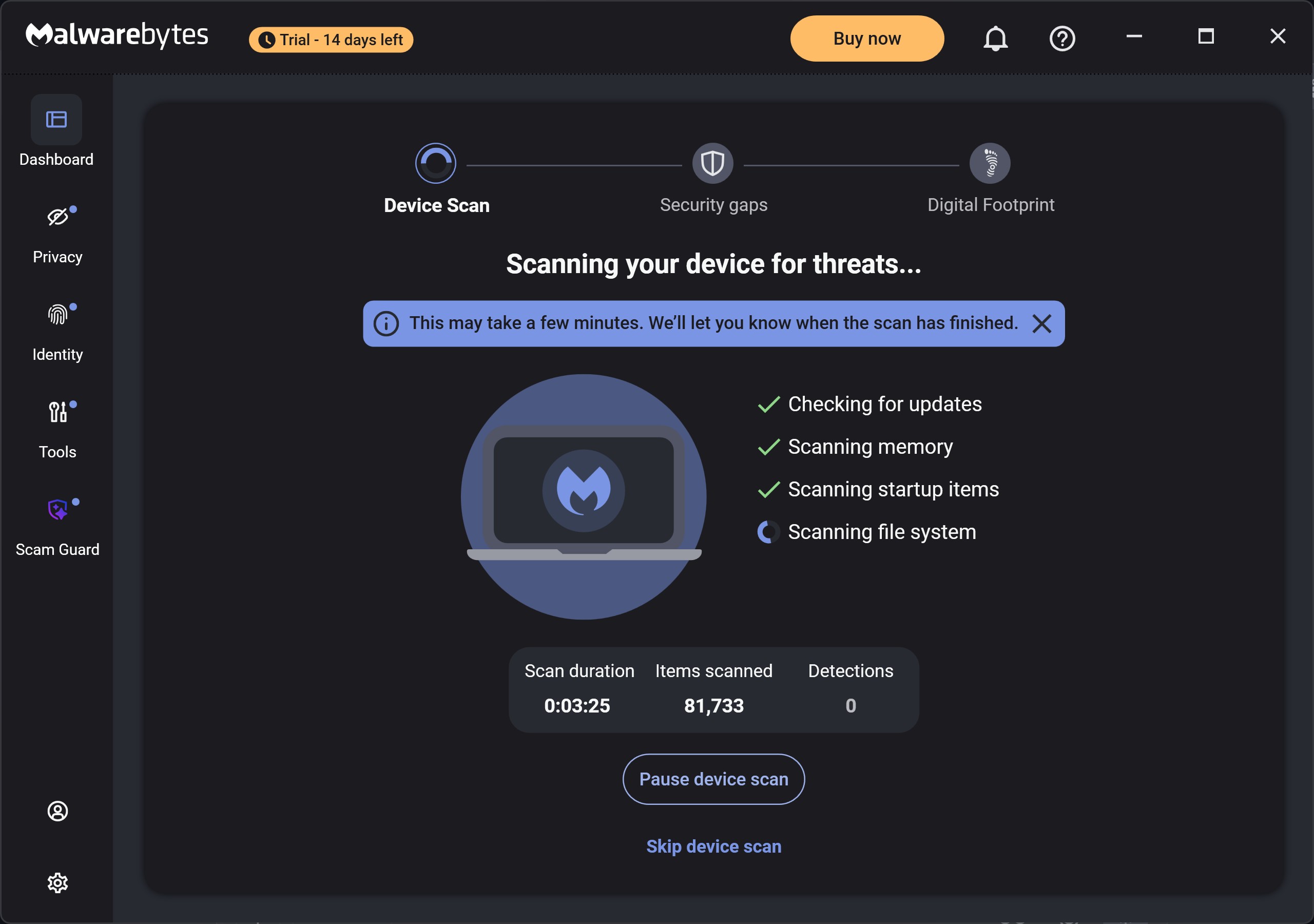
screenshot of malwarebytes software scanning for threats

Malwarebytes scans for and removes malware.

Preston Gralla / Foundry

Now that you’ve done all that, check for bloatware and uninstall it. A good free anti-bloatware tool is Bulk Crap Uninstaller. You can also go to the website Should I Remove It? — it offers recommendations on what software is useful, and what you can uninstall.

There’s a section of the website devoted to advice on how to remove bloatware on PCs from specific manufacturers. I highly recommend going there, because it lists all the bloatware different manufacturers install on their PCs. That section of the site also compares how much bloatware major manufacturers ship on their PCs. It rates Toshiba as having the most and Acer as having the least.

Finally, when you buy a new PC online, check whether there’s an option to leave off trial software and software you don’t need to run your PC. That will stop bloatware from getting on your system in the first place.

6. Turn off search indexing

Windows 11 search performs indexing in your hard disk in the background, allowing you to search your PC more quickly than if no indexing were being done. That’s good for fast searches, but not so good for slower PCs, because indexing can cause a performance hit. You can give a slower machine a speed boost by turning off indexing. Even if you have an SSD disk, turning off indexing can improve your speed, because the constant writing to disk that indexing does can eventually slow down SSDs.

To turn it off, type services.msc into the search box on the taskbar and press Enter. The Services app appears. Scroll down to either Indexing Service or Windows Search in the list of services. Double-click it, and on the screen that appears, click Stop. Then reboot your machine. Your searches may be slightly slower, but you also may not notice the difference. You should, though, get an overall speed boost.
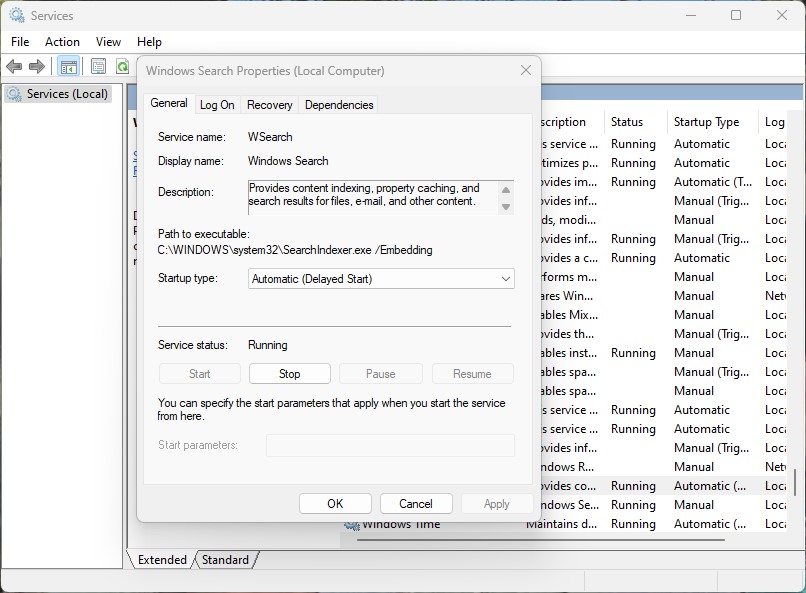
turning off windows indexing

Here’s how to turn off Windows 11 indexing.

Preston Gralla / Foundry

Alternatively, you can turn off indexing only for files in certain locations. In this way, you can still index files and folders you often search for but turn off indexing for the rest of your hard disk. So you’d still get fast searches for files you use often, while increasing your PC’s performance.

To do it, type index in the Windows 11 search box and click the Indexing Options result that appears. The Indexing Options page of the Control Panel appears. Click the Modify button, and you’ll see a list of locations that are being indexed, such as Microsoft Outlook, your personal files, and so on. Uncheck the box next to any location, and it will no longer be indexed.

7. Clean out your hard drive

A bloated hard drive filled with files you don’t need can slow down your PC. Taking a few minutes to clean it can give an immediate speed boost. A built-in Windows 11 tool called Storage Sense will do the job for you.

Launch the Settings app, select System > Storage, scroll down to the “Storage management” section, and next to Storage Sense, move the toggle from Off to On. From now on, Windows will constantly monitor your PC and delete old junk files you no longer need — temporary files, files in the Downloads folder that haven’t been changed in a month, and old Recycle Bin files.
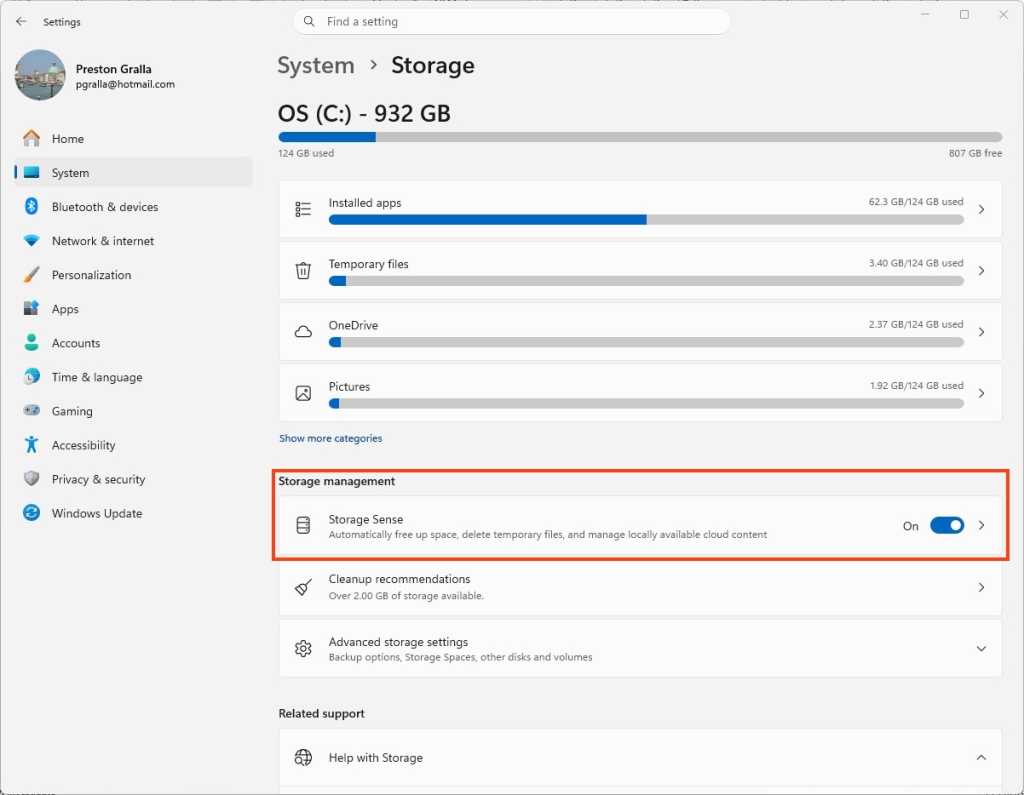
screenshot of windows settings  /> system > storage screen with storage sense toggle highlighted

Here’s where to turn on Storage Sense.

Preston Gralla / Foundry

You can also customize when Storage Sense runs and what should be deleted automatically — for example, whether to delete files from the Downloads folder after they’ve been there for more than 30 days. To do it, click the right-facing arrow next to the Storage Sense On/Off slider.

8. Disable shadows, animations, and visual effects

Those who like eye candy are probably big fans of Windows 11’s shadows, animations, and visual effects. They typically don’t affect performance on fast, newer PCs. But they can exact a performance hit on older, slower machines.

If you’ve got a slower PC, turn them off. To do it, in the Windows 11 search box, type sysdm.cpl, press Enter, and then click the sysdm.cpl icon. That launches the Control Panel’s System Properties dialog box. Click the Advanced tab and click Settings in the Performance section. That brings you to the Performance Options dialog box. (Make sure you’re on the Visual Effects tab of the dialog box.) You’ll see a varied list of animations and special effects.
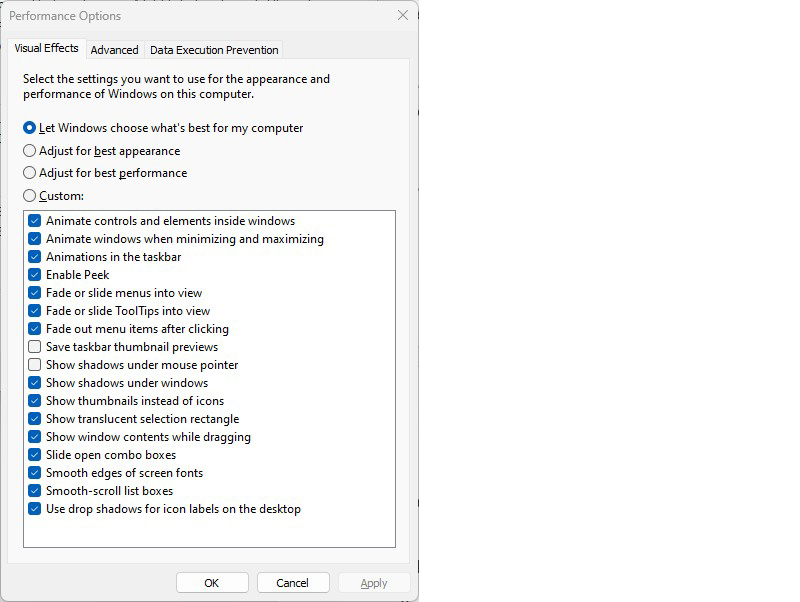
performance options dialog box listing animations and other options to turn off for faster performance

The Performance Options dialog box lets you turn off visual effects that might be slowing down Windows 11.

Preston Gralla / Foundry

If you love to tweak, you can turn individual options on and off. These are the animations and special effects you’ll probably want to turn off, because they have the greatest effect on system performance:

  • Animate controls and elements inside windows
  • Animate windows when minimizing and maximizing
  • Animations in the taskbar
  • Fade or slide menus into view
  • Fade or slide ToolTips into view
  • Fade out menu items after clicking
  • Show shadows under windows

However, it’s a lot easier to just select the Adjust for best performance option at the top of the screen and click OK. Windows 11 will then turn off the effects that slow down your system.

9. Disable transparency

To get an even bigger speed boost, go beyond turning off shadows, animations, and visual effects. Also disable the transparency effects in the taskbar and other Windows 11 locations. Windows does a surprising amount of heavy lifting to create transparency effects, and turning them off can make a difference in system performance.

To do it, run the Settings app and select Personalization > Colors, then move the Transparency effects slider to Off.
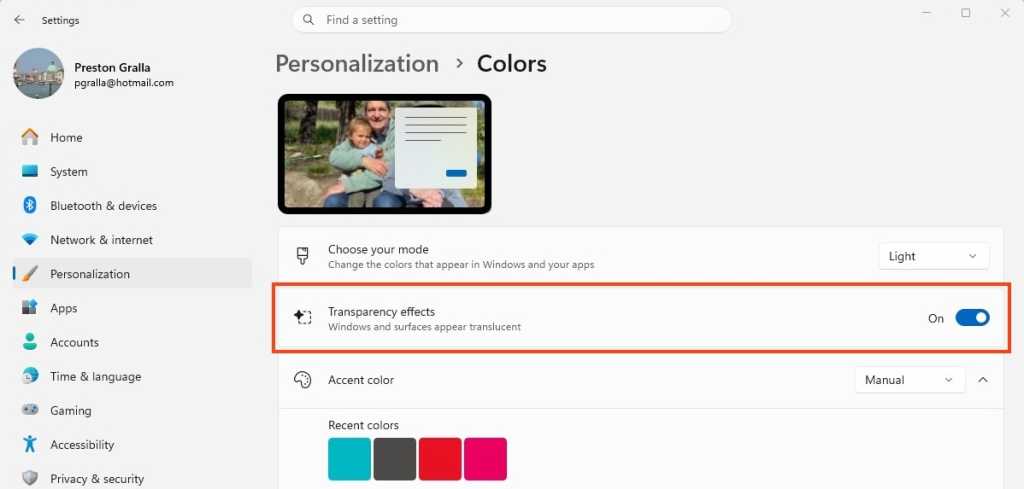
screenshot of windows settings  /> personalization > colors screen with transparency effects toggle highlighted

Turning off Windows 11’s transparency effects can help speed up performance.

Preston Gralla / Foundry

10. Change your power settings

Your Windows 11 PC’s power settings let you balance its energy use with its performance. If you’re using the most power-efficient setting, you’re slowing down your PC, because the setting reduces your PC’s performance to save energy. (Even desktop PCs typically have a power-saving setting.) Changing your power setting to one of the less power-efficient options will give you an instant performance boost.

To do it, run the Settings app, then choose System and click the right-facing arrow next to Power. Depending on whether you’re using a laptop or a desktop PC (and if you’re using a laptop, whether it’s plugged in), you’ll see either a “Plugged in” or “On battery” setting that lists the power mode you’re using. Click the drop-down arrow next to it and choose the setting you want.
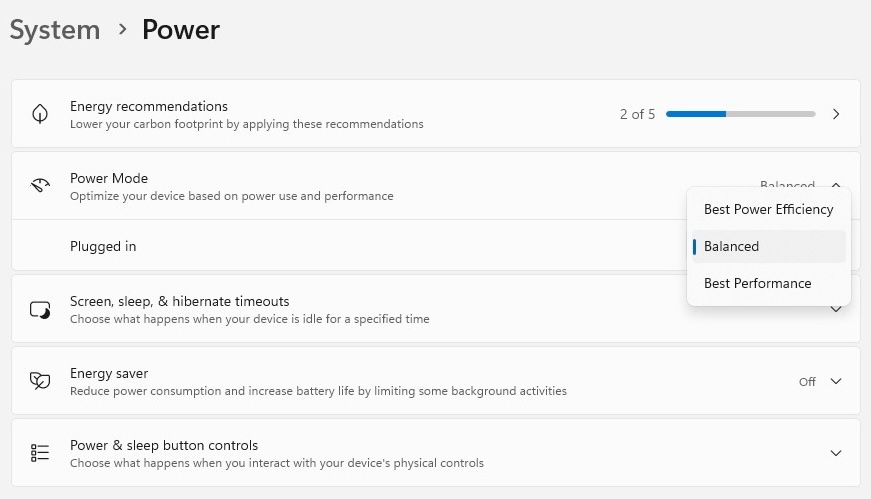
changing power mode in windows 11 settings

Change your power settings to give your PC a performance boost.

Preston Gralla / Foundry

Best Performance gives you the most oomph but uses the most power. Balanced finds a happy medium between power use and better performance, and Best Power Efficiency does everything it can to give you as much battery life as possible. Desktop users have no reason to choose Best Power Efficiency, and even laptop users should consider the Balanced option when unplugged.

11. Turn off Windows tips and tricks

Windows 11 constantly watches what you’re doing on your PC and gives you tips about things you might want to do with the operating system. I’ve never found these tips helpful. And I don’t like the privacy implications of Windows constantly taking a virtual look over my shoulder. (Also see: How to protect your privacy in Windows 11.)

Beyond that, this monitoring can also make your PC run more sluggishly. So to speed things up, tell Windows to stop being so nosy and giving you advice. To do it, run the Settings app and select System > Notifications. Scroll down to Additional settings and click the down arrow. From the options that appear, uncheck the box marked Get tips and suggestions when using Windows.
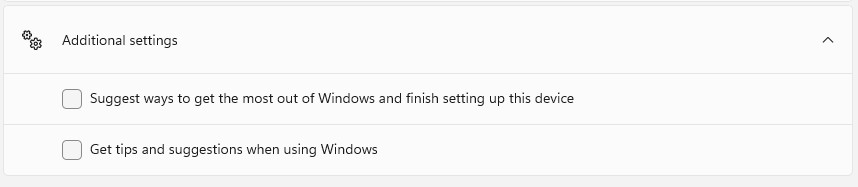
screenshot of Windows notifications additional settings with windows tips checkbox

Turn off Windows’ suggestions to help things run more smoothly (and regain a measure of privacy).

Preston Gralla / Foundry

12. Disable Game Mode

Windows 11’s Game Mode optimizes your PC for playing games. When it detects that you’re playing a game, it prioritizes system resources for gaming, taking them away from other apps and background processes. That’s great for serious gamers, but when you’re not playing games, it can slow down your system because it keeps some system resources in reserve in case you start playing a game. It occasionally causes stability issues as well. So turning off Game Mode may be able to give your PC a quick boost. (You can always turn it back on again when you want to play a game.)

Game Mode is turned on by default, so even if you’ve never played a game on your PC, it’s probably enabled. To turn it off, go to Settings > Gaming > Game Mode and move the Game Mode slider to Off.
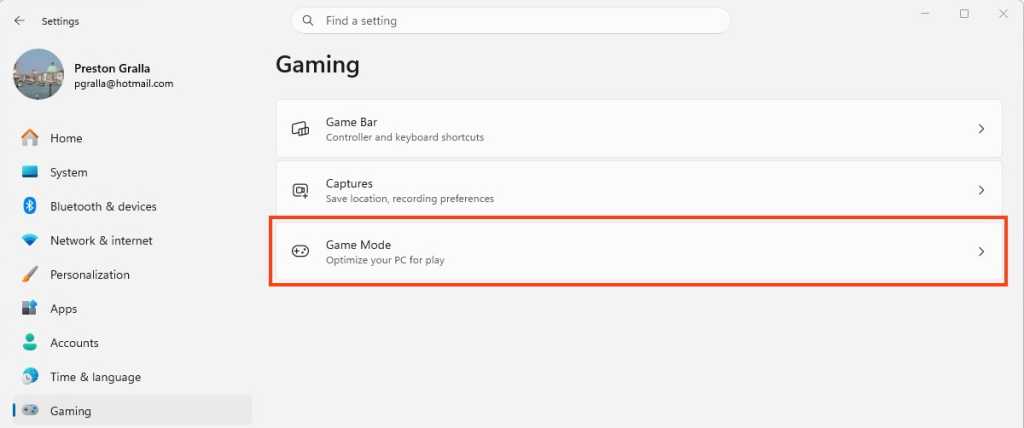
screenshot of windows settings  /> gaming screen with game mode area highlighted

Game Mode can sometimes cause stability and performance issues, so turning it off may give your PC a boost.

Preston Gralla / Foundry

13. Update device drivers

Your Windows 11 PC can become a slowpoke if its drivers are old and in the way. Outdated drivers can exact a big performance hit. Graphics drivers are often the biggest culprit in driver-related slowdowns. To check whether your graphics driver is outdated, and to update to the latest one:

  1. In the Windows search box, type device manager and click on the Device Manager icon that appears.
  2. Scroll to the Display Adapters entry and click the side-facing arrow to expand it.
  3. Right-click the driver, and from the context menu that appears, select Update Driver.

You’ll be asked whether to have Windows search for an updated driver, or whether you want to find one and install it manually. Your best bet is to let Windows do the work. Follow the on-screen instructions to get the driver installed.

You can use the Device Manager to update all your drivers this way. That’s time-consuming, so consider asking Windows to do the work for you. To do it, launch the Settings app (pressing the Windows key + I is a good shortcut for doing it) and select Windows Update from the left pane.  Select Advanced Options > Optional Updates. You’ll see a list of all the updates Windows has found but hasn’t installed. Select any of the drivers you want to install, then click Download & install.

screenshot of windows update  /> advanced options > optional updates screen listing an intel driver update

Tell Windows Update to update your drivers.

Preston Gralla / Foundry

14. Turn off background app permissions

Some apps run various processes in the background even if you don’ t launch them. You’ll likely never know they’re doing it, and they can cause unexpected slowdowns and a sluggish PC. Microsoft says these background processes do things such as syncing or sending notifications. That can slow your PC down, especially if more than one app is doing it.

You can head off performance problems by not allowing the apps to run in the background. To do it:

  1. Go to Settings > Apps > Installed apps.
  2. Click the three horizontal dots on the right of any app whose permissions you want to turn off and select Advanced options.
  3. Click the dropdown under “Background app permissions,” and choose Never if you want to stop the app from ever running a process in the background, or Power optimized if you want to let Windows decide whether to let the processes run when they won’t cause your PC to take a performance hit.
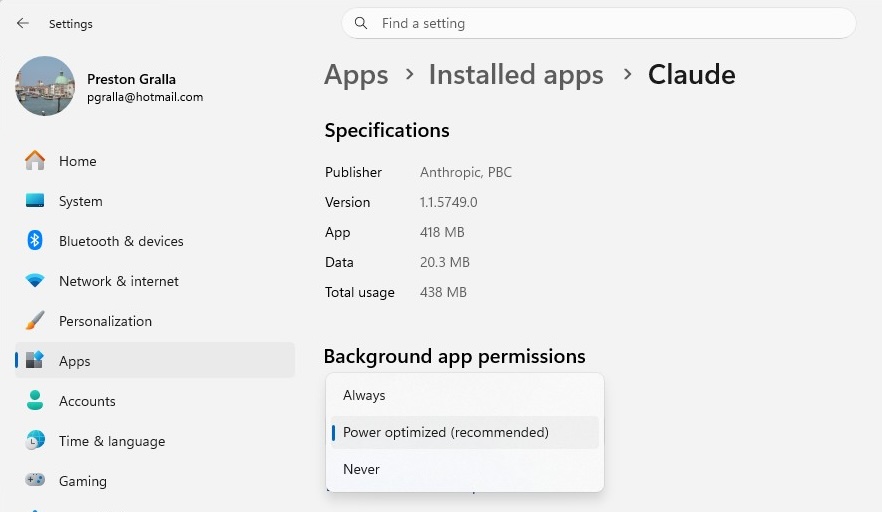
screenshot of settings  /> apps > installed apps > claude with background app permissions dropdown menu

Managing background app permissions properly can give your PC a performance boost.

Preston Gralla / Foundry

15. Roll back your PC to a previous state

Sometimes your PC will slow down for no apparent reason, and stay slow. It could be a new driver slowing your system down. Perhaps accidentally you changed a system setting that caused the problem. It can be difficult, and often impossible, to get to the root of these kinds of problems and fix them.

If you’ve noticed that your computer has become sluggish recently, there’s something that might solve the issue: Restore your PC to the state it was in before the problem began. You can easily do this via System Restore.

To do it:

  1. Make sure System Restore is turned on by going to Settings > System > About, and under the “Device info” section, click System protection.
  2. From the screen that appears, click Configure and select Turn on system protection if it’s not already turned on. Click OK.
  3. You’ll be sent back to the System Protection screen. Click System Restore.
  4. On the screen that appears, select Recommended restore and click Next if you want to revert to the most recent restore point. Select Choose a different restore point if you want to choose one yourself, and click Next.
  5. Restart your PC. It will revert to its previous state. Note that when you do this, your documents, pictures, and personal data won’t be deleted.
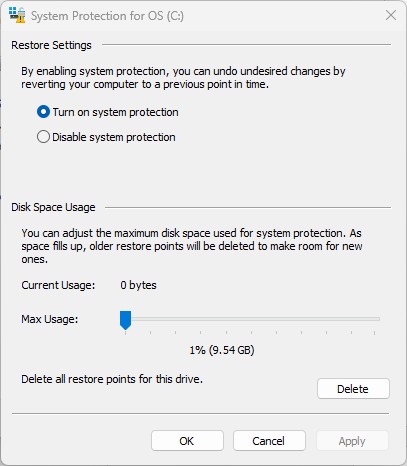
turning on system restore in the restore settings dialog box

Here’s how to turn on System Restore.

Preston Gralla / Foundry

16. Restart Windows

Here’s one of IT’s not-quite-secret weapons for troubleshooting and speeding up a PC: shut it down and restart it. Doing that clears out any excess use of RAM that otherwise can’t be cleared. It also kills processes that you might have set in motion and are no longer needed, but that continue running and slow your system.

If your Windows 11 PC has turned sluggish over time for no apparent reason, you may be surprised at how much more quickly it will run when you do this. I can vouch for it, and I restart my Windows 11 PCs regularly even if they’re not sluggish, just as a precautionary measure.

This article was originally published in February 2023 and most recently updated in June 2026.

More Windows 11 tips:

  •  

A retro-geeky Android home screen remix

One of the best parts about using Android is the good old-fashioned geeky fun that comes with finding new ways to improve your digital environment — and improve your day-to-day efficiency.

That capability manifests itself in all sorts of interesting freedoms that (cough, cough) other mobile platforms don’t trust their users enough to allow — from added on-screen elements to custom air gestures, advanced multitasking additions, and all sorts of other shape-shifting enhancements that can completely change the way you interact with your device.

Perhaps the most classic example of advanced Android customization, though, is a splendid little somethin’ called the home screen launcher — a fancy way of saying the system that controls how your home screen and app drawer look and work. Your phone has a built-in process that handles that by default, but here in the land o’ Googley matters, you can always replace that with something completely different and make your device adapt to the way you like to work instead of the other way around.

We’ve got no shortage of interesting Android launcher options, too, ranging from versatile blank slates for complete customization to carefully crafted frameworks for ergonomic efficiency and even throwbacks to mobile operating systems past.

The real beauty of this ecosystem, though, is how much power it gives to Android developers — and subsequently to us, as Android-appreciating animals who embrace these creations! — to experiment and try out all sorts of new concepts. Sometimes, an Android launcher approach speaks to you for its practicality. Other times, it’s just a refreshingly interesting take on how you can get around your phone and get stuff done.

Today, I’ve got a perfect example to share with you. It’s a whole new approach to the Android home screen that’s both unlike anything else I’ve ever seen in this arena and delightfully familiar, in a retro-tech sense.

Lemme show ya what it’s all about.

[Get fresh Googley goodness in your inbox with my free Android Intelligence newsletter — three new things to try every Friday.]

The T9 Android launcher — with a modern twist

My friend and fellow enlightened Android phone owner, allow me to introduce you to a creative little concoction called Key Launcher.

Key Launcher has only been out and available on the Play Store for a matter of weeks now, but it’s impressively polished — and, even more important, impressively original while also having some fantastic geek-tech throwback vibes.

To that end, the core distinctive element of Key Launcher is the T9-style dialpad that sits front and center on the lower third of its primary panel. It is quite literally the same set of letter-packin’ numbers and characters you’d see on an old-school phone — or in the dialer of your favorite Android phone app.

width="1024" height="1022" sizes="auto, (max-width: 1024px) 100vw, 1024px">
The T9 keypad is the centerpiece of the Key Launcher Android home screen experience.

JR Raphael, Foundry

And in this context, it serves some pretty interesting purposes:

  • In true T9 style, you can find and access any app or contact on your phone simply by tapping the letter that corresponds with its name — and if you want to narrow down the list even further, you can keep typing letters to refine the results.
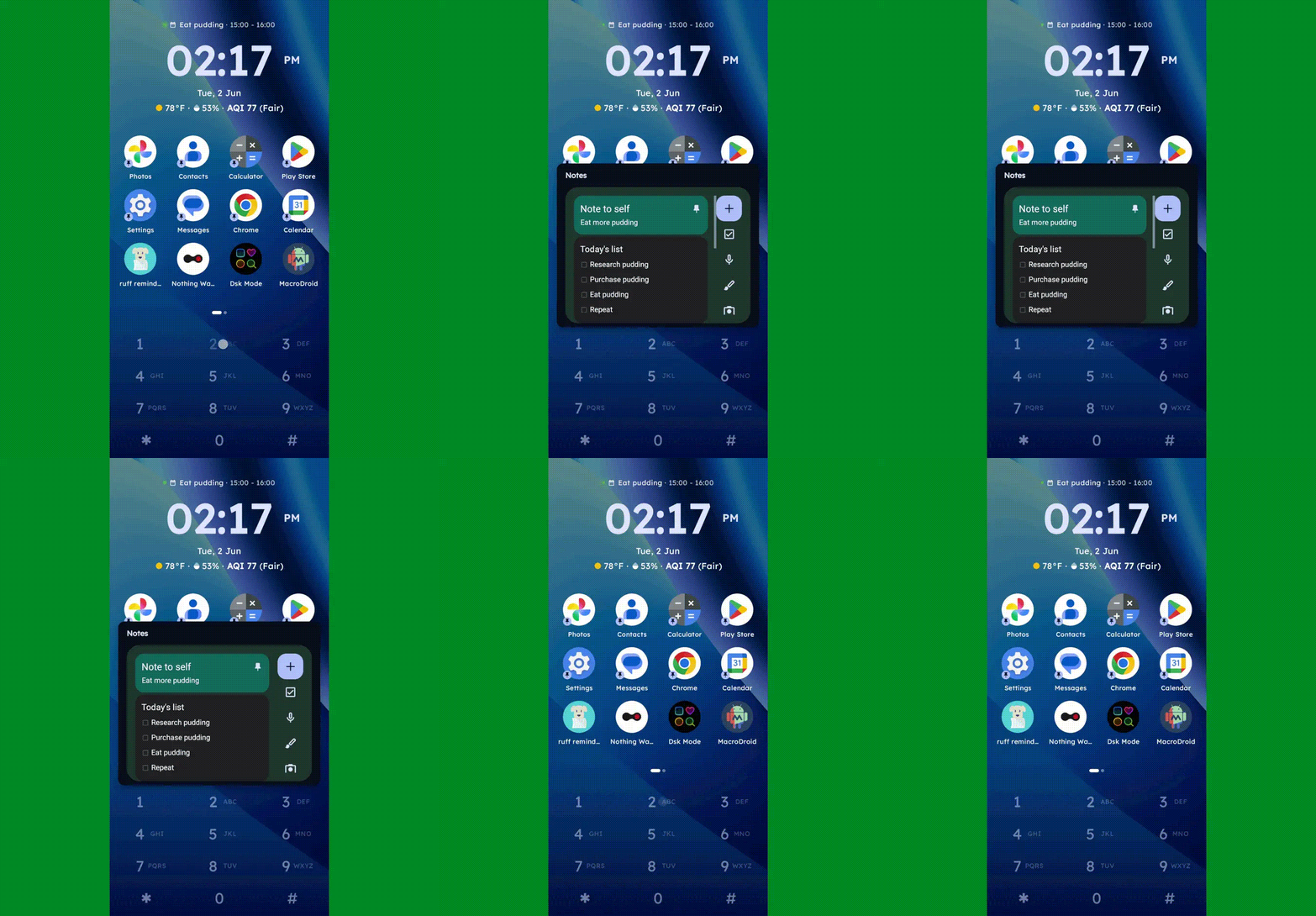
  • You can long-press any number to create and then access a custom “super shortcut” — anything from a single specific action (opening a particular app or calling or texting a certain contact) to launching a group or category of apps or contacts, launching an on-demand pop-up widget or swipeable stack of widgets, or even launching a pre-filled search query.
Key Launcher Android home screen widget pop-up
One press, and poof: Any widget you want — or series of swipeable widgets, even — is right there and ready.

JR Raphael, Foundry

  • If you tap the # key (known as “pound” in this context — not “hashtag” — for any non-olds among us), you can set up and then access a special “vault” area, where apps are hidden and only visible and accessible with authentication.
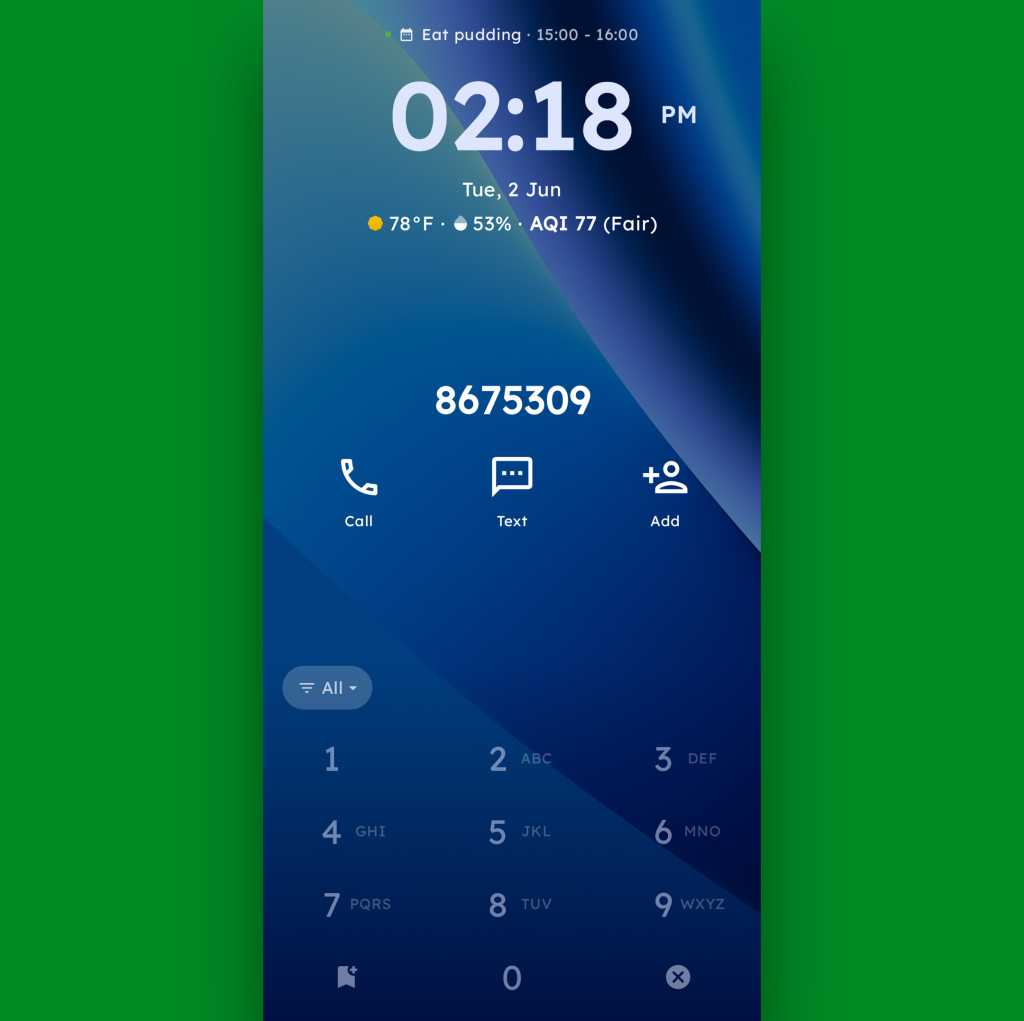
  • And, in an especially nifty touch, you can also just use the dialpad as an actual dialpad — to punch in any number you want to text or call, even if it isn’t already in your contacts.
Key Launcher Android home screen dialpad
Your phone dialer is always right in front of you with Key Launcher as your home screen.

JR Raphael, Foundry

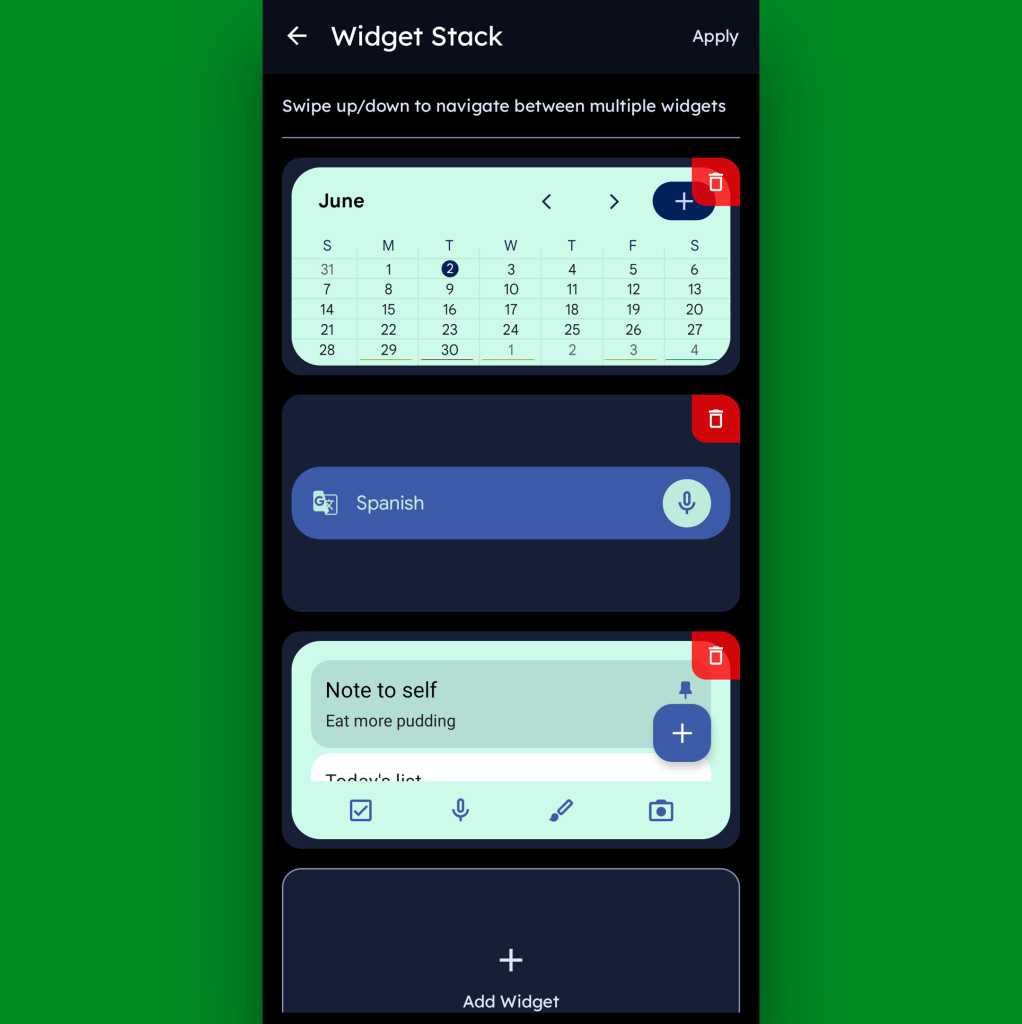
Function-packed as all of that may be, that dialpad is still just one piece of the Key Launcher puzzle. Above it sits a grid of app shortcuts that includes both your own pinned favorites and a dynamic selection of recently opened items. And above that is a handy built-in widget that shows a rotating array of upcoming calendar events from your agenda along with the local time and weather — and, in an especially neat twist, can also be customized to act as an interactive stack that lets you flip through your own set of standard Android widgets right then and there as well.

Key Launcher Android home screen widget stack
Key Launcher’s primary widget spot can be configured to hold numerous widgets in a swipeable stack.

JR Raphael, Foundry

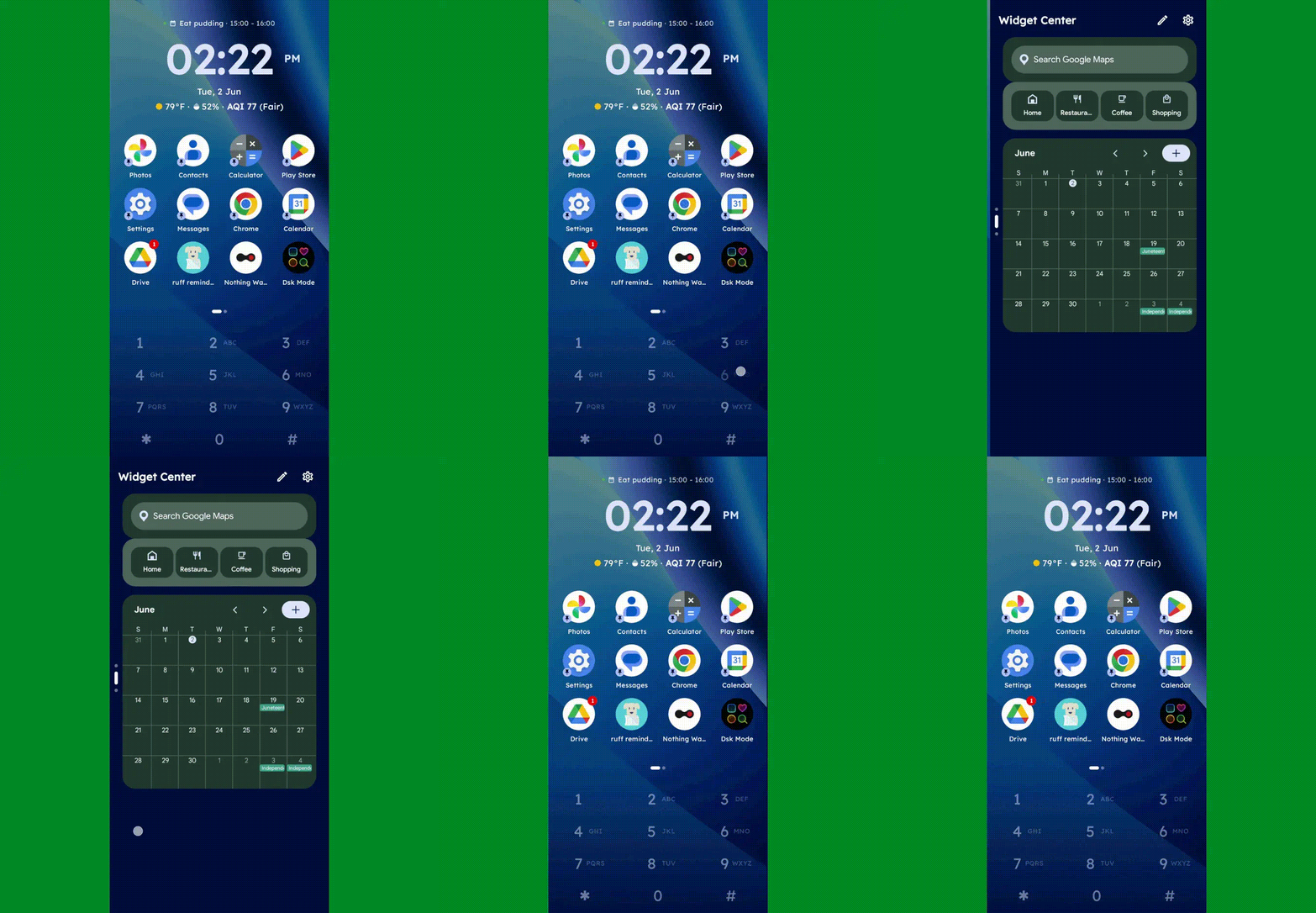
Speaking of widgets, if you swipe toward the left on Key Launcher’s dialpad, you’ll reveal the launcher’s built-in “Widget Center” panel — which is an entire screen dedicated to holding however many widgets you want, in any configuration you like, for easy ongoing access.

Key Launcher Android home screen widget center
The Widget Center is another interesting way to access widgets within Key Launcher.

JR Raphael, Foundry

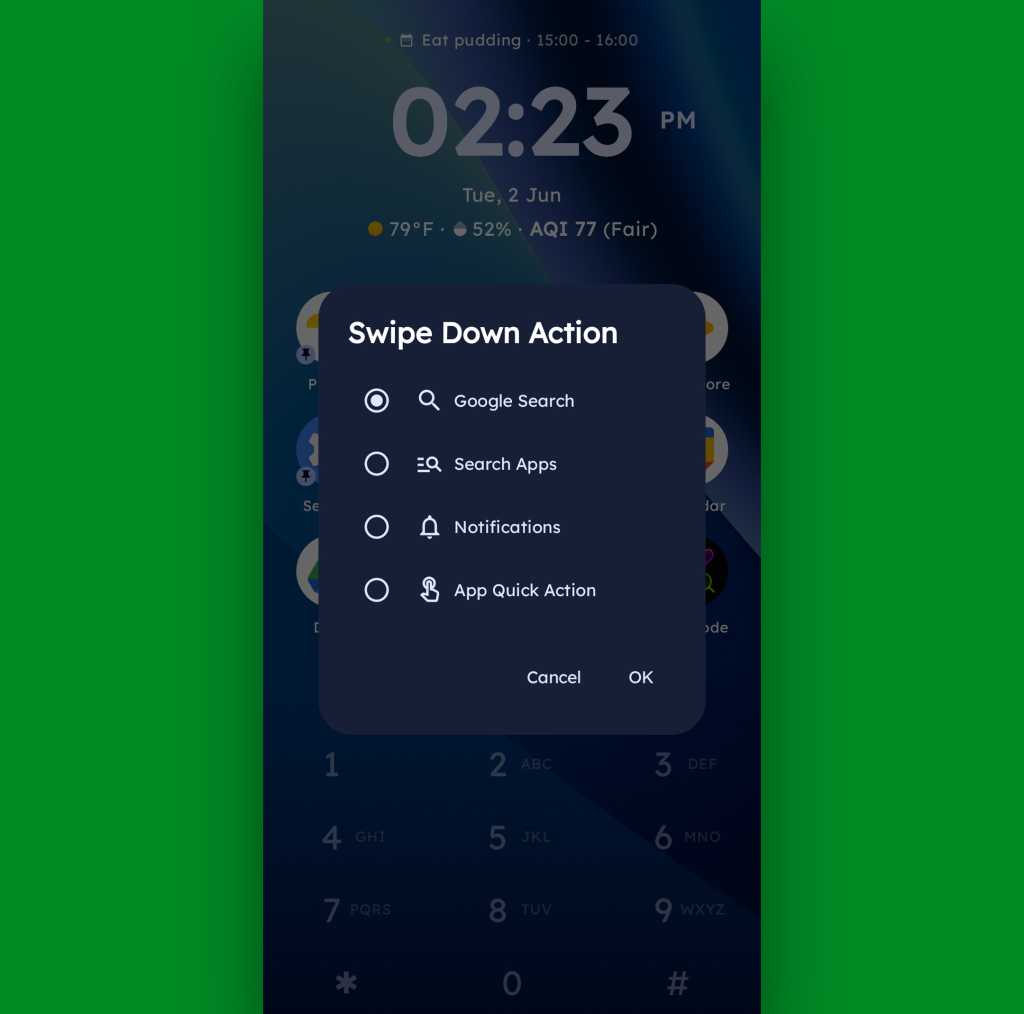
A swipe in the other direction will take you to an enlarged view of your active notifications, meanwhile, while a swipe downward can be set to launch either a quick search (of Google or whatever provider you prefer), a search of your apps, or a direct Android app shortcut within any app on your device.

Key Launcher Android home screen swipe action
Swiping down on your home screen can trigger a shortcut of your choice.

JR Raphael, Foundry

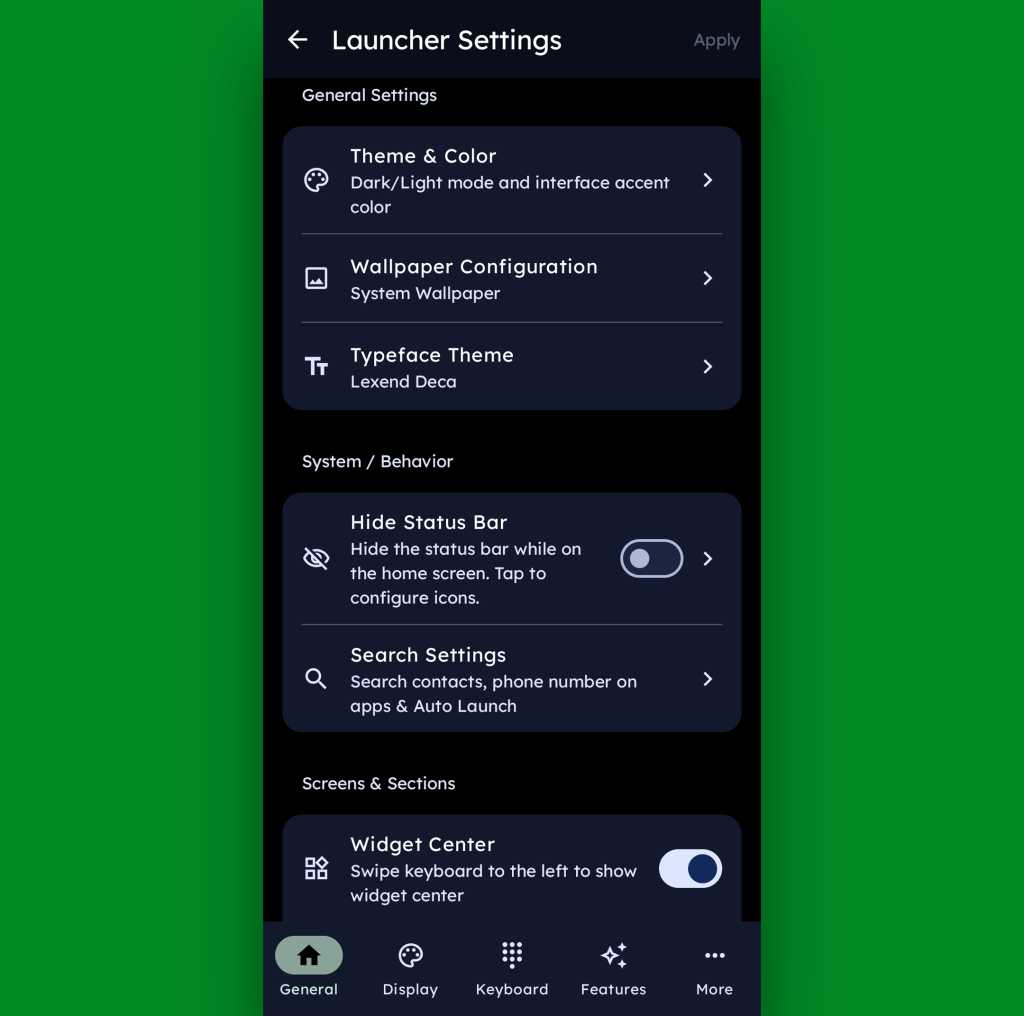
And if all of that seems like a lot of productivity-boosting possibilities, just wait ’til you get into this thing’s settings. Key Launcher is overflowing with options to customize and control practically every facet of its operation, ranging from basic visuals to the specifics of how the dialpad works and even a toggle for optimizing the interface for left- or right-handed use.

Key Launcher Android home screen settings
Key Launcher is no slouch when it comes to settings.

JR Raphael, Foundry

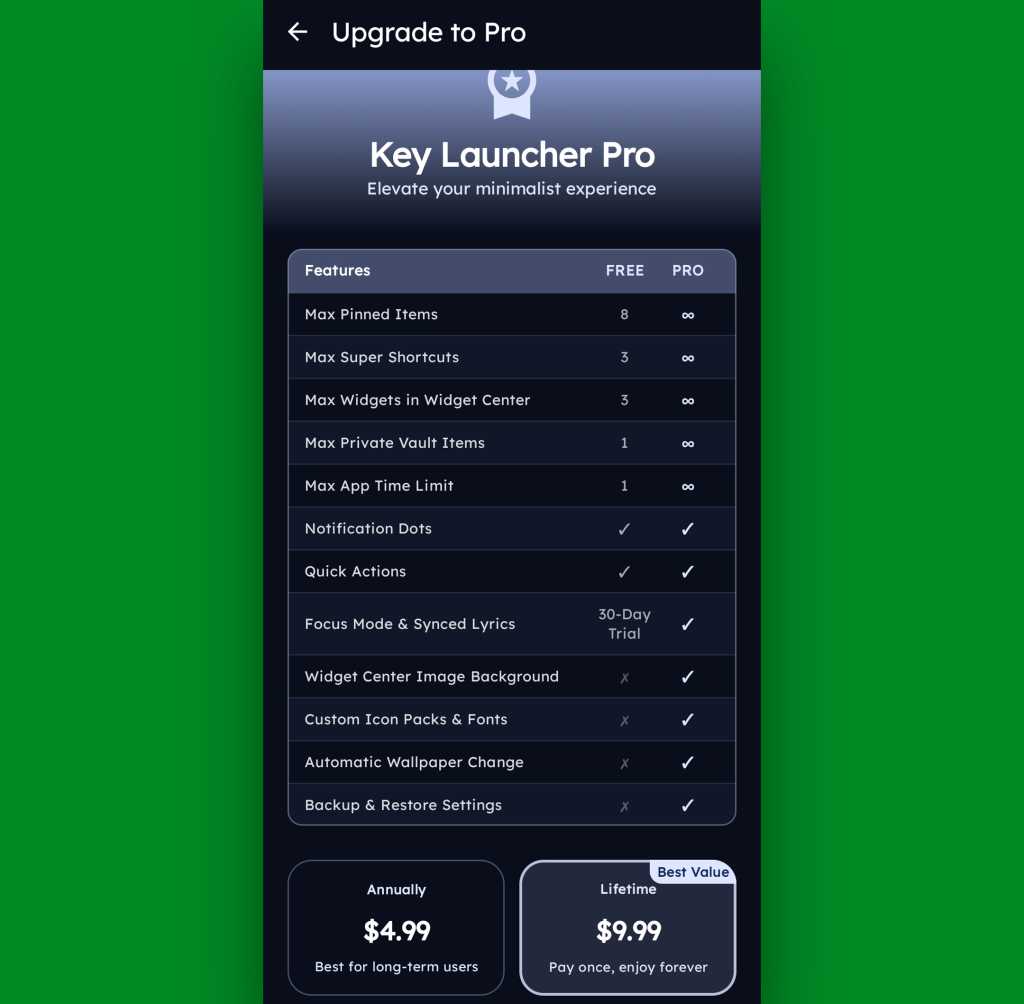
Key Launcher is free on its base level with an optional Pro upgrade that unlocks certain limitations and more advanced features. That path is available for five bucks a year or $10 as a single lifetime purchase, and you get a month-long trial the first time you install the app so you can check it out in its full form.

Key Launcher Pro Upgrade
The Pro path adds in lots of extras, but even Key Launcher’s free version is quite pleasant and functional.

JR Raphael, Foundry

Even if you just stick to the free version, though, this thing has an awful lot to offer — and it really is unlike anything else out there, with so many clever and potentially useful touches.

It’s that kind of creativity and constant discovery that keeps Android so interesting and advantageous, even after all this time — and that’s true whether you end up sticking with Key Launcher for the long haul or just giving it a go for a few hours and appreciating the deliciously original thinking it offers.

Keep the geeky goodies coming with my free Android Intelligence newsletter — three new things to try every Friday, straight from me to you.

  •  

Windows 11 Smart App Control explained

In the ever-evolving cybersecurity landscape, Microsoft has introduced various new features in Windows 11 designed to protect users from modern workplace threats. Among such features, Smart App Control (SAC) changes how Windows devices handle, and occasionally block, unwanted or potentially malicious applications.

But what exactly is Smart App Control? How does it work, who benefits most, and are there any caveats? In this story we’ll share some history and explain why SAC has been something of a stealth feature in Windows 11.

What is Smart App Control?

Smart App Control is a security feature in Windows 11 designed to block untrusted or potentially dangerous applications from running on a PC. Built directly into the operating system (through Windows Security), SAC leverages code signing, Microsoft’s intelligence cloud, and artificial intelligence to make real-time decisions about whether an app or application should be allowed to run. Its goal is to minimize the risk that malware, ransomware, and unwanted software could run on users’ systems — with minimal user intervention.

At its heart, Smart App Control is a kind of gatekeeper. When you attempt to run an app, SAC evaluates its trustworthiness. That evaluation is based on numerous criteria: Is the app digitally signed? Is it widely used and recognized as safe by Microsoft’s threat intelligence network? Has it been flagged previously for questionable behavior?

If an app fails one or more such checks and is found suspicious or untrustworthy, SAC blocks its execution, silently preventing a potential security event before it starts.

How does Smart App Control work?

SAC operates using a combination of cloud-based intelligence, local analysis, and digital signatures. Here’s a step-by-step breakdown of how it functions:

  • App verification: When a user attempts to launch an application, SAC inspects the file. It first checks if the app is digitally signed by a trusted publisher, an important indicator of legitimacy.
  • Cloud intelligence search: SAC then consults Microsoft’s extensive security databases in the cloud. These aggregate threat data from millions of Windows devices worldwide. If the app has been flagged already or is recognized as part of any malware campaign, it is blocked.
  • AI-based analysis: For less clear-cut instances, SAC uses AI to evaluate an app’s behavior. That is, it looks for telltale signs of malware or unwanted code. Such a dynamic analysis helps catch emerging threats not yet known to the cloud.

When an app is blocked, the user gets a clear, informative notification. Usually, there’s no way to override SAC’s decision, which puts security ahead of convenience. It also ensures that users will quickly report false positives.

Smart App Control is designed to be simple and automatic. Unlike conventional antivirus or endpoint security, it requires no updates to definitions, nor manual scans. SAC works behind the scenes to block threats in real time. Because it uses both local and cloud-based intelligence, it’s always current.

On the downside, some legitimate apps, especially older or custom business software, may not be digitally signed, resulting in false positives. If SAC decides an app is unsafe, the only way to run the app is to turn SAC off.

Working with Smart App Control

Notably, Smart App Control is enabled by default — but only on “clean installs” of Windows 11 version 22H2 or later. Systems upgraded from older versions of Windows 11 will always show SAC in the “Off” state.

Microsoft made this decision to avoid potential compatibility issues with legacy or line-of-business applications. That means users can’t benefit from SAC unless they have a newer PC or somebody reinstalls Windows 11 from scratch on an older one. (See my Windows clean install tutorial for complete instructions.)

SAC prerequisites

To get granular: SAC requires that the following be present as Windows 11 comes up for the first time:

  • Secure Boot, a security feature that allows only trusted, digitally signed software to run as Windows boots up
  • A working chain of trust, including current CA-2023 boot certificates in Unified Extensible Firmware Interface (UEFI) and a CA-2023 compliant bootloader

Newer PCs — namely, those built in 2018 or later, with Windows 10 or 11 installed prior to delivery — routinely include UEFI-only boot and support Secure Boot from the get-go. Indeed, Secure Boot was introduced with Windows 8, and the original certificates came along in 2011 (Production PCA 2011, UEFI CA 2011, and KEK CA 2011). They’ve been shipped in firmware ever since.

As long as such machines get updated through Windows Update (or some managed equivalent, such as Microsoft Intune, Windows Autopilot, or Microsoft Configuration Manager), the new certificates and a proper chain of trust should be established on those PCs. (See FAQ: What you need to know about expiring Windows Secure Boot certificates for more information.) All this said, only Windows 11 imposes a working Secure Boot environment as a hard and fast system requirement as of 2021.

In short, Secure Boot and the chain of trust provide the essential foundation for SAC to start with a clean bill of health, security wise, and keep things that way. To learn more about Secure Boot and its various certificates and trappings, consult the Secure Boot and Windows Secure Boot Key Creation and Management Guidance pages on Microsoft Learn.

Modes of operation

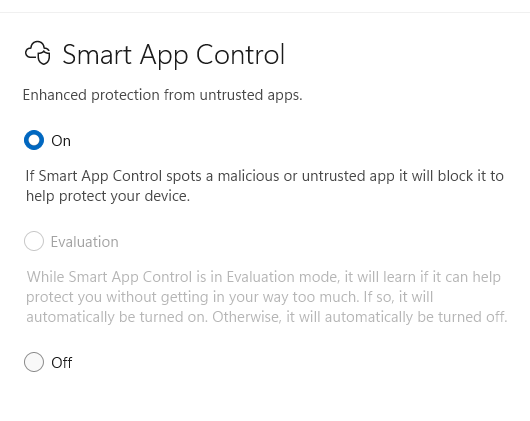
SAC has three distinct modes:

  • On: SAC actively monitors and blocks untrusted apps.
  • Evaluation: SAC quietly observes your usage patterns and system needs before fully activating.
  • Off: SAC is disabled and will not intervene.

SAC will normally start in Evaluation mode for up to a month, then turn itself On or Off depending on observed system behavior. Once turned on, SAC cannot be set back into Evaluation mode. Organizations or users who run custom software or specialized workflows should leave SAC in Evaluation mode to ensure that business functions keep working.

To check SAC’s status:

  1. Open the Windows Security app.
  2. Navigate to App & browser control.
  3. Look for the “Smart App Control” section. You’ll see the current status: On, Off, or Evaluation mode, as shown in Figure 1.
windows 11 smart app control screen in windows security

Figure 1: On this PC, the evaluation period is over and Smart App Control is enabled.

Ed Tittel / Foundry

Until recently, SAC could not be toggled off and on again — once it was turned off, you had to reinstall or reset Windows 11 to re-enable it. But with the April 2026 Patch Tuesday release of Windows 11 (KB5083769), admins and elevated users can turn SAC on or off as they see fit, as long as the initial setup conditions described above are met.

This toggling capability is a step forward for usability and safety, because it lets users with administrative privileges temporarily disable SAC in order to install, update, or uninstall certain unsigned apps, such as those that rely on Windows Installer Transform (MST) files, and then turn SAC back on immediately.

Note that this feature is being gradually rolled out, so you may not have access to it yet.

Smart App Control compared to other Windows 11 protections

Microsoft has long offered security features like Windows Defender, Controlled Folder Access, and Application Control. SAC differs in its general, automated approach. Rather than relying on static definitions, group policies, or user input, SAC leverages real-time intelligence and AI.

In many ways, SAC takes the best bits of Application Control (previously available through Device Guard and Windows Defender Application Control) and makes them accessible to a wider audience. It also involves little or no manual setup and few, if any, policy issues. Then again, as covered earlier in the story, SAC also functions as a black box: one either lives with its judgments, or does without it.

Real-world impact and industry reception

Feedback from the IT community has been mostly positive. Security researchers note SAC’s ability to block emerging threats before traditional antivirus solutions can respond. But SAC is hardly bullet-proof: a number of studies cite focused exploits or workarounds to bypass or trick SAC. For instance, Elastic Security Labs documented multiple techniques to break SAC in 2021, with follow-ons from Hacker News and TechRadar.

As always, a proactive approach to cybersecurity that includes teaching users to avoid trouble remains a key ingredient in establishing and maintaining a strong security posture.

For end users, SAC’s presence may go largely unnoticed — until, that is, it intercepts a malicious download or prevents installation of a suspicious or malicious program. Or, as the case may sometimes be, when users try to run old, unsigned software that SAC won’t allow.

Tips for IT administrators

For IT professionals considering deploying devices with SAC, certain best practices are worth implementing:

  • Test SAC in Evaluation mode before rolling out widely, especially if your organization relies on custom or legacy software, or if anything important is unsigned.
  • Educate users about SAC’s presence and purpose so they understand why certain apps may be blocked. Set up a procedure to request support and/or fixes, particularly if important software gets blocked. Possible workarounds include restricted VMs with SAC turned off to run unsigned applications.
  • Maintain an up-to-date inventory of critical applications and ensure as many as possible are digitally signed by trusted publishers.
  • Monitor Microsoft resources Learn, Support, and Answers forums for SAC updates, compatibility lists, and troubleshooting tips.

The future of Smart App Control

As threats continue to evolve, Microsoft should continue to expand SAC’s capabilities. Undoubtedly it will use more advanced AI models and deeper integration with Windows Defender and Microsoft 365 security. Future updates may introduce more granular controls for enterprise environments, including managed exceptions and better reporting tools.

For now, SAC represents a useful additional tool for Windows security. It’s intended to shift the balance in favor of the good guys in the ongoing war against malware. So far, it’s been a modest step forward. But it’s not unthinkable that SAC could offer more and better protection in upcoming Windows releases.

[Also see: FAQ: What you need to know about expiring Windows Secure Boot certificates]

This article was originally published in September 2025 and updated in June 2026.

  •  

How to protect Windows 10 and 11 PCs from ransomware

CryptoLocker. WannaCry. DarkSide. Conti. MedusaLocker. Qilin. The ransomware threat has exploded over the past decade, and it isn’t going away anytime soon; the news brings constant reports of new waves of this pernicious type of malware washing across the world.

Ransomware gained in popularity in large part because of the immediate financial payoff for attackers: It works by encrypting the files on your hard disk, then demanding that you pay a ransom, frequently in Bitcoin or other cryptocurrency, to decrypt them. Now many ransomware gangs are switching tactics, stealthily infiltrating enterprise systems, collecting sensitive corporate data over time, and later threatening to expose that data if the organization doesn’t pay up.

Nevertheless, individuals and businesses are still at risk from traditional ransomware attacks. In this article, I’ll show you how to keep yourself safe in Windows 11 — and Windows 10 too, for those who haven’t yet moved to Windows 11 — including how to use an anti-ransomware tool built into both versions of Windows.

(Administrators, see “What IT needs to know about ransomware and Windows” at the end of this article.)

This article assumes that you’re already taking the basic precautions against malware in general, including running anti-malware software and never downloading attachments or clicking links in email from unknown senders and suspicious-looking email. Also note that this article has been updated for Windows 11 25H2 and Windows 10 22H2. If you have an earlier Windows release, some things may be different.

Use controlled folder access

Microsoft is concerned enough about ransomware that it built an easy-to-configure anti-ransomware tool directly into Windows 10 and 11. Called controlled folder access, it protects you by letting only safe and fully vetted applications access your files. Unknown applications or known malware threats aren’t allowed through.

By default, the feature is not turned on, so if you want to protect yourself against ransomware, you’ll have to tell it to get to work. And you can customize exactly how it works by adding new applications to its whitelist of programs that can access files, and adding new folders in addition to the ones that it protects by default.

To switch it on, you’ll need to access Windows Security. To get to it in Windows 11, click Start > Settings to open the Settings app, then select Privacy & Security > Windows Security.  

In Windows 10, click Start > Settings to open the Settings app, then select Update & Security > Windows Security.

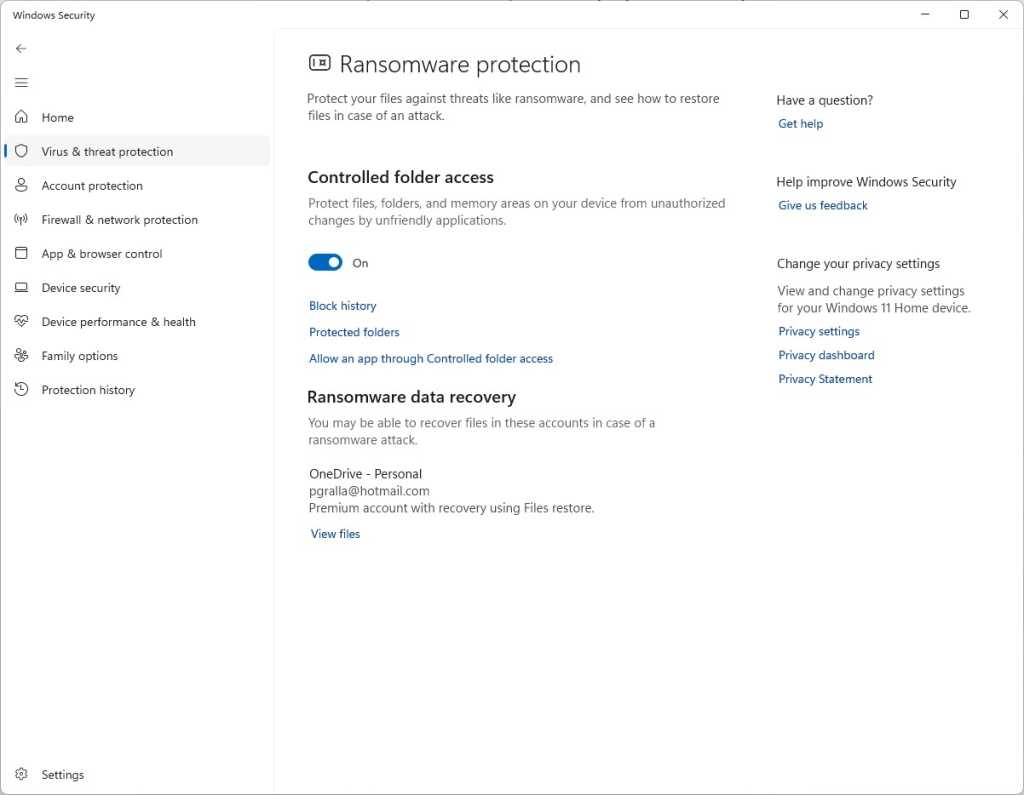
In Windows Security, select Virus & threat protection. On the screen that appears, scroll down to the “Ransomware protection” section and click Manage ransomware protection. On the next screen, under “Controlled folder access,” toggle the switch to On. You’ll get a prompt asking if you want to make the change. Click Yes.

ransomware protection screen in windows 11 settings with controlled folder access toggle turned on

Switch the toggle to On to turn on controlled folder access.

Preston Gralla / Foundry

You shouldn’t leave it at that and feel safe yet, because there’s a chance that you have folders you’d like to protect that the feature ignores. By default, it protects Windows system folders (and folders underneath them) like C:\Users\UserName\Documents, where UserName is your Windows user name. In addition to Documents, Windows system folders include Desktop, Music, Pictures, and Videos.

But all your other folders are fair game for any ransomware that makes its way onto your PC.

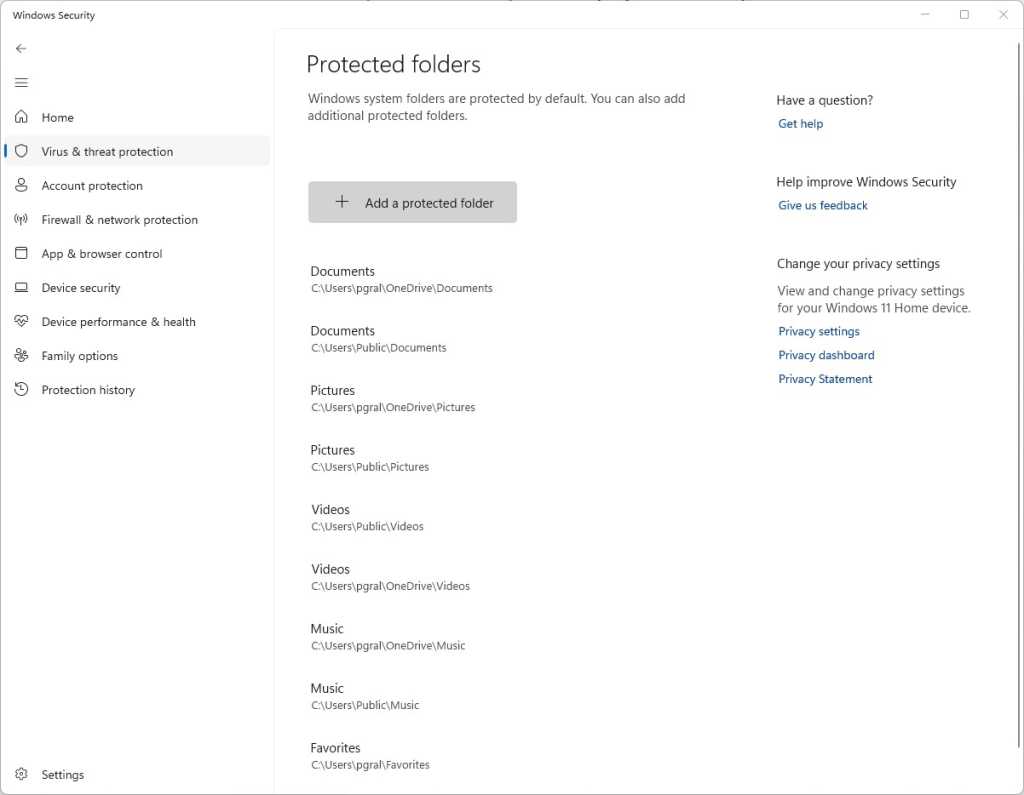
To add folders you want protected, click the Protected folders link that appears after you switch on controlled folder access. A prompt appears asking if you want to make the change. Click Yes. Click the Add a protected folder button that is on top of the list of protected folders that appears, then navigate from the screen that appears to the folder you want to protect and click Select Folder.

protected folders list in windows 11 security settings

Click Add a protected folder to protect more of your folders with controlled folder access.

Preston Gralla / Foundry

Continue to add folders in this way. Remember that when you add a folder, all folders underneath it are protected as well.

If you decide at any point to remove a folder, get back to the “Protected folders” screen, click the folder you want to remove, and then click Remove. Note that you won’t be able to remove any of the Windows system folders that are protected when you turn the feature on. You can only remove the ones that you’ve added.

Microsoft determines which applications should be allowed access to protected folders, and unsurprisingly, among them are its own Microsoft Office apps. Microsoft hasn’t published a list of which apps are allowed, though, so consider taking action to let apps you trust access your files.

To do it, go back to the screen where you turned on controlled folder access and click Allow an app through Controlled folder access. A prompt appears asking if you want to make the change. Click Yes. From the screen that appears, click Add an allowed app, navigate to the executable file of the program you want to add, click Open, and then confirm you want to add the file. As with adding folders to the list of protected folders, you can remove the app by getting back to this screen, clicking the application you want to remove, then clicking Remove.

Hint: If you’re not sure where executable files are located for programs you want to add to the allow list, look for the folder name with the program’s name in the “WindowsProgram Files” or “WindowsProgram Files (x86)” folders, then look for an executable file in that folder.

Note: In Windows 11, OneDrive folders are automatically protected by controlled folder access when you turn it on. However, they may not necessarily be protected in Windows 10. In Windows 10, on the “Ransomware protection” page, you’ll be notified in the Ransomware data recovery section whether your OneDrive files are protected. If they’re not protected, click the Set up OneDrive button there.

Back up… but do it properly

The whole point of ransomware is to hold your files hostage until you pay to unlock them. So one of the best protections from ransomware is to back up your files. That way, there’s no need to pay the ransom, because you can easily restore your files from the backup.

It’s a good idea to not just back up to a local drive but additionally use a reputable cloud-based storage and backup service. If you back up to a drive attached to your PC, when your PC gets infected with ransomware, the backup drive will likely be encrypted along with any other disks inside or attached to your PC. Cloud backups are generally less vulnerable but not wholly immune to ransomware attacks.

Make sure that your backup service uses versioning — that is, it keeps not just the current version of each of your files, but previous ones as well. That way, if the most current version of your files gets infected, you can restore from previous versions. Most popular backup and storage services, including Microsoft OneDrive, Google Drive, Carbonite, Dropbox, and many others, use versioning. It’s a good idea to get familiar with the versioning feature of whichever service you use now, so you can easily restore files in a pinch.

Some services, including OneDrive and Google Drive, now offer ransomware detection. Users are notified of suspicious activity and can use the vendors’ tools to remove infected files and restore older versions.

Stay patched

Microsoft regularly releases Windows 10 and Windows 11 security patches, and they’re automatically applied via Windows Update. But if you hear about a ransomware outbreak, you shouldn’t wait for Windows Update to work — you should immediately get the update yourself so that you’re protected as soon as possible. And it’s not just Windows updates you want to get. You also want to make sure Windows Security, Microsoft’s built-in anti-malware tool, has the latest anti-malware definitions.

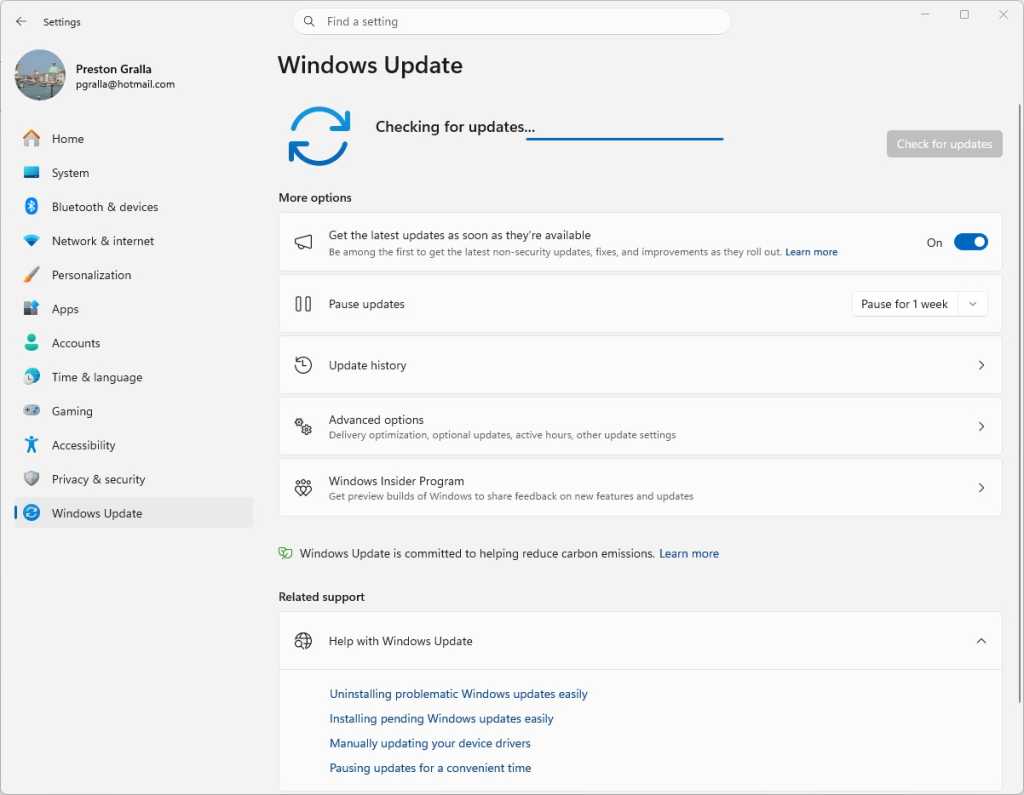
To do both in Windows 10, go to Settings > Update & Security > Windows Update and click the Check for updates button. In Windows 11, go to Settings > Windows Update and click the Check for updates button. (If updates are already waiting for you, you’ll see them listed instead of the Check for updates button.) If Windows finds updates, it installs them. If it requires a reboot, it will tell you.

windows update screen in windows 11 showing checking for updates progress bar

Checking for Windows 11 updates.

Preston Gralla / Foundry

You need to worry not just about Windows staying patched, but other software as well. If you use an anti-malware program other than Windows Security, make sure it and its malware definitions are up to date.

And the other software on your PC should be kept up to date as well. So check how each piece of software gets updated and make sure to update each one regularly. For help keeping all your apps up to date, consider setting up an automated tool like Patch My PC Updater or Software Update Monitor (see our tutorial “How to keep your apps up to date in Windows 10 and 11”) — or, if you’re comfortable using the command line, try the WinGet command (see “WinGet: The best way to keep Windows apps updated”).

Disable macros in Microsoft Office

Ransomware can be spread via macros in Office files, so to be safe you should turn them off. Microsoft now disables macros from the internet by default, but that doesn’t necessarily mean that they’re turned off in your version of Office, depending on when you installed it and whether you’ve updated it.

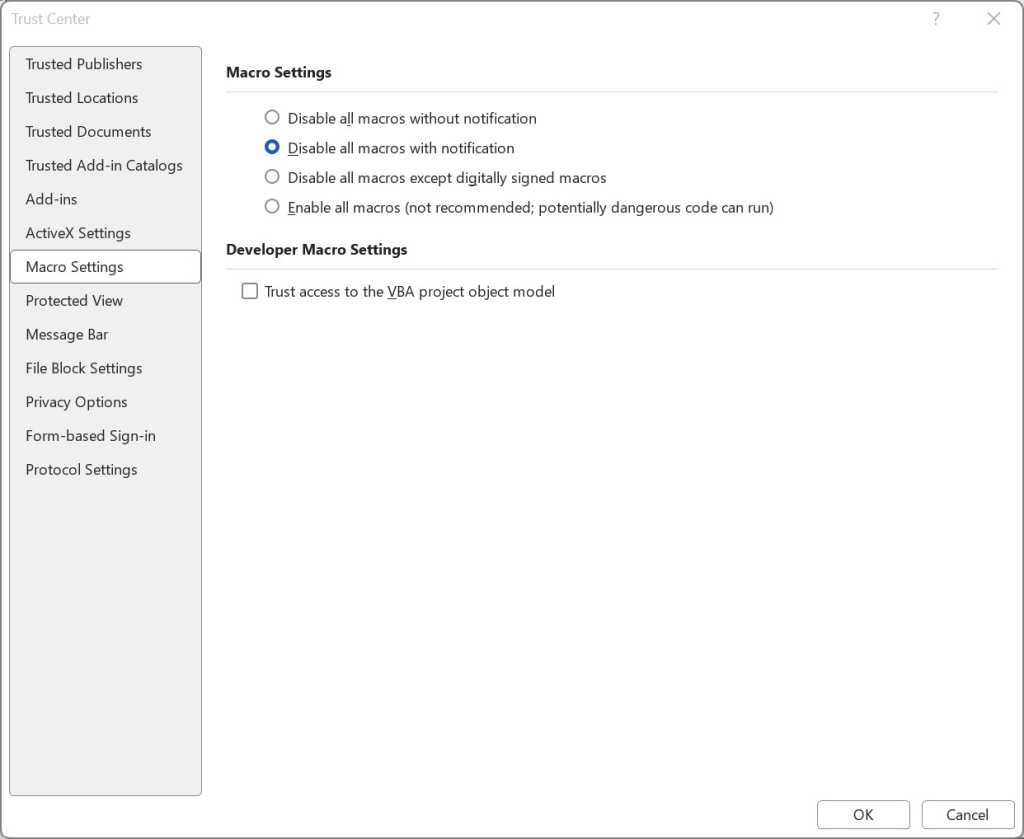
To turn them off, when you’re in an Office application, select File > Options > Trust Center > Trust Center Settings and select either Disable all macros with notification or Disable all macros without notification. If you disable them with notification, when you open the file you’ll get a message warning that the macros were disabled and letting you turn them on. Only turn them on if you’re absolutely sure they’re from a safe, trusted source.

macro settings screen in microsoft word with disable all macros with notification selected

Here’s how to disable macros in Office.

Preston Gralla / Foundry

Get ransomware protection and/or mitigation tools

Just about any anti-malware program includes built-in anti-ransomware protections, but there are several programs that promise to specifically target ransomware. Most are paid, but there are also some free options.

Bitdefender offers free decryption tools that can unlock your data if you’ve been attacked by ransomware and it’s being held ransom. They can only decrypt data that’s been encrypted with certain specific pieces or families of ransomware, including REvil/Sodinokibi, DarkSide, MaMoCrypt, WannaRen, and several others. Avast offers its own set of free decryption tools.

What IT needs to know about ransomware and Windows

Many Microsoft 365 and Windows commercial plans, especially at the enterprise level, include ransomware detection and protection tools. Advanced products such as Microsoft Defender XDR are also available under separate licenses.

Even without those tools, there’s plenty that admins can do to protect Windows systems from ransomware. The most obvious: Apply the latest security patches to not just all PCs in an organization, but all servers and any other enterprise-level hardware. Also lock down application permissions, train users to spot phishing attempts, and, of course, securely back up all corporate data.

IT also needs to make sure the notoriously insecure SMB1 Windows networking protocol is disabled in all devices. Multiple ransomware attacks have spread through the 30-year-old protocol; even Microsoft says it should be used by no one, ever.

The good news is that Windows 10 version 1709, released in October 2017, finally did away with SMB1. (It’s not in Windows 11, either.) But that’s only for PCs with clean installs of version 1709 or later. Older PCs that were updated from earlier versions of Windows still have the protocol built in.

The Microsoft support article “Detect, enable and disable SMBv1, SMBv2, and SMBv3 in Windows” offers details about how to turn off the protocol. It recommends killing SMB1 but keeping SMB2 and SMB3 active, and only deactivating them for temporary troubleshooting.

Administrators can use the controlled folder access feature (covered earlier in this article) to stop ransomware from encrypting files and folders of PCs running Windows 11 or Windows 10 version 1709 or later. They can use the Group Policy Management Console, the Windows Security Center, or PowerShell to turn on controlled folder access for users on a network, customize which folders should be protected, and let additional applications access the folders beyond the Microsoft defaults, as detailed  in the Microsoft articles “Enable controlled folder access” and “Customize controlled folder access.”

One potential issue with controlled folder access is that it might block apps that users typically use from accessing folders. So Microsoft recommends using audit mode first, to see what will happen when controlled folder access is turned on. For information about how to do it, go to Microsoft’s “Evaluate exploit protection” documentation.

As noted above, Office macros can spread ransomware. Microsoft is now blocking macros downloaded from the internet by default, but to be safe, IT should use Group Policy to block them. For advice on how to do it, go to the “Block macros from running in Office files from the Internet” section on Microsoft’s “Macros from the internet will be blocked by default in Office” documentation.

This article was originally published in January 2018 and most recently updated in May 2026.

  •  

Stop buying Motorola Android phones

Over the past decade, there’s something I’ve hinted at, mentioned in passing as a part of broader discussions, and told more people than I can count privately via email and other one-on-one conversations.

And now, as the writer of the internet’s longest-standing Android column and newsletter — a fancy way of saying someone who is apparently now old as molasses — I feel like I’d be doing a disservice if I didn’t just come out and say it as prominently and plainly as possible:

There is no valid reason anyone should be buying Motorola Android devices in 2026. None.

It’s a shame, too, ’cause Motorola has a heck of a history within Android and the mobile realm in general. And, to its credit, the company does still make some impressive-looking and at times quite interesting hardware.

But the compromises that come with that package are just too serious and consequential to be forgiven. That’s been the case for some time now, truth be told — but with yet another facepalm-inducing infraction being added onto the list now, it’s time to say it loud and clear:

Please stop buying Motorola Android phones. And please join me in telling everyone you know the same thing. 

Trust me: You’ll be doing them a major favor. And here, with no punches pulled and absolutely no sugarcoating, is exactly why.

[Get level-headed knowledge in your inbox with my free Android Intelligence newsletter — three new things to try every Friday and tons of other tasty treats.]

The Motorola Android compromise: Part I

I won’t beat around the bush: The most pressing reason Motorola Android phones are completely inadvisable to buy is the reason that’s been present for the longest — and that’s the company’s complete and utter disregard for even minimally acceptable post-sales software support.

It’s something I’ve noted in my data-based Android Upgrade Report Cards for more years than I can even remember at this point, and it’s almost comically consistent: Year after year, upgrade cycle after upgrade cycle, Motorola simply does not give a damn about investing the time or the money to bring current Android versions to its existing customers in anything close to a timely manner. Once you’ve forked over your phone and put away your wallet, good luck: You’ll be lucky if you get a single software update from Motorola after that, half a year to a year after the fact — and you almost certainly won’t hear a single peep from the company about the progress (or lack thereof) at any point along the way.

Motorola has managed to score an almost impressive number of back-to-back “F” scores on my annual analyses; no other Android device maker even comes close to that record. And lest you think this is purely about pokiness in providing polish and surface-level progress, remember that practically every Android software update is packed with critically important changes around privacy, security, and performance — and the way apps are able to interact with both your data and your hardware.

Running outdated software isn’t just dangerous — it’s downright irresponsible, especially if you’re a professional using your phone for business purposes but even if you’re just a regular ol’ schmoe focused purely on personal stuff. No one who understands a thing about security would ever recommend that, and that’s exactly what you’re signing up for anytime you buy a Motorola-made device.

So that’s part one, and that’s the biggest problem with Motorola’s Android products. But it isn’t the end of this tale nor the reason I was finally moved to write this missive, with the hopes that it’d eventually reach any Android-interested phone-buyers with Motorola on their minds.

Motorola’s more recent Android offenses

All update-related issues aside, the problem with Motorola’s Android products is that they make all sorts of compromises that are all about lining Motorola’s pockets at the expense of your experience.

The most recent example and the straw that broke the Android columnist’s (increasingly creaky) back is the new discovery that Motorola had seemingly been indirectly hijacking the Amazon app on its devices and sneakily injecting an affiliate code into links. The end result of such actions, according to observations published this week, is generating unearned revenue from your day-to-day purchases.

That’s an underhanded and shady-seeming practice, to say the very least. It just feels icky and ethically reckless. And clearly, what was demonstrated was intended to go unnoticed, which is always a pretty apparent sign in my mind that someone’s doing something shifty.

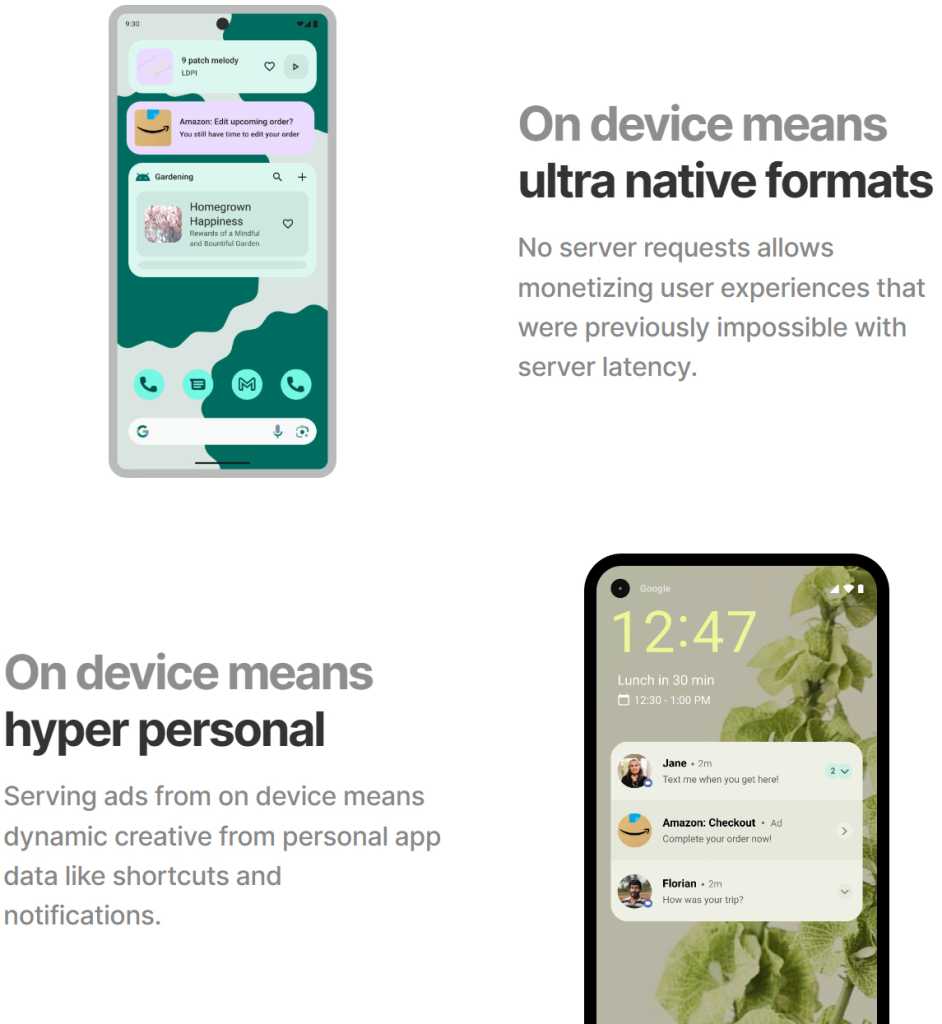
Following the discovery and subsequent outcry, Moto released a statement saying that the behavior was “unintended” and the result of its partnership with a company called Device Native. According to Moto, it had teamed up with that organization to develop “an app search and suggestion experience for the Moto App Launcher.” You can choose to interpret that how you will, but the reality is that Device Native is a company that exists to inject personalized, native-seeming ads directly into the core Android software experience, as its website plainly establishes — with “no user opt-in required,” allowing for easier “scale” of “monetization globally.”

Motorola Android - Device Native
A screenshot from the Device Native website.
Device Native / JR Raphael, Foundry

On some level, at least, Motorola evidently decided to work with this company and integrate its ad technology into the Android experience on its phones. Regardless of whether the Amazon code injection was truly deliberate, which organization caused it to happen, and who was or wasn’t aware of the actions, Motorola opted to place this ad-serving system into the phones it was selling and to allow the company behind it to exert this kind of control over its customers’ experiences — as well as, one would imagine, likely leaning on it for other forms of invasive system-level ad integration.

And sure, maybe Moto will back down from this practice and perhaps even distance itself from the partnership entirely if the outrage grows loud enough. But does someone stopping a shady-seeming practice simply because they got caught and people complained make for the kind of company you want to trust in general?

It’s similar to the way Moto lards up its devices with so much preinstalled bloatware that you actually have to fight to get through it or — Goog forbid — remove it and reclaim the product you paid hundreds of dollars to purchase. Heck, even the company’s top-of-the-line, nearly $2,000 folding Razr Fold phone is guilty of this sin, and that’s just embarrassing for a device of that price and caliber.

Even with Motorola’s lower-level phones, though, we’re talking about devices that often cost $500 or close to that. These aren’t bottom-of-the-barrel, heavily subsidized garbage gadgets. You could get one of Google’s Pixel 10a phones for that same price or often even less — without any of the bloatware, the link-hijacking and potential ad-injecting shenanigans, or the unforgivable software support failures. You’d get a full seven years of guaranteed timely and reliable software updates, from major Android versions to monthly security patches and the quarterly feature drops that accompany those. And that’s to say nothing of the superior camera experience and other assorted advantages.

You could go with one of Samsung’s midrange models, too, imperfect as those are in their own ways, and it’d still be a massive step up from the Motorola madness.

We’ve reached a point where there really is just no comparison — and, again, no reason why anyone should be buying a Motorola phone anymore. The issue, unfortunately, is that most of the people who are buying Moto devices are the same people who aren’t reading columns like these. They’re the people who waltz into a carrier store, see whatever model is featured on the shelf or pushed by a commission-earning, partnership-promoting salesperson, and walk out with whatever caught their eye or had the best promotional pricing on that particular day.

Make no mistake about it: These types of devices give Android a bad name and propagate the myth of the entire platform being a second-rate dumping ground for “folks who can’t afford iPhones.” Android is so much more and so much better than that. You deserve so much better than that.

Plain and simple, this isn’t the Motorola of yesterday. At this point, there’s no excuse — and no reason to keep setting yourself up for failure when so many better options exist.

Say goodbye, Moto. And make sure everyone you know who won’t be reading this column knows why they should do the same.

Get unmatched Android insight in your inbox with my free Android Intelligence newsletter — three new things to try and zero punches pulled every Friday.

  •  

Total Android recall: Never lose an important notification again

Google’s shiny new Android 17 update may be on the brink of making its way out into world, but one of the most consequential Android notification upgrades I’ve seen in ages is actually available for anyone, on any device, this instant.

It’s one of those things you don’t even realize is missing — and awkwardly has been, all this time — until you have it in front of you and see just how helpful and at times even invaluable it is.

And that’s the ability to have any or all of your notifications saved and restored whenever you restart whatever Android device you’re using — so that nothing important gets awkwardly tossed aside, lost, and forgotten, likely without your ever even noticing or being aware of what you’ve missed.

How many potentially important pending alerts have you lost as a result of that reboot trash chute? I couldn’t even begin to count, myself, and am slightly terrified to think of the answer. But with this easy new improvement in place, it’ll never happen again.

And best of all? It’ll take you roughly two minutes, once, to set up and then forget about and just know it’s working on your behalf from that moment forward.

Lemme show ya how.

[Keep the off-the-beaten-path knowledge coming with my free Android Intelligence newsletter — three new things to try every Friday and my Android Notification Power-Pack as a special welcome bonus!]   

Your new Android notification safety net

The secret sauce that makes this sorcery possible comes not from Google itself but from a crafty independent developer who’s been expanding our Android notification smarts for many a moon now.

His app is called BuzzKill. You’ve probably heard me rave about it before, with other noteworthy features and additions it’s introduced over time.

Whether you already have BuzzKill on your device or this is your first time encountering it, though, it’s well worth your while to take note of this new capability that snuck into the app not long ago.

First, a quick primer/refresher on what BuzzKill is, in case you aren’t already familiar: BuzzKill is essentially a way to create Gmail-like filters for your Android notifications. You use it to create simple custom rules for what happens when different types of notifications arrive — in an intuitive “if this, then that”-style form — with all kinds of interesting and advanced options for making your alerts more effective.

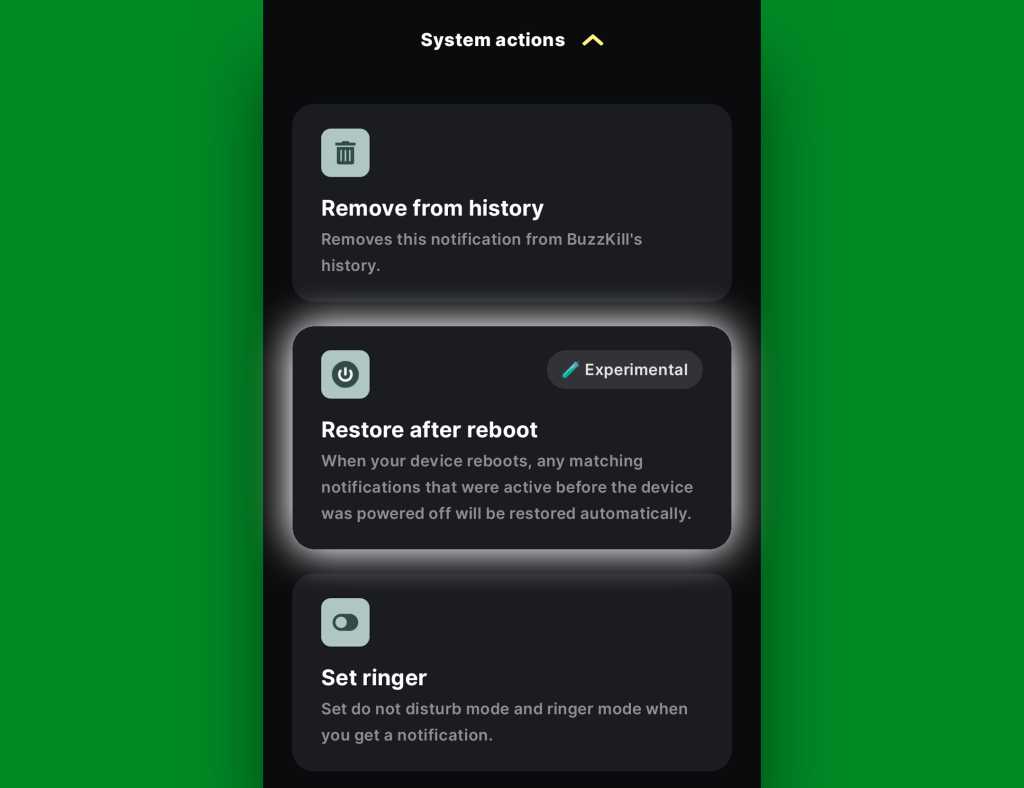
The latest addition to the app is an experimental option called, appropriately enough, “Restore after reboot.” And it does exactly what you’d expect: Anytime your device restarts, it automatically swoops in to save any active notifications that fit the parameters you select and then instantly restores ’em back into active status once your phone is back up and running.

Without such a system in place, any notifications that you either hadn’t yet looked at or maybe had glanced at and left pending as a reminder to deal with later would more often than not just vanish entirely — and you’d have no easily visible record of their presence or any real indication that they’d been there at all. That’s a dangerous recipe for forgetting something important, whether it’s an email you intended to engage with, a Slack message you needed to acknowledge, or even a task of some sort that had popped up for you to ponder.

The beauty of the BuzzKill approach to fixing this is that it really is a “set it and forget it” sort of system: You just create whatever rule you want now, get it up and running, and then rest easy knowing it’ll always find and restore any active notifications anytime your device restarts — as Android itself should but for whatever reason does not.

2 minutes to auto-restored Android notifications

All right — here are the specific steps to getting your new notification safety net in place:

  • First, go download BuzzKill from the Play Store, if you don’t already have it.
    • The app costs four bucks as a one-time purchase, which — believe me — is nothing compared to the ongoing value it’ll give you with this and its many other notification-enhancing possibilities.
    • It doesn’t require any unusual permissions, doesn’t collect any form of data from your phone, and doesn’t have any manner of access to the internet — meaning it’d have no way of sharing your information even if it wanted to. 
  • Once you’ve gone through the app’s initial setup and made your way to its main screen, tap on the circular button in the lower-right corner of the screen to create a new rule.
  • On the screen that comes up next, consider which specific sorts of notifications you want to have restored whenever your device restarts.
    • You could always start with any and all notifications and then go back in to refine and limit the rule more once you see how it works. You might eventually want to ask it to avoid restoring alerts from certain low-priority apps — like, say, Google Photos — so that it doesn’t bother bringing back stuff that you don’t actually need.
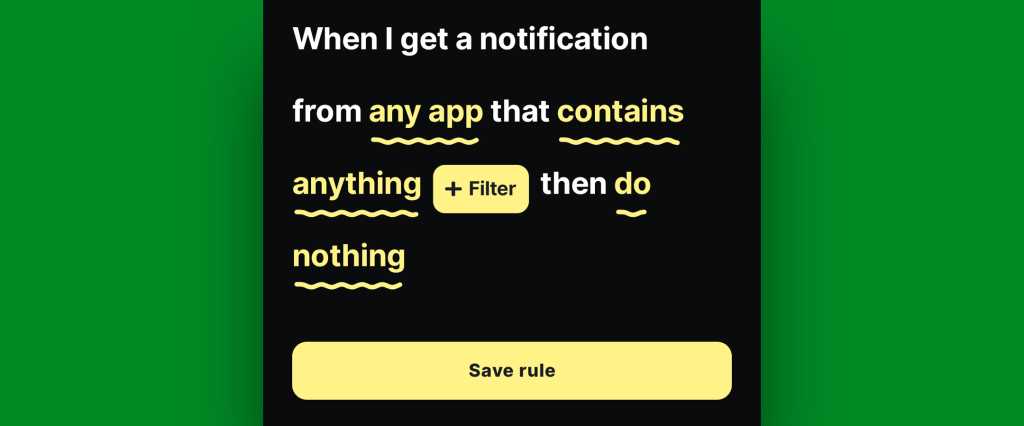
    • If/when you want to create any such restrictions, tap the text that says “any app” to change which apps will be included and/or tap the text that says “contains anything” if you want to restrict based on what specific text a notification does or doesn’t include.
    • If you don’t want to create any limitations and just want all of your active notifications to be restored, at least to start, leave those lines alone and mosey on down to our next step.
Android notification restore: BuzzKill rule
BuzzKill’s simple “if this, then that” formatting gives you lots of flexibility with how and when your rule works.

JR Raphael, Foundry

  • Tap the line that says “do nothing” and scroll down to find the “Restore after reboot” option. It’ll be toward the bottom of the list, within the “System actions” section.
Android notification restore: BuzzKill rule active
The “Restore after reboot” action is described as experimental, but it seems to work quite well in my experience so far.

JR Raphael, Foundry

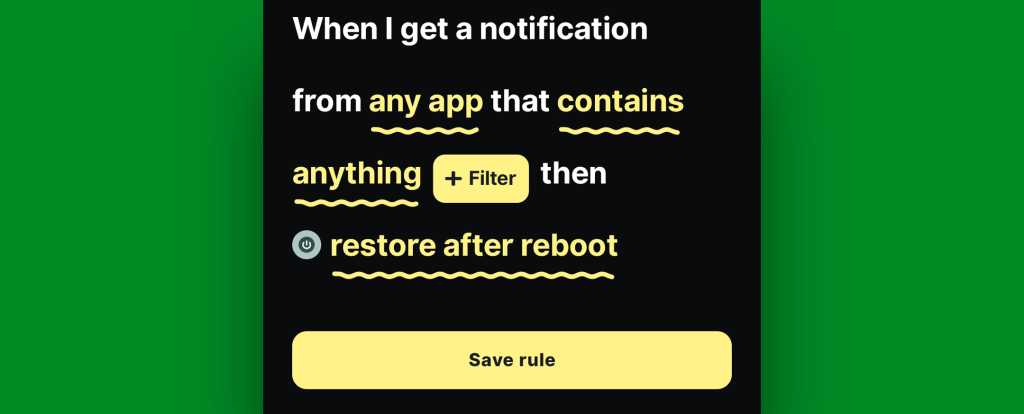
  • Tap that, then tap “Pick action” to confirm.
  • And last but not least, tap “Save rule” to, y’know, save your rule and set it into action.
Android notification restore: BuzzKill rule complete
The BuzzKill notification restoration equation, in its simplest possible form.

JR Raphael, Foundry

You should then see the rule showing up as active and running on the main BuzzKill screen.

Android notification restore: BuzzKill action
Notification restoration — active and ready to spring into action whenever your phone restarts.

JR Raphael, Foundry

And that really is all there is to it: Whenever your phone next restarts, any notifications that were visible and active at the time of the restart should just show back up via BuzzKill as soon as things boot back up. If you want to get fancy, you could even make certain especially important notifications “sticky” in general, so that if you inadvertently swipe ’em away while your phone is running normally, they’ll automatically come right back even in that scenario.

It’s not the flashiest feature you’ll see this year, and it doesn’t have any whizbang AI shenanigans to make it seem headline-worthy by current-day standards. But it will work and quite possibly be one of the most practical, actually helpful additions you make to your phone all year — even if and arguably especially if you only think about it once in a great while, when you notice it working its magic and saving you from losing something significant.

Discover even more life-enhancing Android treasures with my free Android Intelligence newsletter — three new things to try every Friday and my free Android Notification Power-Pack today.

  •  
❌