❌

Reading view

Multitasking is the Galaxy Z Fold 8's superpower. Here's how to unleash its full potential

Whether you've just joined the foldable revolution or you've been a long-time foldable phone user, you're probably already aware of how amazing it is to have a mini tablet that folds and fits easily in your pocket. That feels more true than ever since the Galaxy Z Fold 8 came along.

But did you know that your Galaxy Z Fold 8 isn't just a massive canvas for one big app? Samsung makes it easy to run more than one app on your screen at once, and a handful of nifty new multitasking features on the Galaxy Z Fold 8 line further enhance what was already one of the best multitasking experiences in the business.

Whether you want to juggle two apps more efficiently, use a 3-way split screen, or run even more apps at once, the Galaxy Z Fold 8 is a great way to get things done without a laptop or another larger device.

The taskbar is the key

When you open your Galaxy Z Fold 8, you've probably seen that little floating taskbar appear at the bottom of the screen. By default, this taskbar isn't meant to stick around for long, but one setting changes that.

By pinning the taskbar, you can effortlessly open multiple apps at once, or quickly juggle between apps faster than you can by constantly going back to the home screen. Here's how to supercharge the taskbar:

1. Unfold the phone to use the larger inner display.

2. Open the Settings app.

3. Scroll down and tap Display.

4. Scroll down and tap Taskbar.

5. Tap Taskbar style.

6. Select Stay on screen.
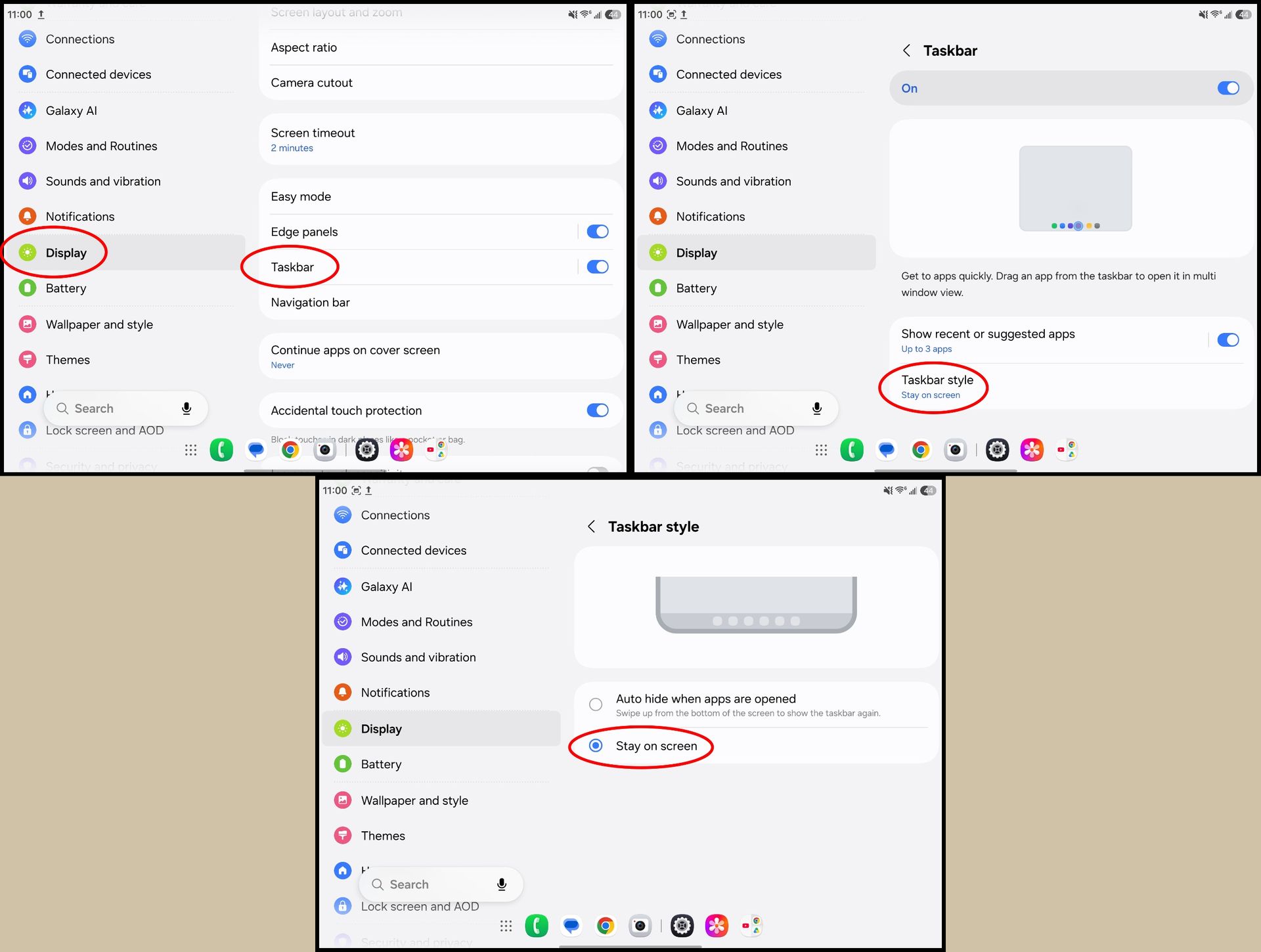
Making the taskbar on a Samsung Galaxy Z Fold 8 stay visible at all times

(Image credit: Android Central)

Now, the taskbar will always be visible on the inner display. You can tap any app icon to open that app, but the real magic happens when you press and hold an icon, then drag it around the screen. This lets you easily launch multiple apps at a time and split them any way you want.

Splitting the action
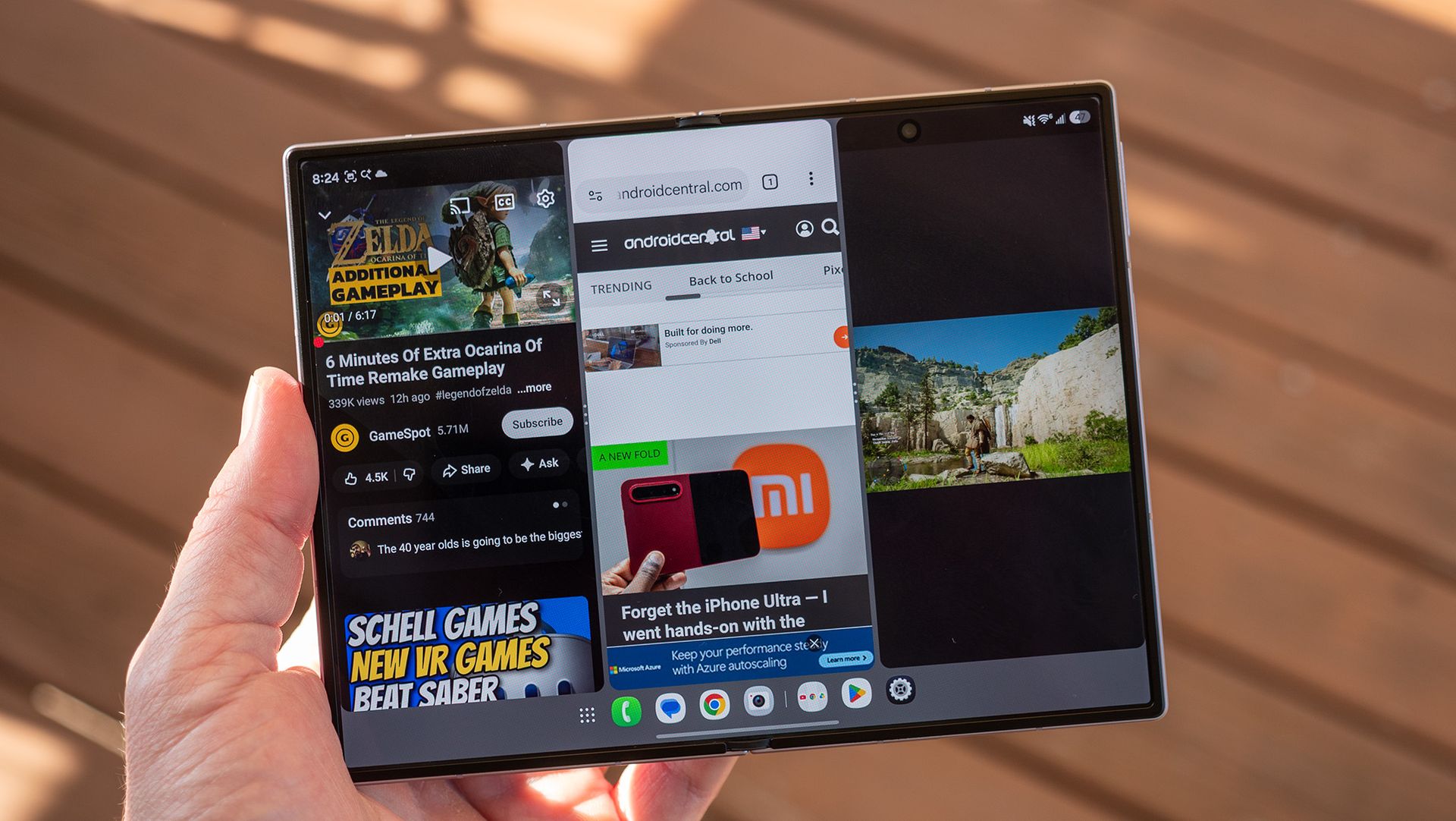
3-way multitasking on a Samsung Galaxy Z Fold 8

(Image credit: Nicholas Sutrich / Android Central)

Samsung launched two new multitasking features with the Galaxy Z Fold 8, including 3-way split screen and a new way to juggle between layouts. To get started, choose three apps you want to run side by side. For this example, I'm using YouTube, Chrome, and Google Docs.

1. Unfold the phone to use the larger inner display.

2. Open any app of your choosing. I started with Chrome.

3. Press and hold another app's icon, then drag it to any side of the screen. You'll see indicators to snap the app to a specific area on the screen.
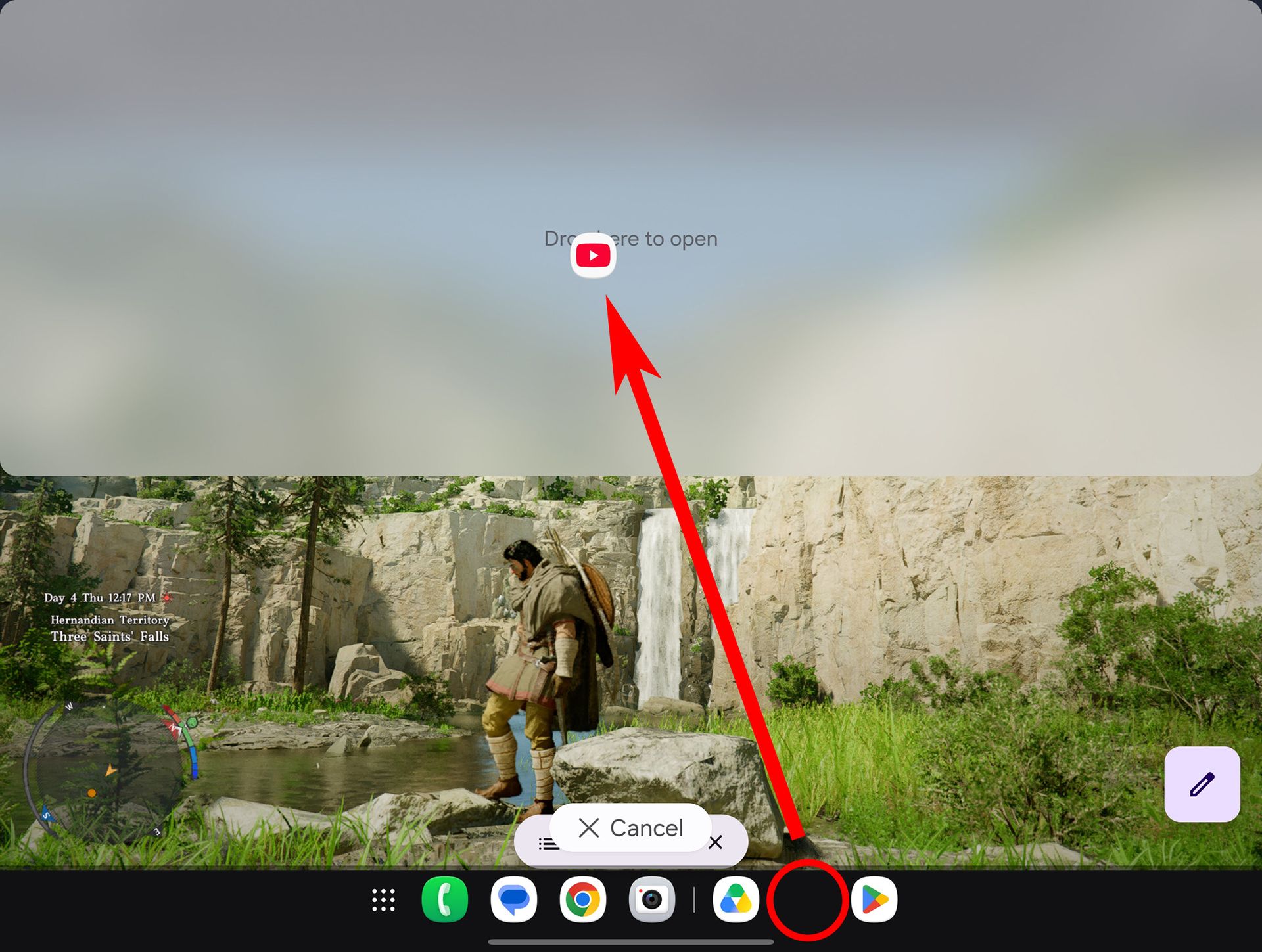
Using the taskbar to run 2 apps in split screen on a Samsung Galaxy Z Fold 8

(Image credit: Android Central)

4. Choose another app from the taskbar. If you don't see the app you want, tap the app drawer button on the left side and choose it from there.

5. Drag this new app to a third section of the screen. Your Galaxy Z Fold 8 will show indicators for where you can drop the app.
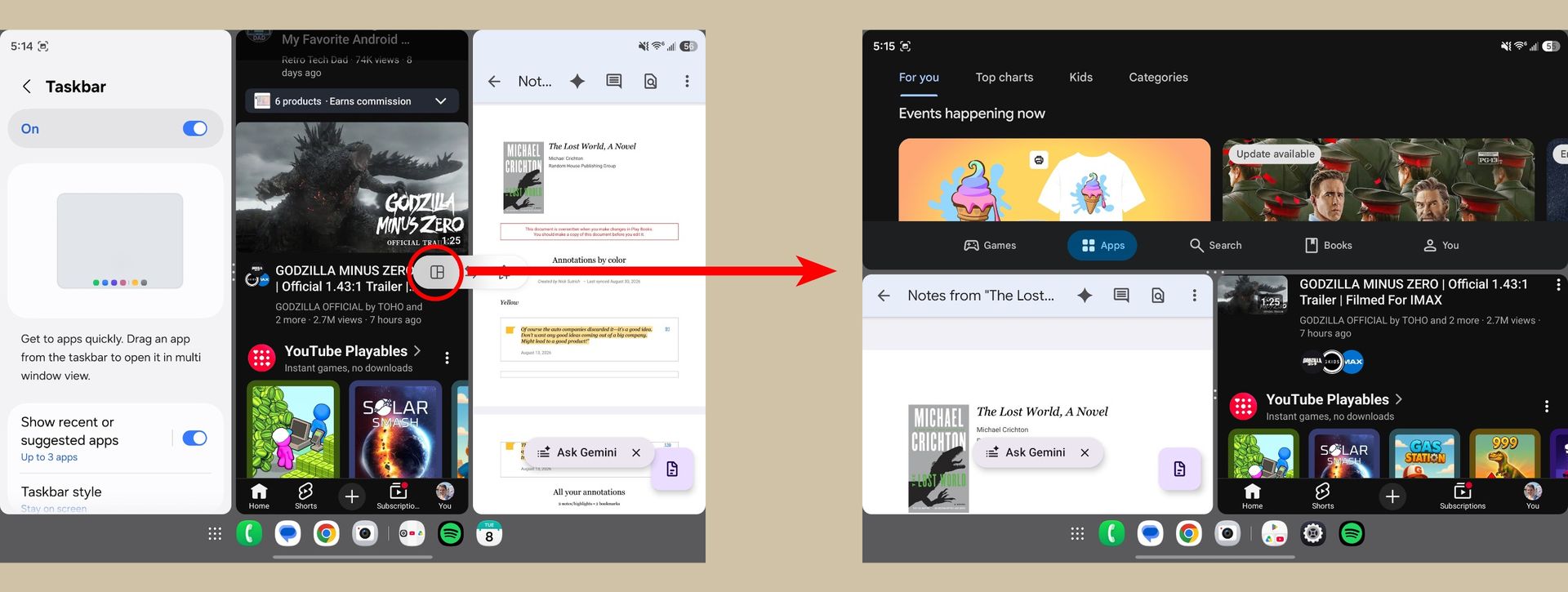
Selecting different three-way app split screen layouts on a Samsung Galaxy Z Fold 8

(Image credit: Android Central)

Now that you have three apps running at once, you can play around with the layout. Most commonly, this means three apps run side by side, but Samsung offers many layout options. Personally, I think three apps side-by-side makes them a bit too small to be useful, and that's where we'll start.

To enlarge an app, grab any separation bar by the "handle" β€” the part with the dots β€” and drag it outward. When running three apps at once, this will enlarge one app while leaving the others at the default size.
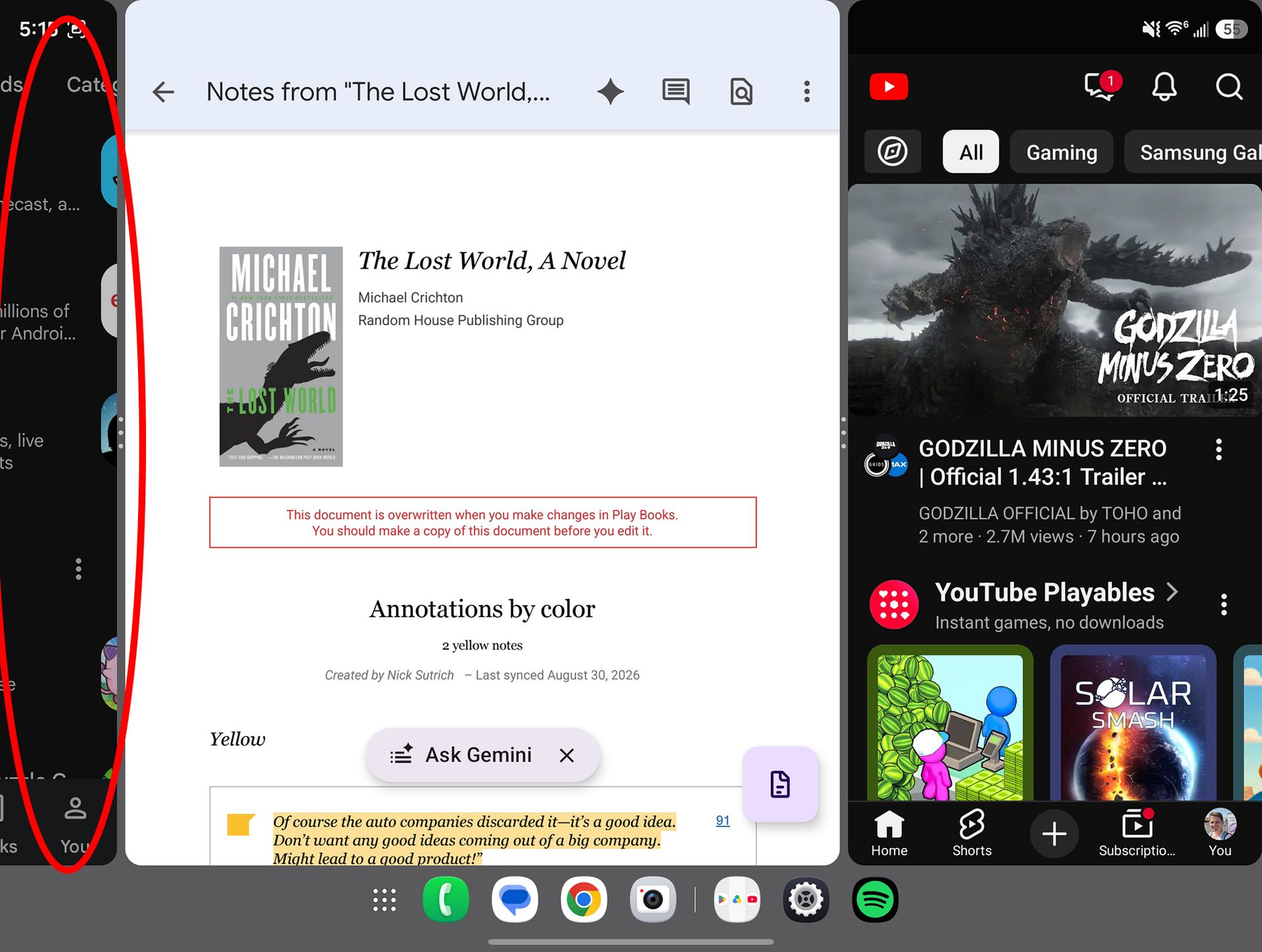
Multitasking with three big apps on a Samsung Galaxy Z Fold 8

(Image credit: Android Central)

Here's the coolest part about this setup: when you've got multiple larger apps running at once, the others will hang "off to the side." That lets you run nearly full-screen apps and quickly switch between them by just tapping the app that's off to the side.

But if you want all the apps on one screen and don't want them all vertical, tap any of the "handles" β€” remember, that's the part of the separator line with the dots β€” then tap the grid icon that appears. Your apps will now be separated into one half-sized app alongside two quarter-sized apps.
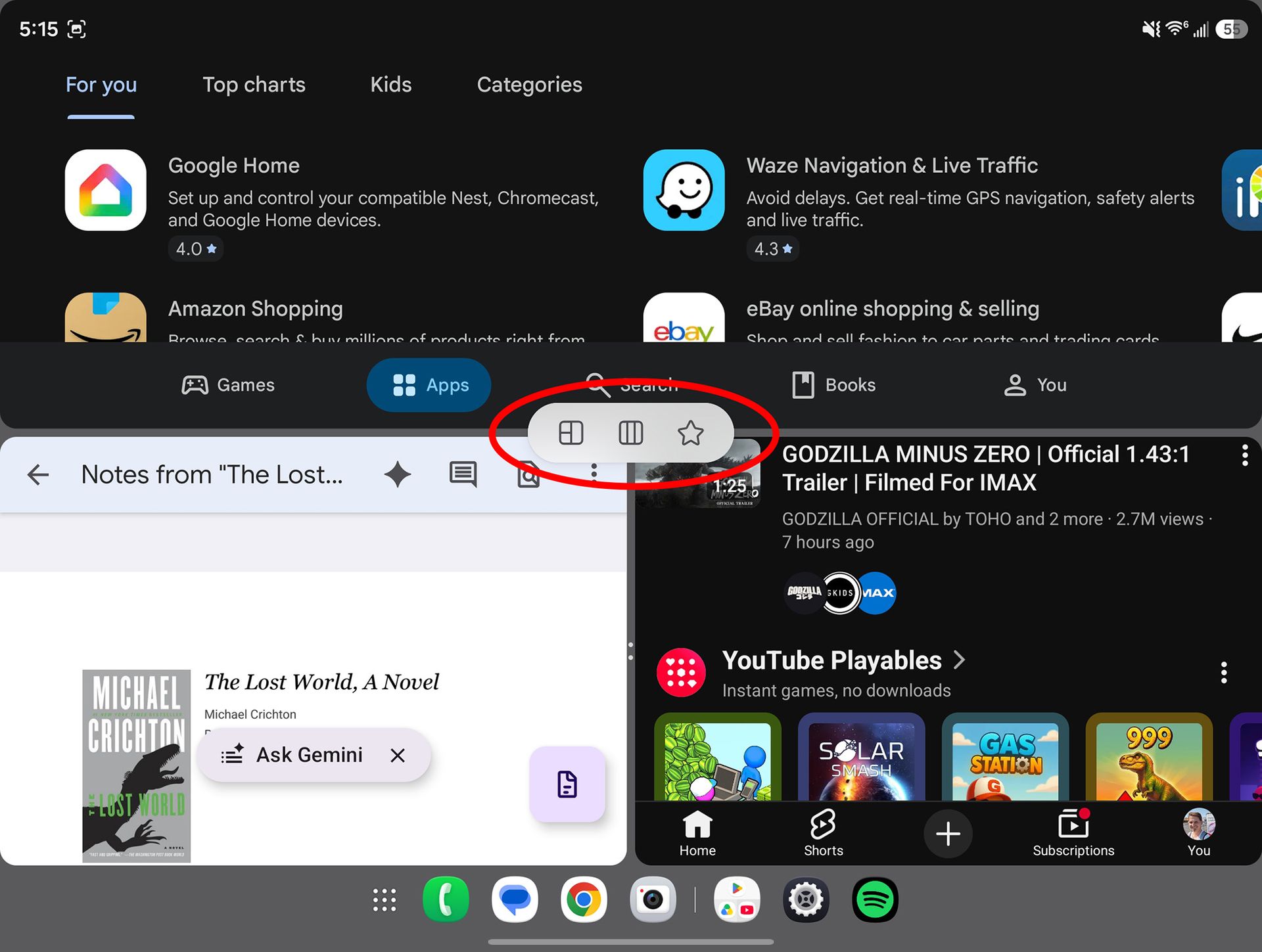
Selecting new layouts in three-app multitasking on a Samsung Galaxy Z Fold 8

(Image credit: Android Central)

Tapping the handle also brings up additional options. You can easily swap apps between frames by tapping the handle between those two apps, then tapping the "swap" arrow icon. Additionally, you can tap the other grid icon to swap the location of the grid. That lets you move quarter-sized apps from the left to the side half of the screen, and vice versa.

You can even hover an app by dragging the app icon to the center of the screen, letting you run four or more apps at once, similar to a desktop OS. Which layout is your favorite? Let us know in the comments!

  •  

Google Pixel Watch 5 vs. Pixel Watch 4: Spot the difference!

Official Google Pixel Watch 5

Google
Pixel Watch 5

The best for the future

The Pixel Watch 5 sports 50% more RAM, a faster processor, and proper on-device Gemini Nano models, so we fully expect to see Google roll out significant new features for this watch over the next 3 years while the device is supported. RAM is especially important for AI features, so this is the watch to get if you care about those.

Pros

  • Same battery life
  • Fast charging
  • Faster processor
  • Even more accurate GPS tracking
  • 50% more RAM and 2x storage
  • On-device Gemini Nano

Cons

  • Some features unavailable at launch
  • Same non-rugged design
  • Costly Fitbit Premium subscription after the free trial

Google Pixel Watch 4

Google
Pixel Watch 4

The best for your budget

The Pixel Watch 4 was an excellent 2025 release, and that means it's going to be easy to find one at a significant discount a year later. Even though it's got 50% less RAM (and will probably miss out on some future Gemini features because of it), this is a solid choice if you mainly care about workout tracking and messaging.

Pros

  • Same great OS
  • Identical charging
  • Striking domed design
  • Dual-frequency GPS tracking
  • Easily repairable

Cons

  • Design isn't rugged, with no sapphire glass
  • Costly Fitbit Premium subscription after the free trial
  • Gemini requires an internet connection

You've certainly heard this one before: on the surface, the Google Pixel Watch 4 and Pixel Watch 5 look identical. They've got the same beautiful domed glass design, use the same fast-charging solution, and sport the latest version of Google's Wear OS platform. But under the hood (or glass, I suppose), things are quite different.

The Pixel Watch 5 features 50% more RAM and 2x storage, a faster processor, more accurate GPS tracking, and on-device Gemini Nano. For just $30 more, it's a surprisingly good spec bump that's a worthwhile upgrade for anyone coming from an older Pixel Watch (or something else, entirely).

Of course, at this point, you could probably find a Pixel Watch 4 for much less, and that would be a great purchase, especially if we're talking something like $100 less than the Pixel Watch 5. Let's explore what these differences mean and if the newer Watch 5 is the best choice for you.

Google Pixel Watch 5 vs. Pixel Watch 4: Design, hardware, and specs

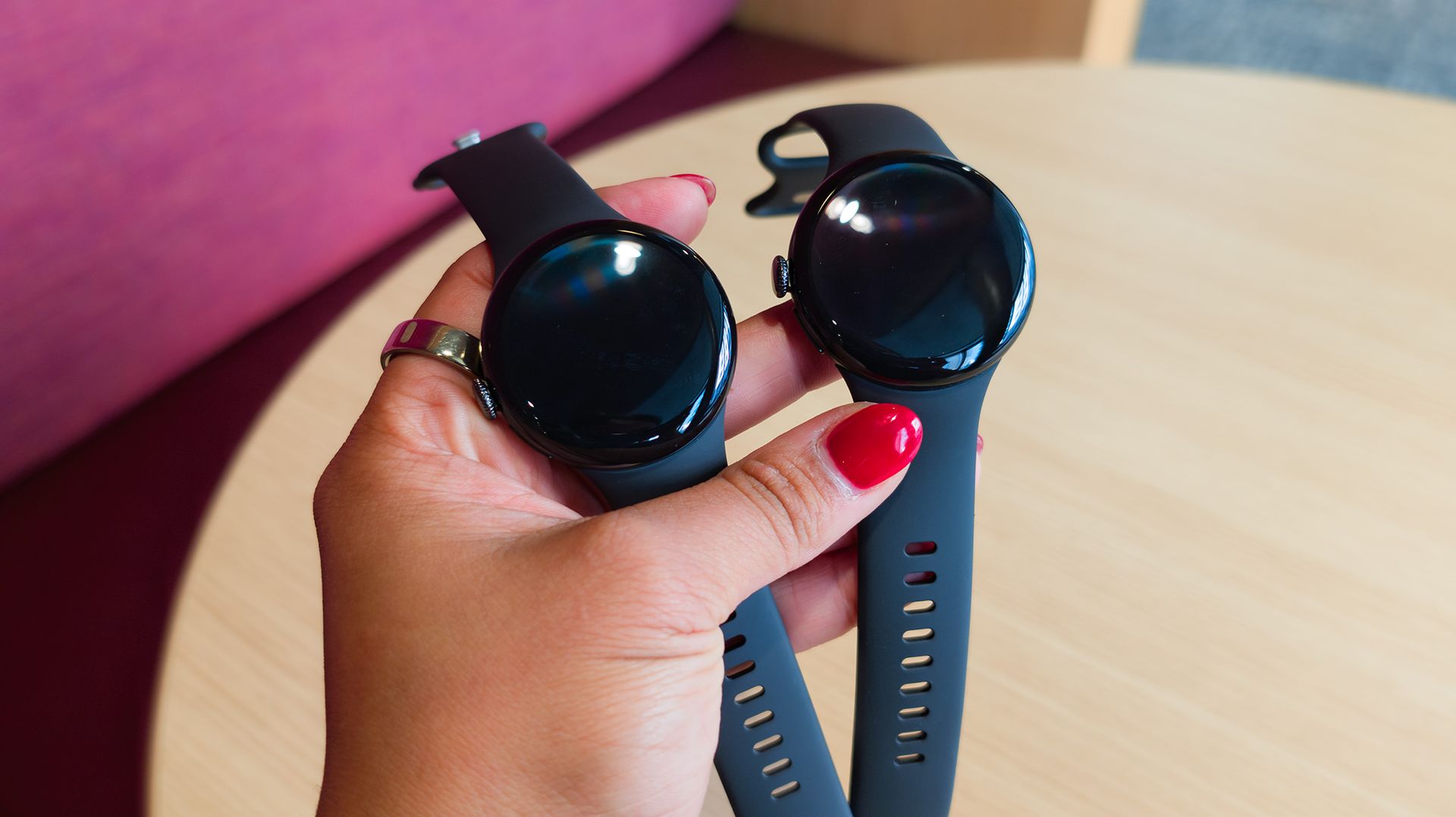
Comparing the Google Pixel Watch 4 (left) with the Google Pixel Watch 5 (right)

(Image credit: Shruti Shekar / Android Central)

As you can see from the image above, both watches look identical. They've got the exact same dimensions and weight, use the same glass dome, have the same water and dust resistance, diving specs, and even all the same sensors. It's even got the same 3,000-nit display.

Specs

Google Pixel Watch 5

Google Pixel Watch 4

OS

Wear OS 7

Wear OS 7

CPU

Snapdragon W5 Gen 2 Accelerated, Cortex M55 co-processor

Snapdragon W5 Gen 2, Cortex M55 co-processor

Display

Actua 360 AMOLED LTPO display, 320ppi

3,000 nits, 1-60Hz refresh rate

Actua 360 AMOLED LTPO display, 320ppi

3,000 nits, 1-60Hz refresh rate

RAM

3GB

2GB

Storage

64GB

32GB

Connectivity

Bluetooth 6, Wi-Fi 2.4/5GHz, NFC, UWB, LTE (optional), dual-frequency GPS, Galileo, Glonass, (ROW) Beidou, QZSS, Navic, Satellite SOS,

Bluetooth 6, Wi-Fi 2.4/5GHz, NFC, UWB, LTE (optional), dual-frequency GPS, Galileo, Glonass, (ROW) Beidou, QZSS, Navic, Satellite SOS,

Sensors

Compass, altimeter, barometer, magnetometer, 3-axis accelerometer, gyroscope, ambient light, multi-path optical heart rate sensor, cEDA, SpO2, ECG, far field skin temperature sensor

Compass, altimeter, barometer, magnetometer, 3-axis accelerometer, gyroscope, ambient light, multi-path optical heart rate sensor, cEDA, SpO2, ECG, far field skin temperature sensor

Battery

41mm: 332mAh, 30 hours with AOD, 48 hours with Battery Saver

45mm: 465mAh, 40 hours with AOD, 72 hours with Battery Saver

41mm: 325mAh, 30 hours with AOD, 48 hours with Battery Saver

45mm: 455mAh, 40 hours with AOD, 72 hours with Battery Saver

Charging

41mm: 15 minutes to 50%, 25 minutes to 80%, 45 minutes to 100%

45mm: 15 minutes to 50%, 30 minutes to 80%, 60 minutes to 100%

41mm: 15 minutes to 50%, 25 minutes to 80%, 45 minutes to 100%

45mm: 15 minutes to 50%, 30 minutes to 80%, 60 minutes to 100%

Materials

Recycled aluminum

Recycled aluminum

Protection

Custom Corning Gorilla Glass 5, 5ATM, IP68

Custom Corning Gorilla Glass 5, 5ATM, IP68

Band

Active (fluoroelastomer)

Active (fluoroelastomer)

Dimensions

41 x 41 x 12.3mm

45 x 45 x 12.3mm

41 x 41 x 12.3mm

45 x 45 x 12.3mm

Weight (w/out band)

41mm: 31g

45mm: 36.7g

41mm: 31g

45mm: 36.7g

Colors

Matte Black, Polished Silver, Satin Pyrite, Champagne Gold (41mm only)

Stephen Curry Special Edition (45mm only)

Matte Black Aluminum, Polished Silver Aluminum, Satin Moonstone Aluminum (45mm), Champagne Gold (41mm)

The Pixel Watch 5 has a 2% larger battery than the Pixel Watch 4, which helps give it the same battery life as the Pixel Watch 4, even though the Watch 5 has a chipset that's 20% faster. The Pixel Watch 5 also ships with 3GB of RAM and 64GB of storage, while the Watch 4 only has 2GB of RAM and 32GB of storage.

The extra 1GB doesn't sound like much, but it enables Gemini Nano to function properly, and the extra storage means you can download more music and podcasts for listening while you work out.

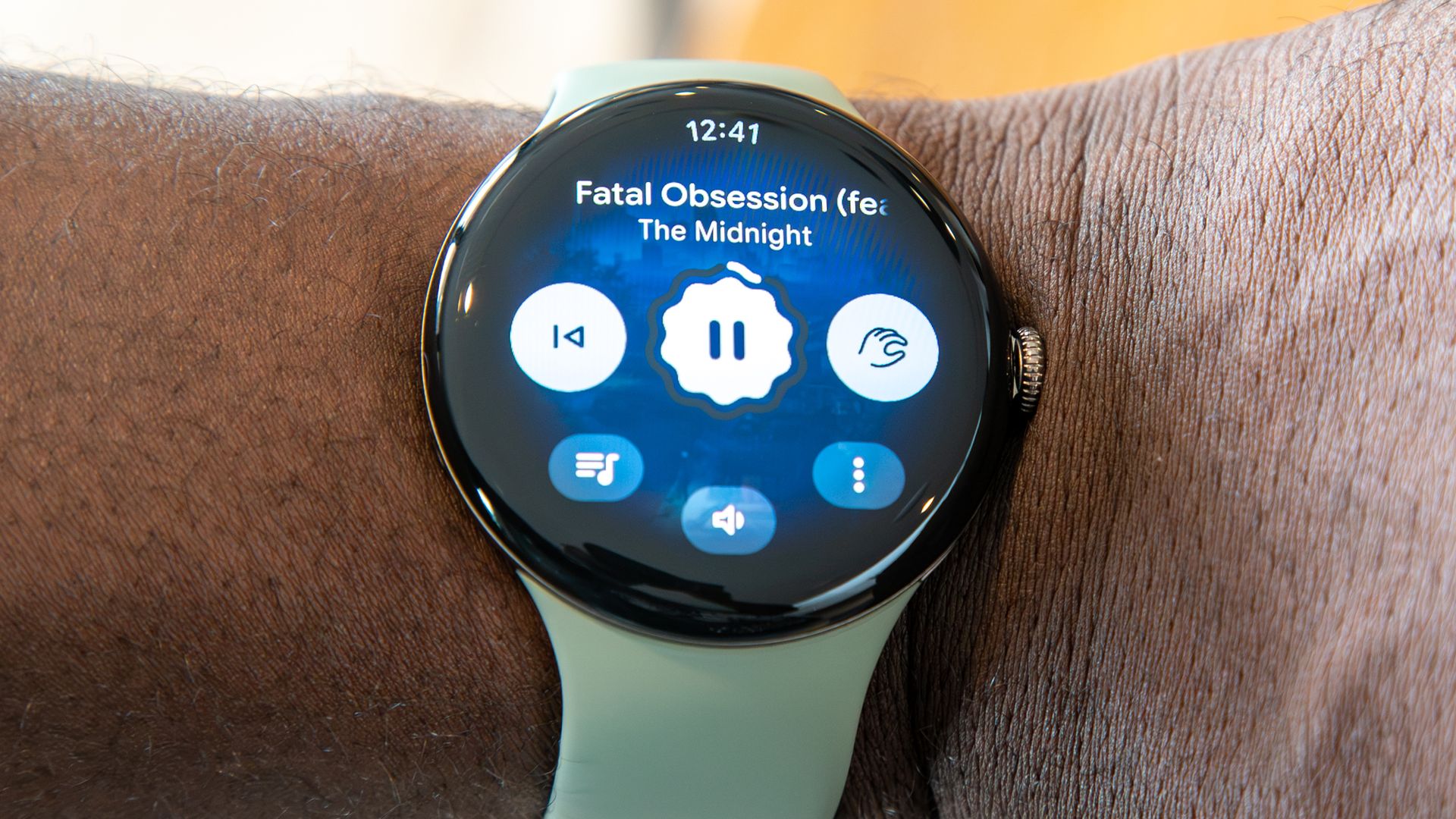
Media player and pinch gesture on the Pixel Watch 5

(Image credit: Derrek Lee / Android Central)

Both models feature Google's superb haptic engine, the lovely rotating crown, a super shiny, bubbly exterior, support for all the same wristbands, and the same great connection capabilities.

Google Pixel Watch 5 vs. Pixel Watch 4: Software and AI

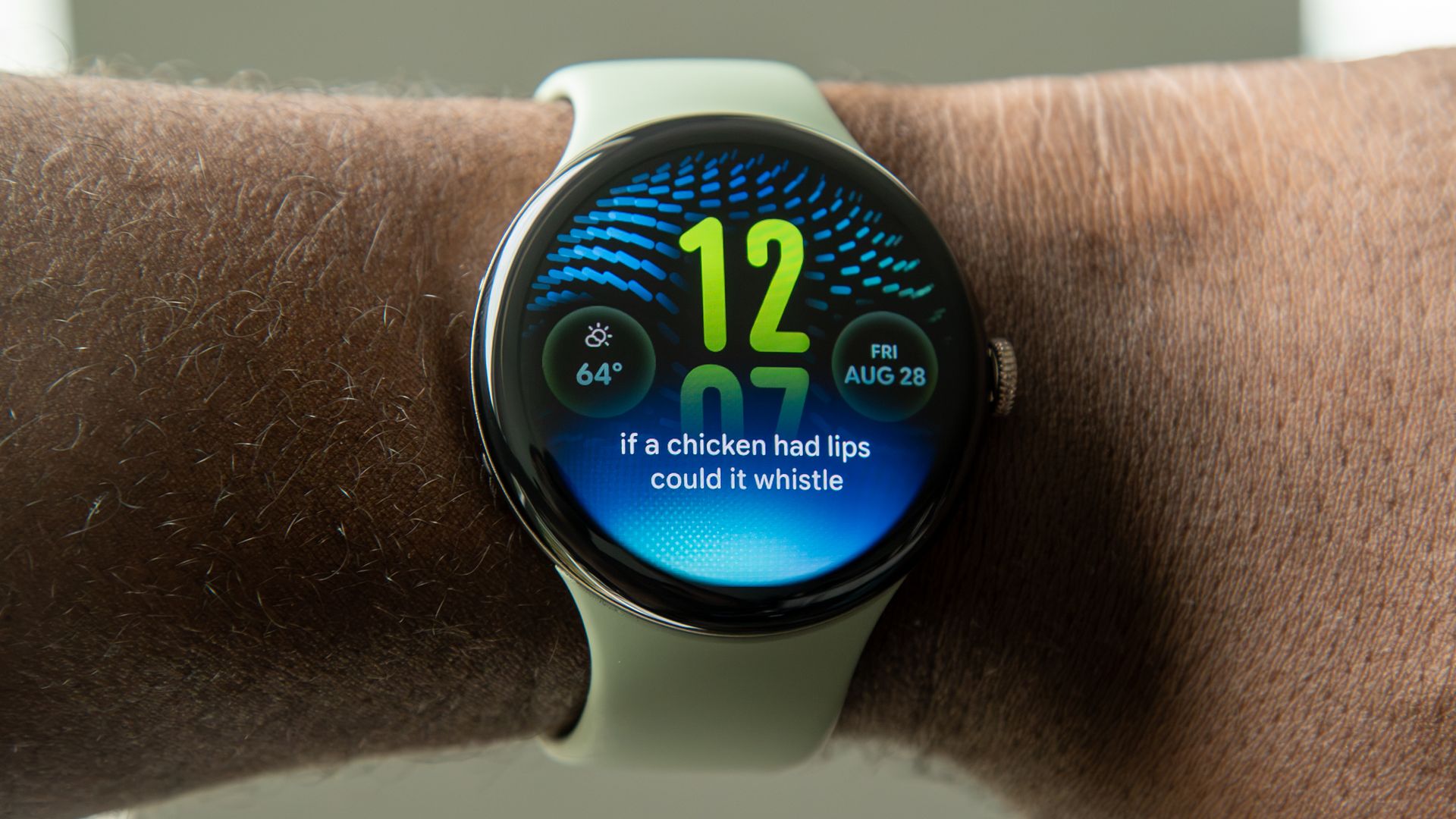
Gemini on the Pixel Watch 5

(Image credit: Derrek Lee / Android Central)

There's no meaningful difference between the features on these watches, but there are a few things to note. Google's new Health Guardian is supported back to the Pixel Watch 3, so you can buy an even older (and cheaper) Pixel Watch if insulin resistance and blood pressure trends are your main reason for looking at new hardware. You can even sideload Pixel Watch 5 watch faces onto a Pixel Watch 4, if you want.

The real difference lies in Gemini capability and software support. The Pixel Watch 4 will get OS updates through October 2028, while the Watch 5 is supported through October 2029. That extra year of support will likely include new Gemini-based features, too, since the Pixel Watch 5 has 50% more RAM.

And speaking of Gemini, the Watch 5 supports onboard Gemini Nano, so all those simple commands (like starting a timer, controlling workouts or music with your voice, toggling settings) are all instant, while the Pixel Watch 4 needs an internet connection to get the job done. That may not matter most of the time, but it will make a difference if you're out on a run and don't have your phone (or an LTE connection) with you.

Google Pixel Watch 5 vs. Pixel Watch 4: Health and workout tracking

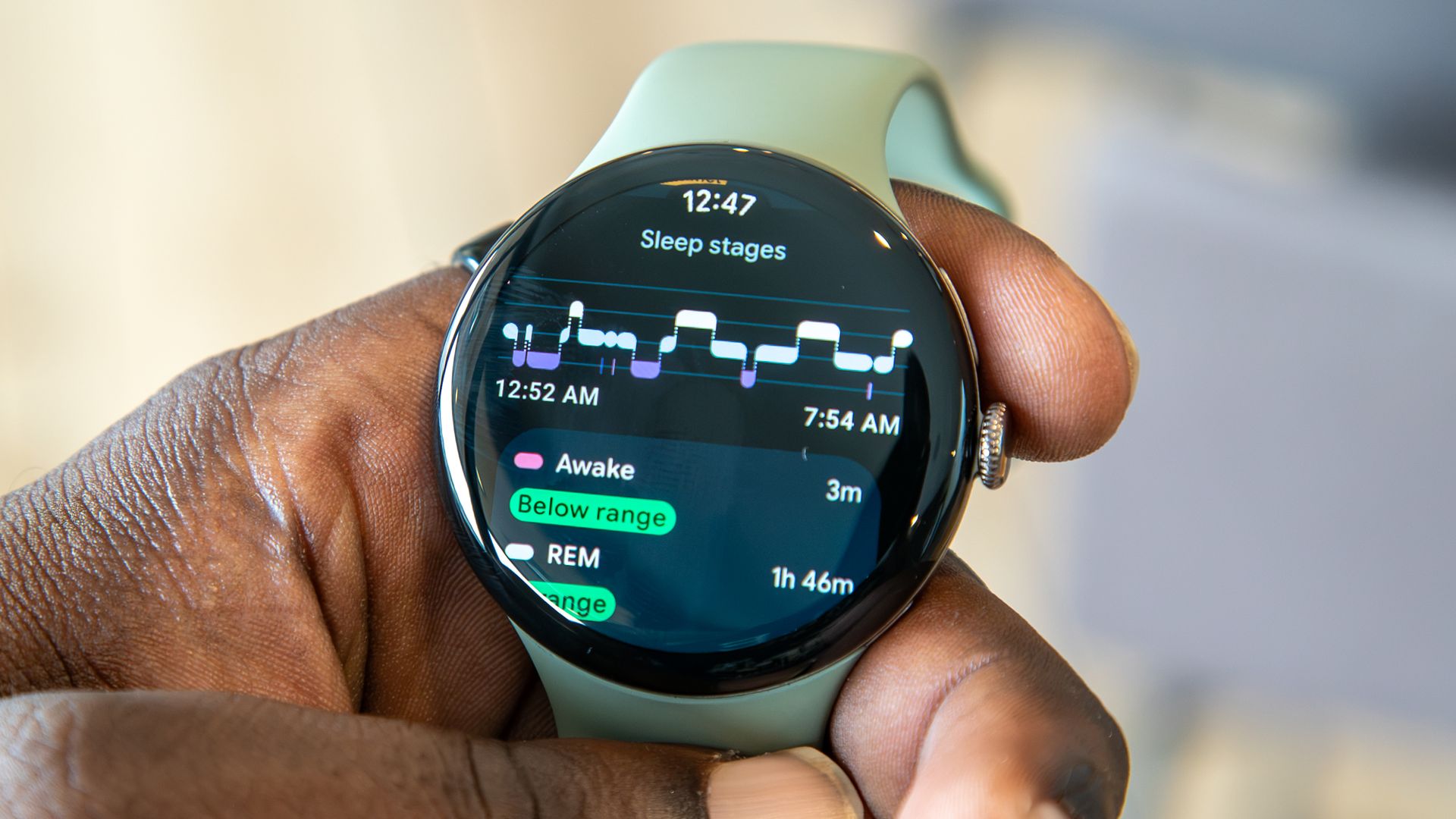
Sleep metrics on the Pixel Watch 5

(Image credit: Derrek Lee / Android Central)

Google announced a ton of great new health features alongside the Pixel Watch 5, and the good news is that all of those features are headed to the Pixel Watch 4. The new insulin resistance and blood pressure trends features are all here.

The only real difference lies in Google's new enhanced GPS tracking on the Pixel Watch 5, which further improves accuracy from the already excellent dual-band tracking on the Pixel Watch 4. This will come in handy if you navigate Google Maps a lot on your watch, especially in a city, but might not be a big deal otherwise.

Google Pixel Watch 5 vs. Pixel Watch 4: Which should you buy?

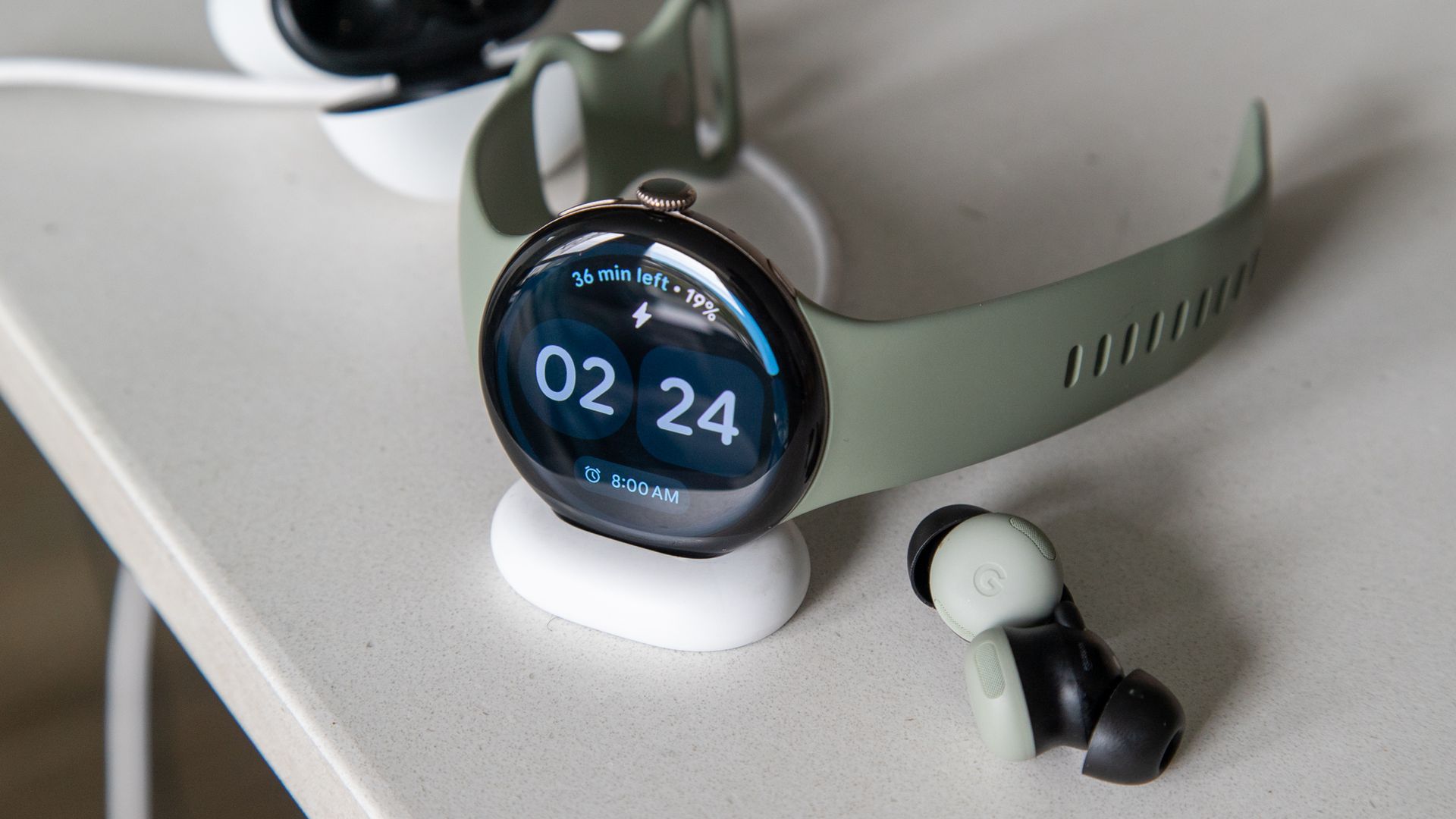
The Pixel Watch 5 charging next to the Pixel Buds 2 Pro

(Image credit: Derrek Lee / Android Central)

At retail price, it makes more sense to buy a Pixel Watch 5. For just $30 more, you're getting double the RAM, a faster processor, proper on-device Gemini capability, and an extra year of software support. That's a no-brainer choice.

If you can find the Pixel Watch 4 for at least $100 less, however, the tide changes a bit. It's still a less capable watch, but most people won't care about the fancy new features if they can save a ton of money in the process. Just remember that the Pixel Watch 4 only has two more years of software support left (ending in October 2028) if you're worried about that.

Official Google Pixel Watch 5

Google
Pixel Watch 5

The best Pixel Watch yet

Upgraded hardware and additional RAM and storage make this a more future-proof option than the Pixel Watch 4. The features might be the same for now, but we expect that to change in the future as Google continues to build out Gemini capabilities.

Google Pixel Watch 4

Google
Pixel Watch 4

A great budget pick

Don't care much about Gemini or slightly more accurate GPS tracking? The Pixel Watch 4 is the perfect way to experience Google's best smartwatch experience without the higher price of the Pixel Watch 5.

  •  

Dbrand's newest minimalist cases stray far from the company's usual vibes

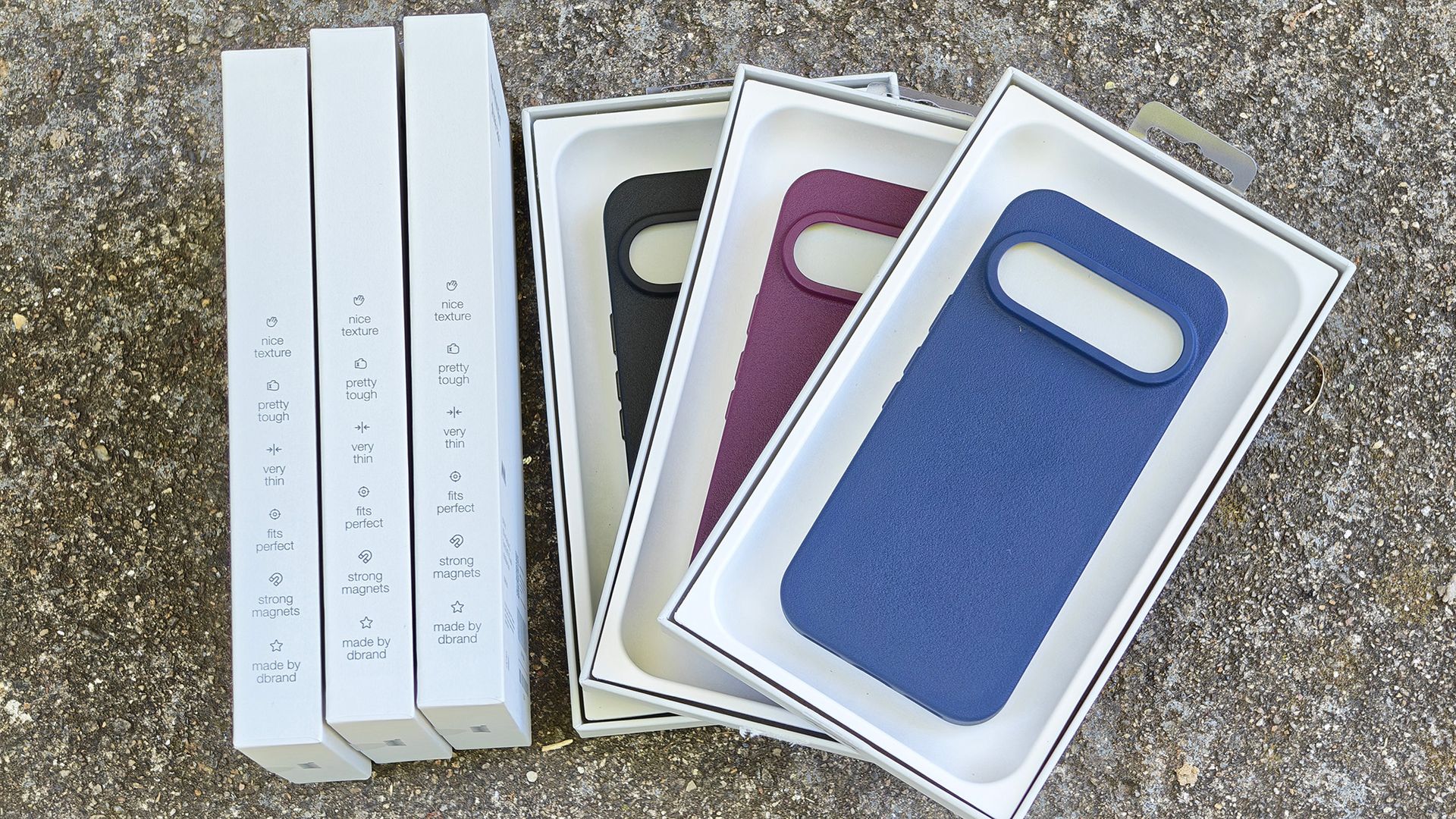
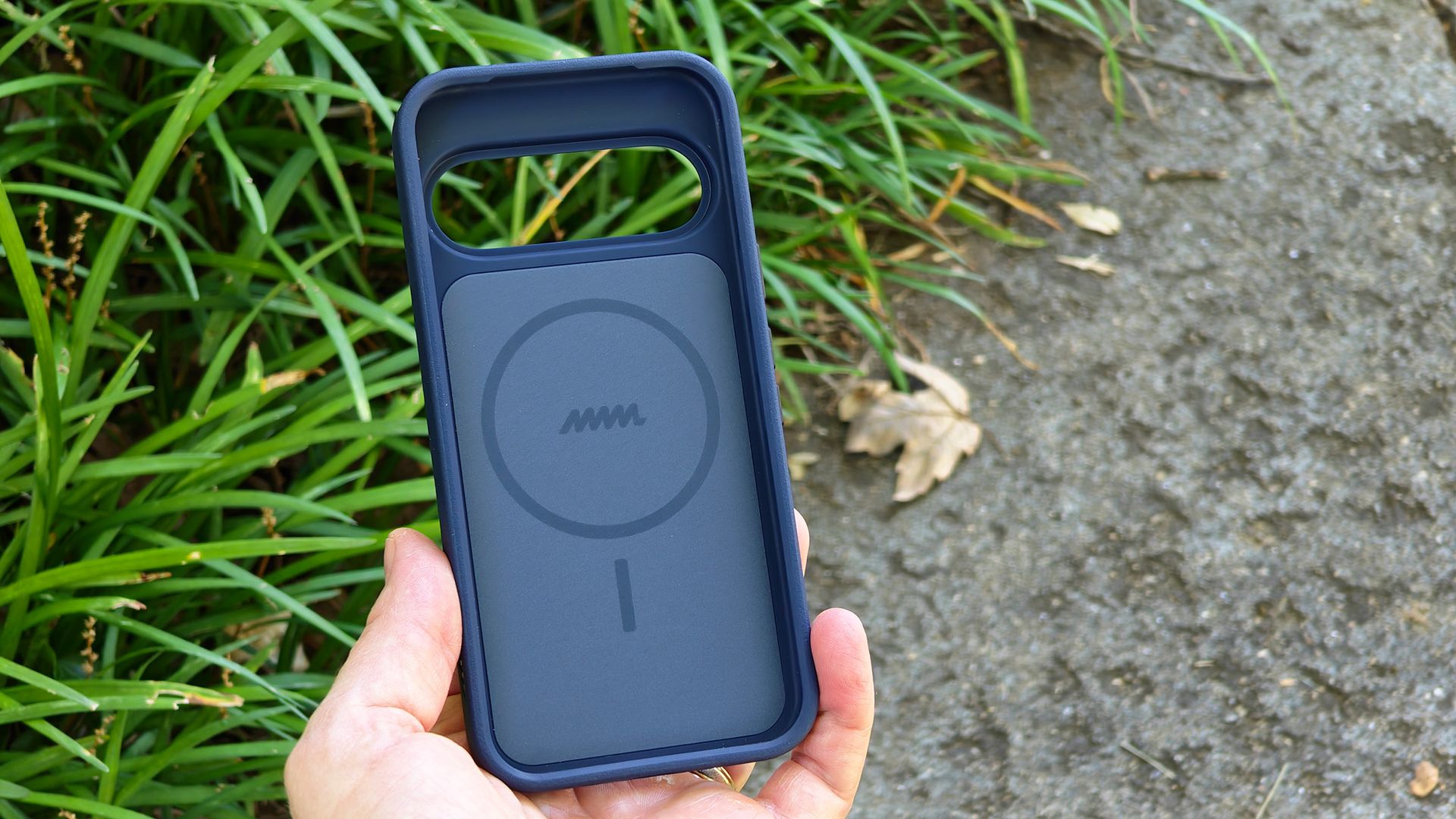
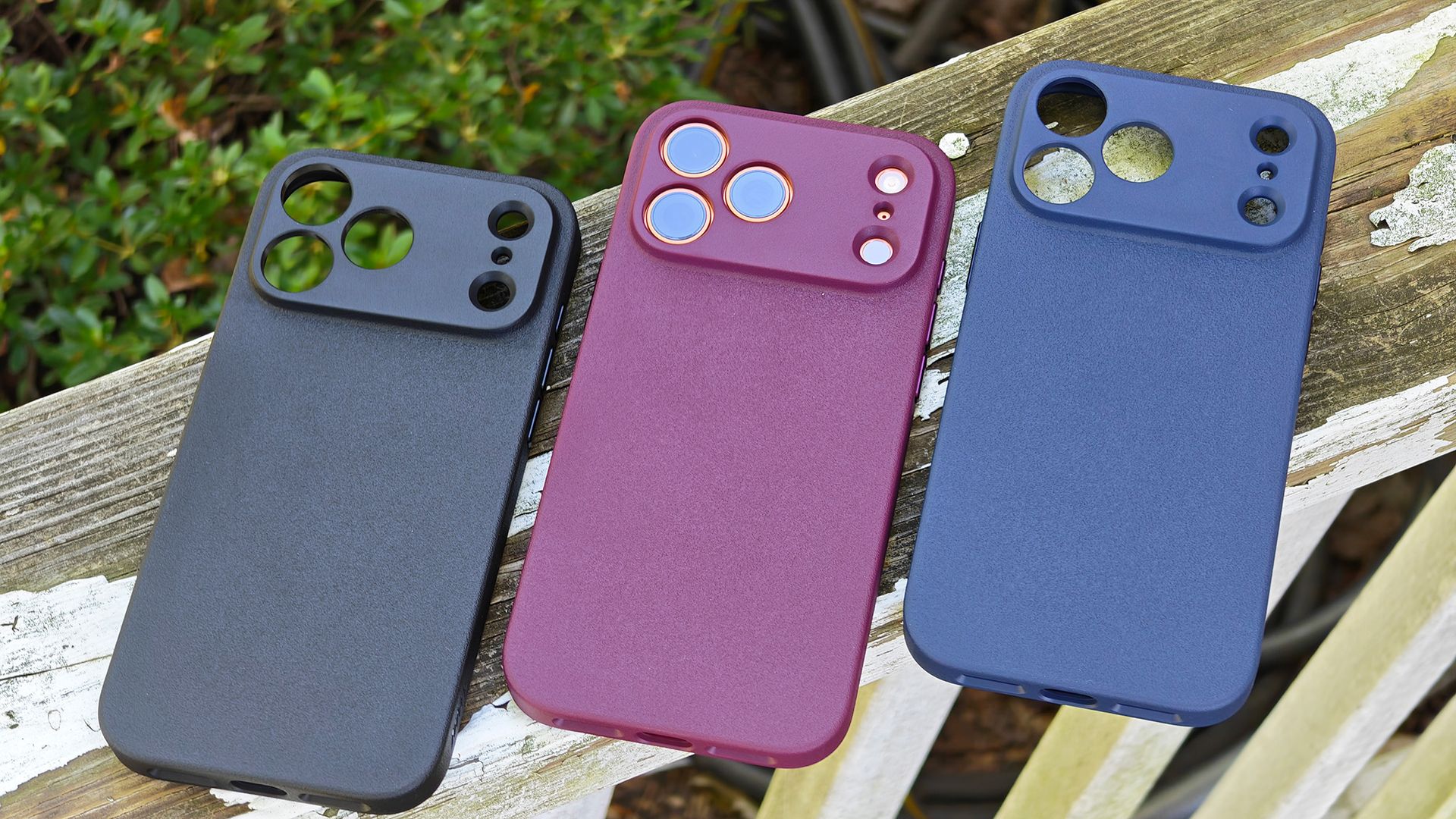
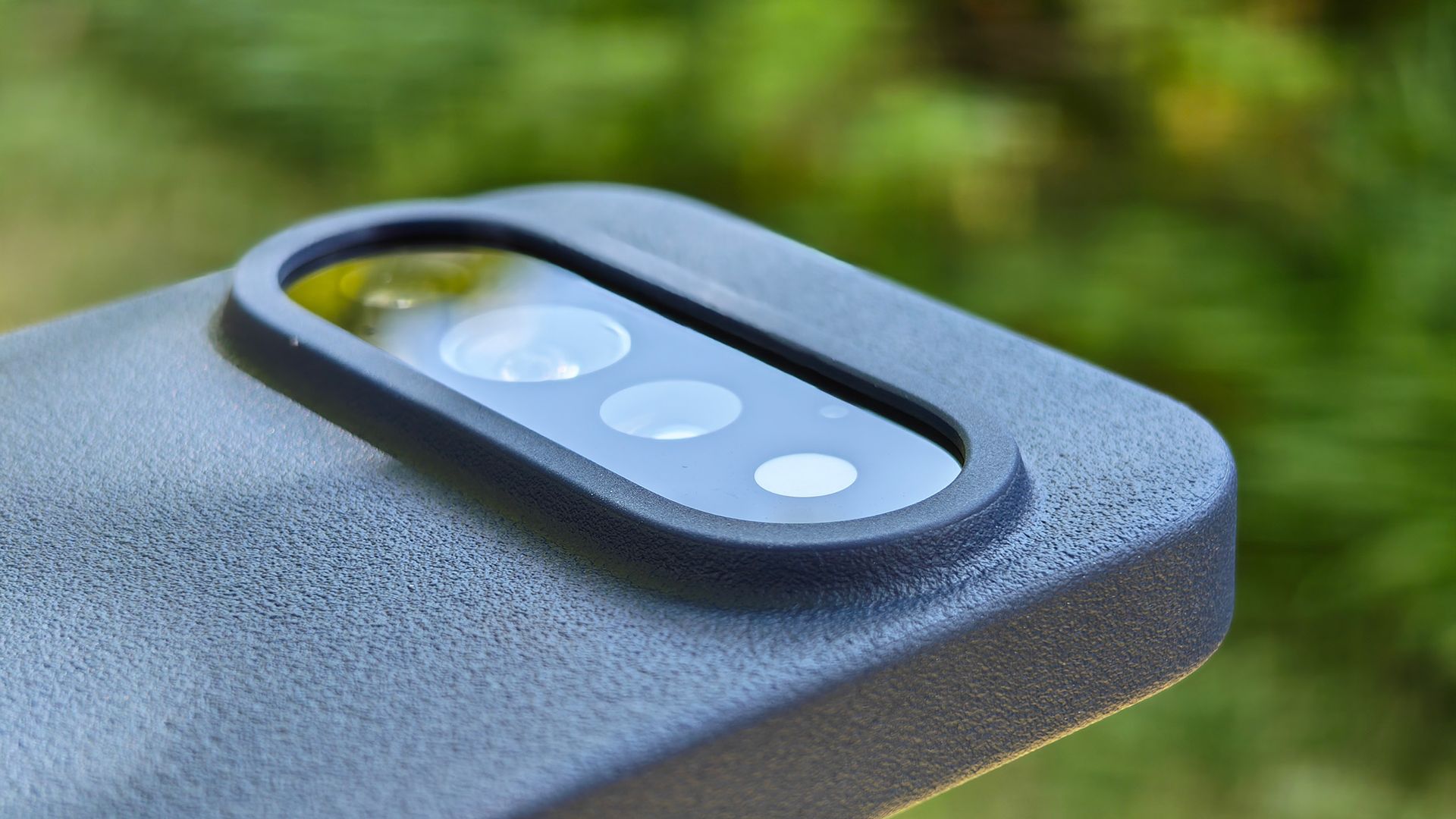
When Dbrand told me it was launching a new minimalist case sub-brand, I was immediately interested. I've loved the company's products for years, and they often come out with new and interesting design ideas, but MNML immediately felt different from Dbrand's usual vibes.

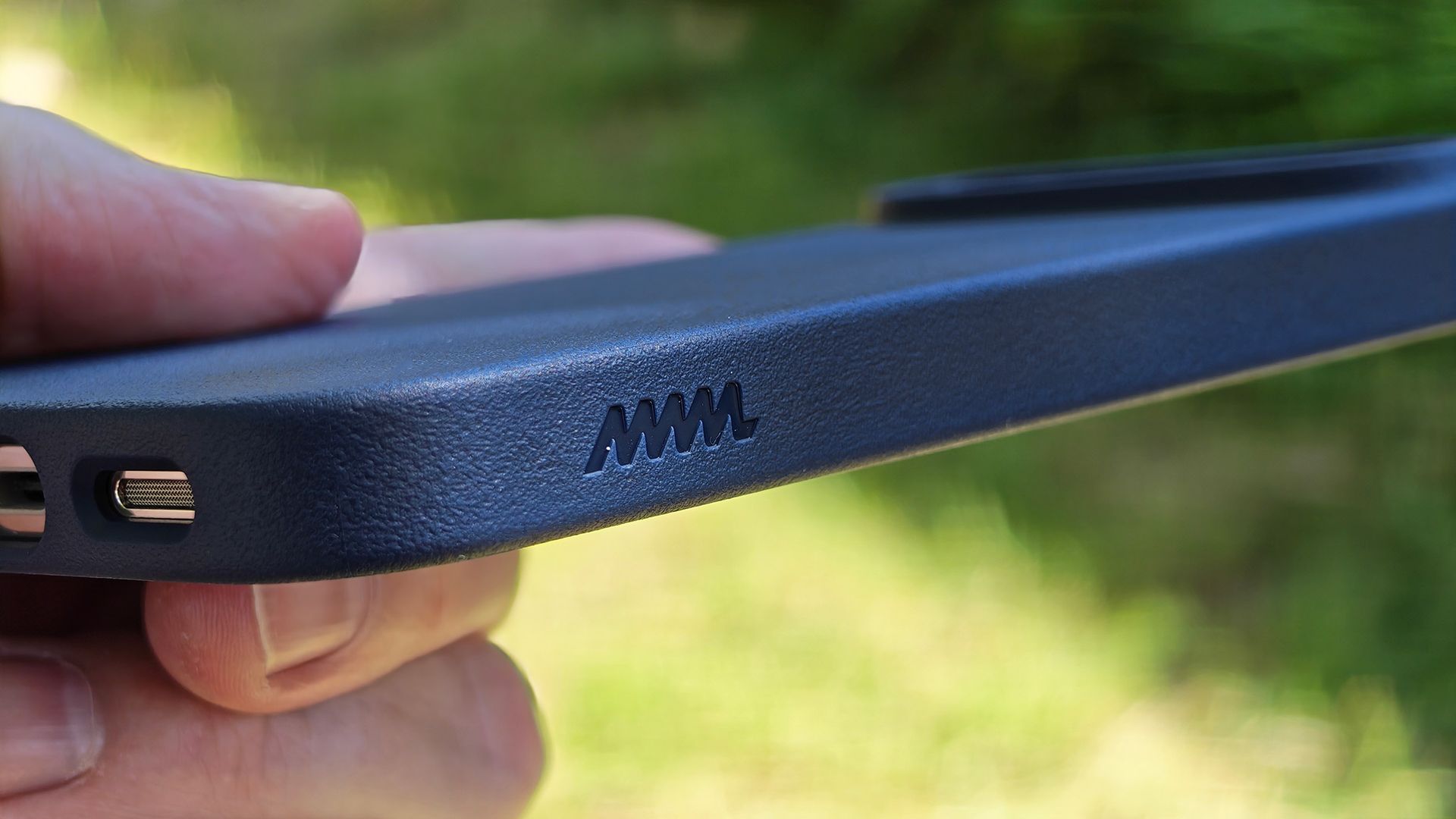
It's such a departure from the company's usual designs that you won't even find the name Dbrand on the case. It's just MNML on the corner, and there's no support for Dbrand skins or any of the usual snarky flair most of us are used to.

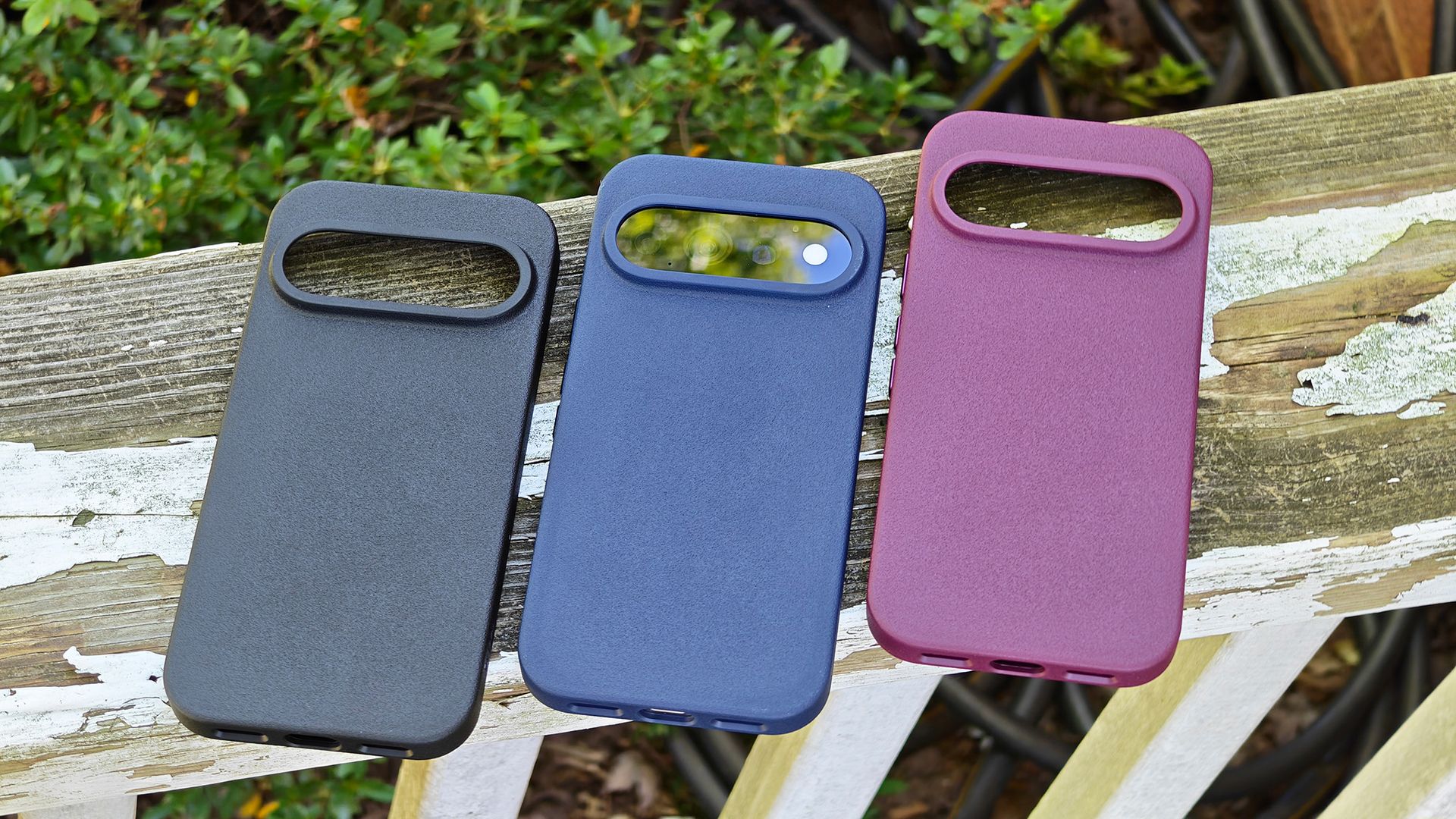
Three different colors of Dbrand MNML case and the retail boxes
Nicholas Sutrich / Android Central
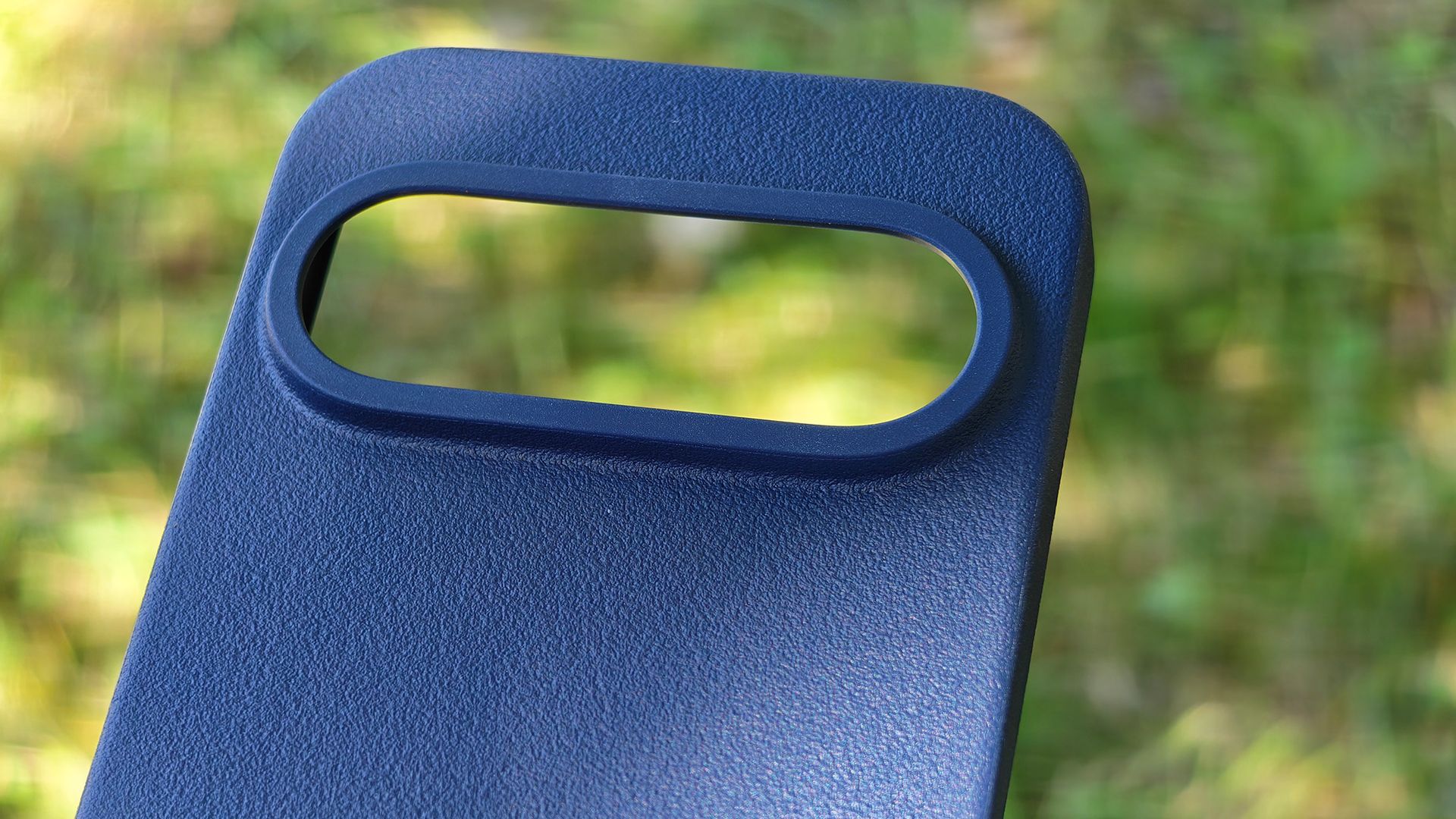
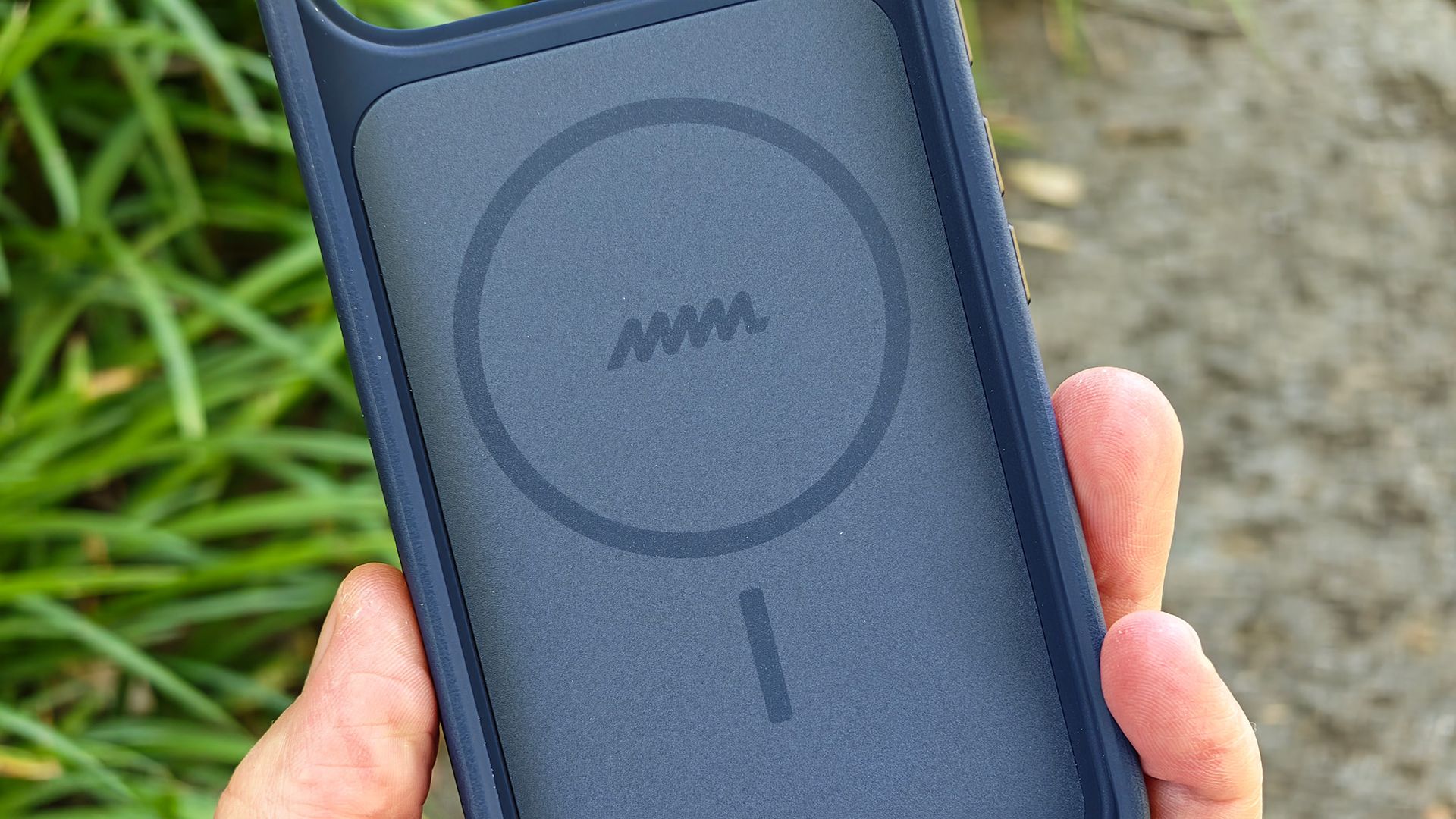
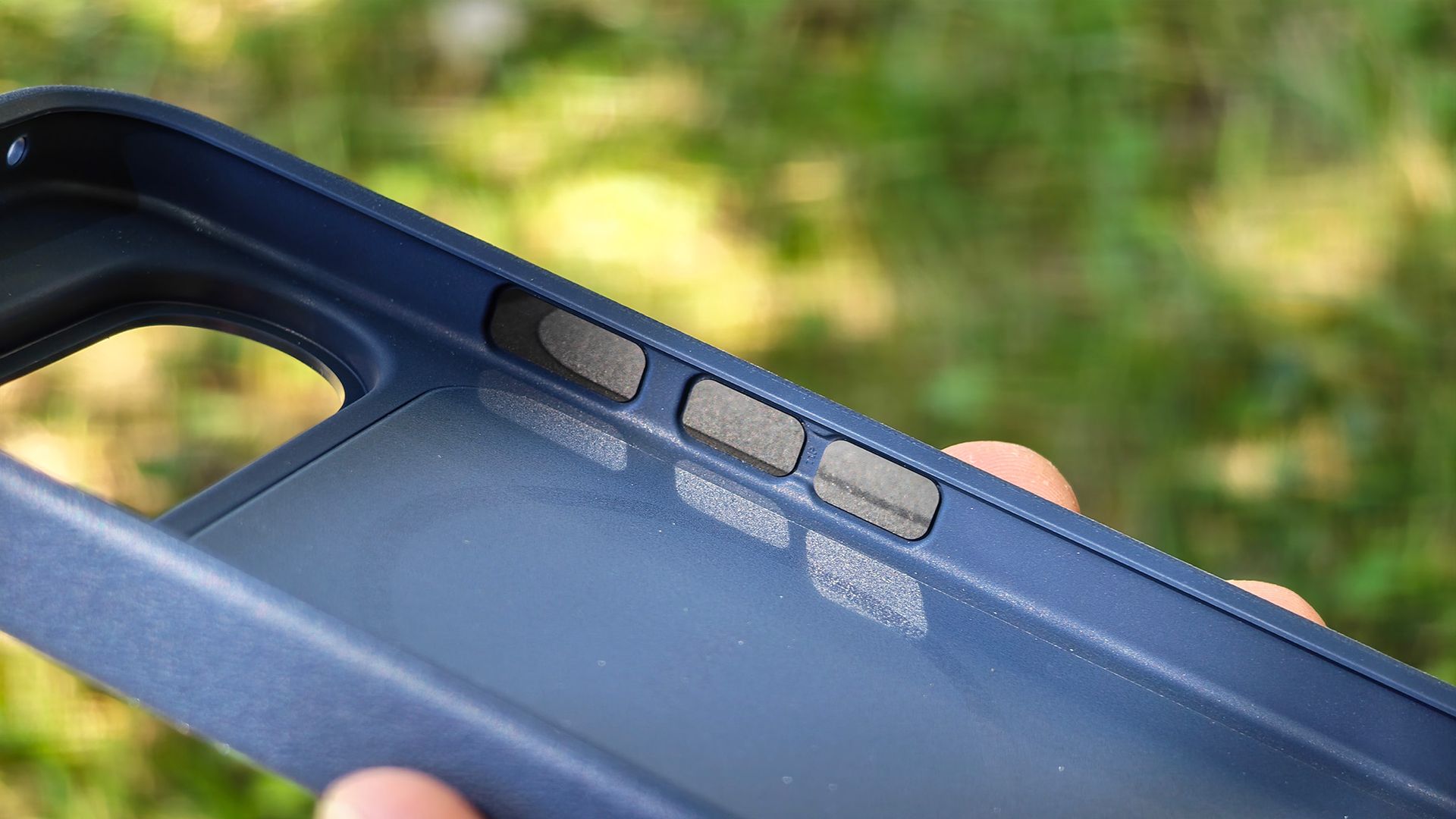
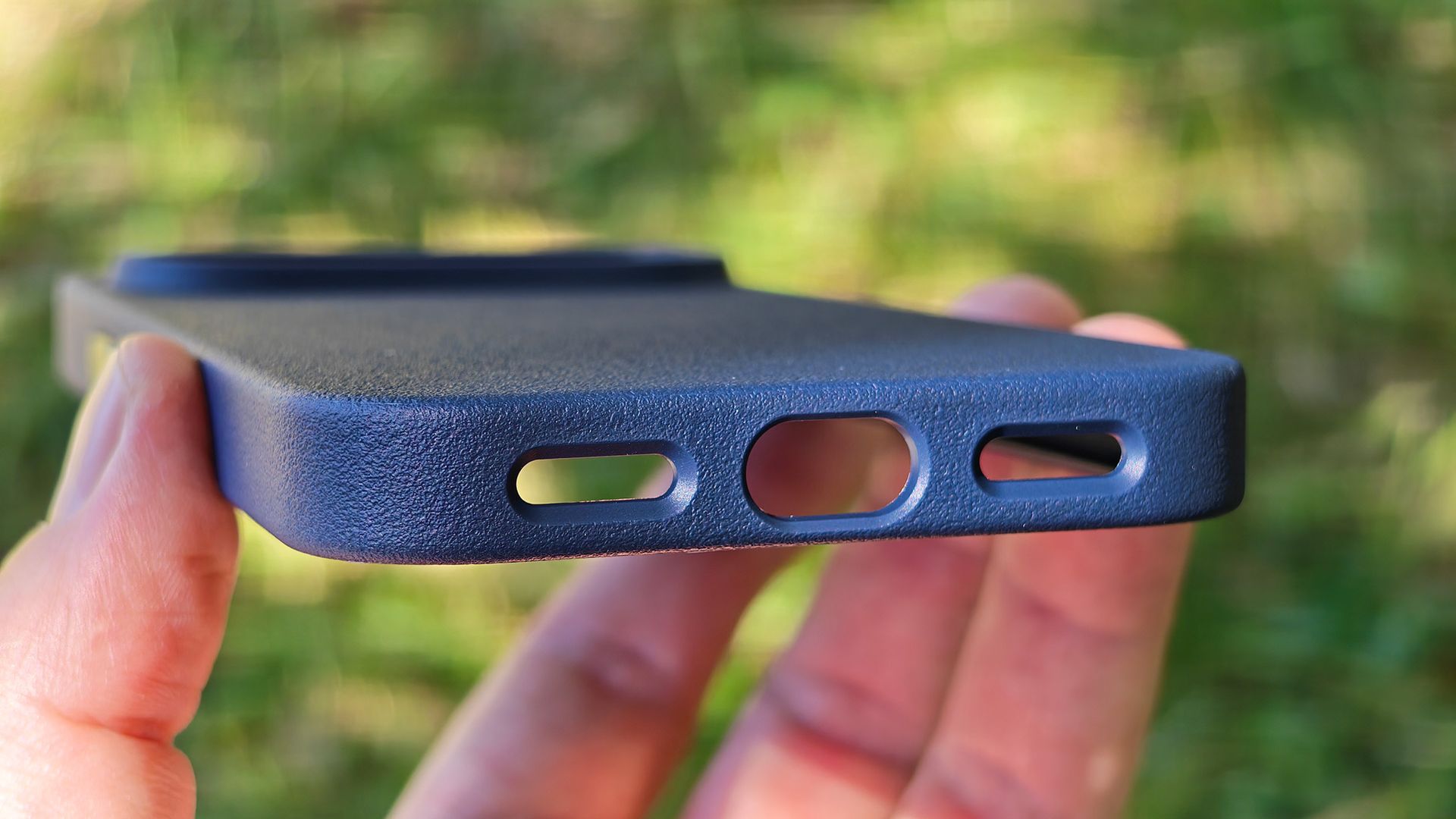
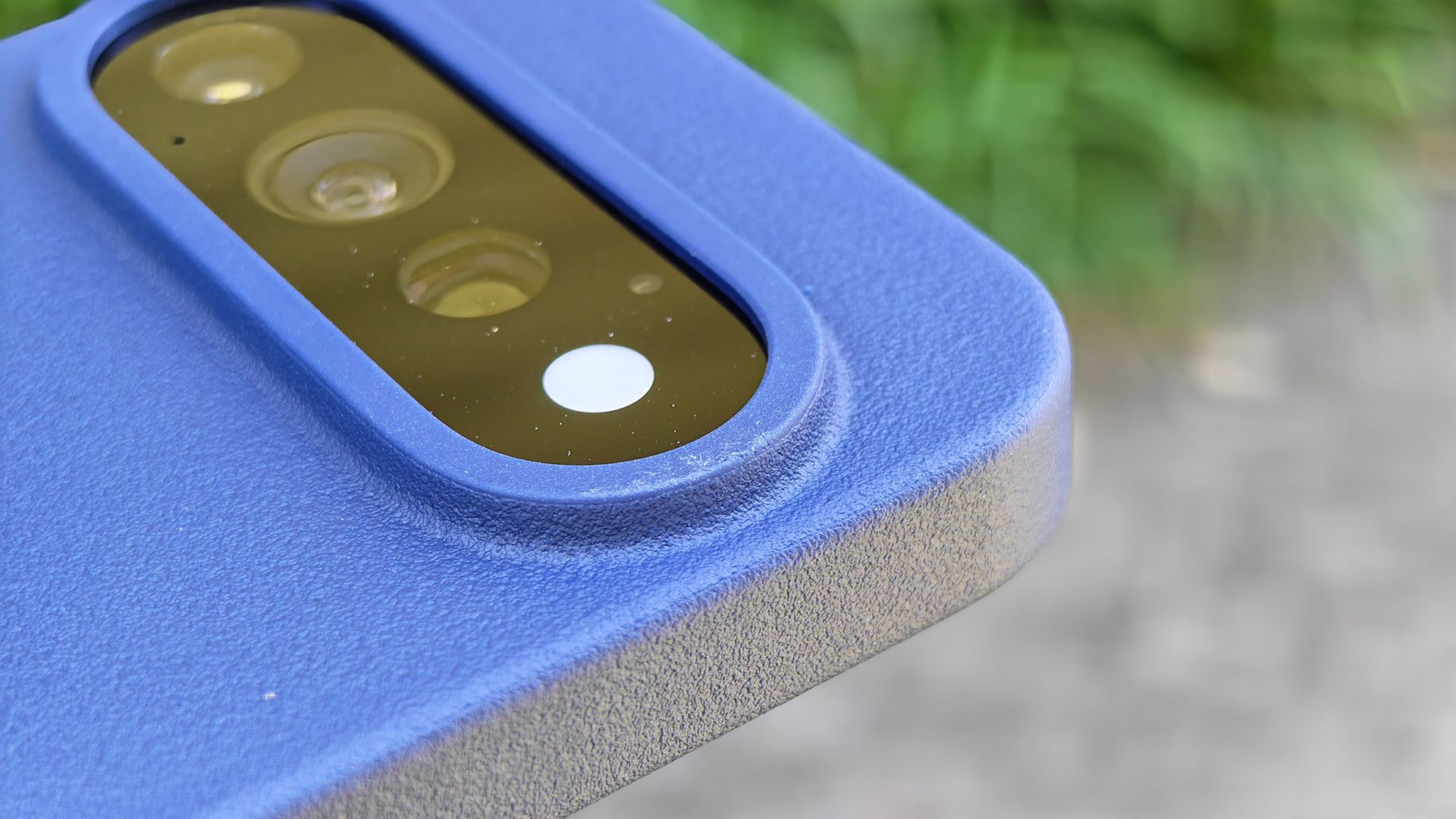
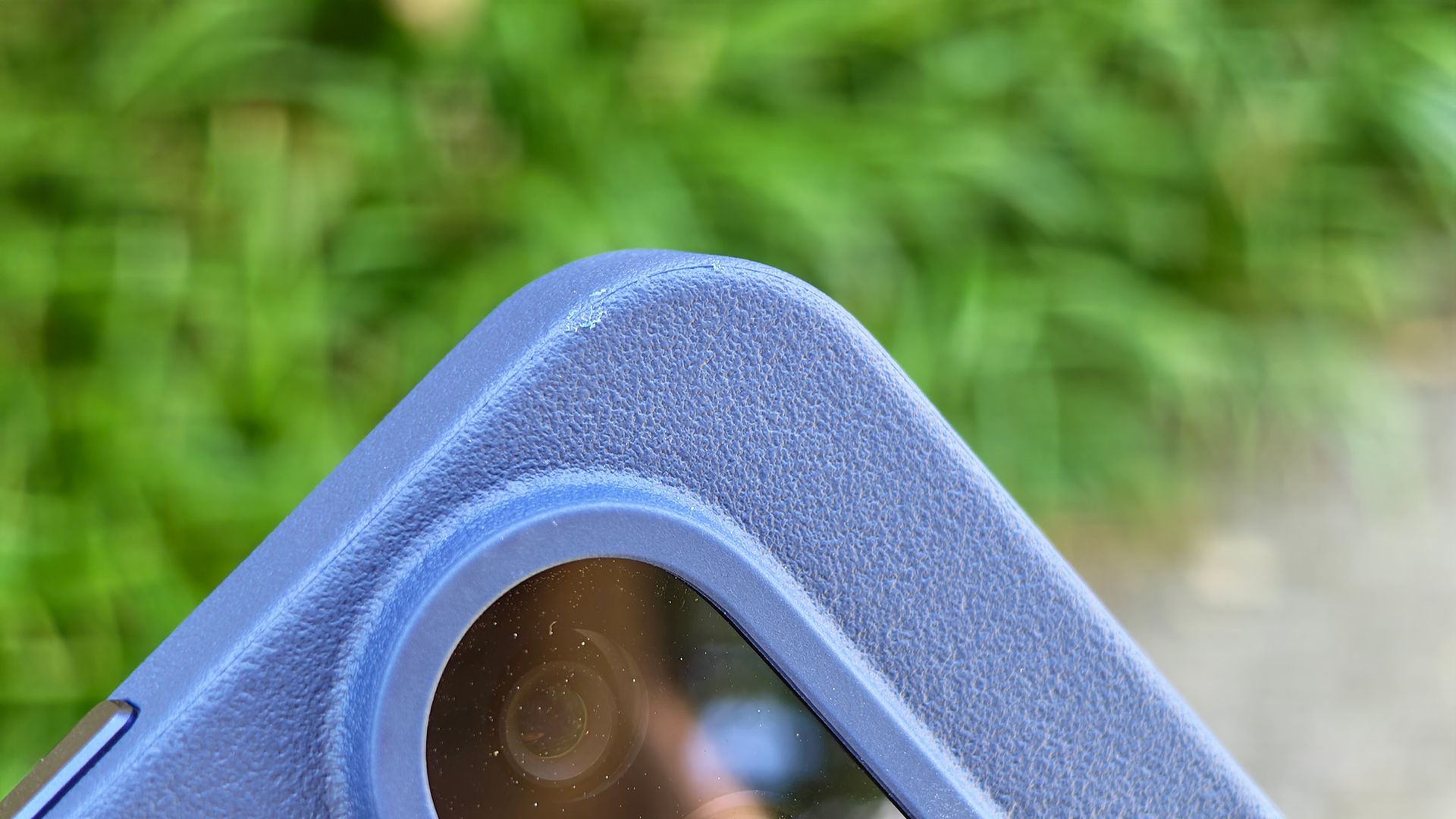
Looking at the blue Dbrand MNML case
Nicholas Sutrich / Android Central
Looking at the blue Dbrand MNML case
Nicholas Sutrich / Android Central
Looking at the blue Dbrand MNML case
Nicholas Sutrich / Android Central
Looking at the blue Dbrand MNML case
Nicholas Sutrich / Android Central
Looking at the blue Dbrand MNML case
Nicholas Sutrich / Android Central

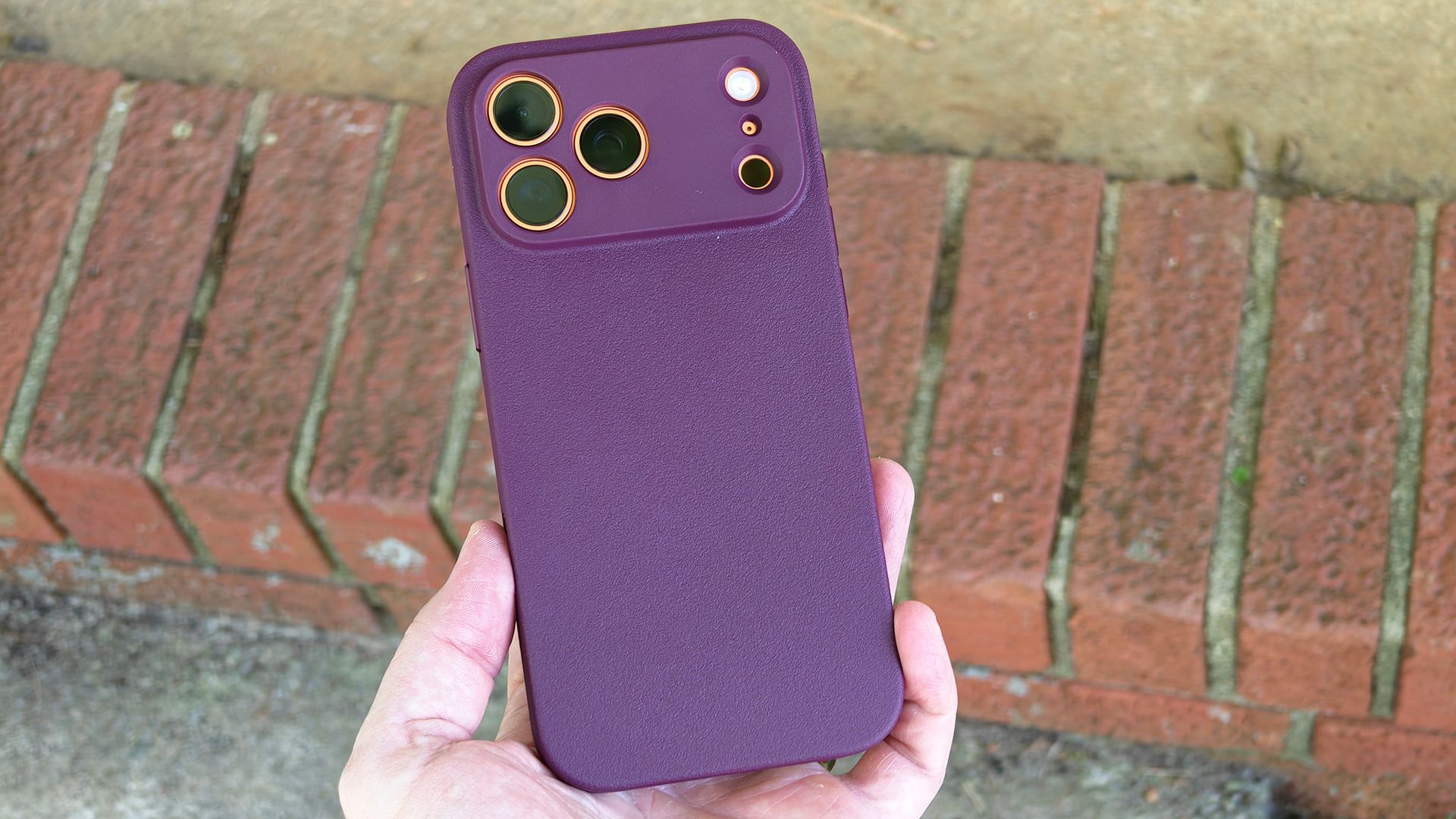
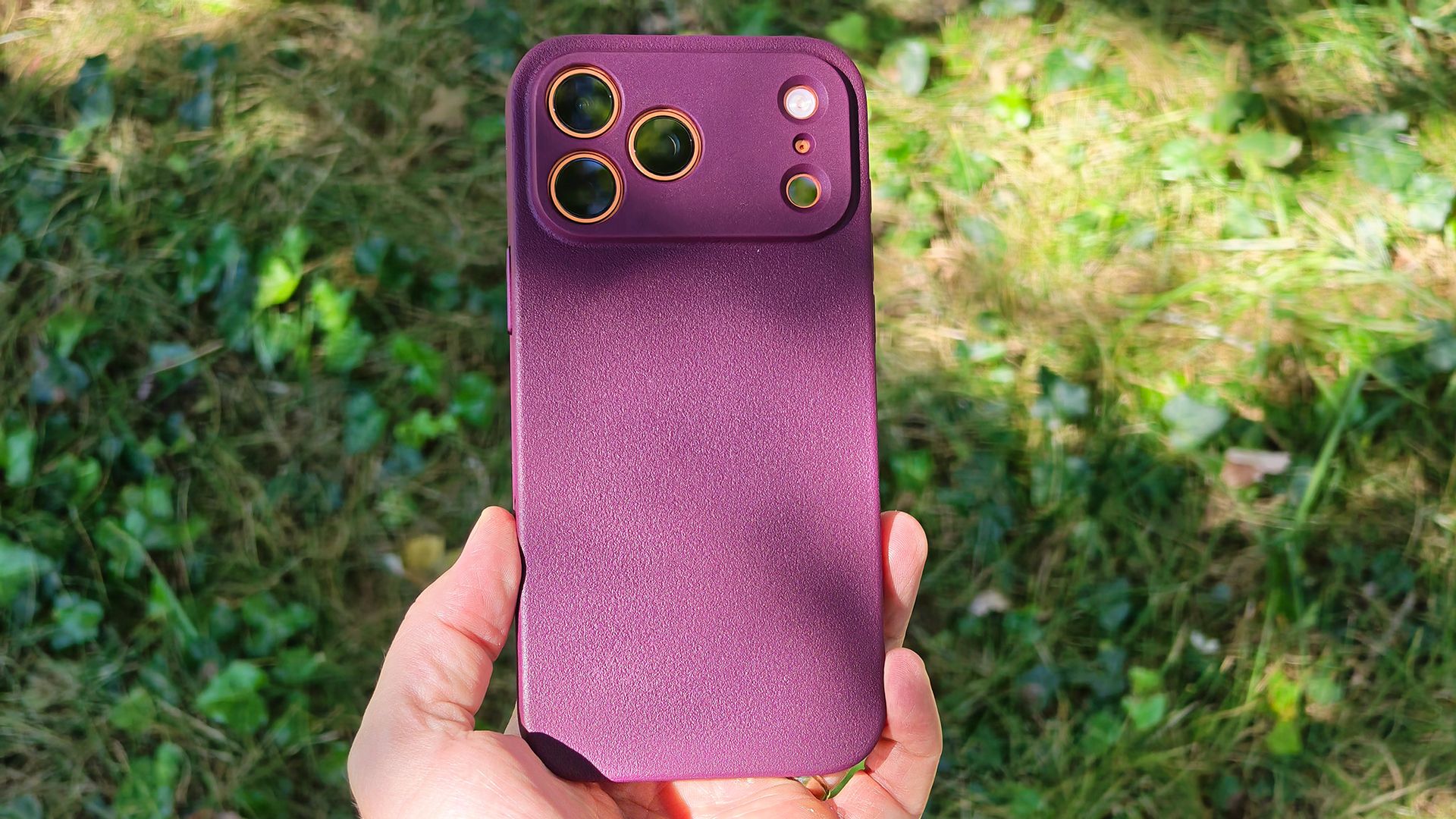
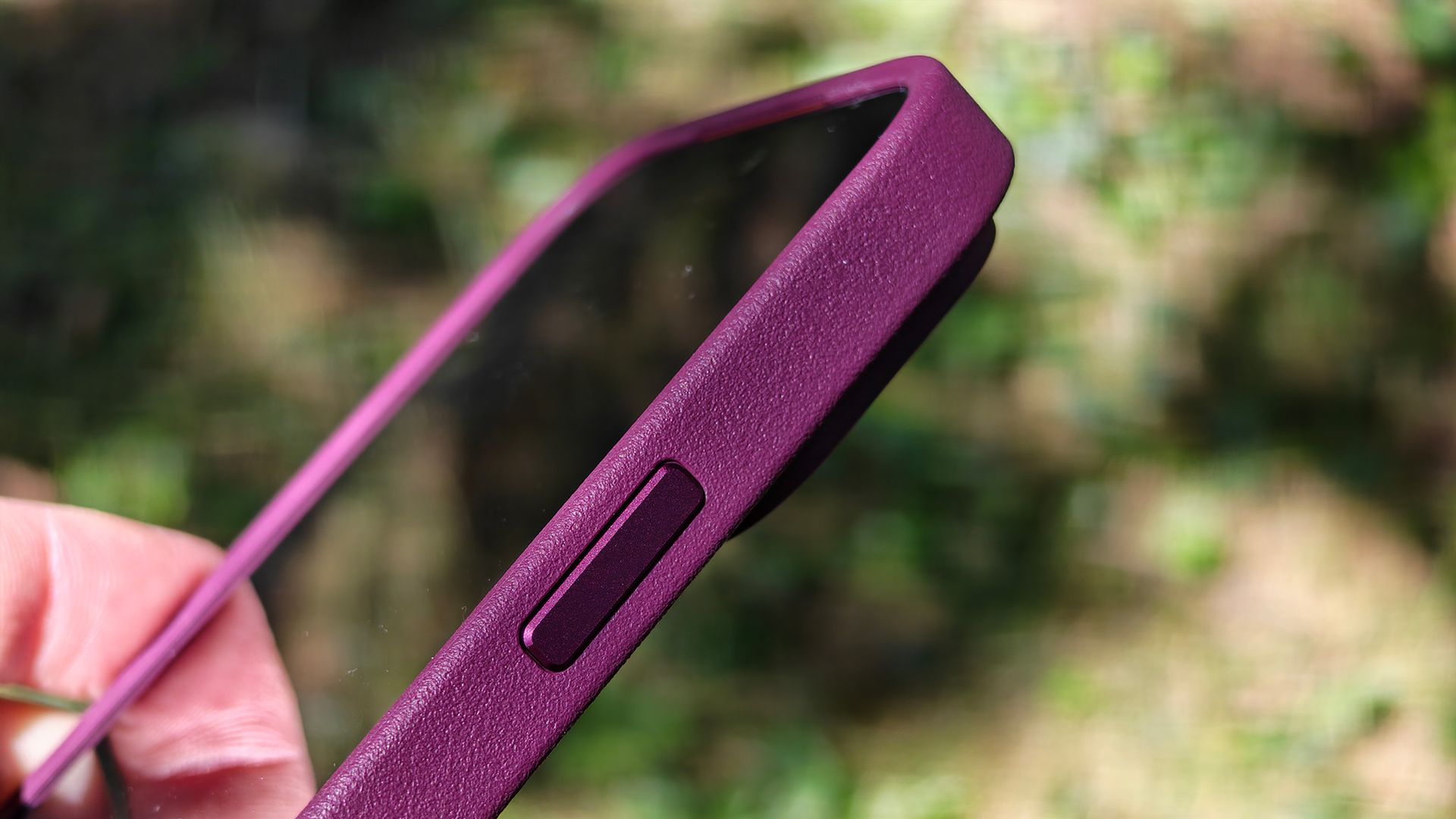
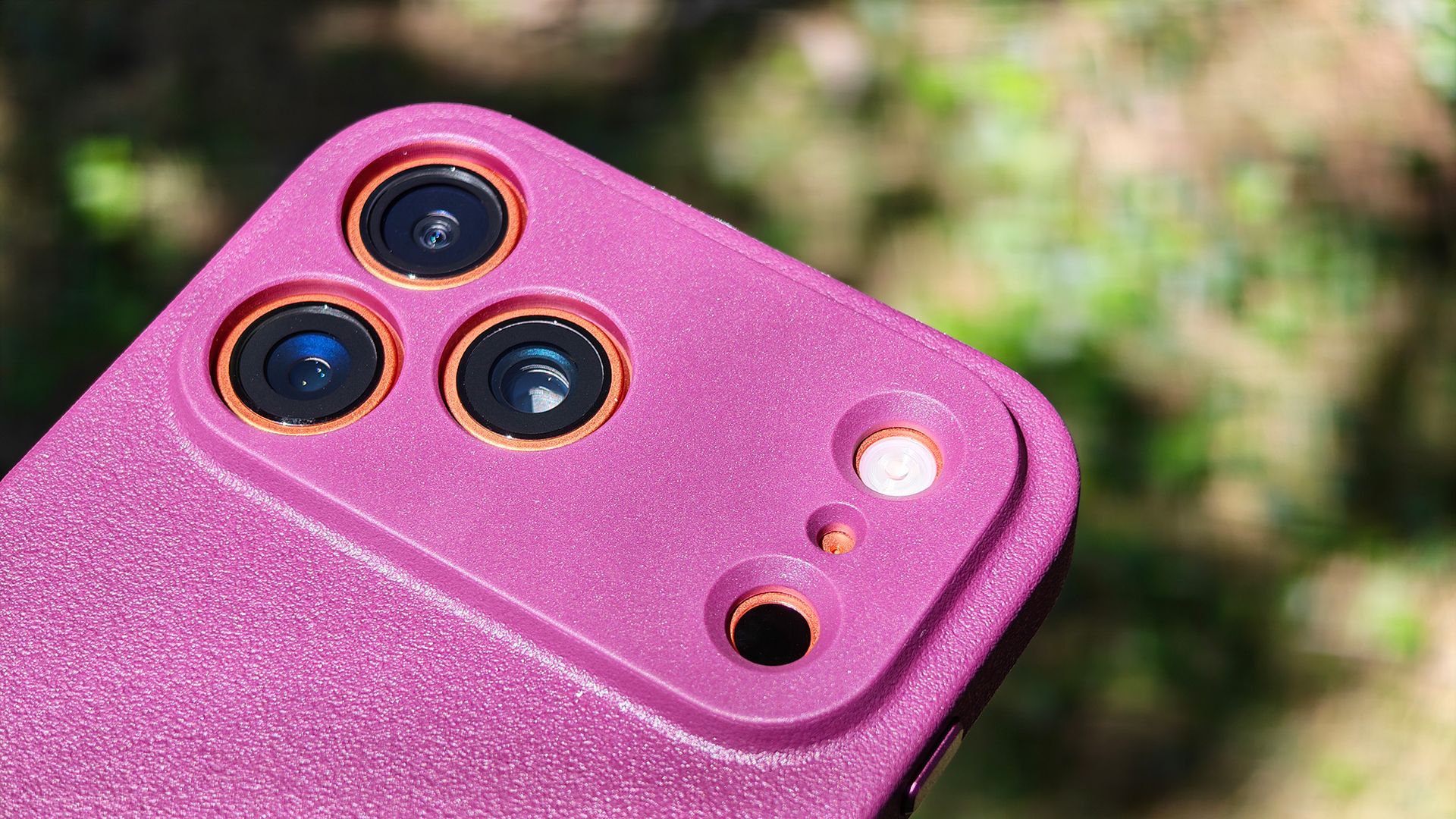
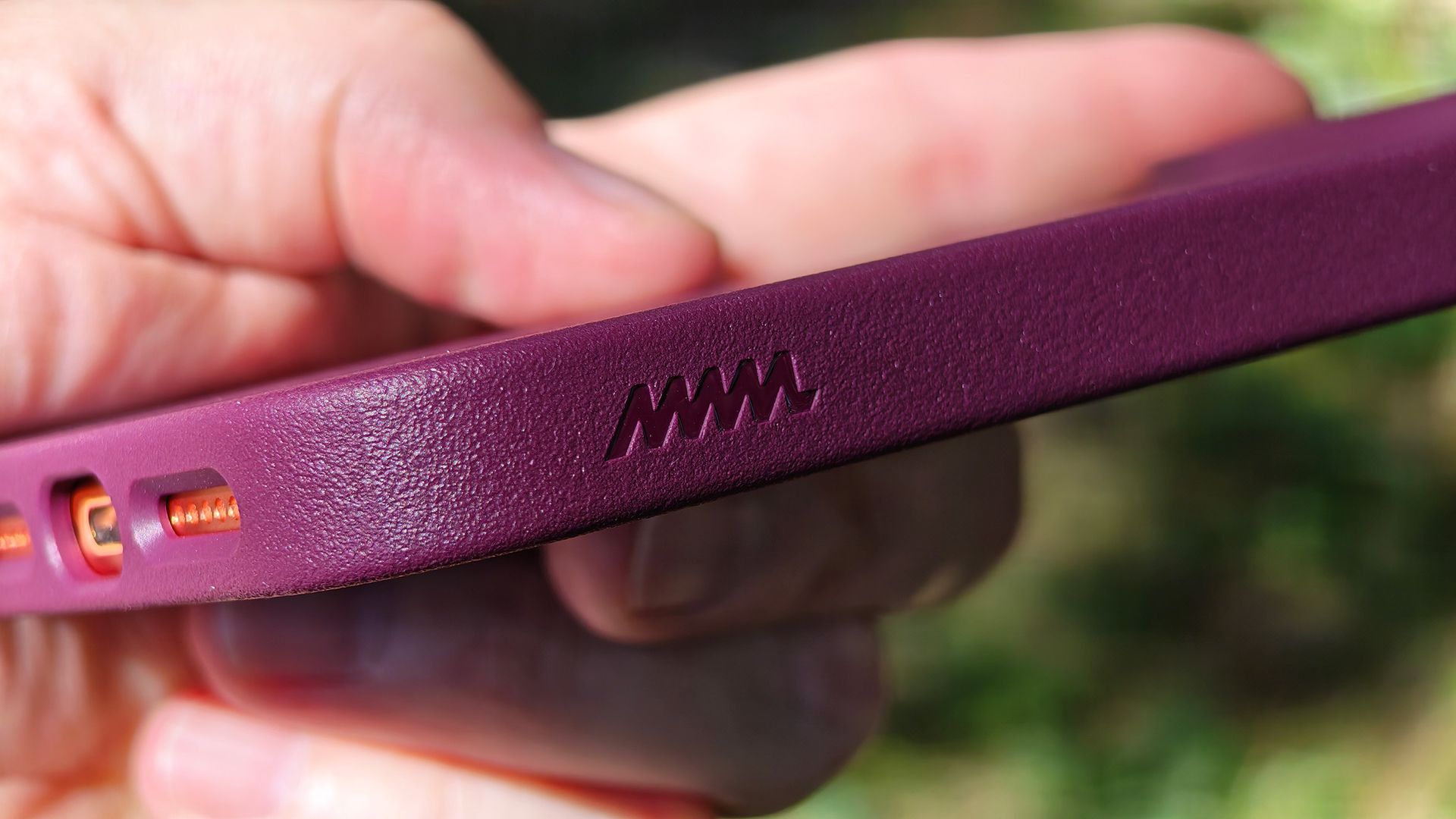
You'll also find the prices to be much more minimalist than Dbrand's usual afair. At just $39, these are a bit more palatable than the $50 Ghost cases or the $60+ Grip cases, and they come in four simple colors. The burgundy is my favorite of the four, although I think it looks terrible on an orange iPhone. Better stick to black or tan for a bolder color like that.

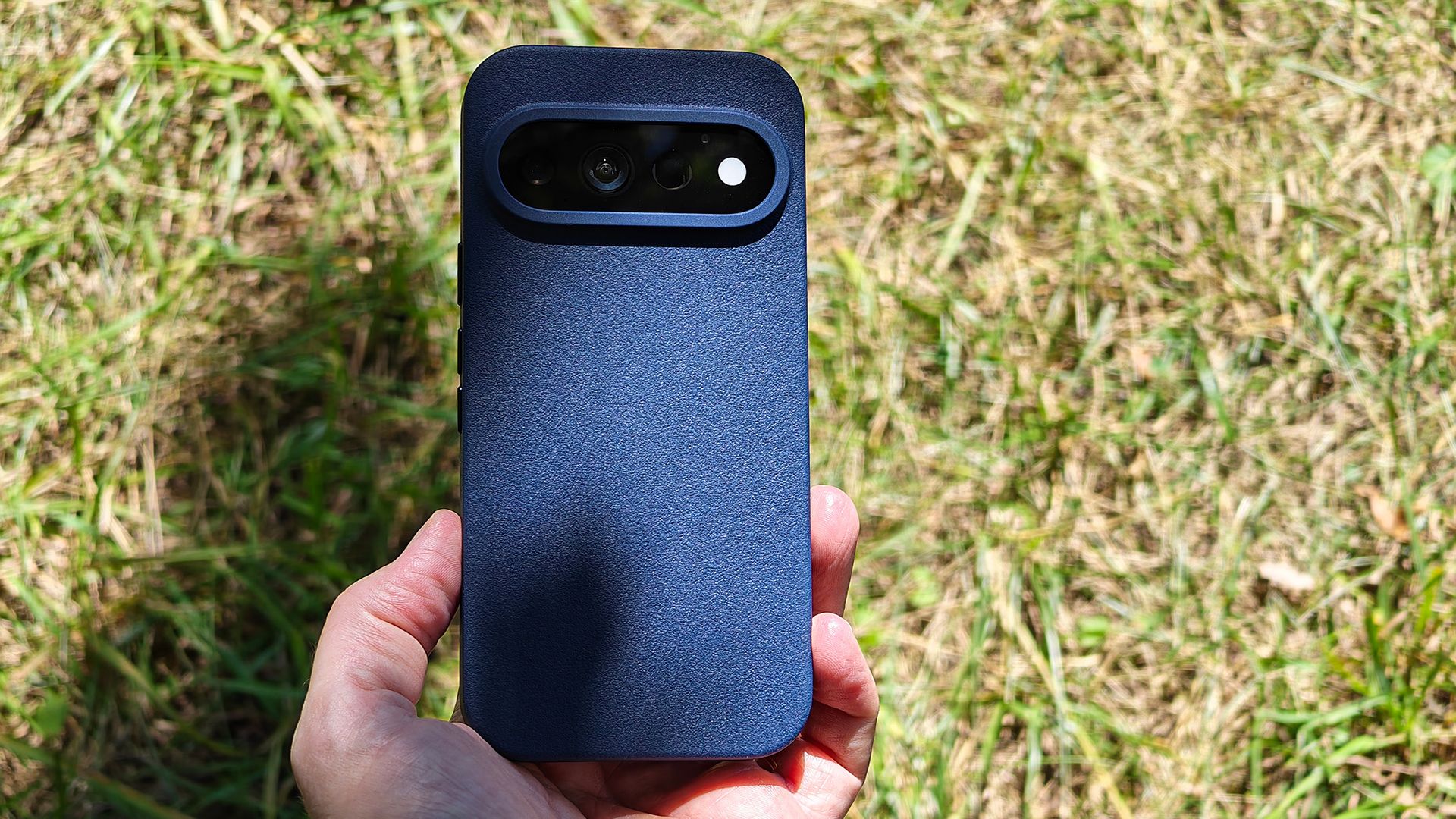
Dbrand sent me cases for the Pixel 11 Pro and the iPhone Pro Max 17/18 (since they're the same phone anyway). The "sandstone" texture on these isn't at all like OnePlus's sandstone phones or cases β€” meaning they're textured but not rough like sandstone usually is β€” which gives it a nice grip without sanding your fingerprints off by accident.

A burgundy Dbrand MNML case on an orange Apple iPhone 17 Pro Max
Nicholas Sutrich / Android Central
A burgundy Dbrand MNML case on an orange Apple iPhone 17 Pro Max
Nicholas Sutrich / Android Central
A burgundy Dbrand MNML case on an orange Apple iPhone 17 Pro Max
Nicholas Sutrich / Android Central
A burgundy Dbrand MNML case on an orange Apple iPhone 17 Pro Max
Nicholas Sutrich / Android Central
A burgundy Dbrand MNML case on an orange Apple iPhone 17 Pro Max
Nicholas Sutrich / Android Central
A burgundy Dbrand MNML case on an orange Apple iPhone 17 Pro Max
Nicholas Sutrich / Android Central
A burgundy Dbrand MNML case on an orange Apple iPhone 17 Pro Max
Nicholas Sutrich / Android Central
A burgundy Dbrand MNML case on an orange Apple iPhone 17 Pro Max
Nicholas Sutrich / Android Central
A burgundy Dbrand MNML case on an orange Apple iPhone 17 Pro Max
Nicholas Sutrich / Android Central
A burgundy Dbrand MNML case on an orange Apple iPhone 17 Pro Max
Nicholas Sutrich / Android Central

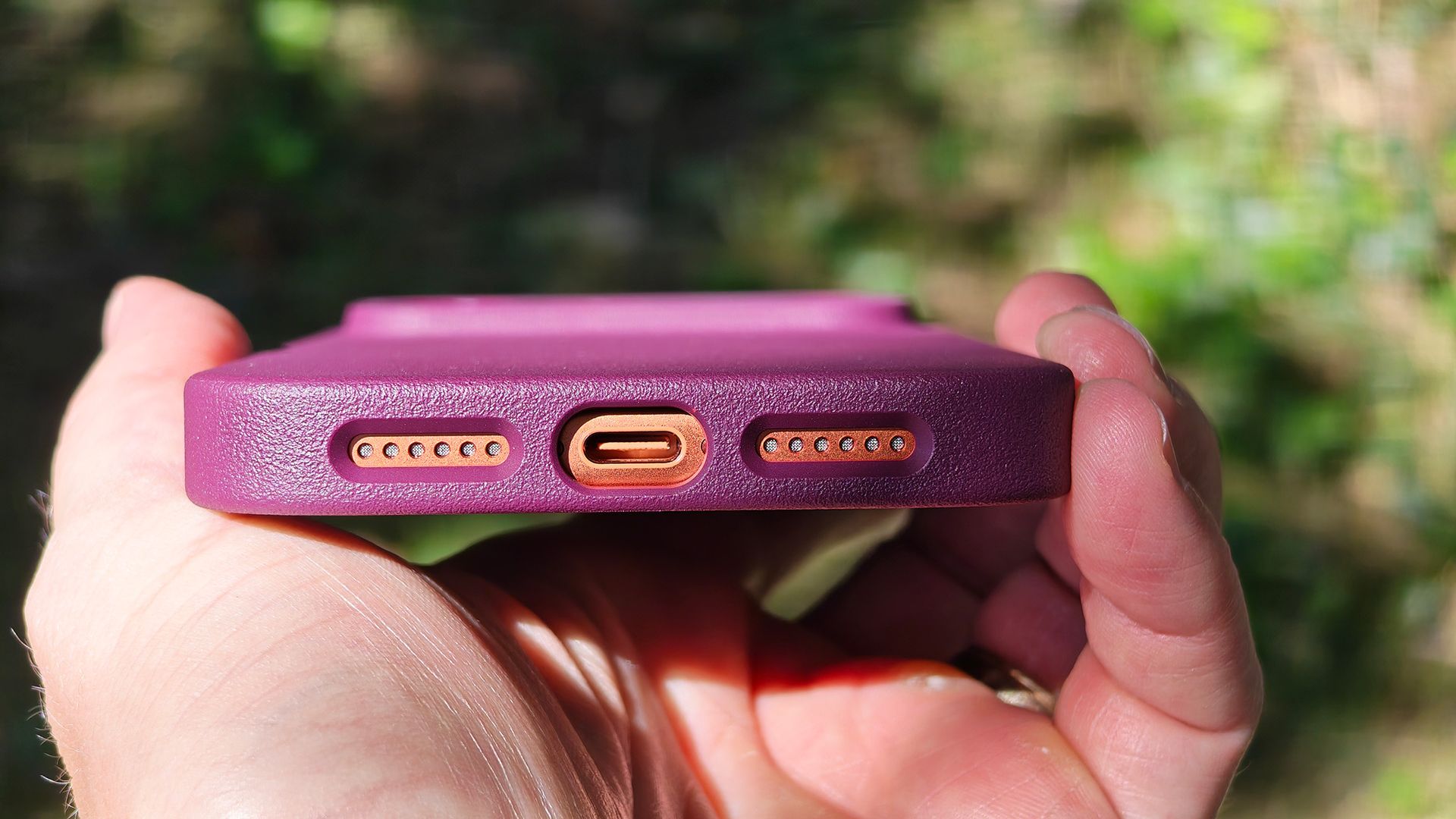
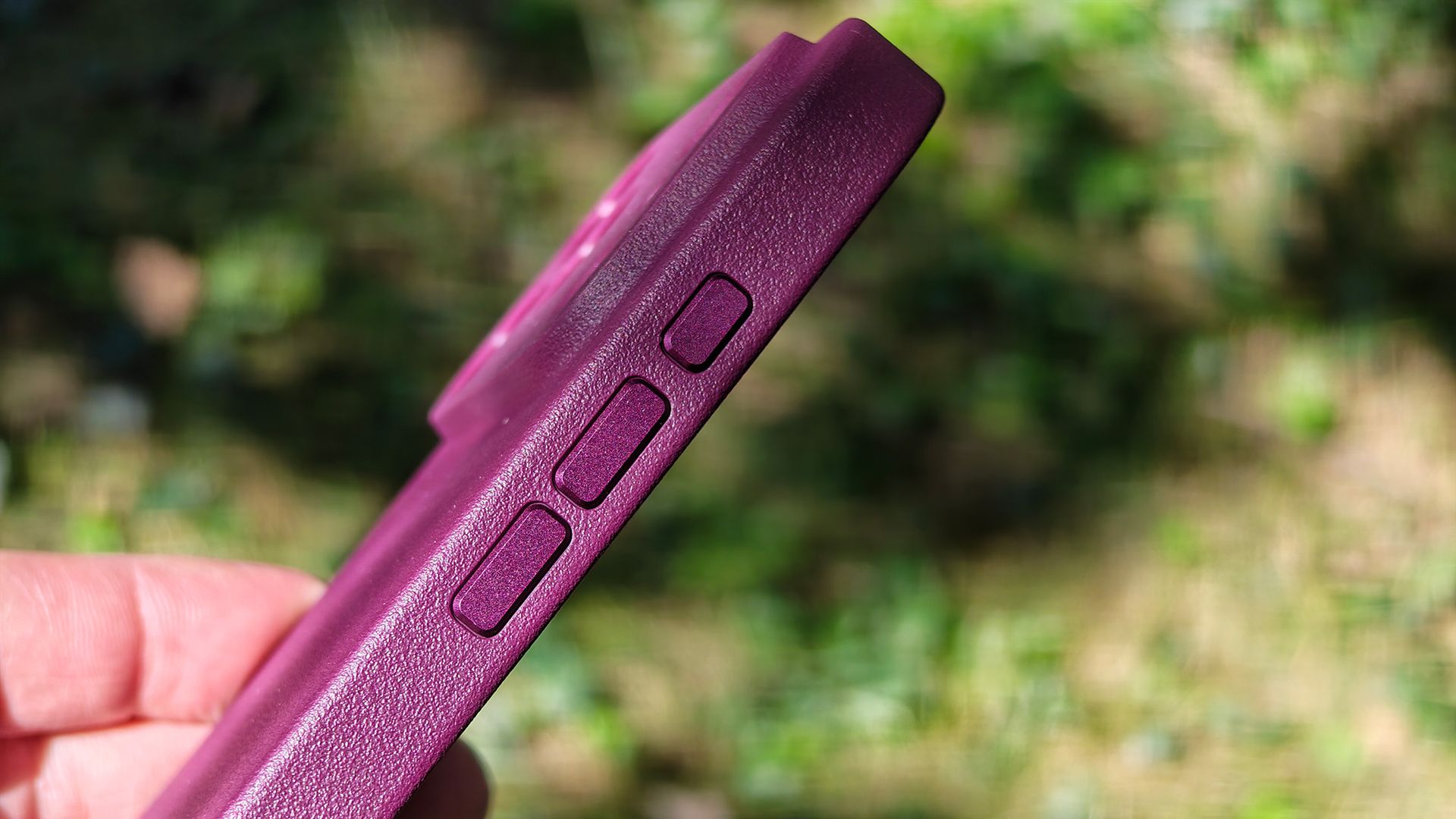
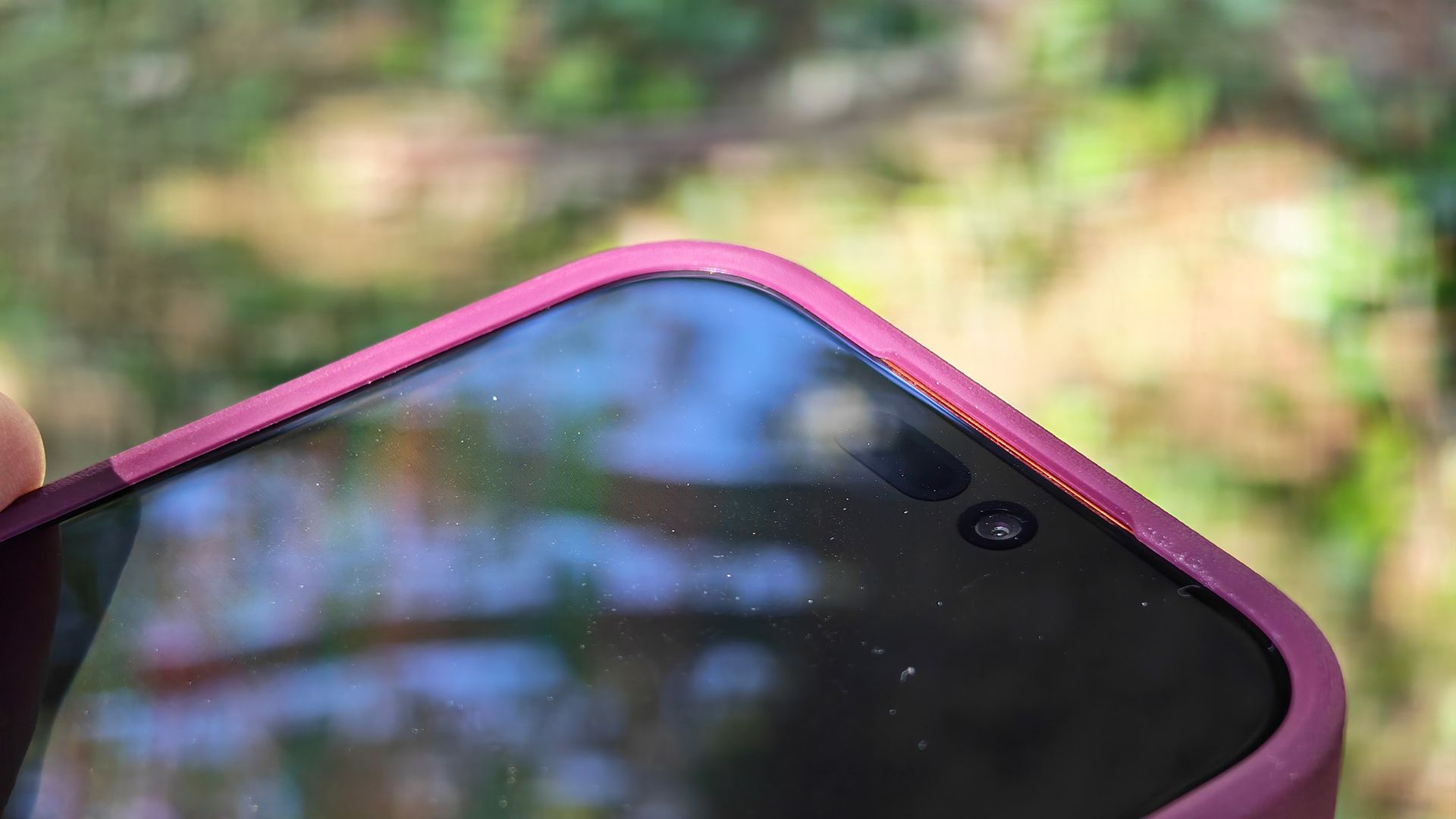
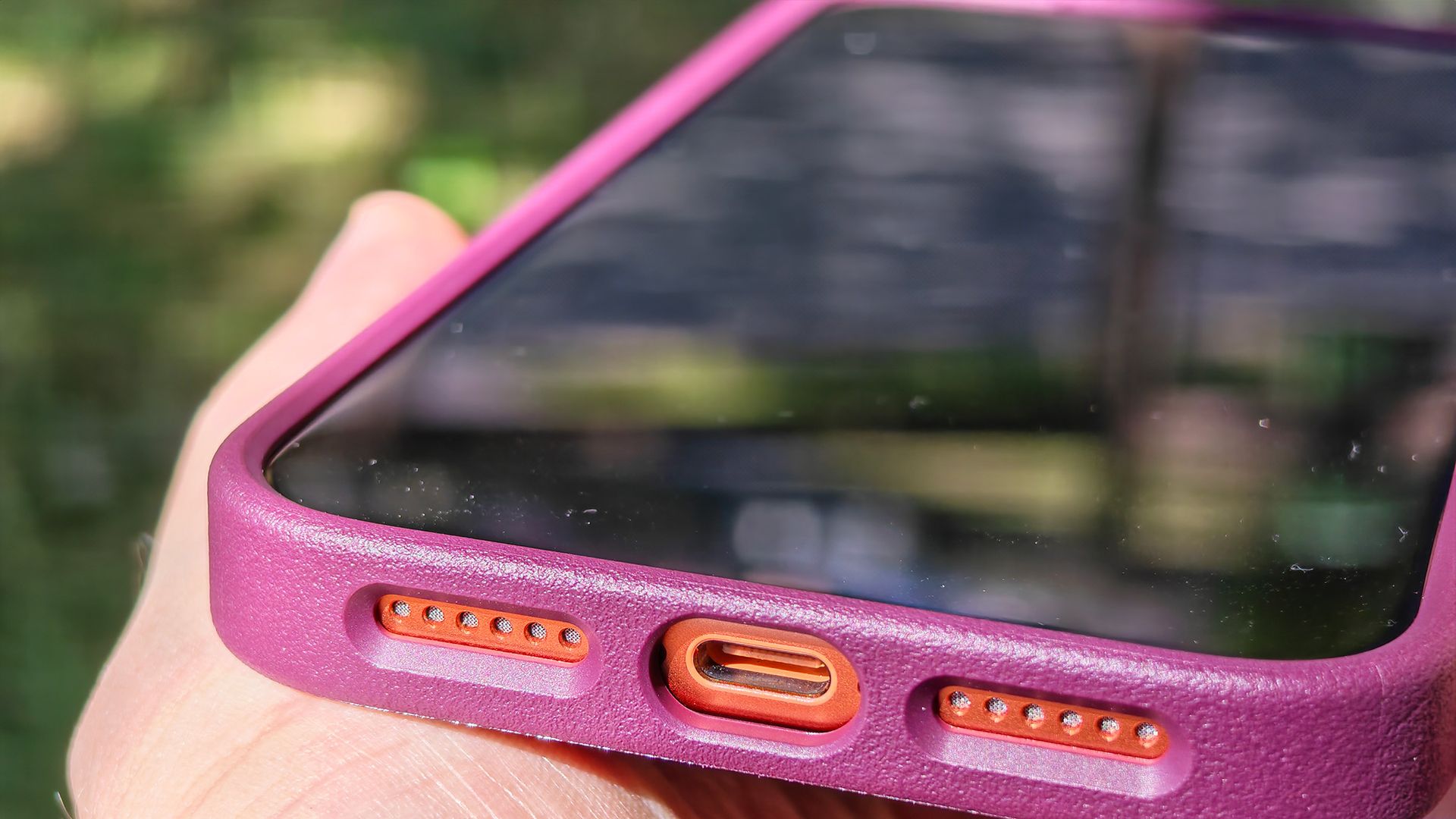
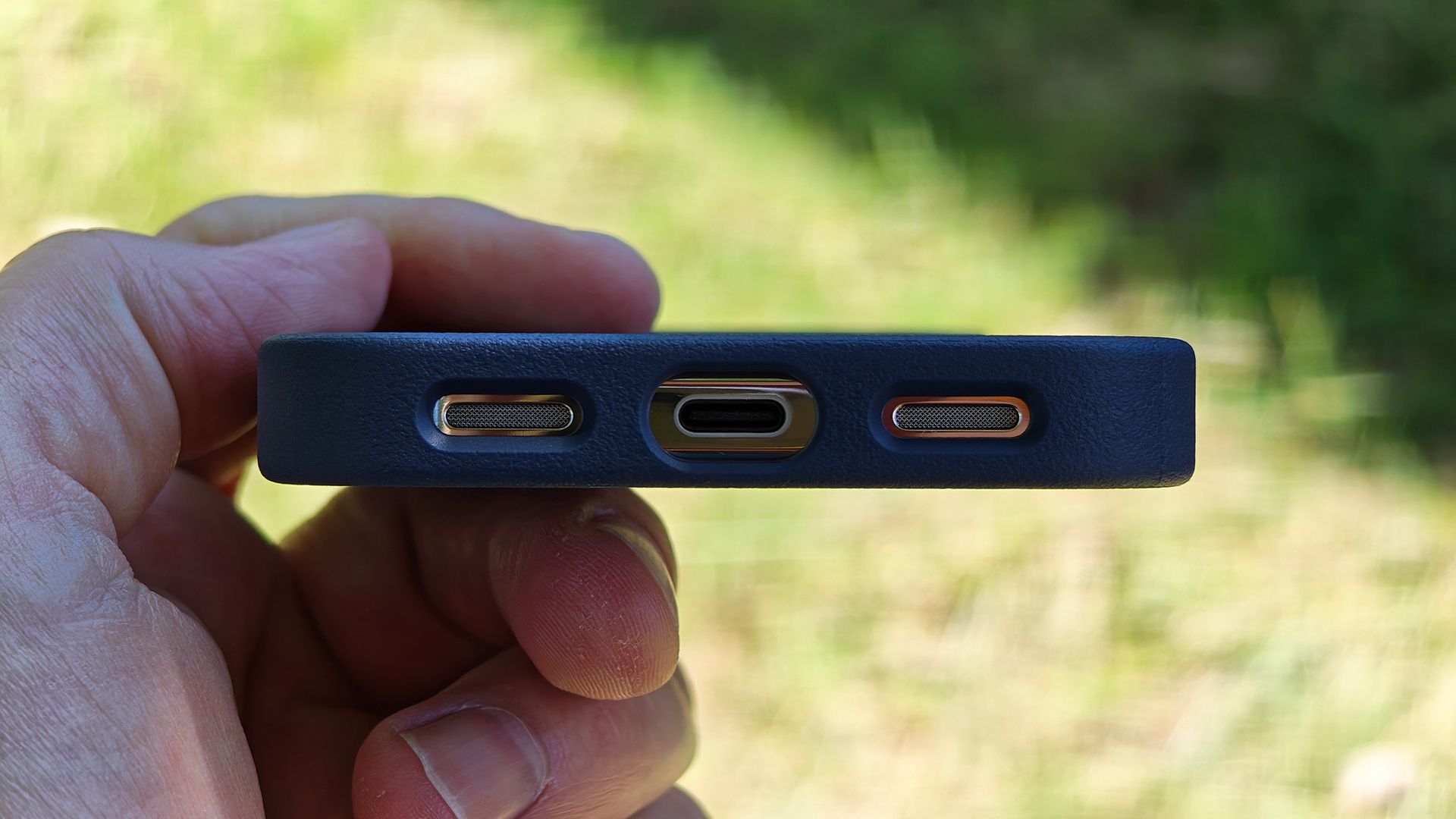
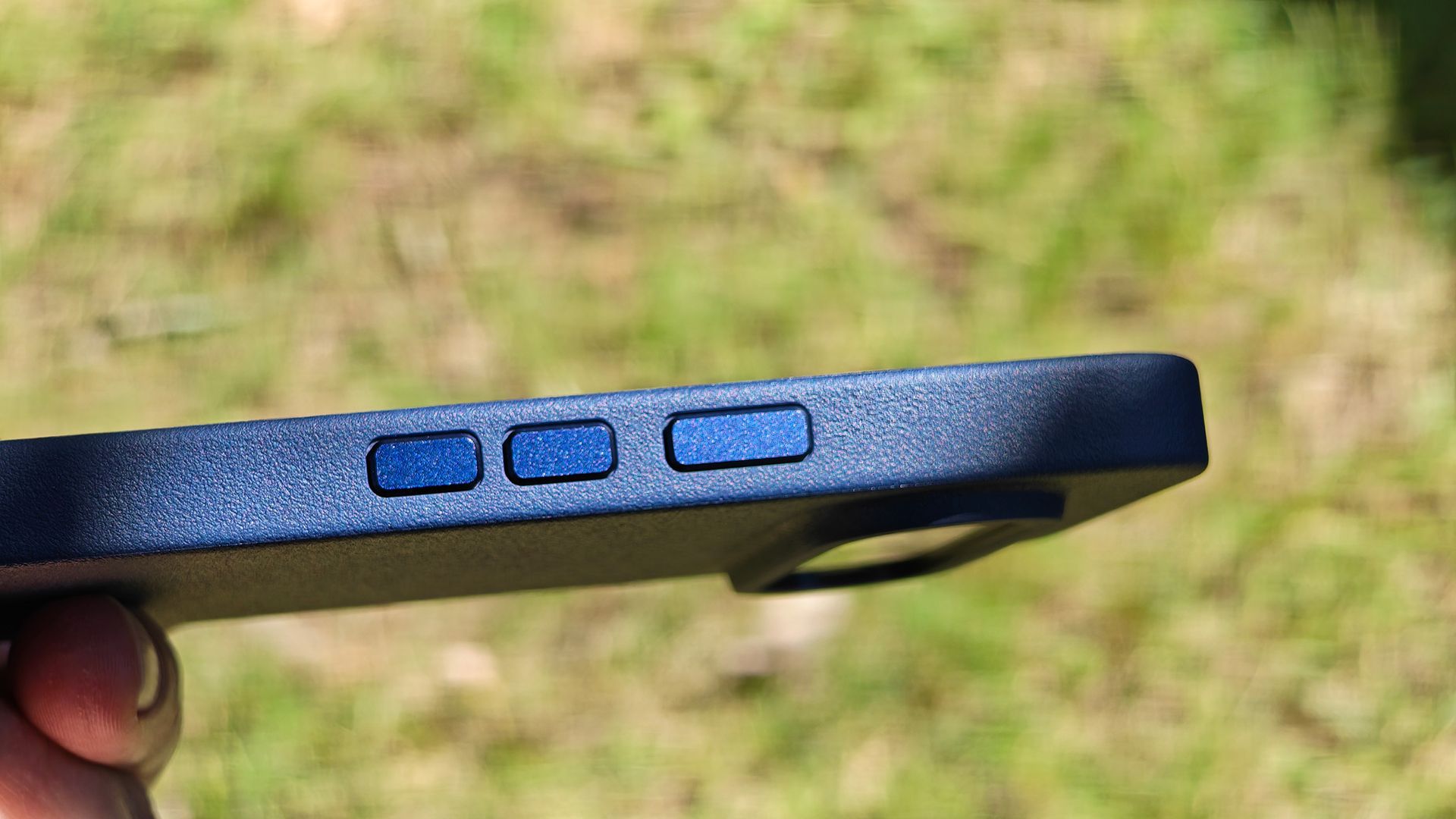
I also love the clicky covered buttons on the case. It's got all the port cutouts you'd hope to find on a case, plus a perfectly sized lip around the front glass to protect it. I didn't have trouble using gestures with these cases, unlike some rugged cases that have too large a lip and usually get in the way.

A blue Dbrand MNML case on a Google Pixel 11 Pro
Nicholas Sutrich / Android Central
A blue Dbrand MNML case on a Google Pixel 11 Pro
Nicholas Sutrich / Android Central
A blue Dbrand MNML case on a Google Pixel 11 Pro
Nicholas Sutrich / Android Central
A blue Dbrand MNML case on a Google Pixel 11 Pro
Nicholas Sutrich / Android Central
A blue Dbrand MNML case on a Google Pixel 11 Pro
Nicholas Sutrich / Android Central
A blue Dbrand MNML case on a Google Pixel 11 Pro
Nicholas Sutrich / Android Central
A blue Dbrand MNML case on a Google Pixel 11 Pro
Nicholas Sutrich / Android Central
A blue Dbrand MNML case on a Google Pixel 11 Pro
Nicholas Sutrich / Android Central

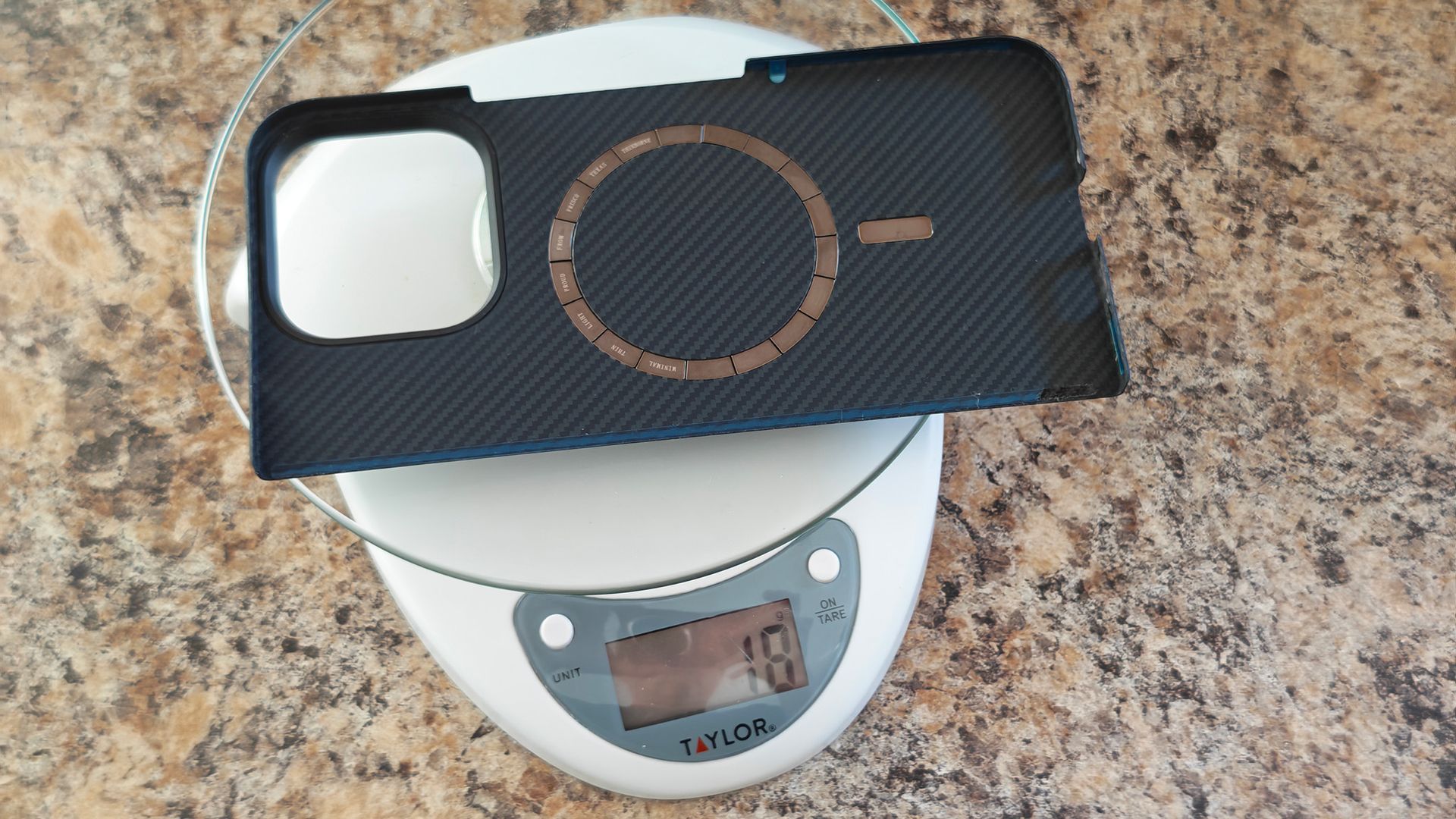
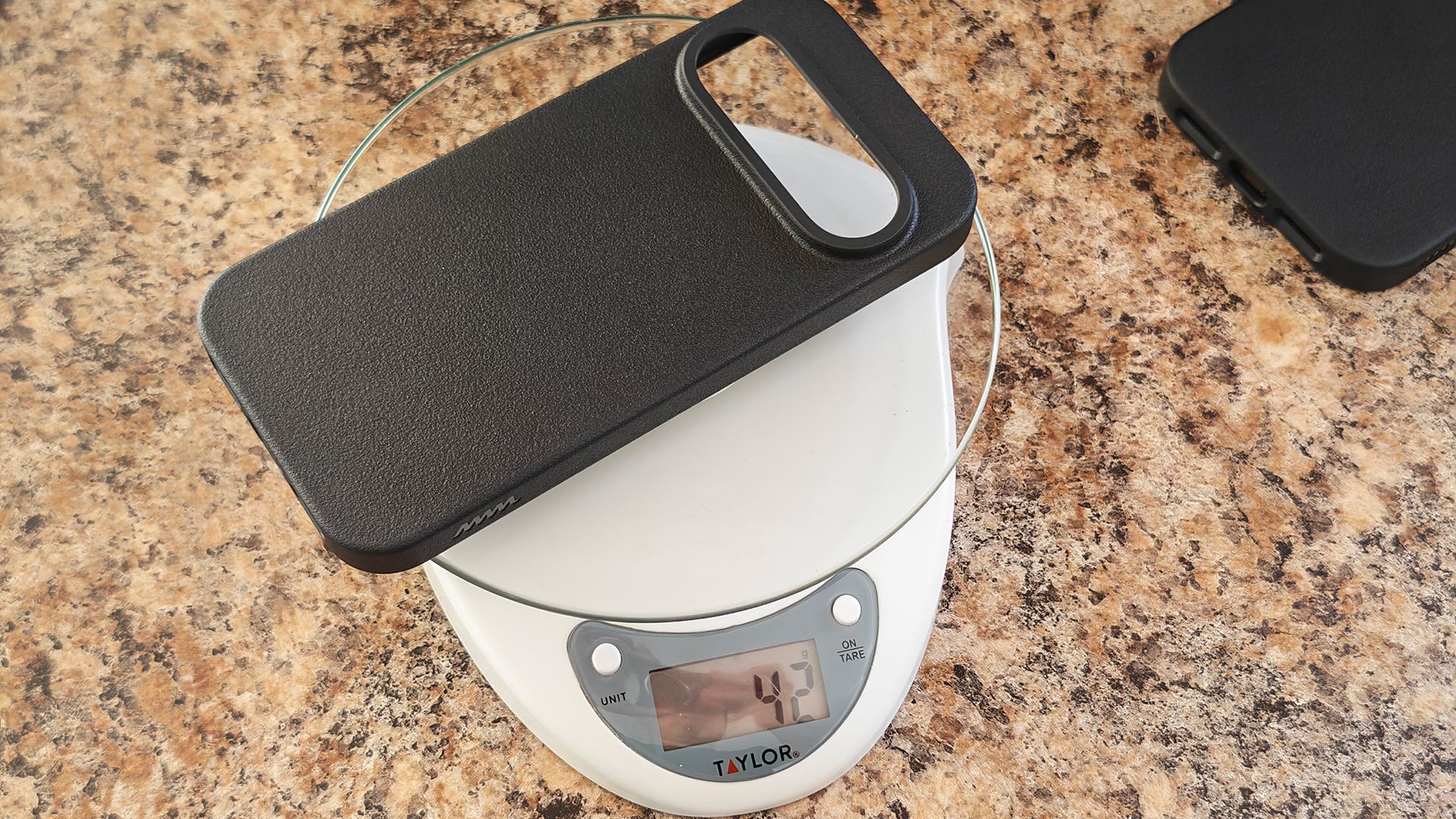
These also aren't minimalist in the way Thinborne cases are. They're not super rugged like Dbrand's Tank cases are, but they still add a little bit of bulk to the phone. They're cushy and a few millimeters thin, but they weigh around 40-50g, depending on the phone, which is roughly twice the weight of an aramid fiber case (like Thinborne).

The bright side to the extra "bulk" is that these are more drop-resistant than aramid fiber cases. I purposefully dropped the Pixel 11 Pro on the concrete from about 3ft up a few times to see what would happen. The phone looked untouched, and the MNML case just had a few minor dings on the corners.

Weighing a Thinborne case for the Pixel 11 Pro Fold
Nicholas Sutrich / Android Central
Weighing a Dbrand MNML case for the Pixel 11 Pro
Nicholas Sutrich / Android Central
Weighing a Dbrand MNML case for the iPhone 17 Pro Max
Nicholas Sutrich / Android Central

Seems to me that these will generally hold up nicely to wear and tear over the life of your phone, making them a great option to grab the next time you're in a Best Buy (so long as you don't care about Dbrand skins).

Dbrand makes MNML cases for 24 phone models across Apple, Samsung, and Google Pixel phone lines. That MNML sub-brand also includes a handful of MagSafe accessories, like a kickstand wallet, slim wallet, and an AirPods case (I guess that's a thing?).

  •  

Magic Capture is the best camera feature in a decade, and Pixel 11 owners need to use it ASAP

If I had to pick just one reason to recommend Google's Pixel 11 series of phones, it would be for Magic Capture. This Pixel 11-exclusive Gemini feature uses AI smarts to automatically capture photos while you're recording a video with your smartphone.

It ensures the best moments are delivered in picture-perfect HDR+ detail, so you can stay in the moment instead of trying to strike the right pose. Better yet, it retains the video you captured, so you get a top-notch video recording and effortless photos from every moment.

We've seen similar auto-capture features from companies like Honor, but Google's implementation goes further than any of them have, and it does it all in an impressively simple way, too. If you've got a Pixel 11 series phone, here's what you need to know about Magic Capture (and why you need to use it immediately).

What is Magic Capture and how does it work?

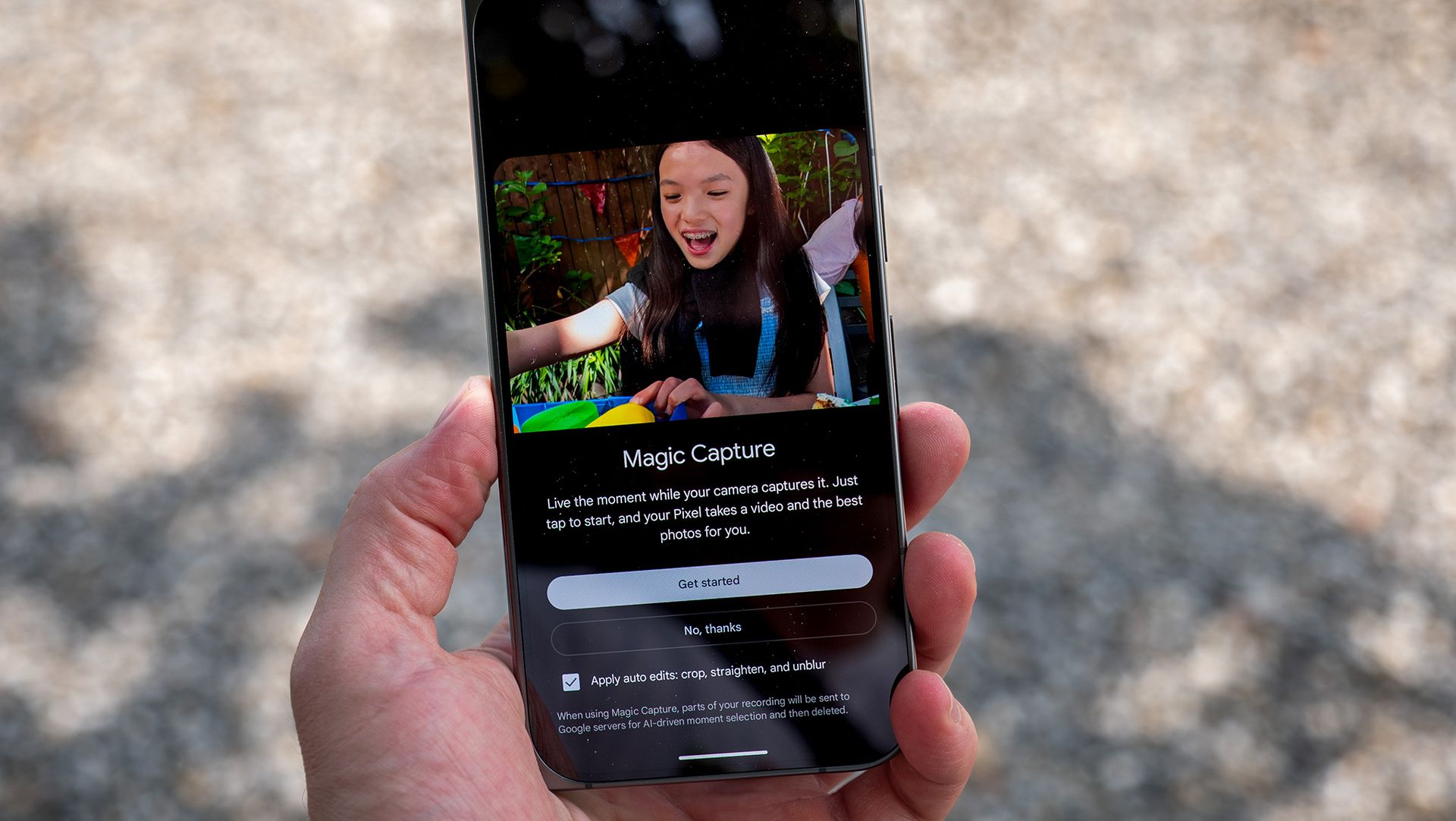
Magic Capture on a Google Pixel 11 Pro Fold

(Image credit: Nicholas Sutrich / Android Central)

Magic Capture is a new main camera mode on the Google Pixel 11 series. Google puts it alongside the main photo and video modes, which makes sense since it combines both. Once you start a Magic Capture recording, you can just focus on capturing the moment instead of worrying about getting the right photo.

After you hit stop, the Pixel 11's special version of Gemini will analyze the video locally, so it won't go to the cloud for processing. Gemini mainly captures photos based on expressions, movement, and composition. This means that if someone smiles during a Magic Capture session, for example, you can expect Gemini to create a photo of that moment.

If you tap the thumbnail in the viewfinder, you can watch this happen in real-time. Here's a video example from our hands-on time with the Pixel 11 Pro back in early August 2026.

Gemini will pick out several moments from the video and save them as a photo, but this isn't just a simple frame export of the video. During the Magic Capture session, the Pixel 11 captures several additional frames of data that are used to create a full HDR+ quality photo, which is a substantial step-up in quality versus a simple frame export.

Plus, since Gemini can take multiple video frames and combine them into one excellent photo, moving subjects (like kids and pets) come out crystal clear. I've been calling Pixels the best phones for parents for years, and this levels up that expectation in ways even I didn't foresee.

I've constantly been blown away by using Magic Capture over the past month on my Pixel 11 Pro Fold because of its ability to save those moments I absolutely would have missed if I were just taking regular photos. It's the kind of AI-powered technology that I've been dreaming about, and it's dead simple to use, at that!

What are the downsides of Magic Capture?

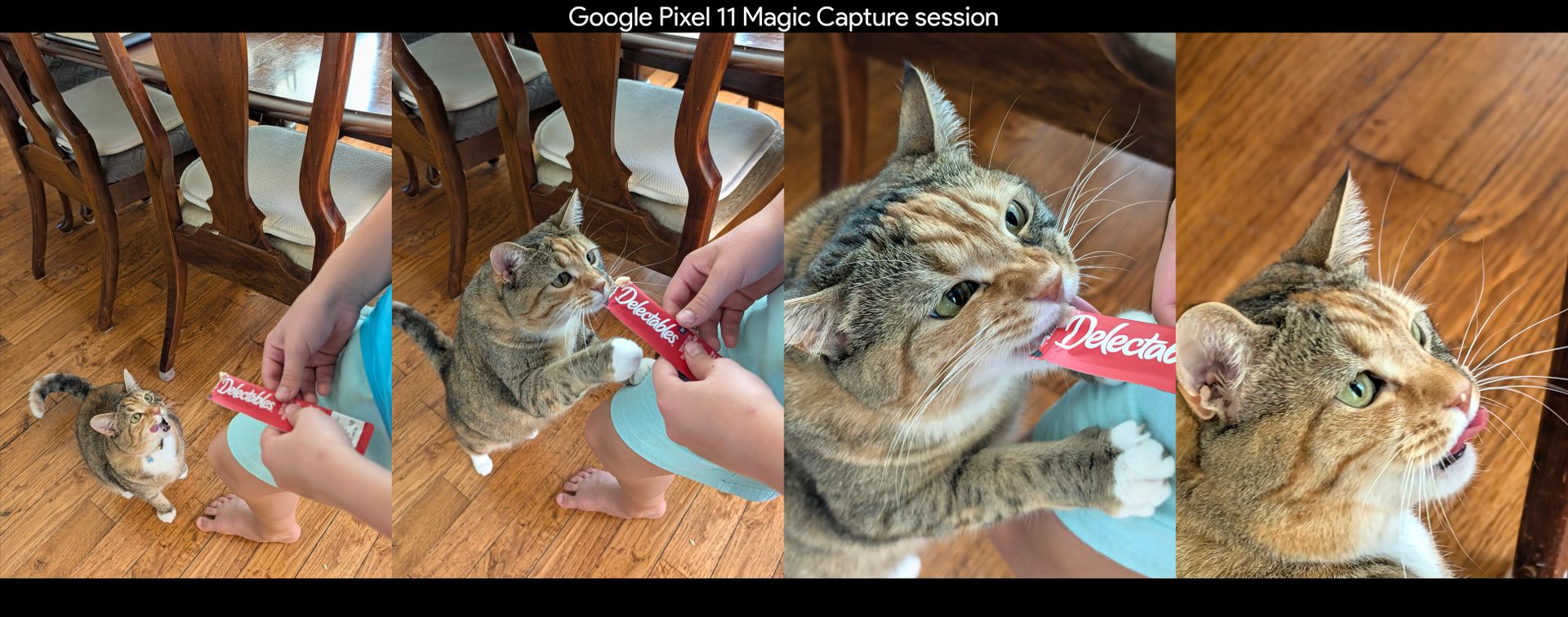
Four photos of a cat eating a snack taken via Magic Capture on a Google Pixel 11 Pro

(Image credit: Android Central)

While Magic Capture is truly amazing, it does have a few downsides. Namely, you won't get full-resolution video or photos from the captures. That doesn't mean they look bad, but it's worth noting that you'll lose a little quality when you use the feature. Here's how the numbers run:

Google Pixel 11 camera maximum resolution

Photo mode

Video mode

Magic Capture

Video capture

N/A

4K (3840 x 2160) resolution, 60 FPS

1080p+ (1440 x 1080) resolution, 30 FPS

Photo capture

4000 x 3000 resolution

N/A

3820 x 2865 resolution

As you can see, the photos are nearly full quality, but the resolution will vary. By default, Magic Capture automatically crops and rotates captured images to make them look better. This results in a slightly lower-resolution photo, but only because it's cropped and/or rotated. If you wish, you can disable this option in Magic Capture settings to get the full-resolution frame.

Magic Capture only records in 1080p+ quality at 30FPS, so if you're used to 4K60 video, you'll be disappointed with the results. The aspect ratio is also a little funky for a video β€” it's much closer to 4:3 than 16:9 β€” but it's not the end of the world. Just expect that videos won't take up the whole screen on your phone or a TV, and you'll be fine.

How to use Magic Capture on a Pixel 11

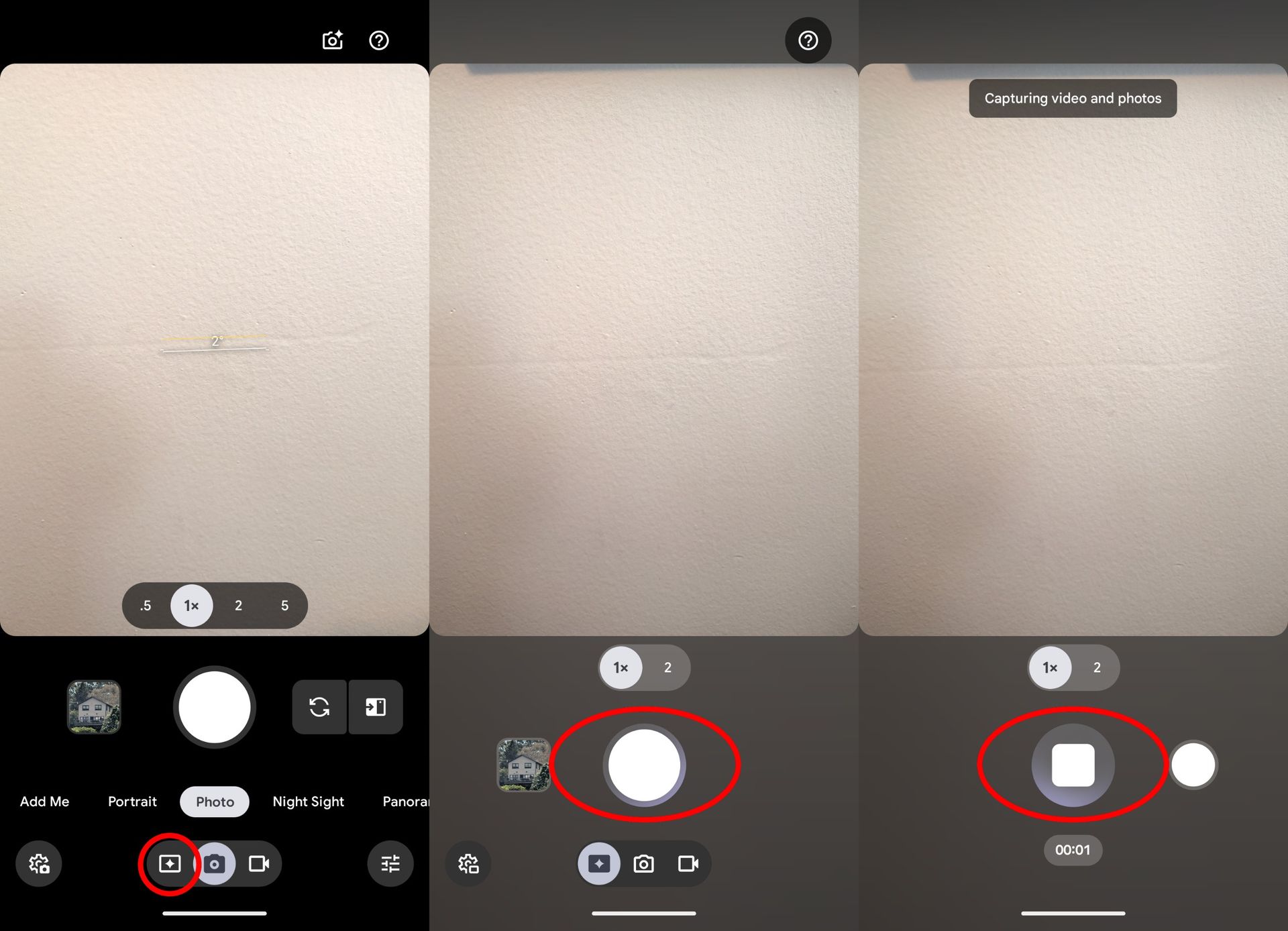
While some camera modes require you to select a main mode and then swipe over to a sub-mode, Magic Capture is one tap away at all times. Here's how to use it:

1. Open the Camera app on your Pixel 11.

2. Tap the Magic Capture button at the bottom of the viewfinder. It's the button to the left of the camera icon at the very bottom of the camera viewfinder.

3. Tap the white shutter button to start a Magic Capture session.

4. Film anything you'd like to capture, and Gemini will automatically identify moments to turn into photos.

5. Tap the red stop button when you're done filming.

How to begin and end a Magic Capture session on a Google Pixel 11 series phone

(Image credit: Android Central)

And that's all there is to it! Tap the photo thumbnail in the viewfinder or open your Google Photos app to view the results of the Magic Capture session. Since Magic Capture relies on a local Gemini agent to process the photos, it may take a few seconds to begin generating photos from each session.

The simplicity and overall quality are why Magic Capture is so amazing to me, and it's exactly why Pixel 11 owners should start integrating Magic Capture into their daily routines. Happy capturing!

  •  

The Galaxy Watch Ultra 2 is one of the best Android smartwatches you can buy... if you own a Samsung phone

As I prepped for my day this morning, I opened the YouTube Music app on my Samsung Galaxy Watch Ultra 2 and queued up the latest episode of my favorite podcast. Everything felt great until I actually went out on my run, when the watch lost connection to my phone and stopped playing the podcast. Turns out, auto-downloading isn't enabled by default. Why? I asked the same question.

I'd love to say this was the only annoyance I've faced in the past month since I started using the Galaxy Watch Ultra 2, but that's only a half truth. That's not to say this is a bad watch by any means β€” far from it β€” but several aspects of the experience have been irritating until I tweak something to work the way I expect. This is one reason I stopped using Wear OS watches over the past two years, and while some aspects have improved, others have gotten worse.

That feeling extends across the entire Galaxy Watch Ultra 2 experience. The hardware is faster, but the battery life is worse, and the charging is much slower. Samsung has finally addressed some of the weakest points of the workout experience (like the missing rep count feature on previous watches), but some things are still too obtuse for their own good.

Plus, many of the best features are arbitrarily locked to Android owners who happen to use Samsung phones. I wanted to say I loved the Galaxy Watch Ultra 2, but that would also be a lie. Here's my full review.

What's good

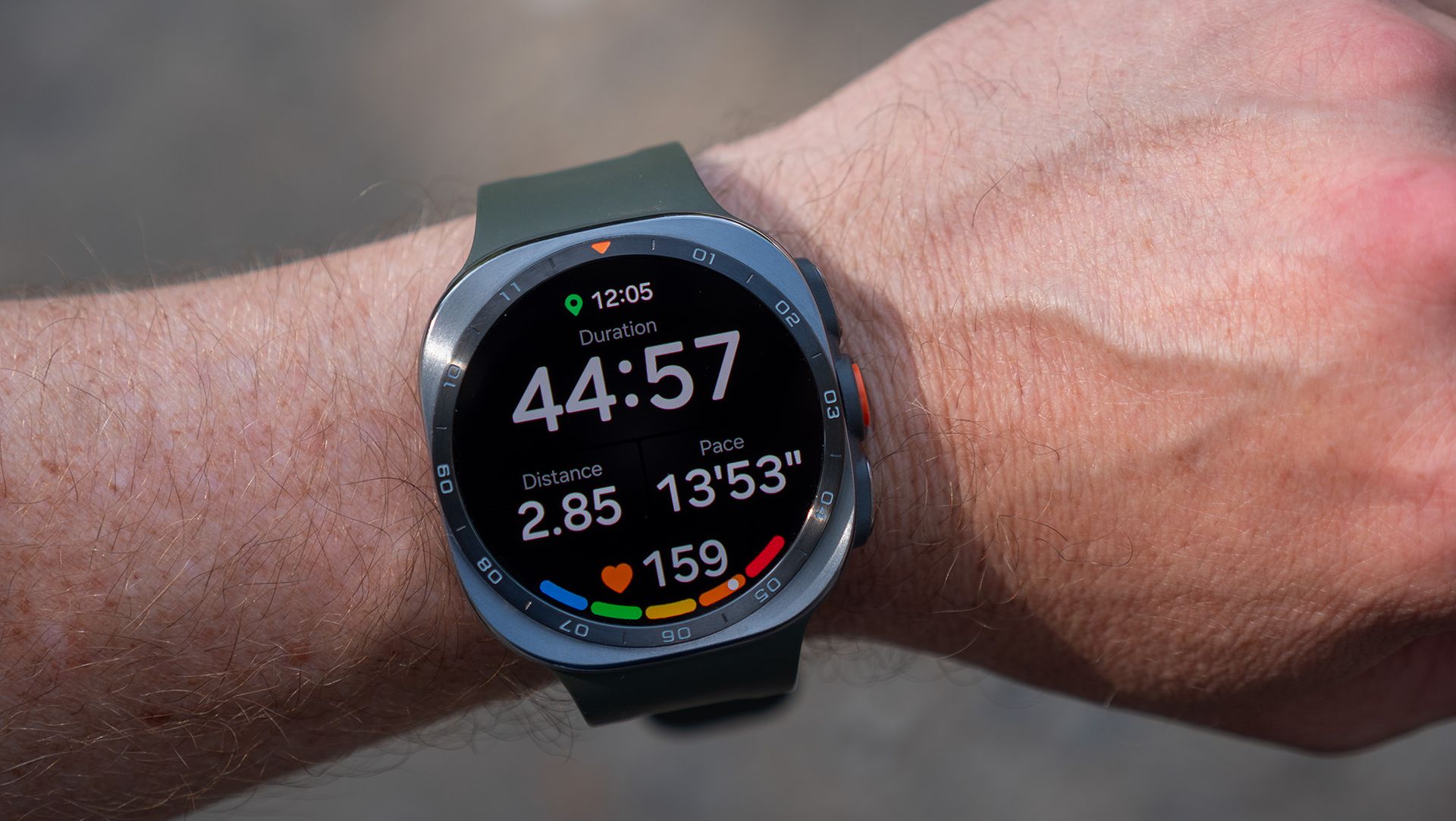
Running with a Samsung Galaxy Watch Ultra 2

(Image credit: Nicholas Sutrich / Android Central)

Right off the bat, I was impressed with Samsung's design and build quality. The circle-within-a-squircle design looked better than I initially imagined, and I appreciate that this watch uses buttons instead of a crown that gets in the way when working out.

I also loved how well apps worked on the phone. This watch is a multitasking beast, both thanks to the Snapdragon Wear Elite processor inside and Wear OS's generally excellent OS design. It's so nice to easily juggle messaging apps, check my calendar, and log my workouts without losing any progress.

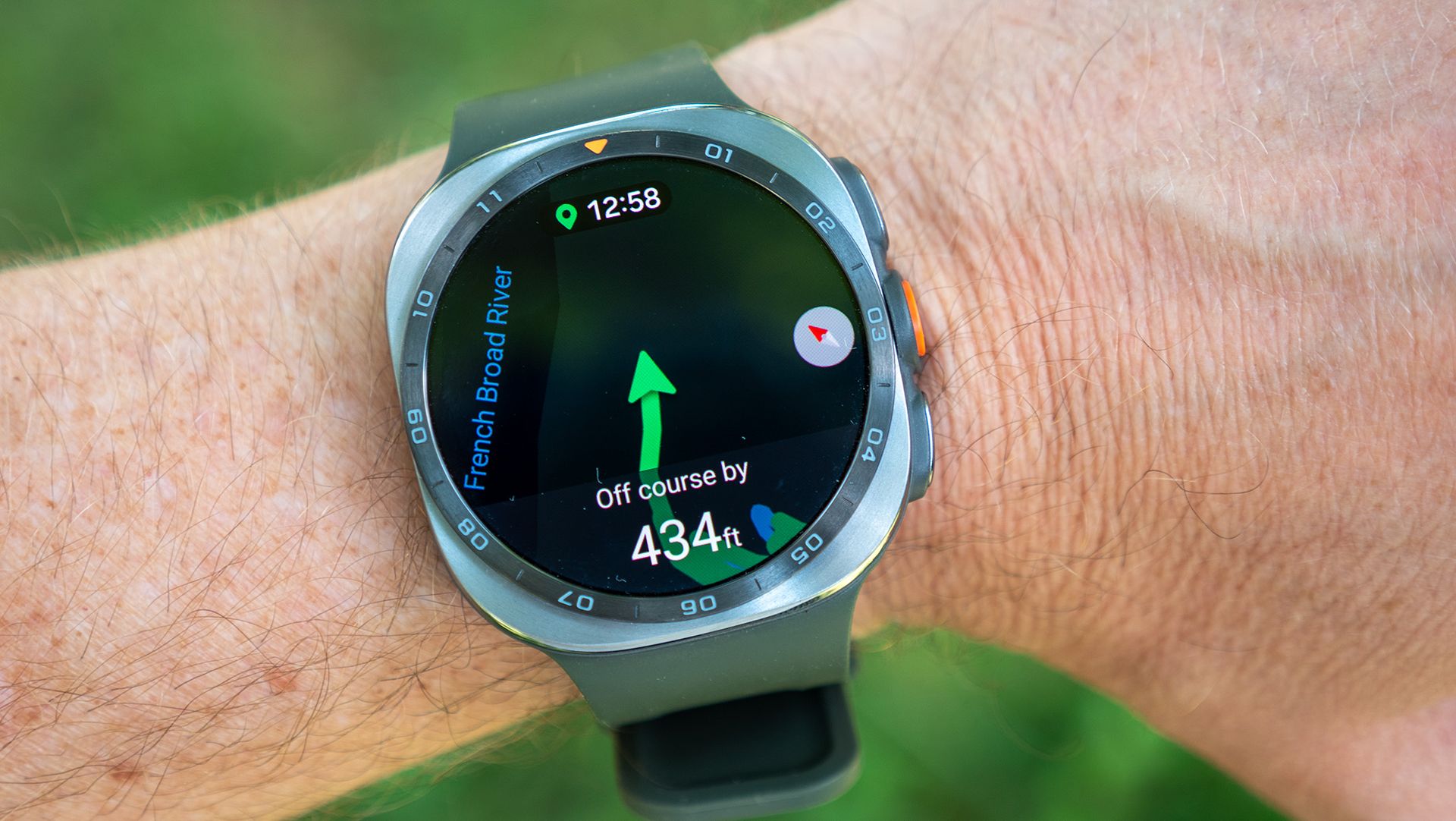
Getting turn-by-turn navigation with the trail running feature on a Samsung Galaxy Watch Ultra 2

(Image credit: Nicholas Sutrich / Android Central)

The new trail run workout mode is absolutely superb. This one differs from outdoor running because it provides turn-by-turn navigation (which is paramount for not getting lost on a mountain trail, trust me) and an easy way to load up routes from apps like AllTrails. The voice guidance was more attentive than my favorite Amazfit watch, which I appreciated.

While I rarely ever use Gemini on a watch, it's a great feature to have when you want to do something hands-free. Samsung also loads this watch with great gesture support, furthering the idea that you don't need to get your grubby fingerprints on the screen.

Using the Running Coach feature on a Samsung Galaxy Watch Ultra 2

(Image credit: Nicholas Sutrich / Android Central)

I was also elated to see that several workouts support rep counts and weight measurements, something that's been missing from most Wear OS watches since their inception.

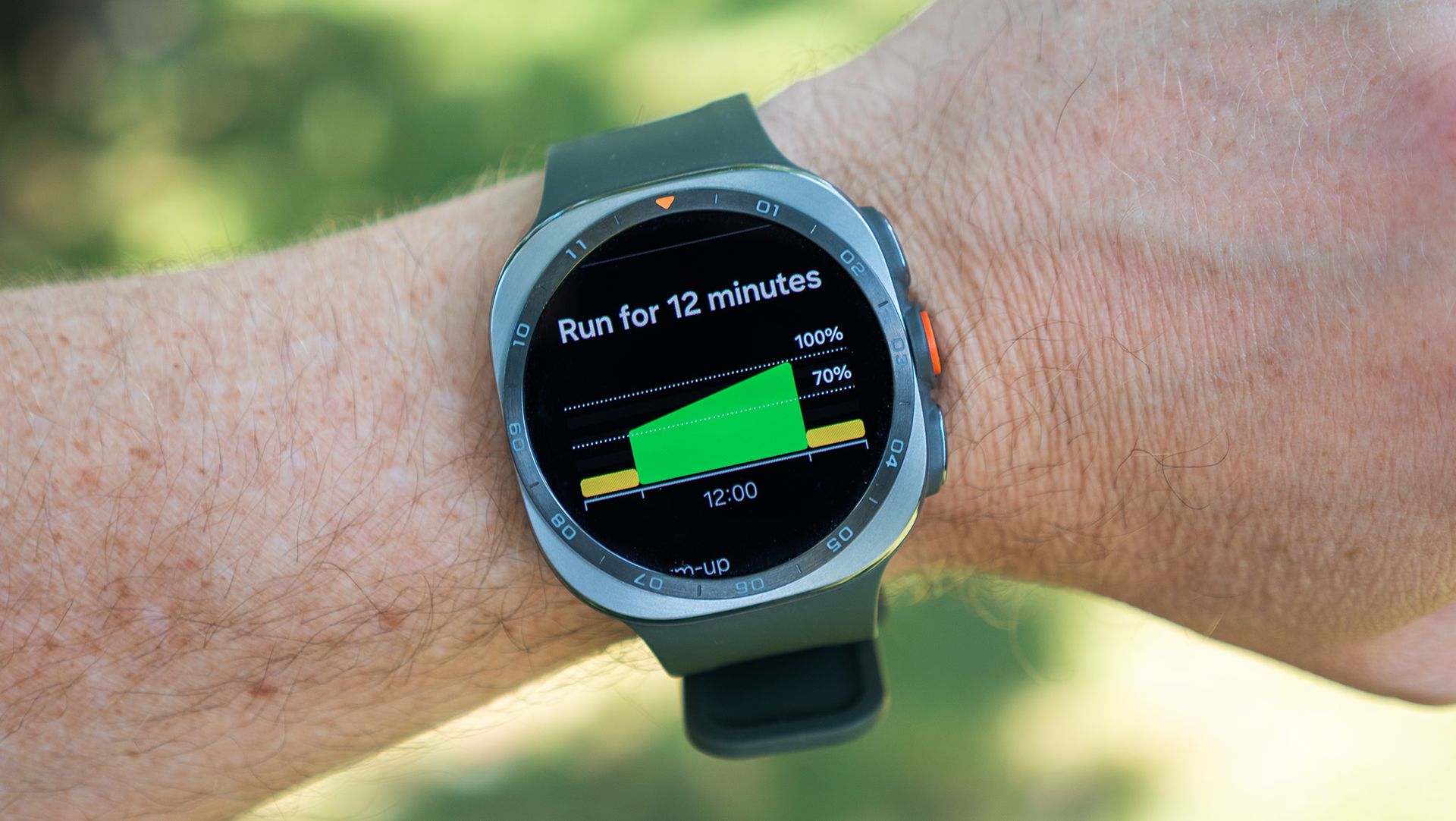
I've also loved using the Running Coach feature, which has been helping me train for a half marathon I've scheduled in November. I've never run a half marathon before, and setting this up on the watch was as easy as opening Running Coach and following the prompts in the Samsung Health app.

Not just annoyances. Real problems.

Samsung heart health features on a Samsung Galaxy Watch Ultra 2

(Image credit: Nicholas Sutrich / Android Central)

Samsung's Running Coach is excellent, but I found that the watch doesn't measure pacing correctly. This was especially prominent during my half marathon training, as the watch wants me to run at a specific slow pace to build endurance, but it's hard to do that when it constantly thinks I'm going too fast. I found this to be the case even during the Spartan Race I wrote about last month, so it's not limited to slow paces.

The Samsung Galaxy Watch Ultra 2's best health features are only supported when using a Samsung phone

(Image credit: Nicholas Sutrich / Android Central)

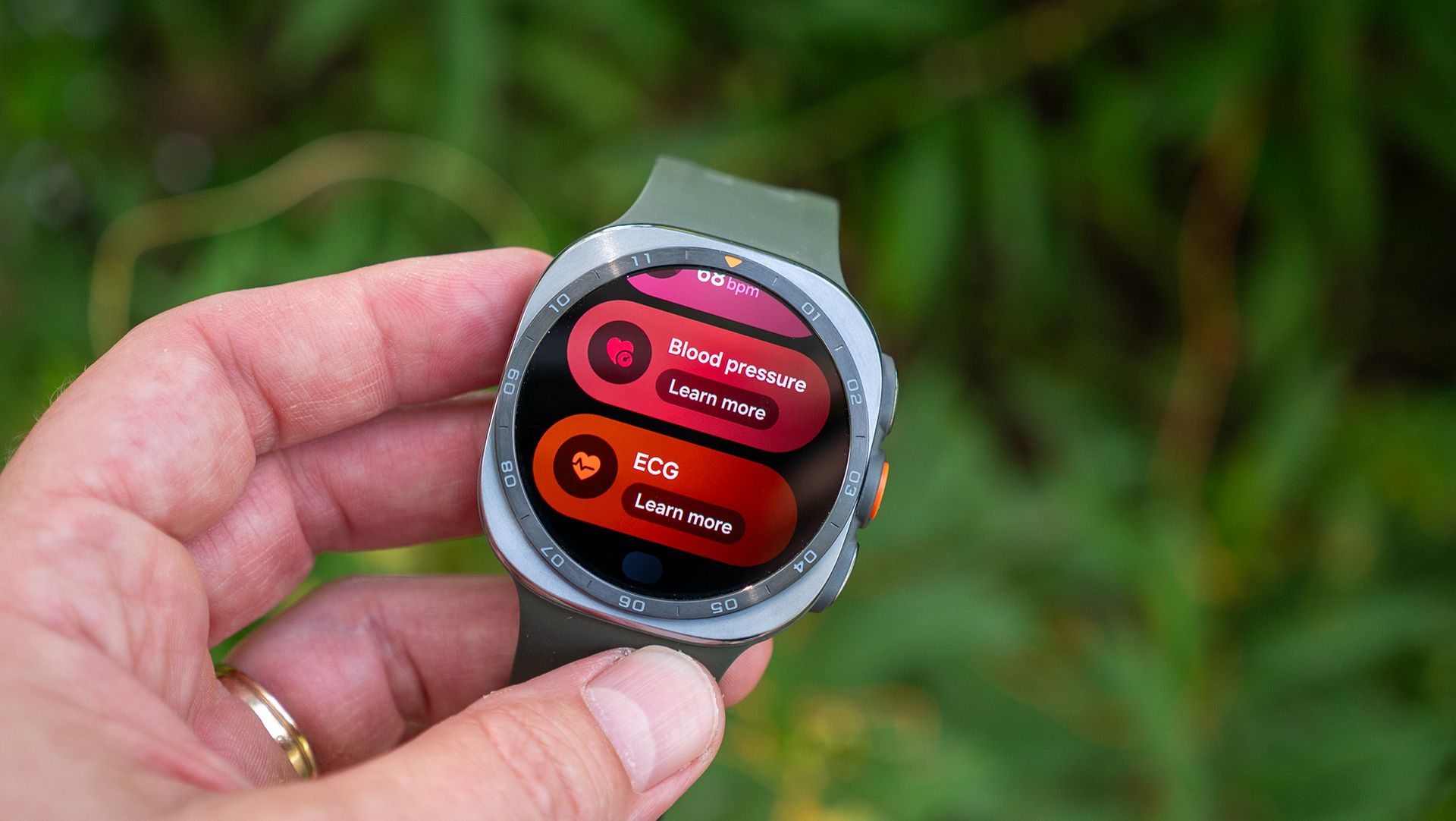
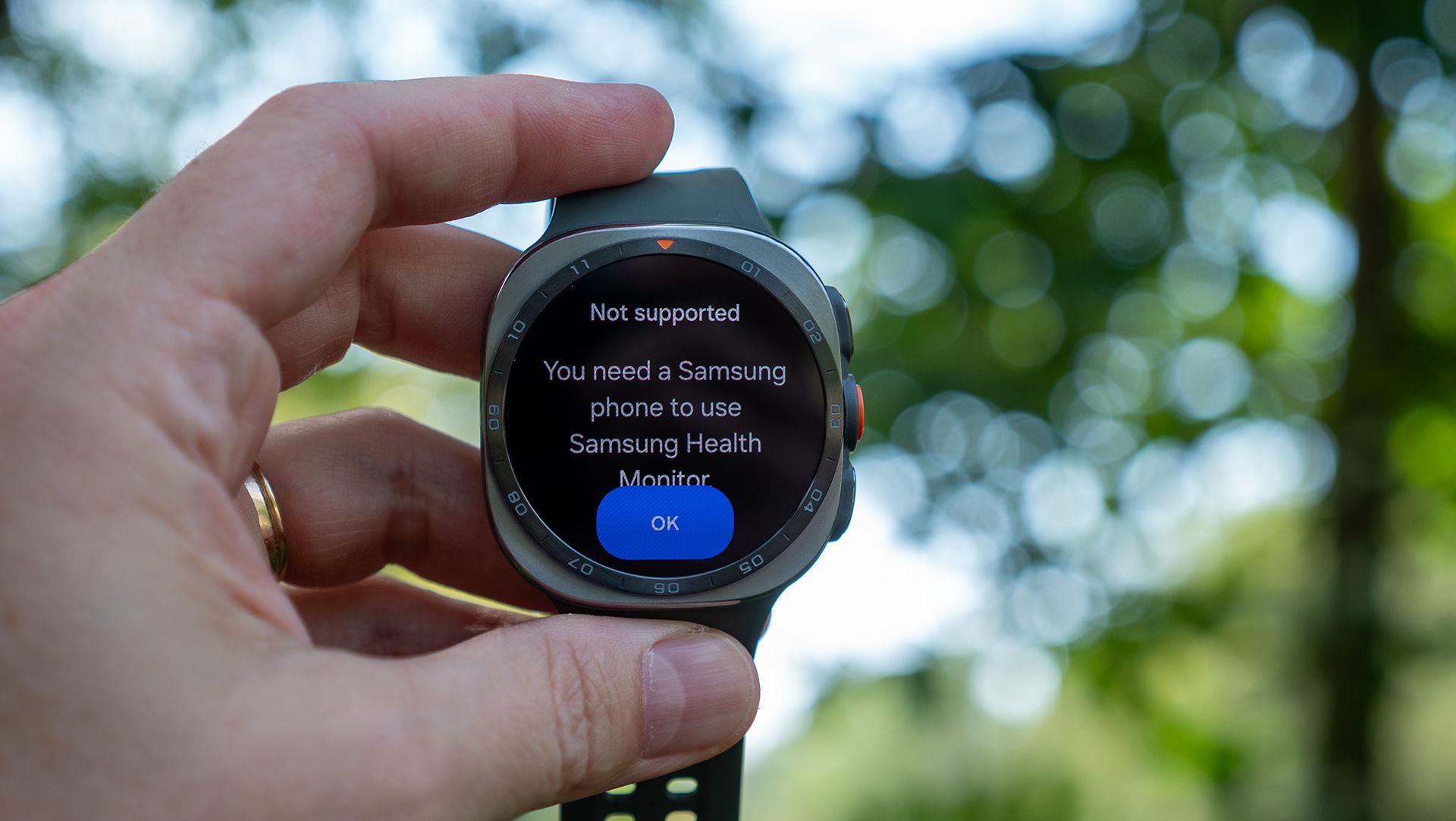
While I appreciate all the cool new heart health features Samsung added to this watch, they're only for people using Galaxy phones. This makes no sense at all and, quite frankly, is embarrassing for an Android device. Android thrives on interoperability between brands, and Samsung feels like it is making a mockery of that.

I was also extremely unimpressed with the blood pressure and food logging features. Blood pressure monitoring was far too difficult to set up (you have to use a blood pressure machine to create a baseline), and food logging in the Samsung Health app is extremely archaic. In the age of Galaxy AI, I still have to search and scroll through lists of items instead of just asking AI to do it. Competitors like Amazfit have had that feature for years, and it's time Samsung got with it.

Enabling always-on heart rate measurement on a Samsung Galaxy Watch Ultra 2

(Image credit: Nicholas Sutrich / Android Central)

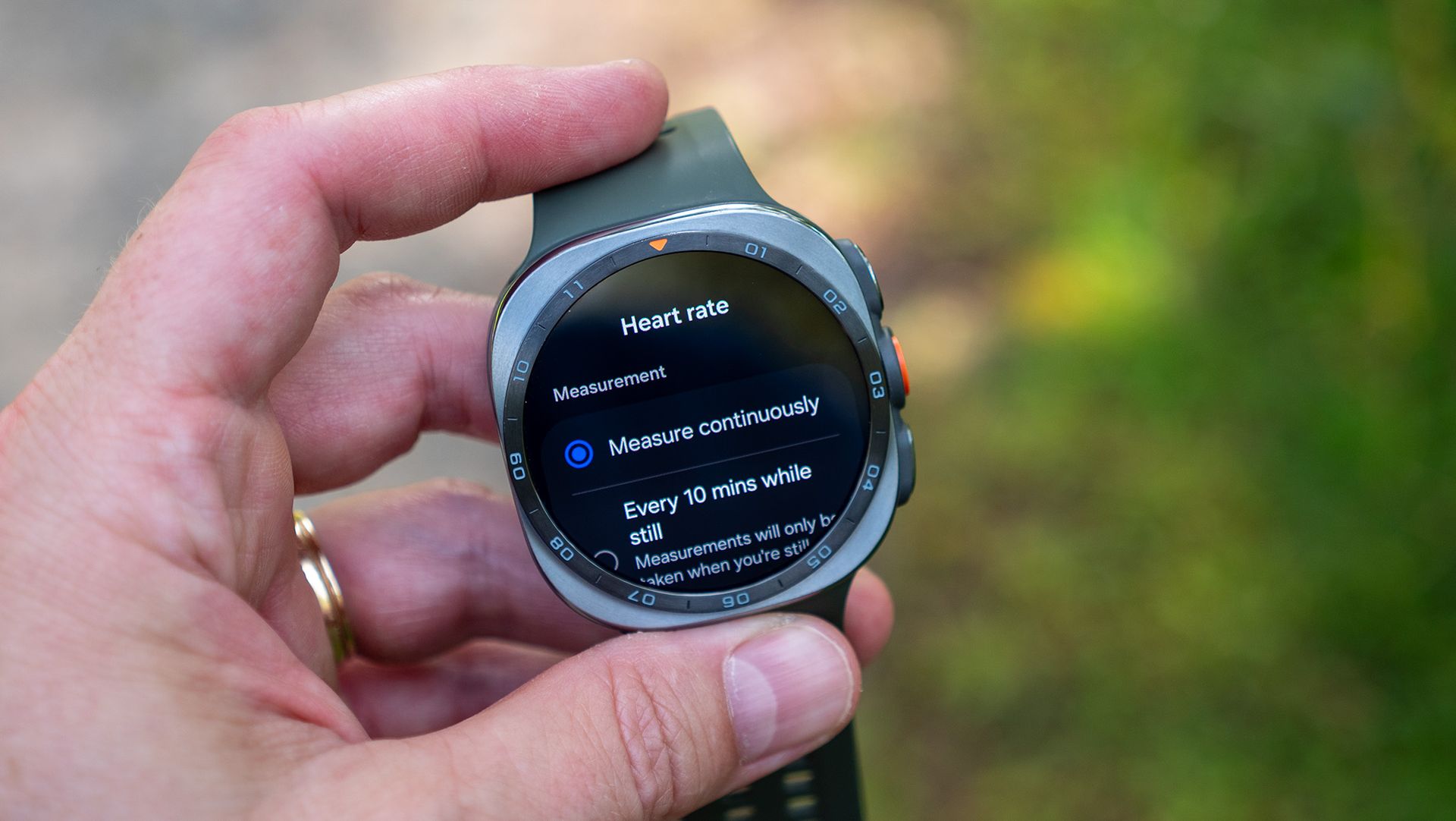
Lastly, I can't express how disappointed I was with this watch's battery life. With an 800mAh battery, this thing should last a week. As it stands, I could barely get through 2 days, and it takes around 2 hours to charge it from empty. If I paid $700 for this watch, I would be pretty disappointed in how mid the overall experience has been.

You could buy the Galaxy watch Ultra 2, or...

If I were recommending new Wear OS watches this year, the Pixel Watch 5 would be my choice. If you're deeply entrenched in Samsung's ecosystem or have a specific feature you love (like diving or trail running), this is a great second-place option, but it's hard to recommend something so expensive when it simply doesn't excel in all the areas it should.

  •  

The rumored folding iPhone Ultra looks sick, but Android foldables offer something more: choice

Rumor has it that Apple will announce the iPhone Ultra at its upcoming September 9 event, making it the first iPhone to sport an "ultra" moniker. We're not expecting it to push the boundaries of battery technology or camera prowess, but it is slated to do one big thing that no other iPhone has (intentionally) done: fold in half.

This is going to drive a huge boost in sales for foldable phones, a category that has consistently grown since the first models arrived in 2019, but hasn't seen a particularly massive tentpole release like this one yet. Of course, as with anything Apple makes, you'll only get what Apple gives you, and rumor has it that Apple is announcing only one size and shape this time around.

But Android foldables, which have been around for eight years now, have had time to develop and branch out. Android offers a substantial choice of manufacturers, shapes, sizes, and capabilities that Apple simply can't offer. If foldable phones are looking like your next big purchase, here are many reasons you should choose an Android-powered one.

What is a folding phone and how do they work?

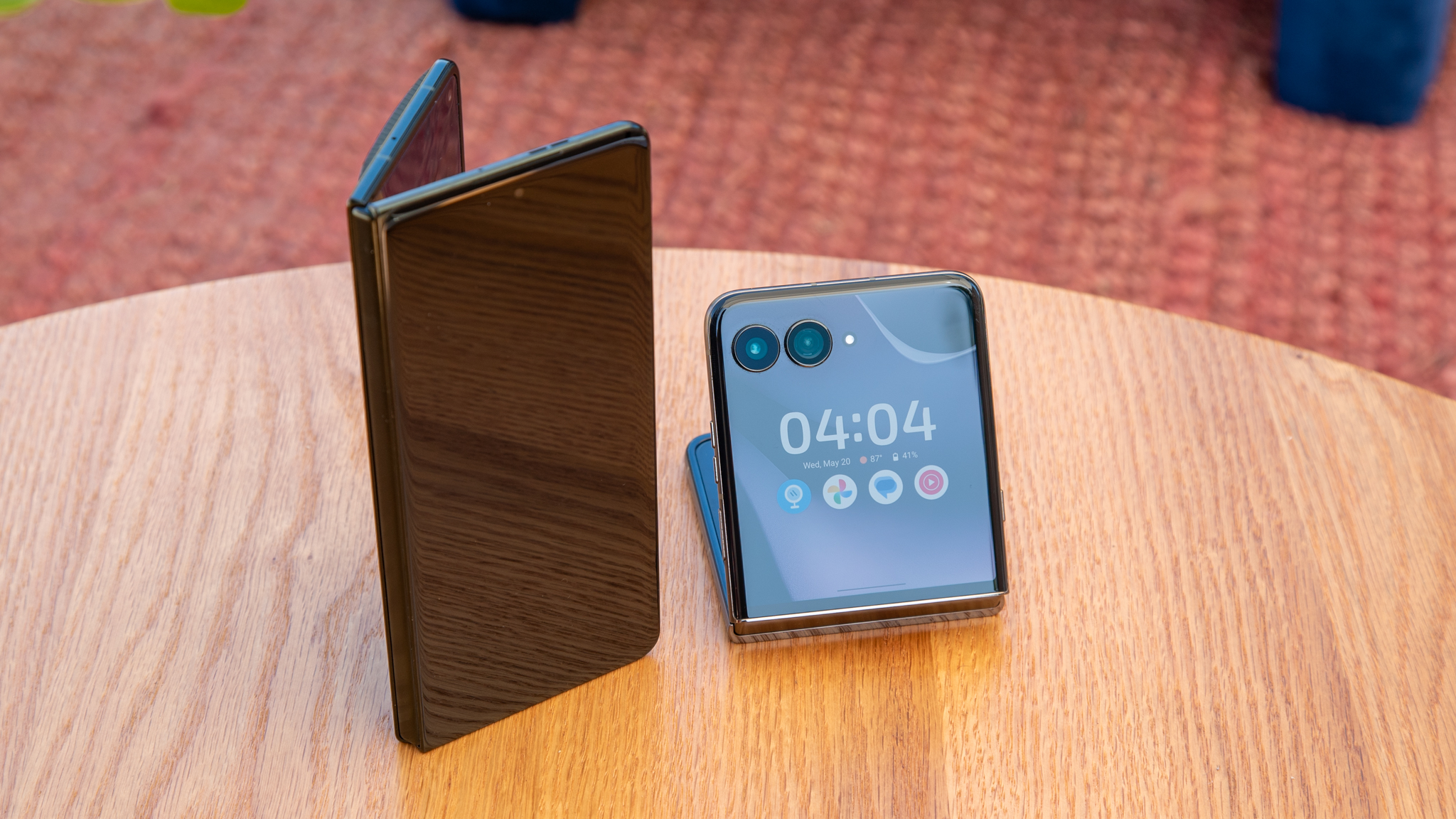
The Razr Ultra 2026 on a table next to the Razr Fold

(Image credit: Derrek Lee / Android Central)

Folding phones usually come with two displays: an inner display and an outer display. The inner display is made of special ultrathin glass that can bend (unlike normal glass) and is reinforced with a preinstalled screen protector. The phone's frame is split into two halves connected by a specialized hinge, allowing you to open and close the phone.

The foldable inner display is a special type of flexible OLED panel that's built to bend, too. A specialized hinge holds everything together, keeping dust and water out of the phone. It's a true marvel of engineering, and some foldables are even extremely durable, as proven by my Honor Magic V6 torture test.

Both the inner and outer displays work the same way a regular smartphone touchscreen does. You can open apps on either of them, allowing you to choose the size of the "canvas" you want to view them on.

What types of folding phones exist (and why would someone want one)?

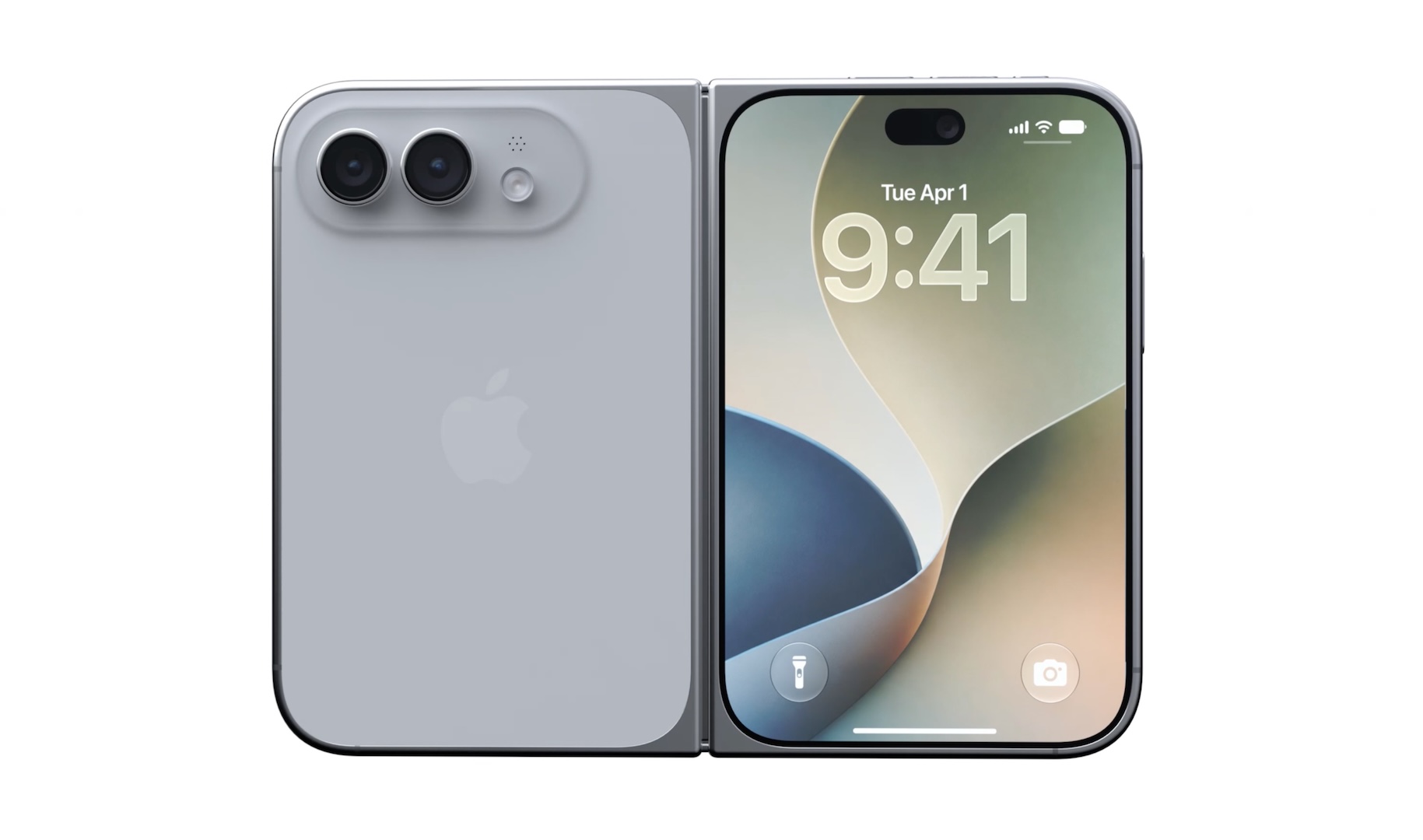
Apple iPhone Ultra leak

The rumored iPhone Ultra. (Image credit: AppleTrack)

The leaked image of the iPhone Ultra above shows what's known as a book-style foldable. When a book-style phone is closed, its size and shape are similar to those of a standard smartphone, so all your favorite apps look and feel nearly identical to those on your existing smartphone.

Opening a book-style phone doubles its size, turning it into a small tablet that lets you get more done without switching to a laptop or other computer. I work on the go quite a bit, and a folding phone makes it easy to get most of my work done efficiently. I rarely watch videos on my phone, but when I do, the extra-large inner display is a real treat.

Because of the large size, multitasking is one of the best features of a book-style foldable. You can run two or three apps side by side on these phones, and even put apps in floating windows, like on a laptop OS. Plus, the taskbar on the inner display makes it feel even more like a multitasking beast, similar to a laptop OS (like Windows or macOS).

Book-style foldables come in many sizes and shapes, though most are slightly taller and narrower than your average smartphone when closed. Google began its foldable journey with a shorter, wider model, but made the next three entries a bit taller.

Meanwhile, Samsung just introduced its first shorter, wider model (the Galaxy Z Fold 8), and Apple's iPhone Ultra is rumored to use this same size and shape. Shorter, wider models are best for video content and feel a lot like holding a small TV when unfolded.

Apple's iPhone Ultra is said to come in just one shape and size, while Android foldables offer tons of different sizes, shapes, and form factors. You can even get tri-fold foldables!
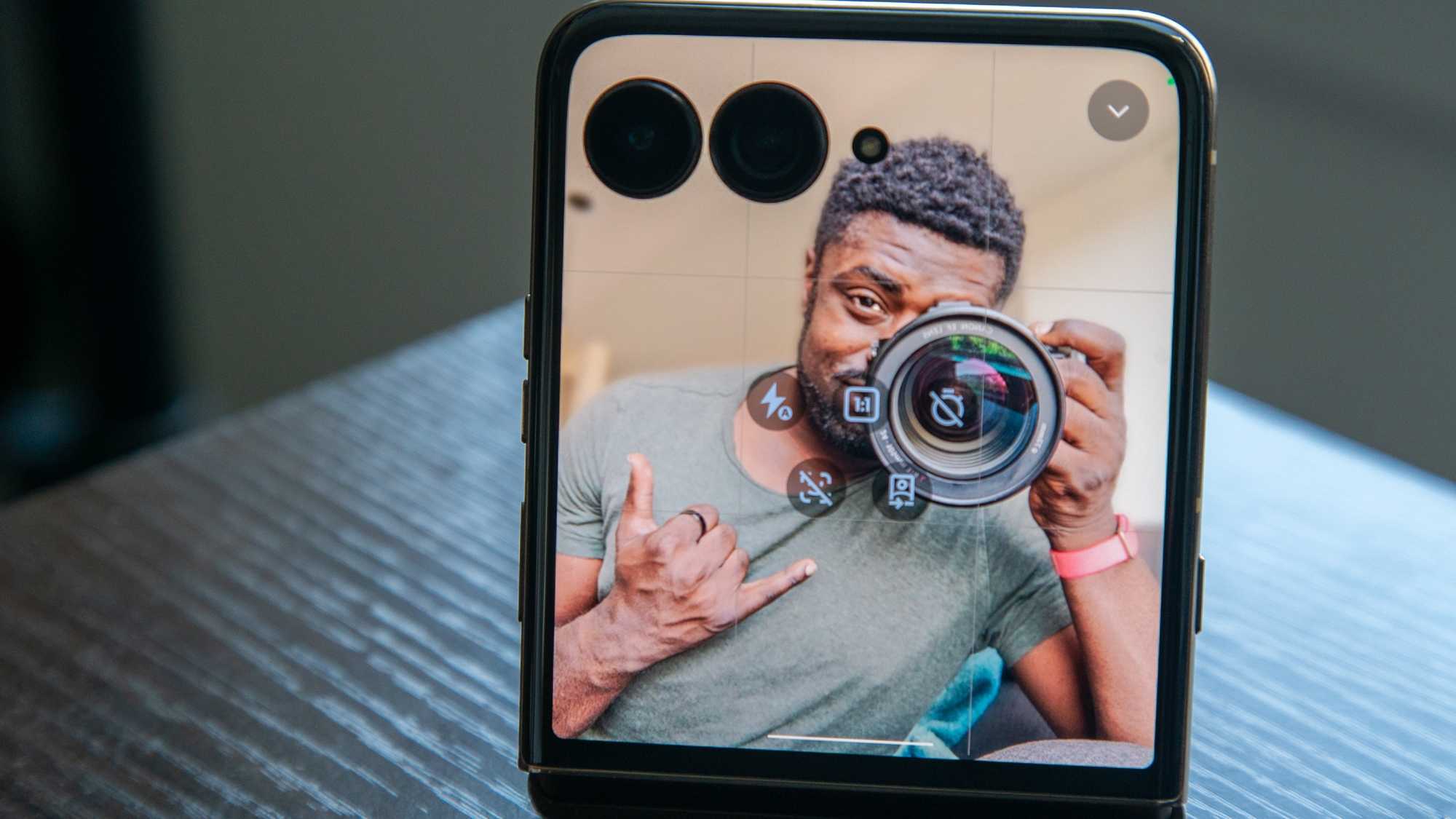
Motorola Razr Ultra 2026 cover screen selfie

(Image credit: Android Central)

While book-style foldables get the bulk of the attention, flip-style foldables were better sellers for a few years. Phones like the Motorola Razr 2026 series look like a slightly taller normal smartphone when opened, then fold into a perfectly pocketable half-sized phone when closed.

These phones solve the issue of overly large phones while still giving you the flexibility to use a small screen for things like notifications and messaging, then a larger screen when you need it. We generally recommend Motorola's Razr flip phones over Samsung's Z Flip line because Motorola's outer screen is more capable, and the company's designs are far more interesting.

Flip phones are also wonderful for photos and videos thanks to their shape. It's easy to bend a flip phone at a 90-degree angle and use it as a "tripod" to take group photos. You can also use this same shape and hold it sideways to take video like a classic camcorder.

Do folding phones have any downsides?

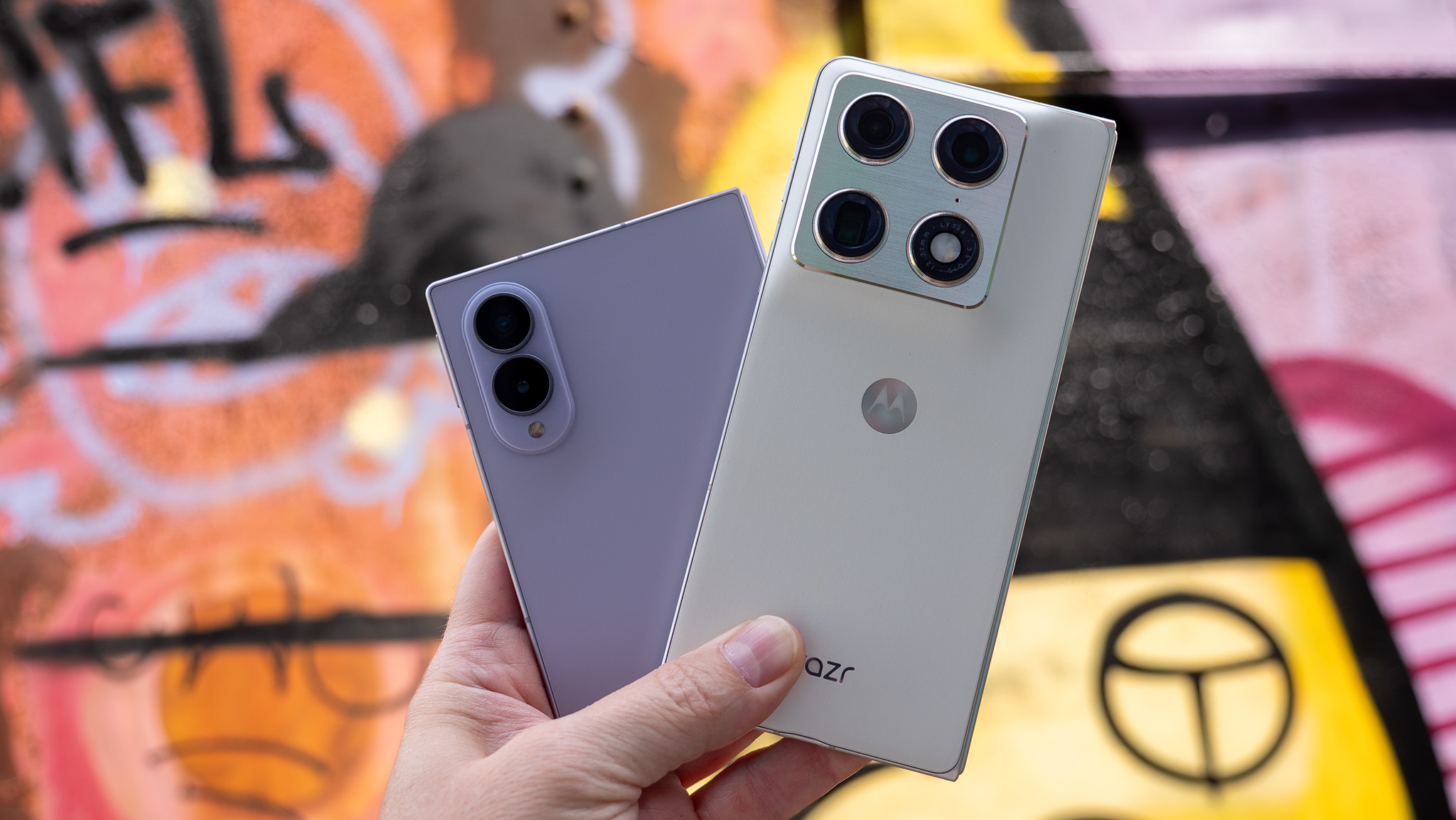
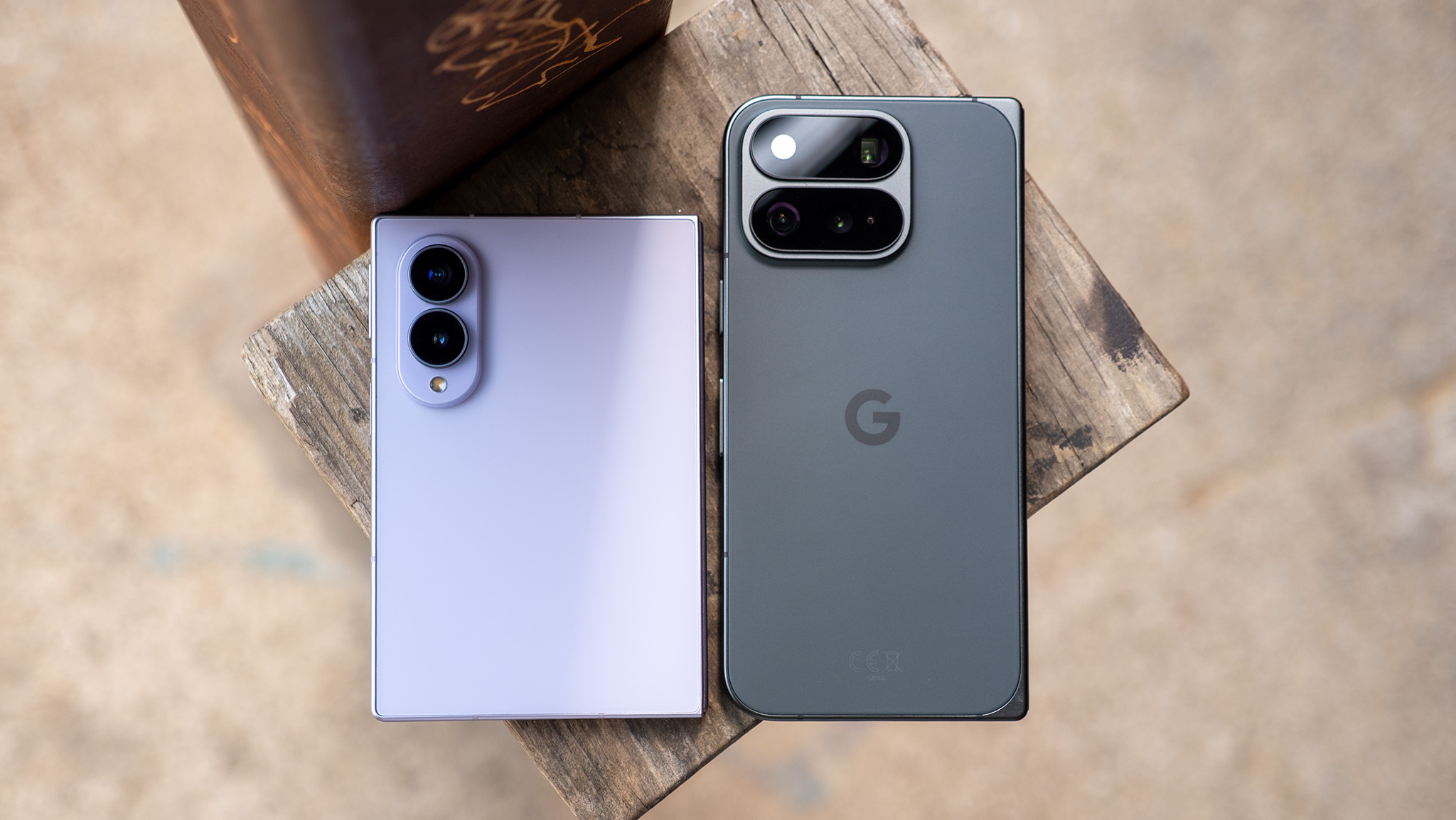
Comparing the Motorola Razr Fold (white) and the Samsung Galaxy Z Fold 8 (lavender)

(Image credit: Nicholas Sutrich)

Folding phones offer unique form factors and ways to interact with your favorite apps, but not everything is a win-win. When shopping for a book-style folding phone, the first thing you'll probably notice is the price. Yeah, there's quite a bit of sticker shock here, and that's mainly because this is a two-in-one device. Think of it as buying a phone and a tablet at the same time, and you'll understand.

Flip-style phones are typically priced the same as traditional flagship phones but tend to have one fewer rear camera. Even Motorola's Razr Ultra line doesn't have a third camera on the back, despite the higher price.

Both flip and book-style foldables are often a bit less powerful than top-tier traditional flagship smartphones. The problem is that there's not as much space in these phones for cooling, since they have to be thinner than a traditional phone to avoid feeling like a brick when closed.

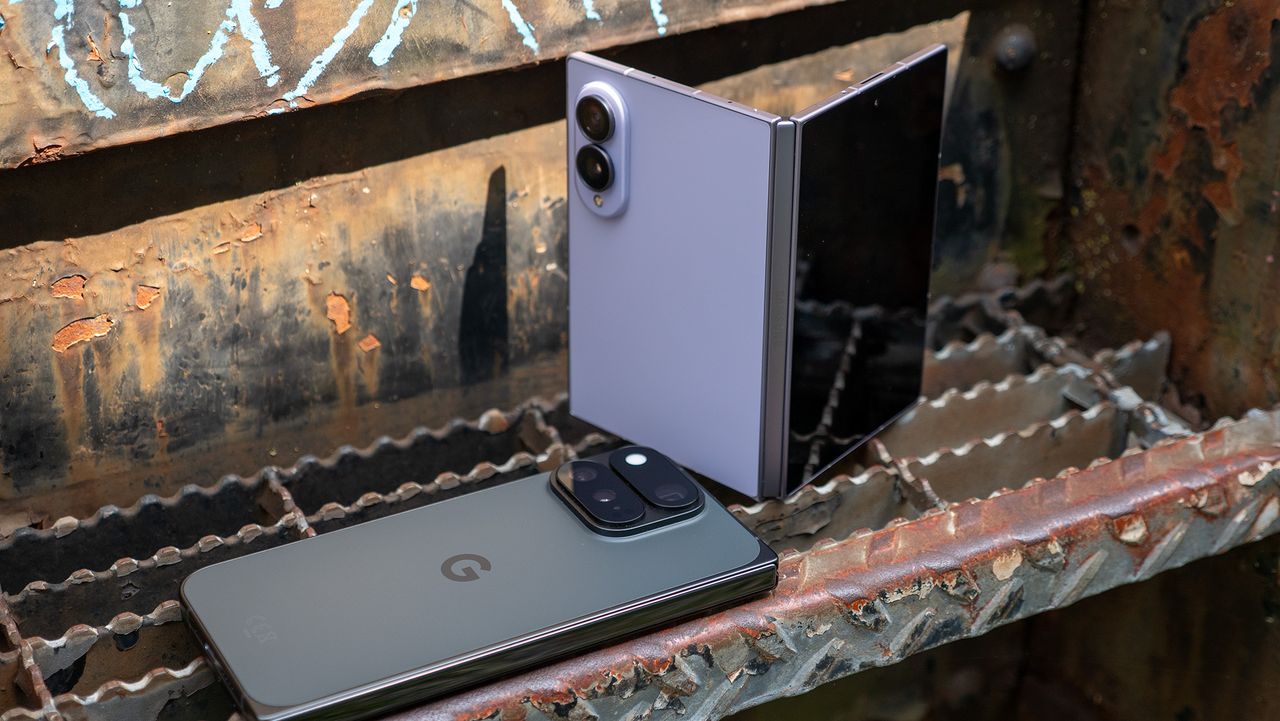
Comparing the Samsung Galaxy Z Fold 8 and Google Pixel 11 Pro Fold

(Image credit: Nicholas Sutrich / Android Central)

Lastly, durability. Folding phones got a bad rap pretty early on when the original Galaxy Z Fold's inner display would spontaneously break, but those problems have generally been solved. There's always a chance the folding glass could break, but these phones have undergone so many years of evolution and hardening that such a failure is almost unheard of.

Stores like uBreakiFix readily have parts to repair them, and phone companies offer warranties and other insurance programs that help cover any potential issues. As someone who has reviewed dozens and dozens of folding phones over the past seven years, I've never seen a phone break in person.

My wife has also been using flip phones for the past four years, and the only time one of hers broke was after being dropped with the phone unfolded. Considering how many traditional smartphones break every day from drops, there's no reason to suggest that these phones are any less durable with regular use.

  •  

UGREEN's new local AI NAS is the most well-thought-out smart home product I've ever used

UGREEN just announced its first line of smart home products, including a trio of cameras (two outdoor, one indoor), a smart speaker, an ePaper smart frame, and an AI-powered NAS to keep everything safe and local.

If there's one thing you need to know from all this, it's that UGREEN has put a lot of thought into this product. From the incredibly easy-to-use hardware design to the cables themselves, the app's features, and the entire UGREEN HomeAgent family is a marvel of planning and execution.

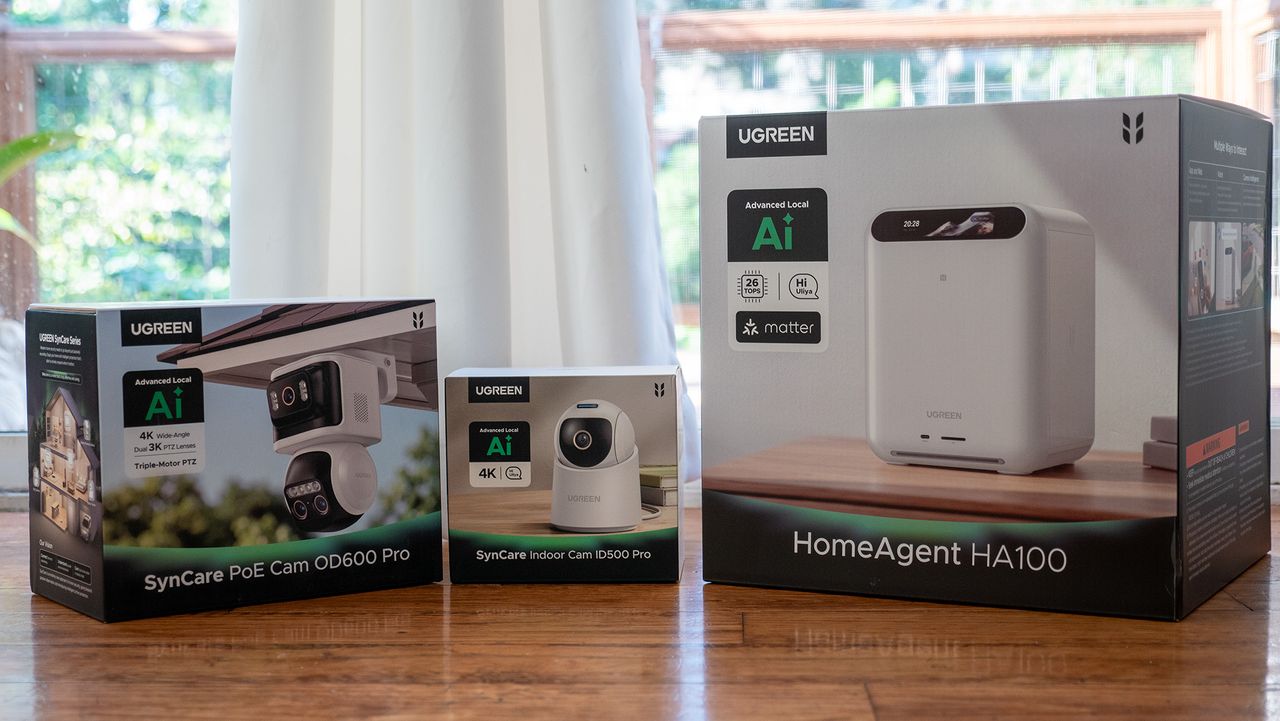
I received the UGREEN HomeAgent HA100 NAS, SynCare PoE Cam OD600 Pro, and SynCare Indoor Cam ID500 Pro ahead of UGREEN's Boston-based event and got to spend some time with these products for this hands-on report. UGREEN is launching the HomeAgent HA100 crowdfunding program on September 4, including a 50% discount for early backers until October 27.

You've never used a NAS like this

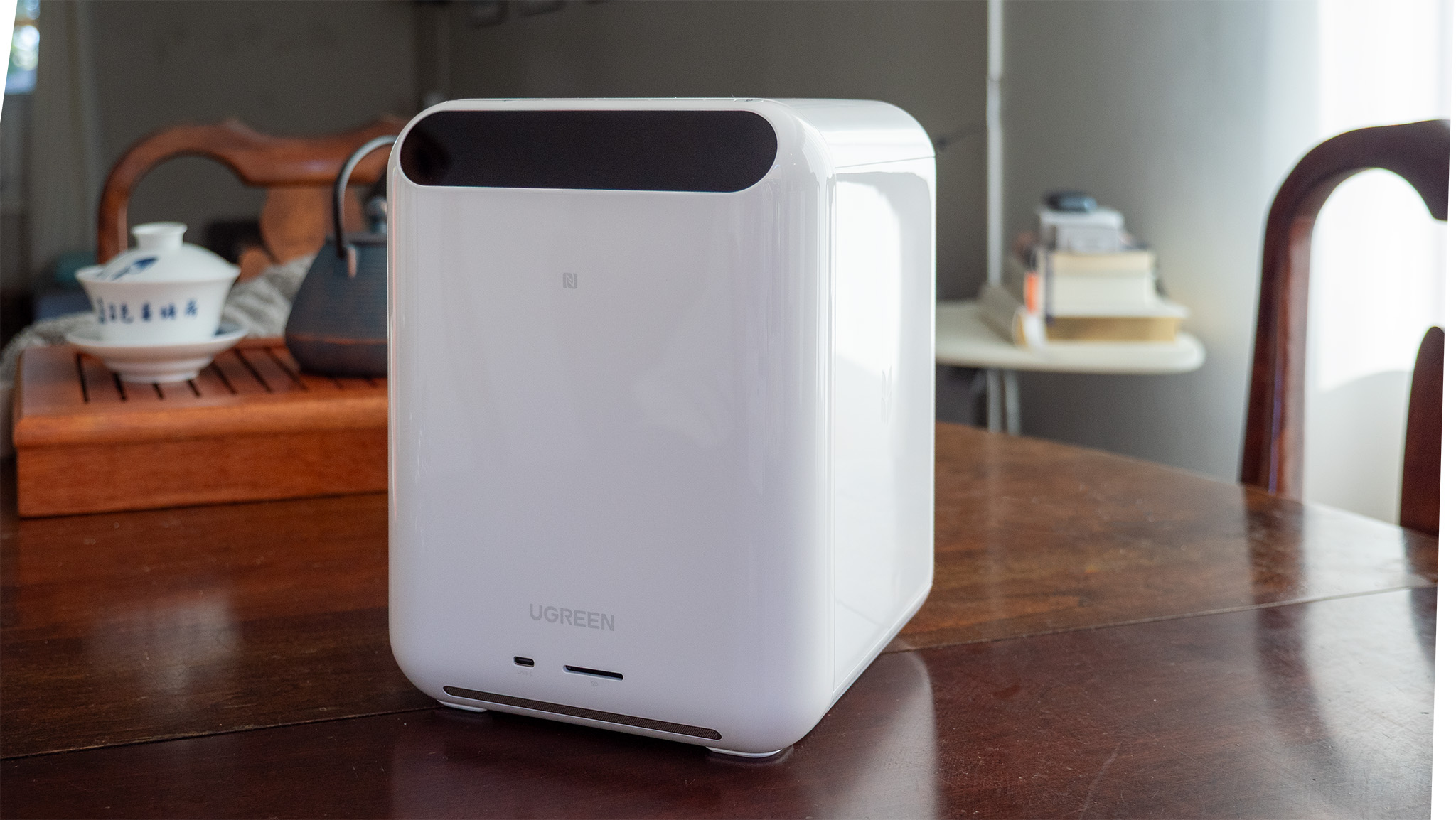
The front of the UGREEN HomeAgent HA100 NAS

(Image credit: Nicholas Sutrich / Android Central)

As someone with 15 years of professional IT experience, I've spent plenty of time with big ol' NAS boxes in server racks. Usually, they're a pain in the butt to set up, and while they're mostly a set-it-and-forget-it affair, they're rarely designed to be user-friendly. A home NAS has to be very different from this approach, and it's clear UGREEN went back to the drawing board for the HomeAgent HA100.

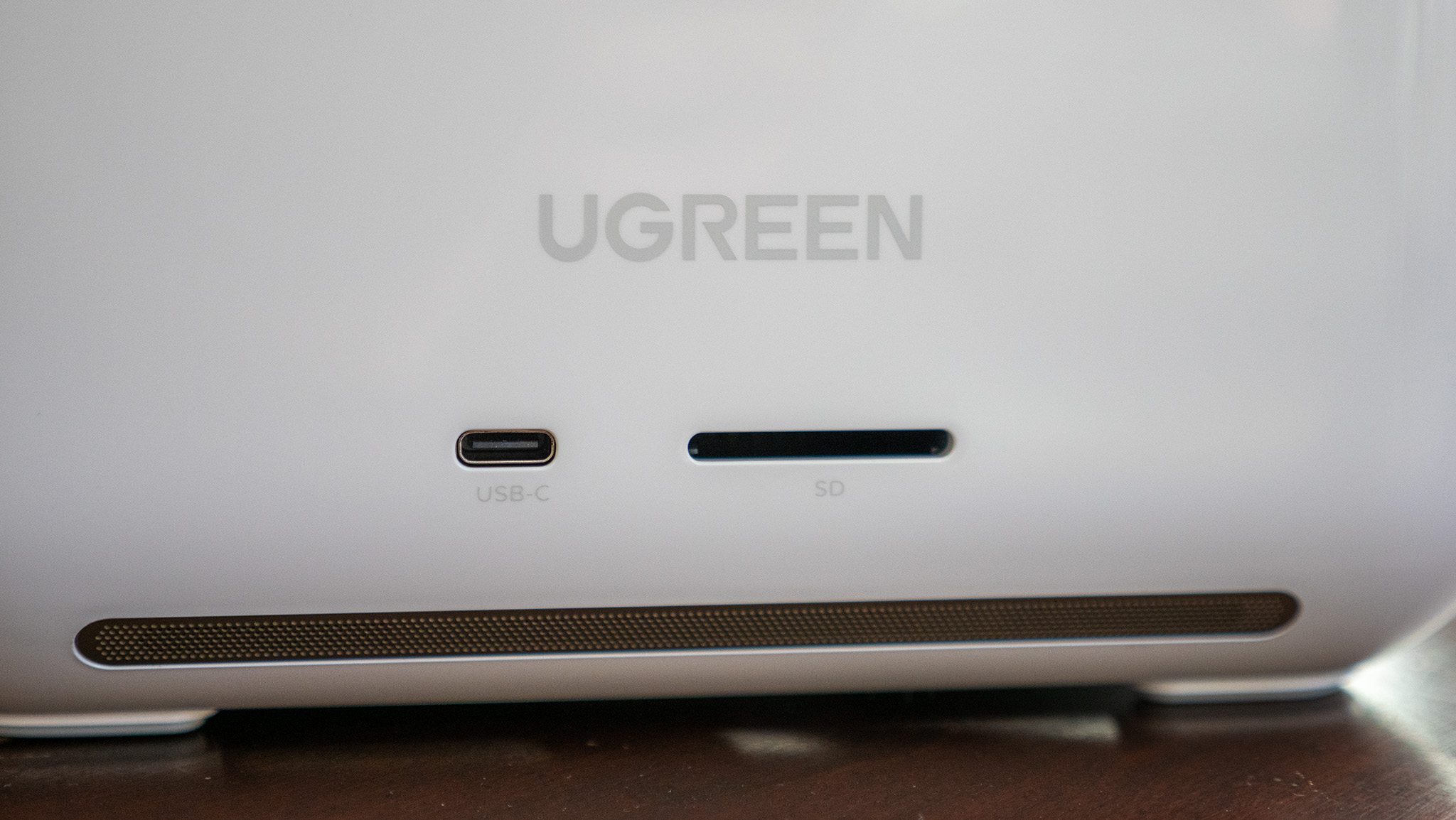
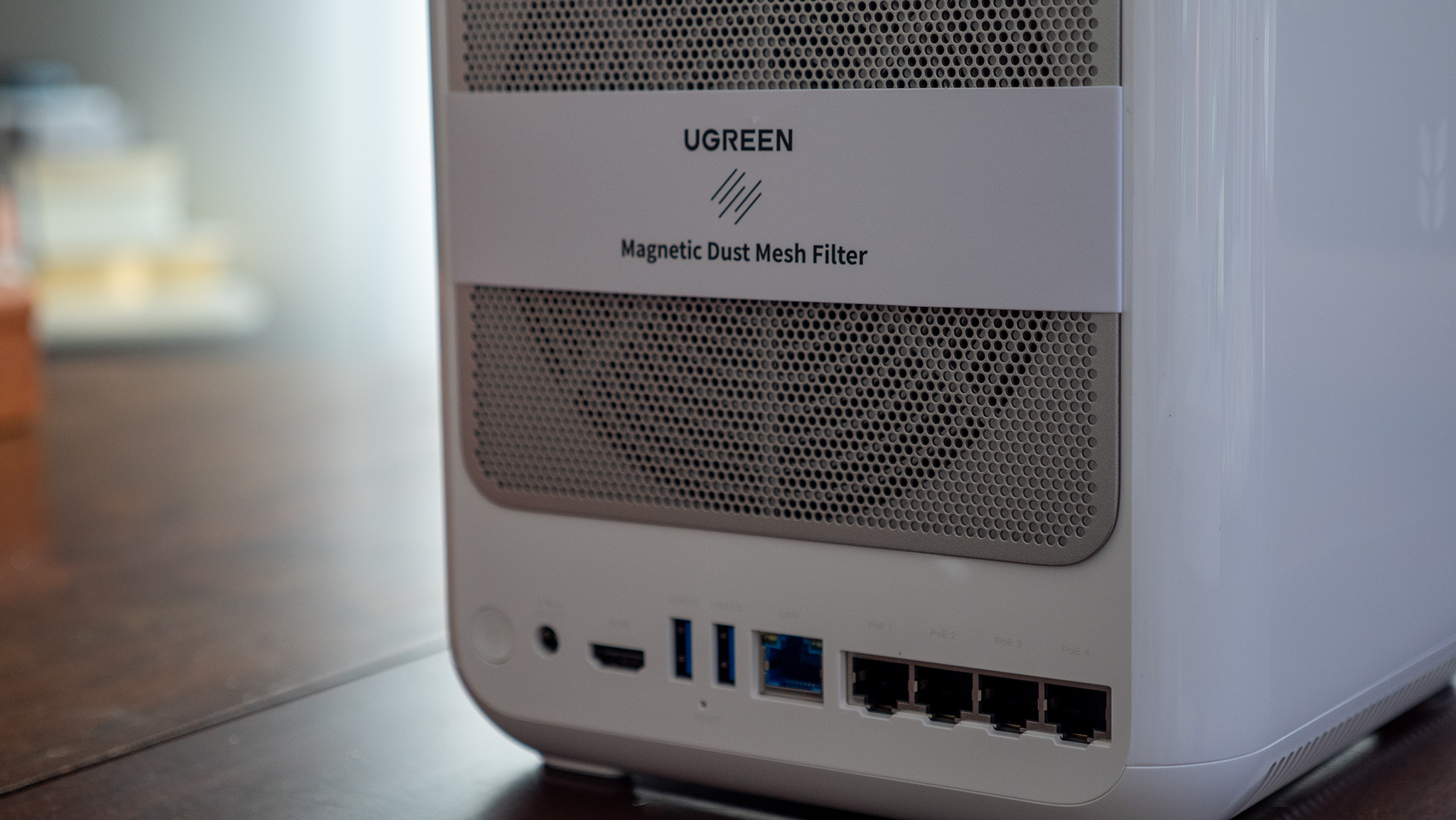
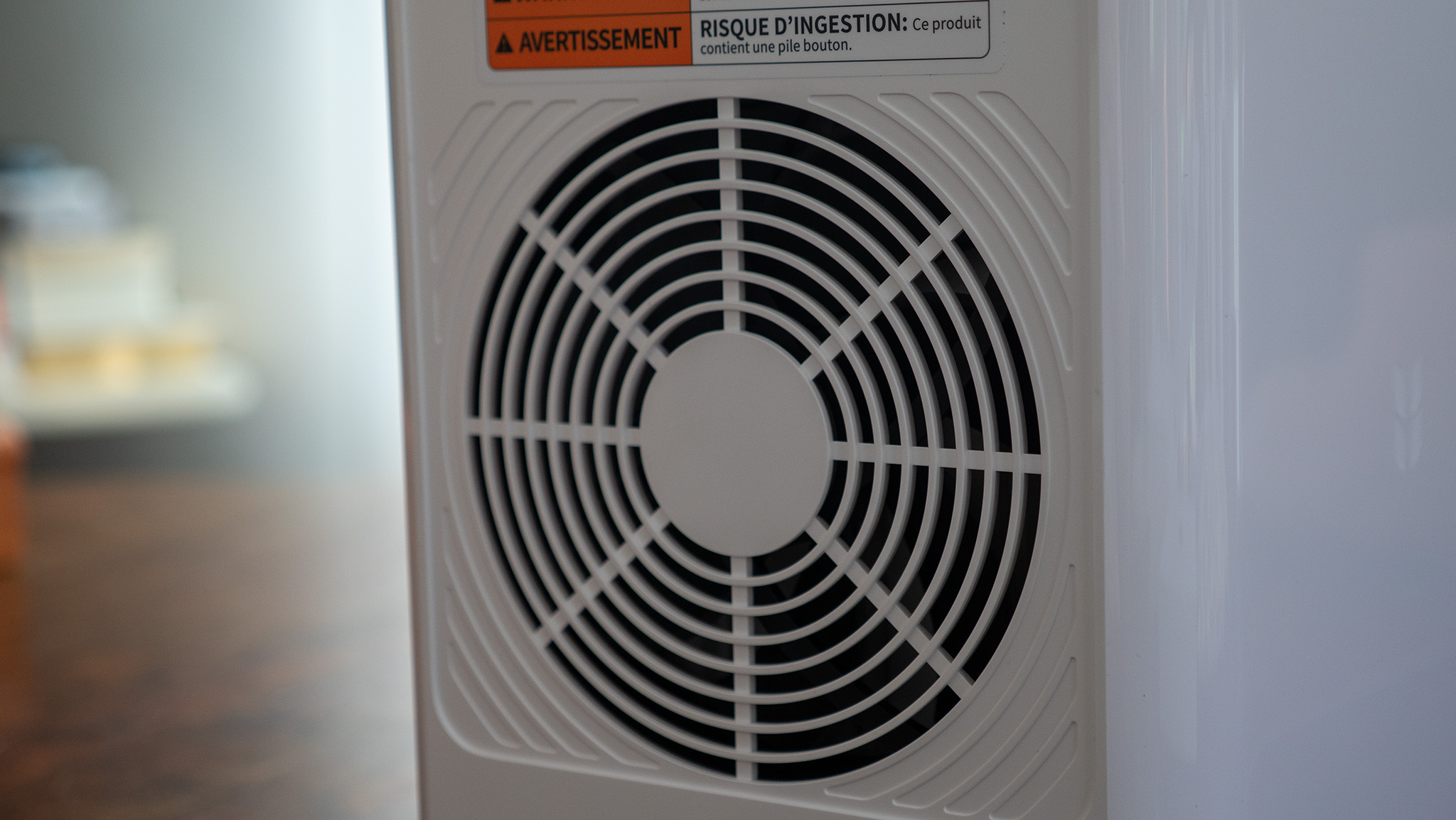
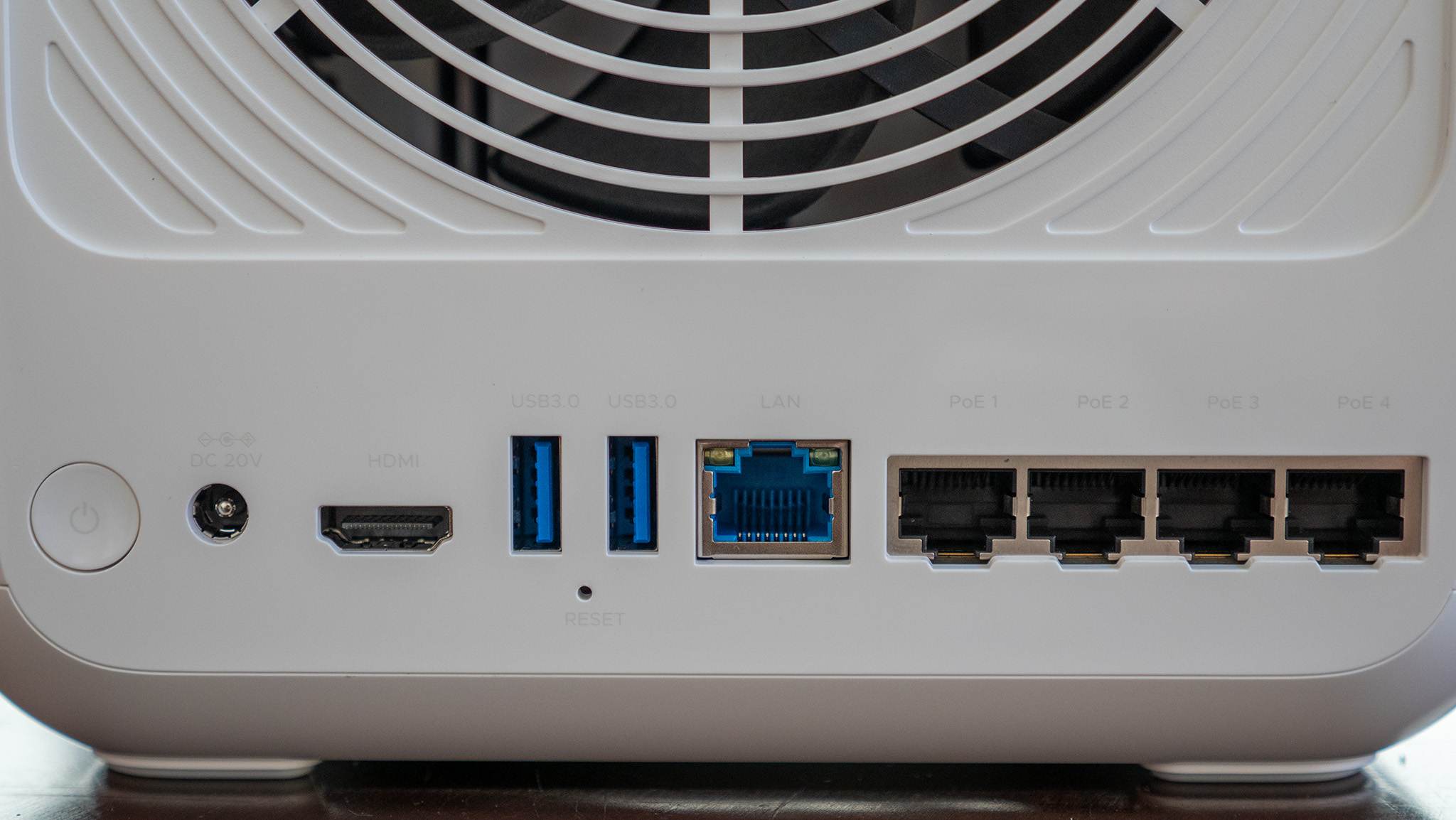
Everything here is as self-explanatory and user-friendly as you can imagine. I specifically did not read the manual just to see if I could figure it out, and I was able to get the entire package set up in less than 5 minutes once I unboxed everything. A bevy of ports lines the back of the unit, located right underneath the cooling fan with a nifty magnetic filter that's dead easy to remove and clean.

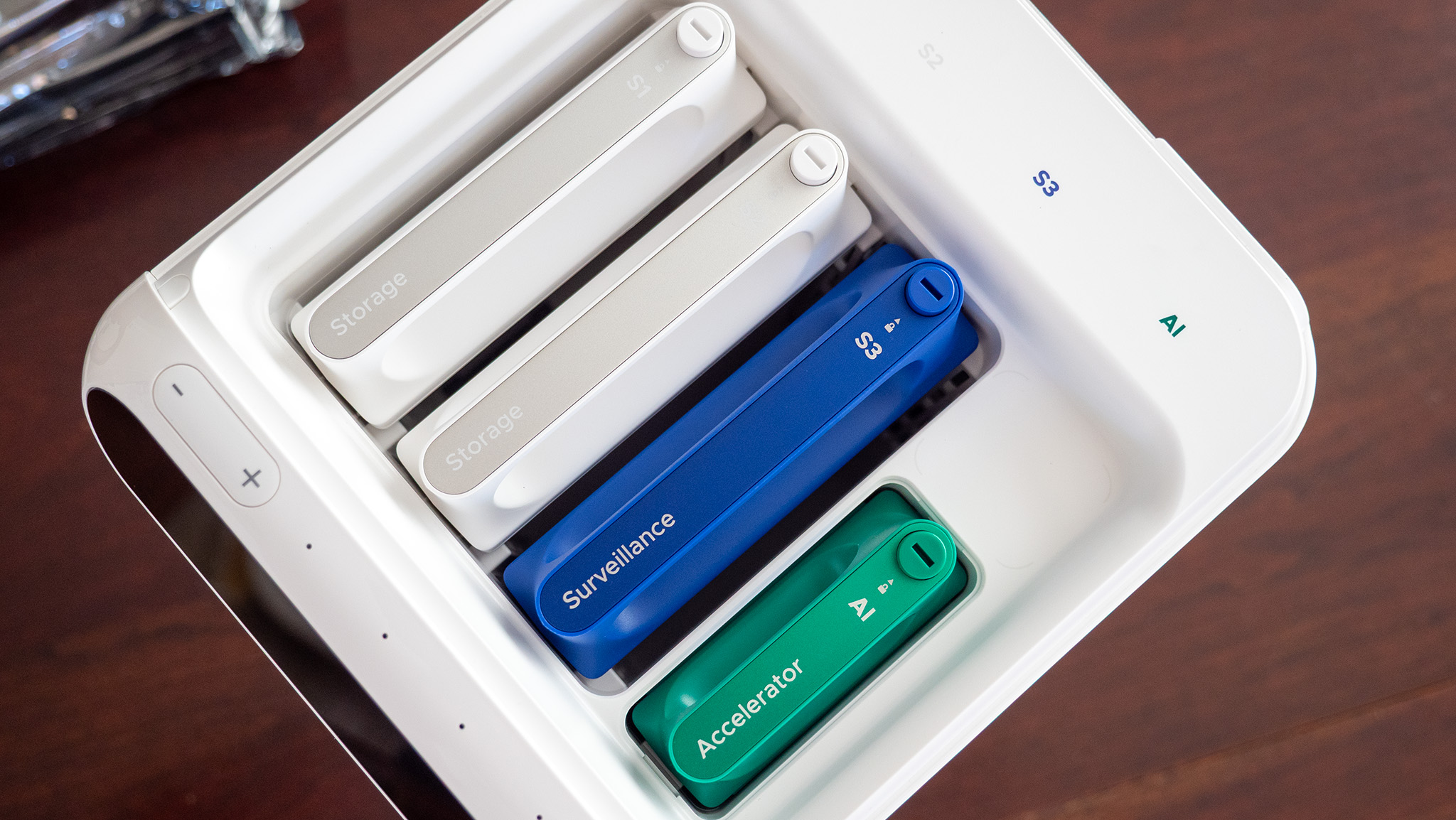
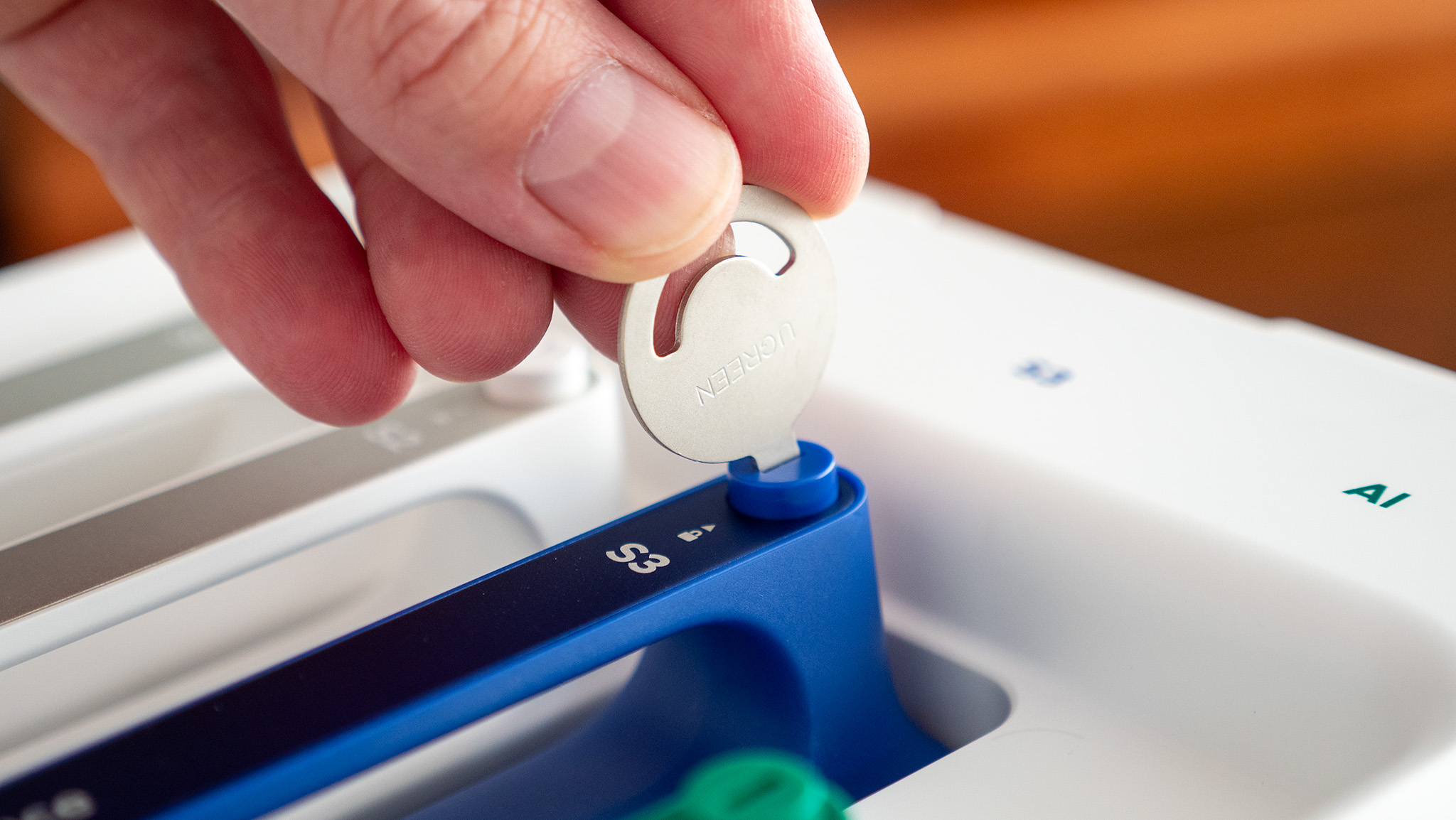
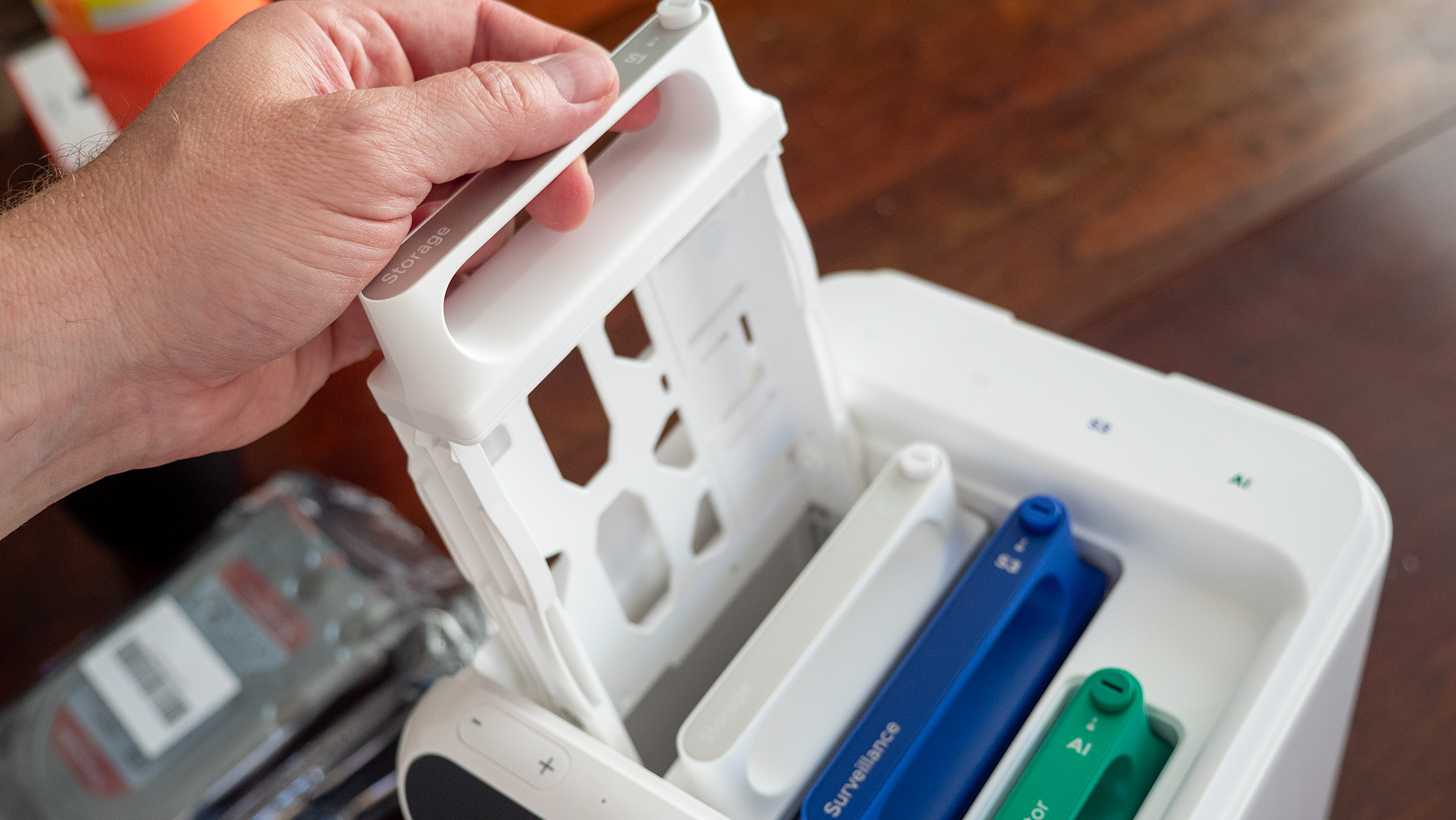
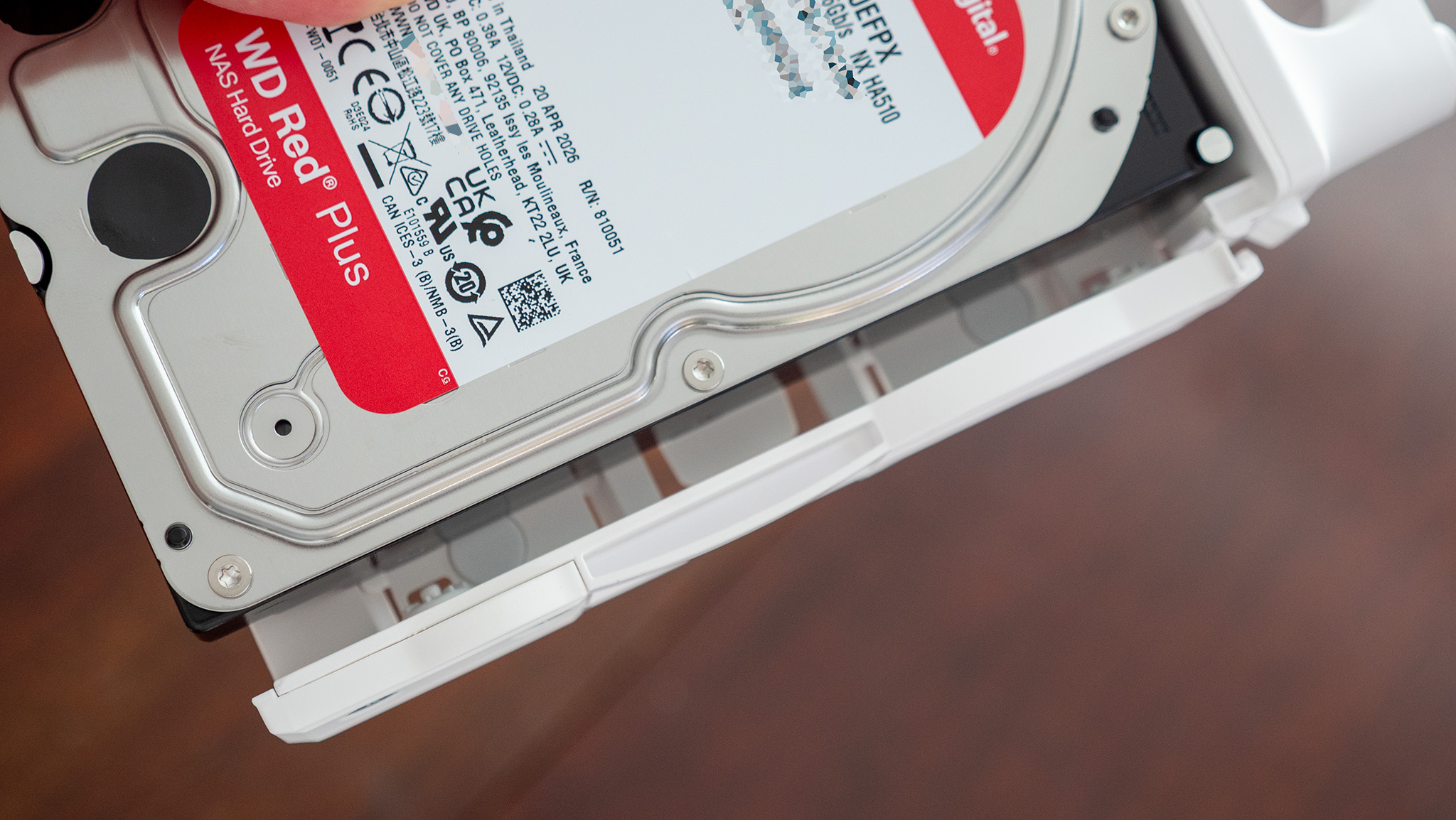
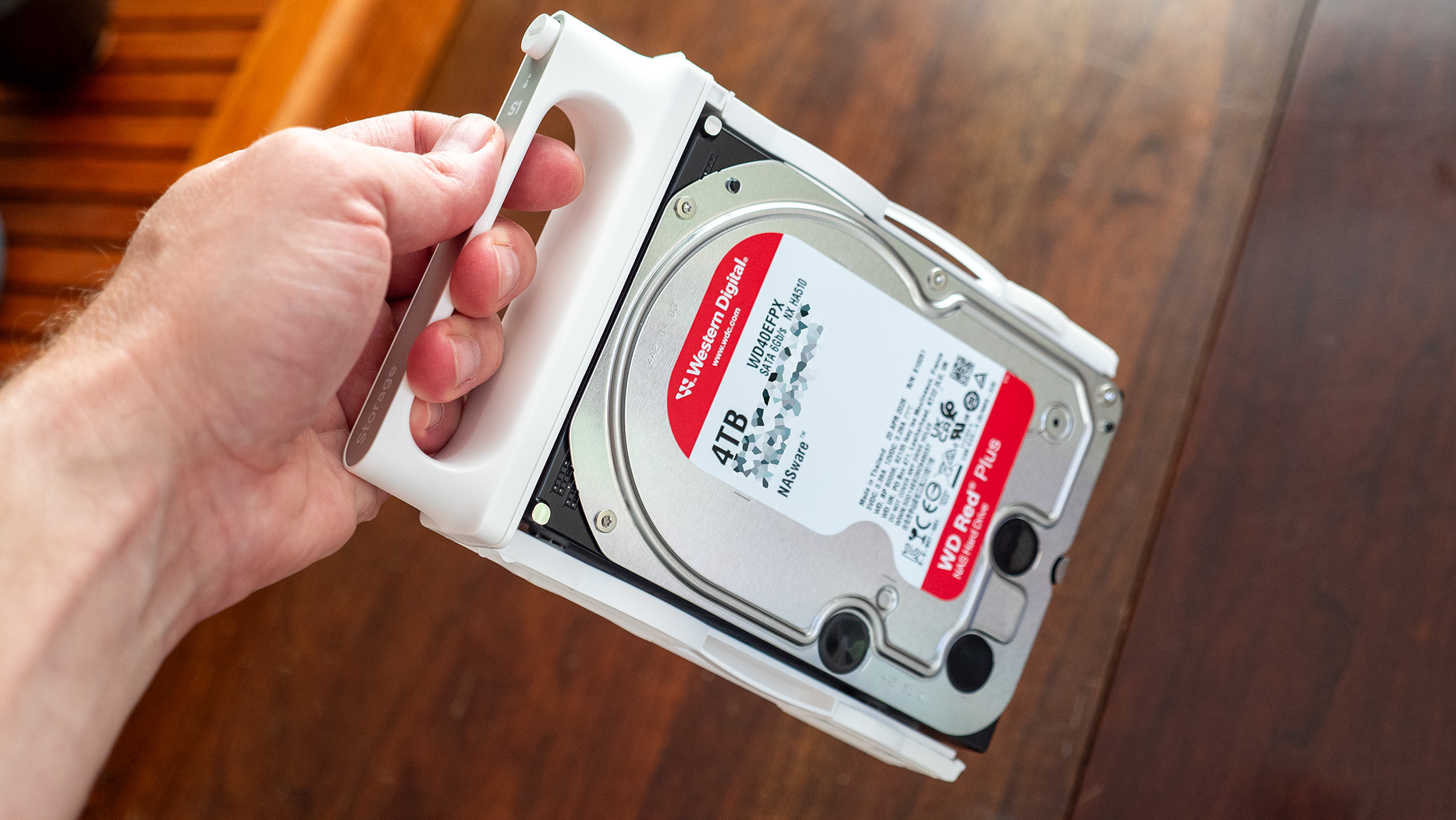
Underneath the simple magnetic lid is a storage bay for three HDDs of your choice. Standard 3.5" models pop in with no screwdriver needed, while a 2.5" drive will need one of the small brackets included in the box. The drives pop in with a satisfying click and are removed with a simple button on top. They can even be locked into place with an included "key," which can be swapped out with a butter knife if you happen to lose it.

Setting up the UGREEN HomeAgent HA100 and plugging all the harddrives in
Nicholas Sutrich / Android Central
Setting up the UGREEN HomeAgent HA100 and plugging all the harddrives in
Nicholas Sutrich / Android Central
Setting up the UGREEN HomeAgent HA100 and plugging all the harddrives in
Nicholas Sutrich / Android Central
Setting up the UGREEN HomeAgent HA100 and plugging all the harddrives in
Nicholas Sutrich / Android Central
Setting up the UGREEN HomeAgent HA100 and plugging all the harddrives in
Nicholas Sutrich / Android Central
Setting up the UGREEN HomeAgent HA100 and plugging all the harddrives in
Nicholas Sutrich / Android Central
Setting up the UGREEN HomeAgent HA100 and plugging all the harddrives in
Nicholas Sutrich / Android Central
Setting up the UGREEN HomeAgent HA100 and plugging all the harddrives in
Nicholas Sutrich / Android Central

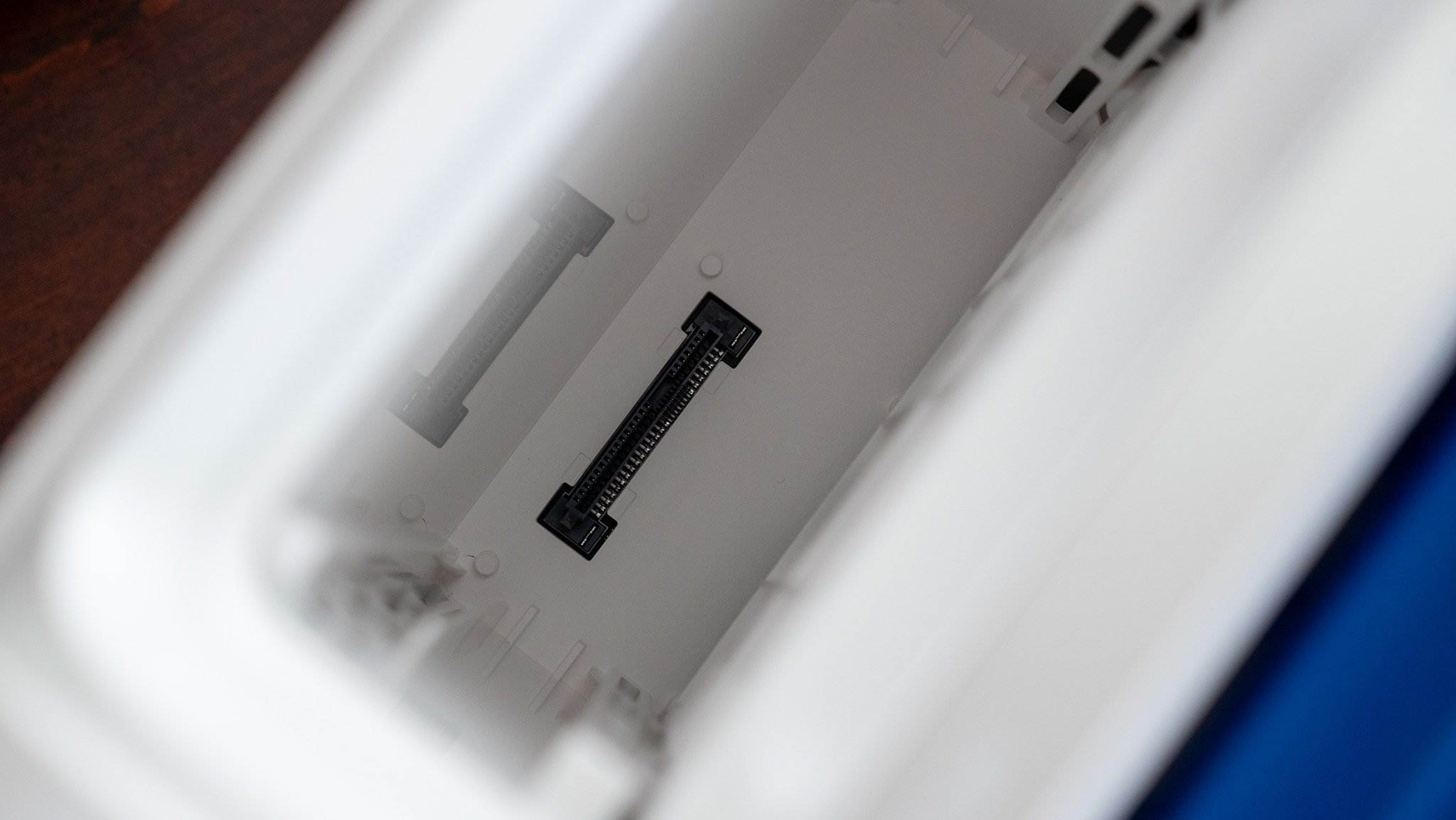
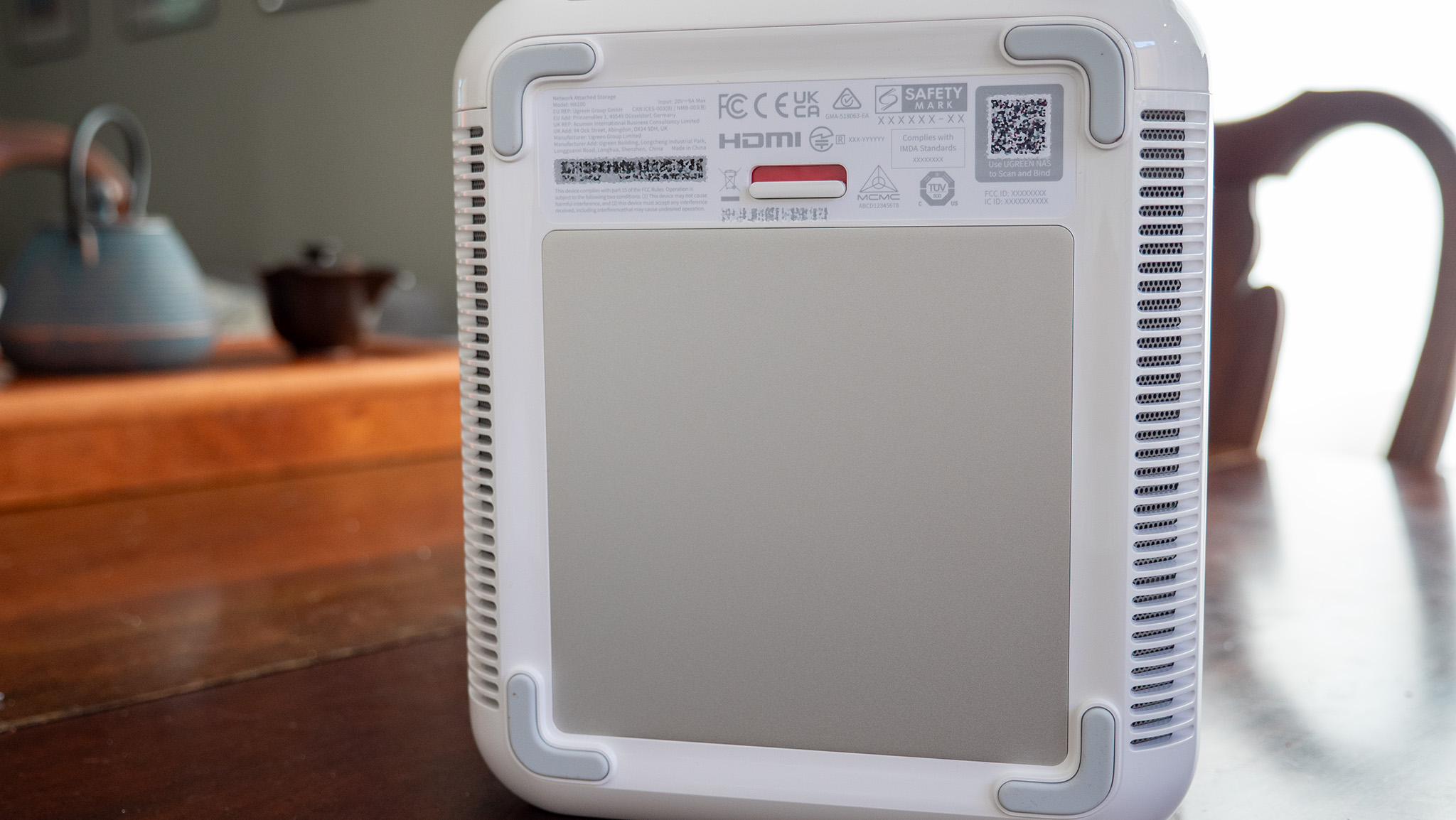
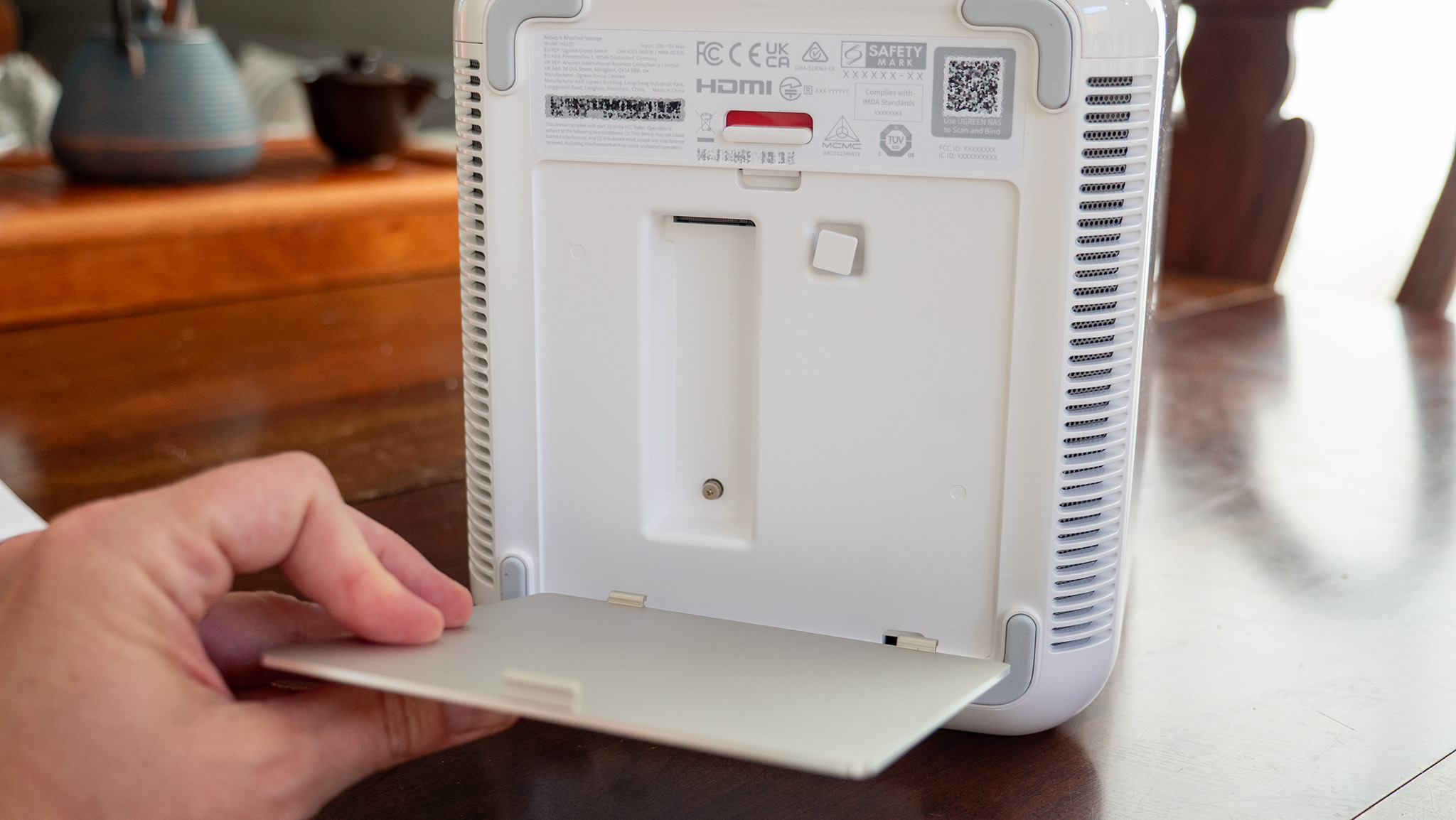
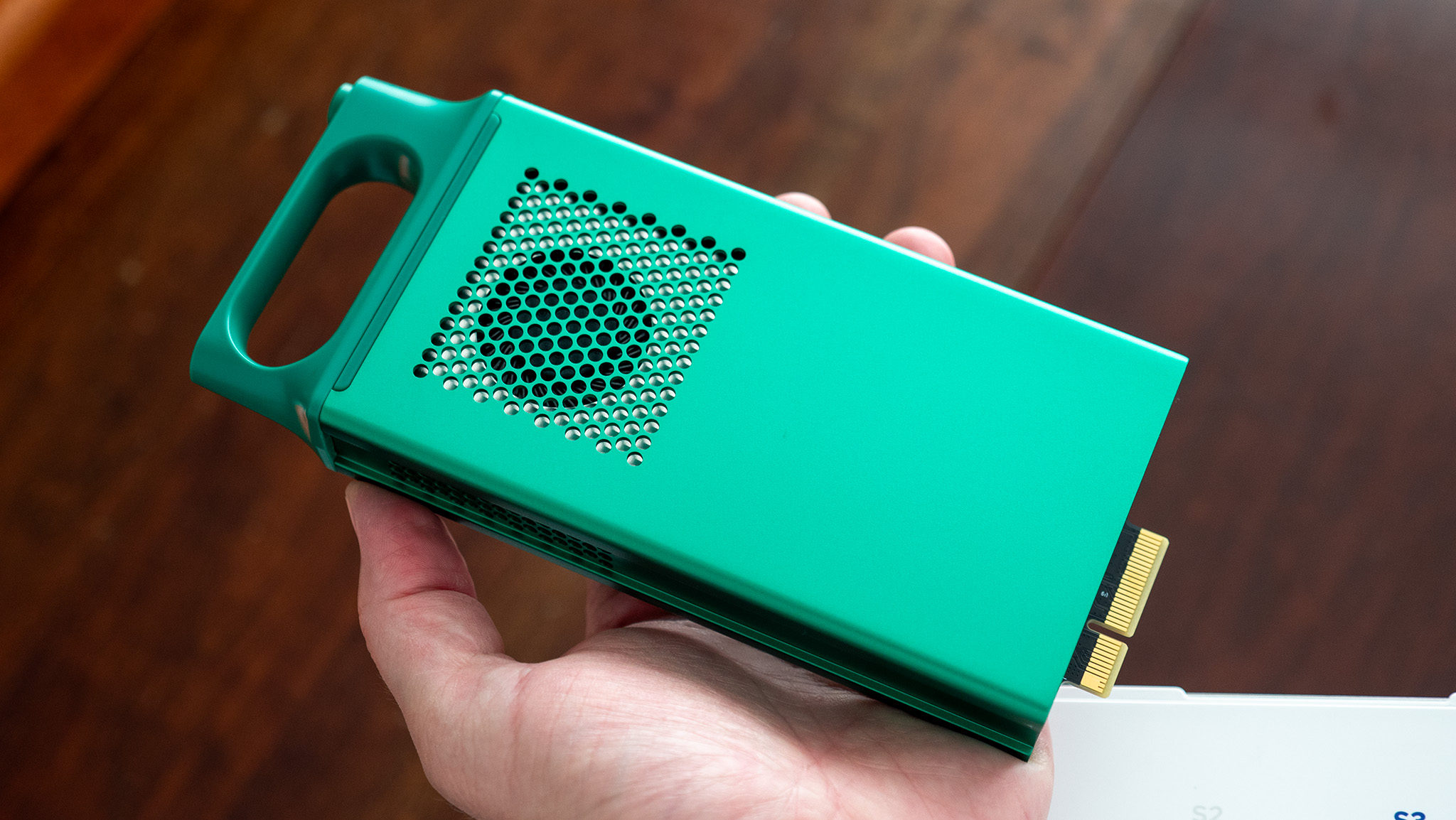
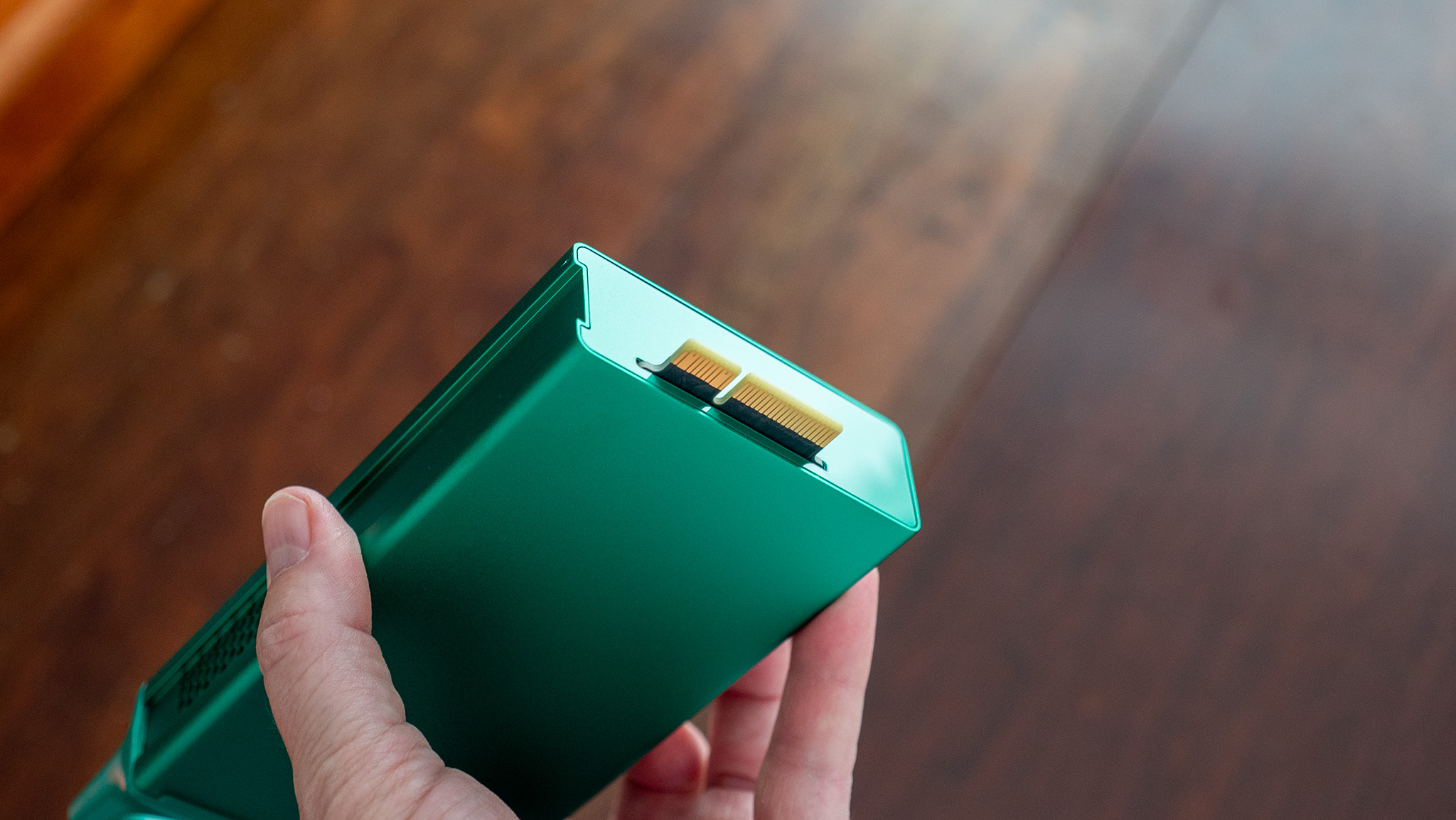
My unit shipped with an AI Accelerator unit already installed, but UGREEN sells models without this compute module for a lower cost. Adding an M.2 SSD is a little trickier since you'll have to flip the unit over and install it below, then add some thermal tape to keep things cool, but I imagine most people won't need M.2 performance anyway.

The front of the unit sports a touchscreen that only requires you to select a language to move forward. The unit is paired with the UGREEN NAS app and just requires you to select it from the list of LAN models found on your network. Since this NAS is hardwired to my router, it was as simple as opening the app on my phone and tapping the HA100 in the list.

The ports and fans on the UGREEN HomeAgent HA100
Nicholas Sutrich / Android Central
The ports and fans on the UGREEN HomeAgent HA100
Nicholas Sutrich / Android Central
The ports and fans on the UGREEN HomeAgent HA100
Nicholas Sutrich / Android Central
The ports and fans on the UGREEN HomeAgent HA100
Nicholas Sutrich / Android Central

UGREEN's HomeAgent line supports all Matter-compatible smart home devices, with Zigbee compatibility coming soon. It's also got full voice command support via UGREEN's Uliya agent, which is built into the NAS and can be used immediately since the NAS has microphones and speakers on the unit.

My NAS is located behind my couch, so it's easy to ask Uliya to toggle my lights and switches without having to worry about adding the dedicated speaker to my house, although I may end up getting a secondary speaker for the bedrooms.

The AI Accelerator unit that goes inside a UGREEN HomeAgent HA100
Nicholas Sutrich / Android Central
The AI Accelerator unit that goes inside a UGREEN HomeAgent HA100
Nicholas Sutrich / Android Central

Central to this unit's purpose is the all-local-all-the-time philosophy. That AI Accelerator unit is a mini computer that acts similarly to something like Gemini, albeit much more focused than a normal LLM. This one is made specifically for smart home control and to intelligently manage your media.

On the smart home side, it can keep track of familiar faces, understand the difference between a dog and a package, alert you if your chickens get in the front yard (yes, that's a problem for me), or even wake you if your baby starts crying in the middle of the night. I'll need time to assess how well each of these works, but it certainly sounds a lot like the smart home I've long dreamed of.

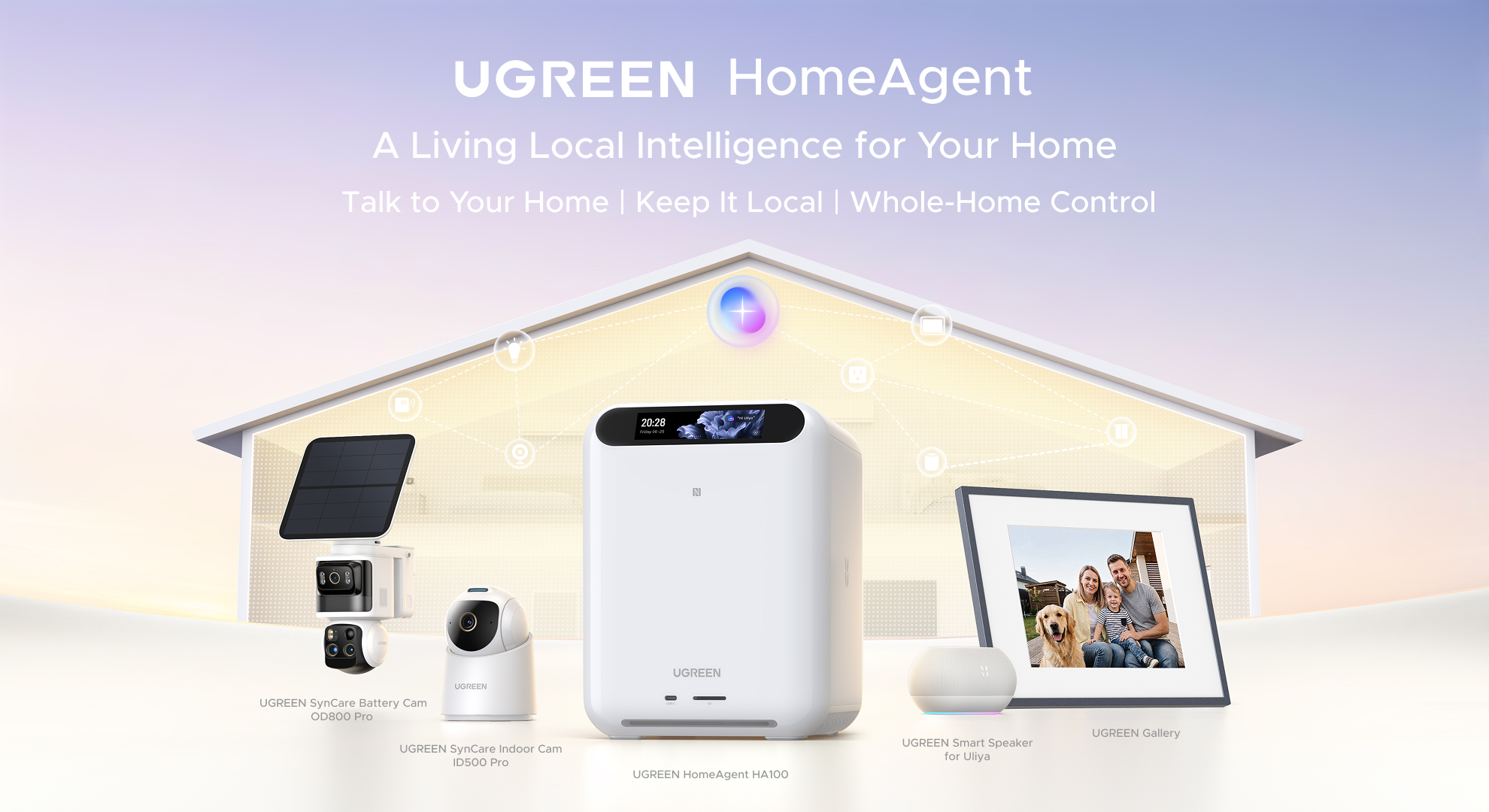
An official promotional image of UGREEN's HomeAgent and SynCare smart home family of devices.
UGREEN
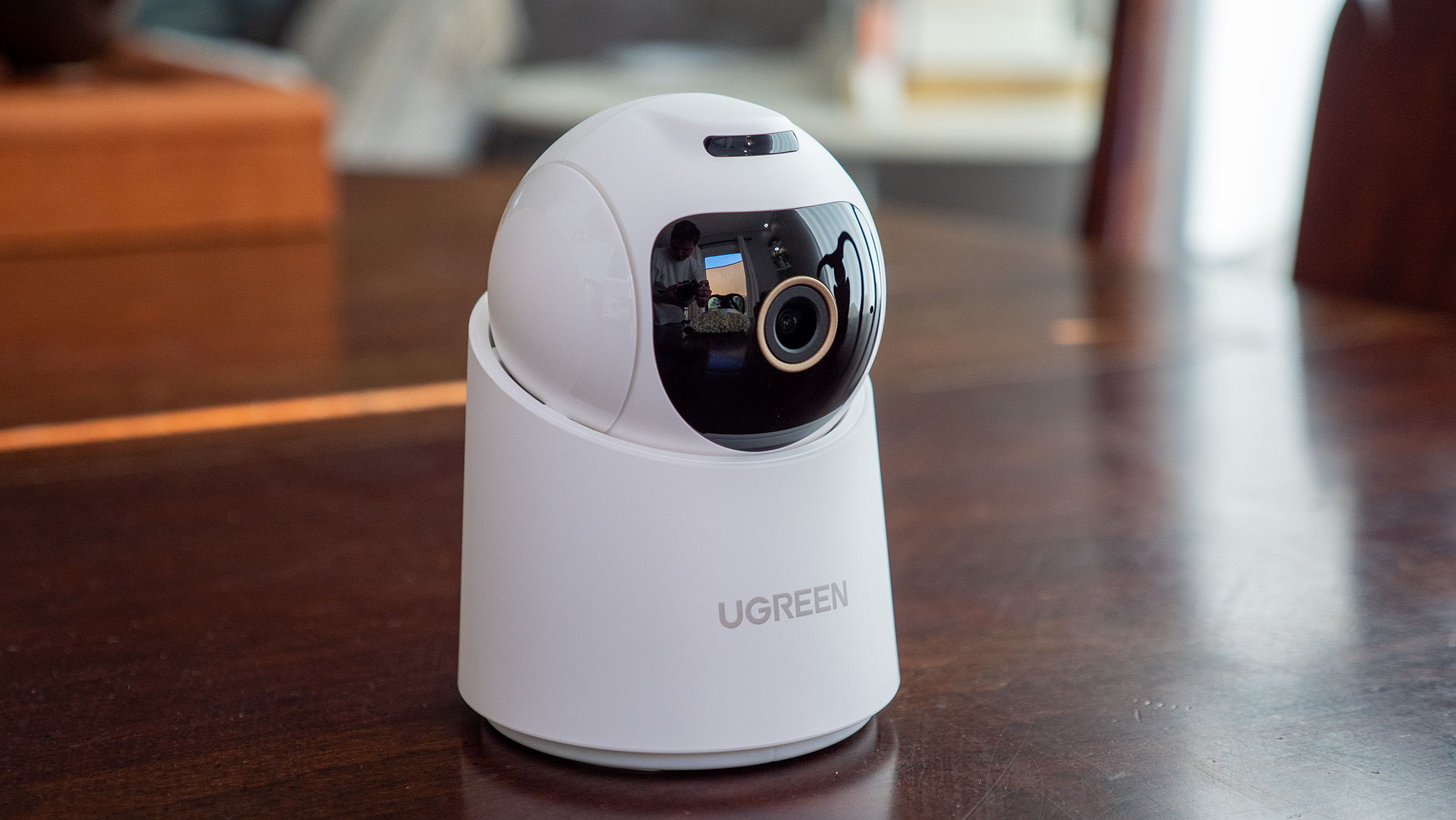
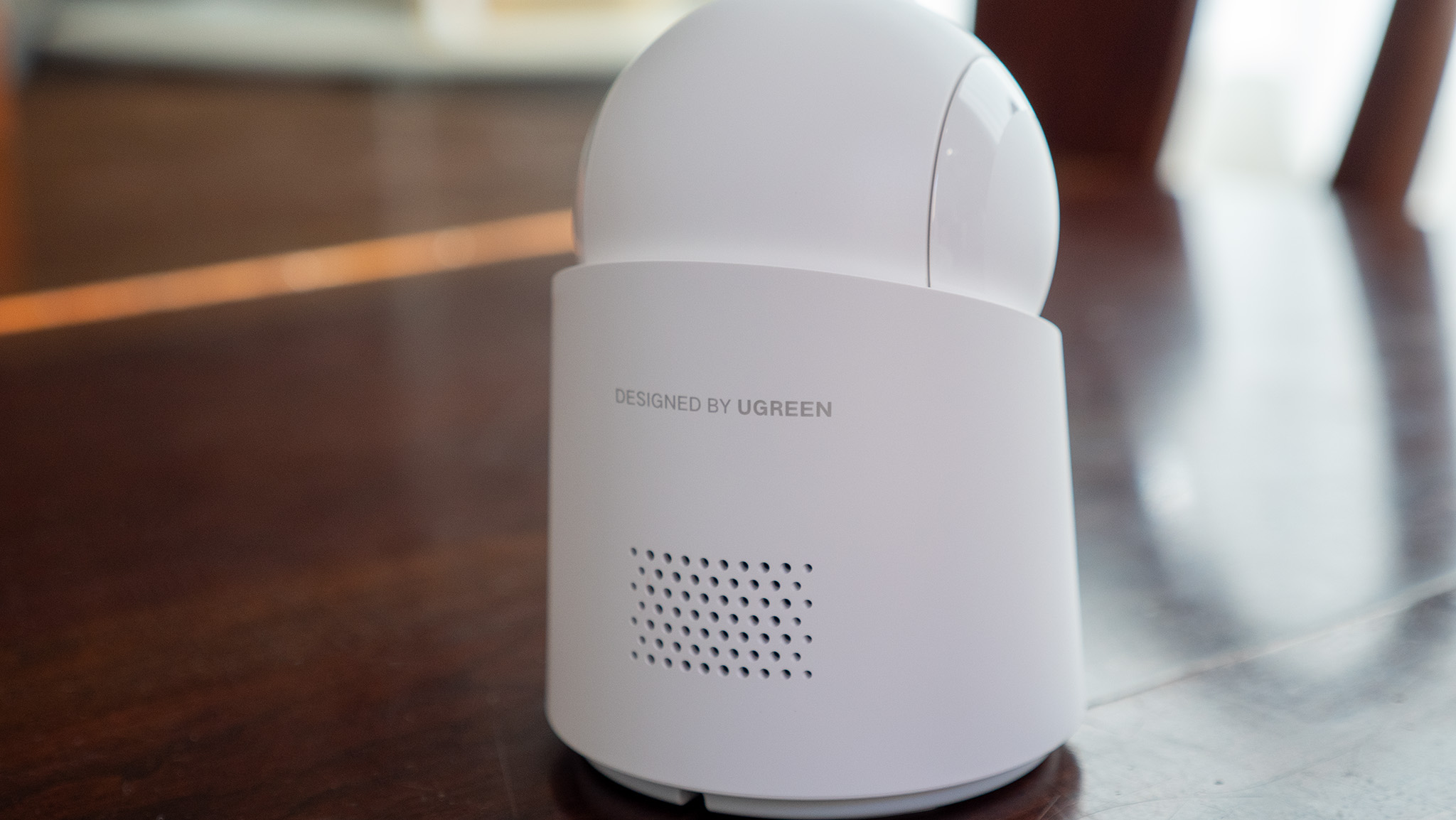
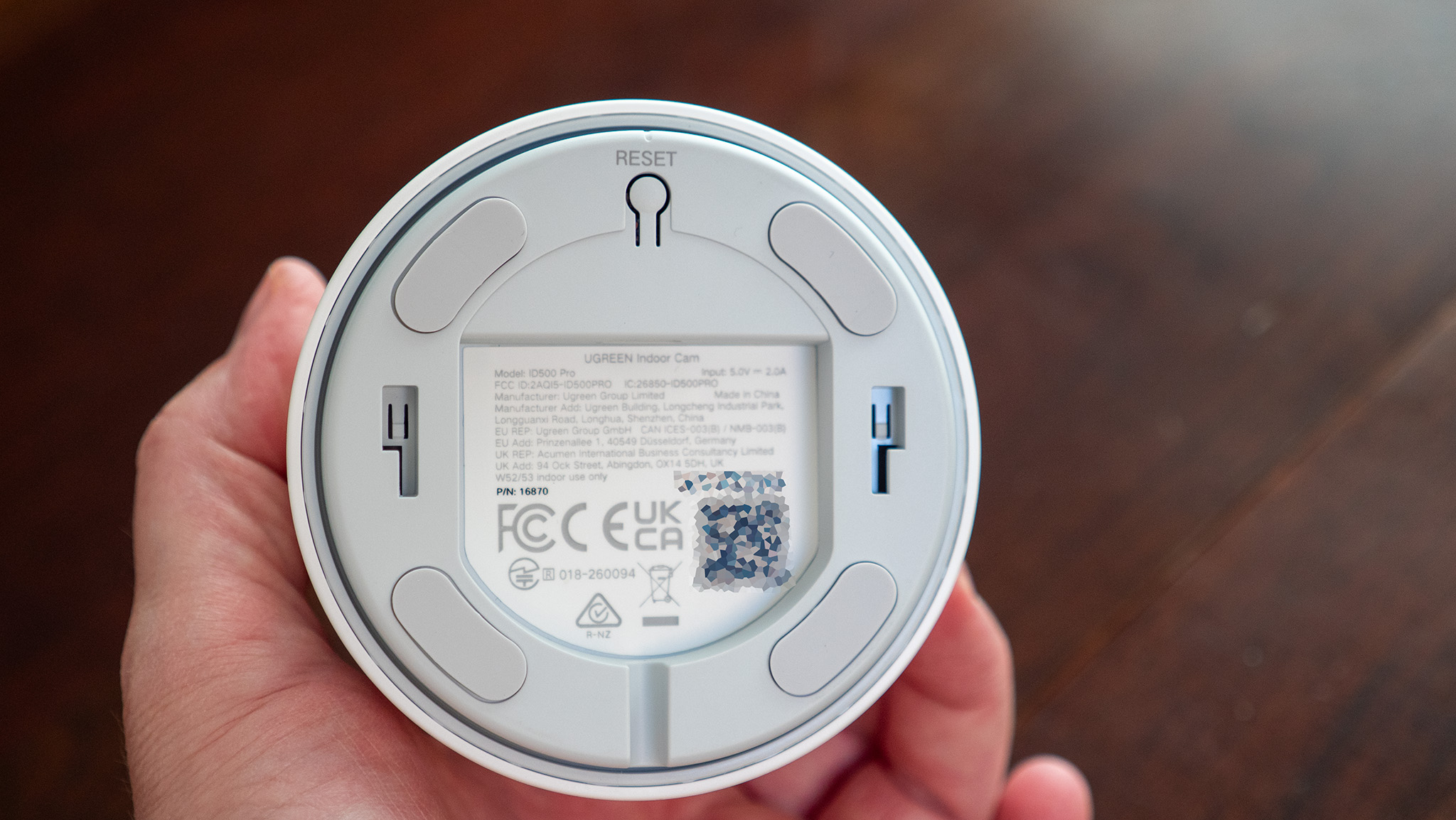
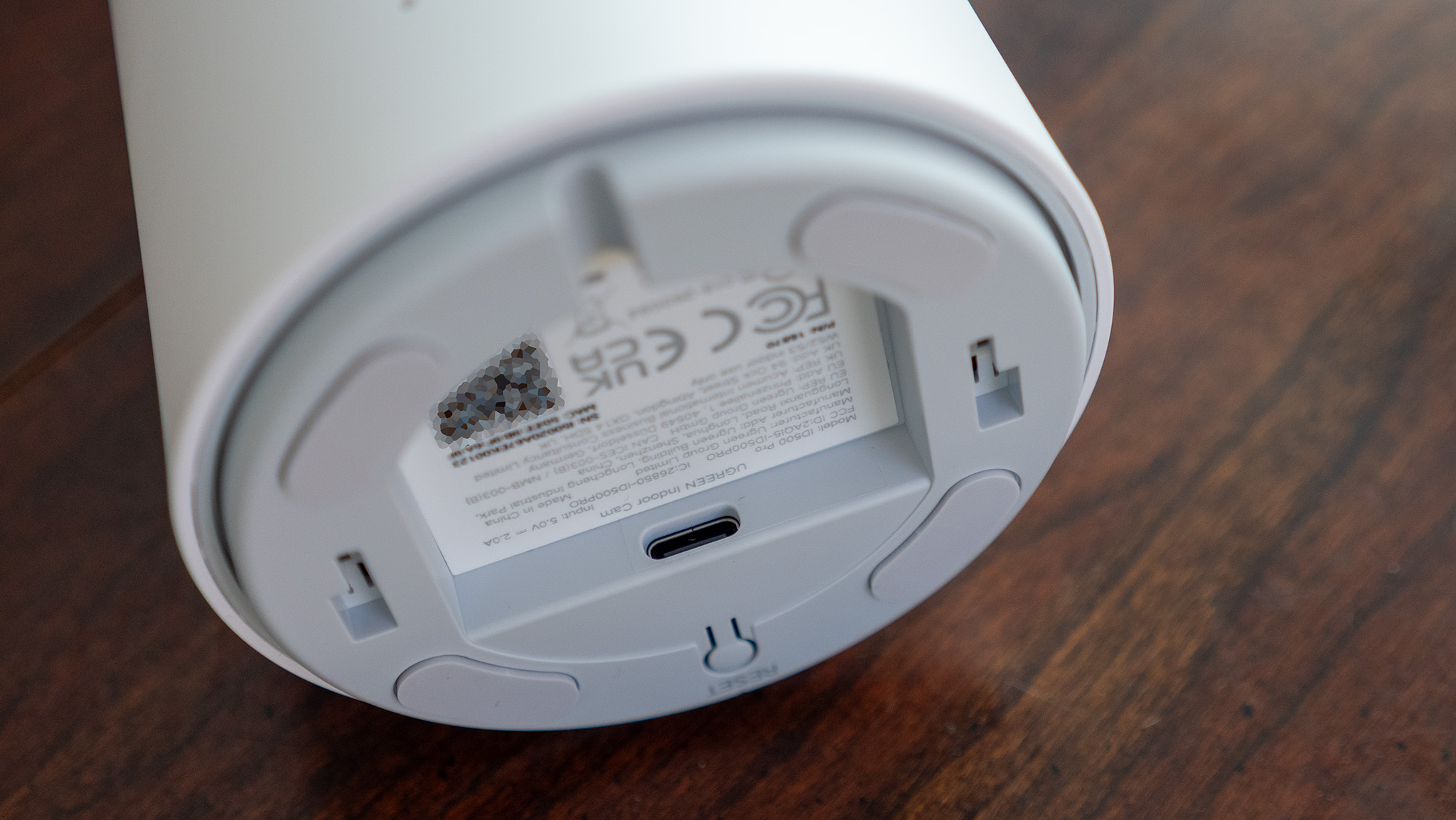
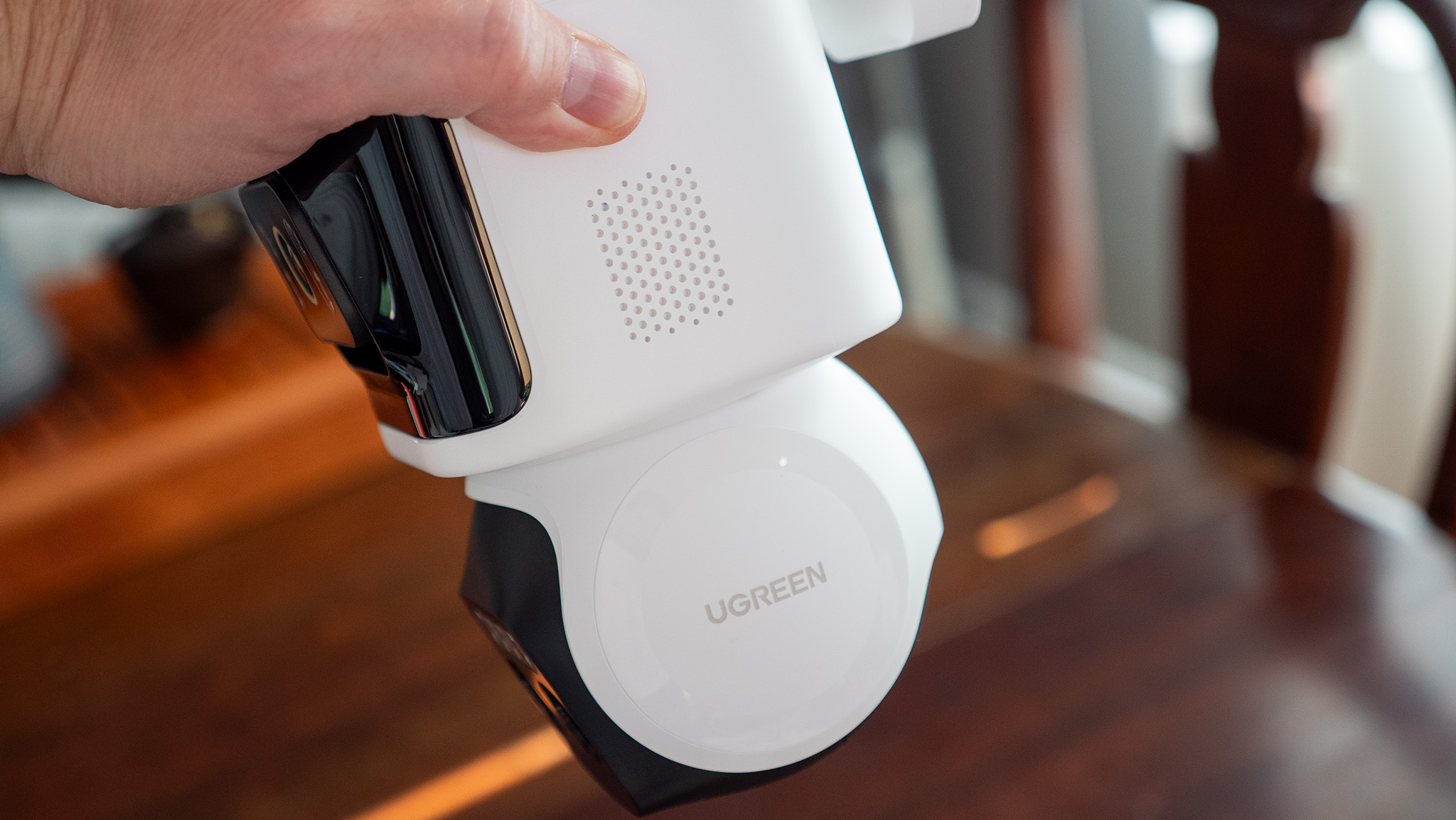
The UGREEN SynCare Indoor Cam ID500 Pro that pairs with the UGREEN HomeAgent HA100
Nicholas Sutrich / Android Central
The UGREEN SynCare Indoor Cam ID500 Pro that pairs with the UGREEN HomeAgent HA100
Nicholas Sutrich / Android Central
The UGREEN SynCare Indoor Cam ID500 Pro that pairs with the UGREEN HomeAgent HA100
Nicholas Sutrich / Android Central
The UGREEN SynCare Indoor Cam ID500 Pro that pairs with the UGREEN HomeAgent HA100
Nicholas Sutrich / Android Central

And with the pictures and video you can store on the NAS (both from smart home cameras and your smartphones), the AI Accelerator will group events, places, people, and other categories similarly to Google Photos, all without requiring you to pay a monthly fee to store data or for processing.

To say I'm extremely excited about these products is an understatement. From the looks of things so far, this does everything I've wanted a smart home to do and then some. Local control and storage are particularly attractive to me, especially since I stopped using Eufy years ago after all those old scandals.

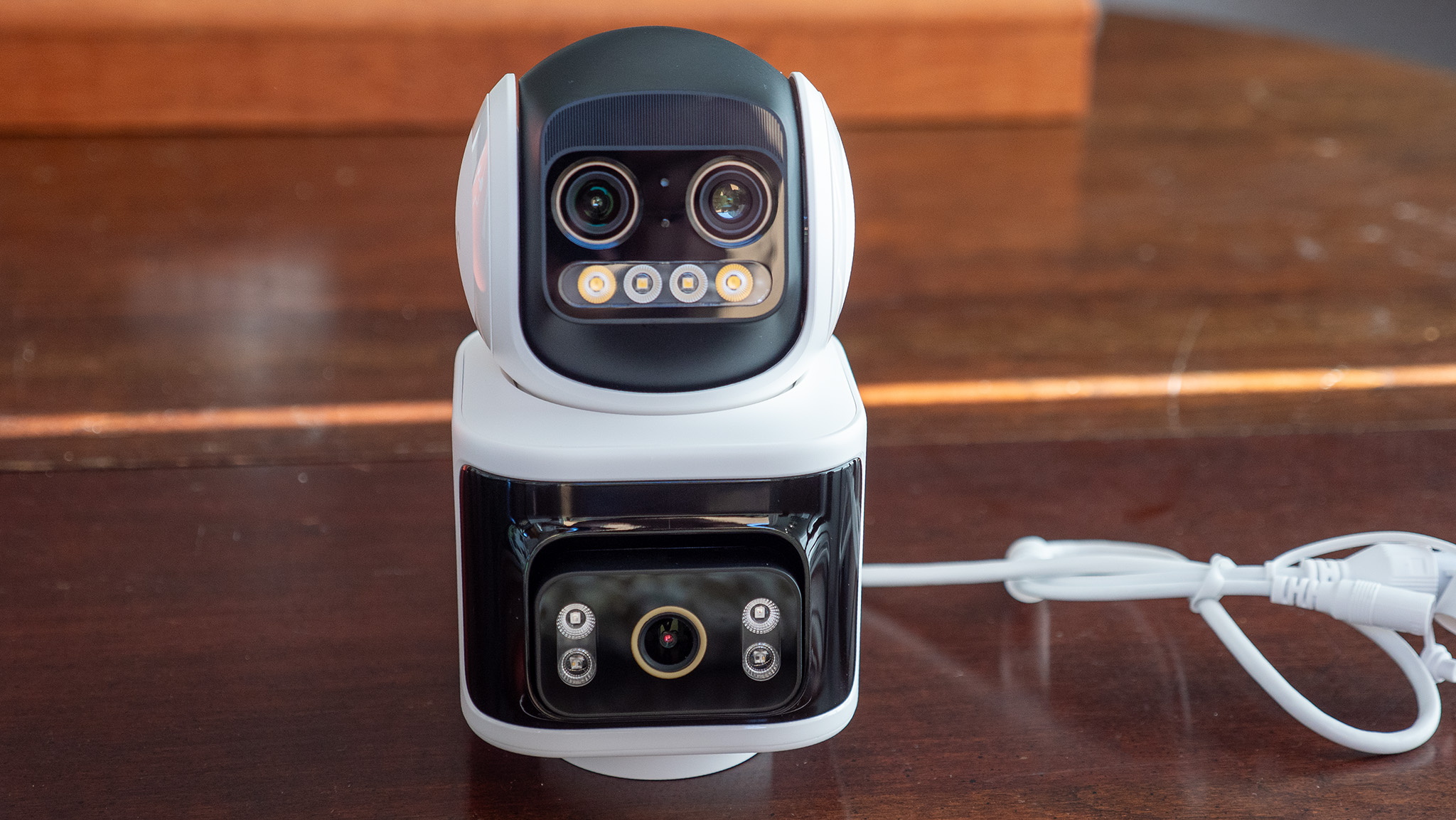
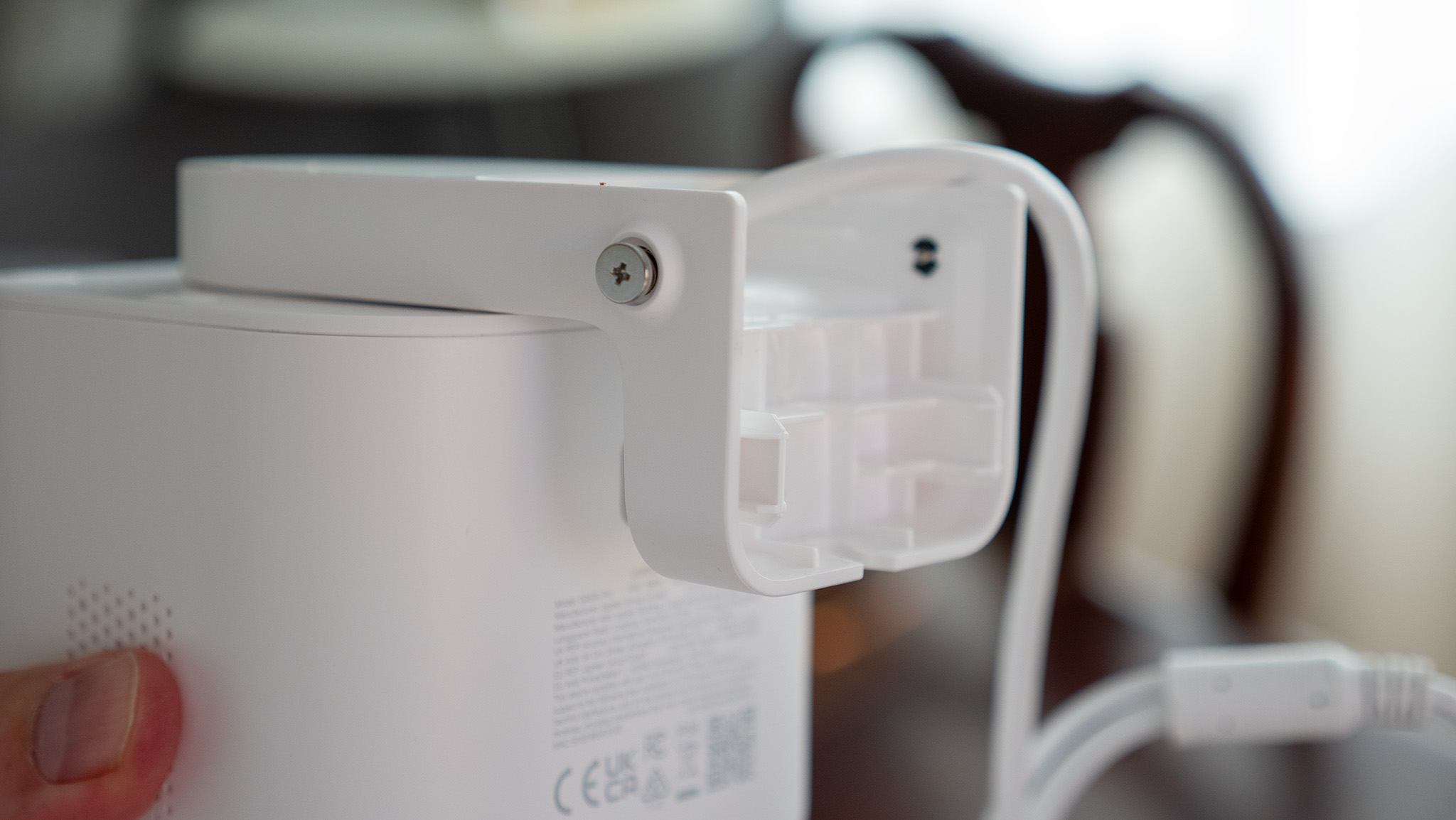
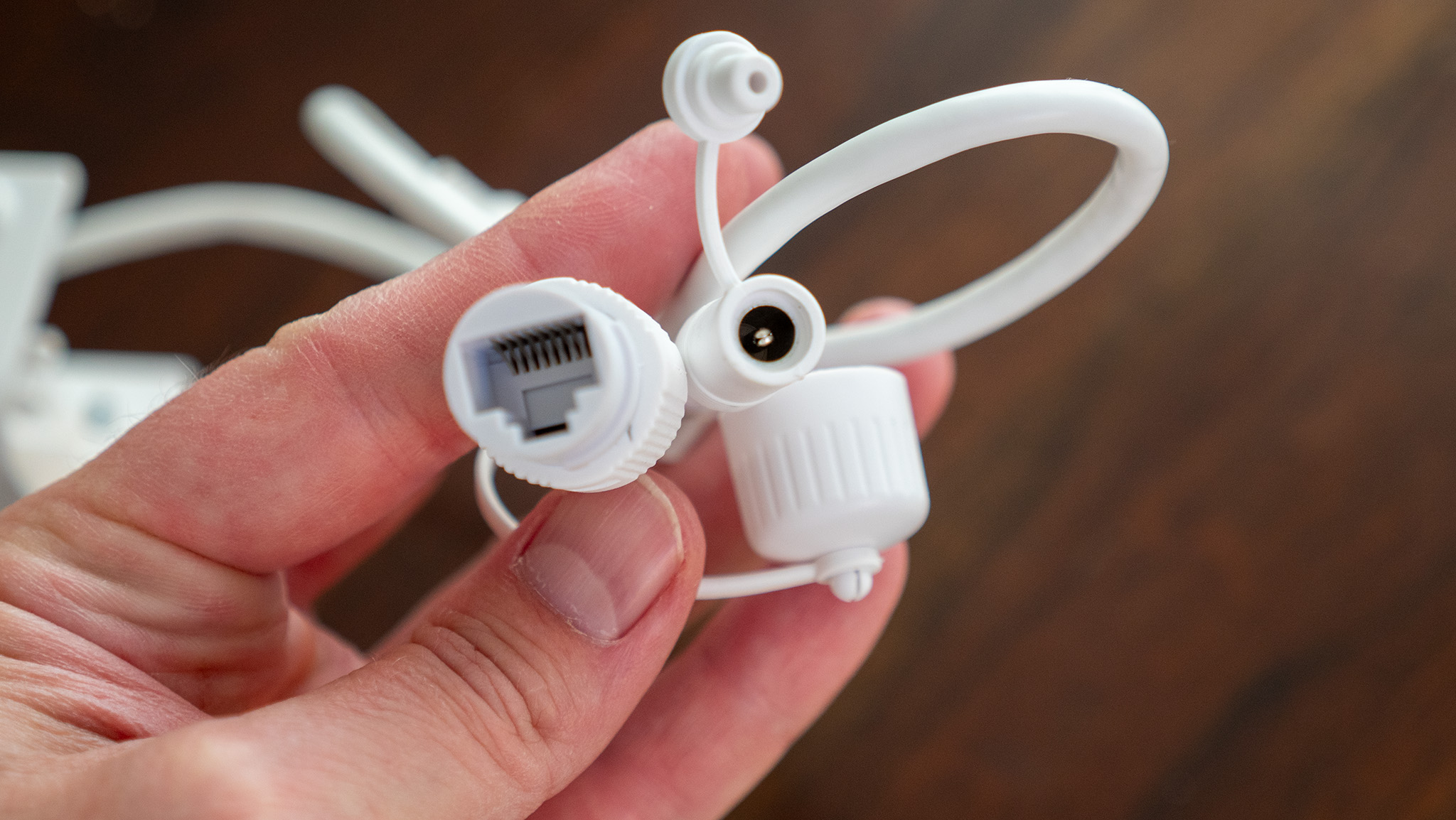
The UGREEN SynCare PoE Cam OD600 Pro that pairs with the UGREEN HomeAgent HA100
Nicholas Sutrich / Android Central
The UGREEN SynCare PoE Cam OD600 Pro that pairs with the UGREEN HomeAgent HA100
Nicholas Sutrich / Android Central
The UGREEN SynCare PoE Cam OD600 Pro that pairs with the UGREEN HomeAgent HA100
Nicholas Sutrich / Android Central
The UGREEN SynCare PoE Cam OD600 Pro that pairs with the UGREEN HomeAgent HA100
Nicholas Sutrich / Android Central

Now, I've got a proper replacement solution that includes all that awesome local processing, plus the ability to control all my other smart home products using just my voice (thank you, Matter), all without requiring an internet connection. Pinch me, because this feels too good to be true, yet here it is in my living room.

Ugreen has a full roadmap for additional upgrades, including Zigbee device compatibility, a suite of additional voice commands the company is building, and more, which it'll be building out as the crowdfunding project continues through the end of the year.

  •  
❌