
❌

Reading view

How to Delete Stickers on iPhone Without Losing Favorites

You can delete stickers on iPhone without removing your entire collection, but the correct procedure depends on whether you want to erase a custom sticker, remove a Genmoji, hide keyboard stickers, or detach a sticker from a conversation.

For custom photo stickers and Live Stickers, iOS provides an individual Remove command. This lets you clean the sticker drawer while leaving every other saved sticker untouched.

Apple does not provide a protected Favorites folder inside the system sticker drawer. The Frequently Used section is created automatically from your activity and should not be treated as a permanent collection. If you have stickers you cannot afford to lose, save recoverable copies before beginning the cleanup.

Save Your Favorite Stickers First

The safest backup is to send your favorite stickers to a conversation with yourself. The sent copies remain inside the conversation even if you later remove the reusable versions from your sticker collection.

Adding Stickers:

Messages > New Message > Your Contact > Add > Stickers

Select each favorite sticker and send it as a separate message. You can also create a private conversation with a trusted contact, but messaging yourself keeps the backup separate from ordinary conversations.

If you accidentally delete one of these stickers from the drawer, return to the self-conversation and restore it.

Messages > Your Self-Conversation > Touch and Hold Sticker > Save to Stickers

For a sticker attached to the corner of a message bubble, open its details before saving it.

Messages > Your Self-Conversation > Touch and Hold Sticker > Sticker Details > Save

This procedure is especially useful for stickers received from other people. A photo sticker you created yourself can usually be recreated from the original image, but a saved sticker from another person may be difficult to replace if the original conversation is deleted.

An iPhone displays the Messages app in dark mode, showing the new message screen with Memoji and Live Stickers at the bottom. The Apple logo appears in the lower right corner of the image.
Image Credit: AppleMagazine

How to Delete Stickers on iPhone

The easiest way to remove an individual custom sticker is through the Messages app. You can open any existing conversation because you do not need to send a message.

Removing individual stickers:

Messages > Conversation > Add > Stickers > Live Stickers

The Live Stickers tab uses an icon resembling a sticker being peeled from a surface. It contains stickers created from your photos, animated Live Stickers, and compatible stickers saved from conversations.

Touch and hold the unwanted sticker until the contextual menu appears, then release your finger and select Remove. Do not drag the sticker toward the conversation because that action may attach it to a message instead of opening the menu.

Touch and Hold Sticker > Remove

Only the selected sticker is deleted. Other photo stickers, saved designs, and favorite items remain in the collection.

Some iOS versions also display a Rearrange command after you touch and hold a sticker. This mode allows you to move the stickers you use most often toward the beginning of the collection.

Messages > Conversation > Add > Stickers > Live Stickers > Touch and Hold > Rearrange

Drag the stickers you want to preserve toward the first positions. You may also see a removal control beside each sticker while rearranging. Use it carefully because iOS may remove the sticker immediately without presenting a second confirmation.

A selective cleanup is safer than trying to reset the complete keyboard or sticker database. Removing and reinstalling the Emoji keyboard is unnecessary and may alter frequently used emoji without providing better sticker controls.

Delete Stickers Through the Emoji Keyboard

The same sticker collection is accessible from the system keyboard in Messages, Notes, Mail, and other supported apps.

Using system keyboard in Messages:

Any Text Field > Emoji Keyboard > Stickers > Live Stickers

Touch and hold the sticker you want to erase, then tap Remove. If the menu does not appear, confirm that you are viewing the Live Stickers collection rather than Frequently Used.

Frequently Used combines recently selected emoji, Memoji, Genmoji, and stickers. Items shown there are shortcuts to content stored in another section. Opening the Live Stickers tab gives iOS the correct context for managing your custom collection.

If the keyboard is compressed or several categories are hidden, swipe across the sticker controls until the Live Stickers icon becomes visible. The exact position can change as Apple adjusts the keyboard, but the touch-and-hold removal gesture remains the same.

IPhone screen showing a chat with a sushi car image and various colorful custom stickers in a messaging app. The keyboard and iPhone sticker options are visible below the conversation.
Image Credit: Apple Inc.

Use Photos When the Sticker Menu Does Not Respond

You can also access the system sticker drawer through the Markup tools in Photos. This is useful when Messages tries to drag a sticker rather than displaying its menu.

Photos > Open Photo > Edit > Markup > Add > Add Sticker

Touch and hold the unwanted sticker, then tap Remove. You are managing the same synchronized collection, so a sticker deleted through Photos also disappears from Messages and the system keyboard.

Removing a sticker does not delete the source photograph. If you created the sticker by lifting a person, pet, or object from an image, the original photo remains in your library unless you delete it separately.

To recreate the sticker later, open the original image and lift its subject again.

Photos > Open Photo > Touch and Hold Subject > Add Sticker

You can then apply an effect such as Outline, Comic, Puffy, or Shiny. Live Photos can produce animated Live Stickers when the isolated subject contains usable motion.

Delete a Genmoji Without Removing Other Stickers

Genmoji created with Apple Intelligence are stored with the stickers accessible through the emoji keyboard. They can be removed individually without affecting your photo stickers or other generated designs.

Any Text Field > Emoji Keyboard > Stickers > Genmoji

Touch and hold the Genmoji you no longer want, then tap Remove. You can perform the same procedure from Messages.

Messages > Conversation > Add > Stickers > Genmoji > Touch and Hold > Remove

Removing one Genmoji does not disable Apple Intelligence or erase the other Genmoji you created. If you later want a similar design, open the Genmoji creator and enter the description again, although the generated image may not be identical.

An iPhone screen shows an emoji keyboard in dark mode, featuring options like β€œRearrange,” β€œNew Emoji,” β€œShare,” and β€œDelete.” Alongside various faces and animals, users can manage iPhone stickers or delete stickers, making it easy to personalize their messaging experience.
Image Credit: AppleMagazine

Be More Careful With Memoji Stickers

Memoji stickers operate differently because iOS automatically creates a complete sticker pack from each custom Memoji character. You cannot normally delete one expression while keeping the remaining expressions from the same character.

Deleting the underlying Memoji removes its generated sticker pack. Before selecting Delete, confirm that you do not want any of that character’s poses or expressions.

Any Text Field > Emoji Keyboard > Memoji > More > Delete

If you only want Memoji and other stickers to stop appearing in the keyboard, use the keyboard setting instead of deleting the character.

Settings > General > Keyboard > Stickers

Turning off Stickers hides sticker content from the emoji keyboard. It does not provide a selective cleanup and should not be used as a substitute for removing individual items. Your saved stickers remain available when the setting is enabled again.

Remove a Sticker From a Message Without Deleting It

A sticker attached to a message bubble is separate from the reusable copy stored in your collection. Deleting it from the conversation does not erase the sticker from your drawer.

Messages > Conversation > Touch and Hold Message Bubble > Sticker Details

Find the sticker you want to detach, swipe left across it, and tap Delete. This removes that placement from the conversation on your iPhone.

Use this procedure when a sticker covers text, was attached accidentally, or no longer belongs in the conversation. If you instead open the sticker drawer and select Remove, you erase the reusable sticker while leaving previously sent copies in their conversations.

Understand What Happens Through iCloud

Custom stickers sync through iCloud to supported Apple devices using the same Apple Account. Removing a sticker from the iPhone can therefore remove it from the sticker drawers on an iPad, Mac, or Apple Vision Pro.

There is no Recently Deleted album for the system sticker collection. Keep the original source photo or send valuable stickers to yourself before removing anything.

After a deletion, another Apple device may continue displaying the sticker briefly while synchronization completes. Closing and reopening the sticker drawer usually refreshes the collection. A favorite preserved in your self-conversation can be restored at any time through Touch and Hold Sticker > Save to Stickers.

The post How to Delete Stickers on iPhone Without Losing Favorites appeared first on AppleMagazine.
  •  

Call Forwarding on iPhone: How It Works

Call forwarding on iPhone is a simple feature with a specific job: it sends incoming calls from your iPhone number to another phone number. That can be useful when you are traveling, using a temporary phone, separating work and personal calls, covering a business line or making sure important calls reach someone else when you cannot answer.

The feature is built into iOS, but it depends on carrier support. Apple notes that call forwarding can be set up on iPhone if cellular service is through a GSM network. If the service uses a CDMA network, users may need to contact the carrier for setup details. That means the option may not appear for every user, every carrier or every plan.

For most supported iPhones, the path is quick:

Settings > Apps > Phone > Call Forwarding

Turn on Call Forwarding, then enter the phone number where calls should be sent. When call forwarding is active, an icon appears in the status bar so the user can see that incoming calls are being routed elsewhere.

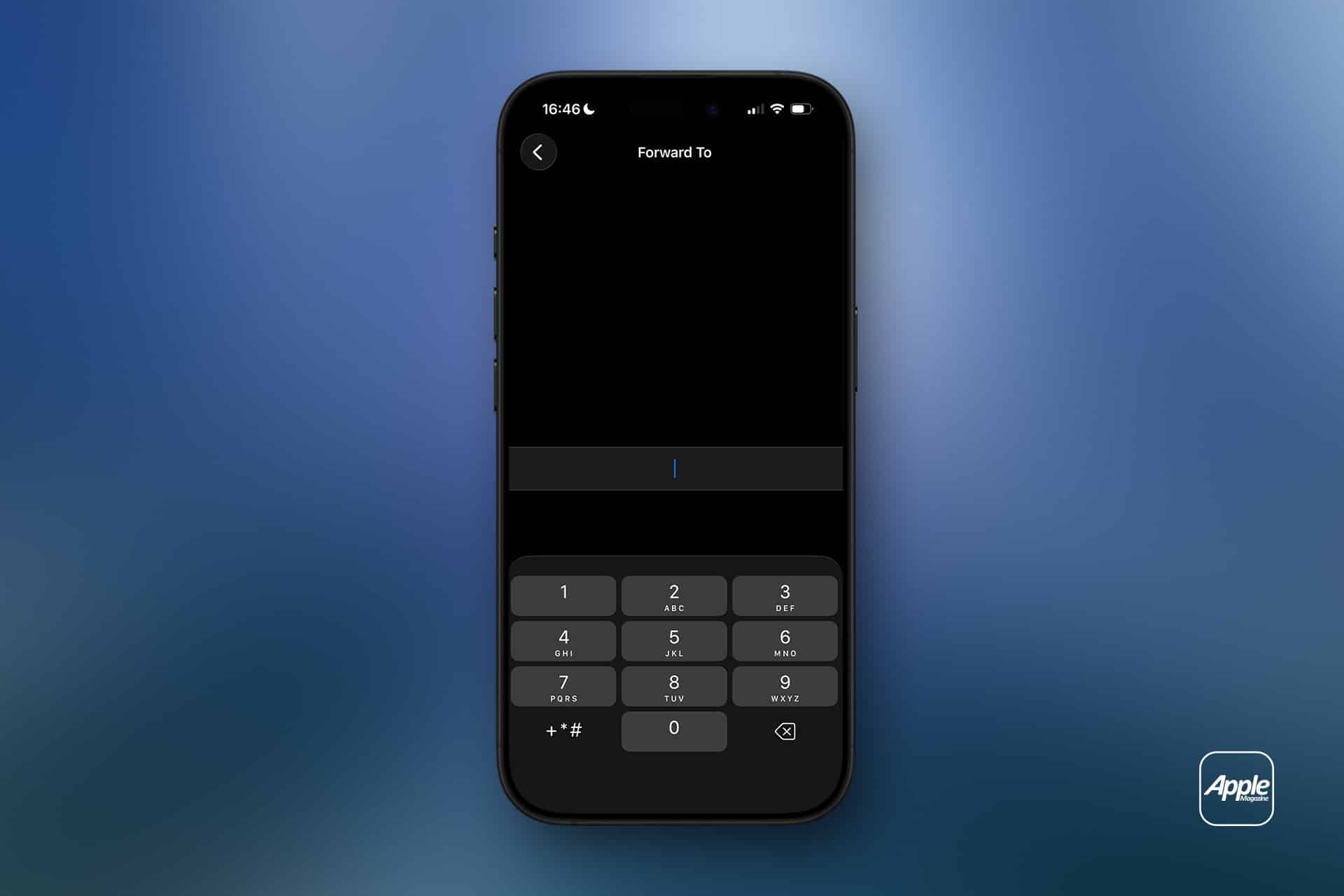
An iPhone displays a β€œForward To” screen with a numeric keypad, prompting the user to enter a numberβ€”perfect for configuring call forwarding within iPhone settings. The background features a blue gradient, with an Apple logo in the lower right corner, emphasizing seamless cellular service management.
Image Credit: AppleMagazine

Call Forwarding on iPhone Sends Calls Elsewhere

Call forwarding on iPhone does not move messages, FaceTime calls, app notifications or voicemail settings by itself. It only redirects standard cellular phone calls. If someone calls your iPhone number, the carrier routes that call to the number you entered.

That distinction is important. If you forward calls to another phone, text messages still arrive on the original iPhone unless other settings or services are involved. FaceTime calls may still ring on Apple devices signed into the same Apple Account. Messaging apps such as WhatsApp, Signal, Telegram or Messenger are unaffected.

Call forwarding is also different from Silence Unknown Callers, Focus modes or Do Not Disturb. Those features control how calls appear or interrupt you. Call forwarding changes where the call goes.

This makes the feature useful in a few common situations. A business owner can send calls to an office line. A traveler can forward calls to a local number. Someone with a damaged iPhone can temporarily send calls to another device. A freelancer can route calls to a partner during time off. A parent can forward calls to a spouse for a short period.

How to Turn On Call Forwarding

To turn on call forwarding:

  • Settings > Apps > Phone > Call Forwarding
  • Turn on Call Forwarding
  • Tap Forward To
  • Enter the phone number
  • Go back to save the setting

Use the full phone number, including area code. If forwarding to an international number, include the correct country code. After setting it up, test the feature from another phone. Do not assume it works until a test call rings at the forwarded number.

To turn call forwarding off:

Settings > Apps > Phone > Call Forwarding > Turn off

After turning it off, test again. A quick call from another phone confirms whether incoming calls are back to normal.

If the Call Forwarding menu spins, fails to load or does not save the number, restart the iPhone and check cellular service. If the problem continues, contact the carrier because the setting depends on the carrier network.

Why the Setting May Be Missing

Some users look for call forwarding and cannot find it. That usually means one of three things: the carrier does not expose the feature in iPhone settings, the plan does not support it, or the network requires carrier codes or account-level setup.

Apple’s guide says CDMA users should contact their carrier for call forwarding information. Some carriers also use special dialing codes for forwarding all calls, forwarding when busy, forwarding when unanswered or forwarding when unreachable. Those codes vary by carrier and country, so guessing is not a good idea.

The best path is to check the carrier’s support page or app. Many carriers let users manage forwarding from the account dashboard, especially for business lines or multi-line plans.

If the option is missing, the iPhone is not necessarily broken. The carrier may simply handle forwarding differently.

What Happens to Voicemail

Call forwarding can affect voicemail behavior depending on the carrier and destination number. If the forwarded phone does not answer, the call may go to the voicemail of the forwarded number instead of the original iPhone voicemail. In some cases, carrier rules may still send it back to the original mailbox, but users should not assume that.

This is another reason to test. Call the iPhone from another number, let it ring, and see where the missed call lands. If the goal is to preserve the original iPhone voicemail, carrier support may be needed.

For work numbers, this can be especially important. A forwarded business call going to a personal voicemail greeting can look unprofessional. A personal call going to a shared office voicemail can create privacy problems. Check before relying on it.

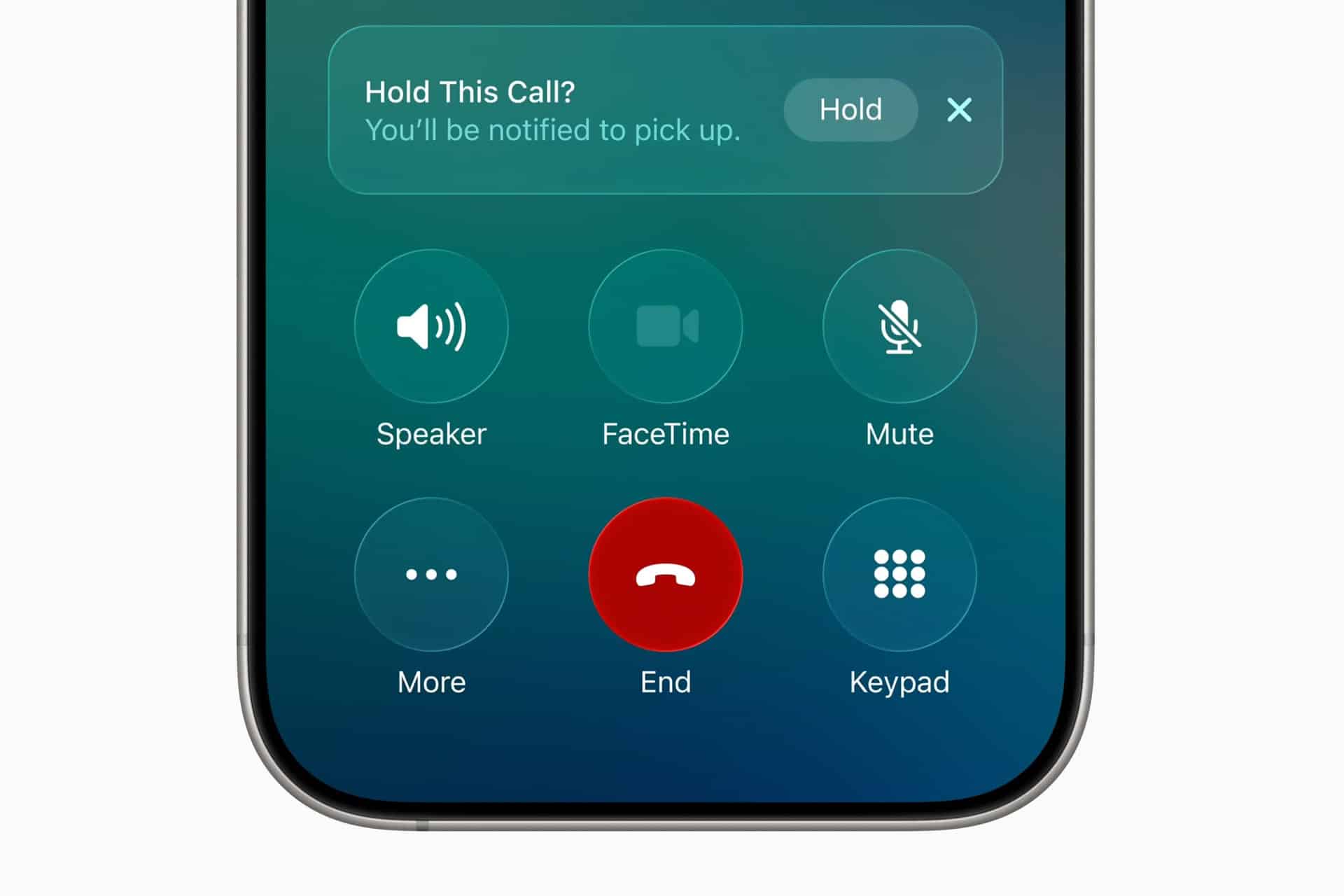
Close-up of an iPhone call screen showing options: Speaker, FaceTime, Mute, More, End (red button), and Keypad. A notification at the top says "Hold This Call? You'll be notified to pick up." The image highlights typical iPhone features used for managing calls and cellular service, including call forwarding capabilities.
Image Credit: Apple Inc.

Call Forwarding and Dual SIM

iPhone users with Dual SIM or eSIM setups should pay attention to which line is being forwarded. A personal line and business line can have separate carrier settings. Forwarding one does not automatically forward the other.

To check lines:

Settings > Cellular > Select the line you want to manage

Then return to:

Settings > Apps > Phone > Call Forwarding

The available settings may vary by carrier and line. If one line supports call forwarding and the other does not, that is usually a carrier difference, not an iPhone problem.

Dual SIM users should also test both numbers separately. Call the personal number, then call the business number, and confirm each behaves as expected.

When Call Forwarding Is Useful

Call forwarding works best when the goal is temporary coverage. It is useful during travel, device repairs, vacations, business handoffs, office moves, event coverage or times when another person needs to answer calls.

It can also help people who use a landline or desk phone during work hours. Calls can be forwarded from the iPhone to the office line, then turned off at the end of the day. The reverse can also work if the carrier supports it.

For small businesses, call forwarding can help avoid missed calls without adding a full phone system. A company can route calls to whoever is available. For individuals, it can be a quick fix when an iPhone battery is failing, a device is being repaired, or cellular reception is better on another phone.

The feature is less ideal as a permanent business phone solution. If multiple people need to answer calls, if calls need menus, if calls need recordings, or if voicemail needs to stay organized, a dedicated phone service may be better.

Privacy and Cost Considerations

Call forwarding may create charges depending on the carrier, plan and destination number. Forwarding calls to an international number can be expensive. Forwarding to another domestic mobile number is usually simpler, but users should still check the plan.

Privacy also deserves attention. Once calls are forwarded, the person or device receiving them may hear personal, business or sensitive conversations meant for the original number. Do not forward calls to a shared phone unless that is intentional.

Before forwarding a work line to a personal number, check company policy. Some organizations do not allow business calls to be routed to unmanaged personal devices.

Call forwarding - A young woman with brown hair in a green sweater sits on a chair, holding an iPhone voice recorder and speaking into it. A peacock feather decorates the background against a plain wall.
Image Credit: Freepik

How to Troubleshoot Call Forwarding

If call forwarding does not work, start with the basics. Confirm the iPhone has cellular service. Restart the device. Check that the forwarding number is entered correctly. Turn call forwarding off, wait a few seconds, then turn it on again.

Then test from another phone. A test call is the fastest way to know whether the carrier accepted the setting.

If calls still do not forward, check whether the carrier supports call forwarding through iPhone settings. Some carriers require account-level activation, carrier codes or a business calling feature. If the iPhone setting is missing or stuck, carrier support is usually the right next step.

Also check Focus modes and blocked numbers if the issue is not forwarding but missed calls. A call may fail to ring because of Focus, Silence Unknown Callers, a blocked contact, poor signal or voicemail settings rather than call forwarding.

A Simple Feature Worth Testing

Call forwarding on iPhone is easy to use when the carrier supports it. Open iPhone settings, turn on Call Forwarding, enter the destination number and test it. Turn it off when the temporary need is over.

The feature is most useful when it is deliberate and short-term. It can keep calls moving during travel, repairs, work coverage or busy periods, but it should be checked carefully because voicemail, costs and privacy can change once calls are routed to another number.

The iPhone makes the setting simple. The carrier decides how far that simplicity goes.

The post Call Forwarding on iPhone: How It Works appeared first on AppleMagazine.

  •  
❌