❌

Reading view

Diagnosing sentiment in my typo-reporting workflow

Screenshot titled 'Use Model' with yellow feedback on menu bar color change (YMMV). Gray box lists Use On-Device model rules for ALLOW/REJECT. Bottom: REJECT with note 'On-Device'
This is more of a comment than a question.

A few months ago I added a “Report a Typo” feature to Six Colors. The goal was to give people a simple place to go — sixcolors.com/typo — if they found a mistake on the website. That Google form inserts the information into a Google Sheet, and a script attached to the Google Sheet kicks off a simple automation that sends me a notification in a couple different places.

This works pretty well. I’m using a very simple Google Apps script to fire off a webhook when there’s a new form submission. The webhook is running on Make.com, which we use for a bunch of simple web automations, but that’s an implementation detail. Make.com posts an item in a private Discord channel and also crafts a custom push notification to my phone using Pushover.

However, the moment I turned this feature on, I discovered the problem with asking people to report errors or typos: Some people see any open channel of communication as an open channel for any sort of communication. I immediately started getting more “this is more a comment than a question” items about articles than actual typo submissions. Commentary included personal preferences for writing style, web design, political references (real or imagined), and much more.

I’m going to make an admission: This sort of feedback is maddening. I want to be alerted about mistakes on the site so I can fix them promptly, but I am not interested in receiving push notifications regarding your opinion of the professionalism and appropriateness of my writing style.

Unfortunately, it’s an open form. There’s nothing to be done. Or is there?

This is a challenge that can’t really be solved by looking for a bunch of keywords. You need wholesale sentiment analysis of the entire submission. This is—brace yourself—actually a good use of a large language model.

I solved this problem by using a plug-in within Make.com that lets me get a reply back from a cloud LLM that uses a simple model with an API cost of pennies per use, but you could also just use Shortcuts to build a version of this automation that runs on a Mac (Tahoe or Golden Gate) using Apple’s built-in models. It works just fine in Shortcuts on my Mac, via the Use Model action. (See screenshot above.)

Here’s the prompt I’m currently using:

Your task is binary classification.

Input: a user-submitted comment about an article, claiming to report an error.

Output: one token only: ALLOW or REJECT.

Definition of ALLOW:
A concrete, objective, verifiable issue in the article. This includes:
* factual mistakes
* spelling, grammar, formatting mistakes
* broken or incorrect links
* wrong names, dates, numbers
* technical inaccuracies
* omissions of material consequences of a feature or change (e.g., failing to mention that a feature deletes stored Wi-Fi passwords)

Definition of REJECT:
Anything subjective. This includes:
* political disagreement
* tone or style complaints
* metaphor or comparison preferences
* ‘you should have covered X more’
* speculation about motives
* emotional reactions or rants
* admissions that it’s not actually a mistake

Classification rules:
1. If the comment identifies a specific factual, technical, or materially consequential issue in the article, return ALLOW.
2. If the issue would meaningfully affect reader understanding or use of a product/feature, treat it as an omission and return ALLOW.
3. If the comment is opinion, taste, politics, vibe, personal criticism, or preference, return REJECT.
4. If there is no concrete, verifiable claim about the article being wrong or incomplete, return REJECT.
5. If it’s off-topic or spam, return REJECT.
6. If it’s a short but simple phrase like “there not their” or “r/sheild/shield”, those are nerdier folks reporting typos and that’s fine, ALLOW.

Respond with exactly one of these two tokens: ALLOW or REJECT. No explanation.

Submission: [[insert report text here]]

This has worked surprisingly well. And, yes, all messages are logged in the original Google Sheet, so I can occasionally check to monitor the quality of the filtering and make sure that the system isn’t failing to pass on actual mistakes.

  •  

Open and move windows between displays automatically

MacBook showing Audio Hijack with a Podcast Installer flow: Mic, Input Device, Recorders, Simple Compressor, Output Devices. Recording active; rocky beach wallpaper.

When I was visiting my pal Myke Hurley in London last year, I noticed that he had a second display to the right of his main one. It was large and mounted vertically, and when he recorded a podcast, he kept all his recording information over there. I liked the idea of monitoring my recordings while they were going on, just for extra peace of mind, and a second display seemed like the right way to do it.

If only I had a second display! But I do, of course, because my main Mac is now a MacBook Pro. So I’ve taken to recording podcasts using the “Hurley Method,” with my Audio Hijack windows positioned on the laptop display, off to my left.

It’s nice, but if you know me, I quickly became frustrated by the number of clicks and drags I needed to perform every single time I record a podcast: Open up my laptop, open Audio Hijack, open the list of recording sessions, double-click on the one I’m using right now, then drag the window over to the laptop display.

So today I automated it.

None of my automations work if I haven’t opened the laptop, and while it sits next to my Mac in a nice stand from Twelve South, it’s closed most of the time. So my first step before moving windows to the laptop display is to make sure that the display is available! Fortunately, there’s a command-line command for that:

system_profiler SPDisplaysDataType

If you want, you can simplify the output by piping it through a grep command like system_profiler SPDisplaysDataType | grep -B1 "Resolution", but all I really want to do is search for the text string “Built-in”, which indicates that the laptop is open and its built-in display is running.

I automate most of my recording stuff using Keyboard Maestro macros triggered by an Elgato Stream Deck. So I built my automation into an existing macro in Keyboard Maestro, just adding a new if/then statement: If the calculation `SCREENCOUNT() > 1 returns true.

Keyboard Maestro

Then the macro runs the shell script, saves that to a local variable called LocalScreens, and it’s time for one more if/then statement, to ensure that this part of the macro only runs when more than one screen is attached and when the internal MacBook Pro display is active.

Screenshot of Keyboard Maestro: Execute Shell Script saves above command to LocalScreens; If All Conditions Met checks LocalScreens contains Built-in Liquid Retina XDR Display.

Unfortunately, the next step requires automating Audio Hijack, and while that app is very scriptable via JavaScript, and controllable via Shortcuts (or a plain text file?!), there’s no direct method of automating it from within Keyboard Maestro. So I created a basic Shortcut containing the JavaScript required to tell Audio Hijack to open a specific session by name, with the name passed to the Shortcut as input:

Screenshot of a Shortcuts workflow: Receive Text from Nowhere with option Ask For Text; Run JavaScript block with code assigning app.sessionWithName('@ Shortcut Input'), showing a window or logging error if no session named 'Podcast' is found.

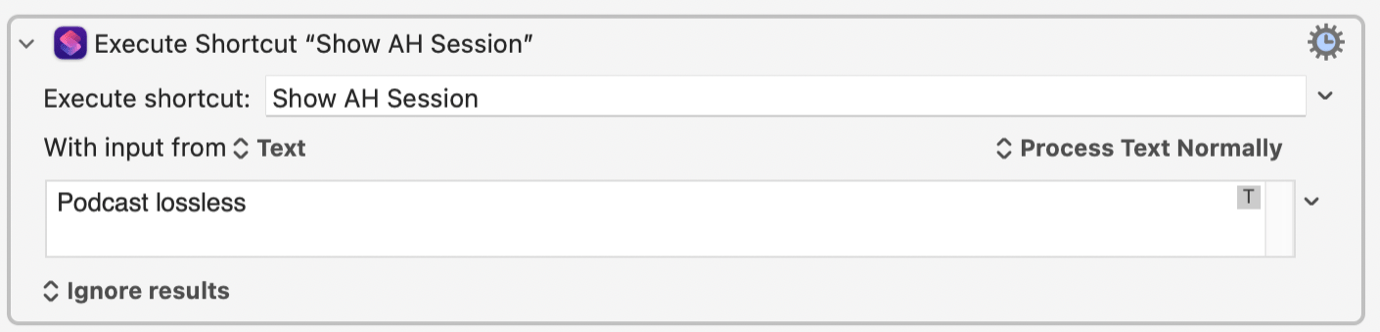
Then it’s a one-step item in Keyboard Maestro to run that shortcut with the name of my Audio Hijack session as the input:

Screenshot: Execute Shortcut 'Show AH Session', with input from Text set to 'Podcast lossless', Process Text Normally, Ignore results.

(I wish this was cleaner and I didn’t need to run a shortcut. The alternative is to literally write out a text file containing the JavaScript and run it via a shell script. Is that cleaner? Doesn’t feel like it, but it’s more self-contained and doesn’t rely on the good graces of Shortcuts.)

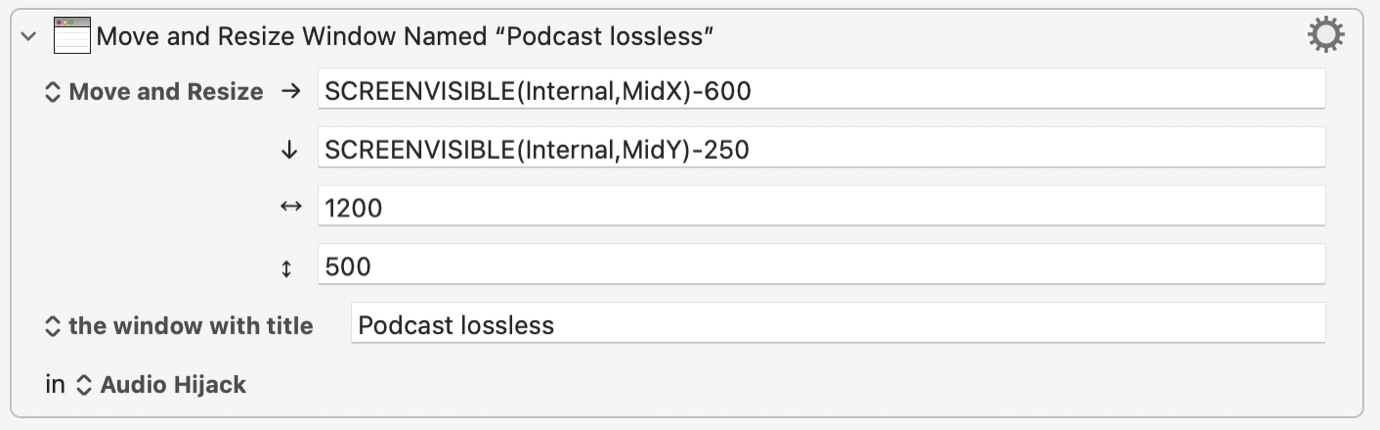
Now that I know that my MacBook Pro display is open and my Audio Hijack session window is open, it’s a one-step command in Keyboard Maestro to make the move:

keyboard maestro

This one’s a little tricky. I have to use the Move and Resize Window command, but instead of standard numerical values, I need to use custom “smart” values that Keyboard Maestro supports. In this case, horizontally it’s SCREENVISIBLE(Internal,MidX)-600 —essentially, 600 pixels to the left of the midpoint of the internal display—and vertically it’s SCREENVISIBLE(Internal,MidY)-250—250 pixels up from the midpoint of the display. You can play around with the dimensions until the window ends up in the right spot, and of course, at the right size.

And that was it. Now, when I press my recording button on my Stream Deck, if my laptop display is open, the session window will automatically pop open on my laptop display. I sure do like it when things happen on my computer automatically.

  •  

Realizing the user automation dream

Shortcut: Find recent reminders, tomorrow's personal/family events, and display combined events. Input: 'Describe a change'.
A result from the Describe a Shortcut feature in macOS 27.

Since the very beginning, it’s been clear that computers provide incredible power to those who know how to use them to get work done. The challenge has always been how small the group of “those who know how to use them” has been.

The Apple II included support for BASIC, a simplified programming language that was intended to let new computer users write programs. “In my opinion, the real thing [the Apple II] is doing right now is to teach people how to program the computer,” a young Steve Jobs told the New Yorker in 1977. The first computer programs I wrote were in BASIC.

There was also the Logo language, which helped introduce beginners to programming concepts through the manipulation of a virtual robot called a “turtle.” In the ’80s, HyperCard tried to broaden the programming community through its use of HyperTalk, another language designed to speak to beginners.

The (still!) current examples of this on the Mac are AppleScript, which used a format based on English-language sentence structure; and Automator and Shortcuts, two automation tools designed to create flow-chart-based programs.

The goal is always the same: To give regular people the ability to harness the power of computers. And we’ve never, ever been closer to the goal than we are today.

No, I’m not talking about vibe coding apps, mostly because that requires a level of focus and detail that most “regular people” are not going to want to provide. Show a civilian Xcode and watch how their eyes instantly glaze over.

I’m talking about Shortcuts—specifically, Apple’s Describe a Shortcut feature in the forthcoming macOS 27, iOS 27, and iPadOS 27.

This is as close as we’ve come, across 40 years, to the original dream of putting computer power in the hands of everyone. You can literally tell your device what you want it to do, and when—”every morning show me my to-dos and calendar events for the day”—and it will generate a program to do it and a schedule to run it.

Find 3 incomplete Reminders from Personal and Family for Tomorrow, sorted by date.
A look inside a shortcut created by Describe a Shortcut.

Yes, there are lots of limitations. Describe a Shortcut doesn’t work with third-party apps, only Apple’s own stuff (at least, for now). It can sometimes get confused, especially with complex queries. And it has an interesting tendency to kick things to the Use Model action—why am I not surprised that an AI model likes to build Shortcuts that themselves use AI models?

But when it works, which is most of the time, it’s magical. And perhaps its best feature is that you can iterate on your Shortcuts. If there’s something it doesn’t do quite right the first time, you can specify changes you’d like to see—”only show me items from my Personal calendar”—and it’ll rewrite the Shortcut to take those changes into account. In that way, it’s emulating the back-and-forth conversations that can make vibe coding so remarkable.

I was also impressed with the fact that Shortcuts created with this method are… just Shortcuts. With one click, you’re looking at the actual Shortcut blocks that the feature has assembled for you. You can edit them as you see fit. They’re not special in any way, other than that they were built with an actual English-language sentence, not a line of code that resembles one superficially.

I’m sure that future developments will make it even easier for us to tell our devices what to do. But this particular advance feels especially big to me, like we’ve crossed some invisible line of demarcation. We are entering the era where the computers program themselves—and, for the most part, are able to understand what we’re asking them to do.

  •  
❌