TL;DR:MacMagic unlocks the useful tools macOS hides, and a lifetime license is only $30 (reg. $99.99).
macOS hides a surprising number of useful tools behind menus most people never open, and it leaves out a few features you’d expect to find on any modern machine. MacMagic is a new tool that unlocks all those hidden features, and a lifetime license is on sale for $29.99 (reg. $99.99) right now.
MacMagic finds and purges oversized app caches and logs, force-deletes stubborn files, and clears recent activity to free up disk space. From there, you can batch-rename files by date or metadata, convert images across more than 100 formats, and merge or compress PDFs in a few clicks.
MacMagic also surfaces buried system utilities like Screen Sharing and Certificate Utility. It can even show or hide invisible Finder files, and lock whole folders with a single click. A lightweight text editor, a QR code generator, and a database browser are also included.
Stop hunting through menus and hidden settings to get more out of your Mac.
The European Commission has fined Google a total of €890 million ($1 billion) for its breaches of the Digital Market Act (DMA).
Just over half the fine — €460 million — was because Google illegally gave preference to its own services in Google Search results.
The remainder was because in the Google Play store for Android apps, the company prevented app developers from leading consumers to alternative, often cheaper, purchase channels. Under the DMA, app developers who distribute their apps via Google Play or Apple’s App Store should be able to inform customers of alternative offers.
Now Google must give third-party services featuring in its results the same treatment as its own services, and allow developers of apps in the Play Store to communicate about offers both in and outside the Play Store, or face further fines.
Widgets, widgets, widgets. Has there ever been an Android feature so full of promise that went unloved by Google for so very long?
Okay, so maybe there has been — erm, lots of times, actually. But even so, Android’s widgets system is a perfect example of an exceptional advantage that Google basically buried, abandoned, and left on the brink of extinction up until its overdue revival in 2021’s Android 12 update. (And that revival, by the way, happened for no apparent reason whatsoever. Just a totally random, unprompted change of heart after a decade of indifference. Riiiiiiiiight.)
Google may have given up on widgets for a while, but the good news is that (a) they’re back, baby — still now, more than ever, even in our overly AI-obsessed 2026 timeline — and (b) the Android developer community keeps chuggin’ along and coming up with ever-more creative new ways to embrace widgets beyond what Google itself sees fit to give us. That means no matter what Android version your favorite phone is running, you can step up your own Android widget game and give yourself some fresh and fruitful paths to make the most of your phone’s framework.
Here, my dear, are some fantastic beyond-the-basics ways to put your favorite Android widgets to use and change the way you get stuff done on your phone.
Android widget enhancement #1: The on-demand home screen pop-up
Widgets are a wonderful way to interact with all sorts of info without ever having to open up apps, but having too many widgets can quickly lead to a cluttered and overwhelming home screen.
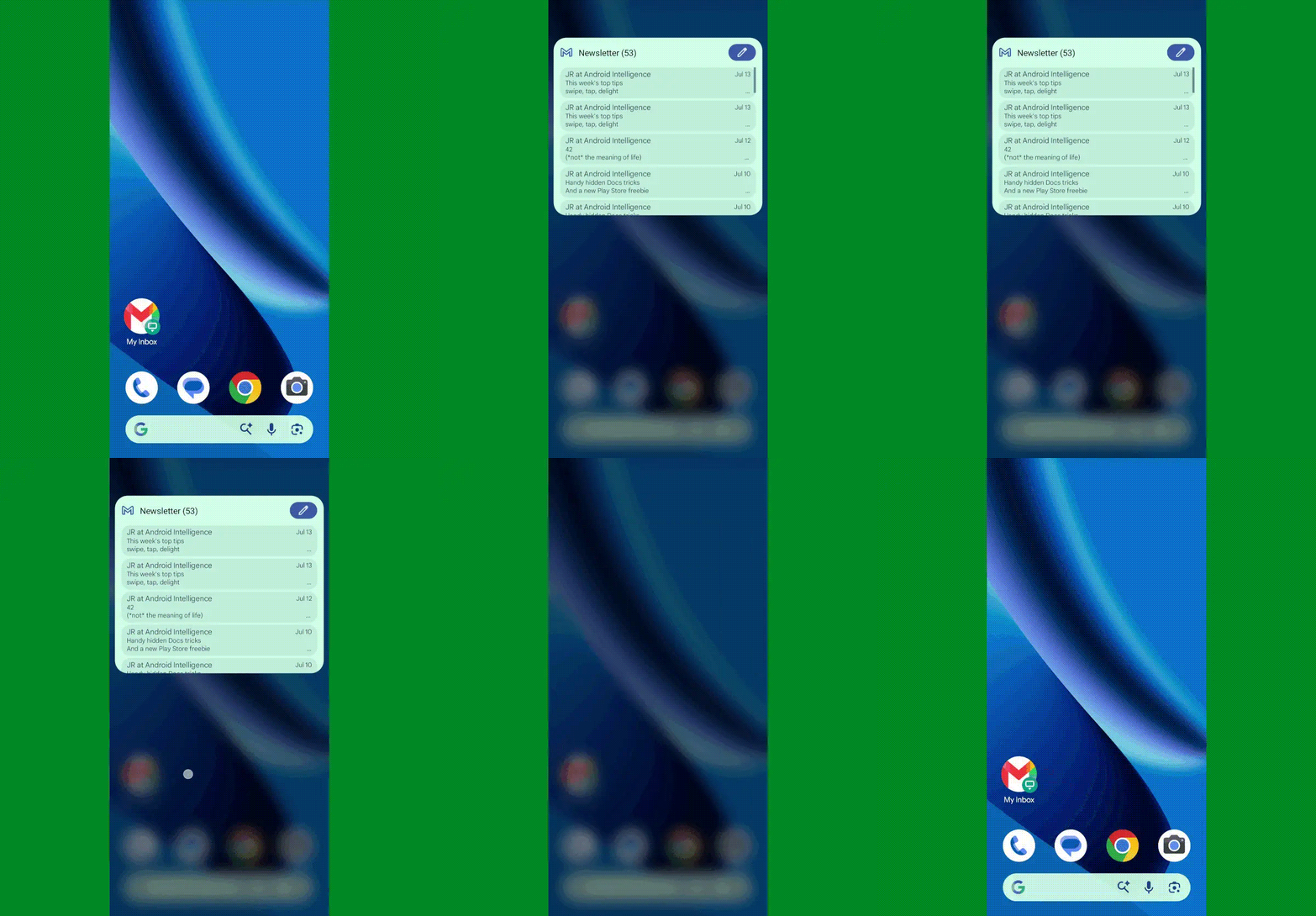
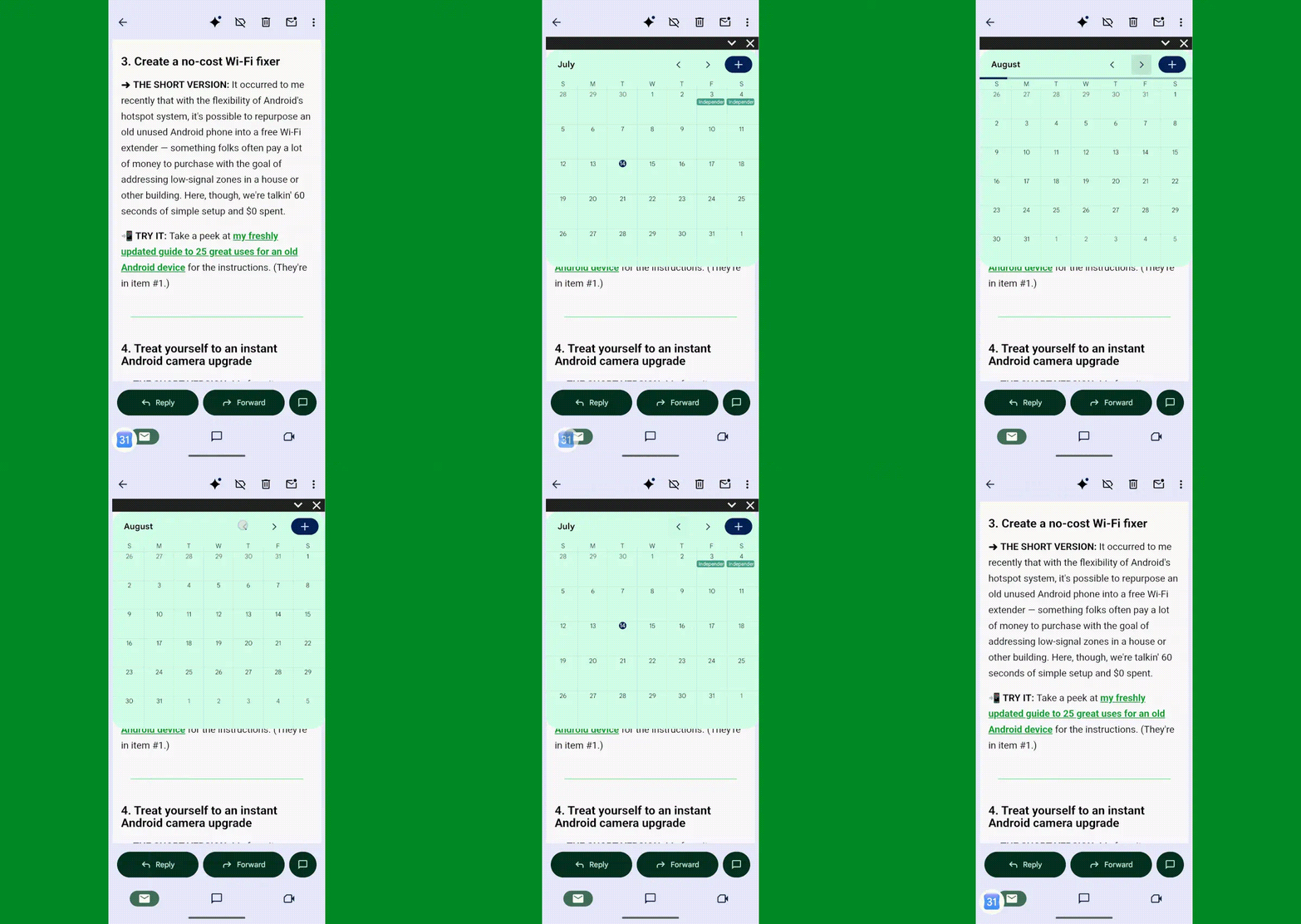
Well, here’s a neat way to give yourself the benefit of a widget while still maintaining a neat and minimal space for working: An excellent app called Popup Widget lets you create an on-demand pop-up widget (get it?!) that looks like a regular ol’ icon on your home screen but then loads any widget you want when tapped.
See?
Any widget, anytime — with Popup Widget on Android.
JR Raphael, Foundry
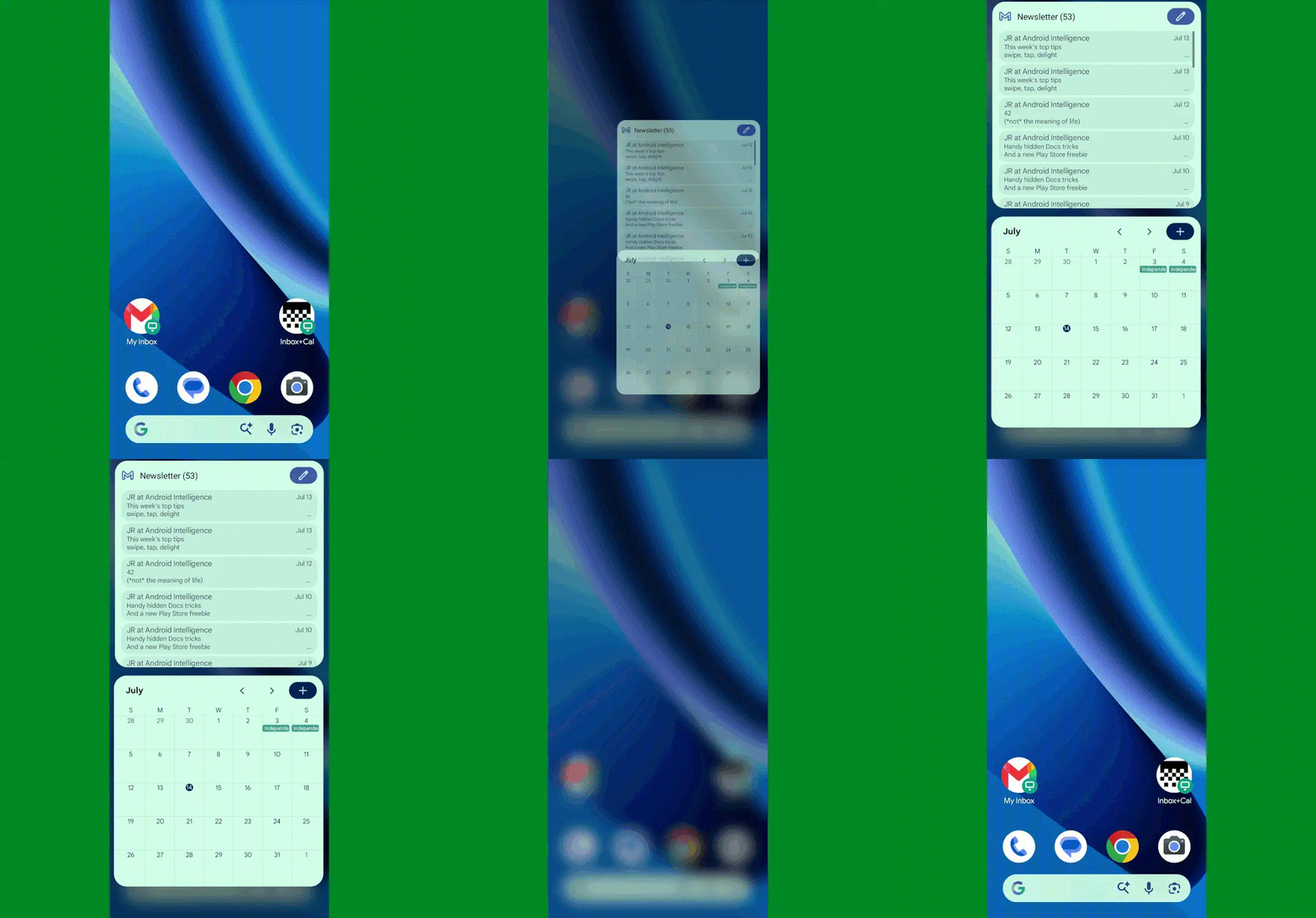
You can even get really wild and set up a single icon that opens multiple widgets at the same time — like your inbox and your calendar together:
Popup Widget can even let you summon two widgets together with a single tap.
JR Raphael, Foundry
Not bad, right?
Popup Widget costs two bucks and doesn’t require any special permissions or manners of access. And it’s pretty simple and self-explanatory to set up: Once you install and open the app, it’ll walk you through adding in whatever pop-up widgets you want. You can choose the name and even the icon associated with each one along with its precise placement on your screen and how much the screen behind it should dim when it’s loaded.
The app will offer to add the shortcut directly onto your home screen for you then, or you can also find all of your Popup Widget creations by pressing and holding the main Popup Widget icon in your app drawer.
Alternatively, if you’re already using a custom Android launcher like Smart Launcher or Niagara, you can find similar options for summoning widgets on demand within their settings — no separate apps even required.
And that, my widget-loving wallaby, is but our first winning widget possibility.
Android widget enhancement #2: The on-demand universal pop-up
If you like the idea of having a widget on demand but would rather have it be available to summon from anywhere instead of just from your home screen, this next wacky widget option is just the thing for you.
It comes from a spectacular app called Edge Gestures, which works in conjunction with Popup Widget to take that same concept and make it universally accessible. (I told ya it was wacky!)
When you first install Edge Gestures, the app will prompt you to enable it as a system accessibility service and to grant it the ability to display over other apps. These permissions sound scary — and they should! — but in the case of this specific utility, they’re absolutely appropriate and necessary in order for it to operate. The former is the only way an app is able to create a custom system-wide gesture, which we need for this setup to work its magic, and the latter is how your widget is able to be shown on top of whatever else you’re doing.
(If you’re at all worried, note that Edge Gestures doesn’t request any other significant system permissions. Beyond that, it’s reputable, it’s been around for quite a long while, and it has a large number of overwhelmingly positive reviews.)
Where were we? Oh, right: Once you’re inside the Edge Gestures configuration area, you’ll be able to select exactly what gesture you want to use for pulling up your widget. I’d think carefully about finding something that won’t interfere with anything else, like the system-level Android gestures, and that’ll be convenient to access without being a command you’re likely to trigger by mistake.
So, for instance, you might make the gesture a simple swipe downward along the left side of your screen. To do that, you’d find the “Swipe down” option within the app’s “Left” tab, and you’d set it to “Popup Widget” — and then create or select whatever Popup Widget item you want. And remember: You can select one widget or multiple widgets, too.
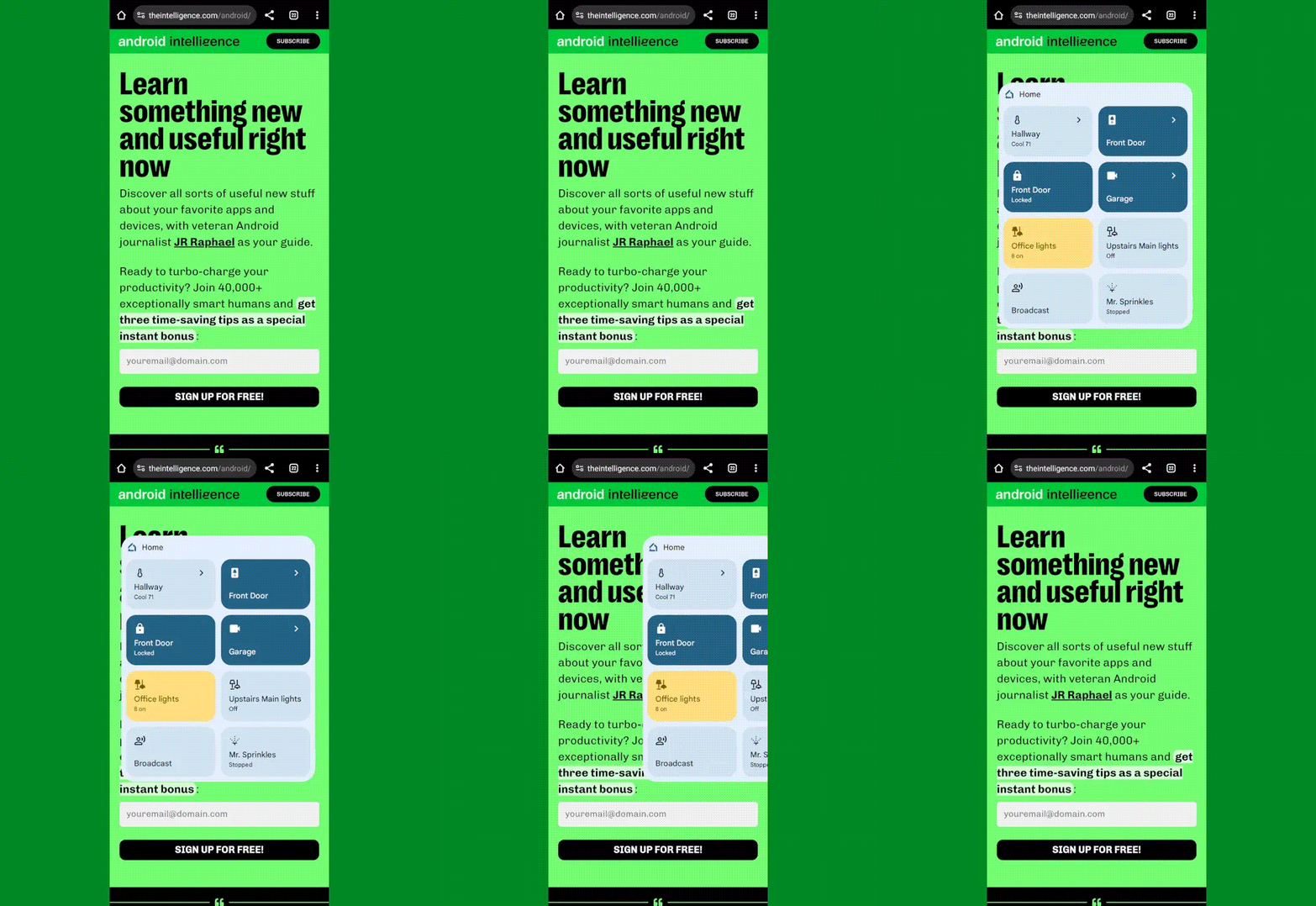
Prepare yourself for some serious oohing and ahhing:
Your favorite widgets are never more than a swipe away with Edge Gestures on Android.
JR Raphael, Foundry
As you can see, this opens up a whole new world of mobile multitasking potential. I mean, really: How could you not love that?!
The final thing worth doing is going into all the other gesture options in that same configuration area and tapping “Clear” for each of ’em to get rid of Edge Gestures’ default actions. I’d also go into whichever side of the screen you aren’t using — left or right — and tap the toggle to turn the gestures for that side off entirely. That way, you won’t inadvertently activate any gestures that you don’t actually want or need.
Edge Gestures costs $2 to use.
Android widget enhancement #3: The physical key call
Next, here’s an interesting twist on that same on-demand Android widget idea: You can make any widget especially easy to access from anywhere without even having to mess around with any on-screen swiping by setting one of your phone’s physical keys as a trigger for the widget’s appearance.
I’ll give you a second to catch your breath and process the sheer splendor of that sorcery.
Back? Cool. So, the key to this feat (har har) is the combination of the aforementioned Popup Widget and a handy Android contraption called Key Mapper — which makes it easy to map your phone’s physical keys to all kinds of crazy custom actions.
In this case, we’ll set it up so that pressing and holding one of your volume keys causes whatever widget you want to be summoned, like so:
Yes, your volume key can cause a widget to appear (whoa!).
JR Raphael, Foundry
Pretty nifty, no?
I’ve got step-by-step instructions for making this happen in this separate guide.
Android widget enhancement #4: The floating bubble
If you like the notion of having a widget always available but aren’t so keen on the hidden gesture concept, an app called Overlays will let you create a small floating bubble that you can position anywhere on your screen and then tap to pull any widget up when you want it — just like with Android’s recently revived Bubbles multitasking system, only compatible with any Android device and version and with the simplicity of a widget instead of the complexity of an entire app.
Check it out:
Overlays puts a floating icon on your screen for easy ongoing widget access.
JR Raphael, Foundry
By default, Overlays gives you a bunch of its own little widgets to choose from, but the real power comes from adding in widgets from the Android apps you actually rely on. To do that, tap the “Triggers” tab at the bottom of the Overlays configuration area, then tap the red plus button in the lower-right corner of the screen. Select “Manual,” then type in whatever name you want for your widget and tap the icon to pick any icon you like.
Tap “Save,” then select “Widget” and find the widget you want from the list. At that point, you’ll see a preview of the widget. Move or resize it if you like, then hit the arrow in the upper-left corner of the screen to exit out of that interface. Last but not least, tap the name of your newly made widget on the screen that comes up next to change its status to “Always on.”
As soon as you head out of the app and back to your home screen, your fancy new widget should pop right up. All you’ve gotta do is tap the little downward-facing arrow in its corner to minimize it down to a bubble, which you can then press and hold to move anywhere your widget-worshipping heart desires.
Overlays can also create widgets that automatically appear based on context — so you could have something show up every time you connect to a certain Bluetooth device or Wi-Fi network, for instance. To explore those options, just follow the same steps from above but pick “Event” instead of “Manual” when you reach the “Triggers” tab configuration.
Overlays is free with an optional $4 in-app upgrade that removes some ads from the configuration tool and unlocks a handful of advanced features.
Android widget enhancement #5: The widget stack
Last but not least in our collection of wacky Android widget possibilities is one of my favorite widget wonders — and that’s the ability to stack multiple widgets and then swipe between ’em on your home screen without having ’em take up any extra space.
Check it out:
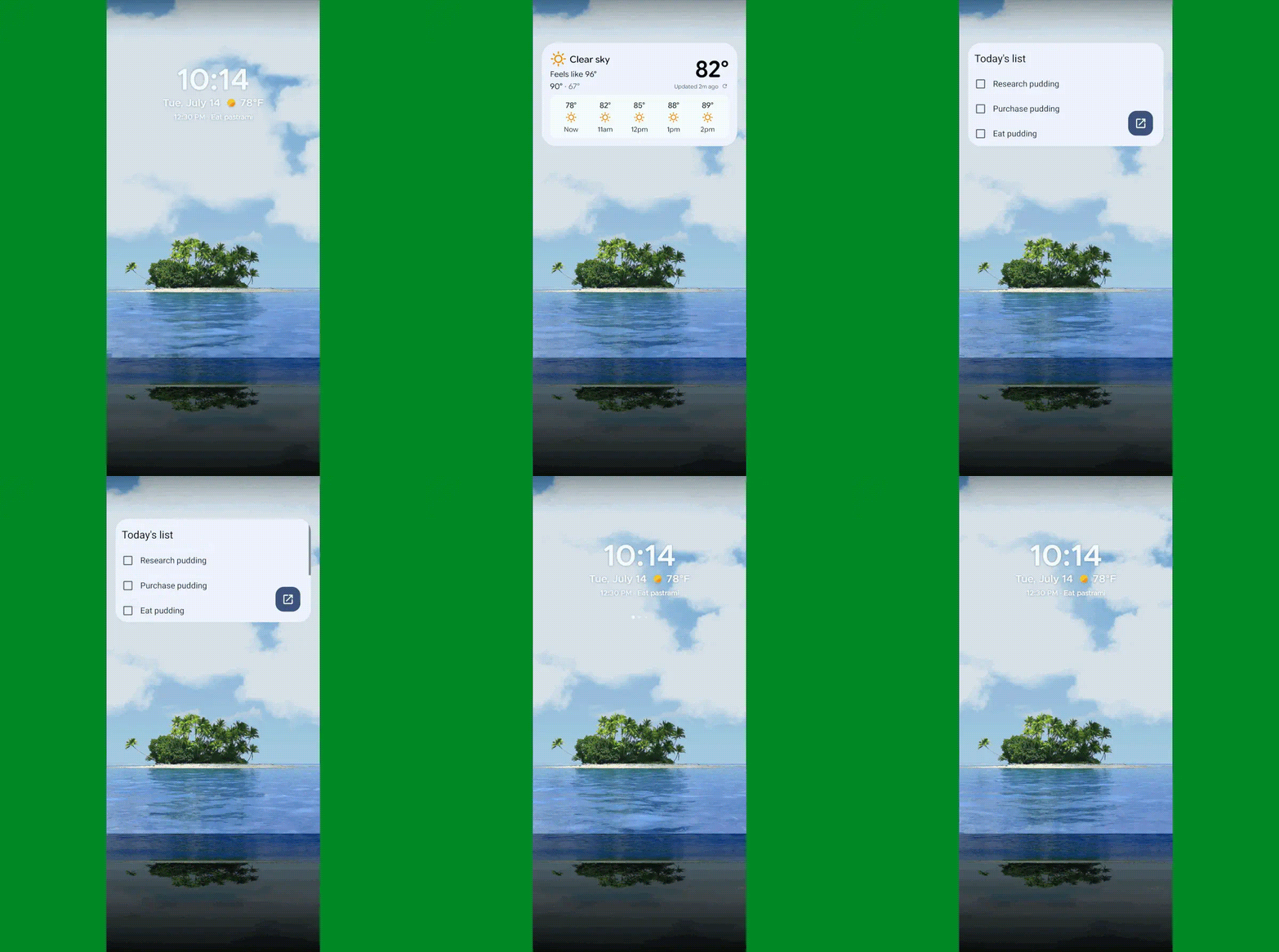
The space-saving simplicity of stacked widgets, as seen in Smart Launcher.
JR Raphael, Foundry
This enhancement presents a bit of a choose-your-own-adventure-style path:
First, if you’re using a reasonably recent Samsung Galaxy gizmo, the option is should already be present and available in your standard Samsung home screen setup. Just press and hold any open space on your home screen and then select the option to add a widget — then, once the widget is added, press and hold it and look for the “Create stack” command.
Those launchers replace your phone’s entire home screen environment and give you all sorts of interesting new possibilities for optimizing your interface and making it especially well-suited for you. And the stacked widget feature is just one small sliver of what they offer and how they’ll transform your Android experience.
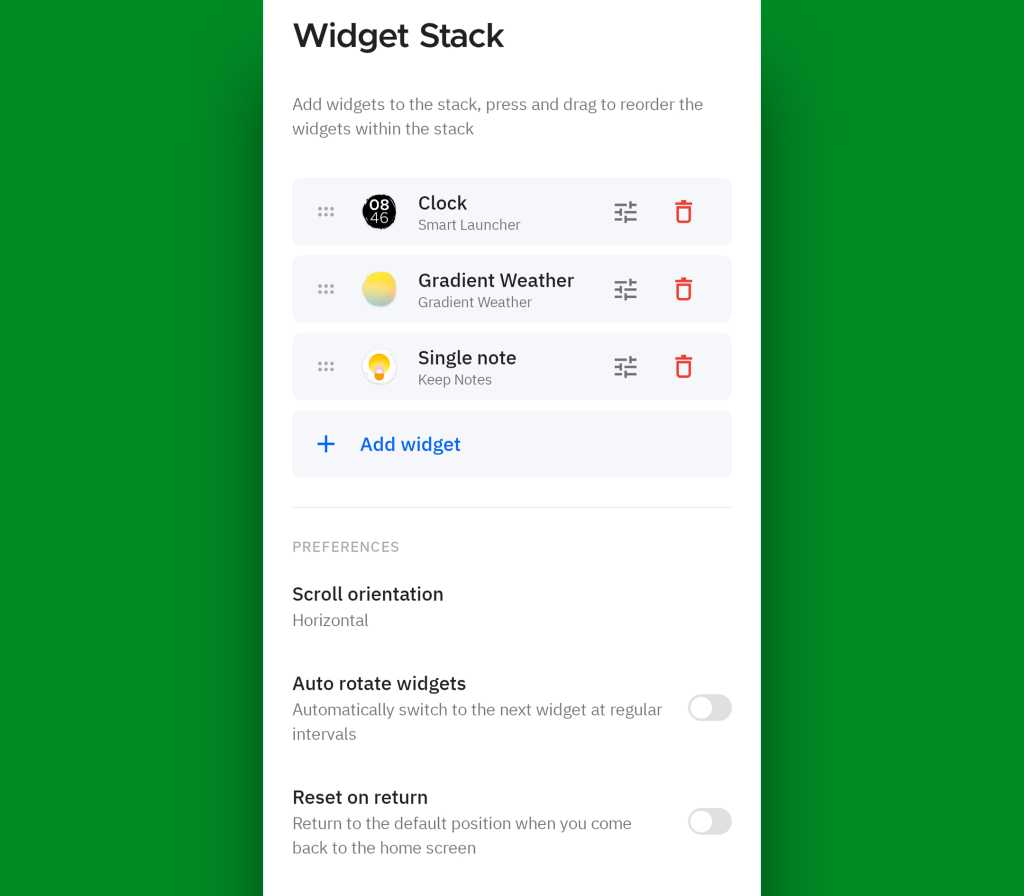
The setup interface for a widget stack within Smart Launcher.
JR Raphael, Foundry
So there ya have it: five wacky, wild, wonderful ways to make widgets even more wow-inducing. Some days, you’ve just gotta love Android and the endless customization, control, and power it provides.
Few things are as delightfully divisive as Android’s dark mode.
Some phones now ship with Android’s darker-style interface activated by default. Most reasonably recent devices offer it as a swift ‘n’ simple toggle. And most people, in my experience, have amusingly strong preferences about which approach they prefer — the standard Android “light” mode, in which screens tend to be bright and with shades of white as a foundation, and the dark mode (a.k.a. “dark theme”), where black and dark gray dominate and everything is much more muted and muddy.
It really is a night and day difference, so to speak — but no matter where you fall on the light vs. dark preference spectrum, it’s well worth your while to noddle over two pertinent points:
Android’s dark mode doesn’t have to be an all-or-nothing decision. With the right setup, you can use it as a dynamically activated sometimes switch that enables itself automatically based on different variables and gives you a darker, less glary motif when conditions call for it while leaving you with the lighter, brighter look the rest of the time.
Regardless of how often you’re using dark mode, a few easy adjustments will make it meaningfully more complete and effective as an end-to-end interface style for whatever you’re doing on your device.
It occurred to me recently that we’ve gone over several smart Android dark mode enhancements over the past weeks and months — and that, put together into a single power-pack bundle, these small-seeming items can add up to create a pretty dramatic difference in your Android-using experience, whether you’re a full-fledged dark mode convert or a more light-preferring vampire skeptic.
Here, specifically, are five easy ways to make Android’s dark mode meaningfully better for you.
Up first is a feature that arose as part of our Android 17 discussion and sparked the entire idea for this collection — and that’s the one-tap switch in the latest Android version that forces every app on your phone to follow your dark mode preference, whether the program technically supports such a setting or not.
In Android 17, finding and flipping that switch will make every app turn dark whenever the system-wide dark mode is active. It eliminates the irksome exceptions that’ve traditionally stayed stubbornly light (due to developer laziness) even when your dark theme is on.
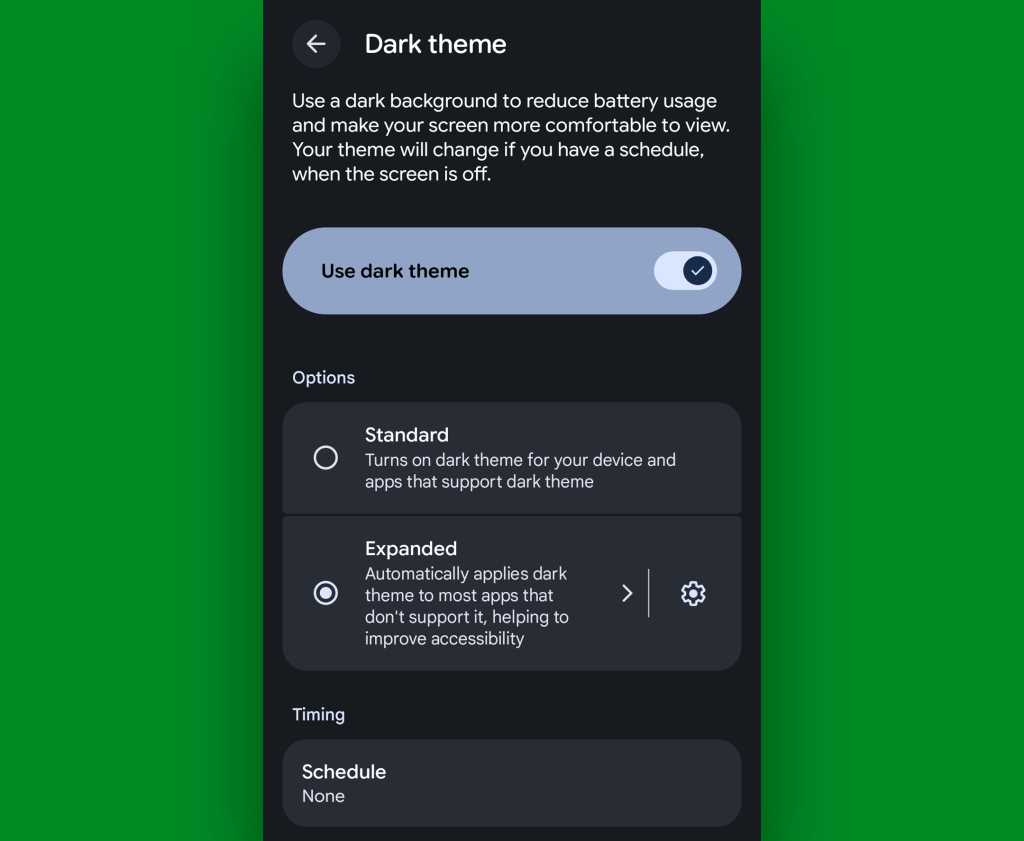
If you’ve got Android 17 on your phone already, it couldn’t be much easier to make it happen. Just look in the Display section of your system settings, tap the words “Dark theme,” then change the setting that shows up next from “Standard” to “Expanded.”
Android’s new “Expanded” option lets you force apps into dark mode compliance, even if they aren’t designed to do it on their own.
JR Raphael, Foundry
No Android 17? No problem: On devices with reasonably recent pre-Android-17 system software, you can actually find a switch buried deep in some developer settings that’ll let you enable the exact same option without any waiting.
That first trick fixes the issue of certain apps not following your dark mode preference — but what about the web? Most of us spend a fair amount of time in our browsers these days, and most websites won’t follow a dark mode setting and adjust their interfaces accordingly.
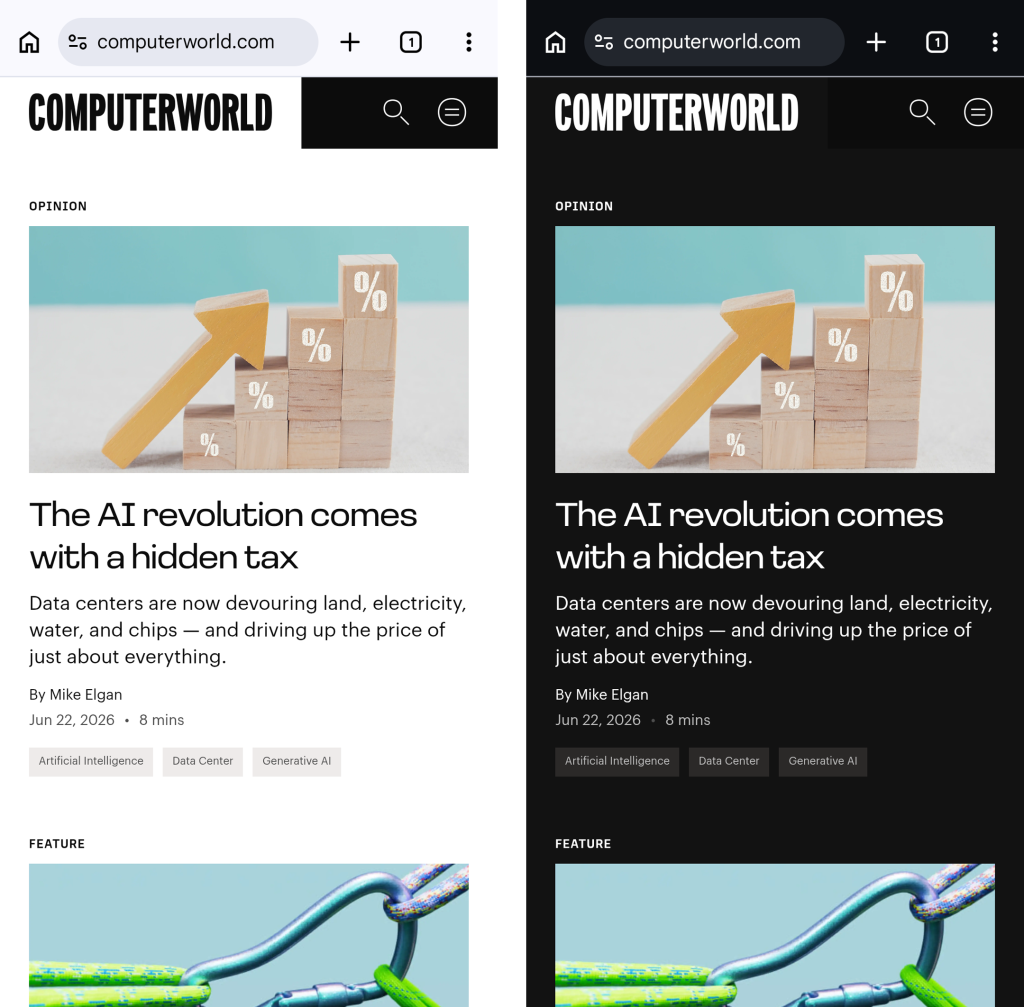
They absotively can, though. With the flip of a single switch buried within your browser’s bowels, you can force every website into a darkened motif whenever your system-level dark mode is up and running.
See?
Viewing a website in Chrome normally, at left, and with dark-mode-associated web darkening, at right.
JR Raphael, Foundry
Here’s the secret:
Open up Chrome on whatever Android device you’re using. (And note that this will also work with any Chromium-based Chrome alternative, like Brave, Edge, or Vivaldi.)
Type chrome:flags into the address bar.
Type darken into the search box at the top of the screen that comes up next.
See the line labeled “Darken websites checkbox in themes setting”? Tap the “Default” box beneath it, and change its setting to “Enabled.”
Tap the blue “Relaunch” button at the bottom of the screen.
Now, when Chrome comes back a second or so later…
Tap the three-dot menu icon in its upper-right corner.
Tap “Settings” in the next menu.
Scroll down until you see “Appearance.” Tap it, then tap “Theme.”
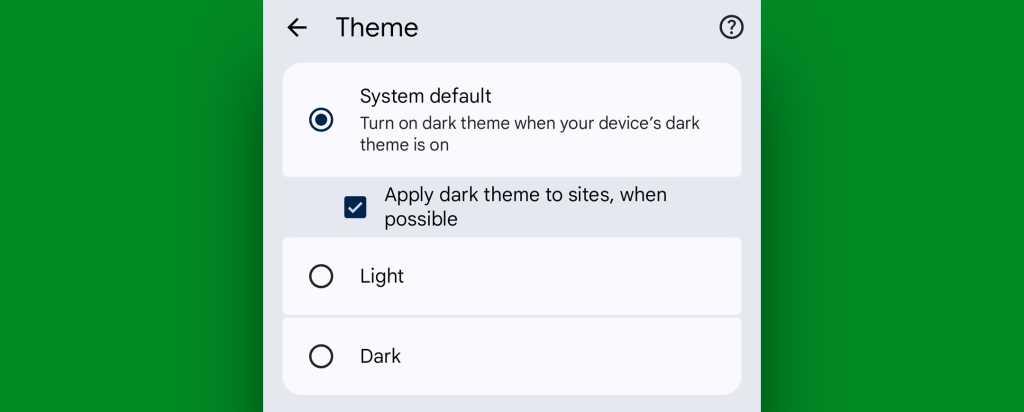
Make sure the newly added box for “Apply dark theme to sites, when possible” — which we just magically made appear via our last little modification — is checked and active.
Chrome’s web-darkening option appears only after you’ve enabled an out-of-the-way flag.
JR Raphael, Foundry
And that’s it: From that moment onward, whenever your Android device is switched into its dark mode, any website you’re viewing within Chrome will automatically follow suit. Nothing more to it, and no further thought or action ever required on your part.
Not bad, eh?!
Android dark mode power-up #3: A dark mode schedule
Even as someone who isn’t into dark mode as a 24/7 sort of thing, I can definitely appreciate the presence of a dimmer, less glary look on my device in certain specific scenarios.
It’s incredibly easy to overlook or forget, but Google’s actually got a way to handle that for you. In fact, it’s been built into Android itself since 2020’s Android 11 release.
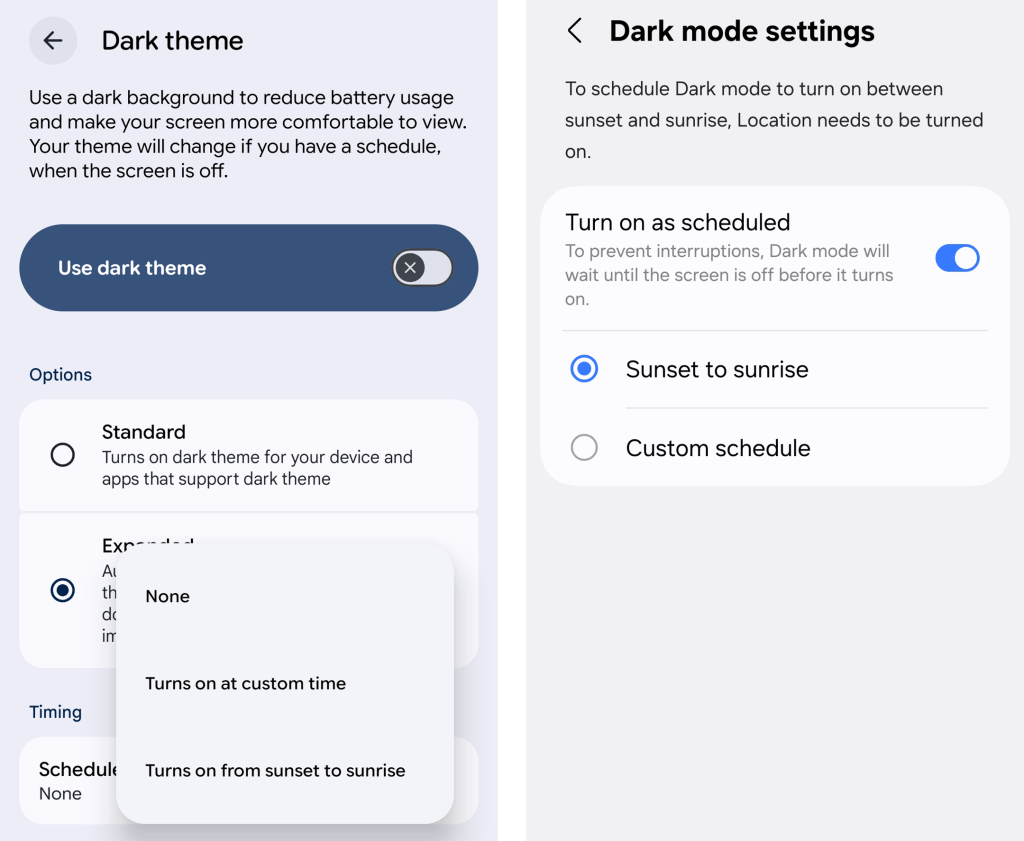
Just look in the Display section of your system settings and tap the line for either “Dark theme” or “Dark mode settings.” If you see a toggle alongside that line, make sure you’re tapping the actual words next to it — not the toggle itself.
Then look for the option to create a schedule.
An Android dark mode schedule, as seen in Google’s standard Android interface (at left) and in Samsung’s Android style (right).
JR Raphael, Foundry
You can create a time-based rule for when your device’s dark mode turns on and back off again, or — more intelligent yet — you can set it to automatically activate at sunset, wherever you are at any given moment, and then turn itself back off and switch you back over to light mode at sunrise.
Android dark mode power-up #4: Contextual dark mode
A dark mode schedule is pretty forkin’ sensible. But the reality is that even with a time-based setup or a sunset-driven activation approach, you’ll still be using your phone in bright rooms with dark mode active and vice-versa.
And if you want Android’s dark theme present only when you’re actually in a dark room — as makes the most sense in my mind — there’s an even more intelligent option.
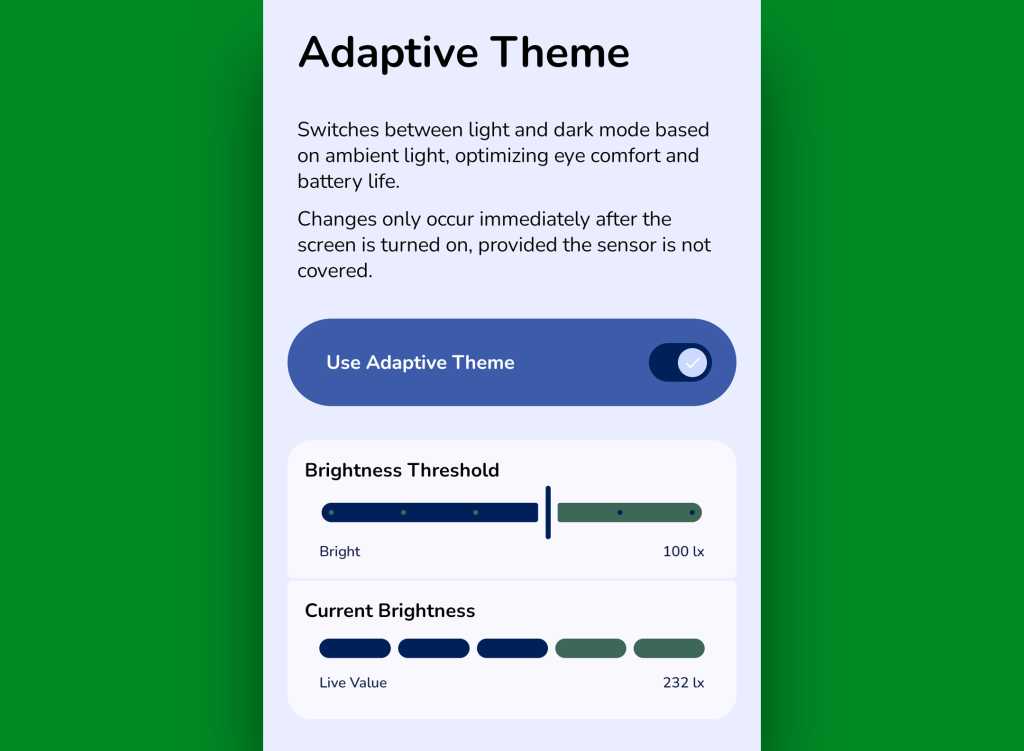
It comes our way via a handy little free app called Adaptive Theme. That app does one thing and only thing only: It automatically adjusts your device’s dark mode setting based on the actual ambient light around you, using your phone’s sensors rather than an arbitrary time or a not-always-relevant sunset status as a guide. It makes so much sense, you’ll find yourself wondering why your phone didn’t just work that way from the get-go.
The app does unavoidably have a slightly complex one-time setup, which I outline step-by-step here. It’s perfectly safe to do, though, and it shouldn’t take you more than a couple minutes to pull off.
And once you’ve done that, your Android dark mode will just work for you — flipping on when the lighting around you is dim (to your exact specifications) and flipping back off when you’re in brighter surroundings.
Adaptive Theme lets you take total control of how and when Android’s dark mode activates based on your environment.
JR Raphael, Foundry
Yes, please — and thank you. Last but not least…
Android dark mode power-up #5: The wallpaper wizard
Superficial as it may seem, the one piece of the puzzle we haven’t yet addressed — that isn’t ordinarily affected by Android’s dark mode setting — is your home screen wallpaper.
By default, whatever wallpaper you set at the system level stays the same even as your interface moves between its dark and light states — and when you’re anglin’ for a dimmer, less glary look in dark environments, that can be pretty darn jarring.
An app called, rather aptly, Dark/Light Wallpaper Scheduler is the answer you never knew you needed. It’s pretty self-explanatory — you tell it which wallpaper you want when your phone is in dark mode and light mode, then it automatically switches ’em out for you based on that status — but I wrote about it in detail here, if you’re interested in reading more about how exactly it works and how you can make the most of it.
And with that, my fellow Android-appreciating animal, your dark mode power-pack is complete. Now, would someone please turn off the lights? I don’t know about you, but all this talk of darkness has me hankering for a nap.
Wake up to even more useful Android wisdom every Friday with my free Android Intelligence newsletter — one practical new trick to try each week, straight from me to ye.
Google’s latest and greatest Android version is officially now out in the world and available — but if you’re using any phone other than a Pixel, that doesn’t mean much for you just yet.
Hold the phone, though — ’cause there is some good news here: While we can’t force any Android phone-maker to start treating software support as a priority, we can get creative and find ways to bring interesting new Android features to devices running older Android versions. In fact, all four of the Android 17 features I called out earlier this week can be emulated on any Android phone this instant. All it takes is a teensy pinch of inspiration and a dash of tenacity — and, of course, the right roadmap to make it all come together.
The tenacity’s on you, but if you’re game, I’ve got your roadmap ready. Here’s exactly how to enjoy a similar sort of Android-17-style sorcery on whatever phone you’re using right now — as far as some of the more surface-level highlights, at least — without having the actual Android 17 upgrade in front of you.
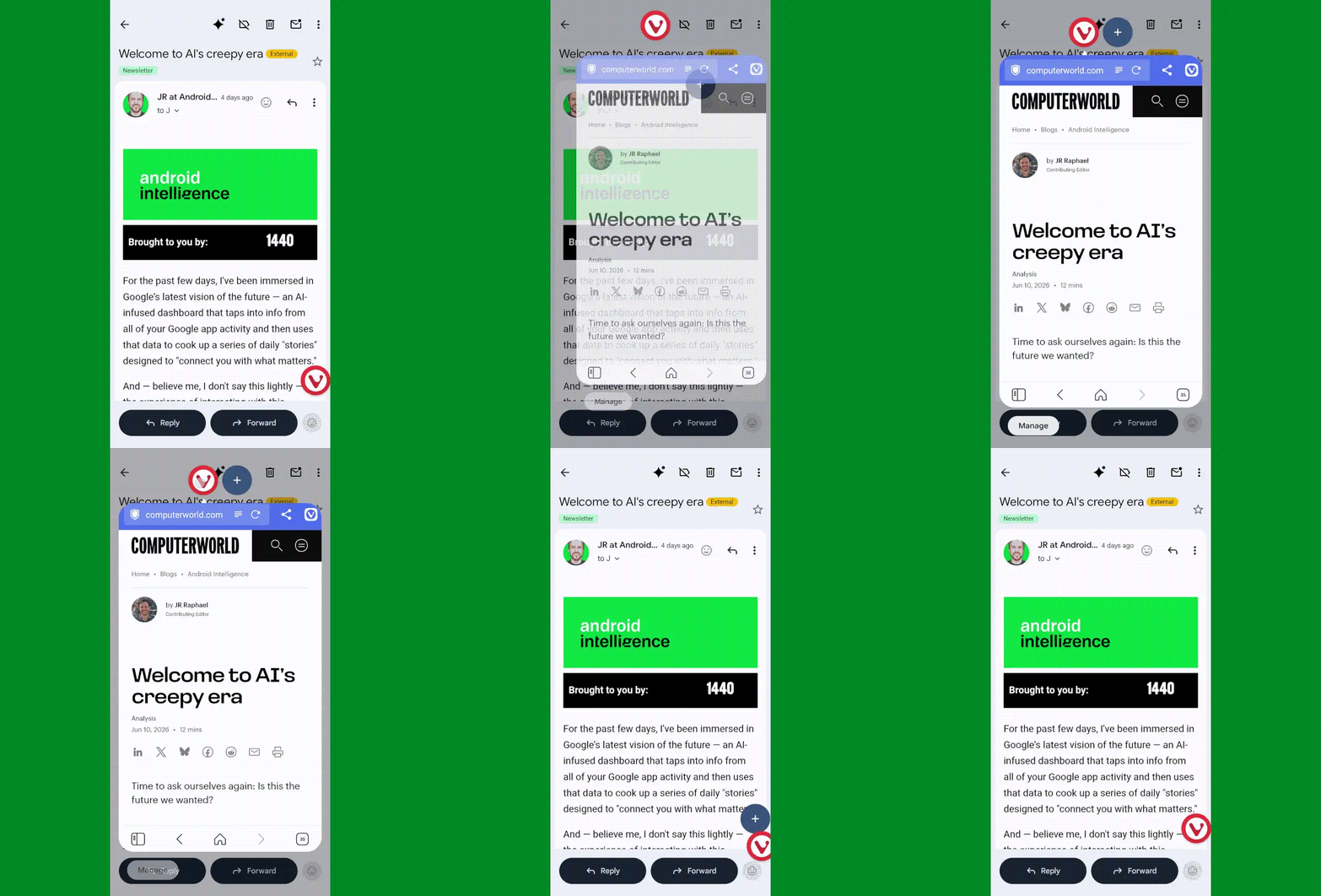
The most shape-shifting Android 17 of all, without a doubt, is Bubbles — a snazzy new way to turn any app into a floating, collapsible window that’s readily available for on-demand access but also out of your hair when you aren’t actively using it.
Android 17’s Bubbles multitasking system in action.
Look over this list of crafty Bubbles-bringing workarounds and see which makes the most sense for you. One way or another, you’ll find yourself facing a fantastic new option for multitasking anytime you want it — no waiting or out-of-reach upgrades required.
Android 17 feature #2: Smarter location access
Our next Android 17 addition is a little trickier to emulate without the actual operating system update in the equation. But fear not, for this is Android — and when there’s a will, there’s a way.
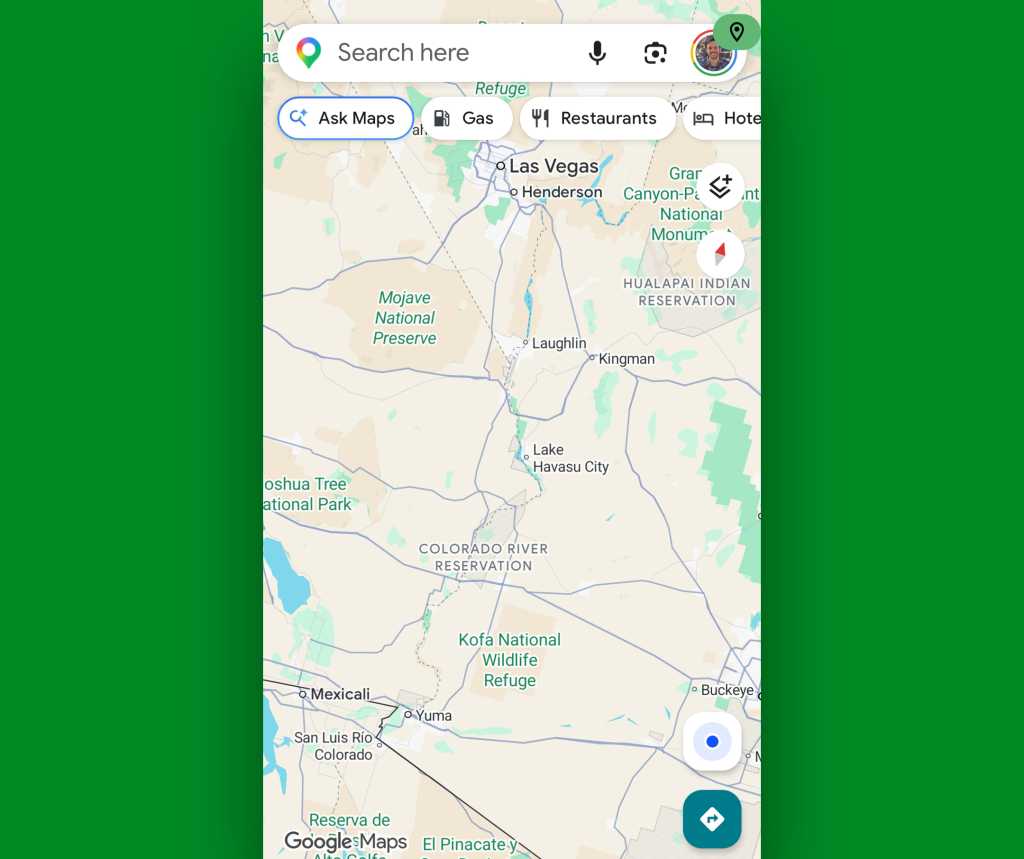
The feature of which we speak is an expansion of Android’s framework for how apps can access your location. It’s a two-parter: First, whenever any app is accessing your location, you’ll now see a blue dot appear in the upper-right corner of your screen — and if you swipe down once from the top of your screen to open your notification panel, you can actually tap on the location icon that appears in its place to get detailed info about exactly which app or apps are involved. Second, when an app asks to access your precise location, Android 17 adds in the option to allow such access only temporarily — for that one brief moment and purpose — without giving the app permanent permission for ongoing use.
The second part, unfortunately, is challenging to achieve without Android 17 being present. But the first part is something we can make happen with a sliver of creative zest.
The trick revolves around a classic third-party app called Privacy Dashboard. Privacy Dashboard came about back in the Android 12 era, when Google first introduced a full-fledged privacy dashboard into Android and certain devices were lagging behind and taking too long to adopt it.
With Android 12 now being five years old, the app hasn’t had much need in recent years — until now. Interestingly enough, the ability to see full details about ongoing location access and then tap to adjust the associated app’s settings is something Privacy Dashboard has long offered. And it’s consequently a great way to bring that newfound native ability from Android 17 onto a device running an older Android version.
The catch is that because of the limited need for the app all this time, it’s no longer being actively developed — and as a result, if you hadn’t previously downloaded it, the Play Store will probably give you an error saying it’s made for an older Android version and can’t be installed on your device.
It will still work, though, and it’s perfectly functional and effective.
Provided you’re comfortable and that this won’t violate any of your company-associated policies, you can download the original verified Privacy Dashboard app package from my own personal Drive storage. I saved it using the Google Files file manager and then uploaded it directly to Drive. It’s quite literally the same exact app you’d get from the Play Store, if the Play Store would let you download it — and while I wouldn’t often advise installing apps from unknown sources, I don’t exactly consider myself to be “unknown” (most of the time). So as long as you share that same trust, you can grab the app from me and put it on any device you want.
Once you get the app installed and give it the permissions it needs to operate, open ‘er up and tap the “App Settings” options on its main screen. Tap the line that says “Indicator Customization,” beneath “Privacy Indicators,” then flip the toggle next to “Click action” into the on and active position.
Aaaaand, that’s it: Anytime an app is accessing your location, you’ll see a green location icon appear in the upper-right corner of your screen. And tapping it will take you to the system-level timeline of exactly which apps have accessed your location recently, for added context.
Privacy Dashboard was ahead of its time with its Android-17-reminiscent location access indicators.
JR Raphael, Foundry
Before you install Privacy Dashboard, you might also want to try just opening an app that you know accesses your location — like Google Maps — and seeing what, if any, indicator appears in the corner of your screen and if you can tap it. While that ability is technically associated with Android 17, it was actually included in an earlier Android quarterly update, and it’s possible your device may already have that piece of the puzzle in place even if it isn’t yet running Android 17.
Android 17 feature #3: More dynamic dark mode
Android’s dark mode is better than ever as of Android 17, with a nifty new way to force each and every app to respect your device-wide dark mode setting and adjust its interface to a less glary look — even if it doesn’t technically support the option.
Dark mode in Android 17 includes a useful new “Expanded” option.
JR Raphael, Foundry
Well, get this: If your phone’s Android software is reasonably recent, it’s entirely possible you can unlock the very same function by adjusting a few out-of-sight system settings.
Try this:
First, you’ll need enable Android’s developer options, if you haven’t done that previously.
That’s a special, typically hidden section of Android’s system settings with all sorts of advanced options that aren’t typically intended for average phone-usin’ folk to futz around with.
There’s no risk to you or your phone with enabling ’em, and as long as you follow the instructions here exactly and enable only the one single setting we’re about to go over, it’s actually quite easy. (It’s also quite easy to undo, if you ever decide you aren’t into it and want to go back.) But we are pokin’ around in an area of Android that’s meant mostly for developers, and if you veer off-course and mess with the wrong setting, you could make a mess — so follow the steps closely, capisce?
The process for enabling Android’s developer options may sound strange, but I swear it works: Head into the “About phone” section of your system settings, tap “Software information,” if needed, then find the line that says “Build number.” Tap your finger on it seven times, then enter your PIN or password, if prompted, and confirm that you want to activate the developer options.
Now, go back to your main settings screen and either tap on the “Developer options” that appears within that list or tap “System” and then tap “Developer options” from there.
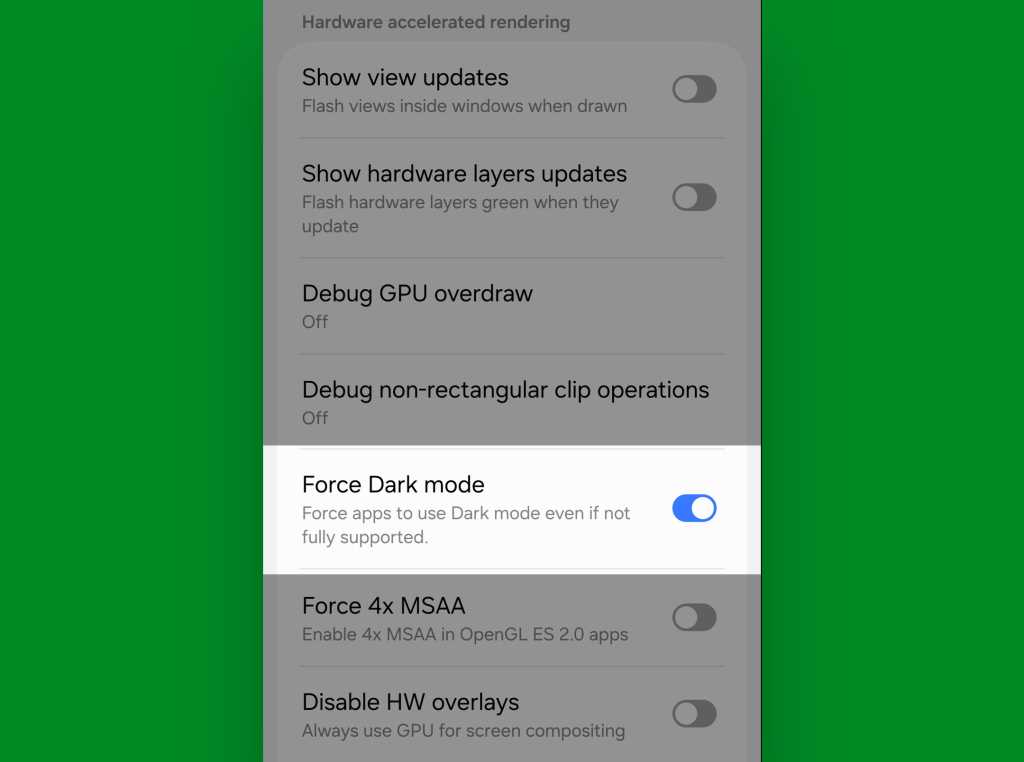
Scroll down through that section until you see an option called “Force Dark mode.” Flip the toggle next to it.
Android’s developer settings holds the secret to Android-17-style “Extended” dark mode, even on older Android versions.
JR Raphael, Foundry
And there ya have it: You should now be able to open any app, even if it doesn’t officially support dark mode, and see it shift into a darkened state whenever you have dark mode enabled at the system level.
Easy peasy, no?
Android 17 feature #4: A more comfy all-around view
Our final Android 17 feature is a saucy little somethin’ called Comfort View. It applies a softer, pastel-oriented filter to your display with automatic adjustments based on your current viewing environment in order to make your screen easier on the eyes.
If you’re using a Samsung device, you may already have something similar in place even with an older Android version. Look in the Display section of your system settings and see if you see something called “Adaptive color tone,” then try activating it if it’s there — and/or look for “Screen mode” and play around with some of the settings in that area to see vaguely similar sorts of adjustments. It isn’t quite as intelligent or automatic as the new incoming Android-level equivalent, but it’s a start!
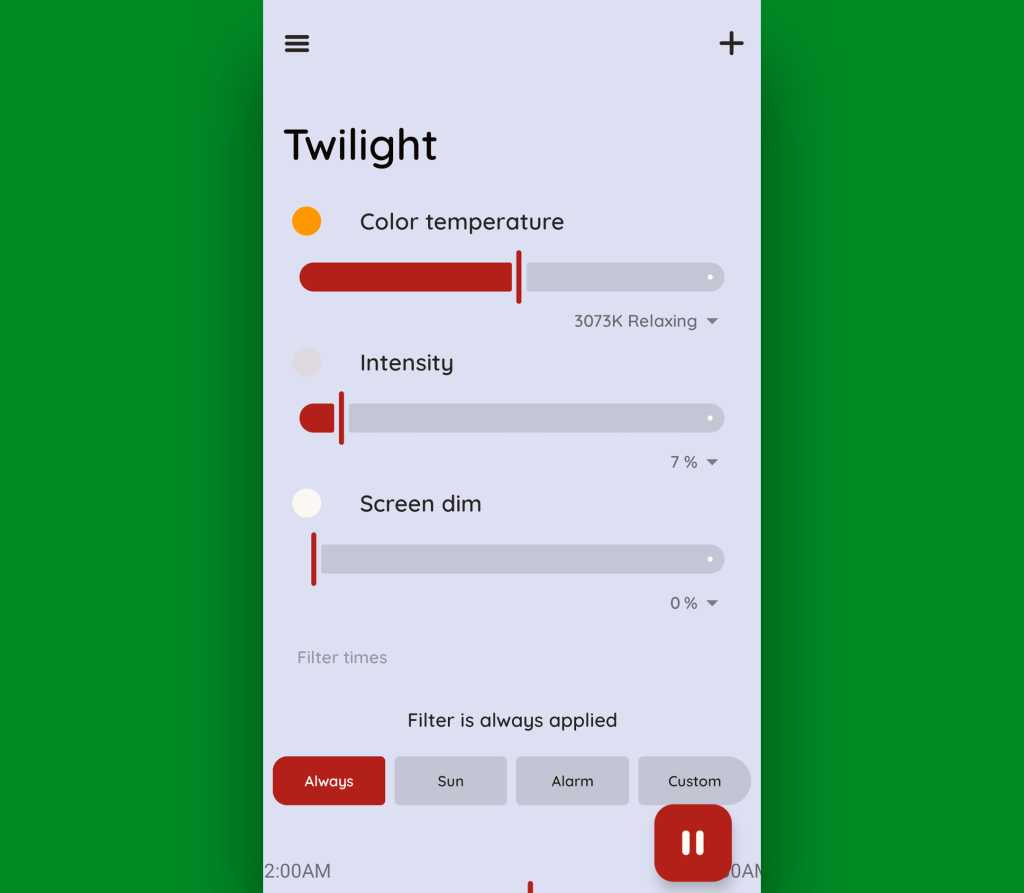
In any other scenario — or if you just want more nuance and control, even with a Samsung gizmo — grab an app called Twilight. It’ll let you tweak all sorts of specifics about the appearance of your screen, and while it’s presented mostly for nighttime optimization, you can use those same controls to create your own custom modes for any scenario imaginable.
Twilight can help you recreate effects similar to Android 17’s Comfort View.
JR Raphael, Foundry
The app doesn’t collect or share any manner of data, and while it does offer a $10 Pro upgrade, the free version is perfectly functional for most purposes.
And with that, give yourself a pat on the back: Your phone is officially now set up to showcase some of Android 17’s finest flavors — even without the software itself being available to you yet.
That, my friend, is quite an accomplishment. Well done.
For the past few days, I’ve been immersed in Google’s latest vision of the future — an AI-infused dashboard that taps into info from all of your Google app activity and then uses that data to cook up a series of daily “stories” designed to “connect you with what matters.”
And — believe me, I don’t say this lightly — the experience of interacting with this system has me longing more than ever for the past.
I won’t beat around the bush: Using the app really has been an eye-opening, enlightening experience for me. Just not in the way that Google had presumably wanted.
[Get level-headed knowledge in your inbox with my free Android Intelligence newsletter. Something new and useful every Friday — from my keyboard to your email.]
Google Dreambeans and the next phase of AI
In many ways, Dreambeans feels like the ultimate example of everything Google’s been gunning for — and AI in general has been building up to — over the past several years.
With your permission, the app accesses your ongoing activity data from Google Workspace (including such services as Gmail, Google Calendar, and Google Drive) along with Google Search, Google Photos, and YouTube to create an evolving profile of your life and interests. That means everything from who you email to what’s on your agenda, what you’re writing or saving files about, and what sorts of subjects you’re searching for, videos you’re watching, and activities you and your friends, family, and other associates are appearing in throughout photos (and even how you all look in those photos) gets constantly analyzed and processed and used as fodder for a personalized feed that updates a few times a day.
On the surface, it sounds a little like Google Now — the excellent and all-too-short-lived proactive intelligence feature Google added into Android for a while back around 2012.
In practice, though, lemme tell ya: It feels dramatically different. Whereas Google Now felt almost magical in its ability to anticipate what you needed before you ever asked for it — with proactive cards on things like flight statuses based on itineraries in your inbox or flight-related searches you’d performed, traffic alerts based on your typical daily routes or appointments in your agenda, and links to maps for businesses you’d been researching — Dreambeans takes those same basic concepts to a whole other level that ends up feeling creepy and invasive, both in the info it’s offering and in the way it’s presenting it.
And, more broadly, it feels indicative of the way AI is heading in general — not just with this one app or with Google but across the industry and in a style that I think most people are increasingly finding off-putting and will only find ever more intrusive in time.
Now, let’s be clear: I’m no technophobe. Far from it: I love clever tech creations and thoughtful new touches that make our lives easier. Heck, I’ve spent much of my life searching for and writing about such feats. And that’s precisely why my reaction to Dreambeans strikes me as so significant: If I’m this put off by this concept, how will average tech users — most of whom are far less tuned into tech trends and intrigued by interesting new options then I am — react?
I’ll tell you more about what I’ve heard so far in a second. First, let me show you exactly what I’ve been seeing, so you can assess this thing for yourself and see how it comes across to your spidey senses.
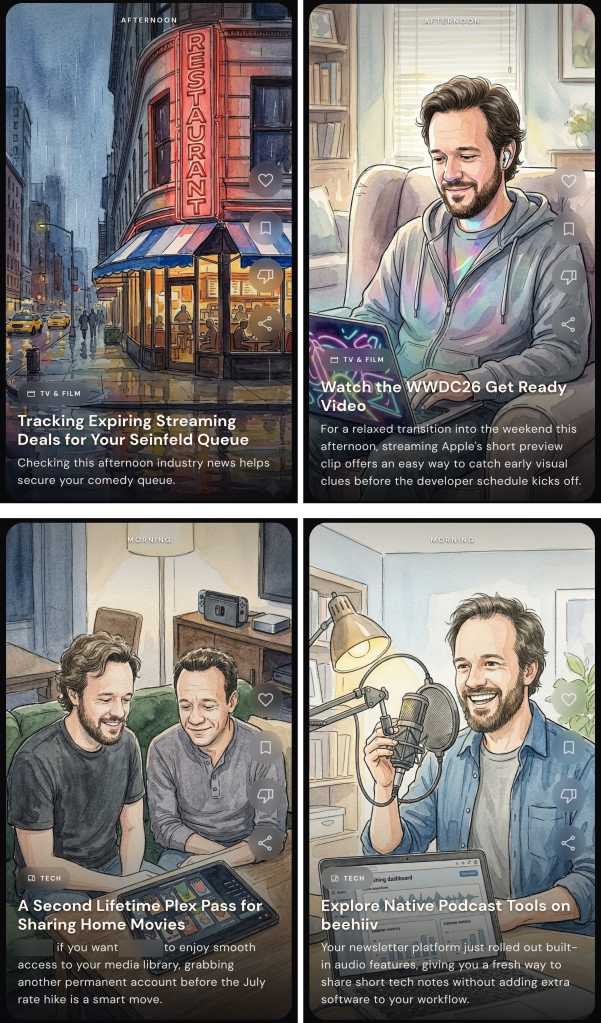
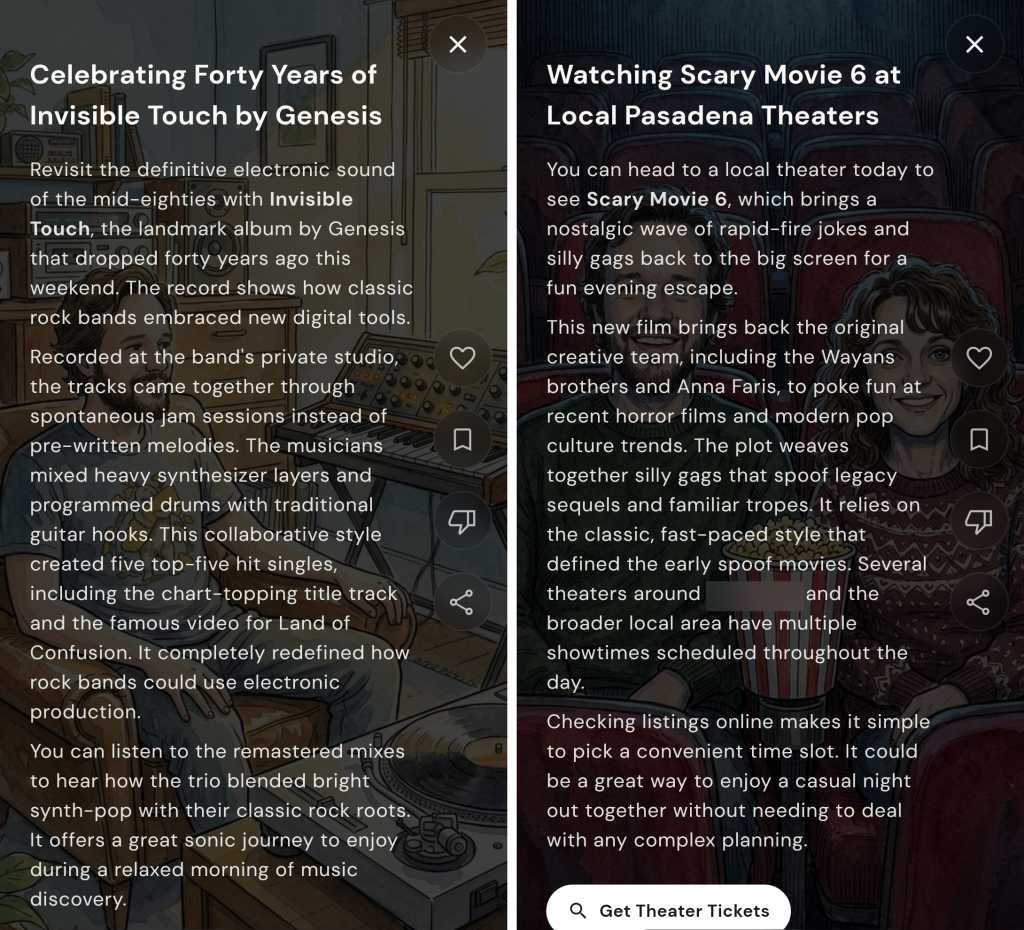
Here’s a handful of the Dreambeans “story” suggestions that appeared in the app upon its first day working for me, with a few names and personal details blurred for privacy purposes:
Some of Dreambeans’ custom “stories” throughout my first day with the app.
JR Raphael, Foundry
I’m honestly not even sure where all of these suggestions came from, but what jumped at me right away were the (occasionally flattering) caricatures of me and my wife and the general sense of invasion from all the slightly too personal stuff and too familiar integration of family members’ names and interests integrated into the material.
For the record: I had been looking into speaker stuff at some point in the not-too-distant past; I’ve never once typed, uttered, or even considered the phrase “hand-loomed textiles” until just now; we had been looking at the arts festival it mentioned; I’ve never specifically searched for or expressed any interest in Scary Movie 6; and I am not into the band Genesis — though, to be fair, I can’t dance.
I showed all this same material to my wife as well as to several other friends and family members I’d categorize more as typical tech users — not tech professionals or card-carrying geeks but just regular people who own and use a variety of devices, as we all do, and rely on ’em for both personal and professional purposes with varying levels of dread, excitement, and/or indifference. Without exception and without any prompting or personal opinions presented to sway them, every single one of ’em responded the same basic way: “Oh. That’s creepy.” And: “I do not like that.” Without fail.
It doesn’t get much better from here, either. Most of the app’s subsequent suggestions have continued to veer just a touch too far onto the “ick” side of the spectrum, as well as occasionally being off-base in some pretty perplexing ways. For instance:
Nice AirPods, Mr. Apple fan!
JR Raphael, Foundry
For the record on this set: I do love the show Seinfeld — SERENITY NOW! more than ever — though it’s been some time since I’ve actively watched it; I somewhat famously am allergic to Apple products and avoid ’em whenever possible (notice the name of this column, anyone?); I don’t live in the same city as my brother but do find it creepy to have him pictured in ghoulish caricature form and brought randomly into a discussion about Plex (something he wouldn’t even remotely be interested in hearing from me about); and my various editorial newsletters are all powered by a service called Kit — not Beehiiv — which is mentioned in plenty of places both on my websites and throughout my emails.
Also, while my hairline may not be what it once was, I’m (ahem) not that bald yet — thankyouverymuch, Dreambeans.
Another example that I won’t show here was an item that pictured me in overalls working on installing some “coated stainless steel wire for [my] gallery canvases” — a reference to a community art gallery (with all sorts of details wrong and in some cases flat-out fabricated) connected to my mother’s recent passing. It casually mentioned her by name, too, alongside that eerie illustration of me performing a skill I definitely don’t have in my nonexistent home workshop. I don’t think I have to elaborate on how unsettling, unappreciated, and — again — invasive it felt to have that pop up in this feed.
More than anything, what I’ve been feeling while seeing all of this is a combination of (a) egad, it knows too much — especially when it casually name-drops and caricature-pics my wife, kids, and other family members — and (b) at the same time, the info it’s giving me isn’t especially helpful or insightful. It’s mostly just flat, generic, and — well, more or less exactly what you’d expect from something AI-generated.
Seeing caricatures and personal details about my kids is odd — and, at the same time, neither of my kids actually plays or has any interest whatsoever in soccer.
JR Raphael, Foundry
More than anything, in other words, it’s a combination of creepy and not particularly useful.
Some of what I’ve seen when opening Dreambeans’ personal “stories.” Yay?
JR Raphael, Foundry
And it’s the “creepy” part that really sticks with me the most.
The fine line Google forgot to avoid crossing
Maybe if the info I’m being served up here were exceptionally useful, this could be a tradeoff I’d be at least a little more likely to accept. Maybe. But in this scenario, it just feels odd and a little too invasive — which I’ve come to realize is a common theme surrounding much of what seems to be the next level of our forced-upon-us AI future.
Take Google’s Gemini Spark, for instance — the “agentic” AI assistant announced at Google I/O that’s meant to be a “proactive” helper tackling tasks on your behalf. David Pierce from The Verge got an early look at the tool in action and called it “the most impressive and terrifying AI experience” he’s had to date, also bringing that “creepy” word into the equation:
I can’t shake the deeply creepy feeling I get from the whole thing. What Spark did feels sort of magical, and very invasive. It’s weird that Spark is so casually telling me the names and ages of my children, reminding me that it knows where I live, and finding information I know for a fact I’ve never volunteered to Google. Intellectually, I know that Google knows an incredible amount about me — add up my emails, my calendar, my photos, and my search history, and you’ve pretty much got me pegged. But seeing Spark treat all that data not as something to be protected, but as something to be mined, just feels bad.
And that, I think, mirrors the exact reaction I’ve been experiencing with Dreambeans. We’ve all always known that Google knows a lot about us, but we’ve also — at least intellectually — understood how all of that data is and isn’t being used. And it’s never been rubbed in our faces just how much the company can figure out about us by putting all the various pieces together and creating an awkward sense of robotic intimacy.
I remember years ago, being in a Google press briefing where someone from the company talked about how much more their systems and services could accomplish but how they deliberately held back on going that far and overdoing the personalization — ’cause even though they had all that info and could make all those connections, they knew (at the time) that people wouldn’t respond well to seeing all their personal activity put together in such shocking ways. They knew (at the time) that most of us weren’t looking for an artificial BFF who knew too much about us. They knew (at the time) that giving us that sensation would cross the line into being creepy.
Well, this just in: That line’s officially been decimated. We’re in AI’s creepy era. And seemingly no one is worrying anymore if it’s actually something any of us want or will appreciate.
It kinda feels now like tech companies are actively rubbing in our faces how much they know about us — and even if there’s nothing truly nefarious going on with what they’re doing, it sure doesn’t feel good. It feels creepy. And at a time when trust in tech titans is shockingly low and most folks outside of the Silicon Valley bubble are feeling more and more frustrated with AI and all of the effects it’s foisting upon us, that isn’t a great look to be giving off.
Put those sensations alongside the sigh-inducing explosion of AI “content creators,” the proliferation of lifeless AI-generated “writing” (been on LinkedIn much lately?), and the troublingly blurry line between photorealistic AI-generated images and actual real-world photographs — not to mention the maddening experience of interacting with an AI bot support agent or encountering the ever-expanding array of AI-powered scams and security threats and AI-generated job cuts, just to name a few other problematic consequences this movement is imposing — and it’s hard not to question if all this purported progress is ultimately more helpful or harmful for us, as living, breathing humans in the real world.
A few months ago, at the three-year mark of Gemini’s launch, I posed the question: Did anyone actually ask for this? And, more pressingly: Is this the future we wanted? As we’re moving now into yet another era of AI innovation and seeing how it’s affecting our lives, it gets tougher every day to imagine many folks outside of the tech industry who’d answer with an emphatic yes.
And, unfortunately, you don’t need any fancy-schmancy AI chatbots to tell you that things are only gonna get more extreme — and, yes, more creepy — from here.
Find the tips and tools that’ll *actually* help you with my free Android Intelligence newsletter. No hype, no nonsense — just useful new stuff in your inbox every Friday, from one (alleged) human to another.
One of the best parts about using Android is the good old-fashioned geeky fun that comes with finding new ways to improve your digital environment — and improve your day-to-day efficiency.
Perhaps the most classic example of advanced Android customization, though, is a splendid little somethin’ called the home screen launcher — a fancy way of saying the system that controls how your home screen and app drawer look and work. Your phone has a built-in process that handles that by default, but here in the land o’ Googley matters, you can always replace that with something completely different and make your device adapt to the way you like to work instead of the other way around.
The real beauty of this ecosystem, though, is how much power it gives to Android developers — and subsequently to us, as Android-appreciating animals who embrace these creations! — to experiment and try out all sorts of new concepts. Sometimes, an Android launcher approach speaks to you for its practicality. Other times, it’s just a refreshingly interesting take on how you can get around your phone and get stuff done.
Today, I’ve got a perfect example to share with you. It’s a whole new approach to the Android home screen that’s both unlike anything else I’ve ever seen in this arena and delightfully familiar, in a retro-tech sense.
My friend and fellow enlightened Android phone owner, allow me to introduce you to a creative little concoction called Key Launcher.
Key Launcher has only been out and available on the Play Store for a matter of weeks now, but it’s impressively polished — and, even more important, impressively original while also having some fantastic geek-tech throwback vibes.
To that end, the core distinctive element of Key Launcher is the T9-style dialpad that sits front and center on the lower third of its primary panel. It is quite literally the same set of letter-packin’ numbers and characters you’d see on an old-school phone — or in the dialer of your favorite Android phone app.
width="1024" height="1022" sizes="auto, (max-width: 1024px) 100vw, 1024px">The T9 keypad is the centerpiece of the Key Launcher Android home screen experience.
JR Raphael, Foundry
And in this context, it serves some pretty interesting purposes:
In true T9 style, you can find and access any app or contact on your phone simply by tapping the letter that corresponds with its name — and if you want to narrow down the list even further, you can keep typing letters to refine the results.
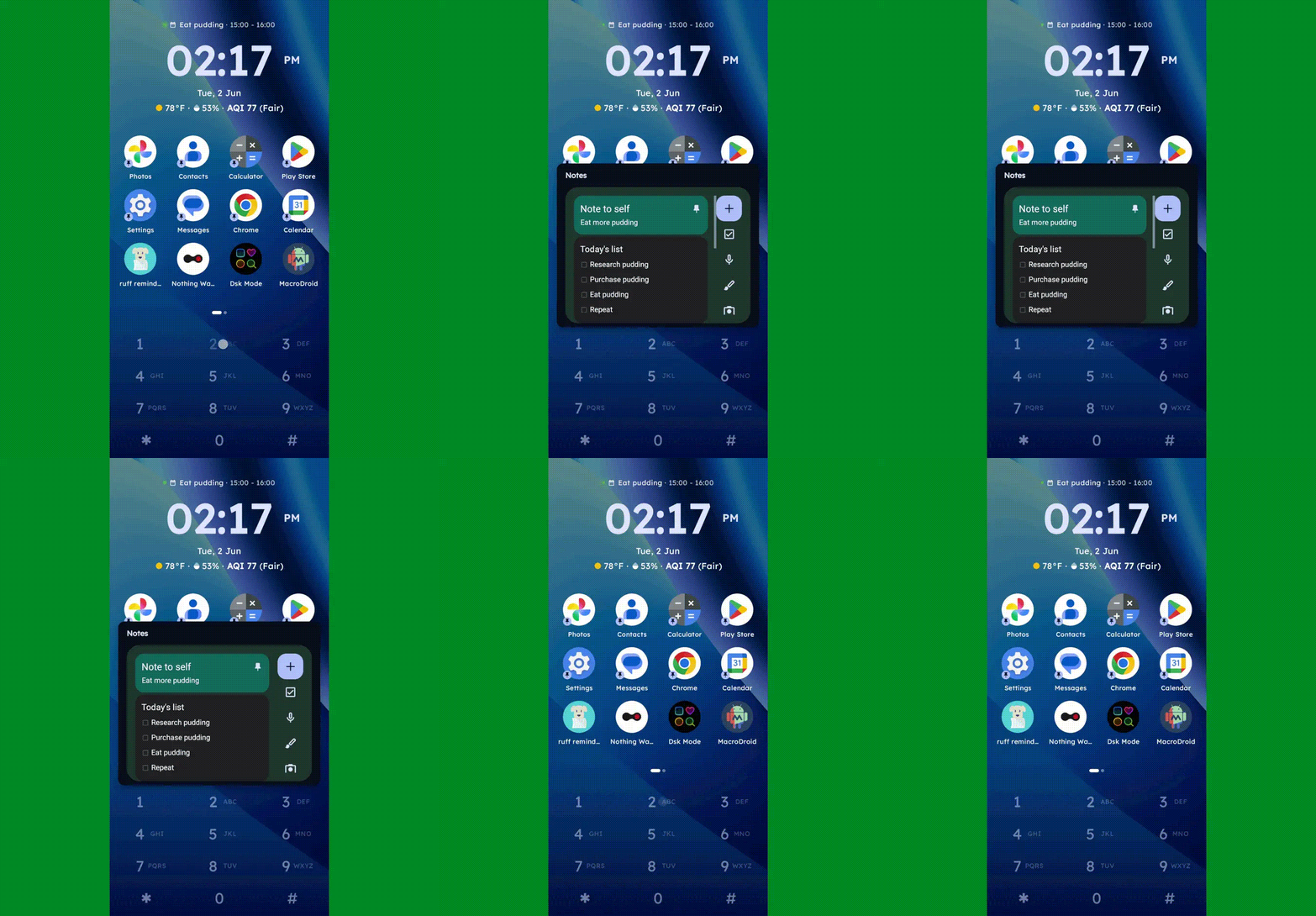
You can long-press any number to create and then access a custom “super shortcut” — anything from a single specific action (opening a particular app or calling or texting a certain contact) to launching a group or category of apps or contacts, launching an on-demand pop-up widget or swipeable stack of widgets, or even launching a pre-filled search query.
One press, and poof: Any widget you want — or series of swipeable widgets, even — is right there and ready.
JR Raphael, Foundry
If you tap the # key (known as “pound” in this context — not “hashtag” — for any non-olds among us), you can set up and then access a special “vault” area, where apps are hidden and only visible and accessible with authentication.
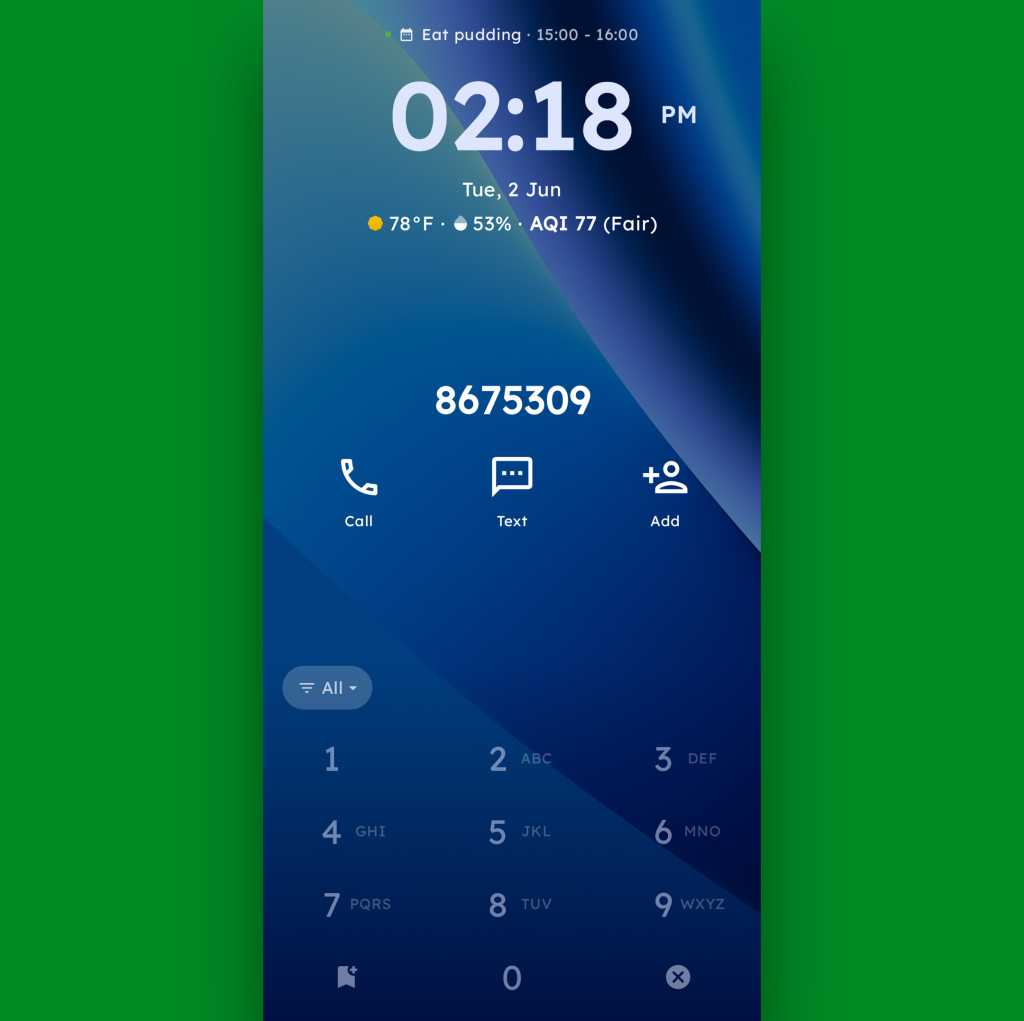
And, in an especially nifty touch, you can also just use the dialpad as an actual dialpad — to punch in any number you want to text or call, even if it isn’t already in your contacts.
Your phone dialer is always right in front of you with Key Launcher as your home screen.
JR Raphael, Foundry
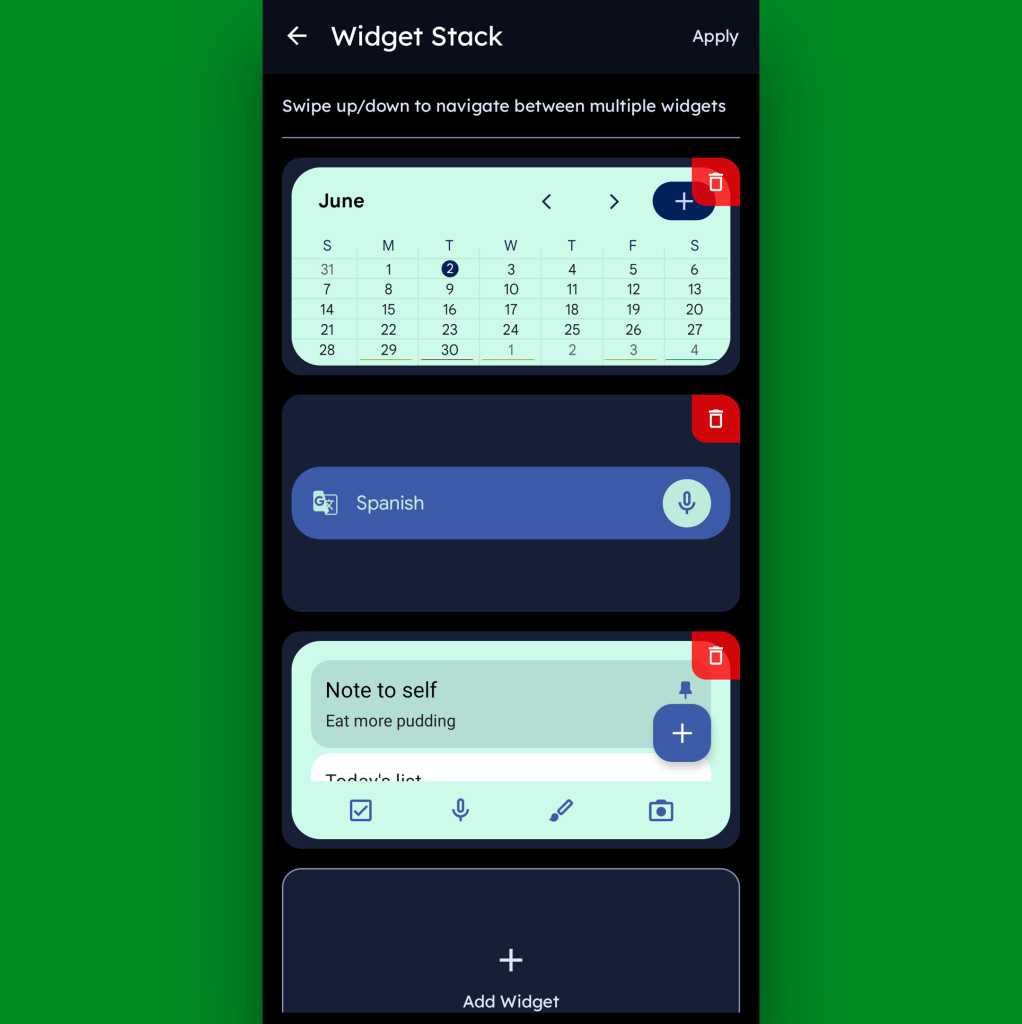
Function-packed as all of that may be, that dialpad is still just one piece of the Key Launcher puzzle. Above it sits a grid of app shortcuts that includes both your own pinned favorites and a dynamic selection of recently opened items. And above that is a handy built-in widget that shows a rotating array of upcoming calendar events from your agenda along with the local time and weather — and, in an especially neat twist, can also be customized to act as an interactive stack that lets you flip through your own set of standard Android widgets right then and there as well.
Key Launcher’s primary widget spot can be configured to hold numerous widgets in a swipeable stack.
JR Raphael, Foundry
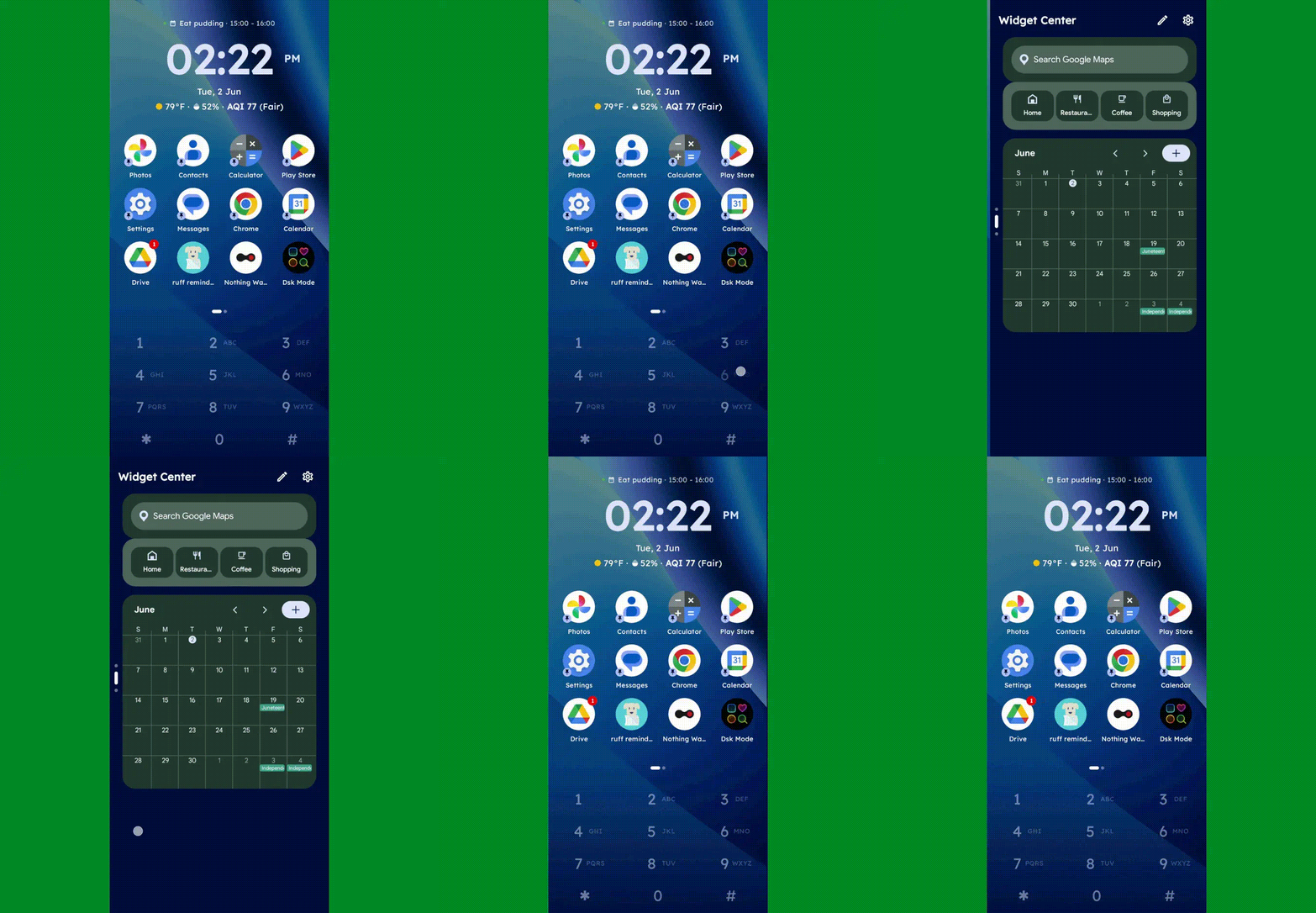
Speaking of widgets, if you swipe toward the left on Key Launcher’s dialpad, you’ll reveal the launcher’s built-in “Widget Center” panel — which is an entire screen dedicated to holding however many widgets you want, in any configuration you like, for easy ongoing access.
The Widget Center is another interesting way to access widgets within Key Launcher.
JR Raphael, Foundry
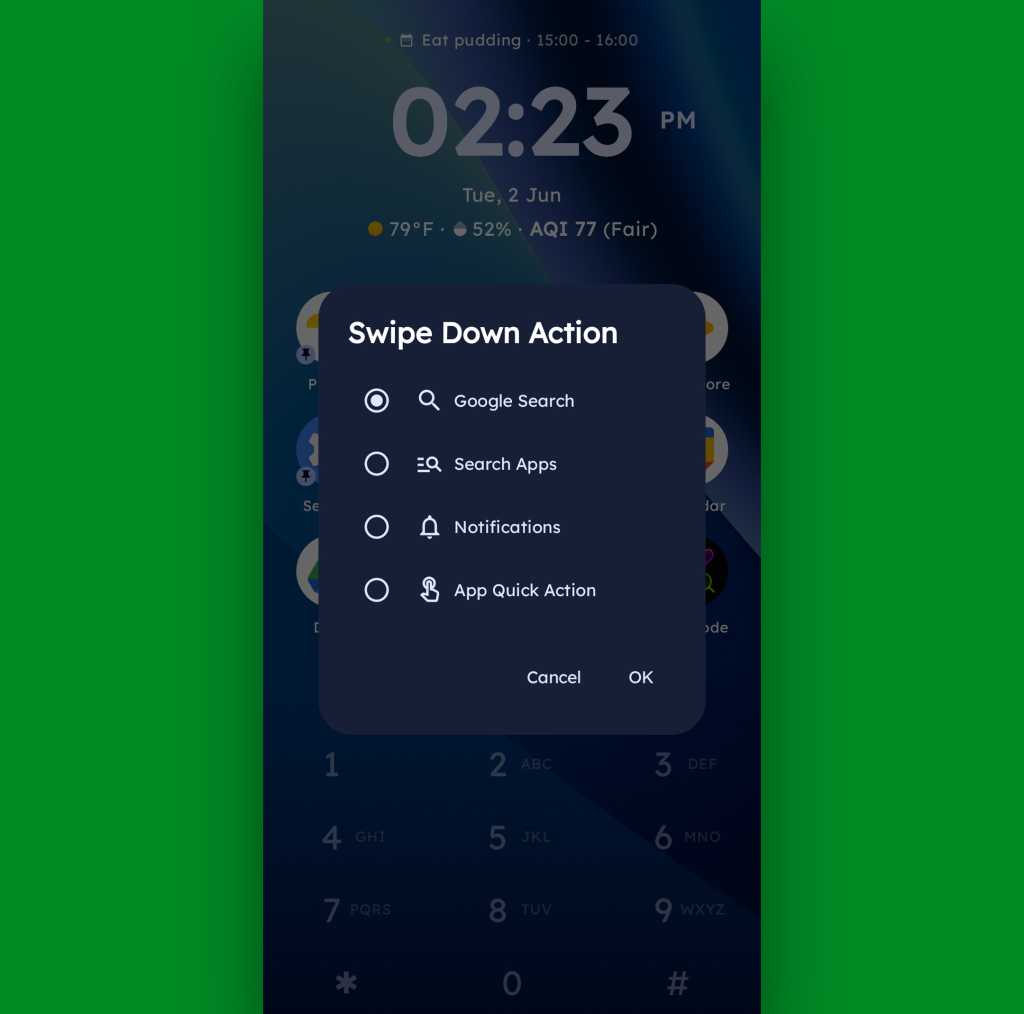
A swipe in the other direction will take you to an enlarged view of your active notifications, meanwhile, while a swipe downward can be set to launch either a quick search (of Google or whatever provider you prefer), a search of your apps, or a direct Android app shortcut within any app on your device.
Swiping down on your home screen can trigger a shortcut of your choice.
JR Raphael, Foundry
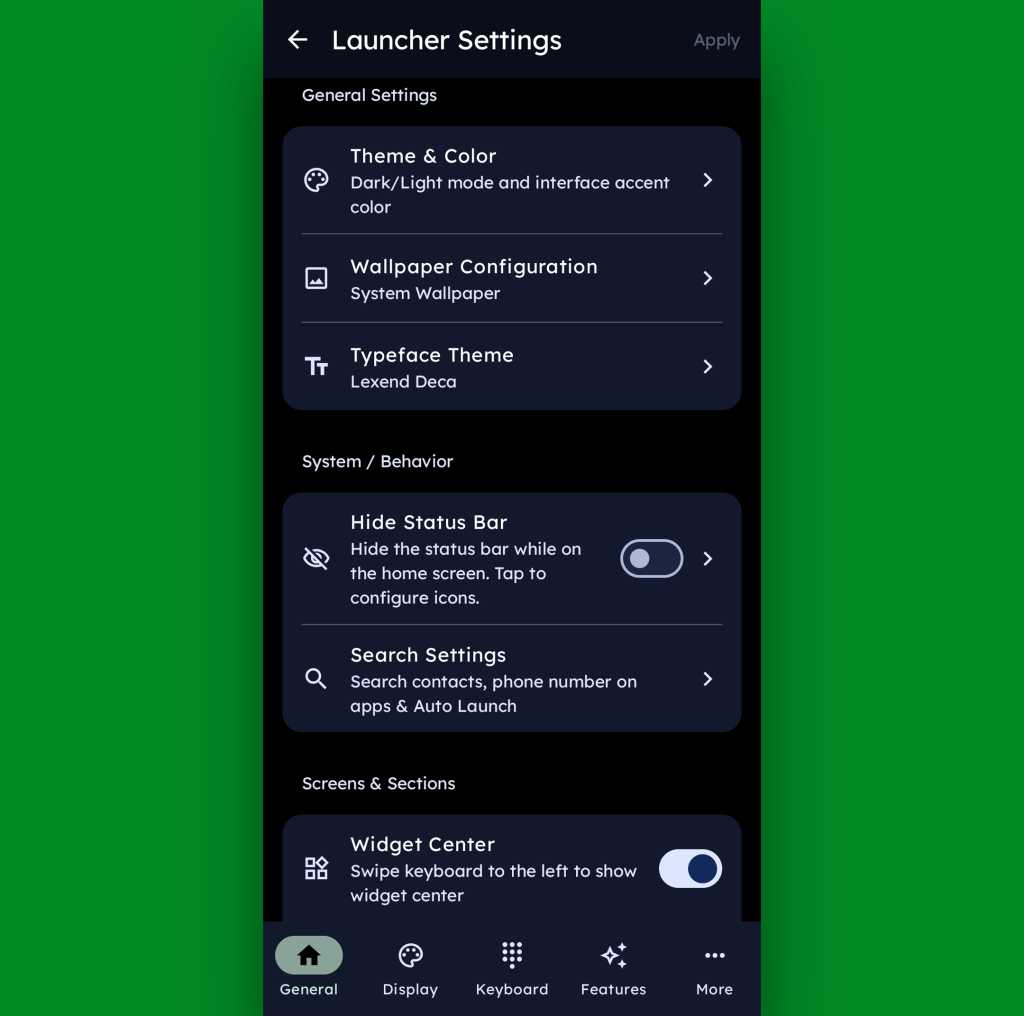
And if all of that seems like a lot of productivity-boosting possibilities, just wait ’til you get into this thing’s settings. Key Launcher is overflowing with options to customize and control practically every facet of its operation, ranging from basic visuals to the specifics of how the dialpad works and even a toggle for optimizing the interface for left- or right-handed use.
Key Launcher is no slouch when it comes to settings.
JR Raphael, Foundry
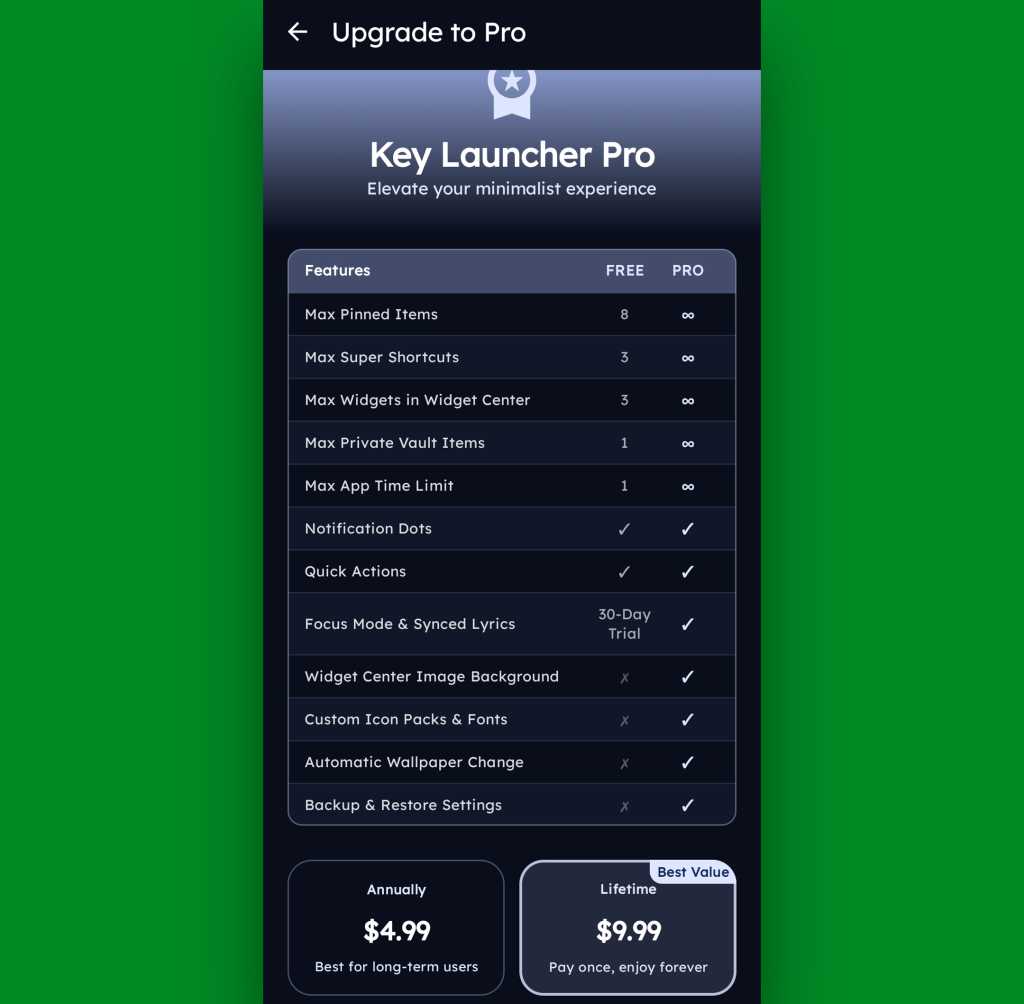
Key Launcher is free on its base level with an optional Pro upgrade that unlocks certain limitations and more advanced features. That path is available for five bucks a year or $10 as a single lifetime purchase, and you get a month-long trial the first time you install the app so you can check it out in its full form.
The Pro path adds in lots of extras, but even Key Launcher’s free version is quite pleasant and functional.
JR Raphael, Foundry
Even if you just stick to the free version, though, this thing has an awful lot to offer — and it really is unlike anything else out there, with so many clever and potentially useful touches.
It’s that kind of creativity and constant discovery that keeps Android so interesting and advantageous, even after all this time — and that’s true whether you end up sticking with Key Launcher for the long haul or just giving it a go for a few hours and appreciating the deliciously original thinking it offers.
Apple publishes its App Store fraud prevention report every year,. And when it does, the company presses the point that its curated system brings much value to developers and customers, including highly effective protection against fraud. It says it prevented more than $2.2 billion in potentially fraudulent transactions in 2025 alone.
A tax worth paying
The company said it has prevented $11.2 billion in such fraud in the last six years. That’s a lot of value for the 15% or lower commission that all but the biggest-selling developers are required to pay on their store sales.
Don’t believe the hype, as most developers are not generating the $1 million a year required before the 30% payment kicks in.
You might reflect that if there is an Apple Tax, it’s a progressive tax in which those with the broadest shoulders help support the wider developer community, which is probably why some tech billionaires don’t like it.
But I’m not here to write about taxation; I’m here to highlight the value the App Store brings. Apple diligently works to protect customers and developers against the ever-growing threat of cybercrime at a scale few other companies could hope to match. That matters in an environment dominated by ever more sophisticated attacks, including scenarios in which a developer submits a benign app for review and then modifies it once the app is online to commit financial fraud.
More than fraud prevention
It’s not just fraud Apple protects App Store customers from. It also attempts to protect privacy. Look, we know that tech firms now exist for whom privacy is a roadblock to profit; they want to take all your information for free to sell it for money, or worse. Apple stands against this and has done so for years, which is why it is under steady attack by entities that want privacy destroyed to boost their bottom line. Nation states and nation-state-adjacent attacks don’t help in the battle for your private digital life, throwing huge resources at undermining personal protections.
Apple’s report gives you a solid glimpse at the anti-privacy environment. App Store rejected 443,000 app submissions for privacy violations; it also rejected 22,000 apps for holding undocumented anti-privacy features.
The upshot is that while Apple’s protections aren’t 100% perfect, they’re still industry leading. Where incidents do take place, they are resolved swiftly, and the bait-and-switch approach (in which an app pretends to be benign but carries malware) remains the biggest threat. That’s why customers should always verify they trust a developer before downloading apps.
The threats coming over the hill
The thing is, all of these threats are evolving, and Apple is equipped to evolve in parallel with them. In part, that’s because it has scale, in part because it has that huge 2.2-billion-device ecosystem, in part because the company entered the app store race with deep understanding of how online transactions were evolving in the first place. It didn’t run iTunes for years only to learn nothing.
We will also likely see increased attacks made against developers in order to extract their Developer ID to help in the submission of such apps. And we will see increasingly sophisticated algorithmic hacks to attack security, identity, and even app ownership. Protecting against those consequential evolutions will be neither easy nor cheap. Doing so will require near state-level protection, a degree of security no small entity can meet. We have no idea if smaller app stores can even visualize such protection — and the EU doesn’t know, either.
In time, hopefully, new businesses will emerge offering quantum-safe security to protect online purchases. But for now, we’ll mostly need to look to large entities such as Apple, or payment services providers, to make the grade.
Near state-level protection
Will Apple put protection at scale in place to protect against these incoming threats against its App Store? It seems likely, given it is already investing in OS-level mitigations to protect encryption on its services, including around encrypted communications.
It is also in Apple’s interest to future-proof protection around payment services, ergo also the App Store. At the same time, as Apple’s latest fraud report confirms, the threat landscape remains highly volatile. Time will show that the store’s degree of protection is well worth the cost of Apple’s progressive App Store tax.
Google’s shiny new Android 17 update may be on the brink of making its way out into world, but one of the most consequential Android notification upgrades I’ve seen in ages is actually available for anyone, on any device, this instant.
It’s one of those things you don’t even realize is missing — and awkwardly has been, all this time — until you have it in front of you and see just how helpful and at times even invaluable it is.
And that’s the ability to have any or all of your notifications saved and restored whenever you restart whatever Android device you’re using — so that nothing important gets awkwardly tossed aside, lost, and forgotten, likely without your ever even noticing or being aware of what you’ve missed.
How many potentially important pending alerts have you lost as a result of that reboot trash chute? I couldn’t even begin to count, myself, and am slightly terrified to think of the answer. But with this easy new improvement in place, it’ll never happen again.
And best of all? It’ll take you roughly two minutes, once, to set up and then forget about and just know it’s working on your behalf from that moment forward.
Lemme show ya how.
[Keep the off-the-beaten-path knowledge coming with my free Android Intelligence newsletter — three new things to try every Friday and my Android Notification Power-Pack as a special welcome bonus!]
Your new Android notification safety net
The secret sauce that makes this sorcery possible comes not from Google itself but from a crafty independent developer who’s been expanding our Android notification smarts for many a moon now.
Whether you already have BuzzKill on your device or this is your first time encountering it, though, it’s well worth your while to take note of this new capability that snuck into the app not long ago.
First, a quick primer/refresher on what BuzzKill is, in case you aren’t already familiar: BuzzKill is essentially a way to create Gmail-like filters for your Android notifications. You use it to create simple custom rules for what happens when different types of notifications arrive — in an intuitive “if this, then that”-style form — with all kinds of interesting and advanced options for making your alerts more effective.
The latest addition to the app is an experimental option called, appropriately enough, “Restore after reboot.” And it does exactly what you’d expect: Anytime your device restarts, it automatically swoops in to save any active notifications that fit the parameters you select and then instantly restores ’em back into active status once your phone is back up and running.
Without such a system in place, any notifications that you either hadn’t yet looked at or maybe had glanced at and left pending as a reminder to deal with later would more often than not just vanish entirely — and you’d have no easily visible record of their presence or any real indication that they’d been there at all. That’s a dangerous recipe for forgetting something important, whether it’s an email you intended to engage with, a Slack message you needed to acknowledge, or even a task of some sort that had popped up for you to ponder.
The beauty of the BuzzKill approach to fixing this is that it really is a “set it and forget it” sort of system: You just create whatever rule you want now, get it up and running, and then rest easy knowing it’ll always find and restore any active notifications anytime your device restarts — as Android itself should but for whatever reason does not.
2 minutes to auto-restored Android notifications
All right — here are the specific steps to getting your new notification safety net in place:
The app costs four bucks as a one-time purchase, which — believe me — is nothing compared to the ongoing value it’ll give you with this and its many other notification-enhancing possibilities.
It doesn’t require any unusual permissions, doesn’t collect any form of data from your phone, and doesn’t have any manner of access to the internet — meaning it’d have no way of sharing your information even if it wanted to.
Once you’ve gone through the app’s initial setup and made your way to its main screen, tap on the circular button in the lower-right corner of the screen to create a new rule.
On the screen that comes up next, consider which specific sorts of notifications you want to have restored whenever your device restarts.
You could always start with any and all notifications and then go back in to refine and limit the rule more once you see how it works. You might eventually want to ask it to avoid restoring alerts from certain low-priority apps — like, say, Google Photos — so that it doesn’t bother bringing back stuff that you don’t actually need.
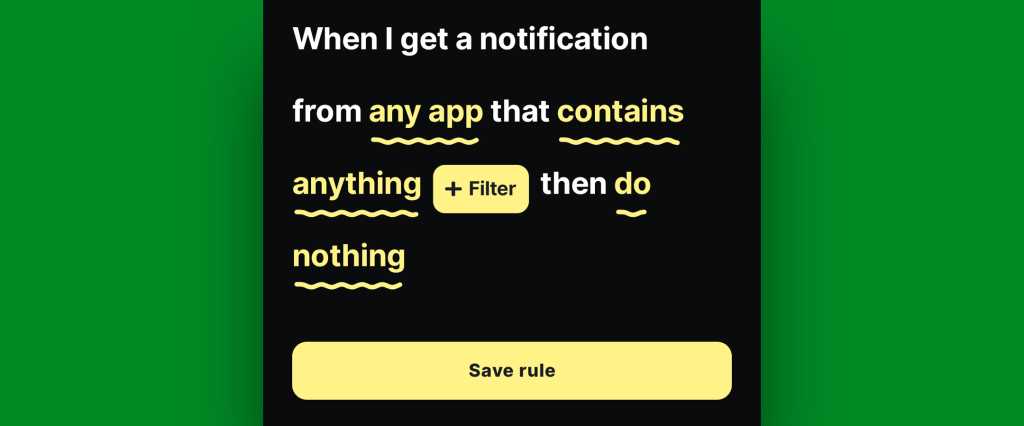
If/when you want to create any such restrictions, tap the text that says “any app” to change which apps will be included and/or tap the text that says “contains anything” if you want to restrict based on what specific text a notification does or doesn’t include.
If you don’t want to create any limitations and just want all of your active notifications to be restored, at least to start, leave those lines alone and mosey on down to our next step.
BuzzKill’s simple “if this, then that” formatting gives you lots of flexibility with how and when your rule works.
JR Raphael, Foundry
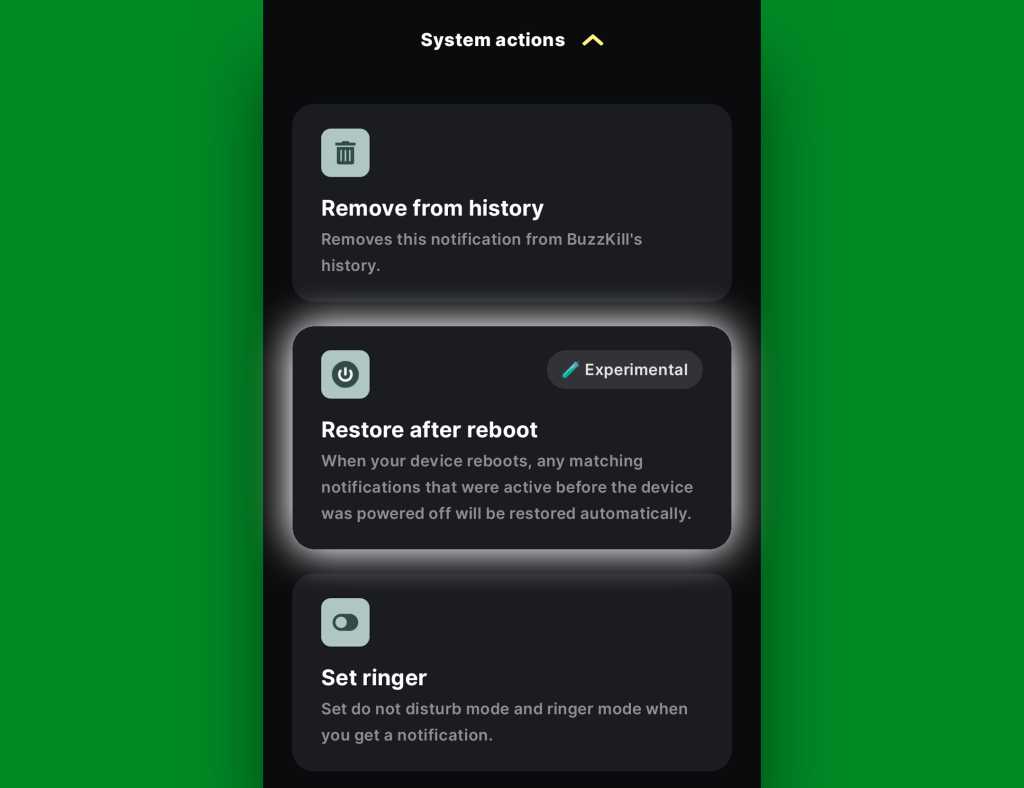
Tap the line that says “do nothing” and scroll down to find the “Restore after reboot” option. It’ll be toward the bottom of the list, within the “System actions” section.
The “Restore after reboot” action is described as experimental, but it seems to work quite well in my experience so far.
JR Raphael, Foundry
Tap that, then tap “Pick action” to confirm.
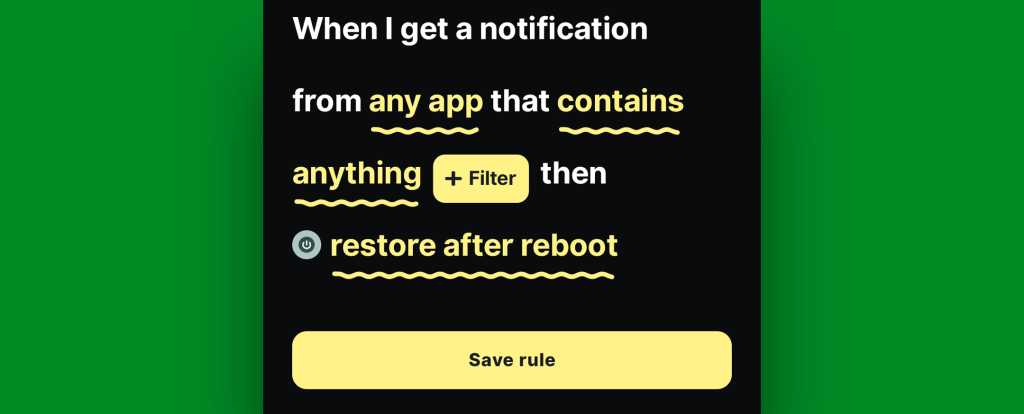
And last but not least, tap “Save rule” to, y’know, save your rule and set it into action.
The BuzzKill notification restoration equation, in its simplest possible form.
JR Raphael, Foundry
You should then see the rule showing up as active and running on the main BuzzKill screen.
Notification restoration — active and ready to spring into action whenever your phone restarts.
JR Raphael, Foundry
And that really is all there is to it: Whenever your phone next restarts, any notifications that were visible and active at the time of the restart should just show back up via BuzzKill as soon as things boot back up. If you want to get fancy, you could even make certain especially important notifications “sticky” in general, so that if you inadvertently swipe ’em away while your phone is running normally, they’ll automatically come right back even in that scenario.
It’s not the flashiest feature you’ll see this year, and it doesn’t have any whizbang AI shenanigans to make it seem headline-worthy by current-day standards. But it will work and quite possibly be one of the most practical, actually helpful additions you make to your phone all year — even if and arguably especially if you only think about it once in a great while, when you notice it working its magic and saving you from losing something significant.
Discover even more life-enhancing Android treasures with my free Android Intelligence newsletter— three new things to try every Friday and my free Android Notification Power-Pack today.

 Login
Login