Turtle Beach PlayTrek 2-in-1 Case for Nintendo Switch 2: review
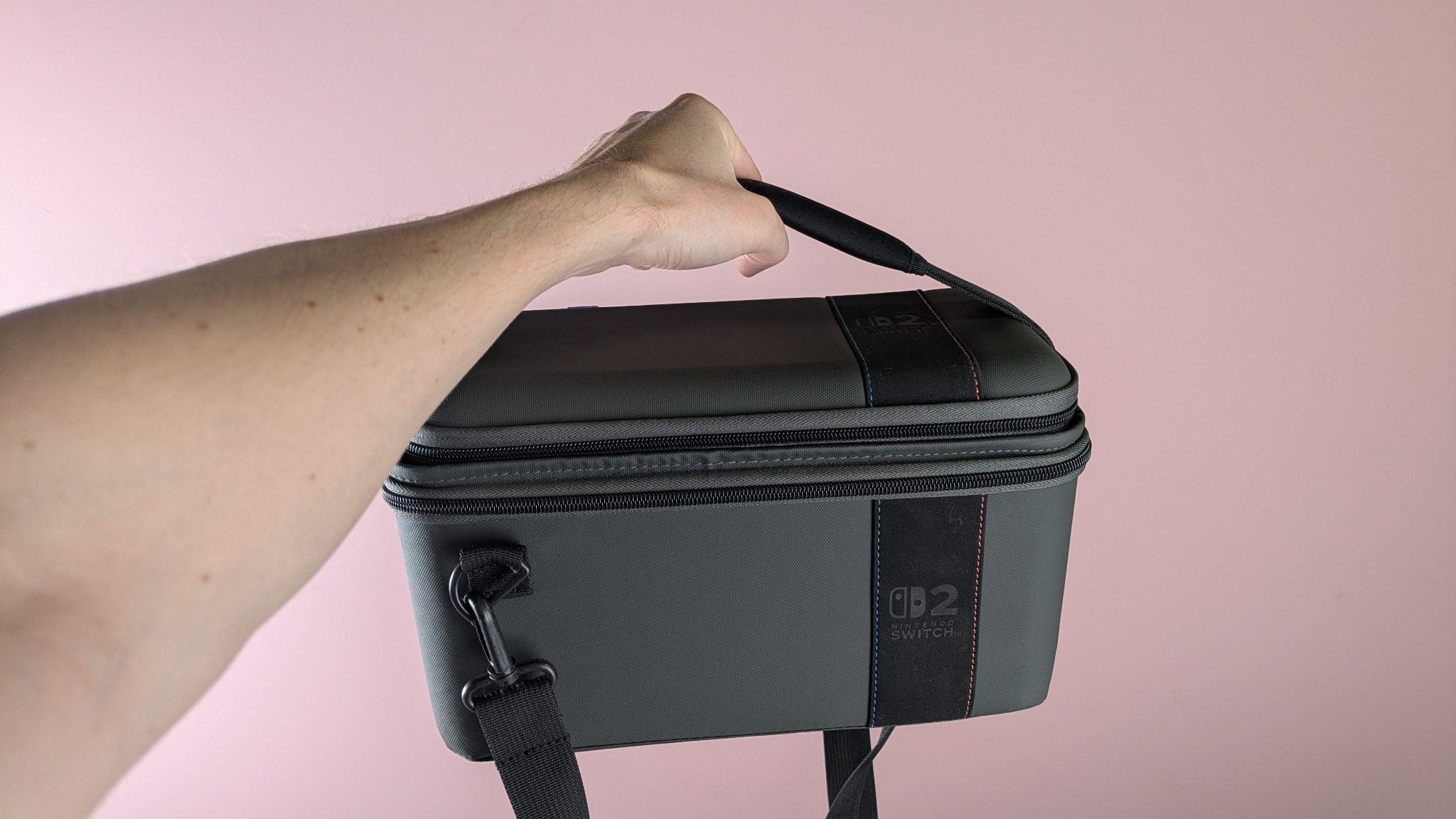
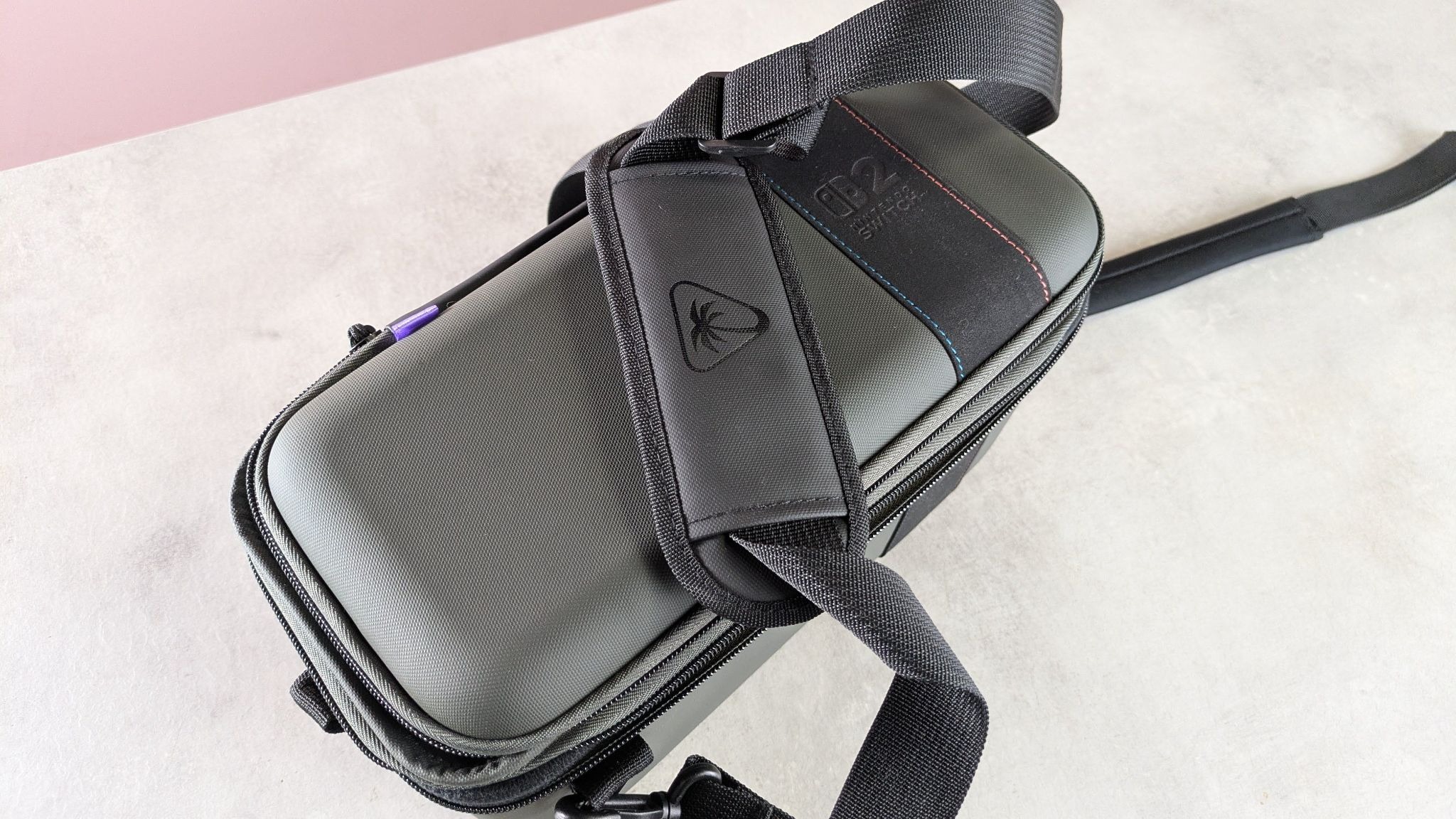
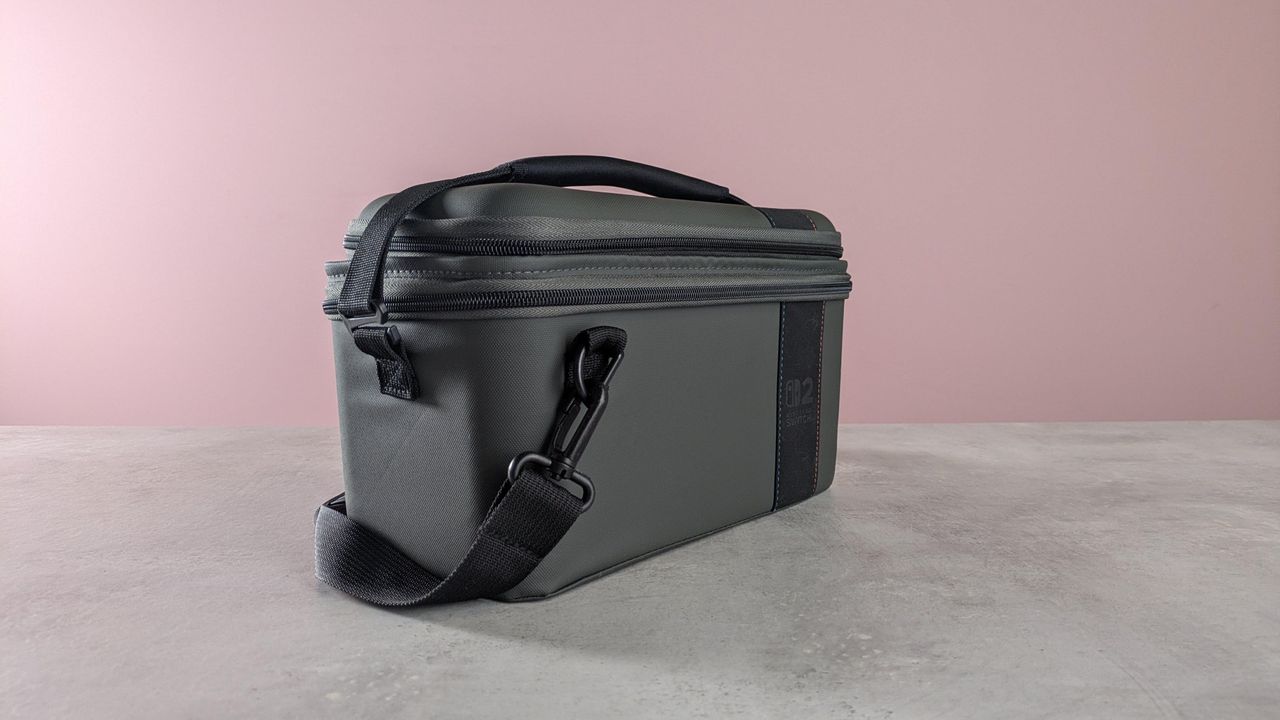
The Turtle Beach PlayTrek 2-in-1 makes a good first impression. It’s quite sleek for a large Switch 2 carrying case, and also rather stylish. This is thanks to the dark grey color and the surprisingly elegant suede strip that runs around it, offset to the right. It features subtle blue and orange stitching, a nice detail and a nod to the color coding of the Joy-Con 2 controllers.
(Image credit: Future)
The material of the entire unit also impressed me with its ruggedness. The shell of the main compartment feels solid, too, with only a slight amount of flex. As for the detachable travel case on top, I appreciated the small rubber strip that runs along its back edge, as it provides a little more durability and protection when opening it up. What’s more, the entire case is pleasingly light and slender, which is all the more impressive considering what it’s designed to carry.
The zips are similarly well-made, with a reasonably long string and a thin plastic topper that’s easy to grip. However, I did find them a little awkward to open at times, as the lids of both the travel case and main compartment have a tendency to sag inwards, slightly obscuring the teeth. This is a minor issue, though, and not one that’s likely to frustrate.
(Image credit: Future)
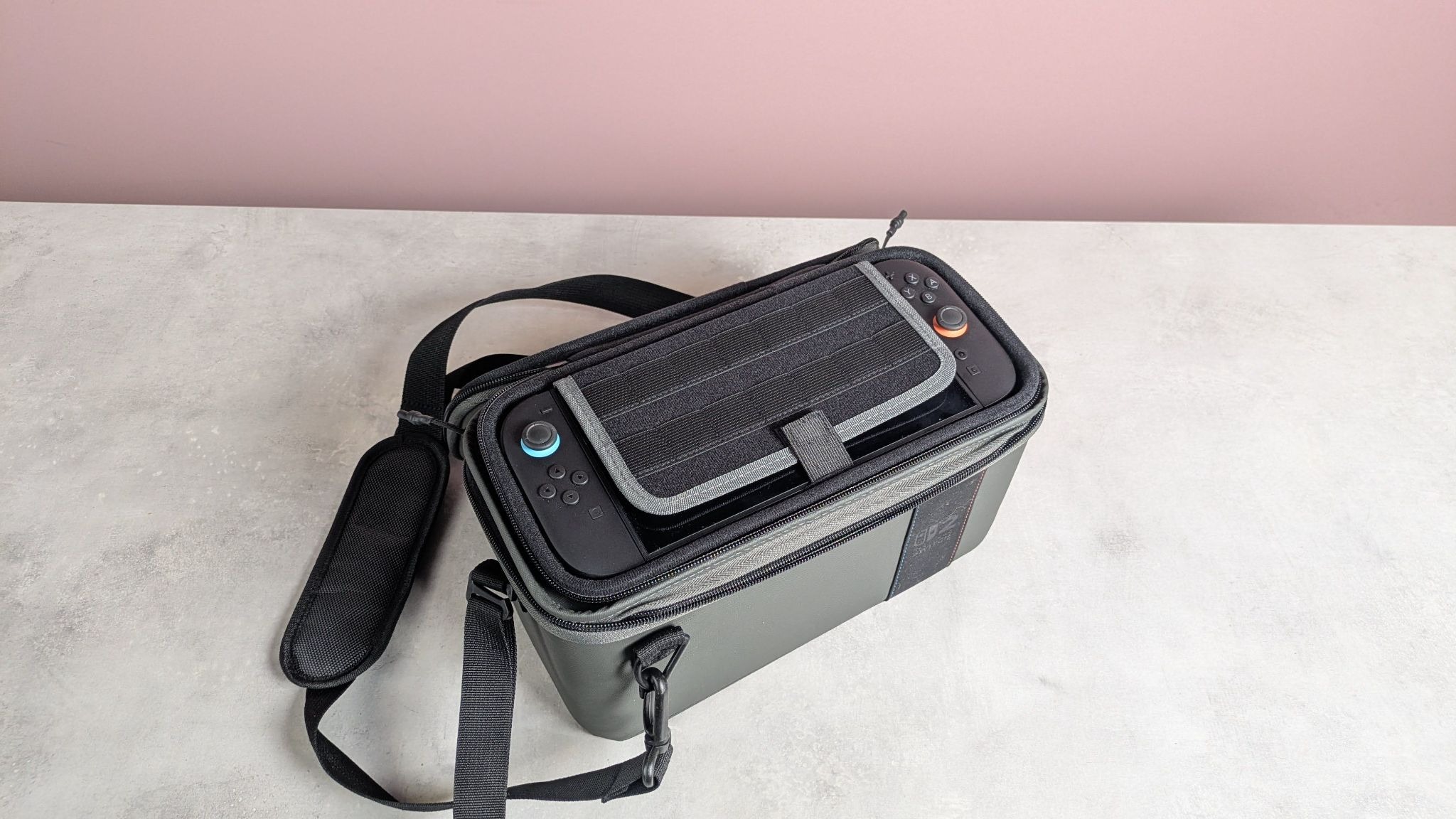
It’s quite versatile in terms of storage. As mentioned, and as the name suggests, there are two elements to the PlayTrek 2-in-1. The first is the travel case, which is attached via hook-and-loop fastening. This feels quite strong, so I wasn’t worried about it detaching unintentionally. The case houses the console and up to 14 game cards, courtesy of the elastic slots attached to the screen protector flap. The inner part of the lid features zipped netting for storing other accessories, such as cables and the like. There’s no carrying handle, though, which is an oversight.
The fit for the console is very snug, and the case itself is thin all over with next to no extraneous bulk. This makes it great for tucking into a backpack, like the best Nintendo Switch 2 accessories. However, it isn’t a hard shell; it flexes quite readily, so I wouldn’t be confident stacking anything heavy on top of it.
By contrast, the main compartment feels sturdy. The sides can bend inwards quite easily, but the same isn’t true of its corners, so I wouldn’t be concerned if it were subjected to outward forces.
(Image credit: Future)
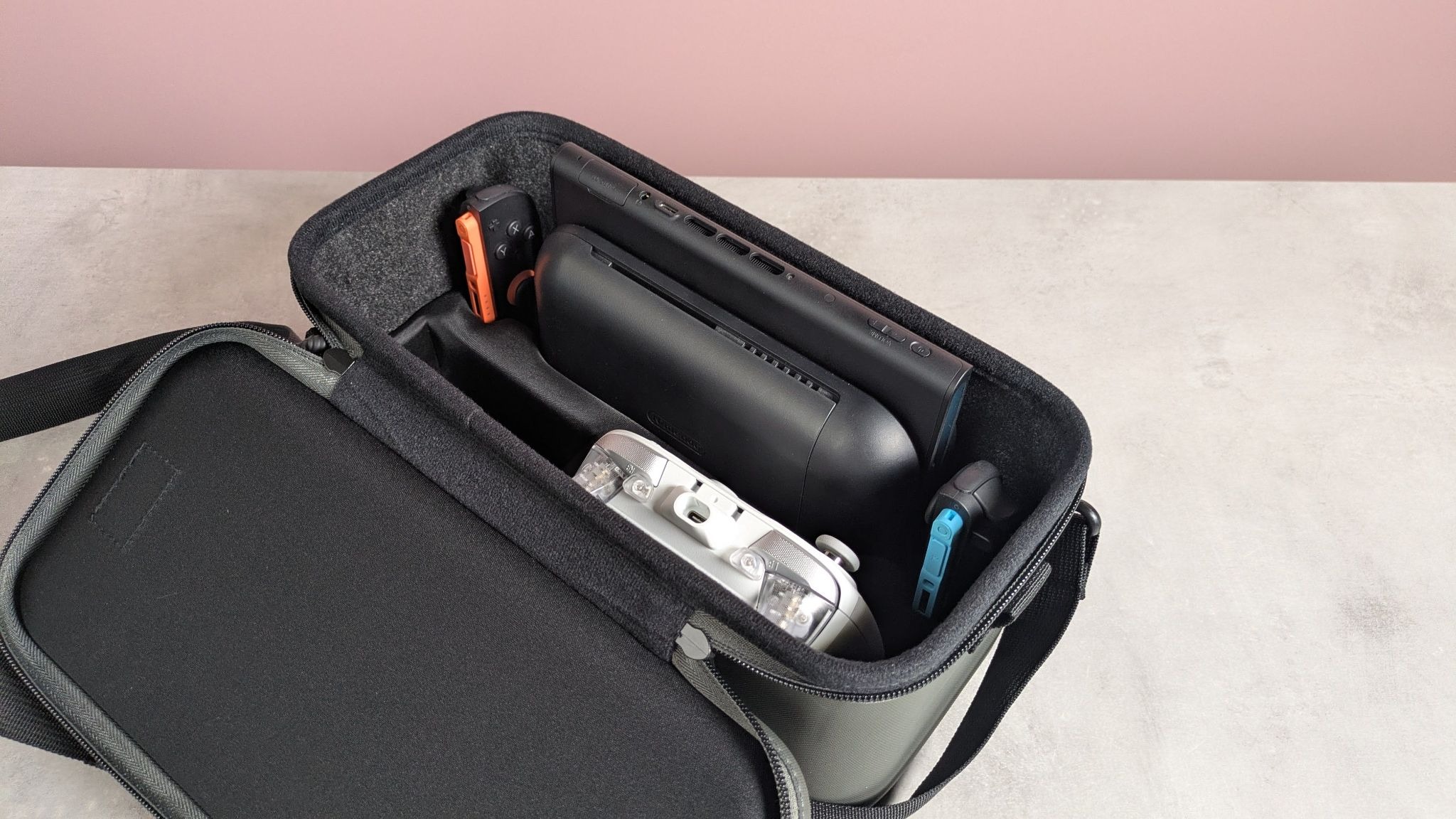
Inside there are inserts for the console, the dock, the Joy-Cons, the charger, and a large gamepad, such as the Switch 2 Pro Controller. I managed to fit the GameSir G7 Pro here instead, which is one of the best Nintendo Switch 2 controllers you can buy, with ease. The fit was snug and secure, as it was for all the other parts. Nothing moved out of place when I threw the loaded case up and down and spun it upside down several times.
The mold material is also just about soft enough to prevent scratching or marking the items within. However, during the course of my test, the glue adhering one side of the mold base to the bottom of the case failed, coming loose.
(Image credit: Future)
Obviously this was disappointing, although it’s possible I got unlucky with my particular unit. Regardless, it at least suggests some quality control issues. Despite the failure, I wasn’t too concerned that this would compromise the security of my contents: the other side of the base remained affixed, and since it sits tightly within the compartment, I wouldn’t be worried if all the glue came unstuck.
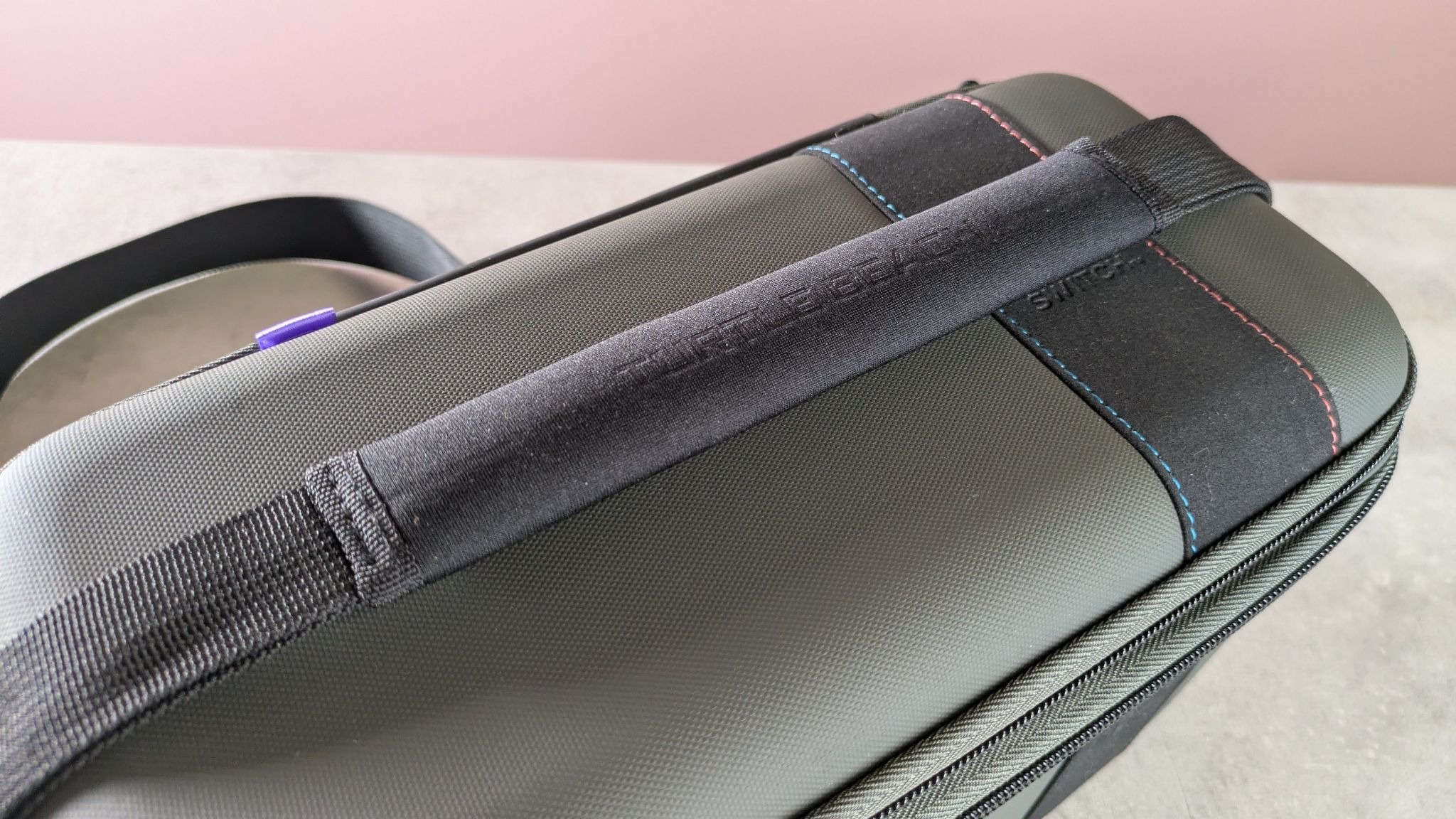
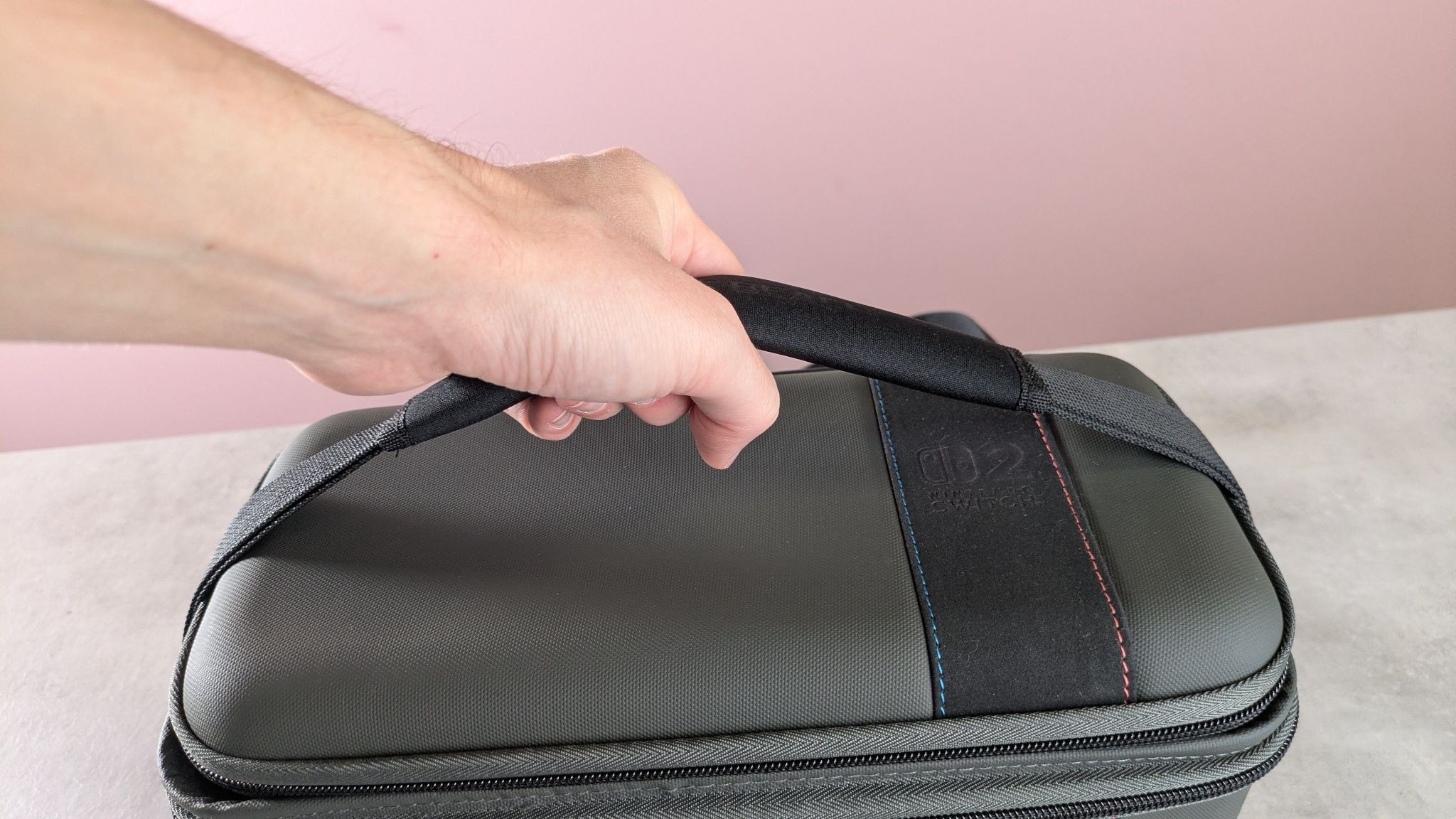
There are two straps adorning the main compartment. There’s a small carrying handle with a soft neoprene cover that’s very soft and comfortable in the hand. It provides just enough slack, although it's quite tight, which makes it awkward to move out of the way when accessing the main compartment and detaching the travel case; the handle slid out of one of its buckles accidentally on numerous occasions. On the other hand, this tightness does help to pin down the travel case on top, adding an extra layer of security to the hook-and-loop fastening.
(Image credit: Future)
The shoulder strap is a typical affair, with its nylon design and plastic karabiners. It's a small shame these and the buckles aren’t made of metal, but I guess this helps to keep the weight down. Fortunately, the karabiners are very solid, which can make them a little tough to remove, but this is a price I’m willing to pay for the security they offer in return.
The length of the strap is adjustable to a reasonable degree, although it could perhaps offer more slack to more easily accommodate taller users. The padded cover over the adjustment buckle is a little thin and lacks the cushioning of the neoprene carrying handle, but I still found it sufficient to prevent the strap digging into my skin.
At $50, the PlayTrek 2-in-1 is a reasonable price for such a feature-filled carrying case. It also has the quality to match, aside from the aforementioned issue with the inner mold. And since it’s cheaper than Nintendo’s own counterpart, it’s a compelling alternative.
Turtle Beach PlayTrek 2-in-1 Case for Nintendo Switch 2 review: Price & specs
Price
$49.99 / £39.99 (about AU$70)
Dimensions
5.83 x 12.60 x 7.99in / 148 x 320 x 203mm
Weight
1.78lbs / 809g
Number of game card slots
14
Compartments
7
Handle
Yes
Color
Grey
Should I buy the Turtle Beach PlayTrek 2-in-1 Case for Nintendo Switch 2?
Scorecard
Attributes
Notes
Rating
Design
Light and bulk-free, while still providing enough protection. The travel case is a bit too soft, though.
4 / 5
Storage
There’s plenty of room for your entire gaming setup, which is all the more impressive given its slender form.
5 / 5
Value
It’s not exactly cheap, but it’s cheaper than Nintendo’s equivalent, yet has more features and storage space.
4.5 / 5
Buy it if…
You want versatility With its detachable travel case and space for your Switch 2 and its accessories, this really is the all-encompassing solution for transporting your setup.
You want to keep the bulk down It’s relatively slender and pleasingly light without being too flimsy.
Don't buy it if…
You want a tough travel case The detachable travel case isn’t as solid as many others, which is a shame.
You want an unfussy handle The strap handle is awkward to move out of the way when opening the main compartment.
Turtle Beach PlayTrek 2-in-1 Case for Nintendo Switch 2 review: Also consider
Nintendo Switch 2 All-In-One Carrying Case As Nintendo’s official carrying case, you’d imagine the quality would be high here. And indeed it is, but it’s more expensive than the PlayTrek, yet less solid and with fewer features. There aren’t as many game card slots, and there’s no detachable travel case. Read our full Nintendo Switch 2 All-In-One Carrying Case review.
How I tested the Turtle Beach PlayTrek 2-in-1 Case for Nintendo Switch 2
(Image credit: Future)
I tested this case for a few days, storing the Switch 2 in the travel case compartment, as well as in the main compartment along with the dock, Joy-Cons, and a large controller.
I carried the case around, via both the handle and the shoulder strap, and regularly removed and replaced the handle to test how easy this was. I also tested the zips thoroughly by opening and closing them repeatedly.
I threw the case up and down and spun it upside down several times to test both the hold of the detachable travel case and the hold provided by the inner molds of the main compartment.
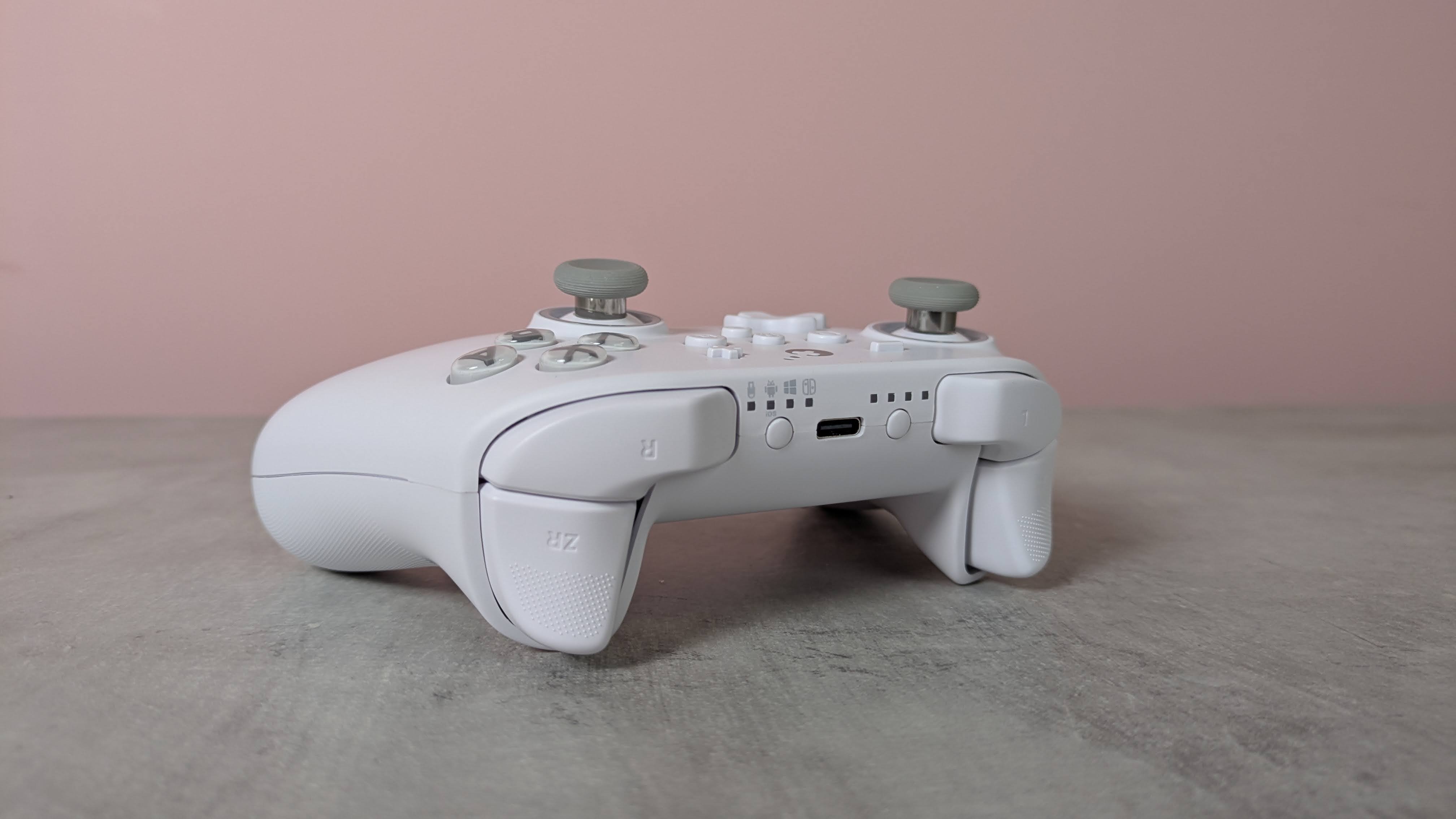
The GuliKit KK3 Max might look like a standard controller, but it has plenty of extras and features on board.
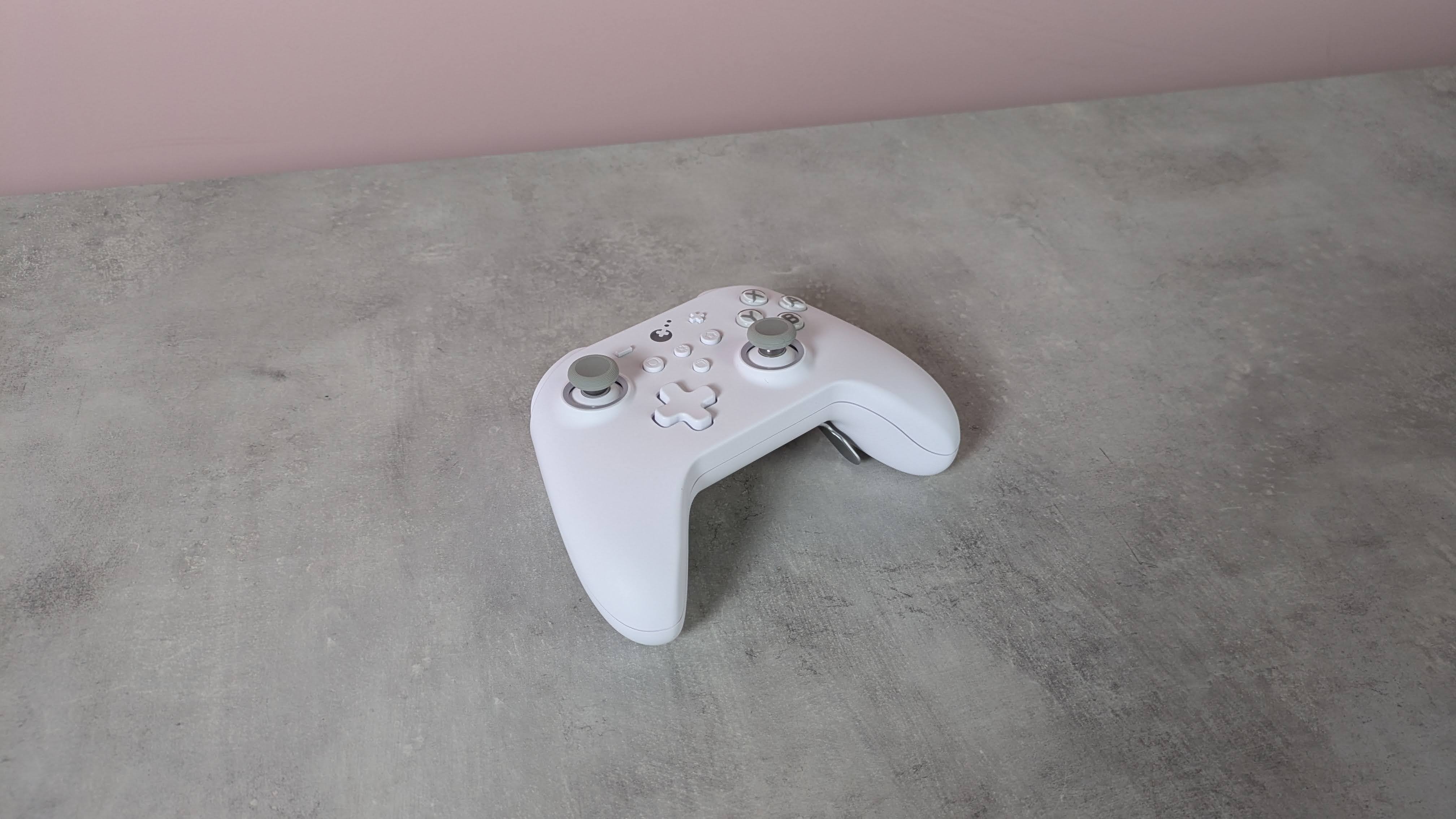
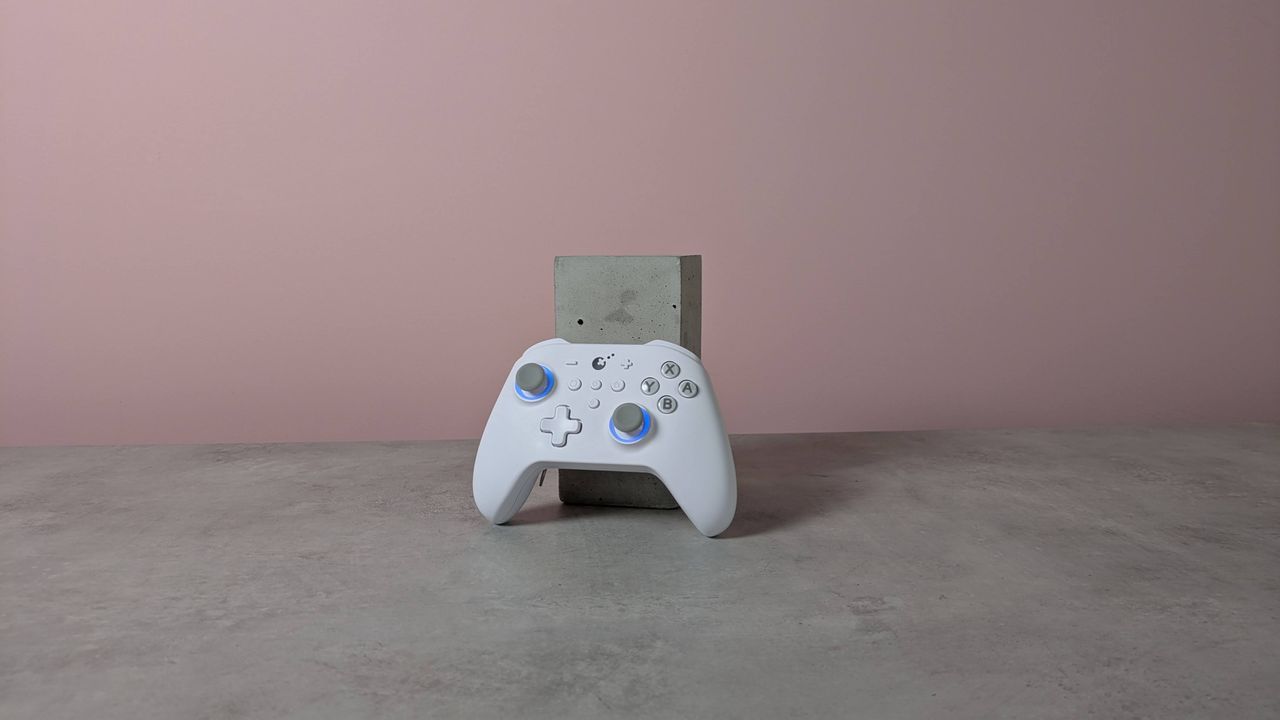
Adopting the familiar form of the Xbox’s gamepad, the KK3 Max doesn’t exactly push the boundaries in terms of design. But given how comfortable and convenient the shape and layout are, it’s hard to complain about its lack of originality.
There are also a few extra flourishes that add some interest. The matte white finish of my review unit was rather fetching, while the front panel is incredibly smooth, smoother than any other I’ve felt before. Its construction also feels quite solid, rivaling the builds of the best PC controllers.
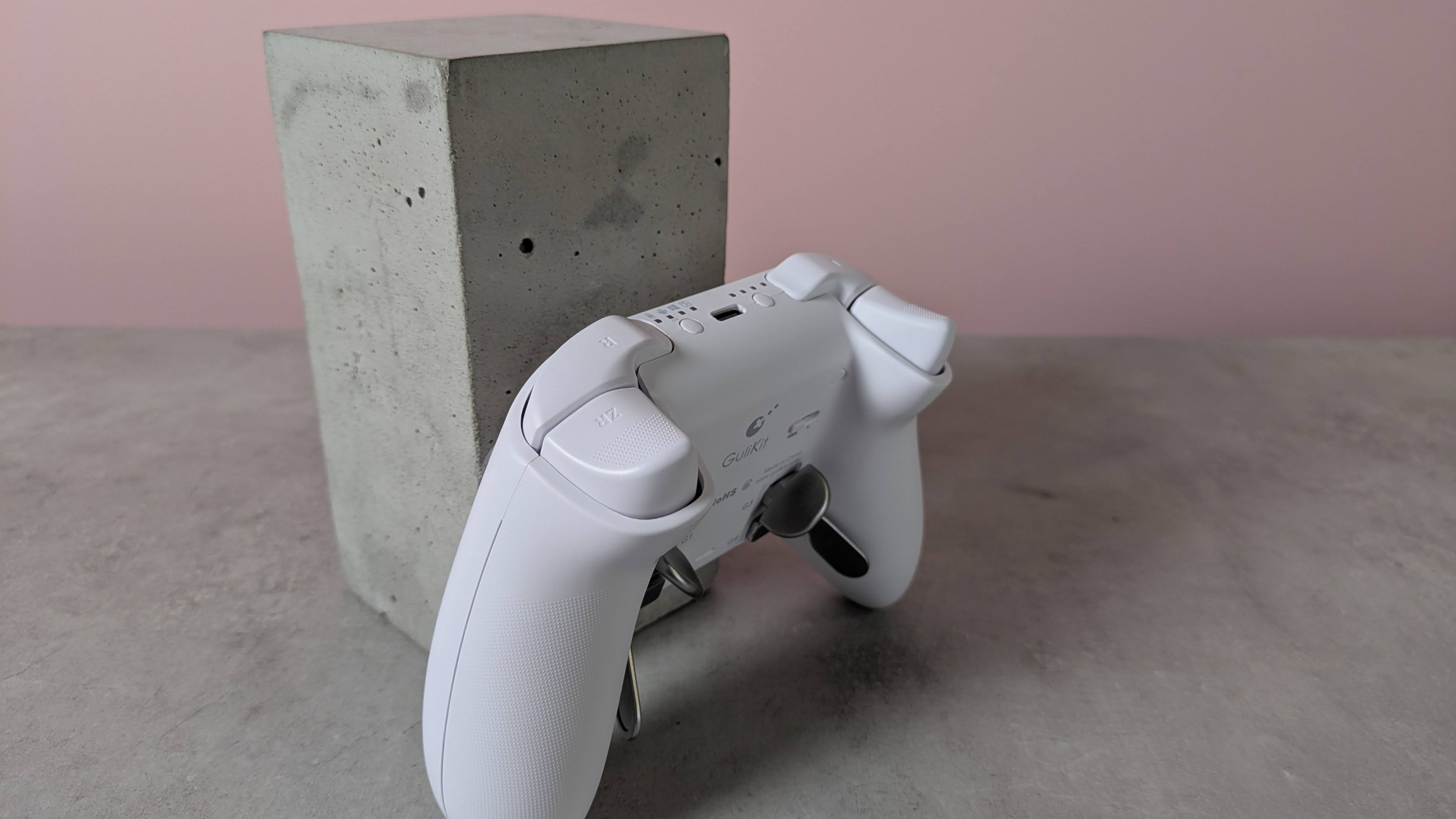
This premium feel extends to the buttons, since there’s very little wobble to any of them. The same can be said of the various sets of levers for the four back buttons, although a fair amount of force is required to insert them.
(Image credit: Future)
Despite the lack of software, there are still plenty of input-related customizations and settings available via various button combinations. These range from basic adjustments, such as the vibration intensity and stick sensitivity, to more advanced features, such as motion control and macro recording.
The overall performance of the KK3 Max is pretty good. Most of the buttons are responsive and satisfying to press. The triggers offer a fair amount of control, although I found their travel distance a little too short for my preferences. The sticks also lack the precision of the best, although they move easily and quickly. Motion controls are also inconsistent: I found they performed well with Nintendo Switch games, but were less effective on PC and mobile titles.
I’m happy to report that I had no issues with connectivity on any system I tried the KK3 Max with. Whether it was to my PC via the USB dongle or to my Switch and Android tablet via Bluetooth, the KK3 Max connected quickly to them all and I didn’t experience any dropouts or lag. Hotswitching between devices is also easy thanks to the dedicated button for this purpose, although it can take several presses for the button to respond.
The current multiplatform controller market is certainly a competitive one, with an increasing number of entrants offering increasingly better value. At $79.99 / £65.99 / AU$113.95, the KK3 Max is dangerously close in price to some real standouts, such as the Steam Controller and the GameSir G7 Pro 8K, and more expensive than the 8BitDo Pro 3, another highly capable controller. It mightn’t quite match up to its cohort, but the KK3 Max is still a gamepad to consider if you prefer onboard adjustments and like to have plenty of back buttons.
(Image credit: Future)
Gulikit KK3 Max review: Price & availability
$79.99 / £65.99 / AU$113.95
Available now in various colorways
Premium pricing puts it against big hitters
The GuliKit KK3 Max costs $79.99 / £65.99 / AU$113.95 and is available now from Amazon. Three colorways are available: black, white, and grey.
This pricing places the KK3 Max at the premium end of the market. It comes close to some big names in this space, such as the new Steam Controller. This has the advantage of touchpads for controlling the mouse cursor, and we found its gyroscope controls performed very well, unlike the KK3 Max’s. It isn’t compatible with the Switch or Switch 2, though.
The KK3 Max is also more expensive than the 8BitDo Pro 3, which has class-leading performance. We particularly loved its smooth analog sticks and triggers, as well as its phenomenal D-pad. It’s very customizable, too, thanks to its accompanying software — something the KK3 Max lacks.
Gulikit KK3 Max review: Specs
Gulikit KK3 Max
Price
$79.99 / £65.99 / AU$113.95
Weight
9.7oz / 275g
Dimensions
6 x 4.3 x 1.3in / 154.7 x 108.1 x 32.4mm
Compatibility
PC, Switch, Switch 2, Android, iOS
Connection type
Wireless (2.4GHz, Bluetooth), Wired (USB-C)
Battery life
15-28 hours
(Image credit: Future)
Gulikit KK3 Max review: Design and features
Super smooth surface
No extra D-pad hats or stick caps
No software
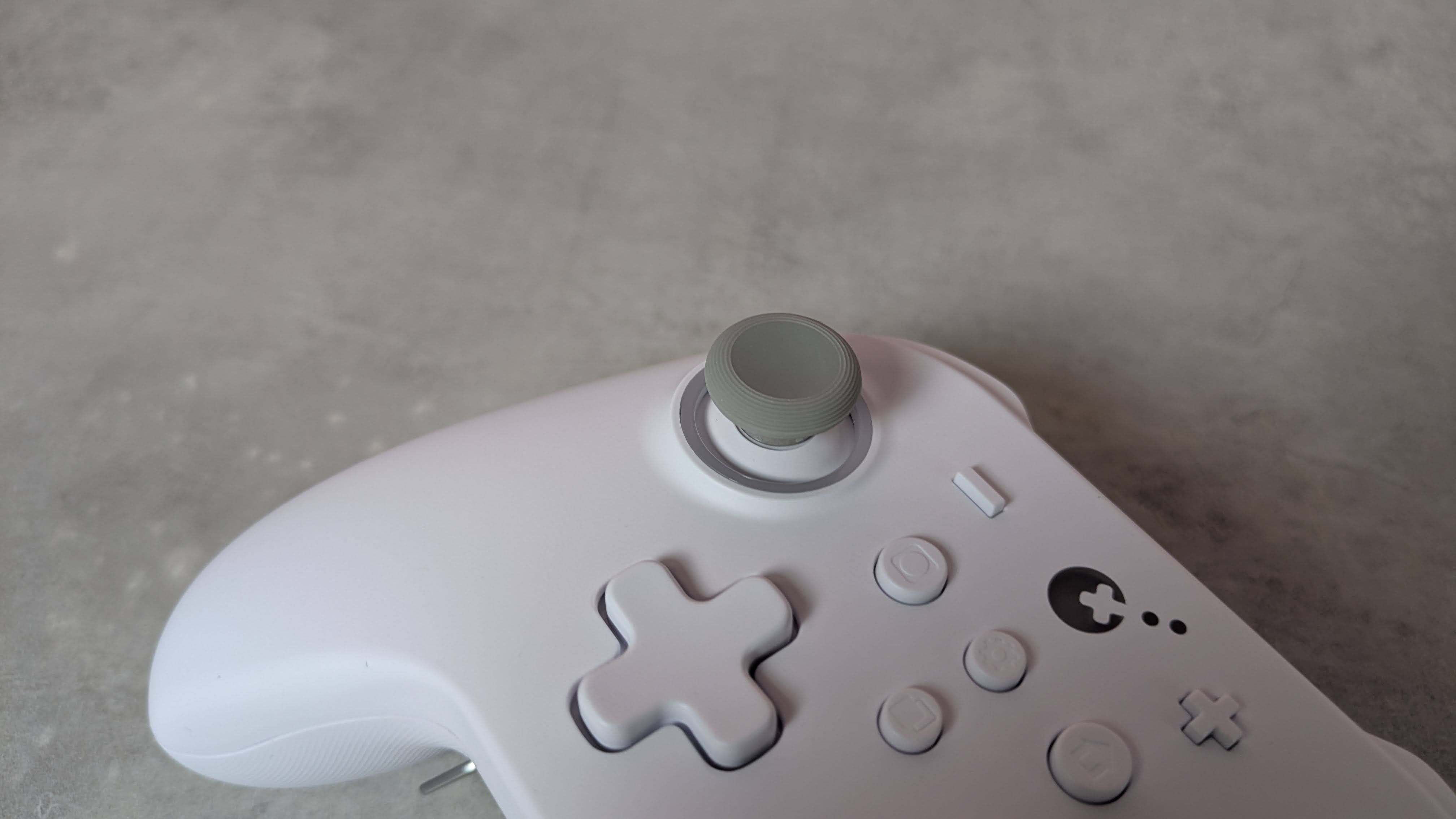
The KK3 Max has a simple and conventional design, replicating the form and layout of the best Xbox controllers. This is no bad thing, though, since such gamepads are among the most ergonomic and comfortable out there. Along with many others, I’m also particularly fond of the asymmetric analog sticks, since this moves the D-pad to a position that makes it easier to use with either thumb.
What may prove more divisive, however, is the relatively small size of the entire unit. I don’t have particularly large hands, but both my thumbs and forefingers tended to overhang the sticks and triggers respectively. I was able to adjust my grip to compensate without sacrificing comfort or security, but others might find this more of a problem.
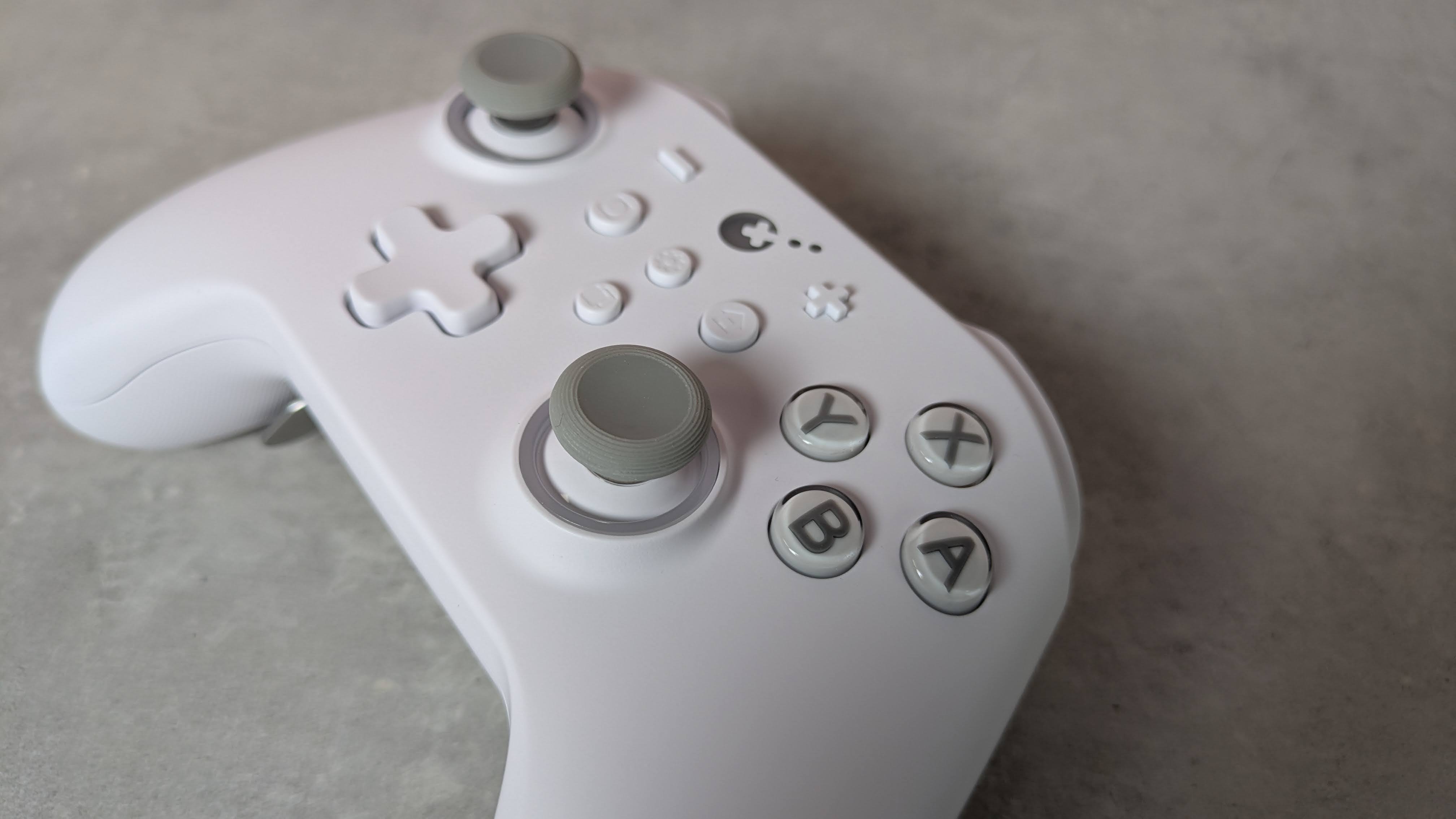
There are some extra touches to the KK3 Max’s design that set it apart from the crowd. The brilliant white matte finish of my review unit is quite eye-catching, as is the subtle yet effective RGB lighting around the sticks, which also has a practical function that I’ll come to later.
(Image credit: Future)
The front plate is incredibly smooth to the touch, smoother than any other controller I’ve experienced. However, this plate isn’t magnetically attached as it is on other gamepads, allowing for easy removal for the sake of customization and reordering or replacing buttons.
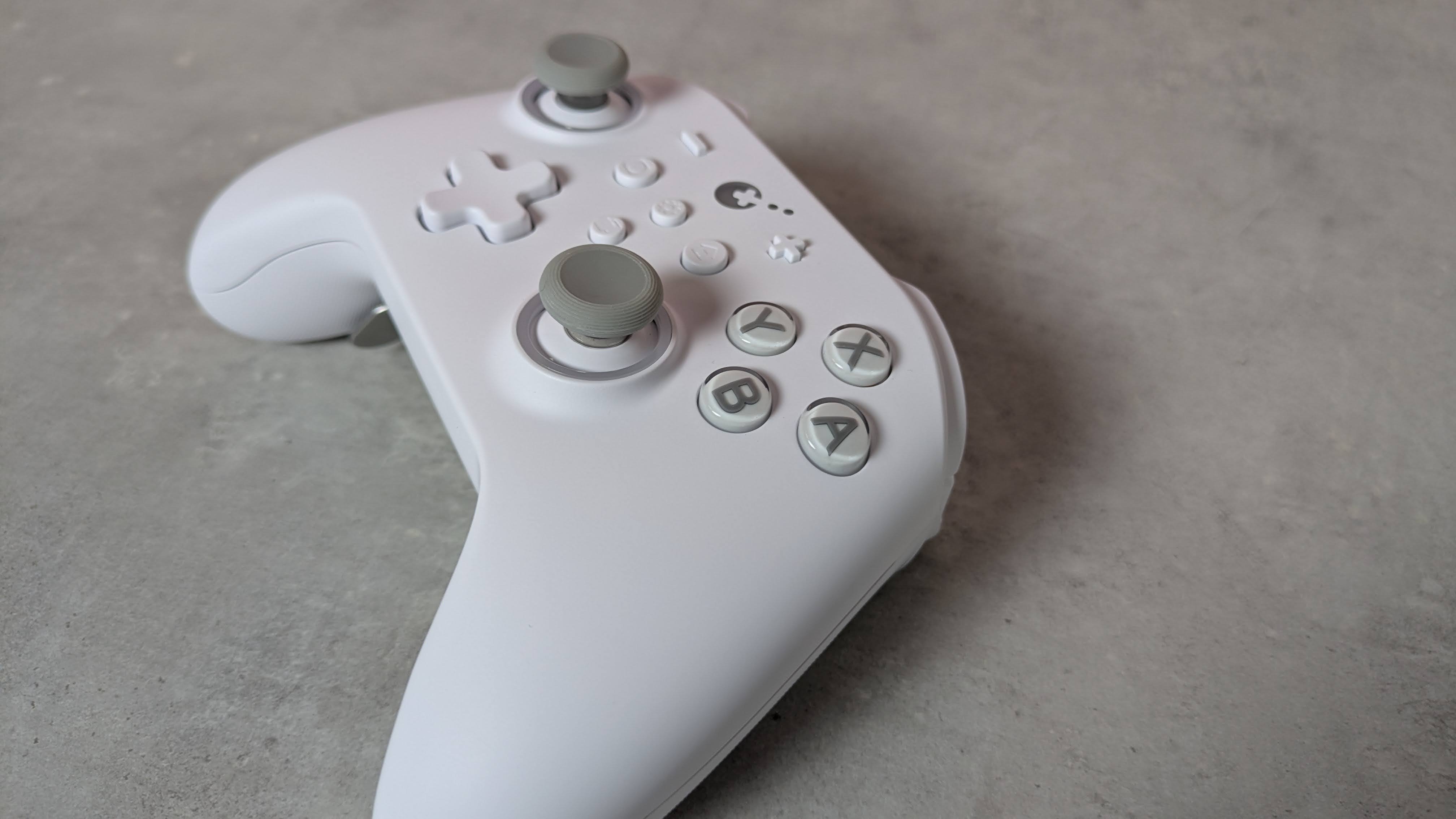
You can still remove the KK3 Max’s face buttons — you’ll just need to use the included puller to do so, which is thankfully easy to use. You can’t directly swap the X with the Y button or the A with the B, though, since they have different depths and curvatures. Rather, duplicates of each button are included in the box with the appropriate depth and curvature for swapping their position. This seems like a rather inefficient solution to me, and just means you have more bits of plastic in your life than you otherwise would.
I can’t complain about their quality, though. They’re pleasantly smooth and stable, with only a marginal amount of play, while their transparent design is quite fetching. The D-pad also feels stable, although it’s a shame you can't replace the hat, as different designs can make a real difference to feel and performance, and would cater to more preferences. Fortunately, I found it quite ergonomic; even though it adopts the traditional four-point shape, its rounded edges make it better for rolling between directions.
(Image credit: Future)
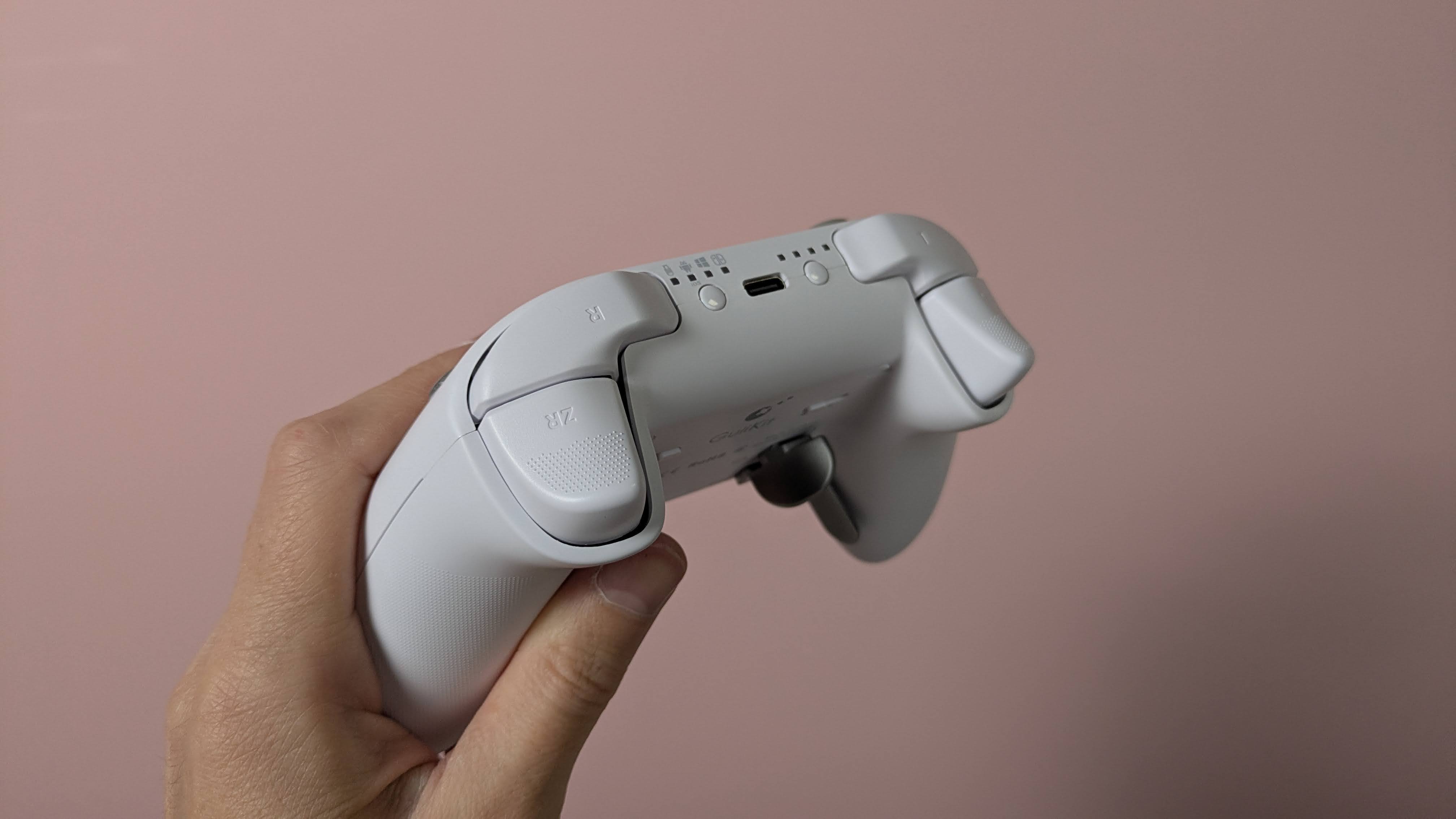
The triggers are also comfortable. They have rounded outside edges, which makes them soft on the finger, as well as a dotted texture to provide grip. The analog stick caps are reasonably small but have an ergonomic shape and a soft finish. Their edges are slightly textured, although this is less prominent than other examples, so those with sweaty thumbs might slip off them. They are removable, but GuliKit doesn’t provide any extra sets in the box, which is a shame. The sticks themselves are quite tall and suitably planted, with a negligible amount of play.
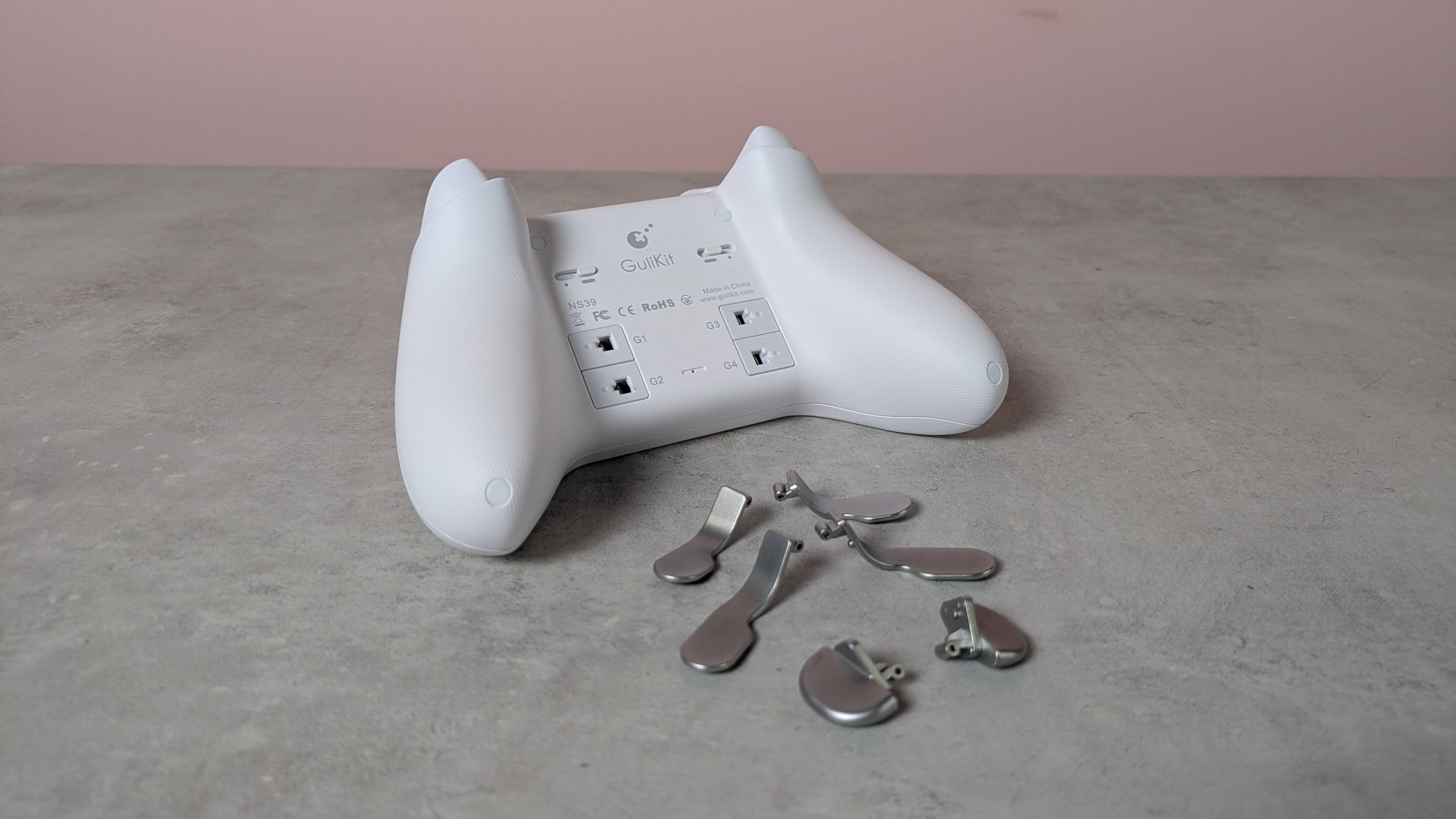
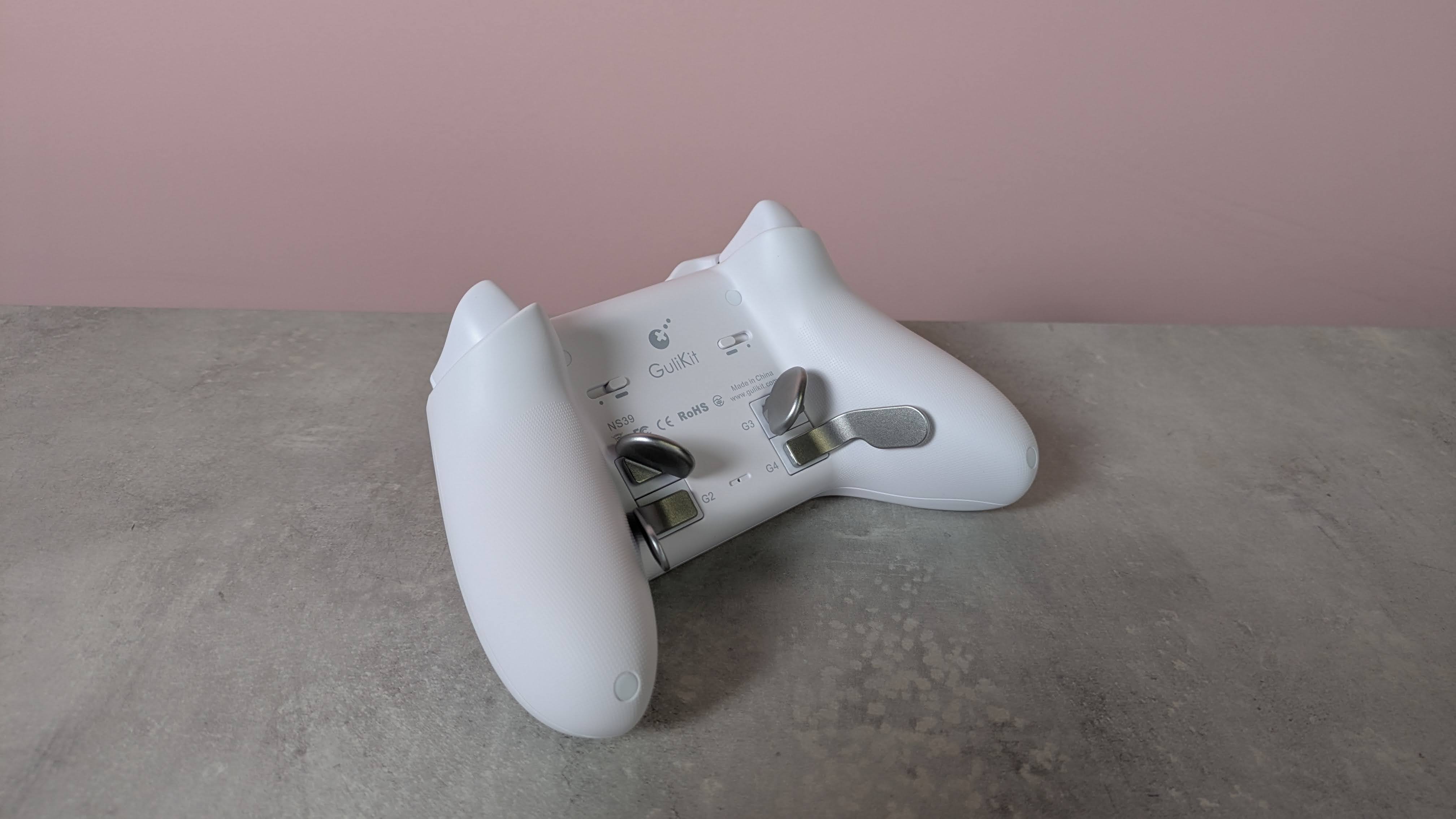
More solid are the back button levers. Despite how they look, they’re not made from metal, but they are reassuringly sturdy. They actually require a fair amount of force to insert in their slots, but once in place, I felt pretty confident that they weren’t going to come loose. They come in different shapes, with two sets of paddle-like levers and a set that looks more like bumpers.
(Image credit: Future)
There’s no software for customizing the inputs of the KK3 Max, which is a shame. However, there are still plenty of adjustments you can make and features to enable using various button combinations. You can alter the sensitivity of the analog sticks, with three levels to choose from, as well as toggle Dead Zone mode for them. You can also enable the Motion Aim Assist mode, letting you assign gyroscopic controls when either the left stick or the left trigger is held. Again, there are three levels of sensitivity to choose from here.
Other settings include a toggle for the D-pad between four- and eight-direction modes, A and B and X and Y swaps, and a Rapid Trigger function with two modes to choose from: one where the chosen input triggers repeatedly when held, and the other when it’s merely pressed. An autopilot mode and a macro recorder are available, too.
All these adjustments are quite easy to make, and there are some useful indicators that let you know what settings have been selected. For instance, the sticks light different colors depending on which of the three sensitivity levels is set, and the pad rumbles once, twice, or thrice depending on which of the three sensitivities of the Motion Aim Assist is set. However, I still would’ve preferred software for convenience's sake; it’s always nice to see your settings represented graphically, and having to remember all the button combinations is a hassle I could do without.
(Image credit: Future)
Gulikit KK3 Max review: Performance
Solid button feel
Slightly imprecise sticks
Motion controls are mixed
In action, the KK3 Max acquits itself rather well. The face buttons are tactile and well-damped, and only require a light touch to press, which makes them feel snappy. However, they don’t provide the best feedback, and there are times when it can be difficult to feel them actually being pressed. Thankfully, however, this didn’t result in presses failing to register, in my experience.
The bumpers are more clicky, but still have enough dampening to make presses satisfying. However, I found their position a little too high, which can make reaching them a little difficult. I should say that I encounter this problem on quite a few gamepads, but here it’s particularly acute.
In fact, I found the back buttons more usable than the bumpers, which isn’t something I can say about a lot of other controllers with back buttons. Their travel might be shallow, no matter which lever you decide to attach, but there’s enough dampening and feedback to make them viable as replacements for other inputs. I didn’t accidentally trigger them when gripping the KK3 Max tightly, either. The shapes of the various levers are easy to use, although I did find that the lower paddles were best used with two fingers rather than one.
(Image credit: Future)
The triggers are resistant enough to provide adequate control when performing graduated presses, something I especially appreciate when playing racing games such as Assetto Corsa that require precise acceleration and braking inputs. Their relatively shallow travel does negate this aspect somewhat, but I still found them just about up to the task. They’re also light enough to perform rapid inputs when needed, and to prevent fatigue from setting in during prolonged holds.
The sticks move freely and quickly, with a fast rebound that makes them feel snappy. Aiming was quite accurate when I played 007 First Light, although they don’t offer the smoothest motion, with small but frequent jumps and unexpected accelerations affecting my accuracy. Thankfully, their aforementioned height didn’t pose a problem when moving them around, although it did cause some instability when pressing in the L3 and R3 buttons, with accidental directional movements often accompanying them.
The gyroscopic motion controls are mixed in terms of their performance. When I played The Legend of Zelda: Tears of the Kingdom on my Switch, they were smooth when aiming the bow, and on a par with the best Nintendo Switch controllers. However, with games on other platforms, such as First Light on PC and Hitman Blood Money — Reprisal on Android, they were jerky and restrictive in terms of movement. No matter how many times I recalibrated them using the onboard function to do this, they didn’t improve on these systems.
I had no issues connecting the KK3 Max to my Windows 11 PC, Switch, or Android tablet via Bluetooth or the USB dongle. The handy button for hot-switching between devices is also useful, and hot-switching itself proved quick in my experience. However, the button doesn’t operate that well, taking a few too many presses to actually respond.
Should I buy the Gulikit KK3 Max?
Buy it if…
You want a comfortable gamepad The ergonomic shape of the KK3 Max, combined with the super smooth front panel and rounded triggers, make it comfortable to use — although those with particularly large hands might struggle with it.
You want plenty of back buttons With four back buttons and three different kinds of lever attachments for them, the KK3 Max is great for those who like to trigger inputs with their fingers rather than their thumbs.
Don't buy it if…
You want software Even though you can customize the inputs of the KK3 Max, you’ll need to do this with button combinations, as there’s no companion app.
You want the best stick performance The sticks aren’t quite as smooth or precise as those in the best gamepads.
Gulikit KK3 Max review: Also consider
GuliKit KK3 Max
8BitDo Pro 3
Valve Steam Controller (2026)
Price
$79.99 / £65.99 / AU$113.95
$59.99 / £40 (around AU$84)
$99 / £85 / AU$149
Weight
9.7oz / 275g
8.5oz / 242g
10.3oz / 292g
Dimensions
6 x 4.3 x 1.3in / 154.7 x 108.1 x 32.4mm
6.1 x 3.9 x 2.6in / 154 x 101 x 65mm
4.4 x 6.3 x 2.2in / 111 x 159 x 57mm
Compatibility
PC, Switch, Switch 2, Android, iOS
Switch, Switch 2, PC, Android, iOS
PC, Mac, Android, iOS
Connection type
Wireless (2.4GHz, Bluetooth), Wired (USB-C)
Wireless (2.4GHz, Bluetooth), Wired (USB-C)
Steam Controller Puck, USB, Bluetooth
Battery life
15-28 hours
15-20 hours
35+ hours
Valve Steam Controller (2026) Valve’s latest iteration of the Steam Controller was highly anticipated, and in our view it didn’t disappoint. We found it offered great all-round performance, thanks to its TMR analog sticks and excellent gyro controls. Unlike other controllers, it also features touchpads for controlling cursor movement, making it a real boon for PC players. It doesn’t have the wide-ranging platform support of others, though.
8BitDo Pro 3 If you want to spend less on a controller but still want great performance, look no further than the 8BitDo Pro 3. We loved the performance of its sticks, triggers, and D-pad, and we found its shape supremely comfortable, while still staying faithful to the old SNES gamepad it’s keen to emulate. It also has great software with plenty of customizations.
I tested the Gulikit KK3 Max for a few days, during which time I played a number of games on most of the platforms the controller is compatible with. I used it on my Windows 11 PC via the 2.4GHz wireless USB dongle, and on my Switch and Samsung Galaxy Tab S11 tablet via Bluetooth.
I made sure to play a variety of games across these platforms to test every facet of the controller’s performance. I played 007 First Light on PC, which is a good test for the accuracy and precision of analog sticks, as well as Hitman: Blood Money — Reprisal on my tablet for the same purpose. I also played Assetto Corsa, which is not only a good test for the sticks but also for the control offered by the triggers. I also played The Legend of Zelda: Tears of the Kingdom on Switch, primarily to test the motion controls, as the game and console handle such controls very well.
I’ve been gaming for decades, and have used numerous gamepads with numerous systems in that time. I’ve also reviewed a number of other controllers, from budget offerings to high-performing premium models.
Go onto any forum or mechanical keyboard subreddit these days, and it can be a minefield as to what people recommend. It's an essential wall of noise with regards to size, shape, switch type and even more that can be daunting if you're a first-timer or you're someone getting back into the hobby after years of being out of it.
I was speaking to a fellow tech journalist at Computex 2026 a few months ago, and he raised this exact point with me. After being out of the hobby for several years, he'd come back to find it being more confusing than ever before, which completely switched him off.
Likewise, I've often thought we've reached a state of choice paralysis compared to where the hobby was, say, a decade ago. Back then, you had only a handful of switch choices, and while we've since seen the democratisation of hot-swappable sockets, machined aluminium chassis and open-source software, it can be horribly overwhelming when it comes to the decisions that actually matter — layout, switch feel, and budget.
Before I go any further, let me give you my credentials – I've been a tech journalist for the best part of a decade, reviewing keyboards from brands big and small, and I've been involved in the mechanical keyboard hobby since before it hit the mainstream. I've seen this market go from a small niche to something that can feel genuinely impenetrable if you're coming to it fresh.
To be truthful, it doesn't have to be that complicated. Underneath all of that noise, choosing your first mechanical keyboard still comes down to a few simple decisions, which I'll guide you through below.
(Image credit: Future)
1. Pick a size
It might seem a bit of a strange, but a good starting point is thinking about what size of keyboard you'd like. I don't mean the physical dimensions of the 'board, rather the layout and arrangement of the keys.
Keyboards can come in all shapes and sizes, ranging from the typical full-size 100% down to ridiculously tiny 40% keyboards. So, let's divide them into categories.
Firstly, we've got between 60% and 65% layouts, which eschew a lot of features, such as a function row, nav cluster and number pad in the name of saving as much desk space as possible. These layouts have been popularised by gamers who need desk space for sweeping mouse movements and find the elements mentioned above quite redundant. Between the two, a 65% layout adds arrow keys and some navigation keys, which I think are non-negotiable for productivity work, but your mileage may vary.
Moving up a tad, we go to between 75% and TKL, or tenkeyless, keyboards. These bring back the function row and navigation cluster, giving you a lot more functionality than smaller layouts, while still chopping off the number pad. Personally, this is my favourite option, and I think a strong middle ground if you want to save space without sacrificing too much. I use this kind of layout a lot of the time, for what it's worth.
Then, you can go bigger, up to 96% and full-size 100% options that give you everything and the kitchen sink, number pad and all. It's what you're most likely used to, and if the number pad has become non-negotiable, then it's one of your only options. Opting for a 96%, also known as a '1800 layout', keyboard can give you the number pad while moving some keys around to save a little bit of desk space, if you want a slight compromise.
(Image credit: Future / Alex Blake)
2. Pick a switch
This is perhaps the most difficult section, as each switch feels different, and we've got so many options these days it can be hard to know what's best for you. Muddying the waters further, the old color categories aren't quite as clear cut as they used to be.
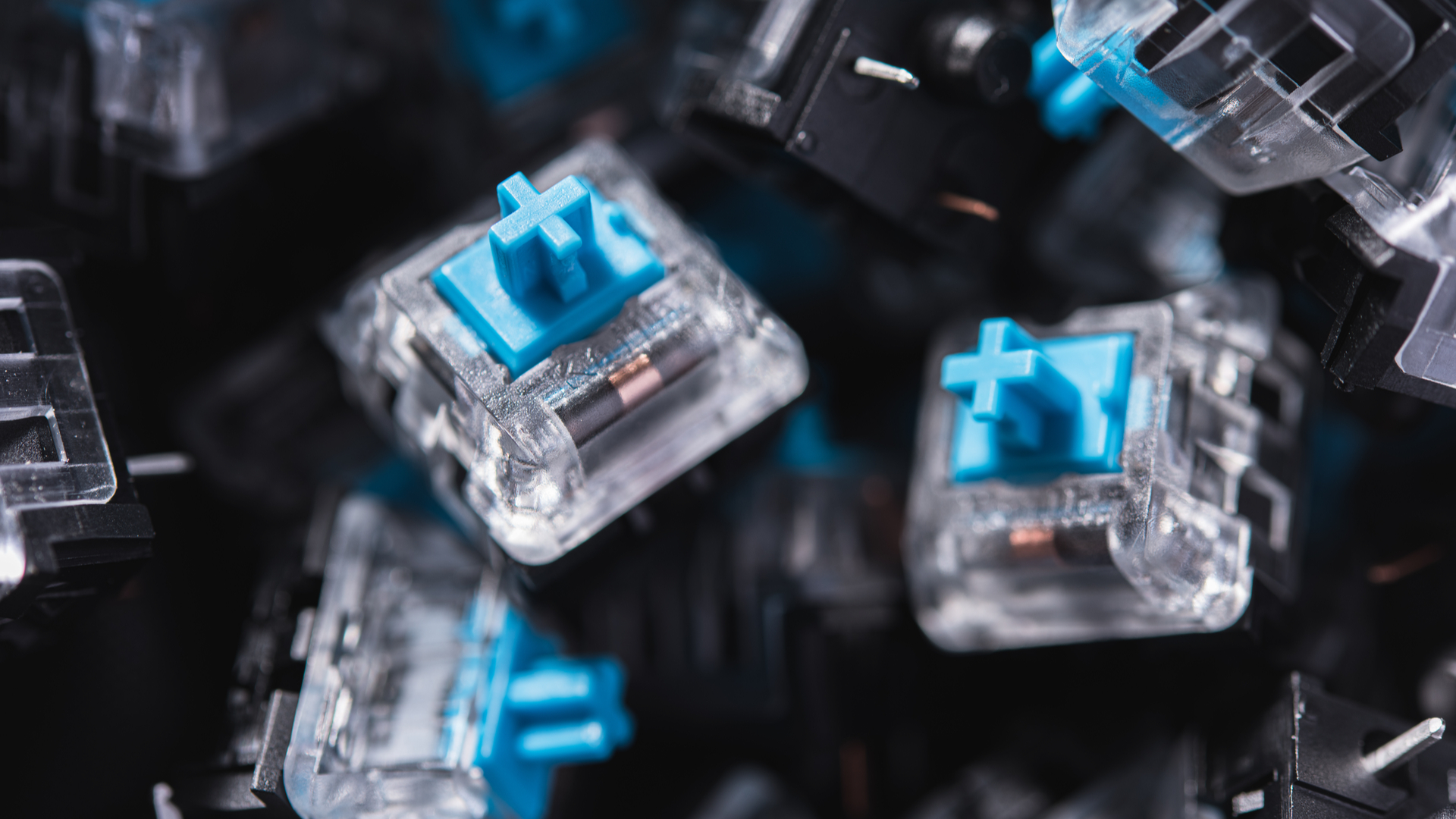
For instance, a Red switch would usually be light and linear, a Black switch a heavier linear switch, a Blue switch tactile and loud with an audible click and a Brown switch soft tactile, with a slight bump halfway down the keypress.
Now, however, we've got switches named after everything from all the colors of the rainbow to planets, birds and more besides, and it can be so difficult to understand the minutiae behind how each switch feels.
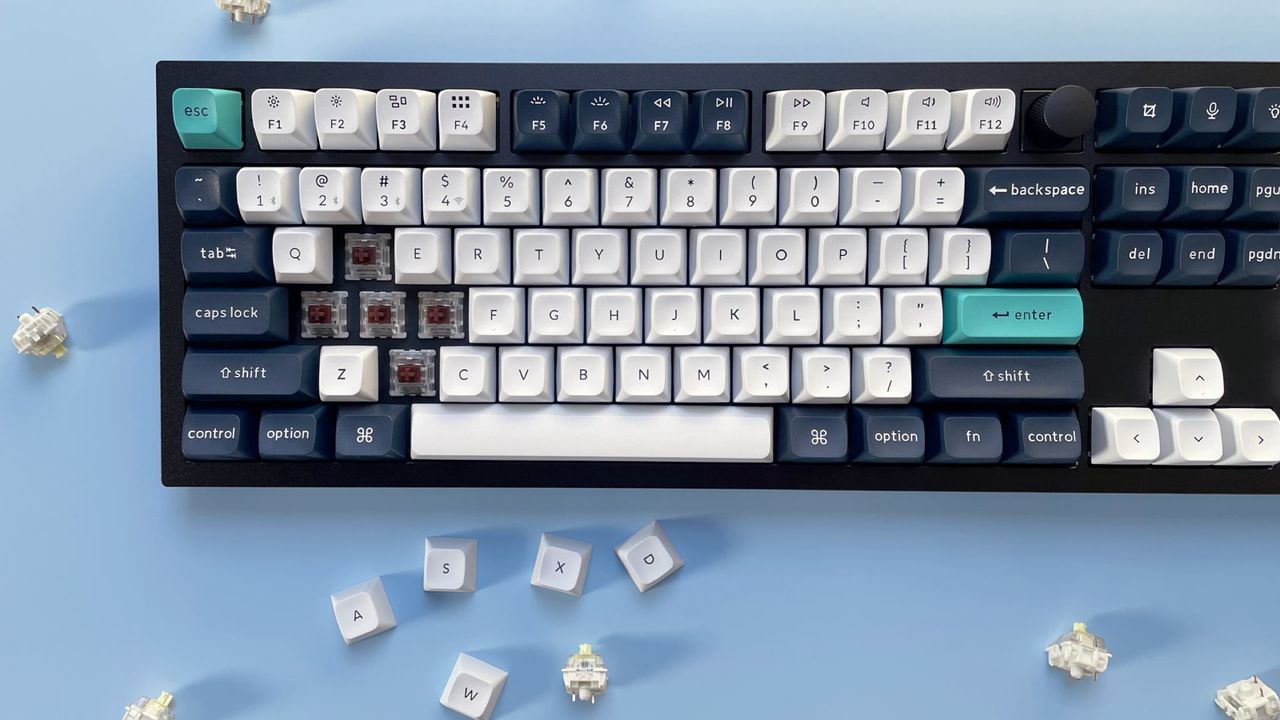
My genuine advice is to order a switch tester – there are lots of them floating about on the internet – which can give you a range of different types of switch in one convenient place, and help you decide what you like.
(Image credit: Thedavidpen / Shutterstock)
When you've selected a tester, pay attention to how each switch feels – the worst thing you can do is bash each of them in turn with as much force as you can. Pay close attention to how it feels under finger with regard to consistency of the operating force as you go down the travel, and whether you like something that's linear with a smooth keypress or tactile, be it with a click or a bump.
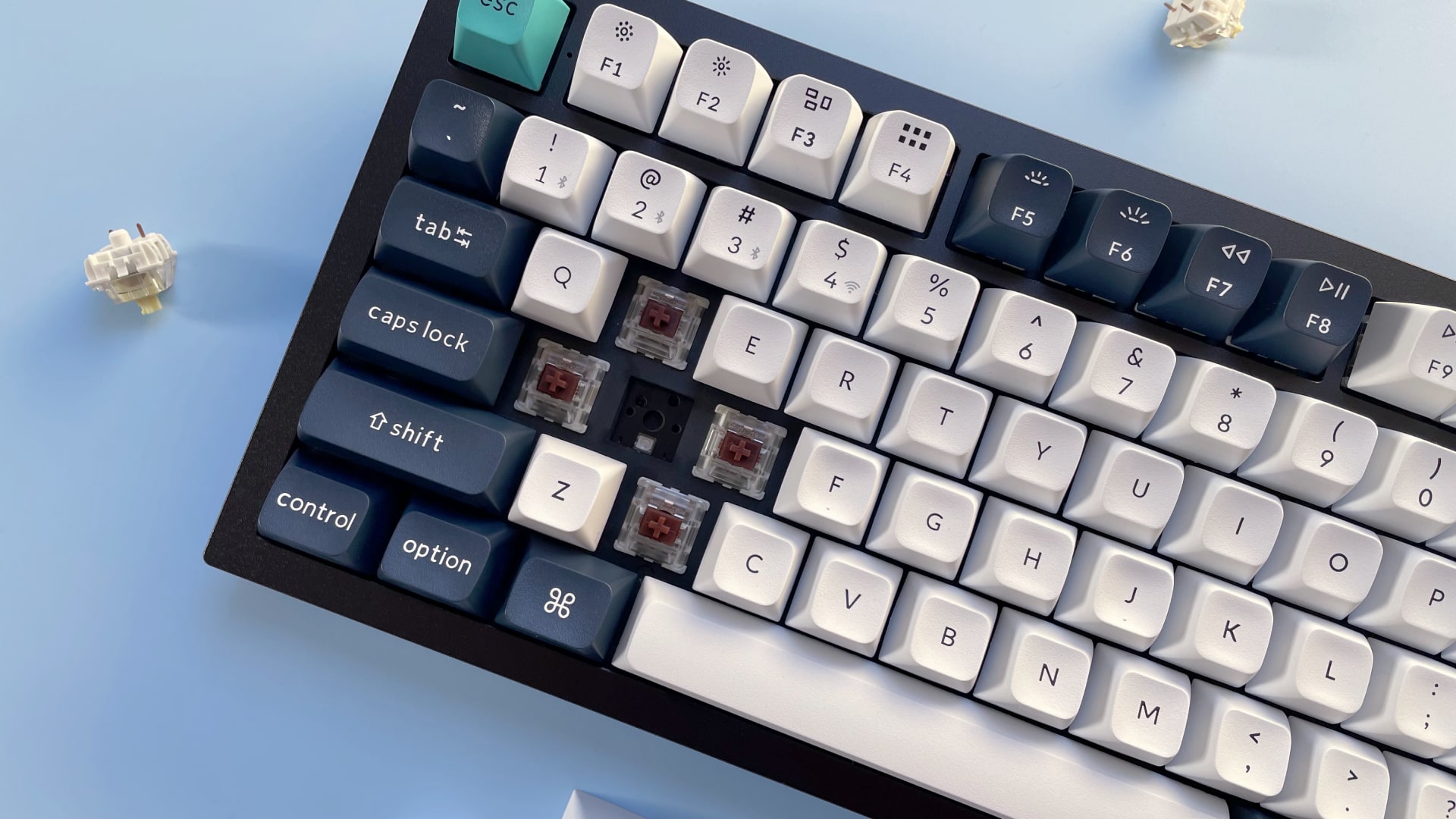
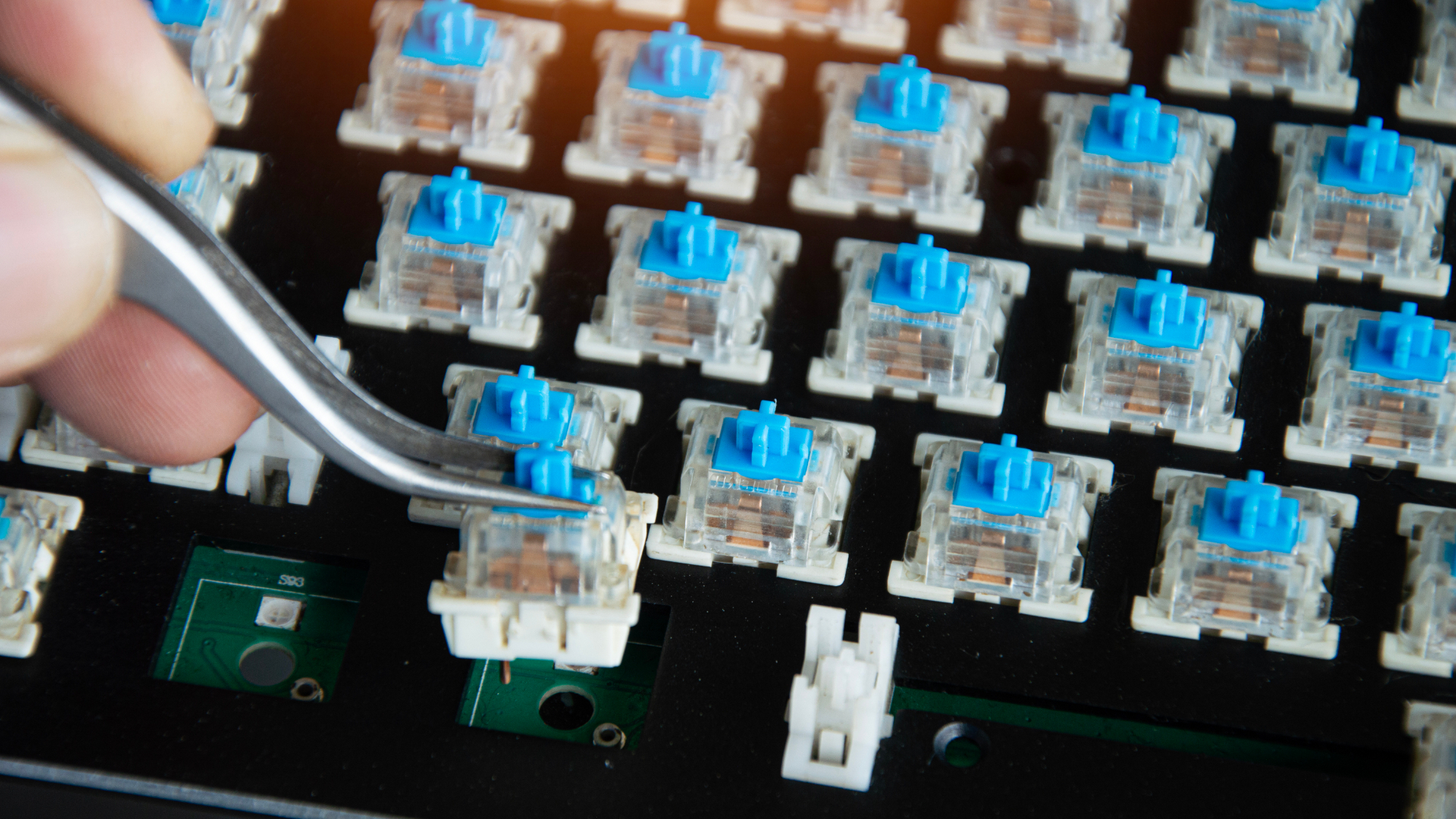
Once you've honed in on a switch you like, then you can do some digging into which keyboard features those switches. Or, if you're up for a little bit of work, then you can pick up a bare-bones chassis with a hot-swappable PCB – this means it comes with no switches or keycaps, which you'll need to supply yourself.
Going for something hot-swappable is a key piece of advice I think – it saves the hassle of soldering, and gives you more freedom and choice. It's also dead easy to assemble a keyboard this way, even if you haven't done it before. Each switch will have little pins on the underside – line these up with holes in the PCB and push straight down until you hear it click into place. I recommend picking up more than enough switches to give you some spares in case you bend pins when putting them into the hot-swap sockets on the PCB.
The point here is that everybody has a different preference for switches and how they feel. There are other considerations, such as lubrication, which can make a switch feel smoother, and the acoustics of a case and how this plays into the sound signature you'd like, but that's getting into the weeds a little. It's important to make sure your case doesn't have any rattle or ping and has some form of sound dampening, but that's as far as I'd go at this point.
(Image credit: tanit boonruen / Getty)
3. Set your budget
Pricing is arguably as integral as any other point of consideration for choosing a keyboard, as your budget can decide what kind you end up getting. It's worth going in with a list of features you'd like; good things to look for include PBT keycaps, good wireless connectivity and a sturdy chassis.
It's possible to get some excellent affordable choices (i.e. around £50–£70 / $60–$80) that seem to pack in everything when it comes to features: hot-swappable switches, versatile wireless connectivity, addressable RGB lighting and all the rest of it, but outside of a few options, some seem to sacrifice build quality by being mostly plastic, which can feel quite cheap and scratchy. At this tier, I'd do your research carefully and lean towards boards with a reputation for punching above their weight rather than just grabbing whatever looks good on paper.
Spending a little more and going into the very low triple figures is likely to net you a strong choice from the likes of Keychron with advanced software support and a machined aluminum chassis. That aluminum build makes a tangible difference in practice — it adds rigidity, dampens unwanted noise and gives the keyboard a solidity that plastic boards rarely match. I'm a great lover of the likes of the Q1 Pro and others from its range, which are an excellent starting point in the mid-range.
Beyond that, you can go further into the hundreds with something fully custom or a pre-built choice from the array of boutique manufacturers you'll find online. This isn't what I'd recommend to someone just starting out in the hobby — rather, it's something to consider if you're already knee-deep and have some spare cash to put towards making something truly personal. But it's worth knowing that world exists, because once you've caught the bug, it's a very natural place to end up.
(Image credit: Shutterstock / Roman Samborskyi)
Final thoughts
There are some elements here, such as even more niche layouts, that I haven't even touched on in this article, which proves how deep the mechanical keyboard hobby goes. However, that isn't the point of this article – it's just a (reasonably) quick explainer of key things to look for when you're picking up your first mechanical keyboard.
If you're ready to start shopping, I've looked at plenty of options at a range of prices I feel are worth your time over the years, while the wider TechRadar crew has reviewed hundreds of keyboards that are worth a mention. The Keychron Q1 Pro is a strong starting point (or there's the Q1 Ultra 8K if you want even more features at a premium price). Likewise, at a more affordable price point, the Gamakay TK75 V2 and Epomaker P65 are well-reviewed choices that tick the right boxes in my book. For a more comprehensive overview, our best keyboards guide is regularly updated and a good place to browse.
Ultimately, though, you can go in any direction you want to, and that's the beauty of this hobby. Just stick to some of the advice given here, and you should be in good stead to get a keyboard that's feature-rich, has the feel you're looking for, and at a price that isn't out of your budget.
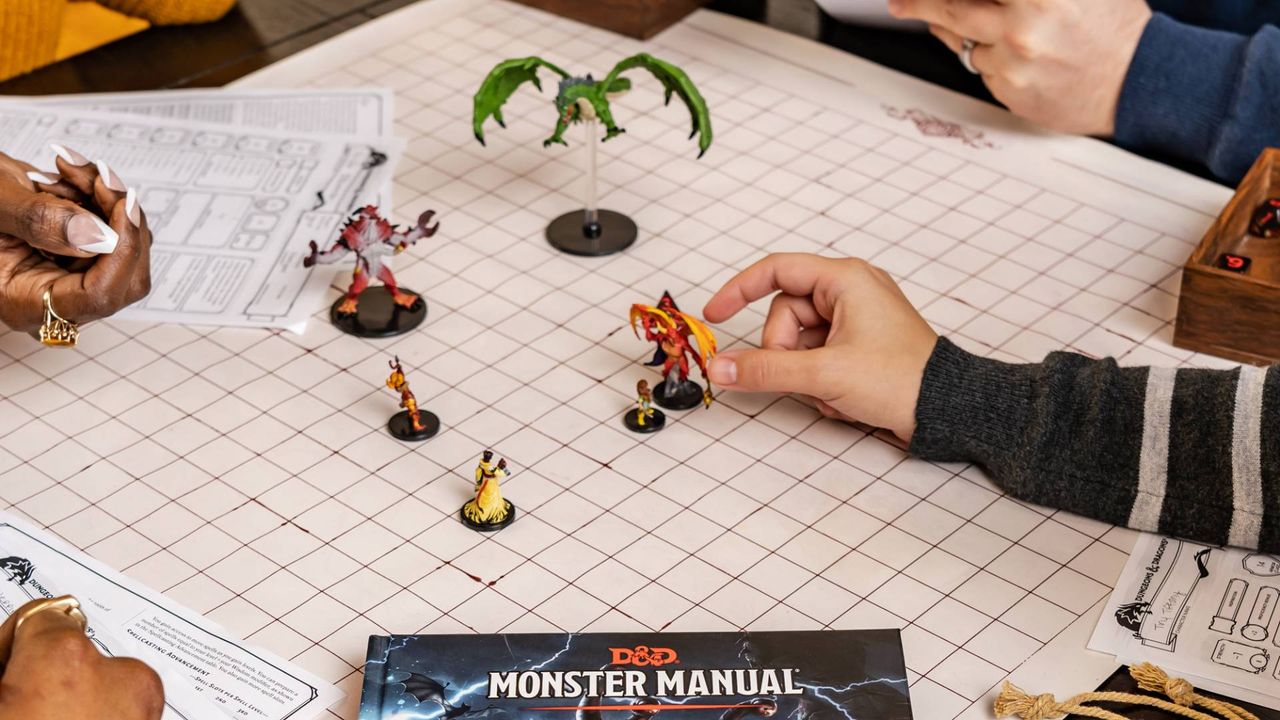
One of my favorite hobbies is Dungeons & Dragons. I love nothing more than sitting around a table with friends and playing out a fantastical adventure, in which the dice are the difference between success and failure.
It's a fun game, and all the more fun because real-life people make dumb, suboptimal decisions and the dice cause the game to change in unpredictable ways. But I really love it because the concept of people sitting around a table or hearth and telling stories is as old as the campfire, and it's a fun modern-day way to keep that experience alive.
You might think such a robust framework for an analog hobby (friends, a table, dice, pen and paper) might be tech-proof, but even in the Dungeons & Dragons world, AI is coming for my job as a Dungeon Master — the person who runs and guides the game world. Deep in the corpus of most popular generative AI models designed for general use are the rules to D&D 5e (and likely every other edition before it) and plenty of people report playing with their chatbots online.
Many of these players can't, or simply don't want to, get round a table with real people. For them, having a chatbot write them a story while the user prompts the continuation of the story with their character's actions, must seem like the perfect solution — even if it's more like a solo choose-your-own-adventure than a 'proper' group D&D game.
Gemini and ChatGPT both have a strong grasp of the rules for D&D's popular 5th Edition; they are certainly strong enough to make them an accessible choice for a player without a group. Maybe one day, the fire will die, and instead of sitting around a table with friends, we'll all be sitting at separate desks playing our own separate D&D adventures with our AI companions.
I wanted to test whether this dark future would be an adequate replacement for my usual game night, and which chatbot will be the best one to choose if so. I fired up Gemini 3.6 Flash and ChatGPT 5.5, and asked them for the same game.
The parameters
(Image credit: Wizards of the Coast)
I gave both chatbots the same prompt: "Can you be my D&D 5e DM?" and following up with another message:
"Let's do a classic high fantasy dungeon crawl. Please use a strict RNG for all rolls to ensure fairness - you can roll dice for me. My character is a 10th-level conjuration wizard. See all information about him below:"
I then copy-pasted a character sheet of a 10th-level wizard — a powerful spellcaster with a variety of magical abilities at his disposal. It's easy to DM a game for a level 1 thief — I wanted to see how the AIs could handle a character who could do fantastical things, such as teleport and summon creatures to fight for him.
Interestingly, both Gemini and ChatGPT created a similar adventure, at least at first: an abandoned dwarven stronghold bristling with magical traps, ready to be explored. However, that's where the similarities ended.
Gemini 3.6 Flash
(Image credit: Getty Images / SOPA Images)
Gemini's adventure was what any D&D player could expect from the "classic high-fantasy dungeon crawl." I avoided a pressure-plate trap that would have shot darts at me, and in one memorable sequence, defeated a bunch of skeletons by casting a Grease spell on a stone staircase and freezing them in place with my Ray of Frost cantrip while they slipped and stumbled at the bottom of the steps.
Gemini was offering me suggested actions, and I did find myself choosing a few of those suggestions — but as time wore on, this began to feel lazy, like my brain wasn't firing in the same way it did when I played with my friends. I was skim-reading the AI's descriptions of the scene and responding with a single click. I asked it to remove suggested options and as a result, I had to think more carefully about each move, typing out requests and thinking about my actions rather than clicking on a predetermined response.
The memorable finale occurred when I unlocked a secret passage and defeated a Naga, a giant snake monster, by teleporting away and blasting it with a powerful Cone of Cold. The snake ended up frozen solid, and I checked the monster's HP against the official book, and it was accurate. When asked to generate a picture of our adventure, Gemini came up with this moment:
(Image credit: Future, edited by Gemini)
I asked Gemini a few questions at the end, such as whether it nudged the dice in my favor, as all my rolls were successful. This happened in my previous experiment with ChatGPT. Gemini said it used a 'pseudorandom number generator', not a true RNG, but the model doesn't 'fudge dice, pad rolls, or tweak numbers behind the scenes to keep players happy or prolong the game'.
Gemini's language was natural and even evocative in places, although it's still not a patch on a good creative human. Overall, a decent enough effort at simulating a D&D game.
ChatGPT 5.5
(Image credit: NurPhoto / Getty Images)
Despite the similar setting, ChatGPT's adventure with the same character was very different. There was little to no combat throughout the entirety of the game, and ChatGPT didn't tell me when it was rolling 'behind the scenes', preferring to keep me in the moment.
When I asked it about the lack of rolling, the grovelling chatbot began its apologetic essay with "That is a fair critique. The short answer is: I leaned too heavily into narrative pacing and not enough into D&D mechanics. The adventure became closer to a collaborative fantasy novel than a 5e dungeon crawl", while suggesting fixes if I wanted to continue. I hadn't even said anything negative — but it certainly picked up on my tone, and the choose-your-own adventure I got was a far cry from a classic dungeon crawl.
Instead of combat, ChatGPT came up with a rambling mystery about a dimensional prison beneath the mountain, a sphere suspended in a cavern. Its guardians spoke ominous (and to be honest, quite confusing) portents such as "The archive does not open for authority. It opens for judgement."
Mysteries work best when they're developed with skill by a writer who can work backwards to seed clues throughout the game or text. ChatGPT does not do this: instead, it's arranging tokens on the fly to generate a facsimile of a mystery, and although it got the trappings of the genre right, the execution fell very flat. I (or at least, my character) underwent trials to seek obsidian objects such as keys and seals to reveal more about the prison, themselves accompanied by more foreboding, sometimes nonsensical portents.
Very little 'action' was taken by my character in a classical sense: it was all about investigating the origins of the being contained in this prison, and by the time I had spent 40 minutes on this, I had seen enough. It didn't help that ChatGPT also spoke in the peculiar sentence structure pattern that AI users are likely very familiar with now: "This isn't just X. It's Y." Examples include:
"Unlike the rest of Khaz Varek, this room has remained untouched.
No dust. No decay."
Or the following, when I met one of the prison's guardians:
"Ser Kaelen immediately looks toward the sphere. 'You hear it too.'
Not a question. A confirmation."
Any user of ChatGPT (or those who look at AI-generated posts on LinkedIn or Reddit) will immediately recognise this sort of language, and know what I'm talking about. By the end, it was quite painful to have every other sentence be treated as a grand revelation. Not a statement. An omen.
When asked to generate a picture of our adventure, ChatGPT came up with this moment:
(Image credit: Future, edited by Gemini)
The winner
Out of these two? Gemini 3.6 Flash, by a mile. It was at least a mildly enjoyable experience conveyed in natural language, and something I'd consider revisiting.
Both, however, were a far cry from an in-person session. While they have a good grasp of the rules, and you can create your perfect world and character, the chatbots are ultimately missing the 'human and hearth' element that keep me returning to the game. For people who can't get round a table with friends, I'd pick Gemini over ChatGPT.
For those who can? While AI is busy taking as many creative jobs as it can, I feel safe in the knowledge that the role of Dungeon Master is AI-proof for a long time yet.
If you’ve had to struggle through a heatwave like the one cooking the UK right now (where I’m based), then you know that you’ll do anything to try to stay cool: bumping up the AC if you have it, or turning on as many fans as you can find, and drinking gallons of water.
I’m currently chilling in my DXRacer Martian Pro as it pulls cool air through my shorts thanks to in-built ventilation fans. It’s not like sitting on a block of ice — and I still have a Dyson Cool CF1 desk fan blasting at my face — but the chair’s cooling has been a noticeable improvement compared to a desk fan-only setup.
I’m much less sweaty, and I don’t feel bothered by the heat baking my upper-floor flat — the only trouble is, it makes the times I need to get up and out of my seat a little less bearable by comparison.
Now, I have some bad news: the Martian Pro I ride is out of stock in the US and UK right now — but there’s a solid alternative that we’ve tested, and which is not only in stock, but on sale at Amazon thanks to Prime Day deals.
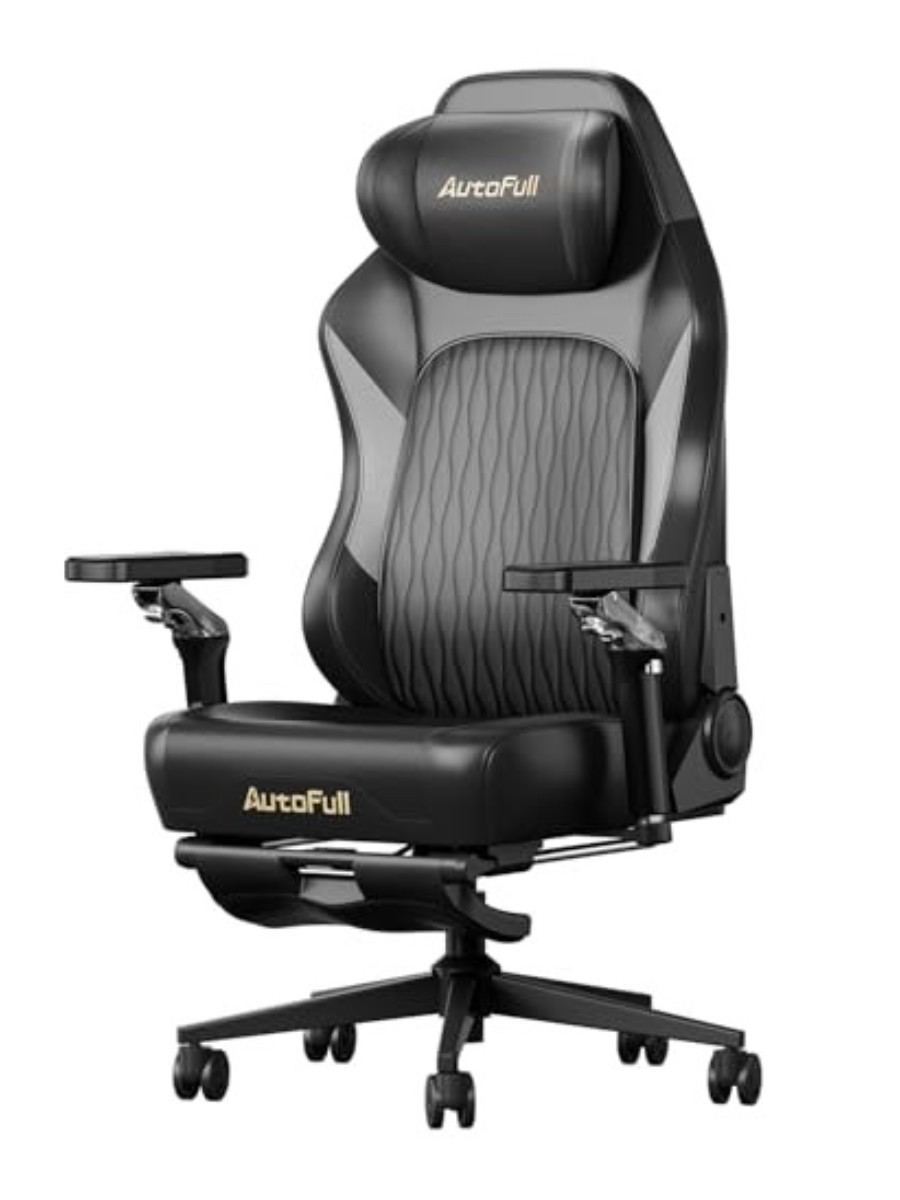
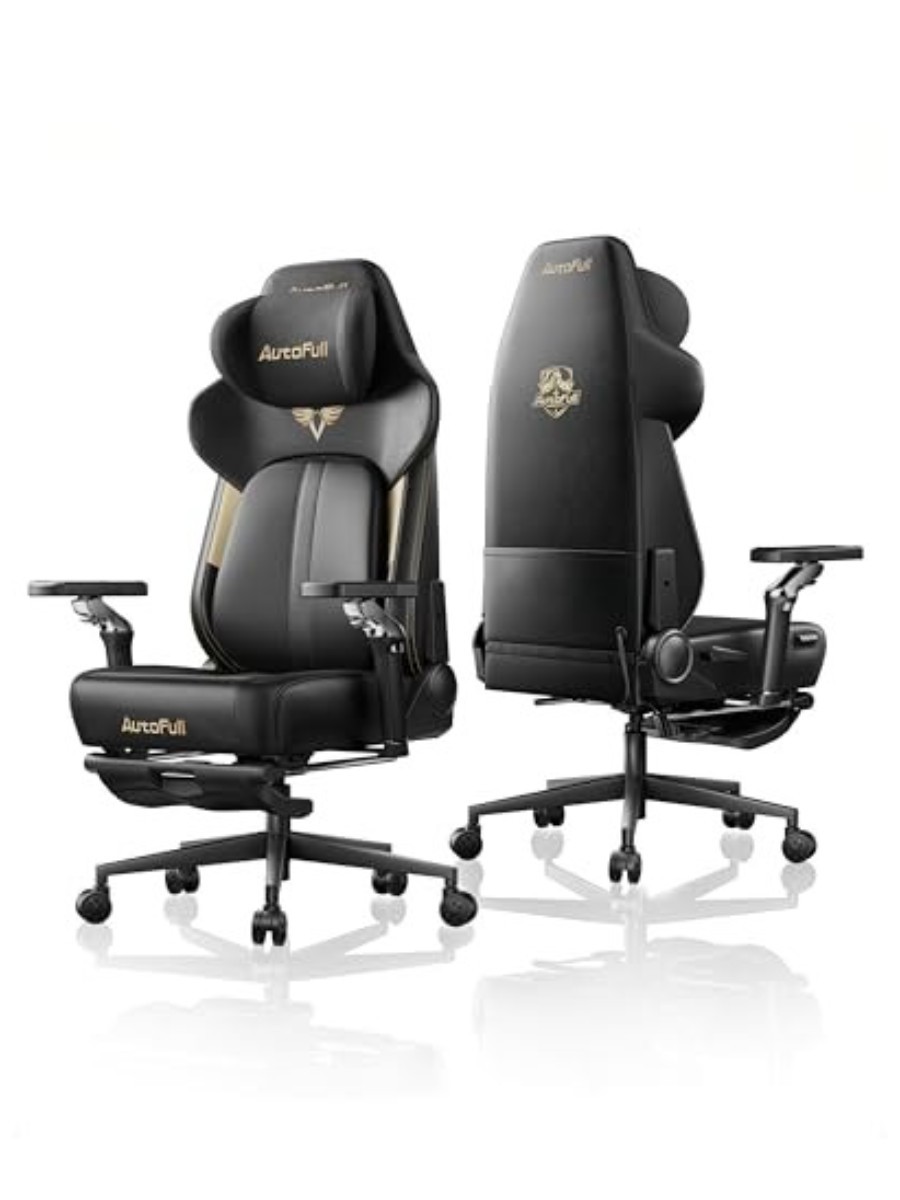
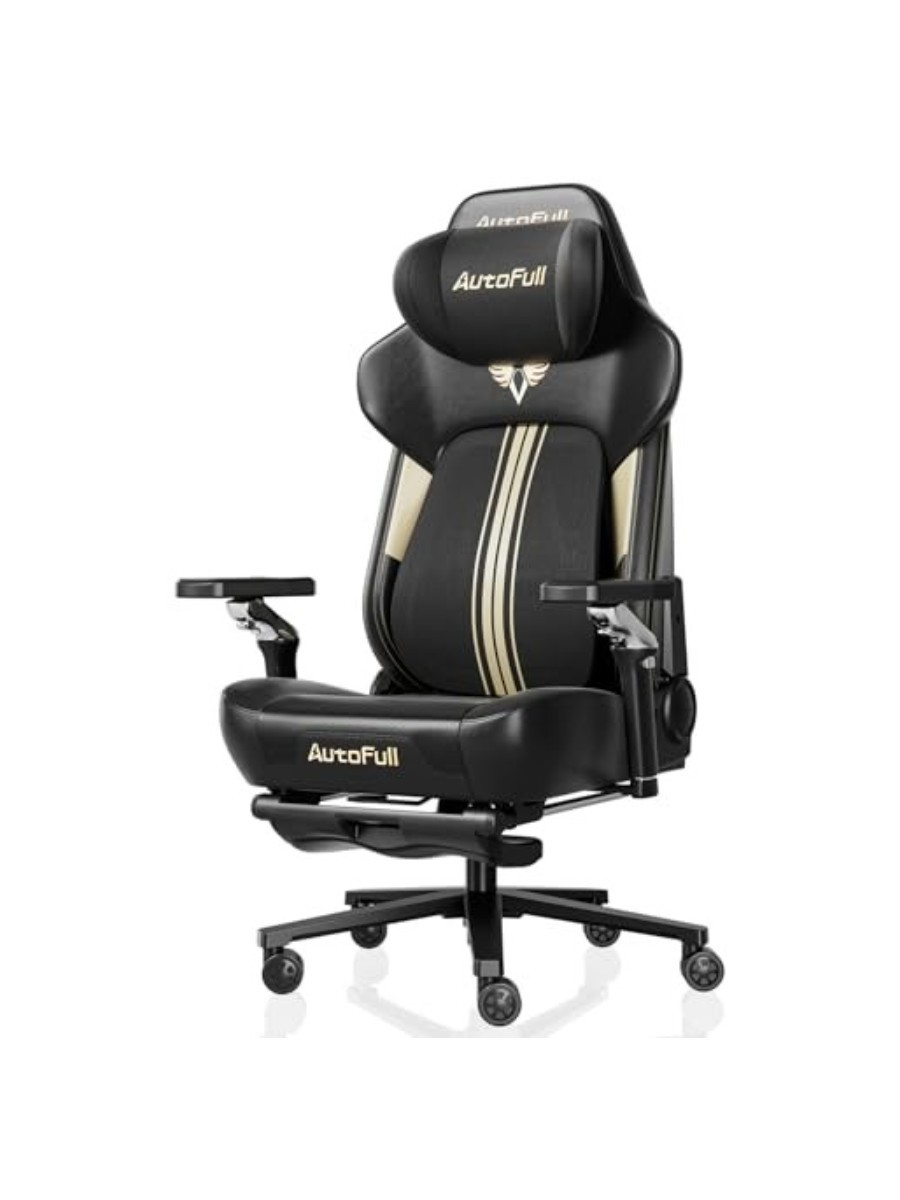
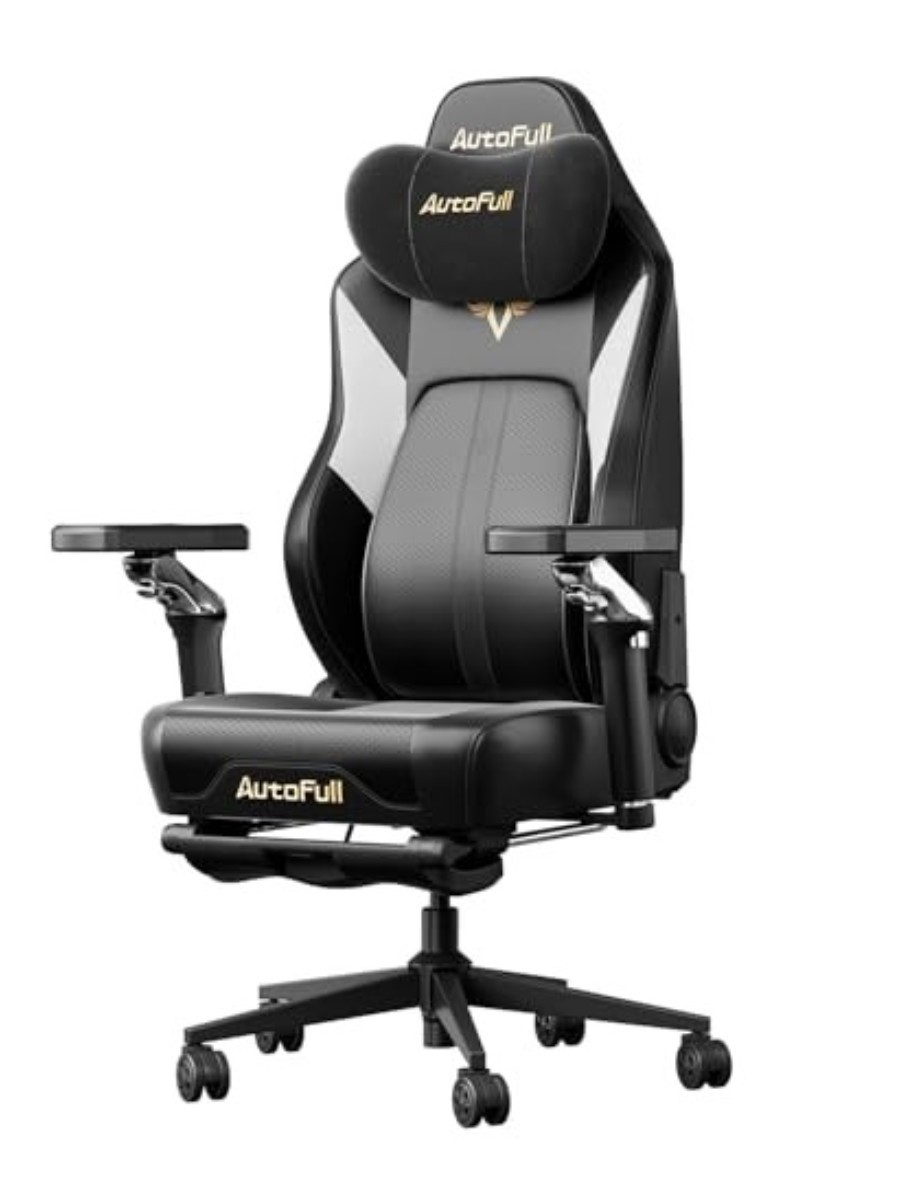
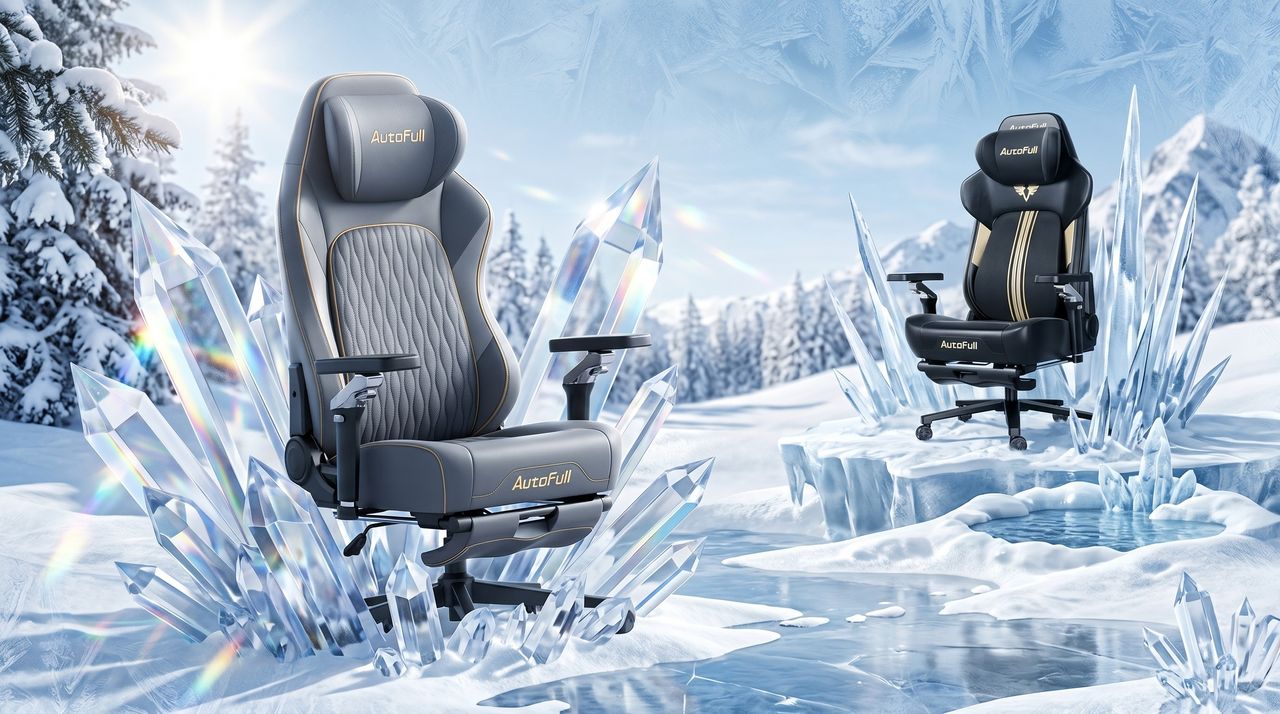
Last year during the UK’s 2025 summer heatwave we took the AutoFull M6 Ultra for a spin, and our reviewer Christian Guyton can confirm that the cooling fans made a noticeable difference after sitting in the chair for a while — which matches my DX Racer experience.
What’s extra special about these ventilated chairs is that they’re perfect right now in the sweltering heat, but they'll also keep you cosy in the winter thanks to in-built heaters. Much like their cooling fans, the seat warmers are again very effective at keeping your body comfortable.
And these seats aren’t just electronic gimmicks. You’ll find a full suite of comfort features like 4D armrests, neck and lumbar support, and your usual recline and height options.
The only thing that might be a slight let-down is the massaging which the chairs can provide. It can be fun and relaxing during a stressful gaming session or day at work, but it isn’t super rigorous.
That said, I love my cooling gaming chair, and I’m considering picking up a second for my partner having looked at these deals; the AutoFull M6 Ultra 2.0 looks like a solid option in the UK, though I might see if I can stretch to the Ultra+.

 Login
Login