De todos os possíveis testes de resistência em que o iPhone 17 Pro já se saiu bem, esse foi muito possivelmente um dos mais inusitados: o aparelho foi recuperado sem danos aparentes após cair de um pequeno avião a aproximadamente 1,1km de altitude (cerca de 3,6 mil pés).
O feito foi da artista canadense Heather Cline, que reside na província de Saskatchewan e costuma fazer voos em um avião monomotor junto com seu marido para capturar fotos e vídeos que servem de referência para suas pinturas aéreas.
Durante um desses voos, 30 minutos após realizar a decolagem, uma corrente de ar derrubou o seu iPhone do suporte, enquanto a pequena aeronave voava a mais de 100km/h.
À CBC, Cline declarou que havia adquirido o aparelho no mês anterior:
Foi um grande investimento. […] Eu literalmente não acreditei de início, que eu tinha feito aquilo, e então ele só me olhou e disse: “Eu te disse para não deixar o telefone cair.” […] Eu estava simplesmente arrasada. Pensava, “Será que existe seguro para quem deixa o seu celular cair de um avião?”, tipo, o que você escreveria no pedido de indenização? “Eu sou uma idiota?”
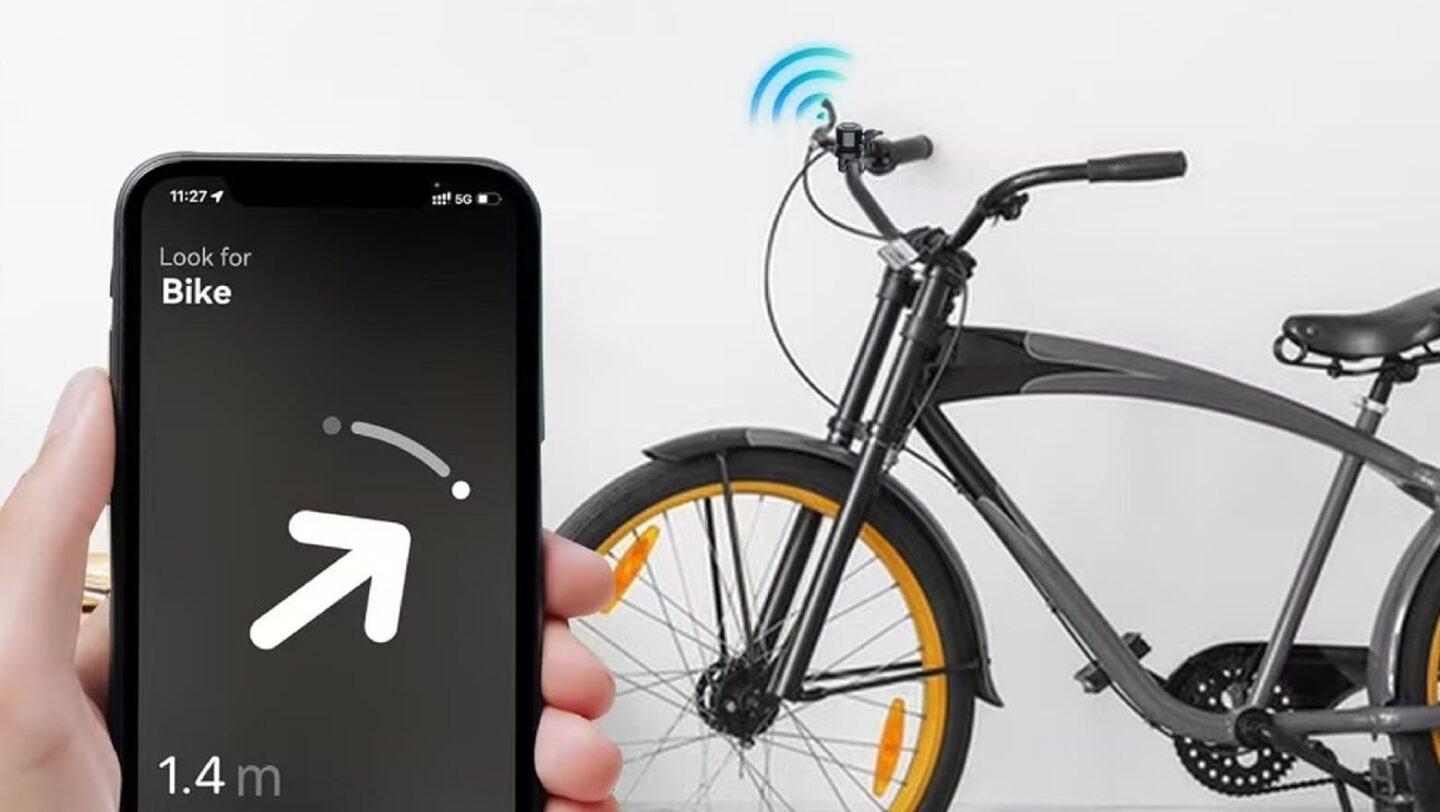
Embora o casal considerasse o aparelho perdido, eles perceberam que ele ainda era localizável pelo app Buscar (Find My), e então decidiram procurá-lo, encontrando-o em meio a uma plantação de canola com a tela virada para cima, sem danos aparentes!
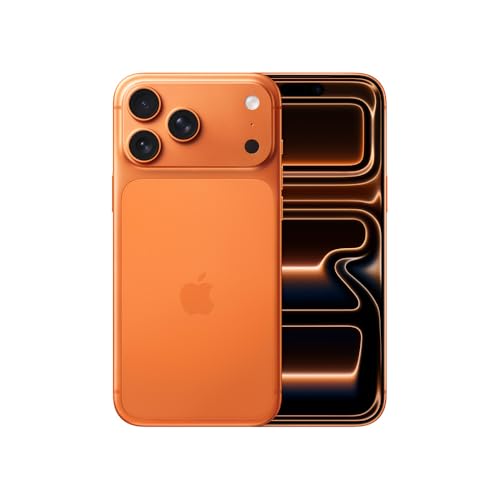
iPhone 17 Pro Max
Cores: prateado, laranja-cósmico ou azul-intenso Armazenamento: 256GB, 512GB, 1TB ou 2TB
NOTA DE TRANSPARÊNCIA: O MacMagazine recebe uma pequena comissão sobre vendas concluídas por meio de links deste post, mas você, como consumidor, não paga nada mais pelos produtos/serviços usando os nossos links de afiliado.
Several years ago, Apple began hiding disk partitions and volumes on the startup drive. The first was a secret volume with a tiny operating system on it that would let you boot from it, after which you could restore from a Time Machine backup, run First Aid in Disk Utility, or reinstall Mac OS X or macOS. Over the years, Apple has multiplied those hidden locations and added more sophistication to what they offer.
These boot volumes are:
recoveryOS: The current name and form of the special volume described above, which boots into the Recovery Assistant “app.” You can run Disk Utility (and First Aid), reinstall macOS, launch Safari to access Apple Support pages, modify startup security settings (rarely required these days), and access Terminal. With Terminal, you can reset your macOS password. If your Mac can’t start up properly, it will try to launch the Recovery process within recoveryOS, which performs automatic repairs that Apple doesn’t document. If successful, you can then restart into macOS.
recoveryOS has many faces, including these four, here showing Activate Mac after it was unlock following a Find My lock.
Fallback recoveryOS: If recoveryOS is damaged—and that can happen—you can press the power button twice, quickly, and then keep holding it the second time. This fallback recovery volume can’t change startup security, but it can help you diagnose what’s going on. This is the duct-tape belt that helps if your pants come unbuttoned (macOS won’t boot) and your suspenders break (regular recoveryOS fails).
Repair Assistant: From a powered-down state, press the power button until you hear the startup chime, then press and hold Command-D. (On an Intel Mac, hold the D key at startup.) The Diagnostics app can run hardware tests that might help narrow down a problem before you bring in Apple Support, or they may ask you to boot into that mode and share the results of the tests they have you run. Repair Assistant can fail, too, if its volume is damaged. You may then have to perform a special “revive or restore” operation, which requires another Mac. Or you may need a full reinstall using a bootable macOS installer.
macOS: macOS is a sort of hidden boot volume for the last several releases. You don’t boot from the system; instead, a read-only snapshot of the system is mounted, and then booted from. This is part of Apple making system resources immutable through cryptography and at startup.
Besides using recoveryOS for the above tasks, you might also need to use it to unlock your Mac after locking it in Find My and to reset your password using a FileVault Recovery Key. Here’s how.
Unlock your Mac
When you lock devices in Find My, they appear with a question mark overlaying their icon.
While it’s not a common scenario, it could happen to you: you accidentally leave your Mac somewhere, or it’s stolen. Thinking quickly, you launch Find My on another of your devices or go to iCloud.com/find and log in. You then tap or click a few buttons to lock your Mac. If the Mac is connected to the Internet, it restarts and locks immediately. (Despite promising to display the message you entered when you locked it, macOS does not do so.) If it’s not connected, it restarts the next time it has Internet access.
The account used to lock the Mac is the only one that can unlock it, and you must be in front of the Mac to perform that operation. Apple limits each Mac to having Find My enabled from a single account. Here are the steps:
When you see the macOS Recovery title, click the account profile below it. Enter the account’s password and click Continue.
If you entered it correctly, “Authentication succeeded” appears. Click Restart.
The Mac restarts and shows Activate Mac after it boots up. This time, all the active macOS accounts are shown. Click one, and then enter its password. Click Next.
You now can choose to either use your Apple Account or a macOS password to continue. If you opt for the Apple Account, enter the full address or phone number as shown. Then enter the account’s password. Otherwise, you can click to enter the Mac password, which Apple says is the last one used to unlock the Mac in a regular session before it was locked. If you’re the only user on the Mac, that’s easy to figure out. (In testing with Golden Gate public beta 2, I wasn’t able to get the Mac password option to work, and I’ve had it fail in Tahoe, too.) Sometimes neither works. Choose Restart from the Apple menu in that case and try again.
On a successful entry, the Mac restarts yet again after a one-minute countdown. Enter your password when prompted to start up into a regular session.
Apple Pay will have been disabled, and your iCloud sync will probably be paused as well. When prompted after the macOS session starts, enter your Apple Account password (or passwords if you have multiple accounts linked to your macOS account).
If you try this too often, as I did while testing, or for other security reasons only Apple knows, your Apple Account may be locked. At step 6, I was told I had to reset my Apple Account password from one of my other devices; all four linked to the account were shown. I made that change. In the Golden Gate second public beta, clicking Unlock Account did nothing before or after changing. I was able to click Cancel, complete step 4 again with the new Apple Account password, and proceed to step 5 and restart.1
If your Apple Account becomes locked, you have to reset your Apple Account password on a linked device.
Years ago, when you locked your Mac, you had to set a passcode to unlock it. While that isn’t supported on M-series Macs or Intel Macs with the T2 Security Chip, the email Apple sends still shows an image of a screen where you would enter that code and says you can only unlock your Mac with that non-existent passcode.
Apple’s email after you lock your Mac shows an outdated image and provides outdated information about the unlock procedure.
Unlock via FileVault
If you try to log into your Mac and can’t recall the password or it isn’t accepted, you can use your FileVault Recovery Key to unlock the volume and reset your password. The Recovery Key is a long code that’s a last-ditch way to unlock your startup volume. It’s also a back-door way to help with a post-Find My lock operation if your password won’t work or you’ve forgotten it.
Here’s how to use your Recovery Key to unlock FileVault:
At the login prompt, click the ? icon to the right of Enter Password to bring up the Reset Password link. (This also appears if you enter your password incorrectly a few times.) Click Reset Password.
Your Mac restarts into Recovery Assistant using its Reset Password pathway. Enter your Recovery Key (see articles above). Click Next.
If you entered your Recovery Key correctly, you are prompted to enter a new password for the account you rebooted from, and confirm it. Do so.
When you restart, you can now enter the new password.
Enter your FileVault Recovery Key to then be able to reset your macOS password.
If you forgot or can’t enter a correct password for unlocking your Mac in step 1 in the previous section, you can click “Forgot all passwords?” This will launch the FileVault-based password reset, let you reset the password for that account, then proceed with unlocking.
Revisions of those two titles for the 27 series of operating systems are coming out soon. You can purchase either today and receive a free update to the new version when it’s out.
[Got a question for the column? You can email glenn@sixcolors.com or use/glennin our subscriber-only Discord community.]
In the screenshot, you’ll notice the title is Update Phone Number, even though I have no opportunity to do so. This may be fixed by Apple later, though I doubt it. ↩
I dispense what might be called valuable insight to my friends, as well as in this public forum. My friends know the danger: they might become the topic of a column, which is true for my buddy Jeff, who left a bag containing his passport behind at a hotel. Fortunately, he had an AirTag in his bag. That was, however, just the beginning of the journey. (Jeff gave me permission to share his story.)1
To avoid suspense, I’ll tell you that Jeff doesn’t have his bag back, but will soon.
Grate news
Jeff was out of town on business for a few days—he’s one of those nearly extinct creatures called a “full-time technology reporter“—and was carrying his passport to Texas not because it’s another country (it hasn’t seceded yet), but because he lacks a Real ID-upgraded driver’s license. He had a small bag with a few items, including the passport and an AirTag, that he didn’t need to carry, so he used the hotel safe. There have been many articles written about how unsafe hotel safes are, but it feels as if you’re in a decent hotel, it’s still another bar for someone to get through to steal your stuff.
Leaving in a bit of a rush, Jeff didn’t retrieve the bag from the safe. When he realized it wasn’t with him, thousands of miles later, he was peeved. Shouldn’t the “left behind” feature in Find My have alerted him? Find My showed the bag’s location, however. For some reason, it appeared as if it were in the hotel parking lot. I catastrophized with him, assuming it was stolen. He called the hotel, which said it wasn’t in lost and found.
Jeff’s bag is in the parking lot, according to this map.
A staff member went out, looked in the parking lot, and said the rough location was a grate—perhaps the bag had been stolen and someone had found the AirTag and dropped it through the slats? Which would imply that a hotel employee or a thief had managed to get into Jeff’s room after he left, open the safe, leave the hotel, and rummage through the bag in the parking lot before absconding.
That wasn’t the case (or valise). The hotel called back the next day. The previous staffer didn’t know, for some reason, that valuable left-behind items were tagged and placed in a safe in the basement, presumably below or near the parking lot. His bag, containing his passport and other items, would be sent back to him.
Jeff’s experience reveals several aspects of the Find My tracking system that you can take advantage of in advance or use if you’ve lost something or left it behind.
Don’t leave me!
Jeff had the option enabled to know when he left his AirTag-equipped bag behind.
Every device and item you have can be set to alert you when you “leave it behind.” I believe this setting is enabled by default, though Apple’s documentation isn’t clear on this point. All of my devices and items have it enabled, and Jeff found it was turned on for all his gear. Here’s how to check:
In a native Find My app, select the device (like a Mac) or an item (an AirTag or other Find My network item) in the list of such things.
On an iPhone, iPad, or Apple Watch, the action sheet appears. On a Mac, click the info (i) icon next to the item’s name on the map. In the upcoming version 27 operating system releases on all platforms, tap or click the More (…) button that appears when you select the device from the list.
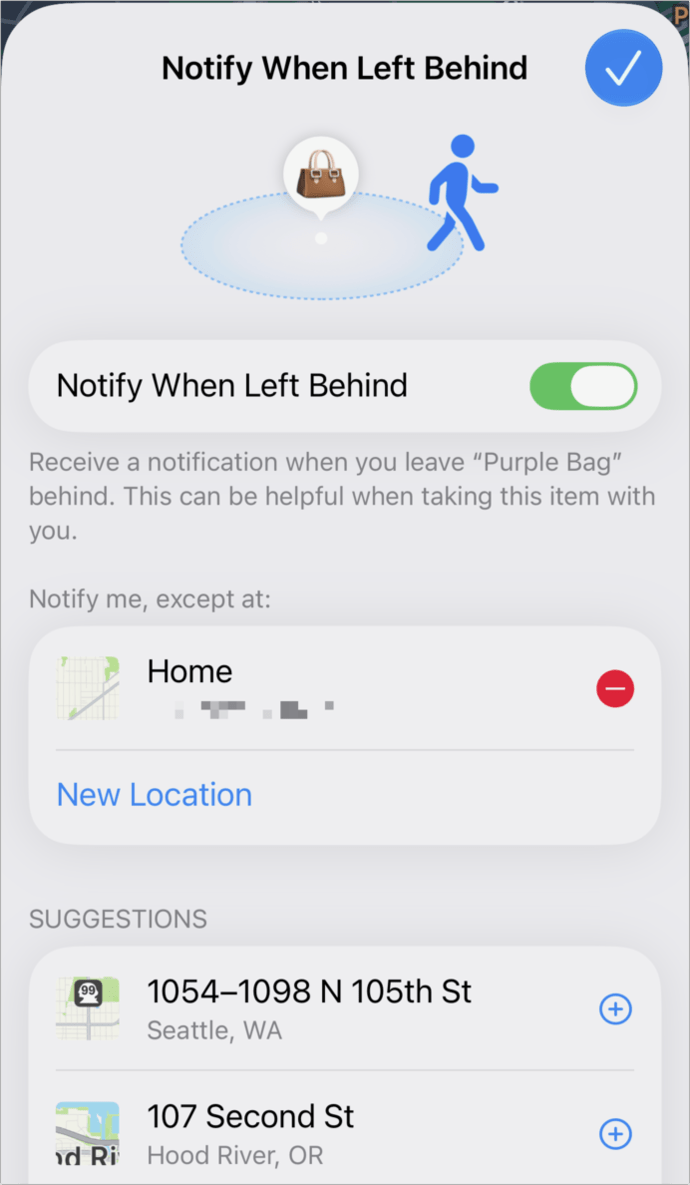
Tap or click Notify When Left Behind, which should already show On. (In the 27 releases, tap or click When Left Behind.)
If disabled, turn it on.
Here’s a crucial detail: examine the “Notify me, except at” list. You can manually add to this set of locations (tap or click New Location). However, it primarily grows when you’re notified by an item or device being left behind, and then you tap or click in the notification to ignore it at that location. You are presented with the option to just exclude that item or device from that location or all of your equipment.
It’s very easy to approve that exclude-all button. (Jeff did not; his list didn’t include the hotel.) This can be convenient when you’re at a hotel, a friend’s house, or another location for a few days or frequently, and sometimes leave Find My-tracked stuff there. But once you ignore the location, you won’t get notified in the future. You can modify the list by hand, too.
Jeff may instead have been tripped up by the safe acting as a Faraday cage—a metal mesh or box that shields electromagnetic signals from passing through. The AirTag and other Find My items use Bluetooth to broadcast a rotating identifier at regular intervals.2 If the safe blocked that signal, Jeff’s iPhone lost contact with the AirTag the moment the bag went in—a few days before he left. With no fresh separation between the phone and the item at departure time, the alert may have lacked the necessary trigger. Jeff was on the verge of sharing the location with the hotel when they found it.
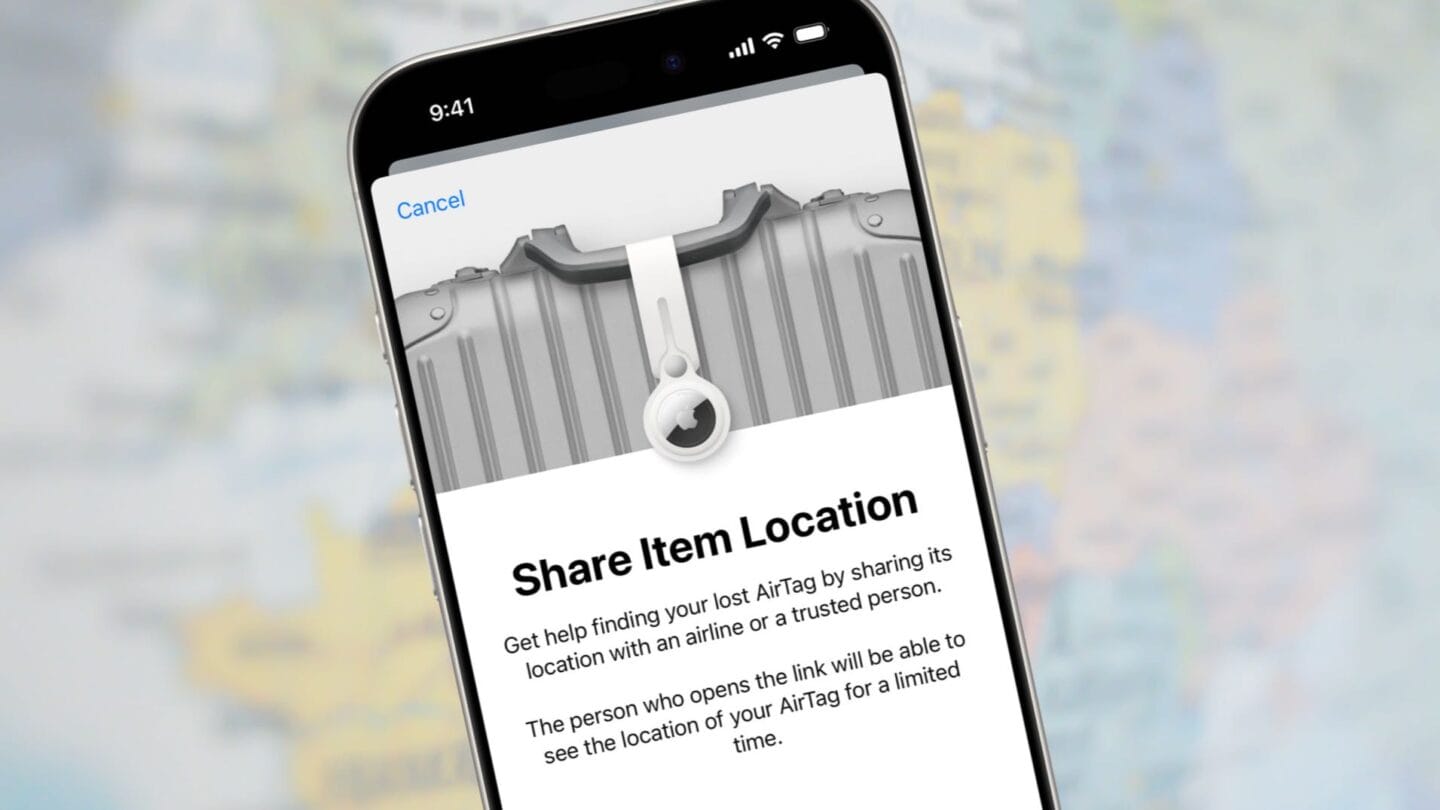
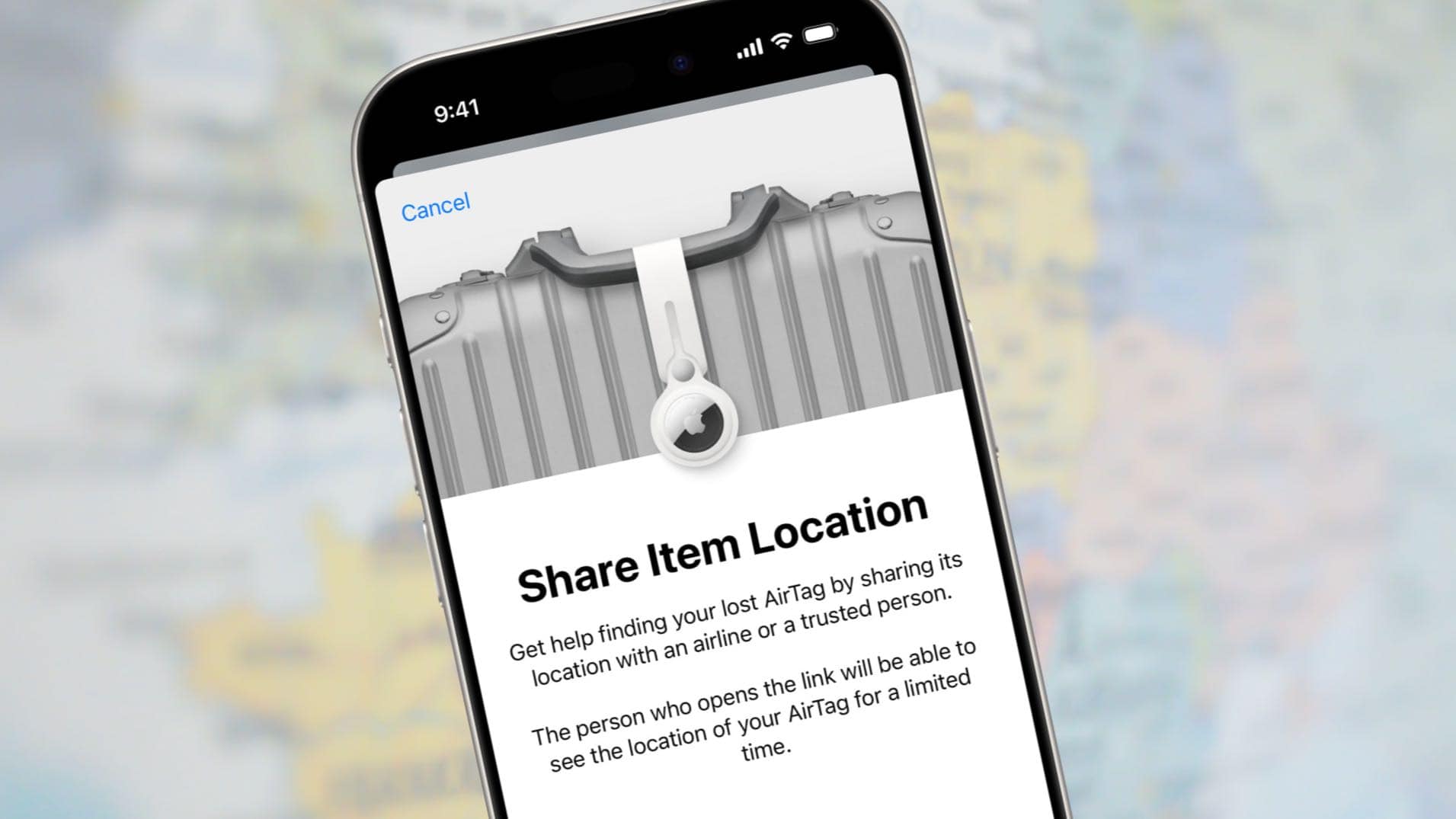
You can mark an item or device as lost, then share contact information, and a URL that someone else can use for a limited time to also find the hardware.
Apple says this takes longer than the few days Jeff was on his trip: “You can see its last known location for up to seven days in the Find My app.” After seven days, the device or item’s location will appear as “No location found” or “Offline.” Jeff could see the item’s location, which made the lack of notification seem like a bug.
Now for the grate part (not great part): once Jeff’s bag was removed from the safe in his former room, it would have been carried through the hotel and detected by every iPhone, iPad, or Mac nearby. When it reached the hotel’s lost-and-found safe, the rough location would likely still be relatively close before it entered that particular Faraday cage. At which point, when Jeff looked at Find My, he saw it at (or under) the parking lot.
Sack attack
The hotel works with a service that handles the return. Jeff paid both a whopping and reasonable $60 to have it sent two-day air back to him. Fair enough! Unfair enough, days after he paid, the bag is still at the hotel (as I write this). Jeff will, of course, follow its progress via Find My.
[Got a question for the column? You can email glenn@sixcolors.com or use/glennin our subscriber-only Discord community.]
Just so he doesn’t feel bad, I’ll note the time back in the day of paper airline tickets when I couldn’t find my tickets and had to rush to a United counter (in a hotel!) to get them reissued. When I came home, I put them in the secret place where I keep all my important stuff, where I also found my original “lost” tickets. ↩
The identifier is broadcast as the Bluetooth network name. To avoid being associated with an individual, Apple frequently rotates or changes the name. ↩

 Login
Login