
❌

Reading view

Recovery Key storage transition highlights Apple’s privacy and obscurity

Glenn Fleishman, art by Shafer Brown

We trust Apple with a lot of our data. In general, that hasn’t seemed like a bad idea; in particular, compared to its competitors, Apple seems to ensure that it can inspect or interact with very little of our data. The company has built its platform and its reputation on being an elegant, frictionless, hands-off conduit. While we can make many complaints about Liquid Glass, its increased focus on invasive (and poor) advertising, its software quality, and much else, Apple has kept its corporate nose cleaner than anybody else. Its transparency and documentation are, oddly, worse than its actions and clear intent.

Apple Watch with heart montioring data shown
The Apple Watch is the only wearable with end-to-end encryption for first-party health data. (Image: Apple)

I was thinking about this when I received an email from an anonymized iCloud Hide My Email account, asking for more detail about how Apple managed the transition from the old method of presenting or escrowing (in iCloud) your macOS FileVault Recovery Key to the new method, in which the key is stored in Passwords. This transition, which I’ve documented in a few places, was a step forward in privacy and security.

But not transparency! I’ll explain, but you can’t find an explanation on Apple’s site about the transition. The support documentation remains out of sync with Tahoe. That leaves it to yours truly to explicate.

Don’t trust and verify

The Electronic Frontier Foundation recently published a newsletter with a round-up of how fitness wearables, like rings, watches, and bands, preserve your privacy from government intrusion, as well as whether they protect you from unwanted security invasions by using end-to-end encryption (E2EE). (The former often requires the latter: governments typically can’t break through E2EE.)

I want to quote two full paragraphs to make this point:

In the end, we found that only four of these companies (Apple, Google, Whoop, and Oura) promise to notify users of law enforcement requests in publicly available documentation. And just two of those companies, Apple and Google (which also owns Fitbit), currently publish transparency reports on how often they hand users’ data to the government.

Support for end-to-end encryption—a method that ensures your personal data is only accessible by you, and not the company who makes the device and manages the cloud storage—is more rare than transparency reports among wearable device makers. The Apple Watch is the only popular fitness wearable that supports end-to-end encryption.1

Apple wasn’t an early player with E2EE. Really, it was seen as the kind of thing only true security geeks cared about, even while people like EFF and other digital privacy advocacy groups and individuals warned us that our data was only lightly protected. Over time, as the criminal, exploitative, and political monitoring and extraction of our secrets became clear, Apple kept stepping up.
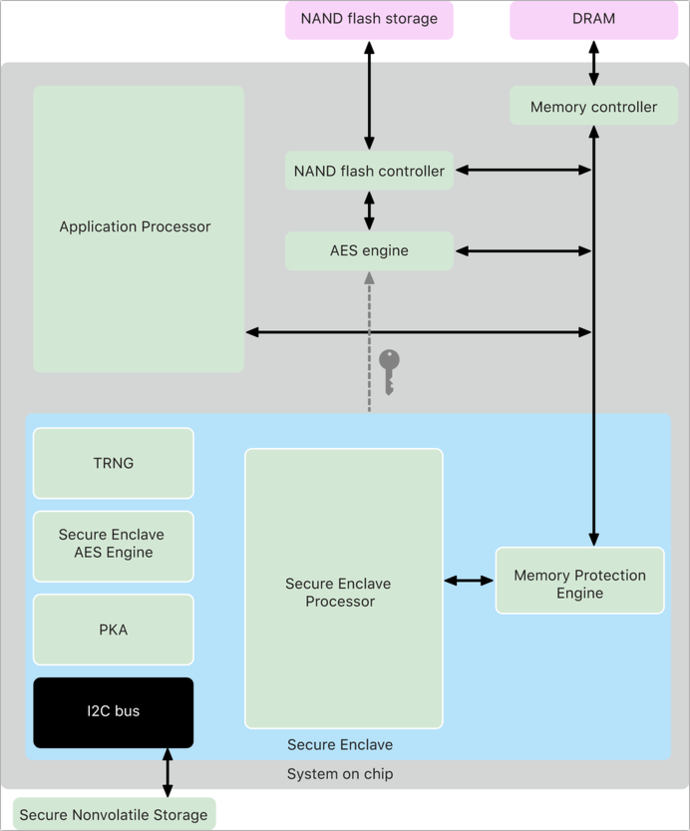
Flowchart of how the Secure Enclave protects data.
I don’t understand every part of this flowchart, but it shows how Apple uses the Secure Enclave to ensure the integrity of device-based end-to-end encryption. (Image: Apple)

The Secure Enclave is a keystone of those moves, as the tamper-resistant silicon subsystem allows devices to keep locally generated security keys entirely private. Most of these keys never leave the Secure Enclave! Rather, it’s the encryption hub.2

iCloud initially had a fairly cursory level of protection, with the then-Apple ID account password serving as the only real bar. Two-step verification in March 2013 provided better account protection, but didn’t cover iCloud backups, which could be retrieved without that second step. A rash of celebrity account leaks in late summer 2014 led Apple to extend two-step to iCloud data within a couple of weeks. The next year, it upgraded security to the more rigorous two-factor authentication, which later became mandatory.

As part of its response to the iCloud data hijacks, Apple began to beef up iCloud. It began rolling out E2EE for all the device-based services it could, leaving synced data still relatively lightly protected. (iCloud data is always encrypted with Apple’s at-rest keys, which only it ostensibly has access to, and in transit with HTTPS. However, a security breach at Apple or someone able to hijack one end of an in-progress HTTPS sync allows access to that unencrypted data.)

Then, suddenly, months after shipping major updates to its operating systems, Apple announced Advanced Data Protection in December 2022. Enabling this feature put the E2EE aegis over nearly all synced or stored data at iCloud; mail, contacts, and calendar entries remain an exception because of their interoperability with third-party apps and services. You can view Apple’s document that explains what level of protection applies to data, with and without ADP enabled.

With that in mind, let’s talk about the Recovery Key transition.

Recovery Key is not recovered? I think not

The particular reader question driving this was their concern about the FileVault Recovery Key that was in place when the Tahoe-driven transition occurred. Was the old key destroyed and a new one created and stashed in Passwords? Or was the old one just moved over? If the latter, isn’t that a security hole, if a tiny one?

My initial reply wasn’t entirely glib, but I said, having not documented the upgrade, I believed Apple explained the process when it occurred. But I couldn’t find any screen captures of how that occurred. Apple’s documentation remains in the past—it doesn’t mention the Passwords method at all. The Passwords User Guide perversely mentions the Recovery Key, but not how to interact with turning it off or on.

People who had FileVault disabled (whether they never turned it on, or turned it off at some point) did receive an alert during the upgrade:

Your Mac is Ready for FileVault: FileVault keeps your Mac safe by encrypting your data and protecting it with the password you use to log in. If you forget your password, you can use your Recovery Key to reset it.

Clicking Not Now bypassed the process; Turn On opted the user into the new Passwords-based storage for the Recovery Key.

I’ve explained in previous columns how FileVault provides an extra layer of protection. FileVault requires a Recovery Key, so you have recourse if your password stops working, you forget it, or corruption happens in the boot data. This shouldn’t happen, but it can. The Recovery Key and your password (transformed by a cryptographic formula—or hash—after you enter it) are both “key encryption keys,” delightfully named KEKs. Neither directly encrypts your data. Each instead unwraps the key that the Secure Enclave uses to unlock your drive for use in macOS.3 (You can find out a lot more about this topic in my Take Control of Securing Your Apple Devices, a revised version of which, including “27” betas, will be out shortly as a free update.)

The Passwords app filtered by a search for “recovery,” with a Mac Studio Recovery Key entry selected.
The Recovery Key entry in Passwords identifies the Mac by its model, and provides a shortcut to FileVault settings.

Apple never knows your macOS passwords, and it shouldn’t know your Recovery Key. That was the flaw with iCloud escrow: your Recovery Key could be retrieved by someone with your Apple Account information who had access to your Mac.

With that said, how did Apple manage the transition from the old system to the new one that uses Passwords? Into this lacuna of details, jump I with inferential logic about what Apple must have done.

With a “show me once” Recovery Key: Apple would generate this key, show it to you, then destroy it. The company (and macOS) didn’t need a record of it, because its purpose was to be used to decrypt another key: don’t have the key, can’t decrypt that other key. If you opted for that method, Apple had to destroy the existing KEK to replace it with a new one derived from the newly created Recovery Key.

With an iCloud escrow key: The same scenario applies from a different angle. Apple can’t retrieve your escrowed key unless you use your Apple Account. That isn’t a per se security weakness, but Apple doesn’t need that escrowed key, and it doesn’t want to decrypt it at iCloud to send it to you. I would warrant that the company once again destroys the KEK, creates a new one, and that’s what’s stored in Passwords. Anything else leaves a potential gap in my explanation of why Apple made this change in the first place.

Now, you say, if macOS generated the key and it stored it in Passwords, doesn’t it “know” the key? Not exactly. The key is ostensibly generated in memory, added to Passwords, and destroyed. To have accessed the key, an attacker would need to be monitoring your screen or grab particular memory locations at an exact moment. If someone has undetected remote observation of your Mac display, the game is already over.

Passwords uses end-to-end encryption with device-based secrets. You can enter a device password or use biometrics to unlock Passwords (or chained biometrics with an Apple Watch linked to your Mac). That’s as secure as we can get to protect any password. If someone wanted to access your Recovery Key through Passwords, they need access to one of your devices; cracking your Apple Account and its second-factor or passkey authentication wouldn’t help—and that’s a big stretch to begin with. Nor does just having your macOS account name and password without the ability to have physical or remote screen access to your device.

I believe Apple handled this transition awkwardly. The company could have provided more clarity about the requirement to change how a FileVault Recovery Key was stored, and explain exactly what measures it took to ensure security across that transition. And it could update its support pages!

[Got a question for the column? You can email glenn@sixcolors.com or use /glenn in our subscriber-only Discord community.]


  1. Note that EFF is discussing the core Health app here, not third-party apps granted access to Health data by a user. ↩
  2. The iPhone 5s in 2013 was the first Apple device with a Secure Enclave. It expanded to iPad starting with the 2013 iPad Air, and the Mac with the T1 chip in Touch Bar MacBook Pro models in 2016. ↩
  3. Full-drive encryption is always on and can’t be disabled on M-series Macs and Intel Macs with the final-stage T2 security chip. ↩
  •  

Unlock or recover your Mac using a special boot volume

Glenn Fleishman, art by Shafer Brown

Several years ago, Apple began hiding disk partitions and volumes on the startup drive. The first was a secret volume with a tiny operating system on it that would let you boot from it, after which you could restore from a Time Machine backup, run First Aid in Disk Utility, or reinstall Mac OS X or macOS. Over the years, Apple has multiplied those hidden locations and added more sophistication to what they offer.

These boot volumes are:

  • recoveryOS: The current name and form of the special volume described above, which boots into the Recovery Assistant “app.” You can run Disk Utility (and First Aid), reinstall macOS, launch Safari to access Apple Support pages, modify startup security settings (rarely required these days), and access Terminal. With Terminal, you can reset your macOS password. If your Mac can’t start up properly, it will try to launch the Recovery process within recoveryOS, which performs automatic repairs that Apple doesn’t document. If successful, you can then restart into macOS.
Screenshot of Activate Mac startup in recoveryOS showing profile photos of four available macOS accounts
recoveryOS has many faces, including these four, here showing Activate Mac after it was unlock following a Find My lock.
  • Fallback recoveryOS: If recoveryOS is damaged—and that can happen—you can press the power button twice, quickly, and then keep holding it the second time. This fallback recovery volume can’t change startup security, but it can help you diagnose what’s going on. This is the duct-tape belt that helps if your pants come unbuttoned (macOS won’t boot) and your suspenders break (regular recoveryOS fails).
  • Repair Assistant: From a powered-down state, press the power button until you hear the startup chime, then press and hold Command-D. (On an Intel Mac, hold the D key at startup.) The Diagnostics app can run hardware tests that might help narrow down a problem before you bring in Apple Support, or they may ask you to boot into that mode and share the results of the tests they have you run. Repair Assistant can fail, too, if its volume is damaged. You may then have to perform a special “revive or restore” operation, which requires another Mac. Or you may need a full reinstall using a bootable macOS installer.
  • macOS: macOS is a sort of hidden boot volume for the last several releases. You don’t boot from the system; instead, a read-only snapshot of the system is mounted, and then booted from. This is part of Apple making system resources immutable through cryptography and at startup.

Besides using recoveryOS for the above tasks, you might also need to use it to unlock your Mac after locking it in Find My and to reset your password using a FileVault Recovery Key. Here’s how.

Unlock your Mac

Screenshot showing two Apple devices with a question mark overlaid indicating they are locked. The MacBook Pro, second device in list, says 'Locked 3 min. ago.'
When you lock devices in Find My, they appear with a question mark overlaying their icon.

While it’s not a common scenario, it could happen to you: you accidentally leave your Mac somewhere, or it’s stolen. Thinking quickly, you launch Find My on another of your devices or go to iCloud.com/find and log in. You then tap or click a few buttons to lock your Mac. If the Mac is connected to the Internet, it restarts and locks immediately. (Despite promising to display the message you entered when you locked it, macOS does not do so.) If it’s not connected, it restarts the next time it has Internet access.

The account used to lock the Mac is the only one that can unlock it, and you must be in front of the Mac to perform that operation. Apple limits each Mac to having Find My enabled from a single account. Here are the steps:

  1. When you see the macOS Recovery title, click the account profile below it. Enter the account’s password and click Continue.
  2. If you entered it correctly, “Authentication succeeded” appears. Click Restart.
  3. The Mac restarts and shows Activate Mac after it boots up. This time, all the active macOS accounts are shown. Click one, and then enter its password. Click Next.
  4. You now can choose to either use your Apple Account or a macOS password to continue. If you opt for the Apple Account, enter the full address or phone number as shown. Then enter the account’s password. Otherwise, you can click to enter the Mac password, which Apple says is the last one used to unlock the Mac in a regular session before it was locked. If you’re the only user on the Mac, that’s easy to figure out. (In testing with Golden Gate public beta 2, I wasn’t able to get the Mac password option to work, and I’ve had it fail in Tahoe, too.) Sometimes neither works. Choose Restart from the Apple menu in that case and try again.
  5. On a successful entry, the Mac restarts yet again after a one-minute countdown. Enter your password when prompted to start up into a regular session.
  6. Apple Pay will have been disabled, and your iCloud sync will probably be paused as well. When prompted after the macOS session starts, enter your Apple Account password (or passwords if you have multiple accounts linked to your macOS account).

If you try this too often, as I did while testing, or for other security reasons only Apple knows, your Apple Account may be locked. At step 6, I was told I had to reset my Apple Account password from one of my other devices; all four linked to the account were shown. I made that change. In the Golden Gate second public beta, clicking Unlock Account did nothing before or after changing. I was able to click Cancel, complete step 4 again with the new Apple Account password, and proceed to step 5 and restart.1

Edit Account Information title appears below a key in a shield icon beneath a label Update Phone Number on a black screen, which shows some other Apple devices in a list
If your Apple Account becomes locked, you have to reset your Apple Account password on a linked device.

Years ago, when you locked your Mac, you had to set a passcode to unlock it. While that isn’t supported on M-series Macs or Intel Macs with the T2 Security Chip, the email Apple sends still shows an image of a screen where you would enter that code and says you can only unlock your Mac with that non-existent passcode.

Image of a Mac laptop with space for a PIN to be entered above the title MacBook Pro has been locked.
Apple’s email after you lock your Mac shows an outdated image and provides outdated information about the unlock procedure.

Unlock via FileVault

If you try to log into your Mac and can’t recall the password or it isn’t accepted, you can use your FileVault Recovery Key to unlock the volume and reset your password. The Recovery Key is a long code that’s a last-ditch way to unlock your startup volume. It’s also a back-door way to help with a post-Find My lock operation if your password won’t work or you’ve forgotten it.

[I’ve described how to set up FileVault and how to deal with the Recovery Key in “FileVault on macOS Tahoe uses iCloud Keychain to store its Recovery Key” and “FileVault keys can’t be escrowed in iCloud anymore.”]

Here’s how to use your Recovery Key to unlock FileVault:

  1. At the login prompt, click the ? icon to the right of Enter Password to bring up the Reset Password link. (This also appears if you enter your password incorrectly a few times.) Click Reset Password.
  2. Your Mac restarts into Recovery Assistant using its Reset Password pathway. Enter your Recovery Key (see articles above). Click Next.
  3. If you entered your Recovery Key correctly, you are prompted to enter a new password for the account you rebooted from, and confirm it. Do so.
  4. When you restart, you can now enter the new password.
FileVault unlock screen: black with an inset icon that reads Recovery Key, plus instructions and a field to enter it
Enter your FileVault Recovery Key to then be able to reset your macOS password.

If you forgot or can’t enter a correct password for unlocking your Mac in step 1 in the previous section, you can click “Forgot all passwords?” This will launch the FileVault-based password reset, let you reset the password for that account, then proceed with unlocking.

For further reading

To learn a lot more about Find My locking and unlocking, consult my book Take Control of Find My and AirTags, which covers the whole ecosystem. For a lot of insight into iOS, iPadOS, and macOS security, including FileVault, check out Take Control of Securing Your Apple Devices.

Revisions of those two titles for the 27 series of operating systems are coming out soon. You can purchase either today and receive a free update to the new version when it’s out.

[Got a question for the column? You can email glenn@sixcolors.com or use /glenn in our subscriber-only Discord community.]


  1. In the screenshot, you’ll notice the title is Update Phone Number, even though I have no opportunity to do so. This may be fixed by Apple later, though I doubt it. ↩
  •  

Golden Gate Window Corners

Adam Overholtzer:

Corners!

Simon B. Støvring:

“We fixed corner radius” was a WWDC keynote highlight. Let that sink in.

Rudrank:

This should have been since macOS 26 #WWDC26

Folks getting excited for consistent corner radius 😂

Kuba Suder:

Ehh, no change here, RIP Intel Macs… stuck on the v1 Liquid Glass forever 🫤

There was so much demand for this that the Liquid Radius haxie exists. People were willing to disable FileVault and System Integrity Protection to get consistent window corners.

Previously:

Update (2026-06-23): Marcin Wichary:

Then, there’s the website you’ve just seen: elaborate, with nice “before and after” animations, and a fun landing page. I thought the installation steps, given the complexity of the effort, were exemplary and even educational. There’s also a page listing all the apps confirmed to work, and a “How Liquid Radius limits its blast radius” (ha) section, revealing the author is clear-eyed about their work being a hack, and even the dimensionality of its hackiness. Even within the tool there are nice design details.

But, as I was exploring the site, I kept switching between “this is ridiculous!” (laudatory) and “this is ridiculous!” (derogatory) in my head.

  •  
❌