We’ll all know soon enough, but kudos to Bloomberg’s Mark Gurman for breaking some new details 12 hours before Apple’s event begins:
Its device, called the iPhone Duo, will start at $2,000… The entry-level version will include 256 gigabytes of storage, with Apple offering higher-capacity versions that will take the price all the way up to roughly $3,000…. There will be a magnetic hinge system and support for the Apple Pencil stylus.
The Duo will go on sale as early as October and come in white and dark blue.
iPhone Duo is a good name. Not only does it make sense — two screens! — but it references an old Apple product name, and keeps iPhone Ultra in reserve for future use.
I’ve been wondering about Apple Pencil support on the iPhone for some time now. This product does sort of make sense for it, given the larger canvas of an interior screen.
The starting price seems high in practical terms, but also actually quite aggressive given the current out-of-control state of affairs for tech gadget costs. (Obviously the better configurations will escalate rapidly in price, as is Apple’s tradition.)
Gurman also suggests this device won’t ship as quickly as the new iPhone Pro models—again, not too much of a surprise, as that’s what happened with the iPhone X. And as for the colors, well, dark blue is certainly more interesting than another Space Gray. I do wonder why the Color Czar has decided that black is out as a color, but fashion does what it wants.
Anyway, happy Christmas Eve (and Christmas morning) everyone. See you back here after all is revealed.
Well, well, well… maybe not. Ian Wright of CarBuzz writes:
The Cadillac configurator is up for several 2027 models, and we spotted that the Lyriq still shows CarPlay and Android Auto being standard. The Lyriq is Cadillac’s first all-electric vehicle and a tech-forward vehicle that we think is becoming one of the best luxury EVs available. So, it piqued our interest that the GM brand was still including the things it was supposed to be phasing out, and we reached out to Cadillac for comment.
“Cadillac is continuing to evolve its infotainment strategy across the EV portfolio, based on customer feedback, while also prioritizing the native, in-vehicle experience,” a Cadillac representative told CarBuzz. And, the language is telling. The plan was to start the phasing out of phone projection with the 2024 Chevrolet Blazer EV, with CEO Mary Barra saying: “We made a decision to prioritize our EV vehicles during this timeframe, and as we go forward, we’ll continue across the portfolio.”
Wright does a good job at spotting the weasel words in the new Cadillac statement. Three years after a bold pronouncement that GM wasn’t interested in listening to its customers and giving them what they wanted, here comes an “evolve[d] infotainment strategy… based on customer feedback.”
Translation: Oh, people actually do want CarPlay, so we probably should let them have it, or they’re not going to want to buy our cars.
This isn’t how this story needed to go, but if GM wants to silently walk back its stupid pronouncement from 2023, it’s still a win for anyone in the market for a new car.
A few months ago I added a “Report a Typo” feature to Six Colors. The goal was to give people a simple place to go — sixcolors.com/typo — if they found a mistake on the website. That Google form inserts the information into a Google Sheet, and a script attached to the Google Sheet kicks off a simple automation that sends me a notification in a couple different places.
This works pretty well. I’m using a very simple Google Apps script to fire off a webhook when there’s a new form submission. The webhook is running on Make.com, which we use for a bunch of simple web automations, but that’s an implementation detail. Make.com posts an item in a private Discord channel and also crafts a custom push notification to my phone using Pushover.
However, the moment I turned this feature on, I discovered the problem with asking people to report errors or typos: Some people see any open channel of communication as an open channel for any sort of communication. I immediately started getting more “this is more a comment than a question” items about articles than actual typo submissions. Commentary included personal preferences for writing style, web design, political references (real or imagined), and much more.
I’m going to make an admission: This sort of feedback is maddening. I want to be alerted about mistakes on the site so I can fix them promptly, but I am not interested in receiving push notifications regarding your opinion of the professionalism and appropriateness of my writing style.
Unfortunately, it’s an open form. There’s nothing to be done. Or is there?
This is a challenge that can’t really be solved by looking for a bunch of keywords. You need wholesale sentiment analysis of the entire submission. This is—brace yourself—actually a good use of a large language model.
I solved this problem by using a plug-in within Make.com that lets me get a reply back from a cloud LLM that uses a simple model with an API cost of pennies per use, but you could also just use Shortcuts to build a version of this automation that runs on a Mac (Tahoe or Golden Gate) using Apple’s built-in models. It works just fine in Shortcuts on my Mac, via the Use Model action. (See screenshot above.)
Here’s the prompt I’m currently using:
Your task is binary classification.
Input: a user-submitted comment about an article, claiming to report an error.
Output: one token only: ALLOW or REJECT.
Definition of ALLOW:
A concrete, objective, verifiable issue in the article. This includes:
* factual mistakes
* spelling, grammar, formatting mistakes
* broken or incorrect links
* wrong names, dates, numbers
* technical inaccuracies
* omissions of material consequences of a feature or change (e.g., failing to mention that a feature deletes stored Wi-Fi passwords)
Definition of REJECT:
Anything subjective. This includes:
* political disagreement
* tone or style complaints
* metaphor or comparison preferences
* ‘you should have covered X more’
* speculation about motives
* emotional reactions or rants
* admissions that it’s not actually a mistake
Classification rules:
1. If the comment identifies a specific factual, technical, or materially consequential issue in the article, return ALLOW.
2. If the issue would meaningfully affect reader understanding or use of a product/feature, treat it as an omission and return ALLOW.
3. If the comment is opinion, taste, politics, vibe, personal criticism, or preference, return REJECT.
4. If there is no concrete, verifiable claim about the article being wrong or incomplete, return REJECT.
5. If it’s off-topic or spam, return REJECT.
6. If it’s a short but simple phrase like “there not their” or “r/sheild/shield”, those are nerdier folks reporting typos and that’s fine, ALLOW.
Respond with exactly one of these two tokens: ALLOW or REJECT. No explanation.
Submission: [[insert report text here]]
This has worked surprisingly well. And, yes, all messages are logged in the original Google Sheet, so I can occasionally check to monitor the quality of the filtering and make sure that the system isn’t failing to pass on actual mistakes.
Today Tim Cook is stepping down as Apple CEO and Phil Schiller is scaling back his involvement in the company’s events and his supervision of the App Store.
I thought I’d find the oldest Tim Cook photo in my Photos library (what, do you not have numerous Apple executives in your People view?) and it’s from October 2008:
Tim (left), Phil (right), and some other guy.
This was from the post-event Q&A session, back when that was a thing!
In the video of this event you’ll see that Tim Cook, then Apple’s COO, is asked by Steve Jobs to present “the state of the Mac.” If you’re used to Cook being more of an emcee for presentations by others in a pre-baked video, you may be amused to see him working hard to present Apple’s Mac lineup to an in-person crowd of media people. (There’s also a Jony Ive live presentation!)
The big product from this event: the unibody MacBook Pro, including an all-button multitouch trackpad.
Happy trails to Tim and Phil, though it sure sounds like they’re still going to be haunting the corridors of Apple Park for years to come.
By drawing on public application programming interfaces (APIs) from the league and other sources, Weingradt built an app in TestFlight — Apple’s home for products still in beta — and shared his new creation, Mosaic, by posting on Threads and tagging #buildinpublic to solicit early adopter feedback….
That very same day, MLB Executive Vice President Kenny Gersh received a Slack message from colleagues alerting him to Mosaic and asking if the league’s legal team should get involved. While of course not wanting just any developer to profit from baseball’s IP, Gersh appreciated that this was a controlled environment that required an MLB.tv subscription to access premium features, so he replied, “Not ideal, but it’s not a huge problem yet. Maybe we’ll hire.”
They hired. I know there’s a lot of skepticism out there about whether the big organization will just crush the Little App That Could. To me, it says a lot about MLB’s tech brain trust that they embraced Weingradt and that he’s still dropping incredibly impressive new features into the app on a regular basis.
Jason Snell is a journalist, podcaster, and Jeopardy! contestant. The editor-in-chief of Macworld for 17 years, he currently runs the Apple-focused website Six Colors and appears regularly on several podcasts, including MacBreak Weekly and Upgrade. His latest podcast, Designed in California, details the 50-year history of Apple over 50 episodes.
We talked to Snell about some of his favorite apps for streamlining his podcasting and writing workflows.
Apple’s Friday Night Baseball made its immersive video debut on the Vision Pro Friday, with numerous live immersive cameras scattered around Yankee Stadium for the night’s game between the Yankees and the Red Sox.
Apple has produced a lot of immersive video, including some sports documentaries and a set of live L.A. Lakers games, and it’s been clear that the makers of all that content have assumed that immersive video should be produced more or less like regular sports content: with lots of quick cuts, despite the fact that quick cuts in immersive video can be disorienting in a way that cuts in standard 16:9, 2-D video aren’t.
There’s no clear agreement about the ideal solution. I didn’t mind the reduced pace of the NBA broadcast, which toggled between cameras under each basket, but Stratechery’s Ben Thompson felt strongly that the best option would’ve been a single camera at mid-court, to completely eliminate the disorienting cuts and replicate being at the game in person.
Apple’s approach with baseball, at least based on Friday’s game, seems to lean toward Thompson’s preferred approach—and it does benefit from it. Each half inning was shown from a single camera on the dugout rail next to the on-deck circle, giving a great view of pitcher and hitter and the infield, as well as the goings on right in front of the dugout in foul territory. The camera switched between innings, so you were always viewing from the perspective of the at-bat team’s dugout.
Making it all work better was Apple’s addition of a “virtual jumbotron” floating in the sky, a scoreboard with graphics and a video feed of the standard 16:9 telecast on Apple TV. It was easy to look up and catch a replay or even get a better view of something happening in the far-off outfield, without getting in the way of my view of the game itself.
In between innings, the broadcast stayed in the park—and this is when it would occasionally switch to a different angle, such as at the outfield fence, behind first base, in the club level behind home plate, or looking down into the dugout. There were also replays—carefully demarcated with animated graphics, to reduce confusion—of key plays from the previous inning from the immersive perspective.
In the end, it felt much more like I was sitting at Yankee Stadium watching the game. Apple’s dedicated commentators tried to point out things you couldn’t see if you were watching a standard telecast, like defensive positioning. The commentary was fine (though I wish it had been a bit less chatty), but I would also have been happy to have the option to listen to natural audio, or just the local radio broadcast.
I do wish there had been a little bit more experimentation in terms of the primary camera angle. (Disclosure: I only watched three innings before needing to leave home to catch a flight.) I would’ve been interested in seeing an inning from behind first or third base, just to get a little bit of a different angle.
Still, I think Apple’s first immersive live baseball production was successful. I saw the Yankee catcher commit interference and then get hit in the arm by a brutal backswing; I saw a wide throw from shortstop almost (but not quite) pull the first baseman off the bag. I saw Yankee manager Aaron Boone constantly spitting a stream of sunflower seeds on the warning track in front of the dugout rail. And most delightfully, every few minutes a train zipped past the stadium out in the outfield, visible in a crack between the stands and the scoreboard.
Will immersive sports amount to anything? I don’t think anyone knows, but this latest experiment suggests that the people producing Apple’s immersive sports are actually learning and experimenting. I’m encouraged, and I’ll tune in next week for sure.
Today Relay launched the public and private feeds of my new podcast, Designed in California. If you’re interested in the history of Apple, check it out. The first few episodes in the feed are episodes we previously released in the Upgrade podcast feed; our first all-new episode debuts next week.
If you’re a Kickstarter backer who pledged at a level where you’ll get the special member feeds, check your messages for information about how to redeem that pledge and get access to the special feeds.
And if you didn’t back the Kickstarter, you can now join us via Relay and get access to entire series of the show all at once, ad free. Next week, members will receive the entirety of our series about Apple’s mid-90s Mac OS crisis that led to the company buying NeXT and bringing back Steve Jobs, which led to the creation of Mac OS X. Those episodes will play out over the next six weeks in the main feed, but members will get all seven episodes, five hours and 15 minutes of content, all at once. (Plus the first of our monthly bonus episodes.)
There’s also a YouTube channel, and Spotify users will find that video version available within Spotify as well.
In a bit of a late-August surprise while the world awaits word on the next generation of iPhones, on Tuesday Apple announced two new processors, the M5 Ultra and M6, which help power new iterations of its Mac Studio and Mac mini desktop computers. Both models are available to pre-order now and will ship on September 22 and will run macOS 27 Golden Gate.
Bridging the generations
The M6 chip kicks off Apple’s next chip generation, and is its first based on a 2-nanometer production process. It’s also got the first 12-core CPU in Apple’s base M-series chip line, up from 10 cores in the M4 and M5 generations.
Those CPU cores are in an interesting configuration: The M6 is the first Apple chip to mix all three of its CPU core types. The chip has six efficiency cores, four performance cores, and two super cores. According to Apple, each core design is focused on a different primary task: efficiency cores are meant to sip power (useful when running simple background tasks); performance cores are optimized for complex, multi-threaded jobs; and super cores were created to offer the highest possible single-threaded performance.
Apple claims that this design results in record-setting single-threaded performance and up to 1.2x speed improvements over the M5 chip. The M6 also offers a dual 16-core Neural Engine, for on-device AI performance. Memory bandwidth peaks at 170GB/s, 10 percent faster than the M5.
Just as the new chip generation arrives, the previous one (launched in October 2025) is completed. The M5 Ultra is Apple’s first new Ultra chip since it introduced the M3 Ultra in March 2025. Apple says it’s using the next generation of its UltraFusion technology to connect two dual-die M5 Max chips to make Apple silicon’s first quad-die chip. UltraFusion connects the two dies with bandwidth of more than 4.4TB/s, letting the four dies work as a single chip.
The M5 Ultra offers up to 36 CPU cores (12 super/24 performance), which Apple says results in up to 1.25x higher single-threaded performance and up to 1.3x higher multithreaded performance than the M3 Ultra. It offers up to 80 GPU cores and up to 512GB of memory with 1.2TB/s of unified memory bandwidth.
Meet the Mac mini
Same familiar tiny Mac mini, but with faster chips and a higher price.
Previously available in M4 and M4 Pro configurations, the new Mac mini is available in M6 and M5 Pro chip options. The new base price is $899, up $100 from the previous base, for the same standard 16GB RAM/256GB storage configuration. The M5 Pro configuration starts at $1699, also up $100 from the model sold until Tuesday. (But keep in mind, the M4 Mac mini was introduced at $599 before Apple recently raised that price. Put together, it’s a 50% price increase over the model introduced almost two years ago. We all know why, but it still hurts.)
Because the Mac mini previously shipped with M4 processors, this new model picks up numerous improvements Apple made in the M5 generation, including GPUs better optimized for AI performance. Both models support Wi-Fi 7 and Bluetooth 6 via Apple’s N1 chip, and 2.5Gb Ethernet is now standard, with 10Gb Ethernet still available as an add-on. The M6 model supports Thunderbolt 4, but the M5 Pro model supports Thunderbolt 5.
Mac Studio advances in unison
A familiar look, but the new Mac Studio is all M5.
At the same moment the Mac mini becomes split between two chip generations, the Mac Studio gets reunified with chips from the same generation: the M5 Max and the new M5 Ultra. As mentioned previously, the M5 Ultra is basically two M5 Max chips connected together by Apple’s dense, fast UltraFusion technology. Apple boasts that the M5 Ultra is the fastest chip Apple has ever created, which isn’t much of a stretch since the M5 Max was already pretty far up there.
The Mac Studio is effectively the replacement for the Mac Pro, and it’s alone in offering the Ultra-class chip. Apple has positioned the Mac Studio as ideal for local AI workflows, and the new models will still be able to cluster via Thunderbolt 5 to create even larger collections of memory and performance. Apple representatives pointed out that a four-Mac Studio AI cluster, like the one I saw on display at WWDC earlier this summer, is so efficient that it can be powered from a single standard wall outlet. (They even showed us a picture of four Mac Studios plugged into a power strip that was plugged into the wall.) In an era of data center excesses, Apple is clearly leaning into the possibility of small, efficient Macs being used to do local AI work rather than relying on huge, power-hungry cloud models.
As with the Mac mini, the Mac Studio gains M5 chip improvements that benefit AI models running on GPU cores, integrate the N1 chip for Wi-Fi 7 and Bluetooth 6, and support 2x faster storage with speeds up to 15GB/s.
The M5 Max Mac Studio starts at $2499, the same as the M4 model on sale until Tuesday. (But keep in mind, it was introduced 17 months ago for $1999.) The M5 Ultra model starts at $5499, up $200 from the M3 Ultra model previously on sale (which was itself originally offered for $3999).
With over 5,000 five star reviews; Magic Lasso Adblock is simply the best ad blocker for your iPhone, iPad and Mac.
Designed from the ground up to protect your privacy, Magic Lasso blocks all intrusive ads, trackers and annoyances. It stops you from being followed by ads around the web and with App Ad Blocking and Apple TV Ad Blocking it stops your app usage and viewing history being harvested by ad networks.
The Schlage Sense Pro is an unobtrusive match for my door hardware.
Back in March I took possession of an Aqara UWB Smart Lock, which allowed me to live out my Star Trek dreams by using Ultra Wideband technology to sense my arrival and unlock the door without any interaction from me. Now a second UWB lock has arrived on the scene, Schlage’s Sense Pro UWB smart lock. I’ve spent the last month locking and unlocking my front door with it, and it’s got some definite strengths over the Aqara lock—as well as some definite weaknesses.
Let’s start with the prices. The Aqara is $269, and the Schlage lock is $400. While it can be hard to justify a smart lock at any price, it’s extremely difficult to recommend one lock with much the same feature set over another when there’s this kind of price disparity.
And yes, these locks are very much playing by the same playbook: Both use UWB and Apple’s HomeKey technology to detect when your iPhone (11 or newer) or Apple Watch (Series 6 or newer) approaches your door, unlocking without having to wait or tap your device against the keypad. You can read my previous review for more about how this works, but it’s a huge improvement on both NFC tap-to-unlock and Bluetooth proximity detection, because it can wirelessly detect if you’re inside or outside the door—and only unlocks when you’re approaching from the outside.
The Schlage Sense Pro trades versatility for compactness and attractiveness. The Aqara lock is a big black slab, compared to a relatively squat keypad that comes in either black or satin nickel (a perfect match for my front door hardware). Schlage’s lock is undeniably better looking. It also has a light-up keypad so you can unlock it with a code, and you can program additional codes via the Schlage app or directly via the Apple Home app. And it supports NFC unlock, so if someone in your house doesn’t have a UWB device, they still have an avenue to electronically unlock the door via a tap.
Past Schlage smart locks—I used one for several years before buying the Aqara UWB model—offered a little 9-volt battery nubbin at the bottom of the outside to provide emergency power if the device’s batteries died and you needed to get into the house. This model has a USB-C port to do the same thing, and I don’t know about you, but I’m far more likely to source a USB-C cable (and an iPhone to provide power) than I am to find a 9-volt battery laying around outside my house.
Unlike the Aqara lock, the Schlage Sense Pro doesn’t have a thumbprint scanner or a physical key. The Aqara’s thumbprint scanner works but always seemed a bit pointless to me; the key, on the other hand, might have value if you like the idea of using a hide-a-key or giving a physical spare key to a friend. Alternately, it might seem unnecessary or even a security flaw. Trade-offs.
The interior deadbolt box is… less unobtrusive.
The Schlage Sense Pro is powered by four AA batteries that slide into the lock in a plastic sled; I found that if I was too forceful sliding the sled in, a battery occasionally popped out. I strongly prefer Aqara’s battery solution—a power-bank-style rechargeable battery pack that offers long life and a relatively easy USB charging path—to swapping AA batteries every so often.
My front door is not quite perfectly aligned, so automatic locks sometimes fail to lock it properly. The Schlage’s lock motor is forceful enough to do the job, but a lot less forceful than the Aqara’s, which would often have enough oomph to get the door closed even if it had to push really hard. In truth, though, both locks were equal in their ability to lock my weird door, though Aqara is much more aggressive in making a noise when it fails to lock the door, which I appreciated more than Schlage’s somewhat muted alert.
I also appreciated Aqara’s gesture to lock the door when leaving the house—you basically tap the pad anywhere—to be a lot easier to use than the Schlage lock, which requires you tap the top portion of the touch pad twice. I got used to the double-tap, but Aqara’s was faster and less fussy.
When testing the Schlage Sense Pro, I also ran into a very odd quirk where the lock became completely unresponsive until I pulled the battery sled out and put it back in—essentially, power cycling the lock. According to Schlage, this was likely due to a faulty lock and the company supplied me with a replacement that hasn’t shown any signs of the same issue.
Both locks do a great job of unlocking automatically. This is what the whole show is really about: If I walk up to a door with my watch on my wrist or my phone in my pocket, does the door unlock by the time I put my hand on the latch? Yes, almost all the time. Very occasionally there would be a slight pause when I reached the door, but almost never. It really is a magical feeling to have your door know that it’s you and unlock as you approach, and if you connect it to other HomeKit automations, you can have that unlock trigger other devices, like turning on your entryway lights.
In the end, the Schlage Sense Pro is a very nice lock, with a restrained look that I prefer to the Aqara’s industrial black block. Aqara’s extra locking methods (fingerprint, traditional key) are not really ones I feel are necessary. Yes, Aqara’s battery approach is better than Schlage’s, but I’ve been using AA-powered locks for ages, and it was fine, if a little annoying.
All in all, these locks are pretty close to even, with Schlage having the advantage in aesthetics. The problem is that the Schlage lock costs $130 more than the Aqara. If you don’t mind the extra charge for a more attractive lock, I won’t fault you, but for most people a smart lock is a bit of a splurge purchase as it is. It’s not the kind of product that can be snuck by household members who are less enthusiastic about technology, and sometimes the price tag is all it takes for the household to decide that it’s not worth doing.
The Schlage Sense Pro is a great product that brings that Star Trek feeling to my front door—but at a price that makes me wince. The first UWB lock that arrived on the scene, Aqara’s U400, is equally capable—and a lot cheaper.
When I was visiting my pal Myke Hurley in London last year, I noticed that he had a second display to the right of his main one. It was large and mounted vertically, and when he recorded a podcast, he kept all his recording information over there. I liked the idea of monitoring my recordings while they were going on, just for extra peace of mind, and a second display seemed like the right way to do it.
If only I had a second display! But I do, of course, because my main Mac is now a MacBook Pro. So I’ve taken to recording podcasts using the “Hurley Method,” with my Audio Hijack windows positioned on the laptop display, off to my left.
It’s nice, but if you know me, I quickly became frustrated by the number of clicks and drags I needed to perform every single time I record a podcast: Open up my laptop, open Audio Hijack, open the list of recording sessions, double-click on the one I’m using right now, then drag the window over to the laptop display.
So today I automated it.
None of my automations work if I haven’t opened the laptop, and while it sits next to my Mac in a nice stand from Twelve South, it’s closed most of the time. So my first step before moving windows to the laptop display is to make sure that the display is available! Fortunately, there’s a command-line command for that:
system_profiler SPDisplaysDataType
If you want, you can simplify the output by piping it through a grep command like system_profiler SPDisplaysDataType | grep -B1 "Resolution", but all I really want to do is search for the text string “Built-in”, which indicates that the laptop is open and its built-in display is running.
I automate most of my recording stuff using Keyboard Maestro macros triggered by an Elgato Stream Deck. So I built my automation into an existing macro in Keyboard Maestro, just adding a new if/then statement: If the calculation `SCREENCOUNT() > 1 returns true.
Then the macro runs the shell script, saves that to a local variable called LocalScreens, and it’s time for one more if/then statement, to ensure that this part of the macro only runs when more than one screen is attached and when the internal MacBook Pro display is active.
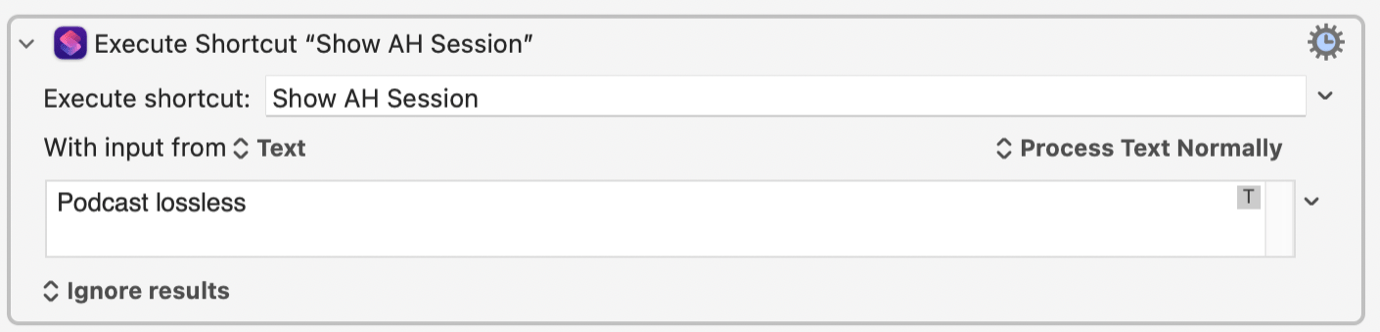
Unfortunately, the next step requires automating Audio Hijack, and while that app is very scriptable via JavaScript, and controllable via Shortcuts (or a plain text file?!), there’s no direct method of automating it from within Keyboard Maestro. So I created a basic Shortcut containing the JavaScript required to tell Audio Hijack to open a specific session by name, with the name passed to the Shortcut as input:
Then it’s a one-step item in Keyboard Maestro to run that shortcut with the name of my Audio Hijack session as the input:
(I wish this was cleaner and I didn’t need to run a shortcut. The alternative is to literally write out a text file containing the JavaScript and run it via a shell script. Is that cleaner? Doesn’t feel like it, but it’s more self-contained and doesn’t rely on the good graces of Shortcuts.)
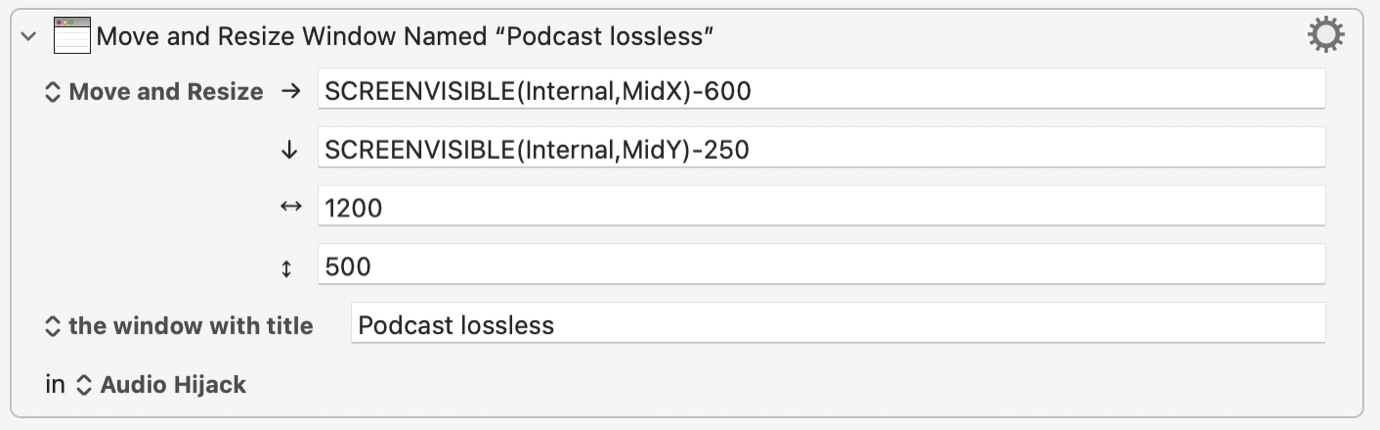
Now that I know that my MacBook Pro display is open and my Audio Hijack session window is open, it’s a one-step command in Keyboard Maestro to make the move:
This one’s a little tricky. I have to use the Move and Resize Window command, but instead of standard numerical values, I need to use custom “smart” values that Keyboard Maestro supports. In this case, horizontally it’s SCREENVISIBLE(Internal,MidX)-600 —essentially, 600 pixels to the left of the midpoint of the internal display—and vertically it’s SCREENVISIBLE(Internal,MidY)-250—250 pixels up from the midpoint of the display. You can play around with the dimensions until the window ends up in the right spot, and of course, at the right size.
And that was it. Now, when I press my recording button on my Stream Deck, if my laptop display is open, the session window will automatically pop open on my laptop display. I sure do like it when things happen on my computer automatically.
The namesake Mosaic, now operated by MLB and on Apple TV.
Formerly indie developer Jason Weingardt, on Threads:
Some personal news: I’ve joined the team at Major League Baseball, and the Mosaic app has come with me. The last 3+ months have, without question, been the wildest of my life. I’m beyond thankful to MLB for the chance to help shape how fans experience baseball, and even more thankful to the community of fans around the world who tried Mosaic, filed bug reports and feature requests, and helped shape it along the way.
We believe Mosaic can be a valuable tool to help learn more about what fans want…. I will keep working on Mosaic as part of my job…. Most importantly: Mosaic is sticking around. Features may come and go, but my ask is that you continue to write in with your feedback about what you like, don’t like, and what you’d want to see in a baseball app. I’m excited for what’s next, and I hope you are too.
Mosaic is a baseball app that’s been in TestFlight for a few months. (Scroll back through Weingardt’s Threads history for details.) From the moment I saw it, I was dazzled—it’s a great iOS baseball app that uses all of Apple’s platform technologies to lay out live game data and show off other MLB features in ways that MLB’s own app just doesn’t. And it even integrated with MLB TV, so if you’re a subscriber to MLB’s premium video service, you can watch games via Mosaic, including in the most mind-blowing multiview I’ve seen.
I don’t want to lean too much into the current state of the official MLB app, but it used to be so cutting-edge and great that when I was at Macworld, we gave it a zillion awards and ended up just inducting it into our “app hall of fame.” But over the years, that app has become generic and unfocused and one-size-fits-all. It is no longer a joy to use.
So Jason Weingardt wrote Mosaic, by himself, and it’s a properly great iOS app (that also runs on iPad and Mac and, as of today, Apple TV). I ran into Weingardt at WWDC and he was so happy that people had already fallen in love with his own personal semi-secret passion project.
We all pretty much expected Mosaic to be crushed by MLB once it figured out what was going on. No matter that it was using public APIs and honoring MLB’s own premium content subscriptions, it just felt like the kind of thing that was too good to be true.
Instead, to their immense credit, MLB hired Weingardt, and Mosaic is now apparently a part of MLB’s digital strategy. I almost can’t believe it. It’s the best possible outcome for Weingardt, MLB, and baseball fans with Apple devices.
I’m so happy to think that MLB’s apps may now be on a trajectory to go back to where they belong—in the app hall of fame.
I’m a huge fan of displaying ambient information in my computer interfaces, which on my Mac tends to involve putting data about weather, solar power and the like in my menu bar, so it’s available at a glance. My tool of choice for this is SwiftBar, itself a follow-on to BitBar (which has been rebooted as xbar). On my iPad, I’ve been using custom widgets generated with Simon Støvring’s Scriptable app to do the job.
Now here’s a new contender that generates widgets on both Mac and iOS: Brett Terpstra’s $20 TerminalWidget, which lets you send data to a widget from a command-line script, Shortcut, AppleScript, or a URL scheme.
Widgets are more complicated than little items that live in the menu bar. That’s why Scriptable uses little JavaScript scripts to build them. TerminalWidget has a basic set of terminology that lets you target specific widgets and provides some pre-filled functionality that lets you generate some design elements without much hassle. It’ll also just… take text you give it and display it if you want.
If you’re working via Shortcuts, you can update TerminalWidget using a bunch of different template types: Chart, Image, Progress, Table, or Text. Just as with the command line, each Shortcuts action contains a bunch of variables, so you can customize colors and fonts, add a caption and title, or other things that help fill out TerminalWidget’s templates. It’s by design a lot less flexible than something like Scriptable, where the sky’s the limit—but it’s also a lot more approachable, since you’re basically filling in the blanks with whatever data you want to provide.
I wasn’t really able to replicate my beloved Scriptable weather widget in TerminalWidget—not flexible enough—but TerminalWidget also supports straight-up image use, which allowed me to generate the contents of my Scriptable widget via script, output it as an image, and then tell TerminalWidget to load that image. So if you wanted to offload widget duties to your Mac or a remote server, you could do that and just display the image in TerminalWidget.
In a way, TerminalWidget turns its limitation (lack of flexibility) into a strength, because the learning curve is so gentle, especially if you use Shortcuts, which literally shows you every single possible variable you could possibly use, so you can tinker and figure out what you want to display. Dr. Drang is using it for planetary positions, because that tickles his fancy. If there’s something you’d like to put on a glanceable widget across iPad, iPhone, and Mac, TerminalWidget will let you do it. That’s a beautiful thing. Now I need to figure out what widgets to add to my own devices…

 Login
Login