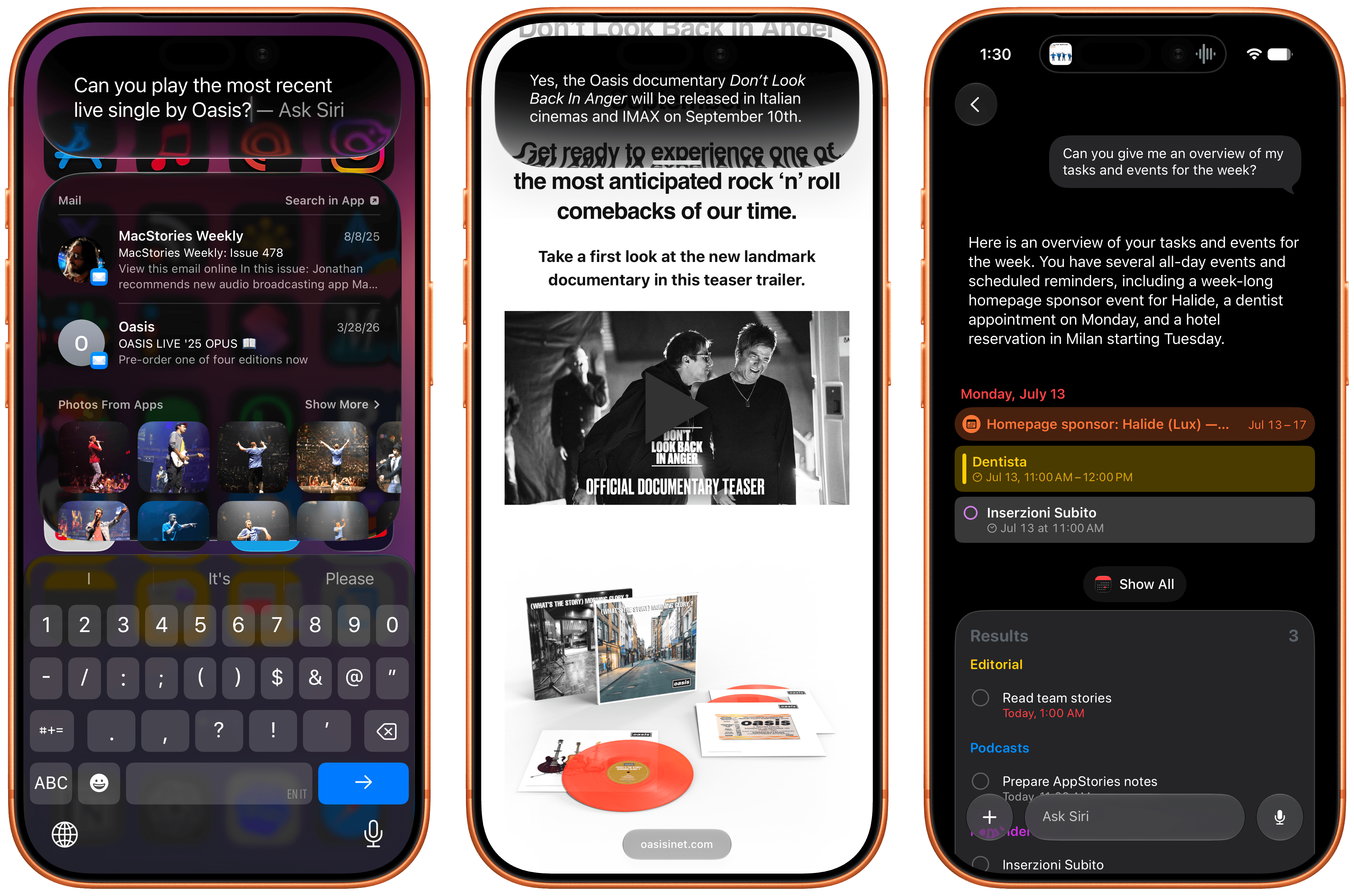
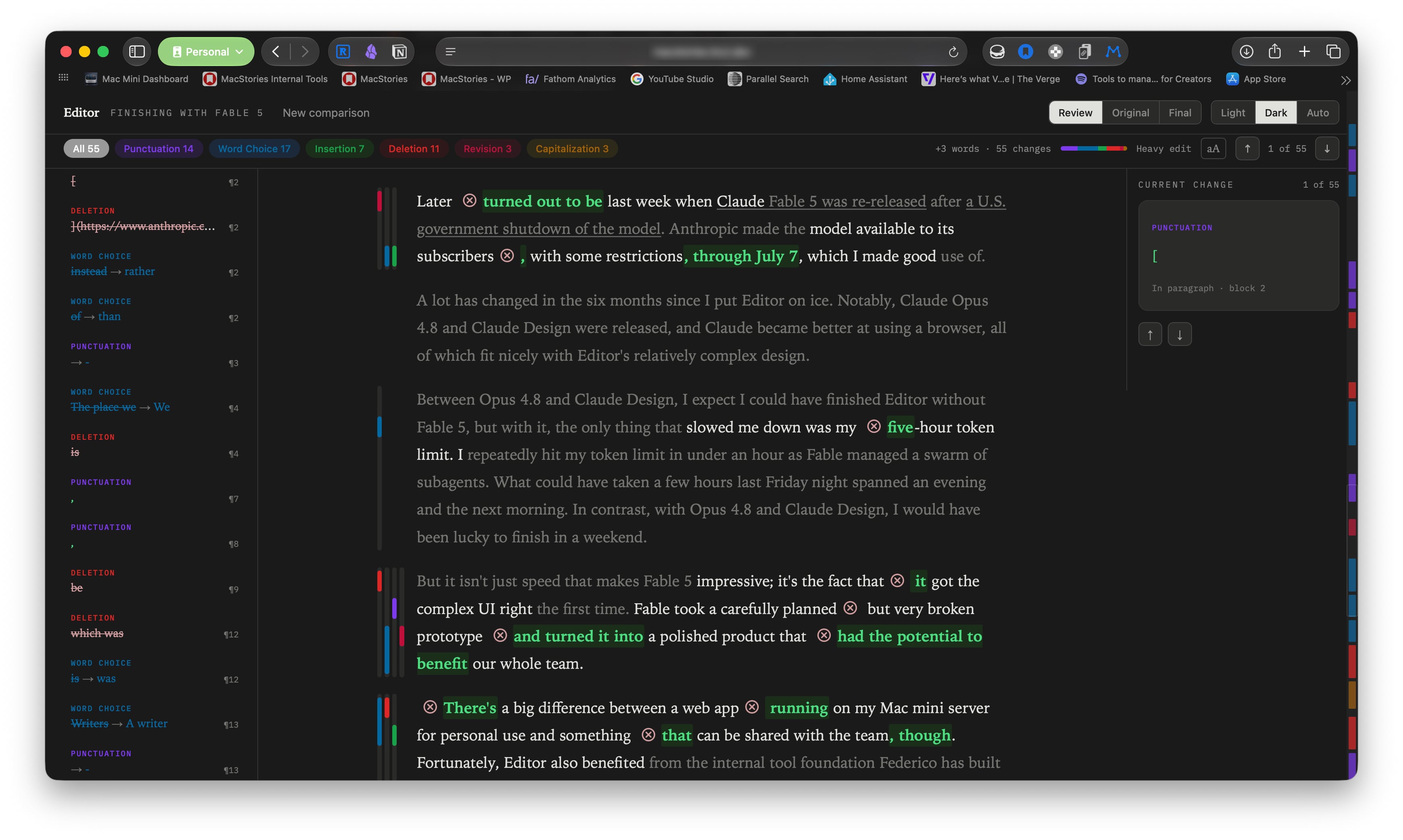
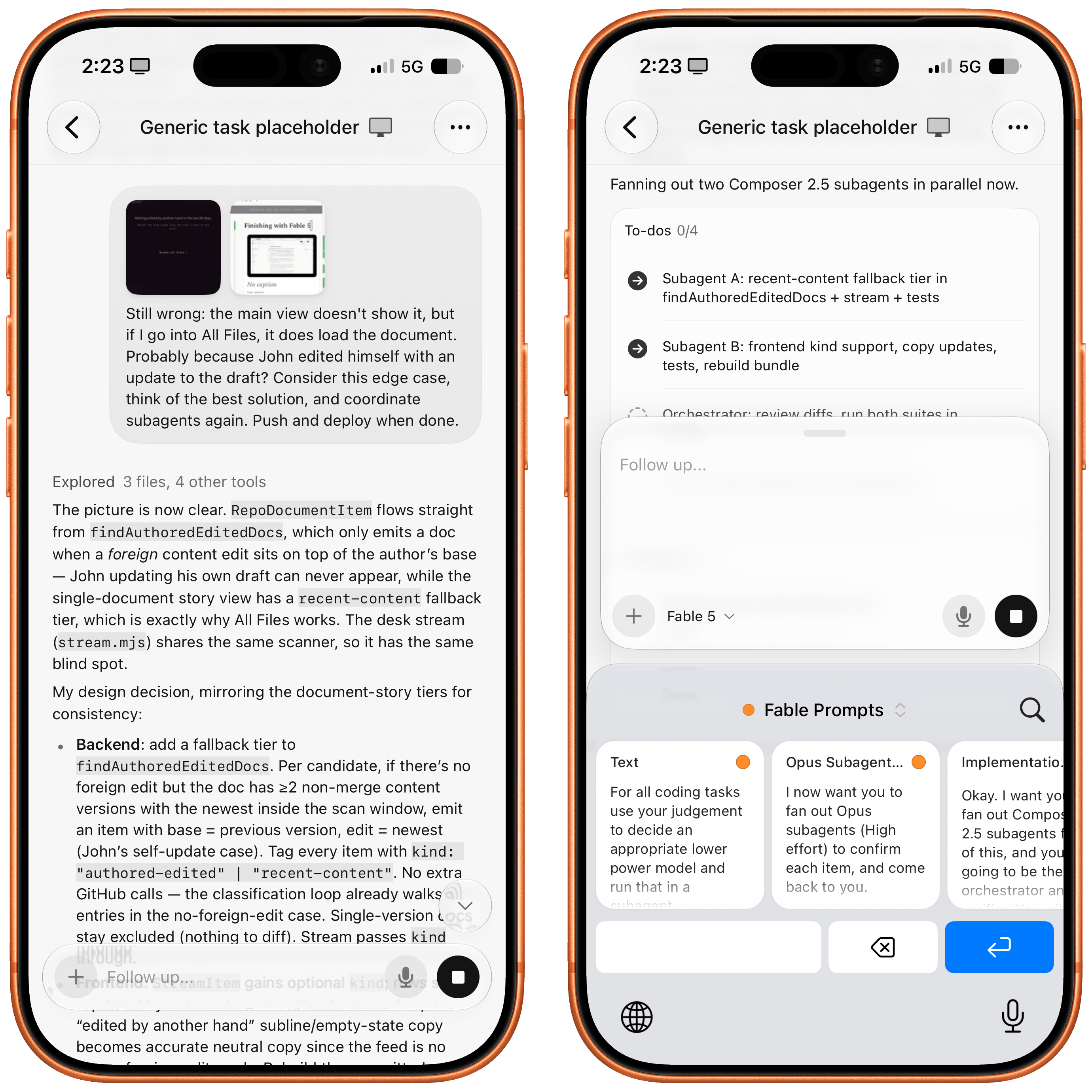
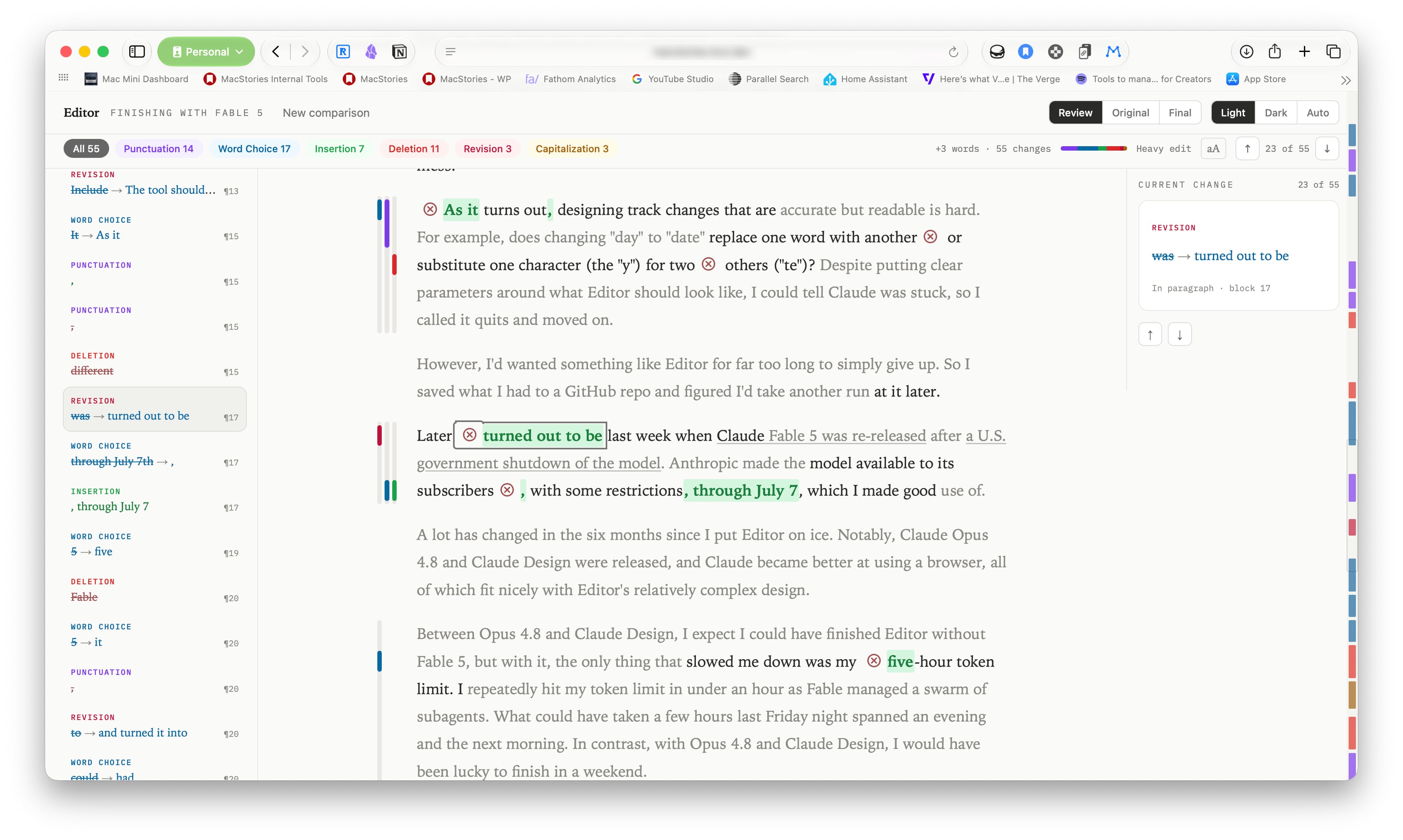
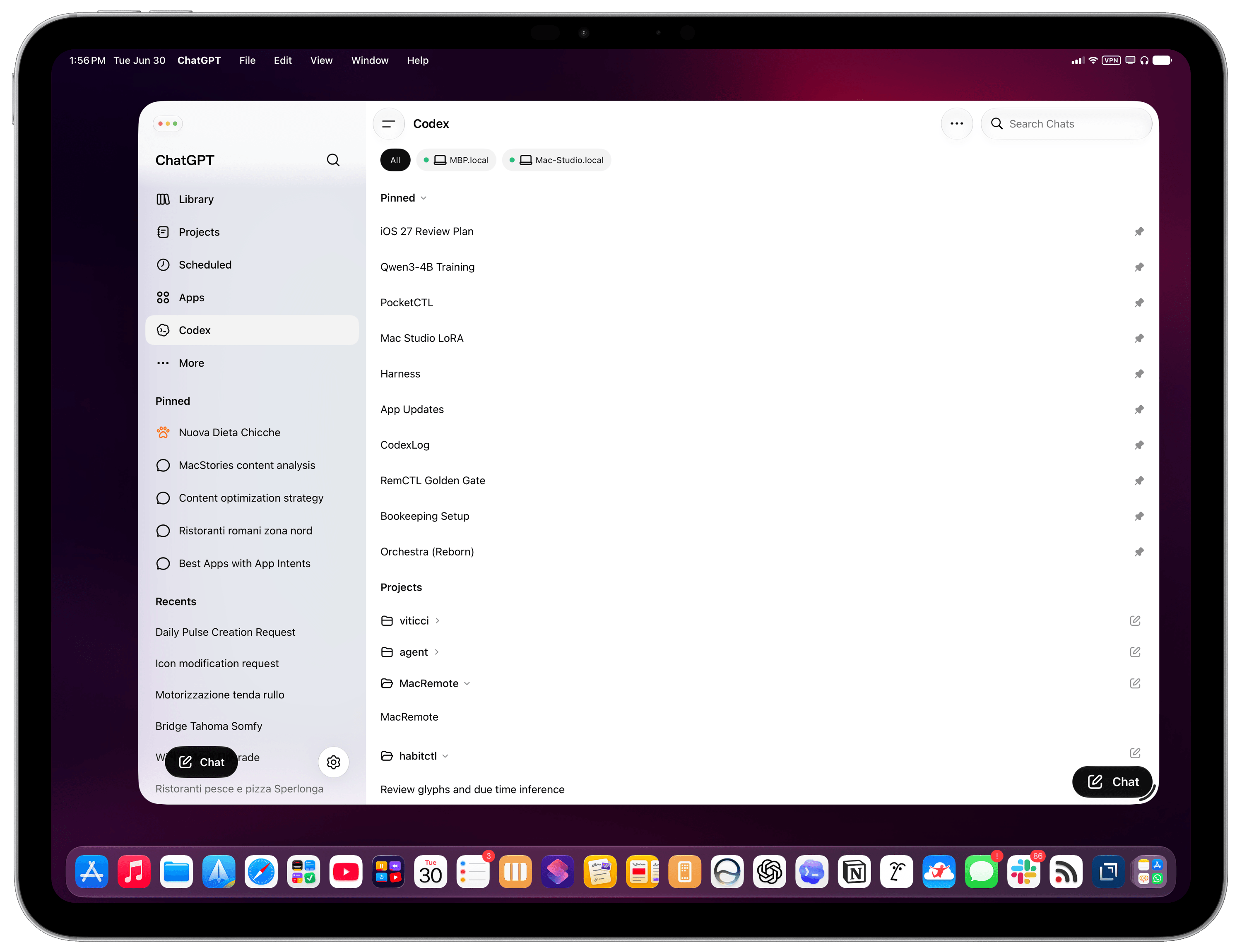
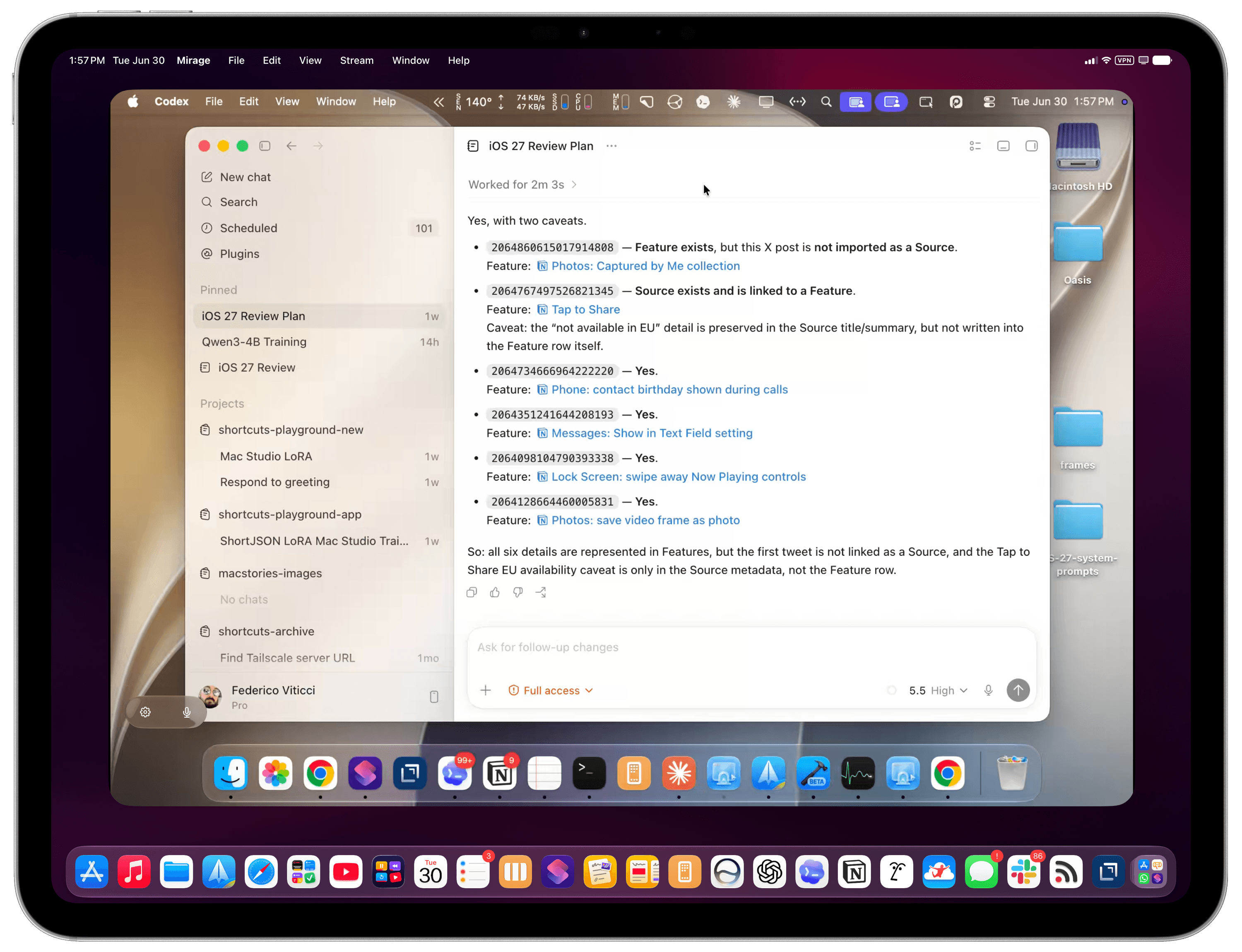
This week, Federico and John look at their experiences with Claude Fable 5 and how it differs from other models and break down the controversial changes made by OpenAI to its ChatGPT Mac app.
Then on AppStories+, John and Federico contrast their experiences with Fable 5 and OpenAI’s new family of GPT 5.6 models.
This week, Brendon and John go it alone with more bizarre news from AYANEO, a new tease and OS update from Anbernic, Valve’s e-ink Steam Machine faceplate, Armada bringing SteamOS to Android handhelds, and more.
On NPC XL, John and Brendon check on handheld gaming halfway through the year and look forward to what the rest of 2026 may have in store for the hobby.
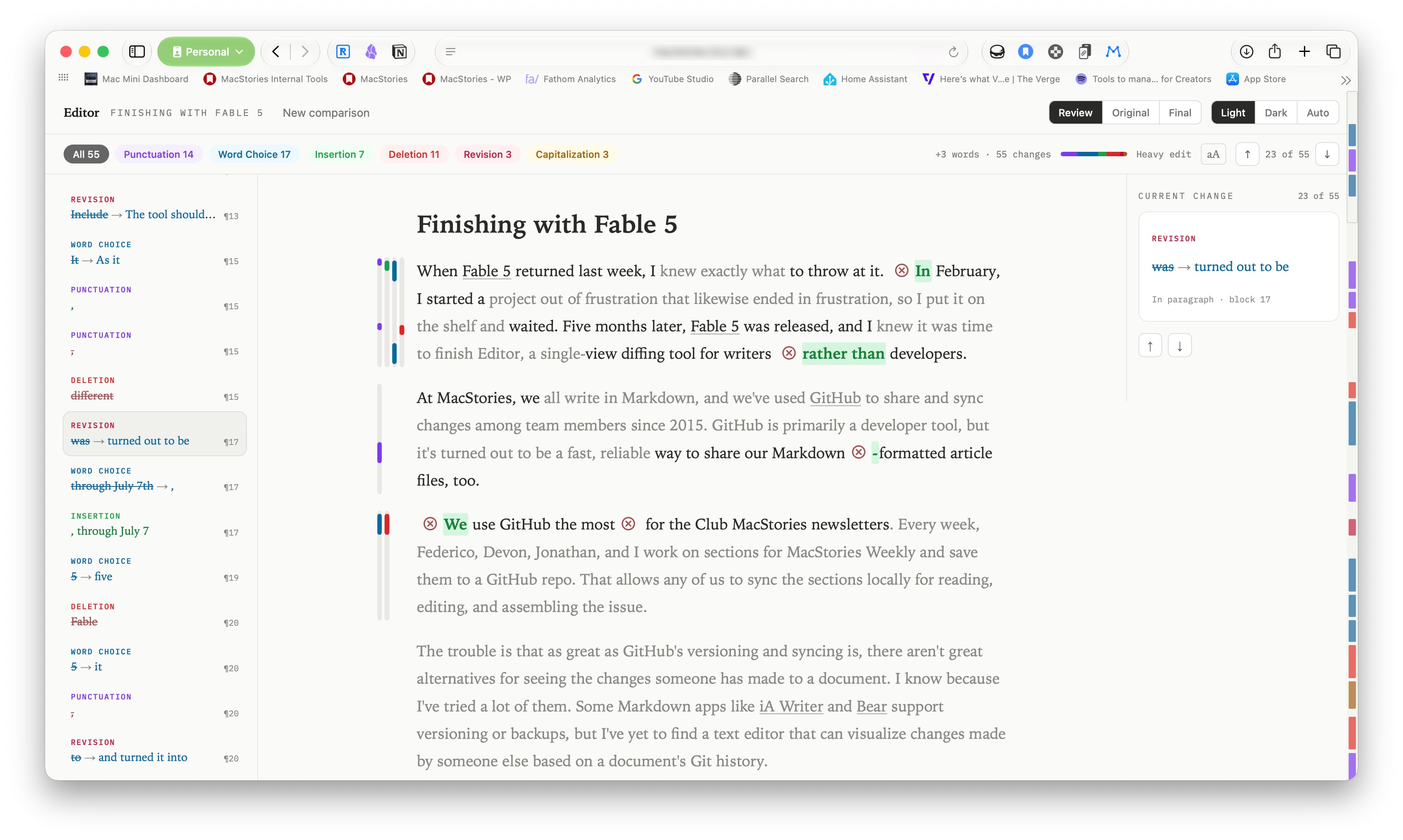
On a special Saturday edition of MacStories Unwind, Federico and John talk live music, blockbuster movies, and their ongoing experiments with Markdown text editors.
AppStories, Episode 493, ‘Fable 5 and OpenAI’s Curious ChatGPT Update’ Show Notes
This episode is sponsored by:
Daylite: The only made-for-mac CRM solution. Start your free trial today.
NPC XL is a weekly members-only version of NPC with extra content, available exclusively through our new Patreon for $5/month. Each week on NPC XL, Federico, Brendon, and John record a special segment or deep dive about a particular topic that is released alongside the “regular” NPC episodes. You can subscribe here.
Comfort Zone, Episode 109, ‘You Can’t Kill Chrome’ Show Notes
For even more from the Comfort Zone crew, you can subscribe to Cozy Zone. Cozy Zone is a weekly bonus episode of Comfort Zone where Matt, Niléane, and Chris invite listeners to join them in the Cozy Zone where they’ll cover extra topics, invent wilder challenges and games, and share all their great (and not so great) takes on tech. You can subscribe to Cozy Zone for $5 per month here or $50 per year here.
MacStories Unwind, ‘Text Editor Experiments’ Show Notes
MacStories launched its first podcast in 2017 with AppStories. Since then, the lineup has expanded to include a family of weekly shows that also includes MacStories Unwind, Magic Rays of Light, Comfort Zone, NPC: Next Portable Console, and First, Last, Everything that collectively, cover a broad range of the modern media world from Apple’s streaming service and videogame hardware to apps for a growing audience that appreciates our thoughtful, in-depth approach to media.
If you’re interested in advertising on our shows, you can learn more here or by contacting our Managing Editor, John Voorhees.
Summer beta season is in full swing, with a new wave of testers coming aboard via the just-released public OS 27 betas. While visionOS hasn’t ever been included in the public beta program, now is as good a time as any to check in on visionOS 27. What’s it like living with the features Apple highlighted at WWDC, and if you’re jumping on the public betas with your other devices, is it a good time to give the visionOS 27 developer beta a try, too? Let’s dig in and find out.
Siri AI
Given the massive overhaul Siri is receiving this year and the fact that the Vision Pro has always been a little behind when it comes to Apple Intelligence features, I didn’t expect visionOS to get the full Siri AI treatment this year. Thankfully, I was wrong. Not only is Siri AI fully present in visionOS 27, but the experience of interacting with the assistant has even been adapted to fit a spatial context.
For starters, Siri is much more capable in visionOS 27 than ever before. It’s not just for opening apps anymore. With access to your personal context, Siri can handle tasks I would have never imagined prompting it for until now. Questions like, “When was the last time I ate at this restaurant?” or, “How many years in a row have I attended this local event?” used to lead me down time-intensive rabbit holes of scavenging emails, texts, calendar events, photos, and more. Now, Siri can pull all of that information for me and answer the question in just a few seconds.
That “in a few seconds” bit is important. At least this point in the beta cycle, every request I give the assistant takes some time. Even tasks like checking my calendar and opening apps have a bit of lag to them on my M2 Vision Pro. This seems to be a side effect of Siri’s new architecture: it can do more, but parsing input, coordinating resources, and performing tasks takes a little longer than you might expect.
Of course, Siri has access to world knowledge now, too. We’ve all run into the classic, “Here are some web results for you,” response when asking Siri a question it considers too complex to answer itself, but those canned responses are no more. Now, Siri can dive into its (scraped) trove of knowledge to answer questions about pretty much any topic: history, science, pop culture, and more. Siri is the all-knowing bot we’ve always wanted it to be; just be sure to double-check its answers because, as Siri will remind you, AI can get things wrong.
Interacting with Siri in visionOS 27 is a whole new experience. The purple, blue, and green sphere evocative of Siri’s previous era (before all of Apple’s other platforms switched to the rainbow outline UI that never came to visionOS) has been replaced with a semi-translucent glowing white orb matching the Siri aesthetic on iOS, iPadOS, and macOS. The circular “thinking” animation mimics what you see when you interact with Siri on other devices, too, making for a much more cohesive cross-device experience.
When you invoke Siri via voice, the orb appears with a window above it displaying the text of your conversation. You can grab the window and place it anywhere in your environment. To continue the conversation, you simply look at the Siri UI and start speaking again. It all feels very natural, and I appreciate the way you can converse with Siri while interacting with other windows in objects in visionOS, a task that doesn’t translate as well to Apple’s other platforms. For those on the M5 Vision Pro, Siri has a new, more natural voice with customizable speed and expressivity as well, though my M2 model isn’t capable of running the local model necessary to power these changes and the improved dictation system.
visionOS 27 also includes a gesture for activating Siri that’s a little nostalgic. If you hold your palm open and upward then look at it, you’re present with a Home button as before. But if you pinch and hold the Home button, a tiny Siri UI will appear above it, just like in the old days when iPhones had physical Home buttons. You have to hold your fingers together the whole time you’re speaking to Siri, which seems a bit strange to me, but once you’ve made your initial request, the standard Siri UI appears, and you can carry on as usual.
The new version of Siri also brings Visual Intelligence to the Vision Pro for the first time. You can ask Siri about the content of a virtual window or objects in your real-world environment. When Visual Intelligence is activated, the system displays a very cool animation of your environment being scanned, and then, Siri can use what it sees to answer your questions. I’ve used this to ask Siri about webpages, documents I’m working on, and items I see around me, and it’s very cool to have an always-available digital assistant who can see what I see. It did a great job identifying my water bottle and then pulling up the receipt from my email to let me know how old it was, which I found to be a great combination of Visual Intelligence with my personal context.
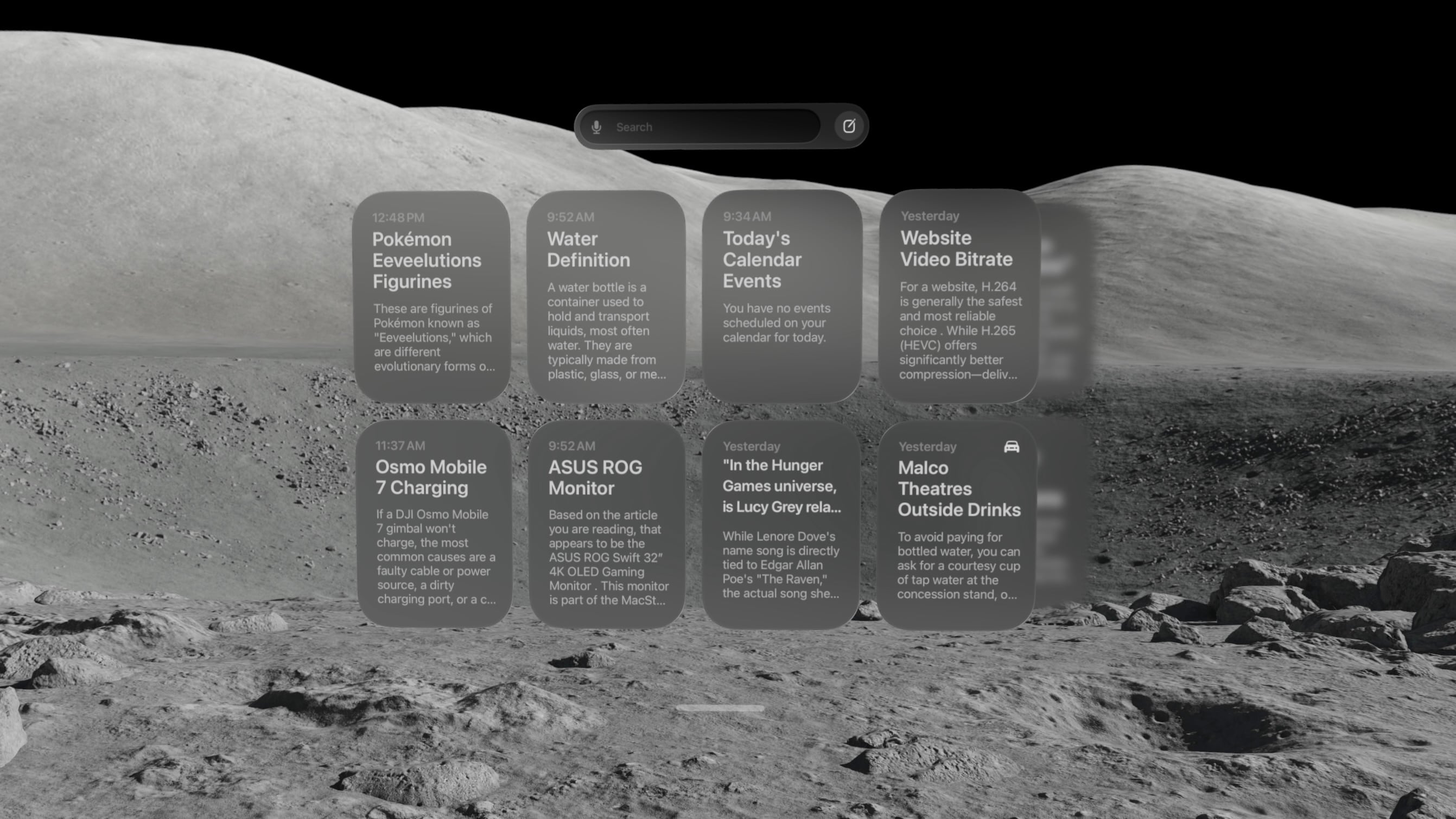
There’s also a new Siri app that contains a history of all your conversations with the assistant, including those synced from other devices. On visionOS, the Siri app is a horizontally-scrolling list of glassy cards that reminds me a lot of the Spatial Gallery app. It’s a handy way to pick back up on conversations started elsewhere, search for a previous answer, or simply interact with Siri via keyboard rather than voice.
At WWDC, Apple showed off a Siri mode where the orb persists in your environment, waiting for you to look at it and start a conversation. I have not been able to get that method to work yet. Once I start a conversation with Siri, I can keep the conversation window open and place it anywhere, but that’s not the same as having a small Siri UI sitting on my desk out of the way until I need it. I’ll keep my eyes peeled for it in future beta releases.
Siri AI is marked for release “later this year” (as opposed to the OS 27 updates listed as coming “this fall”), so there are still some rough edges to work out. Sometimes, conversations simply stop, with Siri telling me an error occurred. The Siri conversation UI will sporadically disappear, and I have to force quit the Siri app to get it to show up again. And Visual Intelligence sometimes struggles to understand what I’m trying to get it to look at, focusing on the wrong window or even the keyboard. But that’s beta life for you; it’s what I signed up for, and I’m trusting it will all be worked out before the public release.
Beta UI bugs aside, Siri AI is a huge upgrade for Apple’s digital assistant, and I’m happy to see visionOS getting the first-class treatment here. It isn’t simply ported over from iOS. It’s been carefully adapted for a spatial UI, and it makes for a powerful overall experience.
There is one other major way Siri differs on visionOS from other platforms: it hasn’t been integrated with Spotlight Search. For now, at least, the search feature on visionOS is dedicated to finding apps, app content, and web results, without even an ‘Ask Siri’ button in sight. With so many other ways to interact with Siri on the platform, it might make sense to keep it separate from search, but it’s certainly an oddity given the way the two features have been merged on every other platform. I’m still trying to figure out if I find this a helpful separation or a missed opportunity for cross-device cohesion.
Panoramas and Environments
There’s a lot more to visionOS 27 than just AI. Big changes are coming to panoramas, including the ability to act as persistent Environments. And, of course, Apple has to throw in a new Environment of its own, too.
Over the past couple of years, Apple has continually pushed the capabilities of its spatial photo conversion technology. Last year, that came in the form of spatial scenes across all of the company’s platforms, and this year, it’s coming to panoramas. In visionOS 27, you can convert panoramas into spatial scenes, adding layers of depth and perspective to the already stunning experience of viewing panoramas on the Vision Pro.
Being immersed in panoramic photos in visionOS was already breathtaking. This takes it to a whole new level. Experiencing memories in deeper ways than I ever thought possible is one of my favorite uses for the Vision Pro, and now, I can use it to revisit places I’ve been and feel like I’m standing there once again.
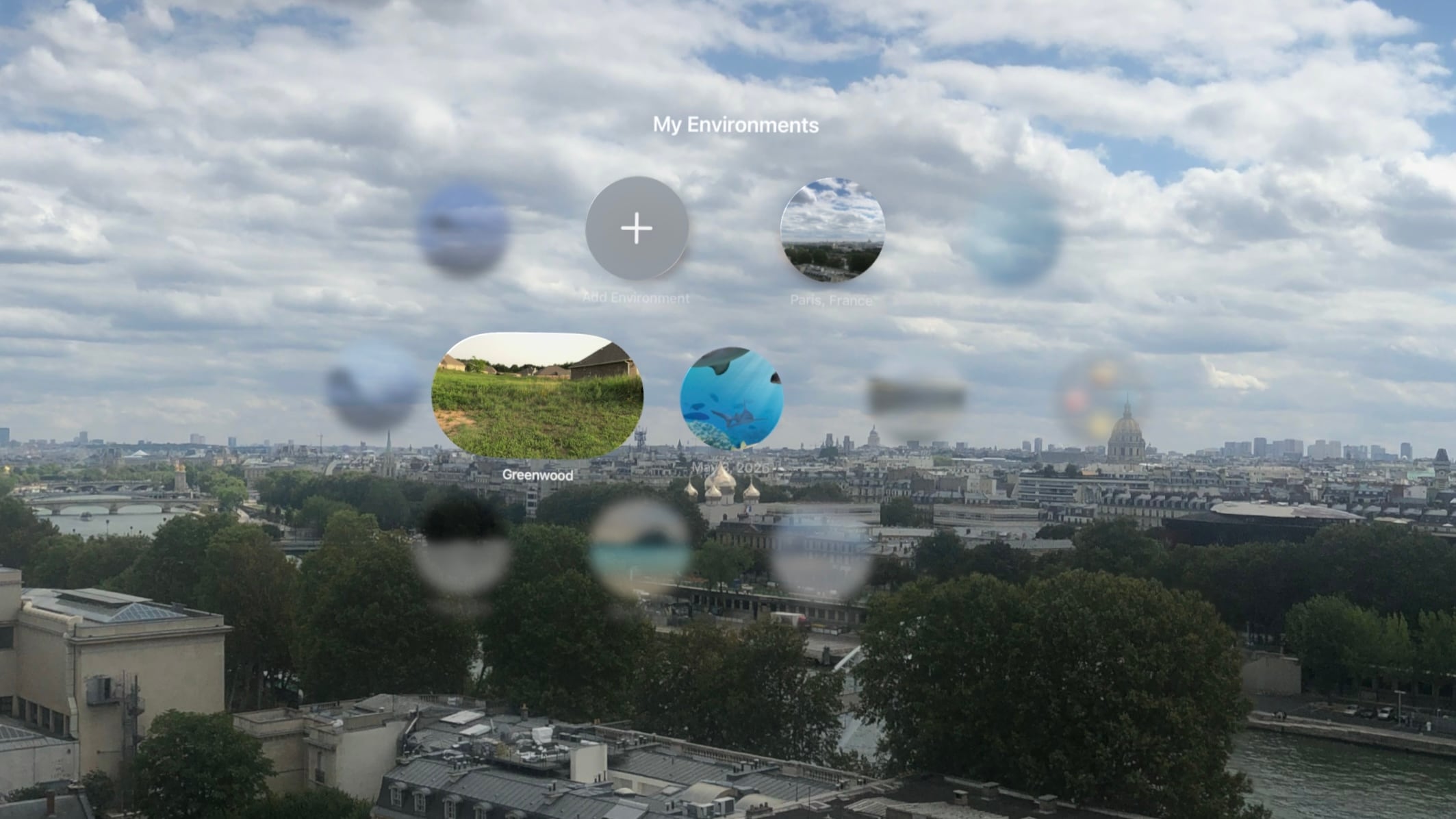
The system takes this experience one step further by allowing you to set panoramic spatial scenes as custom Environments. In the Environments view, there’s a new folder called My Environments where you can add up to 34 panoramas from your photo library and use them as immersive backgrounds for your content. You can even adjust the immersion level to make the photo wrap around you.
I love that we now have the option to use our own photos as Environments, but it does come with some tradeoffs. Panoramic photos are static, so they don’t have the subtle motion elements that make Environments feel alive. They also don’t expand as far vertically as Environments do, which means you’re likely to see your real-world surroundings if you look up or down. Still, this is the first time visionOS users have been able to set their own custom Environments using their own photos or images purchased online, so it’s a win. It’s definitely inspired me to start taking more panoramas than I did before.
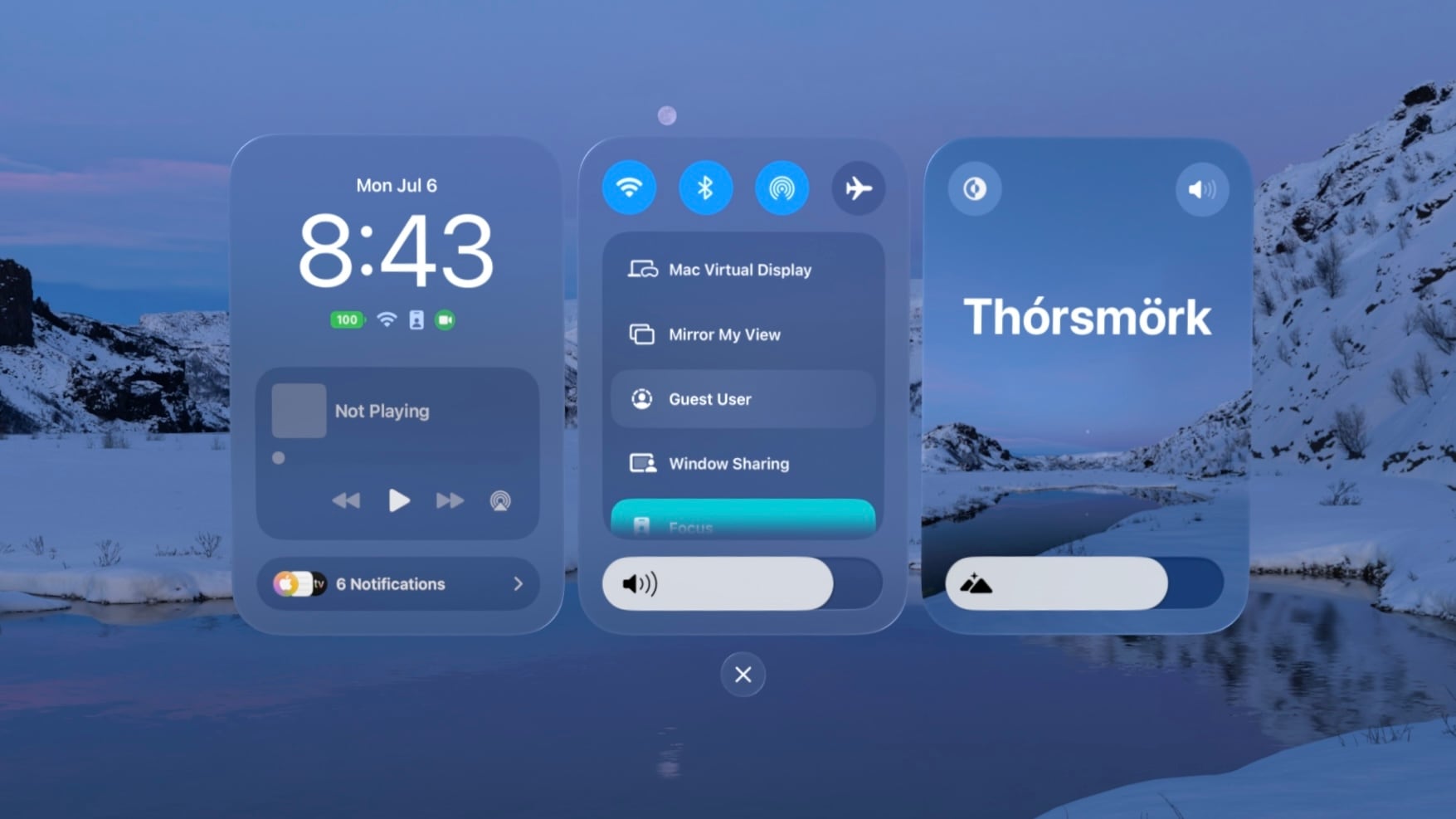
The new built-in Thórsmörk Environment is gorgeous. Apple always knows how to pick the perfect spot. Between the snow, the slow-moving river, and the aurora borealis in the sky at night, it offers a beautiful, peaceful place to relax, watch a movie, or trick your mind into cooling off on a hot summer’s day.
Safari
Spatial browsing is continuing to mature in visionOS 27, this time with the help of curved windows. Safari is one of the few built-in apps – Freeform and TV being the others – that are receiving special curved window modes this year, similar to what we’ve seen in the past with Mac Virtual Display. When a window is expanded beyond a comfortable width for side-to-side viewing, it automatically starts to curve, wrapping around the user’s head to make it easier to take in the window’s contents.
To be honest, I’m not sure how useful curved windows will be for browsing normal websites. While some, such as Apple’s OS Overview page are optimized to display content like image galleries at such wide aspect ratios, most sites don’t expand beyond a certain point, displaying blank space on either side of a centered column of content. Perhaps that will change with time, but for now, I don’t foresee these ultra-wide windows catching on for single-tab browsing.
Where the curved Safari window does shine, though, is in the browser’s new multi-tab view. A new button on the right side of the tab bar activates the view, which displays all open tabs side by side in a horizontally-scrolling curved window. These aren’t previews, either. Each tab can be scrolled, navigated, interacted with, and even closed as it if it were an independent browser window.
I’ve already found numerous use cases for this view in my own workflows: editing article previews, comparing product pages, and reviewing multiple research sources at once, just to name a few. Displaying multiple tabs at once in a large, ergonomic window view makes for a fantastic interaction method that I think could apply far beyond Safari webpages and sports multiviews in TV. I imagine this feature will be used far more than last year’s spatial browsing.
Apple Intelligence can sort your bookmarks and Reading List entries based on topic if you like, though the automatic tab sorting feature present on other platforms is curiously missing. Personally, I like managing my own tabs anyway, but add that feature to the long list of strange feature parity omissions on visionOS along with Focus filters, photo editing, and – as of the current beta – Describe a Shortcut.
Platform Improvements
There’s no doubt that this is a refinement year for Apple’s platforms beyond AI. The company is taking the opportunity to revisit and optimize OS features that have long been considered mature, and that’s the case even for visionOS, a relative newcomer.
The time it takes the Vision Pro to connect to Wi-Fi upon power-up has been reduced significantly. Given the device’s short battery life and tendency to go into deep sleep when not in use, this is a quality-of-life change that you’re going to feel. When I turn my M2 Vision Pro on, I can’t log in quickly enough to open Safari or the TV before it’s connected to the Internet. That definitely was not the case before visionOS 27, and I appreciate it.
I’ve long been on the record as a critic of the notification system on visionOS, but it’s taking a big leap forward this year with expanding notifications. When an app icon appears at the top of your view to alert you to a notification, you expand it with your gaze and actually see what you’re being notified about. You can even long-press a Messages notification to reply directly without the need to open the full app, which is so convenient. And with any app, just seeing notifications in full without losing the context of what I’m doing is a major improvement.
Unlike notifications, I was a fan of the redesigned Control Center in visionOS 26. Alas, Control Center has been redesigned again, now featuring a three-column layout instead of a single window. I’m still getting used to the new look, but it does make sense conceptually to split different types of controls into separate columns, so I’m hoping this will make the feature more intuitive once I’ve adapted to it. Regardless of any other efficiency wins, though, this redesign gets my approval simply because it finally brings the AirPlay menu to the top level of Control Center, saving me an extra tap every time I want to switch sound output to my AirPods.
Sharing screenshots and videos from visionOS is going to be much easier thanks to high-quality screen recordings, which can be enabled in the Settings app. Now, the Vision Pro can take unfoveated videos of its screen for up to three minutes, as well as full-quality screenshots. In the past, on-device screen recordings were fuzzy outside of the viewer’s focus, resulting in a poor representation of the visionOS experience and requiring a Developer Strap and Xcode on a Mac as a workaround. This change alone is going to make my review process much simpler, and it’ll make it easier for all Vision Pro users to show others what using the device is like.
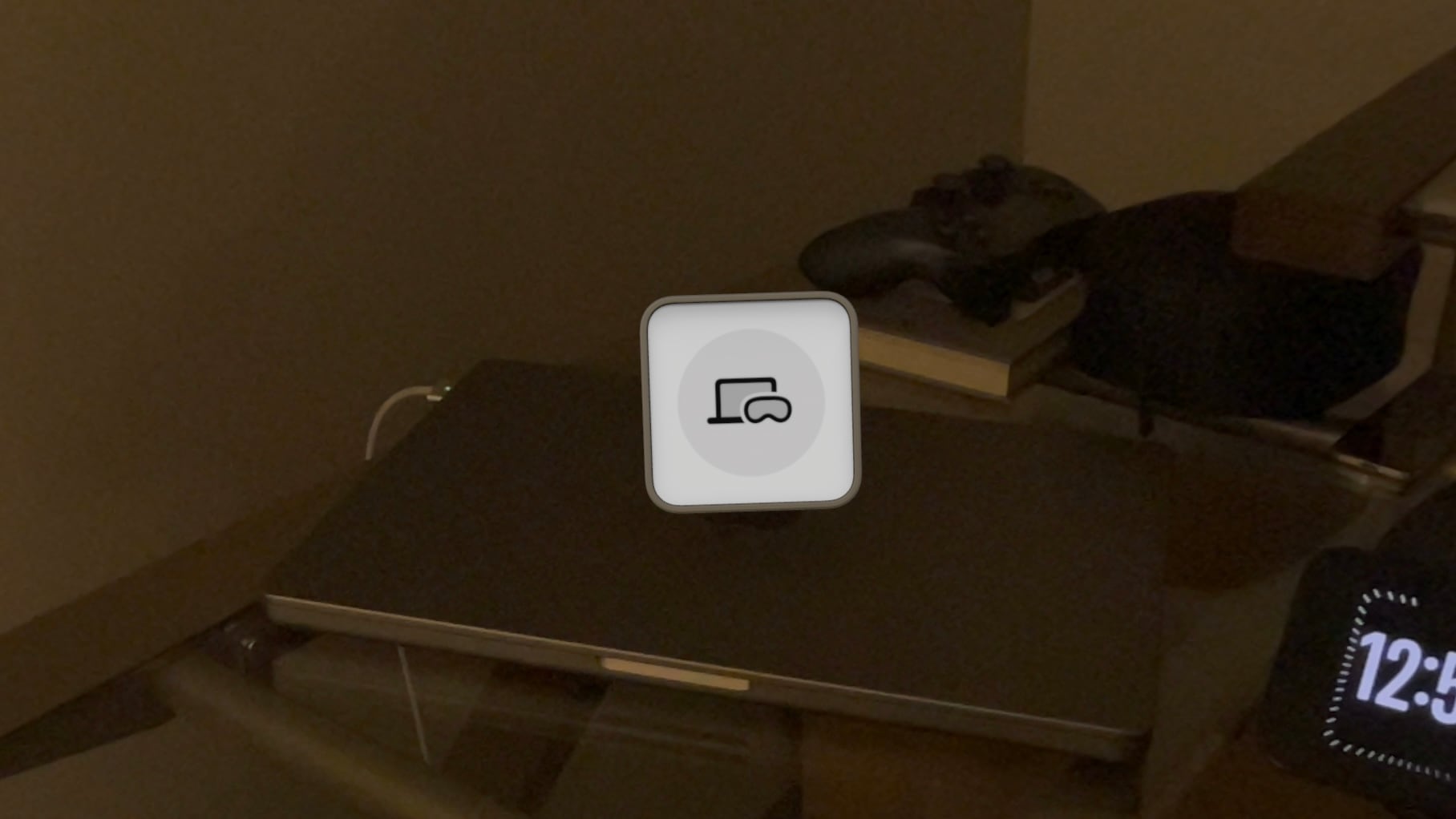
visionOS 27 now supports extra-small widgets, which are basically Lock Screen widgets brought to life in the user’s space. Like any other spatial widget, they can be placed on a wall or a horizontal surface such as a desk, and they are entirely customizable. Apple is introducing its own extra-small Mac Virtual Display widget for starting up a virtual connection with a Mac even if it’s asleep. Extra-small widgets take up much less space on a desk than even small ones, and there are already a bunch of them available from iPad apps running on the Vision Pro, so I think they’re going to be very useful.
Finally, there are some other Mac Virtual Display improvements included in visionOS 27. Virtual Display sessions can optionally persist even when you take your Vision Pro off, and macOS can stream spatial previews of 3D objects directly to visionOS with instant updates and two-way editing. I don’t have a Mac running Golden Gate yet, so I haven’t been able to try these features myself, but I plan to soon. If you work with 3D objects on your Mac and Vision Pro, I imagine this will speed up your workflow significantly.
And that’s visionOS 27 – so far, at least. There’s a still a lot more summer left: bugs to be squashed, refinements to be made, and third-party apps to be updated and introduced. My experience with the new version up to this point has been very positive, and I think it’ll make for a great update.
If you want to try out some of these features early, you can enroll in the Developer Beta anytime in the Software Update section of the Settings app. Whether you upgrade now or hold off for the public release, Apple’s got some great things in store with visionOS 27, and I look forward to continuing my testing over the summer in preparation for a full review this fall.
Last year was a quiet year for watchOS. While Apple took a couple of swings with Workout Buddy, Smart Stack hints, and a redesign of the Workout app, watchOS 26 was a scaled-back release compared to the big changes and upgrades in watchOS 11 the year before.
Of those swings, the excellent redesign of the Workout app felt severely hampered by bizarre scrolling behavior, Smart Stack hints didn’t appear often enough, and I found Workout Buddy to be mildly annoying and limited (though it’s true some users had the opposite view).
Let’s not forget the addition of Liquid Glass, too, a design system that was more like a coat of paint for the Apple Watch than the behavioral change seen on iOS.
Out of everything that was added, the wrist flick gesture was my favorite, and something I continue to use throughout the day. I don’t mean to sound down on last year’s release – there were genuine improvements in several areas – but it just felt more like a small evolution.
This year’s WWDC keynote didn’t feature a dedicated watchOS section (or a dedicated section for any particular OS, for that matter), but that’s not to say there’s nothing to see in watchOS 27. In fact, after several weeks of beta use, I see several intriguing things going on here.
So with that obvious tease out of the way, let’s break down what you can expect from watchOS 27.
Siri AI and Apple Intelligence
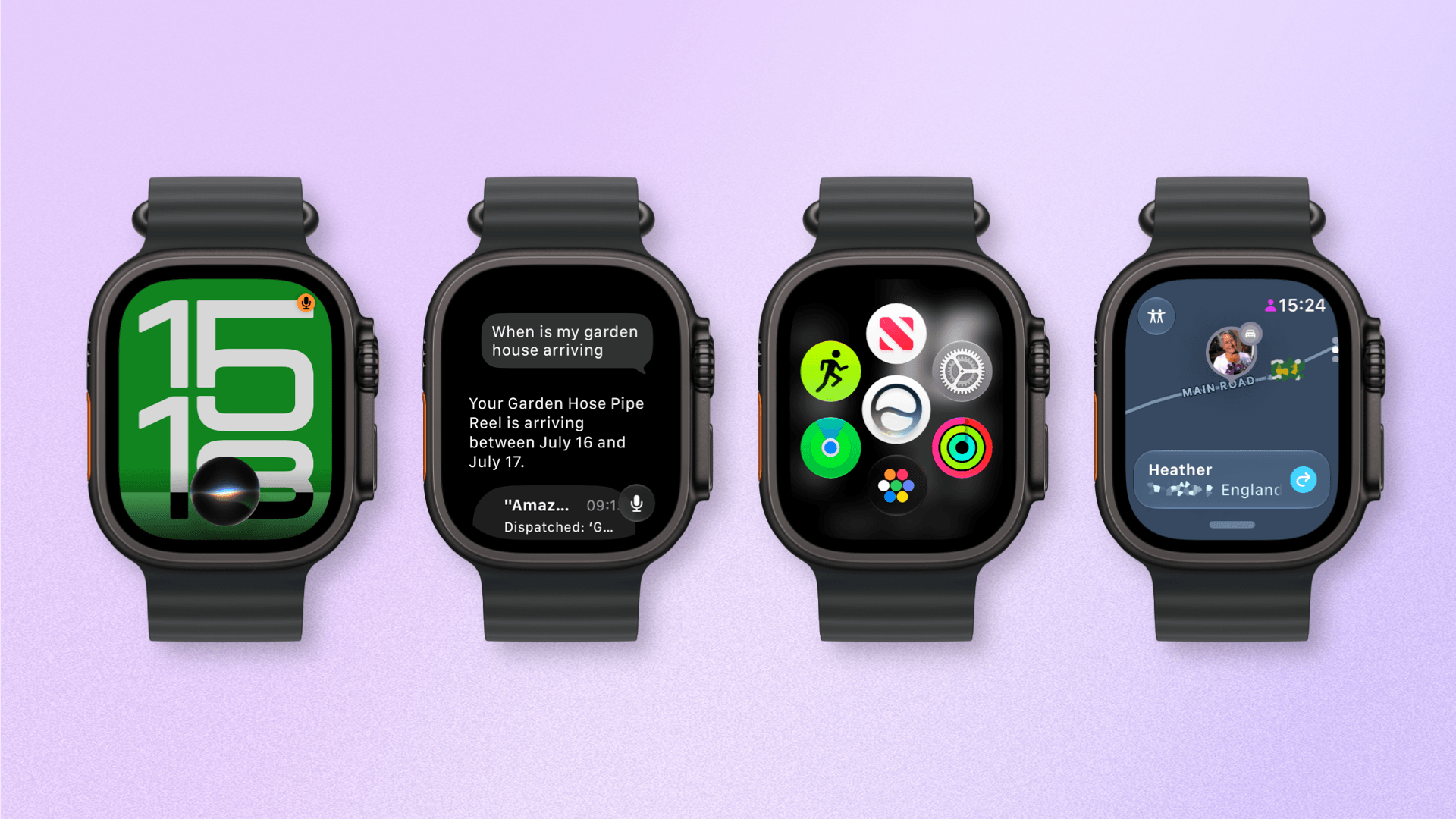
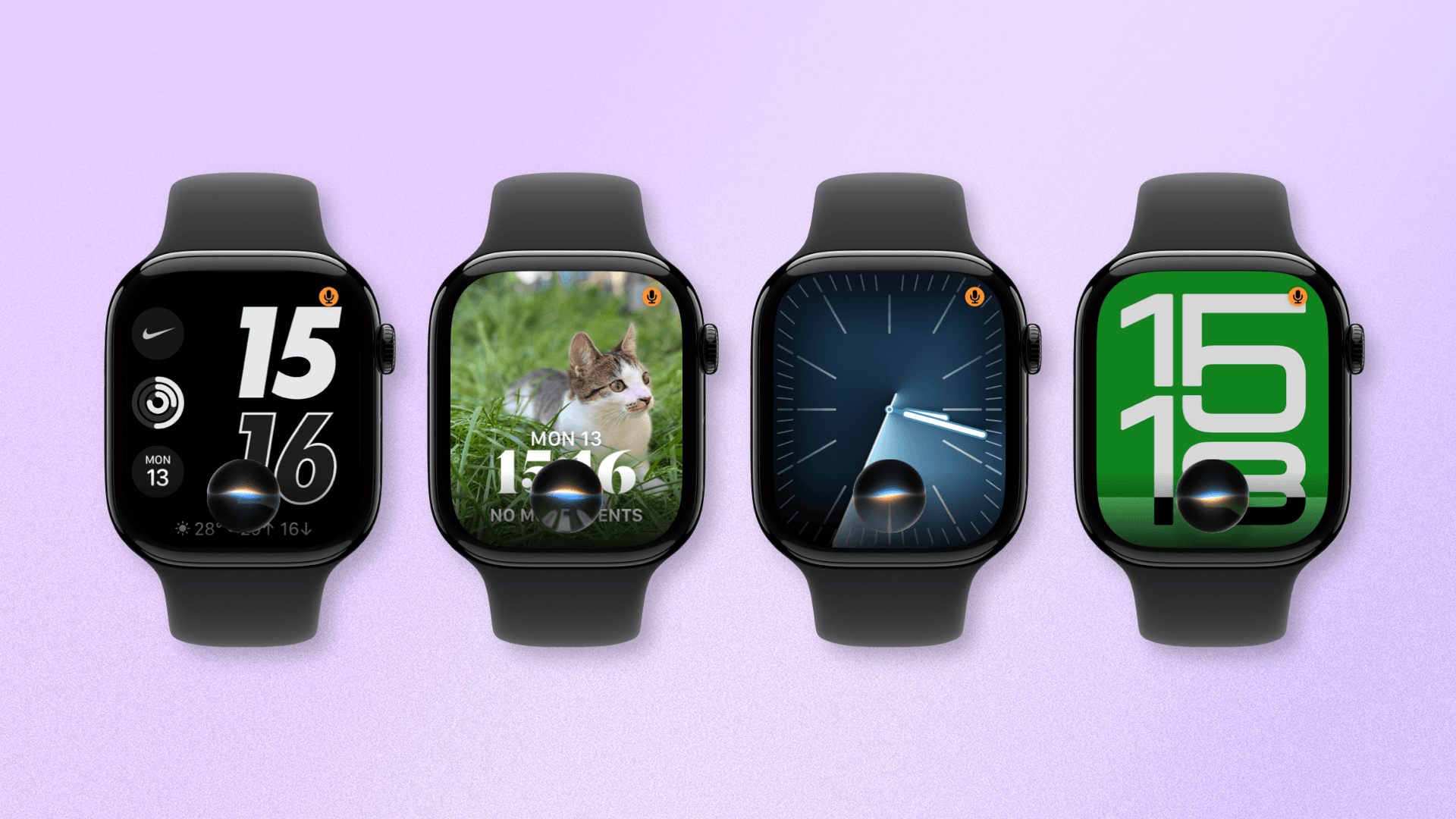
The new Siri UI over various watch faces.
The headline feature at this year’s WWDC was Siri AI, and along with every other platform (save for tvOS – yet), watchOS will be gaining access to Apple’s upgraded personal assistant.
I had worried that with the promised launch of an upgraded Siri, the Apple Watch would be forgotten in the rollout or receive a diluted version, so it’s exciting to see that not only is Siri AI included with watchOS 27, but it is almost a like-for-like copy of the iOS version. This is likely due to the way Siri AI on watchOS will essentially bounce queries off a paired iPhone.
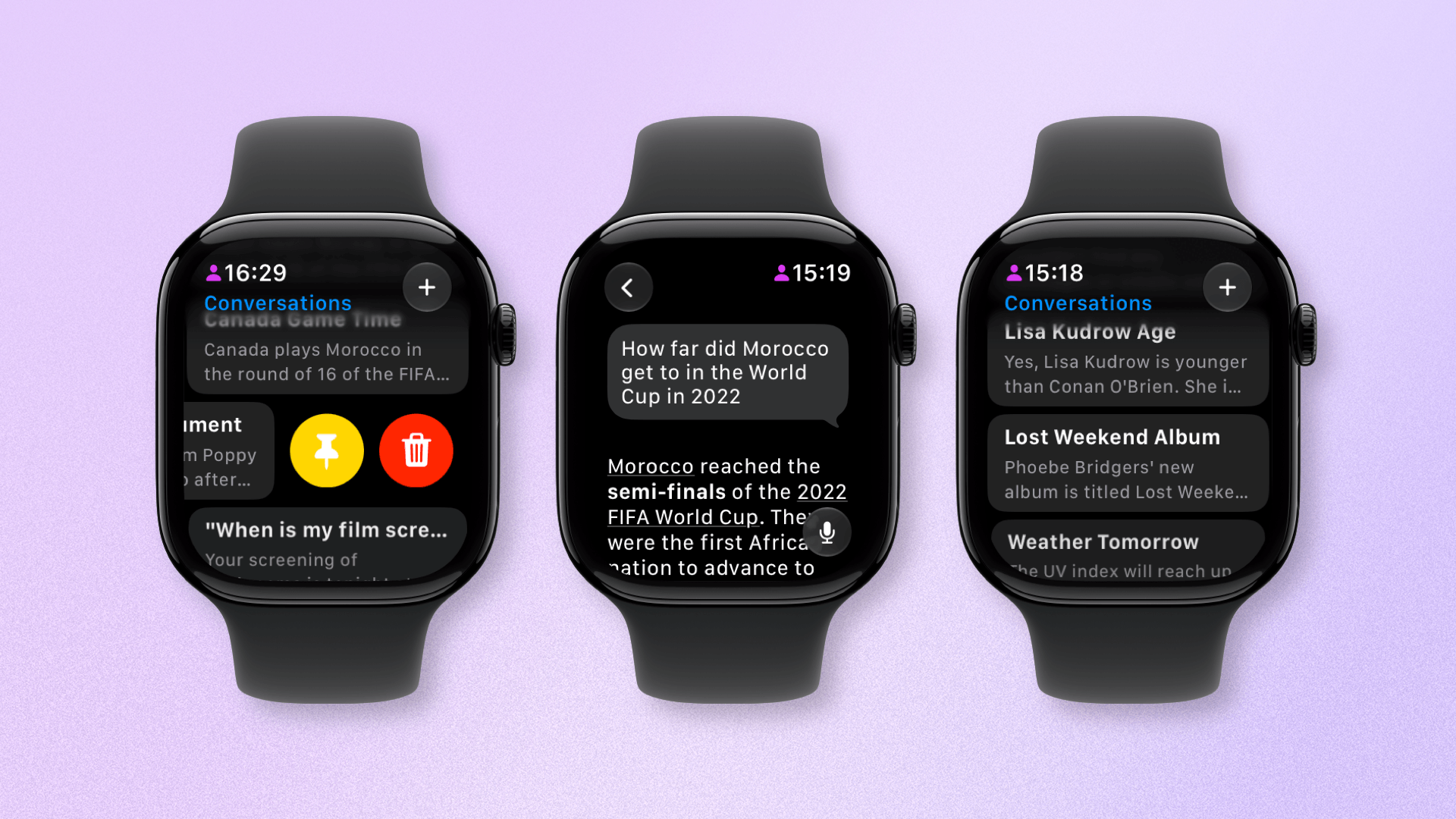
Siri AI continues to appear as a slightly amorphous assistant that can be summoned by long-pressing the Digital Crown, uttering the wake phrase, or using Raise to Speak. But now, it is also a dedicated app that lets you continue conversations started on other devices.
The new Siri app allows you to browse and pin past conversations.
Siri AI on watchOS only debuted in the latest developer beta a week ago, so I haven’t had long to fully test it. That said, I have two strong takeaways already: Siri AI shows the potential of becoming something huge for the Apple Watch, but it is, as of now, quite buggy.
Let’s start with the positive: the potential. I’ve long said that the best place for digital personal assistants is on existing items we wear like watches, rings, and glasses. The friction is low, and you’re not adding another device to your daily carry.
Imagine, if you will, being able to raise your wrist, ask a question, and get an instant answer without having to fiddle around getting your iPhone out of your pocket or bag, unlocking it, and then holding the power button or saying Siri’s wake phrase. Who needs that faff? Certainly not me.
That’s why when Siri AI has worked well, it’s been a great experience.
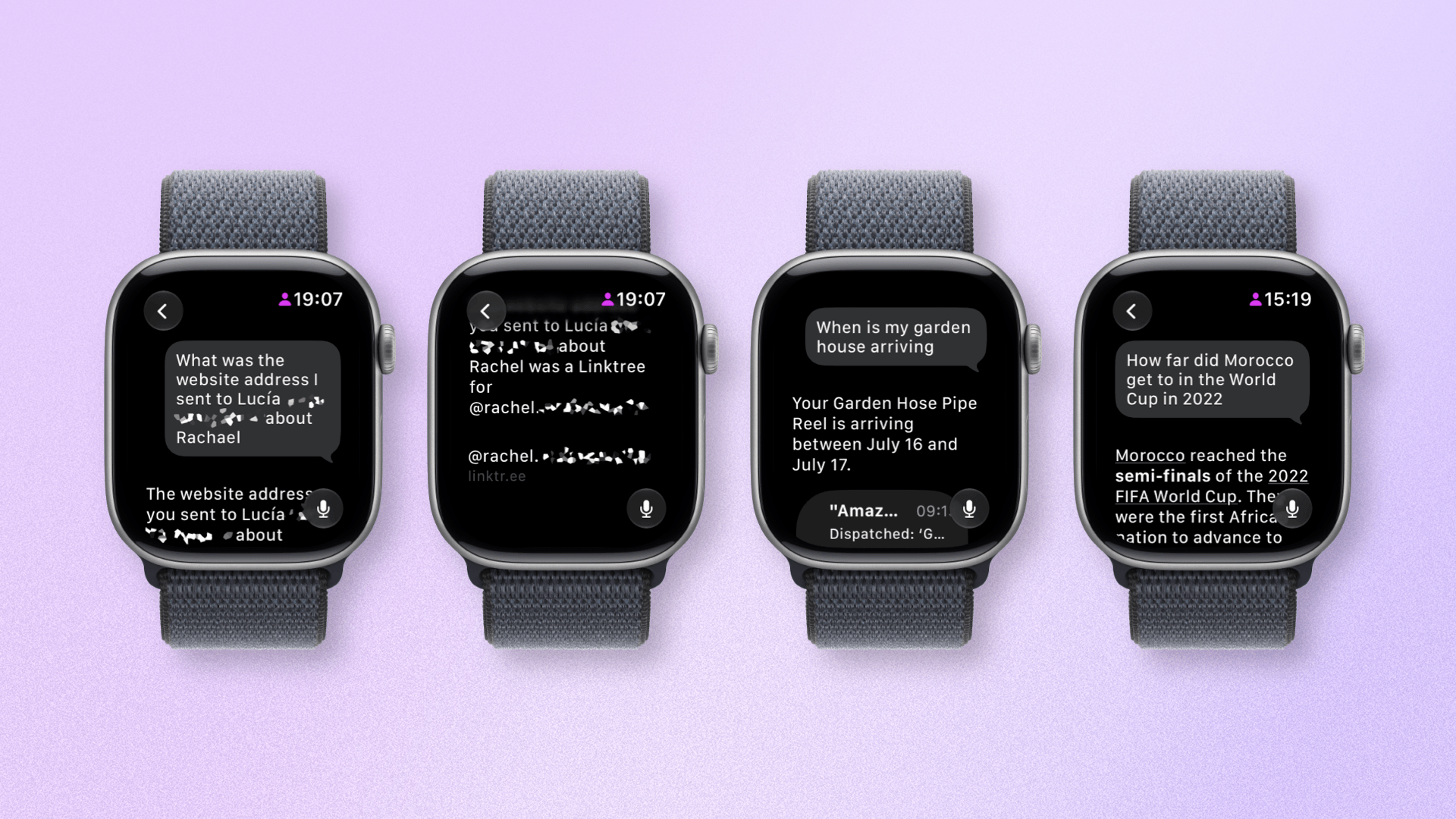
Siri can surface some impressive personal context answers.
While world knowledge questions are great, it excels more with in-depth queries, like a question about an old message. One good example is a query I had (pictured above) where, while talking to someone, I needed a friend’s website URL to pass along. I knew I’d sent it to my wife, so I asked Siri AI to find it. Based on the context, it searched messages with my wife and found the website, which I read out.
I’ve had several experiences like this. I had Siri AI find what our seat numbers were to see Aziz Ansari. I asked about the weather, with follow-up questions about the UV index and wind speeds, too. Although results can be slow, getting information like this felt like a superpower. The Apple Watch is a very personal device, and these experiences were both personal and useful.
Now for the negative: bugs. Unfortunately, Siri AI in the latest developer beta (and, likely, the first public beta) has a lot of them. To be clear, this is to be expected; it’s called a beta for a reason. But it’s also worth being aware of these issues if you’re thinking of trying out the public beta and expecting a consistently amazing personal assistant.
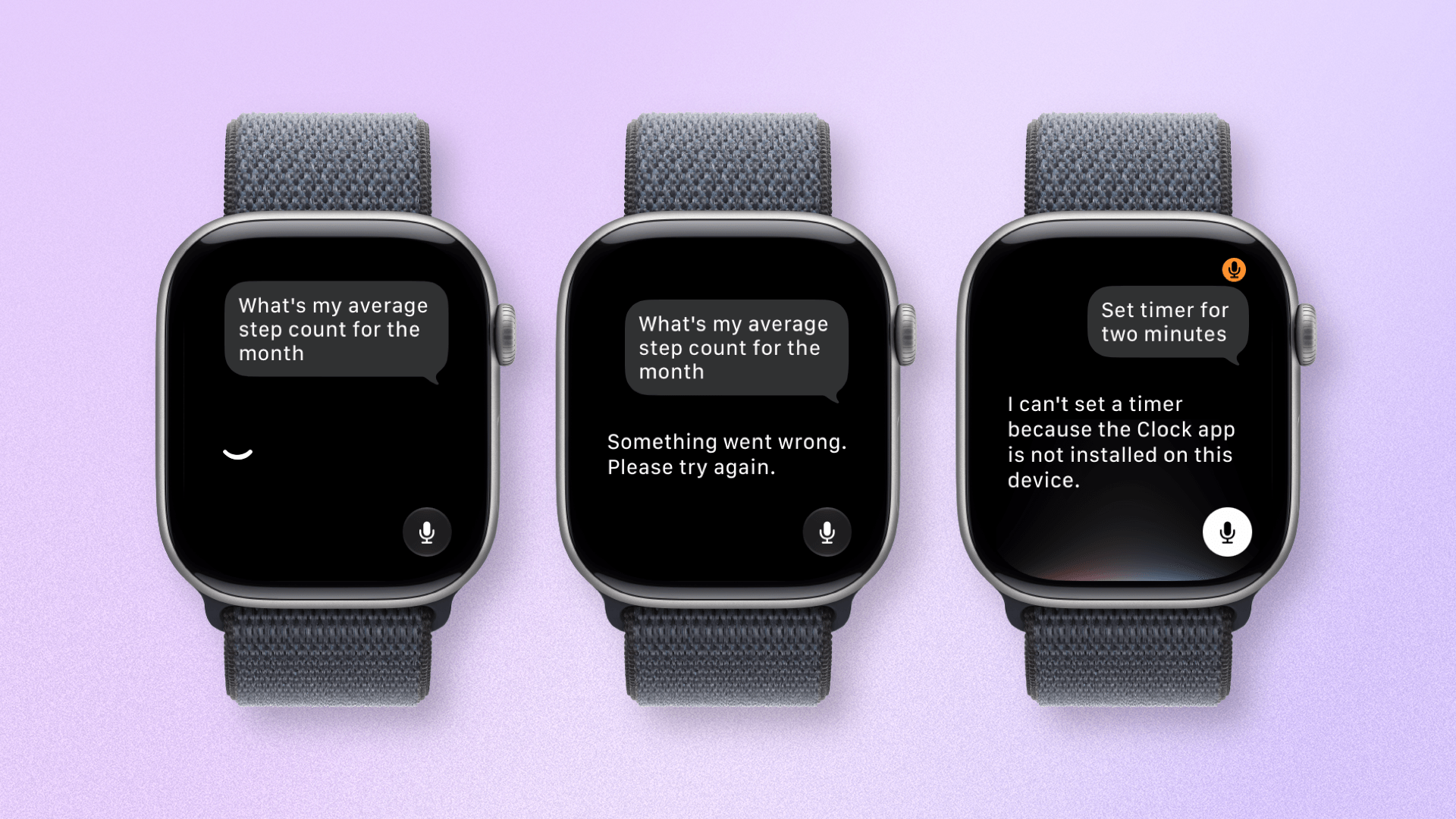
watchOS 27 may still be in beta, but the reliability needs work.
Queries frequently fail or time out, and Siri AI can often be a little too keen to answer your query, cutting off your question before you’ve finished. These bugs have also, unfortunately, leaked into some standard Siri requests. Setting a timer on the Apple Watch has been impossible for me since the update.
While it’s strange that these bugs are popping up, given that they aren’t issues on iOS, I expect the smaller ones to be fixed by the time Siri AI is released publicly later this year. The big question is whether Apple can bring Siri AI to an adequate level of reliability on the Apple Watch and fulfill its huge potential.
Call Context when making a call.
In terms of Apple Intelligence upgrades, there’s a new feature called Call Context. This promises to surface relevant information on your Apple Watch when you are on certain phone calls. For example, if you’re calling an airline, your Apple Watch might show the flight you have booked, or if you’re calling a friend, it might show their upcoming birthday. You get the picture. I’ve yet to encounter Call Context, but it could prove to be a small yet handy feature.
App Navigation and Interface
Apple claims opening speeds for apps across all of its platforms are up to 20% faster. On watchOS specifically, the company says tapping to start a workout and media playback are quicker, too.
I’ve got to admit: whatever Apple has been refining behind the scenes has worked. From the very first beta, apps opened dramatically faster. The same goes for general interactions like screen refreshes and button taps. It’s made the Apple Watch easier and quicker to use, which in turn has made the experience more enjoyable.
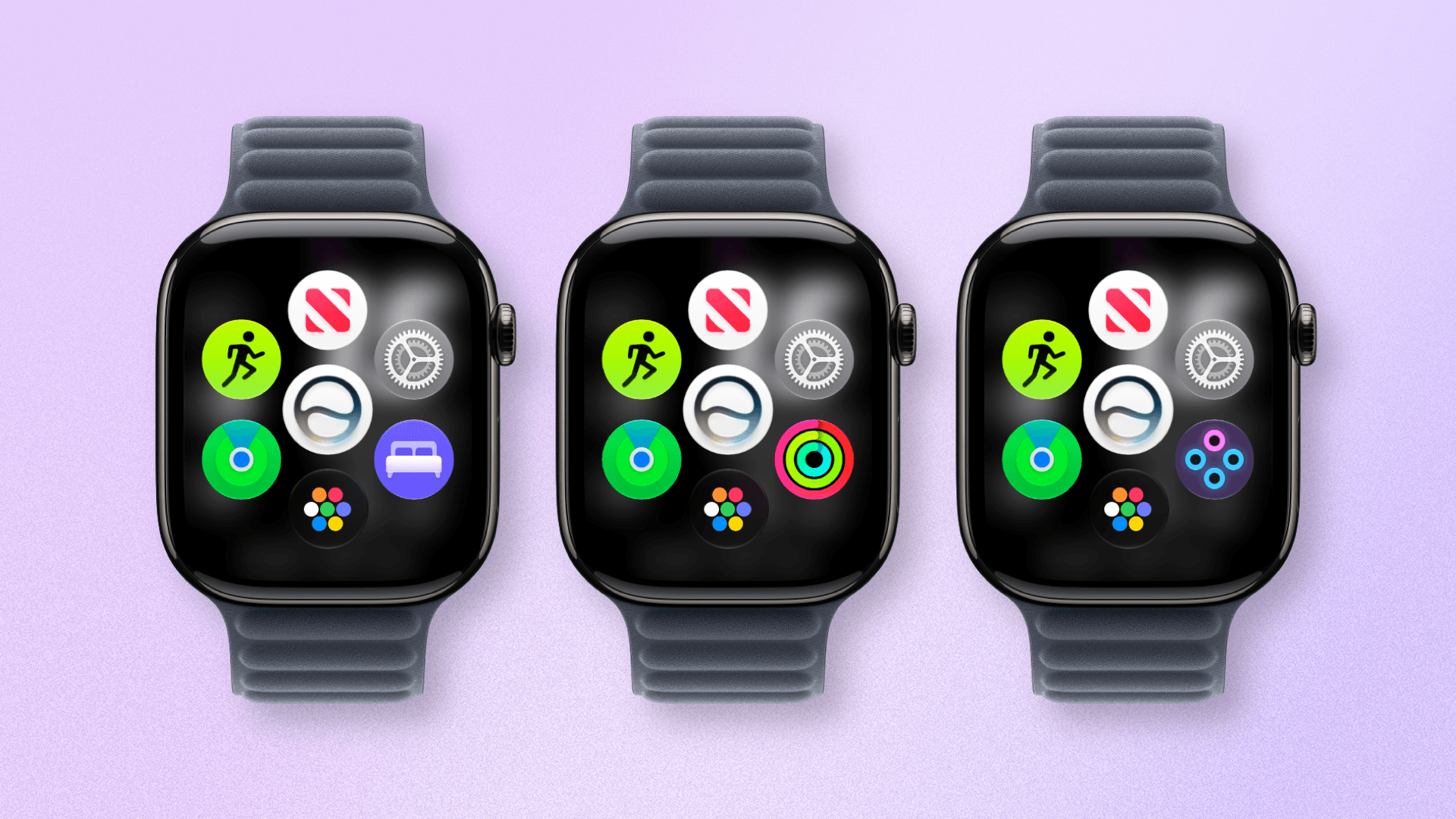
The new dynamic app grid changes one slot to your most recent app while the others are out of your control.
Over on the UI side of things, Apple has introduced an extra layer of app icons on top of the classic grid/list view. The dynamic app grid displays five app icons based on context and recent usage, surrounding one fixed icon for Siri AI. You can access the traditional grid or list view by swiping up from this grid, scrolling up with the Digital Crown, or tapping the app grid icon in the bottom of the app grid.
In use, I’ve found this new view a bit frustrating. It usually displays your most recently used app, which can be a waste of an app slot if you don’t frequent it often enough. Plus, I had already deliberately organized my icon grid to make it easy to access my most frequently used apps; this extra step gets in the way of that.
This would all be well and good – as I’m sure some people will like this feature – if it were optional. Frustratingly, it’s now the default behavior, so I’m forced to tap or swipe again to access the apps I like. It’s not the end of the world, but it’s certainly an unnecessary annoyance.
Liquid Glass is more legible in watchOS 27.
Elsewhere in watchOS, the UI design has been given some nice refinements. Just like on Apple’s other OSes, app icons are sharper and more distinct, and the Liquid Glass design system is much more readable in areas like Notification Center. Unlike on other platforms, the transparency of Liquid Glass cannot be adjusted on watchOS, but the level Apple has settled on is, I think, a decent compromise.
Workouts and Health
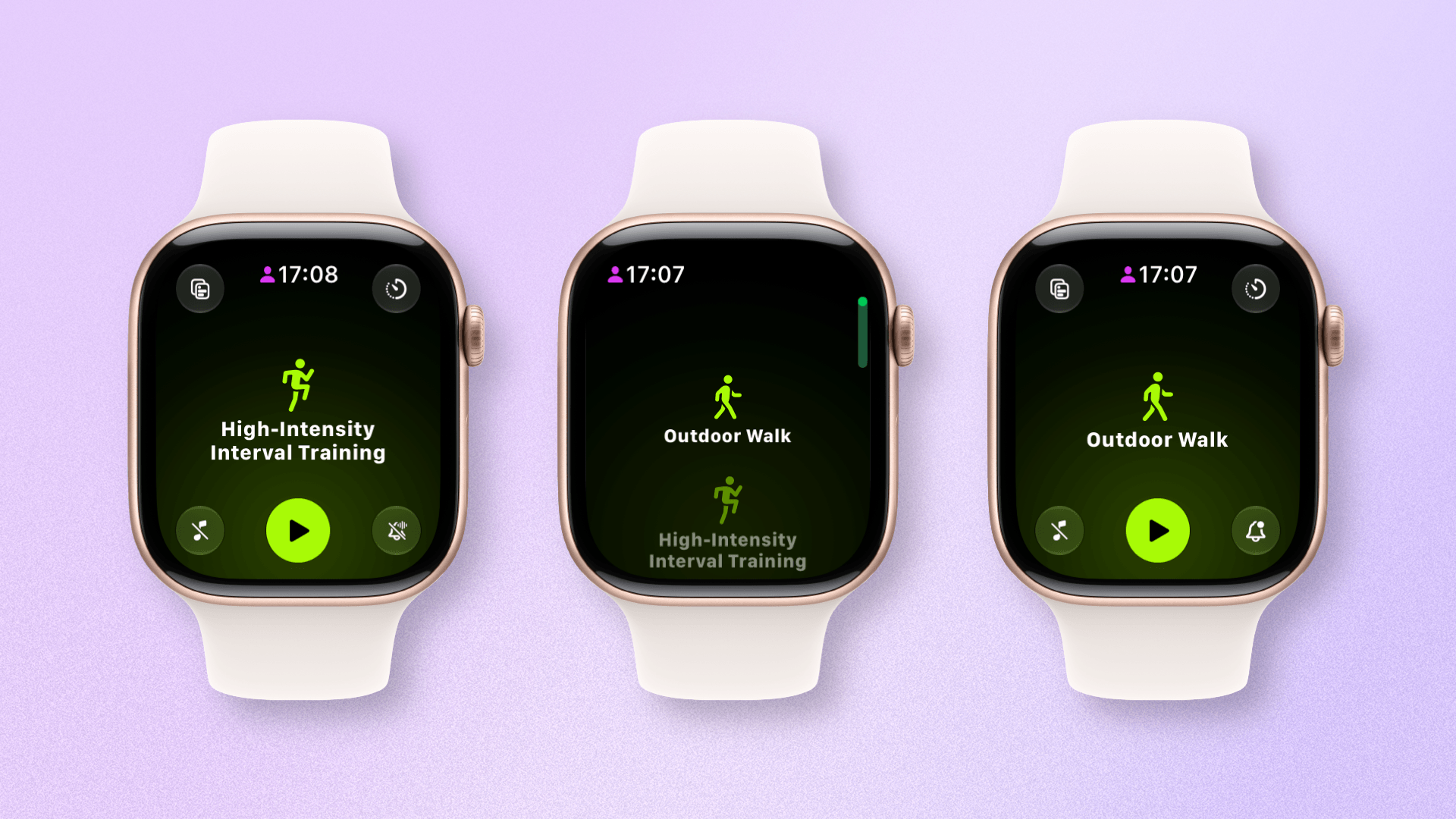
Workout app scrolling is fixed!
The biggest news, for me at least, is that the terrible scrolling behavior in the Workout app that I mentioned at the top of this article is gone. It’s difficult to describe without seeing it for yourself, but I would say it feels more “natural”.
The number of workouts the app scrolls past nicely reflects the amount of velocity you apply to your swipe, and even a dramatic swipe will only get you past a maximum of four workouts on the list. It shouldn’t have been a problem in the first place, but it’s good to see it rectified.
Workout Buddy has received a number of refinements, which will be welcome for users who like very enthusiastic announcements during their workouts. The big news is that Workout Buddy no longer requires a nearby iPhone to work. That’s a win for those who want to go out for a workout with their AI buddy but leave their iPhone at home.
Next, Workout Buddy’s insights are reportedly improved and deliver more detailed feedback. New insights include progress for pace, distance, and workout duration. In testing, I’m not sure I’ve noticed a huge difference, but more data is always welcome when you’re working out.
Finally, Workout Buddy features improved voice delivery that is more natural and less abrupt. Its phrasing now combines multiple achievements into a single statement to provide more consolidated feedback, and it will be available in Spanish as well.
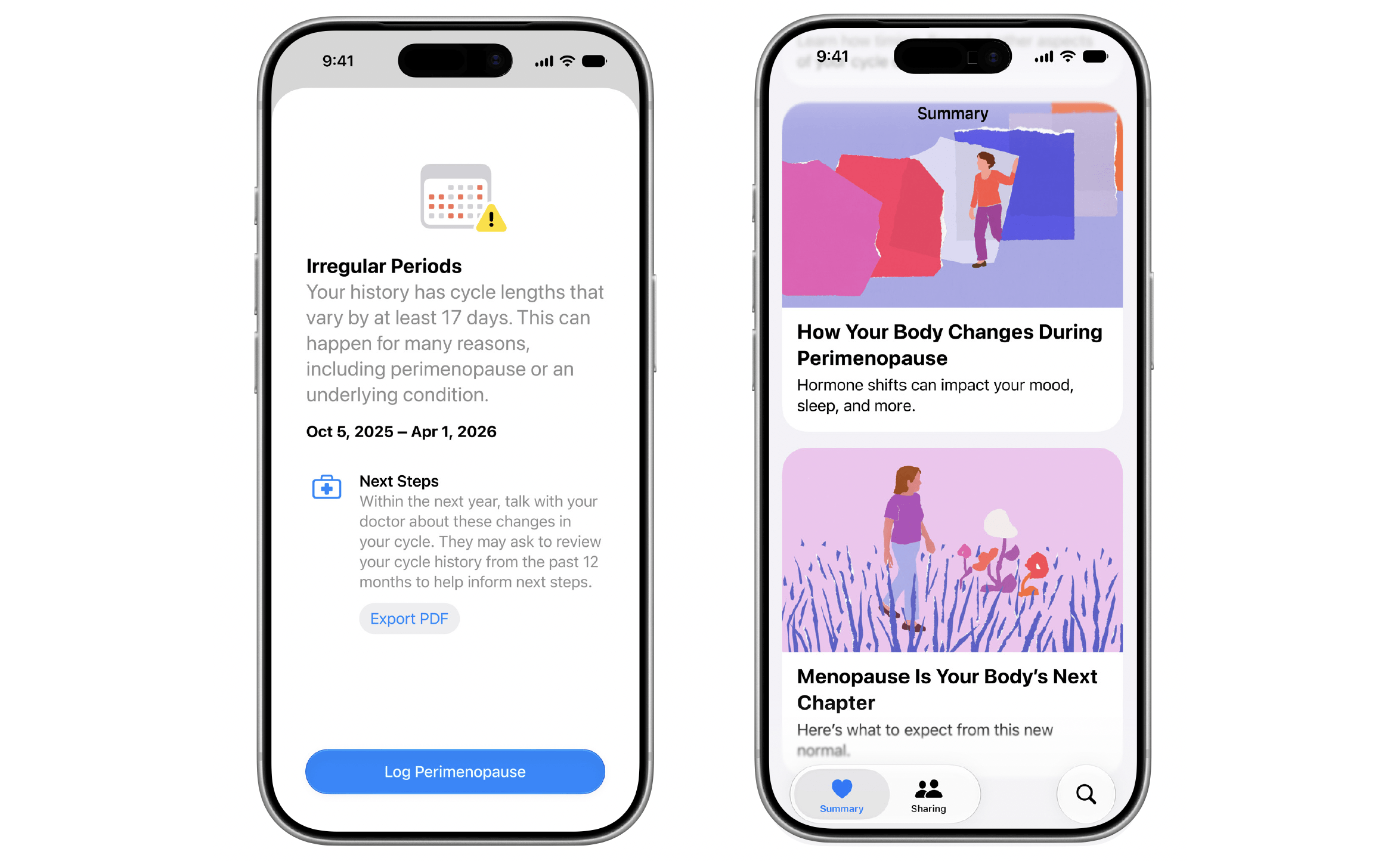
While not available to view on the Apple Watch, if you’re cycle tracking with your iPhone and Apple Watch, Apple Health will warn you if your cycle patterns are suggestive of perimenopause. As is the Apple way, the app will encourage you to track related symptoms, provide resources, and talk with your healthcare professional. It’s good to see Apple continuing to support common but often overlooked areas of health like this, especially ones specific to women.
Lastly, following the through line of performance improvements Apple is targeting across its platforms, step count accuracy and syncing between the iPhone and Apple Watch are fixed, and the accuracy of treadmill distance tracking has improved.
Find My
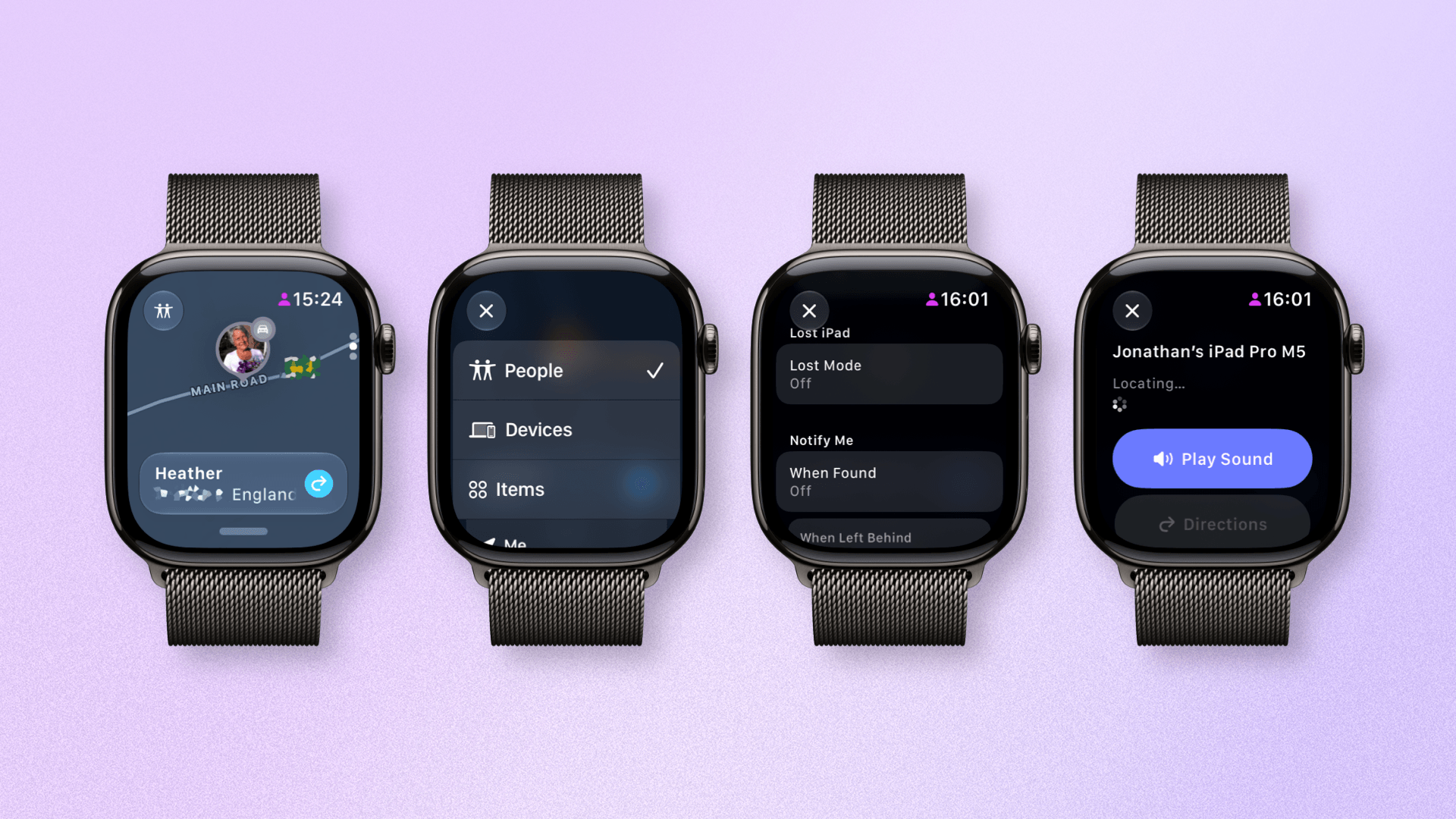
The new Find My app in watchOS 27 is fantastic.
The Find My app has historically – and bizarrely – been split into three separate apps on watchOS: People, Devices, and Items. I’ve never understood this logic, but watchOS 27 finally consolidates these three tracking streams into one app, just like every other platform.
What’s great to see is that, unlike last year’s Notes app, the new watchOS Find My experience is incredibly close to the one on iOS. You can switch between the three categories using a button in the top-left corner of the screen, scroll through each item or person, and perform all the usual actions you can on other platforms.
These include playing a sound, marking an item as lost, setting up location alerts, and even Precision Finding. The way the watchOS team has translated the full Find My app experience to the wrist is a real triumph of app design.
Smart Stack and Gestures
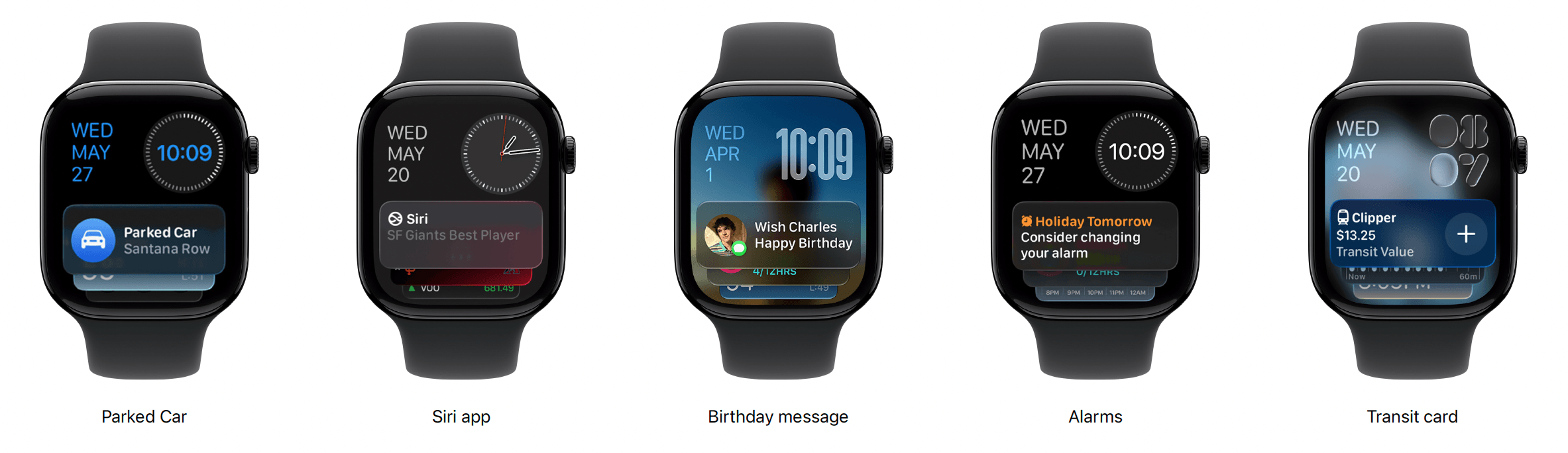
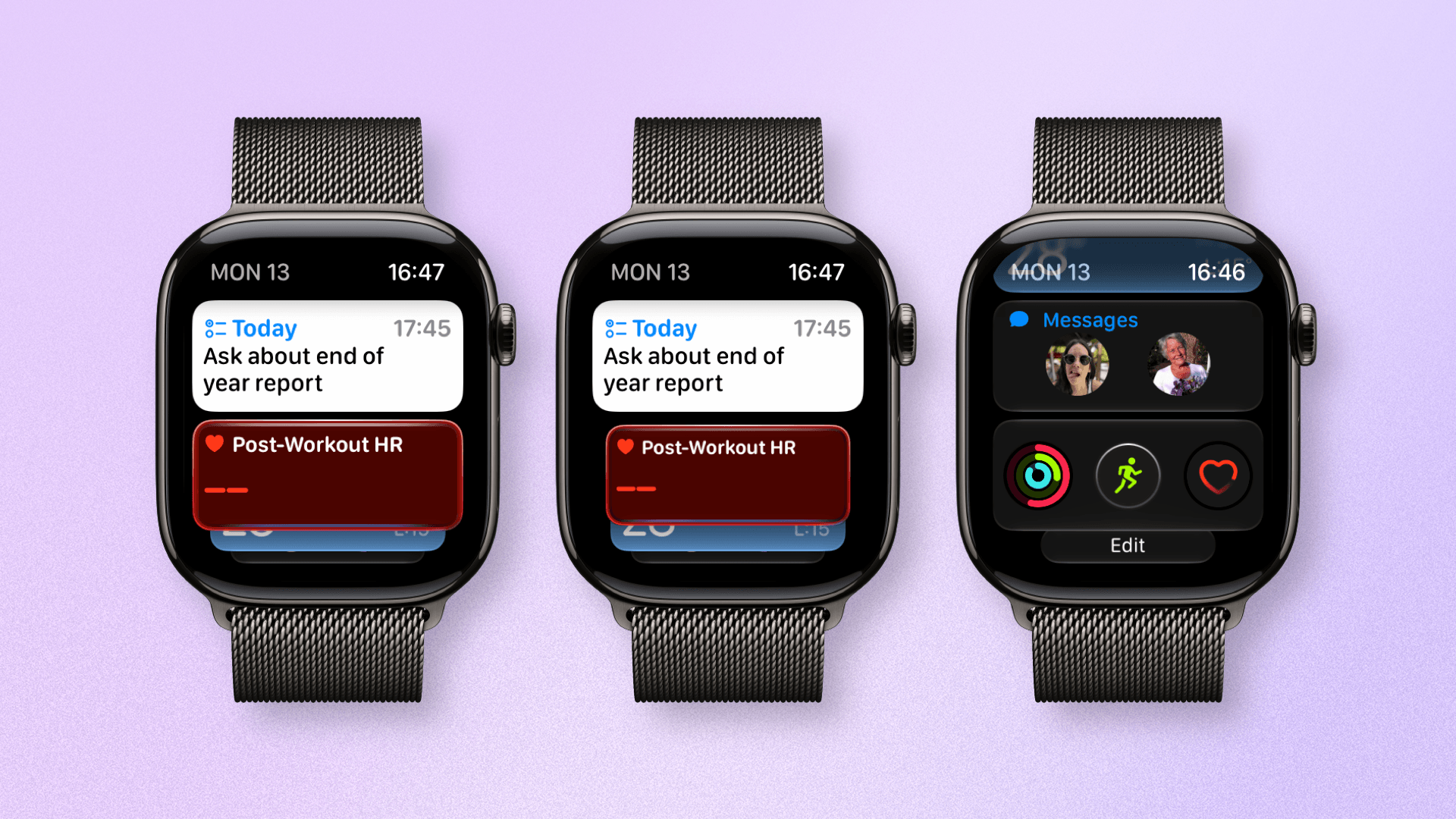
A selection of new Smart Stack widgets.
This is the third watchOS release for the Smart Stack, and it continues to gain enhancements. This year, those come in two forms. First, there is a range of new Smart Stack suggestions, including a close contact’s birthday, parked car location, and transit card balance.
An intriguing addition is a Smart Stack suggestion that will prompt you to change a recurring alarm the night before a holiday. I look forward to the day when my daughter doesn’t wake me up every morning so I can take full advantage of this.
The new single-tap gesture in action in the Smart Stack.
The second enhancement comes in the form of a new gesture. I’ve not been coy about my love of gestures on the Apple Watch, and after last year’s addition of the excellent wrist flick gesture, I was hoping for more this year.
The new single-tap gesture allows you to launch individual widgets within the Smart Stack or carry out an action like starting a workout or recognizing music. This is a nice addition, but my excitement is tempered by the fact that the gesture only works in the Smart Stack. The gesture being unavailable as an API for third-party apps is a disappointing omission by Apple, so I hope they grant developers access soon.
Tidbits
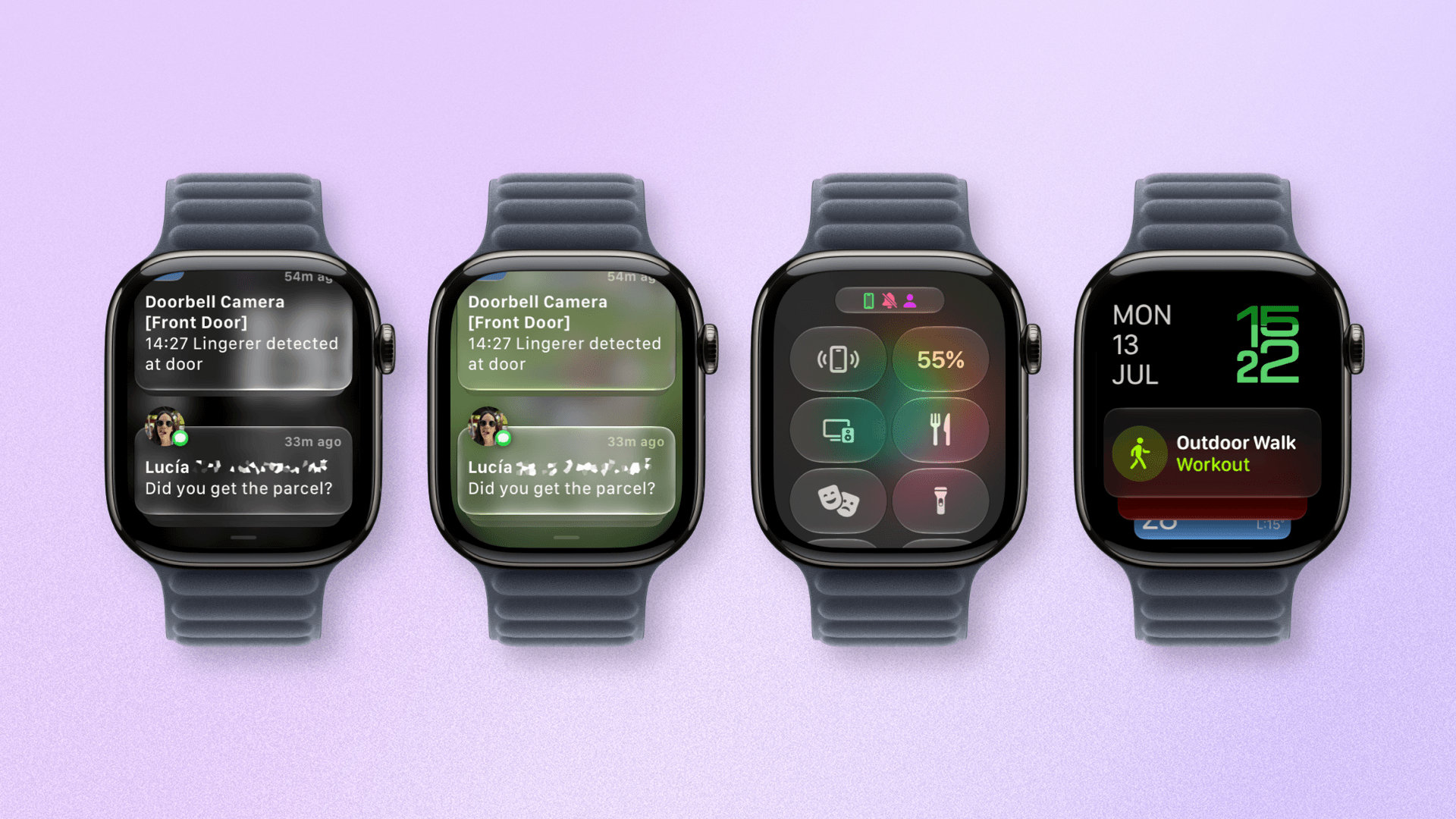
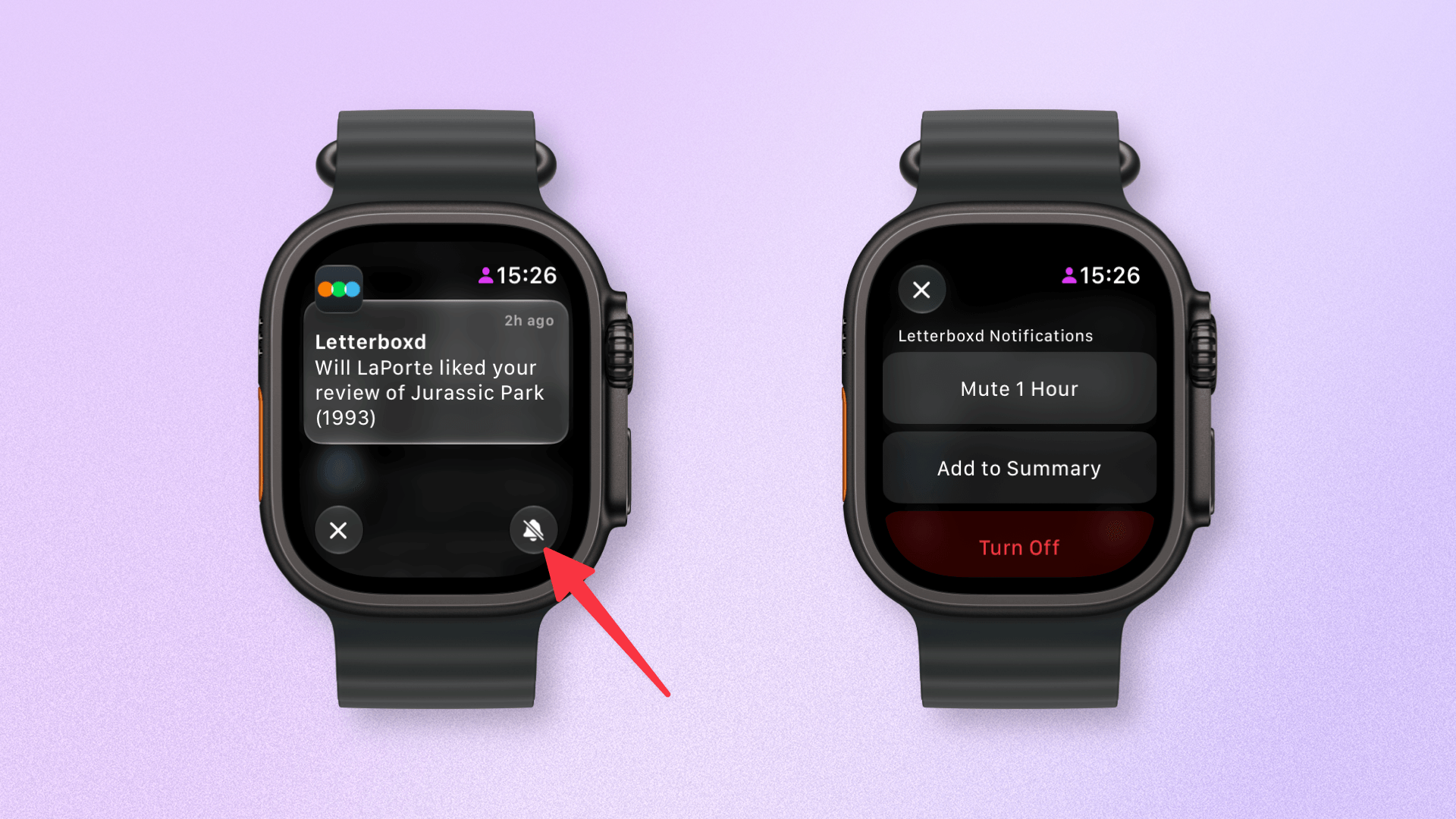
Better access to notification controls.
Notifications have been tweaked slightly to allow better access to options like muting and disabling them. Apple Pay notifications are richer, too, with clearer transaction information and a map showing the location of the purchase.
Sticking with transactions, iOS 27 is gaining the ability to create custom Wallet passes from QR codes, and watchOS will display these creations in the Wallet app as well. And in another example of increasing feature parity between watchOS and iOS, the Wallet app now shows card balances.
There are several features that users just don’t take advantage of on the Apple Watch purely because they don’t have the need or don’t particularly like them. Unfortunately, some of these features can affect battery life, so with watchOS 27, your Apple Watch will look for unused features and offer to turn them off to enhance battery life. These include things like Double Tap, Raise to Speak, and Start Workout reminders. You can always turn these features back on in Settings.
Lastly, continuing the theme of performance enhancements, Apple says watchOS 27 has improved Wi-Fi connectivity, better water detection, and more efficient GymKit integration.
Heading to the watchOS Graveyard
watchOS 27 comes with a few cuts, too. The Walkie-Talkie app is gone, as is the App Switcher. While I’m sure there are few who will miss Walkie-Talkie, the axing of the App Switcher seems a strange choice.
Previously, a double press of the Digital Crown would surface your currently open apps, allowing you to switch between them or close them. Now, a double press does the same thing as a single press: opening the new dynamic app grid. I used the App Switcher infrequently, but when I did, it was useful, so I hope Apple reverses course.
The last axe to fall in watchOS 27 is actually on several Apple Watch models. watchOS 27 will only support Apple Watch Series 9 and above, Apple Watch Ultra 2 and above, and Apple Watch SE 3. That means, of the models that could run watchOS 26, Apple is dropping support for Series 6, 7, 8, Ultra 1, and SE 2.
That’s quite a few models, and while Apple has explained the reasoning behind this decision, it will be frustrating to some users, especially those with the original Apple Watch Ultra.
Siri AI and several new Apple Intelligence features are the big carrots for installing Apple’s OS 27 releases this year. That includes watchOS, and despite its bugs, it’s been exciting to test Siri AI out. If Apple can deliver on this promise, it could be a game changer.
Yet, for most users, the performance enhancements I’ve seen will be the most immediately tangible part of the new OS (with the usual warning that running the watchOS beta means your battery will take a hit). The ability to raise my wrist, perform an action, and quickly move on without hangs or loading screens is incredibly valuable.
Apple has previously described new iOS releases as akin to “getting an entirely new phone”. That statement often referred to feature additions and design changes; however, when you get a new device, the feeling of “new” actually comes from increased speed, power, and performance. As such, watchOS 27 can often feel like using ‘an entirely new Apple Watch’.
If you want to test out these new features before they’re released this fall, you can do so now by enrolling in the watchOS 27 public beta. watchOS 27 is compatible with Apple Watch Series 9 and above, Apple Watch Ultra 2 and above, and Apple Watch SE 3.
The public beta of macOS 27 Golden Gate is out today, and I’m sure many of you are wondering whether to take the plunge and give it a try in advance of its official fall release. That’s the question this preview is here to help answer. It’s not my final take on Golden Gate by any means; after all, I’ve only been using it for about a month, and there will be several more turns in the beta cycle between now and the public release. However, I’ve used Golden Gate long enough to help you make an informed decision about whether or not to install the public beta now.
Of course, it’s impossible for me to account for everyone’s unique Mac setups when considering Golden Gate’s stability, but it’s worth reiterating what I’ve said in past previews: modern Apple betas have been consistently stable. That’s to say, the risks of using the public beta are modest. It’s been years since I’ve had a critical app fail or lost data. I never go into beta season without a backup plan, though. If something goes terribly wrong, I have backups, backups of those backups, and alternate Macs I can switch to in the event of a disaster. I don’t expect to have to go to Plan B, but if you’re going to jump on the Beta Bus, you should have a Plan B, too.
Okay, you’ve been warned. Let’s get to the fun part.
Every year’s macOS update is a little different, but Golden Gate is more different than most. Instead of focusing on tentpole features and apps (with the exception of a new Siri app), macOS 27’s updates fall into three broad categories:
refinements to Apple’s Liquid Glass design language,
hundreds of system-level changes intended to improve your Mac’s performance, and
Apple Intelligence, which includes the new Siri app as well as many other AI additions to existing system apps.
It’s been a while since the “Snow Leopard Moment.”
With so many past macOS updates focusing on system apps, it’s refreshing to see Apple take a more holistic system-level approach, which harkens back to how most people remember OS X Snow Leopard. In fact, during WWDC briefings, Apple representatives likened the Golden Gate update to Snow Leopard before anyone in the room even asked about it.
Source: Apple.
Snow Leopard is remembered as a release that focused on performance over features. The reality is that the update also introduced its fair share of new features, but many were less splashy from a user-facing standpoint. They were under-the-hood updates that made the Mac work better without users having to think about it much. In that sense, Golden Gate has a lot in common with Snow Leopard. Other than the brand new Siri app, you probably won’t notice that much is different when you first launch the new version. But over time, the changes will reveal themselves, adding up to a whole that – with few exceptions – is greater than the parts.
So let’s take a closer look at how Liquid Glass has evolved, the most significant system changes, and what it’s like to use Siri and other Apple Intelligence updates in Golden Gate’s public beta.
Design
Windows stand out from each other more, and the sidebar runs edge to edge in Golden Gate.
Last year’s introduction of the Liquid Glass design language was divisive. I rather like it, and others don’t, but I expect the overwhelming majority of Mac users don’t have a strong opinion either way.
That said, I came away from macOS Tahoe feeling like its Liquid Glass implementation was unfinished, or at least unevenly applied, because it varied from app to app and even within apps. Examples included different transparency treatments within apps like Finder:
I use [Finder] with the tab bar visible most of the time, whether I’m using tabs or not. I also almost always use a list view in Finder. What I discovered when I turned off the tab bar and switched to an icon grid view was that the Finder toolbar and buttons became far more transparent. Dark file icons are more noticeable beneath the toolbar, and text becomes more of a distraction.
That sort of inconsistency has been fixed.
Finder in macOS Tahoe.
Finder in macOS Golden Gate. Even with Liquid Glass’ transparency turned on as far as it can go, toolbar buttons are more visible now.
Another big inconsistency was how toolbars were handled from app to app. In some apps, like Photos, they were very transparent, making buttons difficult to see against picture thumbnails in some cases. Other apps, like Reminders, used a more frosted treatment that prevented text and icons under toolbars from competing with the toolbar’s icons and text as a user scrolled their task lists. That, too, has changed for the better.
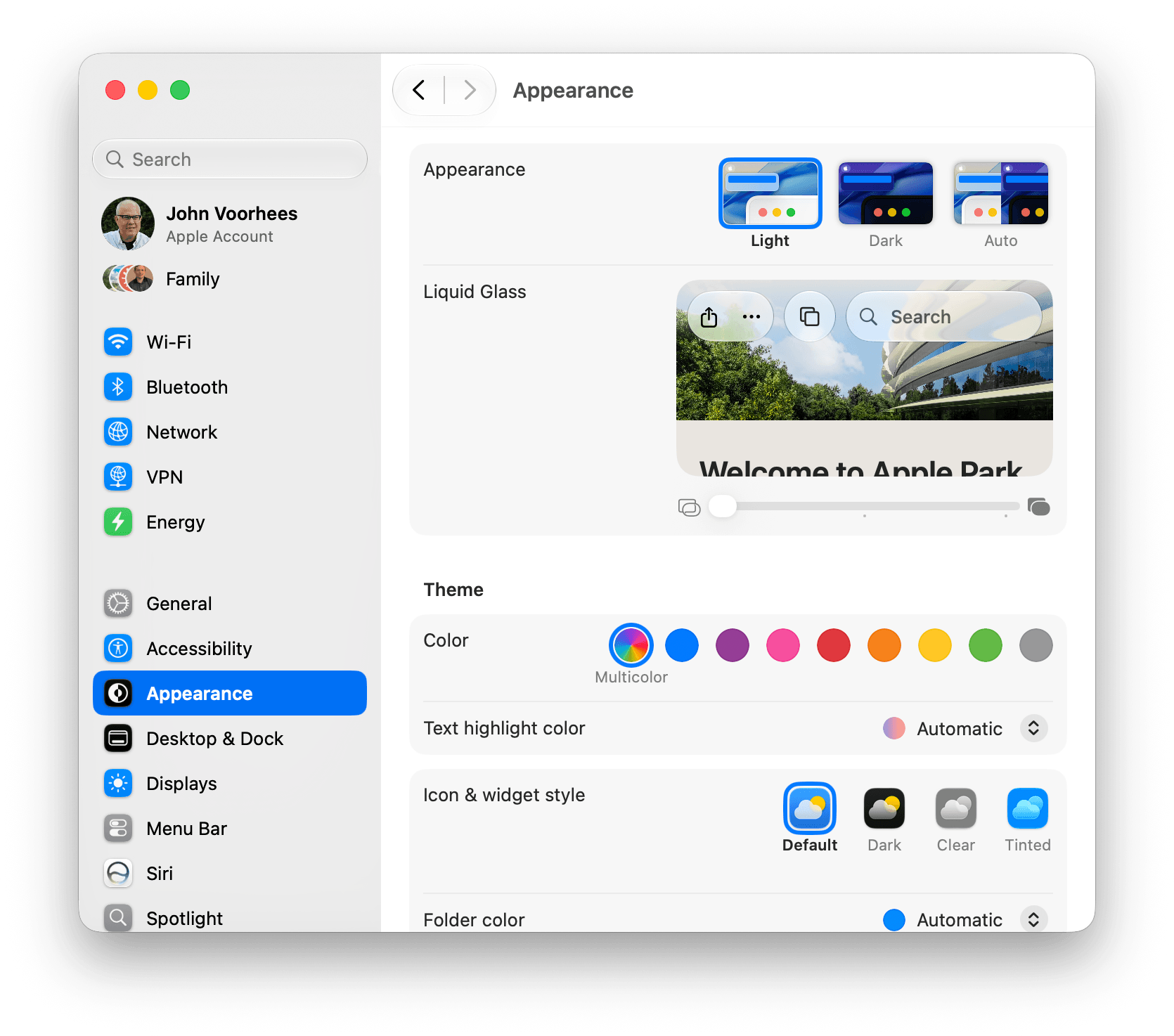
But perhaps the single biggest change to Liquid Glass is a new slider in the Appearance section of System Settings that lets you dial in the intensity of the transparency. By default, the slider is set directly in the middle. Moving the slider to the left makes buttons and other elements more transparent, while moving it to the right reduces transparency in favor of a frosted look.
Behold, the transparency slider.
The slider is a welcome change that lets users decide how transparent UI elements are. It’s the right choice when some people love Liquid Glass, some can’t stand it, and most don’t care. The default setting works well for those who don’t care and will never think to look for the transparency slider, while those who do care can dial in the look they prefer. Me? I’m a full transparency guy, at least for now, so you’ll see a lot of that here and in my fall review.
Window sidebars have been changed in a big way, too. In Tahoe, they resembled a glass sheet sitting on top of the window. I liked the look, but if you had overlapping windows, it was sometimes possible to mistake a sidebar for a separate window, which could be confusing. With Golden Gate, sidebars extend to the edges of their windows so they look as though they’re built into the windows instead of sitting on top of them.
Apple also reversed course on another controversial Tahoe change: icons next to menu items. I use keyboard shortcuts so much that I barely noticed the icons next to every single menu item. Now, however, they’re once again used sparingly.
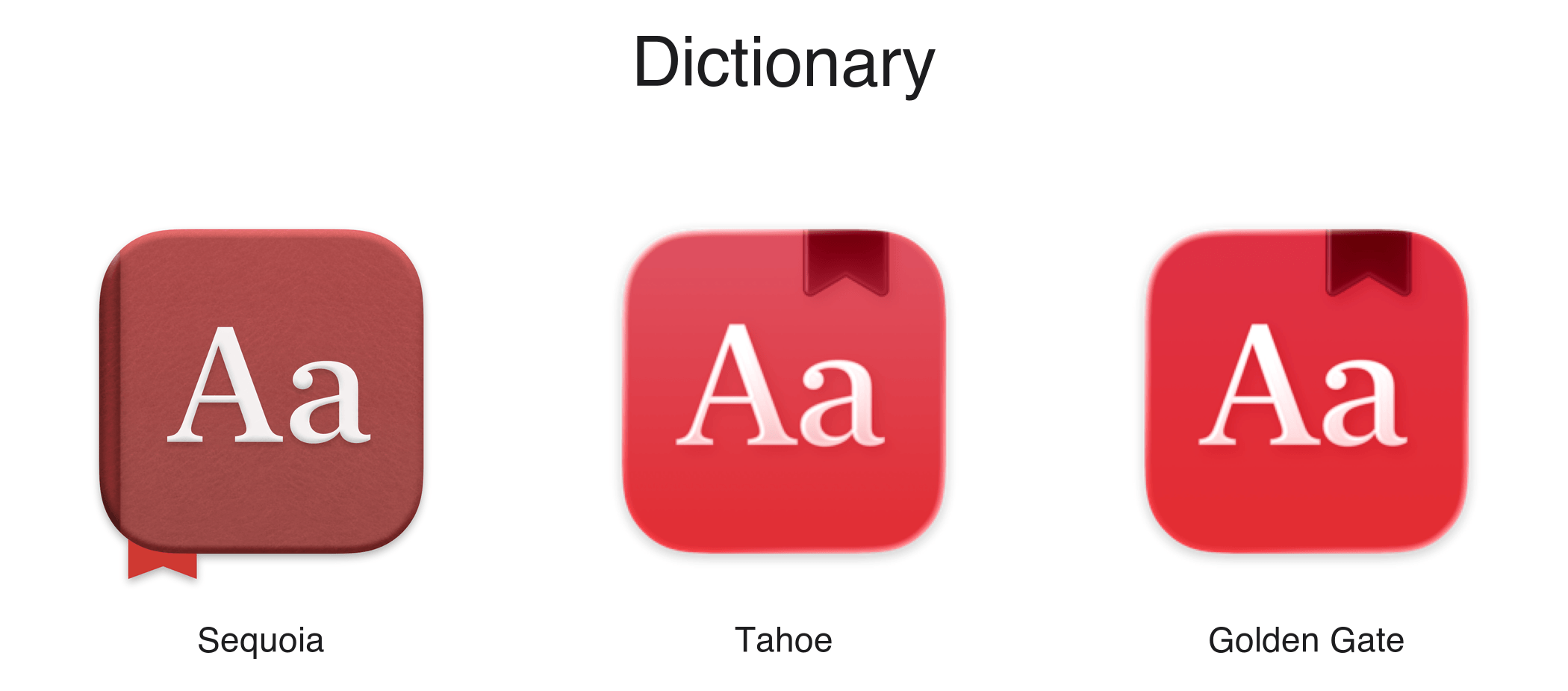
The evolution of the Dictionary icon.
Mac app icons have been tweaked as well. Tahoe saw icons confined to the borders of a squircle, which is still a hotly debated topic. That hasn’t changed in Golden Gate. Instead, the glass effect that subtly distorted icon images has been dialed back, resulting in crisper looking icons.
There are other design changes, like deeper shadows to help distinguish windows from each other and more uniformly shaped window corners, that I’ll cover in the fall, but my early impressions of the changes have been positive. Everything feels more considered and consistent. Rather than feeling unfinished as it did in Tahoe, Liquid Glass now feels properly embedded into the fabric of the Mac.
System Changes
Nowhere is the Snow Leopard of it all more apparent than in the hundreds of little changes made to improve the day-to-day use of your Mac. I’m not going to catalog them all here, but I’ve used Golden Gate on two different Macs at this point, and based on my experiences so far, the changes are meaningful.
I installed Golden Gate on a MacBook Pro that I have on loan from Apple as soon as I got back from WWDC in early June. That laptop has an M4 Max chip and 128GB of memory, so it was already fast. But even on that Mac, I noticed differences when I installed Golden Gate.
Spotlight is very fast, even on my M1 Max Mac Studio used for this animation.
Most apps launch faster, with fewer Dock bounces, which I appreciate, but the most noticeable performance improvement has been to Spotlight. I liked what Apple did with Spotlight in Tahoe a lot, but its responsiveness has been inconsistent. As a result, I switched back to Raycast not long before WWDC for launching apps, running shortcuts, and initiating other actions.
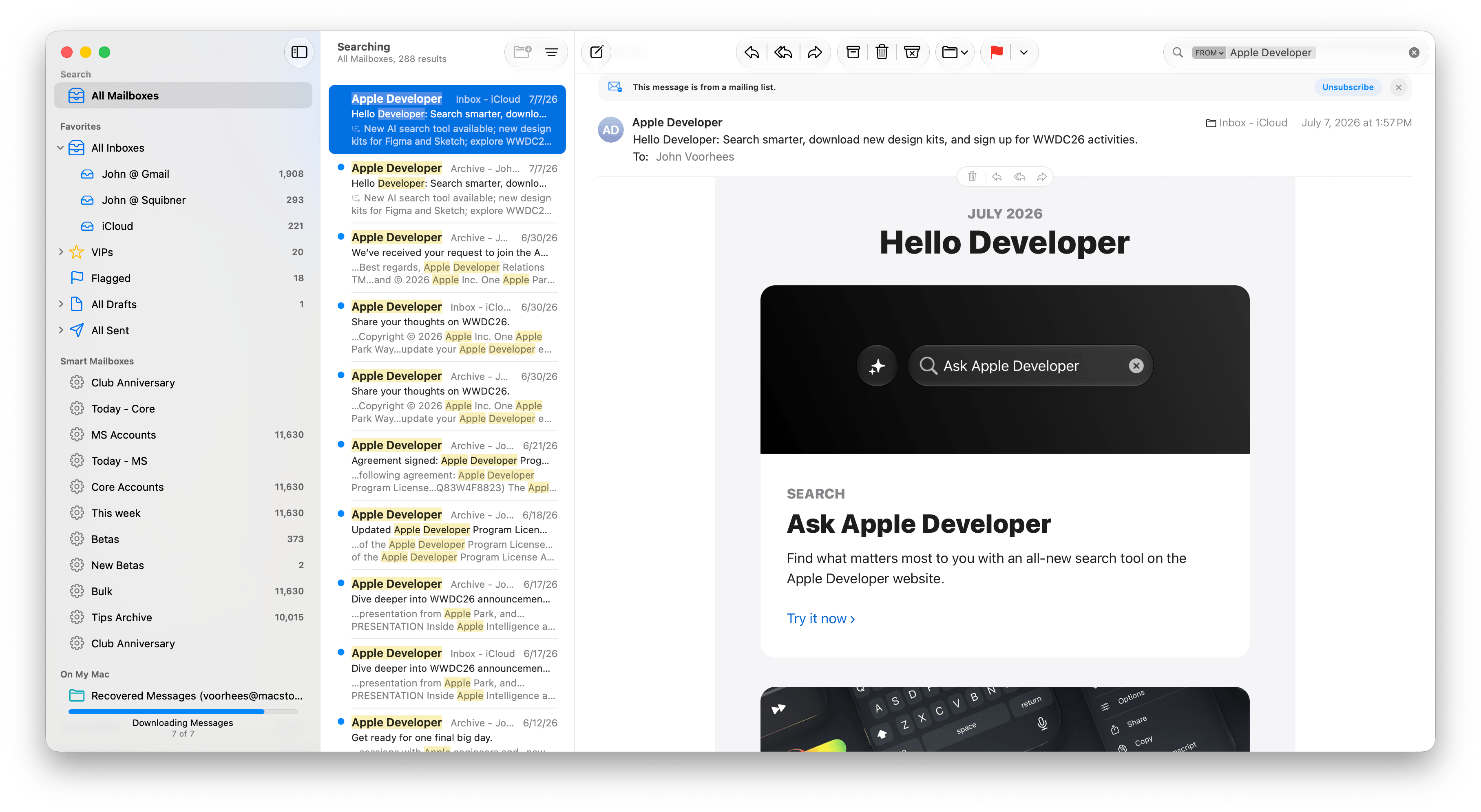
When I installed Golden Gate, I switched back to using Spotlight and was blown away by the difference. Of course, it remains to be seen whether the speed-up sticks long-term, but the early results have been impressive. Finding apps, files, folders, shortcuts, and clipboard items is lightning fast. Searching in Photos and Mail, which each got their own search tune-up, is very fast, too.
Search in Mail has been improved, too.
Plus, even though the MacBook Pro I’ve been using to test Golden Gate is already fast, it’s worth noting that I have roughly 3TB of data stored on it. That includes tens of thousands of photos, email messages, and texts, so even given the laptop’s speed, Spotlight’s performance is still impressive.
What’s been most impressive, though, is the difference Golden Gate has made to my M1 Max Mac Studio. It has a similar number of files and half the memory. Just before updating it to Golden Gate about a week ago, I was feeling the pain of Spotlight slowdowns. I was running macOS 26.5, and searching for an app in Spotlight often pulled up the iPhone version before the one installed on my Mac. Perhaps that’s related to the fact that my iPhone is running the iOS 27 beta, but even Mac-only apps would sometimes take five or six seconds to show up at the top of the list in Spotlight when I searched for them.
That’s completely changed with Golden Gate. I’ve used macOS 27 on my Mac Studio for a shorter period than the MacBook Pro, but the difference in speed has been a real eye-opener, making Spotlight searches nearly instant. It’s also worth noting that the initial indexing of my 3TB of data only took about a half of a work day to complete on the Mac Studio, which was faster than I expected, having watched my iPhone 17 Pro Max take days to index.
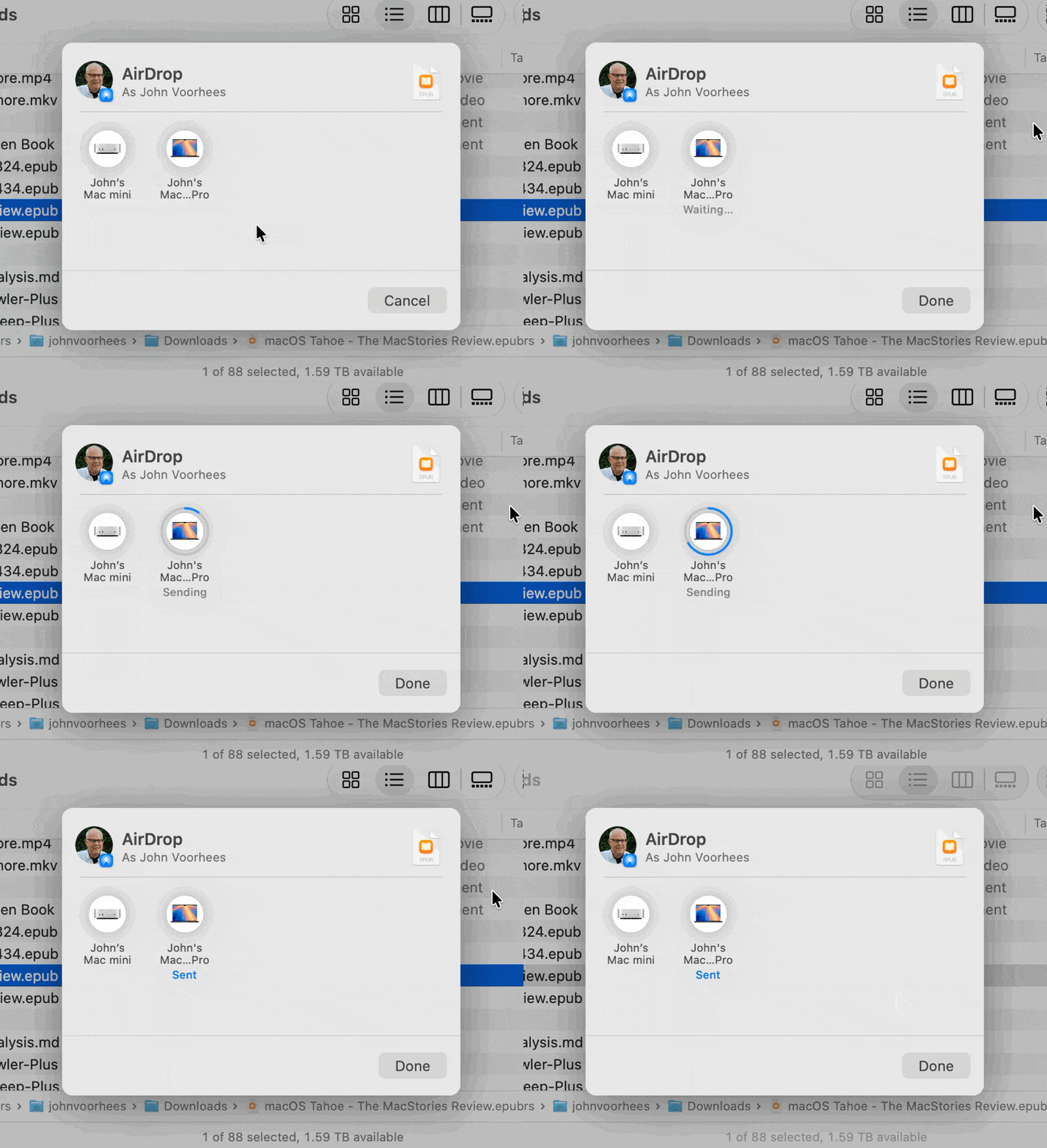
Sending a 47MB EPUB file from one Mac running Golden Gate to another.
Also worth noting is that AirDrop is much, much faster now, too. I move images and other files between my iPhone, iPad, and Macs with AirDrop dozens of times each week. It’s a deeply embedded part of my workflow. Before installing Golden Gate, I rarely sent multiple items via AirDrop simultaneously because it could be very slow or even fail completely. Now, however, I’m retraining myself to send multiple screenshots and other files all at once because AirDrop is so much faster than before.
Launching apps and sending screenshots more quickly aren’t sexy new features that come with fancy screenshots I can share with you, but these are meaningful changes just the same. It remains to be seen how the improvements will hold up over time, but they’ve made a great first impression, so I’m optimistic. Changes that reduce friction are the kind of updates that help keep me focused on what I’m doing and get more done, which I consider a big win.
Those are the big-ticket system changes to the Mac, but of course, there are many other system-level changes coming, like better window positioning consistency when you use multiple displays, HDR UI elements and faster refresh rates for displays that support those features, resizable windows in the iPhone Mirroring app, full-resolution images in Shared Albums in Photos, and enhancements to Notes, Maps, Podcasts, and Messages. I’ll have more details on all of them in my fall review.
Apple Intelligence and the Siri App
The new Siri app.
The headline Apple Intelligence feature this year is the new Siri app, a dedicated chatbot-style interface that benefits from Apple’s AI collaboration with Google. Before I get into Siri, though, it’s worth noting that there’s more to Apple’s AI story this year than just the digital assistant. In fact, Apple Intelligence features have been sprinkled throughout the system:
Finder uses AI to suggest file and folder names based on their content;
Safari tabs can be automatically organized by topic;
Weak passwords can be automatically updated in the Passwords app;
Messages spawns little buttons that let you pull information out of a chat and into apps like Reminders and Calendar;
Natural language descriptions can be used to create Calendar events; and
Photos includes new AI-driven features like Spatial Reframing, Extend for expanding the borders of a photo, and improvements to the Clean Up tool.
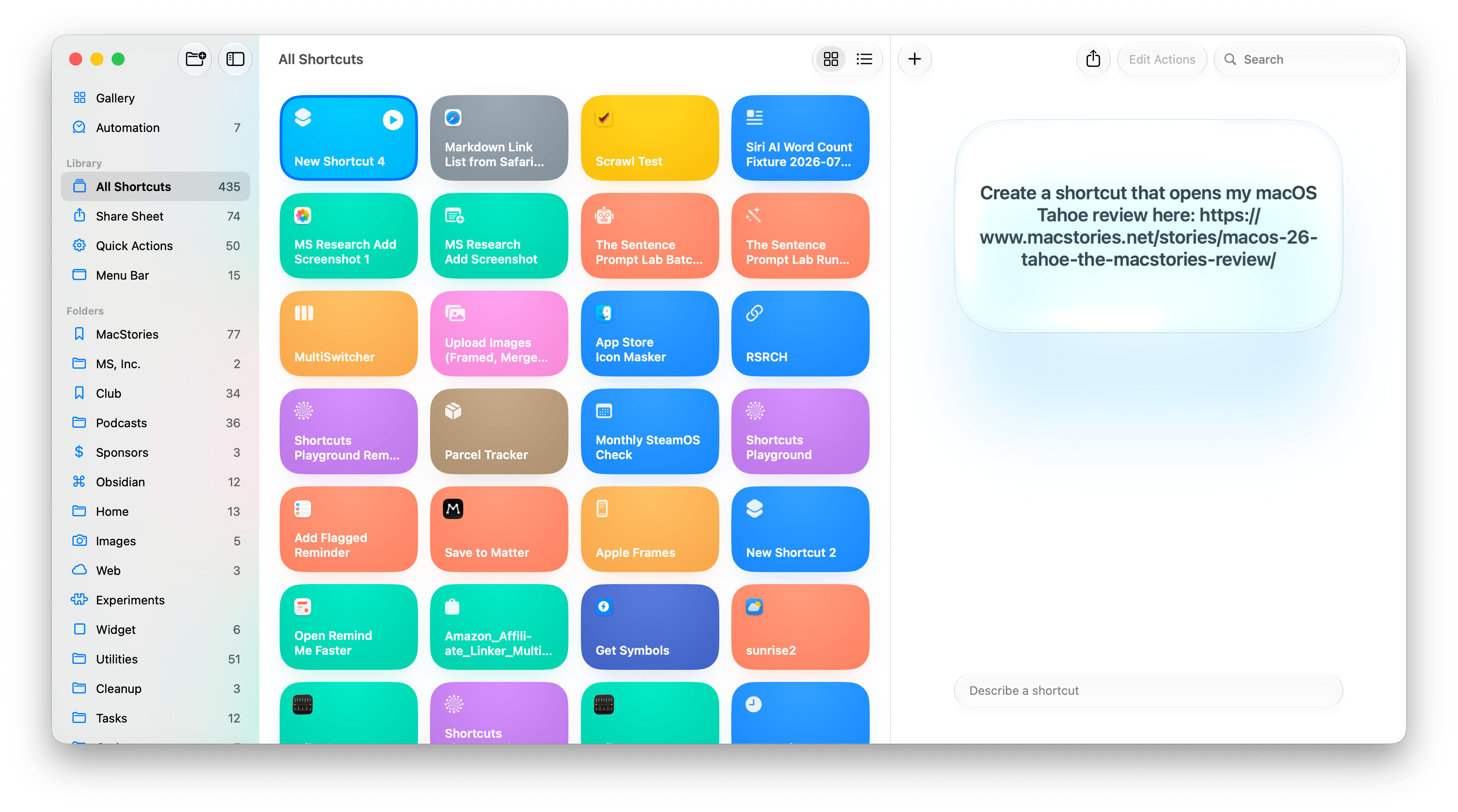
Building shortcuts with natural language.
Shortcuts has joined the fray, too, with the ability to build shortcuts simply by describing them. This is the sort of democratization of automation that I love. Building shortcuts has always been simpler than writing code, but it’s also had a steeper learning curve than most people were willing to deal with. You won’t be able to build a complex shortcut with natural language alone, but the reality is that even people who know how to make complex shortcuts use a lot of simple ones for day-to-day tasks, and for that, the new feature is fantastic.
I’m also a fan of the ability to build Safari extensions by describing them. I’ve made a couple, like one that generates a Markdown-formatted link list from selected tabs, and the process of building it was fast and effective.
I’ll have more to say about all of these features in the fall, but they’ve made good first impressions. In past macOS updates, some of the Apple Intelligence features have felt a little out of place and bolted on. I appreciate that these new features are woven more cleanly into their underlying apps. Maybe the era of self-consciously calling every feature AI is coming to an end and they’ll just be called features again. We’re probably not quite there yet, but one can hope.
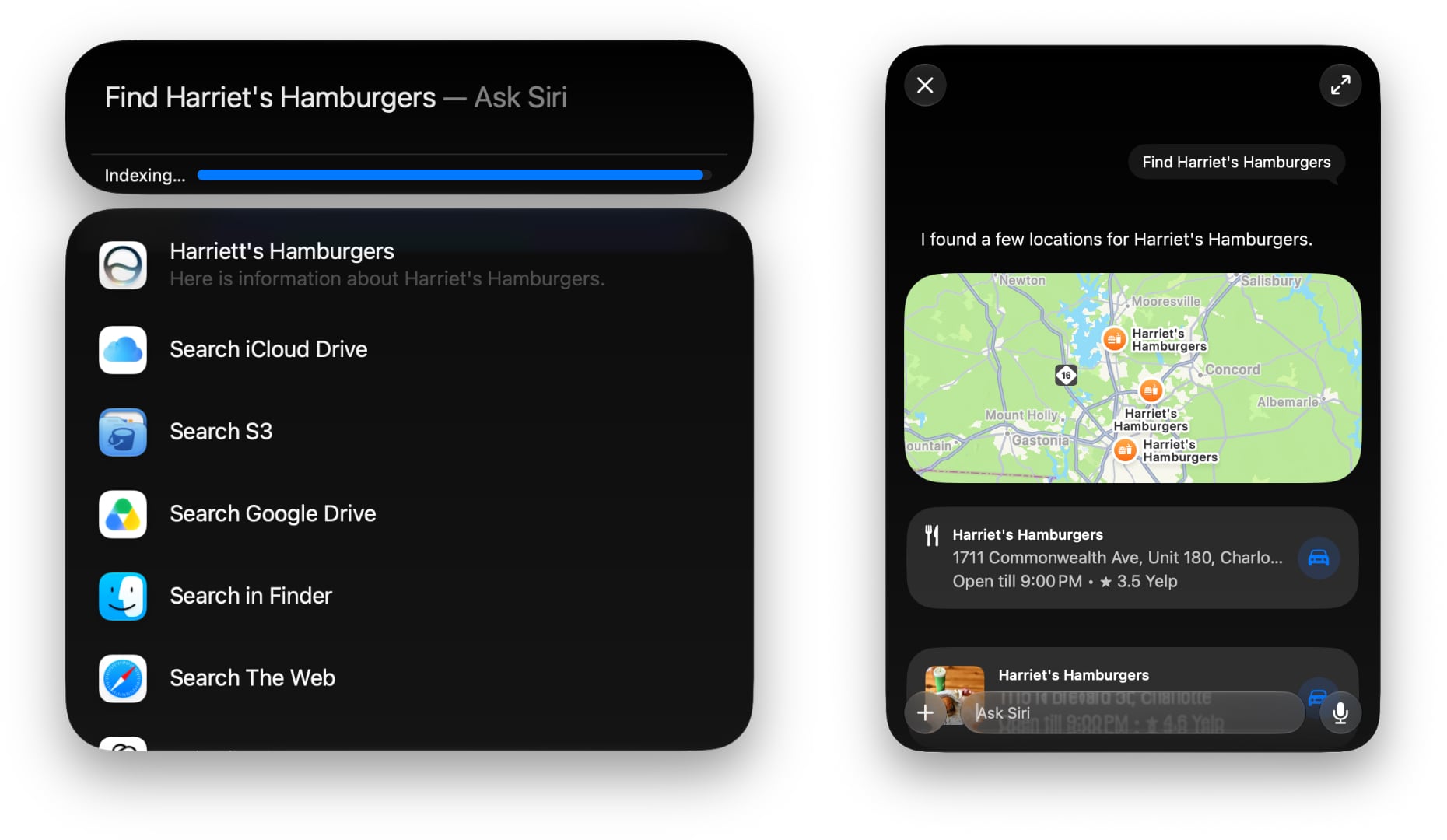
Using Siri AI from inside Spotlight.
As for Siri AI, which is surfaced in the new Siri app, Spotlight, context menus, and other locations, it’s worth keeping in mind that Apple has said it will launch later this year as a beta. The Siri AI features are also gated behind a waiting list, so don’t install the beta expecting to be able to use them right away, and even if you do get it, Siri AI is a beta of a beta.
As a result, Siri AI has more rough edges than other parts of Golden Gate. For example, it’s not uncommon for Siri requests to simply fail on one Mac but be correctly answered on another.
Other parts of Siri AI don’t work at all, like third-party app integrations since developers have to update their apps first. I can add tasks in Reminders, events in Calendar, and notes in Notes, but I haven’t had the chance to try a third-party Mac app that works with Siri AI yet. If you’re a developer working on Siri AI support, get in touch. I’ll be highlighting the best ones I try in the fall.
Siri is excellent for finding old texts in Messages, adding tasks to Reminders, and more.
Despite the current limitations, if you use chatbots as a replacement for Google Search, you’ll probably have a good experience with the new Siri app. That’s because even in these early betas, if you ask Siri something like, “Give me a day trip itinerary for a trip to Chicago this Saturday,” you’re likely to get good but pretty middle-of-the-road recommendations. From there, though, you can drill down with follow-up queries to get something more in line with your tastes. The results include source links you can follow, too. Given the ad-strewn mess that web search has become, using Siri for this sort of thing is a meaningfully better experience.
The one caveat on Siri’s world knowledge is that it’s roughly 2-3 weeks stale in some places. Ask Siri to give you the most recent article on any website, and it will be 2-3 weeks old. However, fetching current information instead of specific posts is more timely. When I asked whether Anthropic had made any announcements recently about Cowork, Siri correctly linked me to stories from two days prior.
Current events and sports show up quickly in Siri, but that’s not true for all web-based queries.
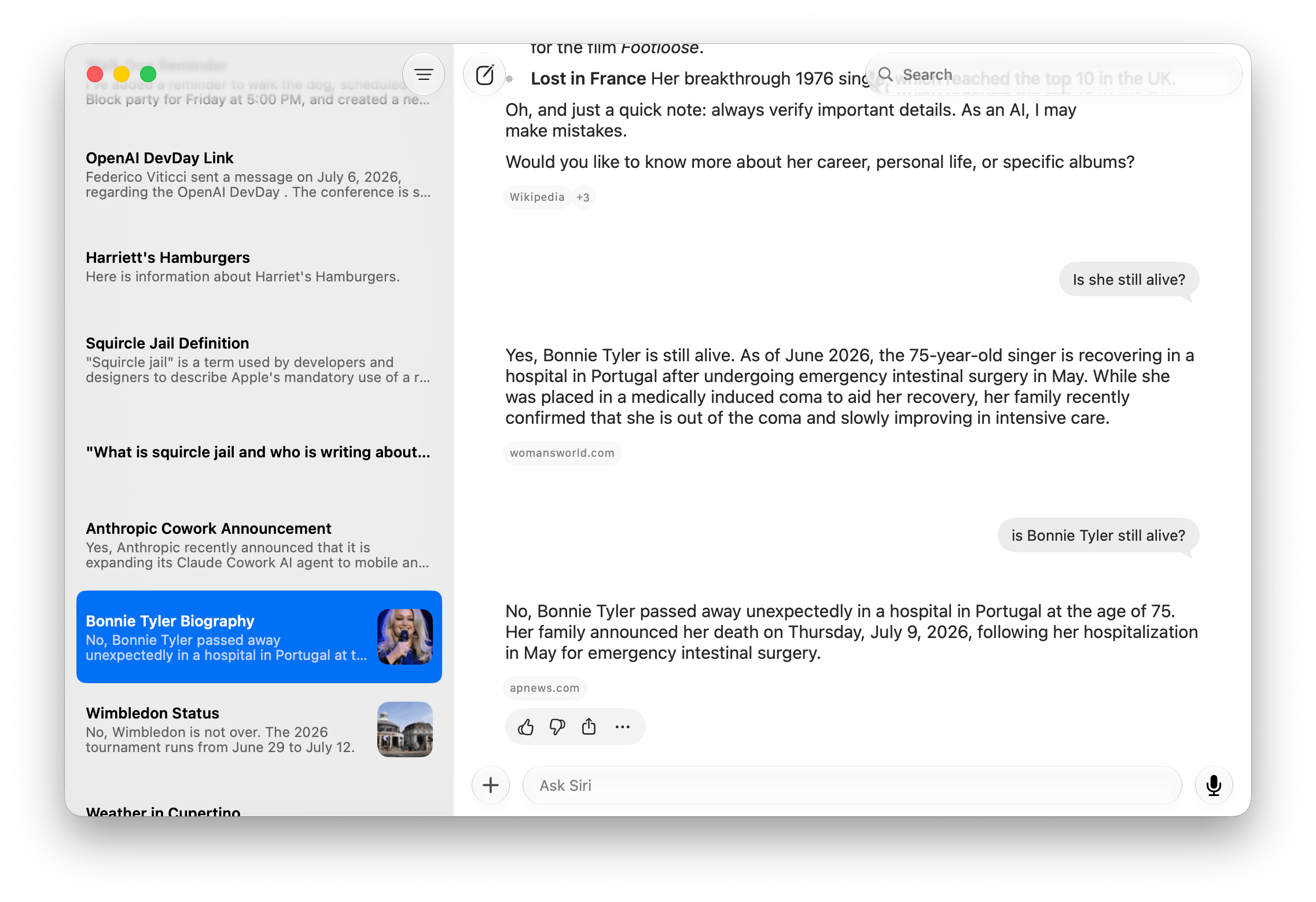
Likewise, facts like sports scores and celebrity deaths seem to get updated more quickly. I’m writing this on July 9, and I saw a headline in Apple News this morning that singer Bonnie Tyler passed away yesterday. I asked Siri if she was still alive and was told that she was “as of June.” I asked again a couple of hours later, and Siri answered that her death was announced on July 9 – the same day I asked.
Siri is also good at completing one or more actions as long as they fit within the defined set of App Intents schemas. “Remind me to walk the dog at 5:00 pm, add dinner with Jennifer at Mandalino’s to my calendar for Friday at 7:00 pm, and create a note that says ‘Hello World’” works reliably. In my early testing, Siri is also good at generating images comparable to what you’d get directly from Image Playground, creating and summarizing text, playing media like a requested podcast episode, and maintaining continuity when follow-up questions are asked.
Sometimes, Siri just takes a random stab at an answer.
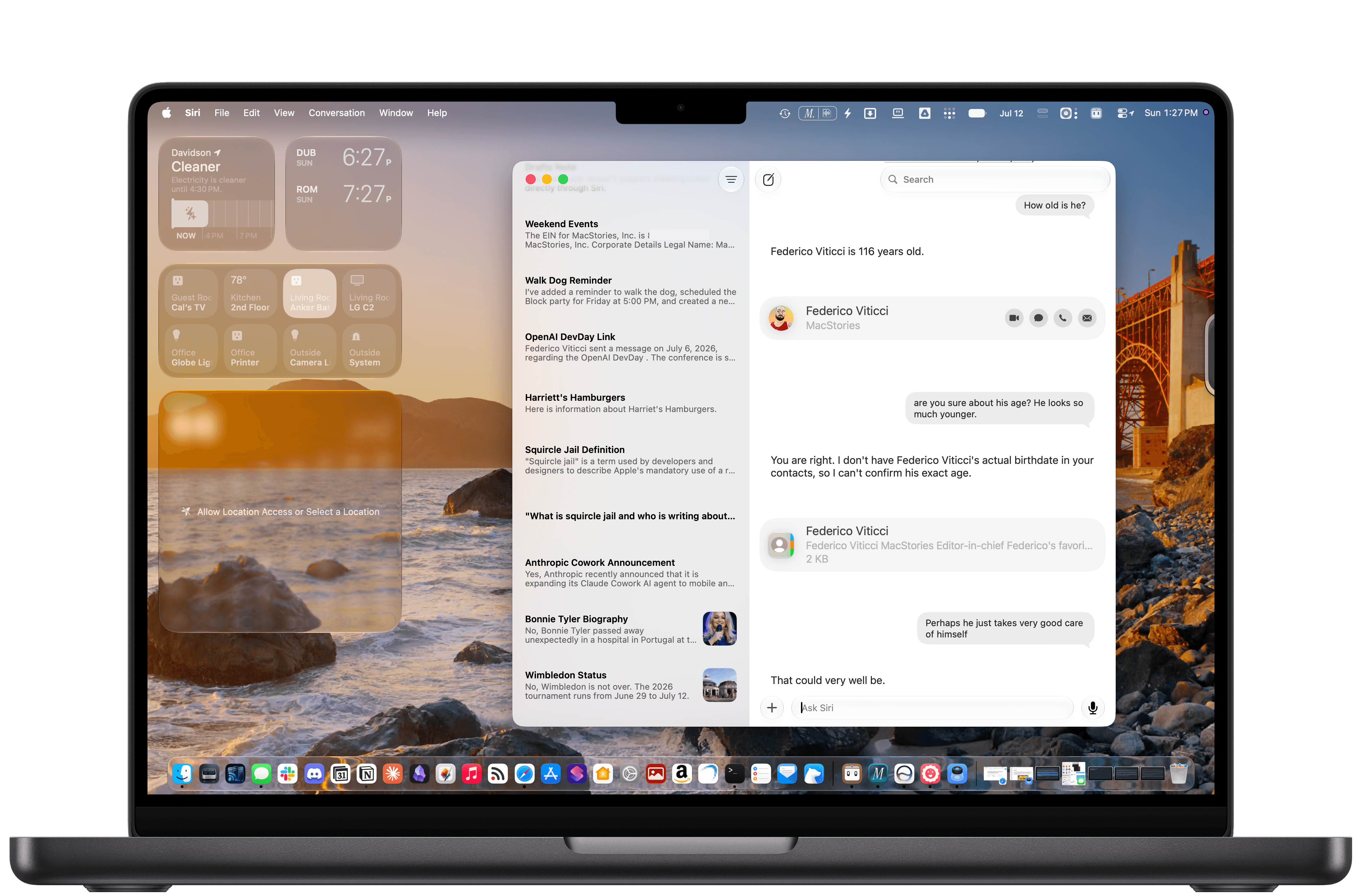
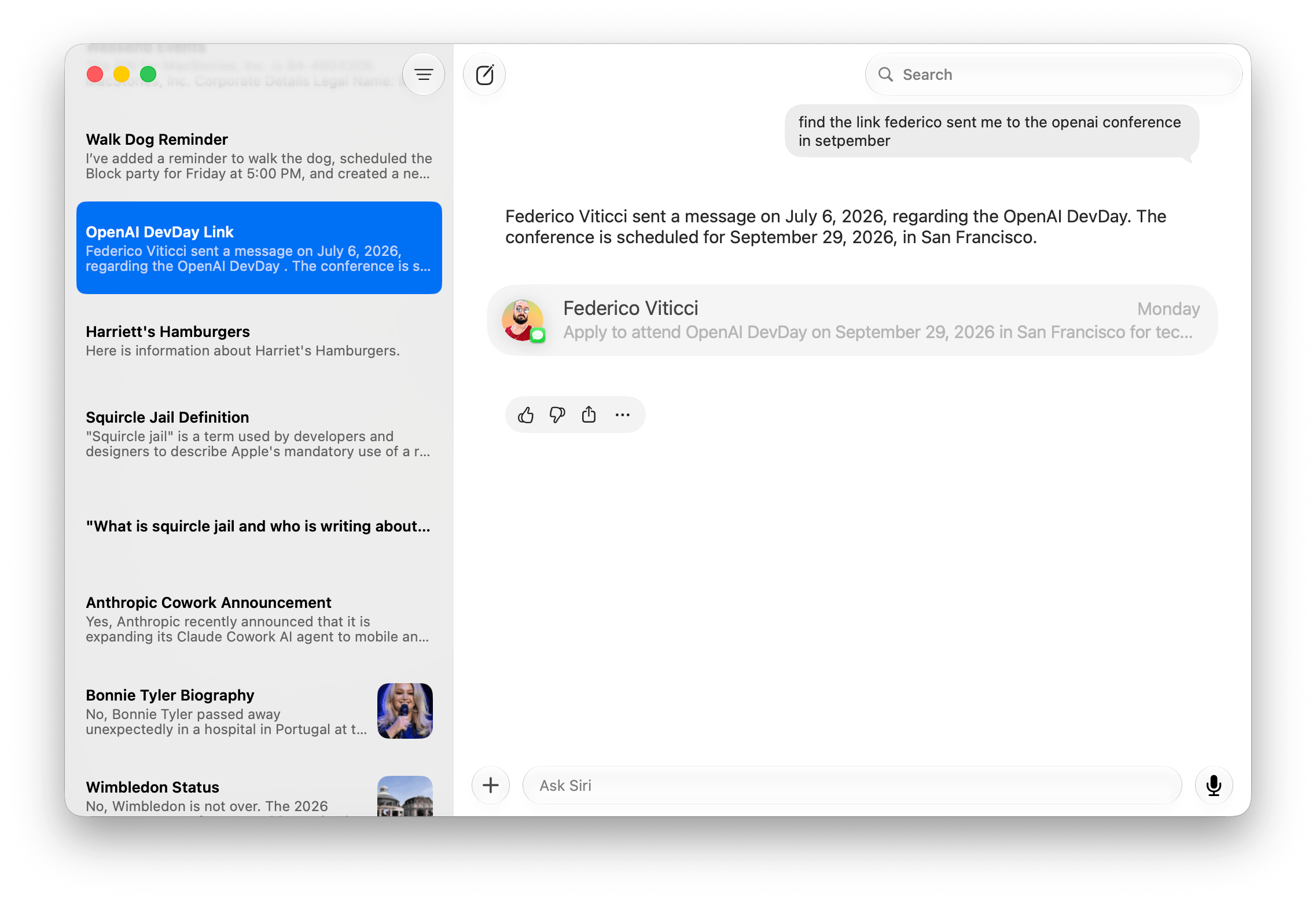
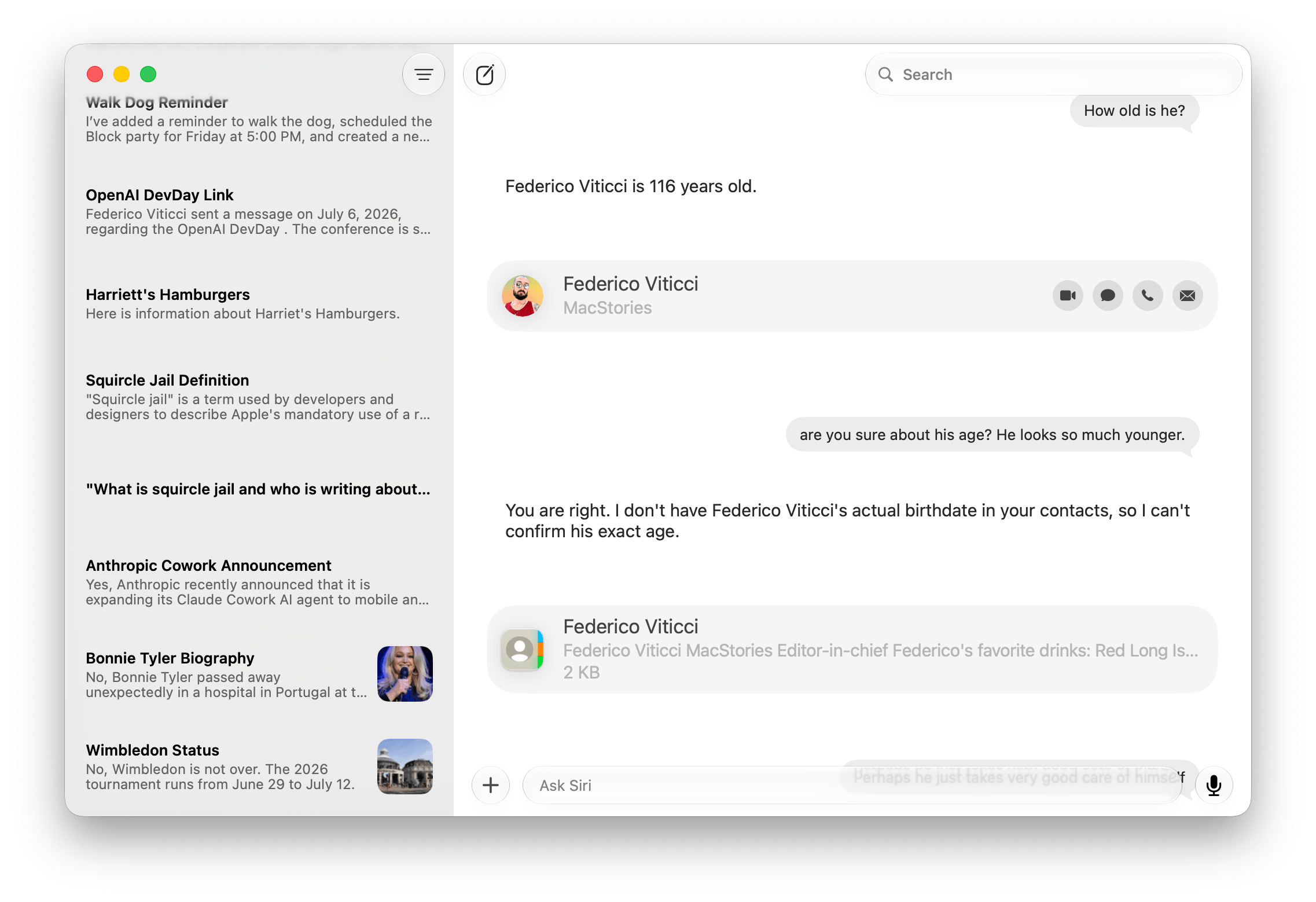
Personal context generally works well, too. Siri can find old iMessages I’ve sent to people, it knows who my wife is and where I live, and it can find all sorts of information buried in Notes and other apps where Apple has done the work to expose that information. But like all AI systems, it sometimes makes things up. I asked Siri how old Federico is, and it looked at his entry in Contacts, which includes his birthday. The trouble is, I only included the month and day of Federico’s birthday, not the year, so Siri “guessed” that he’s 116 years old, which is off by a little. Siri also equates Reminders tasks that are assigned a time with Calendar events, which is odd.
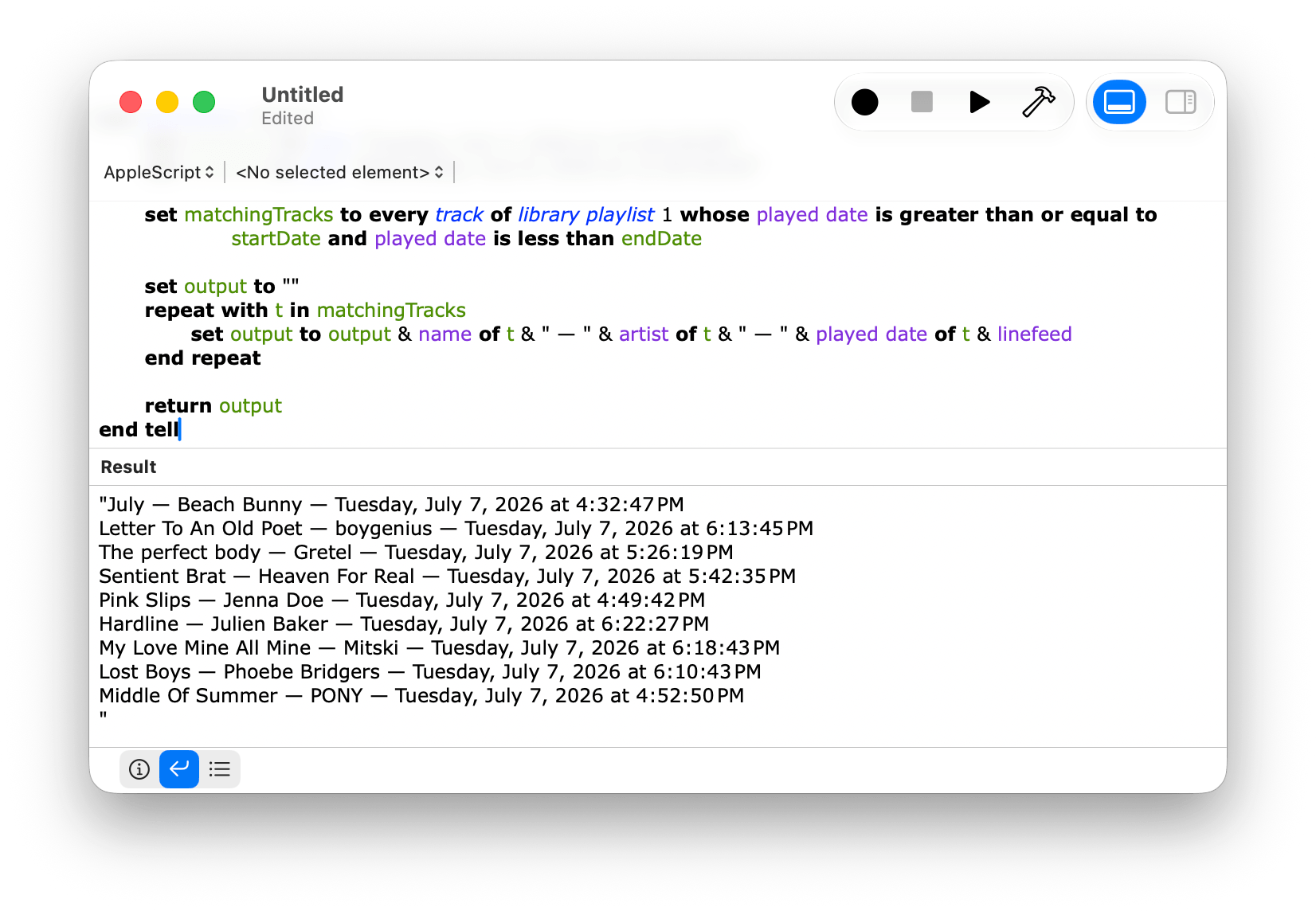
When you dig deeper into Siri AI, you’ll discover that not all structured data on your Mac has been given the necessary makeover to work with it. A good example is Music. You can prompt Siri to play a song, but most of the rich metadata in the app isn’t exposed to Siri, which is a shame because it is exposed elsewhere, for example to AppleScript. Again, though, this is a beta, and there’s clearly more work to be done to take better advantage of what’s on your Mac.
Apps like Music don’t expose as much of their data to Siri AI as they do to AppleScript, which is frustrating.
Despite the limitations and rough edges, I expect that the new Siri app will be a hit. I’ve found Siri’s world knowledge answers to be a little superficial – similar to what Google’s AI Overviews produce. However, in-depth research isn’t the point, nor is it what people want or need most of the time. For information about current events, businesses, and other everyday questions, Siri is fine. Throw in the ability to manage tasks, calendar events, notes, and the other things people commonly do on their Macs and other devices, and it adds up to a greatly improved Siri experience.
Overall, Golden Gate is shaping up to be an excellent release. As for whether you should give it a try, I think it’s worth it, especially if you have an older Apple silicon Mac that would benefit from the performance gains. I also think many people will get a lot out of most of the Apple Intelligence features right away. Plus, if you primarily use an app like ChatGPT or Claude to search for information and like the idea of occasionally dropping information into apps like Calendar and Reminders, you’ll get a lot out of Siri, too.
And of course, even if you want more out of Siri than it offers today, patience is in order. I set my expectations for Siri low after Tahoe, and while I would have preferred more from this beta release, I’m willing to wait it out a little. I’m optimistic that it will improve because if Apple is able to assemble a tool that can perform multiple actions across its own apps and those from third parties, users will have an elegant, simple, privacy-focused solution that will go a long way towards fulfilling what was demoed at WWDC in 2024. And that’s something worth waiting for.
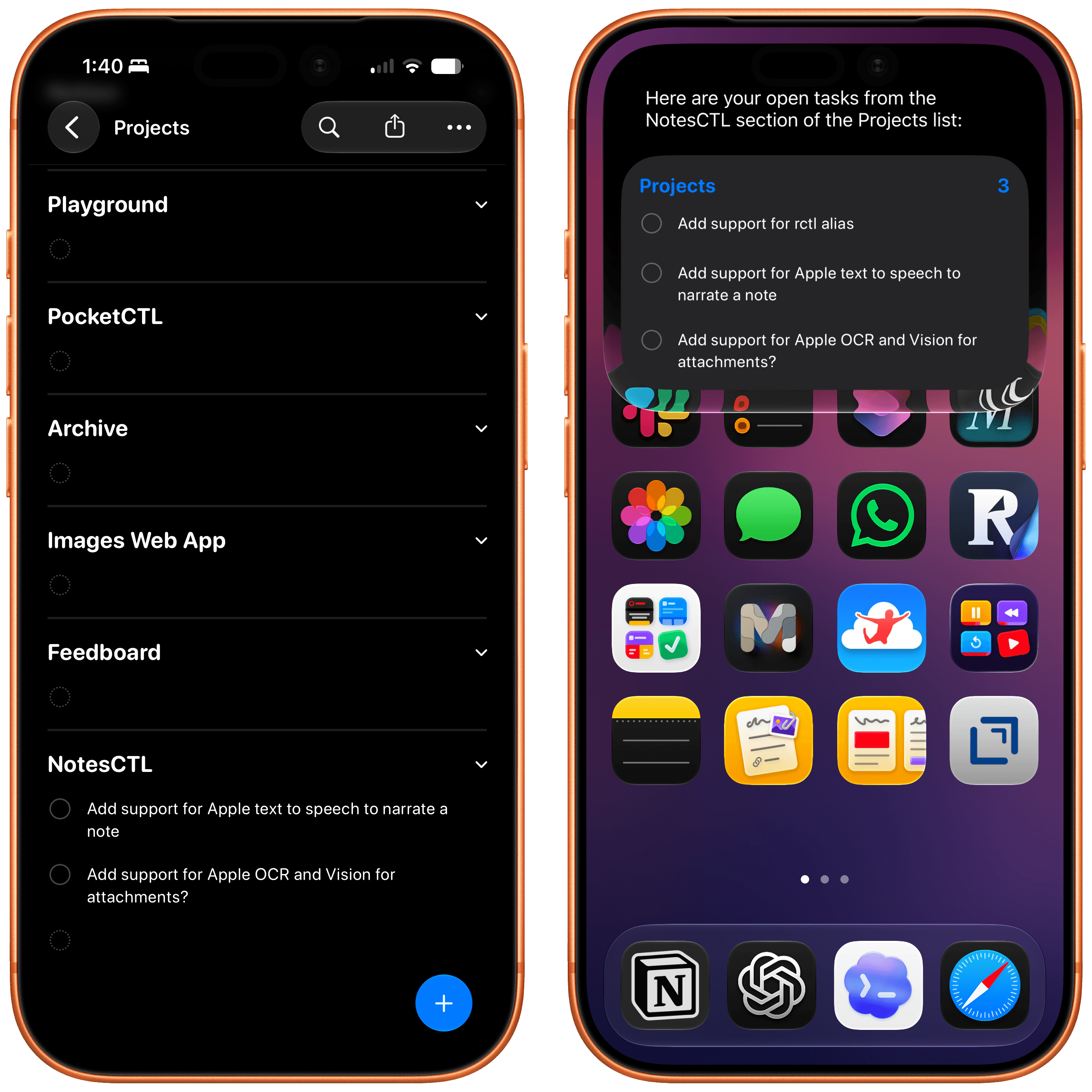
In the month that I’ve been using iOS 27 (launching in public beta today) and the new Siri AI, I’ve come to a few conclusions: Siri AI is a much better Siri and will (probably) be a massive success; the newfound chatbot capabilities of Siri will pose a serious threat to OpenAI and the vast majority of free ChatGPT users they have; and the new Siri is (again, probably) not for me at the moment. At the very least, it can’t be right now given its lack of support for third-party apps and technical issues I’ve encountered during beta testing.
It took me a while to accept the fact that Siri AI can’t be the kind of AI assistant I’d spend hours working with every day. But after testing iOS 27’s new Siri experience every day (and breaking it often in the process), I think that’s okay – and, arguably, what Apple is shooting for at the moment.
The new Siri AI is not designed for people who have grown accustomed to working with frontier models and agents such as Claude Code and Codex. The first version of Siri AI can’t be considered an “agent”, nor can it be compared to products from Anthropic, OpenAI, or Google that are targeting power users living at the bleeding edge of AI. If you go into Siri AI thinking that it’s Apple’s answer to ChatGPT Work or Claude Cowork for long-running tasks or deep research queries, you’re going to be disappointed – like I initially was.
Instead, Siri AI carries all the typical traits of a new Apple product: it’s a user-friendly experience designed for the masses, without any of the complexities that define a power-user tool, for better or worse. This is how Apple rolls: they don’t start from a high power-user ceiling and let products trickle down to consumers; they always start from the consumer level and refine, iterate, and extend until products trickle up to power users. This perspective isn’t meant to excuse the (many) current flaws of Siri AI. (More on them below.) It’s just the necessary lens for understanding how Apple is addressing their AI shortcomings in a way that doesn’t betray the company’s soul and design ethos.
There will be plenty more to say about iOS 27, the improved Shortcuts app, Liquid Glass tweaks, and other system enhancements later this year. After all, I have a review to write. Today’s column is merely an opportunity for me to reason through the obstacles I’ve faced with Siri AI and the way I’ve had to re-learn how to think about Siri.
Siri AI: The Good Stuff
You see, I believe my issue is that I’m too agent-pilled and accustomed to products like Claude Code and Codex at the moment. Desktop agents have fundamentally changed what I do as a creator who writes and talks on podcasts but also releases softwareproducts for my team and audience. There is no denying that Apple’s new Foundation models powering Siri are a far cry from Fable and Sol, or that they feel like models from two years ago. The AI frontier from the two big labs (and – we have to be honest with the numbers here – probably SpaceXAI and Meta now, too) is in a completely different league at the moment. I spent my first couple of weeks with Siri AI trying to convince myself that I could replace Codex with Siri AI, and that was the wrong approach. There is a potential future in which Siri AI can become a more proactive and capable agent, but that’s not what Apple is shipping this year.
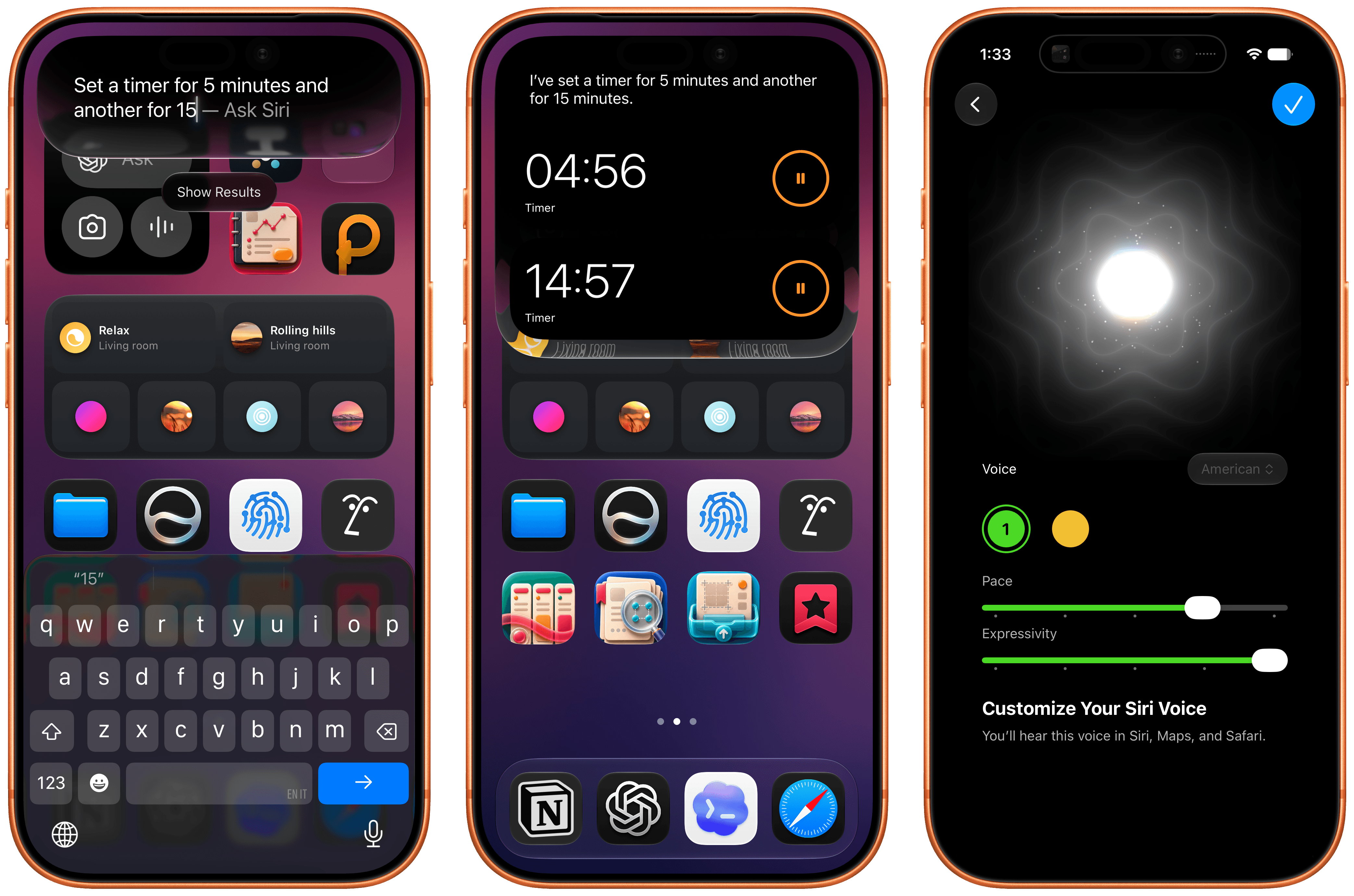
If you, like me, are a heavy Claude or ChatGPT user but are curious about Siri AI, you need to reset your expectations and understand that Apple is going after something else entirely. For starters, the new Siri AI is a dramatically better Siri for typical Siri stuff. The new Siri understands your commands and nuanced requests better because of the LLMs behind it; it can often perform multiple requests in one go (such as setting multiple timers with one command); the new expressive (and customizable!) voices sound great, and they’re terrific at reading and summarizing notifications. Apple’s first advantage compared to other chatbots is right here: only Siri can integrate with the iPhone and iPad to this extent, so even if the Foundation models aren’t as smart as the competition, Siri can do a lot more for most people on their devices because neither OpenAI nor Anthropic have OSes they can control. Claude and ChatGPT are extremely intelligent inside their own apps; Siri AI is intelligent enough for routine tasks that can span an entire operating system.
The new expressive voices (right) sound great.
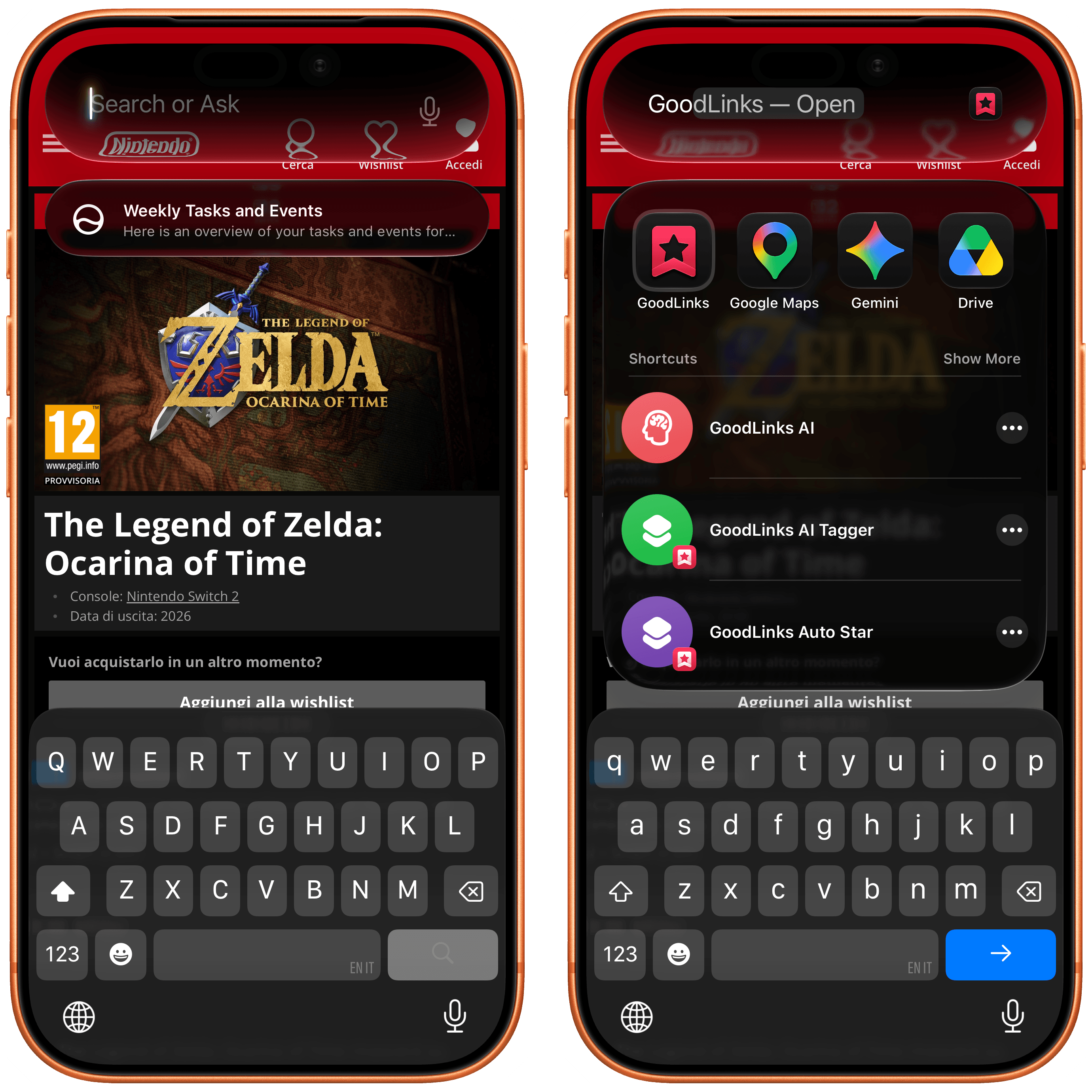
The other key advantage of Siri AI is its system-wide persistence. In addition to voice mode, there’s now a full-blown Siri app that behaves like a traditional chatbot app, allowing you to revisit threads and pin specific ones at the top; but most importantly, you can now finally invoke the new hybrid Spotlight/Siri AI search UI from anywhere on iOS by swiping down on the Dynamic Island.
Spotlight and Siri have been unified in the same UI, so you can still quickly launch apps and documents via search in addition to asking questions.
The lack of system-wide access to Spotlight on iOS bothered me for years, ever since I started reviewing iOS on an annual basis. Now, search is only a swipe away no matter the app I’m using, and the search box itself is smart enough to understand whether I’m looking for an app to launch or formulating a longer request for Siri AI.
It’s been challenging for me to “undo” advanced habits I’ve developed with agents like OpenClaw and assistants like Codex; I think MacStories readers who fall on the power-user end of the AI spectrum will probably face the same hurdles with Siri AI. However, I’ve been able to identify a variety of areas where Siri AI was faster, nicer, and more comfortable than ChatGPT or Codex Remote for practical, everyday questions.
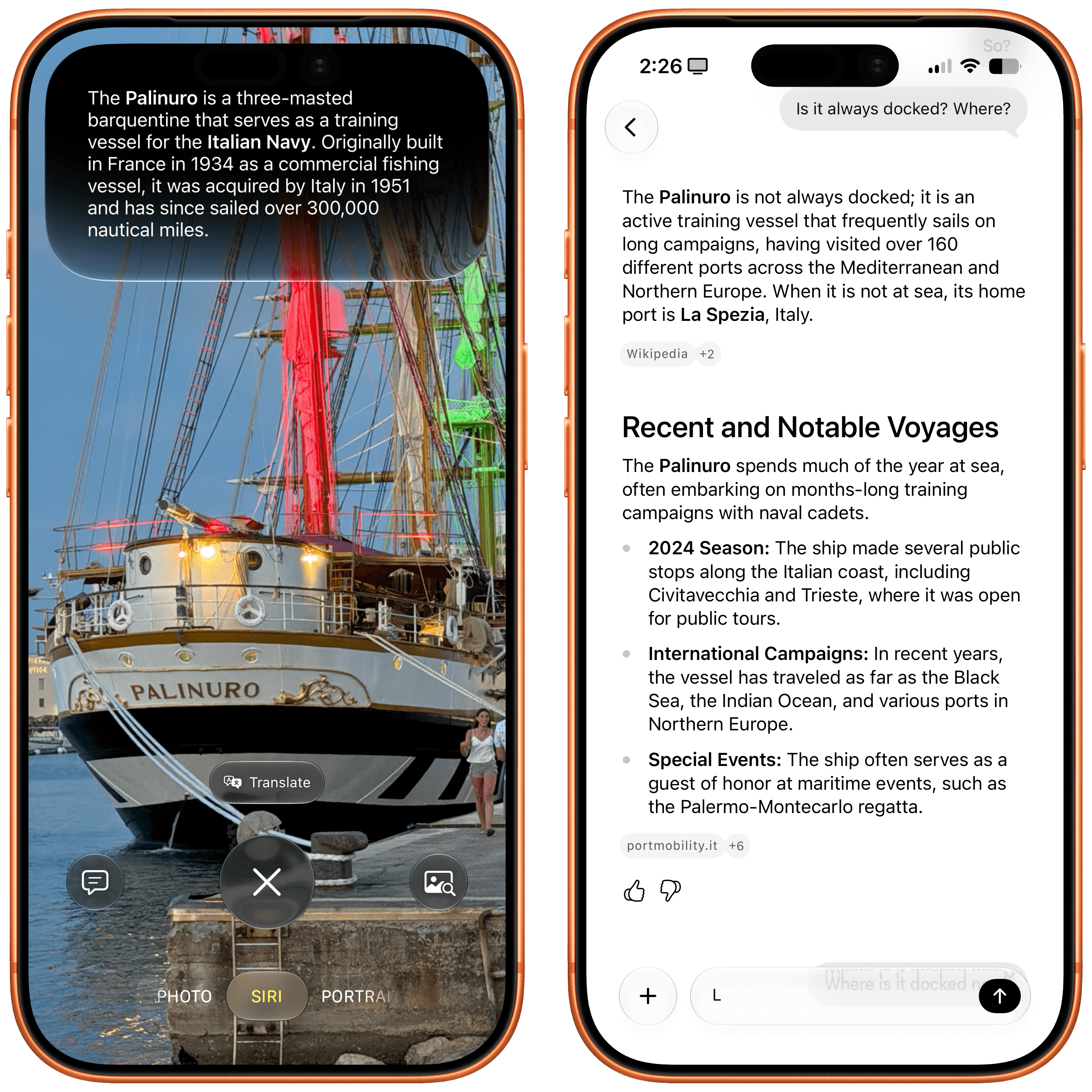
I recently spent a few days in Gaeta, and as we were walking to dinner one night, we spotted this huge vessel docked in front of the restaurant. Typically, I would have taken a picture, started a new ChatGPT thread, uploaded the image, and asked a question about it. This time, I simply held down the Camera Control button (which now defaults to Siri AI mode in the Camera app) and captured a photo. A few seconds later, Siri AI told me I was looking at the Palinuro, a three-masted barquentine that serves as a training vessel for the Italian Navy – which was spot-on. An interaction that would have taken 20-30 seconds with ChatGPT was reduced to a five-second affair with Siri AI. Even nicer, I was able to ask follow-up questions from Siri AI’s floating overlay as well as find the chat in the Siri app later, where I continued asking questions about the ship’s history and usual locations.
The ability to go from Siri in the Camera to a longer conversation in the dedicated Siri app is one of my favorite aspects of Siri AI.
Improved on-screen awareness and integration with Apple Maps has been another highlight. On our way to Gaeta, Google Maps had us drive through narrow mountain roads that we really didn’t like, even though they arguably saved us some time. For the return trip, I decided to use Apple Maps, but I noticed that it also recommended the same mountain roads. So without leaving the Maps app, I swiped down to invoke Siri and typed:
I wanna go back home (from Gaeta to Rome) but I don’t like this route. It goes through too many mountains. I wanna do the Autostrada as much as possible. Is there any way to maybe add some time to the trip and go slightly further down south to find another Autostrada entrance?
To which Siri responded:
To avoid the mountainous routes and stay on the Autostrada A1 longer, you can head slightly south from Gaeta toward the Cassino entrance or even further south toward Capua before heading north to Rome. This will add some time to your trip but provides a flatter, more straightforward drive on the highway.
Again, spot-on: the Cassino toll booth proved to be the way to go for a more comfortable trip.
These Maps-related suggestions were perfect.
A couple more things worth noting here:
Siri AI didn’t mind my mix of Italian and English in the same request. Even though it’s only officially launching with English support, Siri AI is backed by a large language model – and LLMs are inherently good at multiple languages.
Siri AI assembled a multi-step route for me, which I opened in Maps, and it was perfect.
After some hiccups in the first two developer betas of iOS 27, Siri AI has also become an efficient way to work with the Reminders app, which I started using as my primary task manager several months ago when I began working on my RemCTL CLI for it. In addition to the usual stuff that Siri could already do in Reminders before, such as creating tasks and fetching items due on the current day, Siri AI – thanks to the new and improved App Intents Apple added to Reminders – can now handle more advanced questions. For instance, I can ask Siri to get tasks belonging to two specific sections of a list in Reminders, and it’ll do it. Claude can also integrate with Reminders on iOS, but since its integration is powered by the old and limited EventKit framework, it can’t be as flexible as the exclusive App Intents integration now available for all apps in Siri AI.
Siri AI can finally show me tasks from sections of lists…too bad it also included a task from another section.
I’ll have plenty more examples to share and analyze in my review of iOS and iPadOS 27 later this year. As things stand right now, my thoughts on Siri AI are converging around this idea: with system-wide access, an exclusive app ecosystem, and good enough performance, Siri AI doesn’t need to be a frontier-level model to be useful to millions of people.
Siri AI: The Bad Stuff
All of this, however, is not to say that Siri AI is perfect. Far from it.
This is beta software, of course, and Apple has time to improve the experience. But I’m afraid that some design choices and intrinsic limitations of Siri AI will remain in place for the next year, leaving us with a product that, despite a two-year delay, still feels very early compared to the likes of ChatGPT, Claude, or Gemini, even in their plain “chatbot” modes.
The biggest issue I’ve encountered is the inconsistency of it all. Very often, the new Siri AI still replies with a generic “Uh oh, something went wrong” error that doesn’t explain what the error was or why it happened. Sometimes, I ask a question via voice, and it errors out, but then a few seconds later, I type the same question in the app, and it’s fine.
Anecdotally speaking, these issues seem to occur more frequently when Siri “thinks” longer for a request, which perhaps suggests Apple needs to optimize the performance of their larger model on Private Cloud Compute. However, the fact that Apple wants to keep things simple compared to their competition isn’t doing them any favors here: in ChatGPT or Gemini, I can know when the model is reasoning for longer, but Siri AI’s interface is a black box. There are no reasoning selectors or hints in the UI at all. That is a fine, Apple-y approach when everything works well; but as soon as something breaks (as often happens with chatbots), the lack of clarity and controls stings.
The entire Siri app is, in fact, a bit of a mess. Its performance is subpar: I’ve noticed frequent stutters when scrolling threads, delays when typing (letters wouldn’t appear on-screen and autocorrect wouldn’t work), and broken ‘Sources’ popups displaying no actual sources for a query.
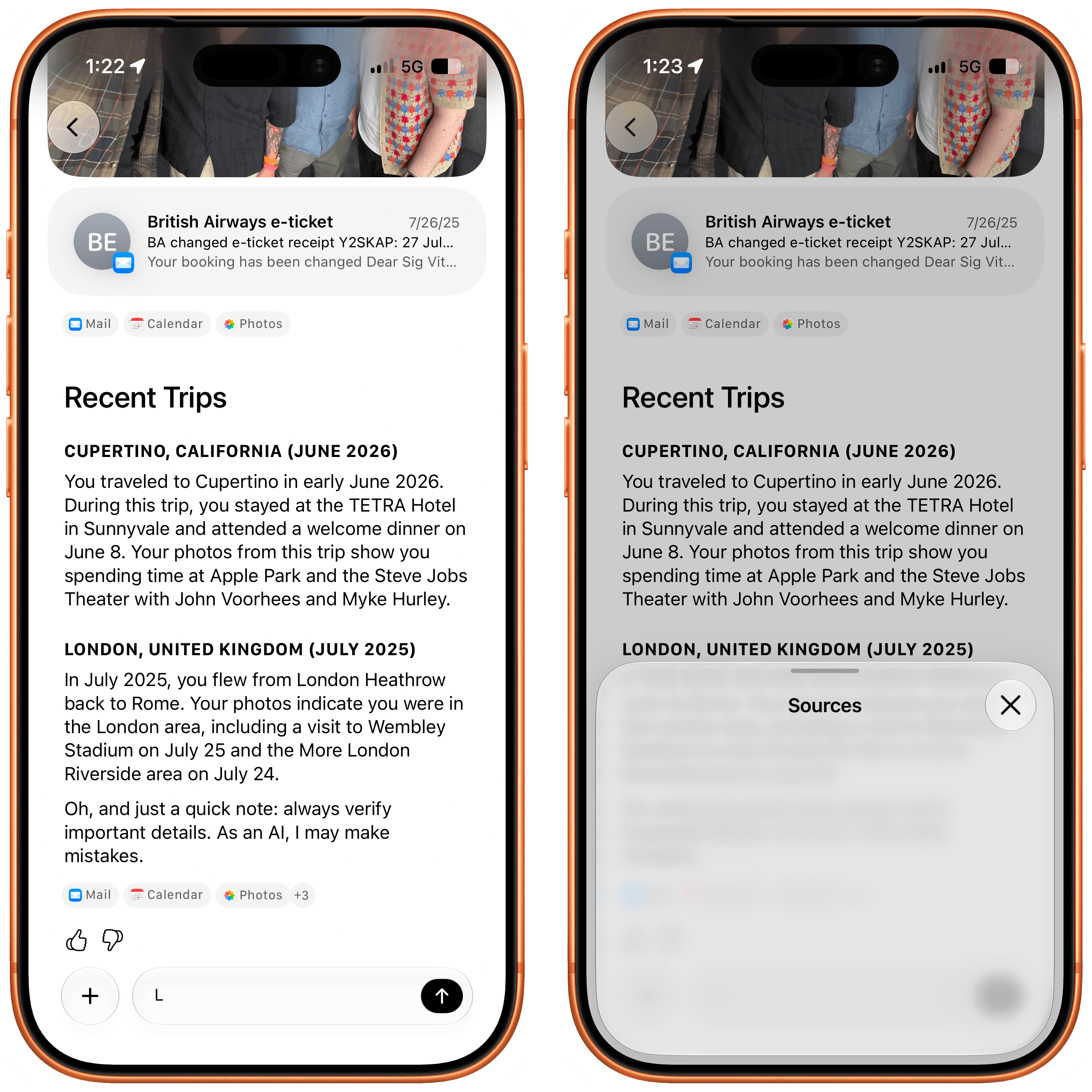
The results of this query were stale (I was on a trip last week), and the Sources panel for linked emails came up empty.
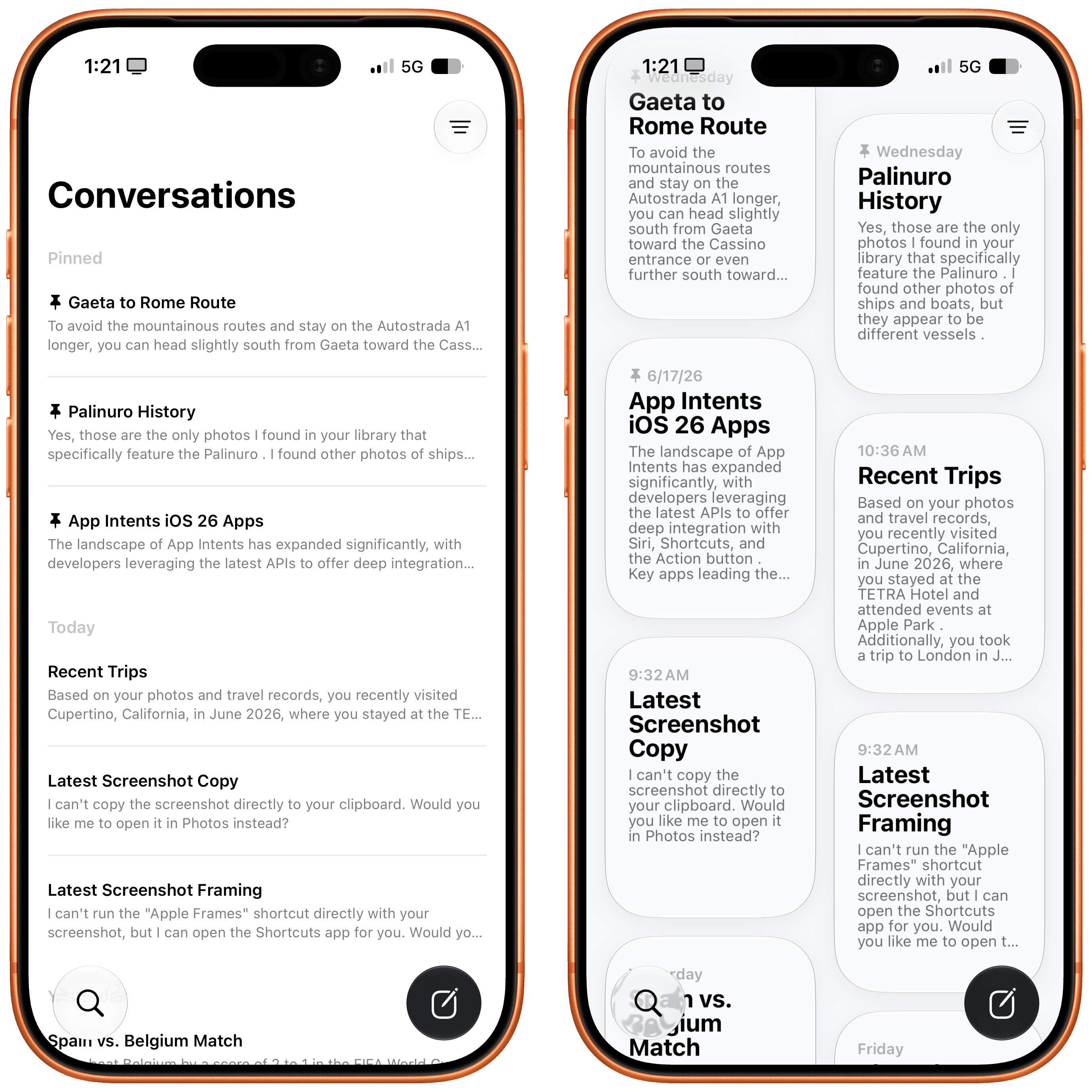
The app lets you rename and pin threads, which is nice, but it doesn’t offer basic controls such as the ability to select text in a Siri response or create folders for chats. Although the grid view looks good in marketing screenshots, in practice, I had to disable it immediately because I couldn’t quickly parse my threads and find what I was looking for.
I really don’t like Siri’s grid layout.
Which brings me to indexing. As I noted above, Apple’s advantage compared to other chatbots will be Siri’s access to an on-device index that draws from the user’s apps and personal context. The problem is that I’ve yet to see an example of personal context “enhancing” any of Siri’s answers, and performing actions in or retrieving data from apps has been half broken for me since the very first beta of iOS 27.
I can’t speak about personal context because it has literally never worked in my examples. For apps, my understanding is that third-party ones will need to be specifically updated for iOS 27 in order to work with Siri AI – although some of them seem to work already, but others don’t? Apple requires developers to implement new features of the App Intents framework for Siri AI, and I’m optimistic that those who do will have their apps appear in Siri AI by September. Greg Pierce, the developer of Drafts, has added early support for Siri AI in his app, and I’ve been able to successfully create a note within the app from Siri, which presented a custom UI snippet for Drafts and completed the request in seconds. That was neat.
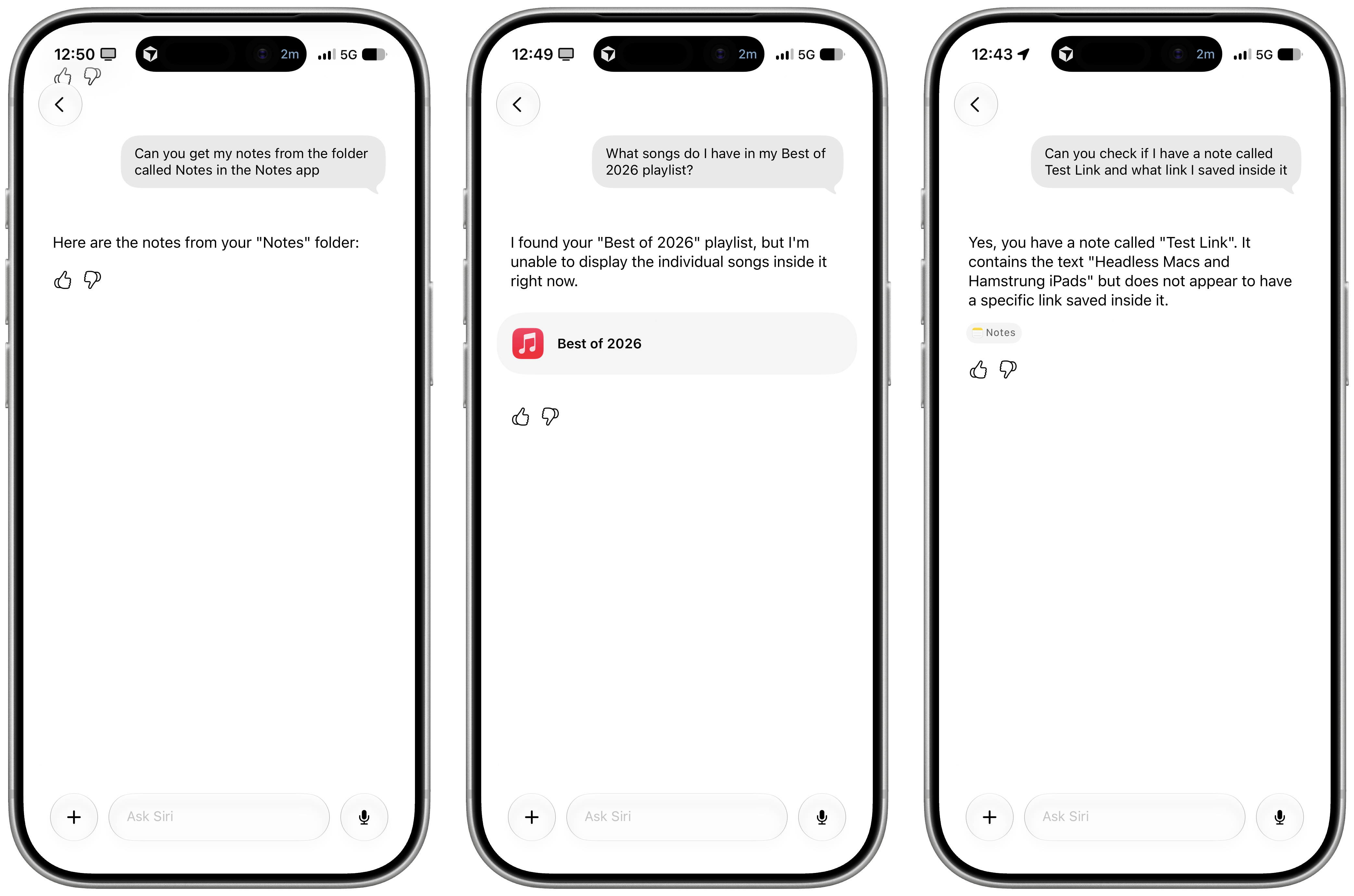
My problem is that, right now with Apple’s own apps, both the index and Siri’s ability to perform actions are very inconsistent. The assistant hallucinates abilities it doesn’t have, and it frequently just doesn’t work. In the examples below, I wanted to get notes from a specific folder, songs from a playlist, and a link from a note. Siri AI responded with an empty list of notes, said it couldn’t get songs from a playlist, and told me that my note didn’t have any links, respectively. (It did.)
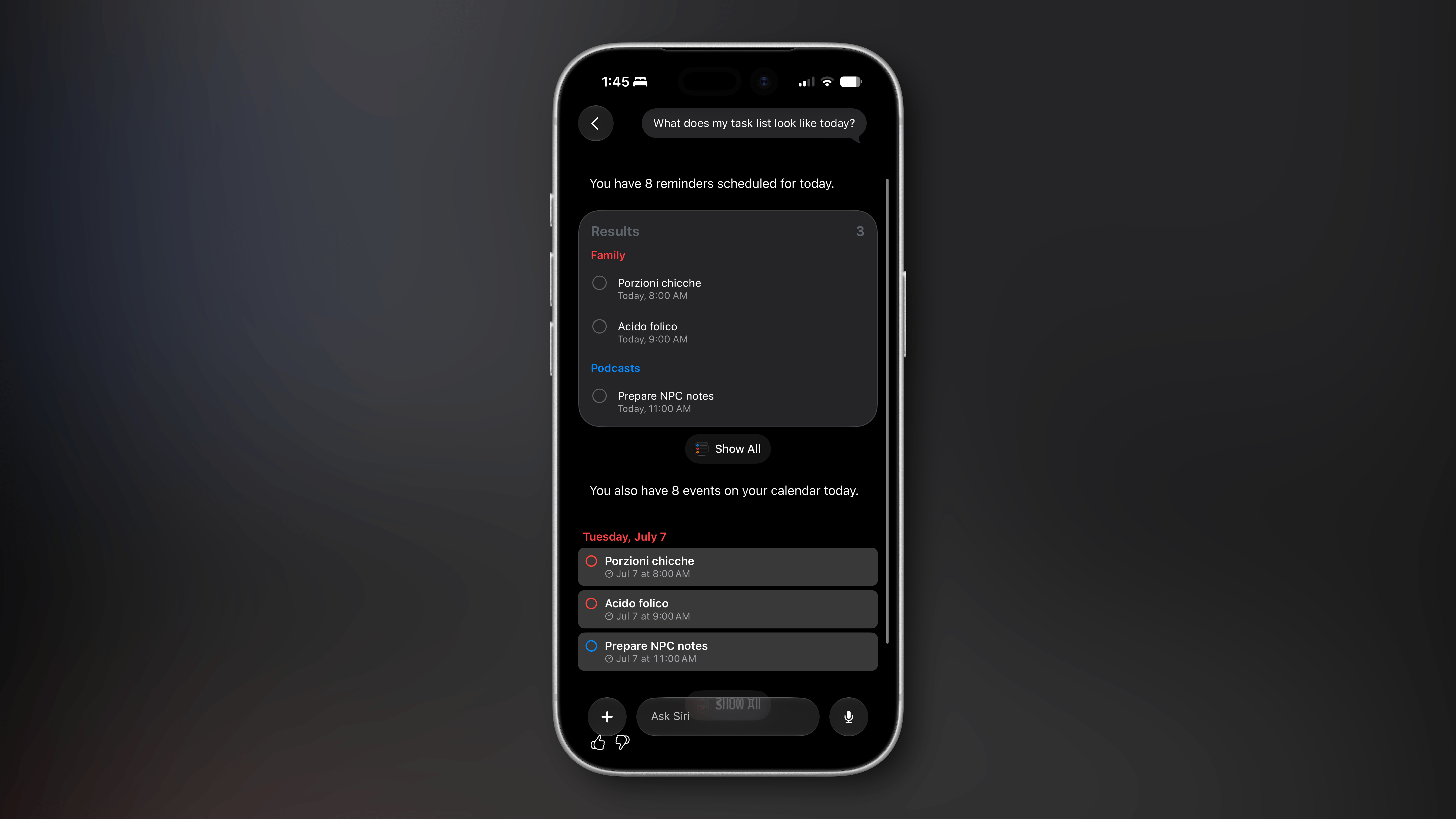
Reminders integration started working for me in iOS 27 beta 3, but it still isn’t perfect. When I ask for tasks due today, Siri AI insists on presenting the same tasks twice, my only fault being that I enabled the integration between Reminders and Calendar:
At one point, I asked Siri to show me my overdue reminders. Siri AI struggled with that: it cut the list of overdue items short, apologized when I pushed back, then did it again anyways. I know that Siri AI is not based on a Gemini model but is rather a Gemini distillation, but I think that if you’ve ever used a Gemini model before, this kind of behavior with tool-calling should be awfully familiar.
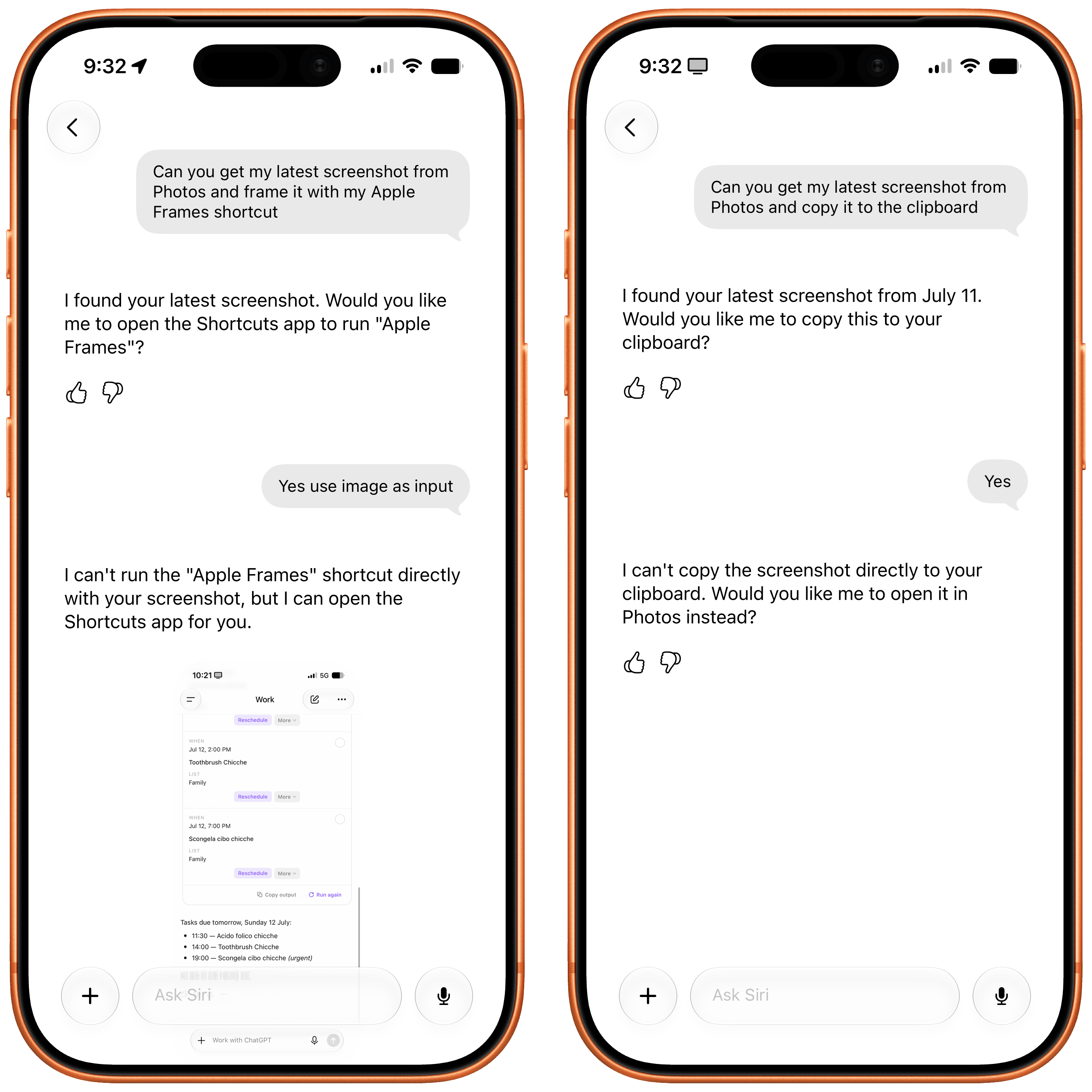
Siri AI isn’t a replacement for agentic workflows with other LLMs that can perform multiple actions in one chain of events. Here, for instance, I asked Siri to get my latest screenshot from the Photos app and frame it with my Apple Frames shortcut. Not only did Siri AI not get the most recent screenshot from my library, but the assistant couldn’t perform two actions sequentially. At least, however, it told me; when I repeated a similar question but asked to copy the screenshot to the clipboard instead, Siri first asked me to confirm my action and then changed its mind and said it couldn’t do it.
Why ask for clipboard confirmation if you can’t do it?
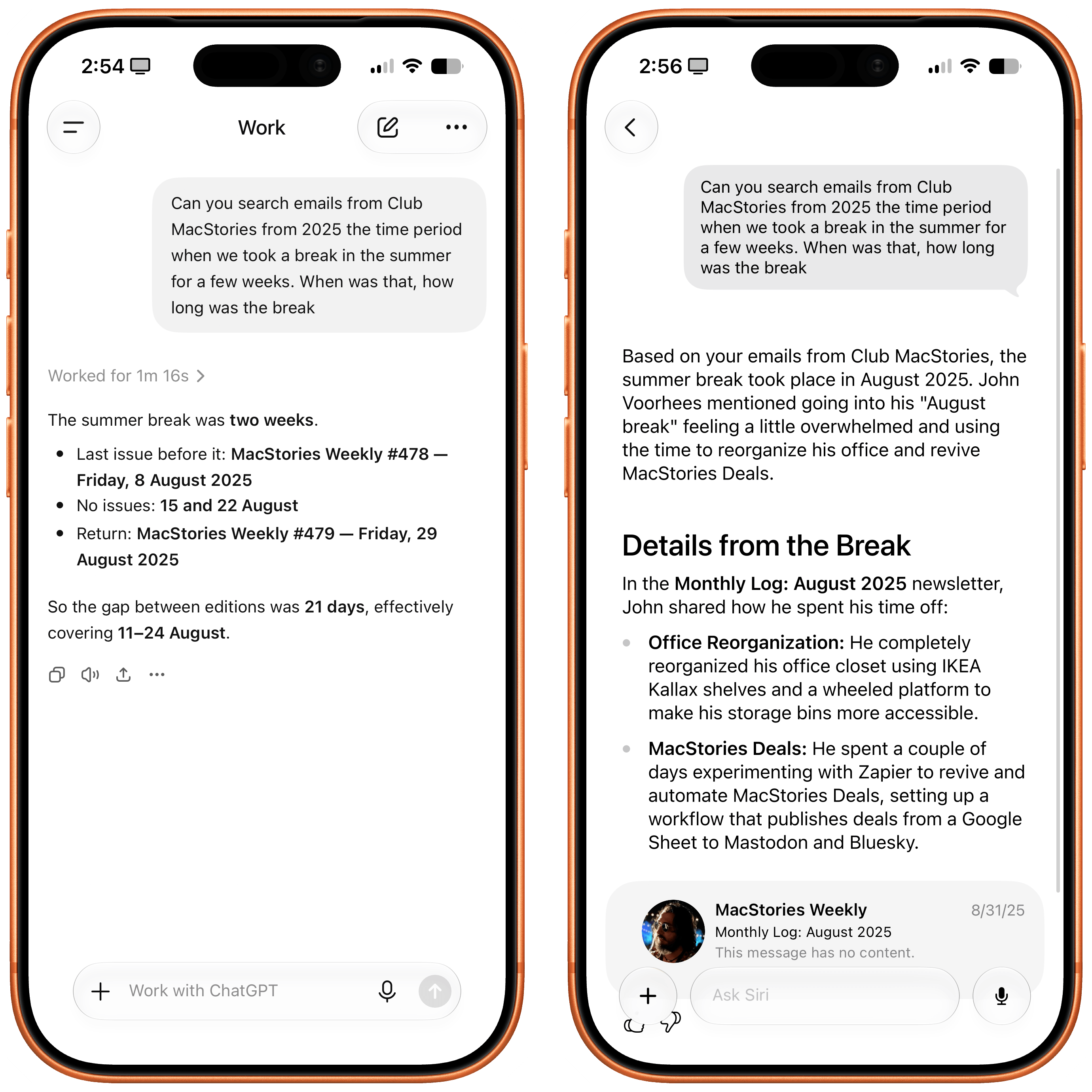
Searching for content hasn’t been ideal on my end, either. When I asked Siri to find me the latest single by Phoebe Bridgers, its default text response was an EP from two years ago; when I asked via voice, the response was correct. (…Why?) I similarly haven’t been impressed with Siri’s ability to search for messages and emails. Siri AI can reliably find recent texts from the Messages app, but the moment I start going a little further back in time, the system seems to struggle. I wanted to know when we took some time off at MacStories last summer, which I know was mentioned in a MacStories Weekly email that I have in the Mail app. Siri AI could only find a generic mention of John recharging after some time off, but it couldn’t give me an exact date because it did not find the correct email. ChatGPT Work did it in one minute and gave me a full breakdown of the weeks we took off.
Left: ChatGPT Work. Right: Siri AI.
All of this begs the question:
Is Apple’s on-device index a solid technological foundation or not? Is this system actually going to work at scale, for users with dozens of apps installed, each donating their data to the index, perhaps spanning multiple years of content? And can the cloud models – which are not using MCP but appear to be based on a plain JSON schema for structured data – make sense of it all?
My early tests haven’t been encouraging, but we have until September to find out.
The Trickle-Up
A trickle-up strategy cuts both ways: it gives Apple an opportunity to start simple and refine over time, but it also means that you, the user, are never given any more control than what the product allows for. As a result, Siri AI can be magical when it works; when it doesn’t, it feels like a mystery.
I can’t say whether I’m optimistic that Apple will get all of this to work in time for the fall or not because they don’t have the greatest track record in AI. I’m willing to give them the benefit of the doubt since the product itself is genuinely interesting and different from any other chatbot on the market. I want Siri AI to work, and if Apple can deliver on their vision, I’m convinced that it’ll spell trouble for OpenAI and ChatGPT. (Let’s face it: it’s the product to beat here, both in and outside of court.)
Siri AI permeates iOS 27, and that’s a threat to OpenAI and the hundreds of millions of users they have using ChatGPT for free with GPT-5.5 Instant. I don’t think Apple Foundation Models are as good as GPT-5.5 Instant, but Siri AI is the more ergonomic and integrated product. When the underlying chatbot and its world knowledge capabilities are good enough, and they can also be invoked via voice, text, the Camera app, context menus, or keyboard shortcuts, why would I open a siloed chatbot when I can use Siri AI and get a comparable answer more comfortably? If you’re a casual user of ChatGPT and do not pay for it, I think Siri AI can be a very compelling product that provides similar answers and, unlike OpenAI’s chatbot, integrates with the iPhone apps you already use. I don’t think it’s a coincidence that OpenAI is now following in Anthropic’s footsteps to monetize the business and enterprise markets rather than the consumer one.
At the same time, my concern is that we may be collectively assuming that “normal people” won’t see the differences between the capabilities of ChatGPT and Siri AI. In this industry, we have a tendency to sell “normal people” short and paint them as some perplexed bunch of occasional smartphone users who somehow passively accept any technology that is thrown at them. I strongly disagree with that. Maybe those people don’t care about ChatGPT Work, Codex, or Fable (yet?), but they can tell when an AI assistant is useful and when it’s not. People will compare the utility of ChatGPT to Siri AI, and I’m concerned that Apple’s 1.0 product will feel like it’s too little, too late – especially since Siri AI will be launching in select regions and in English only.
In the AI scene, companies move fast and break things. Apple needs to move fast without breaking anything, anymore. That’s a tough challenge, but here we are.
If you read MacStories, you’ve likely heard of Halide. For nine years, it’s been the definitive iPhone “pro camera app,” garnering an Apple Design Award, and happy users all over the world. Two years ago, Halide added Process Zero, a feature that lets your iPhone take photos free of AI and algorithms in the spirit of analog photography. Halide Mark III takes that to the next level with its new Looks, Photo Lab, and streamlined design.
Halide Mark III now produces gorgeous photos straight out of camera, thanks to film-inspired Looks developed in partnership with renowned Hollywood colorist Cullen Kelly. For the times you feel like fine-tuning things, Mark III includes a powerful image lab that makes it easy to dial in a perfect look in seconds.
Chip shortages are hitting everyone’s wallets, so we’ve decided to run our first sale in three years, exclusively for MacStories readers. This week only, you can get Halide for 25% off your first year with offer code MACSTORIES2026SUB, or 25% off a one-time-purchase with offer code MACSTORIES2026OTP.
Our thanks to Halide for sponsoring MacStories this week.
This week, Federico and John talk about the 10+ email apps they’ve used over the years and how recent spikes in email volume have caused them to change their approaches.
On AppStories+, Federico and John update listeners on their summertime agentic coding projects.
This week, Steam Machine ordering follow-up and Sony’s many controversial announcements.
On NPC XL, what’s going on with AYANEO and the Pocket MICRO 2? Plus, the RG Rotate gets clock faces, and Apple brings PC gaming on the Mac closer to reality.
Chris explains how he’s using Parchment, Matt gets all in your face about calendars, and everyone competes to see who can handle using Snick for the longest.
On Cozy Zone, the gang shares their development tips and setups.
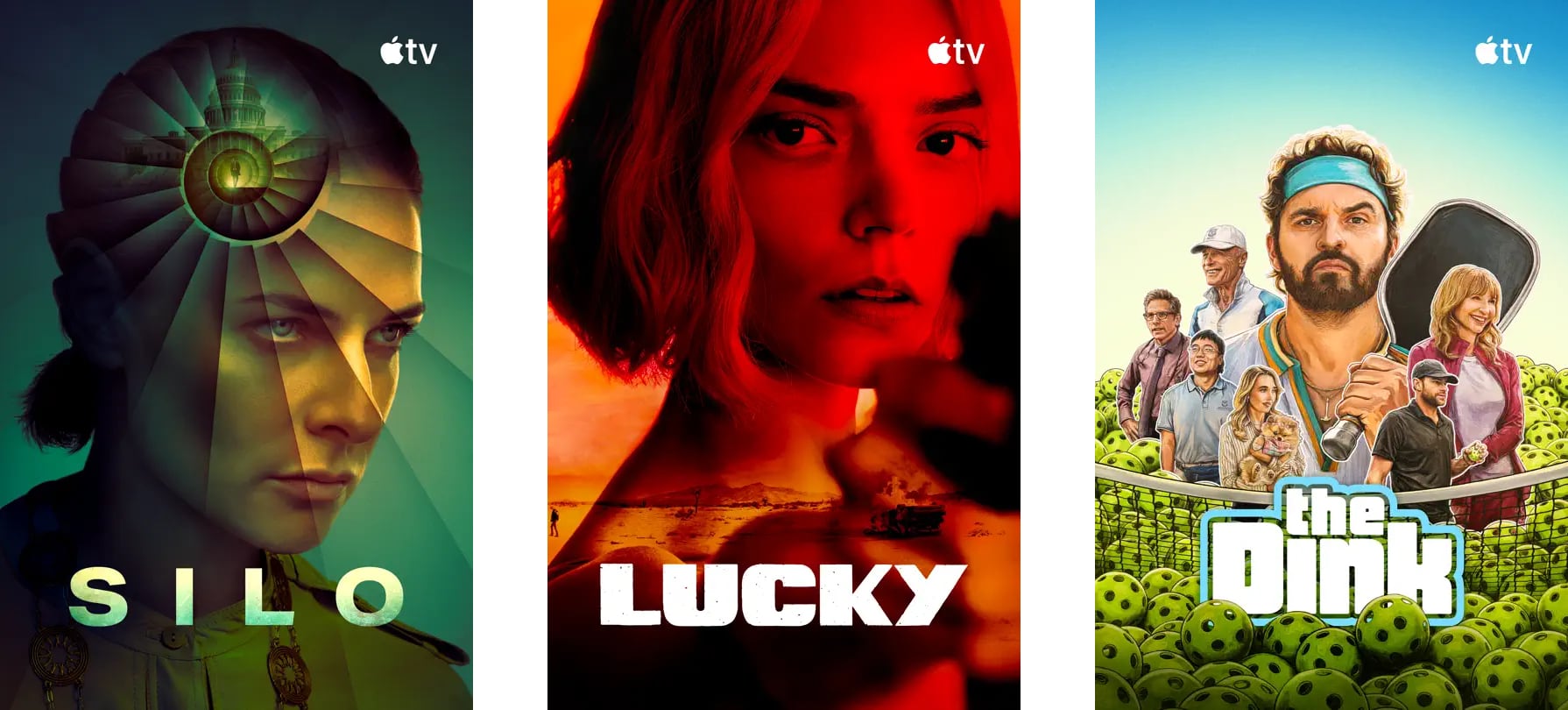
This week, John heads to the mountains while Federico cooks on a beach, the origin of “the boonies,” and narrow mountain roads, plus a TV and movie pick.
AppStories, Episode 492, ‘Email Survival Guide’ Show Notes
This episode is sponsored by:
Decagon: The AI concierge for every customer. Get a personalized demo.
NPC XL is a weekly members-only version of NPC with extra content, available exclusively through our new Patreon for $5/month. Each week on NPC XL, Federico, Brendon, and John record a special segment or deep dive about a particular topic that is released alongside the “regular” NPC episodes. You can subscribe here.
Comfort Zone, Episode 108, ‘My Magic Mouse Is Pregnant’ Show Notes
For even more from the Comfort Zone crew, you can subscribe to Cozy Zone. Cozy Zone is a weekly bonus episode of Comfort Zone where Matt, Niléane, and Chris invite listeners to join them in the Cozy Zone where they’ll cover extra topics, invent wilder challenges and games, and share all their great (and not so great) takes on tech. You can subscribe to Cozy Zone for $5 per month here or $50 per year here.
MacStories Unwind, ‘Out in the Boonies’ Show Notes
MacStories launched its first podcast in 2017 with AppStories. Since then, the lineup has expanded to include a family of weekly shows that also includes MacStories Unwind, Magic Rays of Light, Comfort Zone, NPC: Next Portable Console, and First, Last, Everything that collectively, cover a broad range of the modern media world from Apple’s streaming service and videogame hardware to apps for a growing audience that appreciates our thoughtful, in-depth approach to media.
If you’re interested in advertising on our shows, you can learn more here or by contacting our Managing Editor, John Voorhees.
I can’t recall the last time I was truly excited about a mouse. I primarily use a trackpad whether I’m at my desk or using a laptop. The trouble with a trackpad-only setup, though, is that I sometimes wind up with wrist and elbow pain. That’s why I keep a Logitech MX Master 4 mouse on my desk to balance out the stress on my arms.
But that only works if I’m at my desk. More and more, I’ve been turning to a MacBook Pro for working away from my desk at home or elsewhere. Those locations are always less ergonomic than sitting at my desk, causing wrist and elbow pain more quickly. Still, I’ve never made it a habit to bring a mouse with me, especially when I’m away from home, because it’s more than I want to carry – that is, until Logitech’s latest mouse, the Mobi Fold, came along.
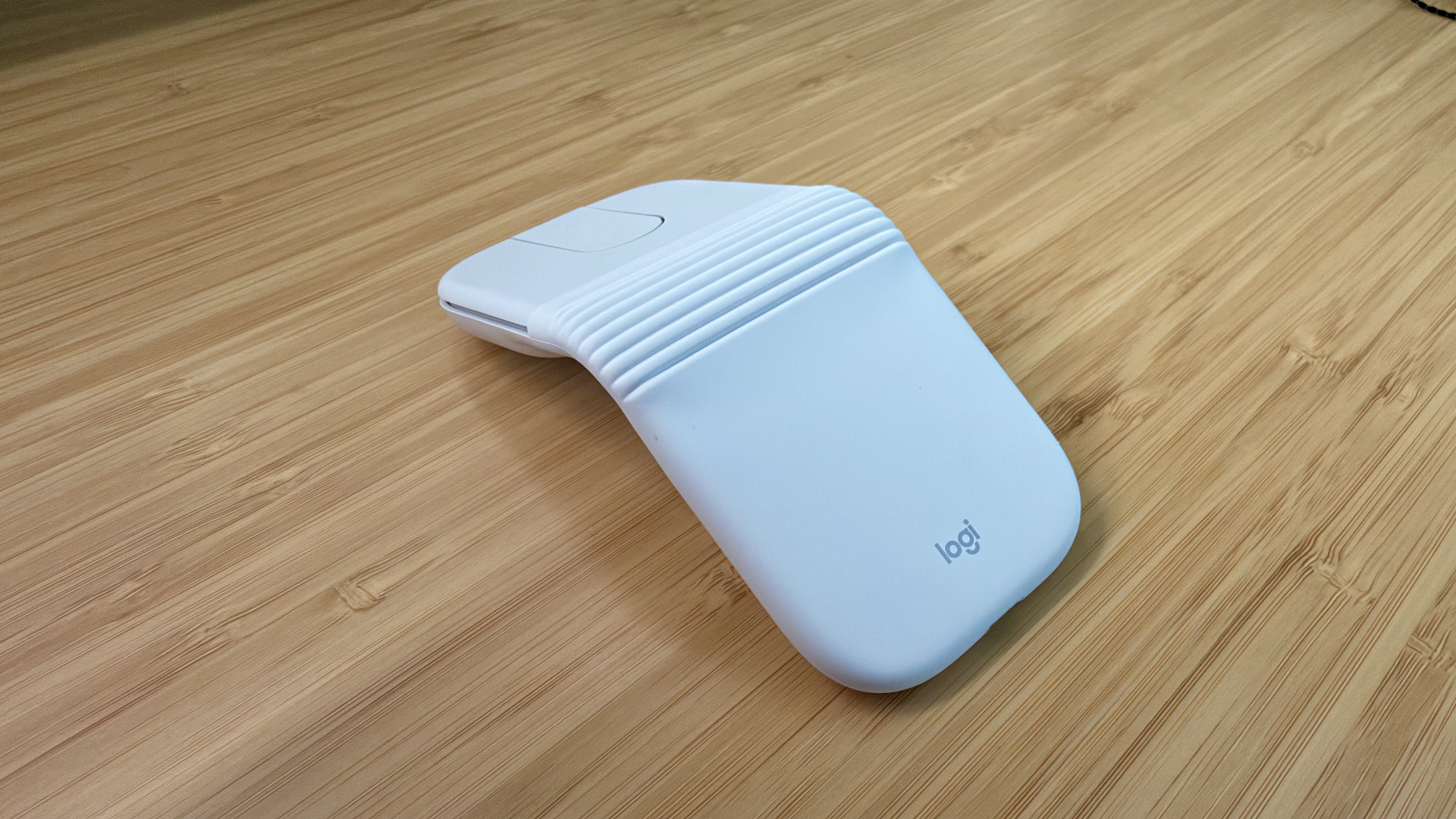
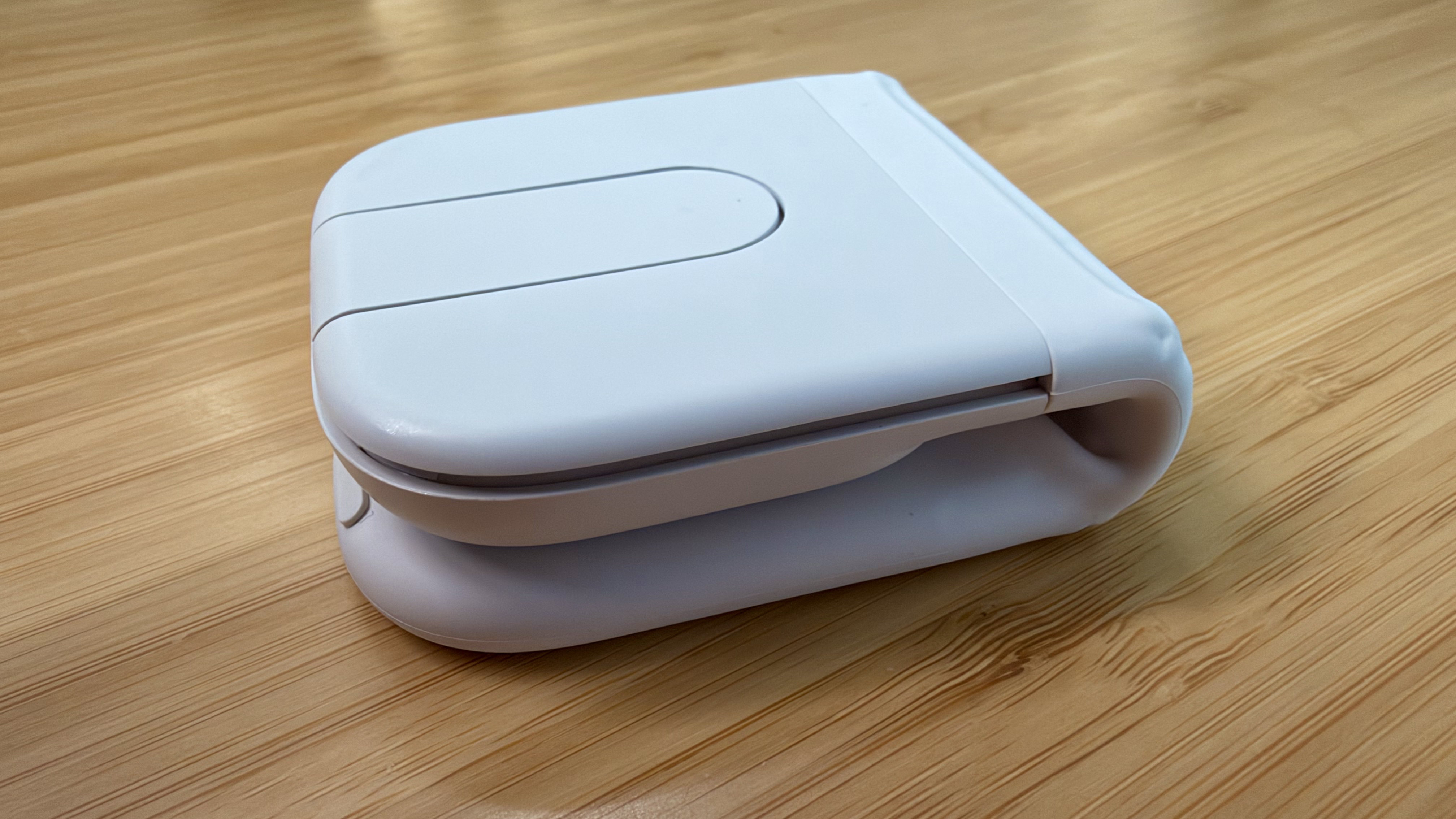
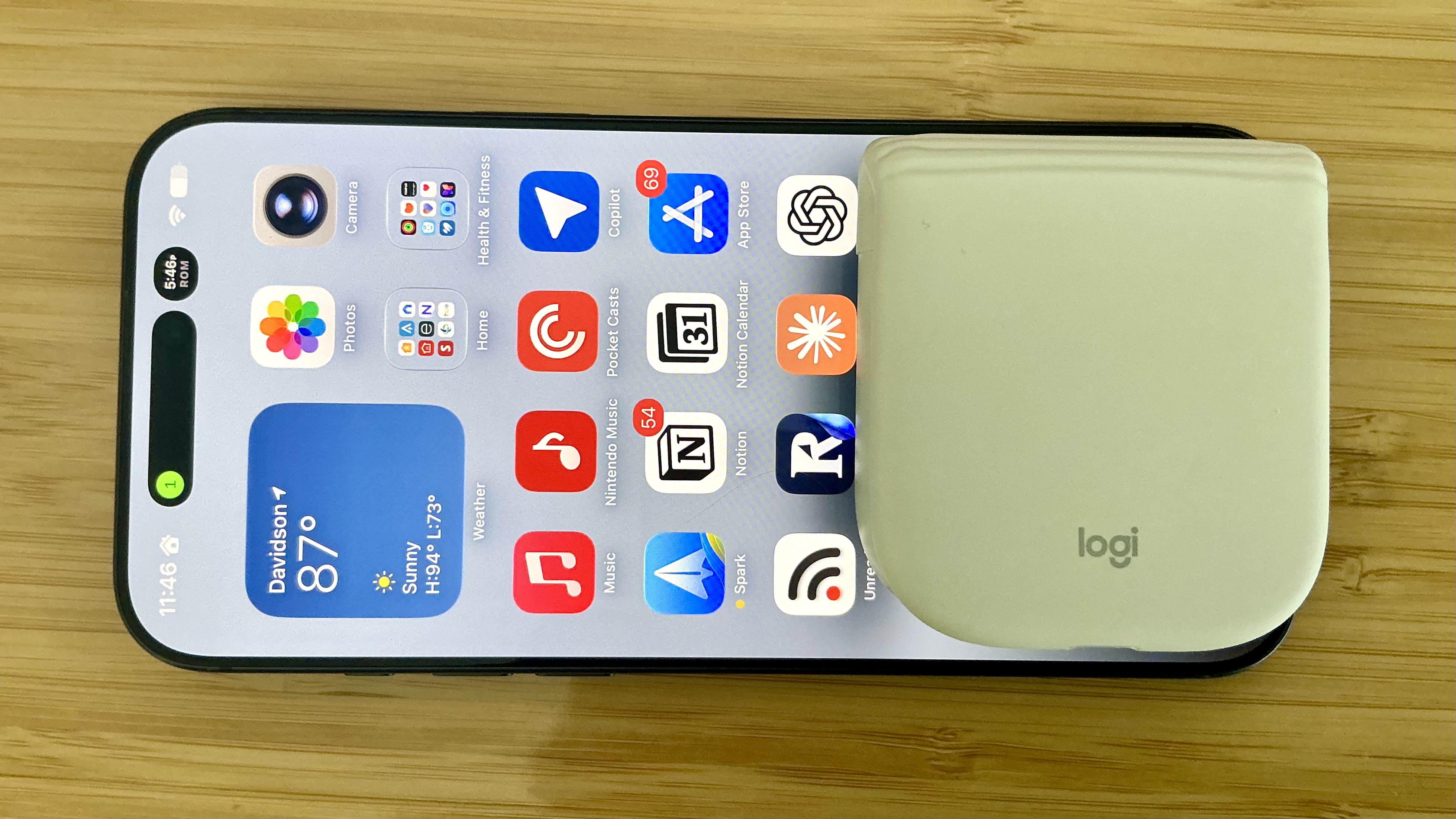
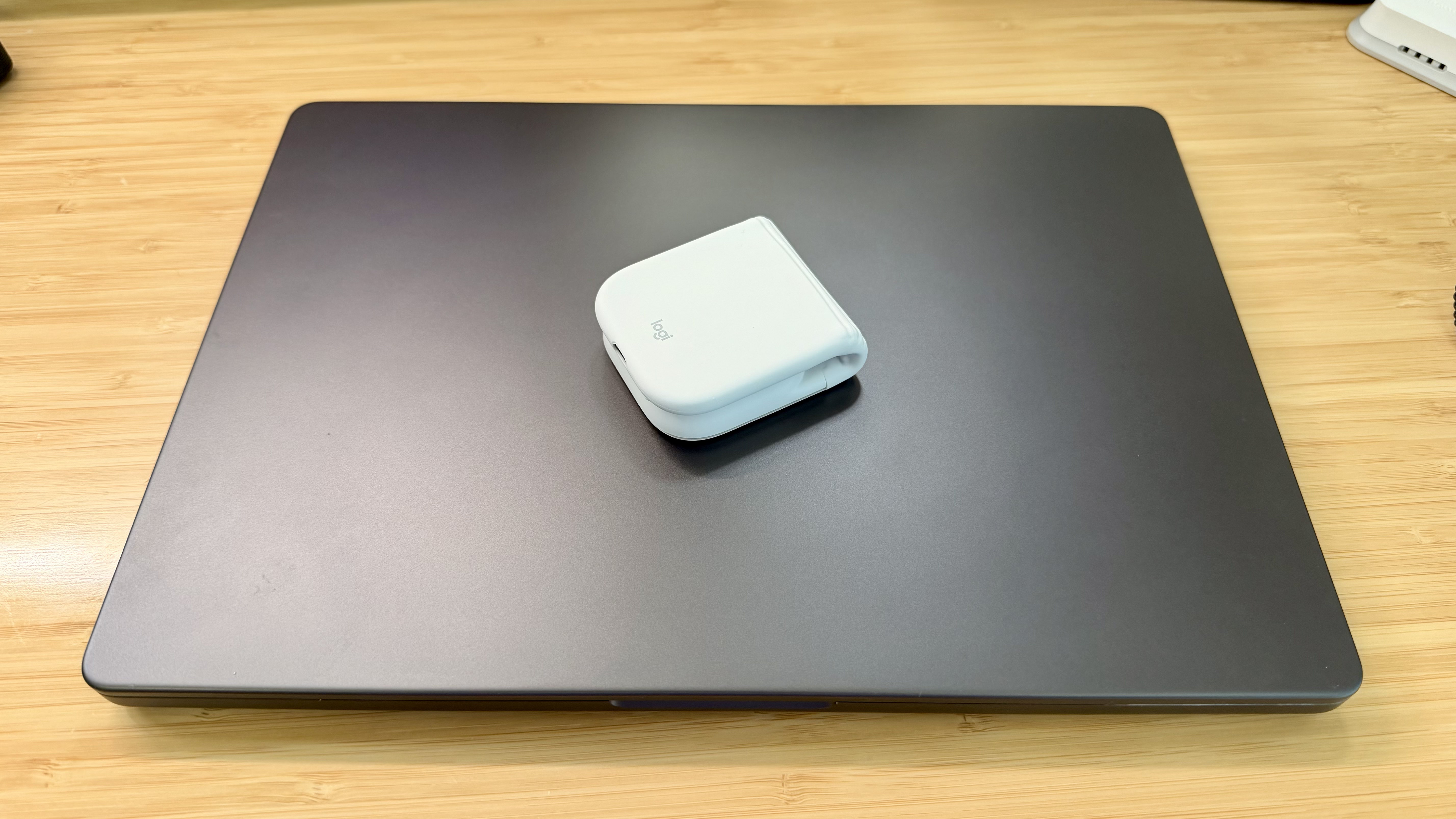
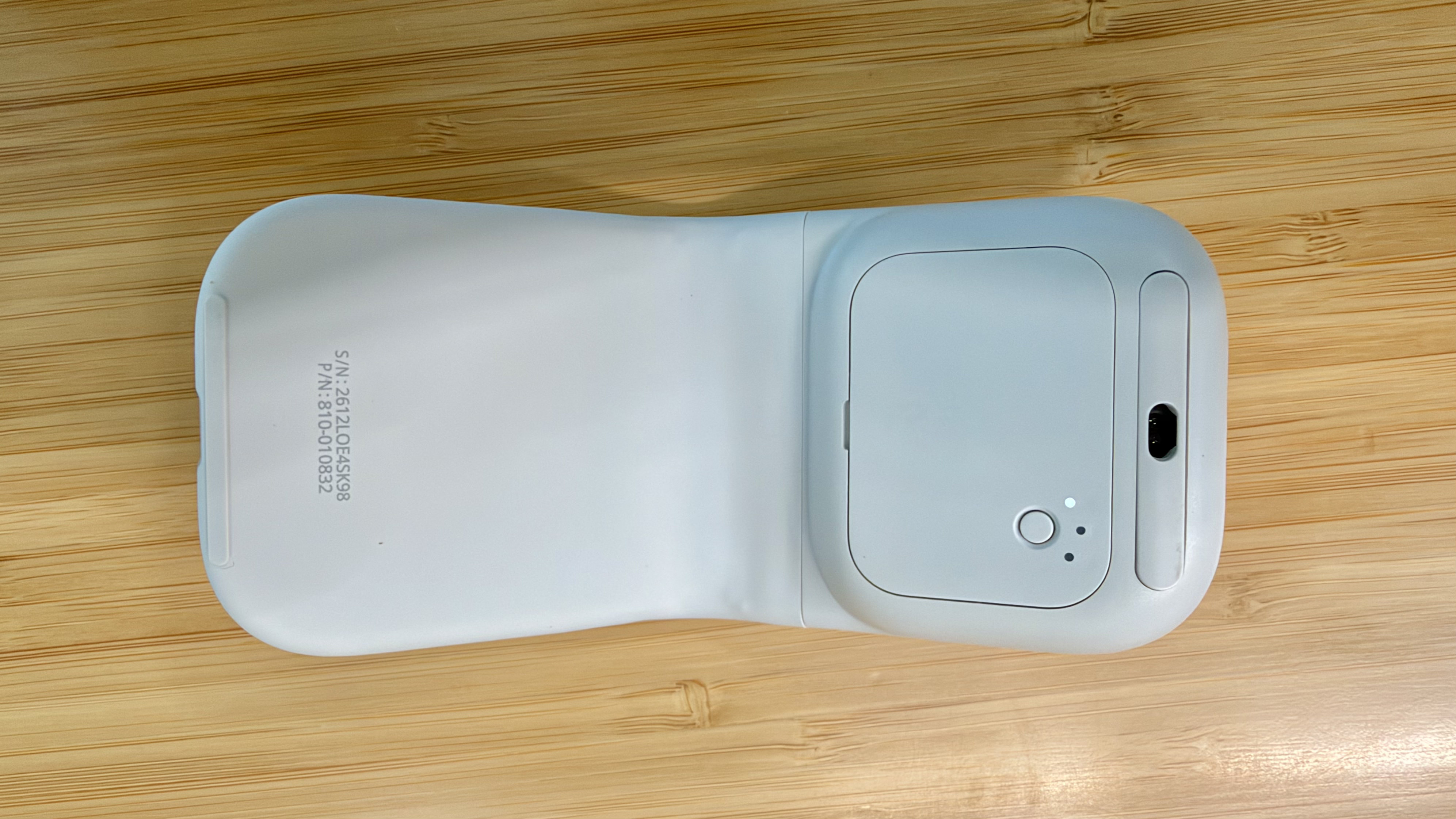
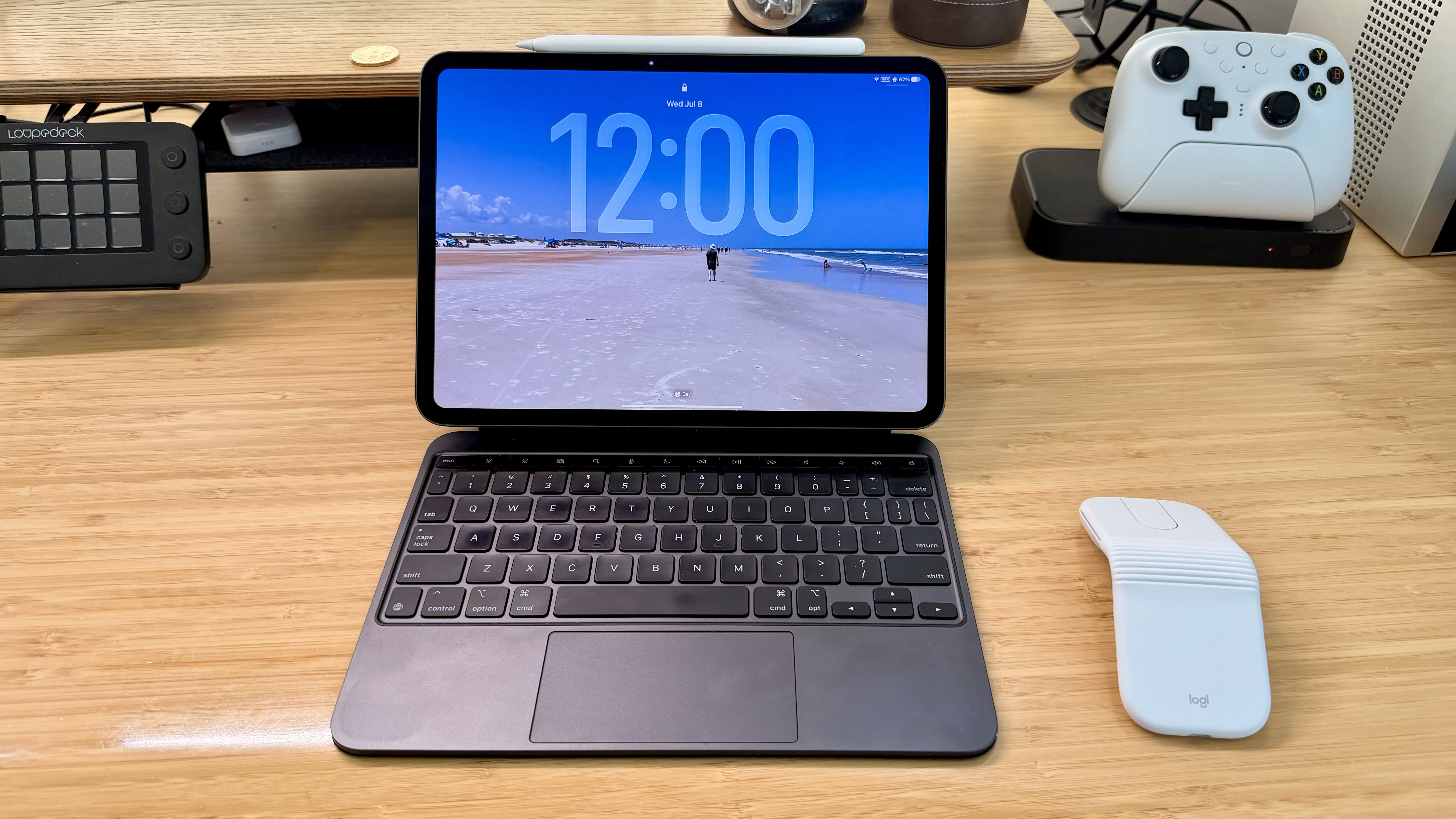
The Logitech Mobi Fold is an impossibly small mouse that folds completely in half, reducing its footprint to about ⅓ the size of my iPhone 17 Pro Max and about twice its thickness. Unfolded, it’s close to the length of the MX Master 4 but narrower. The Mobi Fold is impressively full-featured, too, making it an excellent all-around travel mouse worth taking a closer look at.
Folded, the Mobi Fold doesn’t look much like a mouse.
I’ve been testing the Mobi Fold for about a month, and my favorite thing to do with it is fold it up, show it to someone, and ask them to guess what it is. No one has guessed correctly because a folding mouse just isn’t a thing most people have encountered before. Instead, the most common guess is that the Mobi Fold is a small battery for charging an iPhone, until I unfold it and the shape becomes more familiar.
The Mobi Fold is tiny.
Really tiny.
The Mobi Fold is powered by a rechargeable battery that Logitech says lasts for up to 33 days (and up to 22 hours on a one-minute quick charge). The device also turns itself on and off automatically when unfolded and folded, which I love. Plus, the Mobi Fold can connect to up to three devices, and it supports both Bluetooth connections and Logitech’s Bolt dongle (sold separately).
The Mobi Fold’s surface is a soft-touch plastic that feels comfortable in your hand, and it has three buttons arrayed across the front. The middle button doubles as a trackpad, allowing you to drag a finger across its surface to scroll and perform gestures like a double tap for zooming in and out of a webpage.
The Mobi Fold pairs with up to three devices.
By default, tapping the front of the middle button navigates forward, while tapping the back navigates back in a browser. However, as with other Logitech mice, you can program the Mobi Fold’s buttons and gestures to:
perform different actions depending on the app you’re using,
control system settings like brightness and volume,
perform macro-like smart actions, and
display the Logitech Actions Ring, a customizable set of actions that are overlayed on your work environment.
That’s a lot of customization for a diminutive mouse, which I appreciate. However, because the Mobi Fold is typically my “long work sessions at the coffee shop” mouse, I’ve found that all I really need is its traditional point-and-click functionality.
The Mobi Fold makes a good companion to an iPad.
Ultimately, the Mobi Fold isn’t going to replace the MX Master 4 sitting on my desk, but it’s not meant to. I’ve fallen for the Mobi Fold just the same because its compact size and light weight make it a no-brainer to carry with me. I’ve also been pleasantly surprised at just how comfortable the Mobi Fold is to use, unfolding into a sturdy, angular shape that feels good in hand, unlike, say, Apple’s shallower Magic Mouse.
As a result, I really can’t recommend the Mobi Fold enough for on-the-go use with a Mac laptop or iPad. The combination of features in such a small, portable package sets it apart from every other mouse I’ve used and makes it well worth its $79.99 price tag.
The Mobi Fold is available in Graphite, Lilac, Off White, and Sand colors, both directly from Logitech and from Amazon.
It’s July, and Apple TV and Apple Arcade have an interesting lineup, including four games that debuted last week, the return of Silo, one of my favorite Apple TV series, Lucky, a limited series starring Anya Taylor-Joy, and The Dink, a pickleball movie that looks like a lot of fun.
The game I’m most curious about this month is Stray Fawn Studio’s Dungeon Clawler+, which Apple says “combines the strategic depth of a roguelike deckbuilder with the unpredictability of an arcade claw machine.” The hook is that instead of drawing cards, you use a claw to grab weapons, shields, and other items that affect your next move.
Creatures of the Deep+ is a single-player fishing adventure that pairs fishing with exploration and mystery. Your job is to embark on the open seas, catch fish, and learn the secrets that lie beneath the waves.
If you’ve ever played a classic Sim City game, you’ll have a feel for Pocket City 2+. You play as the city’s mayor and are charged with building and maintaining your city, which you can explore on foot as you build.
Draw It+ challenges players to draw things based on prompts under time pressure. It’s a single-player family-friendly game that can be passed around at a party or played solo, while honing your doodling skills.
I only just started Silo, season 2, prompted in part by the release of season 3 last Friday. It’s a fantastic dystopian mystery starring and executive produced by Rebecca Ferguson and created by Graham Yost. If you like a good post-apocalyptic brain teaser, be sure to check the new season.
This week the acclaimed British comedy Trying returns for a fifth season. Starring and executive produced by Esther Smith and Rafe Spall, the series is a lighthearted look at the ups and downs of family life.
Lucky is a limited series starring Anya Taylor-Joy based on the bestselling novel of the same name by Marissa Stapley. Taylor-Joy plays a young woman whose former life of crime comes back to haunt her, just as she thinks she’s escaped her past.
The Dink is a comedy about a former tennis star played by Jake Johnson who has been reduced to coaching kids at a suburban country club. Johnson, who stars with an ensemble cast that includes Ed Harris, Ben Stiller, and Mary Steenburgen, discovers that he loves pickleball, which just may save the ailing country club.
That’s it for July. I’m personally looking forward to moving on to season three of Silo once I finish season two and watching Lucky.
If you’re a Club MacStories Plus or Premier member, drop by the TV and Movies channel in Discord to chat about what you’re looking forward to from Apple TV this month, and be sure to listen to MacStories Unwind where we will undoubtedly cover these shows in the coming weeks.
When Fable 5 returned last week, I knew exactly what to throw at it. In February, I started a project out of frustration that likewise ended in frustration, so I put it on the shelf and waited. Five months later, Fable 5 was released, and I knew it was time to finish Editor, a single-view diffing tool for writers rather than developers.
At MacStories, we all write in Markdown, and we’ve used GitHub to share and sync changes among team members since 2015. GitHub is primarily a developer tool, but it’s a fast, reliable way to share our Markdown-formatted article files, too.
We use GitHub the most for the Club MacStories newsletters. Every week, Federico, Devon, Jonathan, and I work on sections for MacStories Weekly and save them to a GitHub repo. That allows any of us to sync the sections locally for reading, editing, and assembling the issue.
The trouble is that as great as Markdown text editors are to write and GitHub is for versioning and syncing, there isn’t a good way to view the changes someone has made to a document. I know because I’ve been looking for a solution for a long time. Some Markdown apps like iA Writer and Bear support versioning or backups, but I’ve yet to find a text editor that can visualize changes made by someone else based on a document’s Git history.
Of course, developers have many ways to track changes to code, including GitHub Desktop, Kaleidoscope, and Git Tower. Code is just text, so those apps can be used by writers, too. However, the process of writing and editing prose is fundamentally different from code. I’ve tried the apps above and others, and it’s just too hard to track changes in the formats development tools use.
This is what it’s like trying to track changes in GitHub Desktop.
We wouldn’t have stuck with GitHub as long as we have if it didn’t work, but that hasn’t made the friction of reviewing changes any less frustrating, especially on Fridays when we send MacStories Weekly. That’s when I had the idea for Editor. I was trying to parse some changes Devon had made to one of my stories with GitHub Desktop, and the friction finally got to me.
One obvious problem was the side-by-side document view many code diffing tools use. I wanted more detail than most diffing tools offer, but in a single, readable view, so I could skim through changes quickly.
Most agent-assisted projects benefit from some up-front research and planning. I knew what I wanted would sink or swim on the design, not the app’s underlying Markdown viewer, so I spent time researching systems for visualizing document edits.
That’s when I came across Upwelling, a multi-author project from Ink & Switch that describes itself as “an independent research lab exploring the future of tools for thought.” In their research paper, the authors described my exact problem:
Unfortunately, version control tools like Git, which are designed for software development, do not suit the needs of writers. Git cannot compare or merge files from WYSIWYG editors such as Microsoft Word… and graphical user interfaces for Git are cluttered with complex concepts such as commit hashes and visualizations of non-linear branching and merging histories.
Ink & Switch’s solution, a prototype collaborative text editor, wasn’t what I wanted to build, but the research behind it was full of interesting ideas that helped me settle on several principles for what would become Editor:
Document changes needed to be visible in a single view that carefully balanced highlighting changes with readability;
A writer should be able to instantly switch from the marked-up version of their document to the clean original and edited final version;
Changes needed to be categorized by filterable types like punctuation, word choice, capitalization, insertions, and deletions to reduce clutter in heavily edited documents;
Change types would be color coded using a side rail system inspired by maps of London’s tube system;
Navigating among individual edits needed to be done by simple j/k keyboard input; and
Global document navigation should employ a mini-map of a document’s edit regions (a feature borrowed from developer IDEs like Xcode) to make it easy to jump from one area of a document to another.
Working with Claude and artifacts to prototype Editor.
With those choices made, I got busy in Claude Code and came up with a proof of concept quickly, but sadly, these were the days of Claude Opus 4.6, which wasn’t nearly as good at design as today’s models. What I wanted was possible, but what I had was a mess.
The prototype is recognizable as Editor, but far less readable than the finished version.
As it turns out, designing track changes that are accurate but readable is hard. For example, does changing “day” to “date” replace one word with the other or substitute one character (the “y”) for two others (“te”)? Despite putting clear parameters around what Editor should look like, I could tell Claude was stuck, so I called it quits and moved on.
However, I’d wanted something like Editor for far too long to simply give up. So I saved what I had to a GitHub repo and figured I’d take another run at it later.
Editor makes it easy to see small changes like punctuation with filters.
A lot has changed in the six months since I put Editor on ice. Notably, Claude Opus 4.8 and Claude Design were released, and Claude became better at using a browser, all of which fit nicely with Editor’s relatively complex design.
Dark mode does a particularly nice job of highlighting changes.
Between Opus 4.8 and Claude Design, I expect I could have finished Editor without Fable 5, but with it, the only thing that slowed me down was my five-hour token limit. I repeatedly hit the limit in under an hour as Fable managed a swarm of subagents. What could have taken a few hours last Friday night spanned an evening and the next morning. The token gating slowed me down, but at the same time, I expect that using Opus 4.8 and Claude Design would have taken the entire weekend.
But it isn’t just speed that makes Fable 5 impressive; it’s the fact that it got Editor’s complex UI right the first time. Fable took a carefully planned but very broken prototype and turned it into a polished product that the whole MacStories team can use.
Editor is built to run on the internal tools foundation Federico created.
However, there’s a big difference between a web app running on my Mac mini server for personal use and something that can be shared. Fortunately, Editor also benefited from the internal tool foundation Federico has built over the past several months.
He originally built it to house Feedboard, his kanban-style RSS feed reader; Images, an update to our tool for uploading images to the MacStories CDN; and iOS Review Search, a semantic search tool for his iOS and iPadOS reviews. It’s a login-protected internal page built on web app hosting platform Vercel. I later contributed a tool that summarizes Apple Newsroom posts and simplifies uploading their promotional images to our server.
Federico managed Editor’s deployment, in part, from Cursor for iPhone.
With a couple of those tools in hand as context for Fable, I asked Claude to get Editor ready for our internal tools page and passed it off to Federico with a separate set of specs and instructions he could point Claude at for deployment and the creation of a landing page. That introduced bugs that required some troubleshooting, which Federico handled in part using Cursor and it new iPhone app, but by that afternoon, Editor was ready for production. The entire process from old, broken prototype to production web app took less than 24 hours, and for a lot of that time we were either asleep or away from home.
Navigating by individual edit.
When you use agentic tools like Claude every day, it’s easy to forget how far they come so quickly. All you see are the flaws that still serve as roadblocks. What was different about using Fable 5 was that there were no roadblocks. It simply took a project that Opus 4.6 struggled with in February and made short work of it. It was a remarkable thing to see. And now, we have a tool that I’ve wanted since we started using GitHub for our writing in 2015.
Tomorrow, Fable will move to usage credits that are just too expensive for my tastes, given how fast the model burns tokens. Hopefully, it will trickle back into Anthropic’s subscription tiers in the future. Until then, though, I’ll continue knocking out prototypes, and if they’re too much for Opus, I’ll shelve them until a better model comes along. They always do.
This week, Federico and John talk about the state of AI aggregator apps and their future prospects before checking in on their current AI app setups for the AppStories+ post-show.
Niléane invested in a fast-appreciating asset (air conditioner), CHRIS MADE AN APP, and everyone surprises everyone else with their favorite challenges.
On Cozy Zone, we tier list the biggest iPhone features over the year.
This week on MacStories Unwind, Federico and John are burning up Claude Fable 5 tokens as fast as they can, while Federico finds the time to try a brand new Switch 2 game.
AppStories, Episode 491, ‘Are AI Aggregators Worth It?’ Show Notes
This episode is sponsored by:
Mercury Weather: Forecasts, beautifully done. Download now for free.
Claude: For problems worth solving — get started with Claude today.
NPC XL is a weekly members-only version of NPC with extra content, available exclusively through our new Patreon for $5/month. Each week on NPC XL, Federico, Brendon, and John record a special segment or deep dive about a particular topic that is released alongside the “regular” NPC episodes. You can subscribe here.
Comfort Zone, Episode 107, ‘The Year of Our Lord, Zork’ Show Notes
For even more from the Comfort Zone crew, you can subscribe to Cozy Zone. Cozy Zone is a weekly bonus episode of Comfort Zone where Matt, Niléane, and Chris invite listeners to join them in the Cozy Zone where they’ll cover extra topics, invent wilder challenges and games, and share all their great (and not so great) takes on tech. You can subscribe to Cozy Zone for $5 per month here or $50 per year here.
MacStories Unwind, ‘Burning Tokens Before the Clock Runs Out’ Show Notes
Fable 5
Anthropic’s Fable 5 is only available on Claude subscription plans for one week, so Federico and John are making the most of the time by tuning up ongoing projects.
MacStories launched its first podcast in 2017 with AppStories. Since then, the lineup has expanded to include a family of weekly shows that also includes MacStories Unwind, Magic Rays of Light, Comfort Zone, NPC: Next Portable Console, and First, Last, Everything that collectively, cover a broad range of the modern media world from Apple’s streaming service and videogame hardware to apps for a growing audience that appreciates our thoughtful, in-depth approach to media.
If you’re interested in advertising on our shows, you can learn more here or by contacting our Managing Editor, John Voorhees.
In Safari Technology Preview 247, we’re introducing the Safari MCP server — a Model Context Protocol server for web developers that makes your web development and debugging workflow faster and more powerful. We know agents are increasingly integral to the coding process and the Safari MCP server gives your agent the ability to know how your code actually renders in the browser by connecting it to a Safari browser window.
Any MCP-compatible client can connect to the Safari MCP server. By connecting your agent to a Safari browser window, your agent can emulate what your users experience, giving it the information it needs to debug more autonomously, like access to the DOM, network requests, screenshots, and console output.
Importantly:
The Safari MCP server runs entirely on your local machine and makes no network calls of its own. It also does not have access to your personal information in Safari (e.g. AutoFill or other browser activity). When it captures page content, screenshots, or console logs, that data goes directly to the agent you’re running — not to Apple. What happens to that data from there depends on the agent and model you’re using. As with any agent you give access to your browser, only use ones you trust.
For the past few months, I’ve been using Google Chrome on my MacBook Pro and Mac Studio not because I like the browser (in fact, I really dislike Chrome’s text rendering and UI), but simply because it was the best option for agents. In Codex specifically, between Playwright, Chrome Dev Tools, and OpenAI’s own Chrome extension, I could kick off research tasks (such as vacation planning and booking a hotel) that involved a browser directly from my iPhone, letting Codex drive the research on my remote Mac.
Safari in Codex.
Now, thanks to Safari’s new MCP server, I no longer have to use Chrome on desktop and can return to a unified browser setup across all my devices. Even better: it actually looks like Apple shipped the most ergonomic browser MCP for agents to date. The MCP server has dedicated tools for page extraction (including getting webpages as Markdown, based on WebKit’s own conversion pipeline), evaluating JavaScript, DOM interactions (clicking, scrolling, resizing the viewport for mobile screens, etc.), taking screenshots, and more. I set this up immediately in Codex, and I also asked Codex about comparing Safari’s MCP to its own Chrome extension and the older Playwright. The verdict: although Chrome has a richer API with Chrome Dev Tools when it comes to network requests, Codex actually preferred Apple’s leaner, more direct approach for letting an agent drive and debug a browser.
I’m really happy to see folks at Apple embrace agentic tools: between the new MCP capabilities of Xcode and now this, it looks like Apple’s software (on the Mac, of course) is becoming more and more approachable by people who are working in new ways thanks to agents. Whether you’re a web developer or tinkerer, I highly recommend checking out what Apple has released in Safari Technology Preview. More of this, please.
Over at Snazzy Labs, Quinn Nelson has a great in-depth look at the changes coming to Apple’s Game Porting Toolkit with macOS 27 this fall. Paired with Metal 4, it’s a real leap over what’s possible today, and Nelson showcases the difference well.
Thanks to the upcoming update, Nelson was able to use CrossOver, a Windows-to-Mac compatibility layer that allows PC games to be played on a Mac, to spotlight some impressive numbers on games ranging from Red Dead Redemption to the recently released 007 First Light.
Not all games Nelson tried showed the same leap in performance, but that’s true on compatibility layers like Proton on the Steam Deck, too. What’s remarkable is that it’s all done in software and as Nelson points out, the advent of coding agents like Codex and Claude may help bring more PC games to Mac using the Game Porting Toolkit by reducing the porting costs.
Nelson also makes a pitch for an Apple gaming device. I agree with him that more than ever, the pieces, right down to a hardware-focused incoming CEO, are all there for such a device, and I remain optimistic. However, I’ve made the case for such a device for years now to no avail. Still, whether or not Apple builds gaming hardware itself, watch the full video above. It’s a fantastic view of how far the Mac has come as a potential gaming platform since the advent of Apple silicon.
Today, Apple released an update to its Creator Studio subscription with new features across many of the suite’s apps.
Pixelmator Pro now integrates more deeply with Creator Studio’s other apps. While working in Keynote, Pages, and Numbers, you can open an image directly in Pixelmator Pro, edit it, and save the changes back to the source app’s document. On the Mac, Final Cut Pro can now send individual frames to Pixelmator Pro, making thumbnail creation simpler.
Final Cut Pro is also adding a set of Creator Themes with multiple aspect ratios, dynamic titles, and customizable backgrounds. Plus, users now have more control over the design of captions generated on-device using AI. On the Mac, Auto Mask lets you isolate certain parts of footage for editing, and Match Color reproduces colors more accurately.
Source: Apple.
For Logic Pro users, today’s update includes improvements to Chord ID, a new Producer Project from Khris Riddick-Tynes, a new sound pack, and an expansion of Beat Breaker.
Final Cut Camera for the iPhone and iPad has been updated with support for Clean HDMI Out, more flexible ProRes support, and disabling of digital zoom. Motion now supports vector graphics, and Compressor gains Vision Pro features, while Freeform gains shape creation, opening images in Pixelmator Pro, a Dark Mode, folders, and drawing on the Mac. Plus, Pages, Keynote, and Numbers each added a handful of new features.
Creator Studio debuted just six months ago, so it’s good to see it already being updated with meaningful features. Creator Studio costs $12.99/month or $129/year. More information is available in Apple’s press release here.
In the current era of coding agents becoming productivity assistants, iPadOS’ limitations are no longer defined by the lack of desktop-class multitasking or access to external peripherals. A new class of iPadOS shortcomings looms large on the horizon: the iPad’s app sandboxing and the absence of an open filesystem have relegated it to acting as a remote control for agents.
I’ve been ruminating on this thought for some time. I, of course, am very satisfied with the improvements Apple brought to the iPadOS platform throughout the 26 cycle: between new windowing, local capture, a menu bar, and the improved Files app, I can get most of my old-school work done on the iPad Pro without begrudging the experience like I used to a few years ago. What I’ve noticed this year, however, is that iPadOS 26 was an update designed to address the pre-existing low-hanging fruit of quasi-desktop efficiency; by design – and we have Craig Federighi on the record saying as much – it wasn’t intended to reinvent the wheel in any meaningful way.
That would have been fine a few years ago. The problem is that the productivity wheel is literally being reinvented by other companies as we speak. And in an unsurprising turn of events, the Mac is at the forefront of that reinvention, while the iPad is being left behind once again.
I’m writing this as someone who likes to be on the bleeding edge of AI tools. Since the release of Claude Code in early 2025, I (and, realistically, millions of other nerds whose taste aligns with mine) have increasingly moved a lot of my research, automation, coding, and other tasks considered “productivity” to desktop agents. These are powered by the same underlying technology as chatbots, but they’re considerably more powerful: Claude Code and Cowork, Codex, Perplexity’s Personal Computer, and self-hosted agents like OpenClaw and Hermes can understand intent and perform long-running tasks on your computer. They can write code, stay on a task for hours (or even days) at a time, analyze the contents of your screen, and even use a computer on their own. To believe that these AI tools are still a fad and chatbots are useless is misinformation at this point.
As of June 2026, I spend most of my days with two apps constantly open on my M4 Pro MacBook Pro: Codex and Notion. I’m a huge fan of what OpenAI has accomplished with Codex for Mac; their all-in-one package that combines thread-based chats with skills, plugins, connectors, computer use, memories, and system-wide filesystem access has genuinely allowed me to produce content for my audience that I wouldn’t have even dreamed of years ago. Since I started working with Codex, I’ve released a major update to Apple Frames, twoCLIs (with two more coming soon), Shortcuts Playground, and a brand new MacStories Shortcuts Archive. These are actual products that are used by thousands of people and are generating real revenue for MacStories. I’ve also created an entire suite of MacStories-only internal apps (now used by our whole team) and am currently in the process of researching my iOS 27 review, creating an app for Shortcuts Playground, and brainstorming a different product altogether for MCP.
I’m doing all of this on a Mac because the true Codex experience isn’t even “desktop-only”: it’s Mac-only.
Let me give you some examples. To make the original version of Shortcuts Playground, I had Codex with Computer Use scrape my entire library on the old MacStories Shortcuts Archive, download over 300 shortcuts, and learn my coding style. Once I had a plugin, I also had Codex create over 1,000 shortcuts on its own, install them in the Shortcuts app for Mac, and debug them visually to find issues. For the new Shortcuts Playground plugin and app, I’m going even further: Codex created over 3,500 shortcuts spanning the entire library of Shortcuts actions while simultaneously coordinating with other Codex threads – some of which are running on my Mac Studio – to build an app, train a local model for Core AI, and constantly iterate on the new harness behind the app. Meanwhile, I’m also spending time in Codex organizing sources for my iOS 27 review, managing my tasks with Reminders and my own RemCTL, and performing general research on any topic I think of. The net result of all this is that I’m shipping more things, making more money for MacStories, saving money thanks to our new internal tools, and – most importantly – learning a lot and having fun.
Working with Codex for Mac.
Some of the CLIs I’ve built. Two of them are coming soon.
In all of this, the iPad’s role is to be, once again, an accessory to the Mac – and a rather expensive one at that. I wrote last year about iPadOS’ third-party app problem, and I still think all of it applies today. What’s different in 2026 is that these powerful agentic tools that are redefining coding and knowledge work, and which are centralizing productivity inside so-called “super apps”, aren’t coming to the iPad, but not for political or financial reasons: they’re Mac-only because only macOS is mature and open enough to support them.
In a funny twist of fate, Apple spent years trying to make iPadOS catch up to macOS on the surface, only for macOS’ underlying nature to unlock a new generation of apps that are rewriting the rules of modern software. No amount of windowing and menu bars can change the fact that neither Claude Cowork nor Codex will ever be possible on the current version of iPadOS. From an open filesystem that lets agents poke around anywhere to powerful Accessibility and Screen Recording APIs for developers to features like system-wide hotkeys, dictation, and true background processes, Apple’s oldest operating system is the one that feels the freshest (and the most powerful) in the AI industry today.
In fact, the Mac is so powerful and well-equipped for this new wave of desktop agents, it even yields an amazing experience when used in a “headless” setup with no display attached to it. This may have started as a trend because of OpenClaw, but six months later, I believe that a Mac mini with Codex running on it is the best bang for your buck if you’re building an always-on agentic setup based on a frontier model that can do just about anything you throw at it.
Which brings me to the iPad’s only silver lining in this space right now.
Most of my Codex tasks are running on my Mac Studio server, but I also use Codex on my MacBook Pro. Thanks to Codex’s support for remote connections, I can chat with threads running on the Mac Studio from the Codex app on a different machine, which is a fantastic feature. Alternatively, I can use Apple’s excellent (and, again, Mac-only) Screen Sharing app to log into my headless Mac and interact with macOS with superior performance and image quality to VNC. (I also use this HDMI 2.1 dummy plug to unlock 4K resolution when headless.) Coordinating Codex threads across different projects and machines feels like the sort of thing that shouldn’t be possible, yet here we are.
If the iPad is still relevant to me in this specific new way of working, it’s entirely because of the ChatGPT app and the fact that OpenAI cared enough to design a good remote experience for iPhone and iPad users. The Codex section inside ChatGPT is a solid product and getting better every week; it’s also the only app of this kind that lets you connect to multiple computers at once and manage threads across all of them. With Codex remote on iPad, I can continue my projects from the MacBook Pro or Mac Studio, pin specific threads, and keep an eye on all my agents working in the background. In general, it’s also a way to bridge functionalities that are missing from iPadOS. Without Codex remote, I wouldn’t be able to ask my agent to reschedule my reminders and turn some emails into tasks in the same workflow; I wouldn’t be able to tell my agent to go to the Apple Newsroom, find me a specific press release, extract all images from it, and upload them to our CDN.
Codex remote on iPad.
Perhaps Siri AI will unlock similar capabilities (although I doubt to the degree of a frontier desktop agent), but it’ll still be limited to apps made by companies that decide to support App Intents. When I’m not using my Mac and I think of something I can’t do on the iPad these days, I instantly reach for Codex inside ChatGPT. I suspect this trend will only grow as more AI companies release similar remote experiences for iOS and iPadOS.
Here’s the issue, though: these are remote companion experiences. It’s great that they exist and that OpenAI cared enough to make them great, but they’re still no substitutes for the real Codex experience on a Mac. It’s ironic if you think about it, isn’t it? A headless Mac is still more flexible and powerful than an iPad hamstrung by the closed nature of its own OS and software gatekeeping.
My headless Mac Studio in Mirage for iPad.
Mirage for iPad’s app launcher.
If you’re among the five million people using Codex on a weekly basis and will be planning your next laptop purchase in a few months, perhaps these considerations will change the calculus for you. Especially in the face of price increases and RAM uncertainty, would you be better served by spending $1,499 on a hybrid laptop that gets work done the old way with 256 GB of storage, or $1,499 on a computer where AI is a first-class citizen with 24 GB of RAM and double the storage? If we accept that power users’ priorities and workflows will be dramatically changing in the near future (if they haven’t already!), all prices being equal, which OS is best positioned for the future?
Of course, I like using both an iPad Pro and a Mac for different tasks. But let’s face it; in this day and age – and especially after last week – not everybody has the budget for two computers that have some overlap between them. Sure, I could argue that an iPad Pro + a headless Mac mini is an insane combo to get the best of both worlds these days: the nimble and delightful nature of iPadOS and the freedom to experiment with AI on a Mac. You can install apps like the latest Jump Desktop beta or the great new screen sharing app Mirage on the iPad and use your Mac mini almost as if it were connected to the iPad’s display. Set up Tailscale on your network, and the Mac’s power can be with you at all times. But that’s a lot of money, and a lot of setup, to achieve an approximation of what a single MacBook Air can handle with more memory, more storage, and a couple of Mac apps.
I’m sure that Apple is aware of the changing nature of this landscape, but in a similar vein to chatbots and Siri, perhaps they were unprepared for the tide of agents to accelerate so quickly. If the idea of putting macOS on an iPad Pro continues to be a non-starter at Apple, and assuming agent-based coding and knowledge work are here to stay, what should the company do to make sure the iPad doesn’t get left behind again? Is a sandboxed Terminal for iPad backed by a dedicated “Agent Framework” the solution? Is working with other companies to build more “remote companion” apps the way forward?
Or, perhaps more obviously: how long until Siri AI can also become a capable agent, connected to App Intents, on par with competing frontier agents?
Until, and if, that happens, the iPad will once again play the role of sidekick to macOS.
When it comes to the bleeding edge of AI and pushing the frontier of agents forward, there’s nothing like the Mac.
This week, John and Federico are back home and reflect on all the WWDC announcements, including Siri AI, Apple Intelligence, design changes, developer tools, and more.
On AppStories+, we check in on our research setups and how they fared at WWDC.
The gang’s back together! Niléane has a new window management system, Matt wonders if Thunderbolt is too fast, and everyone recovers from letting AI take the wheel for the week.
On Cozy Zone, Niléane has a new place, and it only seemed proper to roast her new setup.
NPC XL is a weekly members-only version of NPC with extra content, available exclusively through our new Patreon for $5/month. Each week on NPC XL, Federico, Brendon, and John record a special segment or deep dive about a particular topic that is released alongside the “regular” NPC episodes. You can subscribe here.
Comfort Zone, Episode 106, ‘Matt’s Big Chonker’ Show Notes
For even more from the Comfort Zone crew, you can subscribe to Cozy Zone. Cozy Zone is a weekly bonus episode of Comfort Zone where Matt, Niléane, and Chris invite listeners to join them in the Cozy Zone where they’ll cover extra topics, invent wilder challenges and games, and share all their great (and not so great) takes on tech. You can subscribe to Cozy Zone for $5 per month here or $50 per year here.
MacStories Unwind, ‘Prime Day Deal Hunters’ Show Notes
MacStories launched its first podcast in 2017 with AppStories. Since then, the lineup has expanded to include a family of weekly shows that also includes MacStories Unwind, Magic Rays of Light, Comfort Zone, NPC: Next Portable Console, and First, Last, Everything that collectively, cover a broad range of the modern media world from Apple’s streaming service and videogame hardware to apps for a growing audience that appreciates our thoughtful, in-depth approach to media.
If you’re interested in advertising on our shows, you can learn more here or by contacting our Managing Editor, John Voorhees.

 Login
Login