❌

Reading view

Podcast Rewind: Open Minis, the RG SP Announcement, Too Much Wi-Fi, and the MessagePad with D. Griffin Jones

Enjoy the latest episodes from MacStories’ family of podcasts:

AppStories

This week, John and Federico discuss the changing face of the AI-fueled App Store and questionable changes made to TestFlight before going into the nerdiest details of Open Minis, an iOS app that brings desktop-class agents onto the iPhone and iPad.

Then on AppStories+, Federico and John explore Cmux, a Mac terminal app with an iPhone and iPad beta that makes it easier than ever to sync coding projects across devices.

NPC: Next Portable Console

This week, the refreshingly complete announcement by Anbernic of the RG SP, Ticci buys a handheld, and people are tired of months-long hardware reveals.

Then on NPC XL, Cocoon 3.0 and Syncthing!

Comfort Zone

We have a guest! D. Griffin Jones is here to show the gang technology they could only dream of: the MessagePad. After that, we look at the brand new Pastebot 3 and the surprisingly useful Clop, and we close it out by trying to sell Niléane on a 3D printer.

This week’s Cozy Zone is all about the games we’ve been enjoying lately.

MacStories Unwind

This week, John realizes that too much Wi-Fi is never enough, Federico wonders what he’s going to do with a Linux PC, and John recommends Apple TV’s Lucky.


AppStories, Episode 495, ‘Open Minis Turns iOS into an Agent Playground’ Show Notes

This episode is sponsored by:

  • Inoreader – Build Your Own Newsfeed and Cut Through the Noise
  • Claude – For problems worth solving — get started with Claude today.
  • Scribe – AI-powered workflow documentation. Get your first month free.

App Store Chaos

TestFlight Woes

Open Minis

AppStories+ Post-Show

Subscribe to AppStories+

Visit AppStories.net to learn more about the extended, high bitrate audio version of AppStories that is delivered early each week and subscribe.


NPC, Episode 90, ‘The Stickless Clamshell Everyone Wanted’ Show Notes

The Latest Portable Gaming News

Subscribe to NPC XL

NPC XL is a weekly members-only version of NPC with extra content, available exclusively through our new Patreon for $5/month. Each week on NPC XL, Federico, Brendon, and John record a special segment or deep dive about a particular topic that is released alongside the “regular” NPC episodes. You can subscribe here.


Comfort Zone, Episode 111, ‘I’m the Guest, I Have No Consequences’ Show Notes

Things Discussed

Cozy Zone

For even more from the Comfort Zone crew, you can subscribe to Cozy Zone. Cozy Zone is a weekly bonus episode of Comfort Zone where Matt, Niléane, and Chris invite listeners to join them in the Cozy Zone where they’ll cover extra topics, invent wilder challenges and games, and share all their great (and not so great) takes on tech. You can subscribe to Cozy Zone for $5 per month here or $50 per year here.


MacStories Unwind, ‘Flooding the Wi-Fi Zone’ Show Notes

Networking Projects

Picks

  • John’s Pick: Lucky on Apple TV

Unwind Deal

MacStories Unwind+

We deliver MacStories Unwind+ to Club MacStories subscribers ad-free with high bitrate audio every week. To learn more about the benefits of a Club MacStories subscription, visit our Plans page.


MacStories launched its first podcast in 2017 with AppStories. Since then, the lineup has expanded to include a family of weekly shows that also includes MacStories Unwind, Magic Rays of Light, Comfort Zone, NPC: Next Portable Console, and First, Last, Everything that collectively, cover a broad range of the modern media world from Apple’s streaming service and videogame hardware to apps for a growing audience that appreciates our thoughtful, in-depth approach to media.

If you’re interested in advertising on our shows, you can learn more here or by contacting our Managing Editor, John Voorhees.

  •  

Shazam Releases Exclusive Ariana Grande Messages Sticker Pack

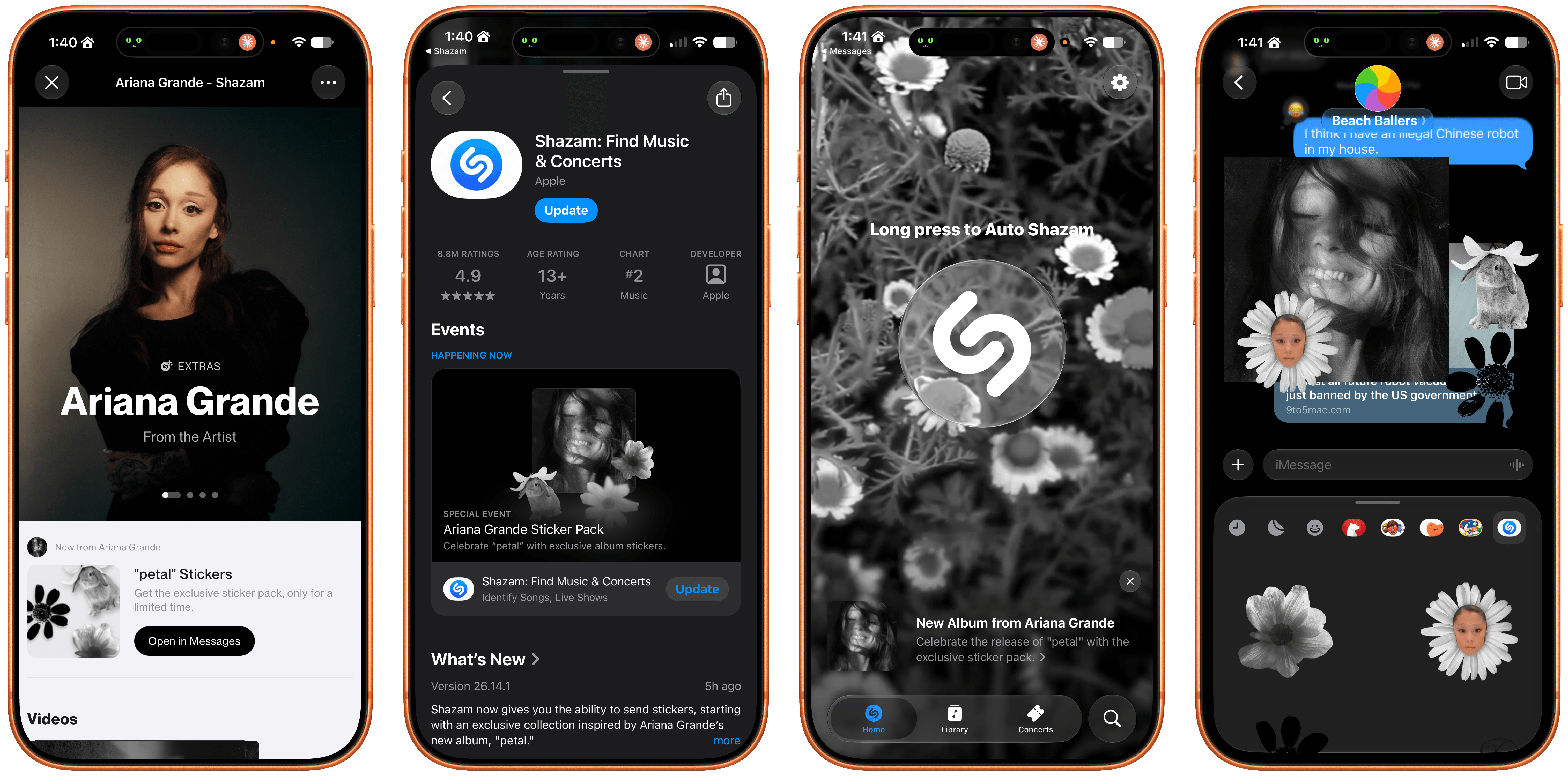
Long-time readers may recall that I used to regularly cover Messages sticker packs. As sticker popularity “settled,” I retired from that beat, but I thought I should come back for today’s news that Ariana Grande is the first ever music artist to release an Messages sticker pack.

The stickers are being released in collaboration with Shazam, Apple’s music recognition app, to mark the release of Grande’s new album petal. The implementation is interesting. According to Apple:

Fans can access the sticker pack by using the Shazam app to identify any Ariana Grande song and tapping the special message that appears on the song result or by adding the collection to their emoji keyboard directly in the Messages app. Once downloaded, the stickers can be used in Messages, FaceTime, or any app where emoji keyboard is available.

That in-app link takes you to the Messages corner of the App Store where they’re featured as a Shazam Special Event. You can also access the sticker pack from Shazam’s App Store listing.

I love seeing Shazam try new things to celebrate artists and their music, and stickers are a fun way to share your excitement about a new release.

Fun Fact: My Messages sticker situation has never quite recovered from downloading hundreds of sticker packs back in the day. Some features just aren’t meant to be loved so much.

Also, I am so back.

  •  

Apple Reports Q3 2026 Earnings

Source: Apple.

Source: Apple.

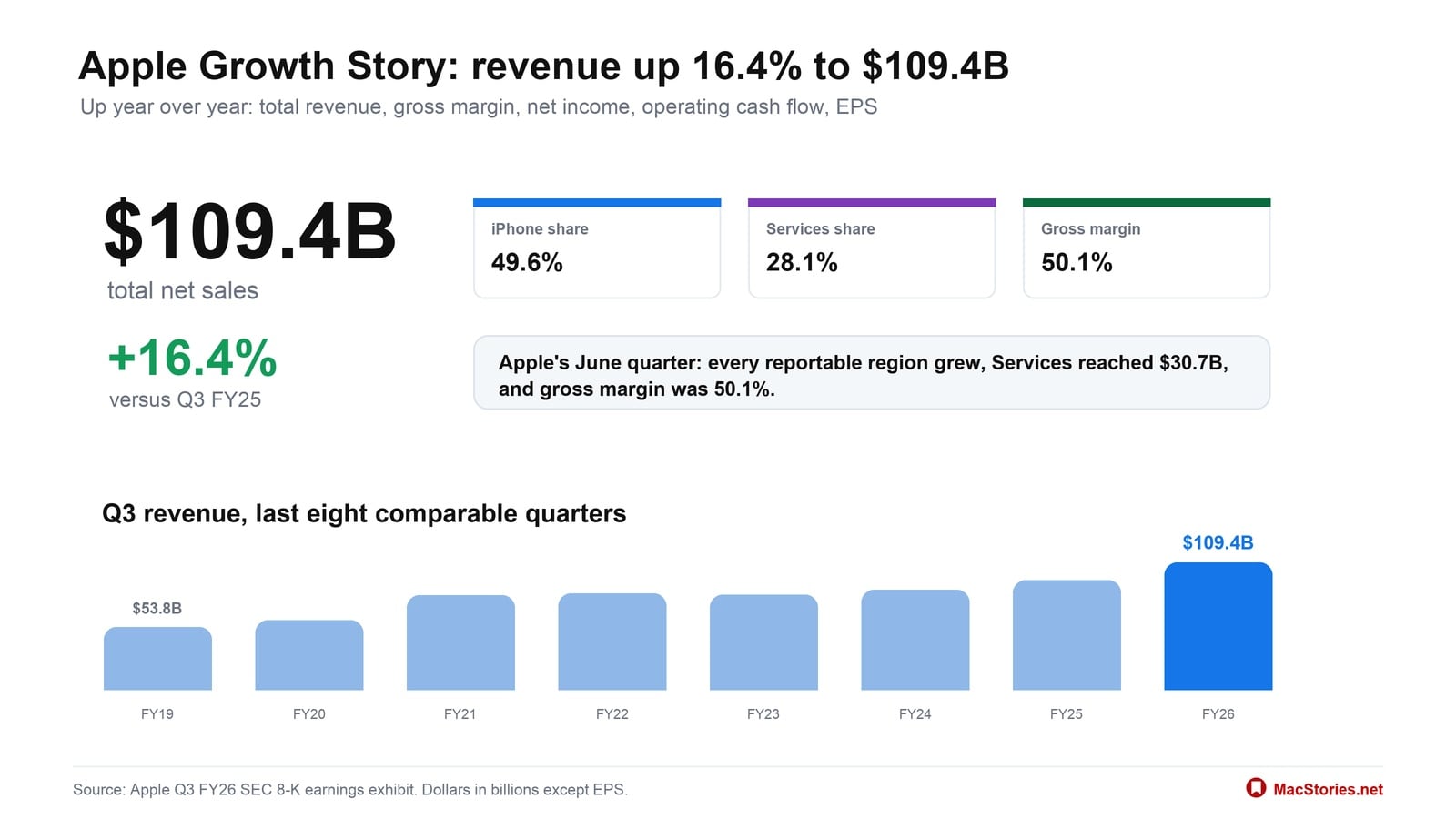
Today, Apple reported its 2026 Q3 earnings, posting quarterly revenue of $109.4 billion. Here are the highlights:

  • Revenue was $109.4B, up 16.4% from Q3 FY25.
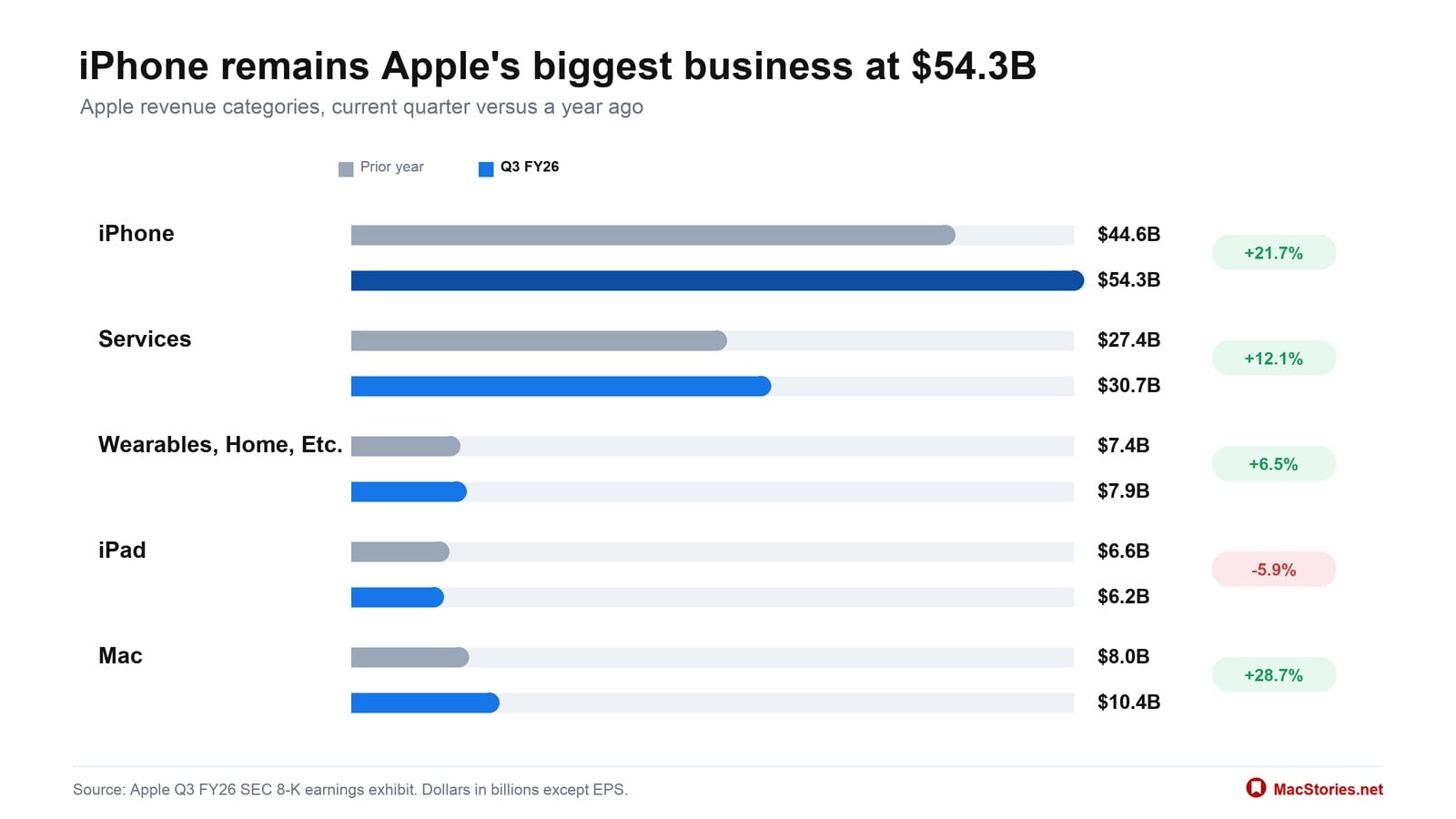
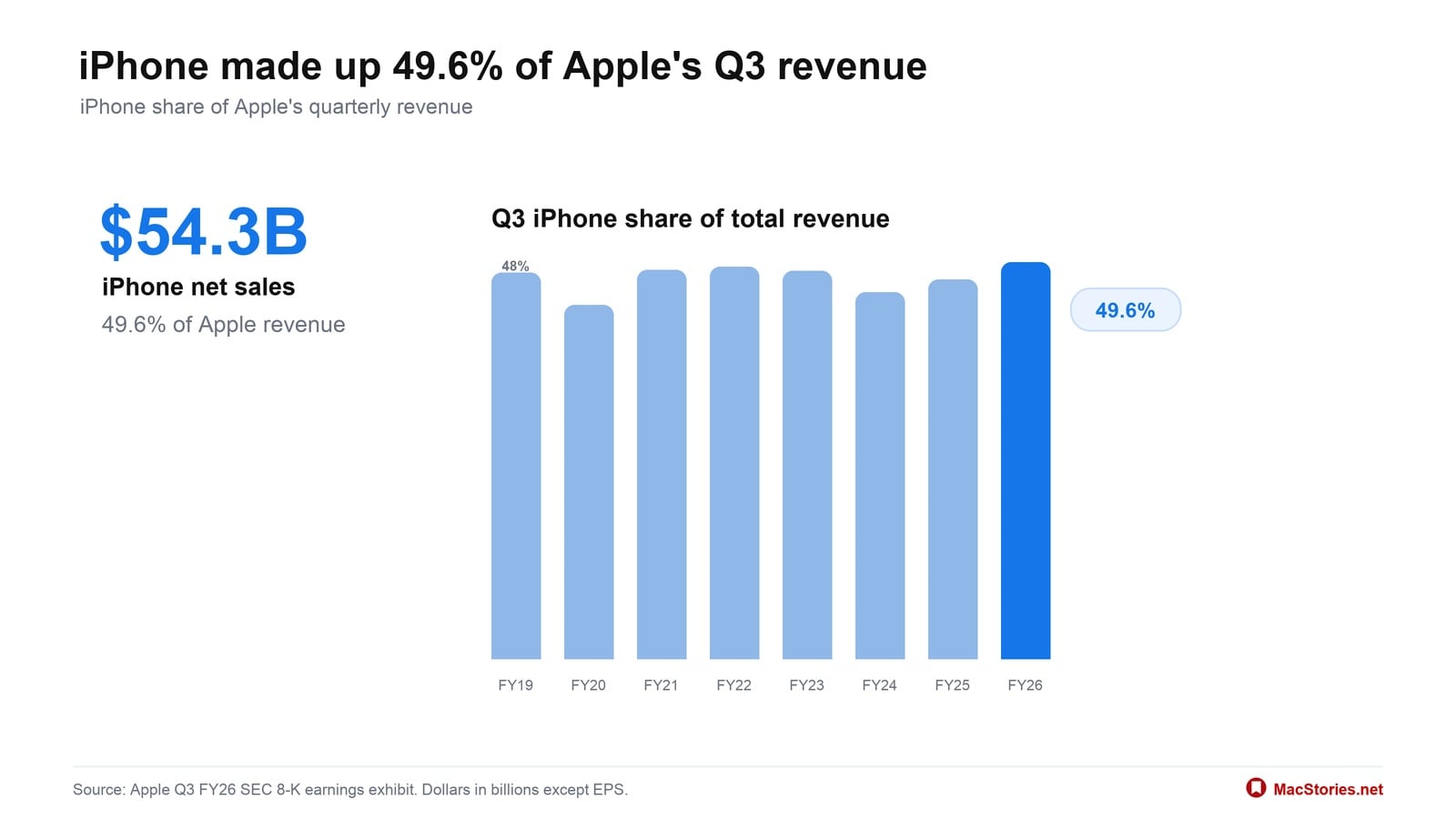
  • iPhone revenue was $54.3B, up 21.7%, and represented 49.6% of Apple’s total revenue.
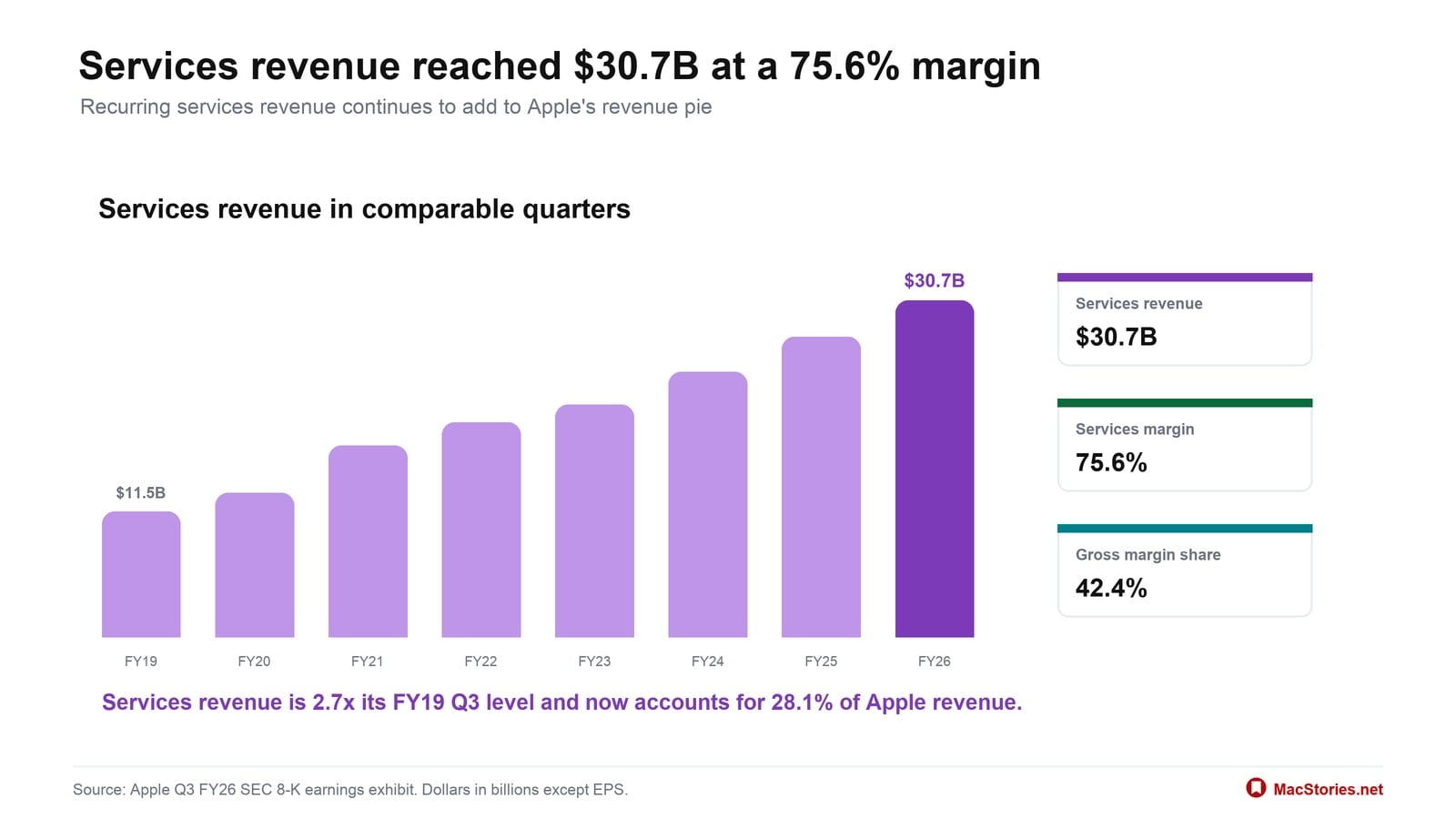
  • Services revenue was $30.7B, up 12.1%, and represented 28.1% of Apple’s total revenue.
  • Gross margin was $54.8B, up 25.3%, with an overall gross margin rate of 50.1%.
  • Net income was $29.8B, up 27.1%.
  • Operating cash flow was $34.4B, up 23.3%.
  • Diluted EPS was $2.02, up 28.7%.

Apple CEO Tim Cook had this to say about the results:

Today, Apple is proud to report our strongest June quarter ever, with double-digit revenue growth across iPhone, Mac and Services, and in every geographic segment. At WWDC26, we were thrilled to introduce the all-new Siri AI, alongside all of Apple’s latest software innovations and important new child safety features.

For additional context, here’s how the results break down:

In Apple’s latest quarter: every region grew, Services reached $30.7B, and gross margin was 50.1%.

iPhone remained Apple’s largest business at $54.3B, and four of five categories grew year over year. Together, iPhone and Services accounted for 77.7% of Apple’s $109.4B in net sales.

iPhone revenue reached $54.3B, or 49.6% of Apple’s total revenue, keeping it the company’s largest consumer business.

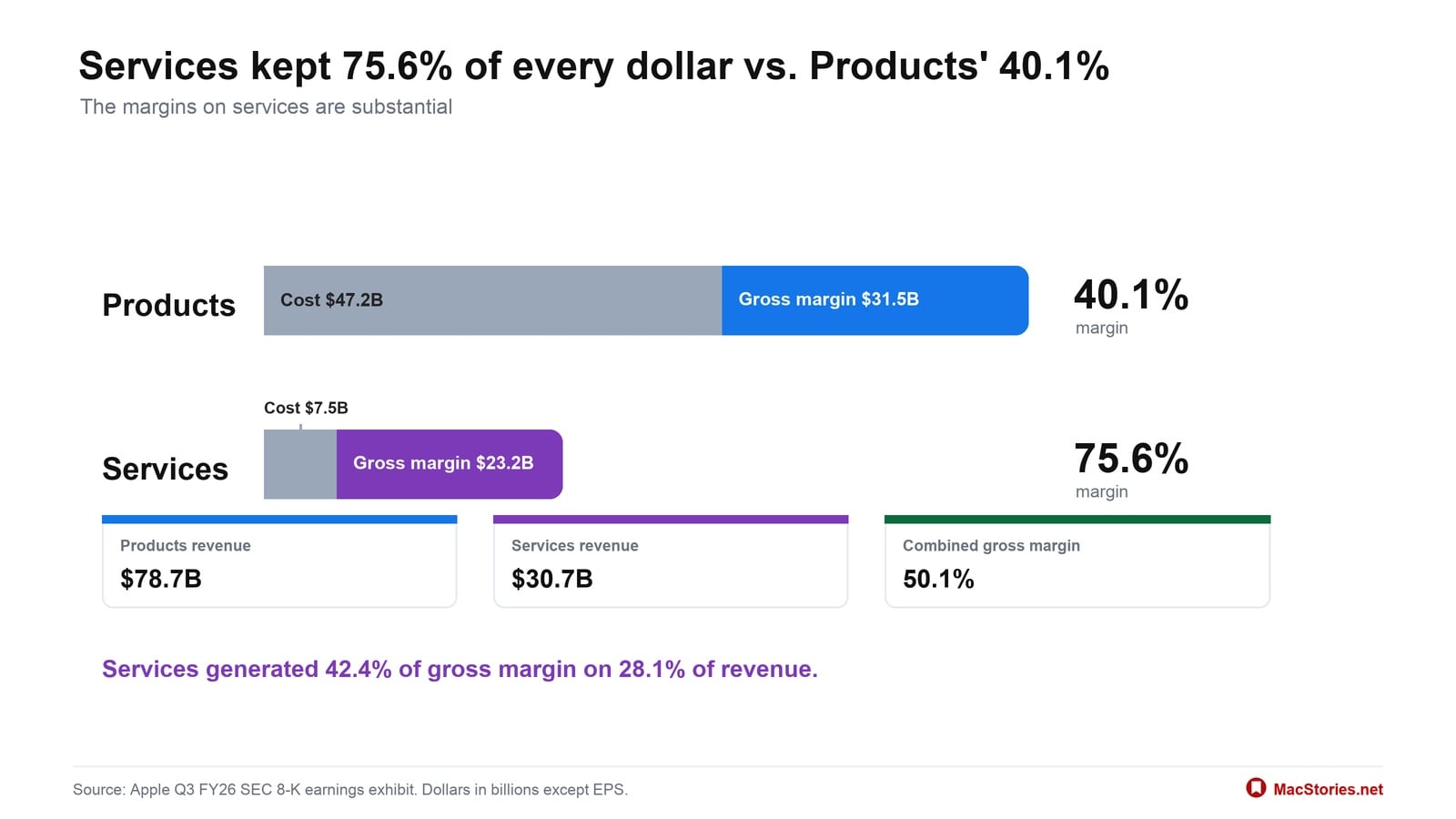
Services reached $30.7B at a 75.6% gross margin, accounting for 28.1% of revenue but 42.4% of gross margin.

Products carried most of the revenue at $78.7B, but Services kept 75.6% of every dollar against Products’ 40.1%.

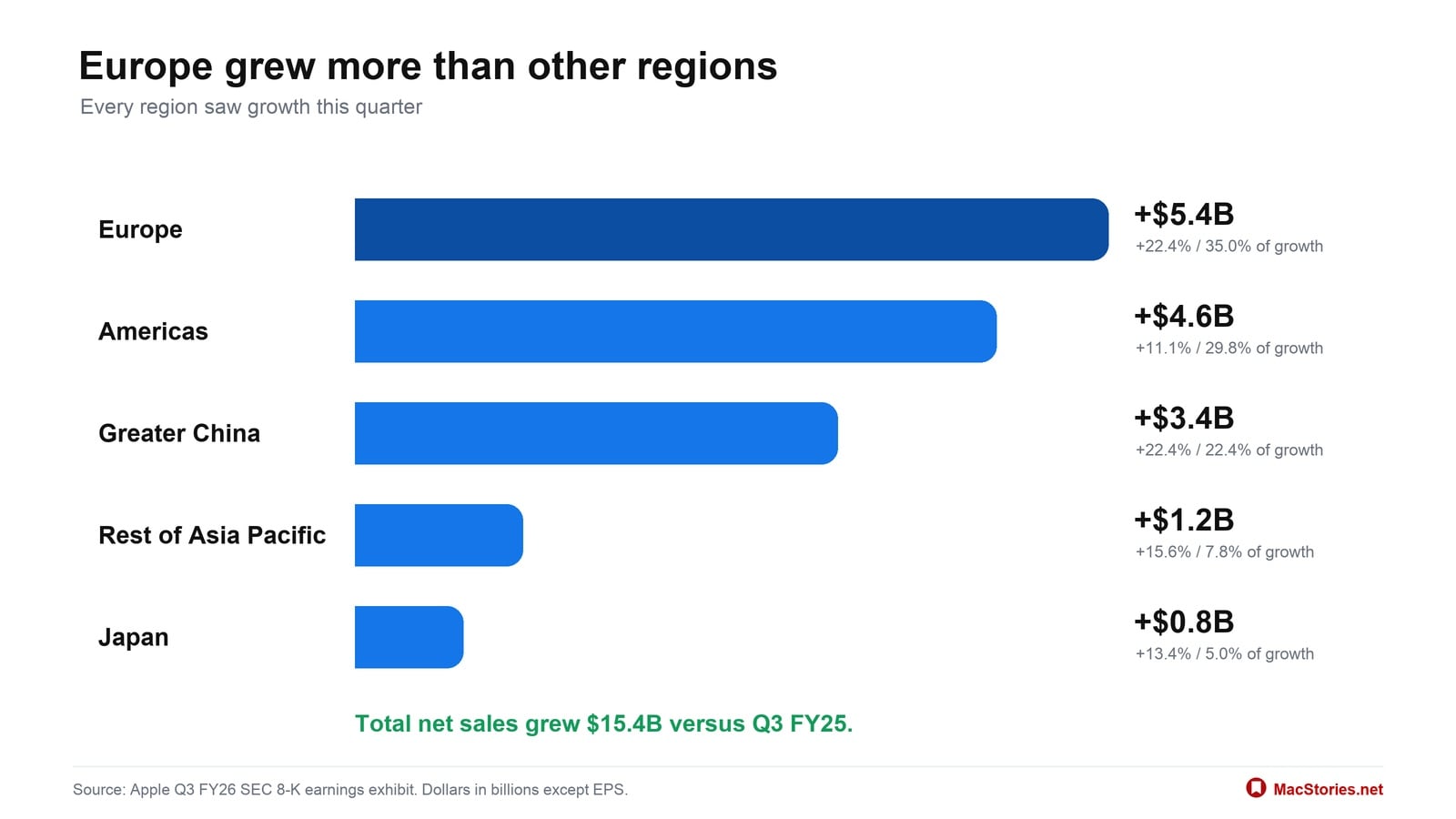
Every reported region grew, and Europe contributed the most new revenue at $5.4B, or 35.0% of Apple’s $15.4B in growth.

Going into today’s earnings call, expectations were high among analysts, who anticipated revenue of $108–109 billion and diluted earnings per share of $1.89. Apple’s results landed at the high end of the expected revenue range and exceeded expectations for earnings per share.

  •  

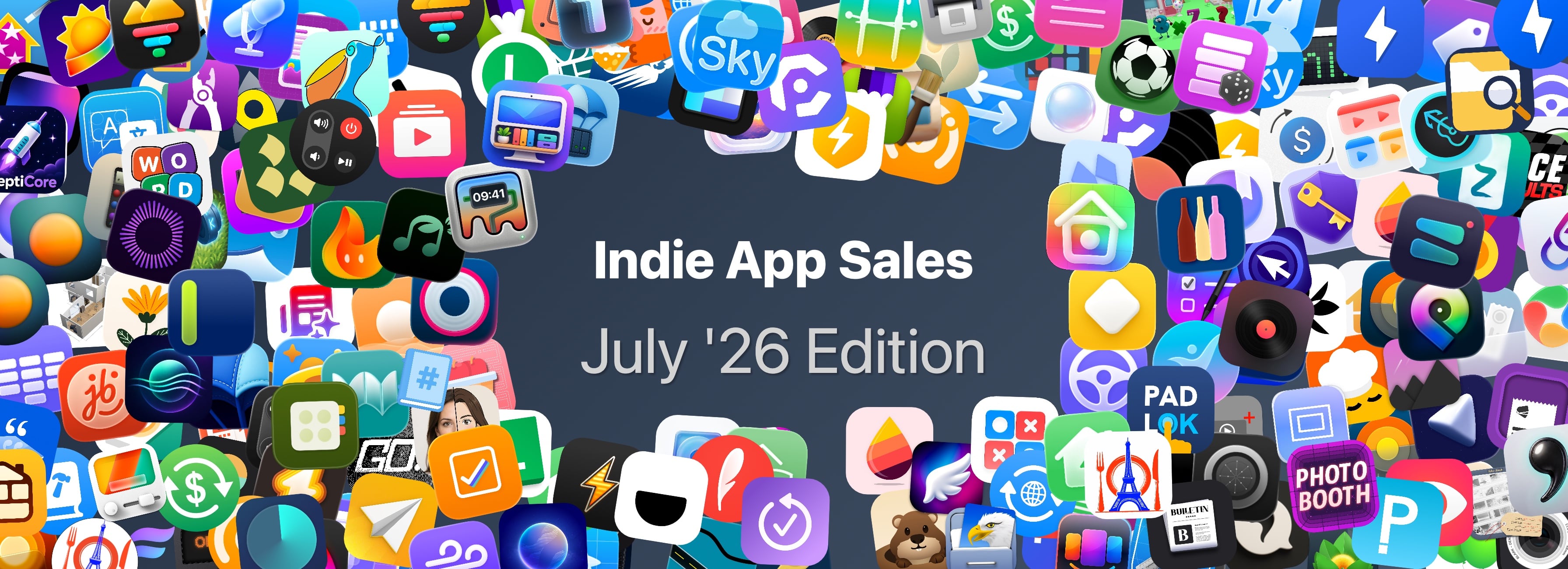
Indie App Sales Event Begins Today with Over 200 Apps

Matt Corey, the maker of Bills to Budget and Signals, has organized indie developers for a big sale that runs from July 28 - 30. The sale includes over 200 apps that will be offered at a discount through Thursday. The list is too long to publish here, but it includes many apps we’ve covered here on MacStories and on Club MacStories in the past, including:

There are a lot of great deals, with many apps discounted 50% or more. What’s listed above is a small fraction of the participating apps, so be sure to visit Indie App Salesand support these great indie apps.

  •  

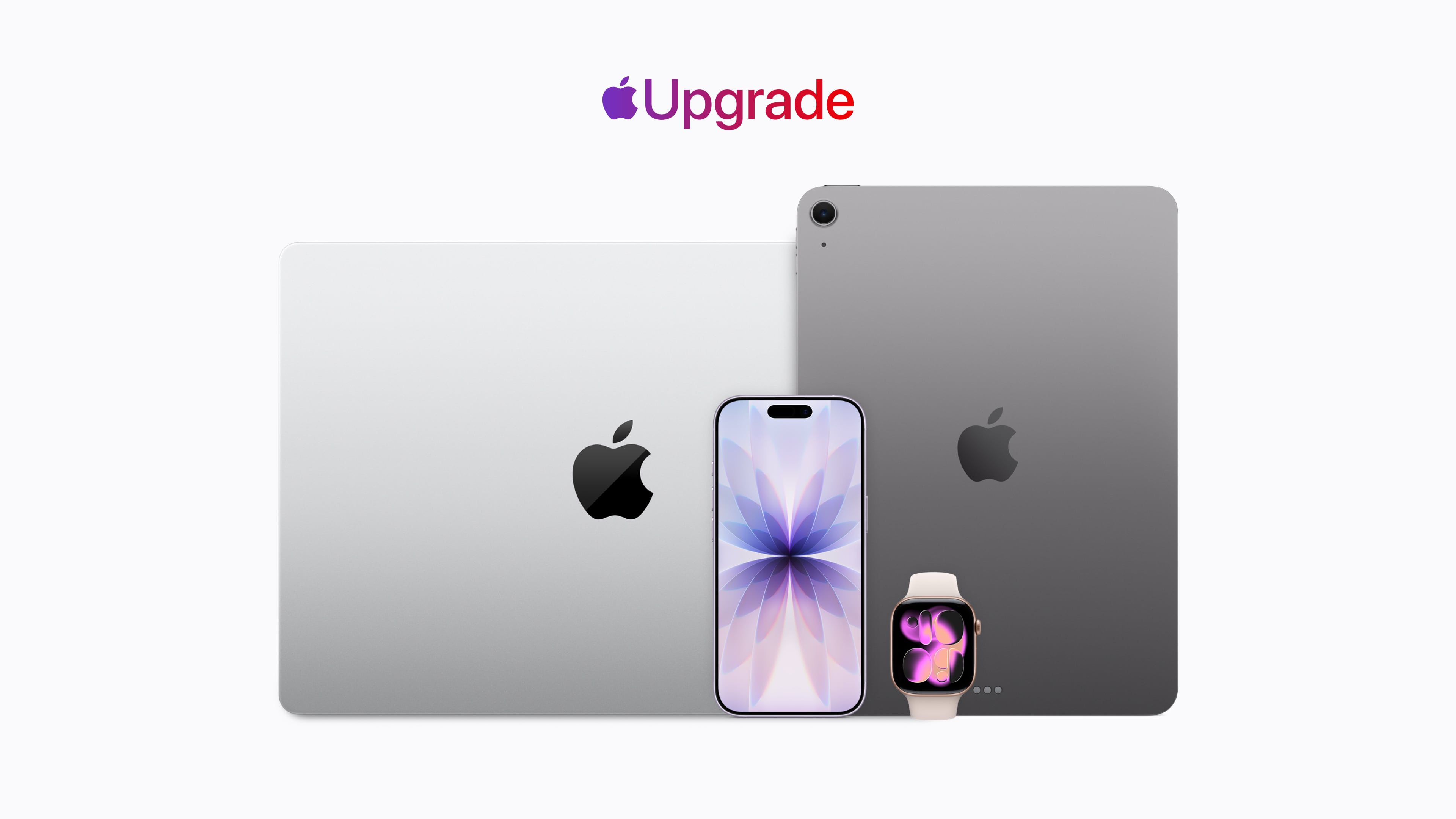
Apple Upgrade Trades Ownership for Lower Monthly Payments

Apple has revealed its new hardware leasing program called Apple Upgrade, which is being offered in collaboration with Klarna. This is Apple’s pitch:

Introducing Apple Upgrade, a new way to always have the Apple products you love. Lease a new iPhone, iPad, Mac, or Apple Watch with pocket-friendly payments and terms that work for you. Then easily upgrade to something new at the end of your lease, and return your current device. It’s that simple.

That pitch comes with a footnote that includes other details worth considering:

  • The program is U.S. only (excluding U.S. territories).
  • You need to be a U.S. resident who is at least 18 years old, or whatever the legal age is where you live.
  • There are eligibility and credit approval requirements and you must have a credit or debit card and an Apple ID.
  • When a device is returned, it must be in good condition or damage fees will be assessed.
  • Upgrades require a new lease subject to whatever eligibility and credit requirements apply at that time.
  • For iPhones, you have to have a carrier and can’t use a prepaid plan.
  • The program isn’t available for refurbished devices or through the Apple Employee Purchase Plan, corporate Employee Purchase Plans, Apple at Work, Government, Education, or Veterans and Military Purchase Programs.

Okay, so maybe it’s not “that simple” after all.

The program is available for the iPhone, iPad, Mac, and Apple Watch product lines. For the iPhone, monthly payments start at $17.99 for an iPhone 17e and start at $34.99 for an iPhone 17 Pro Max, for leasing periods of either 12 months or 24 months.

For iPads, the starting prices range from $12.99/month to $24.99/month, Macs range from starting prices of $24.99/month to $48.99/month, and the Apple Watch ranges from starting prices of $11.99/month to $47.03/month. But again, these are just starting prices. You can configure a fully loaded 16-inch MacBook Pro that is just under $230/month, and it won’t include AppleCare.

As a point of comparison, under the current program that is being discontinued, I pay $69.50/month for an iPhone 17 Pro Max, but I have a 512GB model, so my lease price for the same phone would be $40.83/month, significantly lower, but keep in mind that doesn’t include AppleCare+, which would add $13.99/month or $139/year for that iPhone. On a monthly basis, that puts a new iPhone 17 Pro Max with 512GB of storage and AppleCare+ at just under $55/month. Still a superior deal, but not nearly as good as the landing page might initially lead you to believe.

At the end of your lease you’ll have six months to decide to return the leased device, during which you’ll continue to make monthly payments, or pay a fee equal to the difference between the original purchase price and your lease payments to buy it outright. Your other option is to enter into a lease for a new device. If you return your leased device in poor condition, Klarna will charge you a damage fee. You can also terminate your lease early if you pay the remaining lease payments in full plus any taxes and fees.

If you lease accessories for your device, those don’t have to be returned. Why? Presumably because they have no value to Apple or Klarna.

Of course, if you have a device to trade in, that monthly figure could be significantly reduced. If I had the iPhone 16 Pro Max I had last year to trade in and leased a 17 Pro Max for 12 months, my monthly payments would be under $1. However, keep in mind that once you’re on the leasing train, you no longer own your iPhone, so future upgrades won’t reduce your payments the next time you swap your device for a new model. If you don’t own it, the value isn’t yours to trade in.

If you’re on the existing iPhone Upgrade Program like me, it’s being discontinued, but Apple has a transition offer for you. The old program spread payments over 24 months with the option to turn in an iPhone for a new one after 12 months. That’s not changing. If you’re paid in full on your first 12 months of an iPhone, you can sign up for the new program, get a new iPhone, and return your old iPhone to Apple, which will close your old account but won’t reduce your lease payments. You’re not obligated to join the new leasing program, though. You can also trade in your old iPhone, ending your finance contract, and buy a new full price iPhone.


As you may have figured out by now, I’m not a fan of this program, though I expect it will be successful.

Apple products, like all consumer electronics, are getting more expensive every day. The monthly payments on a leased device look very attractive compared to the pay-up-front price. For years, car leases have induced people into monthly payments that can become a burden when their financial situation changes. Now the same will be true of iPhones, iPads, Macs, and Apple Watches.

Maybe as a practical matter this program isn’t that different from the old financing program, but at least there, you owned your device at the end and could just keep using it indefinitely. With the new program, that’s not an option. When your lease is over, you’re empty-handed and faced with leasing again, buying out the lease, or buying at full price with no trade-in, which is objectively worse.

Ultimately, Apple isn’t responsible for customers’ bad financial decisions, but this program feels like Apple is putting its customers in harm’s way.

  •  

Pastebot 3 Doubles Down on Mac Clipboard Automation and Introduces Two New Business Models

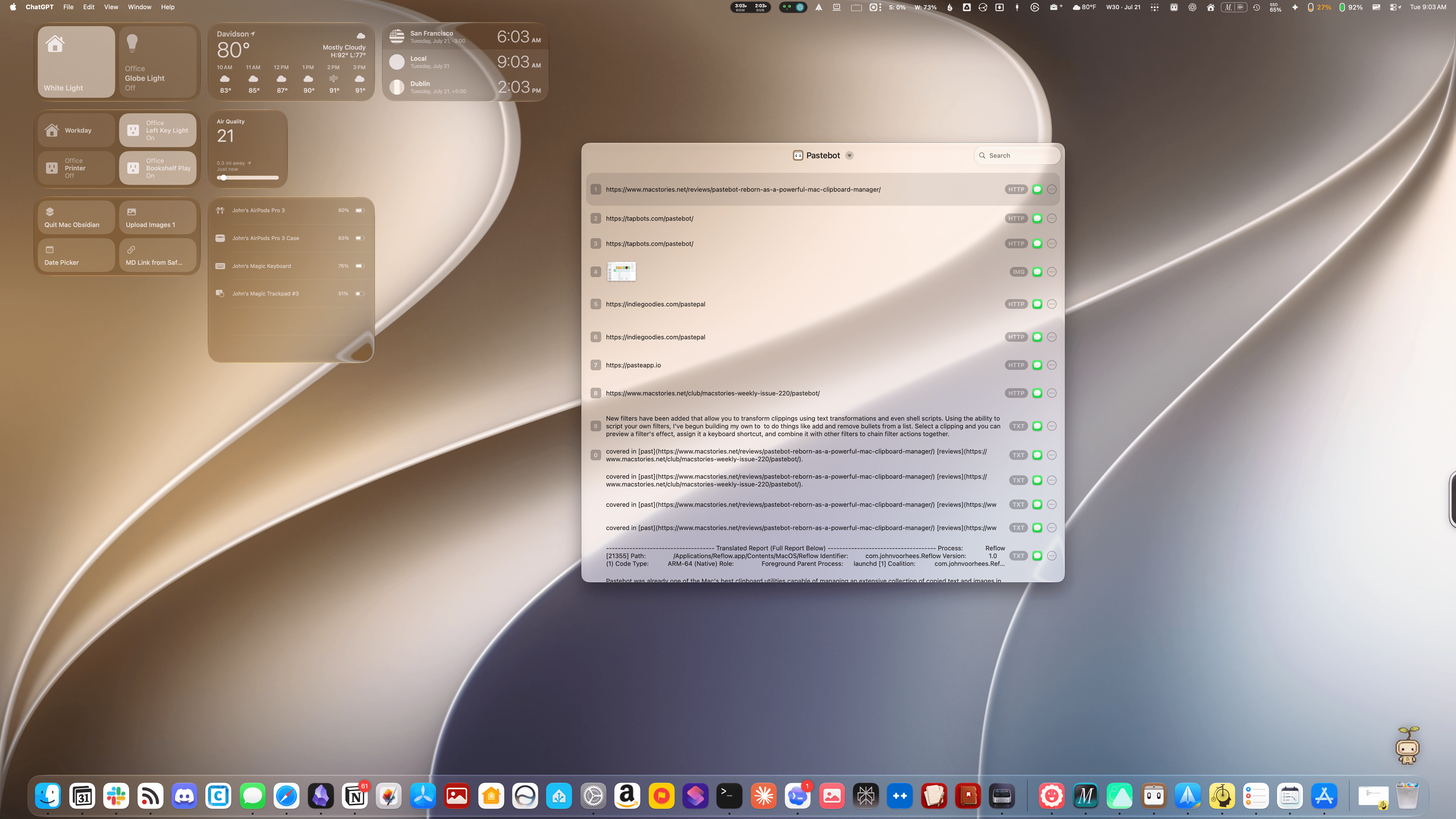
Pastebot's Quick Menu.

Pastebot’s Quick Menu.

Tapbots has released Pastebot 3, a ground-up rewrite of the Mac clipboard manager that includes several powerful automation and customization options, along with two new pricing models.

Pastebot was already one of the Mac’s best clipboard utilities, capable of managing an extensive collection of copied text and images in multiple formats, PDFs, URLs, files, and HTML, along with metadata. The app can handle up to 1,500 clippings and features fast search, extensive customizable keyboard shortcuts, list and detail views of clipboard items, and iCloud sync between multiple Macs.

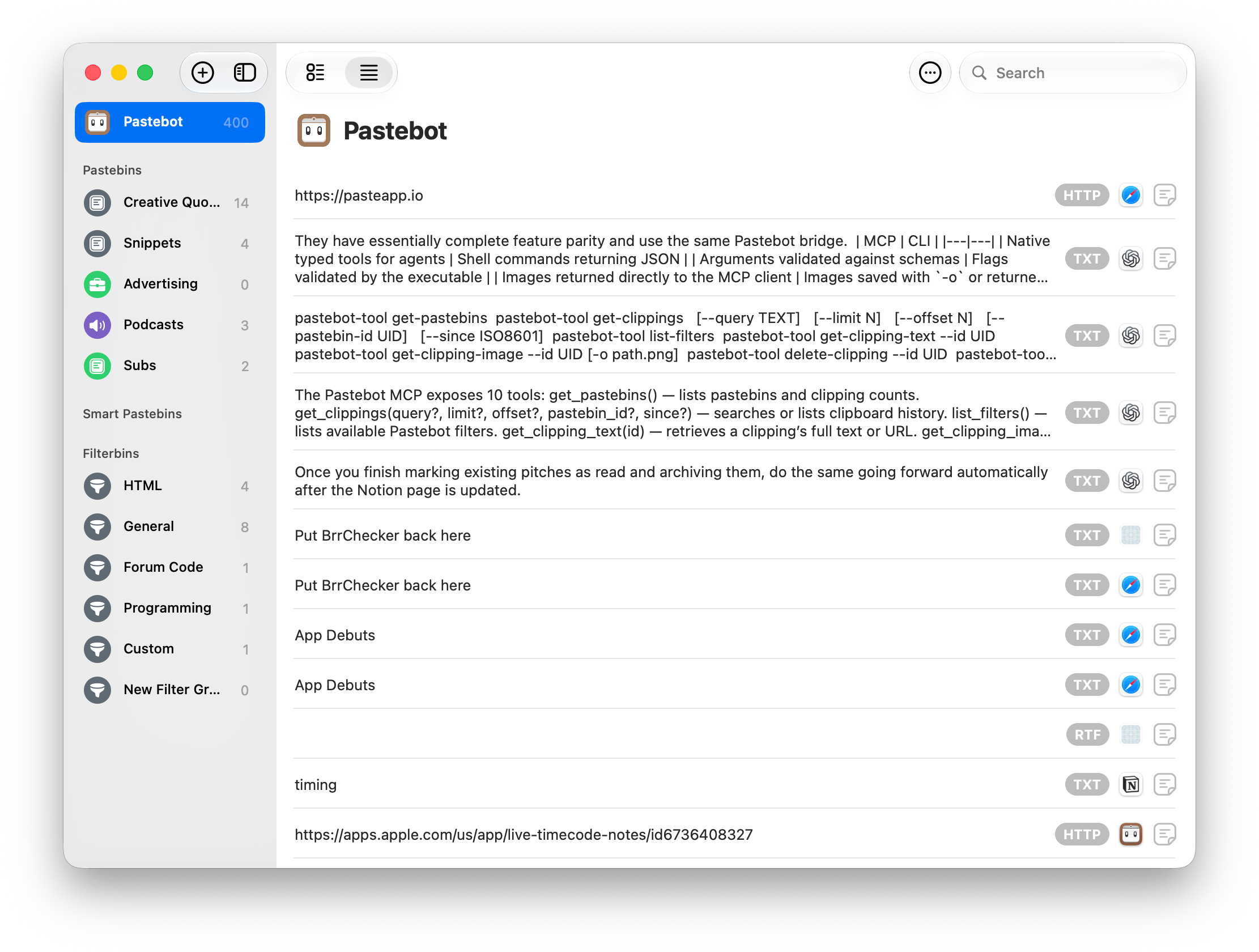
Pastebot 3's main menu.

Pastebot 3’s main menu.

What sets Pastebot 3 apart is its addition of deep automation tools. Not only does the update add MCP support, making it an excellent tool to use with Claude or ChatGPT/Codex, but it includes a brand new CLI that you or an agent can use from Terminal or incorporate into scripts you build. Commands include:

  • List available Pastebins
  • Browse and search clipboard history
  • Filter results by Pastebin or date
  • Retrieve the full text of a clipping
  • Retrieve images from clippings
  • List available Pastebot filters
  • Apply filters to clippings or supplied text
  • Place an existing clipping on the clipboard
  • Create new text or image clippings
  • Paste clipboard contents into the frontmost app
  • Delete individual clippings
  • Clear the main clipboard history
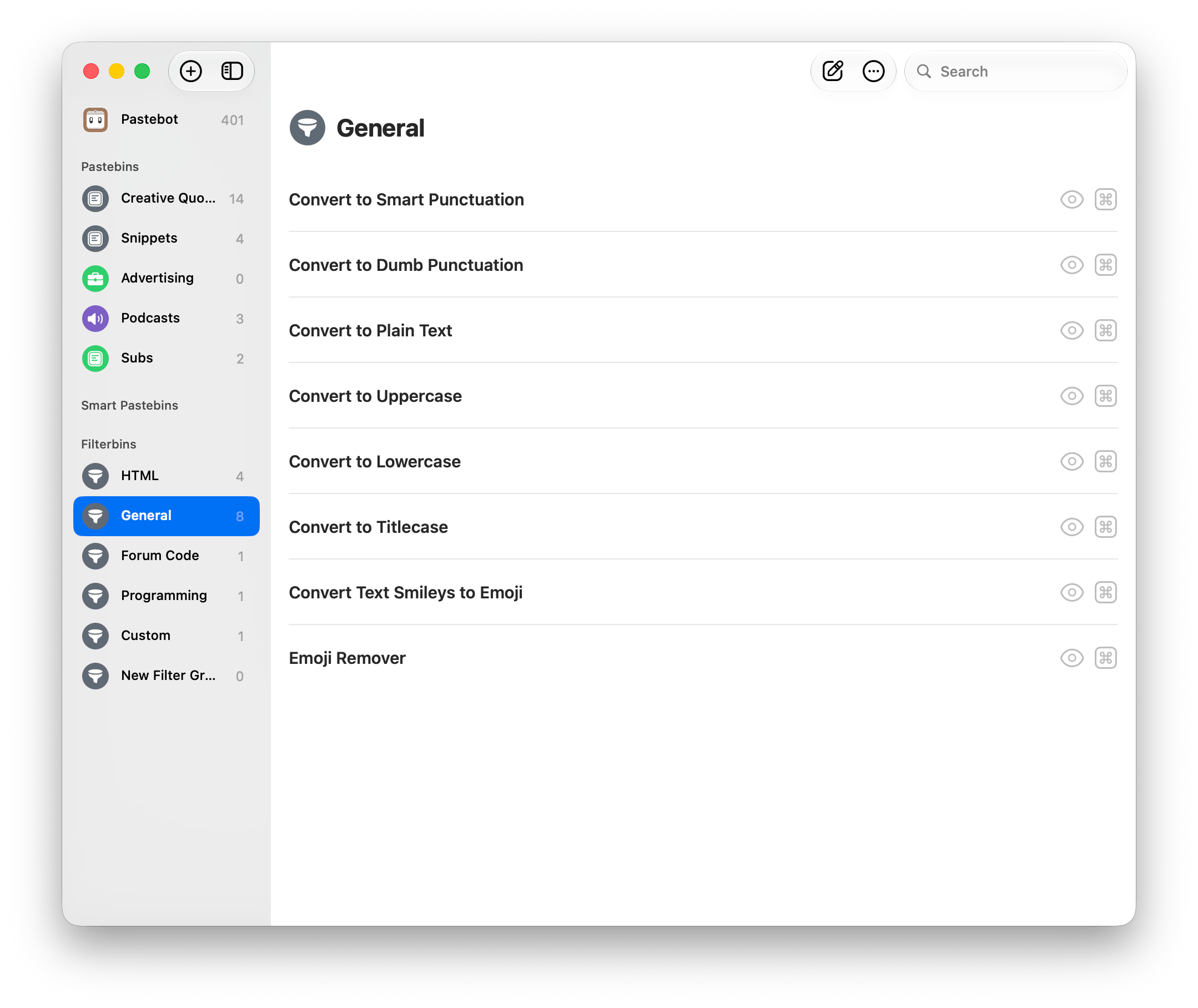
Filters.

Filters.

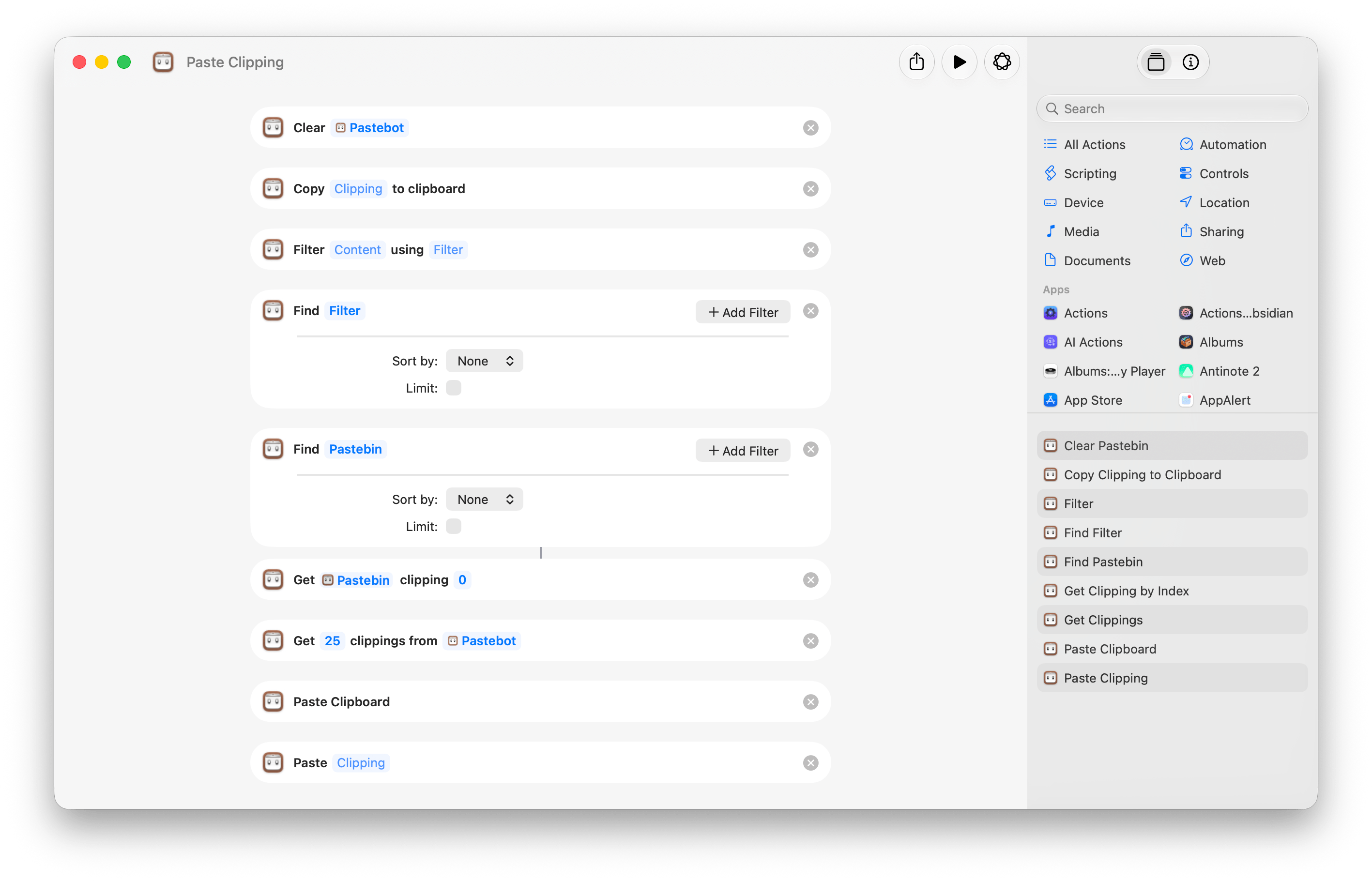
If you’re looking to automate with Shortcuts instead, Tapbots has you covered there, too, with nine actions that feature a variety of parameters and filter options:

  • Clear Pastebin
  • Copy Clipping to Clipboard
  • Filter
  • Find Filter
  • Find Pastebin
  • Get Clipping by Index
  • Get Clippings
  • Paste Clipboard
  • Paste Clipping
Pastebot’s Shortcuts actions.

Pastebot’s Shortcuts actions.

New filters have been added that allow you to transform clippings using text transformations and even shell scripts. Using the ability to script custom filters, I’ve begun adding a few of my own to Pastebot for things like adding and removing bullets from multiple lines of text. For any filter, just select a clipping, and you can preview how it will affect the clipping. You can even assign keyboard shortcuts to filters and combine them with other filters to chain actions together.

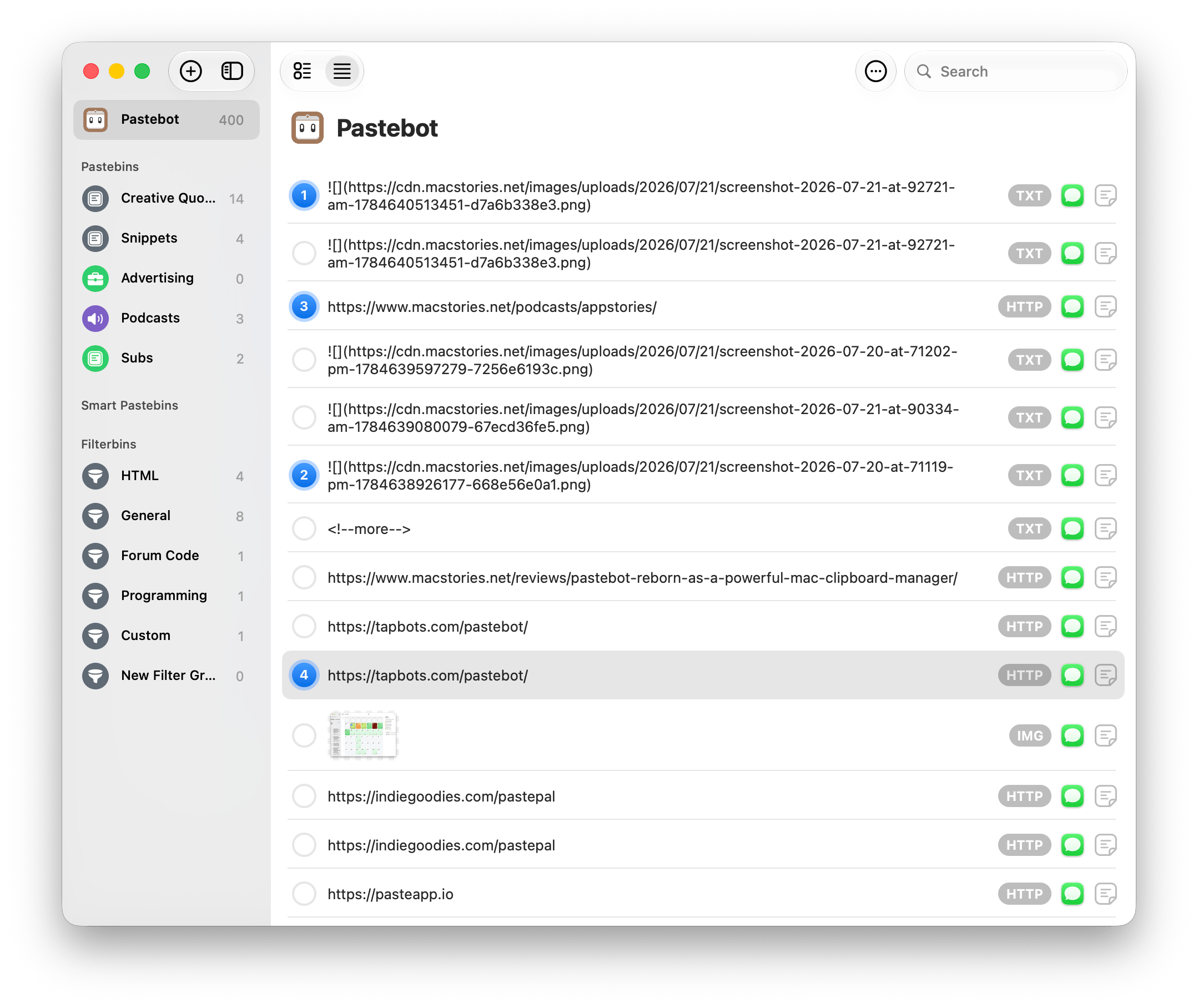
Picking items for a Stack.

Picking items for a Stack.

Another powerful productivity booster available in Pastebot is called Stacks. This feature used to be called Sequential Paste, but Stacks are much easier to visualize. From Pastebot’s main UI, you can select multiple items at once and right-click to add them to a Stack, or you can pick them one at a time in any order you’d like. As you select items, they’re numbered in the order you’ll paste them into a document using a keyboard shortcut. It’s an excellent feature for filling out forms or copying data from one spreadsheet to another.

Pastebot’s design has been modernized, too, while remaining recognizable to long-time users. Along with a new icon, Pastebot 3 features new toolbars and a more customizable sidebar that lets you rearrange items inside each section and collapse sections for a more streamlined look.

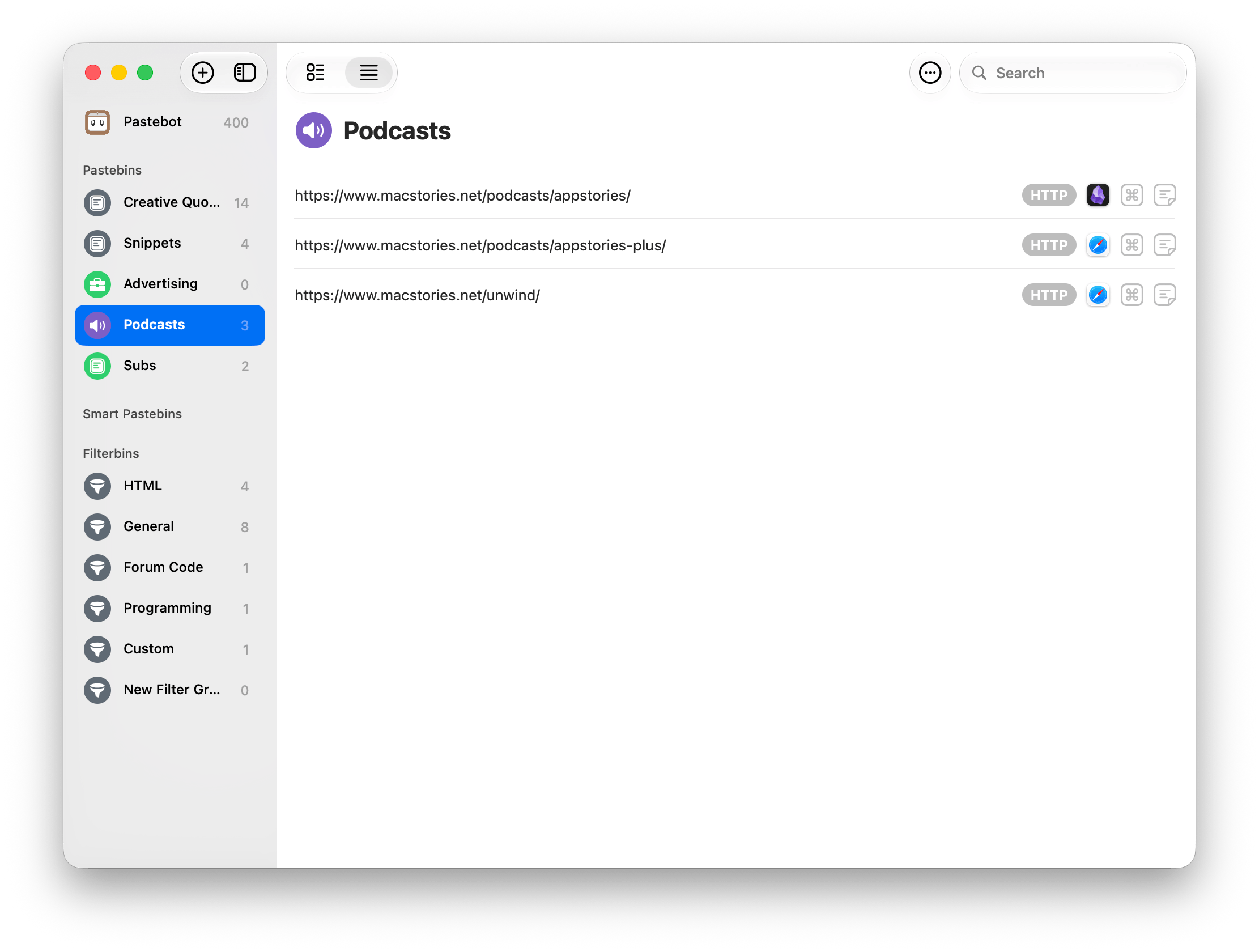
A Pastebin with a couple of URLs I use often.

A Pastebin with a couple of URLs I use often.

Pastebins, user-defined collections of saved clippings that won’t roll off the end of your clipboard once it fills up, are joined by customizable Smart Pastebins that remind me of Smart Lists in Reminders. Smart Pastebins can be created by combining any or all of up to nine criteria, providing a lot of flexibility. I haven’t used Smart Pastebins extensively yet, but they’re already making it easier for me to find copied URLs simply by setting up a Smart Pastebin that looks for “http” at the beginning of a clipping. Smart Pastebins can even match text using regex, which is great for creating lists of Markdown-formatted URLs and image links.

The bottom line is that whether you simply want to retrieve recently copied items and paste them somewhere or you’re a power user who wants to automate the way you work with lots of clippings all day long, Pastebot 3 has you covered. About the only shortcoming of the app, and it’s a big one, is the lack of an iPhone and iPad version. Pastebot got its start on the iPhone before moving to a Mac-only version a decade ago. I hope Pastebot returns to the iOS and iPadOS someday because a lot of users want that, me included. An iOS version of the app couldn’t do as much as it does on the Mac, but there are plenty of benefits to syncing your clipboard history to an iPhone or iPad, as apps like Paste and PastePal have shown.


Copy and paste is as timeless as any task on a computer. If you fill out forms and spreadsheets, maintain a collection of prompts for your AI agents, or just grab a lot of links, images, and other scraps from the web and other sources, having a clipboard manager like Pastebot 3 at your fingertips is essential – so essential, in fact, that when the beta ran out on me just before the app’s release date, my Mac immediately felt broken, which is about the highest recommendation I can give a Mac utility.

Currently, Pastebot is available directly from Tapbots for $39, which includes one year of updates, after which you can purchase an additional one year of updates at any time for $19.

Pastebot 3 is also available on the Mac App Store as a subscription with a 14-day free trial, after which it will cost $2.99/month or $24.99/year.

  •  

Lock Launcher Introduces “No Redirect” Launchers, XL Widgets for iOS 27

My Home Screen setup with Liquid Glass widgets powered by Lock Launcher.

My Home Screen setup with Liquid Glass widgets powered by Lock Launcher.

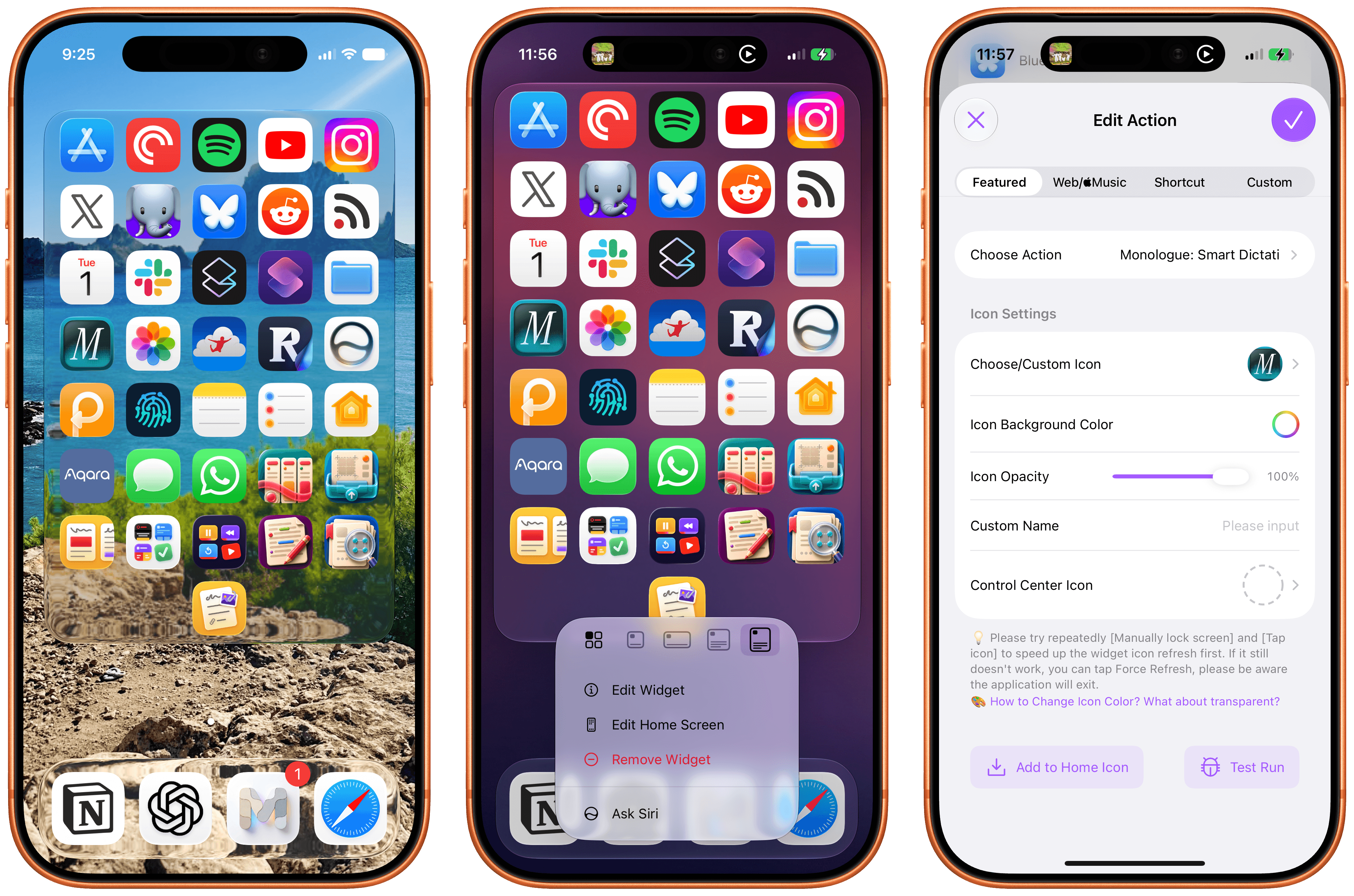
I don’t think I ever mentioned it on MacStories (although I probably did at some point on AppStories or Unwind), but my favorite “launcher” app for iOS is a utility called Lock Launcher, which I’ve been using on and off for the last couple of years. Lock Launcher started as an app for adding URL schemes to the Lock Screen a few years back, and it gradually evolved into a comprehensive “widget studio” app to design launcher widgets of all kinds for the Home Screen, Lock Screen, Dynamic Island, Live Activities, and more.

Anyway, I’m covering the app on the site today because it was updated with two features that I didn’t think were possible or allowed on the App Store, and I want to highlight them for our readers. I’m not really sure how the developers were able to add these features to the app; you may want to download it from the App Store quickly, just in case.

For starters, Lock Launcher now lets you create launcher shortcuts that open apps directly and immediately, rather than redirecting you to the Lock Launcher app first.

For years now, launcher apps on the iPhone have had to employ this workaround: you’d tap on a shortcut that opened, say, Ivory, but you would see the launcher app flash onscreen briefly before redirecting you to the actual destination app you selected. Somehow, Lock Launcher is now circumventing this limitation with a ‘Direct Open’ mode that I haven’t seen in other launcher apps for iOS. That sequence of widget, host app, and destination app was, ultimately, the reason why I always stopped using third-party launcher apps, and I love that it’s been removed by Lock Launcher.

Launching apps without redirects via Lock Launcher.

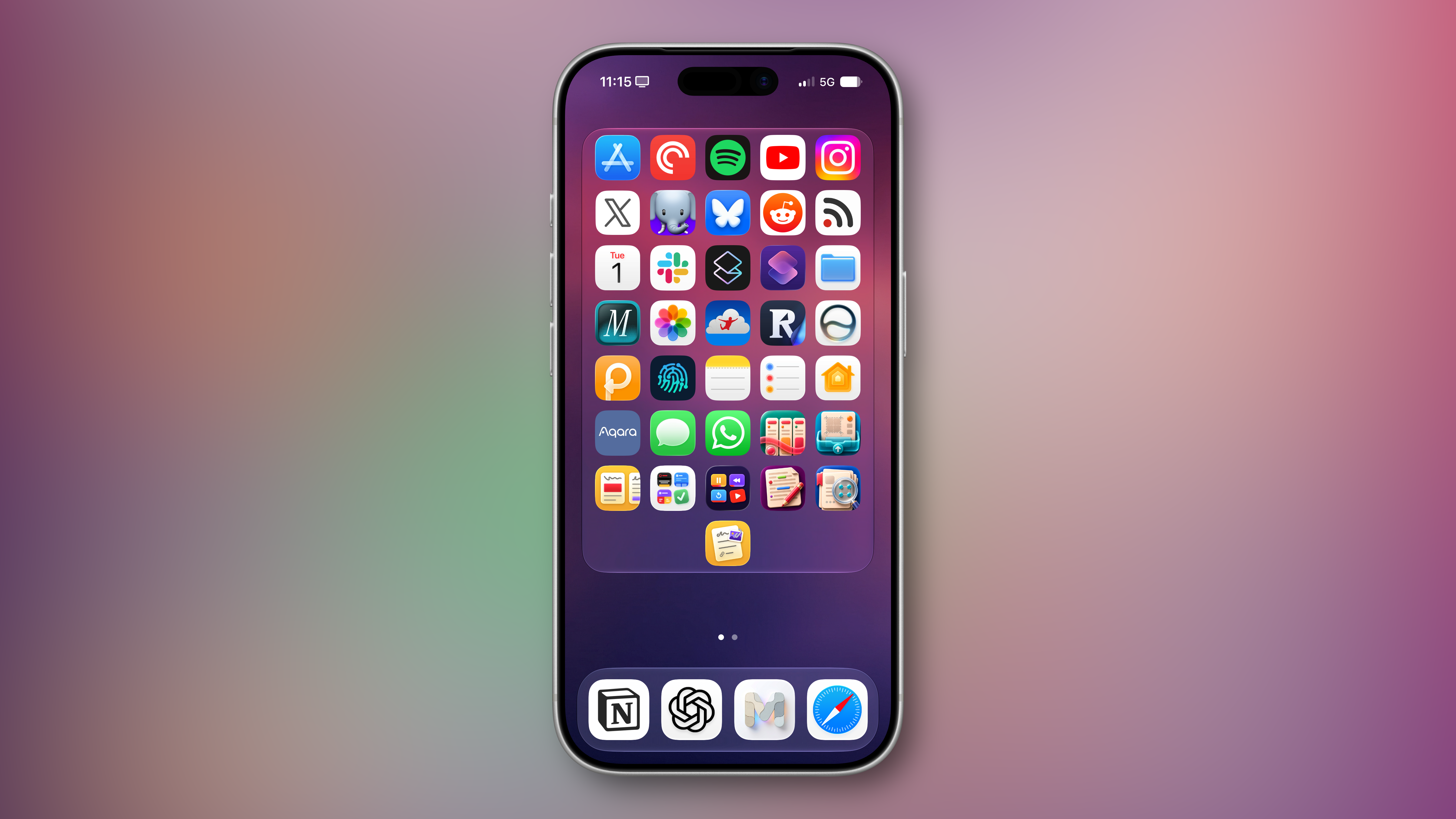
At long last, I’ve been able to create a dense Home Screen with 40 icons (36 in the widget plus 4 in the dock), and they all launch directly when tapped.

My new Home Screen powered by Lock Launcher.

My new Home Screen powered by Lock Launcher.

The screenshot above brings me to the second feature added in the version of Lock Launcher currently available on the App Store: XL widgets on iPhone in iOS 27.

Now, as far as I know, if an app wants to adopt an API exclusive to a future version of iOS, it typically needs to be built against that version’s SDK using the corresponding Xcode beta. However, the App Store isn’t currently accepting apps built with the iOS 27 SDK. And yet, the Lock Launcher developers must have figured out a way to support the new systemExtraLargePortrait widget size and make it work on devices running iOS 27 even though the app was built with the iOS 26 SDK. My best guess: they’re using a workaround that involves visionOS 26 APIs, since the Vision Pro received support for that family of widgets last year. (I’d love to know more about this.)

These two features, combined with the ability to apply the Liquid Glass material to widgets for beautiful refractions of the system wallpaper, make Lock Launcher the most powerful and customizable launcher utility on iOS to date. I hope writing about it doesn’t get the developers in trouble.

Lock Launcher is available for free on the App Store, with advanced features available through an optional Pro in-app purchase.

  •  

Inoreader: Build Your Own Newsfeed and Cut Through the Noise [Sponsor]

Staying up to date has never felt more overwhelming.

Between websites, newsletters, podcasts, social media feeds, and specialized publications, valuable information is scattered across countless apps and platforms. The challenge is no longer finding content – it’s keeping up with it without wasting time or missing what matters.

That’s where Inoreader comes in.

Inoreader helps you build your own personalized newsfeed by bringing together the sources you care about in one place. Instead of jumping between websites, inboxes, and apps throughout the day, you can keep up with everything from a single interface designed to help you stay informed while cutting through the noise.

Unlike algorithm-driven feeds, Inoreader puts you in control. Follow the websites and creators you trust and receive their updates directly. No engagement-driven recommendations and endless scrolling, just the content you’ve chosen to follow.

For those who need more than a traditional feed reader, Inoreader offers powerful monitoring tools. Create custom feeds to track keywords, brands, companies, competitors, products, or industry trends across the web and receive updates automatically whenever something new appears.

As your reading list grows, Inoreader helps you organize and revisit important information. Save articles for later, highlight key passages, add notes, and build a searchable archive of knowledge and insights that remains accessible long after you’ve finished reading.

To help you process larger volumes of content, Inoreader’s Intelligence features can summarize articles, extract key insights, and help you make sense of information faster. Whether you’re following daily news, researching a topic, or monitoring developments in your industry, Inoreader helps you stay informed without getting overwhelmed.

Advanced filtering and automation tools can further streamline your workflow by automatically organizing incoming content, surfacing what matters most, and reducing distractions – saving you time while ensuring important updates never slip through the cracks.

Inoreader is available on the web, iPhone, iPad, and Android devices, with offline reading support on mobile, so your newsfeed is always available when you need it.

You can get started with Inoreader for free, or explore everything the Pro plan has to offer with a 14-day free trial and no credit card required. New Pro subscribers can also get 30% off their first year.

Learn more and get started at inoreader.com.

Our thanks to Inoreader for sponsoring MacStories this week.

  •  

Podcast Rewind: Siri AI, the Game Boy Advance Returns, and Smart Ceiling Fans

Enjoy the latest episodes from MacStories’ family of podcasts:

AppStories

This week, Federico and John look at what Siri AI is good at, where it needs improvement, and where it might be heading.

On AppStories+, the conversation expands to Federico and John’s experiences with the betas of macOS Golden Gate, iOS 27, and iPadOS 27.

NPC: Next Portable Console

This week, AYANEO is chasing the classics again, teasing a Game Boy Advance clone, while Magmi is getting vertical – plus, a Mechanism desk stand for your handheld, 8BitDo’s FlipPad, and the GPD Win Max 3 blurs the lines between laptop and console.

On NPC XL, Brendon and John try Armada and report to listeners about whether it’s ready for prime time.

Comfort Zone

Niléane brings her newest fan (literally), Chris just assumed his co-hosts have installed the betas (they have), and they all tell each other how their respective apps could start earning millions.

This week’s Cozy Zone is a complete, and authoritative, tier listing of every Men’s World Cup logo ever.

MacStories Unwind

This week, app launchers, universal truths about ISPs, and an epic movie.


AppStories, Episode 494, ‘All About Siri AI’ Show Notes

This episode is sponsored by:

  • Daylite: The only made-for-mac CRM solution. Start your free trial today.
  • Decagon: The AI concierge for every customer. Get a personalized demo.

All About Siri AI

AppStories+ Post-Show

Subscribe to AppStories+

Visit AppStories.net to learn more about the extended, high bitrate audio version of AppStories that is delivered early each week and subscribe.


NPC, Episode 89, ‘AYANEO Teases a New Game Boy Advance’ Show Notes

The Latest Portable Gaming News

Subscribe to NPC XL

NPC XL is a weekly members-only version of NPC with extra content, available exclusively through our new Patreon for $5/month. Each week on NPC XL, Federico, Brendon, and John record a special segment or deep dive about a particular topic that is released alongside the “regular” NPC episodes. You can subscribe here.


Comfort Zone, Episode 110, ‘Only One Person Being Strangled’ Show Notes

Things Discussed

Cozy Zone

For even more from the Comfort Zone crew, you can subscribe to Cozy Zone. Cozy Zone is a weekly bonus episode of Comfort Zone where Matt, Niléane, and Chris invite listeners to join them in the Cozy Zone where they’ll cover extra topics, invent wilder challenges and games, and share all their great (and not so great) takes on tech. You can subscribe to Cozy Zone for $5 per month here or $50 per year here.


MacStories Unwind, ‘A Long Journey Home’ Show Notes

Unplugged Segment

Picks

Unwind Deal

MacStories Unwind+

We deliver MacStories Unwind+ to Club MacStories subscribers ad-free with high bitrate audio every week. To learn more about the benefits of a Club MacStories subscription, visit our Plans page.


MacStories launched its first podcast in 2017 with AppStories. Since then, the lineup has expanded to include a family of weekly shows that also includes MacStories Unwind, Magic Rays of Light, Comfort Zone, NPC: Next Portable Console, and First, Last, Everything that collectively, cover a broad range of the modern media world from Apple’s streaming service and videogame hardware to apps for a growing audience that appreciates our thoughtful, in-depth approach to media.

If you’re interested in advertising on our shows, you can learn more here or by contacting our Managing Editor, John Voorhees.

  •  

App Store Chaos

Kalley Huang, writing for The New York Times about apps written with the help of AI agents that are flooding the App Store:

But as with many things A.I., just because something is easy to build doesn’t mean people will use it. It is not clear if vibecoding is breathing new life into the App Store or just cluttering it.

Last year, the number of new apps released in the App Store grew 30 percent to about 600,000, according to estimates by Sensor Tower, an app analytics firm. In the first half of this year, new apps doubled to about 560,000.

Now, Sensor Tower metrics should always be taken with a grain of salt. They don’t have direct access to Apple’s sales data, so they’re extrapolating from incomplete data that they collect themselves. That said, I think it’s fair to take their numbers as broadly representative of sales trends over time, and the story they tell, as reported by Huang, is interesting.

Based on Sensor Tower’s numbers, the total number of App Store releases peaked in 2016 at 890,000, hit a low of 420,000 in 2022, and this year, is on pace to pass 2016’s peak by a healthy margin. But app releases don’t equate to downloads, let alone sales. According to Huang’s reporting, downloads increased 3% in 2025 and 2% in the first half of 2026, far lower than the growth of new releases.

All of this tracks closely with what we’ve seen at MacStories. One subtle trend I’d add is that whereas for years most developers contacted us before they released an app, a lot of new developers are doing so after their apps are on the App Store. I suspect what I’m seeing is a new generation of developers learning the hard discoverability lessons of the App Store for the first time because when I check out these apps, they rarely have any App Store reviews.

The upshot of all these statistics and trends is App Store chaos of a magnitude that we haven’t seen in a long time. It’s a little like the App Store gold rush of the early days, but without the gold. Discoverability has gone from bad to worse, and the supply of apps is off the charts compared to the demand. With download numbers barely creeping up, the flood of new apps is making selling on the App Store harder for everyone.

Yet, it’s exactly this sort of chaotic disruption that leads to exciting new apps. And, it’s tools like Codex and Claude Code that empower and democratize app development, allowing people who would never have built an app to see their ideas become a reality. Those are things I love to see.

There’s no doubt that the App Store is out of whack thanks to agent-assisted coding, but like any market it will find its equilibrium again. In the meantime, it’s never been a better time to be a fan of apps because while a lot of those record numbers are comprised of mediocre apps, there are hidden gems, and we’re on the hunt for them.

  •  

Running Simulators Inside Claude Code for Mac

Claude Code has a new simulator button.

Claude Code has a new simulator button.

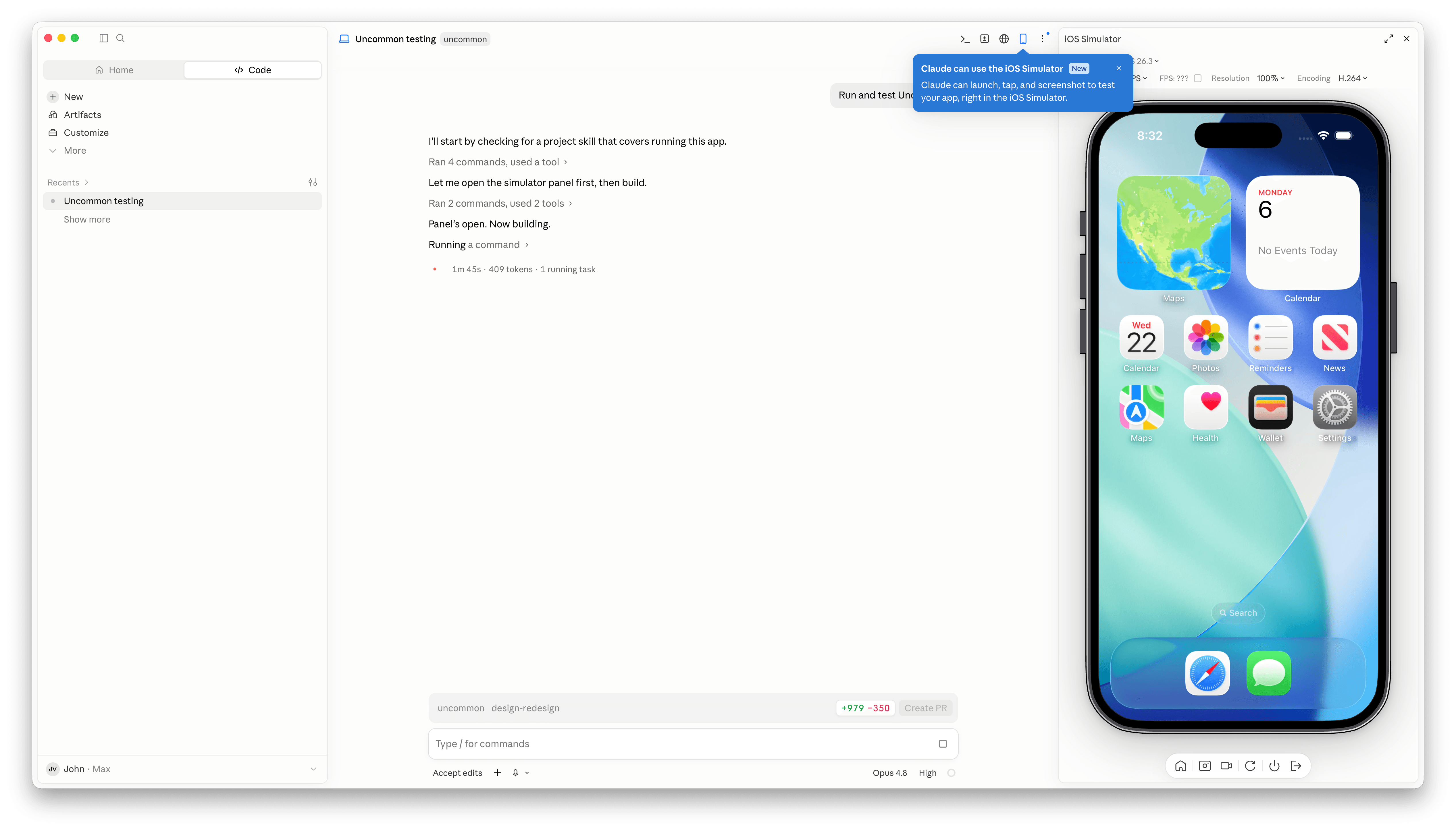
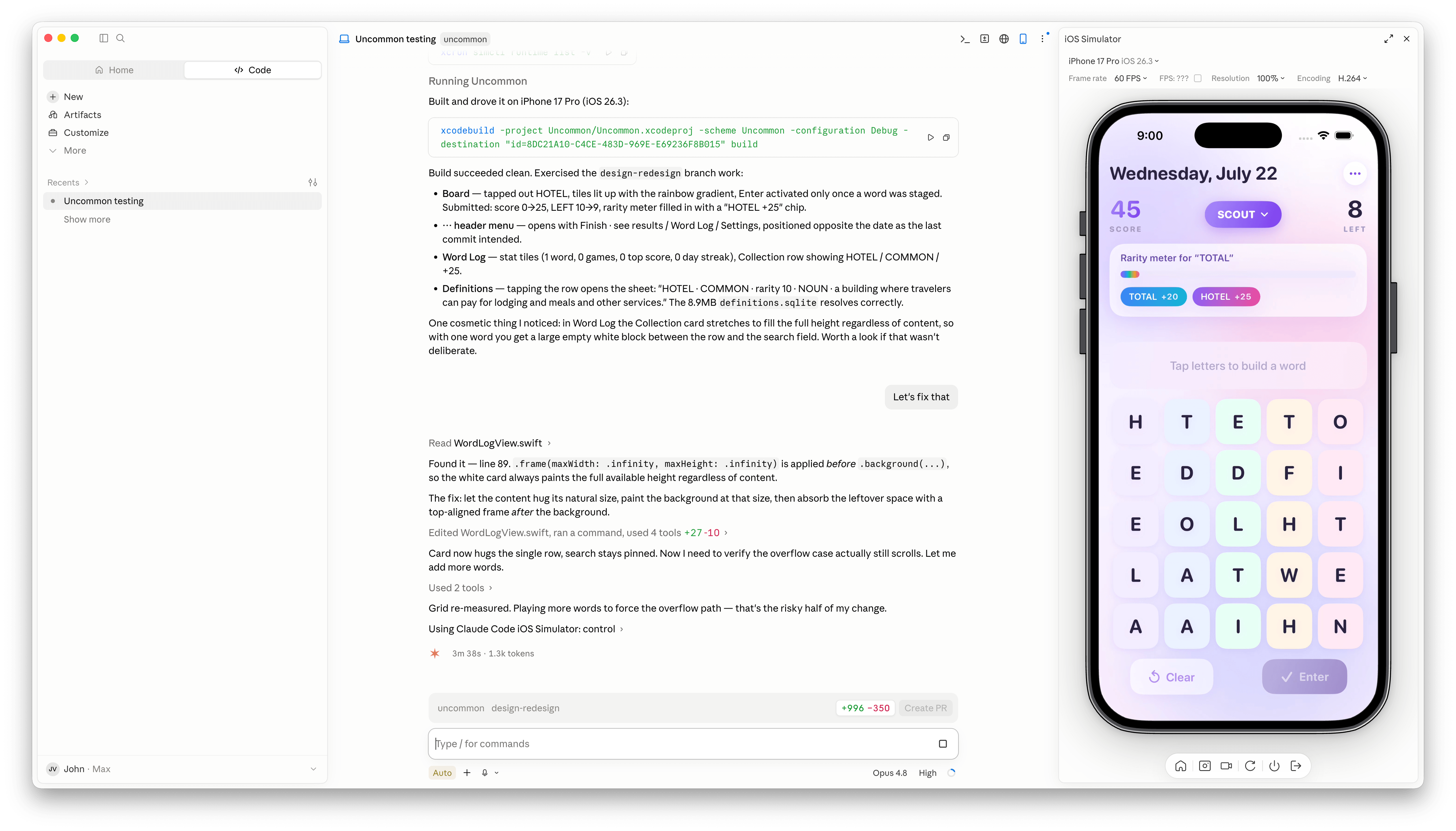
Claude Code’s Mac desktop app has added Apple simulator support, and although it’s billed as “iOS Simulator Support,” it actually works with any iOS, iPadOS, visionOS, or watchOS simulator you have installed.

The process of setting up a simulator is simple. A new button with an iPhone icon appears when you open an existing project. Click it and a new iPhone simulator pane opens to the right by default. However, clicking on the name of the simulator reveals a list of every available simulator. You can also run multiple simulators at once, but that immediately made my aging M1 Max Mac Studio start to chug a little.

With access to your running app, Claude Code is more effective at debugging UI bugs.

With access to your running app, Claude Code is more effective at debugging UI bugs.

Once you have the simulators that you want open, simply ask Claude Code to run and test your app, and it gets to work, building the app, installing it in the simulator, opening it, and poking around. I loaded up a simple word game I’ve been playing with, and after a few minutes, Claude Code found a UI bug while controlling the simulator. I asked it to fix the issue, which it did, then tested and committed. My testing has been limited, but so far it looks like a simple, effective loop.

It’s also worth noting that Claude Code is running the simulator directly inside the Claude app. This is not computer use, meaning windows aren’t going to be opening and getting in your way as you work on something else. All in all, the addition of the simulator, like the inclusion of an in-app sandboxed browser a couple of weeks ago, is a great update to Claude Code.

  •  

TestFlight: One Step Forward, Two Steps Back

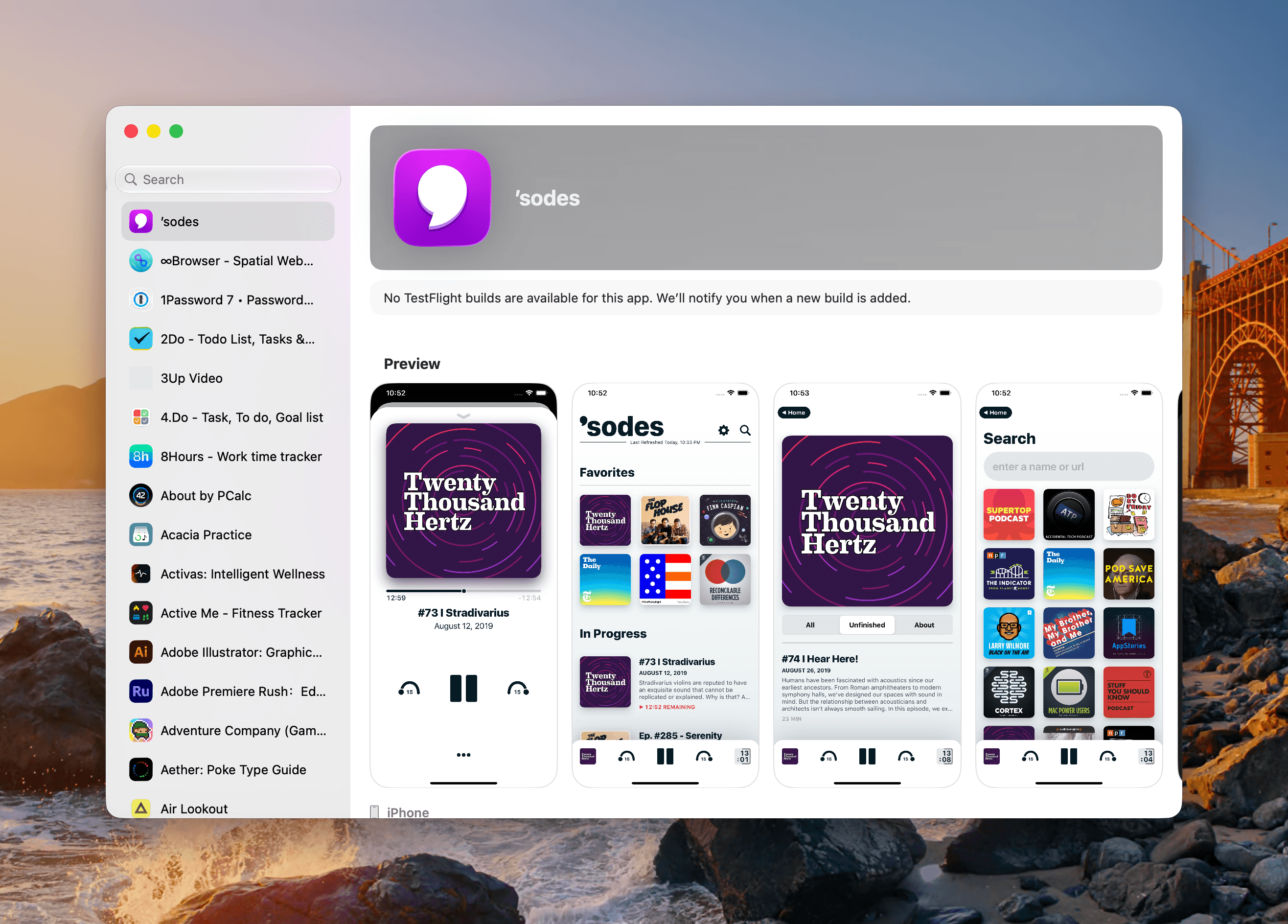
I test a lot of apps, so I have strong opinions about TestFlight. However I usually keep those opinions to myself because despite the fact that it’s critical to my work, TestFlight wasn’t built for app reviewers. Most people haven’t accumulated hundreds of active and inactive betas in the app like I have, and for them, TestFlight is probably fine. However, for me, TestFlight is a constant source of frustration.

So, you can imagine my excitement when I read a post by Zac Hall at 9to5Mac that a search field had been added to TestFlight. “Finally,” I thought to myself. I stopped what I was doing and updated the app immediately. After all, search was my number one request for TestFlight back in 2024.

An apostrophe gets you the top spot in Apple's new alphabetical TestFlight list.

An apostrophe gets you the top spot in Apple’s new alphabetical TestFlight list.

That 2024 wishlist was published in the wake of a bad stretch the app had beginning in 2023. At the time, TestFlight was plagued by laggy performance if you were on a lot of betas. To Apple’s credit, they fixed the performance issues, though the issues have begun to creep back into recent releases. Still, the past couple of years as a TestFlight user have been fine despite all the ways the app could be made better for users.

When the TestFlight update finished installing, I eagerly opened it on my Mac and then my iPhone. Sure enough, there was the search field at long last. Lists practically beg for a search field, and finally someone at Apple added one, and to whoever built that feature, a huge thanks from me and the MacStories team.

Unfortunately, this story comes with one very big “but.” Previously, TestFlight betas were listed in reverse chronological order, which I liked. The newer beta releases were at the top of the list and the older ones that were on the verge of being replaced by an App Store release were at the bottom, along with expired betas, a list that I never really understood the purpose of.

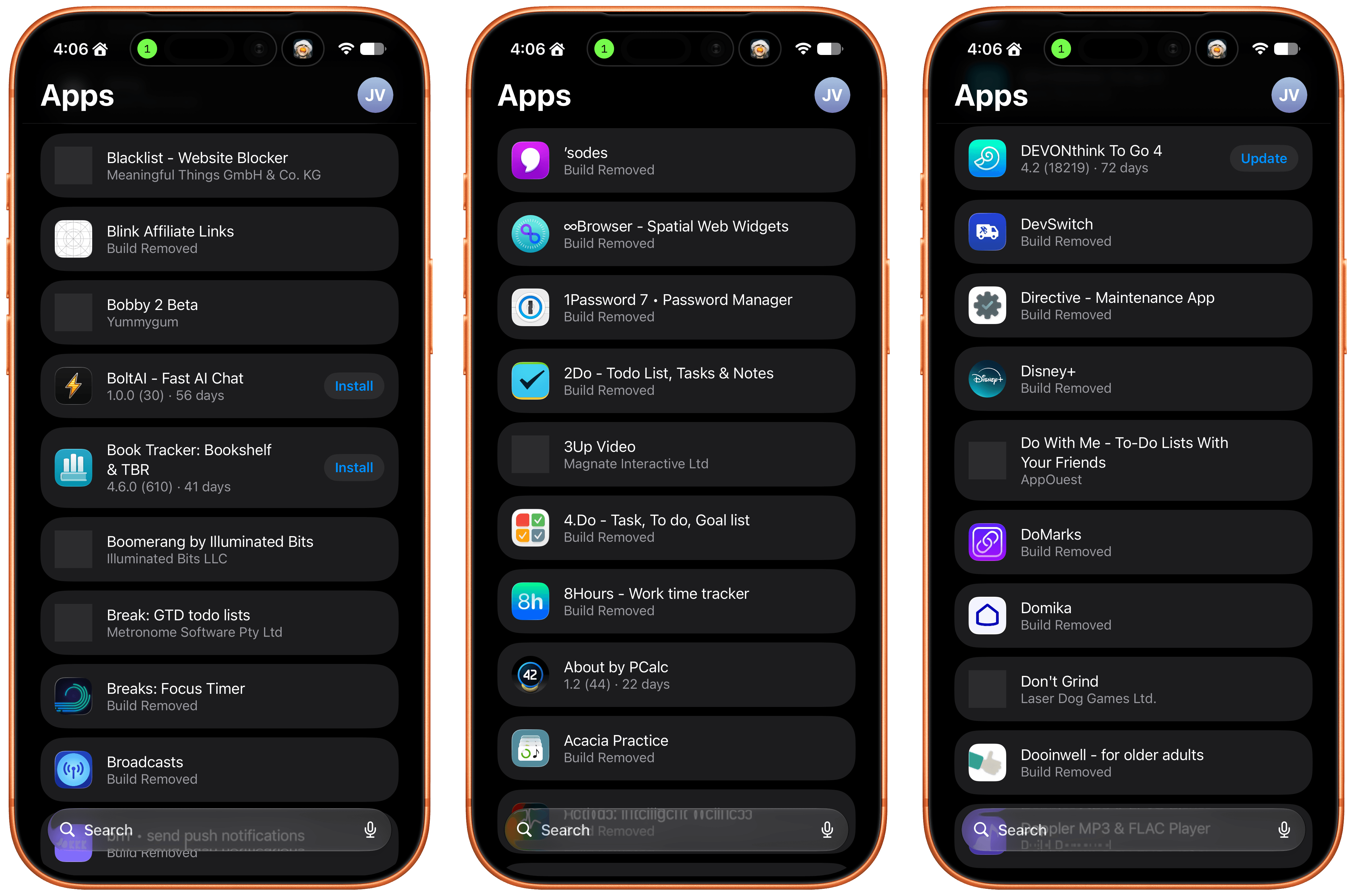
Well, those expired betas are now scattered among the active TestFlight betas in an alphabetical list and it seems that the expired beta list has been expanded to include every single beta I’ve ever been a part of. I did a rough count and for me that’s nearly 800 app listings. As you can imagine, the active betas in that list are few and far between. Search helps, but scrolling is no longer an option.

The live betas are few and far between when mixed with betas gone by.

The live betas are few and far between when mixed with betas gone by.

I get that this is a very “me and a few of my friends” problem, and search does help, but it’s not enough. The active to inactive beta ratio is so bad that few iPhone screens include more than two or three active betas. So here’s my proposal:

  • Add a toggle in TestFlight’s settings that hides inactive betas.

That’s it, that would make all the difference in the world. I’d love to have the reverse chronological ordering back, a performance tune-up, and the other things I wished for back in 2024, but I’ll live with hiding all the noise from my beta list.

  •  

Open Minis Is the iOS Agent I Wish Siri AI Could Be

Open Minis for iOS.

Open Minis for iOS.

Every once in a while, I come across a third-party app that either resets my expectations for a particular niche of software on iOS or creates an entirely new category altogether. I’ve had quite a few of these moments in the 17 years I’ve been writing app reviews at MacStories: Editorial, Workflow, Obsidian, Sky, and, most recently, OpenClaw come to mind. Over the past few weeks, I’ve had another such moment with Open Minis, a new chatbot app for iPhone and iPad that I can best describe as getting a preview of Siri AI’s agentic future, today.

Open Minis is an on-device agent that lets you use any frontier model for conversations, with a twist: unlike other AI wrappers, this app deeply integrates with all sorts of native Apple system frameworks using official APIs available to third-party developers. Open Minis can control Reminders and Music, which we have seen before, but also Calendar, Maps, HomeKit, HealthKit, and Files; it can even work with frameworks such as Vision for OCR, Apple NLP for natural language processing, the iOS clipboard, speech recognition and dictation, NFC, and Bluetooth. Furthermore, Open Minis comes with its own configurable workspace in the Files app, has an on-device memory system, and features browser-use capabilities via a (once again, native for iOS developers) built-in WebKit web view.

Effectively, Open Minis is what would happen if you rolled Claude Code and OpenClaw into one intuitive agentic experience designed for Apple users, with a powerful tool-calling harness that can improve and tweak itself, and with integrations specifically designed for the Apple ecosystem. It is the most impressive indie app I’ve seen in a while. If you were disappointed by the lack of power-user capabilities in Siri AI, this is a real, currently shipping example of what Siri AI could be if only it were powered by a frontier model with truly agentic functionalities.

The iOS CLI

The trick hidden up Open Minis’ sleeve is as ingenious as it is obvious: all the Apple framework integrations it supports are powered by command-line interfaces (CLIs) that bridge native Apple APIs (EventKit, MusicKit, HomeKit, etc.) to a code environment that modern LLMs can understand and operate with. To make all of this work behind the scenes, the developer of Open Minis had to create dedicated CLIs for each of these frameworks, which – and here comes the other trick – are driven by a model harness that has access to a built-in Linux terminal and is sandboxed to the app’s workspace.

Specifically, Open Minis runs a version of iSH, a popular Alpine Linux shell that operates a persistent, emulated Linux environment for ARM64 architecture in a sandboxed fashion. The shell inside Open Minis can download external packages from the web using Alpine’s apk package manager (which means that you can access popular tools such as ffmpeg and yt-dlp directly from the app), has its own Linux filesystem (exposed in the Files app as a native file provider location), and is able to call bridged Apple CLIs, as well as any kind of MCP server (via MCP code execution, another trend in the AI industry these days). Think about it this way: if Claude Code or Codex on the Mac can do anything across the entire filesystem by virtue of running in the Terminal app, Open Minis can do (almost) anything within its app sandbox thanks to a built-in terminal emulator – including running Python, using Git and SSH, and accessing standard Unix text utilities.
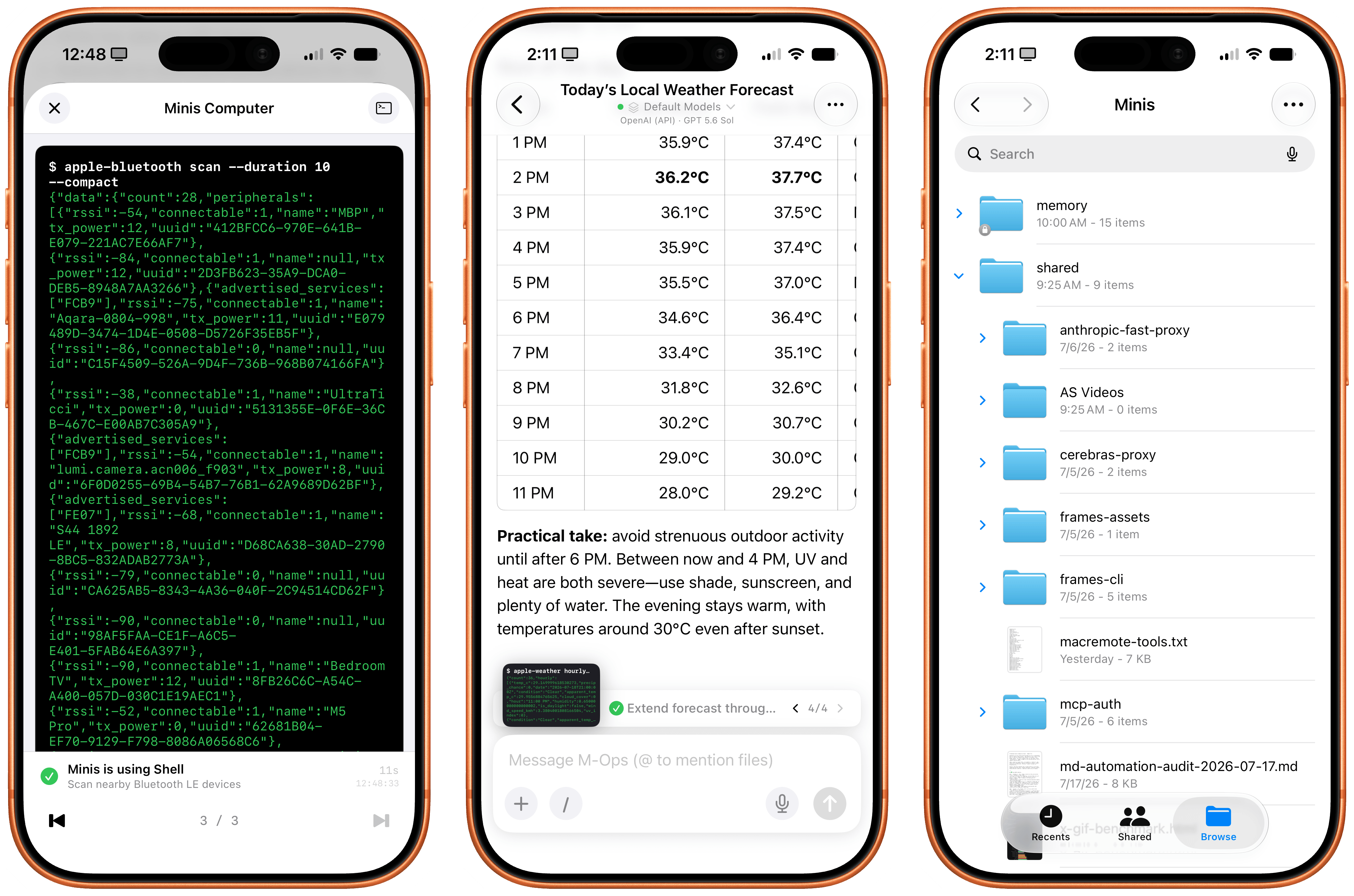
Minis’ built-in shell (left) and dedicated workspace in the Files app (right).

Minis’ built-in shell (left) and dedicated workspace in the Files app (right).

However, this doesn’t mean that, when using Open Minis, you’ll be looking at a terminal UI all the time: the underlying shell is simply what makes all of this possible behind the scenes. The app can display a picture-in-picture terminal preview that you can open to preview what it’s doing, but you don’t have to. The app’s main interface is your classic, chatbot-style UI that, depending on the model you’re using, will display interleaved thinking blocks, tool calls, and messages in a conversation transcript.
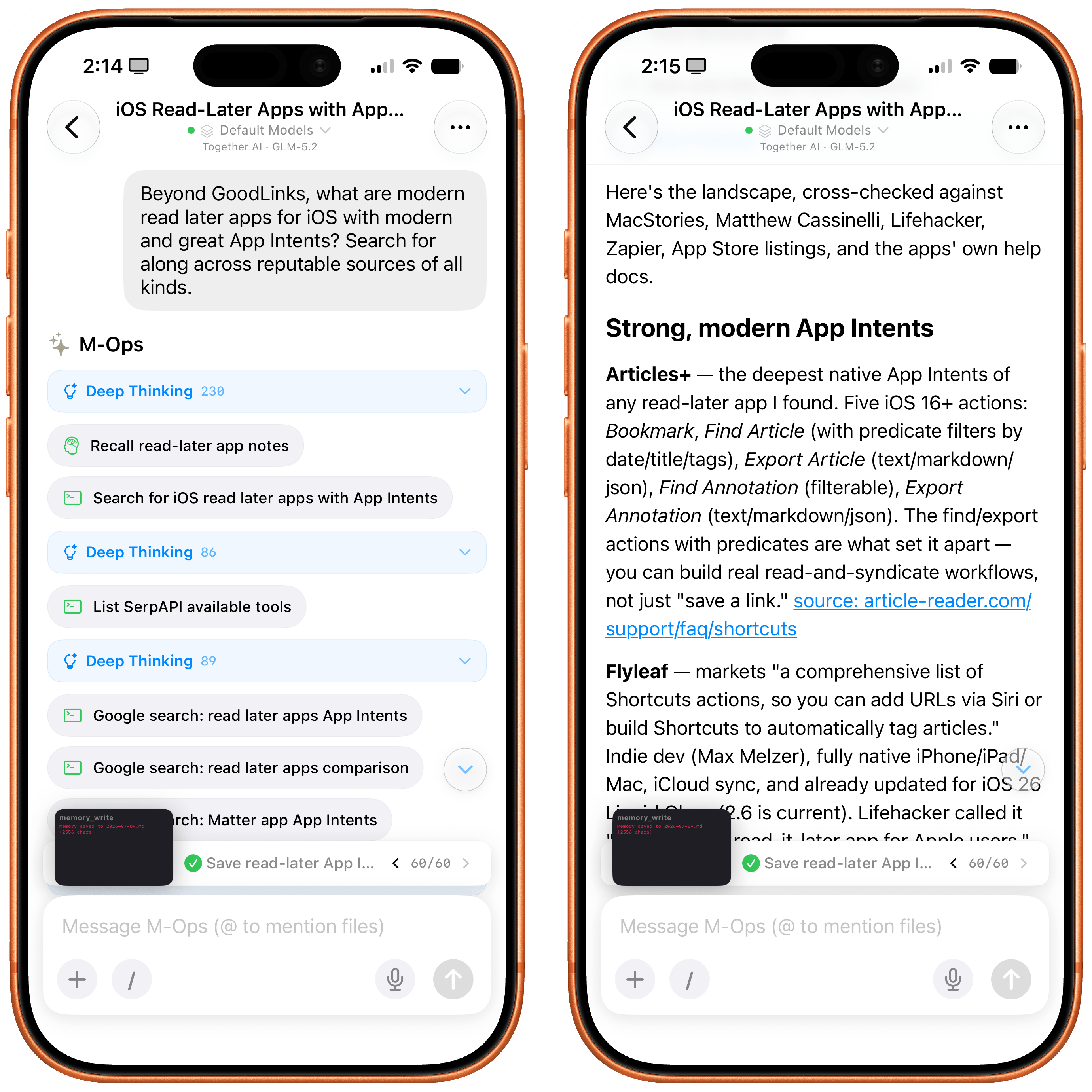
The regular chatbot UI of the Minis app.

The regular chatbot UI of the Minis app.

The other hidden power of Open Minis (which is reminiscent of OpenClaw, or, perhaps more aptly, a self-improving system such as Hermes Agent) is that it can inspect and modify its own workspace via dedicated Minis CLIs. For example, you can ask Minis – in natural language, of course – to add a new model or MCP server, and the app will bring up a native settings screen and ask for permissions to do so. If you want to store a password or API token, the app won’t do it in plain text: it’ll display a native, Keychain-based page where you can securely store your credentials. And more importantly, Minis’ own CLIs are used to recall previous conversations via the app’s memory system (based on Markdown files), create skills, and answer questions about the app itself. For instance, when I asked Minis to describe what Apple CLIs it has for iOS users, it happily provided a full guide:
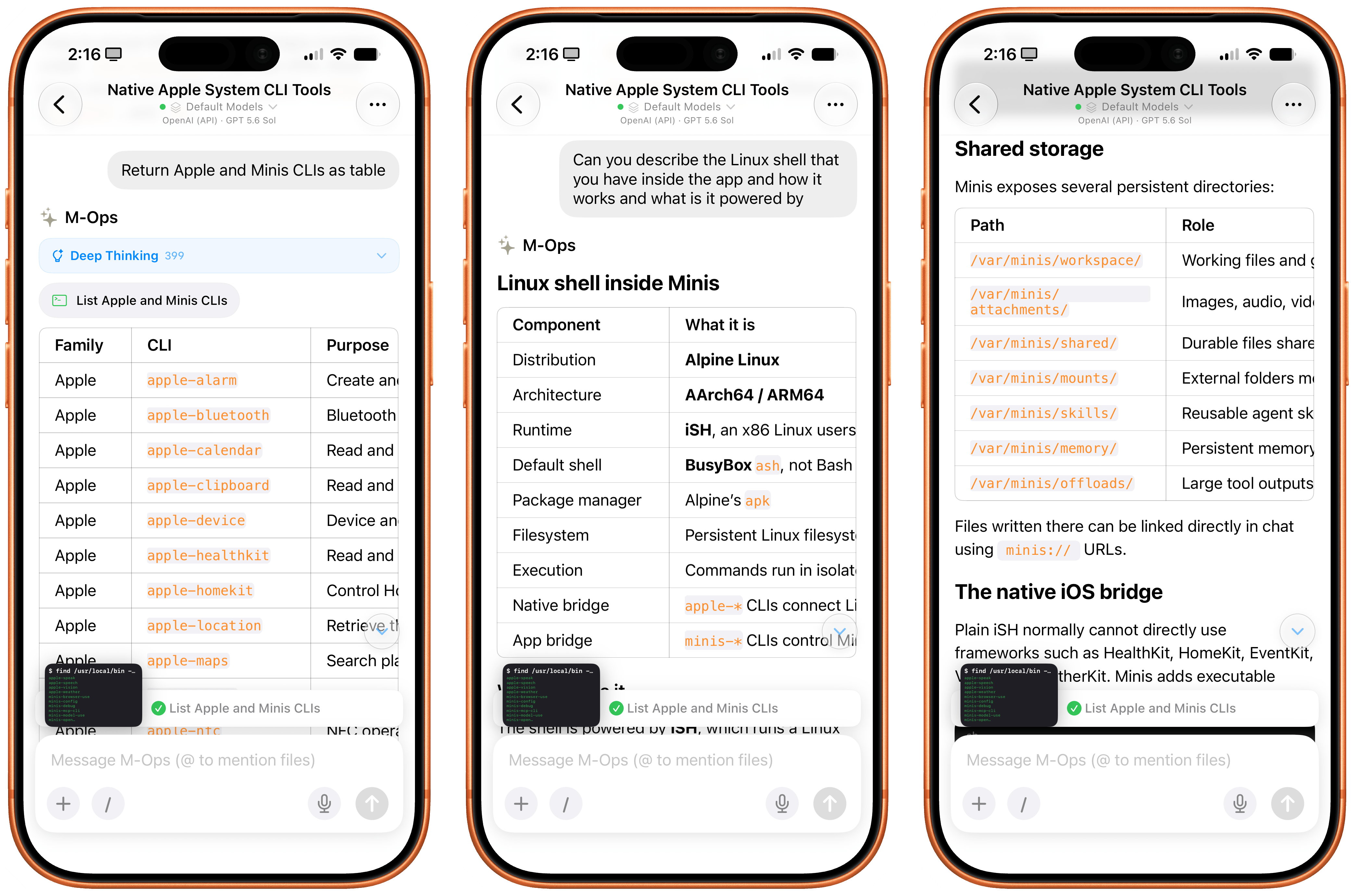
Asking Minis about itself and the CLIs it has.

Asking Minis about itself and the CLIs it has.

Or when I asked to recall all the things we worked on during the day, Minis used one of its CLIs to read transcripts of previous chats (which, again, are simply stored in the Files app), recall memories, and present me with a useful summary of all the tasks we completed.
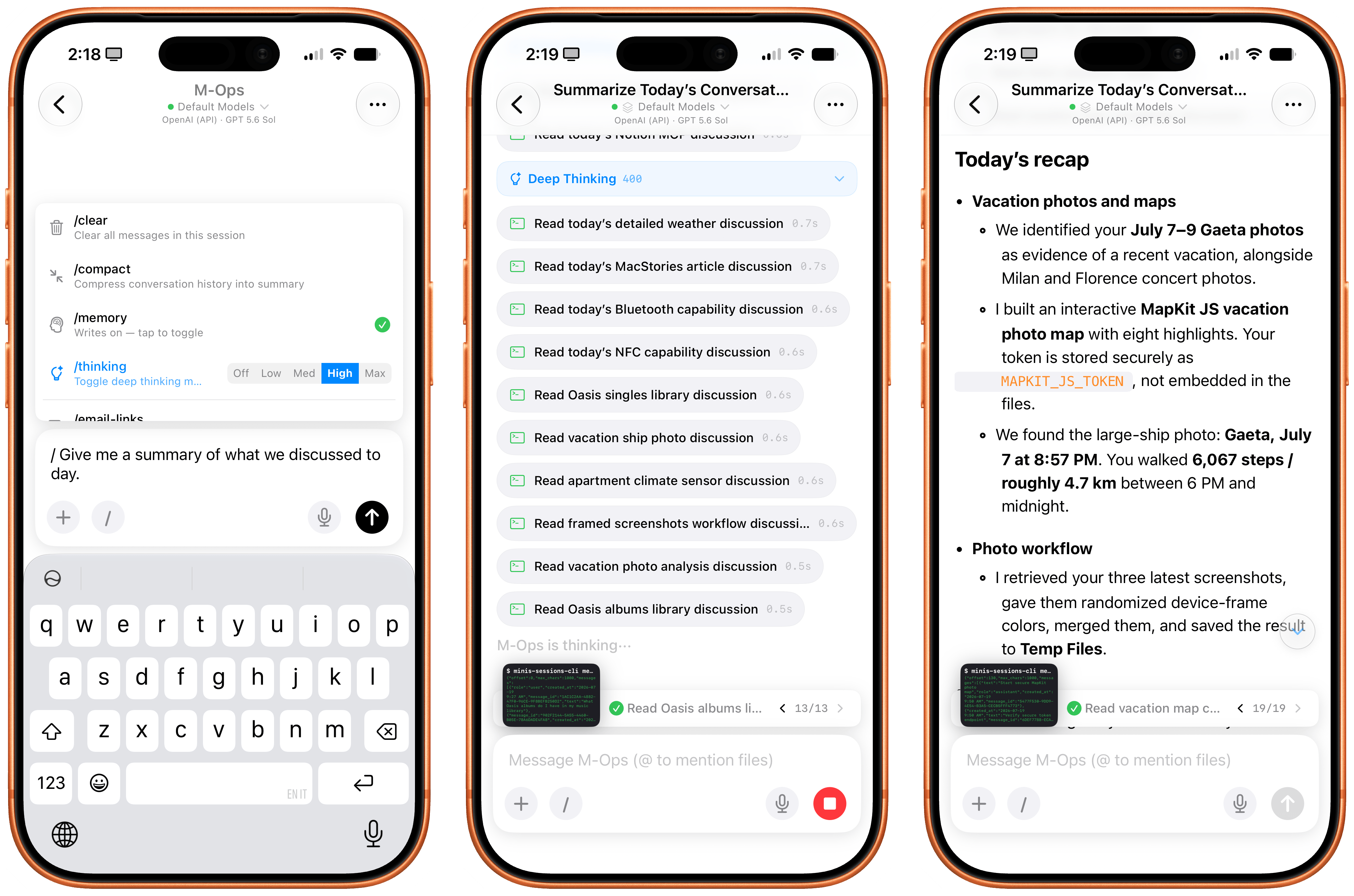
Minis can inspect its own sessions as well as user memories to recall previous conversations.

Minis can inspect its own sessions as well as user memories to recall previous conversations.

The same is true for adding new functionalities to Minis. Since it’s running a Linux shell with access to Python and can store assets in a persistent Files workspace, I figured I could ask Minis to install my own Apple Frames CLI for itself by giving it a link to my GitHub repo. GPT-5.6 Sol (my model of choice in the app) didn’t hesitate: it found all the dependencies for the Frames CLI, installed them, pulled the CLI’s official skill, and was good to go a minute later. And since Minis also comes with a native Photos integration, I was able to ask:

Grab my three most recent screenshots, randomize their frame colors, merge them, and save the image to my Temp Files folder.

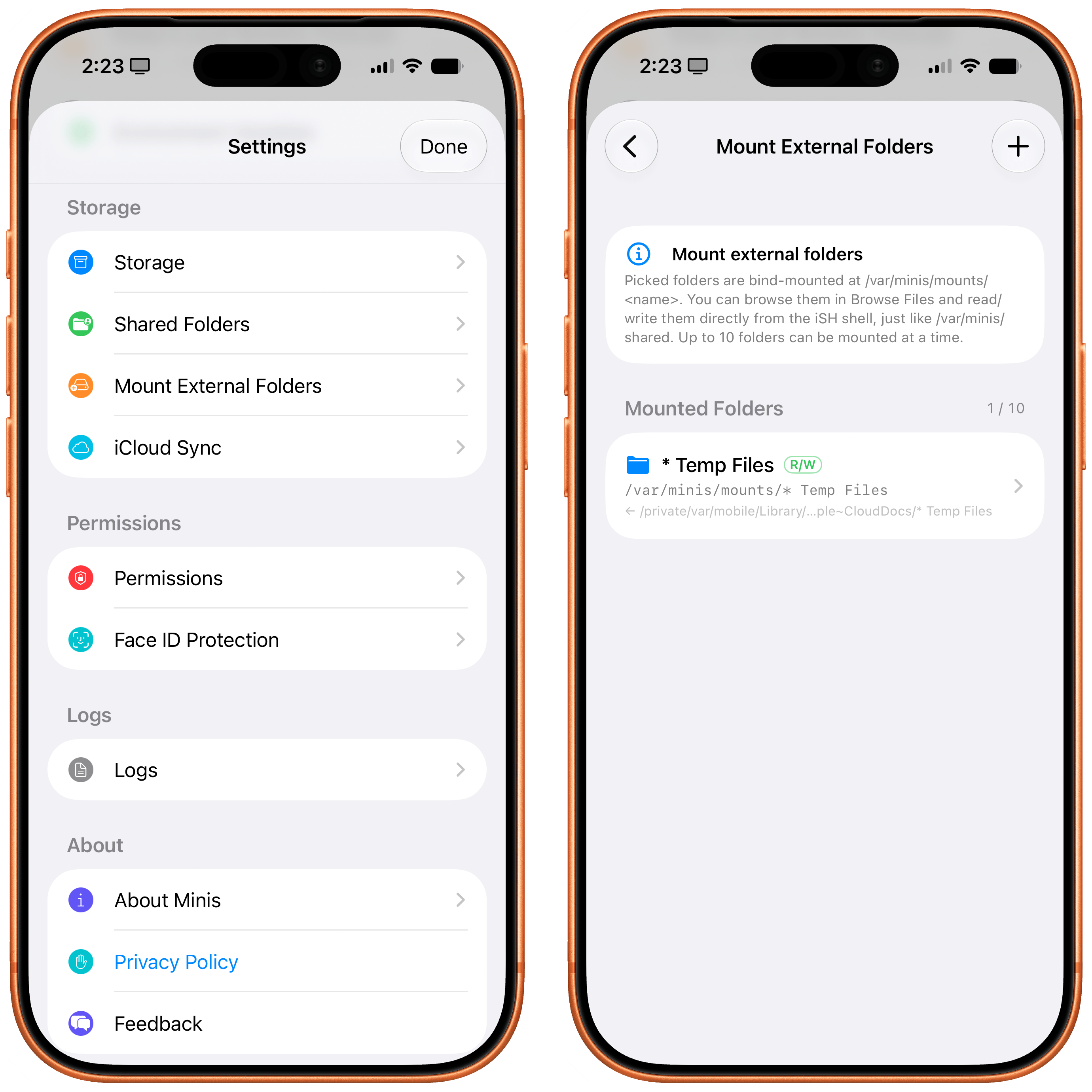
A few seconds and Apple CLI calls later, Minis saved the resulting framed image to a folder of my choosing. The ability to work in any folder in the Files app outside of Minis’ sandbox is another official iOS API that the app is leveraging; we first saw the ability to “mount” specific folders from the Files app in Working Copy years ago, and the feature was later adopted by the likes of Ulysses, iA Writer, MWeb, and other document-based apps. In Open Minis, you can bookmark any folder from any file provider location in the Files app and tell your agent to save files to or read them from there.
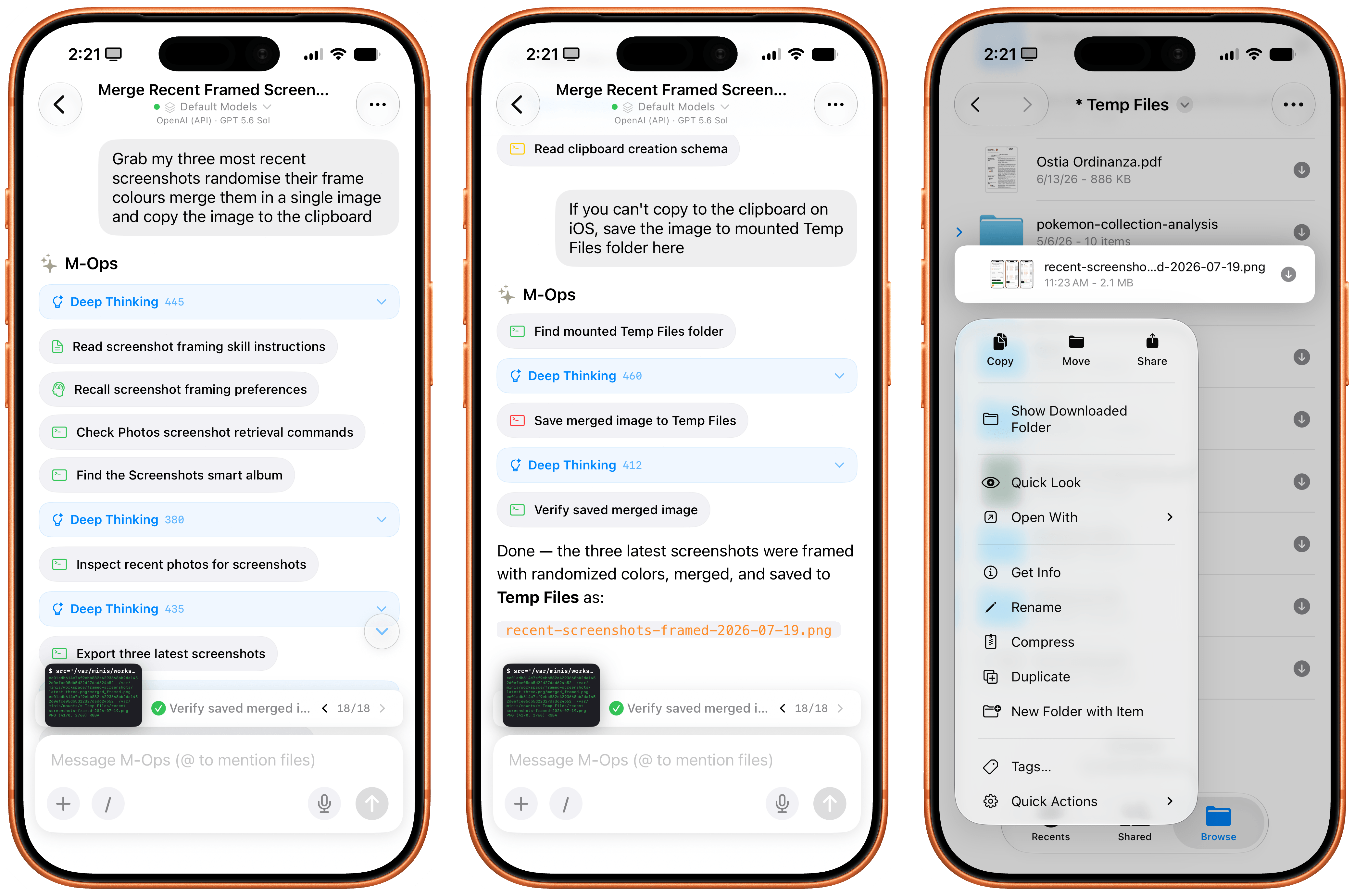
Minis can’t write images to the iOS clipboard, but it can save files in any (previously bookmarked) location of the Files app.
Minis can’t write images to the iOS clipboard, but it can save files in any (previously bookmarked) location of the Files app.

Minis’ settings for managing mounted folders.

Minis’ settings for managing mounted folders.

This feels magical to me, but it’s merely one of the many examples of what is possible when you combine large, powerful models with the more-open-than-you-think, secure nature of iOS and iPadOS.

Working with Open Minis on iOS

All of this a lot to wrap your head around at first, and there’s no denying that Open Minis is a power-user tool designed for people who, like me, enjoy using frontier models and living at the bleeding edge of AI. What’s different in this case, though, is the fact that Open Minis – unlike other apps – embraces its Apple-first nature by fully supporting technologies that are made by Apple, released to third-party developers, and not being used by Siri AI at all at the moment.

It’s impossible to “review” an AI chatbot app since everyone’s use cases are so different, but I’m going to nevertheless describe a few scenarios that should give you an idea – and hopefully reset your expectations, too – of what can be accomplished with an AI that has deep hooks into iOS.

For starters, you can use any model you want in Open Minis, including the latest GPT-5.6 models, Claude Fable, anything from OpenRouter, and more. (I even asked Open Minis to create our own proxy for the OpenAI API, running on my Mac Studio, so I could use Sol in Fast mode; it works!) You can press the / button above the keyboard to trigger reasoning levels, compaction, memories, and skills; you can also create model groups, model defaults, and subagents from the app’s settings, then ask the model to use a specific set of subagents for a particular task, and it’ll do it.
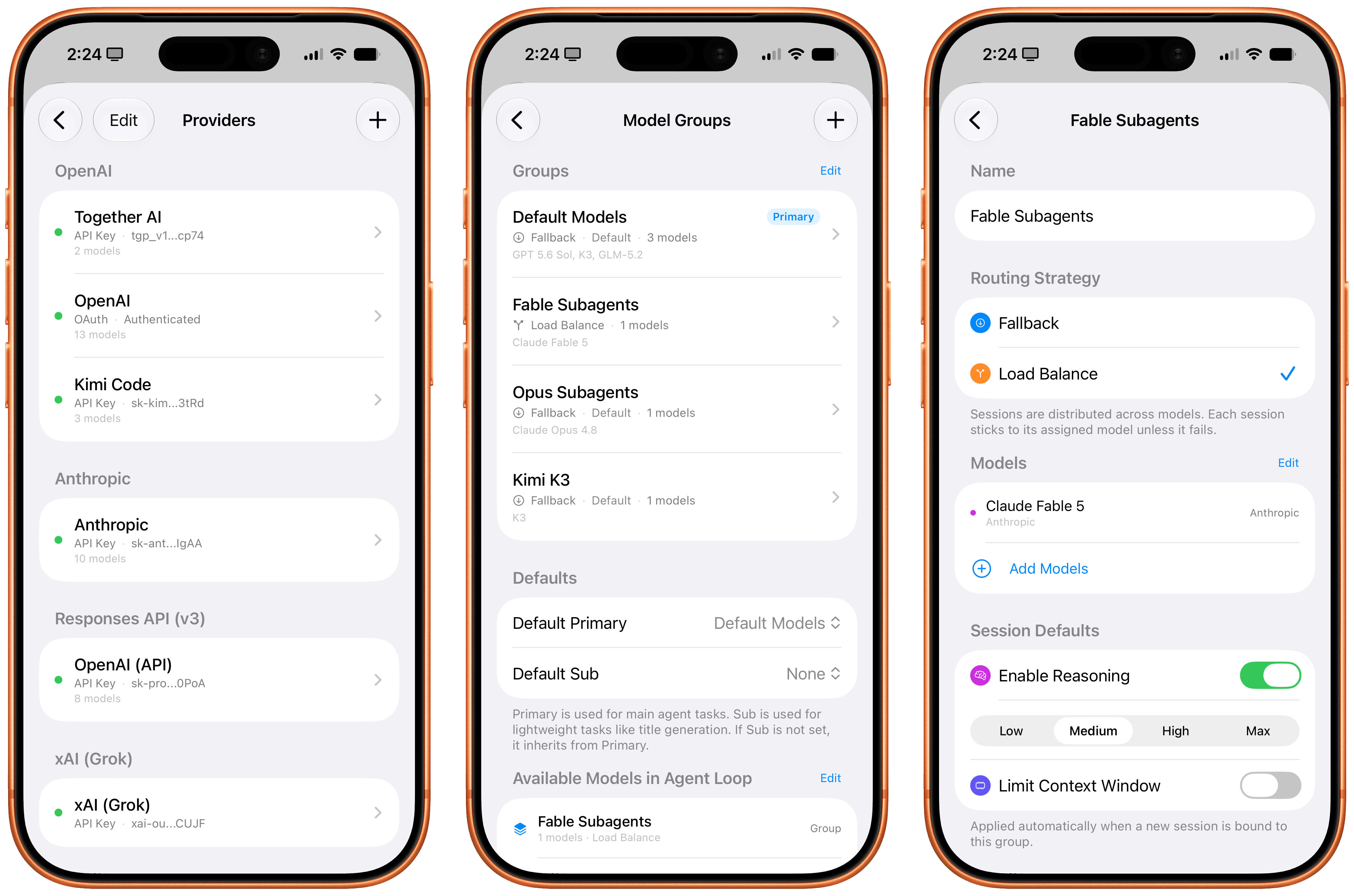
Managing model providers, groups, and subagents in Minis.

Managing model providers, groups, and subagents in Minis.

Approach this app with this concept in mind: nearly everything about it is open and configurable by just talking to it. Short of rewriting the app’s code itself, you can ask Open Minis to tweak all sorts of things about itself and its own settings, and the agent will do it. Personally, I find this to be a more effective, elegant, and stable harness than OpenClaw for these kinds of things. Even though the app’s UI could use some polish (I don’t like the reasoning picker, and I wish I could collapse thinking steps by default), it is incredibly fun to tune Minis’ workspace to your liking by talking to a model. You can, in fact, just do things.

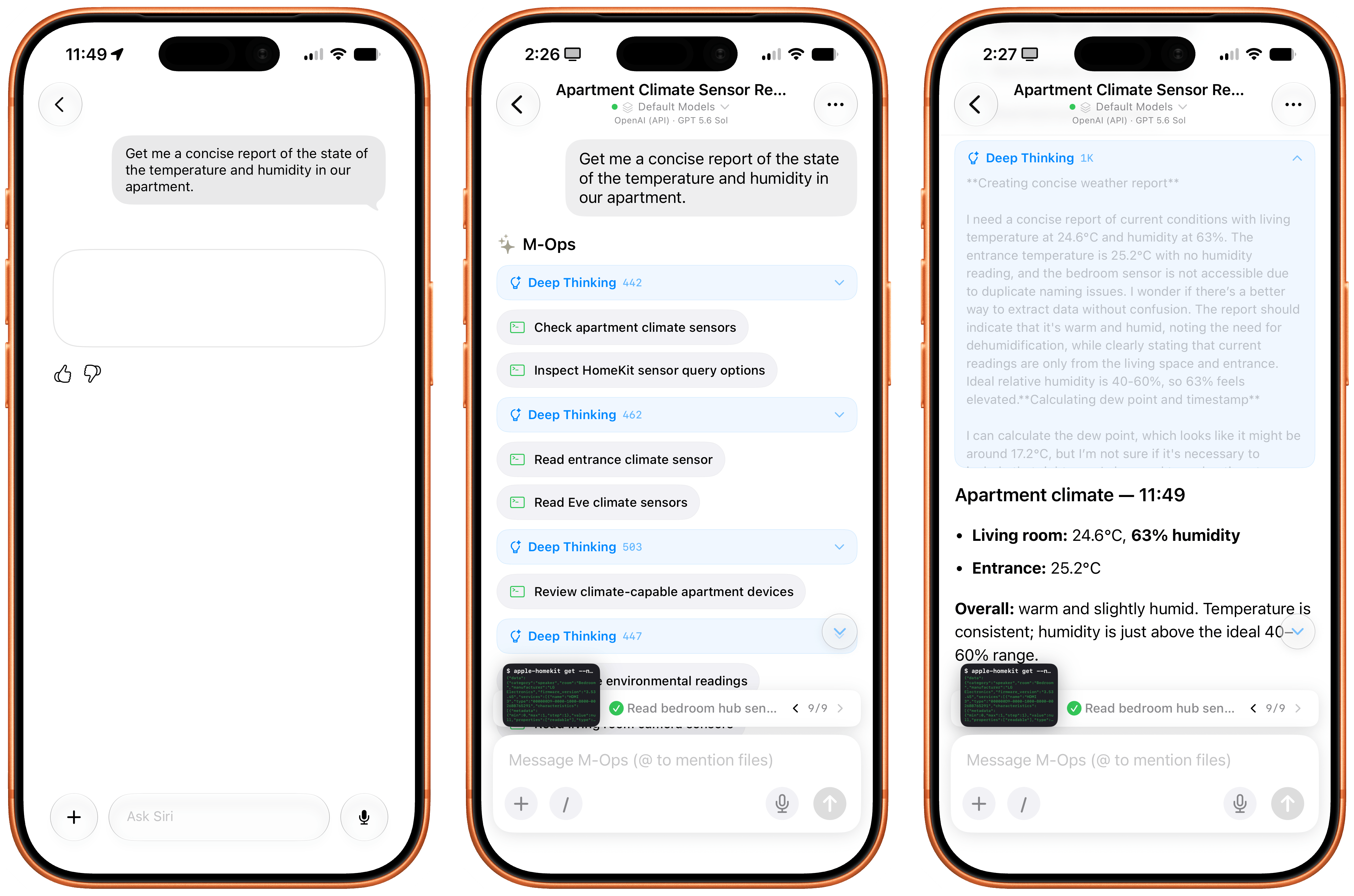
A few days ago, I was curious about the state of the temperature and humidity in our apartment. So I asked Minis:

Get me a concise report of the state of the temperature and humidity in my house, present it as a nice table.

A native HomeKit permission prompt and a couple minutes later, Sol in Minis parsed a raw dump of temperature and humidity readings from each sensor, reviewed each room configured in HomeKit, and presented the results. Siri AI, for comparison, presented…something:

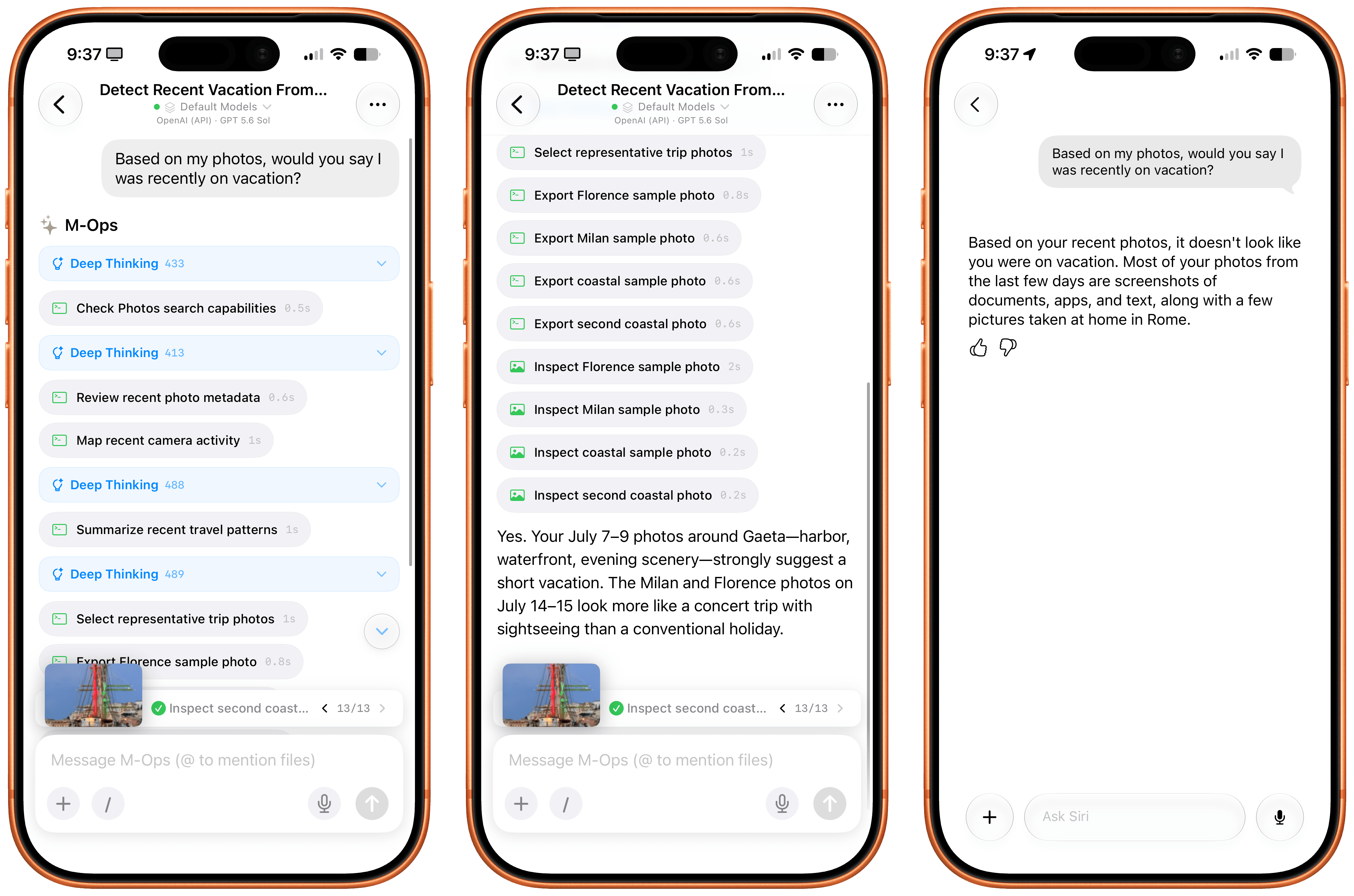
I also figured it’d be cool to compare the Photos integration in Open Minis to Siri AI’s photo library access. In theory, they’re both using the same framework, with the same metadata for each photo, but Siri AI also has access to “personal context”, right? So, I asked:

Based on my Photos, would you say I was recently on vacation?

I will let the results speak for themselves:

How about HealthKit? Again, keep in mind that Open Minis isn’t employing any “hacks” or workarounds here; it’s simply accessing the same native Apple APIs and frameworks that all developers can use. I asked:

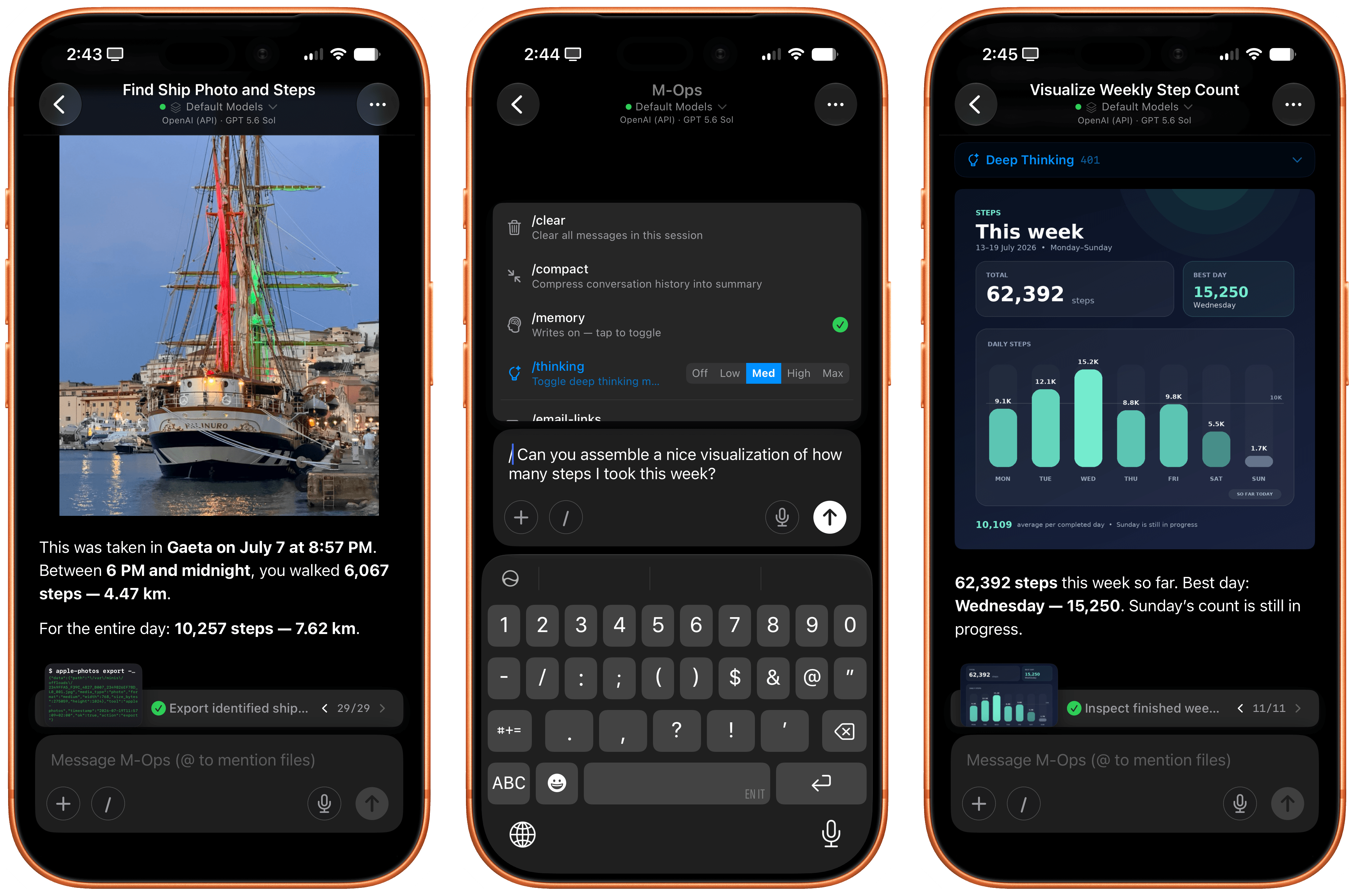
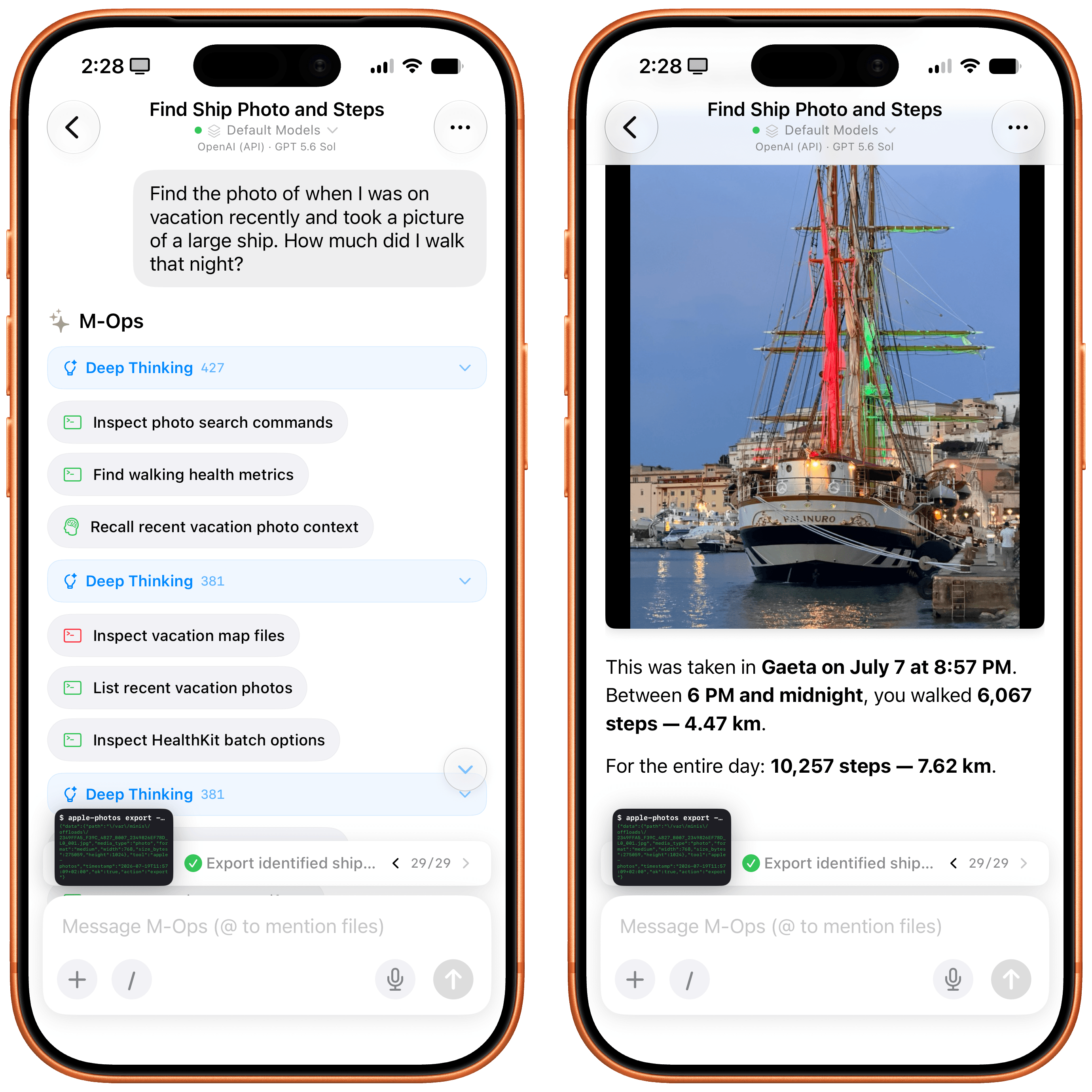
Find the photo of when I was on vacation recently and took a picture of a large ship. How much did I walk that night?

Minis started thinking about this request in a different way: it checked its memory first, and it realized that we recently discussed my recent vacations, so it could immediately short-circuit the process of finding out about those dates. Then, it started filtering my photos by those dates, found the original photo of the Palinuro vessel, and…yeah:
Inspecting the thinking steps in the request is also a fun exercise in seeing how a frontier model driven by an exceptional iOS harness can reason through a problem like this. The model – using the ‘Minis Computer’ (i.e., the aforementioned Linux shell) – fetched memories as Markdown files from the Files app, called the Apple Photos CLI, assembled a contact sheet with a grid of photos, picked two candidates, selected the best photo, isolated the date, called HealthKit for that date, and only then built an answer. And since all of this is based on deterministic code that was executed on-device, the response was fast and did not contain any hallucinations.
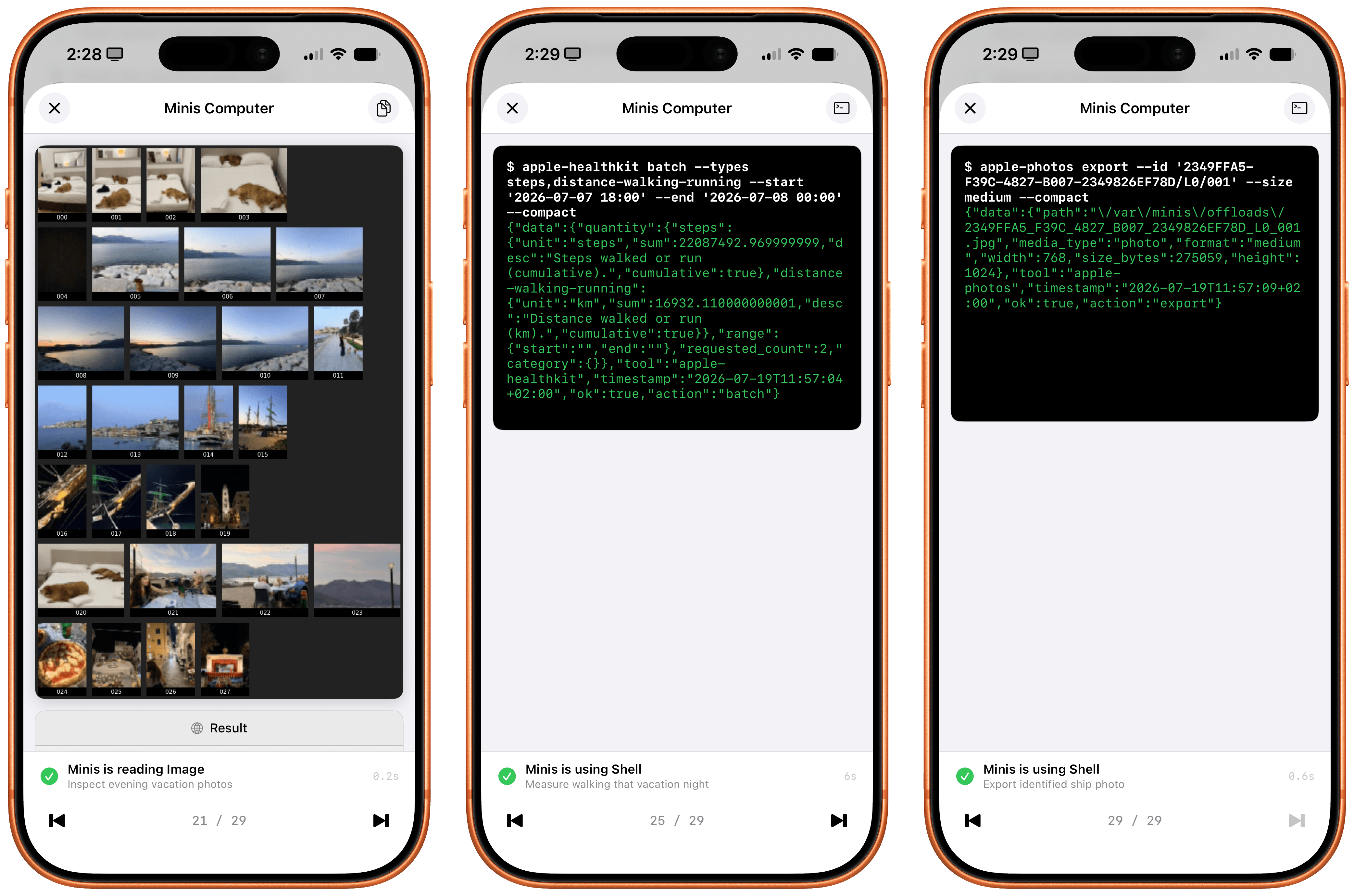
How the agent reasoned through my question and data returned by iOS.

How the agent reasoned through my question and data returned by iOS.

I then decided to go a step further: I asked Minis to take photo highlights from my recent vacations, put them on a map powered by Apple’s MapKit JS, and create a nice, interactive HTML artifact with photos on a map. I used Kimi K3 for this. Minis first asked me to securely store my MapKit developer token, then got to work. It collected photos and parsed metadata returned by the Photos app, and a couple of minutes later, there it was:
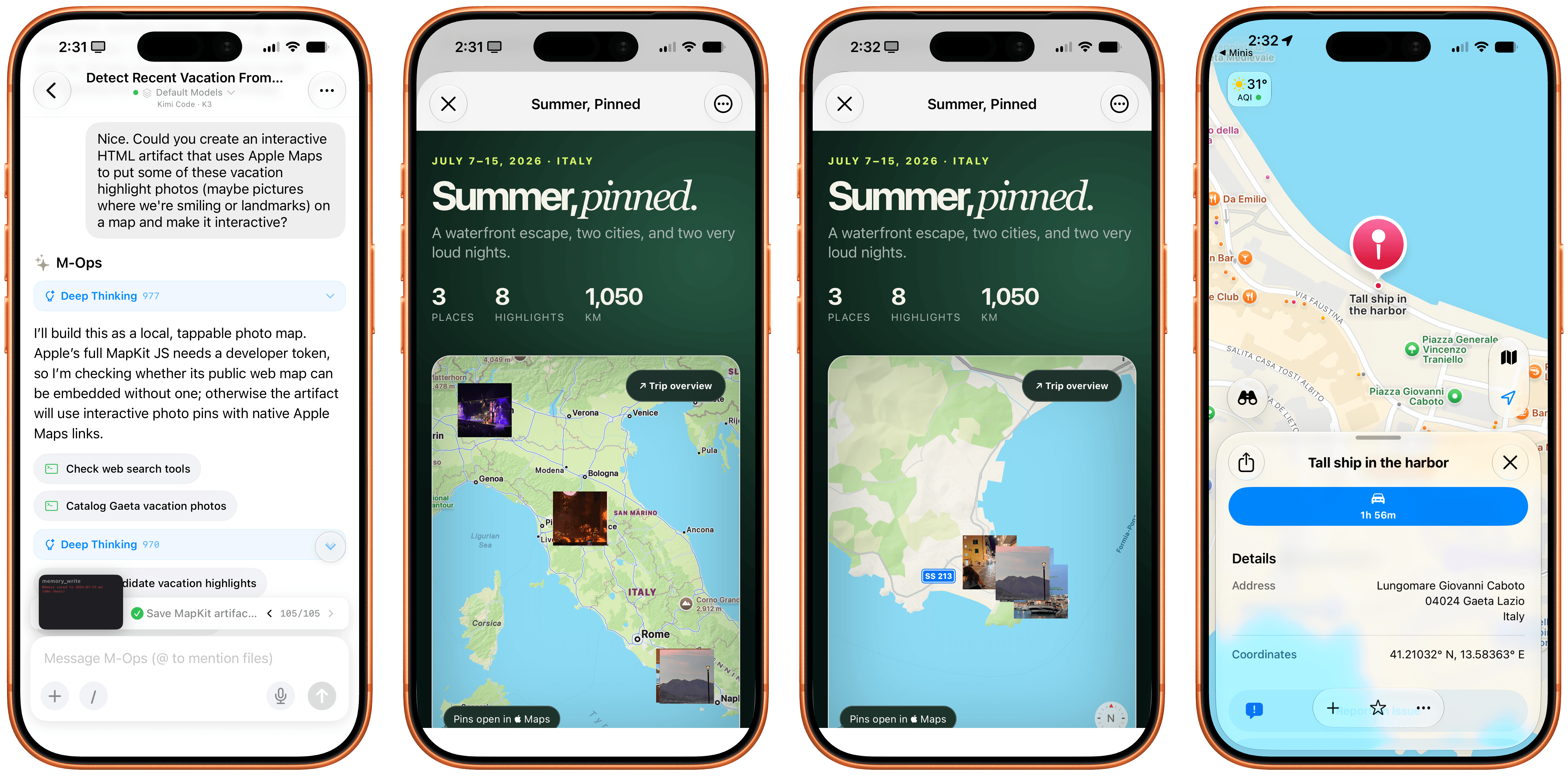
The Maps artifact built in HTML by Minis with a combination of Photos and MapKit.

The Maps artifact built in HTML by Minis with a combination of Photos and MapKit.

Notice how the HTML artifact itself is presented with WKWebView – another native Apple framework that lets Minis’ agent display webpages with the same WebKit rendering engine used by other web apps on iOS. I also combined web views with Apple NLP, the Natural Language Processing framework that’s available to Minis as another CLI. I asked the app to fetch my most recent iPad article from MacStories, scrape it as Markdown via Firecrawl, tag its different parts of speech with Apple NLP, and present it nicely. Not a problem:
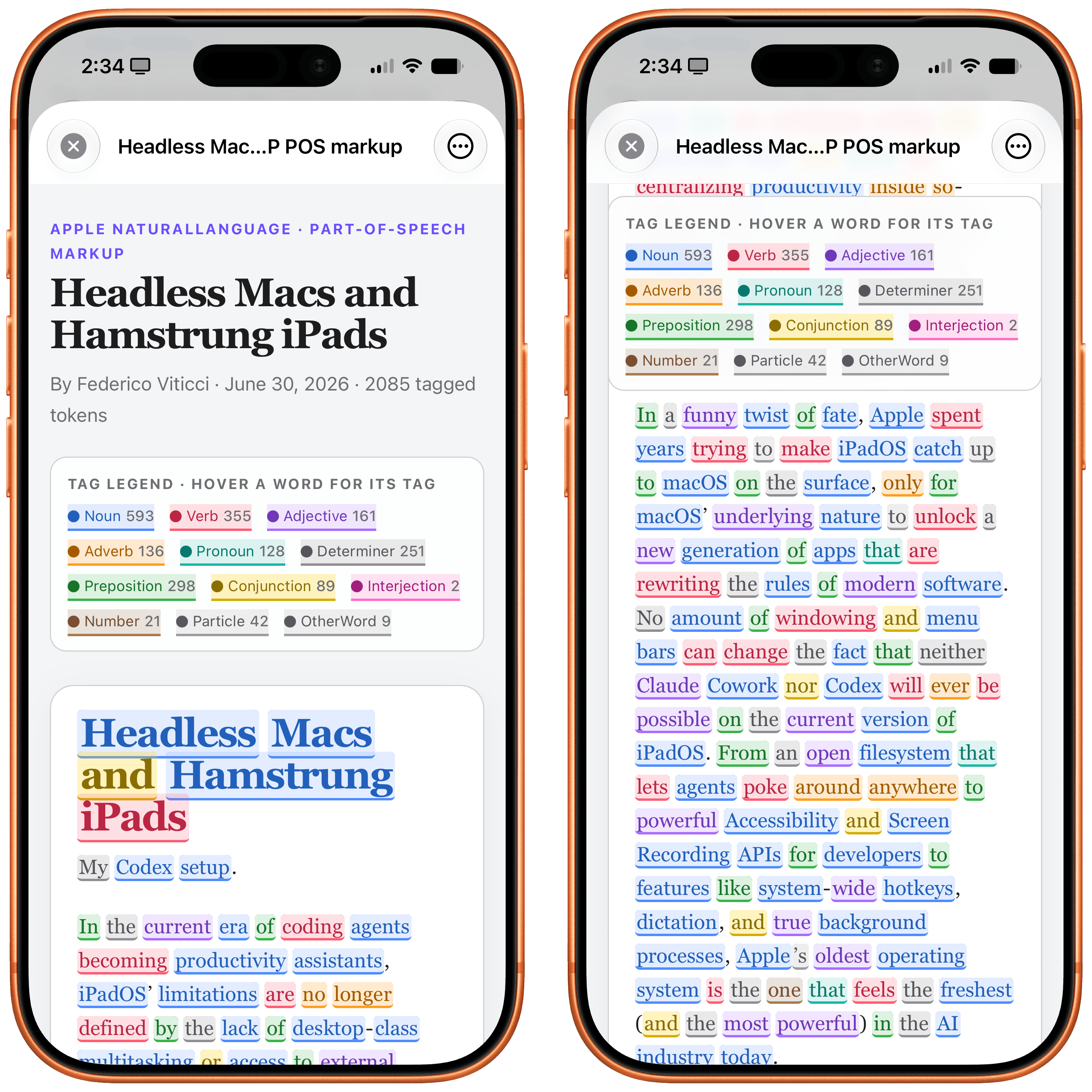
Parts of speech tagged with Apple’s native NLP framework.

Parts of speech tagged with Apple’s native NLP framework.

Music is also a first-class citizen in Open Minis: by integrating with the Apple Media framework, agents can see what’s in your music library and find information about the albums, songs, and artists you’ve saved. Which means that if I ask Minis…

What Oasis singles and b-sides do I have in my library?

…Minis can inspect my library, cross-reference results with the web, de-duplicate matches, and present results in a way that Siri AI just can’t do right now since its capabilities are limited and the model can’t reason for longer on any specific query:

I can go on. Open Minis can access the native Bluetooth framework, scan nearby Bluetooth LE devices, and find out details about them:
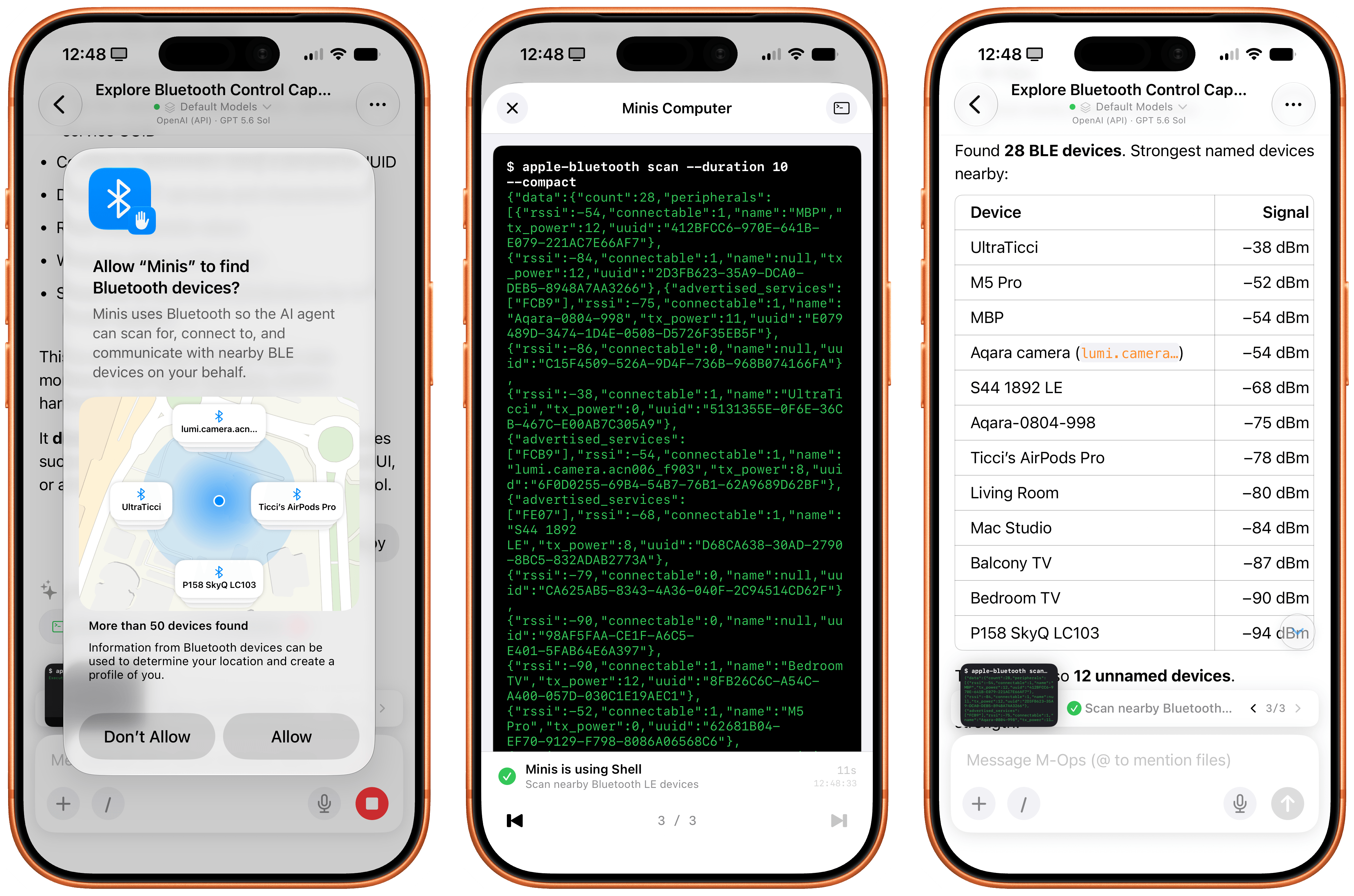
Working with the Bluetooth CLI in Minis.

Working with the Bluetooth CLI in Minis.

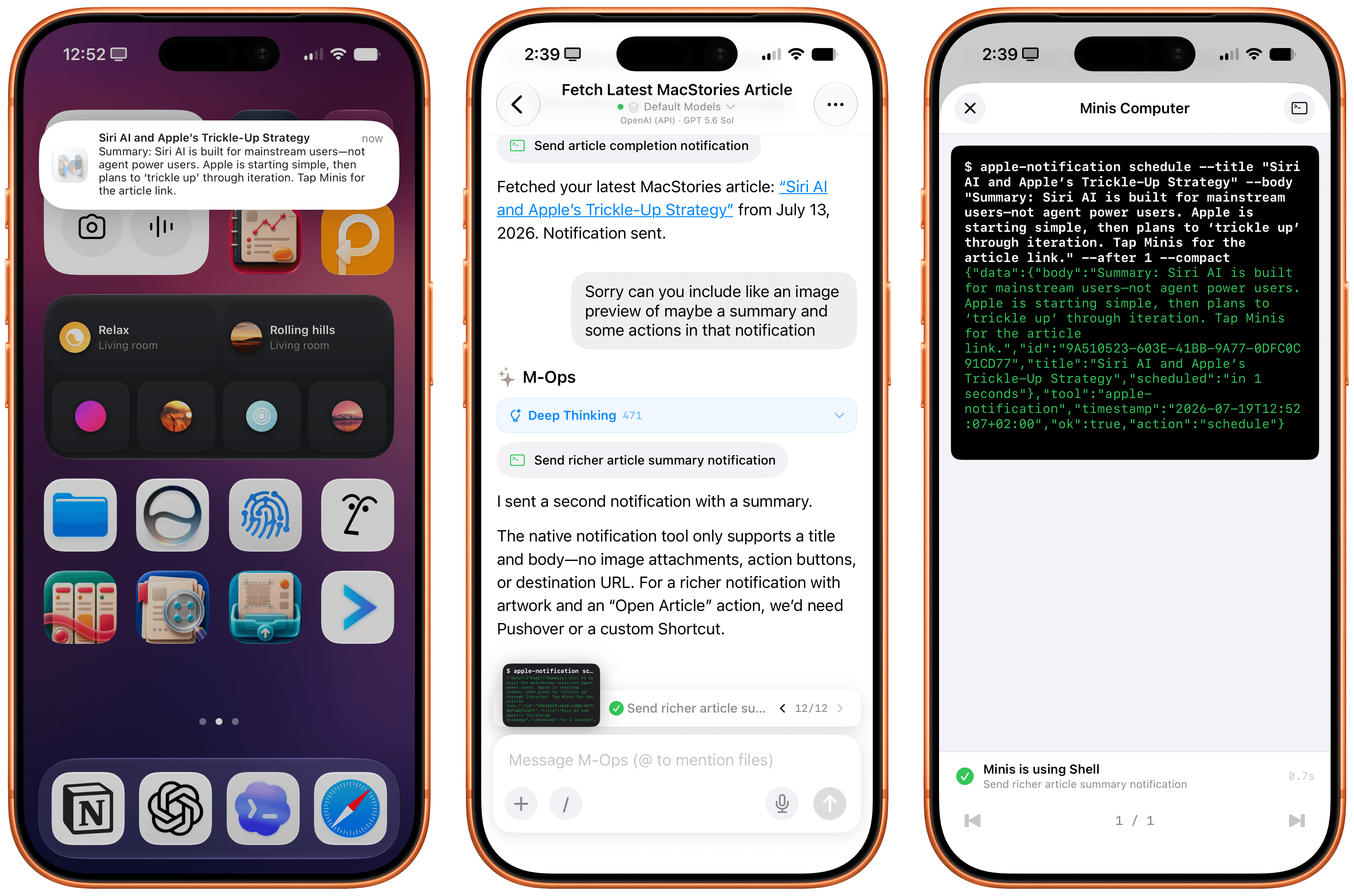
It can send you real notifications when it’s done with a task, and you can even program those notifications to have a custom title and body text:

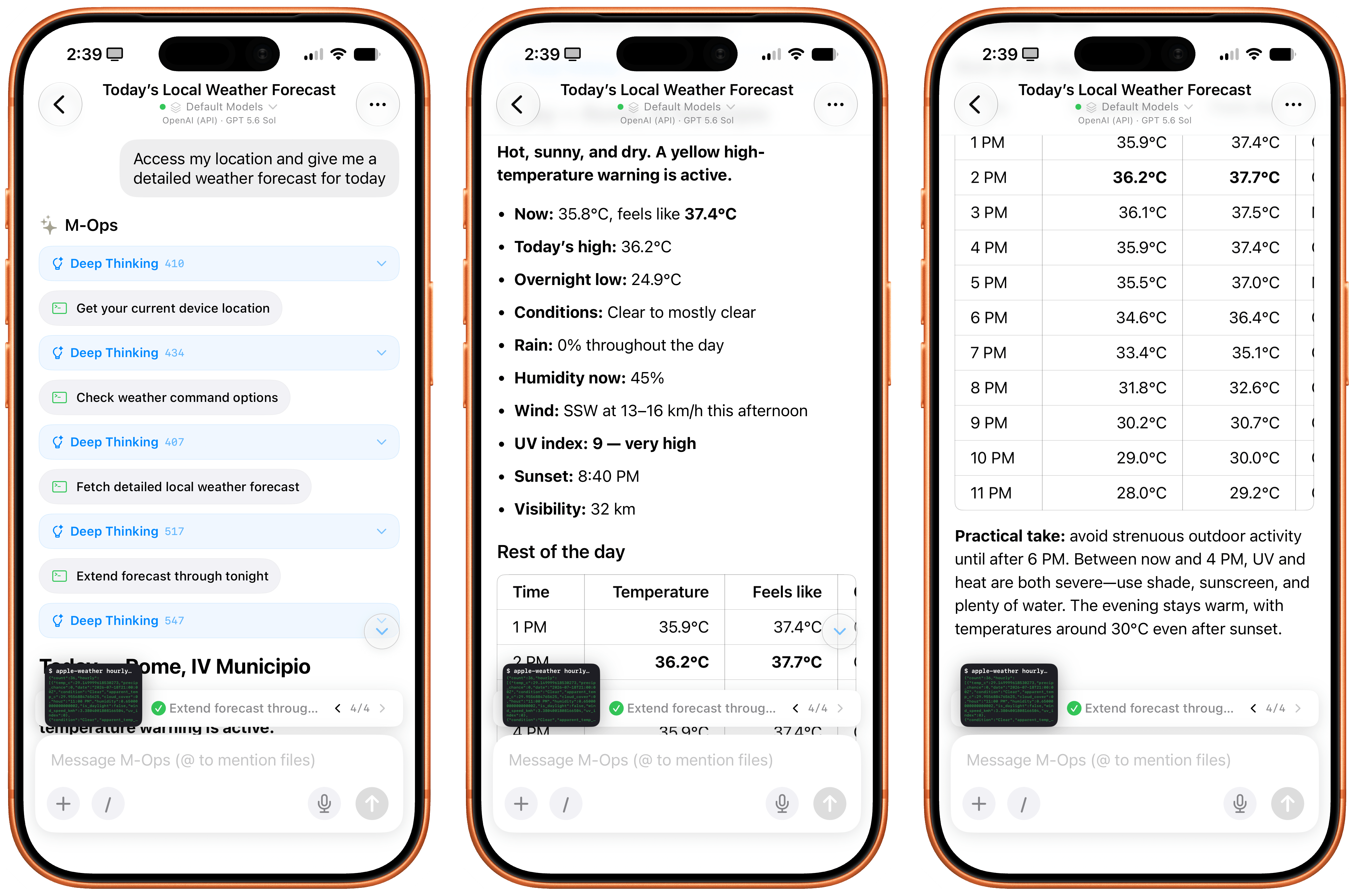
The app can also access your current location, extract locations from calendar events, and use the native Apple Weather APIs to give you detailed weather forecasts:

I think you get the idea.

By combining intelligent reasoning models with extensive integration on Apple platforms, Open Minis can deliver an agentic experience with no equal on iOS right now, which also serves as a fascinating preview of Siri AI’s potential future for power users. As a result of all this, while I still enjoy Siri AI as a basic voice assistant more capable than it was before, I’ve completely replaced its text-based chatbot functionalities with Open Minis powered by either GPT-5.6 Sol or Kimi K3.

iOS Agents Are Coming
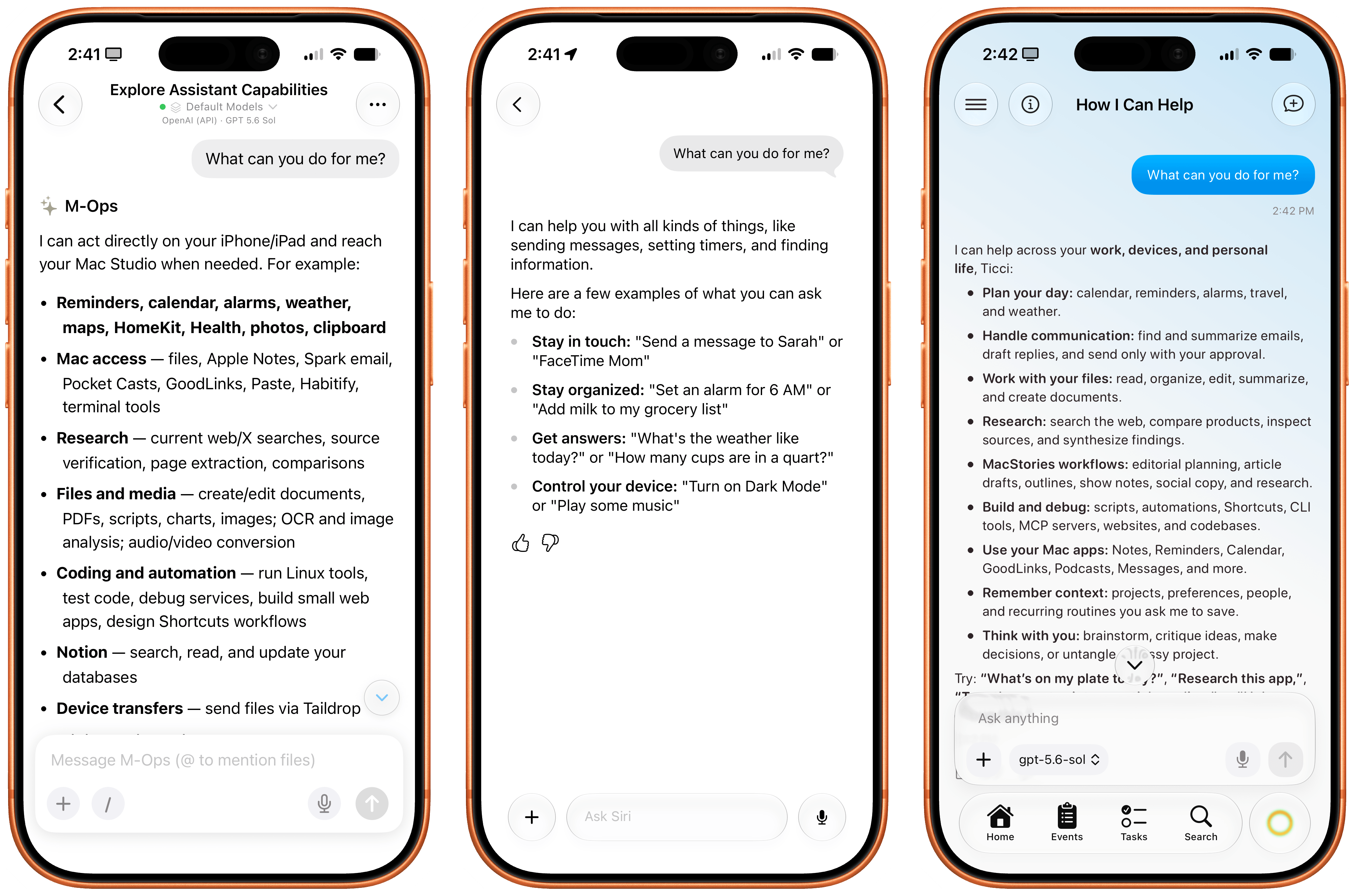
Minis, Siri AI, and the upcoming Halo agent for iOS.

Minis, Siri AI, and the upcoming Halo agent for iOS.

It is ironic that, on the cusp of Siri AI launching to millions of users in English only in a few months, here we have a single indie developer who is shipping an app that puts Siri AI to shame when it comes to getting work done with LLMs on iPhone and iPad today – with any model you want, in any language or region.

Over the next few months, I expect more developers to ship products comparable to (and perhaps even exceeding) Open Minis, based on the same idea of an on-device agentic harness that combines LLMs with iOS-specific integrations. One worth keeping an eye on is Halo, an upcoming iOS agent from Tanmay Sonawane that aims to combine LLMs, iOS integrations, memory, and proactive features based on Andrew Karpathy’s pioneering work on AutoResearch in an elegant, iPhone-native experience. I’m in the early testing group for Halo, and it’s a very promising product that, unlike Minis, runs in a loop on-device (displayed via Live Activities) to gather insights about your conversations, upcoming tasks and events, and more.

As I wrote months ago, I’m surprised that none of the big AI labs are exploring this space more in depth. As Open Minis proves, now that models have grown incredibly capable at long-running tasks and tool calling, there’s a real case to be made for agents that can tap into the iOS filesystem, apps such as Photos and Calendar, and technologies like Vision OCR, location, and speech-to-text at virtually no cost. Can you imagine what a “real” Codex or ChatGPT Work for iPhone and iPad could be with a similar system to Open Minis’ and the agentic loop and harness that drive OpenAI’s models? What could Anthropic do with a Claude Cowork powered by Fable that could access the Files app, run CLIs, and sync your workspace files across devices?

With Siri AI, Apple is finally shipping a pretty good chatbot with world knowledge and personal context. Open Minis feels like the beginning of a whole new category of agentic apps for iPhone, which power users like myself can start relying on and fitting into their workflows today.

  •  

HomeSnap: A Private, Read-Only Window Into Your HomeKit Home [Sponsor]

HomeSnap remembers everything your HomeKit home does, shows you its live status, and tells you the moment something needs attention, right from your iPhone, iPad, or Mac. No accounts, no third-party servers, and your data stays private to you.

Your Home, Remembered

Apple’s Home app shows you this instant. HomeSnap shows you the whole story. It quietly captures a snapshot of your entire setup about once a day and tells you exactly what changed, room by room and device by device. A Timeline and a live Event Log let you scroll back through motion, lights, locks, and doors as they happened, so “did the garage really open at 2 a.m.?” finally has an answer.

Your Home Has an API

This is the part power users tend to love. Flip one switch in Settings and HomeSnap serves your home over your own Wi-Fi, off by default, LAN-only, no cloud and no account involved:
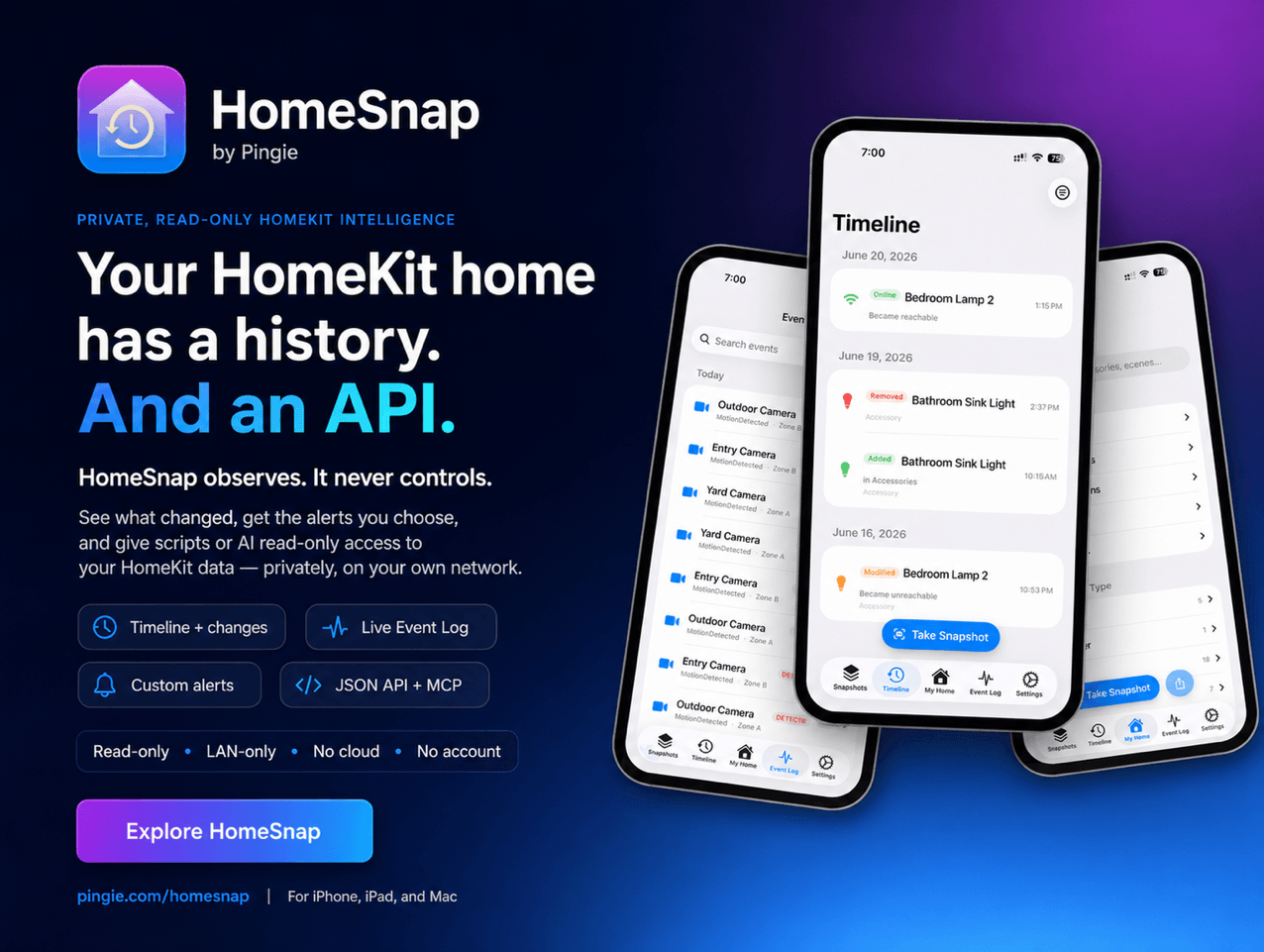
  • A local web dashboard you can open from any laptop, phone, or tablet on your network: live status tiles, an activity heatmap, charts, and per-room and per-device pages.
  • A read-only JSON HTTP API with real endpoints for your home, rooms, accessories, scenes, automations, events, change history, health, and battery and temperature trends. Point a script, a shortcut, or a Home Assistant REST sensor at it and pull structured data out of HomeKit without touching a single Apple framework.
  • An MCP server (Model Context Protocol), so you can connect the AI assistant you already use, like Claude, and ask about your home in plain language: “which batteries will die first?”, “what happened in the garage last night?”, “which lights were on longest this week?” The assistant reads your home, read-only, over your own network.
  • Markdown and JSON exports of your home and its history, plus live updates over WebSocket for anything you want to build on top.

Everything here is read-only and stays on your network. Nothing about your home is sent to a third party, and you can put a password on it.

Live Status and Smarter Batteries

The My Home tab is your home exactly as it is right now: which lights are on, which doors are open, what every sensor reads. Battery-powered devices are ranked most-urgent-first, and HomeSnap estimates how long each one will last (“about 3 weeks”) from its own history, so a dying sensor never catches you off guard.

Alerts You Actually Want

Build your own notification rules: pick an accessory, pick a trigger (a light turns on, a garage door opens, a fan passes a speed you set), and get told when it happens. Add freeze and overheat temperature alerts, low-battery warnings, and quiet hours so nothing pings you overnight.

Insights Into How Your Home Lives

A native Insights screen shows an activity heatmap of your busiest hours, your most active devices and rooms, each light’s total on-time, and recent door and lock activity. The same numbers power a private web dashboard you can open from any device on your Wi-Fi.

A Vault for Your Setup Codes

HomeSnap saves your HomeKit and Matter pairing codes so you can re-pair a device after a reset. Scan a code or type it in, and it comes back later as a scannable QR or a large, readable number, safely stored in iCloud.

Our thanks to HomeSnap for sponsoring MacStories this week.

  •  

MacStories Weekly: Issue 522

This Story is for Club Members

Get weekly newsletters, exclusive stories, member downloads, and ad-free version of MacStories Unwind.


See Plans


Already a member? Sign in

  •  

Podcast Rewind: Fable, SteamOS on Android, and Voice-Created Shortcuts

Enjoy the latest episodes from MacStories’ family of podcasts:

AppStories

This week, Federico and John look at their experiences with Claude Fable 5 and how it differs from other models and break down the controversial changes made by OpenAI to its ChatGPT Mac app.

Then on AppStories+, John and Federico contrast their experiences with Fable 5 and OpenAI’s new family of GPT 5.6 models.

NPC: Next Portable Console

This week, Brendon and John go it alone with more bizarre news from AYANEO, a new tease and OS update from Anbernic, Valve’s e-ink Steam Machine faceplate, Armada bringing SteamOS to Android handhelds, and more.

On NPC XL, John and Brendon check on handheld gaming halfway through the year and look forward to what the rest of 2026 may have in store for the hobby.

Comfort Zone

Matt has been doing tons with Quick Reads, Chris has all the small things, and everyone creates Shortcuts WITH THEIR VOICE.

This week’s Cozy Zone sees the boys competing in Niléane’s Great Star Wars Quotes Quiz, and it goes… let’s just say “good and bad.”

MacStories Unwind

On a special Saturday edition of MacStories Unwind, Federico and John talk live music, blockbuster movies, and their ongoing experiments with Markdown text editors.


AppStories, Episode 493, ‘Fable 5 and OpenAI’s Curious ChatGPT Update’ Show Notes

This episode is sponsored by:

  • Daylite: The only made-for-mac CRM solution. Start your free trial today.

App State

Anthropic’s Claude Fable 5

What did OpenAI Do to ChatGPT?

AppStories+ Post-Show

Subscribe to AppStories+

Visit AppStories.net to learn more about the extended, high bitrate audio version of AppStories that is delivered early each week and subscribe.


NPC, Episode 88, ‘SteamOS Comes to Android Handhelds’ Show Notes

The Latest Portable Gaming News

Subscribe to NPC XL

NPC XL is a weekly members-only version of NPC with extra content, available exclusively through our new Patreon for $5/month. Each week on NPC XL, Federico, Brendon, and John record a special segment or deep dive about a particular topic that is released alongside the “regular” NPC episodes. You can subscribe here.


Comfort Zone, Episode 109, ‘You Can’t Kill Chrome’ Show Notes

Things Discussed

Cozy Zone

For even more from the Comfort Zone crew, you can subscribe to Cozy Zone. Cozy Zone is a weekly bonus episode of Comfort Zone where Matt, Niléane, and Chris invite listeners to join them in the Cozy Zone where they’ll cover extra topics, invent wilder challenges and games, and share all their great (and not so great) takes on tech. You can subscribe to Cozy Zone for $5 per month here or $50 per year here.


MacStories Unwind, ‘Text Editor Experiments’ Show Notes

Live Music

A Summer Blockbuster

Text Editor Experiments

MacStories Unwind+

We deliver MacStories Unwind+ to Club MacStories subscribers ad-free with high bitrate audio every week. To learn more about the benefits of a Club MacStories subscription, visit our Plans page.


MacStories launched its first podcast in 2017 with AppStories. Since then, the lineup has expanded to include a family of weekly shows that also includes MacStories Unwind, Magic Rays of Light, Comfort Zone, NPC: Next Portable Console, and First, Last, Everything that collectively, cover a broad range of the modern media world from Apple’s streaming service and videogame hardware to apps for a growing audience that appreciates our thoughtful, in-depth approach to media.

If you’re interested in advertising on our shows, you can learn more here or by contacting our Managing Editor, John Voorhees.

  •  

visionOS 27: The MacStories Beta Preview

Summer beta season is in full swing, with a new wave of testers coming aboard via the just-released public OS 27 betas. While visionOS hasn’t ever been included in the public beta program, now is as good a time as any to check in on visionOS 27. What’s it like living with the features Apple highlighted at WWDC, and if you’re jumping on the public betas with your other devices, is it a good time to give the visionOS 27 developer beta a try, too? Let’s dig in and find out.

Siri AI

Given the massive overhaul Siri is receiving this year and the fact that the Vision Pro has always been a little behind when it comes to Apple Intelligence features, I didn’t expect visionOS to get the full Siri AI treatment this year. Thankfully, I was wrong. Not only is Siri AI fully present in visionOS 27, but the experience of interacting with the assistant has even been adapted to fit a spatial context.

For starters, Siri is much more capable in visionOS 27 than ever before. It’s not just for opening apps anymore. With access to your personal context, Siri can handle tasks I would have never imagined prompting it for until now. Questions like, “When was the last time I ate at this restaurant?” or, “How many years in a row have I attended this local event?” used to lead me down time-intensive rabbit holes of scavenging emails, texts, calendar events, photos, and more. Now, Siri can pull all of that information for me and answer the question in just a few seconds.

That “in a few seconds” bit is important. At least this point in the beta cycle, every request I give the assistant takes some time. Even tasks like checking my calendar and opening apps have a bit of lag to them on my M2 Vision Pro. This seems to be a side effect of Siri’s new architecture: it can do more, but parsing input, coordinating resources, and performing tasks takes a little longer than you might expect.

Of course, Siri has access to world knowledge now, too. We’ve all run into the classic, “Here are some web results for you,” response when asking Siri a question it considers too complex to answer itself, but those canned responses are no more. Now, Siri can dive into its (scraped) trove of knowledge to answer questions about pretty much any topic: history, science, pop culture, and more. Siri is the all-knowing bot we’ve always wanted it to be; just be sure to double-check its answers because, as Siri will remind you, AI can get things wrong.

Interacting with Siri in visionOS 27 is a whole new experience. The purple, blue, and green sphere evocative of Siri’s previous era (before all of Apple’s other platforms switched to the rainbow outline UI that never came to visionOS) has been replaced with a semi-translucent glowing white orb matching the Siri aesthetic on iOS, iPadOS, and macOS. The circular “thinking” animation mimics what you see when you interact with Siri on other devices, too, making for a much more cohesive cross-device experience.

When you invoke Siri via voice, the orb appears with a window above it displaying the text of your conversation. You can grab the window and place it anywhere in your environment. To continue the conversation, you simply look at the Siri UI and start speaking again. It all feels very natural, and I appreciate the way you can converse with Siri while interacting with other windows in objects in visionOS, a task that doesn’t translate as well to Apple’s other platforms. For those on the M5 Vision Pro, Siri has a new, more natural voice with customizable speed and expressivity as well, though my M2 model isn’t capable of running the local model necessary to power these changes and the improved dictation system.

visionOS 27 also includes a gesture for activating Siri that’s a little nostalgic. If you hold your palm open and upward then look at it, you’re present with a Home button as before. But if you pinch and hold the Home button, a tiny Siri UI will appear above it, just like in the old days when iPhones had physical Home buttons. You have to hold your fingers together the whole time you’re speaking to Siri, which seems a bit strange to me, but once you’ve made your initial request, the standard Siri UI appears, and you can carry on as usual.

The new version of Siri also brings Visual Intelligence to the Vision Pro for the first time. You can ask Siri about the content of a virtual window or objects in your real-world environment. When Visual Intelligence is activated, the system displays a very cool animation of your environment being scanned, and then, Siri can use what it sees to answer your questions. I’ve used this to ask Siri about webpages, documents I’m working on, and items I see around me, and it’s very cool to have an always-available digital assistant who can see what I see. It did a great job identifying my water bottle and then pulling up the receipt from my email to let me know how old it was, which I found to be a great combination of Visual Intelligence with my personal context.

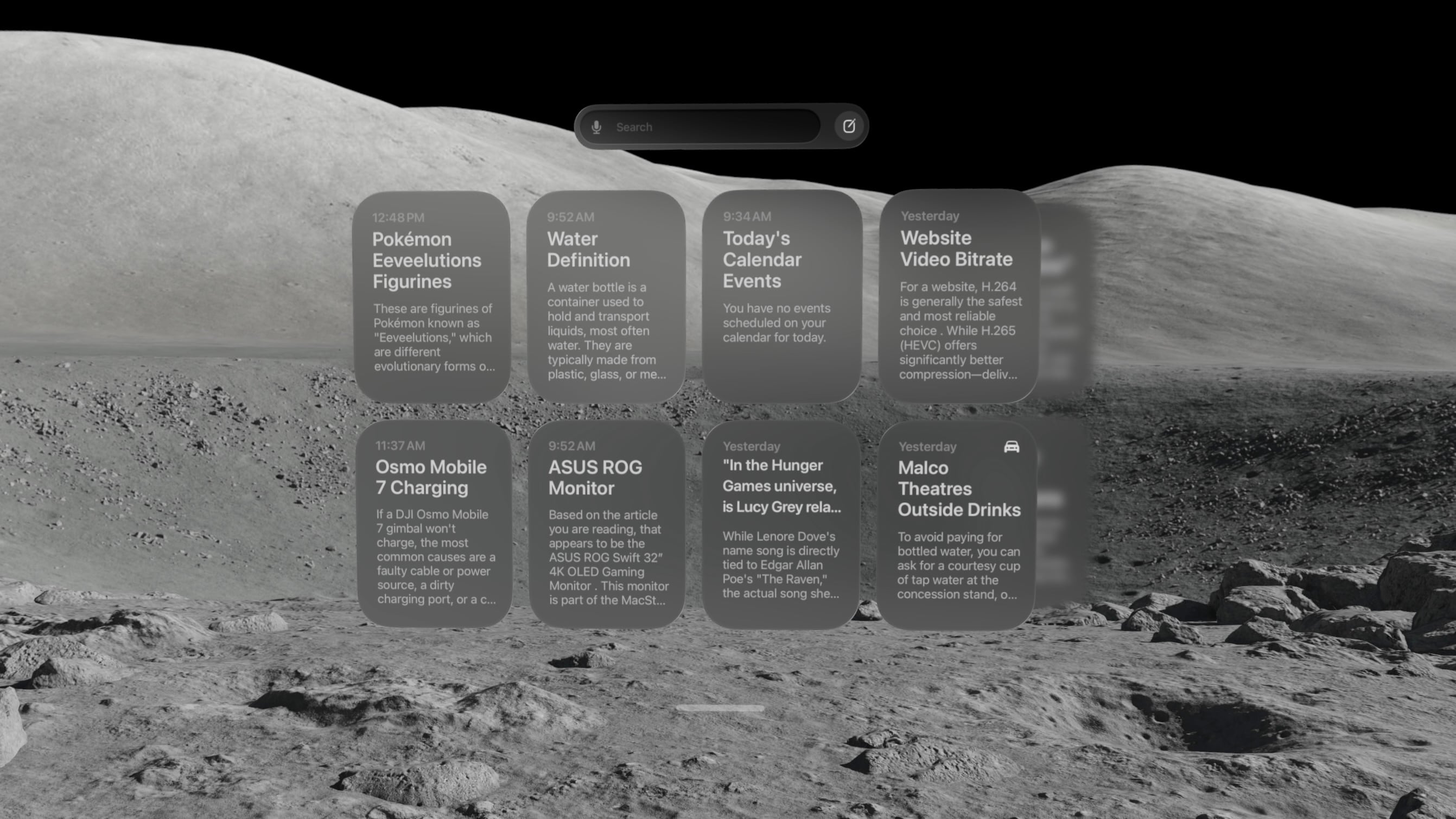
There’s also a new Siri app that contains a history of all your conversations with the assistant, including those synced from other devices. On visionOS, the Siri app is a horizontally-scrolling list of glassy cards that reminds me a lot of the Spatial Gallery app. It’s a handy way to pick back up on conversations started elsewhere, search for a previous answer, or simply interact with Siri via keyboard rather than voice.

At WWDC, Apple showed off a Siri mode where the orb persists in your environment, waiting for you to look at it and start a conversation. I have not been able to get that method to work yet. Once I start a conversation with Siri, I can keep the conversation window open and place it anywhere, but that’s not the same as having a small Siri UI sitting on my desk out of the way until I need it. I’ll keep my eyes peeled for it in future beta releases.

Siri AI is marked for release “later this year” (as opposed to the OS 27 updates listed as coming “this fall”), so there are still some rough edges to work out. Sometimes, conversations simply stop, with Siri telling me an error occurred. The Siri conversation UI will sporadically disappear, and I have to force quit the Siri app to get it to show up again. And Visual Intelligence sometimes struggles to understand what I’m trying to get it to look at, focusing on the wrong window or even the keyboard. But that’s beta life for you; it’s what I signed up for, and I’m trusting it will all be worked out before the public release.

Beta UI bugs aside, Siri AI is a huge upgrade for Apple’s digital assistant, and I’m happy to see visionOS getting the first-class treatment here. It isn’t simply ported over from iOS. It’s been carefully adapted for a spatial UI, and it makes for a powerful overall experience.

There is one other major way Siri differs on visionOS from other platforms: it hasn’t been integrated with Spotlight Search. For now, at least, the search feature on visionOS is dedicated to finding apps, app content, and web results, without even an ‘Ask Siri’ button in sight. With so many other ways to interact with Siri on the platform, it might make sense to keep it separate from search, but it’s certainly an oddity given the way the two features have been merged on every other platform. I’m still trying to figure out if I find this a helpful separation or a missed opportunity for cross-device cohesion.

Panoramas and Environments

There’s a lot more to visionOS 27 than just AI. Big changes are coming to panoramas, including the ability to act as persistent Environments. And, of course, Apple has to throw in a new Environment of its own, too.

Over the past couple of years, Apple has continually pushed the capabilities of its spatial photo conversion technology. Last year, that came in the form of spatial scenes across all of the company’s platforms, and this year, it’s coming to panoramas. In visionOS 27, you can convert panoramas into spatial scenes, adding layers of depth and perspective to the already stunning experience of viewing panoramas on the Vision Pro.

Being immersed in panoramic photos in visionOS was already breathtaking. This takes it to a whole new level. Experiencing memories in deeper ways than I ever thought possible is one of my favorite uses for the Vision Pro, and now, I can use it to revisit places I’ve been and feel like I’m standing there once again.

The system takes this experience one step further by allowing you to set panoramic spatial scenes as custom Environments. In the Environments view, there’s a new folder called My Environments where you can add up to 34 panoramas from your photo library and use them as immersive backgrounds for your content. You can even adjust the immersion level to make the photo wrap around you.

I love that we now have the option to use our own photos as Environments, but it does come with some tradeoffs. Panoramic photos are static, so they don’t have the subtle motion elements that make Environments feel alive. They also don’t expand as far vertically as Environments do, which means you’re likely to see your real-world surroundings if you look up or down. Still, this is the first time visionOS users have been able to set their own custom Environments using their own photos or images purchased online, so it’s a win. It’s definitely inspired me to start taking more panoramas than I did before.

The new built-in Thórsmörk Environment is gorgeous. Apple always knows how to pick the perfect spot. Between the snow, the slow-moving river, and the aurora borealis in the sky at night, it offers a beautiful, peaceful place to relax, watch a movie, or trick your mind into cooling off on a hot summer’s day.

Safari

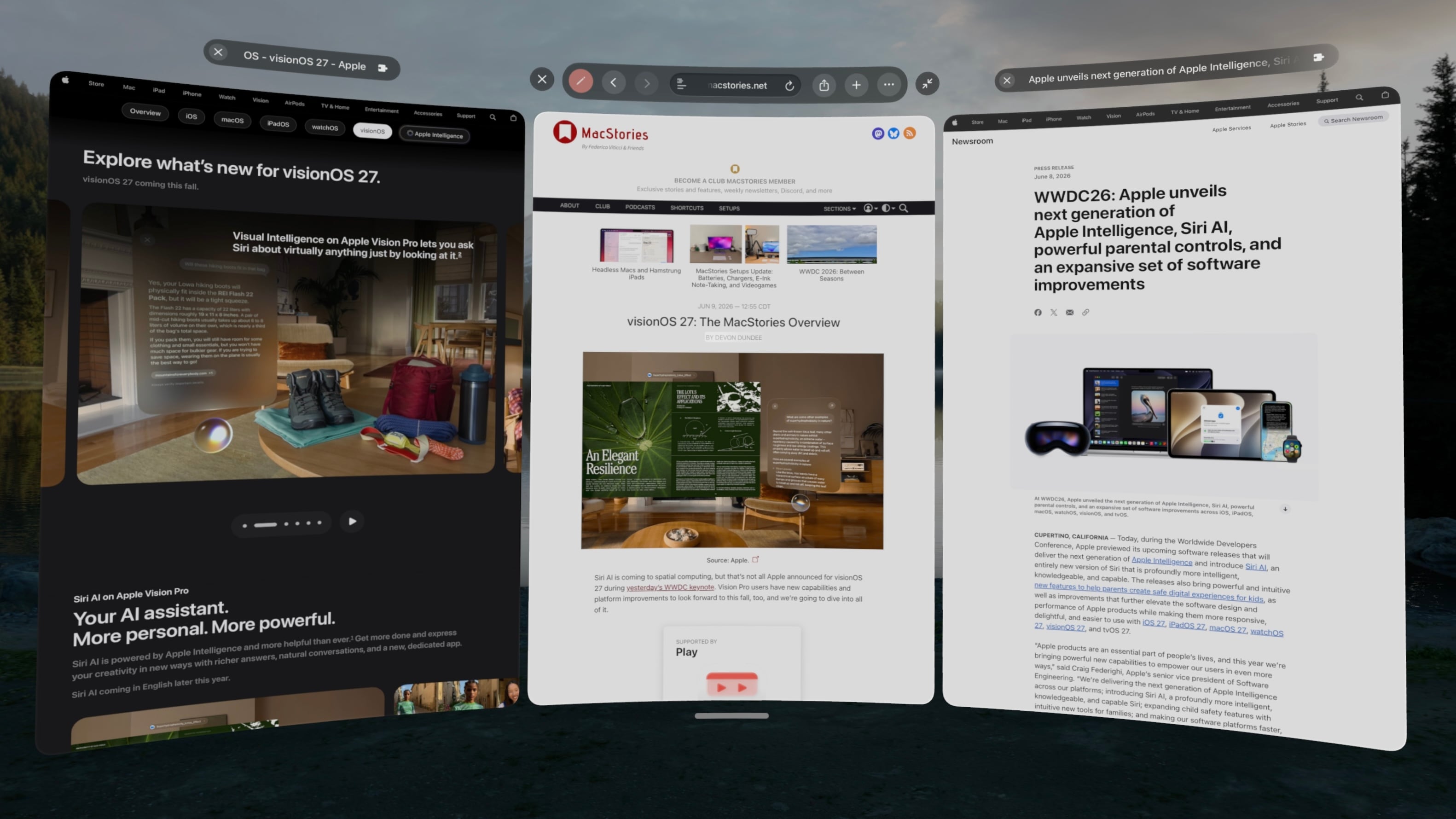
Spatial browsing is continuing to mature in visionOS 27, this time with the help of curved windows. Safari is one of the few built-in apps – Freeform and TV being the others – that are receiving special curved window modes this year, similar to what we’ve seen in the past with Mac Virtual Display. When a window is expanded beyond a comfortable width for side-to-side viewing, it automatically starts to curve, wrapping around the user’s head to make it easier to take in the window’s contents.

To be honest, I’m not sure how useful curved windows will be for browsing normal websites. While some, such as Apple’s OS Overview page are optimized to display content like image galleries at such wide aspect ratios, most sites don’t expand beyond a certain point, displaying blank space on either side of a centered column of content. Perhaps that will change with time, but for now, I don’t foresee these ultra-wide windows catching on for single-tab browsing.

Where the curved Safari window does shine, though, is in the browser’s new multi-tab view. A new button on the right side of the tab bar activates the view, which displays all open tabs side by side in a horizontally-scrolling curved window. These aren’t previews, either. Each tab can be scrolled, navigated, interacted with, and even closed as it if it were an independent browser window.

I’ve already found numerous use cases for this view in my own workflows: editing article previews, comparing product pages, and reviewing multiple research sources at once, just to name a few. Displaying multiple tabs at once in a large, ergonomic window view makes for a fantastic interaction method that I think could apply far beyond Safari webpages and sports multiviews in TV. I imagine this feature will be used far more than last year’s spatial browsing.

Apple Intelligence can sort your bookmarks and Reading List entries based on topic if you like, though the automatic tab sorting feature present on other platforms is curiously missing. Personally, I like managing my own tabs anyway, but add that feature to the long list of strange feature parity omissions on visionOS along with Focus filters, photo editing, and – as of the current beta – Describe a Shortcut.

Platform Improvements

There’s no doubt that this is a refinement year for Apple’s platforms beyond AI. The company is taking the opportunity to revisit and optimize OS features that have long been considered mature, and that’s the case even for visionOS, a relative newcomer.

The time it takes the Vision Pro to connect to Wi-Fi upon power-up has been reduced significantly. Given the device’s short battery life and tendency to go into deep sleep when not in use, this is a quality-of-life change that you’re going to feel. When I turn my M2 Vision Pro on, I can’t log in quickly enough to open Safari or the TV before it’s connected to the Internet. That definitely was not the case before visionOS 27, and I appreciate it.

I’ve long been on the record as a critic of the notification system on visionOS, but it’s taking a big leap forward this year with expanding notifications. When an app icon appears at the top of your view to alert you to a notification, you expand it with your gaze and actually see what you’re being notified about. You can even long-press a Messages notification to reply directly without the need to open the full app, which is so convenient. And with any app, just seeing notifications in full without losing the context of what I’m doing is a major improvement.

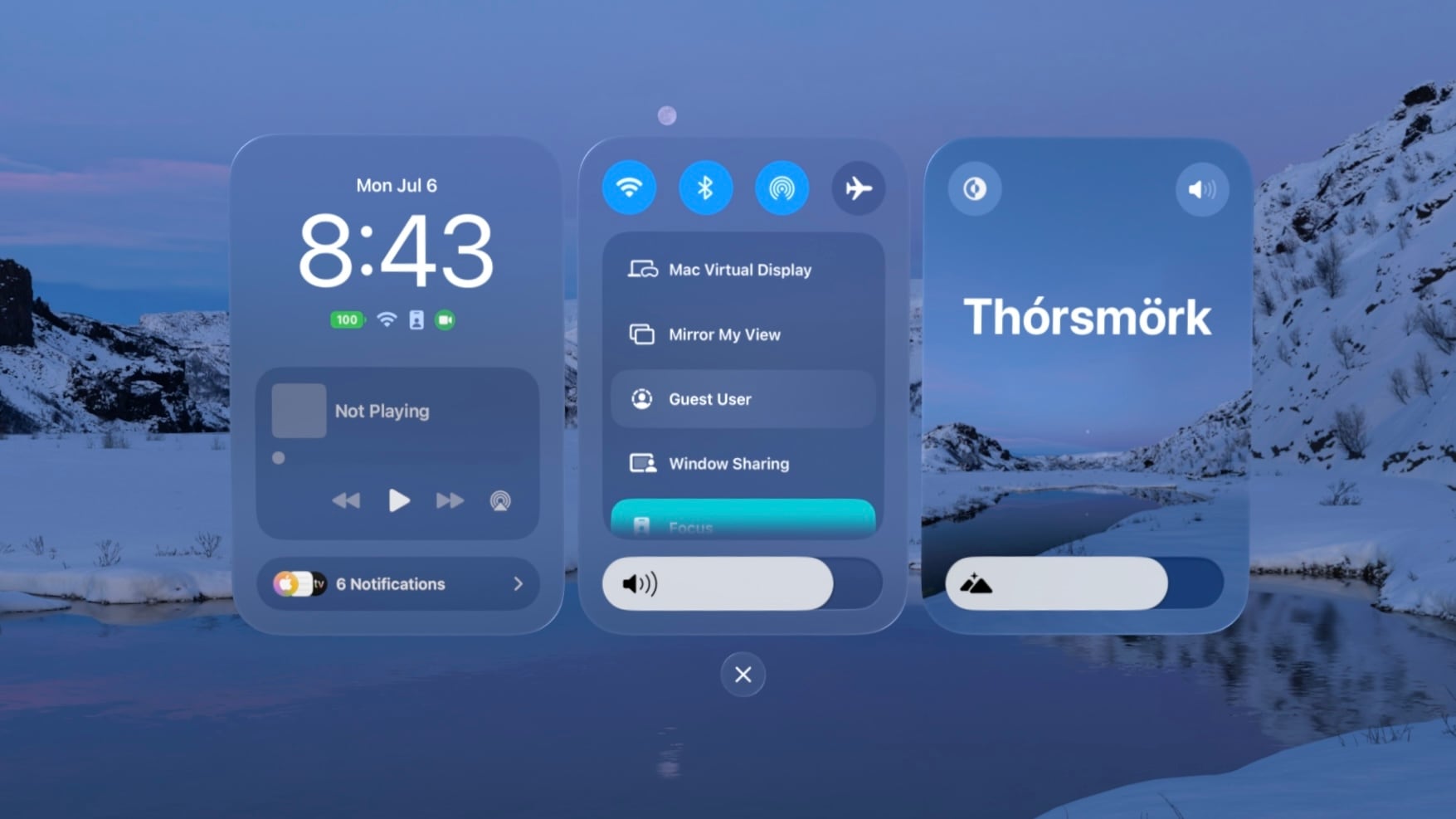
Unlike notifications, I was a fan of the redesigned Control Center in visionOS 26. Alas, Control Center has been redesigned again, now featuring a three-column layout instead of a single window. I’m still getting used to the new look, but it does make sense conceptually to split different types of controls into separate columns, so I’m hoping this will make the feature more intuitive once I’ve adapted to it. Regardless of any other efficiency wins, though, this redesign gets my approval simply because it finally brings the AirPlay menu to the top level of Control Center, saving me an extra tap every time I want to switch sound output to my AirPods.

Sharing screenshots and videos from visionOS is going to be much easier thanks to high-quality screen recordings, which can be enabled in the Settings app. Now, the Vision Pro can take unfoveated videos of its screen for up to three minutes, as well as full-quality screenshots. In the past, on-device screen recordings were fuzzy outside of the viewer’s focus, resulting in a poor representation of the visionOS experience and requiring a Developer Strap and Xcode on a Mac as a workaround. This change alone is going to make my review process much simpler, and it’ll make it easier for all Vision Pro users to show others what using the device is like.

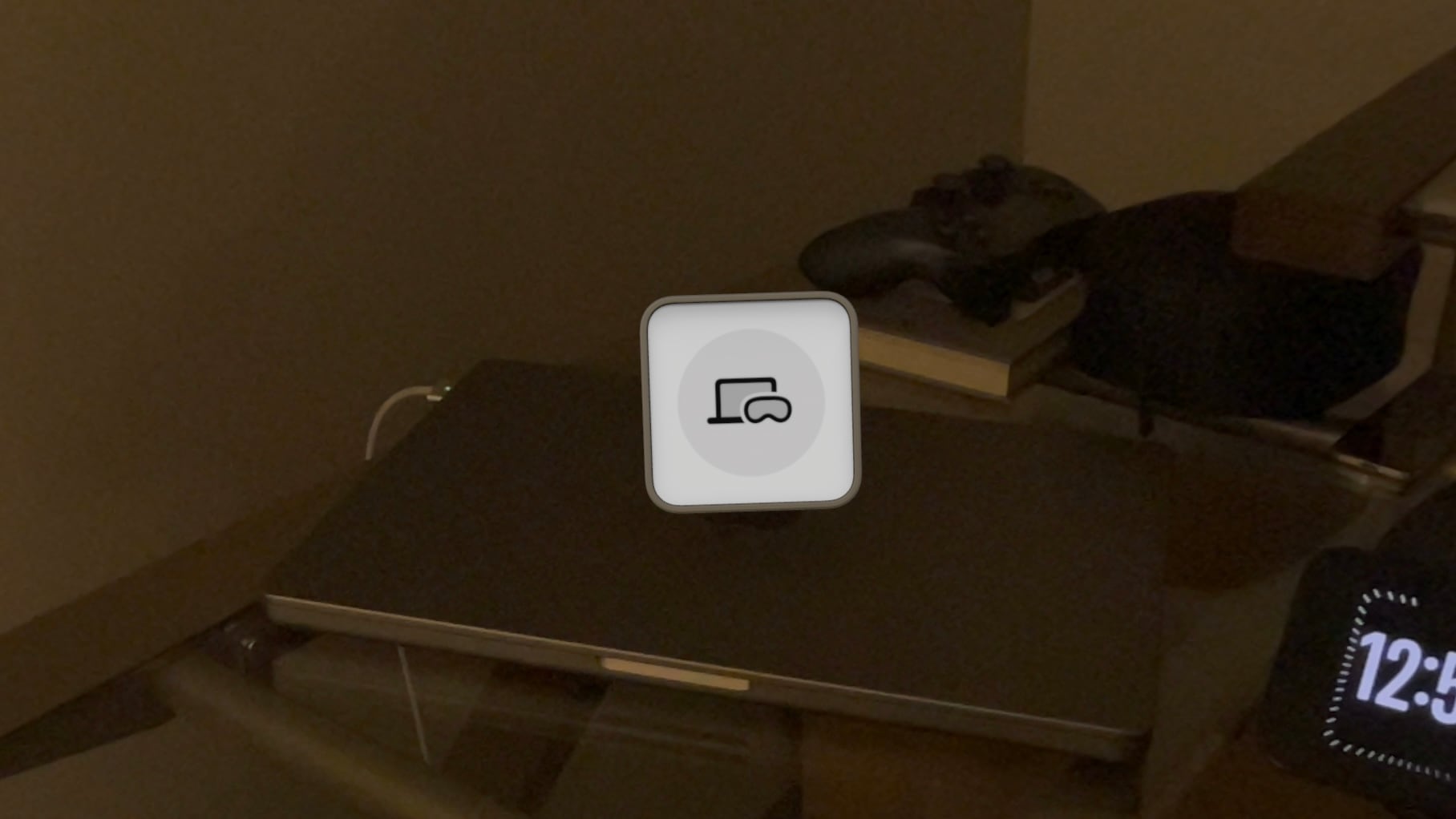
visionOS 27 now supports extra-small widgets, which are basically Lock Screen widgets brought to life in the user’s space. Like any other spatial widget, they can be placed on a wall or a horizontal surface such as a desk, and they are entirely customizable. Apple is introducing its own extra-small Mac Virtual Display widget for starting up a virtual connection with a Mac even if it’s asleep. Extra-small widgets take up much less space on a desk than even small ones, and there are already a bunch of them available from iPad apps running on the Vision Pro, so I think they’re going to be very useful.

Finally, there are some other Mac Virtual Display improvements included in visionOS 27. Virtual Display sessions can optionally persist even when you take your Vision Pro off, and macOS can stream spatial previews of 3D objects directly to visionOS with instant updates and two-way editing. I don’t have a Mac running Golden Gate yet, so I haven’t been able to try these features myself, but I plan to soon. If you work with 3D objects on your Mac and Vision Pro, I imagine this will speed up your workflow significantly.


And that’s visionOS 27 – so far, at least. There’s a still a lot more summer left: bugs to be squashed, refinements to be made, and third-party apps to be updated and introduced. My experience with the new version up to this point has been very positive, and I think it’ll make for a great update.

If you want to try out some of these features early, you can enroll in the Developer Beta anytime in the Software Update section of the Settings app. Whether you upgrade now or hold off for the public release, Apple’s got some great things in store with visionOS 27, and I look forward to continuing my testing over the summer in preparation for a full review this fall.

  •  
❌