❌

Normal view

My Hydrangeas were dying, and it took a 20-minute Gemini conversation to fix them. This is how I used AI to help bring my flowers back to life

It’s been my goal this year to perfect my gardening skills and really hone in on my green thumb. And since becoming a homeowner, the one thing I’m incredibly proud of is the perennial hydrangeas the previous owners planted and that I’ve been taking care of.

But this year I noticed something terribly wrong: one entire side of my perennials wasn't growing as fast, almost seemed to be dying, and didn't look nourished.

I went to Gemini to help me figure out what was going on and how I could fix it, and it took me all of 20 minutes and about a day’s work. And I’m going to tell you the step-by-step procedure I used, not only to fix your hydrangeas but also how you can probably do the same thing for any of your gardening-related queries.

It started with a simple question

A visual of hydrangeas on the left side of a home
Hydrangeas in the front of Shruti's home on the left sideAndroid Central
Hydgrangeas in the front of a home on the right side
Hydrangeas in the front of Shruti's home on the right sideAndroid Central

I find that when you’re using Gemini, the more specific you are, the better, and if you can include images, it’s even better.

I took pictures of the left and right sides of my garden and asked what was going on with my perennials. I also said that I had no idea how to fix it. Offering Gemini a photo visual of what you are working with can help diagnose exactly what you need to fix.

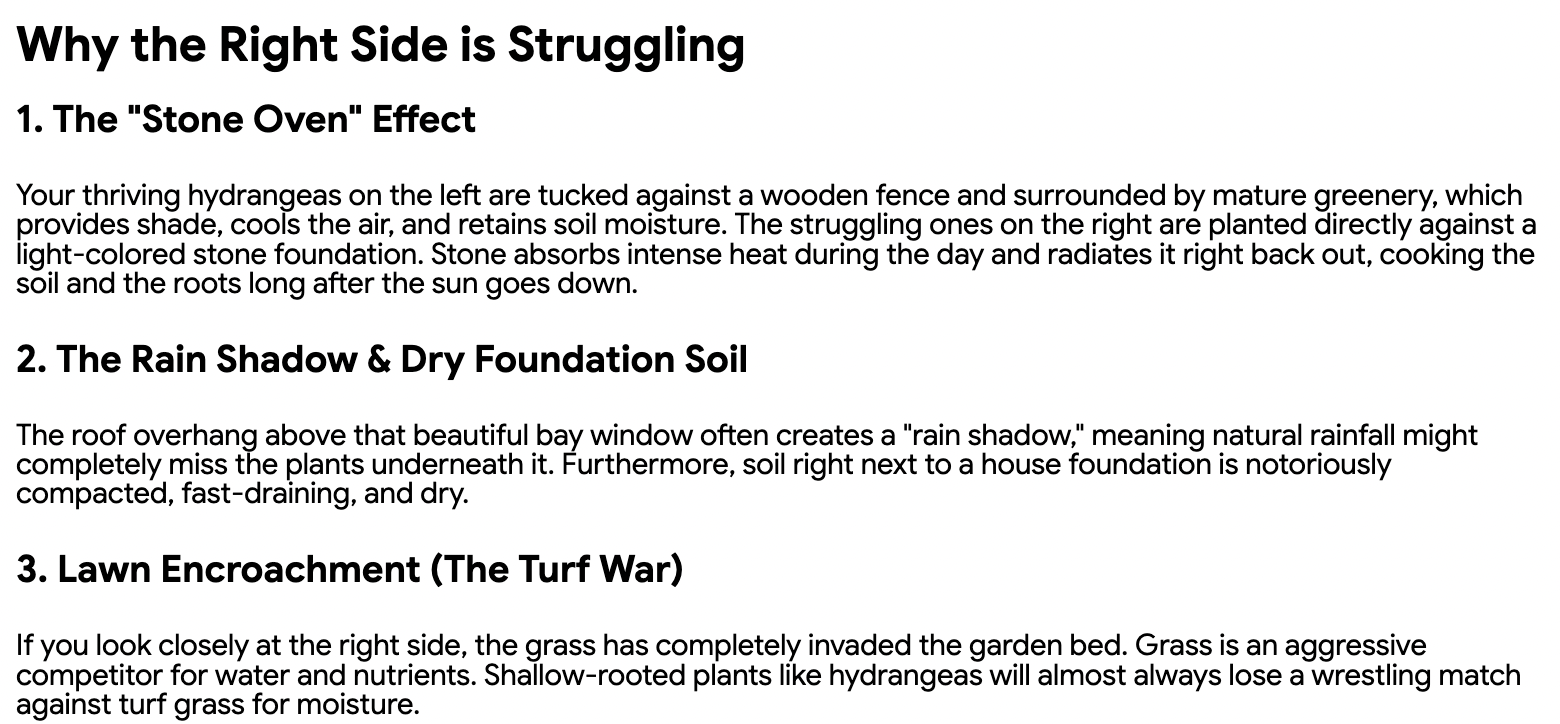
Gemini indicated that there was a huge night-and-day difference and that it usually comes down to environmental microclimates and resource competition. I liked that it explained exactly what happened: that one side’s growth is affected by its environment versus the other side, and that much of the issue comes from the grass and weed population.

A block of text detailing what is going on with my hydrangeas according to Google Gemini

(Image credit: Android Central)

It then gave me a solution. It said that I would have to get rid of the competing properties (grass and weeds) using a weed whacker. Lay a compostable material first, then add fertilizer, and top it off with mulch.

The back and forth

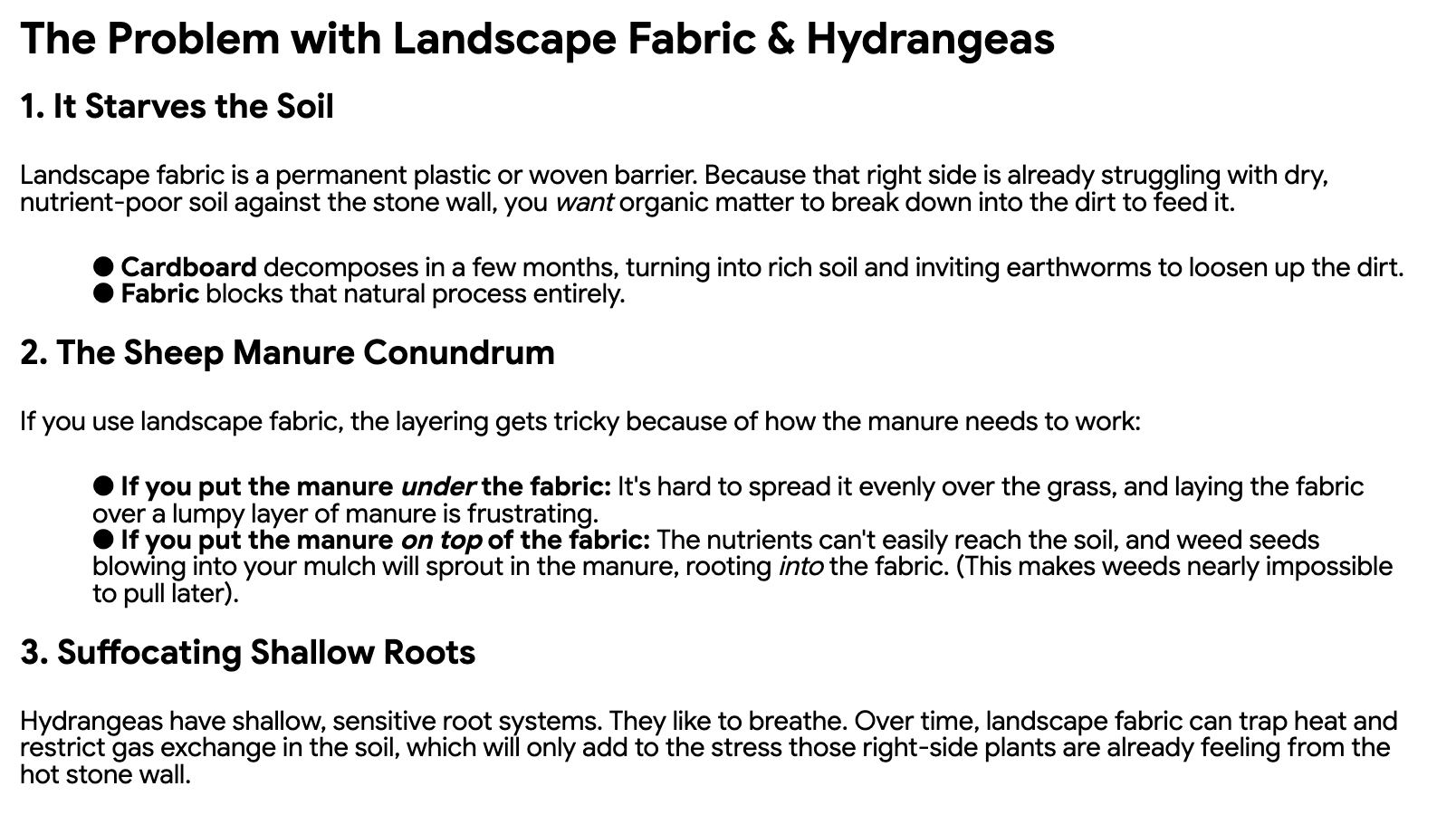
The response Google Gemini gave when asking why one can't use landscape fabric for hydrangeas

(Image credit: Android Central)

Here’s where it got fun for me and also complicated. I am not a simple person; I like options, and I want to know what exactly I would need to make this project happen successfully. I questioned Gemini what the right compost was, in my case using something high-quality like sheep or cow manure. I asked what kind of mulch I needed, and if I could use yard waste bags as the compostable layer.

I liked that Gemini would push back if I offered a specific kind of mulch and would give me a reason why one is better than another.

The biggest pushback I had was whether I should use a ground fabric liner versus cardboard or yard waste bags. Because I wanted to do this on a budget and effectively.

The quick check with real humans

Here’s the part that I highly recommend you do when you are using Gemini to help you do a DIY project or fix anything at home.

Talk to a professional!

With the information I had (the environmental conditions and the fix), I called the Terra that is near my home to ask questions. Side note: Terra is a garden center for those who don’t live in Ontario and are reading this.

I spoke with a professional, detailing everything, and I did not say I used Gemini, not because I cared what the person would think, but sometimes people have weird feelings about Gemini or any AI use. So I wanted to keep it neutral.

The professional told me exactly what Gemini said, and even when I asked about fabric liner, the professional told me not to use it and that it would not really help with the regrowth of my flowers.

I would recommend doing this step because Gemini can always be wrong. It can also tell you things that might require more steps than usual, and it might also tell you things that might cost more than you think.

The final result

Hydrangeas on the left of a home
Hydrangeas on the left side of Shruti's houseAndroid Central
Hydrange on the right side of a home
Hydrangeas on the right side of Shruti's houseAndroid Central

While it took me an entire day to do this project, the actual back-and-forth with Gemini was all of 20-30 mins. And I think that’s super worth it. I love that even after cross-referencing with a gardening professional, I was told the exact same steps, and that I could do it in one day.

The result was so epic because after a few weeks I started seeing that my hydrangeas looked healthier and happier and started blooming too. I am actually pretty impressed with how Gemini was able to help.

Side of shed messy
Android Central
side of shed after using gemini
Android Central

And I think you can do this with any home gardening project.

I even used Gemini to help fix the side of my home that leads to the shed.

A few weeks later, I went back into my Gemini and asked if it remembered the conversation I had with it about my hydrangeas, and whether a similar process could be done to the side of the house. Surprisingly, it remembered everything and also told me that the same process could be taken with the side of my home.

I don’t think Gemini needs to be taken too seriously. I think this is the real intention of Gemini, and I think it can totally be helpful.

I let two AI apps track every bite I ate for three days straight to help me count calories and get back into shape. Here's the most accurate one

I went snorkeling a few weeks ago, and it was an eye-opener to just how sedentary my lifestyle has gotten. I have been meaning to get back into shape after completely letting myself go in recent years, and what better way to do that than to start maintaining a food diary on my phone?

There are hundreds, if not thousands, of fitness and wellness apps on the Play Store, but I wanted to kick things off with something easy to use consistently. BitePal and SnapCalorie are two AI calorie-tracking apps that stood out because they both advertise the same thing: take a picture of your food, and the app will log all your calories and macros. Sounds easy enough!

BitePal AI calorie tracking

(Image credit: Namerah Saud Fatmi / Android Central)

As someone who has never followed a diet plan before, I needed an app that could do the thinking and planning for me, in addition to the tracking. I am the antonym of a gym rat; a home cat, if you will. I decided to spend three days logging everything I consumed as well as my activity data on both apps to help me decide which one would be better in the long run.

Both apps offer the same features at their cores. You can choose the kind of lifestyle you lead, set a goal weight, choose your pace, and the app will use its nutritional database to spit out a diet plan for you to follow, giving you your target macros to hit daily.

You can connect your Google Health data to both apps, so it logs not only your food and water intake but also factors in your activities and workouts. You can also record your workouts and activity info manually if you want.

BitePal AIcalorie tracker app for iOS and Android
Reface Lithuania
SnapCalorie AI Calorie Counter app for Android and iOS
Perception Labs Inc.

I like BitePal because it gamifies the entire food-tracking experience and takes the diet plan a step further, including step-by-step recipes that fit your daily goals. The app has a cute virtual pet raccoon that you can name yourself, and based on how well or poorly you're meeting your fitness plan goals, the pet's health fluctuates daily. The entire UI is colorful and fun, but the free plan limits the number of food picture scans, meal tracking, nutritional advice, and pet-related features.

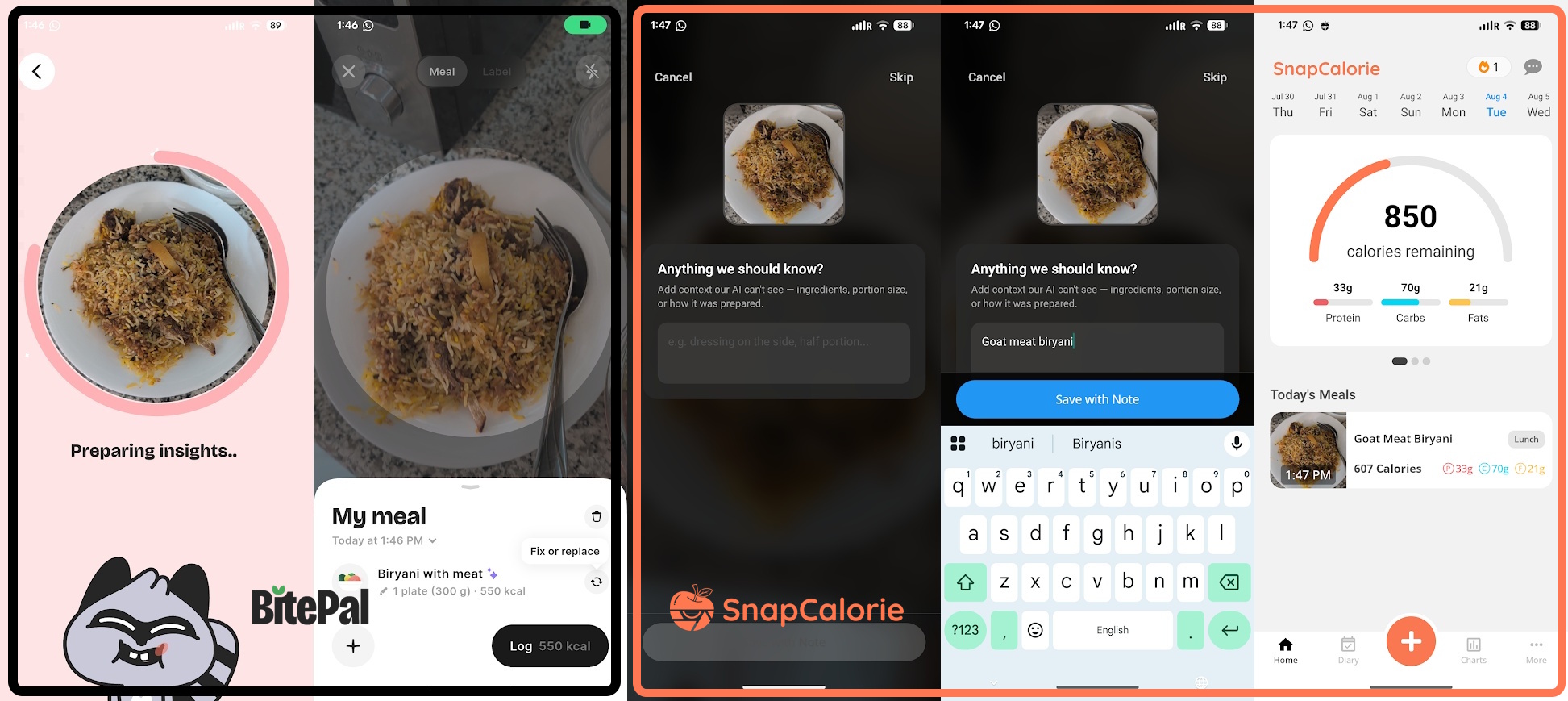
SnapCalorie is a more traditional fitness app with a straightforward UI, which can be boring, but it offers free users unlimited access to food logging tools and features, including barcode scanning and recipe creation and logging. Its AI food photo capture requires you to describe the food in a few words, which helps the AI analyze it more accurately and yield better results. It takes some time to process, but I found it much more accurate than BitePal.

BitePal vs. SnapCalorie AI calorie tracking

(Image credit: Namerah Saud Fatmi / Android Central)

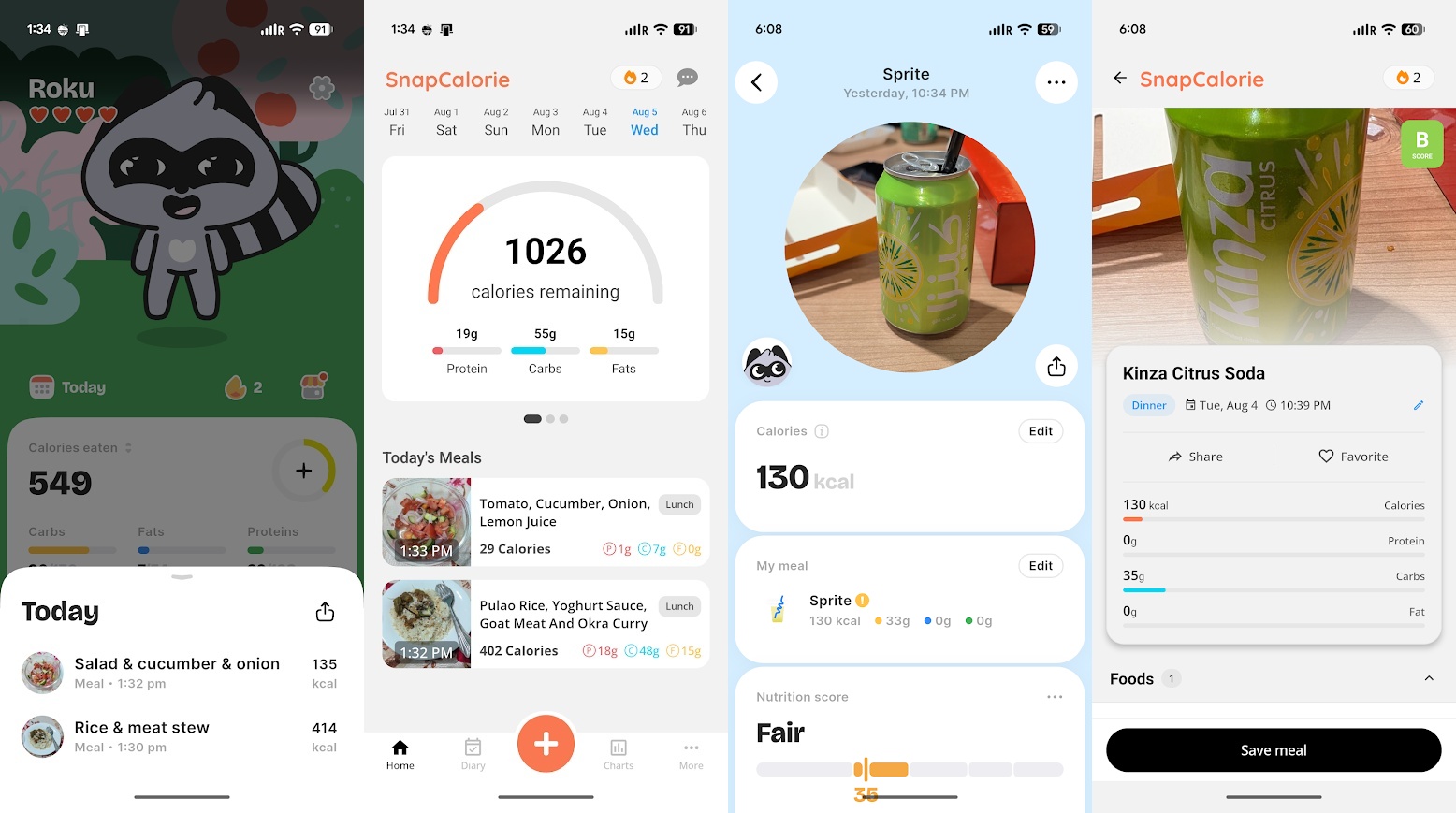
From homemade meals like goat meat biryani to foreign drinks such as Kinza Cola, SnapCalorie was shockingly able to recognize food items a lot better than BitePal. I had to just settle for the closest item BitePal could find, such as substituting the lesser known soda with Sprite. Clearly, the AI picture analyzing tool on SnapCalorie does more extensive research.

I know I can manually add the calories and nutritional values of the items unrecognized by BitePal, but that just defeats the purpose of using an AI food logging app. The entire reason why I want to rely on an app is so I don't have to measure everything I put in my body and go looking for its nutritional info.

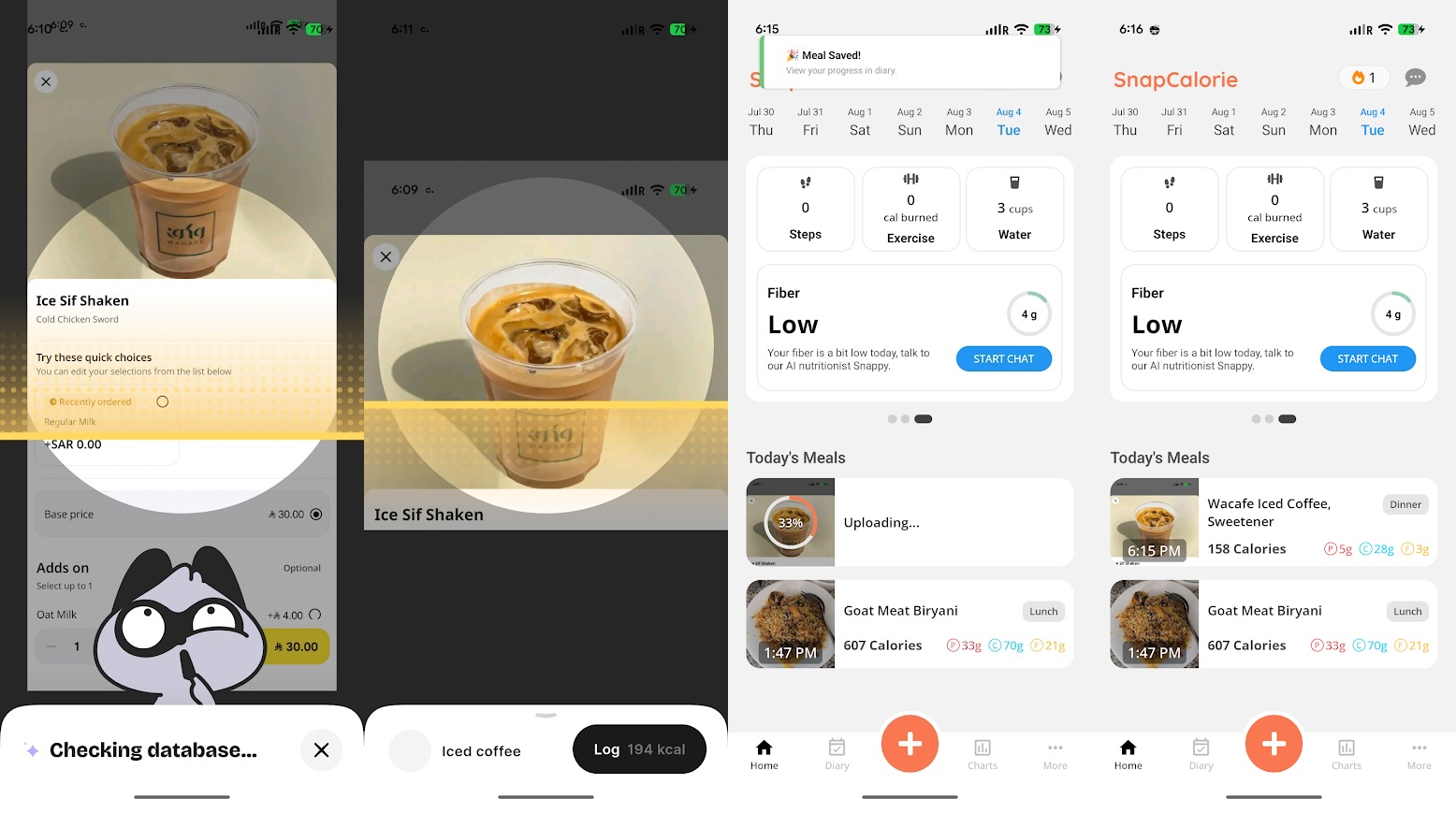
BitePal vs. SnapCalorie AI calorie tracking

(Image credit: Namerah Saud Fatmi / Android Central)

When I forgot to record an iced coffee I drank, I used a screenshot of the app I ordered it from and used that on both apps. SnapCalorie found the exact coffee from the specific cafe I ordered it from, pulled the calorie and nutritional info from the internet, and logged it in my food diary. It was amazingly easy!

BitePal couldn't even clock that the iced coffee had milk in it, let alone find the exact drink. Instead, I resorted to manually typing out that additional info once the app created the wrong record based on the screenshot of the coffee. Even though you can edit the name of the food once the AI creates a record based on the image, BitePal lacks the smarts to identify the item properly.

BitePal vs. SnapCalorie AI calorie tracking

(Image credit: Namerah Saud Fatmi / Android Central)

The verdict is in...

After three days of extensive food logging on both apps, I have decided to stick with SnapCalorie for long-term use. The fact that it can recognize foods from different cultures and parts of the world is a vital feature. It also offers all of the most important features of the app with the free basic version.

I can see BitePal being a kid-friendly fitness app, though parents will have to be prepared to pay for it. It's an exciting and interactive way to teach children about the importance of eating clean, consuming the right amount of fiber, calories, and fats in a day, and staying hydrated. Parents can even connect their child's Google Health data from the Fitbit Ace LTE or whatever fitness watch their kids use. The pet raccoon is adorable, and the entire layout and UI are so well done. I just wish the AI food recognition was better, because that's the main purpose of the app.

Interestingly enough, when I was first setting up BitePal and SnapCalorie, both gave me different timelines for me to achieve my goal weight even though I chose the exact same pace, with SnapCalorie giving an earlier date to achieve my target. Based on how much more extensive SnapCalorie's food library and analysis seem to be, I'll be trusting it to help me achieve my goal.

SnapCalorie

Create a diet plan to reach your health and fitness goals and track everything, from the food and drinks you consume to your physical activity, all in one app. Calorie tracking is as easy as taking a picture of your food and hitting save!

Free w/IAP: Google Play Store

This app let me turn my phone into a mouse for my PC, and it was ridiculously easy

There are many reasons why you would want to use your smartphone as a mouse to control your computer. Maybe you're watching something, and it's just easier, or maybe you can't get a physical mouse at the moment. Regardless, I can teach you how I turned my Android phone into a remote mouse that connects to my Windows laptop seamlessly. You'll see just how simple the steps are and will find no trouble doing it yourself!

All of this is possible thanks to Unified Remote, an Android and iOS app that works with Windows, Linux, and macOS. The app's basic, most essential functions are free to use, but if you want more customization and features, you can always purchase the premium version. This tutorial uses the free basic version on a Pixel 10 Pro running Android 17 and an HP laptop running Windows 11.

How to use your phone as a mouse for your laptop or computer

Unified Remote remote mouse app setup on Windows PC

(Image credit: Namerah Saud Fatmi / Android Central)

There are two parts to this tutorial. The first half is done on your computer, and the next half is completed on your phone. Although slightly different depending on the OS, the steps are more or less the same across platforms in essence.

Let's begin with the initial setup on your PC.

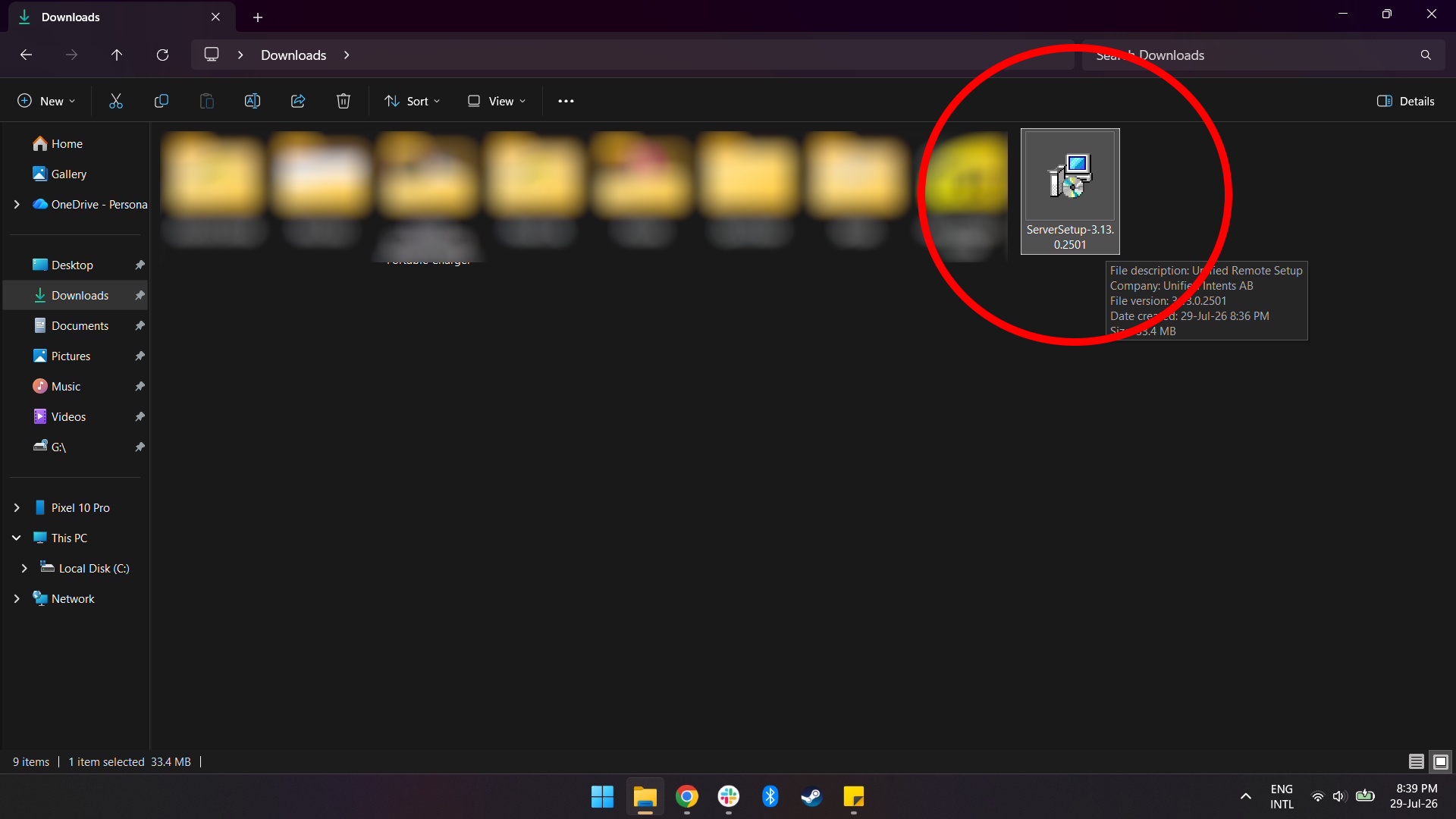
1. Go to the Unified Remote download page on desktop and download the Unified Remote Server setup file.

Unified Remote remote mouse app setup on Windows PC

(Image credit: Namerah Saud Fatmi / Android Central)

2. Run the Unified Remote Server setup file and to install it.

Unified Remote remote mouse app setup on Windows PC
Namerah Saud Fatmi / Android Central
Unified Remote remote mouse app setup on Windows PC
Namerah Saud Fatmi / Android Central
Unified Remote remote mouse app setup on Windows PC
Namerah Saud Fatmi / Android Central
Unified Remote remote mouse app setup on Windows PC
Namerah Saud Fatmi / Android Central
Unified Remote remote mouse app setup on Windows PC
Namerah Saud Fatmi / Android Central
Unified Remote remote mouse app setup on Windows PC
Namerah Saud Fatmi / Android Central
Unified Remote remote mouse app setup on Windows PC
Namerah Saud Fatmi / Android Central
Unified Remote remote mouse app setup on Windows PC
Namerah Saud Fatmi / Android Central

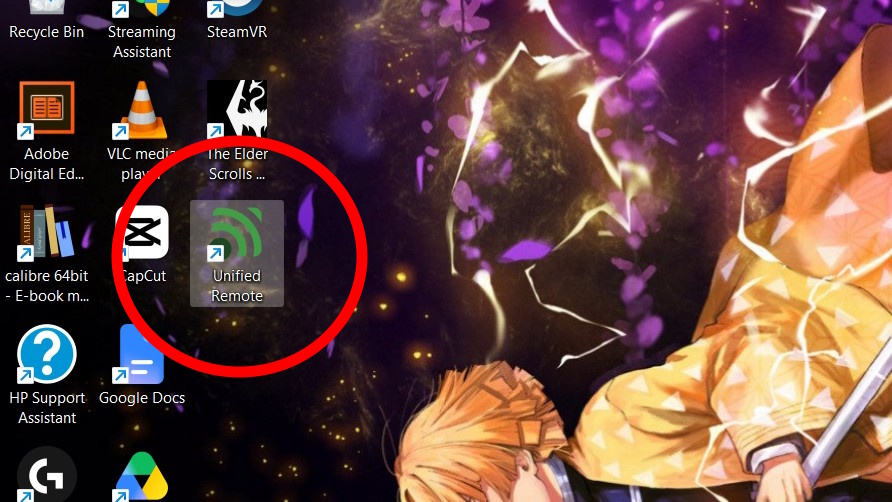
3. After installation is complete, launch Unified Remote on your computer.

Unified Remote remote mouse app setup on Windows PC

(Image credit: Namerah Saud Fatmi / Android Central)

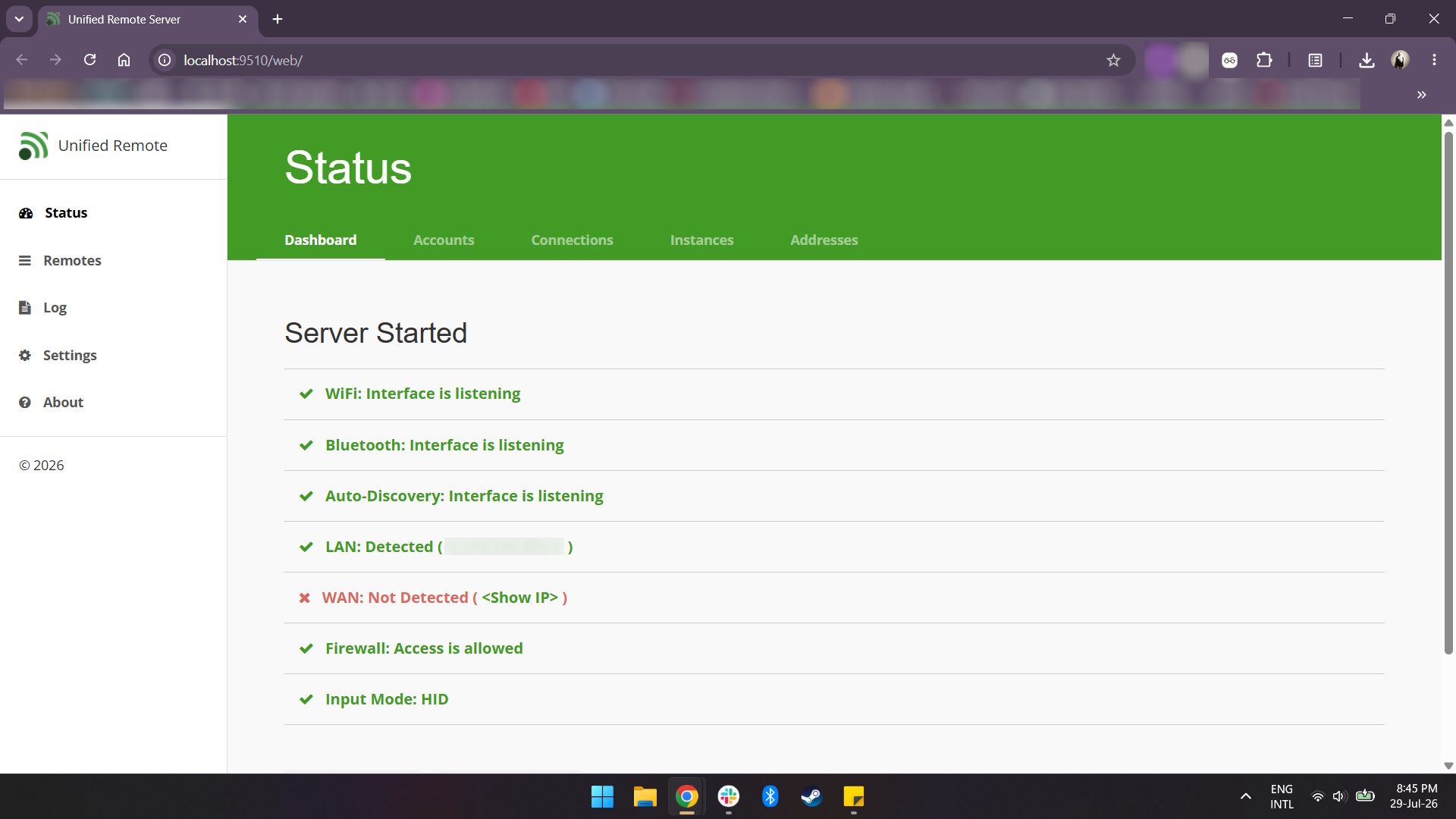
4. You should see your server status and information once the Unified Remote Server has been launched on your computer. If the server is up and running, this is what it should look like:

Unified Remote remote mouse app setup on Windows PC

(Image credit: Namerah Saud Fatmi / Android Central)

The next steps are to be carried out on your phone.

5. Download and install the Unified Remote app on your phone. Be sure to grant the necessary permissions to the app.

6. Launch the app and select "I'VE INSTALLED THE SERVER".

Unified Remote remote mouse app setup on Android phone
Namerah Saud Fatmi / Android Central
Unified Remote remote mouse app setup on Android phone
Namerah Saud Fatmi / Android Central

7. Your phone should connect to your computer's server automatically, so you can immediately start using the app's interface to control your computer.

Unified Remote is a fantastic free-to-use app that works perfectly well without paying for the premium version

Unified Remote remote mouse app on Android phone and Windows PC

(Image credit: Namerah Saud Fatmi / Android Central)

It's really that easy and doesn't require any money. The touchpad in the app works like a laptop's touchpad. You can scroll, right-click, single-click, double-click, move the pointer on the computer screen, and even pull up a keyboard and type! A bonus feature is that swipe texting works in the app, so you don't need to tap individual keys.

If you want to have access to remote controls beyond the basic touchpad, keyboard, and media controls, or if you want to get rid of ads, you'll have to subscribe to the premium version of the app. The ads aren't even that invasive, so you shouldn't stress about that aspect too much.

Unified Remote

Unified Remote is a foolproof app that enables Android users to convert their phone into a remote mouse that works seamlessly with any computer, whether it runs Windows, Linux, or macOS.

Free w/IAP: Google Play Store | Unified Remote for PC

I can't get the Pixel's Now Playing feature on my Android phone, but one of my long-time favorite apps gets the job done

There's a lot to like about Google Pixel phones, but Now Playing is perhaps one of the best features on these devices. Unfortunately, it doesn't seem like Google is interested in extending this functionality to other Android phones any time soon. On the plus side, you probably have an app installed on your phone that can perform a similar function to Now Playing: Shazam.

Shazam has been around for as long as I can remember, and it's my go-to app when I need to identify a song that I like. Normally, using Shazam requires you to open the app and tap a button to start the song recognition process, but you may not know that it also has an Auto Shazam feature that functions similarly to Now Playing, and it's available on just about any Android phone.

What is Now Playing

Now playing on the Pixel lock screen

(Image credit: Namerah Saud Fatmi / Android Central)

If you own a Pixel smartphone, you're likely familiar with Now Playing. It's a built-in song recognition software that works in the background on your Pixel. Whenever there's music playing nearby, the Pixel microphones will pick it up and identify it without you needing to do anything.

The feature has been available for years, but it's so subtle that it goes mostly unnoticed. However, if you glance at your lock screen while music is playing nearby, you may notice a song title pop up, which means Now Playing is working its magic.

The best part is that it works on-device, so you don't have to worry about Now Playing sucking up your battery life or data. And when you need to figure out what that song was that was playing at the bar, you can easily access your library to find the list of songs your Pixel has identified.

Now Playing history on the Pixel 10 Pro XL

(Image credit: Harish Jonnalagadda / Android Central)

Auto Shazam works similarly, in that it runs in the background to identify songs for you. However, since it's a third-party app, it's not as seamless as on a Pixel. It will show you songs playing, but it will clog up your notification panel a bit unless you do a little tweaking.

It's also not an on-device solution, so it will utilize quite a bit of battery power and data. However, you can easily toggle the feature on and off, which is helpful for moments when you don't need it sucking up battery and for times when you find yourself somewhere playing good music you might be interested in but don't want to have to manually identify each song.

How to enable Auto Shazam

Shazam song list

(Image credit: Android Central)

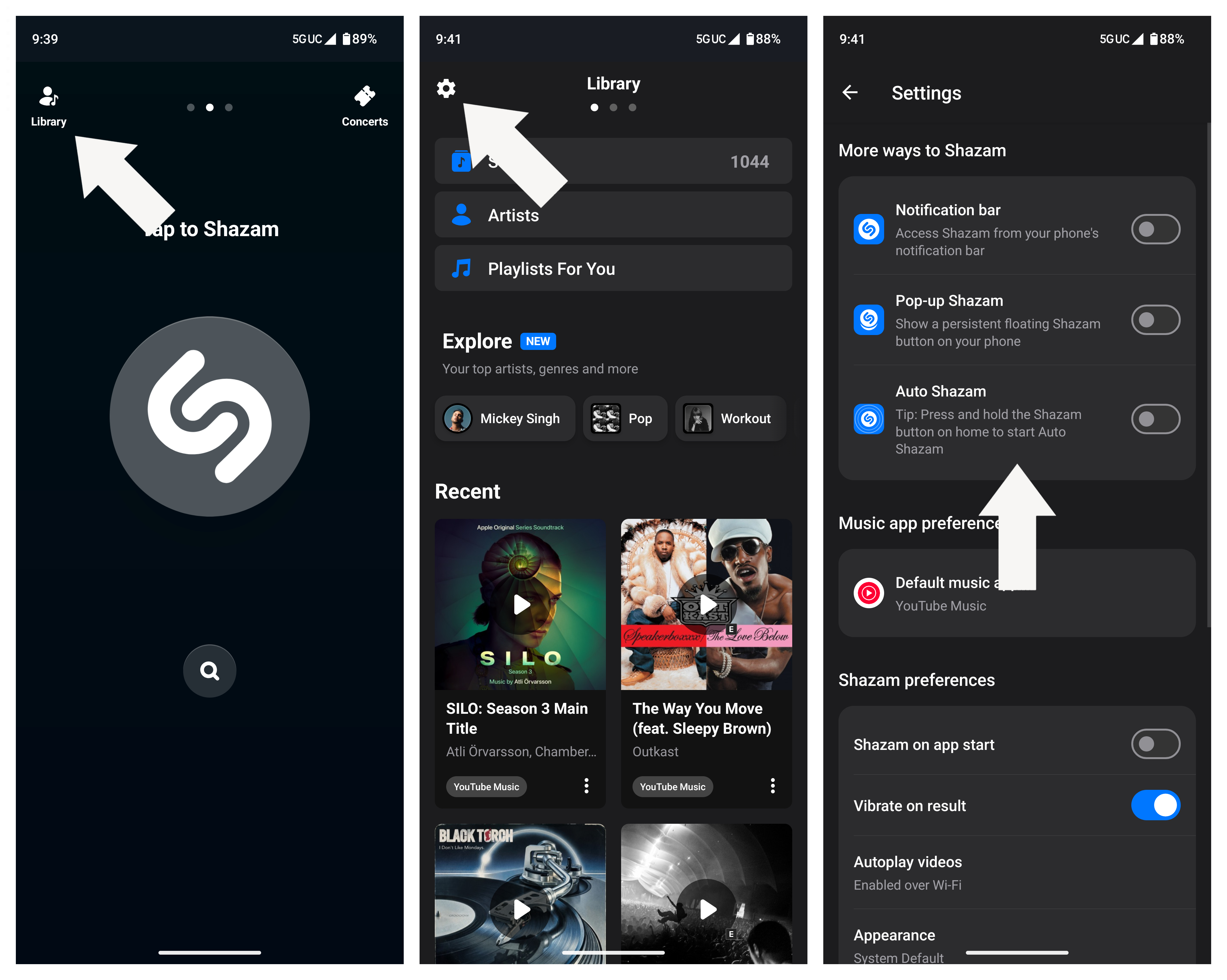
1. Open Shazam and tap Library.

2. Tap the Settings icon in the top-left corner.

3. Tap the Auto Shazam toggle.

Turning on Auto Shazam

(Image credit: Android Central)

Note: Alternatively, you can press and hold the Shazam button on the home screen to enable Auto Shazam.

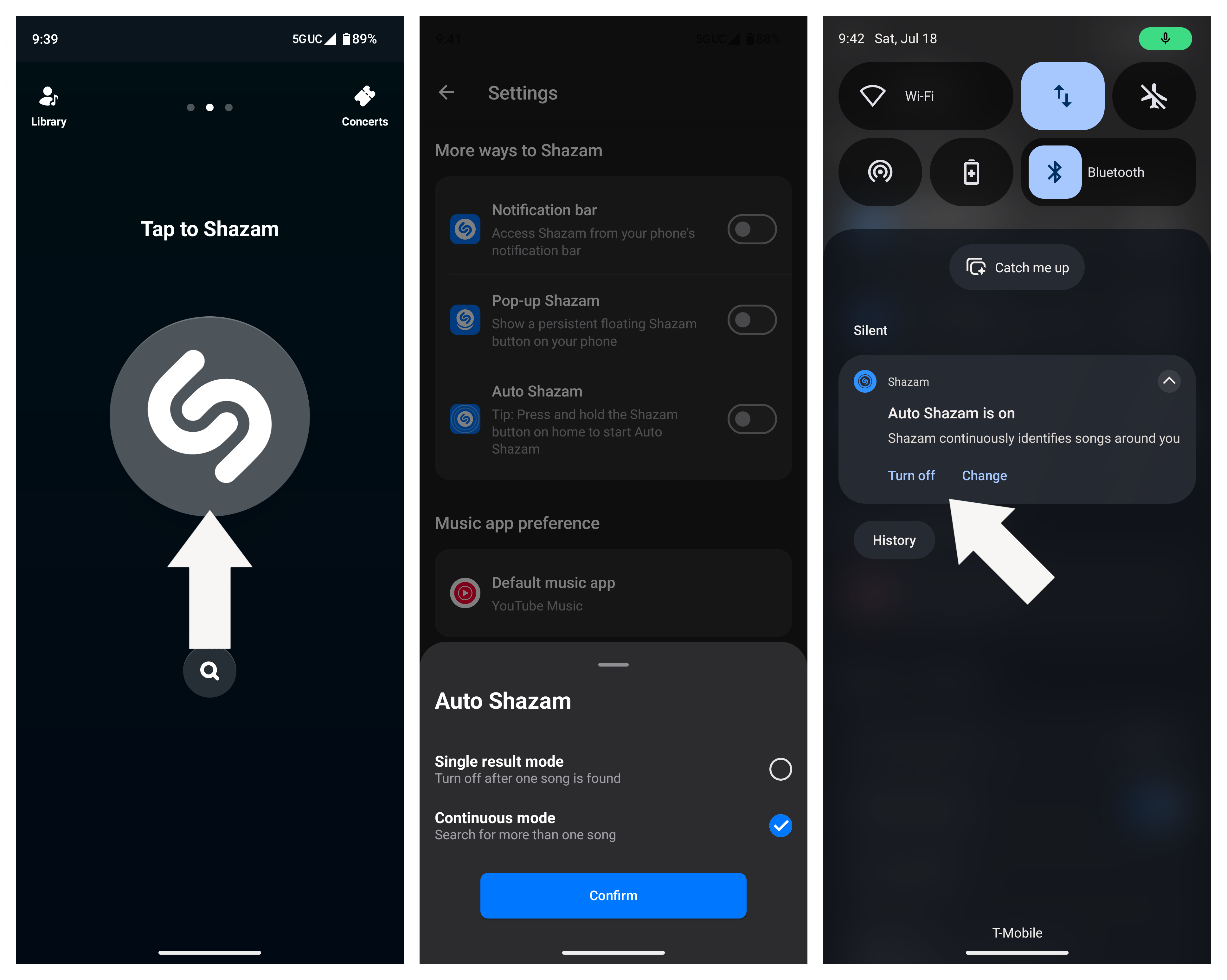
4. A pop-up menu will appear asking if you want to end Auto Shazam after one song or if you want to leave it on continuously.

5. From your notification panel, you can see a persistent notification informing you that Auto Shazam is on. Tap Turn off if you no longer want to use it, or Change if you want to manage any settings.

Turning on Auto Shazam

(Image credit: Android Central)

Finally, you can also add an Auto Shazam tile to your Quick Settings menu, which lets you quickly toggle the feature on and off.

Other ways to easily trigger Shazam

Shazam Quick Settings tile

(Image credit: Android Central)

Still, if Auto Shazam isn't for you, or if you just want to quickly identify one song, Shazam makes it easy to do so without digging for the app. One of the main ways I use it is by adding the Shazam tile to the Quick Settings menu. Unlike the Auto Shazam tile, this one lets you identify just one song, and once you tap it, it runs in the background without opening the app.

In fact, it's probably one of my favorite ways to identify songs whenever I hear something interesting, especially because it's one of the few third-party tiles that works on the Motorola Razr's cover screen Quick Settings. That means I don't even have to open the phone for it to work.

Turning on Auto Shazam
Android Central
Turning on Auto Shazam
Android Central

The other option is to add a Shazam pop-up to your screen. This adds a floating Shazam button that you can move around and tap whenever you need it. To add this, go to the Shazam settings and enable Pop-up Shazam. You may need to grant the app permission to draw over other apps; once you do, the floating button will appear on your screen.

We need more Now Playing on more phones

Auto Shazam

(Image credit: Android Central)

I sorely wish Google would bring Now Playing to the Pixel, or at least that other Android OEMs would implement their own versions of the feature. What makes it superior to Shazam's offering is that it works on-device and in the background, so you don't really need to do anything or worry about it constantly burning through your battery.

Newer chips like the Snapdragon 8 Elite Gen 5 have gotten quite good at on-device tasks such as this; it's kind of crazy that Google is seemingly the only company doing it (that I know of).

Still, Shazam is a great alternative if you don't own a Pixel smartphone, and it's one of those apps I always download first whenever I set up a new phone, becoming a staple for me when building up my music library.

Gemini’s new blurred UI is finally reaching Android phones

What you need to know

  • Google is rolling out a refreshed Gemini AI overlay, which was first teased at Google I/O.
  • The updated interface is appearing on both Pixel devices (like the Pixel 10 Pro XL) and Samsung hardware (like the Galaxy S26 Ultra).
  • The signature visual tweak replaces the basic floating box with a prominent blurred backdrop.

Google is quietly rolling out another Gemini makeover on Android, this time tweaking the AI’s overlay. The new interface was announced at Google I/O and is now starting to roll out to some Pixel and Galaxy owners.

A Reddit user spotted the refreshed Gemini UI on their phone, while others reported receiving it on devices including the Galaxy S26 Ultra and Pixel 10 Pro XL. That hardware mix means the update isn’t a Pixel-exclusive update. It also appears to be server-side controlled, so an update to the Google app may not instantly enable it for everyone.

The most significant change is that instead of just placing the assistant’s compact interface over an unchanged screen, the new design applies a prominent blur to whatever is underneath. The background is blurred and softened but still identifiable, visually separating Gemini from whatever app or home screen is open but not hiding it completely.

Refreshed Gemini overlay with blurred background

(Image credit: Vulkaan34 / Reddit)

That’s on top of the Gemini overlay Google has been steadily reworking this year. Previous changes included thinner icons, a redesigned plus menu sheet, and Dynamic Color support. Gemini Live also stopped jumping to a separate screen, instead keeping the interaction within the overlay.

There’s no obvious switch to turn it on yet, so if your Gemini overlay still looks the same, you’ll probably just have to wait for Google to flip the switch.

Android Central's Take

I like the new look, especially because the blur makes Gemini feel more integrated into Android rather than just some random panel layered on top of what you're doing. It retains enough of the background to provide context while keeping the assistant front and center, which should make quick Gemini interactions feel cleaner and less distracting. My only complaint is the usual Google server-side rollout lottery, which makes it hard to get excited about a redesign when two people with the same app version can open Gemini and somehow end up living in different design eras.

Nano Banana 2 in Google Earth lets users go wild with AI in cities and more

What you need to know

  • Google Earth is receiving an update this week that brings Nano Banana 2 into its AI portfolio.
  • Users can zoom in on a place and click "create image" to prompt Nano Banana 2 to create an infographic with Gemini or a rendering in an empty plot of land.
  • Google Earth's recent major AI update was about helping researchers predict and understand disasters and weather patterns.

Google Earth is getting another round of AI updates late this week. This time, the company is leaning on its next-gen image generation model.

Imagining, or rather seeing what's possible, is something Google Earth is bringing to users this week. Gemini's image generation model, Nano Banana 2, is rolling out in Google Earth. The post states users can "generate custom images using satellite, aerial, and 3D imagery." Google states Nano Banana 2 can be helpful in a few different ways, such as bringing history to the present. If you're interested in seeing what a city looked like centuries ago, Google says Nano Banana 2 can create "a hyper-realistic" render of that place.

While the history can be fun, users can change a landmark, city, or building with an entirely different aesthetic. Google states users can type "transform X into a futuristic sci-fi utopia with glowing walkways..." For companies, Google says Nano Banana 2 can help "create estate plans" using empty lots you find in the Earth app. Moreover, this extends to any user looking to "visualize" a backyard project or what a home would look like secluded in the woods near the lakefront.

An AI update in a place like Google Earth wouldn't be complete without a chance to learn. Nano Banana 2 can lean on Gemini to generate infographics about a specific city directly in the app.

To get started, users need only head to Google Earth on their computer, zoom in on a location, hit "create image," and type their prompt.

Our World

Nano Banana 2 in Google Earth can create infographics for users using Gemini's search capabilities.

(Image credit: Google)
Android Central's Take

I could see the infographic generation being helpful in schools. But also, the idea of helping people visualize larger projects feels like an extension of what Gemini can do already. On my phone, I could ask Gemini to fill a room with specific furniture, so I have an idea of how to design my living room or kitchen. Google Earth literally took that and made it bigger for empty plots on stretches of land.

Google Earth received an important AI update for researchers. Disasters are a reality we have to deal with on this big blue ball; however, they don't always have to catch us off guard. Google Earth's Gemini-based update brought "deeper insights" about the planet's weather patterns. At the time, the company said Gemini could help "instantly find objects and discover patterns from satellite imagery." Sandstorm predictions were mentioned, as well as the ability to monitor clean drinking water conditions.

As our planet is complex, Google was also preparing to introduce a Geospatial Reasoning update for Trusted Testers. This would help researchers and Earth AI answer more complex questions, leveraging weather forecasts, population maps, and satellite imagery.

Android 17 QPR1 Beta 8 is here, and Pixel users get a much-needed audio fix

What you need to know

  • Android 17 QPR1 Beta 8 eliminates the long-running audio bug that caused random crackling, distortion, and loud static on Pixel devices.
  • The audio issue lingered across multiple beta releases and generated 30+ reports in Google's issue tracker before this fix.
  • Build CP31.260623.010 arrives two weeks after Beta 7, focusing purely on system stability and bug fixes ahead of the official September Feature Drop release.

Google has released Android 17 QPR1 Beta 8, fixing one of the most frustrating bugs Pixel testers have been dealing with: distorted audio that would randomly blast loud static during media playback or notifications.

The update, build CP31.260623.010, comes a little over two weeks after Beta 7 and is another cleanup release before the Pixel Feature Drop in September.

Google’s changelog says the biggest fix is for an issue with managing buffers in the audio framework that could cause unexpected crackling, corruption, and bursts of static. It’s a problem that has persisted over many QPR1 beta releases, spawning more than 30 separate tickets in Google’s issue tracker.

Android 17 QPR1 was already at Platform Stability with Beta 6, so developers have been working against finalized APIs while Google turns its attention to stability.

Beta 8 is available for eligible Pixel devices enrolled in the Android Beta Program, including the Pixel 6 series through the latest Pixel 10 lineup. There is, however, one big exception. Pixel 6 and Pixel 6 Pro owners still get this QPR1 Beta 8 update, but it’s basically the end of the line for those phones. Google has already confirmed that those models won’t be moving on to Android 17 QPR2, with the stable Android 17 QPR1 release expected to be their last major software update this September.

Beta 8 might finally make the preview stable enough for you to use on a daily basis if you’ve been putting off trying it because of audio glitches. Otherwise, you might want to hold off a little longer because the polished, stable QPR1 release is now just around the corner.

❌