Apple today released a new beta of macOS Tahoe 26.6.2, which is available to developers and public beta testers. The macOS Tahoe 26.6.2 beta comes just a few days after Apple released macOS Tahoe 26.6.1, a security update.
Developers and public beta testers can download the software by opening the System Settings app and then navigating to the Software Updates section.
According to Apple's release notes, macOS Tahoe 26.6.2 includes security fixes for the Mac.
The prior update, macOS 26.6.1, fixed a vulnerability that could allow an attacker to authenticate to Screen Sharing without valid credentials.
Update: This article previously said macOS 26.6.2 had been released, but it turns out the update is a beta.
Apple has released security updates for MacOS Tahoe 26.6.1, MacOS Sequoia 15.7.9, and MacOS Sonoma 14.8.9, each addressing the same security flaw relating to the Screen Sharing service where an attacker could authenticate without valid credentials. Download links for IPSW and full installers for these new versions of MacOS are available further below. Due to ... Read More
macOS Tahoe 26.6.1 (25G76) is now Available For All Users!
UPDATED: 08/08/26
This article will be continually updated as new information comes in.
Today, Apple released macOS Tahoe 26.6.1 to the public. The update is available through Software Update in System Settings for all compatible Macs.
UPDATE 8/10/26: New information has been released about how the CVE-2026-65400 security vulnerability works. Still waiting, they just said that a full writeup will not be released until more people have a chance to update.
calif_io reverse engineered the macOS Tahoe 26.6.1 patch to understand the root cause and exploitation path.
"If Screen Sharing is enabled, any network attacker can exploit the bug to log in as any account, without knowing the password."
THIS is why Apple released an update so fast (9 days) after the Tahoe 26.6 update. More info when the technical writeup drops tomorrow.
Screen Sharing
Available for: macOS Tahoe
Impact: An attacker on the network may be able to authenticate to Screen Sharing without valid credentials.
Description: An authentication issue was addressed with improved state management.
CVE-2026-65400: Alfredo Pesoli (@__rev) via Bynario Atlas (bynar.io)
Apple’s release notes provide only a summary of the changes included in this update. As with previous macOS releases, many additional changes are uncovered through testing, system analysis, and comparing files between builds.
This article provides a detailed technical breakdown of macOS Tahoe 26.6.1, including new features, bug fixes, update sizes, firmware updates, security changes, developer updates, and other discoveries found while analyzing the release.
macOS Tahoe Patch Notes Summary
1. New Features – 0
2. Developer Documented Fixes – 0
3. Security Fixes – 1
4. Enterprise Fixes – 0
5. Safari Security (Webkit) – 0
7. Full installer & IPSW – Both Released
8. OpenCore Legacy Patcher Users – NOT COMPATIBLE!
System Settings > Software Update:
NOTE: I hate website ads, but this one small google ad below helps me with the cost of running Mr. Macintosh.com. Thank you
Full Apple Update Release list
Update List
Tahoe 26.6.1 (25G76)
Sequoia 15.7.9 (24G830)
Sonoma 14.8.9 (23J631)
iOS/iPadOS 26.6 (23G71) (remains the same)
iOS/iPadOS 18.7.9 (22H355) (remains the same)
iPadOS 17.7.11 (21H461) (remains the same)
iOS/iPadOS 16.7.16 (20H392) (remains the same)
iOS/iPadOS 15.8.8 (19H422) (remains the same)
watchOS 26.6 (23U67) (remains the same)
homePodOS 26.6 (remains the same)
tvOS 26.6 (23L773) (remains the same)
visionOS 26.6 (23O770) (remains the same)
Studio Display Firmware 26.4 (23E246) (remains the same)
Safari – 26.6 – (included in 26.6 but a separate install for Sequoia & Sonoma)
Xcode – 26.6 (remains the same)
Command Line Tools for Xcode – 26.6 (remains the same)
OpenCore Legacy Patcher for Unsupported Macs
OCLP 2.4.1 & macOS Tahoe 26.6.1 : DO NOT INSTALL! NOT COMPATIBLE YET. This release is in full testing and it is not recommended that you attempt to install it yet.!
The delta update will automatically change in size for exactly what your macOS version needs.
Full update & OCLP Users = NOT SUPPORTED YET
Apple Silicon Updates
Delta from macOS Tahoe 26.6 with size = 2.1GB
Upgrade from macOS Sequoia 15.7.8 with size =
Intel Updates
Delta Update from macOS Tahoe 26.6 with size = 898.9MB
6. Apple Silicon System Firmware Version
This update has a new firmware update. The version number is reported in System Information under “System Firmware Version“. Also known as mBoot.
Apple Silicon Firmware = NOT Updated.
23. macOS Tahoe 26.6.1 = 18000.161.9
22. macOS Tahoe 26.6 = 18000.161.9
21. macOS Tahoe 26.5.2 = 18000.121.3
20. macOS Tahoe 26.5.1 = 18000.120.36
19. macOS Tahoe 26.5 = 18000.120.36
18. macOS Tahoe 26.4.1 = 18000.101.7
17. macOS Tahoe 26.4 = 18000.101.7
16. macOS Tahoe 26.3.1 = 13822.81.10
15. macOS Tahoe 26.3 = 13822.81.10
14. macOS Tahoe 26.2 = 13822.61.10
13. macOS Tahoe 26.1 = 13822.41.1
12. macOS Tahoe 26.0.1 = 13822.1.2
11. macOS Tahoe 26.0 = 13822.1.2
10. macOS Tahoe RC = 13822.1.2
9. macOS Tahoe Beta 9 = 13822.1.2
8. macOS Tahoe Beta 8 = 13822.1.2
7. macOS Tahoe Beta 7 = 13822.1.2
6. macOS Tahoe Beta 6 = 13822.1.2
5. macOS Tahoe Beta 5 = 13822.0.277.0.3
4. macOS Tahoe Beta 4 = 13822.0.233
3. macOS Tahoe Beta 3 = 13822.0.194.0.3
2. macOS Tahoe Beta 2 = 13822.0.166.0.1
1. macOS Tahoe Beta 1 = 13822.0.88.511.1
7. Apple Silicon OS loader Version (iBoot)
OS Loader Version (iBoot) also referred to as “iBoot second-stage loader”, is Apple’s stage 2 bootloader. The OS loader version will be the same as the “System Firmware Version” on the latest OS. On previous versions of macOS Monterey and Big Sur, the OS loader version will be a version behind. Example = Monterey = 7459.121.3 & Big Sur = 6723.140.2
OS Loader version = NOT Updated
23. macOS Tahoe 26.6.1 = 18000.161.9
22. macOS Tahoe 26.6 = 18000.161.9
21. macOS Tahoe 26.5.2 = 18000.121.3
20. macOS Tahoe 26.5.1 = 18000.120.36
19. macOS Tahoe 26.5 = 18000.120.36
18. macOS Tahoe 26.4.1 = 18000.101.7
17. macOS Tahoe 26.4 = 18000.101.7
16. macOS Tahoe 26.3.1 = 13822.81.10
15. macOS Tahoe 26.3 = 13822.81.10
14. macOS Tahoe 26.2 = 13822.61.10
13. macOS Tahoe 26.1 = 13822.41.1
12. macOS Tahoe 26.0.1 = 13822.1.2
11. macOS Tahoe 26.0 = 13822.1.2
10. macOS Tahoe RC = 13822.1.2
9. macOS Tahoe Beta 9 = 13822.1.2
8. macOS Tahoe Beta 8 = 13822.1.2
7. macOS Tahoe Beta 7 = 13822.1.2
6. macOS Tahoe Beta 6 = 13822.1.2
5. macOS Tahoe Beta 5 = 13822.0.277.0.3
4. macOS Tahoe Beta 4 = 13822.0.233
3. macOS Tahoe Beta 3 = 13822.0.194.0.3
2. macOS Tahoe Beta 2 = 13822.0.166.0.1
1. macOS Tahoe Beta 1 = 13822.0.88.511.1
8. Intel T2 BridgeOS Update
The Version of BridgeOS for your T2 Security Chip (2018-2020 Intel Macs) was updated.
BridgeOS/iBridge version = NOT Updated
23. macOS Tahoe 26.6.1 = 23.16.16068.0.0,0
22. macOS Tahoe 26.6 = 23.16.16068.0.0
21. macOS Tahoe 26.5.2 = 23.16.15067.0.0
20. macOS Tahoe 26.5.1 = 23.16.15067.0.0
19. macOS Tahoe 26.5 = 23.16.15067.0.0
18. macOS Tahoe 26.4.1 = 23.16.14242.0.0
17. macOS Tahoe 26.4 = 23.16.14242.0.0
16. macOS Tahoe 26.3.1 = 23.16.13120.0.0
15. macOS Tahoe 26.3 = 23.16.13120.0.0
14. macOS Tahoe 26.2 = 23.16.12048.0.0
13. macOS Tahoe 26.1 = 23.16.11072.0.0
12. macOS Tahoe 26.0.1 = 23.16.10350.0.0
11. macOS Tahoe 26.0 = 23.16.10350.0.0
10. macOS Tahoe RC = 23.16.10350.0.0
9. macOS Tahoe Beta 9 = 23.16.10350.0.0
8. macOS Tahoe Beta 8 = 23.16.10348.5.1
7. macOS Tahoe Beta 7 = 23.16.5342.0.1
6. macOS Tahoe Beta 6 = 23.16.5342.0.1
5. macOS Tahoe Beta 5 = 23.16.5331.0.4
4. macOS Tahoe Beta 4 = 23.16.5320.0.2
3. macOS Tahoe Beta 3 = N/A
2. macOS Tahoe Beta 2 = N/A
1. macOS Tahoe Beta 1 = 23.16.5283.0.7
9. Intel T2 Firmware Update
The System Firmware Version for your Mac (2019-2020)
This is the macOS recovery version if you boot into macOS Recovery after updating to the latest version of macOS Tahoe. NOTE: The Fallback Recovery version can be different.
The macOS 26.6 SDK provides support to develop apps for Mac computers running macOS Tahoe 26.6 RC. The SDK comes bundled with Xcode 26.6, available from the Mac App Store. For information on the compatibility requirements for Xcode 26.6, see Xcode 26.6 Release Notes.
Encrypted HFS+ (CoreStorage) is deprecated and will not be supported in macOS 28. If you use Encrypted HFS+ backups on external drives, begin backing up to encrypted APFS-formatted external drives instead. (175892336)
Fixed: macOS deprecation notifications incorrectly identify a host app as Intel-only when a system plugin loader, such as a Color Picker or Print Dialog Extension, loads x86 code into the host process. (174841181) (FB22512943)
Fixed: Temporally-weighted average statistics queries for discrete quantity types such as Resting Heart Rate may return erroneously high values when samples overlap in time. (178157672)
Apple Intelligence files can occupy several gigabytes of Mac storage because locally downloaded models power text generation, summaries, image creation, Siri requests, and other on-device features. Removing these files can recover valuable space when Apple Intelligence is no longer needed.
Apple lists 7GB of available device storage among the requirements for Apple Intelligence, but the amount displayed on a Mac can be higher. Additional languages, image-generation resources, updated models, and temporary assets can increase the total over time.
The files are managed by macOS and do not appear as ordinary documents that can be moved to the Trash. Apple provides a supported removal method through System Settings: turning off Apple Intelligence causes macOS to remove the downloaded on-device models.
This also disables features that depend on Apple Intelligence. Writing Tools, summaries, Image Playground, Genmoji, intelligent Shortcuts actions, and Apple Intelligence functions inside Siri may become unavailable. Regular Mac applications and the rest of macOS continue working normally.
Check Apple Intelligence Files on Your Mac
Recording the available storage before removing the files makes it easier to confirm how much space macOS recovered afterward.
To see the current storage allocation:
Apple menu > System Settings > General > Storage
Allow the Storage page to finish calculating its categories. The process may take a moment when the Mac contains many applications, local files, connected volumes, or several user accounts.
Apple Intelligence may appear as a separate item within the macOS storage category. Depending on the installed macOS version, some related assets may instead be counted under macOS or System Data.
Note the amount of available storage displayed near the storage graph. Comparing the total free space before and after the procedure is usually more reliable than watching one category because macOS can reclassify system-managed files while deleting them.
To inspect the complete internal storage container:
Apple menu > System Settings > General > Storage > All Volumes
This view is useful when the internal drive contains several APFS volumes sharing the same physical storage. The available capacity belongs to the shared container rather than remaining permanently assigned to one volume.
The storage used by Apple Intelligence is different from the memory, or RAM, used while features are running. Closing applications may reduce RAM consumption, but it does not delete the models stored on the internal SSD.
Image Credit: AppleMagazine
Remove Local Apple Intelligence Files
Apple Intelligence is available on compatible Macs with Apple silicon. Intel-based Macs do not support the complete Apple Intelligence system and should not contain the same downloadable model collection.
To turn off Apple Intelligence and request the removal of its on-device models:
Apple menu > System Settings > Apple Intelligence & Siri > Turn off Apple Intelligence > Turn Off Apple Intelligence
The second Turn Off Apple Intelligence command confirms the change. The exact appearance may vary between macOS versions, with the first control presented as either a switch or a button.
Apple says that turning off Apple Intelligence removes the on-device models. There is no separate model manager, Delete Models button, or supported Finder location from which users must remove the files manually.
Keep the Mac connected to power while macOS completes its background storage work. The Apple Intelligence setting changes immediately, but the Storage page may not display the recovered capacity at once.
macOS manages these models through its system asset service. The operating system must identify the associated packages, release them, and recalculate the storage categories. The process can therefore continue after the Apple Intelligence switch has already moved to the off position.
Turning off only individual features does not remove the complete model collection. Disabling notification summaries, Writing Tools, ChatGPT access, or Siri suggestions leaves Apple Intelligence itself active.
A Screen Time restriction also serves a different purpose. It can prevent access to image generation, Writing Tools, and other functions without turning off the underlying intelligence system. Use the Apple Intelligence control inside Apple Intelligence & Siri when the objective is recovering storage.
Confirm That the Space Was Recovered
After macOS has had time to process the removal, return to the Storage page.
To check the available capacity again:
Apple menu > System Settings > General > Storage
Wait for the storage graph and categories to finish updating. Compare the new amount of available space with the figure recorded before Apple Intelligence was turned off.
The Apple Intelligence entry may disappear completely, display a smaller amount, or become part of an adjusted macOS or System Data category. The increase in total available storage provides the better indication that the local models were removed.
If the figures have not changed, restart the Mac to refresh its system services and storage calculation.
To restart macOS:
Apple menu > Restart > Restart
Sign back in, allow the Mac to remain idle for a while, and open the Storage page again.
Apple menu > System Settings > General > Storage
Restarting does not delete the models by itself. Apple Intelligence must remain disabled while macOS completes the removal.
Emptying the Trash is not part of this procedure because macOS does not place Apple Intelligence models there. The Trash affects only files that a user or application has already marked for deletion.
Image Credit: Apple Inc.
What to Do When the Files Remain
First, verify that the complete Apple Intelligence system is off rather than one related feature.
To confirm its status:
Apple menu > System Settings > Apple Intelligence & Siri > Apple Intelligence
The control should display Apple Intelligence as disabled. If macOS presents another confirmation request, complete it and leave the feature off.
Storage information can take time to settle because macOS also manages caches, local snapshots, temporary update packages, and purgeable files. These categories can change while the Mac is idle, making an immediate before-and-after comparison misleading.
Installing the latest stable macOS update can correct storage reporting or asset-management problems.
To check for an available update:
Apple menu > System Settings > General > Software Update
Save current work before installing an update. The Mac may need to restart, and the installation temporarily requires additional free storage.
Beta versions of macOS require extra caution. Development releases may download experimental models, retain previous model revisions, or temporarily change the Apple Intelligence controls. A procedure confirmed for the public version of macOS may not produce the same storage behavior in a beta.
Avoid following online instructions that require starting in macOS Recovery, disabling System Integrity Protection, mounting protected volumes, and deleting folders with names referring to MobileAsset or generative models.
System Integrity Protection prevents applications and administrator accounts from modifying protected parts of macOS. Disabling it weakens that protection and creates the possibility of deleting the wrong asset, leaving macOS with an incomplete model installation, or causing the system database to disagree with the files present on the drive.
A storage utility can help identify how much space system files occupy, but it should not require disabling macOS security to remove Apple Intelligence. If the documented switch leaves a large allocation after a restart and sufficient processing time, Apple Support can investigate the asset database without exposing the Mac to an unsupported system modification.
Turning Apple Intelligence on again reverses the storage saving.
To restore its features:
Apple menu > System Settings > Apple Intelligence & Siri > Turn On Apple Intelligence
The Mac will download the required local models again. Apple recommends leaving the device connected to Wi-Fi and power while the model download completes.
Apple has released MacOS Tahoe 26.6 for Mac users running the Tahoe operating system. The update is primarily focused on security fixes, and includes 8 new Emoji icons. Don’t expect any major changes or features, as those are instead arriving in the currently under beta MacOS 27. For Mac users running MacOS Sequoia and MacOS ... Read More
macOS Tahoe 26.6 (25G72) is now Available For All Users!
UPDATED: 07/31/26
This article will be continually updated as new information comes in.
Today, Apple released macOS Tahoe 26.6 to the public. The update is available through Software Update in System Settings for all compatible Macs.
Apple’s release notes provide only a summary of the changes included in this update. As with previous macOS releases, many additional changes are uncovered through testing, system analysis, and comparing files between builds.
This article provides a detailed technical breakdown of macOS Tahoe 26.6, including new features, bug fixes, update sizes, firmware updates, security changes, developer updates, and other discoveries found while analyzing the release.
Apple mentions that the Tahoe 26.6 update will optimize the Spotlight index in preparation for macOS 27. Additionally a fix addressed where some notifications incorrectly displayed deprecation notices for some apps identified as Intel processor only. Also addressed was that HDR screenshots might appear garbled when sent in Messages.
Also of note, Apple fixed macOS 27 Golden Gate VM’s in the Tahoe 26.6 update. All previous versions would fail when you would try to build a macOS 27 VM.
AI credited in some of the Security Notes
Also of note is that this is the first time AI was credited with some of the security fixes. In three different CVE entries. Apple credits Anthropic researchers and Claude.
"In collaboration with Claude and Anthropic Research"
HUGE Security update release breaks record!
The macOS Tahoe 26.6 update breaks the all‑time record for CVEs patched in a single macOS release, with a total of 155. Here’s a look back at how many CVEs were patched in each Tahoe update so far.
26.6 – 155
26.5 – 79
26.4 – 83
26.3 – 66
26.2 – 62
26.1 – 115
26.0 – 97
macOS Tahoe Patch Notes Summary
1. New Features – 2
2. Developer Documented Fixes – 3
3. Security Fixes – 155 CVE’s Patched
4. Enterprise Fixes – 5
5. Safari Security (Webkit) –
7. Full installer & IPSW – Both Released
8. OpenCore Legacy Patcher Users – NOT COMPATIBLE!
System Settings > Software Update:
NOTE: I hate website ads, but this one small google ad below helps me with the cost of running Mr. Macintosh.com. Thank you
Full Apple Update Release list
Update List
Tahoe 26.6 (25G72)
Sequoia 15.7.8 (24G822)
Sonoma 14.8.8 (23J619)
iOS/iPadOS 26.6 (23G71)
iOS/iPadOS 18.7.9 (22H355) (remains the same)
iPadOS 17.7.11 (21H461) (remains the same)
iOS/iPadOS 16.7.16 (20H392) (remains the same)
iOS/iPadOS 15.8.8 (19H422) (remains the same)
watchOS 26.6 (23U67)
homePodOS 26.6
tvOS 26.6 (23L773)
visionOS 26.6 (23O770)
Studio Display Firmware 26.4 (23E246) (remains the same)
Safari – 26.6 – (included in 26.6 but a separate install for Sequoia & Sonoma)
Xcode – 26.6
Command Line Tools for Xcode – 26.6
OpenCore Legacy Patcher for Unsupported Macs
OCLP 2.4.1 & macOS Tahoe 26.6 : DO NOT INSTALL! NOT COMPATIBLE YET. This release is in full testing and it is not recommended that you attempt to install it yet.!
The delta update will automatically change in size for exactly what your macOS version needs.
Full update & OCLP Users = NOT SUPPORTED YET
Apple Silicon Updates
Delta from macOS Tahoe 26.5.2 with size = 5.28GB
Upgrade from macOS Sequoia 15.7.7 with size = 10.16GB
Intel Updates
Delta Update from macOS Tahoe 26.5.2 with size = 2.98GB
Delta Update from macOS Tahoe 26.5.1 with size = 2.99GB
6. Apple Silicon System Firmware Version
This update has a new firmware update. The version number is reported in System Information under “System Firmware Version“. Also known as mBoot.
Apple Silicon Firmware = Updated!
22. macOS Tahoe 26.6 =18000.161.9
21. macOS Tahoe 26.5.2 = 18000.121.3
20. macOS Tahoe 26.5.1 = 18000.120.36
19. macOS Tahoe 26.5 = 18000.120.36
18. macOS Tahoe 26.4.1 = 18000.101.7
17. macOS Tahoe 26.4 = 18000.101.7
16. macOS Tahoe 26.3.1 = 13822.81.10
15. macOS Tahoe 26.3 = 13822.81.10
14. macOS Tahoe 26.2 = 13822.61.10
13. macOS Tahoe 26.1 = 13822.41.1
12. macOS Tahoe 26.0.1 = 13822.1.2
11. macOS Tahoe 26.0 = 13822.1.2
10. macOS Tahoe RC = 13822.1.2
9. macOS Tahoe Beta 9 = 13822.1.2
8. macOS Tahoe Beta 8 = 13822.1.2
7. macOS Tahoe Beta 7 = 13822.1.2
6. macOS Tahoe Beta 6 = 13822.1.2
5. macOS Tahoe Beta 5 = 13822.0.277.0.3
4. macOS Tahoe Beta 4 = 13822.0.233
3. macOS Tahoe Beta 3 = 13822.0.194.0.3
2. macOS Tahoe Beta 2 = 13822.0.166.0.1
1. macOS Tahoe Beta 1 = 13822.0.88.511.1
7. Apple Silicon OS loader Version (iBoot)
OS Loader Version (iBoot) also referred to as “iBoot second-stage loader”, is Apple’s stage 2 bootloader. The OS loader version will be the same as the “System Firmware Version” on the latest OS. On previous versions of macOS Monterey and Big Sur, the OS loader version will be a version behind. Example = Monterey = 7459.121.3 & Big Sur = 6723.140.2
OS Loader version = Updated!
22. macOS Tahoe 26.6 =18000.161.9
21. macOS Tahoe 26.5.2 = 18000.121.3
20. macOS Tahoe 26.5.1 = 18000.120.36
19. macOS Tahoe 26.5 = 18000.120.36
18. macOS Tahoe 26.4.1 = 18000.101.7
17. macOS Tahoe 26.4 = 18000.101.7
16. macOS Tahoe 26.3.1 = 13822.81.10
15. macOS Tahoe 26.3 = 13822.81.10
14. macOS Tahoe 26.2 = 13822.61.10
13. macOS Tahoe 26.1 = 13822.41.1
12. macOS Tahoe 26.0.1 = 13822.1.2
11. macOS Tahoe 26.0 = 13822.1.2
10. macOS Tahoe RC = 13822.1.2
9. macOS Tahoe Beta 9 = 13822.1.2
8. macOS Tahoe Beta 8 = 13822.1.2
7. macOS Tahoe Beta 7 = 13822.1.2
6. macOS Tahoe Beta 6 = 13822.1.2
5. macOS Tahoe Beta 5 = 13822.0.277.0.3
4. macOS Tahoe Beta 4 = 13822.0.233
3. macOS Tahoe Beta 3 = 13822.0.194.0.3
2. macOS Tahoe Beta 2 = 13822.0.166.0.1
1. macOS Tahoe Beta 1 = 13822.0.88.511.1
8. Intel T2 BridgeOS Update
The Version of BridgeOS for your T2 Security Chip (2018-2020 Intel Macs) was updated.
BridgeOS version = Updated!
22. macOS Tahoe 26.6 = 23.16.16068.0.0
21. macOS Tahoe 26.5.2 = 23.16.15067.0.0
20. macOS Tahoe 26.5.1 = 23.16.15067.0.0
19. macOS Tahoe 26.5 = 23.16.15067.0.0
18. macOS Tahoe 26.4.1 = 23.16.14242.0.0
17. macOS Tahoe 26.4 = 23.16.14242.0.0
16. macOS Tahoe 26.3.1 = 23.16.13120.0.0
15. macOS Tahoe 26.3 = 23.16.13120.0.0
14. macOS Tahoe 26.2 = 23.16.12048.0.0
13. macOS Tahoe 26.1 = 23.16.11072.0.0
12. macOS Tahoe 26.0.1 = 23.16.10350.0.0
11. macOS Tahoe 26.0 = 23.16.10350.0.0
10. macOS Tahoe RC = 23.16.10350.0.0
9. macOS Tahoe Beta 9 = 23.16.10350.0.0
8. macOS Tahoe Beta 8 = 23.16.10348.5.1
7. macOS Tahoe Beta 7 = 23.16.5342.0.1
6. macOS Tahoe Beta 6 = 23.16.5342.0.1
5. macOS Tahoe Beta 5 = 23.16.5331.0.4
4. macOS Tahoe Beta 4 = 23.16.5320.0.2
3. macOS Tahoe Beta 3 = N/A
2. macOS Tahoe Beta 2 = N/A
1. macOS Tahoe Beta 1 = 23.16.5283.0.7
9. Intel T2 Firmware Update
The System Firmware Version for your Mac (2019-2020)
This is the macOS recovery version if you boot into macOS Recovery after updating to the latest version of macOS Tahoe. NOTE: The Fallback Recovery version can be different.
The srv_lookup_enabled feature for DFS shares introduced in macOS 26.5 is now disabled by default. For details on how to enable the feature, refer to the nsmb.conf manual page.
Resolved an issue where Platform SSO devices unexpectedly required reregistration.
Managed apps are more reliably offered updates through self-service apps.
Improves stability using an external camera with MacBook Neo while the lid is closed.
Improves stability when restoring a MacBook Neo using Finder or Apple Configurator.
The macOS 26.6 SDK provides support to develop apps for Mac computers running macOS Tahoe 26.6 RC. The SDK comes bundled with Xcode 26.6, available from the Mac App Store. For information on the compatibility requirements for Xcode 26.6, see Xcode 26.6 Release Notes.
Encrypted HFS+ (CoreStorage) is deprecated and will not be supported in macOS 28. If you use Encrypted HFS+ backups on external drives, begin backing up to encrypted APFS-formatted external drives instead. (175892336)
Fixed: macOS deprecation notifications incorrectly identify a host app as Intel-only when a system plugin loader, such as a Color Picker or Print Dialog Extension, loads x86 code into the host process. (174841181) (FB22512943)
Fixed: Temporally-weighted average statistics queries for discrete quantity types such as Resting Heart Rate may return erroneously high values when samples overlap in time. (178157672)
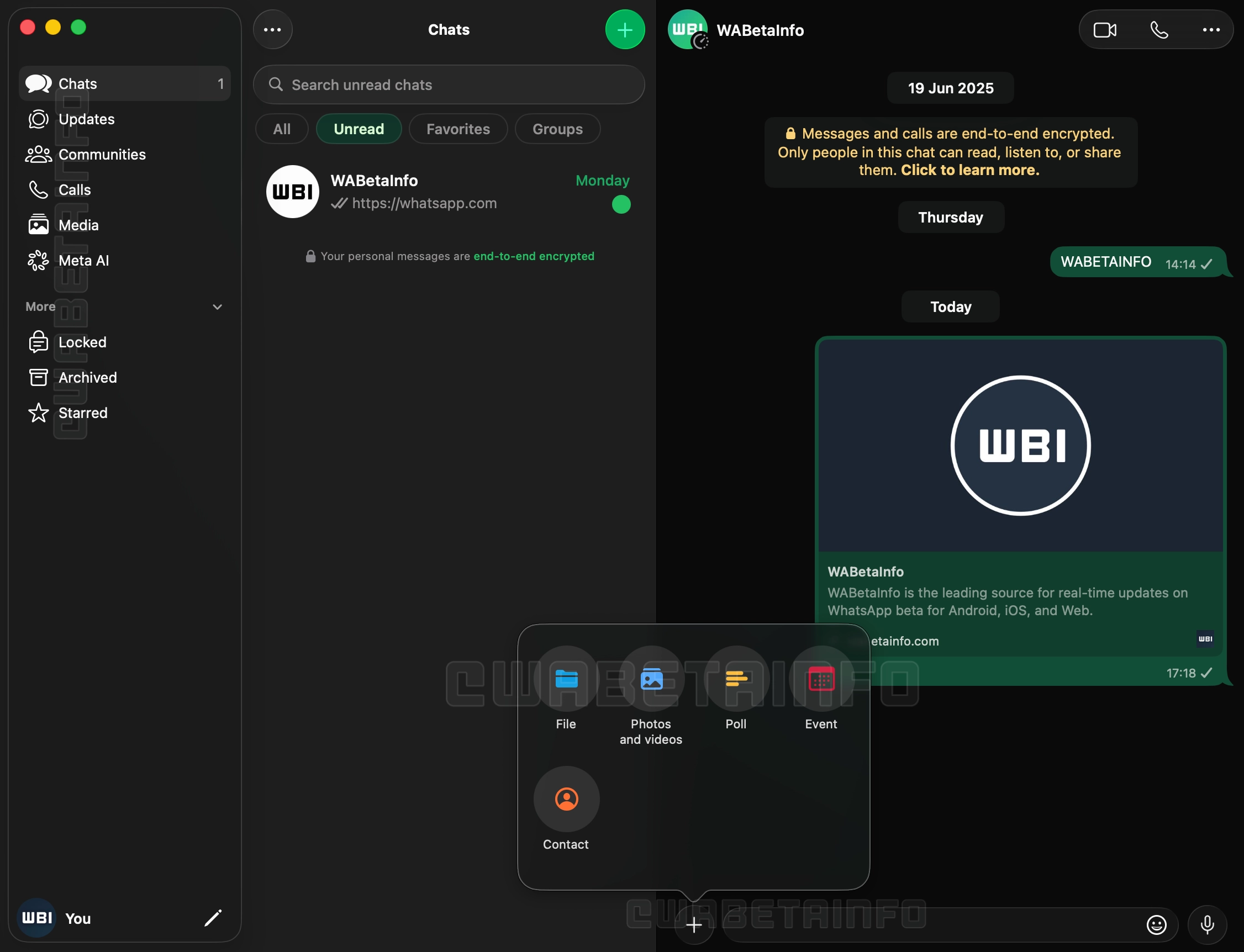
A nova versão, 26.27.73, além de contar com Liquid Glass, inclui uma nova barra lateral com textos que descrevem os ícones, abandonando a abordagem minimalista encontrada até então na versão de computador do mensageiro da Meta, e uma seção dedicada às Comunidades, que antes ficavam espalhadas pelo histórico de conversas do aplicativo.
Outra novidade é a adição do suporte às conversas trancadas, atualmente restritas aos iPhones e iPads. O acesso ao recurso no macOS, aos moldes da exigência do Face ID nos dispositivos móveis, também solicitará algum meio de autenticação para garantir a camada adicional de proteção, carro-chefe da funcionalidade.
Com essa atualização chegando para os usuários finais de maneira gradual nas próximas semanas, a disponibilização ampla da versão de Mac do WhatsApp (incluindo a versão da Mac App Store) conclui um trabalho de quase um ano unificando a linguagem visual do app no iOS, iPadOS e macOS.
macOS Tahoe 26.5.2 (25F84) is now Available For All Users!
UPDATED: 06/29/26
This article will be continually updated as new information comes in.
Apple just released the 5th minor update for macOS Tahoe to the public! Let’s jump in and find out what’s new.
This update is a very small point release that shows the following notes:
The 26.5.2 Update includes the following:
“This update provides security fixes for your Mac.”
If you look at the security update page, it does not have just one or two security fixes. The Tahoe 26.5.2 update includes fixes for 38 individual CVE vulnerabilities. Normally smaller point releases will have fixes for a few bugs and a few security items but this is a lot
macOS Tahoe Patch Notes Summary
1. New Features – 0
2. Developer Documented Fixes – 0
3. Security Fixes – 11
4. Enterprise Fixes – 0
5. Safari Security (Webkit) – 17
6. Safari – 26.5.2 for macOS Sequoia and Sonoma
7. Full installer & IPSW – Both Released
8. OpenCore Legacy Patcher Users – NOT COMPATIBLE!
NOTE: I hate website ads, but this one small google ad below helps me with the cost of running Mr. Macintosh.com. Thank you
OpenCore Legacy Patcher for Unsupported Macs
OCLP 2.4.1 & macOS Tahoe 26.5.2 : DO NOT INSTALL! NOT COMPATIBLE YET. This release is in full testing and it is not recommended that you attempt to install it yet.!
The delta update will automatically change in size for exactly what your macOS version needs.
Full update & OCLP Users = NOT SUPPORTED YET
Apple Silicon Updates
Delta from macOS Tahoe 26.5.1 with size = 2.77GB
Upgrade from macOS Sequoia 15.7.7 with size =
Intel Updates
Delta Update from macOS Tahoe 26.5.1 with size = 1.13GB
6. Apple Silicon System Firmware Version
This update has a new firmware update. The version number is reported in System Information under “System Firmware Version“. Also known as mBoot.
Apple Silicon Firmware = UPDATED!
21. macOS Tahoe 26.5.2 = 18000.121.3
20. macOS Tahoe 26.5.1 = 18000.120.36
19. macOS Tahoe 26.5 = 18000.120.36
18. macOS Tahoe 26.4.1 = 18000.101.7
17. macOS Tahoe 26.4 = 18000.101.7
16. macOS Tahoe 26.3.1 = 13822.81.10
15. macOS Tahoe 26.3 = 13822.81.10
14. macOS Tahoe 26.2 = 13822.61.10
13. macOS Tahoe 26.1 = 13822.41.1
12. macOS Tahoe 26.0.1 = 13822.1.2
11. macOS Tahoe 26.0 = 13822.1.2
10. macOS Tahoe RC = 13822.1.2
9. macOS Tahoe Beta 9 = 13822.1.2
8. macOS Tahoe Beta 8 = 13822.1.2
7. macOS Tahoe Beta 7 = 13822.1.2
6. macOS Tahoe Beta 6 = 13822.1.2
5. macOS Tahoe Beta 5 = 13822.0.277.0.3
4. macOS Tahoe Beta 4 = 13822.0.233
3. macOS Tahoe Beta 3 = 13822.0.194.0.3
2. macOS Tahoe Beta 2 = 13822.0.166.0.1
1. macOS Tahoe Beta 1 = 13822.0.88.511.1
7. Apple Silicon OS loader Version (iBoot)
OS Loader Version (iBoot) also referred to as “iBoot second-stage loader”, is Apple’s stage 2 bootloader. The OS loader version will be the same as the “System Firmware Version” on the latest OS. On previous versions of macOS Monterey and Big Sur, the OS loader version will be a version behind. Example = Monterey = 7459.121.3 & Big Sur = 6723.140.2
OS Loader version = UPDATED!
21. macOS Tahoe 26.5.2 = 18000.121.3
20. macOS Tahoe 26.5.1 = 18000.120.36
19. macOS Tahoe 26.5 = 18000.120.36
18. macOS Tahoe 26.4.1 = 18000.101.7
17. macOS Tahoe 26.4 = 18000.101.7
16. macOS Tahoe 26.3.1 = 13822.81.10
15. macOS Tahoe 26.3 = 13822.81.10
14. macOS Tahoe 26.2 = 13822.61.10
13. macOS Tahoe 26.1 = 13822.41.1
12. macOS Tahoe 26.0.1 = 13822.1.2
11. macOS Tahoe 26.0 = 13822.1.2
10. macOS Tahoe RC = 13822.1.2
9. macOS Tahoe Beta 9 = 13822.1.2
8. macOS Tahoe Beta 8 = 13822.1.2
7. macOS Tahoe Beta 7 = 13822.1.2
6. macOS Tahoe Beta 6 = 13822.1.2
5. macOS Tahoe Beta 5 = 13822.0.277.0.3
4. macOS Tahoe Beta 4 = 13822.0.233
3. macOS Tahoe Beta 3 = 13822.0.194.0.3
2. macOS Tahoe Beta 2 = 13822.0.166.0.1
1. macOS Tahoe Beta 1 = 13822.0.88.511.1
8. Intel T2 BridgeOS Update
The Version of BridgeOS for your T2 Security Chip (2018-2020 Intel Macs) was updated.
BridgeOS version = NOT Updated
21. macOS Tahoe 26.5.2 = 23.16.15067.0.0
20. macOS Tahoe 26.5.1 = 23.16.15067.0.0
19. macOS Tahoe 26.5 = 23.16.15067.0.0
18. macOS Tahoe 26.4.1 = 23.16.14242.0.0
17. macOS Tahoe 26.4 = 23.16.14242.0.0
16. macOS Tahoe 26.3.1 = 23.16.13120.0.0
15. macOS Tahoe 26.3 = 23.16.13120.0.0
14. macOS Tahoe 26.2 = 23.16.12048.0.0
13. macOS Tahoe 26.1 = 23.16.11072.0.0
12. macOS Tahoe 26.0.1 = 23.16.10350.0.0
11. macOS Tahoe 26.0 = 23.16.10350.0.0
10. macOS Tahoe RC = 23.16.10350.0.0
9. macOS Tahoe Beta 9 = 23.16.10350.0.0
8. macOS Tahoe Beta 8 = 23.16.10348.5.1
7. macOS Tahoe Beta 7 = 23.16.5342.0.1
6. macOS Tahoe Beta 6 = 23.16.5342.0.1
5. macOS Tahoe Beta 5 = 23.16.5331.0.4
4. macOS Tahoe Beta 4 = 23.16.5320.0.2
3. macOS Tahoe Beta 3 = N/A
2. macOS Tahoe Beta 2 = N/A
1. macOS Tahoe Beta 1 = 23.16.5283.0.7
9. Intel T2 Firmware Update
The System Firmware Version for your Mac (2019-2020)
This update also includes the following Developer enhancements and bug fixes:
The macOS 26.5 SDK provides support to develop apps for Mac computers running Tahoe 26.5. The SDK comes bundled with Xcode 26.5, available from the Mac App Store. For information on the compatibility requirements for Xcode 26.5, see Xcode 26.5 Release Notes.
You can read pricing information for subscriptions that have a monthly with 12-month commitment billing plan configuration in App Store Connect or StoreKit Testing in Xcode through the new PricingTerms model on SubscriptionInfo.pricingTerms. (150388310)
You can specify the billing plan type to use for subscriptions that have a monthly with 12-month commitment billing plan configuration using the new billingPlanTypePurchaseOption. (150388542)
Read customer entitlement metadata for subscriptions purchased with a monthly billing plan type through the new CommitmentInfo data model on Transaction and SubscriptionRenewalInfo. (150388746)
When you import both StoreKit and SwiftUI, you can merchandise the monthly billing plan configuration for subscriptions that have a monthly with 12-month commitment billing plan using built-in styles through the new preferredSubscriptionPricingTerms(_:) API. (150389069)
Fixed: The App Version field in the ASN.1 app receipt might contain the string “null” instead of the expected version number. (171614522) (FB22114908)
Fixed: Transaction.currentEntitlements might be empty if a customer has an active subscription when the device’s system calendar is set to a non-Gregorian format. (173415174)
macOS Tahoe 26.5.1 (25F80) is now Available For All Users!
UPDATED: 06/02/26
This article will be continually updated as new information comes in.
Apple just released the 3rd minor update for macOS Tahoe to the public! Let’s jump in and find out what’s new.
This update is a very small point release that shows the following notes:
The 26.5.1 Update includes the following:
This update addresses an issue for enterprise users where Macs with an M5 chip could unexpectedly shut down when using certain content filtering network extensions.
This update appears to only fix one issue with M5 Macs. The update is available for ALL macOS Tahoe supported Macs. The update also does not have any published CVE Security fixes listed on Apple’s Security Update page.
macOS Tahoe Patch Notes Summary
1. New Features – 0
2. Developer Documented Fixes – 0
3. Security Fixes – 0
4. Enterprise Fixes – 1
5. Safari Security (Webkit) – 0
6. Safari – No update
7. Full installer & IPSW – Both Released
8. OpenCore Legacy Patcher Users – NOT COMPATIBLE!
OpenCore Legacy Patcher for Unsupported Macs
OCLP 2.4.1 & macOS Tahoe 26.5.1 : DO NOT INSTALL! NOT COMPATIBLE YET. This release is in full testing and it is not recommended that you attempt to install it yet.!
The delta update will automatically change in size for exactly what your macOS version needs.
Full update & OCLP Users = NOT SUPPORTED YET
Apple Silicon Updates
Delta from macOS Tahoe 26.5 with size = 2.14GB
Upgrade from macOS Sequoia 15.7.7 with size =
Intel Updates
Delta Update from macOS Tahoe 26.5 with size = 929MB
6. Apple Silicon System Firmware Version
This update has a new firmware update. The version number is reported in System Information under “System Firmware Version“. Also known as mBoot.
Apple Silicon Firmware = NOT Updated
20. macOS Tahoe 26.5.1 = 18000.120.36
19. macOS Tahoe 26.5 = 18000.120.36
18. macOS Tahoe 26.4.1 = 18000.101.7
17. macOS Tahoe 26.4 = 18000.101.7
16. macOS Tahoe 26.3.1 = 13822.81.10
15. macOS Tahoe 26.3 = 13822.81.10
14. macOS Tahoe 26.2 = 13822.61.10
13. macOS Tahoe 26.1 = 13822.41.1
12. macOS Tahoe 26.0.1 = 13822.1.2
11. macOS Tahoe 26.0 = 13822.1.2
10. macOS Tahoe RC = 13822.1.2
9. macOS Tahoe Beta 9 = 13822.1.2
8. macOS Tahoe Beta 8 = 13822.1.2
7. macOS Tahoe Beta 7 = 13822.1.2
6. macOS Tahoe Beta 6 = 13822.1.2
5. macOS Tahoe Beta 5 = 13822.0.277.0.3
4. macOS Tahoe Beta 4 = 13822.0.233
3. macOS Tahoe Beta 3 = 13822.0.194.0.3
2. macOS Tahoe Beta 2 = 13822.0.166.0.1
1. macOS Tahoe Beta 1 = 13822.0.88.511.1
7. Apple Silicon OS loader Version (iBoot)
OS Loader Version (iBoot) also referred to as “iBoot second-stage loader”, is Apple’s stage 2 bootloader. The OS loader version will be the same as the “System Firmware Version” on the latest OS. On previous versions of macOS Monterey and Big Sur, the OS loader version will be a version behind. Example = Monterey = 7459.121.3 & Big Sur = 6723.140.2
OS Loader version = NOT Updated
20. macOS Tahoe 26.5.1 = 18000.120.36
19. macOS Tahoe 26.5 = 18000.120.36
18. macOS Tahoe 26.4.1 = 18000.101.7
17. macOS Tahoe 26.4 = 18000.101.7
16. macOS Tahoe 26.3.1 = 13822.81.10
15. macOS Tahoe 26.3 = 13822.81.10
14. macOS Tahoe 26.2 = 13822.61.10
13. macOS Tahoe 26.1 = 13822.41.1
12. macOS Tahoe 26.0.1 = 13822.1.2
11. macOS Tahoe 26.0 = 13822.1.2
10. macOS Tahoe RC = 13822.1.2
9. macOS Tahoe Beta 9 = 13822.1.2
8. macOS Tahoe Beta 8 = 13822.1.2
7. macOS Tahoe Beta 7 = 13822.1.2
6. macOS Tahoe Beta 6 = 13822.1.2
5. macOS Tahoe Beta 5 = 13822.0.277.0.3
4. macOS Tahoe Beta 4 = 13822.0.233
3. macOS Tahoe Beta 3 = 13822.0.194.0.3
2. macOS Tahoe Beta 2 = 13822.0.166.0.1
1. macOS Tahoe Beta 1 = 13822.0.88.511.1
8. Intel T2 BridgeOS Update
The Version of BridgeOS for your T2 Security Chip (2018-2020 Intel Macs) was updated.
BridgeOS version = NOT Updated
20. macOS Tahoe 26.5.1 = 23.16.15067.0.0
19. macOS Tahoe 26.5 = 23.16.15067.0.0
18. macOS Tahoe 26.4.1 = 23.16.14242.0.0
17. macOS Tahoe 26.4 = 23.16.14242.0.0
16. macOS Tahoe 26.3.1 = 23.16.13120.0.0
15. macOS Tahoe 26.3 = 23.16.13120.0.0
14. macOS Tahoe 26.2 = 23.16.12048.0.0
13. macOS Tahoe 26.1 = 23.16.11072.0.0
12. macOS Tahoe 26.0.1 = 23.16.10350.0.0
11. macOS Tahoe 26.0 = 23.16.10350.0.0
10. macOS Tahoe RC = 23.16.10350.0.0
9. macOS Tahoe Beta 9 = 23.16.10350.0.0
8. macOS Tahoe Beta 8 = 23.16.10348.5.1
7. macOS Tahoe Beta 7 = 23.16.5342.0.1
6. macOS Tahoe Beta 6 = 23.16.5342.0.1
5. macOS Tahoe Beta 5 = 23.16.5331.0.4
4. macOS Tahoe Beta 4 = 23.16.5320.0.2
3. macOS Tahoe Beta 3 = N/A
2. macOS Tahoe Beta 2 = N/A
1. macOS Tahoe Beta 1 = 23.16.5283.0.7
9. Intel T2 Firmware Update
The System Firmware Version for your Mac (2019-2020)
This update addresses an issue for enterprise users where Macs with an M5 chip could unexpectedly shut down when using certain content filtering network extensions.
developer.apple/com/forum/thread/822390
14 macOS Tahoe Developer Release Notes
This update also includes the following Developer enhancements and bug fixes:
The macOS 26.5 SDK provides support to develop apps for Mac computers running Tahoe 26.5. The SDK comes bundled with Xcode 26.5, available from the Mac App Store. For information on the compatibility requirements for Xcode 26.5, see Xcode 26.5 Release Notes.
You can read pricing information for subscriptions that have a monthly with 12-month commitment billing plan configuration in App Store Connect or StoreKit Testing in Xcode through the new PricingTerms model on SubscriptionInfo.pricingTerms. (150388310)
You can specify the billing plan type to use for subscriptions that have a monthly with 12-month commitment billing plan configuration using the new billingPlanTypePurchaseOption. (150388542)
Read customer entitlement metadata for subscriptions purchased with a monthly billing plan type through the new CommitmentInfo data model on Transaction and SubscriptionRenewalInfo. (150388746)
When you import both StoreKit and SwiftUI, you can merchandise the monthly billing plan configuration for subscriptions that have a monthly with 12-month commitment billing plan using built-in styles through the new preferredSubscriptionPricingTerms(_:) API. (150389069)
Fixed: The App Version field in the ASN.1 app receipt might contain the string “null” instead of the expected version number. (171614522) (FB22114908)
Fixed: Transaction.currentEntitlements might be empty if a customer has an active subscription when the device’s system calendar is set to a non-Gregorian format. (173415174)
macOS Tahoe 26.5 (25F71) is now Available For All Users!
UPDATED: 05/12/26
This article will be continually updated as new information comes in.
Apple just released the 5th major update for macOS Tahoe to the public! Let’s jump in and find out what’s new.
This update is a large point release update that shows the following notes:
The 26.5 Update includes the following:
“This update includes enhancements, bug fixes and security updates for your Mac”
NOTE: Apple did not list the below two updates. Thank you to @Dhinak for grabbing the info. The MagSafe info was provided in the Apple Developer Forum.
Suggested Places in Maps displays recommendations based on what’s trending nearby and your recent searches
Power control setting in Energy for Mac mini, Mac Studio, and iMac enables you to power off or restart your Mac using assistive accessories like switches
MagSafe Power adapter color will now show green if the battery charge limit is set and the Mac is fully charged =
The light should now turn green when the device reaches the charging limit.
The light should now turn back to amber if/when power drain causes charging to resume.
developer.apple/com/forum/thread/822390
macOS Tahoe Patch Notes Summary
1. New Features – 3*
2. Developer Documented Fixes – 8
3. Security Fixes – 79
4. Enterprise Fixes – 8
5. Safari Security (Webkit) –
6. Safari – Updated – 26.5
7. Full installer & IPSW – Both Released
8. OpenCore Legacy Patcher Users – NOT COMPATIBLE!
OpenCore Legacy Patcher for Unsupported Macs
OCLP 2.4.1 & macOS Tahoe 26.5 : DO NOT INSTALL! NOT COMPATIBLE YET. This release is in full testing and it is not recommended that you attempt to install it yet.!
The delta update will automatically change in size for exactly what your macOS version needs.
Full update & OCLP Users = NOT SUPPORTED YET
Apple Silicon Updates
Delta from macOS Tahoe 26.4.1 with size = 3.78
Upgrade from macOS Sequoia 15.7.4 with size = 10.05GB
Intel Updates
Delta Update from macOS Tahoe 26.4.1 with size = 2.83GB
6. Apple Silicon System Firmware Version
This update has a new firmware update. The version number is reported in System Information under “System Firmware Version“. Also known as mBoot.
Apple Silicon Firmware = Updated!
19. macOS Tahoe 26.5 = 18000.120.36
18. macOS Tahoe 26.4.1 = 18000.101.7
17. macOS Tahoe 26.4 = 18000.101.7
16. macOS Tahoe 26.3.1 = 13822.81.10
15. macOS Tahoe 26.3 = 13822.81.10
14. macOS Tahoe 26.2 = 13822.61.10
13. macOS Tahoe 26.1 = 13822.41.1
12. macOS Tahoe 26.0.1 = 13822.1.2
11. macOS Tahoe 26.0 = 13822.1.2
10. macOS Tahoe RC = 13822.1.2
9. macOS Tahoe Beta 9 = 13822.1.2
8. macOS Tahoe Beta 8 = 13822.1.2
7. macOS Tahoe Beta 7 = 13822.1.2
6. macOS Tahoe Beta 6 = 13822.1.2
5. macOS Tahoe Beta 5 = 13822.0.277.0.3
4. macOS Tahoe Beta 4 = 13822.0.233
3. macOS Tahoe Beta 3 = 13822.0.194.0.3
2. macOS Tahoe Beta 2 = 13822.0.166.0.1
1. macOS Tahoe Beta 1 = 13822.0.88.511.1
7. Apple Silicon OS loader Version (iBoot)
OS Loader Version (iBoot) also referred to as “iBoot second-stage loader”, is Apple’s stage 2 bootloader. The OS loader version will be the same as the “System Firmware Version” on the latest OS. On previous versions of macOS Monterey and Big Sur, the OS loader version will be a version behind. Example = Monterey = 7459.121.3 & Big Sur = 6723.140.2
OS Loader version = Updated!
19. macOS Tahoe 26.5 = 18000.120.36
18. macOS Tahoe 26.4.1 = 18000.101.7
17. macOS Tahoe 26.4 = 18000.101.7
16. macOS Tahoe 26.3.1 = 13822.81.10
15. macOS Tahoe 26.3 = 13822.81.10
14. macOS Tahoe 26.2 = 13822.61.10
13. macOS Tahoe 26.1 = 13822.41.1
12. macOS Tahoe 26.0.1 = 13822.1.2
11. macOS Tahoe 26.0 = 13822.1.2
10. macOS Tahoe RC = 13822.1.2
9. macOS Tahoe Beta 9 = 13822.1.2
8. macOS Tahoe Beta 8 = 13822.1.2
7. macOS Tahoe Beta 7 = 13822.1.2
6. macOS Tahoe Beta 6 = 13822.1.2
5. macOS Tahoe Beta 5 = 13822.0.277.0.3
4. macOS Tahoe Beta 4 = 13822.0.233
3. macOS Tahoe Beta 3 = 13822.0.194.0.3
2. macOS Tahoe Beta 2 = 13822.0.166.0.1
1. macOS Tahoe Beta 1 = 13822.0.88.511.1
8. Intel T2 BridgeOS Update
The Version of BridgeOS for your T2 Security Chip (2018-2020 Intel Macs) was updated.
BridgeOS version = Updated!
19. macOS Tahoe 26.5 = 23.16.15067.0.0
18. macOS Tahoe 26.4.1 = 23.16.14242.0.0
17. macOS Tahoe 26.4 = 23.16.14242.0.0
16. macOS Tahoe 26.3.1 = 23.16.13120.0.0
15. macOS Tahoe 26.3 = 23.16.13120.0.0
14. macOS Tahoe 26.2 = 23.16.12048.0.0
13. macOS Tahoe 26.1 = 23.16.11072.0.0
12. macOS Tahoe 26.0.1 = 23.16.10350.0.0
11. macOS Tahoe 26.0 = 23.16.10350.0.0
10. macOS Tahoe RC = 23.16.10350.0.0
9. macOS Tahoe Beta 9 = 23.16.10350.0.0
8. macOS Tahoe Beta 8 = 23.16.10348.5.1
7. macOS Tahoe Beta 7 = 23.16.5342.0.1
6. macOS Tahoe Beta 6 = 23.16.5342.0.1
5. macOS Tahoe Beta 5 = 23.16.5331.0.4
4. macOS Tahoe Beta 4 = 23.16.5320.0.2
3. macOS Tahoe Beta 3 = N/A
2. macOS Tahoe Beta 2 = N/A
1. macOS Tahoe Beta 1 = 23.16.5283.0.7
9. Intel T2 Firmware Update
The System Firmware Version for your Mac (2019-2020)
Resolved an issue where some Mac computers may start up to a black screen after a software update.
Root and intermediate certificates are correctly updated when renewing enrollment in a device management service.
Resolved an issue where Mac computers restarted unexpectedly while mounting SMB shares.
Resolved an issue where MacBook Air with M5 and MacBook Pro with M5 Pro or M5 Max restarted unexpectedly when using some content filter extensions.
Resolved an issue where successful smart card logins triggered incorrect password attempts.
When autofill is disabled for Safari using device management, Autofill Passwords and Passkeys can still be enabled for other apps in System Settings.
X11 apps using XQuartz now display correctly after the app window is resized.
When the Mac is not bound to Active Directory, the SMB client now performs DNS SRV lookups for ldap.tcp.<serverName> and gc.tcp.<serverName> configured in nsmb.conf to discover domain controllers. If domain controllers are found, the client attempts to connect to each one in order. If all domain controller connections fail, the client falls back to the original server name.
Suggested Places in Maps displays recommendations based on what’s trending nearby and your recent searches
Power control setting in Energy for Mac mini, Mac Studio, and iMac enables you to power off or restart your Mac using assistive accessories like switches
MagSafe Power adapter color will now show green if the battery charge limit is set and the Mac is fully charged =
The light should now turn green when the device reaches the charging limit.
The light should now turn back to amber if/when power drain causes charging to resume.
developer.apple/com/forum/thread/822390
14 macOS Tahoe Developer Release Notes
This update also includes the following Developer enhancements and bug fixes:
The macOS 26.5 SDK provides support to develop apps for Mac computers running Tahoe 26.5. The SDK comes bundled with Xcode 26.5, available from the Mac App Store. For information on the compatibility requirements for Xcode 26.5, see Xcode 26.5 Release Notes.
You can read pricing information for subscriptions that have a monthly with 12-month commitment billing plan configuration in App Store Connect or StoreKit Testing in Xcode through the new PricingTerms model on SubscriptionInfo.pricingTerms. (150388310)
You can specify the billing plan type to use for subscriptions that have a monthly with 12-month commitment billing plan configuration using the new billingPlanTypePurchaseOption. (150388542)
Read customer entitlement metadata for subscriptions purchased with a monthly billing plan type through the new CommitmentInfo data model on Transaction and SubscriptionRenewalInfo. (150388746)
When you import both StoreKit and SwiftUI, you can merchandise the monthly billing plan configuration for subscriptions that have a monthly with 12-month commitment billing plan using built-in styles through the new preferredSubscriptionPricingTerms(_:) API. (150389069)
Fixed: The App Version field in the ASN.1 app receipt might contain the string “null” instead of the expected version number. (171614522) (FB22114908)
Fixed: Transaction.currentEntitlements might be empty if a customer has an active subscription when the device’s system calendar is set to a non-Gregorian format. (173415174)
macOS Tahoe 26.4.1 (25E253) is now Available For All Users!
UPDATED: 04/15/26
This article will be continually updated as new information comes in.
Apple just released the 3rd minor update for macOS Tahoe to the public! Let’s jump in and find out what’s new.
This update is a point release update that shows the following notes: This update provides bug fixes for your Mac.
As you know, we do not just accept that so we have to dig a little deeper. If you take a look at “What’s new in Enterprise for macOS Tahoe 26” we will see the actual fix:
“Resolved an issue where MacBook Air with M5 and MacBook Pro with M5 Pro or M5 Max failed to join 802.1X Wi-Fi networks while using content filter extensions.”
macOS Tahoe Patch Notes Summary
1. New Features –
2. Developer Documented Fixes –
3. Security Fixes –
4. Enterprise Fixes – 1
5. Safari Security (Webkit) –
6. Safari –
7. Full installer & IPSW – Both Released
8. OpenCore Legacy Patcher Users – NOT COMPATIBLE!
OpenCore Legacy Patcher for Unsupported Macs
OCLP 2.4.1 & macOS Tahoe 26.4.1 : DO NOT INSTALL! NOT COMPATIBLE YET. This release is in full testing and it is not recommended that you attempt to install it yet.!
The delta update will automatically change in size for exactly what your macOS version needs.
Full update & OCLP Users = NOT SUPPORTED YET
Apple Silicon Updates
Delta from macOS Tahoe 26.4 with size = 7.15GB
Upgrade from macOS Sequoia 15.7.5 with size = 10.01GB
Intel Updates
Delta Update from macOS Tahoe 26.4 with size = 5.91GB
6. Apple Silicon System Firmware Version
This update has a new firmware update. The version number is reported in System Information under “System Firmware Version“. Also known as mBoot.
Apple Silicon Firmware = Not updated.
18. macOS Tahoe 26.4.1 = 18000.101.7
17. macOS Tahoe 26.4 = 18000.101.7
16. macOS Tahoe 26.3.1 = 13822.81.10
15. macOS Tahoe 26.3 = 13822.81.10
14. macOS Tahoe 26.2 = 13822.61.10
13. macOS Tahoe 26.1 = 13822.41.1
12. macOS Tahoe 26.0.1 = 13822.1.2
11. macOS Tahoe 26.0 = 13822.1.2
10. macOS Tahoe RC = 13822.1.2
9. macOS Tahoe Beta 9 = 13822.1.2
8. macOS Tahoe Beta 8 = 13822.1.2
7. macOS Tahoe Beta 7 = 13822.1.2
6. macOS Tahoe Beta 6 = 13822.1.2
5. macOS Tahoe Beta 5 = 13822.0.277.0.3
4. macOS Tahoe Beta 4 = 13822.0.233
3. macOS Tahoe Beta 3 = 13822.0.194.0.3
2. macOS Tahoe Beta 2 = 13822.0.166.0.1
1. macOS Tahoe Beta 1 = 13822.0.88.511.1
7. Apple Silicon OS loader Version (iBoot)
OS Loader Version (iBoot) also referred to as “iBoot second-stage loader”, is Apple’s stage 2 bootloader. The OS loader version will be the same as the “System Firmware Version” on the latest OS. On previous versions of macOS Monterey and Big Sur, the OS loader version will be a version behind. Example = Monterey = 7459.121.3 & Big Sur = 6723.140.2
OS Loader version = Not updated
18. macOS Tahoe 26.4.1 = 18000.101.7
17. macOS Tahoe 26.4 = 18000.101.7
16. macOS Tahoe 26.3.1 = 13822.81.10
15. macOS Tahoe 26.3 = 13822.81.10
14. macOS Tahoe 26.2 = 13822.61.10
13. macOS Tahoe 26.1 = 13822.41.1
12. macOS Tahoe 26.0.1 = 13822.1.2
11. macOS Tahoe 26.0 = 13822.1.2
10. macOS Tahoe RC = 13822.1.2
9. macOS Tahoe Beta 9 = 13822.1.2
8. macOS Tahoe Beta 8 = 13822.1.2
7. macOS Tahoe Beta 7 = 13822.1.2
6. macOS Tahoe Beta 6 = 13822.1.2
5. macOS Tahoe Beta 5 = 13822.0.277.0.3
4. macOS Tahoe Beta 4 = 13822.0.233
3. macOS Tahoe Beta 3 = 13822.0.194.0.3
2. macOS Tahoe Beta 2 = 13822.0.166.0.1
1. macOS Tahoe Beta 1 = 13822.0.88.511.1
8. Intel T2 BridgeOS Update
The Version of BridgeOS for your T2 Security Chip (2018-2020 Intel Macs) was updated.
BridgeOS version = Not updated
18. macOS Tahoe 26.4.1 = 23.16.14242.0.0
17. macOS Tahoe 26.4 = 23.16.14242.0.0
16. macOS Tahoe 26.3.1 = 23.16.13120.0.0
15. macOS Tahoe 26.3 = 23.16.13120.0.0
14. macOS Tahoe 26.2 = 23.16.12048.0.0
13. macOS Tahoe 26.1 = 23.16.11072.0.0
12. macOS Tahoe 26.0.1 = 23.16.10350.0.0
11. macOS Tahoe 26.0 = 23.16.10350.0.0
10. macOS Tahoe RC = 23.16.10350.0.0
9. macOS Tahoe Beta 9 = 23.16.10350.0.0
8. macOS Tahoe Beta 8 = 23.16.10348.5.1
7. macOS Tahoe Beta 7 = 23.16.5342.0.1
6. macOS Tahoe Beta 6 = 23.16.5342.0.1
5. macOS Tahoe Beta 5 = 23.16.5331.0.4
4. macOS Tahoe Beta 4 = 23.16.5320.0.2
3. macOS Tahoe Beta 3 = N/A
2. macOS Tahoe Beta 2 = N/A
1. macOS Tahoe Beta 1 = 23.16.5283.0.7
9. Intel T2 Firmware Update
The System Firmware Version for your Mac (2019-2020)
Resolved an issue where MacBook Air with M5 and MacBook Pro with M5 Pro or M5 Max failed to join 802.1X Wi-Fi networks while using content filter extensions.
macOS Tahoe 26.4 (25E246) is now Available For All Users!
UPDATED: 03/31/26
This article will be continually updated as new information comes in.
Apple just released the 4th major update for macOS Tahoe to the public! Let’s jump in and find out what’s new.
This isn’t just a routine update. It will most likely be the final major feature release for macOS Tahoe. After what MacAdmins call the “Spring Release,” most development work usually shifts to the next OS, macOS 27, ahead of its debut in June at WWDC26.
macOS Tahoe Patch Notes Summary
1. New Features – 7
2. Developer Documented Fixes –
3. Security Fixes – 64
4. Enterprise Fixes – 12
5. Safari Security (Webkit) – 7
6. Safari – 26.4
7. Full installer & IPSW – Both Released
8. OpenCore Legacy Patcher Users – NOT COMPATIBLE!
OpenCore Legacy Patcher for Unsupported Macs
OCLP 2.4.1 & macOS Tahoe 26.4 : DO NOT INSTALL! NOT COMPATIBLE YET. This release is in full testing and it is not recommended that you attempt to install it yet.!
The delta update will automatically change in size for exactly what your macOS version needs.
Full update & OCLP Users = NOT SUPPORTED YET
Apple Silicon Updates
Delta from macOS Tahoe 26.3.1 with size = 7.15GB
Upgrade from macOS Sequoia 15.7.3 with size = 10.01GB
Intel Updates
Delta Update from macOS Tahoe 26.3.1 with size = 5.91GB
6. Apple Silicon System Firmware Version
This update has a new firmware update. The version number is reported in System Information under “System Firmware Version“. Also known as mBoot.
Apple Silicon Firmware = Updated!
17. macOS Tahoe 26.4 = 18000.101.7
16. macOS Tahoe 26.3.1 = 13822.81.10
15. macOS Tahoe 26.3 = 13822.81.10
14. macOS Tahoe 26.2 = 13822.61.10
13. macOS Tahoe 26.1 = 13822.41.1
12. macOS Tahoe 26.0.1 = 13822.1.2
11. macOS Tahoe 26.0 = 13822.1.2
10. macOS Tahoe RC = 13822.1.2
9. macOS Tahoe Beta 9 = 13822.1.2
8. macOS Tahoe Beta 8 = 13822.1.2
7. macOS Tahoe Beta 7 = 13822.1.2
6. macOS Tahoe Beta 6 = 13822.1.2
5. macOS Tahoe Beta 5 = 13822.0.277.0.3
4. macOS Tahoe Beta 4 = 13822.0.233
3. macOS Tahoe Beta 3 = 13822.0.194.0.3
2. macOS Tahoe Beta 2 = 13822.0.166.0.1
1. macOS Tahoe Beta 1 = 13822.0.88.511.1
7. Apple Silicon OS loader Version (iBoot)
OS Loader Version (iBoot) also referred to as “iBoot second-stage loader”, is Apple’s stage 2 bootloader. The OS loader version will be the same as the “System Firmware Version” on the latest OS. On previous versions of macOS Monterey and Big Sur, the OS loader version will be a version behind. Example = Monterey = 7459.121.3 & Big Sur = 6723.140.2
OS Loader version = Updated!
17. macOS Tahoe 26.4 = 18000.101.7
16. macOS Tahoe 26.3.1 = 13822.81.10
15. macOS Tahoe 26.3 = 13822.81.10
14. macOS Tahoe 26.2 = 13822.61.10
13. macOS Tahoe 26.1 = 13822.41.1
12. macOS Tahoe 26.0.1 = 13822.1.2
11. macOS Tahoe 26.0 = 13822.1.2
10. macOS Tahoe RC = 13822.1.2
9. macOS Tahoe Beta 9 = 13822.1.2
8. macOS Tahoe Beta 8 = 13822.1.2
7. macOS Tahoe Beta 7 = 13822.1.2
6. macOS Tahoe Beta 6 = 13822.1.2
5. macOS Tahoe Beta 5 = 13822.0.277.0.3
4. macOS Tahoe Beta 4 = 13822.0.233
3. macOS Tahoe Beta 3 = 13822.0.194.0.3
2. macOS Tahoe Beta 2 = 13822.0.166.0.1
1. macOS Tahoe Beta 1 = 13822.0.88.511.1
8. Intel T2 BridgeOS Update
The Version of BridgeOS for your T2 Security Chip (2018-2020 Intel Macs) was updated.
BridgeOS version = Updated!
17. macOS Tahoe 26.4 = 23.16.14242.0.0
16. macOS Tahoe 26.3.1 = 23.16.13120.0.0
15. macOS Tahoe 26.3 = 23.16.13120.0.0
14. macOS Tahoe 26.2 = 23.16.12048.0.0
13. macOS Tahoe 26.1 = 23.16.11072.0.0
12. macOS Tahoe 26.0.1 = 23.16.10350.0.0
11. macOS Tahoe 26.0 = 23.16.10350.0.0
10. macOS Tahoe RC = 23.16.10350.0.0
9. macOS Tahoe Beta 9 = 23.16.10350.0.0
8. macOS Tahoe Beta 8 = 23.16.10348.5.1
7. macOS Tahoe Beta 7 = 23.16.5342.0.1
6. macOS Tahoe Beta 6 = 23.16.5342.0.1
5. macOS Tahoe Beta 5 = 23.16.5331.0.4
4. macOS Tahoe Beta 4 = 23.16.5320.0.2
3. macOS Tahoe Beta 3 = N/A
2. macOS Tahoe Beta 2 = N/A
1. macOS Tahoe Beta 1 = 23.16.5283.0.7
9. Intel T2 Firmware Update
The System Firmware Version for your Mac (2019-2020)
Siri, and Keyboard settings are available. These replace the restrictions for these settings in the com.apple.applicationaccess profile, which are now deprecated.
New controls are available to configure which volumes that File Provider extensions can access and how they synchronize data.
Starting in macOS Tahoe 26.4, users will be notified when they launch apps that use Rosetta that they will not open in a future release of macOS. Organizations using a device management service can control the notification experience via the allowRosettaUsageAwarenessrestrictions key. Rosetta support for apps will remain available through the forthcoming macOS 27.
The new Age Range setup pane is automatically skipped for devices using Automated Device Enrollment.
If a new identity certificate fails to install during device management enrollment renewal, the original certificate is retained to prevent unenrollment.
Resolved an issue where configured printers were removed after a software update.
Login Window settings configured by device management correctly return to defaults after the configuration is removed.
Resolved an issue where users created with the AccountConfiguration command and maxPINAgeInDays or changeAtNextAuthpasscode policies applied may fail to authenticate.
Network shares added to favorites and unmounted no longer fail to reconnect.
Keynote, Numbers, and Pages do not prompt to sign in to an Apple Account when installed as a managed app.
This update also includes the following enhancements:
Support for AirPods Max 2
8 new emoji including an orca, trombone, landslide, ballet dancer, and distorted face are available in the emoji keyboard
Compact tab bar option in Safari gives you more space to browse and lets you search directly from the active tab
Freeform gains advanced image creation and editing tools, and a premium content library, joining Apple Creator Studio
Mark reminders as urgent with a keyboard shortcut, and filter for urgent reminders in your Smart Lists
Purchase Sharing lets adult members in Family Sharing groups use their own payment method when making purchases, without relying on the family organizer
Subtitle and caption settings are easier to find when viewing media, with real-time preview available directly from the captions icon
14 macOS Tahoe Developer Release Notes
This update also includes the following Developer enhancements and bug fixes:
macOS Tahoe 26.3.1 (25D2128) is now Available For All Users!
UPDATED: 03/06/26
This article will be continually updated as new information comes in.
Apple just released the 2nd minor update for macOS Tahoe to the public! Let’s jump in and find out what’s new.
New MacBook Neo Wallpaper!
New MacBook Neo Wallpaper! If you update to Tahoe 26.3.1 you can now select one of four new Neo specific wallpapers that were shown in the introduction!
macOS Tahoe Patch Notes Summary
1. PublicDocumentedNew Features – 0
2. PublicDocumentedBug Fixes – “Bug Fixes”
3. Developer Documented Fixes – 0
3. Security Fixes – 0
4. Enterprise Fixes – 0
5. Safari Security (Webkit) -0
7. Safari – 26.3.1
6. Full installer & IPSW – Both Released
7. OpenCore Legacy Patcher Users – NOT COMPATIBLE!
OpenCore Legacy Patcher for Unsupported Macs
OCLP 2.4.1 & macOS Tahoe 26.3.1 : DO NOT INSTALL! NOT COMPATIBLE YET. This release is in full testing and it is not recommended that you attempt to install it yet.!
The delta update will automatically change in size for exactly what your macOS version needs.
Full update & OCLP Users = NOT SUPPORTED YET
Apple Silicon Updates
Delta from macOS Tahoe 26.3 with size = 1.76GB
Upgrade from macOS Sequoia 15.7.4 with size = 8.44GB
Intel Updates
Delta Update from macOS Tahoe 26.3 with size = 2.96GB
6. Apple Silicon System Firmware Version
This update has a new firmware update. The version number is reported in System Information under “System Firmware Version“
Apple Silicon Firmware = Not Updated.
16. macOS Tahoe 26.3.1 = 13822.81.10
15. macOS Tahoe 26.3 = 13822.81.10
14. macOS Tahoe 26.2 = 13822.61.10
13. macOS Tahoe 26.1 = 13822.41.1
12. macOS Tahoe 26.0.1 = 13822.1.2
11. macOS Tahoe 26.0 = 13822.1.2
10. macOS Tahoe RC = 13822.1.2
9. macOS Tahoe Beta 9 = 13822.1.2
8. macOS Tahoe Beta 8 = 13822.1.2
7. macOS Tahoe Beta 7 = 13822.1.2
6. macOS Tahoe Beta 6 = 13822.1.2
5. macOS Tahoe Beta 5 = 13822.0.277.0.3
4. macOS Tahoe Beta 4 = 13822.0.233
3. macOS Tahoe Beta 3 = 13822.0.194.0.3
2. macOS Tahoe Beta 2 = 13822.0.166.0.1
1. macOS Tahoe Beta 1 = 13822.0.88.511.1
7. Apple Silicon OS loader Version (iBoot)
OS Loader Version (iBoot) also referred to as “iBoot second-stage loader”, is Apple’s stage 2 bootloader. The OS loader version will be the same as the “System Firmware Version” on the latest OS. On previous versions of macOS Monterey and Big Sur, the OS loader version will be a version behind. Example = Monterey = 7459.121.3 & Big Sur = 6723.140.2
OS Loader version = Not Updated.
16. macOS Tahoe 26.3.1 = 13822.81.10
15. macOS Tahoe 26.3 = 13822.81.10
14. macOS Tahoe 26.2 = 13822.61.10
13. macOS Tahoe 26.1 = 13822.41.1
12. macOS Tahoe 26.0.1 = 13822.1.2
11. macOS Tahoe 26.0 = 13822.1.2
10. macOS Tahoe RC = 13822.1.2
9. macOS Tahoe Beta 9 = 13822.1.2
8. macOS Tahoe Beta 8 = 13822.1.2
7. macOS Tahoe Beta 7 = 13822.1.2
6. macOS Tahoe Beta 6 = 13822.1.2
5. macOS Tahoe Beta 5 = 13822.0.277.0.3
4. macOS Tahoe Beta 4 = 13822.0.233
3. macOS Tahoe Beta 3 = 13822.0.194.0.3
2. macOS Tahoe Beta 2 = 13822.0.166.0.1
1. macOS Tahoe Beta 1 = 13822.0.88.511.1
8. Intel T2 BridgeOS Update
The Version of BridgeOS for your T2 Security Chip (2018-2020 Intel Macs) was updated.
BridgeOS version = Not Updated.
16. macOS Tahoe 26.3.1 = 23.16.13120.0.0
15. macOS Tahoe 26.3 = 23.16.13120.0.0
14. macOS Tahoe 26.2 = 23.16.12048.0.0
13. macOS Tahoe 26.1 = 23.16.11072.0.0
12. macOS Tahoe 26.0.1 = 23.16.10350.0.0
11. macOS Tahoe 26.0 = 23.16.10350.0.0
10. macOS Tahoe RC = 23.16.10350.0.0
9. macOS Tahoe Beta 9 = 23.16.10350.0.0
8. macOS Tahoe Beta 8 = 23.16.10348.5.1
7. macOS Tahoe Beta 7 = 23.16.5342.0.1
6. macOS Tahoe Beta 6 = 23.16.5342.0.1
5. macOS Tahoe Beta 5 = 23.16.5331.0.4
4. macOS Tahoe Beta 4 = 23.16.5320.0.2
3. macOS Tahoe Beta 3 = N/A
2. macOS Tahoe Beta 2 = N/A
1. macOS Tahoe Beta 1 = 23.16.5283.0.7
9. Intel T2 Firmware Update
The System Firmware Version for your Mac (2019-2020)
Apple’s pattern of updates is often described as two beats, maybe like the lub-dub sound of your heart: a year of big changes, followed by a year of tweaks that feature just a couple of marquee improvements.1 The 27 series of operating systems marks a big dub year, but there’s a backbeat to the rhythm, too, as Apple retreats from what most of us believe were overreaches in the interface department.
Liquid Glass was not beloved. I didn’t mind it so much on the Mac, and I found some iPhone and iPad improvements worthwhile, and the rest tolerable. Some people hated it. John Gruber notably decided to hold off on updating his primary Mac to Tahoe. Apple ironically highlighted a slider in its WWDC keynote that one could describe as “mostly forget about Liquid Glass,” with an option from “full-on, nobody wanted this” to “as close to zero as we can go without breaking the interface.” Good.
No (Tahoe, button, left). Yes (Golden Gate, slider, right).
Stacey Ford, Apple’s Vice President of OS Program Management, called out a broad mandate in the keynote. “We scoured every part of the OS for opportunities to refine our systems from the UI to the foundations,” she said. “Nothing was off limits, no enhancement too small.” In other words, there are no sacred cows leftover from the design team that left, and maybe Ford and her group hate the same things that we do, and they’ve been given the authority to fix them.
Maybe as a consequence, Liquid Glass will improve legibility through several changes, which you’ll see even with the slider set to zero. The layers of Liquid Glass elements will now be rendered so that the diffusion of the underlying material won’t interfere as much with legibility. When content moves beneath a floating bar, the bar will now—shocking!—float on top and increase contrast to keep its contents comprehensible, too. Edges will now be darker, and icons sharper.
Gruber despised a secondary macOS change perhaps as much as Liquid Glass: the tiny icons on drop-down menus that were unhelpful, patronizing, and inconsistent across apps. Those are effectively gone now, with new guidance from Apple that is nearly contemptuous of the one-year glitch in the approach.
No (left, Tahoe). Yes (right, Golden Gate).
A lot of digital ink was also spilled about corner radii, dragging, and consistency with macOS 26. So much so that Apple’s Shubham Kedia—Director, Human Interface—said in the keynote this remarkable phrase: “…every window on macOS now has the same tighter corner radius ensuring greater consistency across all of your apps, even if they haven’t been updated.” It’s the weirdest time in the company’s history that an Apple leader had to utter those words, but there you go, and there was mostly rejoicing. The lower-right-corner drag area appears fixed, too, in my testing with the first beta.
Yes (rounded corners that have consistent radii in Golden Gate). (Source: Apple)
Tahoe’s other missteps that will be drawn back to the norm include ending the weirdly inset sidebars, such as in Photos, which now extend to the edges; the mouse-over hand cursor has mostly reverted to pre-Tahoe format, with slightly different finger positions, and indications that it’s a Mickey Mouse-style glove; and even the default wallpaper has rolled backwards, with iOS, iPadOS, and macOS all having access to the same set, if that’s the kind of thing you like.
No (Tahoe, inset sidebar in Photos).Yes (Golden Gate, flush sidebar in Photos).
More generally, I heard grumblings and read long essays about the instability people experienced with Tahoe, and still do, even though we’re at version 26.5. Often, the “tweak” year involves thousands of under-the-hood fixes. Apple was more frank about making things better this year than it has been since, I want to say, the year after Yosemite.2 It would be like Microsoft making fun of blue screens of death.
Apple’s Ford said, “We made things faster, smoother, even easier to use, and we took care of a bunch of things you’ve been asking about.” She later described speed improvements in iOS and iPadOS app launch times, a fix for a long-running Wi-Fi/cellular poor handoff issue, a complete overhaul of Spotlight, and much more. She noted, “We’ve all had that moment where you search for something you know is there, but it just won’t show up. So on iOS, iPadOS, and macOS, we’ve rebuilt the foundation of search that powers Spotlight, Photos, and Mail.” That is a heck of an admission of the truth we experience day to day—almost un-Apple-like.
There’s more I won’t enumerate in detail, such as the “OS improvements” section that appears on Apple’s sites for iOS, iPadOS, and macOS, in which Apple confesses to imperfections and proclaims it has solved them. Because all iPhones, most iPads,3 a few Apple Watches,4 and all M-series Macs (but no Intel Macs) that could run version 26 can run 27, no harm, no foul, right? Just took a year.
These rollbacks and improvements may finally push people like Gruber to, er, cross the Golden Gate in a way that they could never bring themselves to plunge into the imperfect, quirky, and irritating waters of Tahoe. Because of how Apple pushes users to upgrade, I expect that iPhone and iPad users may find more relief, as they’re running the current release!
For further reading (and writing)
My summer’s work will include a lot of reading to write updates for around 10 Take Control Books titles. I’ll also be working to keep a new micro-site, currently called Apple Specs, up to date, where you can look up operating system and hardware features to figure out which devices and releases support them. I welcome feedback via a link on each page of the site.
This year, those are Siri AI, Apple Intelligence integration more generally—and maybe child-related safety and app-usage tools? ↩
The 8th-generation iPad was introduced in 2020, so it’s a bit long in the tooth by some standards. However, I’d like to understand why it could run iPadOS 26 and not 27. For a complete list of iPad compatibility, see Apple’s iPadOS 27 preview page. ↩
Discussed in many forums, this is the biggest blow. watchOS 27 supports only Series 9 and later, SE 3 and later, and Ultra 2 and later. This feels like a big mistake, particularly if Apple winds up with any requirements for having the 27 releases on all devices on an Apple Account, as it has for certain feature rollouts in the pass, usually for security. ↩

 Login
Login