Login
LoginEagleFiler 1.9.21
2 August 2026 at 19:46



Valve's SteamOS has often presented the perfect excuse to be whisked away from Microsoft's troublesome Windows 11. The Linux operating system's better gaming performance has often been proven, utilizing RAM well without the bloatware often found with Windows 11.
SteamOS provides a console-like user interface (UI), making navigation and game launches far easier than Windows 11, despite the recent Xbox mode. With those benefits in mind, I've been contemplating a full switch to SteamOS, ditching Windows for good, and the best way to do that would be via Bazzite.
Bazzite (not affiliated with Valve) is effectively a SteamOS clone, specifically designed for "Linux newcomers and enthusiasts alike", but most importantly, comes with out-of-the-box compatibility with Nvidia and Intel GPUs, and a smooth experience for handhelds.
Using my second streaming PC, I put Bazzite to the test over a few months. Without a doubt, it's easily the best option for any gamer looking for a console-like couch gaming setup.
With tools like Decky Loader, customization is easy, with plugins to change SteamOS game mode themes, navigation sound effects, or even the startup and shutdown videos. However, despite all of the benefits of using the operating system, I still can't step away from Windows 11 on my main system, and there are multiple reasons why.
As a frequent multitasker using applications like Discord to stream games to friends, Bazzite (more specifically SteamOS) isn't an ideal option. Using Discord to stream games on the same rig works just fine in desktop mode; however, it's not the same story for its game mode, which is arguably the entire purpose of using Bazzite.
Streaming on Discord in game mode severely drops frame rates in games, with constant stutters in many I tested, and there are a few instances where attempting to stream an application will result in a black screen. I tried to use the NZXT Signal 4K30 capture card and stream my second PC's Bazzite activity on Discord via my main PC, but it's not that simple.
Sure, HDMI passthrough on the capture card is possible, but I didn't want to be limited to 4K 60 frames per second on either my TV (which is capable of 144Hz) or my gaming monitor (capable of 240Hz). Frankly, capture cards with higher passthrough capabilities don't come cheap.
Duplicating or projecting the display, as you would on Windows 11, would be the easy solution. However, Gamescope, the compositor responsible for displaying games on screen with Bazzite, cannot duplicate outputs.
Still trying to avoid the NZXT capture card's 4K 60Hz passthrough limitation, I opted for an HDMI splitter with one input and two output ports. Unfortunately, the moment the capture card is connected, the output on either my TV or monitor has the refresh rate slashed to 60Hz and VRR disabled.
That occurs to ensure that the Extended Display Identification Data (EDID) of both is matched, according to what the capture card is capable of in passthrough.
None of these issues are present on Windows, as you can use OBS to project the main display onto the capture card without ever having to rely on an HDMI splitter or a better capture card.
This isn't an attack on SteamOS or Bazzite in particular; after all, game mode is quite literally designed for gaming, so multitasking isn't a priority for Valve or specifically Bazzite developers in this case.
However, it's worth noting that streaming on the gaming OS is more trouble than it's worth, and that's without even mentioning the potential audio bugs or OS glitches. That's only one part of why it's worth sticking with Windows, though.
I wish these issues stopped there, but not quite. Firstly, a large majority of popular multiplayer games such as Battlefield 6, Call of Duty (most of the modern entries), Destiny 2, and EA Sports FC 26 will not work on Linux due to their anti-cheat systems.
This is an issue that lies directly with publishers and developers for those games that refuse to adapt their anti-cheat systems to work on SteamOS. It also doesn't seem as though this will change any time soon; the Steam Machine was arguably one way to effectively force the hand of publishers to consider anti-cheat compatibility on Linux, but it's not exactly a popular PC due to its high price.
It's also worth noting that Game Pass is inaccessible natively on Bazzite, and requires either cloud gaming or third-party launchers, and you'll be lucky if you can get the latter to function.
The solution to accessing those anti-cheat games is a dual-boot with Windows 11 and Bazzite. However, that isn't completely ditching Windows 11 as I've planned to, and a dual-boot can end up messy thanks to Windows' forced updates.
Perhaps the most frustrating aspect is that Nvidia GPUs don't play nice with game mode on Bazzite, often resulting in glitchy functionality, or just completely black screens. I tested this by swapping out the AMD Radeon RX 9060 XT 16GB GPU in my second PC with my spare Nvidia GeForce RTX 3080 Ti and found that game mode was just frustrating to use.
So if I wanted to use Bazzite on my main rig equipped with an Nvidia GeForce RTX 4080 Super, its DX12 (a graphics API) gaming performance would be worse than Windows. Overall, the entire purpose of switching over to Linux was for better gaming performance and easy console-like UI navigation would be non-existent.
I'm sure all of these pain points will be addressed at some point, whether via Bazzite or Valve's official SteamOS builds. For now, though, I'll stick with Windows 11 on my main rig — even though I desperately want to be done with it.
Become a TechRadar Insider by simply clicking 'Join Now' at the top of this page. Have a question? Please email membership@techradar.com
Meta may dominate the smart glasses zeitgeist, but it's far from the only player — my favorite brand in the space is actually Xreal, with its range of impressive but pricey wearable-display specs. And with the launch of its new xbx brand, Xreal's lineup now includes more budget-friendly options too.
If money were no object, Xreal’s One Pro glasses are easily the crème de la crème of smart specs. Their Bose-tuned audio is impressive for such a small package, their electrochromic dimming tech is perfect for swapping between clear vision and shaded for optimal viewing conditions, and their unique optic engine displays their image more vividly than the competition, with fewer visible distortions.
The only issue is their price — $649 / £579 (they aren't available directly in Australia), absent any discounts, although they can be found on sale occasionally.
If you’re on a budget, my preferred pick has instead been RayNeo. Its Air 4 Pro specs debuted earlier this year, and not only are they affordable at just $299 / £289, they still come with solid specs, including HDR10 support.
With its new xbx a01+, however, Xreal might have just claimed the budget crown for itself.
Now the elephant in the room is that Xreal's specs cost a bit more. At their current $299 / £269 discounted price at Xreal.com they're on par with or cheaper than RayNeo's glasses; however their official price is $359 / £349, and while they aren’t discounted at the moment, we’ve regularly seen the RayNeo Air 4 Pros selling for $249 / £249 (RayNeo also doesn't seem to sell directly to Australia) or cheaper.
At the same time, the Xreal xbx a01+ glasses boast a handful of improvements which warrant a slightly higher price.
For a start, their brightness tops out at 1,600 nits, while the RayNeo Air 4 Pro can only hit 1,200 nits. This extra brightness should allow you to get more out of the HDR10 support, offering more room for the light vs dark contrast and vivid colors to breathe across the video format’s visual range. Highs can look more high, helping lows look lower by comparison.
Aiding the image quality are the swappable lens covers.
While advertised as giving you the ability to choose which color of sunglasses cover you most want to complement your style, the xbx's box also includes a completely opaque black cover you can use with your specs. Because the specs are essentially virtual projectors, a darker environment ensures the highest-quality viewing conditions, though I found the regular sunglasses were fine even in bright sunlight.
The xbx glasses are lighter too, weighing just 62g compared to the RayNeo Air 4 Pro's 76g. Admittedly I haven't found them majorly more comfortable, but as I kicked back with them in a sun lounger while on vacation for hours on end I was relaxed enough to doze off on several occasions.
The only tradeoff is, I'd say, the audio, which doesn't seem to involve Bose tuning this time, and isn't quite as impactful as the Air 4 Pro's. That said, I'll almost always use earbuds or headphones with my display glasses, because they’re better in terms of quality and minimize sound leakage, so this downgrade didn't bother me.
You'll also have to contend with Xreal's standard optic engine too. This is the prism that reflects the micro-OLED display into your eyes, and the standard design is susceptible to external reflections — most commonly light bouncing off the top of the specs and into your view. Pictures will also be a little smaller thanks to a reduced field of view, and can be a little blurrier at the frame edges.
Only Xreal's One Pros boast the improved design, but having experienced it, it's tough to go back to the standard optic engine.
To be fair, though, that’s mostly a me problem, and if you’re new to the display glasses world the Xreal xbx a01+ and RayNeo Air 4 Pros should be perfectly adequate performance-wise.
As for which of the budget specs you should go for — whichever is cheaper would be my suggestion.
The technical improvements of the xbx specs are solid, but if you can save $40/£40 or more on the RayNeos, their few deficiencies can be overlooked.
That said, if stylish, colorful designs are a must, alongside a marginally better image quality, then you'll be very pleased with the new Xreal xbx a01+ glasses.
iScanner: aproveite assinatura vitalícia por US$39,99 e transforme seu iPhone em scanner, editor de PDF e organizador de documentos.
O post iScanner em promoção: assinatura vitalícia por apenas US$39,99 apareceu primeiro em Blog do Edivaldo - Informações e Notícias sobre Linux.
TL;DR: Get a Microsoft Office Home & Business 2021 lifetime license for Mac for $49.97 (reg. $219) and own Word, Excel, PowerPoint, Outlook, Teams, and OneNote with no monthly subscription.
There’s something satisfying about buying software once and knowing it’s yours. No monthly charges hitting your credit card. That’s exactly what makes this Microsoft Office Home & Business 2021 for Mac deal so appealing.
For just $49.97 (reg. $219), you’ll get a lifetime license that includes Word, Excel, PowerPoint, Outlook, Teams (Basic), and OneNote. Instead of paying an ongoing Microsoft 365 subscription, you’ll make one purchase and keep using these classic Office apps for years to come.
Whether you’re polishing up a resume in Word, building a budget in Excel, putting together a presentation in PowerPoint, or keeping your inbox under control with Outlook, this bundle covers the productivity essentials most Mac users rely on.
Better yet, your license is tied to your Microsoft account, making it easy to reinstall if you replace your Mac down the road, rather than being locked to a single device.
If you’re looking for a straightforward way to equip your Mac with Microsoft’s most popular productivity apps, this lifetime license is an easy decision.
Get Microsoft Office Home & Business 2021 for Mac for just $49.97 (reg. $219) right now.
Microsoft Office Home & Business for Mac 2021: Lifetime LicenseSee Deal
StackSocial prices subject to change.
Thought your older Intel Macs running on Lion all the way up through Mojave could no longer have a modern, functional web browser? Named after the “red leaves of autumn” in Japanese and based off of FireFox 140 ESR from June 2025, it’s quite an upgrade. It is a fork/successor to the FireFox-dynasty […]
The post Momiji: A new FireFox browser for OS X Lion – Mojave appeared first on Low End Mac.
I’ve tested dozens of smart glasses for TechRadar, but every time I get a new pair of Meta Ray-Bans to try, I’m reminded why they’re so popular — because yet again my past three weeks with the Ray-Ban Meta Optics have been a joy.
Mostly.
Much like Meta’s previous smart specs, you’ll find a host of technological features crammed into the eyewear.
There are speakers for open-ear audio, which is perfect for listening to casual tunes, taking a call, or hearing the AI’s responses to your queries — with the glasses’ microphones also doing a great job at picking up what you’re saying with minimal noise disruption.
Dedicated earbuds will sound better for sure — the bass isn’t as emphatic as I like with Meta’s Optics glasses (or its other models) — though I did enjoy listening to music through my glasses for hours on end with no major complaints.
As mentioned, there’s also Meta’s AI, which is accessed through the connected phone app and voice commands on your specs. It can answer questions you ask it and, with your permission, see what you see by accessing the Meta Optics’ camera to provide additional context to your questions, and interact with connected apps to play music requests or tell your health and fitness stats.
I’m not a big AI user except when I’m on holiday or just generally acting like a tourist. On our honeymoon, my wife used Look and Ask to check the ingredients on hair care products to make sure she wasn’t allergic, and I got the AI to supply me with phrases to use when I realized my limited Spanish wasn’t going to cut it.
The AI’s also perfect for identifying landmarks and telling you more about historic sites. I relied on it so much on a trip I took to Italy with my other Meta glasses a while ago — it helped me understand the ruins of Pompeii and better learn the history of the Colosseum.
Beyond identifying foreign signs and buildings, the cameras are ideal for first-person video. I used them to snap photos and videos of my wife and me, and they came out really well — they're the ideal way to record memories digitally, as you can still live in the moment rather than being cut off behind a phone screen.
I’ll talk more about cameras in a moment, but before that I want to focus on the key way the Optics is different to Meta’s other Ray-Ban smart specs: it's comfort and fit.
Meta’s smart glasses are chunkier than non-intelligent eyewear, which can make them feel more rigid and less comfortable than regular specs. To make the Optics better suited to all-day wear (something I can confirm they handle effectively after wearing these glasses for hours on end over the past few weeks), you’ll find interchangeable nose pads and adjustable temple tips to help you sculpt them to your face shape.
The correct nose pads have helped the specs sit better on my head without slipping down, while the temple tips can be carefully manipulated (either at home or at an optician) to help the Optics grip your face without applying too much pressure to the sides of your head.
If you’re considering getting some yourself, my final design note is this: pay extra for transition lenses.
The Ray-Bans I’ve been testing are outfitted with the Transitions XTRActive option, meaning they change between clear and shaded when exposed to sunlight — even when I’m in the car — and the lenses changed so quickly as I moved between different environments (something I noticed a lot when going between indoor and outdoor spaces on my honeymoon to Tenerife).
My non-smart eyeglasses boast Transitions Gen S lenses, and I’m also happy with them, or you can opt for polarized Transitions if you want even more light protection, if you’re also willing to pay a bit extra.
Regardless of which type you opt for, Transitions lenses are essential because they maximize the usefulness of your smart specs. Without them, you’re limited to either clear glasses you can only use indoors or on darker days, or shaded glasses that can only be worn outdoors when the sun is brightly shining.
Now, the elephant in the room is that Meta’s smart specs are facing increasing amounts of scrutiny from the public because of their cameras.
News stories showcasing bad actors harassing women, recording secretly by modding their specs, or revealing that Meta contractors might be able to see more of your recorded content than you realize have been populating our timelines throughout 2026.
The upshot seems to be a wave of negativity: I conducted a poll through one of my recent stories, and over half of all respondents said they think smart glasses should be banned.
For its part, Meta is doing plenty to combat these issues: it cracked down on Facebook Marketplace listings for glasses modding services and issued an update to prevent the camera from working if the recording light on your smart eyewear is disabled, and it’s also tackling Instagram profiles belonging to creeps like pickup artists who promote using the glasses to harass people.
I still think more needs to be done on the privacy side of things — at the very least being much more explicit about what features share captured content with Meta, though ideally all of your content would remain private through an Apple-like Private Cloud Compute server setup.
As of now, I’m admittedly very nervous to wear my Meta Optics. I haven’t been worried about going around wearing my Meta Ray-Ban and Oakley specs in the past, but with growing public anger over the way smart specs are being misused, I have a genuine concern someone will see me wearing them and act violently towards me.
Or I could simply be banned from entering a space while wearing them. Some Comic-Cons, offices, and courts don’t let you in wearing Meta-style smart glasses. Especially for something as essential as prescription glasses, and pricey ones at that, being constantly nervous while wearing them or barred from entering certain spaces isn’t ideal.
There is genuinely so much to love about the smart glasses, and if you haven’t yet got a pair and wear prescription eyeglasses, the Meta Ray-Ban Scriber Optics styles are the ones I’d most highly recommend.
Microsoft said that it’s planning to optimize Windows 11 for systems with 8GB of RAM and above as part of its promise to improve Windows 11 in March 2026. The company said in its latest update that the optimization is part of expanding its focus on operating system upgrades, which include a faster out-of-the-box experience, easier parental controls, and improved voice interactions.
While the official minimum specifications for Windows 11 sit at just 4GB of RAM, most PC builders advise getting at least 16GB if you want to have a smooth experience. In fact, Microsoft has previously recommended 32GB of RAM for Windows 11 for gamers, especially if they want a system that can handle games in the near future. Unfortunately, the RAMpocalypse has forced both users and manufacturers to stick with slower DDR4 memory and lower capacities. Some experts predict that the entry-level PC will disappear by 2028, and we’ve even seen some manufacturers, including Apple, reintroduce 8GB laptops just to hit a specific price point.
The resurgence of 8GB systems will likely deliver a bad experience for users who stick with Windows 11, which is the likely reason why Microsoft is pushing for the optimization of its operating system. If Windows 11 performs poorly on these systems, it could draw users towards macOS or Linux alternatives as they blame the operating system for underperforming on limited hardware. In fact, we’ve already seen this happen before — after Microsoft ended support for Windows 10, MacBooks saw an uptick in sales as users migrated towards macOS instead of going for Windows 11. SteamOS is also encouraging some gamers to ditch Windows, and Valve is working on a general release for the OS, which many say contains less bloat and is a bit snappier than what Microsoft offers.
The RAM shortage crisis, alongside increasing competition, is forcing Microsoft to do better with Windows 11. Hopefully, these optimizations arrive sooner and don’t introduce new bugs, allowing both new and existing users to get more out of their systems.
The Windows blog post also gave an update on what improvements the company has made to Windows 11 so far. This includes a better Windows Search experience, more Taskbar and Start customizations, a more responsive and reliable File Explorer, among others. Many of these changes are still in preview, though, so unless you’re part of the Windows Insider Program, you’ll have to wait a few more weeks to months before you can start enjoying these changes.
The Steam Machine helped grow the popularity of Linux gaming, including installations of Bazzite and other gaming-oriented Linux distributions. Valve seemingly doesn't want to stop its open-source development efforts anytime soon, and is now working on a port of the Mesa Radeon Vulkan driver (RADV) to Windows; It's already running Counter-Strike 2, according to developers at Collabora.
As cross-platform development is rather tricky, Valve opted to get a port of RADV to Windows going by way of sponsoring contractors at Collabora. In its blog post, Collabora explained the several hoops it had to jump through to accomplish this task.
With Windows 10 and WDDM 2.0, Microsoft improved the split between graphics drivers' userspace code (the vast majority of the driver itself) and the kernel-level portion that actually talks to the graphics card. This presented the opportunity to hook RADV to the AMD kernel card driver. That's easier said than done, however, as communication between those parts often carries non-standardized data that RADV needs to understand. And to understand the "conversation," it needs to be recorded and analyzed.
An earlier 2024 effort by Faith Ekstrand yielded a basic-but-valuable utility for logging WDDM 2.0 calls and reverse-engineering them to produce a basic RADV implementation. Out of both debugging necessity and as a development tool, Collabora built and expanded upon Ekstrand's work, improving the logger to the point where it can now fully analyze any Vulkan application that runs with AMD's official driver and dump all the data passing to the kernel.
After a lot of work getting to grips with how the AMD driver interacts with the kernel driver, including but not limited to reverse-engineering obscure data structures, the team made progress, and Windows RADV is now able to run some games, including Counter-Strike 2.
Despite the ongoing effort, Collabora explains that since user- and kernel-space driver are a matched pair, changes to those aren't guaranteed to be backwards-compatible, meaning that even a fully functional RADV could break at any point. For that reason, Collobora is requesting that AMD, Microsoft, or both provide a documented interface to the kernel driver or an intermediary compatibility layer.
AMD graphics driver development on Linux has coalesced around the Mesa Vulkan stack, with both company and community devs contributing to the RADV project. Over in the Windows world, the only option is AMD's proprietary driver, which can cause a lot of headaches when developing cross-platform games and applications.
AMD's Vulkan driver for Windows has developed a reputation for instability. Meanwhile, Linux RADV is generally praised for its stability and performance, sometimes running faster than the AMD Windows driver, especially on older cards. With a rapid development schedule, it also generally sees fixes and speed upticks often.
If at some point using RADV on Windows becomes viable, you'd be getting an arguably more stable, mature driver with active development. Games' graphical issues could become far easier to debug and patch thanks to the open nature of RADV, and studios developing with Linux in mind can target the one platform instead of two with different behaviors. Any developer or company can contribute to the project, too.
Furthermore, this lets Valve improve Windows compatibility layers, and any optimizations can be carried over to both operating systems. All told, this is likely one of the several moving parts to improve Linux — thus the Steam Deck, Steam Machine, and upcoming hardware — as a viable gaming platform. Even a future notion of gamers installing RADV on Windows to get a performance or stability boost isn't too far-fetched.
Additionally, RADV on Windows would also help keep discontinued cards usable, and given pricing right now, that certainly would be a good thing.
We live and work in browsers. It’s where we spend most of our time — and it’s where we waste most of our time as well. Web browsing is slow, inefficient, and full of time-sapping annoyances.
But it needn’t be that way. You can turn your browser into a lean, mean productivity machine. To do it, just follow these tips for Microsoft Edge in Windows 10 or 11. You’ll learn how to switch between home and work profiles, put idle tabs to sleep to speed up your PC, tap into the power of Microsoft’s Copilot AI assistant, and more.
(Note that these tips are written for the most recently updated version of Edge in Windows 11 25H2 and Windows 10 22H2. Things may be slightly different if you use a different Windows version, and not all of these features are available for Edge on macOS or other platforms.)
So let’s get started — time’s a-wasting, and so is your productivity.
With remote and hybrid work models now common, many people use the same device for work and personal use. When it comes to using a web browser, that can quickly become problematic.
Mixing work and personal favorites makes it far more difficult to quickly get to important work websites or personal websites. When you’re working, you don’t want to wade through hundreds of links to family photos, vacation destinations, and YouTube videos of cats befriending parrots when you’re just looking for the OSHA website about mine safety regulations. And when you’re off working hours and want to watch a video of a Persian cat nuzzling a cockatiel, a website detailing the GDPs of every country in Europe and Asia is not your primary destination.
Different profiles let you completely segregate your browser use. That doesn’t just mean different favorites. It also means different Collections, different extensions, different passwords, and more.
Each Edge profile is tied to a different Microsoft account. So to use different profiles, you’ll need to create different Microsoft accounts. To create a new Microsoft account in Windows 10 or 11:
You’ve now got two different Microsoft accounts you can use for Edge. When you log into one of those accounts in Windows, that will be the default account that Edge will use when you browse the web.
To switch between the two accounts, you’ll need to add that second account to Edge. To do it:
Once you’ve done that, you don’t have to log out of your current account and then log into the second account to use it in Edge. Instead, when you want to use the second account, click the user profile icon at the top right of the Edge window. A small pane appears with your current profile at the top. To switch to your other profile, select it in the “Other profiles” section.
To minimize distractions, set up work and personal profiles in Edge.
Preston Gralla / Foundry
You’ll now be sent straight to that profile. When you do that, Edge will open in a new window. So you’ll have both your profiles running simultaneously, each with its own tabs, in two separate windows. (Note that you can set up multiple additional profiles.)
You can also tell Edge which profile to use when you visit certain websites. To do it:
Should you decide you want to remove a profile, go to Settings > Profiles and scroll to the “More profiles” section. Click the trash can button next to any profile you want to delete. You can always add it again later using the steps above.
Bookmarking and organizing favorites is a great way to manage a large collection of websites, but it’s not that useful if you simply want to get to a frequently used site quickly. Edge has some tricks up its sleeve if you want to get your most-used sites pronto.
When you open a new tab in Edge, a page appears that shows you news and other items you might be interested in. It’s easy to pin a site to this page so it’s accessible whenever you open a new tab.
Look toward the top of the page, just underneath the search box. If you don’t see icons for pinned pages (such as for Yahoo, Amazon, your inbox, and so on), click the settings icon on the upper right of the page (it looks like a gear) and turn “Quick links” on.
A row of site icons appears, along with a + icon. Click the + icon and type or paste in the name and URL of the site you want to pin, then click Add. The site will now appear along with the other pinned pages.
Pinning a site keeps it handy on the new tab page.
Preston Gralla / Foundry
You can rename or remove any site pinned to the new tab page by clicking the three-dot icon next to the site icon and selecting Rename or Remove from the menu that appears.
The new tab page is tied to your current profile, so you can set up different pinned sites on the new tab page for each of your profiles.
For even faster access to frequently used sites, you can pin them as browser tabs so they appear at the far left of all your other tabs in Edge. When you’re on the site you want to pin as a tab in Edge, right-click its tab and select Pin tab from the menu that appears. The pinned tab will now appear to the left of all your open tabs.
The icon for the pinned tab looks smaller than all of your other tabs, and it will persist even after you shut down and restart Edge. If you have multiple pinned tabs, all of them will appear to the left of any non-pinned tabs.
Like pinned sites on new tab page, your pinned tabs are unique to each Edge profile; they won’t carry over from profile to profile.
For Windows users, the fastest way to access a frequently used site is to pin it to the Windows taskbar. That means it’s always visible (even when Edge isn’t running), and you can launch it with a single click.
When you’re on the site you want to pin, select the three-dot icon at the top right of the browser window and select More tools > Pin to taskbar. A small screen appears with a text box in it with the name of the site. Use the name provided or type a new name into the text box and click Pin.
If you’re like lots of people, you frequently browse with many tabs open, and find yourself wasting time switching to the tab you want because of all of the clutter.
There’s a simple fix: group tabs into categories so you can quickly switch to the tab group that has the tab you want. For example, you might group them into “News,” “Museums,” “Finance,” and so on. Or you could create a tab group for research related to a specific project.
To do it, right-click a tab, select Add tab to new group, and then name the tab group. You can then drag other tabs into the group. You can also assign each tab group a unique color so they’re easy to differentiate at a glance.
Creating tab groups makes it easier to find the tab you want quickly.
Preston Gralla / Foundry
If you’ve already created a group, when you right-click a tab, you’ll see “Add tab to group” rather than “Add tab to new group.” When you click the arrow next to it, you’ll see a list of all your existing groups, so you can easily add it to any of them. You’ll also see “New group,” which will let you create and customize a new group.
Once you’ve created a tab group, you can rename it, change its assigned color, add new tabs to it, ungroup the tabs from it, delete the group and all the tabs in it, and more. Just right-click the name of any group and select an option from the menu that appears.
Microsoft’s genAI chatbot, Copilot, has become increasingly integrated with Edge, so much so that Microsoft now calls Edge an “AI browser.” At the moment, that’s more hype than fact, but it is true that Edge gets new Copilot features added on a regular basis.
Edge provides a couple of ways to interact with Copilot, one of which is to open the Copilot sidebar to the right of the main browser window. (We’ll go over the other method later in the story.) Click the Copilot icon at the top right of Edge, and the Copilot pane appears. Here’s where you type in prompts for Copilot.
There’s a tremendous amount you can do with Copilot, most of which is beyond the scope of this article. To learn more about what it can do and how to use it, see our story “9 ways to use Copilot right.”
However, here’s one use designed specifically for web browsing: summarizing the contents of the page you’re currently visiting. Depending on the structure and content of the page, Copilot can give a high-level overview of the entire page, provide capsule descriptions of individual articles or sections, and more. You can also ask Copilot to extract specific information from a page, such as all the AI-related information on it, and organize the information into a bulleted digest.
To do all that, open a web page and open the Copilot sidebar. You’ll see a few suggested prompts, one of which should be related to summarizing the page, such as Summarize the main points on this page or Create a summary of this page. Click the prompt, or if you don’t see it, type it into the text box at the bottom of the Copilot pane.
Use Copilot to summarize the content on a web page.
Preston Gralla / Foundry
You can also ask it to summarize the last page you’ve visited. Click the down arrows towards the bottom of the Copilot pane, and you’ll see a listing for the previous page you’ve visited, such as Computerworld.com. Click the text summarize my recent activity on [page] and it will do that for you. Again, if you don’t see that text, type it into the Copilot text box.
The summarization feature, though, still has rough edges, or at least it did when I was writing this article. If you leave the web page you’re currently on and go to a new one, the summary of the old page remains, and there isn’t an immediate way to summarize the new one. To get a summary of the new page, you’ll have to scroll to the bottom of the Copilot pane, click the arrow (it will be facing either up or down, depending on whether you’ve previously clicked it) and click “Create a summary of this page.”
In that section, you can also click listings of your other open tabs and get summaries of any of them.
When you create a new tab, the initial page is filled with pinned sites, suggested news stories, widgets, and more. If you find that page distracting, you can change it to a much cleaner, more stripped-down page.
If you haven’t pinned specific sites to the row of icons below the search box (see tip #2 above), you can make Edge’s default icons go away: Click the gear icon on the upper right of the page, and a “Page settings” panel pops up. In the “Quick links & search” section, click the dropdown next to “Quick links” and select Off. That gets rid of the icons for web sites just beneath the search box.
If you have pinned your own preferred sites there, you’ll want to leave quick links enabled, but you can turn the “Show sponsored links” toggle to Off to get rid of ads.
To get rid of the news articles that overwhelm the page, go to the “Show content” area of the panel and move the “Show feed” toggle to Off. Or, if you want to really strip down the page, move the “Show content” toggle to Off. That kills pretty much everything on the page except the weather. If you don’t want to see that either, scroll down a bit more and move the “Weather” toggle to Off.
Going with the stripped-down new tab look in Edge.
Preston Gralla / Foundry
You can also strip out the background graphic for the new tab page by turning off the “Background” toggle. I don’t recommend it, though, because when you do that, you’ll get a gray page with a big Microsoft logo dead center when you launch a new tab.
If you’re a frequent Copilot user, you might want to take a different approach to the new tab page.
The Copilot you get in a side pane when you click the Copilot icon at the top right of Edge is a somewhat stripped-down version of Microsoft’s full-blown Copilot app. If you’re looking to use the full-fledged version, there’s a simple way to do it: Tell Edge to open Copilot every time you open a new tab.
To do it, click the three-dot icon to the left of the Copilot icon at the top right of Edge and navigate to Settings > Start, home, and new tab page. In the “New tab page” section, turn on the Copilot new tab page toggle. From then on, every time you open a new tab, you’ll launch a full Copilot screen that’s similar to the standalone Copilot app.
The Copilot new tab page puts Copilot chat front and center.
Preston Gralla / Foundry
You’ll see the usual Copilot prompt box front and center, and beneath that, several prompts Microsoft thinks you might want to use. (Note to Microsoft: I’ve never used one of those suggestions even once. I’d guess few other people have either.)
What’s really new here are the vertical icons running down the left side of the page. Here’s a brief rundown of what each one does:
Clicking the Copilot icon at the top of the list of vertical icons returns you to the main Copilot interface you get when you launch a new tab.
As you can see, many of these new Copilot functions are aimed at consumers and unlikely to be useful in a business setting. Still, if you frequently turn to Copilot for help, you might find the Copilot new tab page a good alternative to the standard new tab page.
And note that setting up the Copilot new tab page doesn’t prevent you from browsing or searching the web normally. Just enter the search term or website you want to visit in the address bar at the top of the screen.
If you’re like most people, you keep multiple tabs open in Edge so you can easily switch among the sites, web apps, and information important to you. It’s a great time-saver.
But it can also be a big memory and processor hog, which can slow down both your browsing and your other computing tasks. It needn’t be that way, though. You can put inactive tabs to “sleep” until you need them, freeing up resources, which will make your PC speedier and make its battery last longer, even when you have multiple tabs open. Microsoft claims that putting inactive tabs to sleep reduces memory use by an average of 32% and CPU use by an average of 37%.
Here’s how to do it:
Putting tabs to sleep can significantly reduce CPU and memory use.
Preston Gralla / Foundry
To reawaken any tab that’s been put to sleep, simply click on it, and it will resume normal activity.
There’s a chance that some sites might not work properly after they’ve been put to sleep. If that happens to you, you can tell Edge never to put that site to sleep again. To do it, scroll up to the “General” area on the “System and performance / Performance” page of Settings. Click the Add site button next to the “Always keep these sites active” item and paste in the URL of any site you don’t want to sleep.
Browsers can be power hogs, especially if you have multiple tabs open and are playing videos or music in them. That can be a particular problem if you’re using a laptop that isn’t plugged into a power source.
In Edge, the “energy saver” setting reduces the amount of system resources the browser uses, which extends your PC’s battery life. If you enable energy saver, it becomes active when your laptop is unplugged. Microsoft claims energy saver can give you on average an extra 25 minutes of battery life. To use it:
There’s also a separate option to use energy saver even if your laptop is plugged in. Use this option if you want to consume less energy when you use your computer. Note that if you use it, you may experience slowdowns when browsing the web.
You can get an extra 25 minutes of battery life with the energy saver setting, Microsoft claims.
Preston Gralla / Foundry
With Edge, there’s no need to launch a separate application when you want to read or mark up a PDF; its built-in PDF app is quite good. With it, you can draw on and highlight sections of the PDF and erase the marks you made as well. So save yourself time and use Edge rather than third-party software.
You don’t need to do anything to read a PDF online. Simply click it, and by default it will launch in Edge’s reader. You’ll find the markup tools, including for drawing, highlighting, and erasing, in a toolbar towards the top of the screen. To open a PDF from your hard disk, when you’re in Edge, press Ctrl-O, then navigate to the PDF and click it.
Edge has a surprisingly useful PDF viewer with markup tools.
Preston Gralla / Foundry
If you prefer to use your own PDF reader, even for PDFs found online, you might be annoyed that every time you click a PDF, it opens in Edge’s PDF reader. You can change that, though, by changing your default PDF reader.
In Windows Settings, select Apps > Default Apps and in the search box at the top of the screen just below “Set a default for a file type or link type,” type in .pdf. After you do that, the listing “Microsoft Edge Microsoft Edge PDF document” appears. Click it, and a screen appears showing you all the applications on your PC that can read PDFs. Select the one you want to use instead of Edge.
The internet is filled with scammers using sophisticated attacks to steal your data or money. A common one is so-called “scareware,” in which when you visit a website, your PC is suddenly locked into full-screen mode filled with fake malware warnings that claim your computer has been infected and urge you to call a phony tech-support line or allow remote access to your device to supposedly fix the problem.
Once you do that, the scammers steal your data, get you to pay for phony solutions, or embed malware on your system.
To fight that, Edge includes an AI-powered scareware blocker that builds and constantly updates a machine-learning model that detects suspicious behavior and stops the scamware in its tracks.
Typically, the scamware detector is turned on, but there’s a possibility it’s been turned off at some point or was never turned on in the first place. For example, on PCs with only 2GB of RAM or fewer than 5 cores, it’s not turned on by default. Microsoft recommends enabling it on those machines. To do it, in Edge go to Settings >Privacy, search, and services > Security, and in the “Scareware blocker” setting, turn the slider from off to on.
When you do that, make sure that “Block sites detected as scams” and “Share detected scam sites with Microsoft Defender SmartScreen” are turned on as well.
Turn on Edge’s scareware blocker to protect yourself from scams and data theft.
Preston Gralla / Foundry
How many hours a week do you spend mindlessly filling out web forms — your office or home address, shipping address, email address, and phone number? Wouldn’t it be nice to get that time back?
With autofill, built into Edge, you can. To use it, in Edge go to Settings > Passwords and autofill > Addresses and more. Turn on the toggle next to “Save and autofill addresses.” You can also choose to have Copilot analyze web forms and decide which bits of your information belong in which part of the form.
Microsoft autofill saves information that can be used to fill out forms online.
Preston Gralla / Foundry
From now on, whenever you visit a web form, just click in a text box, and your information will appear in a popup. Select it and the form will fill in. You can go back to Passwords and autofill to change any information you want.
There’s a good chance you use keyboard shortcuts for some of your office applications, like Word and Excel — and you likely use some for Windows itself.
But when it comes to browsers, many people forgo the keyboard except when absolutely necessary. That’s too bad, because keyboard shortcuts are a big timesaver. So to improve your productivity, check out these keyboard shortcuts for Edge in Windows. (Mac users can generally substitute the Cmd key for Ctrl and the Opt key for Alt.)
For even more shortcuts, see Microsoft’s complete list of keyboard shortcuts for Edge.
| Key combination | Task |
|---|---|
| Ctrl-Shift-B | Show or hide the favorites bar |
| Ctrl-D | Add the current site to favorites |
| Alt-D or Ctrl-L | Select the URL in the Address bar |
| Ctrl-E or Ctrl-K | Open a search in the Address bar |
| Ctrl-F | Find on the current page |
| Ctrl-R | Reload the current page |
| Ctrl-H | Open your History |
| Ctrl-M | Mute or unmute volume on the current tab |
| Ctrl-N | Open a new window |
| Ctrl-Shift-N | Open a new InPrivate window |
| Alt-F4 or Ctrl-Shift-W | Close the current window |
| Ctrl-T | Open a new tab and switch to it |
| Ctrl-W | Close the current tab |
| Ctrl-Tab | Switch to the next tab |
| Ctrl-Shift-Tab | Switch to the previous tab |
| Ctrl-+ (plus symbol) | Zoom in |
| Ctrl– (hyphen) | Zoom out |
| Ctrl-P | Print the current page |
| Ctrl-Shift-. | Open the Copilot pane |
This article was originally published in March 2021 and most recently updated in July 2026.
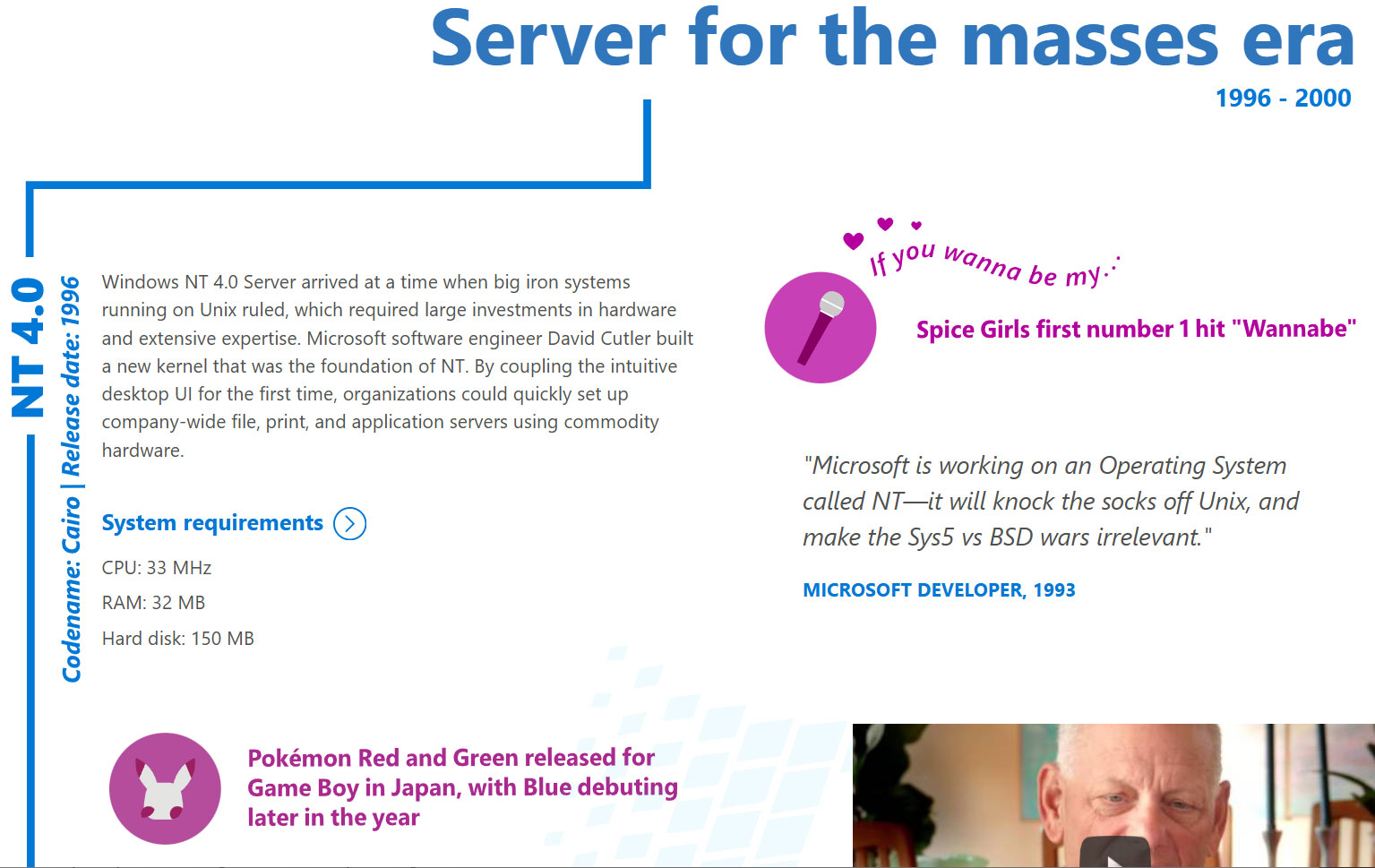
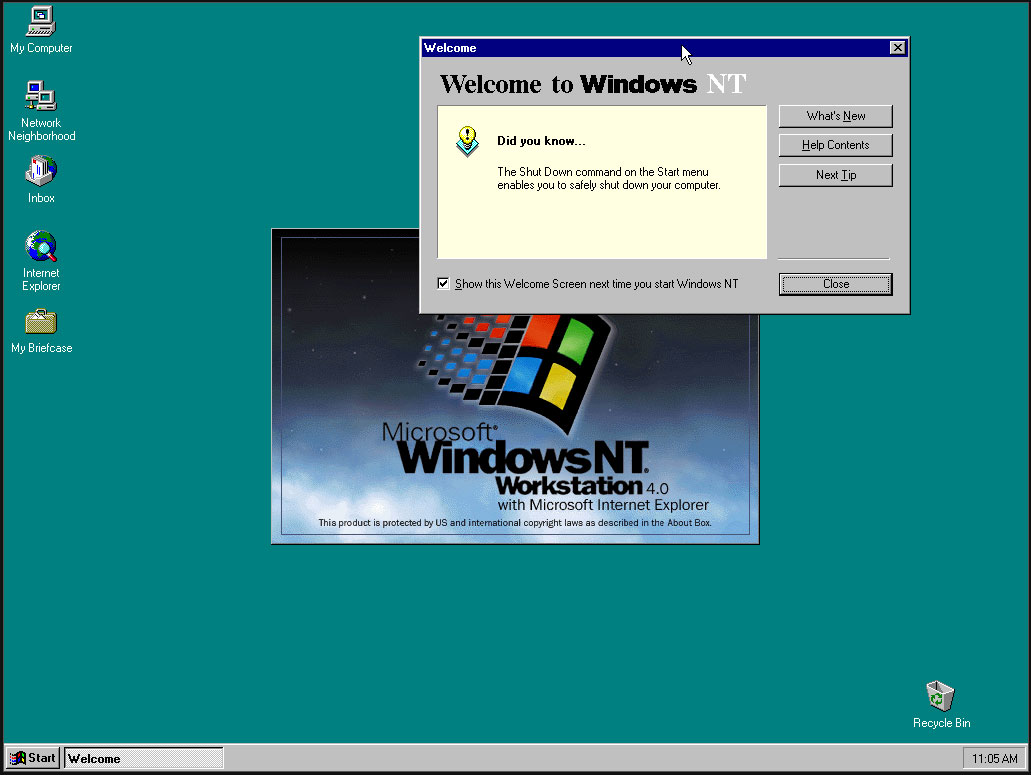
Microsoft released Windows NT 4.0 to manufacturing partners on July 31, 1996. Codename Cairo marked an important milestone in the history of Microsoft’s original server OS and would far outlive Microsoft’s original plans as enthusiasts and administrators clung to it, as older readers will be aware. Headlining features of NT 4.0, which made it a winner, include the melding of the intuitive new Windows 95 UI into the fully 32-bit enterprise OS. It was also notable for being the last version of NT to support Alpha, MIPS, or PowerPC CPU architectures.
Historical Windows NT timeline:
After the initial Windows NT 4.0 release, Microsoft followed up with a version for embedded systems and its Terminal Server edition.
The Windows NT line was critical to Microsoft as it led the charge against dominant Unix server software ecosystems. Its first public release was in 1993, with version 3.1, but NT 4.0 coupled the underlying data server and personal workstation tooling with Win95 UI elements such as the Start Menu, Taskbar, Task Manager, and so on. It would also support new components like the cryptography API, DCOM, TAPI 2.0, and some DirectX (v2) features.
Despite all the new technology under the hood and the frills of the latest UI, Microsoft’s Windows NT 4.0 launched with remarkably low minimum requirements. Would-be users were recommended to install it on a PC with a CPU that ran at 33 MHz or better, had 32MB of RAM, SVGA graphics, and a hard disk with 256 MB capacity. This was in the Pentium / Pentium Pro era. NT 4.0 would become “the server for the masses,” boasted Microsoft on the OS’s 20th anniversary.
Another reason that NT 4.0 was so important is that it formed the foundation for the Windows XP release (2001), leaving the DOS-based 95, 98/SE, and Me versions of the consumer OS behind as archaic hybrids. In the half-decade between the release of NT 4.0 and XP, Microsoft had a lot of work to do, such as implementing Plug and Play, building out gaming tech, adding WDM drivers, and so on. Thankfully, PCs also grew in muscle, specs, and multimedia capabilities to make the larger and more demanding XP a big hit.
Windows XP landed with a core marketing line that it was “Built on NT technology,” which felt uncomfortable to read if you were from the camp that believed ‘NT’ was short for ‘New Technology.’
It is pretty easy to find an old Cairo release online for retro machine tinkering. Those interested in a more casual poke around in NT 4.0 out of interest, curiosity, or nostalgia will find there are some online installs you can play with via a web browser.
An “AI worm” can spread through Microsoft Word documents using Copilot as a vector, a prominent Norwegian AI researcher reported on Tuesday.
The report from Håkon Måløy, later confirmed by Microsoft, said that an attacker can conceal instructions in a document that is later used as source material for Copilot-generated or Copilot-edited Word documents, for example, as input to a financial report. Those malicious instructions could potentially alter figures in the document being created. They then copy themselves into the new document, causing it to become a carrier of the attack when used in another Copilot-assisted workflow.
Måløy noted: “To my knowledge, this is among the first public demonstrations of document-borne AI-worm self-propagation through normal workflows in a mainstream commercial productivity suite.”
Microsoft on Thursday emailed a statement to CSOonline discussing the report’s revelations.
“We have addressed the findings reported by the researcher and thank them for working with us through coordinated vulnerability disclosure. To address this class of risk, we use a defense-in-depth strategy with safeguards that block malicious instructions at multiple points and help keep tasks aligned with users’ requests,” Microsoft said.
“We are continuously strengthening these safeguards as the technology and threat landscape evolve,” it added. “We encourage customers to install the latest updates, use multiple layers of security protection, treat content from unknown sources with caution, and review AI-generated content before using or sharing it.”
Aman Mahapatra, chief strategy officer for Tribeca Softtech, a New York City-based technology consulting firm, has reviewed the mechanisms used in this vulnerability and says that it is much worse than it might seem, because it will sidestep just about every defensive mechanism enterprises have in place today.
“This is a worm, a self-propagating malware pattern that uses Copilot as the transmission mechanism and legitimate corporate collaboration as the delivery channel. It bypasses every traditional email security control because the document is not malicious on delivery and it becomes malicious when Copilot processes it. That means that it bypasses DLP because the exfiltration happens through the user’s own authenticated Copilot session,” Mahapatra said. “It then bypasses endpoint protection because no code executes, only instructions get followed by an AI service the enterprise has explicitly authorized.”
He also noted that researchers have been warning about this class of attack for two years.
Måløy said that he has been working with the Microsoft Security Response Center (MSRC) since March 3 and Microsoft subsequently implemented and distributed multiple small focused mitigations, but the core vulnerability has yet to be fixed.
He said he was hesitant to disclose an active vulnerability, but felt that it was now time to publish.
“My reasoning is that defenders cannot reduce exposure to a risk they are unaware of,” Måløy wrote, “and the propagation mechanism described here affects ordinary document workflows that many organizations already rely on.”
In an email interview, Måløy noted that the tweaks Microsoft has implemented were helpful, nonetheless.
“The coordinated disclosure process showed that mitigations can meaningfully reduce the demonstrated attack surface, making attacks less reliable and limiting their reach, even without completely eliminating the underlying problem,” he said.
Måløy also addressed the resolution that many analysts and consultants suggested, which is to change the nature of LLMs to fully isolate instructions from the data they operate on.
“Separating instructions from data may be part of the solution, but I think the distinction between data and instructions is not always clear in real-world workflows. For example, a user may ask an agent to arrange a business trip, requiring the agent to retrieve an email specifying the approved itinerary and a document containing the booking procedure,” Måløy said.
“My view is that the broader challenge is therefore not simply to prevent systems from interpreting external content as instructions, but to evaluate whether those instructions align with the user’s goals and the context in which the system is operating,” he added.
Mike Wilkes, enterprise CISO at Aikido Security, said it would be difficult to overstate the potential problems from this situation.
“This is a significant issue because it moves prompt injection from a single compromised interaction into a potentially self-propagating document integrity attack,” he said, noting that it is not a conventional worm that spreads automatically. A user or Copilot workflow must still bring an infected document into the model’s context. “But once that happens, the malicious instructions can reportedly alter business information, conceal themselves inside the resulting Word document and turn a legitimate internal file into the next carrier,” he said.
That, he pointed out, creates “a dangerous enterprise supply chain in which financial reports, contracts, policies and partner documents may inherit malicious behavior while retaining the trust associated with their legitimate authors and Microsoft 365 accounts.”
The key issue behind this flaw is the fact that genAI tends to struggle with telling the difference between data that a user offers as input and the instructions the AI is to execute.
Flavio Villanustre, CISO for the LexisNexis Risk Solutions Group, observed that the same problem with mixed data and instructions occurred in databases decades ago, and turned into what we know as SQL injection attacks today. But, he noted, a few years later, parametrized binding for the database access layers was developed, which separates instructions, which are handled internally and safely, from data, which can come from untrusted sources. “The same needs to happen with LLMs and other AI,” he said.
Mike Leone, a VP/principal analyst at Moor Insights & Strategy, agreed.
“It’s hard not to chuckle a bit with this one. People have been asking whether data can give orders since SQL injections. We fixed that one by giving the database a way to tell an instruction from a value,” Leone said. “Thirty years later, we’ve built an entire category of software that can’t tell the difference at all.”
Tom Findling, CEO at Conifers.ai, also said he sees the data-vs-instructions issue as the biggest problem.
“Separating data from instructions is still unsolved at the model layer. The labs are making real progress, but not enough to be your only control,” he said, and stressed, “Microsoft doesn’t need to wait for that. It can slow propagation inside Copilot: stop hidden content from being written into new documents, surface hidden text before it’s used, preserve the trust level of what Copilot read and show all AI-generated changes.”
However, Frank Dickson, group VP for security at IDC, argued that a fix needs industry agreement.
“A fundamental fix requires the industry to converge on the same architectural change, which isn’t happening anytime soon given the incentives and the fact that the major players are far from besties,” he said, pointing out that Instruction-data separation would need to be baked in at the model or platform level across every major vendor. “None of them are rewarding that work commercially right now, so treat that as a multi-year research problem, not something a CISO should wait on.”
Leone disagreed, arguing that a single vendor can do quite a bit, at least for its own customers.
“Microsoft has said publicly since last year that indirect prompt injection can’t be fully prevented, and I give them credit for saying it out loud rather than pretending otherwise,” Leone said, noting that the industry doesn’t have to move in lockstep. “This attack lives inside one product,” he said. “If Microsoft hardens the Copilot document path, Copilot customers get safer whether or not anyone else moves.”
Dickson added that another critical problem with this vulnerability is that the carrier documents are created by legitimate employees using legitimate tools, “so there’s no obvious point of origin once the payload starts moving; an organization could be laundering corrupted financial figures through its own workflow for weeks before anyone notices.”
That said, experts had some specific suggestions for CISOs trying to negate this problem.
IDC’s Dickson said, “the most useful lever right now sits outside the model entirely, in how much untrusted content Copilot is allowed to pull into a session without a human choosing it.” He noted that enterprises can turn Copilot’s auto-discovery behavior off or restrict it, and require humans to explicitly select the documents they feed it. “That alone closes off one of the two ways the attack gets a foothold,” he said.
IDC also suggested a visible diff or redline of anything Copilot changes in a financial or otherwise consequential document, and the requirement for a human to approve the changes. “That’s not a technical fix, it’s a workflow one, and it’s available today,” Dickson said.
He said that IT should also track where content came from and what was touched by an AI system, in metadata that travels with the document. “It doesn’t stop the injection, but it means when something does get through, an organization can actually trace how far it spread instead of discovering a corrupted number three reports later with no way to reconstruct the chain,” he said.
However, one expert, Tyler Reguly, Fortra’s associate director of security R&D, said that he didn’t see this vulnerability having a meaningful impact because it feels like what he called a “laboratory vulnerability.”
Normal enterprise workflows don’t encompass a number of the necessary steps for compromise, he said, pointing out that, if anything, people are trained not to download Word documents. Plus, he noted, looking at the blurred example in the report, the malicious document contained an additional apparently blank page which held the concealed prompts in white text.
“That page is going to send up warning signs for me if someone even managed to convince me to download an external Word document,” he said. So, overall, “this feels like it requires a perfect storm.”
This article originally appeared on CSOonline.
Traveling enterprise employees beware: Think twice before you log onto that oh-so-convenient public Wi-Fi.
Since at least June, threat actors have been compromising “captive” Wi-Fi gateways and other portal appliances at hotels, conference centers, and similar shared venues to hijack users’ Microsoft 365 accounts, according to the ReliaQuest Threat Research team.
Once a threat actor controls a gateway, they can silently redirect a user’s traffic to their own infrastructure and steal their Microsoft 365 credentials without ever touching the user’s device, compromising endpoints, or sending phishing links or malicious attachments.
“The most dangerous element is that it operates at the network gateway, which sits beneath most of the trust assumptions users and devices make,” ReliaQuest told CSO Online. “It’s not necessarily an enterprise breach level event on its own, but it’s a very real risk to individual accounts.”
Domain Name System (DNS) poisoning, in which false data is injected to redirect regular web traffic to fraudulent domains, has previously been observed on small office routers, but attackers are now expanding the technique to higher-level targets, the ReliaQuest researchers explained in a blog post.
Attackers likely gain access to the gateways through weak or reused admin credentials in combination with exposed interfaces like Secure Shell (SSH), Simple Network Management Protocol (SNMP), and other web consoles, they pointed out.
Admin access to the gateway is all that malicious actors need, because devices are designed to inherently trust DNS, which translates domain names like login.microsoftonline[.]com into IP addresses to route them. Therefore, a single gateway compromise gives the attacker the ability to redirect traffic for every guest logging into the network, providing IP addresses it controls in response to DNS requests, rather than the legitimate ones, without touching a single endpoint.
“Captive portal appliances sit at the network perimeter for every guest on that network,” the researchers wrote. “Detection is inherently difficult because the attack happens gateway-side, outside the endpoint’s visibility.”
In the campaign tracked by ReliaQuest, four attacker-registered domains, m365-owa[.]com, owa-ms365[.]com, ms365-device[.]com, and ms365-live[.]com, were used for Microsoft-impersonation lures.
The compromised Wi-Fi gateways were discovered across multiple US cities as well as in India and Saudi Arabia, and impacted users were from companies in professional and financial services, legal, retail, health care, and energy, indicating that the method isn’t sector-specific.
“We’ve seen enough SharePoint exfiltration cases to know that a single popped account can cascade into meaningful data loss,” ReliaQuest noted. Meanwhile, for the network operators, there’s a “reputational dimension”; user compromise is a “serious trust and brand problem, regardless of how sophisticated’ the underlying attack is.”
Locking network configurations to a ‘safe’ DNS provider such as Google (8.8.8.8), Cloudflare (1.1.1.1), or the cloud-based OpenDNS isn’t a sufficient tactic, because it doesn’t change the path that queries actually travel over, ReliaQuest contended.
By default, devices send DNS queries as unencrypted protocol traffic, and those packets still have to traverse the hotel’s network to reach Google, Cloudflare, or OpenDNS, the company explained. Since the gateway sits directly in that path, it can inspect, block, or redirect the query before it ever reaches the chosen resolver.
“Specifying a trusted DNS server changes the intended destination, not who controls the road to get there,” ReliaQuest noted.
Further, Domain Name System Security Extensions (DNSSECs), which use digital signatures and public-key cryptography, only “partially” address the problem. DNSSEC provides authentication and integrity for signed domains, which means a validating resolver can detect and reject forged or tampered responses.
“What it does not do is provide confidentiality or availability,” the company said. “It does not encrypt DNS traffic or stop an attacker from intercepting, blocking, or redirecting requests.”
So while DNSSEC can defeat certain response-forgery attacks against signed zones, an on-path gateway can still see queries, drop them, or force fallback behavior. However, this protection layer only helps when domains are actually signed, and then only when the client or resolver performs validation, which “many stub resolvers do not,” according to ReliaQuest.
To combat the problem, enterprises should require all corporate devices to use a full-tunnel VPN for network connection. Controls should prevent internet access until a tunnel is active, ReliaQuest advised.
This will route all of a device’s traffic, including DNS, through an encrypted connection to a trusted VPN server before it travels anywhere else, the company explained, thus preventing local networks like hotel gateways from seeing or modifying DNS and internet traffic.
“In effect, it takes the untrusted network out of the trust equation,” ReliaQuest noted.
However, full-tunnel configuration is not the default for VPNs, because it comes with “real trade-offs,” the researchers noted: It adds cost, latency, and bandwidth demands, since every packet has to travel through company infrastructure. Thus, forcing all traffic through the corporate backbone is “not always practical” for distributed or bandwidth-heavy workforces.
Enterprises should also enforce conditional access in Entra ID to block device-code authentication flow, which has few legitimate use cases for most users in most environments, ReliaQuest noted.
The company also advised:
Prevention is more important than detection here, ReliaQuest pointed out: while in tools like Microsoft Defender for Endpoint, ‘DnsConnectionInspected’ events showing queries to attacker-controlled domains are a primary endpoint-level signal, “by the time those events fire, the redirect has typically already occurred. In other words, endpoint telemetry confirms what happened more than it prevents it.”
This is exactly why methods like encrypted transport, Conditional Access, and WPAD and PAC hardening matter more than detection alone, the researchers emphasized.
This article originally appeared on CSOonline.
© ID 29374568 © Viorel Sima - Dreamstime.com
Shadowfetch Linux 2.0.0 corrige o apt, libera ferramentas de IA no menu e melhora máquinas virtuais, instalador e limpeza da conta live.
O post Shadowfetch Linux 2.0.0 corrige o apt e destrava recursos no menu apareceu primeiro em Blog do Edivaldo - Informações e Notícias sobre Linux.
Helwan Linux 5.0 traz upgrades contínuos, ferramentas para devs e promete acabar com a reinstalação a cada grande versão.
O post Helwan Linux 5.0 chega com upgrades contínuos e foco em devs apareceu primeiro em Blog do Edivaldo - Informações e Notícias sobre Linux.
Microsoft's latest revolutionary idea for Windows 11 is to have a key on your keyboard which can be remapped to do absolutely nothing.
Windows Latest noticed the latest twist in the tale of the Copilot key, as highlighted by regular leaker PhantomOfEarth on X, who spotted the development hidden in a recent Windows 11 preview build.
In the choices to customize the Copilot key – which, by default, summons Windows 11's Copilot AI (of course) – there's a new option to simply 'Do nothing'.
Yes, that's correct – you can change the key to simply be a pointless piece of plastic that does precisely zip. (Or at least you'll be able to in testing, when this ability comes into play, that is, although some Windows 11 testers have reportedly seen it live in preview already).
As you may have seen earlier this year, Microsoft is working on bringing fresh options to the Copilot key that include customizing it to invoke the context (right-click) menu, and to turn it back into Right Ctrl (which was the key that the Copilot button replaced on Copilot+ laptops and some keyboards).
What's the point of a key that does nothing? Good question. Maybe it's the keyboard equivalent of a stress ball – you can hammer on that key as much as you want when you're really annoyed, and it won't splurge a load of characters into the document you're working on as you exorcise your frustrated demons.
Okay, so maybe not, but perhaps the idea is that this is aimed at people who really hate the Copilot key, but haven't decided what they might want to remap it to. So, they can go ahead and elect for the key to do nothing if it's accidentally hit, while they figure out what they might want to redefine in its place. That's stretching things, admittedly, but it's the best guess I have.
At any rate, it's a harmless enough option, although it feels inescapably odd to have a 'blank' key on your keyboard. How far we've fallen since the Copilot key was first revealed and trumpeted by Microsoft as the biggest thing to happen to keyboards in 30 years since the Windows key was introduced. And indeed more recently, Microsoft promoted the Copilot key as the "button you can press to fix everything", so there's some irony that it could soon (optionally) become the button you can press to fix 'nothing' in a very literal sense.
Don't forget that you don't have to wait for Microsoft's Copilot key remapping functions to arrive in the release version of Windows 11. You can use the Keyboard Manager in PowerToys to do this instead, although it'll be far neater to have these options in Windows 11's settings, of course.