❌

Normal view

Google Pixel 11 vs. Pixel 9: Two generations later, is it finally time to upgrade?

Official Google Pixel 11 render

Google
Pixel 11

AI goodness

The Pixel 11 is two generations ahead of the Pixel 9, sporting a better processor, a triple-camera setup, a larger battery, and faster charging. Google upgraded the AI experience to bring cool features like Magic Capture, Rambler, and more, and the base storage finally starts at 256GB. But the $100 price increase and lack of the HiLight notification LED cast a shadow of doubt.

Pros

  • Android 17 with 7 years of updates
  • Higher base storage
  • Tensor G6 is more efficient
  • Pixelsnap support opens up compatibility with an insurmountable number of accessories
  • Improved triple camera setup with better zoom
  • Bigger battery with faster charging speeds

Cons

  • Costs $100 more and misses out on HiLight
  • Cameras not too different from Pixel 10
  • Display isn't an LTPO OLED (60-120Hz)
  • Wi-Fi 6E

Google Pixel 9 official render front and back - Peony

Google
Pixel 9

Still going strong

The Pixel 9 might not be the best Android phone out there, but it is still one of the best AI phones you can buy for a very agreeable price. It has a fantastic dual camera setup, plenty of AI features that have stayed up to date thanks to regular Pixel Drops, and is guaranteed to get updates until Android 21.

Pros

  • Half the price of the Pixel 11
  • Also promises 7 years of updates
  • Shares many of the Pixel 11's best features like Pixelsnap, IP68 water and dust-proofing, and many overlapping AI features
  • Dual cameras do a fantastic job
  • Wi-Fi 7

Cons

  • The Tensor G4 chipset is quite old
  • Lower base storage
  • Slow battery and charging specs
  • Display isn't as bright as Pixel 11
  • Lacks magnetic Qi2, or Pixelsnap as Google calls it

The Pixel 11 brings several upgrades over the Pixel 9, but in a strange turn of events, it also brings quite a few downgrades. One thing is for sure, though: the latest Google Tensor G6 chipset is the clear winner in terms of performance and raw power.

Most importantly, if you were to step into the store to buy both phones right now, the Pixel 9 would only cost you about $549, whereas the Pixel 11 starts at $899. The price gap is significant, leading us to question which phone is better. Two generations later, and it's still unclear to Pixel 9 owners whether the Pixel 11 is worth upgrading to. I'm here to unearth the answer to this question.

Google Pixel 11 vs. Pixel 9: By the numbers

Google Pixel 11 family specs

Category

Google Pixel 11

Google Pixel 9

Storage

256GB, 512GB

128GB, 256GB

RAM

12GB

12GB

Display

6.3-inch 120Hz LTPO AMOLED, 3000 nits peak, Gorilla Glass Victus 2

6.3-inch 120Hz LTPO AMOLED, 2700 nits peak, Gorilla Glass Victus 2

Processor

Google Tensor G6

Google Tensor G4

Rear Cameras

48MP wide

13MP ultrawide

10.8MP 5x telephoto

50MP wide

48MP ultrawide

Selfie camera

10.5MP

10.5MP

Battery

4,985mAh, 30W wired, 25W wireless (Qi2)

4,700mAh, 27W wired, 15W/12W wireless (Pixel Stand/Qi)

Connectivity

5G, Bluetooth 6, Wi-Fi 6E, eSIM-only (US)

5G, Bluetooth 5.3, Wi-Fi 7, nano+eSIM,

Dimensions & weight

152.8 x 72 x 8.6mm

197g

152.8 x 72 x 8.5mm

198g

Colors

Frost, Pistachio, Hibiscus, Obsidian

Obsidian, Porcelain, Winter

Google Pixel 11 vs. Pixel 9: Cold hard specs

The Pixel 9

(Image credit: Derrek Lee / Android Central)

Looks-wise, the Google Pixel 11 and Pixel 9 are very similar, but the former's brighter colorways and all-glass camera bar stand out distinctly. Apart from that, both Google Pixel phones are the same size, each with a 6.3-inch HDR10+ OLED display. Neither Pixel has an LTPO panel, so the variable refresh rate can't drop below 60Hz.

Disappointingly, the Pixel 11 misses out on HiLight, a standout feature of the Pixel 11 Pro and Pro XL. It also comes with Wi-Fi 6E instead of Wi-Fi 7, which is found on the Pixel 9. Google did upgrade to Bluetooth 6 on the Pixel 11, thankfully, so the Pixel 9's Bluetooth 5.3 is quite outdated by comparison.

Google Pixel 11 product photos on Android Central

(Image credit: Apoorva Bhardwaj / Android Central)

Battery and charging are significantly better on the Pixel 11, jumping from the Pixel 9's 4,700mAh cell, 27W wired charging, and 15W wireless charging speeds to a 4,985mAh battery, 30W wired charging, and 25W wireless charging. Pixelsnap (or magnetic Qi2) is one of the best features of the Pixel 11, something the Pixel 9 lacks entirely.

Performance is a vital consideration, and the Google Pixel 11's Tensor G6 chipset crushes the Pixel 9's much older, slower Tensor G4 chip. The G6 offers 20% better power efficiency, 25% faster browsing, and 15% faster app loading compared to the Tensor G5.

Let's also not forget that all this will cost you a lot more: the Pixel 11 starts at $899 for 12GB/256GB, whereas the Pixel 9 retails for about $440 for the 12GB/128GB variant and $545 for the 12GB/256GB option.

Google Pixel 11 vs. Pixel 9: Software and AI

The Peony pink Google Pixel 9 next to some flowers

(Image credit: Nicholas Sutrich / Android Central)

It is well known that, eventually, software and AI features from new Pixel phones trickle down to older models. However, this also depends on whether the phone's chipset supports those features.

Given the wide gap in raw power between the Tensor G4 and Tensor G6 chips, many of the Pixel 11's best features may not be available on the Pixel 9. Gemini's features rely on the G6's advanced architecture, so features like Rambler voice-to-text, Magic Capture, Sign Language-to-text translation, and automation via Gemini Intelligence are likely to remain exclusive to the Pixel 11. Some might come to the Pixel 10 eventually, but it is highly unlikely that the Pixel 9 will also get those features.

Both Pixels run Android 17 and are guaranteed seven years of OS and security updates. The Pixel 9 started out with Android 14, so naturally, it has fewer updates to go compared to the Pixel 11.

Google Pixel 11 vs. Pixel 9: Cameras

The back of the olive Google Pixel 11

(Image credit: Shruti Shekar / Android Central)

The Pixel 11 has a triple-camera setup, with all-new lenses compared to the Pixel 9's dual-camera setup. Pixel 11 users enjoy a 48MP primary camera, a 13MP ultra-wide camera, and a 5x telephoto sensor, with up to 30x zoom. New camera features on the device include Magic Capture, Camera Looks, Camera Coach, and Creator Suite.

Next to that, the Pixel 9's 50MP wide and 48MP ultra-wide cameras and glaring lack of any telephoto lens look pointedly plain. Although a few Pixel 10 camera features, like Camera Coach, made their way to the Pixel 9, they are a far cry from the photography and videography tools and capabilities of the Pixel 11.

Google Pixel 11 vs. Pixel 9: So should you upgrade?

Testing the battery life of Google Pixel 9, Google Pixel 9 Pro, and Google Pixel 10 Pro

(Image credit: Sanuj Bhatia / Android Central)

The Pixel 11 offers Pixelsnap, vastly improved performance, better cameras, more base storage, better AI features, superior battery and charging specs, and solid triple cameras.

The Pixel 9, on the other hand, still has many years of software updates, and it performs well enough, with solid photography and ingress protection. It is slow by comparison and has poorer battery life and charging performance.

Whether you are a Google Pixel 9 owner or considering saving money by buying an older phone, the Pixel 11 is clearly a much better deal overall. You'll get Android 17 and the same seven-year update promise. The extra money you spend will get you a vastly more efficient processor, newer hardware, and more base storage.

If you are intent on staying in the $500 range, I suggest waiting for the Pixel 10 Pro to go on sale instead of purchasing the Pixel 9.

I drop-tested the best Pixel cases (and drove over the toughest) to see what "military grade" really means

As I leaned over the railing, heart pounding and hands shaking, I questioned how I ended up here. A flagship $699 phone in hand, ready to be hurled to its death. Let me explain.

I'm big on phone cases and test them for a living. One of the most common business tactics employed by case makers is to advertise their drop protection. Buzzwords like "impact absorption," "heavy-duty," and even "military grade" are thrown around all the time.

Do they actually mean anything? And what even is military grade? I decided to use my Pixel 8 as the sacrificial lamb and put four incredibly well-known and reputable brands to the test.

I wanted to bump these cases around and fling them from the heights the brands claim they can survive, going as far as driving over the toughest case that I found.

Google Pixel 8 case
Namerah Saud Fatmi / Android Central
Google Pixel 8 case
Namerah Saud Fatmi / Android Central
Google Pixel 8 case
Namerah Saud Fatmi / Android Central
Google Pixel 8 case
Namerah Saud Fatmi / Android Central
Google Pixel 8 in a case
Namerah Saud Fatmi / Android Central

The four cases I chose for this drop test are the Poetic Revolution, Dbrand Grip Case, Quad Lock MAG Case, and BURGA Tough Case. These cases range from mid-range to expensive pricing.

Poetic guarantees 20ft military-grade drop protection and full-body rugged defenses.

BURGA promises reliable, everyday protection against drops, bumps, and daily wear, which I'd say should be your average accidental phone drops from your hands.

Quad Lock promises the same everyday protection from its MAG Case.

Lastly, Dbrand assures us that the Grip Case has military-grade impact resistance, but provides no exact figures in terms of drop or impact resistance.

A tumble and roll in the sack to check scratch resistance

Google Pixel 8 case scratch resistance test

(Image credit: Namerah Saud Fatmi / Android Central)

To start off, I grabbed a few heavy objects, random things like my power bank and keys, and chucked them in a bag along with the Pixel 8. I shook the bag like it owed me money and repeated the process with each case.

I won't lie, I was a little nervous about the pointy keys and power bank as they are pretty solid metal objects and I usually keep them in separate compartments of my bag to be safe. I was happy to learn that the scratch-proof claims are accurate, but obviously only the back of the phone is protected. Poetic was the only exception to this rule, as it comes with a built-in screen guard. I had a screen protector on, so there were no scratches on the screen with any of the other cases either.

In fact, the only trouble I had during this part of the test was taking off the darn tough cases. Poetic gave me the most trouble, and I ended up cracking a nail taking it off.

The real test β€” dropped face first onto tiled floors

Google Pixel 8 case

(Image credit: Namerah Saud Fatmi / Android Central)

Finally, the fun part arrived. I decided to drop the tough cases offering everyday protection from 5ft onto hard tiled floors. This is actually more than the typical "military standard" of drop protection.

Expert case maker SUPCASE detailed this standard, where "the phone case undergoes 26 drops from a height of 4 feet onto a plywood surface laid over a concrete base with a steel backing" to qualify.

Each one of the four cases survived unscathed, so for the next test, I moved on to the toughest contender: Poetic.

Google Pixel 8 case

(Image credit: Namerah Saud Fatmi / Android Central)

Unlike BURGA, Dbrand, and Quad Lock, Poetic takes things a lot further and promises heavy-duty 20ft drop resistance, which is about two floors of an average building.

With a mighty heave-ho, I hurled the Pixel 8 in the Poetic Revolution case from the second floor of my parents' house.

The built-in screen guard stayed glued to the top of the phone even after such a terrible drop, but the case itself came off from the impact. However, the Pixel 8 still worked perfectly afterward, with not even a scratch or crack to be found.

Google Pixel 8 after 20ft drop test in Poetic Revolution case

(Image credit: Namerah Saud Fatmi / Android Central)

The only damage was a barely discernible dent in the camera bar in the front, but it did not interfere in the functional operation. The aesthetics of the phone were largely intact too.

Google Pixel 8 after 20ft drop test in Poetic Revolution case

(Image credit: Namerah Saud Fatmi / Android Central)

Unbelievably, the phone was still working. The camera lenses didn't shatter. I could still take pictures and make calls.

I decided to test just how impregnable the Poetic Revolution phone case really is and maybe took things too far with the final challenge.

I drove over the Poetic Revolution heavy-duty phone case with a car

Google Pixel 8 heavy-duty Poetic Revolution case drive test
Namerah Saud Fatmi / Android Central
Google Pixel 8 heavy-duty Poetic Revolution case drive test
Namerah Saud Fatmi / Android Central

And for my last trick, I decided to literally run the Poetic Revolution case over with a car.

My heart was in my mouth as I watched my dad drive over the phone in his MPV that seats seven. I was hesitant before chucking the phone off the second floor, but this was even more frightening.

Once the deed was done, I picked up the phone and...

Hallelujah! The phone was still working! The touchscreen responded as it should, I took a few pictures, sent a voice note on WhatsApp, and watched some YouTube videos.

Sure, the phone was a little dusty, but I washed off the dirt. Everything was as it should be β€” until I took the case off and checked the backside of the Pixel.

Pixel 8 after drive test using Poetic Revolution heavy-duty case
Namerah Saud Fatmi / Android Central
Pixel 8 after drive test using Poetic Revolution heavy-duty case
Namerah Saud Fatmi / Android Central
Pixel 8 after drive test using Poetic Revolution heavy-duty case
Namerah Saud Fatmi / Android Central

It hurt to see the bottom part of the glass back with spiderweb-like cracks spreading up. Clearly, the Poetic Revolution case has its limits. One must not drive over it with a car, but that's on me. Poetic never said you could.

I am still impressed that this was after multiple back-to-back drop tests, that too in the searing hot 45Β°C (or 113Β°F) Arabian summer. I can still use the Pixel 8 to do everything it needs to do. I even washed it with water, though I do not recommend you to do that with a cracked glass back.

It charges fine, the screen works, the cameras are functional, the mic records properly, and the speakers sound as they should. The Wi-Fi and Bluetooth modules are operating normally too.

All my ruthless drop testing proved that a good case can save your phone from disaster. The bottom line is, always get a good quality phone case. Those drop protection numbers clearly are not marketing slop. Just make sure it's a reliable brand like Poetic, not some off brand knockoff, so you can trust that the brand actually drop tested their case.

I let two AI apps track every bite I ate for three days straight to help me count calories and get back into shape. Here's the most accurate one

I went snorkeling a few weeks ago, and it was an eye-opener to just how sedentary my lifestyle has gotten. I have been meaning to get back into shape after completely letting myself go in recent years, and what better way to do that than to start maintaining a food diary on my phone?

There are hundreds, if not thousands, of fitness and wellness apps on the Play Store, but I wanted to kick things off with something easy to use consistently. BitePal and SnapCalorie are two AI calorie-tracking apps that stood out because they both advertise the same thing: take a picture of your food, and the app will log all your calories and macros. Sounds easy enough!

BitePal AI calorie tracking

(Image credit: Namerah Saud Fatmi / Android Central)

As someone who has never followed a diet plan before, I needed an app that could do the thinking and planning for me, in addition to the tracking. I am the antonym of a gym rat; a home cat, if you will. I decided to spend three days logging everything I consumed as well as my activity data on both apps to help me decide which one would be better in the long run.

Both apps offer the same features at their cores. You can choose the kind of lifestyle you lead, set a goal weight, choose your pace, and the app will use its nutritional database to spit out a diet plan for you to follow, giving you your target macros to hit daily.

You can connect your Google Health data to both apps, so it logs not only your food and water intake but also factors in your activities and workouts. You can also record your workouts and activity info manually if you want.

BitePal AIcalorie tracker app for iOS and Android
Reface Lithuania
SnapCalorie AI Calorie Counter app for Android and iOS
Perception Labs Inc.

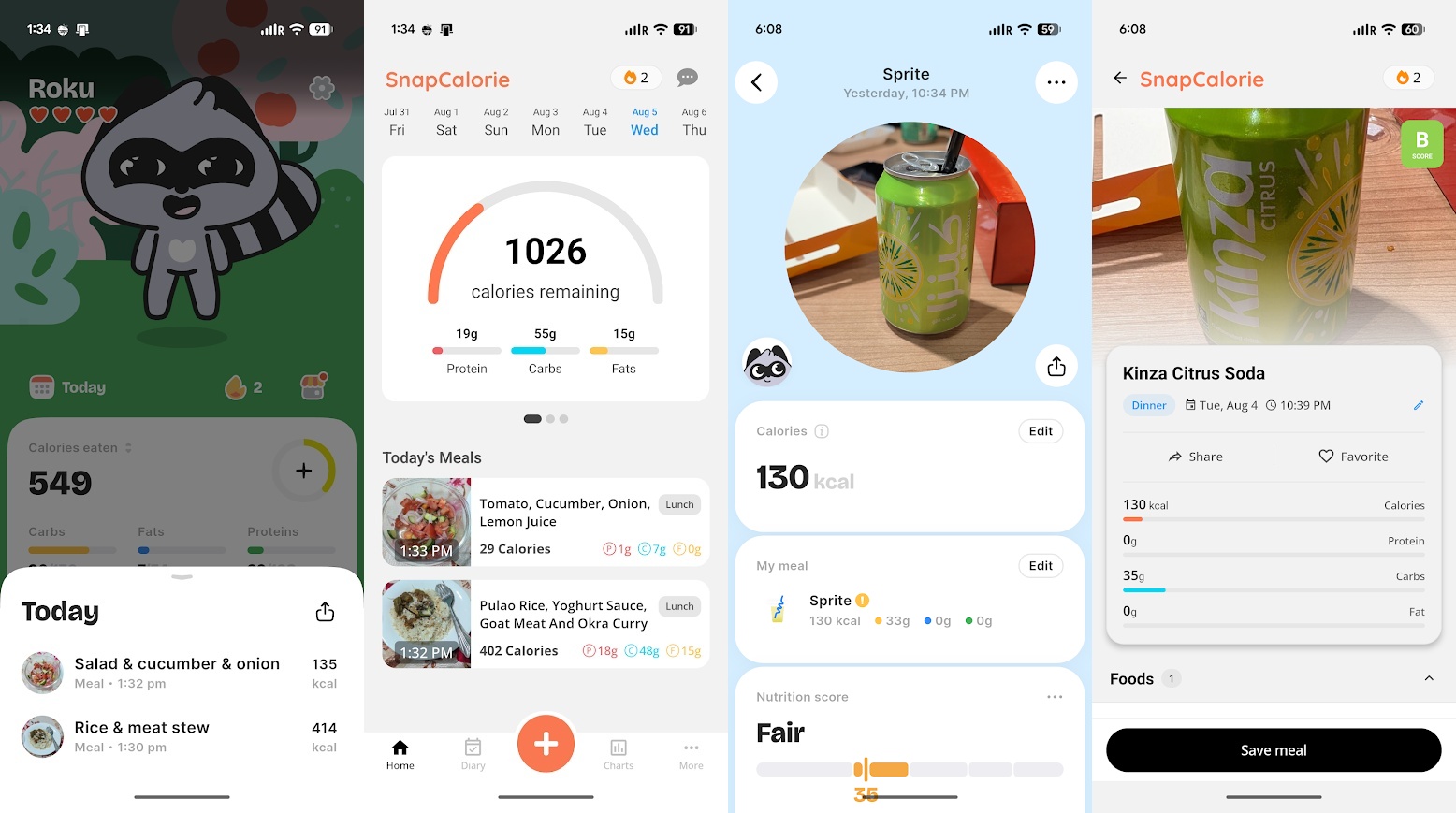
I like BitePal because it gamifies the entire food-tracking experience and takes the diet plan a step further, including step-by-step recipes that fit your daily goals. The app has a cute virtual pet raccoon that you can name yourself, and based on how well or poorly you're meeting your fitness plan goals, the pet's health fluctuates daily. The entire UI is colorful and fun, but the free plan limits the number of food picture scans, meal tracking, nutritional advice, and pet-related features.

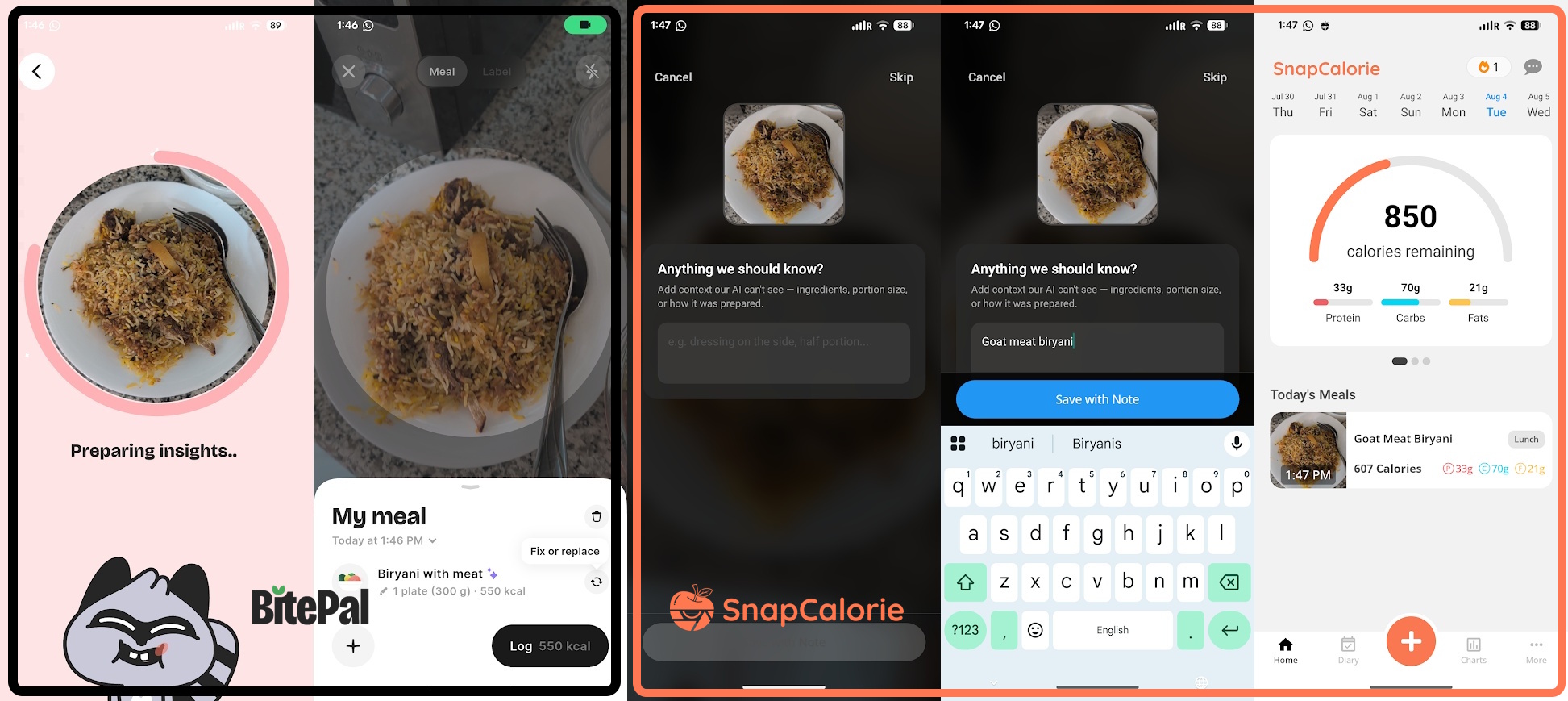
SnapCalorie is a more traditional fitness app with a straightforward UI, which can be boring, but it offers free users unlimited access to food logging tools and features, including barcode scanning and recipe creation and logging. Its AI food photo capture requires you to describe the food in a few words, which helps the AI analyze it more accurately and yield better results. It takes some time to process, but I found it much more accurate than BitePal.

BitePal vs. SnapCalorie AI calorie tracking

(Image credit: Namerah Saud Fatmi / Android Central)

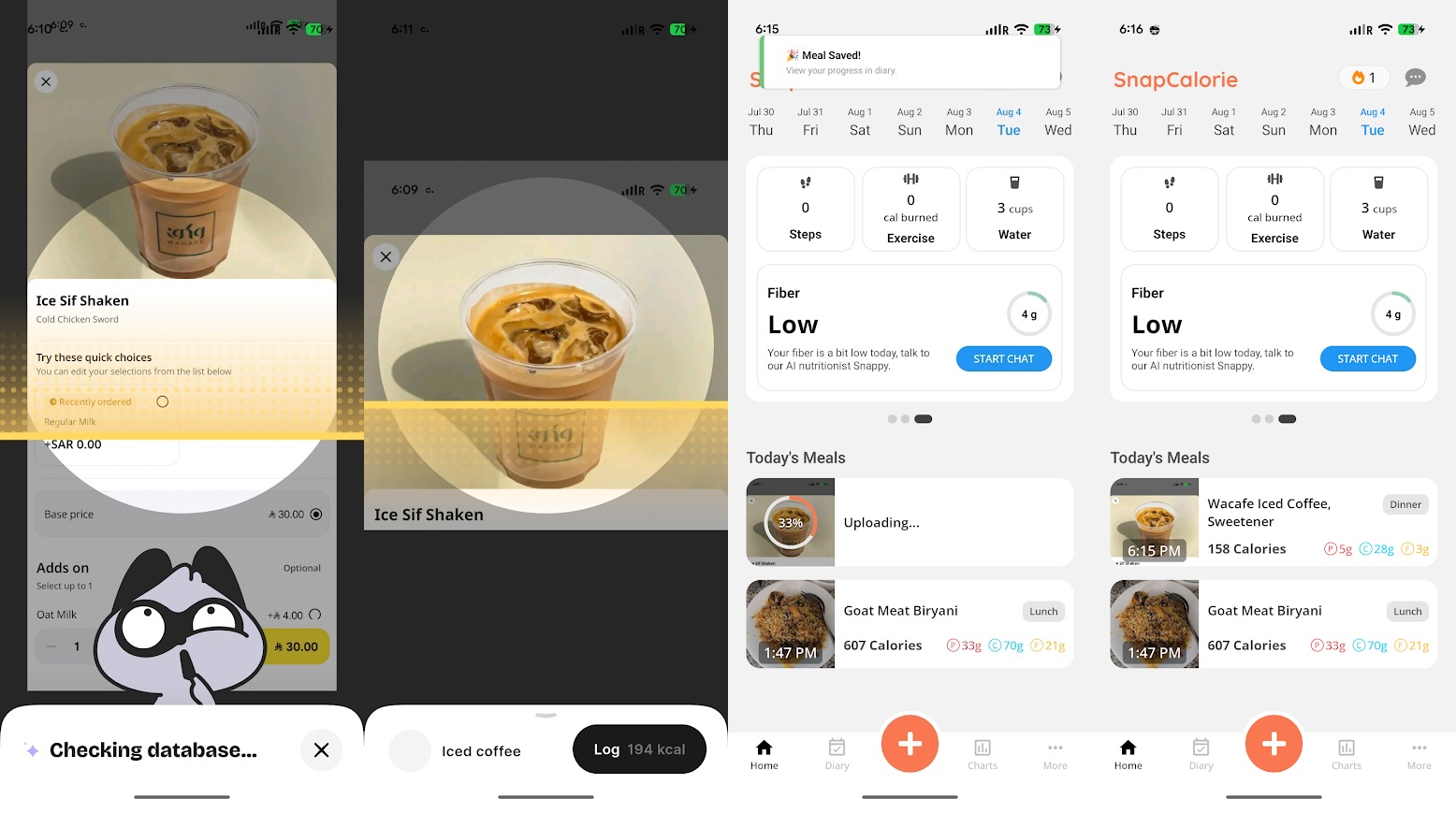
From homemade meals like goat meat biryani to foreign drinks such as Kinza Cola, SnapCalorie was shockingly able to recognize food items a lot better than BitePal. I had to just settle for the closest item BitePal could find, such as substituting the lesser known soda with Sprite. Clearly, the AI picture analyzing tool on SnapCalorie does more extensive research.

I know I can manually add the calories and nutritional values of the items unrecognized by BitePal, but that just defeats the purpose of using an AI food logging app. The entire reason why I want to rely on an app is so I don't have to measure everything I put in my body and go looking for its nutritional info.

BitePal vs. SnapCalorie AI calorie tracking

(Image credit: Namerah Saud Fatmi / Android Central)

When I forgot to record an iced coffee I drank, I used a screenshot of the app I ordered it from and used that on both apps. SnapCalorie found the exact coffee from the specific cafe I ordered it from, pulled the calorie and nutritional info from the internet, and logged it in my food diary. It was amazingly easy!

BitePal couldn't even clock that the iced coffee had milk in it, let alone find the exact drink. Instead, I resorted to manually typing out that additional info once the app created the wrong record based on the screenshot of the coffee. Even though you can edit the name of the food once the AI creates a record based on the image, BitePal lacks the smarts to identify the item properly.

BitePal vs. SnapCalorie AI calorie tracking

(Image credit: Namerah Saud Fatmi / Android Central)

The verdict is in...

After three days of extensive food logging on both apps, I have decided to stick with SnapCalorie for long-term use. The fact that it can recognize foods from different cultures and parts of the world is a vital feature. It also offers all of the most important features of the app with the free basic version.

I can see BitePal being a kid-friendly fitness app, though parents will have to be prepared to pay for it. It's an exciting and interactive way to teach children about the importance of eating clean, consuming the right amount of fiber, calories, and fats in a day, and staying hydrated. Parents can even connect their child's Google Health data from the Fitbit Ace LTE or whatever fitness watch their kids use. The pet raccoon is adorable, and the entire layout and UI are so well done. I just wish the AI food recognition was better, because that's the main purpose of the app.

Interestingly enough, when I was first setting up BitePal and SnapCalorie, both gave me different timelines for me to achieve my goal weight even though I chose the exact same pace, with SnapCalorie giving an earlier date to achieve my target. Based on how much more extensive SnapCalorie's food library and analysis seem to be, I'll be trusting it to help me achieve my goal.

SnapCalorie

Create a diet plan to reach your health and fitness goals and track everything, from the food and drinks you consume to your physical activity, all in one app. Calorie tracking is as easy as taking a picture of your food and hitting save!

Free w/IAP: Google Play Store

This app let me turn my phone into a mouse for my PC, and it was ridiculously easy

There are many reasons why you would want to use your smartphone as a mouse to control your computer. Maybe you're watching something, and it's just easier, or maybe you can't get a physical mouse at the moment. Regardless, I can teach you how I turned my Android phone into a remote mouse that connects to my Windows laptop seamlessly. You'll see just how simple the steps are and will find no trouble doing it yourself!

All of this is possible thanks to Unified Remote, an Android and iOS app that works with Windows, Linux, and macOS. The app's basic, most essential functions are free to use, but if you want more customization and features, you can always purchase the premium version. This tutorial uses the free basic version on a Pixel 10 Pro running Android 17 and an HP laptop running Windows 11.

How to use your phone as a mouse for your laptop or computer

Unified Remote remote mouse app setup on Windows PC

(Image credit: Namerah Saud Fatmi / Android Central)

There are two parts to this tutorial. The first half is done on your computer, and the next half is completed on your phone. Although slightly different depending on the OS, the steps are more or less the same across platforms in essence.

Let's begin with the initial setup on your PC.

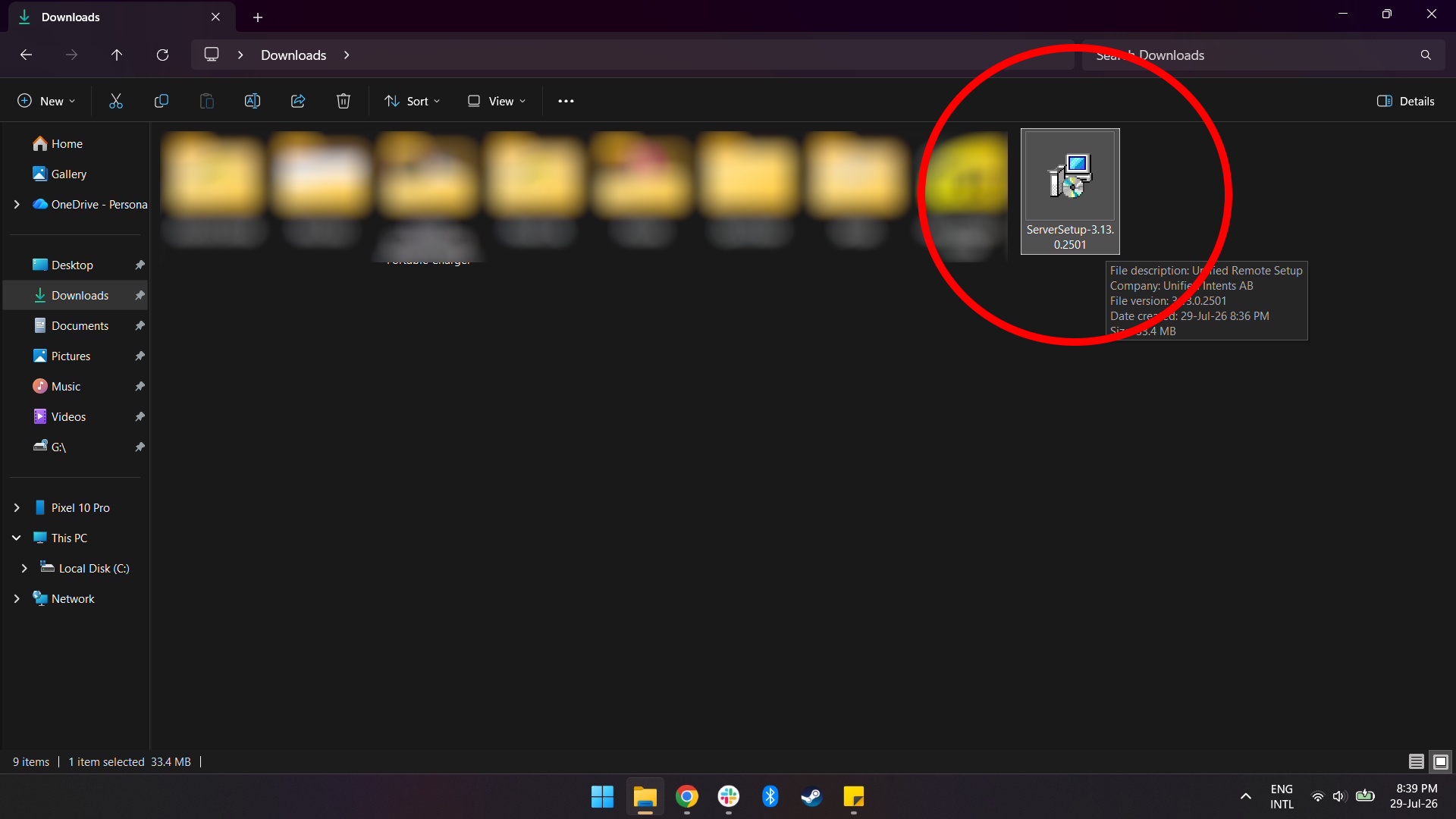
1. Go to the Unified Remote download page on desktop and download the Unified Remote Server setup file.

Unified Remote remote mouse app setup on Windows PC

(Image credit: Namerah Saud Fatmi / Android Central)

2. Run the Unified Remote Server setup file and to install it.

Unified Remote remote mouse app setup on Windows PC
Namerah Saud Fatmi / Android Central
Unified Remote remote mouse app setup on Windows PC
Namerah Saud Fatmi / Android Central
Unified Remote remote mouse app setup on Windows PC
Namerah Saud Fatmi / Android Central
Unified Remote remote mouse app setup on Windows PC
Namerah Saud Fatmi / Android Central
Unified Remote remote mouse app setup on Windows PC
Namerah Saud Fatmi / Android Central
Unified Remote remote mouse app setup on Windows PC
Namerah Saud Fatmi / Android Central
Unified Remote remote mouse app setup on Windows PC
Namerah Saud Fatmi / Android Central
Unified Remote remote mouse app setup on Windows PC
Namerah Saud Fatmi / Android Central

3. After installation is complete, launch Unified Remote on your computer.

Unified Remote remote mouse app setup on Windows PC

(Image credit: Namerah Saud Fatmi / Android Central)

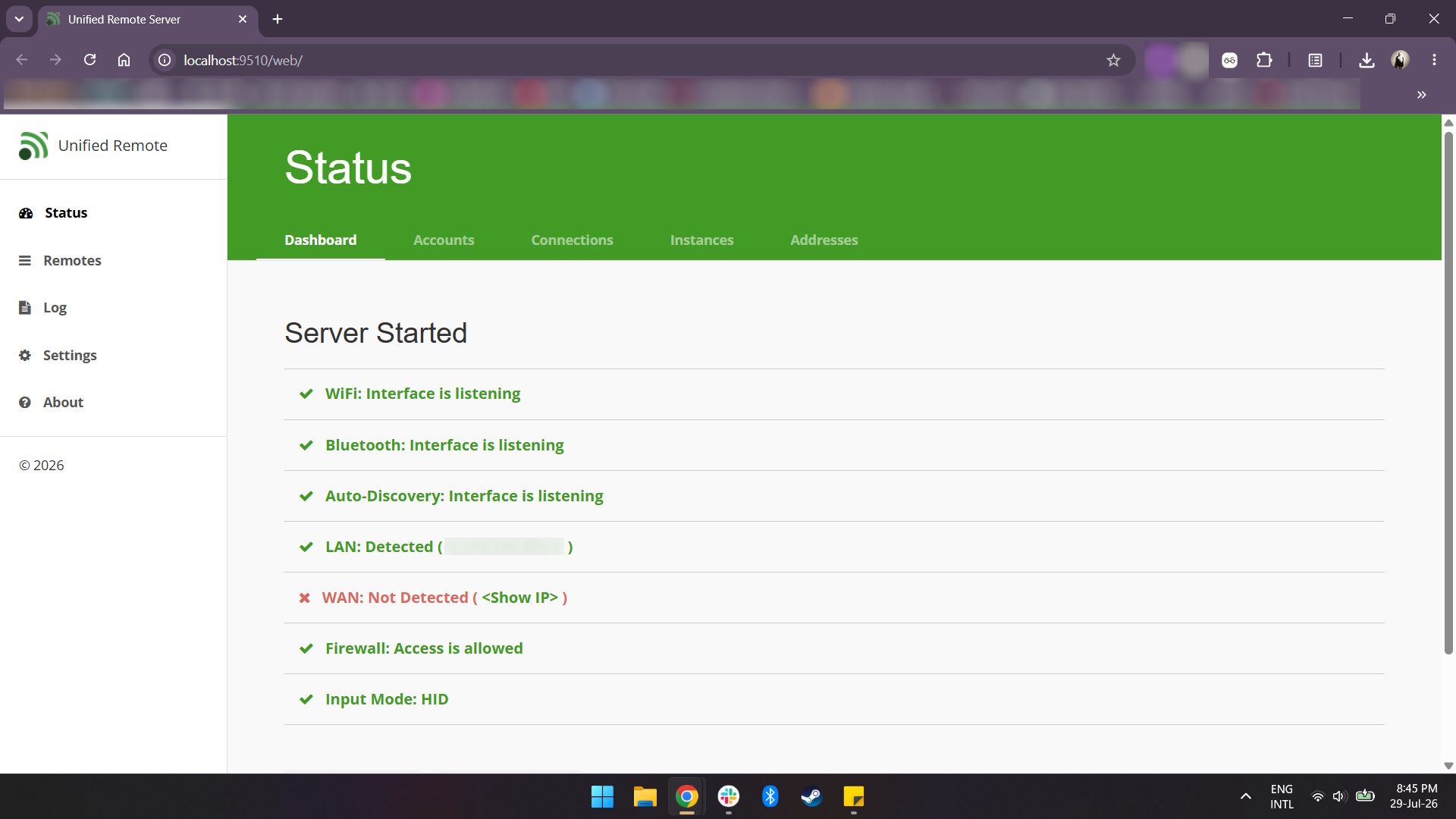
4. You should see your server status and information once the Unified Remote Server has been launched on your computer. If the server is up and running, this is what it should look like:

Unified Remote remote mouse app setup on Windows PC

(Image credit: Namerah Saud Fatmi / Android Central)

The next steps are to be carried out on your phone.

5. Download and install the Unified Remote app on your phone. Be sure to grant the necessary permissions to the app.

6. Launch the app and select "I'VE INSTALLED THE SERVER".

Unified Remote remote mouse app setup on Android phone
Namerah Saud Fatmi / Android Central
Unified Remote remote mouse app setup on Android phone
Namerah Saud Fatmi / Android Central

7. Your phone should connect to your computer's server automatically, so you can immediately start using the app's interface to control your computer.

Unified Remote is a fantastic free-to-use app that works perfectly well without paying for the premium version

Unified Remote remote mouse app on Android phone and Windows PC

(Image credit: Namerah Saud Fatmi / Android Central)

It's really that easy and doesn't require any money. The touchpad in the app works like a laptop's touchpad. You can scroll, right-click, single-click, double-click, move the pointer on the computer screen, and even pull up a keyboard and type! A bonus feature is that swipe texting works in the app, so you don't need to tap individual keys.

If you want to have access to remote controls beyond the basic touchpad, keyboard, and media controls, or if you want to get rid of ads, you'll have to subscribe to the premium version of the app. The ads aren't even that invasive, so you shouldn't stress about that aspect too much.

Unified Remote

Unified Remote is a foolproof app that enables Android users to convert their phone into a remote mouse that works seamlessly with any computer, whether it runs Windows, Linux, or macOS.

Free w/IAP: Google Play Store | Unified Remote for PC

Can you use Samsung Galaxy Z Fold 7 cases on the Galaxy Z Fold 8 Ultra?

Can you use Samsung Galaxy Z Fold 7 cases on the Galaxy Z Fold 8 Ultra?

Best answer: No you cannot use Samsung Galaxy Z Fold 7 cases on the Galaxy Z Fold 8 Ultra. Though they might look very similar in shape and size, minor differences in the camera module and hinge make this impossible.

A more in-depth explanation about the incompatibility of older cases with the Galaxy Z Fold 8 Ultra

Comparing the Samsung Galaxy Z Fold 7 with the Z Fold 8 Ultra at a hands-on event

(Image credit: Derrek Lee / Android Central)

When you hold the Samsung Galaxy Z Fold 8 Ultra and the last-gen Galaxy Z Fold 7 in your hand, or look at pictures of them next to each other, it is very reasonable to think they could share cases. After all, their dimensions are nearly identical, even on paper.

Here's a comparison of the measurements of the two large-form foldable devices.

Samsung Galaxy Z Fold 8 Ultra vs. Samsung Galaxy Z Fold 7

Dimensions

Samsung Galaxy Z Fold 8 Ultra

Samsung Galaxy Z Fold 7

Folded

158.4 x 72.8 x 8.9 mm

158.4 x 72.8 x 8.9mm

Unfolded

158.4 x 143.2 x 4.1 mm

158.4 x 143.2 x 4.2mm

Looking at the Samsung Galaxy Z Fold 8 Ultra vs. Samsung Galaxy Z Fold 7, the numbers hint at potential backward compatibility of cases. After all, the measurements match almost perfectly.

When folded, both the Galaxy Z Fold 7 and the Z Fold 8 Ultra measure 158.4 x 72.8 x 8.9 mm, and when unfolded, they're almost identical too, 158.4 x 143.2 x 4.2mm and 158.4 x 143.2 x 4.1 mm. Even their displays have the same sizes, 8 inches internally and 6.5 inches externally.

Comparing the Samsung Galaxy Z Fold 7 with the Z Fold 8 Ultra at a hands-on event

(Image credit: Derrek Lee / Android Central)

So what gives? Why can't you use the phone cases for the Galaxy Z Fold 7 on the Z Fold 8 Ultra? Well, if you can't tell from the pictures, the raised unit housing the camera lenses does not match, differing in sizing and placement.

The second difference hindering backward compatibility of cases between the two Z Fold models is the hinge. Because of these two small but important discrepancies between the two Z Fold devices, you cannot use cases for either foldable on the other.

It's hard to say whether these were functional design changes, or alterations that were made to warrant purchasing new phone cases so Samsung could make more money. Regardless, if you've taken advantage of the excellent Samsung Galaxy Z Fold 8 Ultra preorder deals and are waiting for your new foldable, be sure to check out the best Galaxy Z Fold 8 Ultra cases to go with it too.

Samsung Galaxy Z Fold 8 Ultra

Samsung Galaxy Z Fold 8 Ultra

The true Z Fold successor

Unlike its wider counterpart, the Samsung Galaxy Z Fold 8 Ultra is the true successor to the Galaxy Z Fold 7. It has similar dimensions, a robust IP rating, incredibly powerful hardware under the hood, and almost no crease to speak of. If you want a slim and tall foldable, this is the one to get. Just don't forget to buy device specific cases for it, since older Fold 7 cases are incompatible with it.

❌