Writing at The New York Times, tech reporter Kashmir Hill tells the strange story (NYT gift link) of coming across an AI-generated biography of herself on Amazon.
To me, the sobering part is when Hill, unable to track down the source of her own biography, talks to an “author” of hundreds of AI books:
Mr. Johns, who has long curly white hair and the bronzed skin of someone who spends a considerable amount of time outside, retired in 2024 from his work as a cybersecurity consultant. Divorced and living alone with two Shih Tzus, he suddenly had a lot of time on his hands. He was curious about A.I. and decided to experiment with it.
“Almost everyone I know says they want to write a book,” he said. “It’s a very romantic concept to sit down and toil, page after page and paragraph after paragraph, but it doesn’t make economic sense.”
You know, it’s hard enough making any sort of living as a writer, but crowding the field with AI slop? It’s not even as if people are buying them and reviewing them favorably. They’re just old socks stuffed down the drain, clogging up the sink with putrid water.1 What are we even doing here, people?
Could an AI write that metaphor? I mean. Maybe. But it didn’t. ↩
By now you’ve probably heard the promise of iOS 27: it’s a Snow Leopard-like year where Apple spent a lot of time not on big marquee features, but on smaller fixes and enhancements throughout the operating system. And that’s largely true—and largely to the benefit of the platform—but it’s also not the whole story. Because there is, of course, at least one major feature that comes to iOS 27 (and Apple’s other platforms) this year, and it’s a doozy: Siri AI.
The result is an OS that feels like a marked improvement over its predecessor, in everything from design to performance to capabilities. That’s not to say there isn’t still room for improvement, but this is the beta period, and improvements may be forthcoming.
Still, the promise of iOS 27 is that it’ll not only unlock new possibilities but also make your existing workflows smoother and quicker. That’s not a bad proposition for the device that many of us carry more than any other—as long as it can deliver.
As of today, iOS 27 is available to any and all who want to try it as a public beta. Some features are buggy, others aren’t yet finished, and every once in a while something may go haywire. But it’s all in the name of getting everything working for the final release in the fall.
Siri & AI: Two okay tastes that taste great together?
The call for Apple to do a major overhaul of Siri has existed almost as long as Siri as existed. Heck, I wrote a story about it back in 2015, more than a decade ago and only four years after the first version of Siri debuted. But even as competitors emerged and Siri moved to more Apple platforms, the voice assistant improved only in relatively small, targeted ways—a testament, perhaps, to the limitations of its underlying technology. With the recent rise of chatbots backed by large language models, it quickly became apparent how much Siri had fallen behind, and so drastic measures were necessary to bring it up to speed.
Siri AI’s capabilities go far beyond what the old voice assistant was capable of.
The good news is that Siri AI is capable: impressively so, at times. In the lowest of low bars, it certainly beats the pants off the previous incarnation of Siri, but its access to your own personal data and all of the app on your phone also unlocks a host of new possibilities.
But it’s also not without the pitfalls that underlie all LLM-powered chatbots: errors in understanding, hallucinations, and so on. Perhaps the biggest challenge of Siri AI will be getting people who have written Siri off as a limited feature, only to be used for trusted tasks—setting timers, checking the weather, playing music—to be more ambitious about what they ask the assistant.
New Siri is integrated throughout iOS, whether you access it via the traditional press-and-hold of the side button or by saying the wake word, or in its new home integrated with the Spotlight search when you swipe down from the middle of the top edge of the screen, a gesture that’s now available not just on the home screen but in any app. It’s got a new look too: a black liquid glass bubble with silver overtones. You can ask Siri questions by voice, or by simply typing to it.
There’s also a new standalone Siri app that stores all your conversations (with some exceptions). The app itself is pretty barebones, letting you view those conversations in List or Grid layouts, select multiple conversations to delete them, and pin or rename any single conversation. In Settings : Siri, you can choose to either open to the overview or to a new conversation and decide whether old conversations are kept for 30 days, 1 year, or forever. It’s a little strange that one-off queries (“What’s the average height of the Norwegian World Cup team?”) are stored alongside more involved conversations (“Can you help me build a specific RSS feed for this site?”); I also ended up with a few orphan blank “New conversations” which I deleted, but it’d be nice if you could filter to find those. Conversations are fully searchable and sync between devices via iCloud.
Play it, Siri. Play As Time Goes By The Rest is History.
I’ve had a couple of real “wow” moments with the feature in the month-plus that I’ve spent with the beta. For example, a couple of weeks ago I was on a rare long solo car trip when I realized that I wanted to listen to a specific episode of a podcast. This wasn’t a podcast that I listen to regularly or even subscribe to, and to make matters more challenging, it was an older episode. Hard enough to find in the Podcasts app when you’re not driving down the highway, but something I would never have even attempted with old Siri. But hey, now’s the time to give it a shot, so I asked Siri AI, via CarPlay, to play the episode of “The Rest is History” about the American Revolution.
After a moment of chugging—like most of those AIs, the process isn’t exactly fast—Siri came back to report that it had found one episode of the podcast about the American Revolution. “Play that,” I said…and it did. No need to specify the precise title of the episode, which I would not have remembered from earlier in our conversation.
Moments like that make me feel like a Star-Trek-computer-like voice interface is here now. In large part because it does leverage the great strength of Apple’s AI implementation (and I’m not going to spend the time dithering about models and distillation and all that jazz, because the question to me is how do people use it and how does it work). But that strength is that the AI isn’t siloed off in its own website or app, but on your device with all the information that includes.
The same went for when I asked it about the date for a pool party my wife had texted me about, and who would be there. (It even correctly identified an attendee with an ambiguous name based on proximity to their partner’s name.) And when I was viewing a webpage with an upcoming flight that I asked it to add to my calendar. It was also able to identify a movie still in a brochure for a local movie theater, give me the performance of the Red Sox over their last ten games1, and help me figure out which model of IKEA curtain rods I was dealing with. None of them things that I would have even thought about using Siri for prior to this incarnation.
Unfortunately, not every moment is like that. Like any LLM-based chatbot, Siri AI sometimes misunderstands or gives confidently wrong answers. For example, when I asked it about when my neighbor said they’d be back from vacation, it found the relevant text message but said that no return date had been mentioned, despite the fact that it was right there in the message.
Of course, some of this is easily ascribable to this being beta software. But some of it also the new normal for dealing with computers in 2026. Is that better or worse than having old Siri’s frequent habit of shrugging at things it simply couldn’t do? I’m not sure that’s an easy qualitative call. In the end, it’s a mode shift: a different experience of how we interact with our voice assistants and chatbots, and we’ll have to see how people adapt.
All of that said, one thing I do appreciate about Siri AI’s implementation is that Apple has done a good job of, for the most part, making sure that the traditional things that Siri has always been good at—setting timers, playing media, adding reminders, controlling smart home accessories, and so on—are no worse than under old Siri. From what I can tell, Siri is mediating these requests and handling those things locally rather than handing them off to the cloud. That also means not every request to turn on lights or play your podcast gets logged into the Siri app as a separate conversation, which is I think the right approach: I certainly don’t need a dozen conversations where I’m setting my five-minute tea timer.
In general, I’m bullish on the future of AI, and fascinated to see what happens as it rolls out to more and more users. Will it be able to sway the habits of those who’ve been using Claude and ChatGPT? Perhaps not for advanced uses like coding, but for your run of the mill world knowledge queries? That seems eminently plausible. Especially because it’s already there, built into your phone.
One caveat, however. As always, the future is not evenly distributed: on the iPhone side, Siri AI’s only available on the iPhone 15 Pro and Pro Max, as well as the iPhone 16 or later. And, of course, due to Apple’s ongoing disagreement with the European Union, it won’t be available on that continent either.
All roads lead to Siri
iOS 27 would really, really like you to write with Siri.
While Apple Intelligence is still apparently a going concern, much of that brand has been subsumed by the “Siri” identity in iOS 27. For example, any time you put a blank cursor in a text field, you’re prompted with a Write with Siri button hovering aboard the keyboard. (Once you start typing, you get the usual word suggestions, and Siri is reduced to just an icon.) As someone who is perfectly happy writing their own text messages and emails, this prompt sometimes feels a little bit aggressive, and I wish you could disable it without turning off all of Siri.
There’s also a Siri mode in Camera, which replaces the previous Visual Intelligence interface. Now it’s just something you swipe to, like Video or Photos. In this mode, the Siri icon replaces the shutter button; snap a picture with that and it’ll attempt to tell you what you’re looking at; there are also image search and ask buttons which, respectively, query a search engine for image results and attach an image of what you’re looking at to a more targeted Siri query. But this mode essentially is just a front end for the Siri app—you can attach an image in a new conversation there too, including snapping one with the camera.
Liquid Glass half full
To call iOS 26’s Liquid Glass redesign contentious is an understatement on the proportion of saying that Lionel Messi is good at kicking a ball. In iOS 27, Apple has made two major moves: first, tweaking the overall look and feel of Liquid Glass, and second, providing a way to further fine-tune that look yourself.
The Liquid Glass slider can be set to More Clear (left), the default (middle), and More Tinted (right).
In general, the iOS 27 incarnation of Liquid Glass is far easier on the eyes, dialing down the transparency in favor of legibility. Apple’s also imposed some distinction between user interface elements and content. For example, in list views like in Messages and Mail there are now much clearer “toolbar” areas at the top when you start scrolling, even if they still have some degree of translucency. App icons have also gotten a face lift; they’re sharper, and feel more vibrant.
In case you still aren’t happy with the default look, Apple also offers an option for adjusting the glass effect without resorting to the classic accessibility tweaks that can often have unintended design consequences. Settings: Appearance: Liquid Glass offers a slider that goes from More Clear to More Tinted, with a stop at the Default or anywhere in between. You can see right in the scrollable pane above the slider how your choice will look in a live interface, which is a nice touch.
Even just the addition of a more delineated toolbar in iOS 27 (left) vastly improves the feel over iOS 26 (right).
It’s a rare concession from Apple that there is no one true way that the UI should appear, but given that the company has in recent years allowed far more interface choices (for example, Mail, Safari, and Phone all offering toggles between older styles and newer interfaces), this feels like par for the course. While the most stringent Liquid Glass detractors will likely never be satisfied, the improvements and ability to tweak further thus far feel as though they will satisfy most users.
Performance, no anxiety
Tempting as it might be to spend this entire preview piece talking about Siri AI, there are indeed other things in iOS 27 that are worth your time. Exactly which improvements they are depends on how you use your phone.
That’s because one of the odd things about looking at iOS 27 is that there’s just a ton of small stuff—those “quality of life” improvements that chip away at little frustrations and annoyances. Being able to send a text message while a photo or video attachment is still sending. Faster switching from Wi-Fi to cellular when you walk out of range of your house. The ability to change volume on your alarms independently from system volume.
Otherwise If? Where’s my fainting couch?!
All of these are just nice enhancements, sanding off rough edges and just generally making things work better. But because they’re so niche, lots of people are going to have different experiences with iOS 27, because it depends on what’s important to them. For example, is anybody going to be as excited as I am that Shortcuts now offers an “else if” option? No, probably not! But that’s okay, because I’m happy enough for all of us.
The good news is there are some places where things are just better across the board. In general, iOS 27 feels peppy. I know, we always talk about snappiness, but given the time Apple has spent on improving performance and removing bugs with this release, it’s reassuring to see that it’s borne out by my experience. Apps launch quickly, photos sync faster via iCloud, browsing my NAS via the Files app was downright speedy compared to earlier versions.
AirDrop transfers were also notably rapid, though I say was because in recent beta builds my iPhone has stopped sending files via that method, though it still receives them. (That’s betas, folks!)
Apple also touted improvements to search, particularly in Mail, an app that I use daily, which has always been a bit lackluster in that regard, especially when compared with Gmail. I do find it improved in iOS 27, even though I do have an inbox of more than 144,000 messages going back nearly 25 years. I have mostly been able to locate emails, even obscure and old ones, within a relatively short amount of time, which is definitely a nice improvement.
I’m most intrigued to see how this affects the experience of those using older iPhone models. Apple says that it’s brought its optimized CPU scheduler to devices all the way back to the iPhone 11, which ought to noticeably improve performance even for those who don’t have one of the latest and greatest iPhones, but the public beta experience will certainly bear out the truth of that claim.
Photo fit and finish
If there’s one app that always seems to get some love from Apple in its yearly updates, it’s Photos. No surprise there: our cameras document everything about our lives and we take pictures constantly.
The filter menu now lets you choose between sorting by when photos were added versus when photos were captured, as well as providing quick access to photos that were captured by you (as opposed to photos taken by others that you imported). I’m not exactly sure what the rubric there is—when I used that filter, it only showed me images back to 2017, when I have surely been capturing photos—and even just iPhone photos—for a decade before that.
There are some big improvements, particularly in Shared Albums, which now let you share pictures as full resolution, quickly download all photos from an album, and even respond with emoji other than just thumbs up. Keep in mind, though, that all members of a Shared Album will need to be upgraded to iOS/iPadOS/macOS 27 in order for anyone to use the new features.
Ad hoc slideshows have gotten improvements too. When you select a bunch of photos and play them as a slideshow, you can adjust timing and duration as well choose the transition.
A five-star photo if I’ve ever seen one.
For those who missed being able to assign star ratings and keywords to their pictures (shades of iPhoto!), good news, they’re both back. Keywords are accessible by swiping down in the detail view, whereas star ratings need to be specifically turned on in Settings: Photos: View Options, where you’ll find a Show Rating Controls options. To assign a rating, you’ll need to look for a tiny star icon at the top right while looking at a photo (if you have the spatialize feature on, it’s next to that).
There are some smaller niceties too. For example, you can now save out a frame of a video as an image, rather than jumping through hoops of screenshotting or exporting it to a Mac. And you can adjust the metadata on photos both individually and in bulk, if you need to correct the date, time, or location.
And, although Apple has touted that photos will upload to iCloud faster, there’s a new option for those of us for whom that still might not be fast enough. In Settings: Photos: Sync Immediately, you can tell Photos to prioritize syncing new photos over conserving battery life—for the day. Not unlike the AirDrop “Everyone for 10 minutes” option, it’ll turn the feature back off after the day is over. (In a nice touch, when you turn it on, it shows a counter of how many hours are left before it deactivates.)
But of course, Photos isn’t immune to the expansion of AI, either. Previously we got Clean Up, the tool that lets you remove unwanted elements from your photos. Apple says it’s improved that in iOS 27: you can now choose between Fast and High Quality modes, the latter slower but more powerful.
There are also a pair of new AI features: Extend and Reframe. The former is easier to understand: if you want to zoom out of a photo, whether because you’re trying to fit in a particular shape or simply to tweak the framing of a shot, Extend can generate a little more background, extrapolating from what’s already there. It works best on smaller adjustments with backgrounds that are uniform or predictable. Go too far and you’ll end up with totally invented elements, which can look strange or out of place.
Reframe seems to work better with small tweaks, as in this photo where I lowered the angle at which I shot it.
Reframe is a bit harder to grok. Think of it as being able to move the camera after the picture’s been taken. Using the same features the company leverages for creating spatial scenes, it tries to separate out the foreground subjects and the background, and then adjust the perspective. Some pictures work better than others; it seems to help if there’s a clear delineation between foreground and background. Like Extend, it tends to work best for smaller adjustments; go too far and you can end up with some odd-looking artifacts. As tools, they have their utility, though it’s perhaps best used sparingly.
Other features
Apple’s made a big push on child safety across its product lines for the 27 updates. Some small improvements ought to really make the process more usable, such as the ability to convert an Apple account to a child account, default settings for time limits developed in conjunction with the American Academy of Pediatrics, and a much-requested option to lock the Screen Time section of Settings on a device. Taking advantage of some of these features will require you to update all the compatible devices in your family, but you can still use the on-device improvements.
Image Playground now has improved image generation and the ability to generate photo realistic images. While some of those results are better, many of them are…unsettling. Even after a couple years, I personally find this feature misguided and off-putting.
Passwords has an agentic AI feature that will scan your list of compromised passwords and then present you with a list of the ones it believes it can update for you. Even on that subset though, my experience was uneven, with just 5 of 18 updated. It’s a very cool idea, and should hopefully see improvements as the technology progresses, but right now it’s hit or miss.
If you’ve ever been on a customer service phone call and needed to look up salient details like a flight confirmation number, the Phone app will now surface relevant info during the call. I haven’t been able to test this yet, but it seems to be a real potential timesaver. And fun fact: if you call someone on their birthday (assuming you have it in Calendar or Contacts), you’ll get a little animation and note about it.
In a “better late than never” improvement, Calendar now has natural language input when creating new events. Third party apps like Fantastical and Google Calendar have done this for years. Unfortunately, my experience with this was a little disappointing, with it not correctly assigning the event to the right day and ignoring my attempt to provide timezone information; nor did modifying the event with natural language after the fact seem to work. I hope that gets ironed out before the end of the beta period.
Maps’s improved Flyover in iOS 27 (right) improves some 3D imagery over iOS 26 (left).
For those who love endlessly looking at 3D imagery of cities, Maps gets an improved flyover view with better 3D modeling of buildings and landmarks. In my testing, this isn’t fully rolled out everywhere yet: Boston’s satellite maps were actually two-dimensional compared to iOS 26’s, but if I flew down to New York, I could see far more detail on a building like One World Trade Center.
FaceTime now lets you show the person you’re talking to your front and back cameras simultaneously. No more endlessly flipping back and forth!
Apple’s improved Shortcuts with a bunch of new actions and streamlined automations by including them as part of the shortcut itself. There’s also an impressive new AI “describe your shortcut” mode. It works pretty well for simpler shortcuts, but can start to get a little off the rails the more complex you get. Unfortunately, Shortcuts has been among the buggiest features during the beta period; I’ve had a lot of them stop working, and run into some perplexing issues.
Safari likewise has a few new features, including being notified when a page content changes (as frequently as on the hour, if you’re watching for price changes, for example), as well as a “describe your extension” feature not unlike the Shortcuts functionality. I haven’t had as much of a chance to put this through its paces, but it’s a fascinating addition and will be interesting to see if lots of people who never would have tried their hand at this kind of thing will end up making extensions.
You can also now put an extra large widget—i.e. one that takes up an entire screen—on your home screen. I tried this with Weather for a while and it was…interesting, but ultimately not for me. Still, it feels like the age of the home screen that’s just app icons is slowly dying off.
Conclusion
Despite being put forth as a year of small updates, there’s quite a lot in iOS 27, even without including the massive overhaul that is Siri AI. Apple had found itself on its back foot after its first attempt to integrate Apple Intelligence, but my experience is that Siri AI largely delivers on what the company promised—albeit a couple of years later than intended.
But I’m also very bullish on the enhancements and quality of life updates throughout the operating system. The improvements may be small, but they add up. Every time you don’t have to go searching for an email while you’re on a call or a photo shows up faster in your library or you find exactly what you’re looking for in search, well, I’m not going to say an angel gets its wings, but you get less frustrated. And that’s not nothing. In fact, that’s everything. The goal of technology should be to work for us and make our lives easier.
As for the shortcomings, it’s worth reminding ourselves that this is a beta period. Proceed with caution. Sometimes things just don’t work, and you may have to live with it until the next build comes along. But sometimes things also improve build-to-build, and that’s the fun of being at the cutting edge. For the next couple months you get your chance to live in the future.
Okay, I did think it was lying here for a minute. ↩
If you’ve ever wondered why your data transfers to external drives aren’t going as fast as you’d like, or a certain peripheral just isn’t working, you could probably use WhatCable, a helpful little app from developer Darryl Morley.
WhatCable looks at your Mac’s USB ports and anything plugged into them, and lets you know about speeds and power supply for your currently connected USB and Thunderbolt cables, as well as what their maximums are. While there are other places on your Mac that you can find this information, such as System Information, WhatCable presents it all in a well organized, easy to read manner. It even details all the devices connected to your USB hubs.
For example, after looking at it, I realized that my backup drive was only connected via a USB2 cable. Fine in general for overnight backups, but when it reminded to me when I was troubleshooting some backup issues that maybe I should switch to a high speed cable that supports USB-3.1
You can choose to run WhatCable in your menu bar, or as a standalone app; there’s also a “Show technical details” option that gives you even more information that could be helpful for troubleshooting. There are options for font size, translucency, and menu bar icon, in case you’re so inclined.
For its base functionality, WhatCable is free and available either via Morley’s site, or via homebrew. For a £9.99 one-time purchase, you can unlock WhatCable Pro, which works on up to two Macs, lets you assign names to cables so you can remember which one it is when you plug it in later, provides more in-depth diagnostics, offers live power metering to see how much juice is being delivered right now, and even more.
A vulnerability in Apple’s “Hide My Email” tool lets almost anyone discover a person’s real email address that is supposed to be hidden by the feature, and Apple has failed to fix it for more than a year, according to a security researcher and 404 Media’s own tests.
This information originates with Tyler Murphy, who runs EasyOptOuts, a service that aims to help you remove your private information from the web. Cox says he confirmed the issue by creating a new Hide My Email address and providing it to Murphy, who returned the associated private iCloud email in about five minutes.
According to Murphy, he reported the vulnerability—the full details of which neither he nor 404 are disclosing—to Apple a year ago, and as of the end of May, the company said a security update was due “in the coming weeks”, though it still had not been patched as of the story’s publication.
While it’s hard to determine without the exact details how serious this vulnerability is, Murphy and Cox’s demo and Apple’s response do suggest that it is of concern for those relying on the feature, which is part of Apple’s paid iCloud+ service.
Smart home reporter Jennifer Pattison Tuohy at The Verge reports that parent company Assa Abloy has folded Level, which it acquired in 2024, into its Kwikset brand and removed the company’s founders:
The Verge obtained exclusive details from a person familiar with the restructuring who requested anonymity as they were part of the layoffs. They shared an audio recording of a meeting in which Peter Boriskin, CTO for Assa Abloy North America, and Kimberly Cummins, head of North American HR, informed the staff that their positions had been eliminated, effective immediately, as “a part of a larger restructuring of the Level business.” A LinkedIn post from a now-former employee corroborates the layoffs.
As an owner and daily user of three Level locks, this news is certainly worrying. An Assa Abloy spokesperson told The Verge that the company will “continue to develop and sell the Level Lock platform and hardware” but given that the majority of the engineering team seems to also be out, there are certainly questions around it.
On the upside, all of Level’s products now support Matter, which means that at least basic functionality ought to continue working for some time to come. But this is still potentially a disappointing move for a unique product.
Say this about Tim Cook: he always follows through. After telling the Wall Street Journal last week that Apple would have to raise prices thanks to the ravages of the memory market, the company today did just that. The Verge, among others, have the full breakdown.
What’s interesting is the manner in which they did so. Today’s prices apply across several product lines, most prominently the Mac and iPad, but also the Apple TV and HomePod. The increases vary, but they affect both low-end devices—the MacBook Neo, whose starting price jumps $100 to $6991—and the high-end—the Vision Pro which, yes, it seems, can get more expensive, now starting at $3699.
If there’s a winner here, it’s probably the full-size HomePod, which rose just $50–back to the same price it was when Apple released the first-generation of the product eight years ago. Losers include the highest-end Macs, with maxed-out MacBook Pros jumping $1800 and a top-of-the-line Mac Studio increasing by a whopping $4200. But that’s not shocking, as those are all fully loaded with RAM and storage.
I also have to wonder if they purposefully did this price increase during Amazon’s Prime Day sales, knowing that would at least give customers a chance to snag devices at discounts before these changes ripple all the way down the supply chain.
Not every product line was hit today, though: unchanged for the moment are the prices for Apple’s most prominent device, the iPhone, as well as the Apple Watch. Those are due for a refresh in September—it seems likely at higher prices or, as Jason speculated last week, dropping the low-end configurations, but at this point, who knows? We’ll find out in just a few months, when the most expensive iPhone ever arrives, and is probably even pricier than we’re thinking now.
For a brief, shining moment, it seemed like the company might some day get to a $499 version, but alas. ↩
The colours are much bolder, several icons have been adjusted, and the refraction in the Liquid Glass effect has changed significantly, especially in icons like Journal.
There’s also a noticeable sharpness to the icons, along with a flattening of the Liquid Glass effect. I’m not sure yet whether this is simply an early-beta artifact or the intended final look. For example, while I really like the redesigned Finder icon, the sharp black edges around the nose currently feel a little unrefined.
It’s not just Golden Gate: upon installing the beta, I immediately noticed the improvement on iOS 27 and iPadOS 27 as well. The changes are mostly pretty subtle and, without having the side-by-side comparison, they’re hard to define. But if I had to chalk it up to one element, it would be “sharper.” Look at the edges on Books or the popsicle sticks on the App Store, for example: they are less fuzzy than the 26 version, by far.
Apple’s screens have always been among the best in the business, and given how great the Retina (and up) displays are, it feels in retrospect like a tremendous flaw on the part of the 26 year updates to make have prominently blurry/fuzzy/diffused icons on screens renowned for their sharpness.
But again, I return to the point that even very subtle changes can tremendously improve the experience and just make the icons feel better. That’s good design.
I mean, the way that we have designed Siri, Siri really wants to say ‘Listen, that’s not what I’m here for, right? I’m here to help you. I can help you get things done. I can help you learn about the world.’ But if you try to engage Siri as a romantic partner, Siri’s not up for that. Siri’s 100 percent not into that.
This jibes with what I heard from my conversations with Apple this week, namely that Siri is designed to act as your helpful personal assistant. It’s further borne out by the poking around that folks like Federico Viticci have done in what they can find of Siri’s prompts.
This isn’t to say that Siri doesn’t still occasionally dip into the kind of AI speak that we’ve grown accustomed to from chatbots; I’ve definitely seen it. But I’ve also noticed, anecdotally, that Siri is quick to acknowledge mistakes and, crucially, ask for more followup information rather than doubling down. If nothing else, that feels like a key difference that I want to see from my AI interactions.
Apple’s annual software updates have implications throughout time. They reach back to older devices, some years making them more performant and usable or, alternatively, removing support for them altogether; they deal, obviously, with the products people are using and buying right now; and, perhaps most interestingly, they hint at what we might see from the company down the road.
This year’s updates, in what we’ll call the 27 model year, do all of this. Though, when combined with the pervading reports of significant new types of devices from Apple, it provides some of the most tantalizing hints about what’s to come.
Know when to fold them
Given that the annual updates see their release around the time that Apple puts out a new iPhone, people are always spelunking for interesting tidbits in the code to see if they can find anything that informs those next generation of devices.
It’s a poorly kept secret that Apple is working on its first foldable device. Look in the right places, you can see cases, purported leaked photos of its exterior, and even 3D-printed dummy units.
For all of that, it’s the details of the implementation that are still unknown for now, but iOS 27 gives us a few clues about how this might impact developers.
For example, there are a couple of features on Apple’s big wall of text that seem to point to the foldable phone being nigh: “iPhone app resizing in iPadOS” and “App resizing in iPhone Mirroring”, as well as a bit in the keynote where Craig Federighi demos the latest device simulator for developers allowing them to test said resizing.
iPhone apps have, of course, long been available in both landscape and portrait modes, obviously, and various sizes to support the different size displays that iPhones have had over the years. But allowing users to resize them is certainly a new feature, one that feels plucked from the recent iPad multitasking updates.
While this doesn’t definitively tell us how iPhone apps will behave on a larger, unfolded iPhone display, it certainly makes it clear that iPhone apps are going to have to deal with a new multi-size future.
Reach out and touch your Mac
Second only in speculation to the folding iPhone might be the reported MacBook Pro that will be Apple’s first Mac with a touchscreen.
Apple’s been more than happy to make the iPad more Mac-like, first with support for keyboard and pointing devices, more recently with Mac-like multitasking. This year, the iPad gets an option to keep the menu bar visible all the time—and it’s now pinned to the left. Look familiar?
Turnabout is, of course, only fair play. Not unlike with foldable phones, touchscreen laptops have been sold by Apple’s competitors for years. But Apple seemed intent on keeping the iPad and the Mac in separate lanes.
Until, it seems, now. A preponderance of drawing related features are specifically making their way to the Mac, including both in Notes and in Freeform. Those features have existed on Apple’s touch-first platforms for some time, but this is their first jump to the Mac. While nominally this will work with your trackpad or even using an iPad as input, it’s not hard to imagine a future where you might be able to draw right on your Mac’s screen.
Messages now has a Drawing app on all platforms.
Likewise, a new drawing app in Messages across all of Apple’s platforms, including the Mac, and some other touch-related improvements, such as the Mac’s Sidecar feature, which now has a full-fledged touch interface, instead of just being limited to certain two finger gestures. And Apple also called out the addition of “pull down to refresh” on apps like Mail, Calendar, Safari, and more. I mean, don’t get me wrong, that’s a perfectly fine feature on a multitouch trackpad, but as an interface convention, we all know where it comes from.
Apple’s willingness to adopt Mac interface conventions on the iPad’s touchscreen—including the iconic stoplight controls—shows that such an idea isn’t nearly as farfetched as some might have thought. And it certainly feels like the touch future of the Mac is just around the corner.
A vision of the future
Not every future Apple device is imminent, though. While a folding iPhone and touchscreen Mac might be in people’s hands before the end of the year, Apple’s got plenty of ideas for farther off devices up its sleeves. Or, I guess, on your face.
During its preview of visionOS 27, Apple showed off the implementation of its Visual Intelligence feature on the Apple Vision Pro, saying that you could get information by an object just by looking at it.
Which is cool, but the Vision Pro is a device that stays in the confines of my house—and even there, generally in my office. Frankly, there aren’t a lot of objects in my office that I really need to know more about.
But take a similar device—say, a smaller, lighter one—into the wilds of the outdoors and there are any number of things that you might want to learn more about, from plants and animals to cars or clothing.
Reports suggest Apple is working on wearable devices, both in the form of glasses and AirPods, with cameras that can tell you about the world around you. Don’t be surprised, if and when they arrive, if they have a Visual Intelligence implementation that draws upon what they’ve done here with visionOS.
Future proof
With Apple notoriously tightlipped about its future plans and product roadmap, you might wonder why exactly Apple continues to roll out features that seem to provide evidence of just such a future.
At the base level, of course, is that if there’s a cool feature that’s ready to go at the time of an update, then there’s no reason not to put it out. (And said speculation also builds buzz, which doesn’t particularly hurt them.)
But moreover, in the same way that Apple builds in APIs and features for developers to prepare their apps for future releases, putting these features in early helps lay groundwork. In part to be able to best show off those new devices when they arrive—”And if you want to draw in Notes, just use your finger on the screen!”—and in part to let users themselves prepare for all the cool things they might want to do in the future—whether on the devices they have right now, or the ones they might someday get.
Nice overview from Jonathan Reed at MacStories of Apple’s watchOS 27 updates. Like some of Apple’s other platforms—cough, cough, tvOS—the Watch didn’t get a huge amount of time during the keynote, but there are some good tweaks there.
It’s not a total surprise that watchOS 27 isn’t a huge release, but there are still some very welcome features. The first is Siri AI, which, thankfully, is heavily integrated into the Apple Watch. I had wondered how much the Apple Watch would support this new LLM-backed assistant, but it seems that many of its key abilities available on iOS are also accessible on watchOS. That’s great to see.
However, the downside for me is that my beloved blue Series 7 Apple Watch will not be supported by this update, which requires at least a Series 9. Here’s hoping Apple adds some more color options in this year’s models.
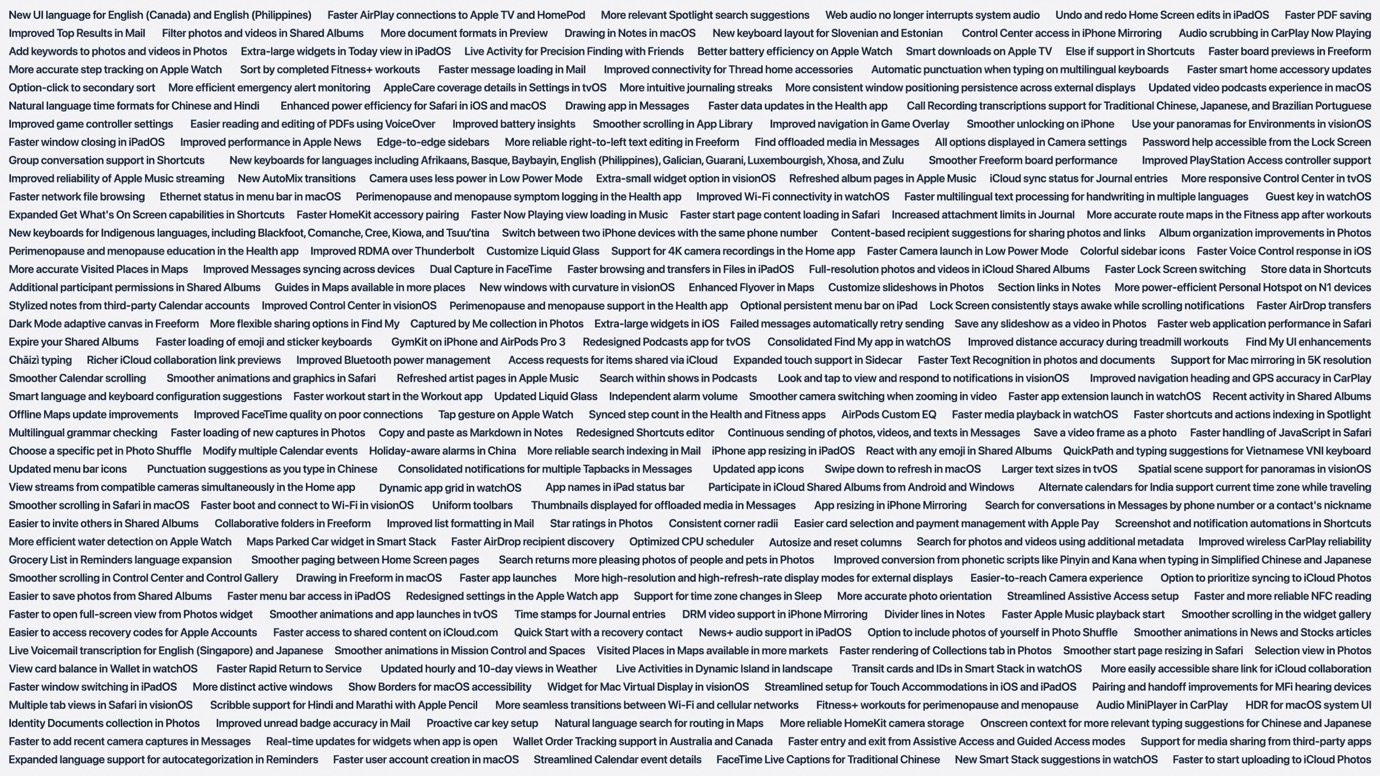
One of my favorite bits of most Apple events is picking out the little things that Apple doesn’t talk about in its keynotes. At WWDC 2026, however, a lot of those little details did get mentioned—but if you blinked, you might have missed them.
During its discussion of platform improvements, Apple zoomed out on a small-text screen of many of the changes coming in its platforms this year—and there are a lot of them. Good news, now you can read at your own convenience—still in very small text.
Click to see full size. (Source: Apple)
I’ve been skimming through these items to pull out some of personal highlights. As I’ve said before, these quality of life improvements are among my favorites because I generally want to see the quality of my life improved. Who doesn’t?
At a glance, here are some particular favorites:
Else if support in Shortcuts – I’ve been requesting this for quite some time, and I’m glad to finally see it here. It seems likely that a lot of the improvements to Shortcuts are driven by the new “Describe a Shortcut” feature, which highlighted shortcomings in the app.
More consistent window positioning persistence across external displays — I’m a single display user, but I’ve heard this complaint for years from my friends and colleagues who use multiple monitors; here’s hoping it delivers for them.
Faster HomeKit accessory pairing — Honestly, it would be pretty hard for it to get slower, but this is definitely a place where a speed improvement is welcome.
Store data in Shortcut — Exactly what the mechanism for this is unclear, but having previously relied on third-party apps for this, a first-party solution is a good addition.
Improved Control Center in visionOS — I’m hopeful this allows for easier toggling between environments, especially now that you can create your own with panoramas.
Optional persistent menu bar on iPad — In case your iPad wasn’t Mac-like enough.
Expanded touch support in Sidecar — There’s always been a limit to using the standard touch interface in Sidecar; you could use two fingers to scroll or other gestures, or use the Apple Pencil, but you couldn’t just use a single finger. Interesting to see this improvement, along with the ability to draw in Notes and Freeform in macOS, right around the time we’re expecting to see the first Mac with a touchscreen.
Faster workout start in the Workout app — There were a lot of complaints about watchOS 26’s redesign of the Workout app, in particular making it harder to start workouts, so we’ll see if this addresses that.
Copy and paste as Markdown in Notes — Notes added Markdown export a while back, but now it’ll be even easier to work with the markup language.
Redesigned Shortcuts editor — 👀 Yeah. Vague, but again, it needs improvements, so I’ll take it.
React with any emoji in Shared Albums — I have a shared album of my pictures of my kid that my family can view, and while the thumbs up emoji is fine, it hardly covers every eventuality.
Updated menu bar icons — Another set of 👀 for that one.
Consolidated notifications for multiple Tapbacks in Messages — Thank god.
Screenshot and notification automations in Shortcuts — Automations are one of my favorite aspects of Shortcuts, and adding more potential triggers means even more options for how to kick them off.
As I said, there’s a ton more there—you can click through the screenshot above to see it at full size, but it certainly appears that Apple has spent a lot of time making these little improvements throughout all of its platforms this year.

 Login
Login